
Even with an abundance of documentation, there will always be some degree of trial and error with new features. Real life is pretty much always much nuanced than your typical 500-word blog post lets on.
I ran into a “gotcha” moment with Pardot’s recently-added capability to repeat automation rules that I didn’t find referenced anywhere. I’m sharing this story so that you can avoid any surprises when using this awesome new feature in your org.
What I WANTED the repeating automation rule to do
I had an easy peasy use case: RSVPs for an office party. My company had a small list we were targeting that included employees, long term clients, partners, etc – so a great audience for a little experimentation.
The basic logic – if the prospect RSVPs yes, send them a confirmation email and do some stuff. If they RSVP no, don’t send an email but do some other stuff.
The detailed set-up
So to put this into action, I created a custom prospect field called “Office Party 2017 RSVP” with yes and no as the response options. Then I created a Pardot form and landing page for the event RSVPs:
If a prospect completed the form to say they’ll be attending, then we wanted the automation rule to:
- send a confirmation email to the prospect
- add them to a Salesforce campaign with the status of “RSVPed Yes”
That looked a little like this:
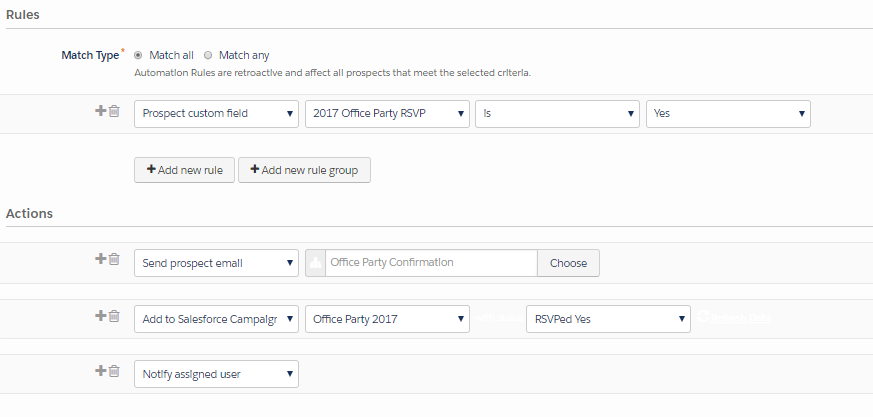
If a prospect completed the form to say “nope can’t come”, then we wanted to:
- add them to an “RSVPed No” suppression list
- add them to a Salesforce campaign with the status of “RSVPed No”
That looked a little like this:
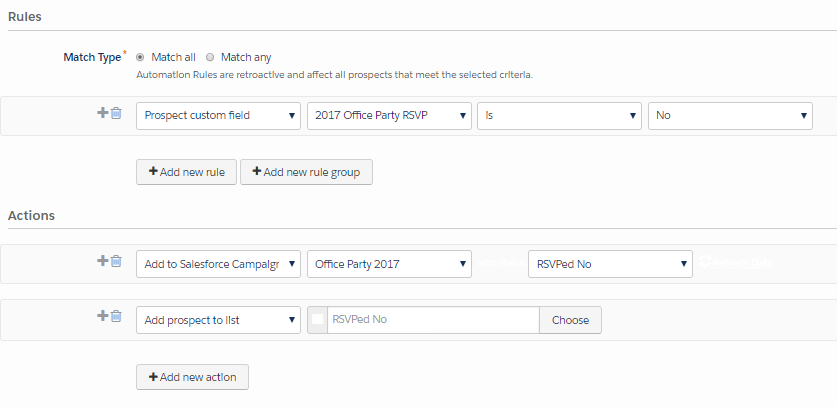
I turned on the repeat functionality for these rules, because for events like this, we often run into situations where people come back and fill out the form again to add additional colleagues to the list. We wanted to be able to re-send the event confirmation email triggered by the automation rule in these cases.
Seems like a fairly simple and straightforward use case, yes?
What the repeating automation rule ACTUALLY did
So, this didn’t quite behave how I was expecting.
Turns out, if you check the little “Repeat Rule” box, and a Prospect meets the criteria… and continues to meet it… it will keep firing. Over, and over, and over.
In this scenario, the first rule was checking all prospects to see if they had RSVPed Yes. If they did, *boom*, confirmation email sent and add that prospect to the Salesforce campaign.
Then the next day… it checked all prospects again to see if they had RSVPed Yes. If they ever had (today, yesterday, the day before) and the field value was still “yes,” then *boom*, confirmation email sent and add that prospect to the Salesforce campaign. Even if that prospect had matched the automation rule prior and the actions had already been applied.
In other words, Pardot was just looking to see if the prospect met the criteria, yes or no — it wasn’t just looking to see if any NEW prospects met the criteria (which is the behavior I would expect, and is more consistent with how Salesforce workflow rules operate).
TL;DR: people who signed up for the bash got a confirmation email Friday, Saturday, and Sunday before I fixed it on Monday morning. Face, meet palm.
How to fix it
The fix was super simple: adding a step in the match criteria referencing the form submit. Like so:
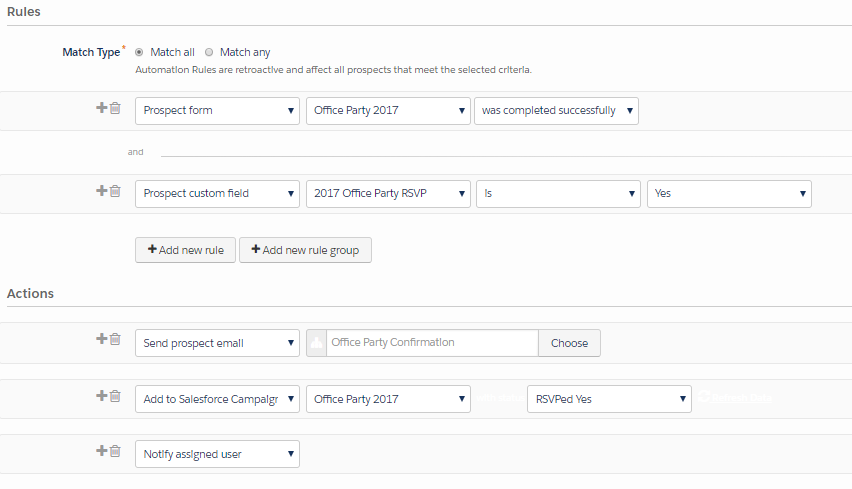
Apparently, this rule criteria DOES operate by looking to see if any NEW prospects meet the criteria instead of re-matching anyone who has ever submitted it.
Lessons learned? If you’re using time-delayed actions or repeat rule functionality, try to leave yourself enough time to run a real test. I know, I know, this isn’t always feasible if you’re on deadline and you have automated actions taking place over several days… but a girl can dream, right?
Also, take the “best practice” examples shared on the interwebs with a grain of salt. Re-reading a few of the blogs I consulted before building my rule, I realize now that these were 100% theoretical – because they would have run into this exact same issue had their authors actually executed them in real life following the step-by-step they shared.
So what’s YOUR story?
If you’re willing to be an open book for a moment, I’d love to know — what’s the most cringeworthy mistake you’ve made in email marketing? If you’ve been doing this for more than 5 minutes, you know you’ve got one.
Share in the comments, or if you’re not quite ready to broadcast it, ping me at [email protected]. I’m working on a little project related to this…