Category

API & Integration

Marketing Cloud Engagement is a great tool and it offers a wide range of functionality and various capabilities. But, as with all software, there are always limitations that leave you wanting more. That’s where Marketing Cloud extensions become essential.

Thanks to the strong Salesforce ecosystem, the openness of the platform, and the love it receives from its customers, users, and enthusiasts, there are so many extensions, apps, and add-ons that can help enhance your Marketing Cloud experience.

Listed below are some of my favorites from my seven years of working with Salesforce Marketing Cloud (SFMC).

Top Marketing Cloud Extensions

SFMC Companion

This Chrome Extension is a fond favorite of mine and it is particularly useful for those “busy” Marketing Cloud accounts and for anyone who spends hours down rabbit holes trying to understand whether a particular Data Extension is still being used, or is even still relevant.
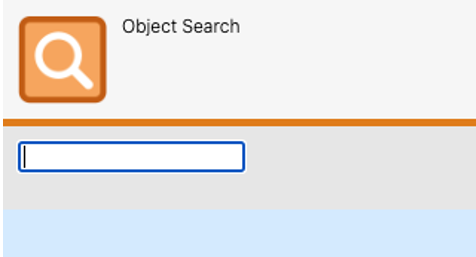
SFMC Companion offers a useful search functionality that allows you to look for any asset or object using a free-text search field. Furthermore, whilst on any SFMC asset or object, the ‘Inspect’ tool will show all components referencing or using that particular asset or object.
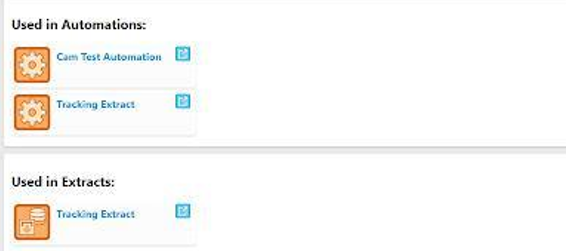
Thanks to SFMC Companion there is no longer a need to have several tabs open simultaneously just to understand whether a Data Extension can be deleted. 

Evergage Launcher

This might technically be cheating as it’s practically a necessity for implementing Marketing Cloud Personalization but I’ve always enjoyed using it.

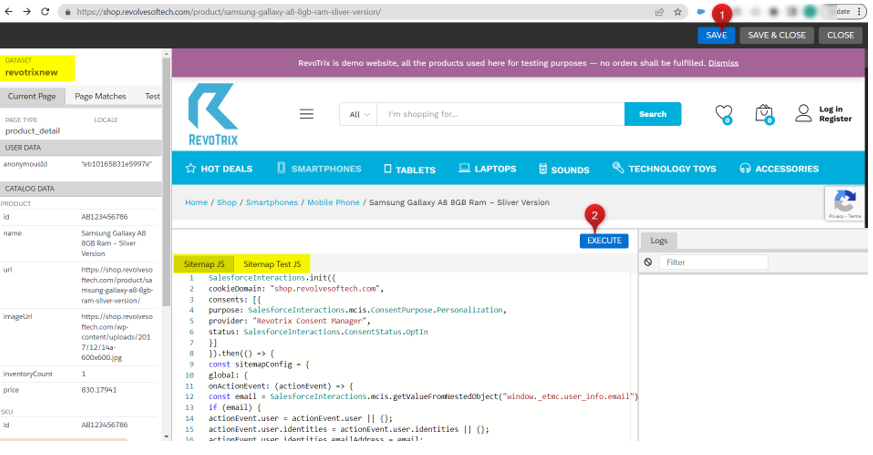
This extension helps identify whether the Marketing Cloud Personalization (MCP) SDK has been added to the website, so you no longer need to pester your IT team, and it is also where you can launch the Visual Editor. 
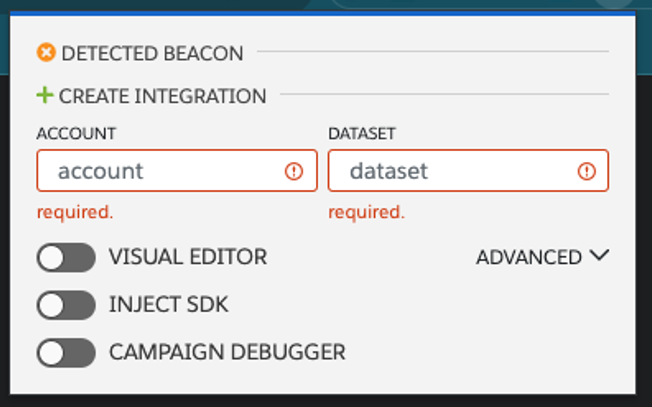
The Visual Editor is by far the easiest way to build your JS Sitemap, which is a huge part of any MCP implementation. Users also have the ability to see their work whilst on the page – this comes in handy when creating personalization campaigns, another feature accessible via the Evergage Launcher. 
Salesforce Inspector

Whilst this is not specifically related to SFMC, it is worth installing. Most SFMC accounts use Salesforce CRM data (it’s very rare not to have Marketing Cloud Connect).

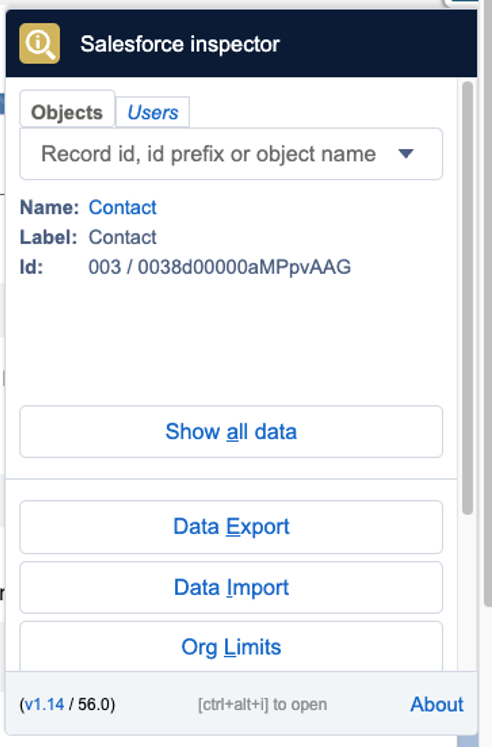
Therefore, with such a reliance on Core Salesforce data, this extension can save you a lot of time. If you quickly need to check the API field names or the field type, or even example values, Salesforce Inspector is your tool.

Furthermore, Salesforce Inspector lets you easily import and export data which is incredibly useful if you need to prepare test data for UAT.
Top Marketing Cloud Apps

It’s worth mentioning that for the following section, I’ve loosely used the term “Apps” as it covers everything from App Exchange products to Mobile Apps.

Query Studio

Perhaps one of Marketing Cloud’s best-kept secrets, but Query Studio is an incredibly useful app to add to your SFMC instance. If you’ve ever wanted to test your SQL skills without having to create an automation, then this might be for you.
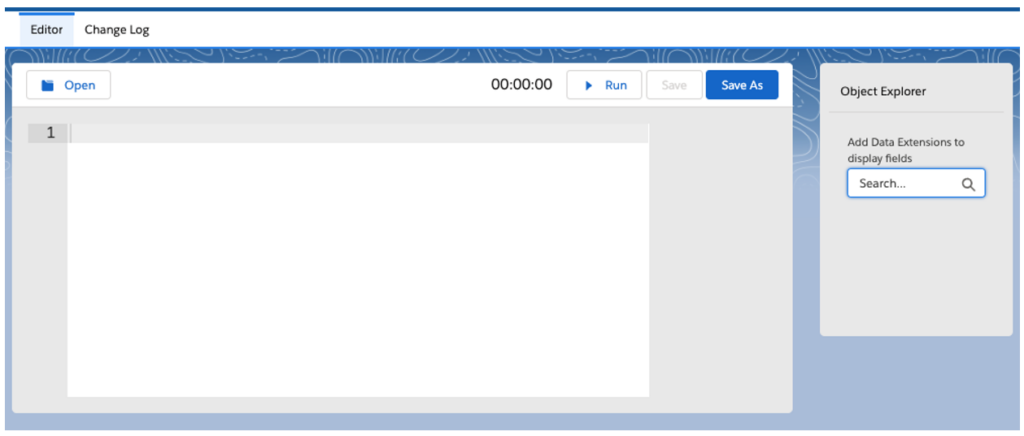
Query Studio allows you to quickly build queries in the Marketing Cloud without needing to create and configure an automation. Once you’re happy with your selection, Query Studio can use your query to create Data Extensions automatically.

Marketing Cloud Mobile App

Ever needed to quickly track email performance or to check that you definitely paused that Journey, but you don’t have access to your laptop? The Marketing Cloud Mobile App might just be able to help.
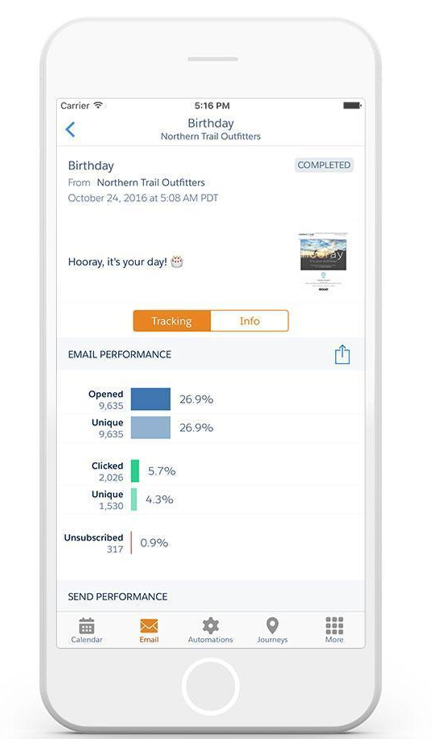
However, whilst it’s useful to have instant access to your SFMC account with just your phone, it is worth pointing out that there are some SFMC features that are not available in the mobile App, so don’t throw away the laptop just yet.

You can find the app in both the Google Play Store and Apple Store.

SiteCore

Technically two for the price of one as there is both a Web CMS app and a DAM app but they’ll both help bolster your SFMC instance with the world-leading CMS. Although, it is probably worth pointing out that these apps are far from cheap.
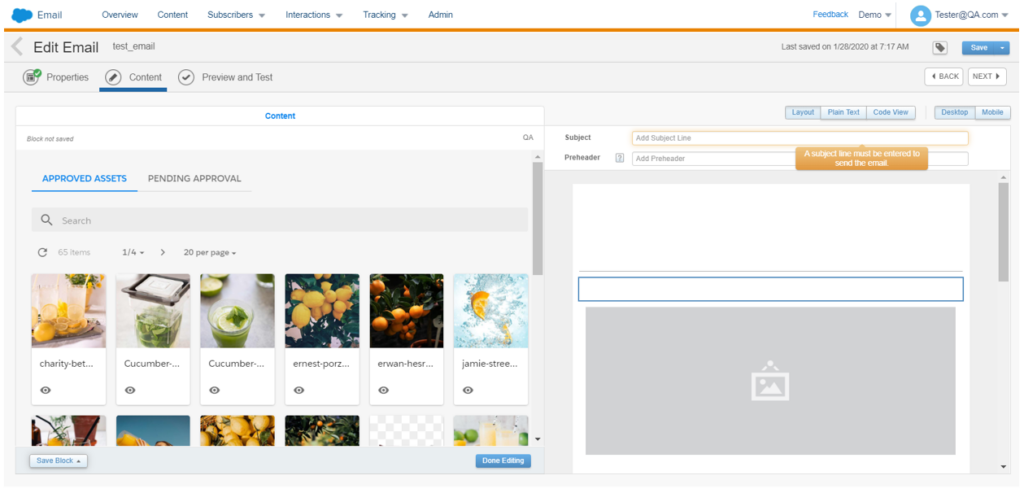
If, however, you’re lucky enough to have one of these licenses, you can drag-and-drop approved SiteCore assets directly from the SFMC Email Editor. Alternatively, you can send contact data and behavior back to your Sitecore Experience Database to close the loop on asset performance.
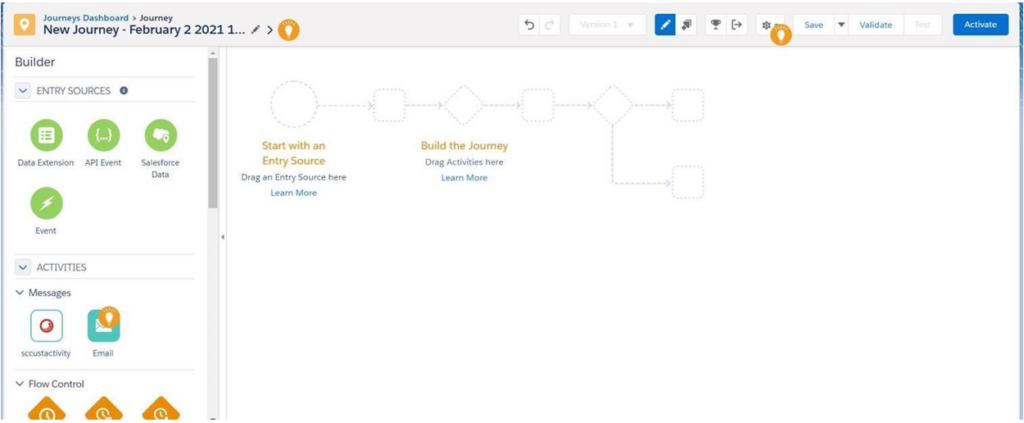
DESelect Segment

Full disclosure, I’ve never had the pleasure of working with this particular app but I had to include it as it solves, what I think, is one of the biggest issues SFMC clients face when procuring SFMC… segmentation. DESelect brings drag-and-drop segmentation to Marketing Cloud and reduces the need for marketing teams to have SQL knowledge.
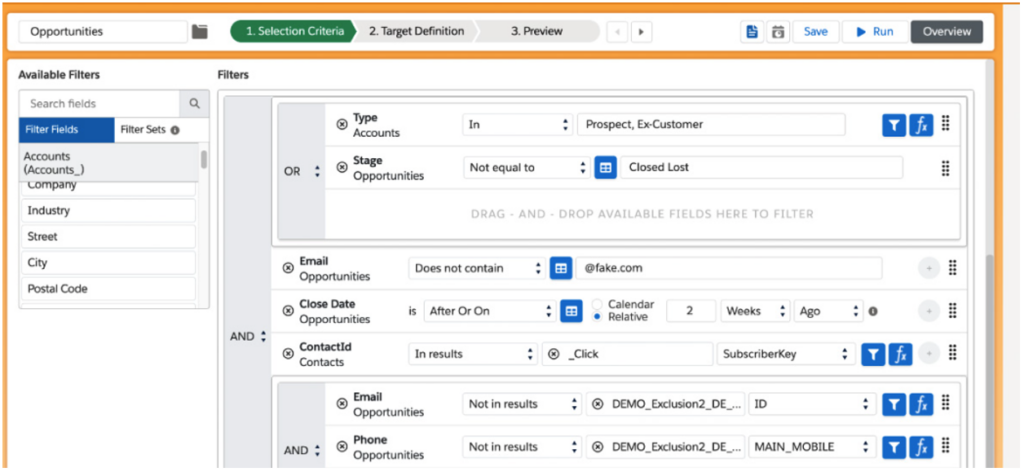
Again, it’s worth pointing out that whilst there is a free version available you will have to pay to increase usage, users and features (i.e., saturation control and deduplication). However, depending on your team’s skillset this app could well be worth considering.

Bonus Content

If the technical skills aren’t your team’s forte and AMPscript is constantly causing you trouble, check out ampscript.io, a useful tool that helps validate AMPscript code and highlights any AMPscript that may result in potential syntax errors.

Get more details about AMPscript in this blog post from Kayla Border.

Top Marketing Cloud Add-Ons

SalesWings

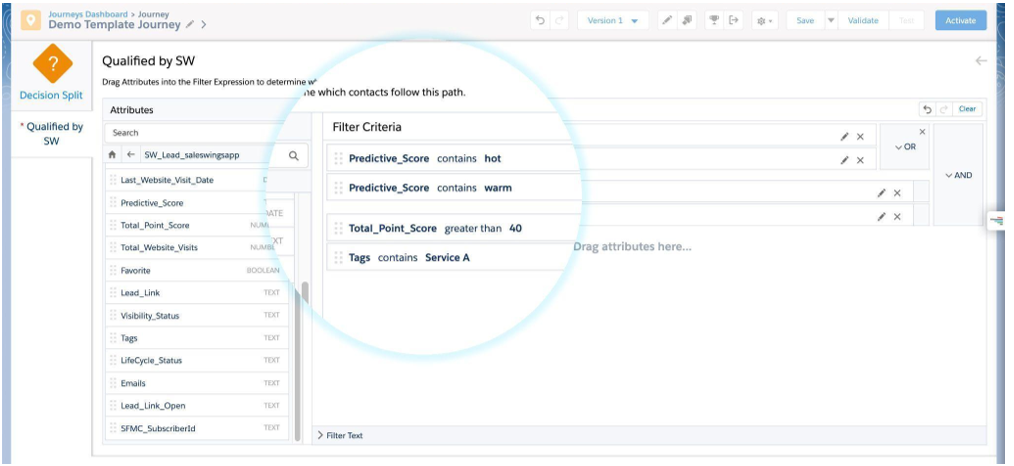
Ever needed Lead Scoring in SFMC? Say hello to SalesWings! This add-on is easy to install and is a highly cost-effective way of plugging the SFMC Lead Scoring hole.
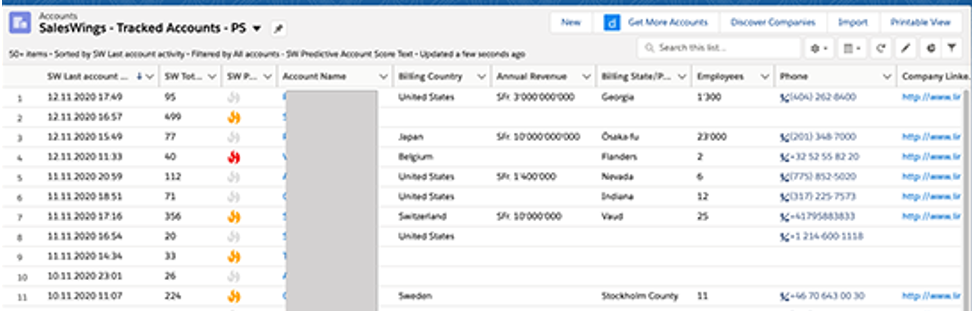
SalesWings tracks website activity and couples it with data from CRM before scoring and grading customers using a flexible scoring model. SalesWings data can be shared with Salesforce CRM as well as used in future SFMC segmentation.
Litmus

If you’re lucky enough to have both a Litmus and SFMC account, then you should definitely consider integrating the two. Yes, SFMC allows you to preview emails, but with an integrated Litmus account, you get so much more.
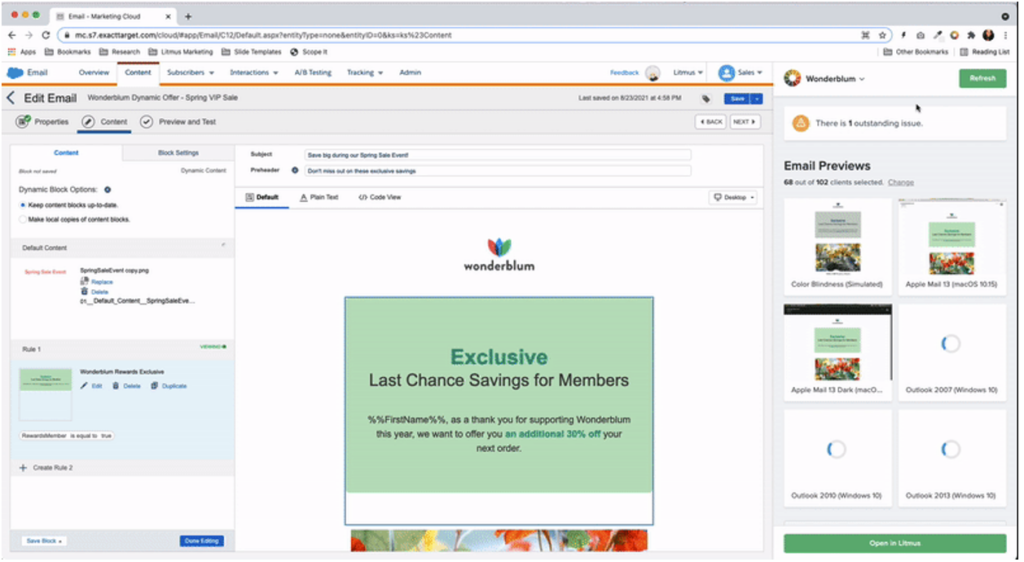
With an integrated account you can sync emails from the Litmus builder to SFMC or build in SFMC and test as you go. You can test dynamic content and individual personalization with the integrated email previews and, perhaps most impressively, share email performance with Litmus to create a single view of performance.

Use Marketing Cloud extensions to make the most of the platform

Going back to my previous comment, all software products have their limitations, but it is Salesforce’s ecosystem that has encouraged enthusiasts to build upon its offerings which, as shown above, has led to some innovative solutions that could give your SFMC instance that much-needed capability boost.

So if you’ve been contemplating if the grass is greener on the other side it could be worth exploring the depths of the Salesforce Community — chances are there is already a solution to your problem out there.


Before the advent of Data Cloud and Customer Data Platforms (CDPs), businesses strived to integrate their data into their CRM to obtain a holistic view. If you’re considering another expansive platform, there’s an excellent interim solution to consider: the Campaign Audience Builder (CAB).

Where to get Campaign Audience Builder

The Campaign Audience Builder is a package on the Salesforce AppExchange developed by Lightblaze. Known for its user-friendly interface, CAB allows you to create audience segments using your Salesforce data, making it an efficient substitute or preliminary step towards a full-scale CDP solution.

Campaign Audience Builder Ease of Use

Campaign Audience Builder has a simple point-and-click interface that allows you to navigate and filter data related to the people you are trying to add to an audience.  It simply gets installed alongside your data and has a very short implementation time (I was up and running in 10 minutes).

Once installed, it really is a 3-step process of getting your first audience created and usable:

  1. Define the Criteria: as a techie myself, this was really the fun part. Connecting data and filtering the right records feels natural and familiar.
  2. Generate the Audience: This is basically running the process based on all the work you did in the previous step to see who matches. As always, it’s a great idea to spot-check that some people you expected to appear were successfully matched!
  3. Populate the Campaign: you have your list of people, it is time to put them somewhere that you can act on. This is when you choose which Campaign to use, how often the audience should be evaluated, and if people should be removed should they no longer meet your criteria.

Unlike CDPs and other types of data platforms, which require accommodating complex data relationships and aren’t always user-friendly, CAB offers a seamless alternative.

Advanced Segmentation Features in Campaign Audience Builder

Looking for Contacts that have Closed Won Opportunities with Products in a certain Product Family? Yep, Campaign Audience Builder can do that. 

Do you also want to ensure those same people don’t have a Case?  Yep, you can do that too. 

While not unlimited in its power, there’s no data scenario that you cannot segment with CAB (compared to report builder or segmentation in Account Engagement).

CAB allows you to select either a Lead or Contact as your audience driver and connect it with any related object. After defining your audience, you can populate a Campaign by creating CampaignMember records. CAB also provides controls on how frequently your audience should be evaluated and whether it should clean records that no longer meet your criteria.

With your audience defined, you can now use that information to populate a Campaign by creating CampaignMember records. You have some controls on how often CAB should be building your audience and if it should clean CampaignMember records that no longer meet the criteria.

Integration and Data Security

CAB stands out with its ability to directly publish the audience into Account Engagement (Pardot) into a static list. This feature eliminates the need to clumsily attach data to the Lead/Contact records for list population.

A key feature of CDPs is the ability to “act” on the new audience that you’ve created in downstream systems. While CAB doesn’t really integrate with a bunch of other third-party tools, it can call APEX/Flows (where you can do almost anything integration-wise).

Data security is paramount for Salesforce organizations. Moving data into other systems like data platforms or CDPs can potentially jeopardize these security controls. Since CAB operates within your Salesforce organization, it only accesses the data you can, thereby ensuring data security.

CAB may be the stepping stone you seek

In summary, the Campaign Audience Builder (CAB) offers a user-friendly, efficient, and secure way to handle your Salesforce data. It’s a practical stepping stone if you’re considering a more complex Customer Data Platform (CDP) solution. 

With its easy setup, advanced features, and commitment to data security, CAB is a smart choice for businesses looking to maximize their data management and audience segmentation without taking on a full CDP solution just yet.

Thinking about implementing CAB in your org? Contact the team at Sercante to learn more about the tool and how it will work with your overall technology strategy.

Salesforce is introducing something pretty exciting for orgs that have little wiggle room while assigning licenses to Salesforce users. A new type of license called “Salesforce Integration User” is available now, and it’ll help you to save your user licenses for actual humans.

The Salesforce Integration User was introduced to facilitate best practices of using a separate license for any integrations that require an integration license to integrate with Salesforce. That includes integrations like Docusign and MuleSoft.

This license is specifically designed for System-to-System Integration types and provides the user with API Access Only.

How many Salesforce Integration User Licenses Do We Get?

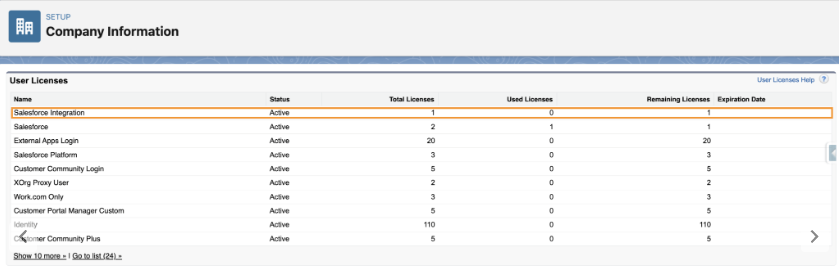
All orgs will have 5 free Salesforce Integration User Licenses available to them, and additional licenses are available to purchase for about $10 each (customers should speak to their AEs regarding the purchase of additional licenses).

Salesforce Integration User License Setup

You can verify the number of integration user licenses available to you under Company Information > Setup.

In addition to the new licenses, a new standard profile called ‘Salesforce API Only System Integrations‘.

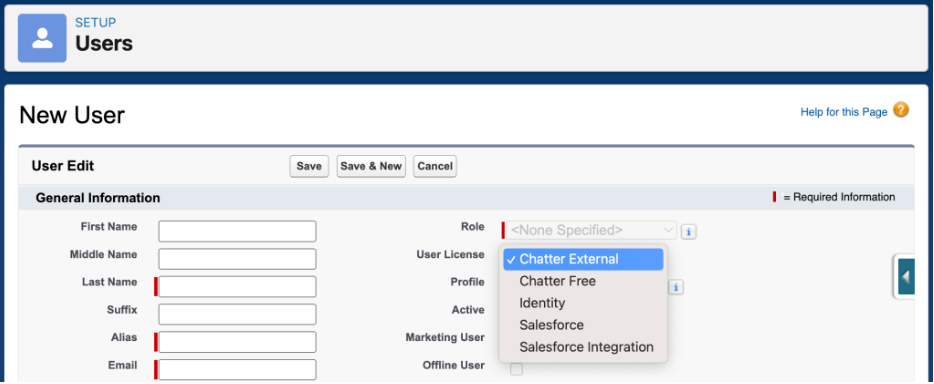
NOTE: When creating a new user with the Salesforce Integration User License, this will be the only profile available.

Creating a Custom Profile for the API Only System Integration User (System Permissions)

Since the new ‘Salesforce API Only System Integrations’ profile is a standard profile and therefore can’t be updated, it is recommended that you create a new profile by cloning the Salesforce API Only System Integrations (not System Administrator) for integration users in order to customize the permissions:

  1. Go to Setup > Profiles
  2. Locate the ‘Salesforce API Only System Integrations’ profile and click Clone.
  3. In the Permission set, go to System Permissions
  4. Enable the following permissions:
    • Password never expires – doing this prevents the password from expiring while someone is out of the office with no one available to update it across integrations
    • API Enabled
    • Api Only User
    • Chatter Internal User (optional)
  5. (Still under System Permissions) Make sure ‘Multi-Factor Authentication Login Requirements for API Access’ is not enabled

Create a Custom Permission Set for the Integration (Object Access)

  1. Go to Setup > (Quickfind) Permission Sets
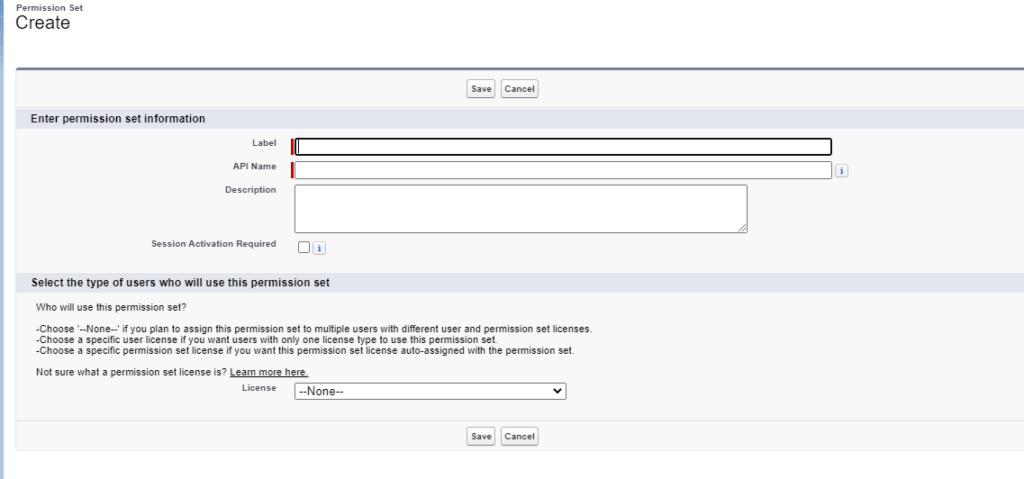
  2. Create a new permission set
  3. Name your permission set to reflect the permission for this integration. For example “Integration – ZoomInfo”
  4. Leave the License Type empty “–None–”
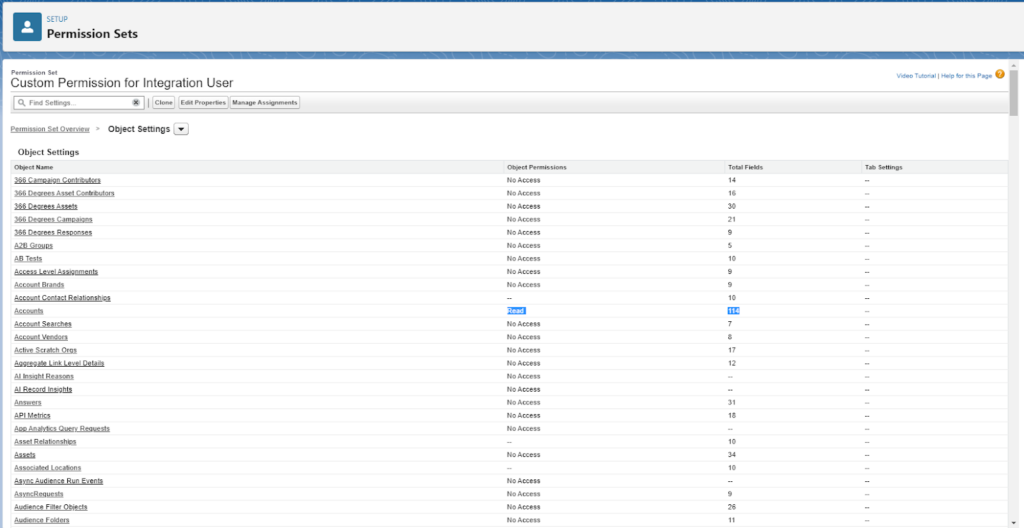
  5. Add the following to the Object Settings for each object the integration needs access to:
    1. Object CRUD access (Create/Read/Update/Delete/View All/Modify All)
      • This example is for adding access to just the Account object to the Integration User.
    2. Field-level access (Read/Edit) for each field on the object
    3. Remember the principle of least privilege – we want to grant access only for the actions that the integration needs.
      • In particular, keep in mind custom record types that are deployed by integrations’ own packages

Creating an Integration User

To use one of these licenses, it is recommended to:

  • Create a new user for each specific integration (if there is not a dedicated license already)
  • Assign the Salesforce Integration license (or you can change the license or if you already have a dedicated user for the integration)
  • Give the user the Salesforce Integration API permission set license.
  • Add the custom permission set you created above.

Validate

Once your user is set up:

  • Add the new integration user credentials in the integration platform (the steps may vary based on the integration)
  • Test the integration to confirm the integration is working the way it should.
    • For example, are records being updated as expected?

Considerations

  • The Salesforce Integration user license is API Access Only, meaning that it is not suitable for non System to System integration uses. Users with this license will not have access to the direct user login or access the org through the UI.
  • With the new licenses, it is still recommended to use one integration user per integration to ensure traceability of the transactions that the integration has within Salesforce.
  • If you are moving an existing user to the integration user license, the new ‘Salesforce API Only System Integrations’ profile, may not have all the object permissions needed. Any specific permissions needed may need to be assigned using permission sets.
  • Pardot API users are usually better met with the Identity User License, but if there are reasons to use this license (Oath2 Client Credentials) the Integration Connector User permission set is what will need to be applied to grant Pardot record access. Users using this license may not appear in User Sync until after you manually create and connect a Pardot user.
  • A custom permission set granting object and field access is preferred over doing this in the profile as permissions in profiles is scheduled to be sunset Spring of ’26.

Additional Resources

Special thank you to Heather Rinke, Larry Harvey, and Mike Creuzer for contributing to this post.

The final day of MarDreamin’ 2022 kicked off with the third-annual Demo Jam, which is like speed dating for SaaS/technology product solutions. Each participant shows the audience what there is to love about the products they’re selling, and then the audience votes to select a winner.

MarDreamin’ is a Salesforce community conference for the marketer. So, this Demo Jam’s focus was on products that play nice with Salesforce Marketing Cloud Engagement and Account Engagement (Pardot).

Each participant had three minutes to present their product demo. Then, demo jam attendees weighed in with their votes after all company representatives finished their presentations. We crowned the MarDreamin’ Demo Jam Champion at the end thanks to everyone’s votes.

2022 MarDreamin’ Demo Jam Winners

This year, we had a tie and named two MarDreamin’ Demo Jam winners. The two winners are Stensul and Sercante Labs. 

Both Sercante Labs and Stensul were neck-and-neck in the end, and the hosts had to call it a tie when a few last-minute votes left both companies with the same number of votes at the end.

MarDreamin’ Demo Jam rules

Each participant had 3 minutes to demo their product and wow the audience. Then at the end of the Demo Jam, the audience voted for their favorite product through an online poll.

2022 MarDreamin’ Demo Jam participants

Richard Feist and Angelica Cabral from Sercante shared Demo Jam hosting duties and provided welcome comic relief while giving away swag to attendees throughout the competition. 

Here’s who presented their products to compete for the best Salesforce Marketing Cloud-integrated  solution:

How the products from the Demo Jam can make your life easier

Each of the presentations at the MarDreamin’ Demo Jam included demonstrations of products that ease pain points for people who work in marketing roles and use Salesforce. 

Here’s a summary of each one and a replay of each demo:

LeanData

Standing at the center of Salesforce CRM, LeanData’s family of solutions orchestrate and automate the go-to-market process to help revenue teams close more deals and drive more revenue, faster.

Click here to request a demo from LeanData’s suite of products.

Sercante Labs

Sercante has grown and built a reputation for helping marketers succeed on the Salesforce platform. We do that through our consulting services, topical training, and by sharing thought leadership content. With Sercante Labs, we take that one step further and aim to build products, wizards, and tools that help marketing & sales pros kick ass.

Sercante Labs products are born out of challenges we see our customers routinely facing and usually start with an idea submission from our team or someone in the community. If you have a request or a “wouldn’t it be nice if…” idea, let’s chat!

Click here to chat with a Sercante Labs expert.

Stensul

The Stensul™ email creation platform dramatically reduces email creation time — by up to 90% — so teams can better focus on improving email performance. Stensul streamlines collaboration and simplifies the creation process for all marketers, so they can create emails that drive stronger results. 

Stensul integrates with all leading ESPs/MAPs as well as workflow platforms, image libraries, live content, link tracking, and messaging platforms. Top brands that trust Stensul to solve their most demanding email problems include Accolade, BMW, Cisco, Codecademy, Electric, Equifax, Lucidworks, MURAL, and Yahoo.

Click here to get an email efficiency analysis from Stensul.

Stack Moxie

Anyone who has managed a complex tech stack has experienced how minor inconsistencies can wreak havoc across integrated systems.

Typos, spelling errors, permission sets, and other simple problems can break systems sync, preventing proper lead routing, which stops the sales team from knowing when great leads are interested in your company.

Stack Moxie’s army of robots work on your behalf to make sure each lead promptly reaches its destination as expected. If errors arise, the robots proactively notify you so problems can be mitigated quickly.

Click here to request a personalized demo.

DESelect

DESelect helps marketers unlock the full power of Salesforce Marketing Cloud without needing to write SQL. Using DESelect’s simple drag-and-drop solutions, users can create complex audience segments quickly, easily integrate new data sources, accelerate campaign execution, and reduce costs by ending technical dependencies. 

Since launching in 2019, DESelect has raised $5.5+ million, built an international team, and helped customers like T-Mobile, Volvo, Cazoo, Emerald, and Merlin.

Click here to book a demo.

Tray.io

Tray.io is a low-code automation platform that can easily turn unique business processes into repeatable and scalable workflows that evolve whenever business needs change. Powering RevOps at Mixpanel, AdRoll and other industry leading enterprises, Tray helps you accelerate revenue and win more deals.

Click here to start your trial.

Why were these companies’ products featured?

The companies featured in the MarDreamin’ Demo Jam are all essential to the success of this conference each year. That’s because they are companies that sponsor the conference. 

The MarDreamin’ team can’t bring all this free content to you without the help of these sponsors. So, be sure to check them out using the links above as a ‘thank you’ to them for their sponsorship.

How to join next year’s Demo Jam

Hey, product marketing friends — you’re probably  kicking yourself and wishing you could have had your company’s tools featured in the Demo Jam. 

It’s all good. You can get ahead and reach out to the MarDreamin’ team now by clicking on this link. Complete the form on that page so you can lock in your sponsorship for 2023.

Learn more about extending Salesforce

We hope you’ve found something helpful through the demos or have sparked ideas to implement integrations in your tech stack. Remember to watch the 2021 Demo Jam Replay and read the 2021 Demo Jam Recap to see the demos from last year and keep it going. The 2020 Demo Jam Replay is also available here.

Have something in mind that you wish Salesforce could do but you haven’t found the solution yet? Tell us about it in the comments below or reach out to Sercante Labs to see if we can help. And remember to check out each of the Demo Jam participating companies!

Alas, Salesforce External Actions for Pardot is finally here.

Until now, our options to have Marketing Cloud Account Engagement (Pardot) trigger a third-party system have been limited to either: pre-existing connectors or syncing to Salesforce and relying on a Salesforce-side integration. 

With the Salesforce Winter ‘23 release, External Actions gives us the capability to integrate into any third-party system and do cool things.

Note: This feature is available to Plus, Advanced, and Premium editions of Pardot.

The Lowdown on External Actions for Pardot

External Action allows Pardot to do things like: 

  • Send an SMS message via Twilio or MogliSMS
  • Create a new Salesforce record (such as Lead, Opportunity, any Object!)
  • Send information to your favorite Star Wars API
  • Register a Prospect in another system
  • and whatever else you dream up! 

While there are some considerations (detailed later in this post), External Actions are a great way to plow through the barriers that have prevented you from automating your entire workflow. 

It’s important to note that there’s a similarly named feature called External Activities.  With Pardot External Activities, you can receive data from third-party systems to use in Pardot. With External Actions, you can send data to third-party systems so they can do cool things.

How does a Pardot External Action work?

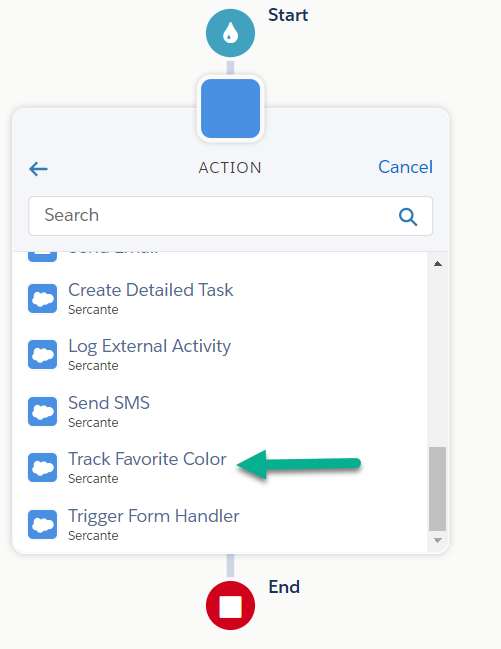
Once an External Action is built, it will appear as an Action option in an Engagement Studio Program. Depending on the action, you may need to provide additional information through text inputs. You can use HML Merge Tags here, too!

When the Engagement Studio Program is running and hits your action, Pardot will call into Salesforce (via API behind the scenes), and call the functionality.  It does this in a “fire and forget” manner, so there’s no error handling inside your Engagement Studio Program. It is also not “bulkified,” meaning it will make an API call for EACH Prospect. So, you may need to take the API limits of Salesforce AND your external system into consideration.

For this blog post, we built an External Action that tracks Favorite Color. 

Once you pick “Track Favorite Color” you have the ability to provide a value. In the screenshot below, we are using HML to pull this value from a Prospect’s record, though you can also provide static text if you want to say everyone’s favorite color is Sercante Green.

How can I set up a Pardot External Action?

To set up an External Action, there are 2 key pieces:

  1. You need something in Salesforce that can “do the thing” you want. It can be any of the following:
    • Autolaunched Flow
    • External Service
    • APEX InvocableMethod
  2. Marketing App Extensions have been configured inside Salesforce Setup

No-code options to configure Pardot External Actions

If you are looking to integrate with a third-party system, you might luck out on #1 and be able to leverage something built by that third-party in their Salesforce package. This could be your quickest way to being able to use an External Action.

If this isn’t available for you, first look at seeing if you can make an Autolaunched Flow that can meet your needs. This option is also great for creating Salesforce Records of any object type (keeping in mind you are limited to text input types in Pardot).

When working with another API, and if that API supports the OpenAPI protocol, you can use Salesforce External Services to hook things up. That will give you everything you need.

 The Trailhead Module on External Services is a great way to learn how to get started.

Code option to get started with Pardot External Actions

If the above aren’t an option, it’s time to break out your development skills (or work with someone who has them). We’ve got a sample APEX class here that gives you all the structural ingredients you need to make this work, you just have to fill in what you want it to actually do.

public class MyNewExternalAction {

    // Classes to be used by the Flow Designer
    public class FlowRequest {
        @InvocableVariable(label='Prospect Email')
        public String email;
        @InvocableVariable(label='Favorite Color')
        public String favColor;
        // add any other String or number-based attributes you need
    }

    // If you are calling an External API, this would be a great
    // place to put Classes to represent the response
    public class ApiResponse {

    }
    
    @InvocableMethod(callout=true label='My New External Action')
    public static void performActions(List<FlowRequest> flowRequests) {
        System.debug('Start performActions');
        // at time of writing, Pardot DOES NOT BATCH these, it's always 1
        // per batch
        FlowRequest flowRequest = flowRequests.get(0);
        System.Http http = new System.Http();

        try {
            // This is where you put what you want to do!
            // you can call another API, call other APEX
            // read & write Salesforce Objects.. Whatever you want

        } catch (Exception e) {
            System.debug('There was an issue executing the request');
            System.debug(e.getMessage());
            throw e;
        }
        System.debug('Done performActions');
    }
}

Once you have the functionality ready, you need to tell Pardot about it. This is done by configuring Marketing App Extensions inside Salesforce Setup.

Configuring the Marketing App Extensions

This is the “glue” that ties everything together and makes External Actions usable by Pardot. There are a few easy things to configure to make this “glue” work.

First, we need the Top-Level Marketing App Extension. Be careful with these, as you cannot delete them once created (so don’t go making a bunch of test records!).

  1. In Salesforce Setup, search for Marketing App Extensions
  2. If you don’t have one, create New
    • Provide an Extension Name and an API Name, as well as check “Active in Automations”
    • Click Save

Next, we need to enable this for Business Unit(s).

  1. With the Extension still open, go to the Related tab
  2. Click New beside Business Unit Assignments
  3. Add an assignment for each Business Unit you want this extension to be available for

Now we can create the External Action.

  1. With the Extension still open, go to the Related tab
  2. Click New beside Actions
  3. Provide an Action Name (this will be the name visible when selecting it from Engagement Studio)
  4. Provide an API Name (this does not auto-fill like you may be used to)
  5. (Recommended) Provide a description of what this Action does, since you might not remember in three months
  6. Search for your functionality. Once selected, the Action Schema will auto fill with JSON that you need to review and likely modify
  7. Review & Modify the Action Schema
    • Properties – this contains details about the parameters/values that you want to provide to the Automation.
      • type:  currently can only be “string” and “number”
      • title: the Label of the input when viewing in Engagement Studio
      • value: Allows you to provide a default value. You can use HML merge tags here!
      • Note: Sometimes when working with Flows, you might have properties that are not relevant (like flow interview id). You should remove them from Properties (assuming they aren’t an input variable that your flow requires to function)
    • View Components – this allows you to specify which properties you want to provide inputs for in Engagement Studio. Currently, definition should always be “lightning/control” and “scope” should always point to one of the properties
    • Required – a list of properties that would be required from within Engagement Studio
  8. Action Params auto fills, no changes needed
  9. When you are ready to have this available in Pardot, check the Active in Automations box.

Here’s what it would look like for our sample APEX class above. Note that we’ve chosen to only display the favorite color field in the Engagement Studio, though we are passing the Prospect’s email behind the scenes.

Save the Action and, after a few moments, it will be available for testing!

Can I use an External Action to do things in Pardot?

Imagine being able to take action on another Prospect record from an Engagement Studio Program! While not natively available within the platform, you could build this when combining External Actions with our Free package Flow Actions for Pardot. After setting up the package, you would only need to configure the Marketing App Extension to have any of our Flow Actions available as an External Action.

Create Unified Experiences with Pardot External Activities

External Actions are available with the Winter ‘23 release. These Actions, as well as External Activities, allow Marketers to automate across platforms for a more unified experience. 

How do you plan on using these features to better automate your processes? Tell us in the comments!

Knowing the who, what, when, and how of Salesforce and Account Engagement (Pardot) sync behavior is key to understanding how you can use the integration to your advantage.

If you’re a newbie to Marketing Cloud Account Engagement (Pardot), then you may be wondering how in the world this system communicates with the main workhorse of Sales Cloud (Salesforce). 

Well, follow me my little pretties, as we look behind the curtain of the Wizard of Oz to find out how it really all works.  

1. The Who: Identifying the Wizard 

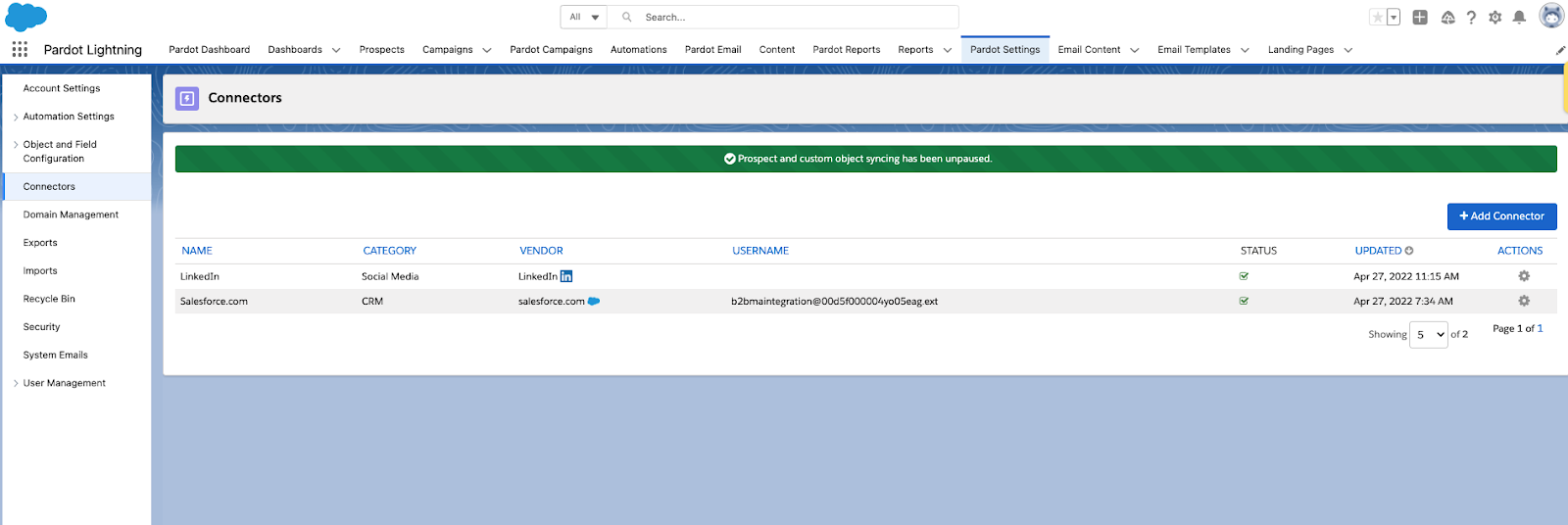
Unmasking the culprit behind the smoke and mirrors of the sync magic is not a difficult path to take. Just navigate to your Pardot Settings tab, and hang a left at the Connectors intersection. 

Here you will find the wizard who’s behind all of the shenanigans.

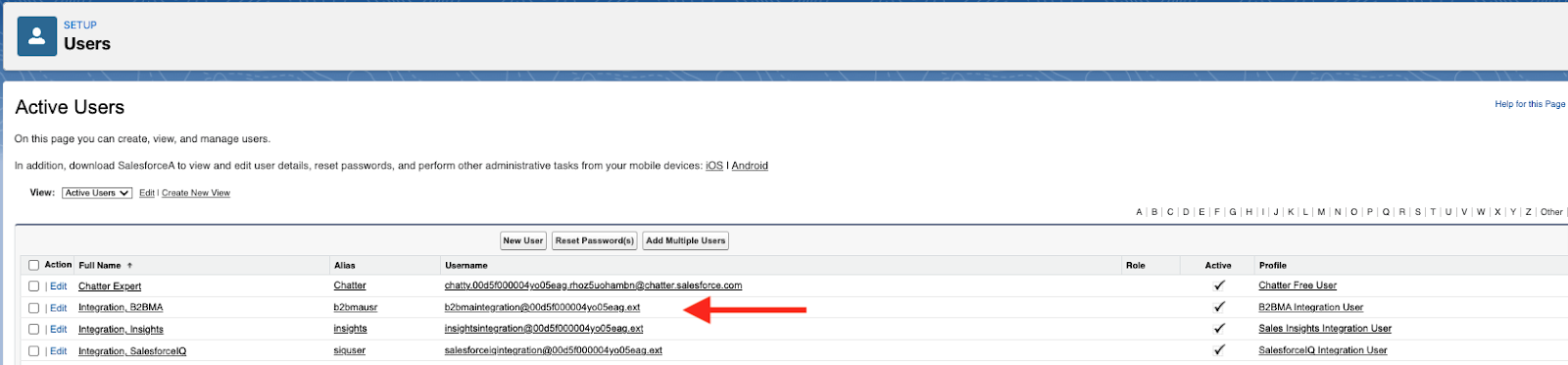
Enter the B2BMA Integration user. 

B2BMA Integration User controls Sales Cloud and Pardot Sync behavior

You can find the B2BMA Integration user in your Salesforce setup with the username similar to the following: [email protected] (see below).

This user comes out of the box with the installation of any new v2 MCAE/Pardot instance purchased after February 11, 2019. It’s a free Salesforce licensed user that serves as the handshake between both MCAE/Pardot and Salesforce (Sales Cloud). 

Chances are, you have this user available to you. If not, you likely have a custom connector user that’s tied to a company-specific/unique Salesforce username (and license) that’s in its place. 

Whichever username you have, the underlying matter is that this is the who the system looks to for direction and instruction on what will sync when the sync occurs. Whatever this user can see, will be what the system will sync when the sync takes place.

2. The What: Determine what will sync to Salesforce

You may be wondering, what do you mean, whatever this user can see? Well, I’m glad you asked.

Connector user access determines what will sync to Salesforce

To understand what will sync when the sync occurs, you first have to understand the fabric of the connector user. This user is special. Whatever this user can see — a la whatever visibility to record data this user has access to will be what is included when the Salesforce-Pardot sync transpires.

Heads up — Salesforce connector user gotchas

As a quick reminder, there are four out-of-the-box standard objects that the connector user can communicate with in Salesforce; that’s the Lead, Contact, Account, and Opportunity objects. The Account and Opportunity objects/fields have a read-only relationship and the Lead and Contact objects/fields have a read/write relationship. 

Your connector user (B2BMA Integration User or Custom Connector User) will determine what set of records will be included in the sync between both systems. The out-of-the-box B2BMA Integration User has View All/Modify All permissions for all lead and contact records that exist in Salesforce. Therefore, if this user is the selected user, then all records will have the capability to sync between both systems. 

If your Pardot system has a different user (i.e. Custom Connector User) with sharing rules set up to only have access to certain lead/contact records, or if you are using Marketing Data Sharing (Advanced and Premium editions only), then those records will be the only ones that will be synced when the sync ensues.

3. The When: Understand how often Salesforce and Pardot sync

Once the connector user has been set up and is in “play mode” (see below green ticker), watch the wizardry transpire.

The smoke machine behind the curtain is powered by a native feature that automatically syncs record and field data every 2-4 minutes.  Certain changes to prospect or lead/contact records will be pushed to Salesforce and certain information that is updated on Salesforce records, that have a matching MCAE/Pardot record, will be pulled into the corresponding prospect record. 

4. All Salesforce record changes are not created equal 

It is tempting to say that any changes to records will trigger a sync. However, this is not the case. 

The Salesforce connector user will only recognize certain “activities” when it’s ready to perform its regularly scheduled automated sync. Such changes to prospect records can be classified by the three types of activities: 

  1. System
  2. User
  3. Prospect

The following is a breakdown of each type of action that can cause a prospect record to queue for syncing.

System activities:

  • Any record changes to field values that occur because of an automation rule or completion action
  • Using the “Add to Salesforce campaign” in an automation rule, segmentation rule, completion action, or Engagement Program action
  • Changing/updating a Salesforce campaign status via automation rule, segmentation rule, completion action, or Engagement Program action

User activities: 

  • Performing a prospect import
  • Changing any prospect fields (including opting out prospects via import or manually)
  • Making changes to a Pardot campaign (for those who do not have Connected Campaigns)
  • Making changes to a prospects’ assigned user
  • Manually syncing from the prospect record (yes you can go the good ole fashioned route and manually sync an individual prospect record by pressing the “Sync with CRM” button on the Prospect record)

Prospect activities:

  • When a new or existing prospects submits a Pardot form 
  • When a new or existing prospects submits on a Pardot form handler 
  • When a new or existing prospects submits on a Pardot landing page form
  • When an existing prospect unsubscribes (globally opts out)

5. But what about Salesforce to Pardot?

While there are qualified activities that can cause a sync to trigger from Pardot to Salesforce, there are equally a few activities that can trigger a sync from Salesforce to Pardot. 

The following is a breakdown of each type of action that can cause a prospect record to queue for syncing.

  • Updating the Last Modified timestamp triggers a sync to Pardot for existing prospects
  • Updating a lead or contact email address
  • Updating the assigned user (owner) for the lead or contact record
  • Making field changes to a lead or contact record (Check the Sync Behavior setting on the MCAE/Pardot field to determine whether this value will “win” out when the sync occurs)
  • Updating a related account record in Salesforce for a lead or contact who is associated to a Pardot prospect.

And of course, i’ll queue up the trusty Salesforce knowledge article disclaimer/recommendation below:

6. The How: Connector Preferences

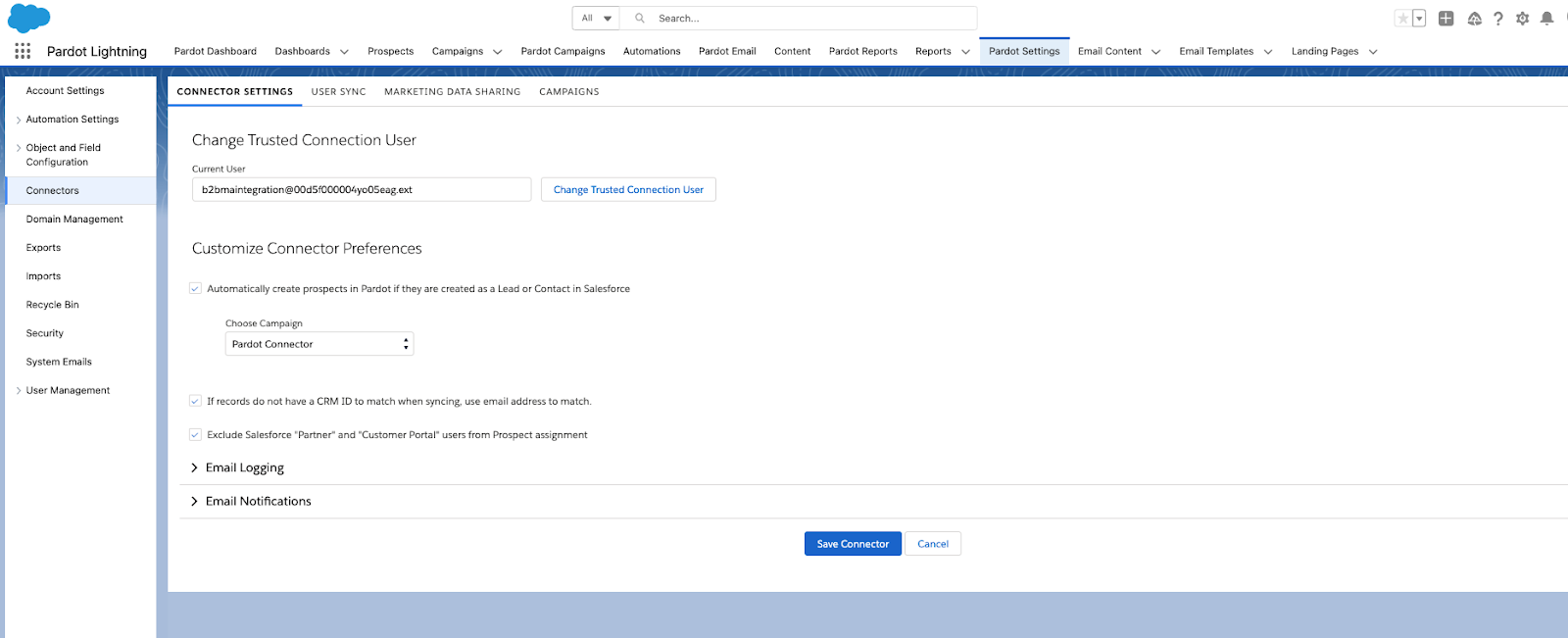
Each Pardot account comes with two key customizable connector preferences that determine how the sync will follow suit:

  • Automatically create prospects in Pardot if they are created as a Lead or Contact in Salesforce

and

  • If records do not have a CRM ID to match when syncing, use email address to match.

The first setting has to do with record creation from Salesforce to Pardot and the second setting relates to the overall sync logic. 

With the first setting enabled (turned on/selected), the connector user will check every 2-4 minutes to see if a new lead or contact record with an email address has been created in Salesforce that does not currently exist in Pardot. If found, that record will be swooped up by the connector user, scanned and copied over to Pardot as a new prospect record with the corresponding record data accompanying it. 

Recommendations for enabling this setting for your system are on a case-by-case basis depending on your mailable database limits and overall internal operational workflow/strategy. 

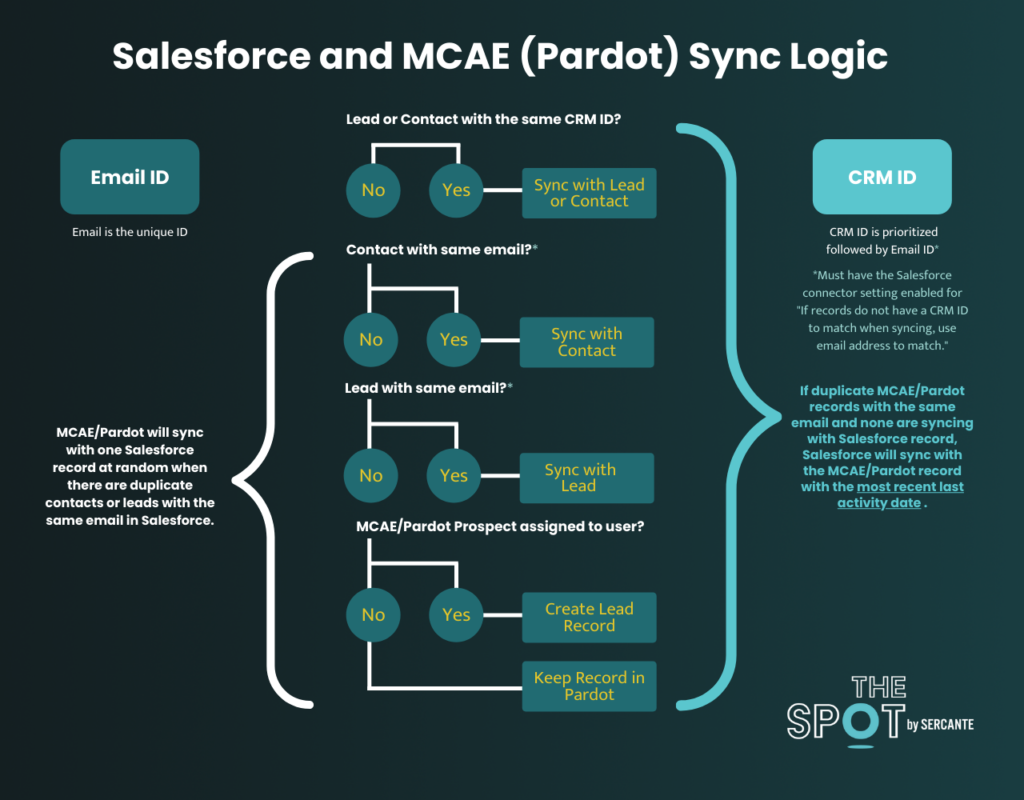
The second connector preference setting relates to how the system performs its hierarchical sync logic when a sync commences. It is highly recommended (best practice) to enable and keep this setting checked on your connector due to its native sync logic behavior as shown in the below diagram:

Salesforce and Pardot Sync Logic

Essentially, what this outlines is that when the connector user performs the sync, it will first check for a matching CRM ID at the lead or contact level. If no matching record is found for the existing Pardot record, it will then check for a matching email address first at the Contact level then down at the Lead level. If neither a matching CRM ID or email address has been located for the Pardot prospect record, that record will remain in Pardot until the record is assigned (either to a user, a queue or via any active assignment rule).

Now you’re a Salesforce sync Wizard

So, now that you are armed with the who, what, when and how Pardot syncs with Salesforce, it’s time to lock arms with the Tin Man, Scarecrow and Lion to ease on down the road to Oz. 

If you’re still feeling a little “cowardly” or “scarecrowy” (yeah totally not a word), then let the Sercante Munchkins escort you along the way! 

No more posts to show