A lot of teams assume an HTML email builder is just a drag-and-drop editor with reusable modules and some brand colors layered on top. In reality, building a production-safe email builder — especially for Salesforce Account Engagement (formerly Pardot) — is far more complicated than most people realize.
Modern page builders are designed for websites. HTML email is an entirely different environment.
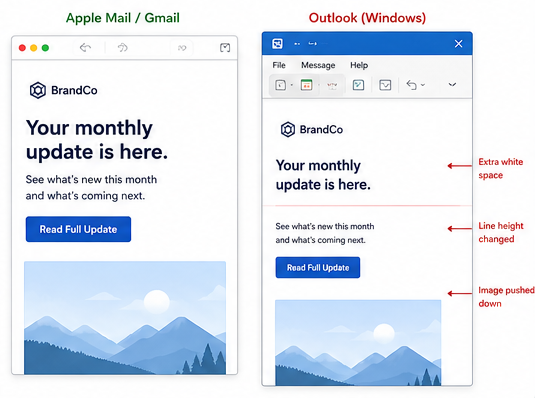
One of the biggest challenges is that Outlook still relies on the Microsoft Word rendering engine. That means many of the layout techniques developers use every day on websites simply do not work in email. Flexbox and CSS Grid are unreliable, modern responsiveness is inconsistent, and something as simple as a background image often requires completely different code for Outlook than it does for Gmail or Apple Mail.
That disconnect creates problems marketers usually do not discover until campaigns are already in production. A layout that looks perfect in a visual editor can suddenly break when someone duplicates a module, changes copy length, swaps a image, or adjusts spacing.
We ran into this repeatedly while building custom email builders for MCAE teams. The more flexibility marketers wanted, the more important structural guardrails became.
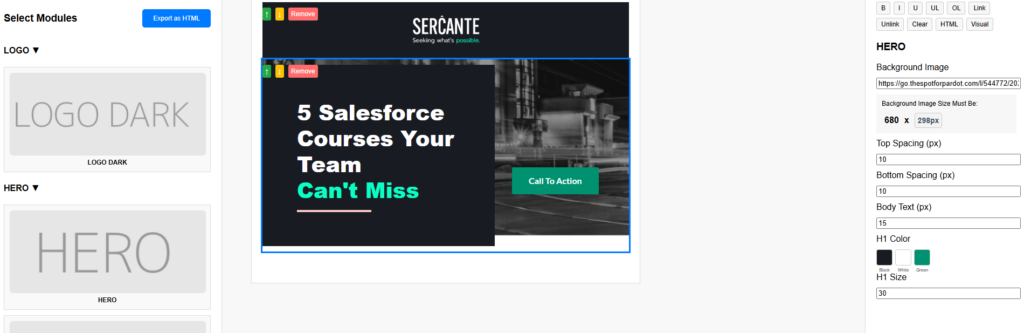
Dynamic modules were one of the biggest hurdles. Unlike websites, email layouts cannot intelligently adapt to changing content. If a section was not coded carefully, adding one extra line of copy could shift alignment in Outlook or create unexpected gaps between sections. Even repeatable modules became complicated because table-based email structures are extremely fragile compared to modern web layouts. Show repeatable modules, spacing controls, or inline editing tools. This helps demonstrate that these were real usability problems you solved internally.
We also found that many drag-and-drop builders export bloated HTML filled with unnecessary wrappers, duplicated styles, unused classes, and editor-specific attributes. The email may still render, but the output becomes difficult to troubleshoot, maintain, and QA over time. In some cases, excessive markup can even contribute to Gmail clipping or rendering inconsistencies across clients.
Instead of treating the visual editor and the exported email as the same thing, we separated them entirely. Inside the builder, marketers could still use visual controls and editing tools, but during export we stripped out unnecessary editor markup so the final output stayed cleaner and more production-safe.
A cropped code comparison showing “typical repeatable removable sections in Pardot” versus your cleaner exported HTML. Even non-developers visually understand the difference when one side looks dramatically more bloated.
Background images became another major challenge. Supporting them properly in Outlook still requires VML, which means the visible HTML version and the Outlook fallback version both have to stay synchronized. We found that even small adjustments — like changing the height of a content area or replacing a hero image — could create rendering issues if those values drifted apart.
Eventually we built custom controls that updated both the HTML and VML automatically so marketers never had to touch the underlying code.
Accessibility was another area we wanted to improve because many visual email builders unintentionally generate inaccessible markup. It is easy for editors to produce emails with poor color contrast, image-heavy content, missing structure, or mobile text that becomes difficult to read. We started building more controlled editing systems that preserved brand consistency while still allowing enough flexibility for marketers to make updates safely.
Mobile responsiveness introduced its own set of problems. Websites can rely on modern responsive frameworks, but email clients support media queries inconsistently. That forces developers to use hybrid table structures, controlled stacking patterns, and Outlook-specific fallbacks just to achieve reliable mobile behavior.
Even something as simple as centering content conditionally can become surprisingly difficult in email.
A mobile before-and-after showing a broken stacked layout compared to the corrected responsive version. (Outlook)
Over time, our approach shifted away from trying to replicate website builders and toward building tools specifically for the realities of HTML email. That included custom inline color pickers for branded text, repeatable content sections, controlled spacing tools, background image swapping, automatic Outlook height syncing, and cleaner export handling that removed unnecessary builder code before deployment.
The goal was never unlimited flexibility. In email, too much freedom usually creates instability.
The real goal was giving marketers enough control to work efficiently without accidentally breaking rendering, accessibility, responsiveness, or brand consistency in the process.
A streamlined email builder for marketers
For teams using Salesforce MCAE, custom email builders can dramatically improve scalability while reducing QA issues and production risk. The right builder does not just make emails easier to edit — it helps protect deliverability, maintain consistency across campaigns, and reduce the amount of development cleanup required after every send.
Custom email builders can give marketers flexibility without sacrificing deliverability or brand consistency.
If you’re looking for a more flexible and scalable email builder solution that works with your marketing automation platform, reach out to the Sercante l Trilliad team. We’ll help you streamline your email workflows and accelerate time-to-launch for your campaigns.
Agentforce Marketing has quickly become a focal point for Salesforce Marketers. However, many Account Engagement customers are still trying to understand how this new platform operates and how it fits alongside their current tools. While Agentforce Marketing is designed to encompass all the features of Account Engagement, it introduces distinct features and a completely new lexicon. To bridge the gap, let’s dive into the Account Engagement that you know and love and how these features are translated, in name and functionality, to Agentforce Marketing.
What’s in a Name?
Let’s start with what initially trips users up – the product name. A common question I get from users is whether this new platform is called “Agentforce Marketing” or “Marketing Cloud Next” and the answer is both!
“Agentforce Marketing” appears to be the name that will stick around in the long term, but “Marketing Cloud Next” is used in most of the help articles and guides about this new platform. My guess is “Marketing Cloud Next” may be phased out as the tool grows and evolves. For the time being, both names are correct and refer to the latest Marketing Automation Tools from Salesforce.
There are also a few other names you may run into, including
Marketing Cloud Growth: This refers to the “Growth” edition of Agentforce Marketing.
Marketing Cloud Advanced: This refers to the “Advanced” edition of Agentforce Marketing.
Marketing Cloud on Core: This name was adopted by the community pre “Marketing Cloud Next”. It helped us designate a difference between OG “Marketing Cloud” (aka Marketing Cloud Engagement) and the new platform. “On Core” designates that this Marketing Platform, unlike Engagement or Account Engagement, is truly built on the core Salesforce platform.
Account Engagement +: This term is more Salesforce SKU-based and refers to Account Engagement users who are also using the Agentforce Marketing Platform alongside their Account Engagement org.
Engagement + / Marketing Cloud +: Similar to the above, this is Salesforce SKU-based and refers to Marketing Cloud Engagement customers using the Agentforce Marketing Platform alongside their Engagement org.
Features and Terminology
Prospects
In Account Engagement, a Prospect refers to an identified individual. Prospects can remain solely in Account Engagement or sync to Salesforce Leads and Contacts. The equivalent of a Prospect in Agentforce Marketing is a Unified Individual.
A Unified Individual is a consolidated record of metadata related to multiple Prospect, Lead, and Contact records for the same person. To put this in simpler terms, say you have multiple Lead and Contact records for the same individual within your CRM. Each of these records has different information about said customer and each record retains its own engagement and activity data. This disparate view of your customer gives your teams an incomplete and sometimes incorrect picture of your customer. Data 360 unites these disparate records using Identity Resolution rules and provides your team with a consolidated and complete view of each customer, the Unified Individual.
Now, a few releases ago, Salesforce also added a Prospect object to CRM. This means that marketers can create pre-lead or unqualified records directly in Salesforce to mimic the same functionality we have in Account Engagement. Currently the CRM Prospect record cannot sync with Account Engagement Prospects, but I expect functionality around the Prospect CRM object to grow and this could be something we see in a few releases.
Lists
In Account Engagement, there are two main List types:
Static Lists are built one time and only update with manual changes.
Dynamic Lists are rule-based and automatically update when a Prospect’s data changes.
The equivalent of a List in Agentforce Marketing is a Data 360 Segment.
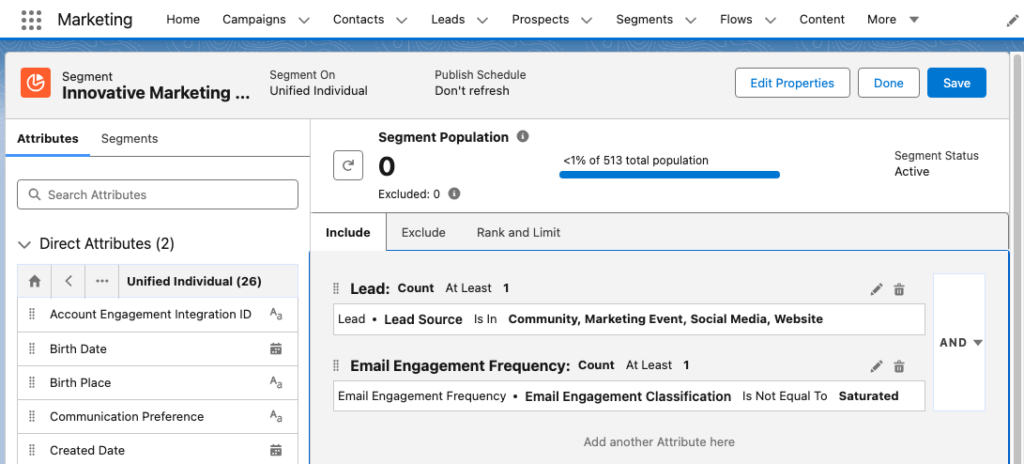
Data 360 Segments consist of Unified Individuals that match filtering rule criteria that you set. Similar to Account Engagement Dynamic Lists, you can assign multiple rule criteria to a Segment with AND/OR logic between each rule. You can also match a field against multiple values using the “Is In” operator. The image below shows an example of a Segment using multiple rule criteria in Agentforce Marketing.
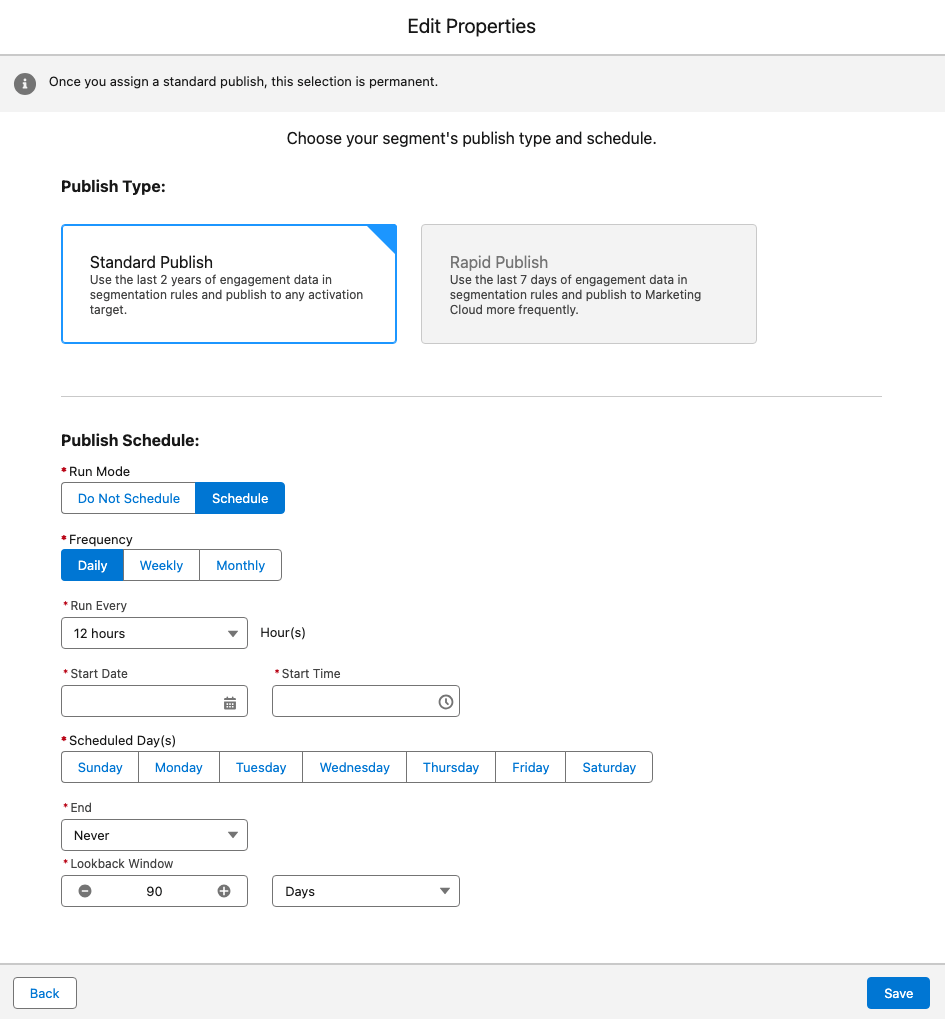
Whether a Data 360 Segment is static or dynamic depends on its publish schedule. You can set a Segment to “Do Not Schedule”, essentially making the list static, or configure a publish schedule to refresh your Segment as needed. The image below depicts the Edit Properties window in Agentforce Marketing where the publish schedule is defined.
Segments can be used in Agentforce Marketing or, with the Data 360 Connector, synced down to Account Engagement as a Dynamic List.
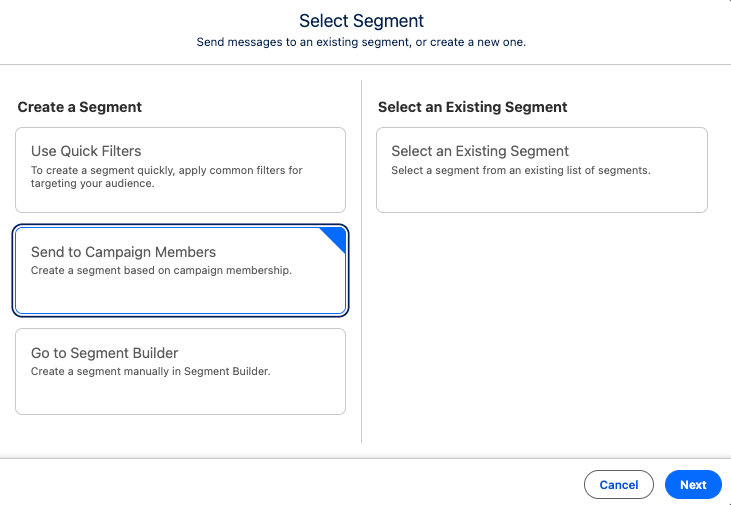
Now, if you prefer to curate your list rather than use Segment rules, you can either add Leads/Contacts to your Campaign and then create a Segment of Campaign Members:
Or, after the Summer ‘26 release, utilize the new List and Audience Flow features to circumvent the need for a Data 360 Segment.
Engagement Studio Programs enable you to automate multi-touch customer journeys using triggers, rules, and actions. These programs nurture Prospects through the sales funnel and ensure timely and relevant communications. The Agentforce Marketing equivalent to Engagement Studio Programs is Flow Builder.
Flow Builder is the automation engine of Agentforce Marketing, helping you build and execute complex, multi-channel marketing campaigns. Engagement Studio Programs and Flow Builder have a lot of overlap: They both have a top-down vertical layout, use elements as steps within the program/flow, and allow you to customize processes down different paths based on conditions.
In Account Engagement, Completion Actions trigger when a Prospect takes a specific action, such as filling out a form. The Agentforce Marketing equivalent of this is Automation Event-Triggered Flows.
Automation Event-Triggered Flows, sometimes referred to as Form-Triggered Flows or just Event-Triggered Flows, trigger when an individual takes an action. Automation Event-Triggered Flows allow you to trigger a single action or build an entire customer journey to nurture the individual after an event.
Agentforce Marketing includes several pre-configured events and Engagement Signals can be used to build any additional desired events.
Automation Rule
Account Engagement Automation Rules are repeatable, criteria-based rules that find matching Prospects and apply actions to them. The Agentforce Marketing equivalent to Automation Rules is Flow Builder, but the type of flow depends on your criteria.
If you are converting Lead records when they meet specific criteria, use a Data 360 Triggered Flow.
If you have multiple criteria and/or want more control over when the action fires, create a Segment and use a Segment-Triggered Flow.
Scoring and Grading
Account Engagement uses Scoring and Grading to help you identify, qualify, and prioritize Prospects in your org.
In Account Engagement, Scoring indicates how engaged a Prospect is by assigning numerical points to each activity the Prospect performs, its Agentforce Marketing equivalent is Engagement Scoring. Similar to Account Engagement Scoring, Agentforce Marketing’s Engagement Scoring assigns numerical points to activities. A default scoring system is provided, but you can fully customize the conditions and points.
In Account Engagement, Grading indicates how closely the prospect fits your ideal customer by evaluating pre-configured criteria and assigning a letter grade. The Agentforce Marketing equivalent of Grading is Fit Scoring. Similar to Engagement Scoring, Fit Scoring assigns numerical points to individuals if they match your fit criteria. Fit Scoring conditions and points can also be fully customized.
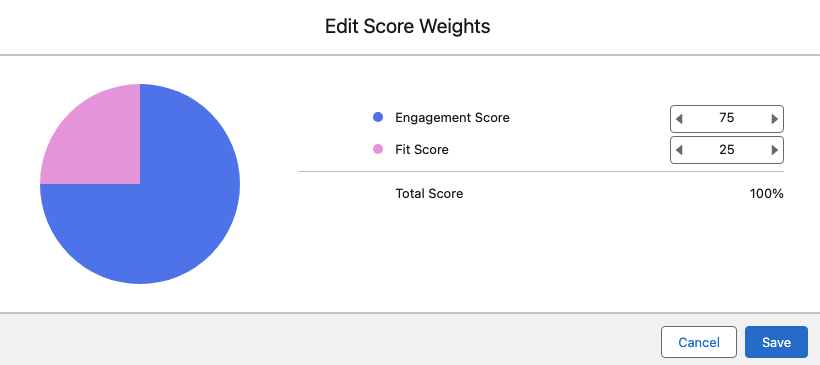
In Account Engagement, Prospects do not have a metric that reflects a combination of the Score and Grade. Score and Grade are kept as completely separate metrics, but can be used together to establish a qualification threshold. In Agentforce Marketing, individuals do have a combined rating called Overall Score. The Overall Score will always be between 0 and 100. The Overall Score is initially 50% Engagement and 50% Fit, but this can be customized as needed as well.
The image below shows how Agentforce Marketing’s score weights can be customized.
In Account Engagement, a prospect’s mailability or mailable status refers to whether or not they can receive marketing emails. If an Account Engagement Prospect has a hard bounce, five soft bounces, has unsubscribed themselves, or has been manually opted out, they are considered unmailable.
Agentforce Marketing uses Consent for a more comprehensive approach to mailability. Within Agentforce Marketing, individuals set their subscription preferences to indicate the channel they want to receive communication within (Email, SMS, WhatsApp) and the subscription (newsletter, events, product updates etc.). For example, an individual may subscribe to receive event updates via SMS and receive your newsletter via email. Agentforce Marketing will create a consent record within Data 360 for each choice.
In Account Engagement, A/B Testing allows you to optimize your email content by sending two versions of an email to a small subset of your recipient list. The engagement data of these two email variations is used to determine a winning version that is then sent to the remaining subset of your recipient list. Agentforce Marketing’s equivalent is Path Experiment, however Path Experiment allows you to do much more than send just two variations of a single email.
Path Experiment, which is available for the Advanced Edition of Agentforce Marketing, allows you to experiment with up to 10 different versions of a customer journey to determine the most effective path. This means you can test content variations (i.e. which subject line gets more opens?), channel variations (i.e. do you get more opens with email or sms?), and even cadence variations (do we get better results sending more or less emails?). Similar to A/B Testing, Path Experiment allows you to test with a subset of your audience before sending your remaining audience members down the winning path.
In Account Engagement, Sender Domains define where you can send emails from. For example, if my Sender is [email protected] then Salesforce.com is my Sender Domain. The Agentforce Marketing equivalent is Authenticated Domains. For both sender and authenticated domains you will need to work with your IT team to create DNS records. These records help improve the deliverability of your emails by defining you as a legitimate sender.
In Account Engagement, Dynamic Content enables you to create field-based variations of content. If the Prospect’s field matches the designated field value, then they will see that content variation on your website or within your marketing assets. Agentforce Marketing also has Dynamic Content, but it has more advanced functionality.
Agentforce Marketing’s Dynamic Content functionality allows you to personalize your email based on fields or any data source connected to your individual. For example, you can build the variations based off of Account data or data from an event the recipient recently attended. You can also personalize multiple sections of your marketing assets, or personalization points, within one Dynamic Content variation. This allows you to dynamically update nearly every aspect of an email more efficiently.
Agentforce Marketing Dynamic Content relies on:
Personalization Point: An element of content that’s eligible for a personalization decision. For example, an email’s subject line and preheader or an image component within the email are “points” that you can personalize.
Personalization Decision: Criteria that determines who’s eligible to receive a personalization response.
Targeting Rule: Conditions for showing a specific variation.
In Account Engagement, Page Actions trigger additional actions after a Prospect views a specific page of your website. In Agentforce Marketing, you can accomplish the same goal using website tracking and the Website Engagement Data Model Object (DMO).
The Website Engagement DMO records website page views and clicks, and engagement signals can be created to zero in on specific page view activities. For example, you can create an Engagement Signal that records when a visitor lands on your Pricing page, a good indicator that they may be interested in making a purchase. These Engagement Signals can then be used to trigger Automation Event-Triggered Flows so you can further automate next steps.
Account Engagement uses both Salesforce and Account Engagement Campaigns. Account Engagement Campaigns are considered thematic touchpoints (similar to a source in other systems), while Salesforce campaigns are a Salesforce CRM object used to plan, manage, and track marketing initiatives. Salesforce and Account Engagement Campaigns are united with the Connected Campaigns feature.
Agentforce Marketing utilizes the Salesforce CRM Campaigns object for both purposes. Campaigns are not only a record that helps organize the audience, assets, and metrics for a specific marketing effort, but they also indicate a touchpoint for your individual.
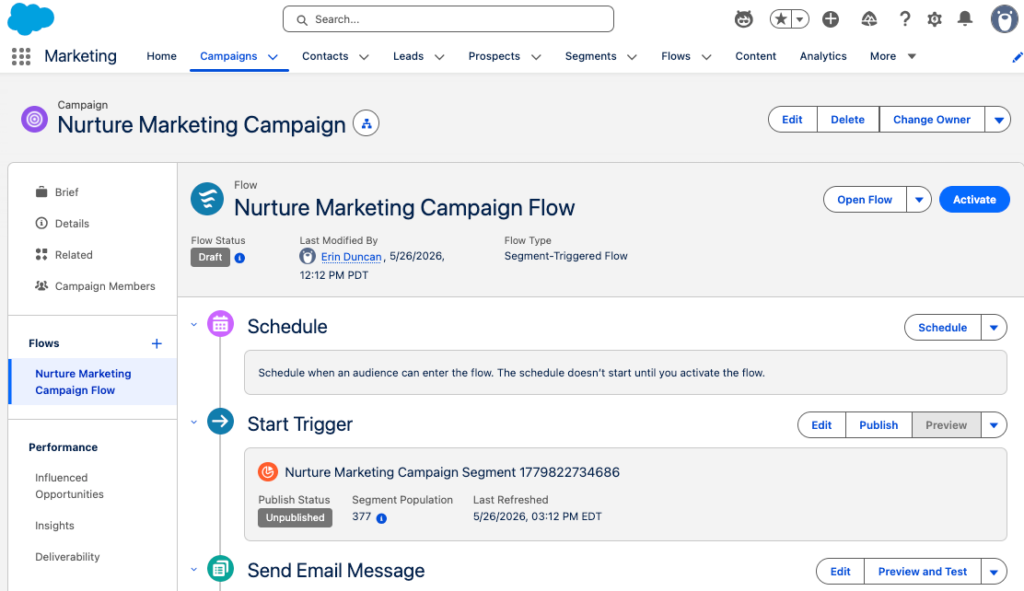
Campaigns serve as a centralized hub for a marketing initiative within Agentforce Marketing. Within a Campaign you will find all the relevant information for your Campaign including your Campaign Brief, Campaign Members, associated flows, and reports.
The user interface shown above is unique to viewing Campaigns within the Marketing app. Don’t let the user interface confuse you though, this is the default Salesforce Campaign object that is used by other processes and applications within Salesforce.
Campaign Influence
In Account Engagement, Campaign Influence helps you tie marketing efforts to your opportunities to see which campaigns are the most influential and successful. Account Engagement Campaign Influence can be a little hands-on, requiring you to add all Leads/Contacts that engage with your Campaign as Campaign Members. Agentforce Marketing uses Opportunity Influence to automate and streamline influence. Opportunity Influence uses engagement data to automatically tie Opportunity revenue back to a specific Campaign without the need for Campaign Membership.
In Account Engagement, AI Assistant is generative AI that assists in drafting forms and landing pages as well as creating email subject lines, headers, and body copy. Agentforce Marketing uses Agentforce and Generative AI to assist with generating copy and so much more. Agentforce Marketing not only helps you generate forms, landing pages, and email content, but can also streamline the entire campaign creation process with the Campaign Creation and Content Builder agents.
Learn more about Agentforce Marketing’s AI features in the AI in Marketing Cloud Next Trailhead Module.The above gives you an overview of how terminology and features translate between Account Engagement and Agentforce Marketing. If you are ready to take the next step in your Agentforce Marketing journey, check out our A Strategic Path to Navigating Marketing Cloud Convergence blog post or contact us!
In the current market landscape, Chief Revenue Officers and growth leaders are facing a fundamental breakdown of the traditional go-to-market (GTM) engine. As organizations scramble to gain traction by implementing AI pilots, they often hit a wall: the daunting reality of their own data. Many leaders feel overwhelmed, thinking they have to have perfect data before seeing any real progress. However, this is a myth that stalls momentum. It doesn’t take perfect data to achieve real results with AI. It takes the right data for the right outcomes. The solution to moving beyond this roadblock is a data roadmap for AI that prioritizes based on business impact.
By shifting the focus from total data readiness to targeted, phased integration, organizations can finally start building an integrated data layer, the connective tissue needed for a modern growth engine. This was the resounding theme from Trilliad’s 2026 Growth Imperatives that industry leaders shared as being a top priority for GTM leaders to focus on this year to unlock sustainable success. It is the data that serves as the foundation to power impactful AI, analytics, and workflows across the customer lifecycle to deliver the connected customer experiences modern buyers expect. Which is why it is so critical for teams to move past a notion of ultimate data readiness and start prioritizing the data that needs to be connected now to start gaining real momentum.
The AI Mandate Reality Check for a Data Foundation
Data continues to be the foundation that powers experience, but with the AI era, it has a newfound importance. Sercante’s State of AI in Enterprise report reveals that organizations are dealing with more tech than ever before, yet they have yet to see meaningful results from their AI initiatives.
The average large enterprise now manages a technology stack of over 600 applications, leading to unparalleled volumes of fragmented data (WalkMe Inc.).
Currently, 56% of executives have yet to see a true impact on the bottom line from their AI deployments (Oxygen Staff).
87% of AI failures are rooted in poor data quality (RAND).
It is true that organizations need a solid data foundation to gain impactful outputs from AI. However, the belief that every one of those 600+ apps must be connected simultaneously is a recipe for gridlock. To gain momentum, leaders must identify the specific data needed for the intended outcomes and build from there.
“Uncertainty is chaos. It drains energy. It drains time. It feels out of control. Building a plan gives a sense of control. It alleviates the chaotic, stressful, anxiety-feeling that leaders feel and makes their path clear.”
Lauren Noonan, VP of Growth & Alliances, Sercante
This sense of control with data begins when the pursuit of perfection is replaced with a disciplined, strategic roadmap.
A Prioritized Data Roadmap for AI
Creating a data foundation is not an “all or nothing” technical project. It is a strategic initiative that should be grounded in measurable, targeted business outcomes. It’s not about gaining more data. It’s about unlocking the right data. It can be overwhelming for leaders to think about connecting all their systems. That’s where the roadmap comes in. It gives leaders a clear plan to move forward with to start gaining real traction with their data and AI.
“More data does not make you better at anything. You need the right data, the right activation layer, and a team and process that knows what to do with what they are seeing.”
Andrea Tarrell, Founder & CEO, Sercante
Establishing the vision for your data
Answering the question of “what is the end goal?” is the first step in setting your vision. Without a vision to anchor your data and AI initiatives, it can feel like departments are running in several different directions, which can cause more silos and make it feel like busy activity without a lot of real results.
“Without a vision to ground your strategy, technology can feel like motion without progress.”
Jenna Packard, Strategy Director, Sercante
By defining the end goal first and the metrics that will be used to measure success, you create a filter for prioritization. This ensures the data initiatives are aimed at enhancements that drive measurable growth.
A sequenced path for your data and AI
As Jenna Packard shared in her article, The AI Roadmap for Enterprise, “a roadmap is highly sequenced, helping organizations understand which capabilities to build first and how each piece creates a foundation for the next.” A roadmap, or vision map, captures your end goal and measurable outcomes, then organizes the technology and data required to make it happen.
When creating the roadmap and thinking about what should come first, consider the following:
Specific Data Sources: Which data sources must be unlocked to fuel the AI to get the results we’re after?
Integration Effort: What is the technical and operational burden to enable this specific capability?
Support Systems: What is the infrastructure needed to ensure data connections run smoothly?
Data Integrity: Is there anything that needs to happen first to ensure that data will be clean, accurate, and actionable?
Answering these questions will allow the team to start placing the actions that need to happen on the roadmap to unlock the right data for the intended outcome. The end result gives teams a clear path forward to gain momentum, replacing reactive data fixes with impactful strategic discipline.
Getting Started with Your Prioritized Data Roadmap for AI
Data perfection is not a realistic end goal, and waiting for it only stalls progress. It takes a disciplined approach to step back, identify the end vision with measurable business outcomes, and then let that guide your data roadmap for AI. By prioritizing the right data for the right outcomes, you unlock the ability to gain real, measurable results with AI, fuel impactful analytics, and deliver connected customer experiences that modern buyers expect.
If you’d like support with creating your vision map for data and AI, reach out to the Sercante team. We partner with go-to-market teams daily to establish strategic roadmaps and design data foundations that result in scalable, impactful AI solutions.
The marketing landscape has reached a tipping point. As buyer expectations continue to rise and budgets tighten, the need to be more effective with the resources available increases. Marketers are navigating technology that is evolving faster than ever. With data spread across disparate systems, the current trajectory of working to meaningfully engage buyers at scale while churning out campaign after campaign is not sustainable. AI offers the opportunity for a shift, but many organizations have deployed point solutions in an effort to gain efficiency without the feeling of actually getting anywhere. It begs the question: how can marketers maximize what they have while tapping into the latest solutions available, and free up their team’s capacity, so they can be more effective at engaging customers at scale? The solution: a strategic path towards convergence on Marketing Cloud.
A Modern Marketer’s Challenges
Most marketing teams are currently operating in survival mode. Launching campaigns at lightning speed, yet lacking the capacity to actually innovate or slow down to be more strategic and visualize the impact on the bigger picture. Three primary challenges keep marketers trapped in this cycle.
Legacy Systems
For years, the marketing mantra has been: “Have a problem? Buy a technology solution.” This “buy-as-you-go” era has left marketers with a complex, fragmented reality where systems simply don’t talk to each other. Today, the average large enterprise is juggling over 600 applications (WalkMe Inc.), and even mid-sized firms find themselves buried in hundreds of single-purpose tools.
Siloed Data
With critical engagement data and customer information scattered across disparate systems, it makes it challenging for marketers to see which campaigns are truly moving the needle, tailor messaging and strategy to key audience segments, and collaborate with sales and customer success on initiatives that progress deals and expand customer relationships.
Capacity Constraints
Marketers are working to maximize output with tighter resource constraints and have less capacity to be innovative, while mundane tasks such as manually importing and exporting segmentation data or reports are sapping the creative brain power needed to create unique brand experiences that emotionally resonate and set them apart in the market.
To break the cycle, marketers can overcome these challenges with the right strategic approach that leans into the resources they have, while seizing the opportunity that the latest technology presents.
Marketing’s Opportunity to Shift with AI
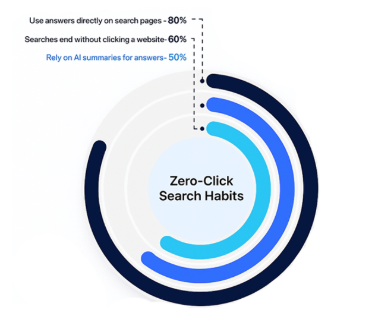
AI is changing the way buyers engage with brands and how marketers operate. Buyers are turning to AI answer engines for initial discovery and research, engaging in more self-guided behavior before brands ever see a click or a form submission. 50% of searches only use AI summaries. (McKinsey) Meanwhile, marketers can generate whole content assets with a well-crafted prompt in seconds and use agentic capabilities to streamline processes and create interactive buyer experiences. Presenting a great opportunity for marketers to more effectively engage buyers through personalized, two-way conversations at scale. However, the technology is evolving at a speed faster than organizations can operationalize. 92% of organizations do not have operational AI (McKinsey).
In an effort for marketers to start gaining traction with AI, many have implemented pilots and attempted experimentation in an effort to gain some efficiency. However, these point solutions have been set up outside their flow of work, causing more manual workarounds and presenting further silos that hinder meaningful results.
For AI to be truly operationalized and impact the bottom line, it needs to be embedded within marketing’s core business processes, powered by integrated data, and aligned with how they operate and how customers engage the brand. Empowering marketers to be more effective with AI and take advantage of the capabilities it has to offer, for example:
Agentic Marketing: Agents embedded within the marketing technology that drive productivity and orchestrate campaign execution with functions such as, generating actionable insights from campaign results and recommending next steps, instantly populating audience segments, and generating personalized messaging.
Agentic Customer Experiences: Agents that make it easier for your customer to engage with your brand and accelerate the path to purchase with experiences that could entail engagements like instant answers to their service questions or digital interactions where they can see what the product would look like based on their preferred customizations in seconds.
The possibilities with AI pose the opportunity for marketers to shift, operate, and engage their customers in ways they haven’t before at scale, to break the survival mode cycle, reach new levels of growth, and gain a competitive advantage. Therefore, having the right data, technology, and strategic foundation to support this is critical.
See how fellow marketers at Denver Public Schools are already using Agentforce Marketing features to streamline campaign workflows, deliver multi-channel campaigns, and track attribution. Register Here
Marketing Cloud Next: Agentic + Real-Time Data Capabilities
Marketing Cloud Next (Marketing Cloud Growth and Advanced Editions) gives marketers the ability to tap into real-time, connected data and AI functionality that integrates into their core processes, allowing them to streamline campaign launch, seamlessly segment audiences, easily tailor messaging, and then measure performance to make data-driven decisions.
Marketing innovators who want to start tapping into Marketing Cloud Next capabilities can do so while using the technology alongside their current marketing automation platform. Senior Engagement Manager at Sercante, Cara Weese, shares a few ideas for how Account Engagement customers can get started in her article, Smarter, Stronger Marketing with Account Engagement and Marketing Cloud. However, the journey of how to get there can seem unclear.
Questions marketers may be asking are:
Where do I begin?
What incremental value can I get out of Marketing Cloud Next?
Can I improve the insights I’m able to deliver to my organization?
When does it make sense for my organization to converge onto one system?
Can I even get to one system?
To avoid the repeating cycle of having a problem, buy a solution, strategists are taking a step back to ask, what is the most effective way for us to use this technology while maximizing what we have?
The Solution: A Strategic Convergence Path
The answer: a strategic path to navigating Marketing Cloud Convergence, designed to take the guesswork out of this transition.
Rather than a lift and shift of legacy problems, there is a parallel path that allows organizations to move at their own pace and align with their vision, so they can be confident about heading in the right direction with Marketing Cloud Next.
A clear Marketing Cloud Convergence path includes:
An Actionable Roadmap: A tailored vision map that prioritizes use cases based on the organization’s unique mix of people, processes, and data.
High-Impact Use Cases: Use cases aligned with business goals to deliver value fast, for long-term scalability.
Agentic Value: A defined plan with AI capability embedded to drive productivity gains, connected to core processes.
Change Enablement: Customized training materials and enablement to ensure sustained and successful adoption across the marketing organization.
Navigating a Unique Marketing Cloud Convergence Path
Each organization has its own mix of people, processes, data, and technology. Therefore, each organization’s path to Convergence will be different from the rest.
An approach that scales to the team’s organizational readiness is recommended. Some teams are ready to move faster than others, and some teams need to go slow at first to then go fast. A strategic path to Convergence should adapt to fit the organization’s needs with an individualized roadmap that guides everyone to success.
The Impact of Marketing Cloud Convergence
Choosing the path of Convergence is a strategic decision to integrate data and the latest technology directly into core marketing processes, while maximizing existing resources. By aligning these tools with overarching business goals, marketers reclaim the cognitive bandwidth and operational capacity necessary for the team to do what they do best. This approach empowers marketers to engage buyers through personalized, seamless experiences at scale, ultimately driving higher conversion rates and fostering lasting customer relationships.
How to Get Started
Depending on where marketers are in their journey, determine the next steps for starting their Marketing Cloud Convergence path. For example, teams in an earlier stage may just want to start learning about the Marketing Cloud Next functionality, while other organizations that are further along could start exploring and deploying.
Learn & Plan: Understand what Marketing Cloud Next capabilities can do for the organization and start creating a customized roadmap.
Explore & Deploy: Pick 1–2 low-effort, high-impact use cases to run in parallel with existing marketing systems and take a deeper dive into Marketing Cloud Next.
Evolve: Continue expanding Marketing Cloud Next usage in alignment with the business goals to progress along the Convergence path.
To get expert guidance on your Marketing Cloud Convergence path journey and where to start, reach out to the Sercante team. They have been a part of the Marketing Cloud Next product development since day one as a part of the pilot team, and partner alongside organizations to provide a clear path for Convergence success.
Leaning Into Innovation to Drive Sustainable Growth
The path to Marketing Cloud Convergence is not a singular event, but a strategic evolution. By choosing to lean into innovation and take the first steps toward Convergence, marketers transition from the reactive survival mode of managing disparate tools and toward a proactive model where data and AI work to drive meaningful impact. Whether the team is just beginning to explore new capabilities or ready to implement agentic workflows, the key is to move at a pace that considers the team’s unique organizational readiness while keeping the long-term vision in sight. With a clear roadmap and a focus on incremental value, marketers can transform their operations from a fragmented collection of tasks into a streamlined engine that engages buyers at scale for real connections that drive sustainable growth.
Agentforce Marketing forms are built in Salesforce CMS and can be hosted on Agentforce Marketing landing pages or embedded on external sites. These forms utilize Salesforce Flow to create and update records and represent a significant shift for users transitioning from Marketing Cloud Account Engagement. In this post, I’ve compiled five considerations that I encountered and provided solutions to help speed up your adoption.
Product Note: In previous blog posts, Agentforce Marketing has also been referred to or known as Marketing Cloud on Core and Marketing Cloud Next. This product may have also been referred to under its Edition names, Marketing Cloud Growth and Marketing Cloud Advanced.
Consideration #1 – Duplicate Record Creation
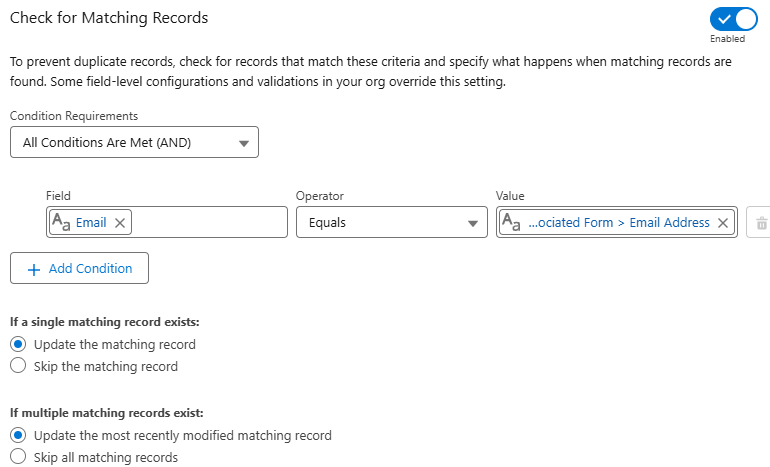
The Create Records element in Flow includes a feature to check for existing records and define actions when matches are found. However, the configuration of your organization impacts this setting and, in some cases, can cause duplicate records to still be created even with this feature enabled.
To prevent duplicate records, check for records that match these criteria and specify what happens when matching records are found. Some field-level configurations and validations in your org override this setting.
Solution – Test and Validate
Before getting too concerned about this one, do some testing. Salesforce is extremely customizable, so I get the disclaimer. It’s totally possible that duplicate rules, validation rules, or other configurations could impact this feature in your org.
I tested in my development org and a couple live orgs and did not run into any issues. Still this is worth noting and validating.
Consideration #2 – Specifying the Created By User for New Leads
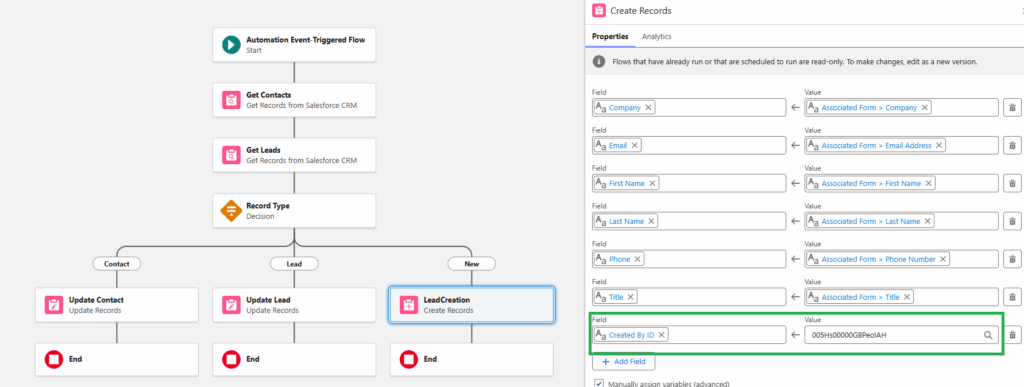
When new leads are created from a form-triggered flow, the“Created By” field defaults to the user who activated the flow. This is not ideal – especially when flows are activated by users that the sales team is unfamiliar with.
The simple fix is to specify the “Created By ID” in the create records element of the flow. However, this field is an audit field and might not be available to you in your org.
Even if you have access to this field, there are limitations if you try to use it in conjunction with the “Check for Matching Records” setting. The “Created By ID” can’t be updated on matching records, which makes total sense.
Solution – Audit Fields and Flow Updates
The first step is ensuring that the “Created By ID” field is available and accessible to the user building the form-triggered flow.
The second step is addressing the issue related to updating existing records. Since you can’t update the “Created By” field on an existing record, the best option is to add a decision element to your flow. This allows you to create different paths and actions based on the type of record.
This solution replicates the functionality of the “Determine CRM Record for Individual” element that’s currently available in segment-triggered flows. Fingers crossed that this element will be available in form-triggered flows in the future. Until then, this solution gives the flexibility to set the “Created By ID” on new records without impacting existing records.
Consideration #3 – Overwriting Data
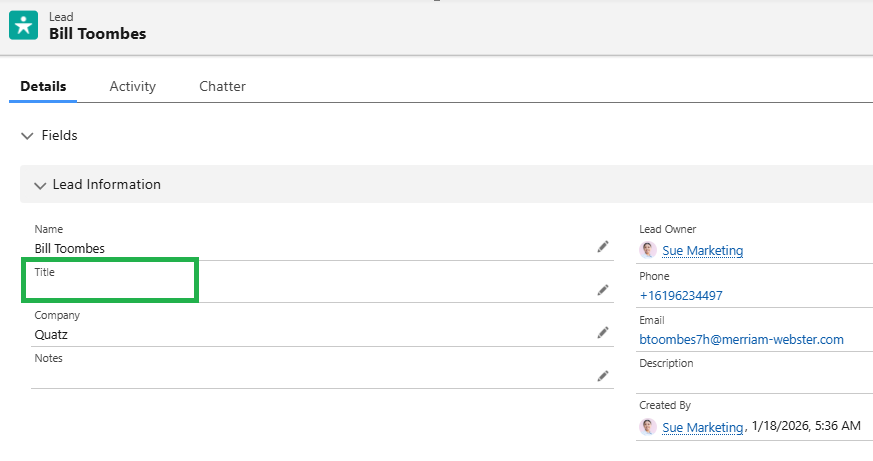
When an existing record completes an Agentforce Marketing form and leaves a field blank, the empty input overwrites the current Salesforce data. For example, if a lead with the job title ‘Quality Engineer’ submits a form with the title field empty, the existing value will be overwritten with a blank.
Before
After
Solution #1 – Required Fields
The quick and easy solution is to prevent blank data from being submitted in the first place. This can be done by updating the field to required in the form.
Solution #2 – Formula Fields
Depending on the number of fields on your form, making all fields required could impact the user experience and reduce completion rates. Understanding that there will likely be times that there are optional fields on forms, we can still protect good data using formula fields.
Creating formula fields allows you to check to see if the form value is blank before updating data in Salesforce. If the form value is blank, the current value from the contact or the lead can be preserved.
The formulas are complicated by the fact that form fields can’t be used in formulas. This is due to the fact that the data has not yet been committed to the flow’s local memory. This can be addressed by adding the value from the field to an assignment element and using it in the formula.
Protecting Fields
Create a Variable
Toolbox > New Resource > Variable
Resource Type: Variable
API Name: varFormTitle
Data Type: Text
Add Assignment Element
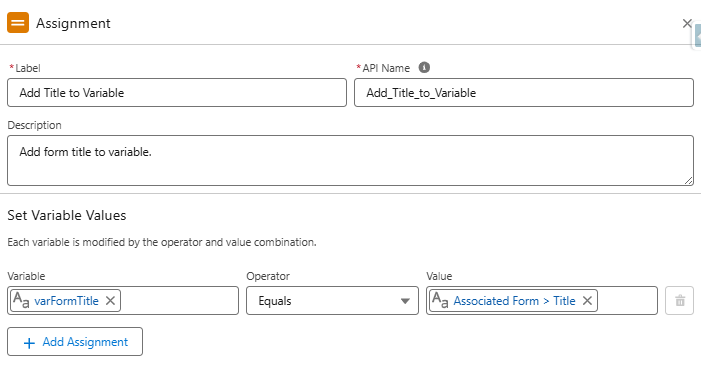
Set variable values as follows:
varFormTitle Equals Associated Form > Title
Create Formula
API Name: “clean_Title” (data type – text)
This formula will return the value of the varFormTitle variable if it has a value. If it’s blank, it will return the title from the contact record. If a contact record is not found, the final fallback is the title field from the lead.
This ensures that if a blank value is submitted in the form, the current title from the contact will be retained (for contact records) and the title from the lead will be retained for lead records.
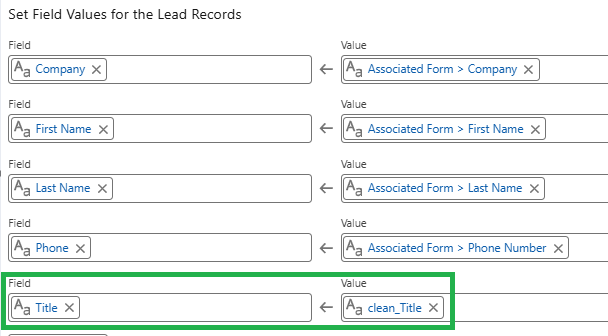
Use the “clean_Title” formula in the “Update Contacts” and “Update Leads” elements.
Consideration #4 – Campaign Member Records
Agentforce Marketing uses Opportunity Influence to track revenue as opposed to Campaign Member Influence, so campaign member records are not really needed. However, many marketers (present company included) rely on campaign member records for much more than just revenue tracking.
At this time, there is no single flow element that automatically adds submissions to a Salesforce campaign, but I’m optimistic that one will be added. Until this happens, we have a couple options.
Solution #1 – Customize Each Form Flow
While possible, this option is not very practical. Even with flow templates, this adds a lot of extra complexity to the form-triggered flow.
Solution #2 – Campaign Manager Flows
My preferred method for creating campaign member records is separate record-triggered flows. These flows are triggered when new records are created or the campaign or campaign member status on an existing record is changed.
Creating Campaign Manager Flows
Create Contact and Lead Fields
Last Campaign ID (text)
Last Campaign Member Status (text)
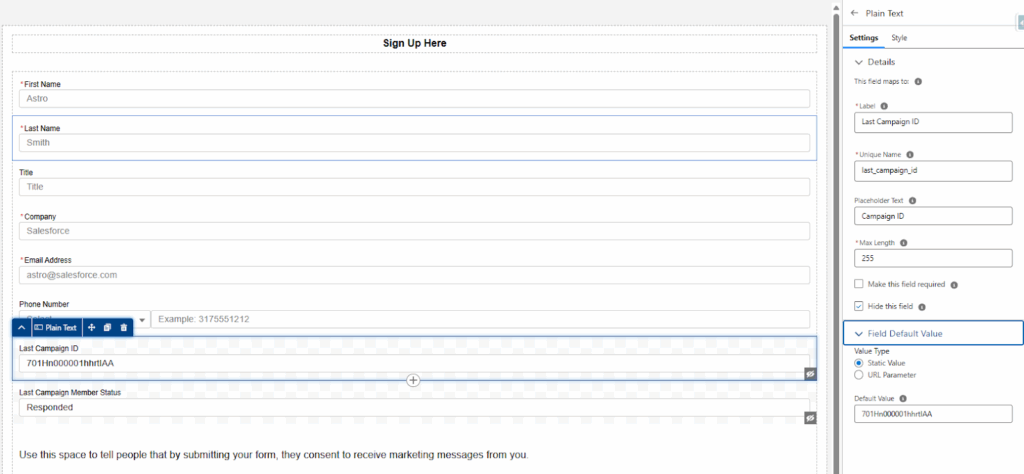
Add Hidden Fields (to the form)
This makes it easy for users to update the values for specific forms by updating the default values of the hidden fields. This is preferable to modifying the flow, in my opinion.
Add the campaign ID associated with the form as the default value for the “Last Campaign ID” field.
Add the desired campaign member status as the default value for the “Last Campaign Member Status” field.
Create the Flow (separate flow are needed for each object)
Type – Record-Triggered Flow
Object – Contact, Lead, or Account (if person accounts are being used)
Trigger – A record is created or updated
Entry Conditions – This formula triggers when a new record is created and the Last Campaign ID field has a value or when the Last Campaign ID or Last Campaign Member Status value on an existing record is changed.
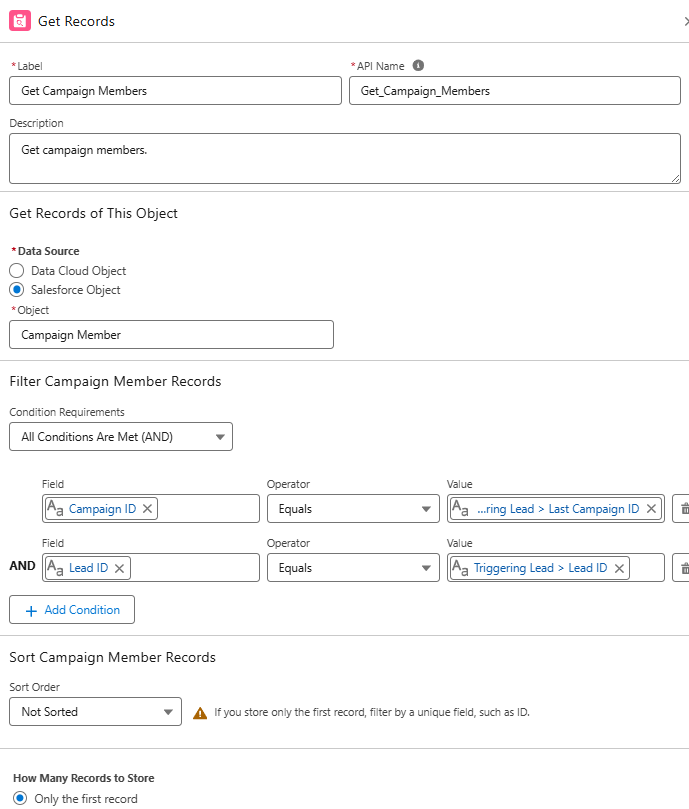
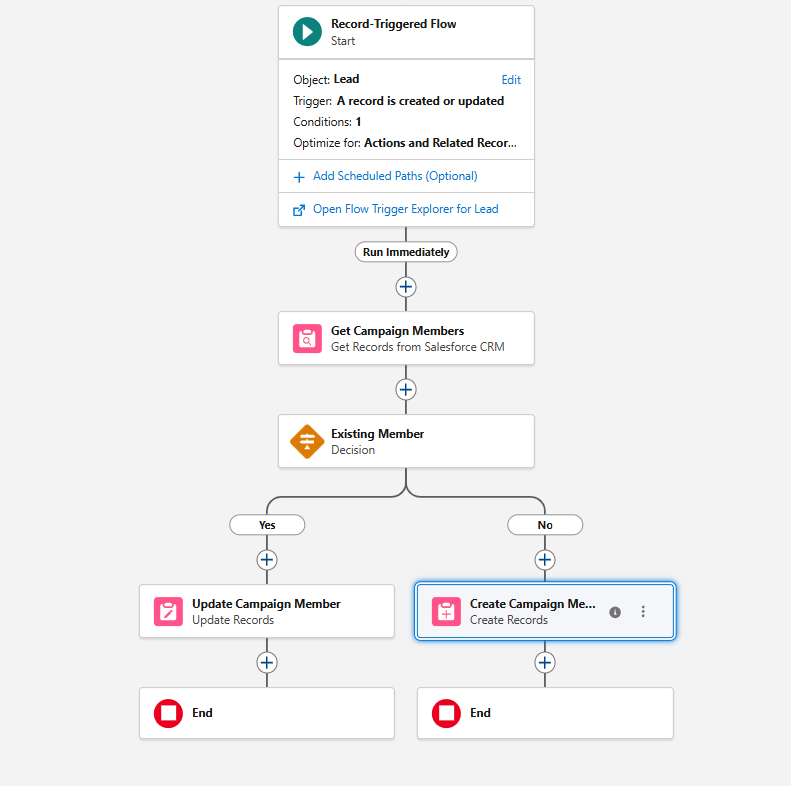
Add a “Get Records” element to get all the members of the campaign (based on the Last Campaign ID value from the form).
Check for Existing Campaign Members
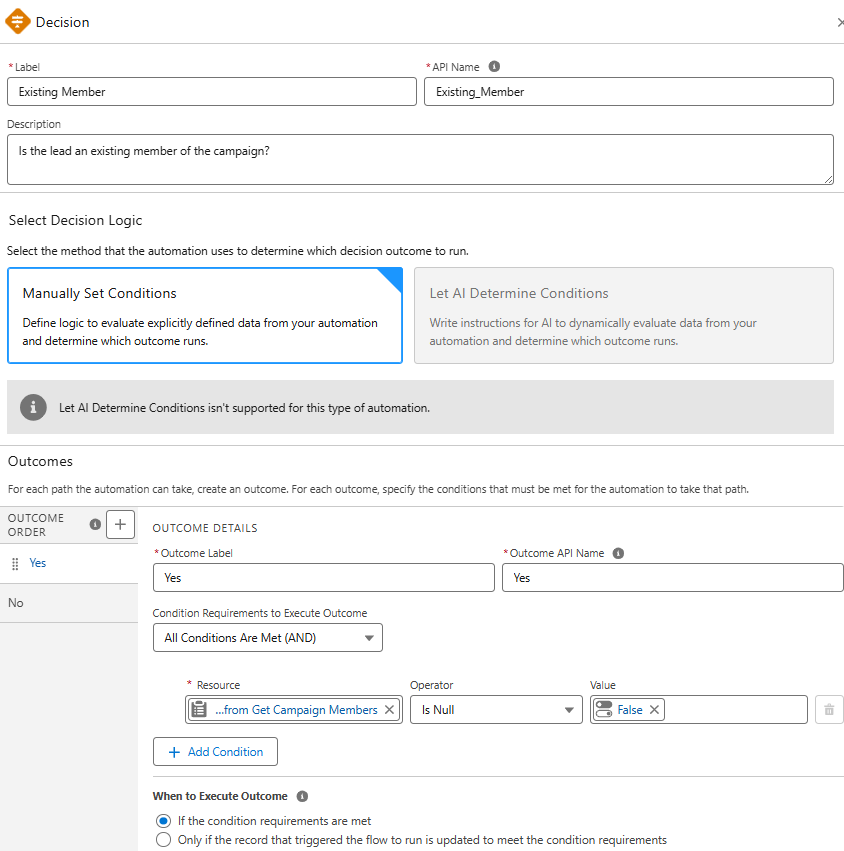
Add a “Decision Element” to create distinct paths for existing vs. new records.
Update/Create Records
Add an element to update the campaign member status of existing campaign members to the “Last Campaign Member Status” value.
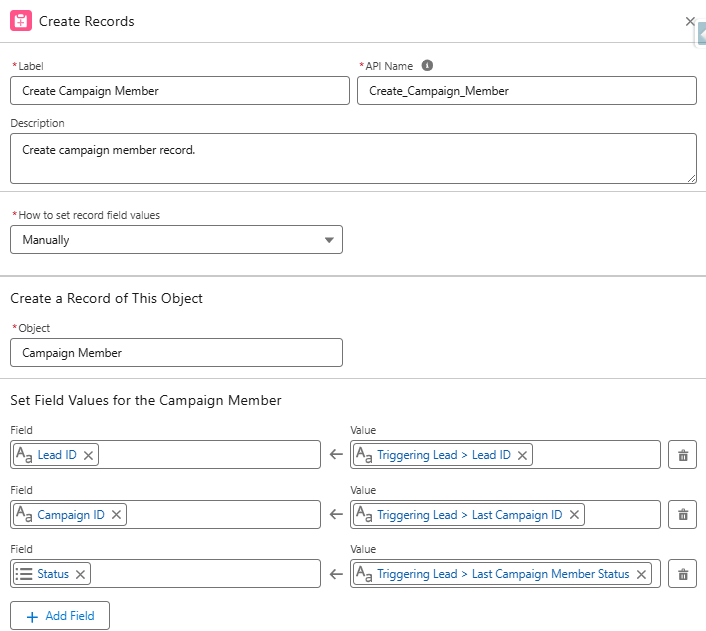
Add an element to create campaign members for new records based on the record ID, “Last Campaign ID” and ““Last Campaign Member Status”.
Activate the Flow
Based on the example flow (created on the lead object), new lead records or existing members that meet the entry conditions, will now be automatically added to the target campaign.
Consideration #5 – Time Spent Building Flows
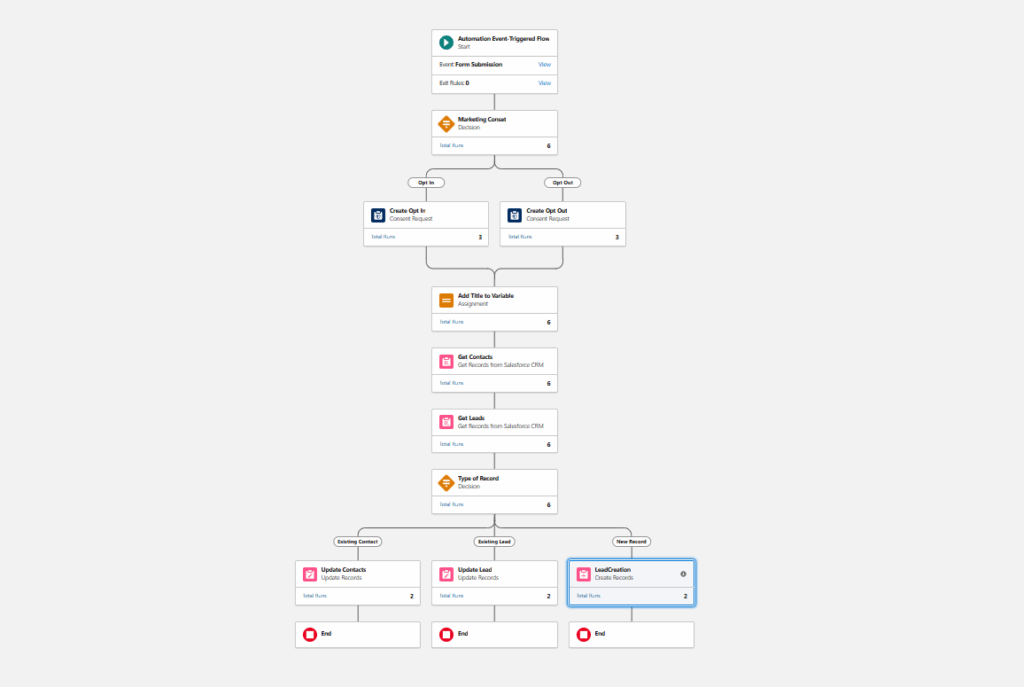
Over the course of this post, we’ve taken a very basic flow and enhanced it with additional elements, assignment variables, and formula fields.
The most frequent concern I hear from clients is that they don’t have the time or skills to manage these builds. However, you don’t actually have to build everything from scratch.
Final Flow
Solution – Flow Templates
Flow templates are a great way to jumpstart flow creation. An existing flow can be saved as a template and a new flow can be created from it. Once created, the new flow can be connected to a form.
Creating a Flow Template
Open and existing flow.
Click “Edit As New Version”.
Open the “Start” element and remove the connected form.
Select the “Save As New Flow” option, name, and save.
Note: You will have a large number of errors and warnings. This is expected as the flow is referencing form fields and there is no connected form.
With the new flow open, select the “Save as Template” option. This will set the flow type as a template.
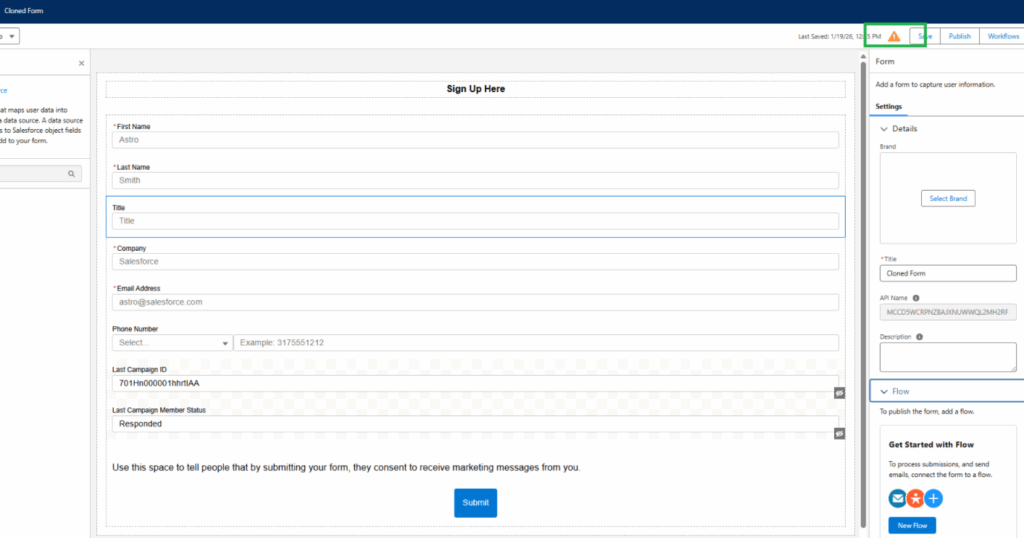
Clone the source form.
Since the original flow was created from a form, you can clone this form (essentially using it as a template). This will ensure that all fields map correctly to the flow and resolve the errors and warnings.
Update the hidden field as needed (Last Campaign ID, Last Campaign Member Status, and any other fields that may have been added).
Note – You will see a warning because a flow has not been created. This is expected.
Create a new flow using the flow template.
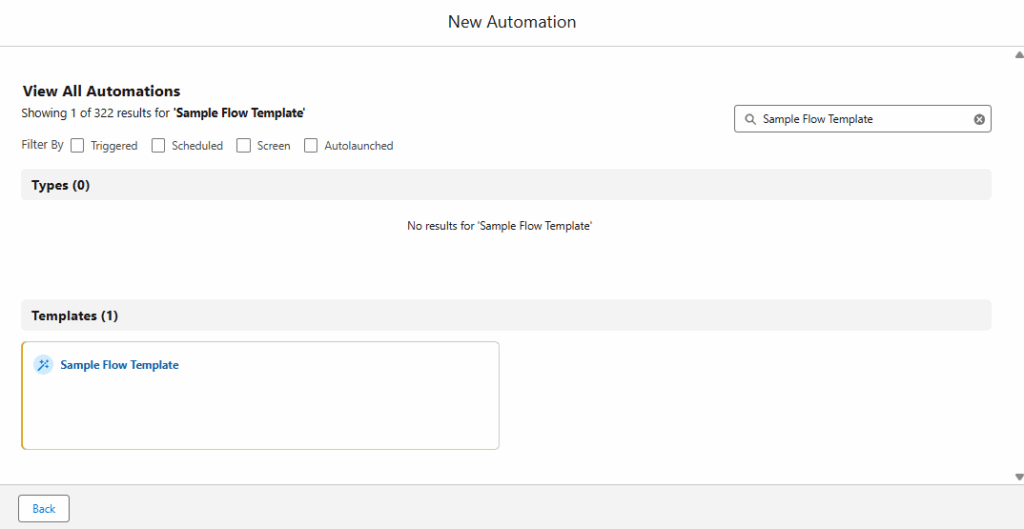
Flow > New
Use the “Search automations” box to your flow template.
Select the template.
Close the “Something when wrong” message.
Open the “Event” section in the state element and select the new form that was created.
Click “Save” and name the flow.
Confirm all errors and warnings have been resolved.
DO NOT ACTIVATE.
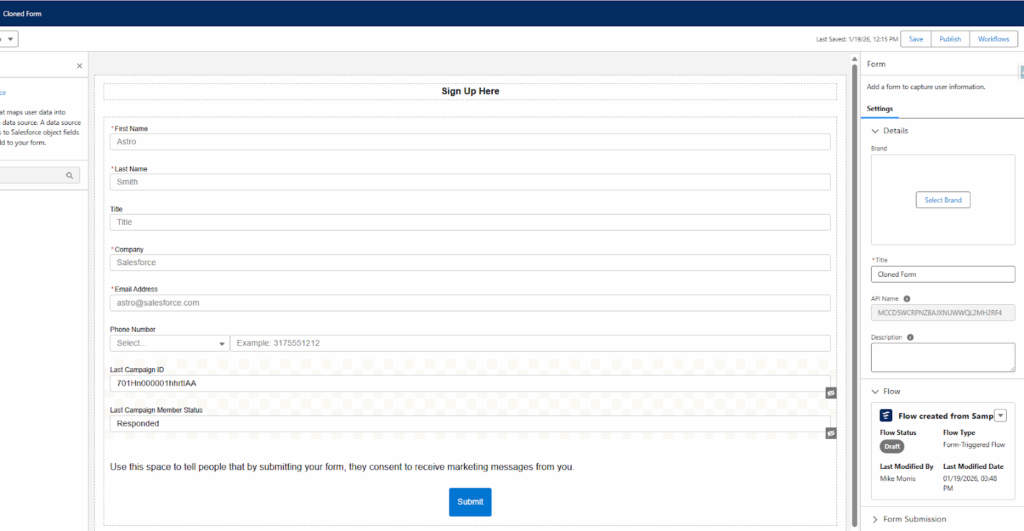
Publish the form.
Return to the new form, confirm that the flow has been connected, click “Publish”.
Accelerate Your Success
Agenforce Marketing forms function a bit differently than Marketing Cloud Account Engagement forms, but they perform the same function. There’s an expected learning curve when adopting a new platform and my hope is that understanding some of the considerations will help speed up your adoption and success.
Sercante is recognized as a Marketing Cloud Growth and Advanced Implementation Expert and has the expertise to support your Agentforce Marketing needs. Let us know how we can help.
Product Note:Marketing Cloud Growth and Advanced are editions of Marketing Cloud Next and have also been referred to as Agentforce Marketing.
Repeaters are one of the newer features in Marketing Cloud Next (aka as Marketing Cloud Growth or Advanced Edition), and one of the coolest in my opinion. In this post, we’ll review what repeaters are, how to set them up, and look at how Fellowes Brands is using them to simplify the customer experience.
What are Repeaters?
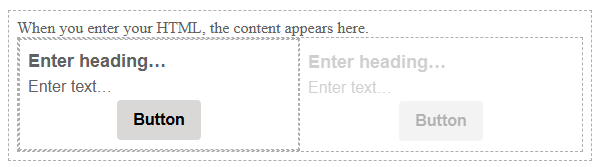
Before we get too deep, let’s talk a bit about what repeaters are and how they function. Repeaters are used to display a series of items in an email. These can include recent purchases, upcoming events, product recommendations, and more. The repeater’s layout can be configured to show images, merge fields, CTA buttons, and links.
The magic of repeaters lies in their configuration. All configuration is done in the first item. Additional items inherit this configuration but display the relevant data based on the associated data source. Their layout also allows for customization of the number of items to display and the number of items included per row.
Fellowes is recognized for their innovation in indoor air quality and produces a line of commercial air purifiers scientifically proven to remove COVID, SARS, H1N1 and other harmful viruses. Regular filter changes are key to optimizing the performance of their air quality products.
Fellowes needed a way to improve the customer experience by delivering timely reminders when filter changes were due and by providing relevant filter options based on the specific air purifier. There was also a need to simplify the purchase process by providing direct links to the filters with additional details and purchase options.
The Solution
Data 360, Marketing Cloud Next, and repeaters were utilized to deliver a scalable solution that met the needs of Fellowes and their customers.
The end result was a tailored email sent to customers based on the expiration date of their current filters. The email offered filter recommendations specific to their air purifier and provided direct links to the corresponding product pages with purchase options and additional details. Below is an image of the repeater section of the final email.
Highlights of note:
The number of options vary based on the number of related products for the specific unit.
Images are rendered from base URLs appended with specific product codes using merge fields.
Images are linked to the product page on the website.
The product name and item number are merge fields.
The “Learn More” buttons use dynamic URLs to link to the product page on the website.
The Build
The focus of this post is on repeaters, but it all starts with data. First, the proper relationships must be established in Salesforce. Then, the data must be ingested into Data Cloud, and a link to the unified individual must be established through the data graph. Once the data structure is in place, configuration of the repeater can begin.
Data Structure
The standard Product object is used to store all product data, including air purifiers and their filters. While this is a great starting point that uses the standard object as intended, it does not include the necessary relationships between the air purifiers and their filters.
A custom junction object named Product Relationships was created to establish these needed connections. This custom object consists of two lookups to the Product object: one for the Parent product and one for the Related product. The custom object also includes several additional “related product” fields used as merge fields, such as Related Product Code and Related Product Name.
Data 360 (Data Cloud)
The Product and Product Relationships objects were ingested into Data 360, and the necessary fields were mapped. The critical step was establishing a relationship between these two Data Model Objects (DMOs).
This was achieved by creating a relationship from the Product Relationship DMO to the Product DMO, using the Product ID as the connecting key.
Data Graph
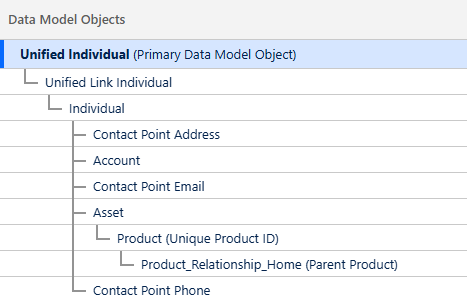
Data Graphs are essential for enabling personalization and configuring repeaters within Marketing Cloud Next. As stated previously, a relationship was needed between the Related Product and the Unified Individual to deliver upon the requirements of this use case.
The data graph was constructed using several objects to “hop” from the Product Relationship DMO to the Unified Individual record.
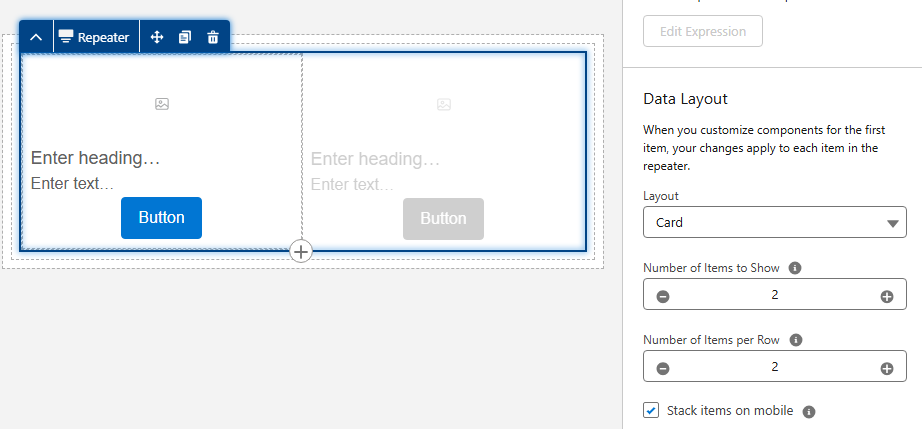
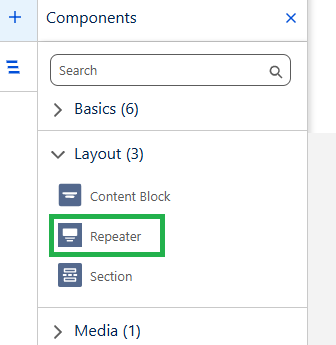
The Repeater component, located in the Layout section of the Components Panel, was dragged onto the canvas where it should appear in the email.
Configuring the Repeater
The Repeater component in this use case includes the following elements:
Filter image with a corresponding link and alt text
Filter name and item number
Call-to-Action (CTA) link that redirects to the filter page on the website
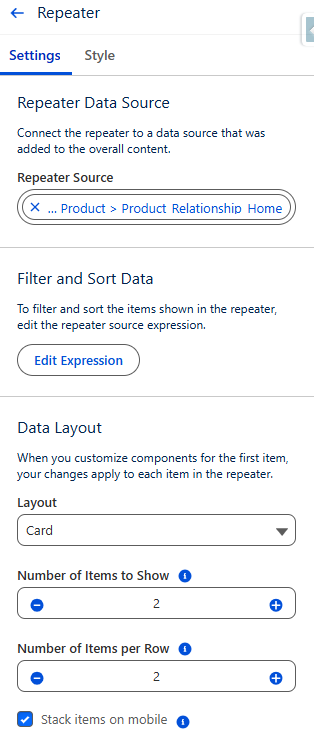
The repeater’s data source was set to use the Product Relationship DMO. The Card layout was selected, and the settings for both the number of items to show and the number of items per row were set to 2.
Adding the Image
There are several options for adding images to a repeater, depending on where the image is hosted. If the image is in Salesforce CMS, it can be added using the Image component and selecting the Salesforce CMS image source option. If the image is not in the CMS, the Image component can still be used with the Merge field option.
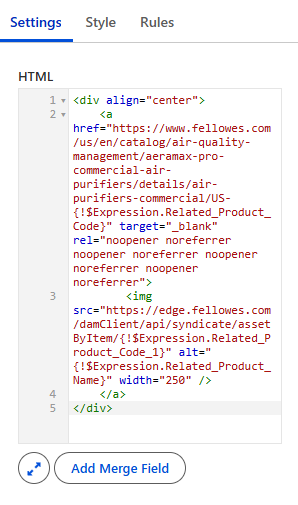
In this specific example, more control was desired, so the Image component was replaced with an HTML component.
Here are the steps that were followed:
The Image component in the first item of the repeater was replaced with an HTML component.
HTML code was added into the HTML component.
All images were stored externally and followed a consistent format. Since all image URLs used the same base URL with the product code appended, the base URL could be hardcoded into the HTML, and the product code was appended using a merge field.
A consistent format was also used for the product page URLs on the website, so the same process was used to generate the product link.
The alt text was added using a merge field.
The product name and item number were populated using merge fields from Product Relationship DMO.
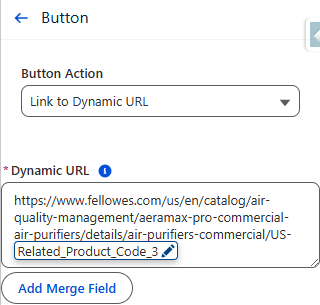
The Call-to-Action (CTA) button was configured using a Dynamic URL.
The product code was added to the end of a consistent base URL to generate a unique URL linking to the specific product page on the website.
Important:
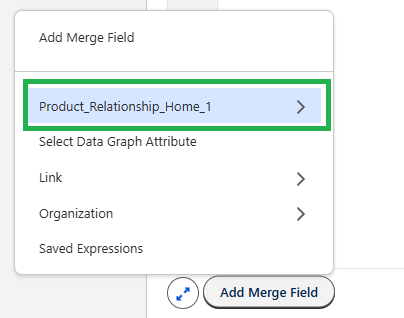
When adding merge fields into a Repeater component, the fields must be selected from the repeater data source as opposed to the data graph. Since the Product Relationship object serves as the repeater data source in this configuration, all merge fields were added from this source.
Testing
A segment was created that selected unified individuals who had purchased an air purifier. Test emails were sent using the “Preview” feature in Marketing Cloud Next.
Products displayed in the repeaters were checked against the Product Relationship object for accuracy. All links were also tested and confirmed.
How Will You Use Repeaters?
This use case is a great example of how repeaters can improve the customer experience and drive sales of related products. Building this process opened my eyes to the power of this feature, and I can’t wait to use it more. I hope this post has demystified repeaters and inspired you as well.
Let us know how you are using repeaters (or ideas you have for using them), by dropping a note in the comments section.