Category

Emails & Templates

Product Note: Marketing Cloud Growth and Advanced are editions of Marketing Cloud Next and have also been referred to as Agentforce Marketing.

Repeaters are one of the newer features in Marketing Cloud Next (aka as Marketing Cloud Growth or Advanced Edition), and one of the coolest in my opinion. In this post, we’ll review what repeaters are, how to set them up, and look at how Fellowes Brands is using them to simplify the customer experience.

What are Repeaters?

Before we get too deep, let’s talk a bit about what repeaters are and how they function. Repeaters are used to display a series of items in an email. These can include recent purchases, upcoming events, product recommendations, and more. The repeater’s layout can be configured to show images, merge fields, CTA buttons, and links.

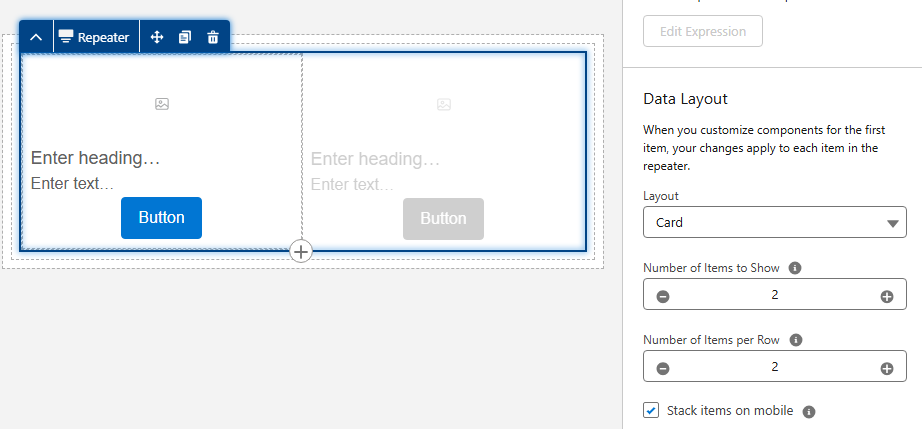
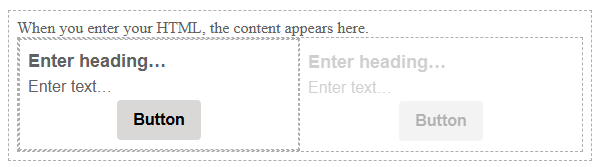
The magic of repeaters lies in their configuration. All configuration is done in the first item. Additional items inherit this configuration but display the relevant data based on the associated data source. Their layout also allows for customization of the number of items to display and the number of items included per row.

Web design interface with a repeater function.

Learn more about repeaters

The Need

Fellowes is recognized for their innovation in indoor air quality and produces a line of commercial air purifiers scientifically proven to remove COVID, SARS, H1N1 and other harmful viruses. Regular filter changes are key to optimizing the performance of their air quality products.

Fellowes needed a way to improve the customer experience by delivering timely reminders when filter changes were due and by providing relevant filter options based on the specific air purifier. There was also a need to simplify the purchase process by providing direct links to the filters with additional details and purchase options. 

The Solution

Data 360, Marketing Cloud Next, and repeaters were utilized to deliver a scalable solution that met the needs of Fellowes and their customers.

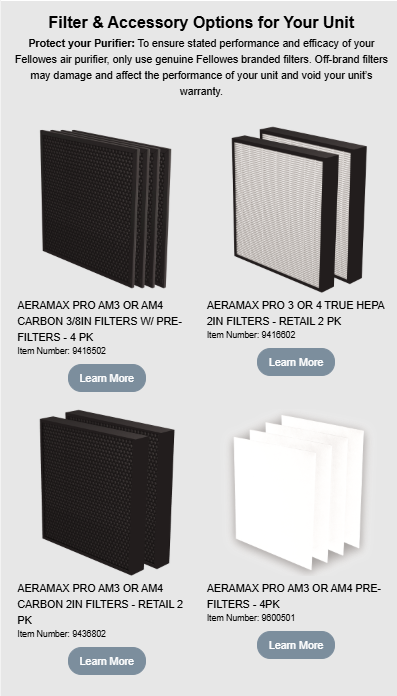
The end result was a tailored email sent to customers based on the expiration date of their current filters. The email offered filter recommendations specific to their air purifier and provided direct links to the corresponding product pages with purchase options and additional details. Below is an image of the repeater section of the final email.

Highlights of note:

  • The number of options vary based on the number of related products for the specific unit.
  • Images are rendered from base URLs appended with specific product codes using merge fields.
  • Images are linked to the product page on the website.
  • The product name and item number are merge fields.
  • The “Learn More” buttons use dynamic URLs to link to the product page on the website.
Filter options for air purifier.

The Build

The focus of this post is on repeaters, but it all starts with data. First, the proper relationships must be established in Salesforce. Then, the data must be ingested into Data Cloud, and a link to the unified individual must be established through the data graph. Once the data structure is in place, configuration of the repeater can begin.

Data Structure

The standard Product object is used to store all product data, including air purifiers and their filters. While this is a great starting point that uses the standard object as intended, it does not include the necessary relationships between the air purifiers and their filters.

A custom junction object named Product Relationships was created to establish these needed connections. This custom object consists of two lookups to the Product object: one for the Parent product and one for the Related product. The custom object also includes several additional “related product” fields used as merge fields, such as Related Product Code and Related Product Name.

Data 360 (Data Cloud)

The Product and Product Relationships objects were ingested into Data 360, and the necessary fields were mapped. The critical step was establishing a relationship between these two Data Model Objects (DMOs).

This was achieved by creating a relationship from the Product Relationship DMO to the Product DMO, using the Product ID as the connecting key.

Data Graph

Data Graphs are essential for enabling personalization and configuring repeaters within Marketing Cloud Next. As stated previously, a relationship was needed between the Related Product and the Unified Individual to deliver upon the requirements of this use case.

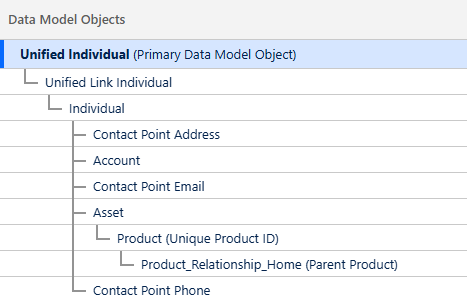
The data graph was constructed using several objects to “hop” from the Product Relationship DMO to the Unified Individual record.

Data model diagram outlining relationships between different data objects.

Adding the Repeater

The email was built using the Marketing Cloud Next email builder. If you have any questions about this builder, be sure to check out Erin Duncan’s post, “Everything to Know About the Marketing Cloud Next Email Builder.”


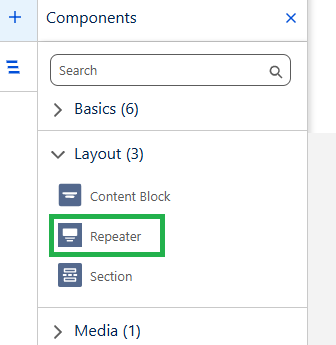
The Repeater component, located in the Layout section of the Components Panel, was dragged onto the canvas where it should appear in the email.

Email builder highlighting the "repeater" component within the "layout" section.

Configuring the Repeater

The Repeater component in this use case includes the following elements:

  • Filter image with a corresponding link and alt text
  • Filter name and item number
  • Call-to-Action (CTA) link that redirects to the filter page on the website


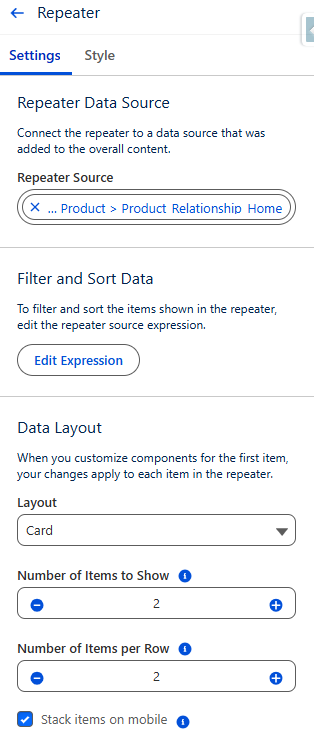
The repeater’s data source was set to use the Product Relationship DMO. The Card layout was selected, and the settings for both the number of items to show and the number of items per row were set to 2.

Shows settings related to a repeater data source. Shows options for filtering, sorting, and data layout.

Adding the Image

There are several options for adding images to a repeater, depending on where the image is hosted. If the image is in Salesforce CMS, it can be added using the Image component and selecting the Salesforce CMS image source option. If the image is not in the CMS, the Image component can still be used with the Merge field option.

In this specific example, more control was desired, so the Image component was replaced with an HTML component.


Here are the steps that were followed:

  1. The Image component in the first item of the repeater was replaced with an HTML component.
How to use HTML components.
  1. HTML code was added into the HTML component.
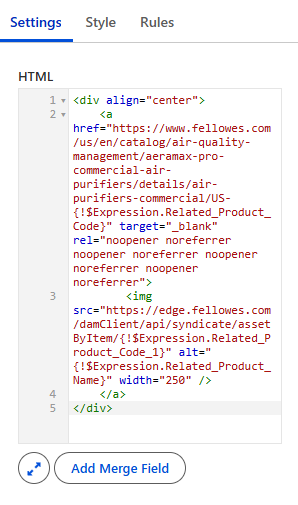
    • All images were stored externally and followed a consistent format. Since all image URLs used the same base URL with the product code appended, the base URL could be hardcoded into the HTML, and the product code was appended using a merge field.
    • A consistent format was also used for the product page URLs on the website, so the same process was used to generate the product link.
    • The alt text was added using a merge field.
HTML code
  1. The product name and item number were populated using merge fields from Product Relationship DMO. 
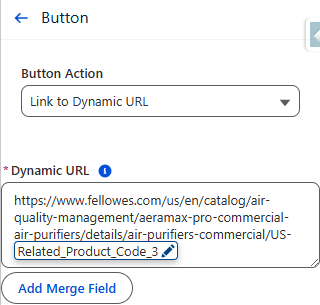
  2. The Call-to-Action (CTA) button was configured using a Dynamic URL.
    • The product code was added to the end of a consistent base URL to generate a unique URL linking to the specific product page on the website.
Shows a button configuration with a dynamic URL.

Important:

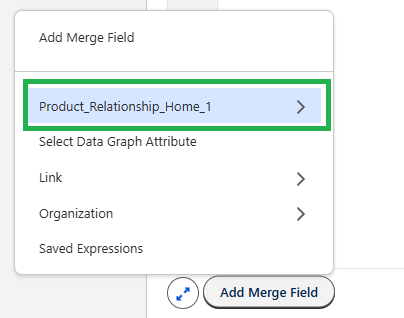
When adding merge fields into a Repeater component, the fields must be selected from the repeater data source as opposed to the data graph. Since the Product Relationship object serves as the repeater data source in this configuration, all merge fields were added from this source.

Shows a highlighted "add merge field" option

Testing

A segment was created that selected unified individuals who had purchased an air purifier. Test emails were sent using the “Preview” feature in Marketing Cloud Next.

Products displayed in the repeaters were checked against the Product Relationship object for accuracy. All links were also tested and confirmed.

How Will You Use Repeaters?

This use case is a great example of how repeaters can improve the customer experience and drive sales of related products. Building this process opened my eyes to the power of this feature, and I can’t wait to use it more. I hope this post has demystified repeaters and inspired you as well.

Let us know how you are using repeaters (or ideas you have for using them), by dropping a note in the comments section.

Product Note: Marketing Cloud Growth and Advanced are editions of Marketing Cloud Next and have also been referred to as Agentforce Marketing.

Marketing Cloud Next offers an intuitive, drag-and-drop email builder packed with smart features that streamline the email creation process. In this blog post, we’ll walk through the key features and functionality of the Email Builder—everything from layout and design features to personalization and testing options—so you can confidently build, preview, and send your first email.

Before we dive into using the builder, let’s have a quick overview of the builder and its different sections:

A screenshot of the Marketing Cloud Next Email Builder with the components labeled 1 - 5. 1: View Mode, 2: Components Panel, 3: Row, 4: Canvas, and 5: Property Panel.
  1. View Mode – Use this to switch between Desktop and Mobile view. You can also show or hide the HTML code in this section.
  2. Components Panel – This section displays the available components for the email. This section will include standard components as well as layout components and, after the Winter ‘26 release, any reusable content blocks created in your org.
  3. Row – All Components are placed in rows. These are the editable sections of your email.
  4. Canvas – Add components by dragging and dropping them onto the canvas. 
  5. Property Panel – Displays what can be changed and customized for the currently selected row. When no row is selected, this panel allows you to select a brand, specify your email details, and set your preheader and subject line. You can also specify styling for the email as a whole or configure your email’s data source.

Customizing a Component

Let’s dive into the features and options when building a component. We’ll drag-and-drop a Paragraph component into our email for this section. 

A screenshot of the Paragraph component in the Marketing Cloud Next Email Builder.

The editing options vary depending on which component you have selected, but the Paragraph component shows a good variety of the options. Let’s talk about these from Left to Right

  1. Container Component – this helps you toggle between the component and the container the component resides in. For example, if you wanted to change the background for the container entirely, select the Container Component to switch from the Paragraph component to its container. The Property panel on the right will change as you toggle between these two items. 
  2. Component Type – the next section will just display which type of component you are currently working with (button, divider, heading, etc.)
  3. Draft with Agentforce (aka Agentforce Sparkles [insert jazz hands here]) – this option allows you to use Agentforce to write or revise your email content. If a Brand is associated with your email, Agentforce will even use the Brand Identity and Tone specified in the brand when generating content. Agentforce also gives you the option to revise the content by your key message or target audience (which is defined in the Campaign Brief), change the tone of the content, or increase/decrease the content length, all within the Agentforce window.
A screenshot of all the actions available when drafting with Agentforce.
  1. Formatting Components – The next couple of components are pretty universal to WYSIWYG editors, so we’ll cover these quickly. We have:
    1. Indent
    2. Bold
    3. Italize
    4. Underline
    5. Strikethrough
    6. Link
  2. Merge Fields – Here you can populate required information, like your organization’s address or email preference center link, or insert fields from your Data Graph to personalize the email to the recipient. If your team has merge fields they want to use again and again, create and save a Reusable Expression in your CMS for quick access here. 
  3. The final three icons all deal with things you can DO with the component, from left to right, we have
    1. Drag
    2. Duplicate
    3. Delete

Styling your Email

If you’ve set a default Brand for your CMS workspace, your email will be autobranded before you even start building. However, if you need to apply or switch your brand, you can do so at any time from the Property Panel. 

A screenshot of the Brand Settings in the Property Panel of the Marketing Cloud Next Email Builder.

When building your email components, you can access the Style of said component in the right side Property Panel. This will display what is auto-styled from the Brand as well as what can be edited without straying from the Brand specifications. You can override the branding by changing the style options to “custom”,  just keep in mind that if the Brand itself later changes, those changes will not automatically update any components where the styling has been overridden. 

A screenshot of overriding the branding by changing the styling options to custom.

Personalizing your Email

Beyond Merge Field, you also have two great personalization options in the builder: Dynamic Content and Email Repeaters. 

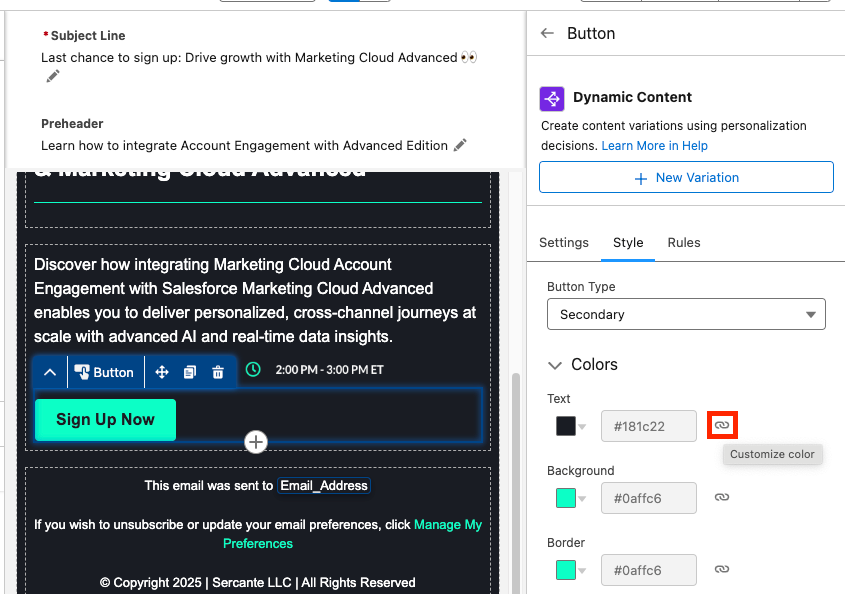
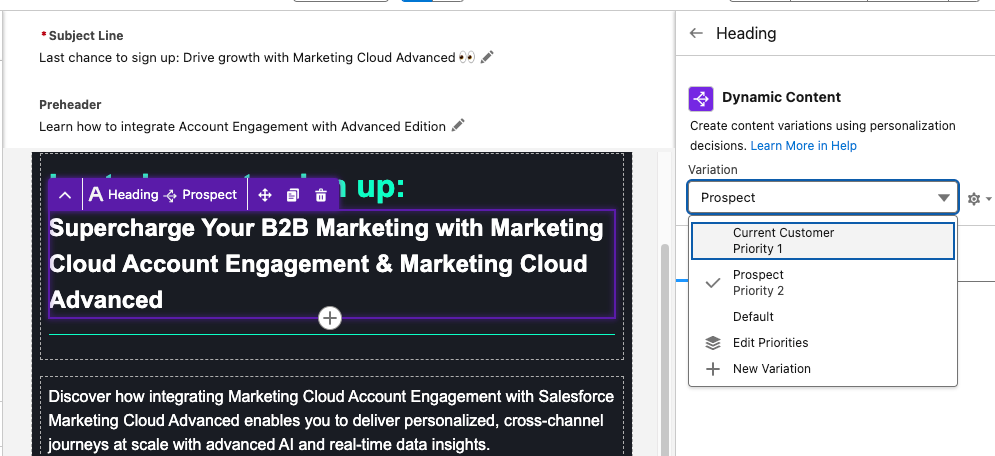
Dynamic Content allows you to create variations in your email and specify when those variations appear. For example, you can change your email heading text depending on if the recipient is a prospect or a customer. When you have a component selected, the Dynamic Content option will appear in the Property Panel. Learn how to set up Dynamic Content variations from our previous blog post.

A screenshot of the Dynamic Content option appearing in the Property Panel.

Email Repeaters allow you to show a series of items customized to the recipient. For example, we could display upcoming events that the reader may be interested in attending and tailor which events we display based on the Marketing Tech the reader is interested in. 

A screenshot using Email Repeaters in the Marketing Cloud Next Email Builder.

Email Repeaters require a Data Source, but you can learn how to set those up here

Testing Your Email

To test your email first, toggle between the Desktop and Mobile views within the View Mode to make sure your email looks great on both. Then ensure you’ve customized your Subject Line and Preheader text. You can edit your Subject Line and Preheader both above your email or in the Property Panel on the right. You can also insert Merge Fields or Dynamic Content into both. 

A screenshot showing where you can edit your Subject Line and Preheader, both above the email or in the Property Panel on the right.

Then select Preview from the top right corner. You’ll need to select a published Segment with at least one recipient in order to preview the email.

A screenshot showing how to select a published Segment with at least one recipient to preview the email.

Next select the Test tab and enter the test email recipient and the From Name and Address. Your From Address needs to match the authenticated DKIM domain in Marketing Cloud.  

The final step will be sending your email, which can be done in a couple of different ways, but all revolve around using Flow. See some of the resources below for help building and activating a Marketing Cloud Flow:

Email Builder FAQ

Can we create reusable Email Templates for Marketing Cloud? Yes, this feature is coming as part of the Winter ‘26 release

Can we view or edit the HTML of Marketing Cloud Emails?  Yes, in the View Mode, you can toggle between the drag-and-drop builder and the HTML of the email. Here you can view the HTML, if you want to edit your email via HTML you can select Convert to HTML. However, once an email is converted to HTML, it cannot be converted back, so be careful! My guess is that this will change with future releases.

Can we use Custom Fonts with Marketing Cloud Emails? Only if you build your emails via HTML, or you could build an email with the drag-and-drop builder, convert it to HTML, then add the custom font code. However, this isn’t ideal. I believe Custom Fonts will be supported in a future release though.

Should Account Engagement users start using this builder? I’ll have to give you the annoying consultant answer of “it depends”. Account Engagement orgs can use the Marketing Cloud builder but, without Marketing Cloud also installed, it has some limitations that I don’t love. However, Account Engagement users can also get free access to Marketing Cloud Growth/Advanced as part of their Account Engagement license, so my recommendation would be to install Marketing Cloud Growth/Advanced and give the new builder a shot.

Can I build an email in the Marketing Cloud Drag-and-drop builder and copy the email HTML to Account Engagement? I was asked this recently, and you know what, that could work! However, proceed with caution and test often. I briefly gave this a shot, and the email in Account Engagement turned out pretty OK. I had to do some tweaking and had to replace the merge tags, but it looks like a viable solution in a pinch. Marketing Cloud specific features, like Dynamic Content based on personalization points, Cross Object Personalization, Repeaters etc. will not translate, but the structure and styling of the email should be pretty good. 

Do Keyboard Shortcuts work with this builder? Yes!

Final thoughts 

Marketing Cloud Next’s Email Builder delivers a streamlined, drag-and-drop experience that helps marketers craft personalized communication at scale with the help of AI, Agentforce, Dynamic Content, and Cross Object Personalization. The more familiar you are with its features, the more you’ll see what’s possible for creating even better communication experiences for your audience.

When you’re ready to start building, refer back to this guide—and if you’d like help with navigating your next steps in the meantime, reach out to the Sercante team, we’ll help you map out your next steps for success.

I don’t usually use the word transformational when discussing content blocks for an email, but this one deserves it. Recently, our team at Sercante had the opportunity to partner with one of our long-term automotive clients to find a solution to a big problem—overstocked inventory. 

This project began like many others. An innovative, creative brand trying to bridge the gap between what customers want and what they can have. Buyers were spending time configuring their perfect vehicles, carefully choosing every option and detail, and then either abandoning their cart or waiting months for the car to be built.

What they didn’t realize was that their dream car, or something close to it, was already built. Already available for them. Already on the lot. It just wasn’t being shown to them.

The Problem: They Had the Cars, But No One Knew

The brand had a recommendation engine on their website, which enabled customers to browse their available inventory. However, this only happened if a customer actively sought it out. Meanwhile, their emails weren’t showing in-stock options, but rather driving them to the configurator to design their vehicle. The inbox experience focused on brand, features, and specs, but not on availability.

There was a disconnect between digital engagement and physical inventory. And it was costing time, resources, and ultimately, conversions. Through several brainstorming sessions and collaborative work, we had to ask ourselves what would happen if we started surfacing what customers could get today?

The Approach: Make the Data Work in Email and Web

Working with the brand’s Salesforce team, we built a dynamic content block that connects their existing vehicle recommendation API with Salesforce Marketing Cloud. At send time, the block pulls in the top two vehicles available near each subscriber’s zip code.

That means:

  • Real-time pricing and availability
  • Personalized images and trim-level specs
  • A “View Details” CTA that drives them to the inventory page
  • And dynamic scripting to auto-generate it all without a manual lift

The block works anywhere—in journeys, newsletters, promotions, event invitations, and more. We added fallback logic, Einstein Send Time Optimization, and throttling to ensure performance even for high-volume sends. We evaluated alternative approaches, such as daily lookup tables, but for this use case, true real-time was worth it. It wasn’t just about showing inventory, it was about giving the customer a path forward. 

What Happened Next

This shift didn’t just make the email more useful. It changed how the brand saw its role in the customer journey and the results showed the impact:

  • Click-through rates on the monthly newsletter more than doubled from 1.02% to 2.26%.
  • Journey emails with the content block saw a 119% higher click-through rate in A/B testing.
  • Build time dropped from over 40 hours for their monthly newsletter campaign to 10 hours.
  • The time to purchase fell from 107 days to 5 days, and their inventory began to decline.

And, perhaps most importantly, the marketing team began thinking differently. The inbox became a place of momentum. Of relevance. Of action. As their marketing director put it, “This helped us rethink how we use email. Not just to inform, but to move customers forward in their journey.”

Check out the full case study related to this customer story here

Going Beyond Automotive

This isn’t just a car story. If you’re in an industry with inventory, long buying cycles, or complex consideration paths, this kind of approach has ripple effects:

  • Are you surfacing what’s ready now or just what’s aspirational?
  • Are your marketing channels connected to real-time availability?
  • Are your emails helping customers act, not just learn?

We’re all sitting on data that can do more. It’s not about overwhelming customers. It’s about removing friction, aligning on timing, and making it easier to say yes.

This project reminded me that sometimes the most effective marketing move isn’t adding more. It’s making what you already have more visible. Your customers don’t need a better configurator. They need a clearly defined next step. Let’s give them one.
If you’d like an expert’s insights on how to maximize the data you have to build more personalized experiences for your audience, that result in clear next steps and impact on the funnel, reach out to Sercante. The team is all about helping you create seamless experiences for your team and your customers.

When your product is built on precision and luxury, your marketing should reflect this same level of refinement. That was the challenge for one electric vehicle manufacturer that I’ve been working with. Their customer experience was world-class, and they desired their email communications to give customers this same level of engagement. They had Salesforce Marketing Cloud Engagement implemented, but journey building and email production were manual, tedious, and personalization was minimal. In addition, their processes weren’t set up to scale globally, causing growing pains.

The following is a story of how we collaborated to:

  • Transform how they approach their email strategy with a customer-centric view
  • Create a seamless solution that provides personalized email communication based on the customer’s preferences, location, and history which led to faster purchase cycles
  • Streamline their email creation process, increasing efficiency to focus on high-impact initiatives
  • Scale their email strategy for a global presence with localized content and compliance

Check out the full case study here.

A Premium Brand with Patchwork Processes

The product was sleek. The customer base was growing. The global roadmap was ambitious. But behind the curtain, the email engine was sputtering. Here’s what the team was dealing with:

  • Email builds took up to 14 hours (yes, per email).
  • There were no reusable templates or shared content blocks.
  • Teams were operating in silos, often duplicating efforts.
  • Launch timelines were tight, and testing didn’t fit in the schedule.
  • Their Salesforce Marketing Cloud instance hadn’t kept pace with their international growth. 

It wasn’t just inefficient. It was exhausting, especially for a small team trying to achieve big goals.

Partnering for Progress

The first ask was simple: help reduce production time and bring some order to the madness. But once we stabilized their workflows and introduced modular templates, it became clear: this wasn’t just a matter of execution. It was an opportunity to build strategically. So, we shifted gears. Together, we designed a plan to scale personalization, enhance performance, and build a marketing engine that could keep up with the brand’s momentum.

What We Built Together

To bring their vision to life, we focused on four areas that would have the biggest ripple effect across their teams, regions, and customer journeys.

Smarter Templates

  • Dynamic AMPScript footers
  • Multilingual content blocks
  • Modular design system
75% reduction in build time, dropping from 14 hours to under 3 hours.

Journey Automation

Click-through rates more than doubled on journey-based campaigns.
Better Analytics 

  • A/B testing strategy
  • Executive dashboards
  • Cross-regional KPI reporting
Data clarity that informed both creative and strategic decisions.

Global Enablement

Global consistency + local agility without extra lift.

Faster, Smarter, More Strategic

This wasn’t a technical win, but rather a transformation. We didn’t just help them send better emails. We helped them build a more innovative, more scalable way to grow, and the results proved it:

  • 54.18% open rate vs. industry average of 30.9%
  • 3.0% click-through rate, with some offer journeys reaching up to 33%
  • 10+ hours saved per email, freeing teams for strategic work
  • Expansion into new regions with localized content and compliance
  • 50% of retainer hours now dedicated to strategic work

“We’re not just working with Sercante. We’re working alongside
them. They’ve helped us move faster and think bigger.”
– Technology Leader at EV Automotive Company

The brand’s emails now do more than just deliver, they connect, inspire, and scale. When your communications are set up this way, it becomes a powerful lever for growth. If your team is stuck in the email weeds or burning out trying to keep up, you’re not alone. And you don’t have to stay there. Reach out to the Sercante team. Our experts can help partner alongside you just as we did for this electric vehicle manufacturing company to streamline processes, optimize campaigns, and make your experiences seamless to drive lasting growth.

Product Note: Marketing Cloud Growth and Advanced are editions of Marketing Cloud Next and have also been referred to as Agentforce Marketing.

You may have heard Salesforce’s announcement of Marketing Cloud Growth Edition, their new marketing automation platform built on the Einstein 1 platform (also known as “Core”), intended for SMB marketers to help them more efficiently engage their audience at scale. This thrilling new announcement came with a lot of questions, one of them being, what is the campaign asset creation process like with Marketing Cloud Growth Edition? Well, here’s how it works.

Campaign Asset Creation with Marketing Cloud Growth Edition

When it comes to building your campaign in Marketing Cloud Growth Edition, you will be presented with five options:

  • Single Email with Einstein
  • Single Email Template
  • Message Template Series
  • Signup Form Template
  • Blank Email Campaign

Single Email with Einstein

When you use Single Email with Einstein, this starts your team off with using Einstein Co-create. The type of campaign you are planning will determine which option you choose from above, but when you use Einstein Co-create it expedites the campaign brief process. 

Einstein Co-create campaign brief

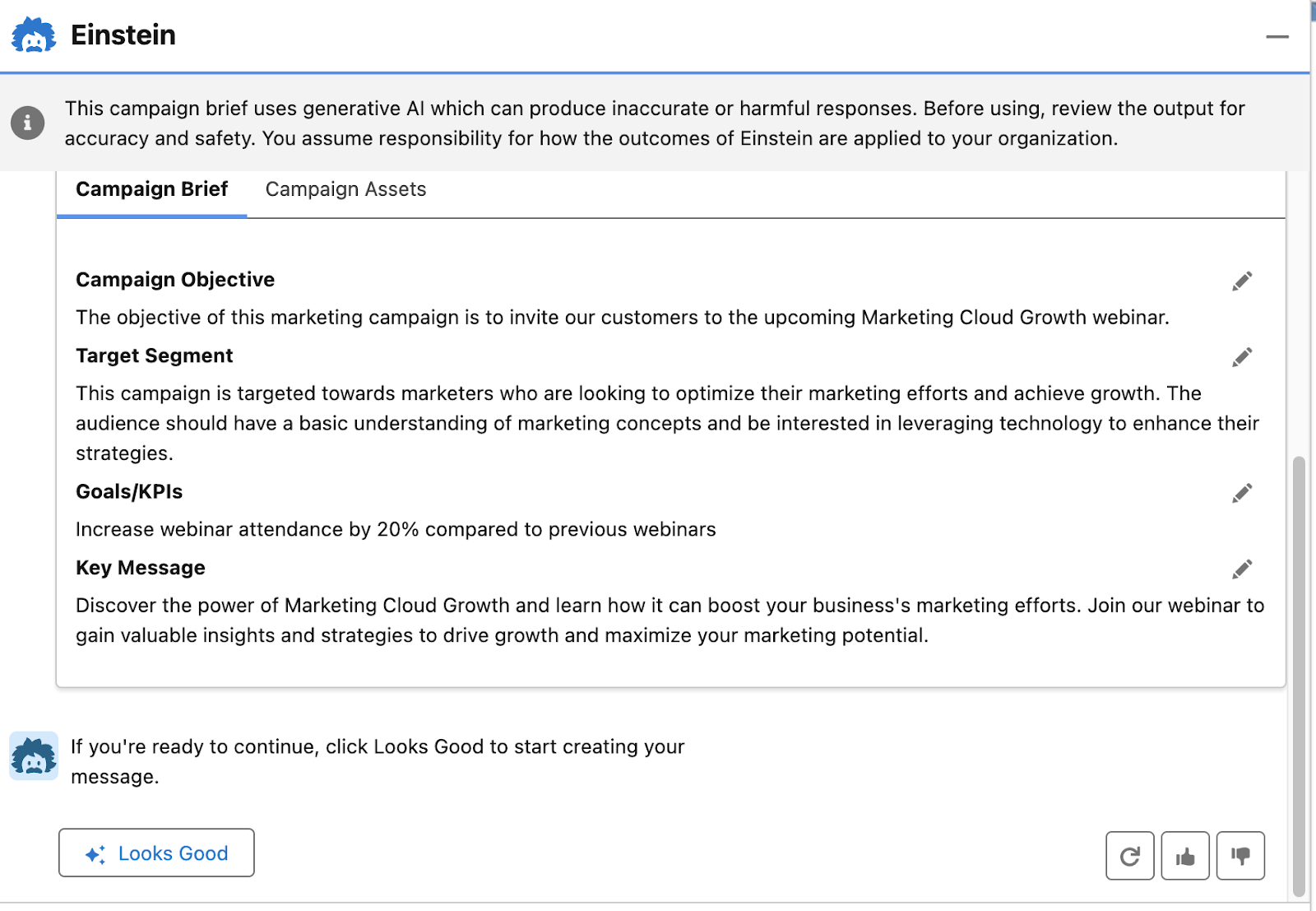
Your campaign brief is essentially the written plan for your campaign strategy. When you use Einstein Co-create, you provide the prompt to Einstein, sharing what your campaign is about the general goal you are looking to achieve, and your target segment and it will then generate a campaign brief with the below elements:

  • Campaign Objective
  • Target Segment
  • Goals/KPIs
  • Key Message

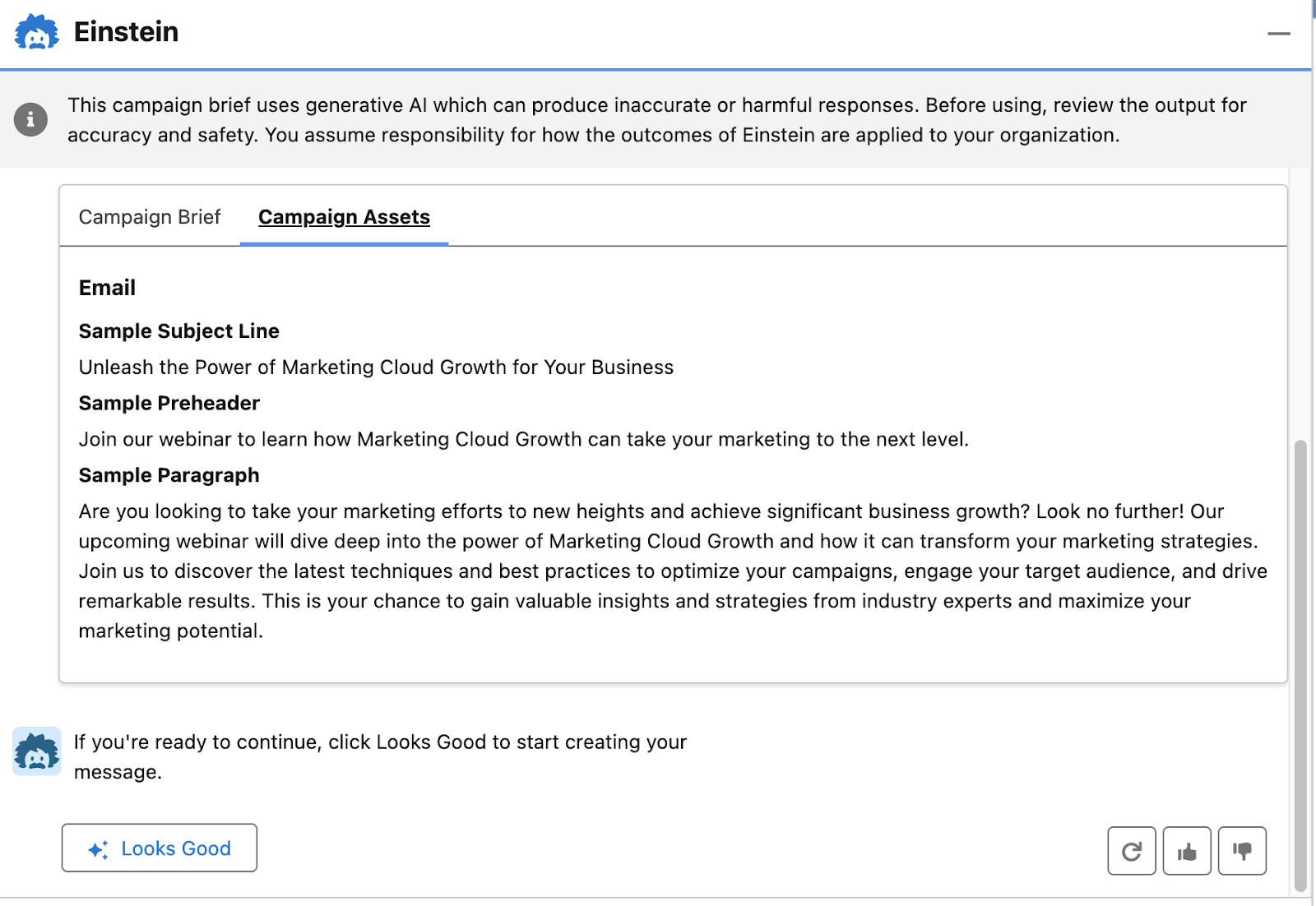
In addition, because the original selection here was Single Email with Einstein, the platform will also automatically generate a Campaign Asset with an Email Subject Line, Preheader, and Body Copy.

You can upvote, downvote, or refresh the content to help the AI improve. Select Looks Good to generate your Campaign Assets.

It’s the same campaign strategy principles, new platform, and a more efficient way to generate campaign briefs along with the email for your campaign. If you select Single Email Template from the campaign asset creation options, it is the same interface as the previous selection, just without automatic content generation.

Message Template Series

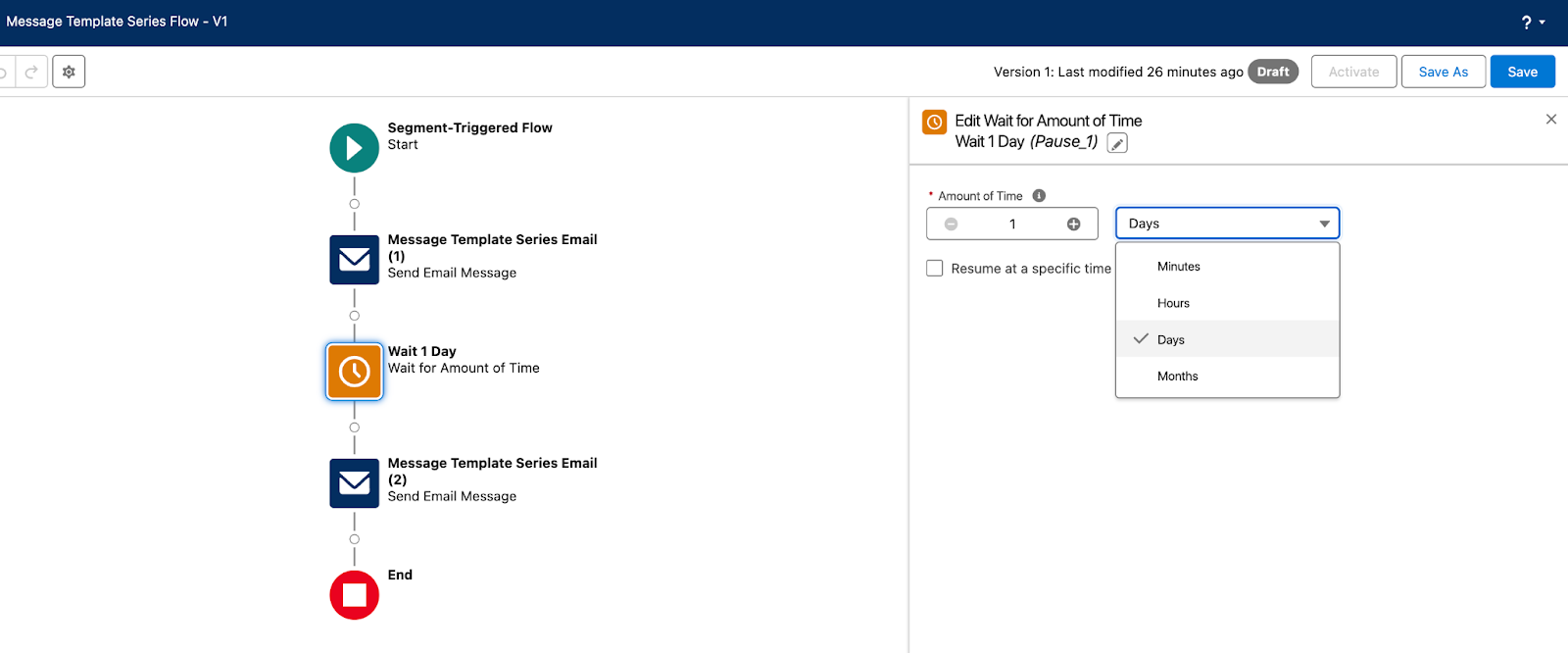
The Message Template Series selection allows you to create two emails customized to your campaign set up from a flow sequence with a Wait 1 Day step between email sends that can be edited to wait minutes, hours, days, months, or resume at a specific time of day. 

Sticking with the Marketing Cloud Growth Edition webinar example from the previous campaign brief generated with Einstein Co-create, the first email could serve as the invitation to our recipient list of marketers and the two emails in this series could serve as the reminder email and the last chance to register email, while suppressing the people who have already registered. 

We could also create a second message template series to start engaging with our prospects who have already registered for the webinar. Maybe for the first email we send them a piece of content that shares an introduction about Marketing Cloud Growth Edition providing initial tips and tricks for how they could get started with the platform and then the second email could be sent on the day of the webinar, reminding registrants it will start in an hour.

There is a lot that your team can do with this option, it just depends on what your plan is for how you will achieve your campaign goal. You already defined the goal, measurement, and audience, with your strategy, but you also need to determine the how.

  • How are you going to promote this campaign to increase registrants?
  • How will you compel your audience to attend the webinar to reach the goal of increasing attendance by XX%?
  • How do you plan on following up with registrants and attendees after the webinar to maximize the results from this webinar three months after, six months after, twelve months after? (This is also where a collaboration with sales comes in.)
  • What has worked well in the past?
  • What has not worked well that should either be nixed for the future or improved upon?

All of this should be defined after you frame your initial campaign strategy and before you and your team start creating the campaign assets, so that when the team starts going down the path of execution, everyone is aligned and focused on the campaign initiatives that will make the greatest impact.

Single Form Template

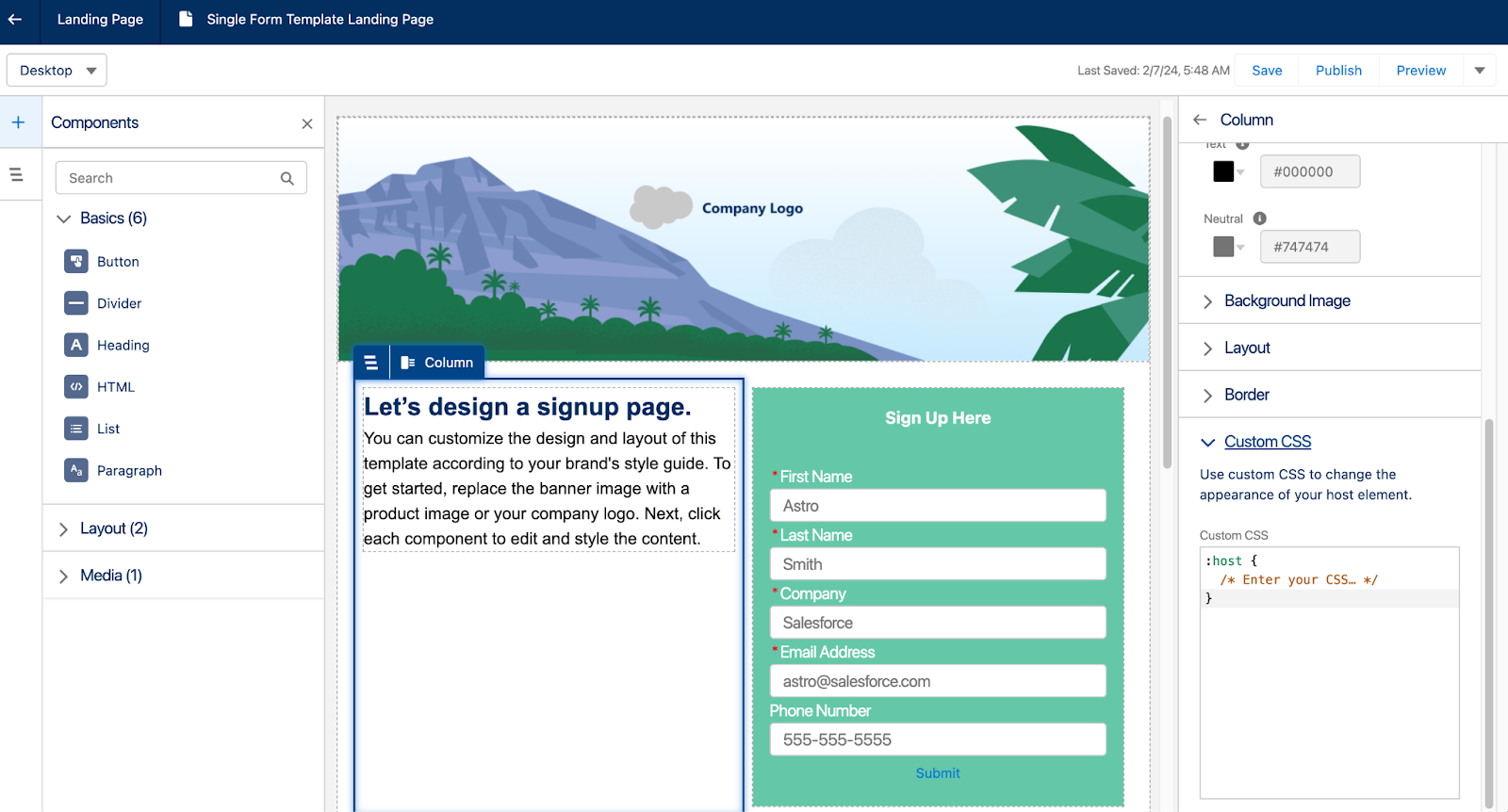
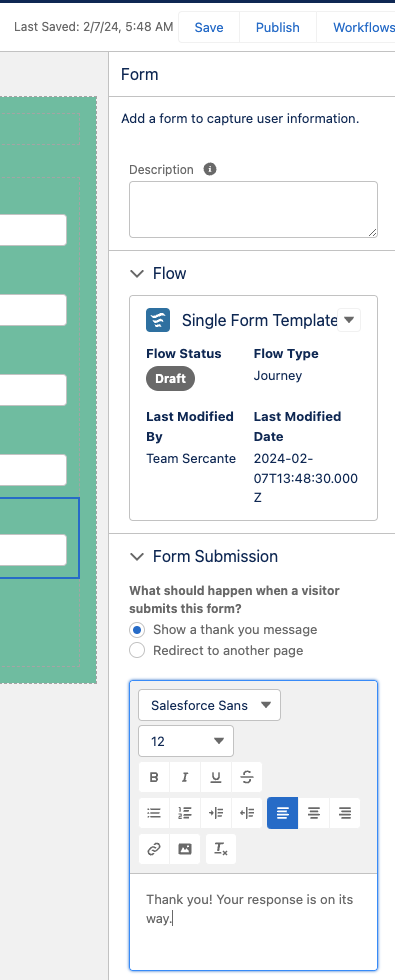
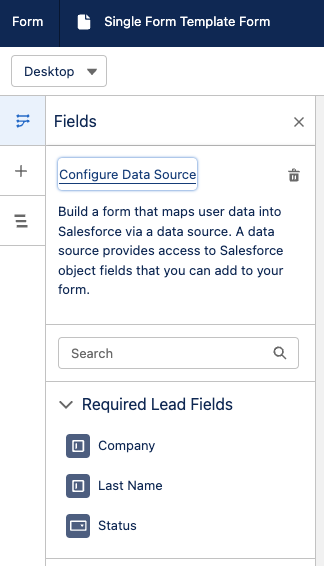
The Single Form Template option is what you would use to create the registration form and landing page for the webinar. The platform starts you out with creating a landing page that includes a form. The Landing Page includes a form, but the form can be switched out for another form that exists in your org. This campaign also includes a flow to create new Leads when the form is completed. 

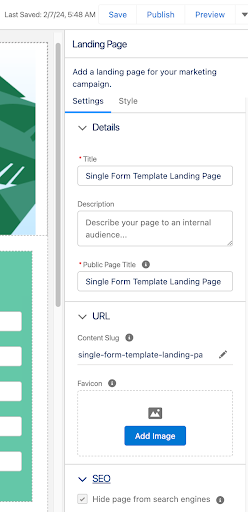
The landing page builder comes with the following features:

  • Title, Description, and Public Page Title can be customized
  • URL Content Slug can be edited for a custom landing page URL
  • Favicons can be added
  • Landing Pages can be hidden from Search Engine indexing 

Building the landing page content is similar to the Lightning Builder experience for Account Engagement. Each component on the Landing page also includes a Custom CSS field. 

As you build the landing page for the webinar, you can then move to the registration form. The form features for Marketing Cloud Growth Edition can show a Thank You message or redirect to another URL, such as a thank you page.

When adding the fields to your form, you can use the Configure Data Source feature to pull in Lead, Contact, or Account fields into your form. If you do not want to use this feature to pull in the fields, you can simply add the fields to your form and then map them accordingly in the flow.

By default, the flow will create new Leads upon form submission. If you have existing leads and contacts that are expected to be registering for the webinar, you will need to customize the flow to update existing records.

Keep in mind that editing the fields on the form does not update the flow. Make sure you edit the flow to include the final fields selected for the form.

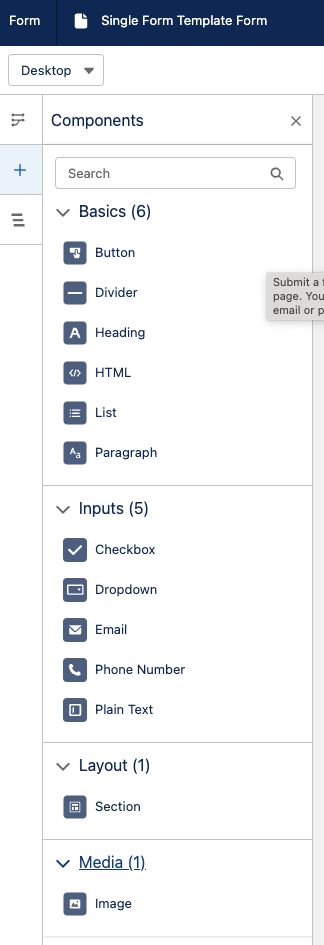
As you continue moving through building your registration form, there are quite a few form options to choose from such as adding dividers, text, and new sections as well as adding images to forms. If your team has not tried any of these options before, it could be worth a test to see if this increases registrations. The main thing to keep in mind here though is user experience. Will the registration form you are creating provide the best experience for your audience? Delighting and connecting with them is the focus.

Blank Email Campaign

The last option you can choose from for the campaign asset creation process is the Blank Email Campaign. This selection only contains a Flow to send an email message. For this you will need to:

  • Create or select a segment
  • Create an email or use an email that already exists in the org
  • Currently, you can only add one email to this campaign type. There is no option to add a Landing page or form to these campaigns.
  • Customize and activate your flow

The process with this option is a little more manual, but it is an option in case your team wants this type of experience.

No matter the platform, campaign creation comes back to the strategy.

We are all smiles about the announcement of Marketing Cloud Growth Edition and are looking forward to having SMB marketing teams dive into the platform and experience all that can be accomplished with it. The new technology may seem overwhelming, but remember your foundational approach to marketing campaign strategy remains the same, which guides you through the campaign asset creation process. 
It is just a matter of getting used to where to click and pull in the different features that you want to use to get the best results. And if at any point it seems scary and you want an expert guide, we’ll be here to help you.

In the world of digital marketing, a seamless and visually captivating user experience is crucial to capturing your audience’s attention and driving conversions. For Marketing Cloud Account Engagement users, optimizing both email and landing page designs is an art that requires a balance of creativity and strategy. 

Crafting Impactful Email and Landing Page Experiences

In this post, we’ll delve into five design musts that can elevate your Account Engagement-powered campaigns and help you create impactful email and landing page experiences.

Design Must #1: Use Responsive Design to Engage Across Devices

In today’s mobile-centric landscape, responsive design is no longer an option; it’s a necessity. Whether you’re crafting an email or designing a landing page, ensure that your layout adapts flawlessly to various screen sizes, from desktops to smartphones.

Account Engagement offers responsive email templates that automatically adjust content to fit different devices, allowing you to reach your audience wherever they are. Similarly, when creating landing pages, use responsive design principles to guarantee a seamless experience and better engagement.

Design Must #2: Establish Visual Cohesion through Consistent Branding

Consistency is key in branding, and it extends to your email and landing page designs. Maintain a consistent color palette, typography, and imagery that align with your brand identity. You can leverage Account Engagement’s customizable templates to infuse your emails and landing pages with your brand’s visual elements, reinforcing familiarity and trust among your audience. 
A unified brand presence boosts recognition and enhances the overall user experience.

Design Must #3: Capture Attention Instantly through Compelling Imagery

Visuals are powerful tools for storytelling and grabbing attention. 

Incorporate high-quality, relevant images that resonate with your audience’s interests and needs. In emails, use eye-catching visuals that complement your message and entice recipients to read further. 

On landing pages, leverage impactful imagery to convey the value proposition of your offer instantly. Remember, a picture is worth a thousand words, so choose visuals that amplify your message effectively.

Example: Sercante Landing Page Created in Account Engagement

Design Must #4: Guide User Actions with Clear Call to Actions (CTAs) 

The purpose of your email and landing page is to drive specific actions. Whether it’s encouraging recipients to click through to your website or enticing them to fill out a form, your CTAs must be prominent and action-oriented. Use contrasting colors, persuasive language, and compelling design elements to draw attention to your CTAs.


The Account Engagement drag-and-drop email and landing page editors enable you to create visually appealing buttons that stand out, leading users to take the desired actions effortlessly.

Example: Bold and clear CTA

Design Must #5: Streamline Layouts to Enhance Readability and Navigation

Cluttered and confusing designs can deter users from engaging with your content. Keep your layouts clean, organized, and easy to navigate. 

In emails, use headings, subheadings, and bullet points to break up text and improve readability. On landing pages, employ a clear hierarchy to guide users’ attention toward key information. 

Account Engagement design tools empower you to structure your content in a user-friendly manner, ensuring that recipients and visitors can quickly grasp your message and offerings.

Be an Awesome Account Engagement Asset Designer 

Mastering the art of designing impactful emails and landing pages within the Pardot platform requires a blend of design aesthetics and marketing strategy. 

By adhering to these five design musts — responsive design, consistent branding, compelling imagery, clear CTAs, and streamlined layouts — you’ll create experiences that captivate your audience, encourage interaction, and ultimately drive conversions. 

Embrace these principles to unleash the full potential of Account Engagement and leave a lasting impression on your target audience. And reach out to the team at Sercante when you’re ready to take your Account Engagement Assets to the next level.

No more posts to show