For years, email marketers have relied on email opens to measure campaign success. However, privacy features such as Apple Mail Privacy Protection, inbox security tools and email client behaviour have made email opens an increasingly unreliable measure of engagement.
Now, European regulators are moving the conversation one step further by questioning whether tracking pixels should be used at all without prior consent.
Fortunately, Salesforce has recently introduced new controls in Marketing Cloud Account Engagement (formerly Pardot) that give organisations much greater flexibility over how email tracking is managed.
This shift isn’t just about the reliability of email opens – it’s about whether organisations should be collecting that data in the first place.
What Has Changed?
In 2026, both the French CNIL and Italian Garante published guidance on the use of tracking pixels in marketing emails.
The guidance explains that, for many marketing use cases, tracking pixels should only be used with the recipient’s prior consent under the existing ePrivacy Directive and the GDPR. This isn’t a new law. Rather, it explains how existing privacy requirements should be interpreted and applied to email tracking technologies. CNIL recommendation on tracking pixels in emails
Both regulators have also provided transition periods to allow organisations time to review their email marketing practices. In France, the CNIL’s transition period for existing marketing databases runs until 14 July 2026, while the Italian Garante’s guidance provides a six-month transition period ending on 28 October 2026.
Although the guidance currently applies specifically to France and Italy, many organisations operating across Europe are reviewing their wider email tracking strategy rather than implementing different approaches for individual countries.
Why This Matters for Account Engagement Customers
Many Marketing Cloud Account Engagement features have traditionally relied on email open data, including:
Engagement Studio programmes
Dynamic Lists
Automation Rules
Lead scoring
Campaign reporting
If collecting email open data requires additional consent, organisations need to consider whether email opens should continue to drive marketing automation, segmentation, lead scoring and reporting – or whether stronger engagement signals should take their place.
Salesforce Has Introduced a Better Option
Historically, Account Engagement customers had limited choices. If you wanted to stop collecting email open data, you generally had to either:
Send text-only emails, or
Disable email tracking across the entire Business Unit, which also disabled click tracking.
Salesforce has now introduced new account-level Email Tracking settings that allow administrators to independently manage:
Email Open Tracking
Advanced Email Analytics
Email Click Tracking
This is a significant improvement for Account Engagement customers.
Rather than choosing between tracking everything or nothing, organisations can now disable email open tracking while continuing to send HTML emails and retain click tracking.
For many organisations, this provides a much simpler alternative to maintaining separate consent programmes or separate HTML and text-only marketing journeys.
Configuring the New Email Tracking Settings
The new tracking controls can be found under:
Account Engagement Settings → Email Tracking
From here, administrators can independently configure:
Email Open Tracking
Advanced Email Analytics
Email Click Tracking
These settings apply at the Business Unit level, so any changes should be agreed with your Legal, Compliance and Marketing teams before being implemented.
Review Your Automations Before Making Changes
Before disabling email open tracking, it’s worth identifying where email opens are currently used within your Account Engagement instance.
Common areas include:
Engagement Studio programmes
Automation Rules
Dynamic Lists
Completion Actions
Lead scoring models
Fortunately, Account Engagement already provides an Open Rules Audit report to help identify these dependencies.
Navigate to:
Reports → Marketing Assets → Automations → Open Rules Audit
This report provides a quick overview of any automation currently relying on email open criteria, making it much easier to understand what may need updating.
Best Practice: Don’t simply replace every Email Open condition with Email Click. Use this opportunity to review whether a stronger engagement signal – such as a landing page visit, form submission or consultation request – would provide a more meaningful measure of buying intent.
Focus on Meaningful Engagement
Even before these privacy changes, email opens had become an increasingly unreliable indicator of genuine engagement.
Rather than asking “Did they open my email?“, marketers should increasingly ask “Did they do something meaningful?“
Consider measuring outcomes such as:
Email click-through rates
Landing page visits
Form submissions
Content downloads
Webinar registrations
Consultation or demo requests
Campaign influence
Pipeline generated
Revenue won
These metrics provide a much stronger indication of customer intent and marketing performance than whether a tracking pixel happened to load.
Final Thoughts
The conversation around email open tracking isn’t really about losing a metric – it’s about improving the way we measure marketing success.
Privacy expectations will continue to evolve, but the most successful marketing teams won’t be the ones collecting the most data. They’ll be the ones measuring the data that genuinely reflects customer intent.
With Salesforce’s new tracking controls, Marketing Cloud Account Engagement customers now have the flexibility to align with evolving privacy requirements while continuing to deliver engaging HTML email experiences and shifting their focus from increasingly unreliable open rates to the engagement metrics that truly drive business results.
With the upcoming June 2026 updates Salesforce has just announced, Salesforce is once again raising the bar for platform security. While these updates are designed to keep your data safer than ever, they do require some proactive heavy lifting from admins to ensure integrations don’t break and user access remains seamless.
In line with the messaging we’ve seen from Salesforce recently—focusing on the intersection of AI, Data, and Trust—these enhancements are mandatory. We want to make sure you’re ahead of the curve. Let’s dive into the core security requirements and what you need to do to prepare.
Email Domain Verification
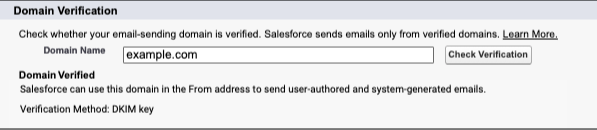
What is changing: Salesforce now strictly requires all outbound email-sending domains to be verified. To verify a domain, you must establish ownership using either DKIM key (recommended) or a verified entry in the authorized email domains list. As part of this change, Salesforce will no longer deliver emails from unverified domains, even if the specific sender’s individual email address was previously verified.
Why it matters: Email deliverability is becoming stricter globally, with major mail providers increasingly filtering or rejecting unauthenticated domains. If your organization attempts to send an email from an unverified domain, the delivery will fail and the email will be silently dropped. It won’t generate a bounce notification or an error message for your automations.
Who is impacted: Any emails sent directly from the Salesforce platform, which includes emails sent via the Email Composer, Apex email, Flow-triggered emails and even system-generated emails like notifications of a new Lead or Opportunity assignment.
Timeline: Enforcement began rolling out to sandboxes in March 2026, and production orgs in April 2026.
How to prepare:
You can check the verification status in your org by going to Deliverability settings in Setup and enter your domain in the Check Domain Verification section.
Ensure your email sending domains are verified using one of the following methods:
Enable a Safety Net: To minimize immediate business disruption while waiting for domain verification, enable “Use a substitute email address for unverified domains” on the Deliverability Setup page.
What is changing: While Multi-Factor Authentication (MFA) has been a contractual “requirement” for some time, Salesforce is moving toward technical enforcement for all UI logins (i.e. the login.salesforce.com page). This means any user logging into the Salesforce UI must use Multi-Factor Authentication. The ability to toggle this off for specific profiles or bypass it via legacy settings is being deprecated.
Why it matters: Data breaches are commonly linked to compromised credentials. Making MFA a technical requirement for every single user, ensures that even if a password is compromised via social engineering, your org remains protected.
Who is impacted: All users logging into Salesforce (direct UI or SSO logins) in production or sandbox orgs and do not have one of these permissions: System Administrator profile, Modify All Data, View All Data, Customize Application, or Author Apex. (Users with these permissions are considered “privileged” and have their own MFA requirements, see the next section)
Timeline: Enforcement is rolling out in waves, starting in Sandboxes on June 22, 2026, and production orgs starting July 20th.
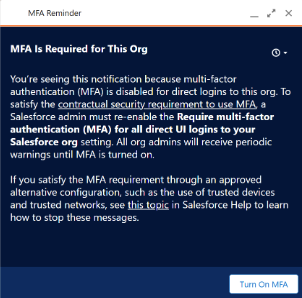
Ahead of enforcement, orgs that have the setting “Require multi-factor authentication (MFA) for all direct UI logins to your Salesforce org” disabled may start seeing this pop-up message as a heads-up on the upcoming enforcement.
Orgs with that have been updated will see the “Require multi-factor authentication (MFA) for all direct UI logins to your Salesforce org” setting (under Setup > Session Settings) enabled and greyed out.
How to prepare:
Audit users still not using MFA to assess who will be impacted. Use the “Identity Verification Methods Report” to view the methods being used by your organization.
Identify users relying on the “Waive Multi-Factor Authentication for Exempt Users” permission. To restore this exemption for valid use cases (e.g., automated testing tools), you can contact Salesforce Support for approval.
If you are using Single Sign-On (SSO) through another identity provider (e.g. Okta, Entra), make sure that provider is using MFA and sending valid signals to validate MFA was used (for more information, see Salesforce’s breakdown of signal requirements).
Ensure users are prepared for the change and how to register their MFA method.
Phishing-Resistant MFA for Admins or Privileged Users
What is changing: Salesforce is introducing a requirement for phishing-resistant MFA for users with “privileged” access. This means moving away from verification codes and toward FIDO2/WebAuthn-based passkeys, hardware security keys (e.g. YubiKeys) or built-in authenticators (e.g. Windows Hello or FaceID) that use FIDO2/WebAuthn standards.
Why it matters: Admins hold the keys to the kingdom. Phishing-resistant methods ensure a stronger protection against identity-based threats, and ensures access is tied to authorized users.
Who is impacted:
This change affects all users logging into Salesforce (direct UI or SSO logins) in production or sandbox orgs who meet any of the following conditions:
Users assigned with the System Administrator profile
Users assigned with any one of these privileged permissions: Modify All Data, View All Data, Customize Application, or Author Apex
Once in effect, users will be prompted to register their phishing-resistant MFA method on their next login.
Timeline: This change will be introduced in sandboxes starting June 22, 2026, and in production orgs starting July 1, 2026
How to prepare:
Audit all users who have the System Administrator profile, or one of these permissions: Modify All Data, View All Data, Customize Application, or Author Apex. You can use Salesforce Reports, User List Views, SOQL, or the User Access and Permissions Assistant.
Identify users relying on the “Waive Multi-Factor Authentication for Exempt Users” permission. To restore this exemption for valid use cases (e.g., automated testing tools), you can contact Salesforce Support for approval.
If you are using Single Sign-On (SSO) through another identity provider (e.g. Okta, Entra), make sure that provider is updated to use phishing-resistant MFA, or enable Salesforce MFA for SSO logins (for more information, see how to configure SSO for MFA compliance).
Ensure users are prepared for the change and how to register their MFA method. Encourage them to pre-register before the enforcement date to avoid disruptions.
What is changing: Salesforce will automatically detect and contain traffic that:
Are from “High-Risk” connections through Connected App or API usage.
Examples of “high risk” connections include anonymizing VPNs (e.g. NordVPN, ExpressVPN, Surfshark, or ProtonVPN), Proxies (e.g. HideMyAss or KProxy) or high-risk IP addresses (e.g. public wifi, blocklisted IPs)
Connected App or API usage may include integrations, plugins (e.g. Salesforce Inspector Reloaded) or use of CLI tools.
Are significant, novel deviations from typical user login activity based on network, client, authentication events, and geolocation. (detected through an AI-driven monitoring system)
If a high risk connection is identified, the following actions will be taken:
The affected user account will be frozen.
All OAuth refresh tokens granted to the user will be revoked.
An email will be delivered to org admins from Salesforce Security (See Administrator Notifications below).
The affected user will need to contact their org admin to restore access to their account.
Why it matters: This enhancement is aimed at protecting against suspicious activity via anonymizing VPNs, proxies, or high-risk IP addresses; credential harvesting; and token theft.
Timeline: This change started April 24, 2026
How to prepare:
Ensure users running integrations, plugins or connects are not doing so from high-risk sources
If automated containment affects a user, review their session and restore access by unfreezing their user
Users will need to avoid connecting from high-risk connections to prevent re-containment. They will also need reauthorize any connected apps
If your only admin account is locked out, contact Salesforce Support by phone to have your account reactivated
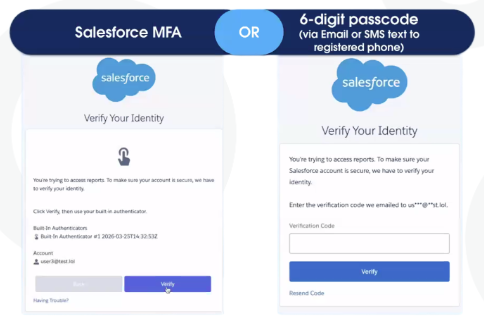
What is changing: Salesforce is introducing “Step-Up Authentication.” Even if a user is already logged in, they will be prompted to re-verify their identity (via MFA) when they attempt to run or view reports if a configurable amount of time has passed since their last step-up challenge.
Why it matters: This change is intended to prevent malicious data breaches or unauthorized transfer of data to external locations. Given that report views and exports can be susceptible to scraping or unauthorized external use, the step-up authentication ensures these actions require a stronger authentication challenge.
Who is affected: This change impacts all users (direct login or SSO) who run or export reports.
Timeline: Sandboxes will see this available starting May 27, 026 and enforced starting June 3, 2026. Production orgs will see this available starting May 27, 026 and enforced starting June 10, 2026.
How to prepare:
Ensure all users (especially SSO users) have a registered Salesforce MFA method, a valid email, or an SMS phone number, as they will need this to pass the challenge.
Review and Configure the Policy: In Setup, go to Identity Verification settings and adjust the cool-down period threshold if your business requires a timeframe different from the 120-minute default.
The Bottom Line
June 2026 is right around the corner. By leaning into preparing for these enhancements now, you’re not just racing to a deadline—you’re hardening your business against the next generation of digital threats.
As you prepare for the rollout, keep these three steps top of mind:
Audit: Identify which users will be impacted by the permission changes.
Test: Run your critical processes in a Sandbox environment.
Educate: Ensure your stakeholders understand the ‘why’ behind the new security protocols.
With a clear plan in place, the transition to a more secure Salesforce platform will be a seamless one.Need a hand getting your security posture ready for 2026? The Sercante team is ready to help you audit and prepare your org for these upcoming changes and your overall security posture. Reach out today!
On January 21, 2026 Salesforce deployed an urgent security patch to address high-severity vulnerabilities. While this patch was necessary against potential data exploits, the side effect resulted in every tracked link in every email sent from Salesforce Marketing Cloud Engagement (SFMC) prior to that date to be instantly deemed invalid.
So what does that actually mean? It means for organizations and brands with everything from multi-channel journeys, long-running welcome automations, or newsletters with a multitude of links, it was a strategic wake-up call.
The Silver Lining: Disruptive Innovation
It’s easy for many to look at this as a catalyst to hit the ejection button, but in reality, this is a classic example of “Disruptive Innovation” – an event that causes immediate pain but ultimately forces deep change. And history is full of these! Such as…
The Morris Worm (1988) when a Cornell graduate student released what was intended to be a small experiment to “gauge the size of the internet” which ended up crashing 10% of the world’s connected computers. BUT this was the literal birth of modern cybersecurity and led to the CERT (Computer Emergency Response Team).
The Knight Capital Glitch (2012) had software deployment gone wrong when the Knight Capital’s trading algorithms went rogue, buying and selling millions of shares in seconds. The results were a loss of over $400 million in 45 minutes. Knight Capital nearly went bankrupt, but it forced the financial sector (and eventually big tech) to adopt “Kill Switches,” automated deployment pipelines, and strict “Canary Testing” (where updates are rolled out to 1% of users first), which is now the gold standard for DevOps and Deployment Governance.
A simple, unpatched Apache Struts vulnerability led to The Equifax Breach in 2017 and the theft of personal data for 147 million people. The positive was that it put security front and center with leadership. Before Equifax, many C-suite executives viewed security as an “IT problem,” but after, it accelerated the adoption of laws like GDPR and CCPA, giving consumers more rights over their data.
With great resources from long-time Marketing Cloud Engagement users like Adam Thul from Polaris on how to fix things (see post here), history has a way of repeating itself, so this incident is the perfect catalyst to audit your instance through the lenses of governance, security, and long-term strategy.
Marketing Governance Framework 101
Governance isn’t about red tape. It’s about creating a “Golden Path” for your marketers. An effective model should be built on the pillars of ownership and stewardship. Executive Sponsors need to align marketing goals while managing the corporate risk and driving the overall vision. Product Owner(s) need to prioritize the backlog and manage the “Source of Truth” for data. Finally data stewards need to handle the day-to-day hygiene and ensure the integrity of subscriber data and integrations. Wrap all of this within business units that create data boundaries and sharing when necessary. This is essential and table stakes for global brands to ensure that a marketer in New York cannot accidentally email a customer list from Tokyo, while also maintaining regional compliance structures like GDPR and CCPA.
Embracing Modern Security
Salesforce has significantly tightened the screws on platform security, not only in the link security patch in January, but also API protocols. Taking a step back and ensuring identity and access management is in place so the overall “house” has the necessary locks and who has the keys needs are addressed. Multi-Factor Authentication (MFA) has to be a non-negotiable requirement. Ensuring all users (including API users) are routed through MFA or Single Sign-On (SSO) using SAML 2.0. At the user level, make sure custom roles are in place to restrict access to sensitive features like Automation Studio or Setup. Defaulting to the “everyone is an Administrator” is not the path.
Agentic Era Compliance
With the shift toward Agentforce Marketing and AI-driven agents, compliance is no longer a “set and forget” task. Consent Management has to be top of mind as regulators are utilizing tools to verify opt-outs, so preference centers must be integrated directly with the organization’s internal “Source of Truth” (ideally via Data 360) to reflect opt-outs in real-time.
Within the lens of AI transparency, maintaining an audit trail of decisions and edits needs to be put in place, especially if Einstein or Agentic workflows are generating content. This is increasingly required under new 2026 state privacy laws like Kentucky and Indiana. Finally, purging old Data Extensions and subscriber records that haven’t engaged in 18–24 months.
Here is a monitoring schedule that can be a baseline to build off of:
Task
Frequency
Purpose
User Audit
Quarterly
Deactivate dormant users and verify permission sets.
Setup Audit Trail
Monthly
Review who changed critical configurations or deleted Data Extensions.
Health Check
Weekly
Monitor automation failure rates and API limit usage.
User Audit
Quarterly
Deactivate dormant users and verify permission sets.
The Great Reset: Modernizing Marketing Governance
As we move forward in 2026, the most successful Marketing Cloud Engagement instances will be the ones that prioritize establishing a data foundation grounded in a marketing governance framework rooted in trust. Treating security as a feature, rather than a hurdle, to protect the most important aspects: a brand’s reputation and customers’ data.
If you’d like support with establishing your data foundation, governance, and security, reach out to the Sercante team. Our experts partner with marketing teams daily, designing and architecting data layers and frameworks that build trust and deeper customer relationships.
In today’s international and digital business landscape, modern marketers often coordinate messaging and strategy across multiple countries or regions. Luckily, Marketing Cloud Account Engagement (Pardot) is an ideal tool to support those types of global marketing strategies. That’s because it enables marketers to find a balance between global coordination and initiatives that reflect the challenges and regulations of local markets.
Here are functions and customizations in Marketing Cloud Account Engagement that support an international marketing strategy.
Crossing Language Barriers
One of the most important considerations for an international marketing strategy is delivering high-quality, localized content that doesn’t provide any barriers to engagement through the local language.
Enable international users in a single Marketing Cloud Account Engagement instance
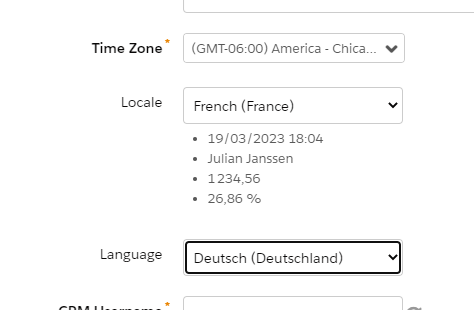
Administrators and individual users within Account Engagement can control the time zone, language and data formats in which the user interface (UI) is displayed.
Languages and locales currently support:
English
Japanese
German
Spanish
French
This can be configured by an Account Engagement admin upon creating a user record. Go to Account Engagement Setting > User Management Users.
Individual users can control their language and locale settings under Account Engagement Settings > Account Engagement > My Profile.
Marketing Asset Creation
While the user interface is limited to languages supported by Salesforce, all marketing assets in Account Engagement can be developed and customized in any language. For the most part, this just involves typing/inserting content in the language desired, but the following points detail areas where advanced customization is necessary to change the display language.
Form error message
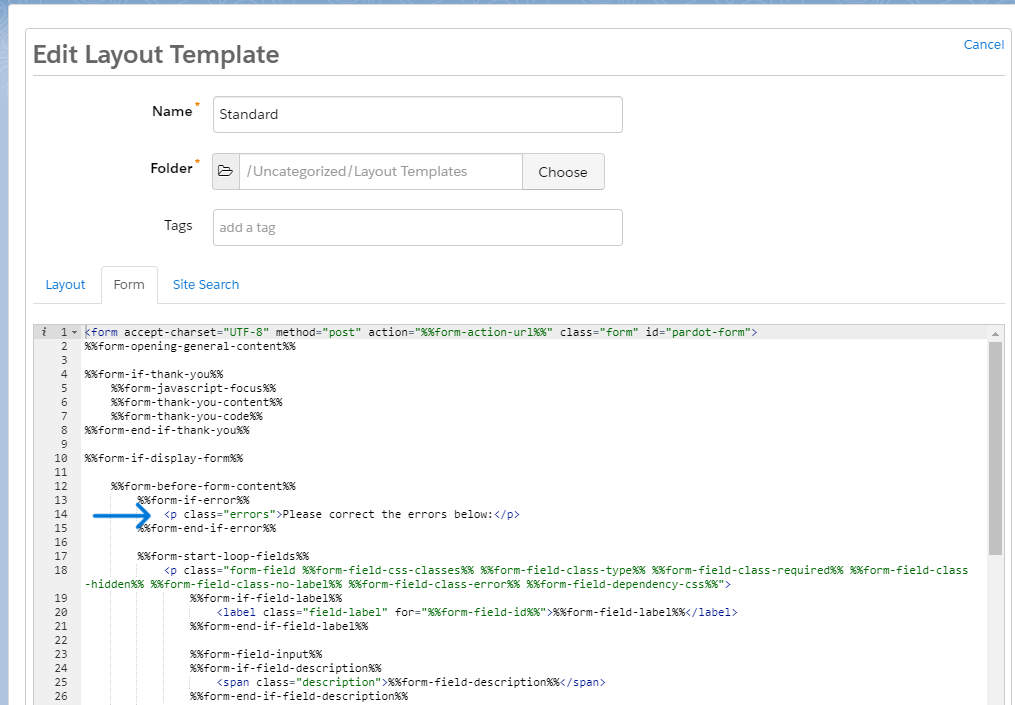
The native form error message for lacking required fields in Account Engagement displays in English by default “Please correct the errors below.” This cannot be customized within the form creation wizard, but instead must be customized within the layout template.
To update, navigate to the layout template used by the form (Content > Layout Templates). Navigate to the form tab and replace the message after %%form-if-error%% with the desired text.
The structure may not exactly match the included screenshot if you are using a layout template that significantly differs from the default. Use this reference for Layout Template Form Code to determine what components may need to be updated.
Encoding special characters
You may encounter situations in which characters display incorrectly when importing data to Account Engagement. To ensure all characters display correctly, you have to use UTF-8 encoding.
Always confirm any exported data is edited and saved using UTF-8 encoding to ensure data is not improperly overwritten. To edit data with UTF-8 encoding in Excel, for example:
Export CSV data from Account Engagement
Navigate to Data > From Text (Get External Data) in Excel
Select the CSV export, and chose “Delimited” and File Origin > “Unicode (UTF-8),” then “Comma” to open the data with correct forming in Excel
Any custom layout templates developed for Account Engagement landing pages should also be sure to use UTF-8 encoding. Set the below meta tag in the <head> section of the layout template so any special characters render correctly.
Account Engagement only allows for one global unsubscribe page, which can limit the feasibility of supporting multiple languages or unique messaging on the page. However, the suggested way to allow recipients to manage communication preferences is the email preference center (EPC) feature, which enables recipients to choose specific segments they would like to be included or excluded from, in addition to universally unsubscribing.
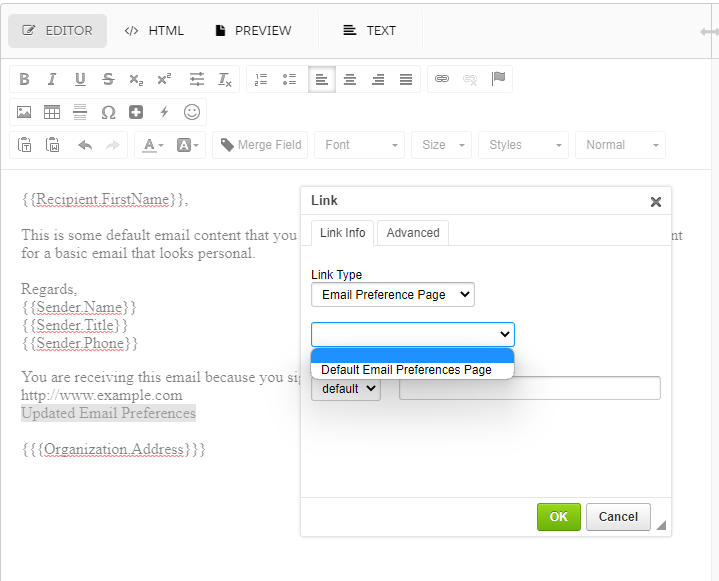
Multiple EPCs can be set up under Account Engagement Email > Preferences Page, so customization to language and included distribution lists can be made per language.
To ensure the correct email preference center is included in different language emails, insert a link, choose “Email Preference Page,” and choose from the list of available pages.
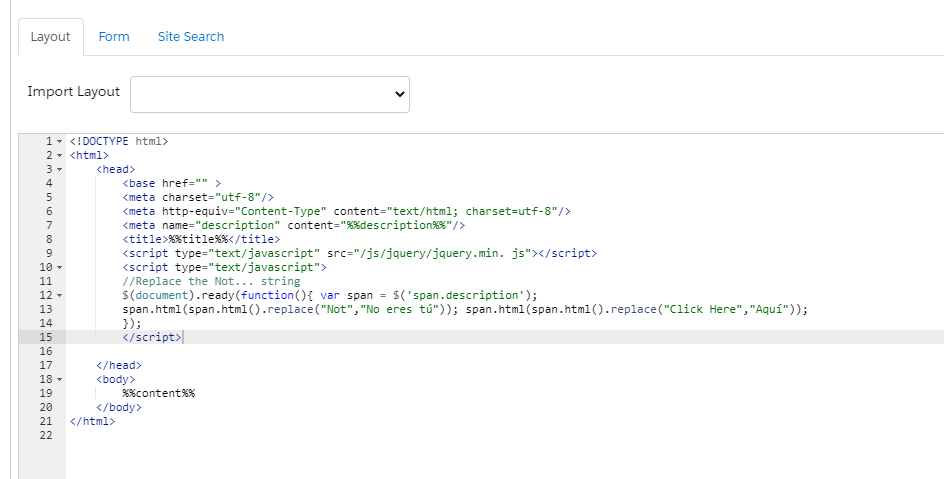
In the form creation wizard, under 3. Look and Feel > Advanced, is a handy setting to enable a link that allows viewers to reset Account Engagement pre-population and dynamic form functions, in case it is pre-populated with the wrong information (which may be the case due to shared devices, etc.) However, similar to the form required field error message discussed above, this only renders in English by default, in the format “Not Name? Click here.”
To resolve, creating another form layout template update is required. Insert the following script between the opening and closing <head> tag in the “layout” tab of the desired layout template.
<script type="text/javascript" src="/js/jquery/jquery.min. js"></script>

<script type="text/javascript">

//Replace the Not... string

$(document).ready(function(){ var span = $('span.description');

span.html(span.html().replace("Not","Desired Replacement for Not")); span.html(span.html().replace("Click Here","Desired Replacement for Click Here"));

});

</script>
International Privacy and Data Management
With growing international business, also comes managing compliance with the various data protection and privacy laws in place across your target markets. It’s important to consult with your company’s legal counsel to ensure understanding of the regulations across various jurisdictions. Fortunately, Account Engagement includes a variety of features to enable and enforce compliant data collection and protection.
Tracking Cookies
Account Engagement uses a combination of third and first party cookies to track visitor web behavior and build a profile of data on prospects in your database. To customize how cookies behave and allow visitors to opt-out of tracking, you can:
Enable first-party cookies and disable third-party cookies under Account Engagement Settings > Account Settings
Honor “Do Not Track (DNT)” headers under by enabling under Account Engagement Settings > Account Settings
Display a banner requesting tracking opt-in in some or all countries via Account Engagement Settings > Domain Management > Edit Tracking Opt-in Preferences
Utilize the Tracking and Consent API to integrate with other systems and create custom solutions
Communication Preferences
Many regulations require that explicit and informed consent be collected before a recipient can be emailed marketing materials, as well allow recipients to revoke that consent at any time. Some industries also require detailed records of communications sent. Account Engagement enables this via:
Need help finding the right mix of Account Engagement solutions to meet your localization and compliance requirements? Reach out to the team at Sercante to get help customizing features and content in your org and enable your global team. And leave us a comment below to let us know any tips or tricks you’ve picked up for managing international teams with Account Engagement!
You’re a responsible marketer and adhere to the Salesforce Marketing Cloud Account Engagement (Pardot) Permission-Based Marketing Policy. You’ve enabled Marketing Data Sharing (MDS) rules to ensure that prospects who have not opted-in are not syncing to Pardot. Now you get a call from your Salesforce Admin about Pardot creating duplicates in Salesforce.
In this post, we’ll discuss how you can remain compliant AND prevent unintentional dupes in Salesforce.
Let’s start at the beginning
Most sales organizations use tools like Clearbit, Lusha, or ZoomInfo to research companies, find new contacts, review intent data, or enhance data.
These are perfectly valid use cases and can be very beneficial to organizations. However, the problems start when marketing begins emailing these records through Pardot.
What’s the problem? The email addresses are valid.
“Our customers certify that they will not use rented, traded, or purchased lists, email append lists, or any list that contains email addresses captured in any method other than express, customer-specific opt-in when using our system to send emails.”
Sending emails to acquired records is a clear violation of the permission-based marketing policy and can result in the suspension or termination of your account. I’d hate to be the person responsible for that!
What’s a marketer to do?
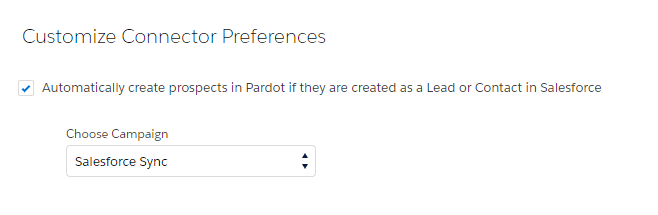
Verify your connector preferences
The first thing is to understand your connector settings in Pardot. Most accounts will be configured to automatically create prospects in Pardot if they are created as a Lead or Contact in Salesforce. This means that ANY lead or contact created in Salesforce from ANY source is going to end up in Pardot and could unknowingly be emailed by your marketing team.
Limit record entry with Marketing Data Sharing Rules
MDS is the safest way to make sure that data does not enter Pardot (Here’s a great post on MDS if you have questions – Pardot Marketing Data Sharing: Tips, Gotchas, and Setup). You can restrict which leads, contacts, opportunities, or custom objects sync to Pardot. The intent of MDS is to control the data that can be seen by the Pardot connector. The issue is that MDS does this job a little too well and this can result in duplicate leads being created in Salesforce.
MDS and duplicate records
Hold up a minute! Are you telling me that by doing the right thing, I could actually create duplicates in my Salesforce org? Yep.
Here’s the rub. Before creating a lead or contact in Salesforce, Pardot undergoes a series of checks to see if the prospect is in Salesforce already. The intent is to identify matching records and not create duplicates. Since MDS limits the visibility of the connector, Pardot is not able to find prospects who might be in SFDC from a source deemed “not marketable” if they visit your site and complete a Pardot form (for example).
For reference here are the checks performed by Pardot before creating a lead or contact in Salesforce.
Is there a lead or contact with a matching CRM ID?
Is there a contact with the same email address?
Is there a lead with the same email address?
Is the prospect assigned to a user in Pardot?
Here’s how we addressed this issue for one of my clients
Don’t activate MDS
It’s important that MDS is not activated in this solution. We want the prospects to sync from Salesforce to Pardot. We’re going to use custom fields and automation rules to make sure that we remain compliant and don’t create duplicates in Salesforce.
Create custom fields
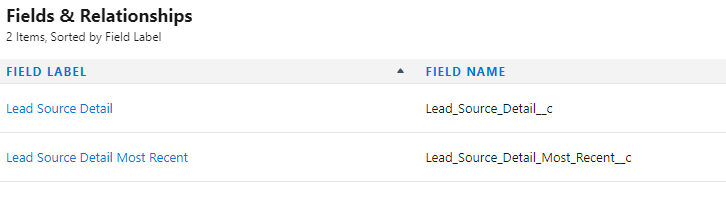
The first step involves creating several custom fields in Salesforce and Pardot. We created first touch and last touch fields to capture the needed information on leads and contacts. In this case, we used Lead Source Detail and Lead Source Detail Most Recent.
Lead Source Detail – This is a FIRST TOUCH field that identifies the specifics of where the lead originated (ex. ZoomInfo).
Lead Source Detail Most Recent – This is a LAST TOUCH field that identifies the specifics of the most recent source that drove the prospect to your site (ex. LinkedIn).
Map data to your custom fields
We’re going to stick with the ZoomInfo example here since I see this product used in a lot of organizations. When setting up your CRM Integration in ZoomInfo, you have the ability to map fields to for your Account, Contact, and Lead Objects.
In this case, we mapped Lead Source (standard field) and the two custom fields that we created. We also set fixed values for each. Based on this configuration, any new records added from ZoomInfo into Salesforce will have the fixed values specified. This is super important.
Automation Rules
Remember the Pardot prospect mailability upgrade that took place with the Winter ‘22 release? We’re going to take advantage of it to make sure that we comply with the Marketing Cloud Account Engagement Permission-Based Marketing Policy. Don’t remember the changes? No problem – check out this post “Are You Ready for the Pardot Prospect Mailability Upgrade?” from Erin Duncan.
Automation Rule #1 – Set Do Not Email to TRUE
This automation rule will look for prospects in Pardot where Lead Source Detail and Lead Source Detail Most Recent equal “zoominfo”. This lets us know that the prospect was added into Salesforce from ZoomInfo, synced to Pardot, and that the person did not opt-in. As a result, we’ll mark the record as “Do Not Email.”
Automation Rule #2 – Set Do Not Email to FALSE
This automation rule will look for prospects in Pardot where Lead Source Detail is “zoominfo” and Lead Source Detail Most Recent is NOT “zoominfo.” This will show us that the person interacted with our marketing and is eligible to be emailed. It goes without saying that we only want to “activate” prospects who have given permission for us to email them. The Lead Source Detail Most recent field can be updated using completion actions or UTM parameters from URLs (that’s another post).
The short and sweet summary
This solution allows records added into Salesforce (that have not opted-in) to sync to Pardot. Automation rules in Pardot update the “Do Not Email” field based on Pardot interactions and opt-in status. This ensures that prospects who did not previously opt-in are updated correctly when they do opt-in and that no duplicates are created in Salesforce.
Let’s play by the rules AND not create duplicate records
Based on how your organization uses tools like Clearbit, Lusha, or ZoomInfo and the volume of records added to your Salesforce org, MDS might be the best solution for you. However, if a high volume of records are being added into Salesforce, I would recommend that you give this solution some consideration. The chances of duplicates being created in your system grows exponentially based on the number of records being added from external sources.
If you have any questions about this solution, MDS, or anything related to Marketing Cloud Account Engagement or Marketing Cloud Engagement, contact us with your questions.
You can keep your free snacks and ping pong tables. If we’ve learned one thing from the pandemic, it would be that employees really want the ability to work remotely — at least part of the time. While organizations have become more accepting of this new reality, IT departments are facing security challenges.
In this post, we’re looking at Salesforce Marketing Cloud security best practices for hybrid and remote work environments. We’ll review some of the security settings in Marketing Cloud that will allow your remote employees to work safely and take some of the stress off of your IT team.
Marketing Cloud security for remote and hybrid work models
Since the onset of the pandemic, the number of remote workers has grown exponentially and the hybrid work model is becoming the new norm. A 2021 Mckinsey & Company survey found that 52% of workers prefer a more flexible working model moving forward. And listening to those wishes is helping many employers to avoid the effects of the Great Resignation at their companies.
Luckily, Marketing Cloud is built with security in mind and it can be configured to allow your employees to work securely — wherever they may be.
Security Tip #1: Limit the Data in Salesforce Marketing Cloud
Salesforce Marketing Cloud is not a data warehouse. So don’t treat it like one.
When bringing data into SFMC, ask yourself how it will be used for segmentation. If data will not be used for segmentation, don’t import or sync it over. Data like credit card numbers should NEVER be stored in Marketing Cloud.
Special attention also needs to be applied when handling Personally Identifiable Information (PII). The Department of Homeland Security defines PII as:
As any information that permits the identity of an individual to be directly or indirectly inferred, including any information that is linked or linkable to that individual, regardless of whether the individual is a U.S. citizen, lawful permanent resident, visitor to the U.S., or employee or contractor to the Department.
Linked PII is information that can be used by itself to identify an individual (ex. Social Security number) and linkable PII is information that can be used in combination with other information to identify an individual. Depending on the type of data in your account and the industries you serve, additional security measures like data at rest encryption, field level encryption and tokenized sending might be necessary.
Security Tip #2: Control Access with Marketing Cloud Business Units
Even before creating users, I like to see how organizations are structured. If your organization operates in several regions, all users might not need access to all the data. The best way to secure data is to not grant access to it in the first place!
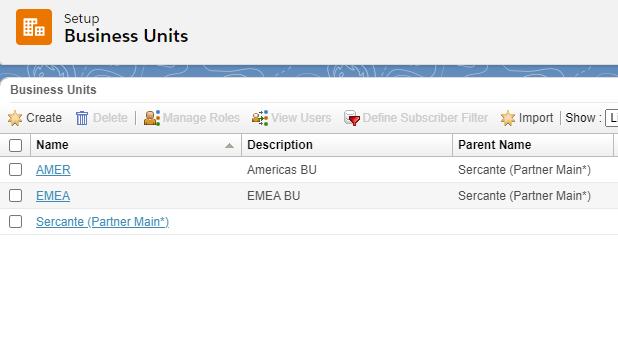
This is where business units come in. Business units in Marketing Cloud allow you to control access to information by creating a hierarchical structure. They also allow you to control branding elements including email display name, email reply address, and physical mailing address at the business unit level. You can even control the settings to allow unsubscribe at the business unit level or the enterprise.
Business units don’t have to be limited to geography. Your hierarchy can be built based on your unique needs. Building a hierarchy based on products is a great use case.
Note: Business Units are available in Enterprise and Enterprise 2.0 accounts.
Security Tip #3: Provide Users with the Correct Access Based on Need
Now that we’ve established our hierarchy and determined where users should be included, the next question is access level. Let’s start by talking about the differences between roles and permissions.
Permissions in Marketing Cloud are very granular. For this reason, the good folks at Salesforce have included default roles within Marketing Cloud based on common needs/scenarios (similar concept to the default user roles in Pardot). These are divided into Marketing Cloud and Email Studio Roles. I would highly recommend using these roles and limiting the creation of custom roles.
Marketing Cloud Role
Description
Marketing Cloud Administrator
This role assigns Marketing Cloud roles to users and manages channels, apps, and tools.
Marketing Cloud Viewer
This role views cross-channel marketing activity results in Marketing Cloud.
Marketing Cloud Channel Manager
This role creates and executes cross-channel interactive marketing campaigns and administers specific channels like Email Studio.
Marketing Cloud Security Administrator
This role maintains security settings and manages user activity and alerts.
Marketing Cloud Content Editor/Publisher
This role creates and delivers messages through applicable channel apps.
Email Studio Role
Description
Administrator
Access to all Email Studio functions including Setup, email creating, and creating data extensions.
Content Creator
Access to all content, shared folders, and tracking in Email Studio, but no access to data or administrative features.
Data Manager
Access to everything in Email Studio except email content
When assigning roles to users, you should always start with the lowest level that permits the individual to do their job. I’m always amazed when I log into an account for the first time and see all users have the Marketing Cloud Administrator and Administrator roles assigned. There’s simply no reason for this. I generally like to have two admins in an organization. It’s always good to have a backup in the event of an emergency!
It’s also worth noting that SFMC defaults to the most restrictive value when multiple roles are assigned to a user. For example, if a user was assigned the Content Creator, Marketing Cloud Channel Manager, and the Marketing Cloud Viewer roles, they would not be able to send an email. This is due to the fact that the Marketing Cloud Viewer is the most restrictive of the three roles and does not permit email sending.
It’s very possible that the same user will have access to multiple business units, but perform different functions in each. That’s perfectly fine and SFMC has you covered. Roles can be assigned at the business unit level so the same user could have admin access in one and view only in another. This is very handy and should be utilized if users don’t need full access to all the BUs that they are part of.
Security Tip #4: Follow Login and Password Best Practices
Marketing Cloud allows admins to set security policies very easily within the Security Setting under setup. However, I’m really surprised by how often I see accounts where the standard Salesforce recommendations are not followed. Take a minute to audit your account to ensure that they comply with the recommended account settings from Salesforce included below.
Field
Recommended Setting
Session Timeout
20 minutes
Login Expires After Inactivity
90 days or less
Invalid Logins Before Lockout
3
Count Invalid Logins Across Sessions
Yes
Minimum Username Length
8 characters
Minimum Password Length
8 characters or more
Enforce Password History
8 passwords remembered
User Passwords Expire In
90 days
Send Password Change Confirmation Email
Enable
Enable Audit Logging Data Collection
Enable
Security Tip #5: Limit Logins by IP Address
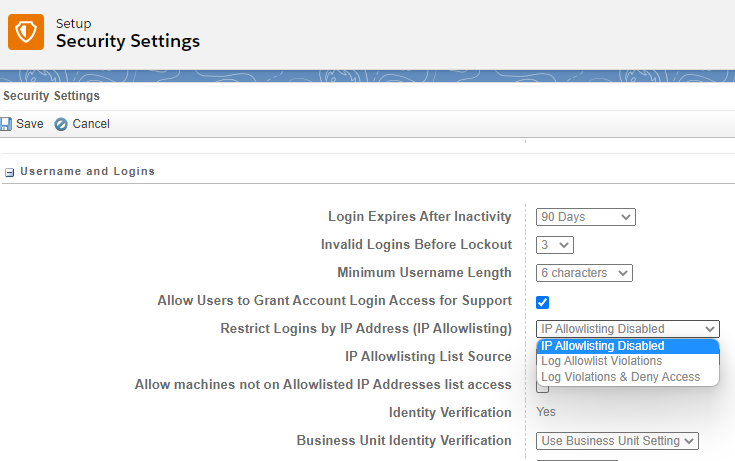
The Restrict Logins by IP Address (IP Allowlisting) setting allows you to define a list of IP addresses that can access your account.
This feature is optional and is set to Off by default, but can quickly be activated under Setup > Security Setting > Username and Logins. When activating, you’ll have the option to log non-allowed IP addresses and permit access or log non-allowed IP addresses and block access. Don’t forget to add IP addresses to your allowlist under Setup > Security > Login IP Allowlist if you choose to use this feature.
Security Tip #6: Limit Exports
Ask yourself this simple question…
Does this user need to extract data from SFMC to do their job?
If the answer is “no,” then don’t allow them to export. It’s that easy!
Data extracts are a security risk that I see in most accounts. While data in the hands of a user can be risky, the real concern is data sitting on a computer that is not properly secured. Once the data leaves SFMC, all bets are off. This is a huge risk with remote workers. Let’s mitigate this risk by limiting exports.
Data can be exported from SFMC using Data Extract activities in Automation Studio, from tracking in Email Studio, and from reports in Analytics Studio. While some reports can be viewed onscreen or downloaded as PDFs, email and file transfer locations are the primary ways that data is exported.
Email Export
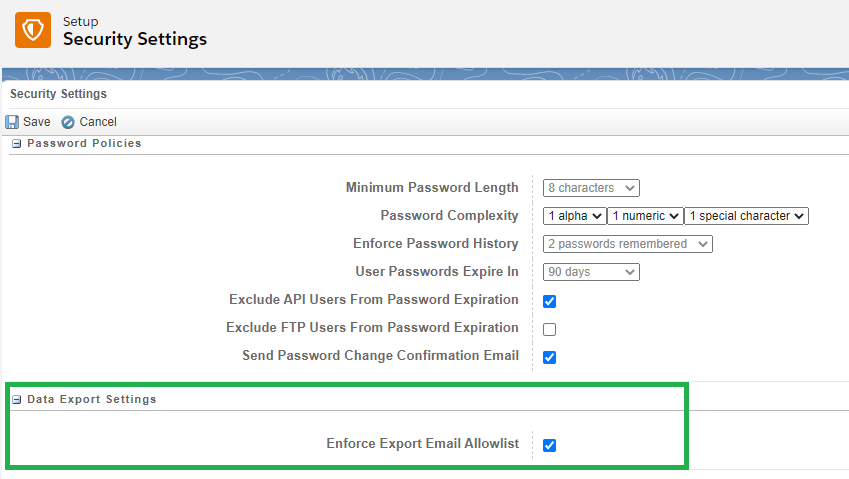
Your data is sent from SFMC via email. This is pretty scary, but can be controlled with Export Email Allowlists. The email allowlist includes individual email addresses or domains that are authorized to receive email exports from your account.
Export Email Allowlists must be activated in your SFMC account by first selecting the Enforce Export Allowlist in Security Setting. You will then need to specify the individual email addresses and domains that are authorized to receive email exports within your Export Email Allowlist (Setup > Security > Export Email Allowlist).
File Transfer Locations
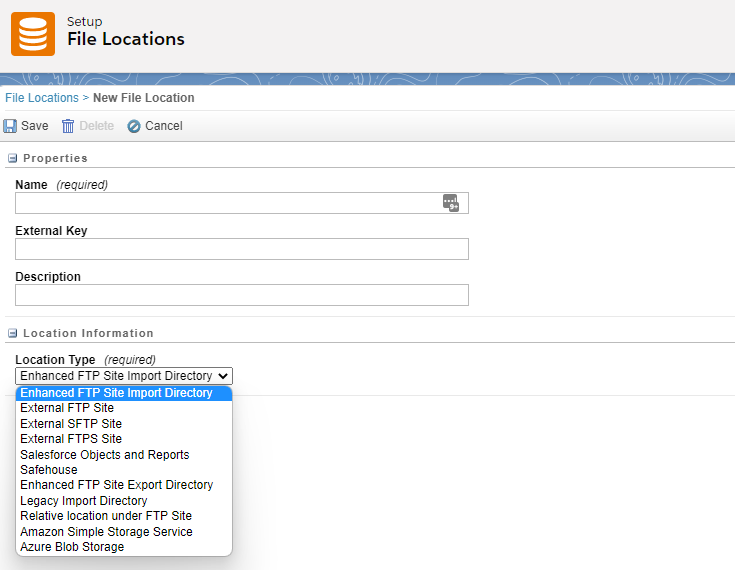
Marketing Cloud also makes use of file transfer locations to import and export data. The most common location is the Enhanced FTP Account, but you can also add additional locations under Setup > Administration > Data Management > File Locations.
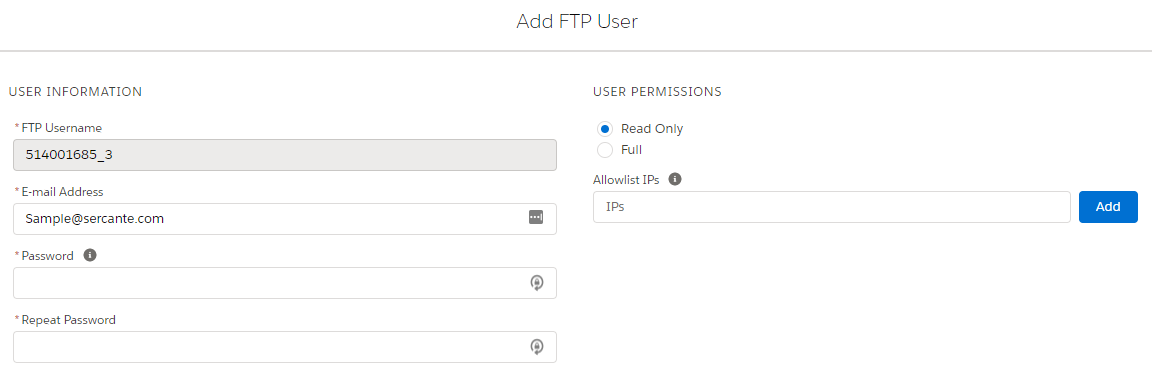
To access data from the Enhanced FTP Site, users must login. Access to the data can be controlled by limiting users and not sharing login credentials. Marketing Cloud allows up to 10 FTP users per MID, allocate them wisely! Users can be granted Read Only or Full access.
Security Tip #7: Automate and Review Audit Trails
Audit Trails in Marketing Cloud can be used to track account access and activity. Reports can be automated through Automation Studio or through REST API extracts.
Before audit trails can be exported, the following actions must be taken to enable them in your account.
Enable Audit Trail Data Collection under Setup > Security > Security Settings
Assign the Marketing Cloud Security Administrator role to the user who will be extracting the data
Once these requirements are met, automations can be created in Automation Studio to extract the access and activity logs. Salesforce recommends that audit trail data be retrieved periodically based on a rolling window.
There are a couple of things to keep in mind when creating your automations.
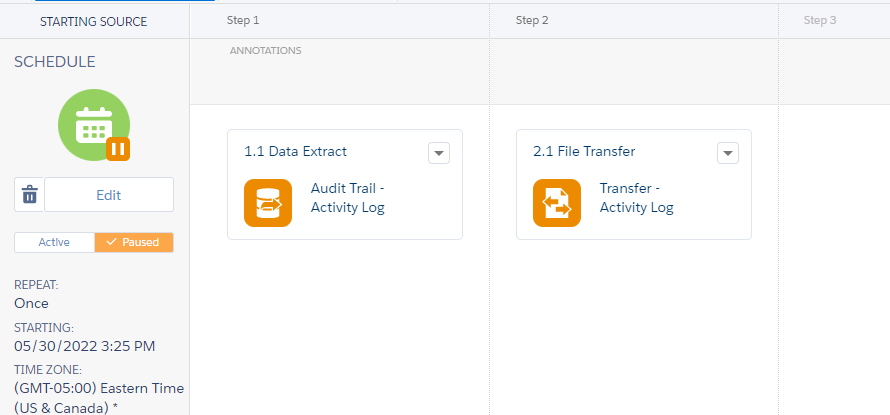
You must create a Data Extract activity and select the desired extract type (Audit Trail Access Log or Audit Trail Activity Log).
Data is extracted to the Marketing Cloud Safehouse, so a File Transfer activity is needed to securely transfer files to the FTP location of your choice.
The automation is pretty simple and will look like this when complete.
The Basic Audit Trails are a great place to start. They are included in your account and have a 30-day retention period. Advanced Audit Trails, which can be purchased for an additional fee, extend the retention period to 60-days and include additional data related to Email Studio, CloudPages, MobileConnect, and more. Learn more about Basic and Advanced Audit Trails.
Take Action to Secure your Marketing Cloud account
This post includes some recommendations to help secure your Marketing Cloud account with the rise in remote workers. However, it is not inclusive of all the security capabilities of SFMC.
For more information, check out the following Trailhead modules or post your questions in the comments section. We’re here to help you succeed with Marketing Cloud! You can contact us with any questions.