Category

Data Management

As a marketer, you’re eager to use AI for better segmentation, smarter campaigns, or generative content. But a huge piece that can’t be ignored when you’re getting started with AI is getting your data AI-ready.

Up to 87% of AI projects never make it to production, and the top reason is poor data quality (Akaike Technologies, 2025). On the flipside, companies that invest in data quality see a 50% improvement in AI project success (Deloitte AI Institute, 2024).

Meaning your data matters now more than ever. But this isn’t about letting your data hold you back from innovation. It’s about getting a clear, actionable plan for how to improve your data while you get started with AI, so you’re setting yourself up for success and maximizing its value.

Why data quality can’t be an afterthought

AI is only as effective as your business strategy and your data. Data is at the heart of AI, and is used to learn from and gain insights that it uses to perform tasks.

Therefore, when data quality is an issue, that can mean:

  • Incorrect predictions and flawed insights
  • A hit to customer trust when personalization fails
  • Internal teams losing confidence in the tools and systems they’re using

Therefore, taking the time to prioritize your data is worth it to ensure AI is learning from and pulling in accurate insights to power your analytics, workflows, and customer experiences.

Common culprits of bad data (and how to spot them)

Most data issues fall into a few predictable categories. If you’ve ever built a Salesforce report and wondered, “Why does this feel off?”, one of these is probably the reason.

Duplicate records
Multiple versions of the same contact or lead, often with partial or conflicting information. Not only does this skew your reporting, it can lead to awkward missteps in customer communication.

Incomplete data
Records missing key fields like title, lead source, or industry. When critical information isn’t captured or required, it limits your ability to segment, personalize, or even report accurately.

Inaccurate data
Outdated job titles, incorrect email addresses, or other bad intel that throws off targeting and undermines trust.

Inconsistent formatting
Examples: “U.S.” vs. “United States” vs. “USA” in a country field. These inconsistencies might seem small, but they wreak havoc on reporting and automation.

Data silos
On average, companies are juggling data across 367 apps. That can create disconnects between your CRM, marketing automation platform, website, support tools, and more, meaning no single source of truth and missed opportunities for smarter AI use.

If you’re reading this and thinking, “I recognize all of these culprits in our org.” and are feeling overwhelmed, let’s take a deep breath. You don’t need to clean your entire data house in one day.

The Step-by-Step Guide to Get Your Data AI-Ready

You can work in manageable chunks. It all starts with framing the first AI use cases you want to get started with, because this will determine the data you need and thus prioritize where you’ll want to focus for optimizing your data.

Step 1: Identify your AI use cases

Think about: what do you actually want AI to help with? Look at your day-to-day. What’s repetitive and time-consuming? Do you find yourself taking a long time to create campaign briefs, segment audiences, or draft variations of copy to personalize communication?

Once you start creating your list of potential opportunities for AI, start to consider who is involved in the process, what is the goal that AI will help you achieve, and are there any dependencies around it?

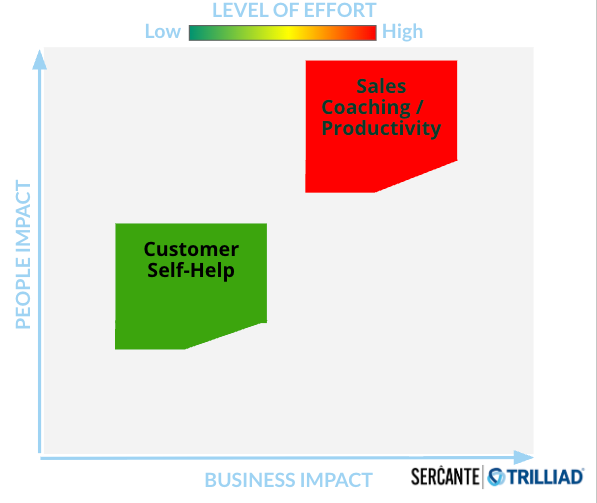
As the Sercante team shared during their session, AI Roadmap: The Strategy for Driving Growth with AI, consider the level of effort involved with each use case and the impact on the people involved. You want to aim to prioritize your first use cases that have a relatively low level of effort and a lower impact on your people. This will enable easier pilots and experimentation, so you can see what the initial results are and then make tweaks or scale from there.

Once you know your top 1–2 use cases, you’ll have a clear view of what data will be needed.

Step 2: Perform a data audit

After you understand the data that will be needed, it’s time to audit that data and check for the common culprits. Are there any duplicates, inconsistencies, inaccuracies, or just data that is missing? Check for the signs of dirty data across the key objects and fields that will need to be used for your AI use case.

Here is my go-to checklist for an audit that starts to get your data AI-ready:

  • Identify key data objects and fields
  • Define data quality metrics
  • Identify & categorize data issues
  • Document critical data sources and data points
  • Assess field usage
  • Review knowledge sources for accuracy and AI accessibility 
  • Review permissions – who can see what
  • Assign effort levels & quick wins 

Some tools that can help with this process are Data Quality Analysis Dashboards (find it on the AppExchange here), OrgCheck, and other third-party tools on the AppExchange that can assess for data quality and field usage.

Step 3: Establish data standards

Once you uncover the issues, you want to put processes and standards in place to prevent future messes. Documentation that has proven to be effective for teams is creating a data dictionary or a style guide.

Whichever you implement, the data documentation should:

  • Answer who is using this data and what this data is being used for
  • Establish clear rules based on business requirements
  • Define acceptable values, formats, and relationships
  • Foster alignment across teams around the data standards

All teams that are involved in using the data should have an understanding of what the proper usage is and how to maintain clean data now and in the future.

Step 4: Cleanse and normalize the data

Now the cleaning begins. Remember to approach this in manageable chunks. Focus on the data that is needed for your top AI use cases first. The actions you need to take for this step will be determined by what you uncovered in your data audit, but here is a general checklist that you can use as a guide:

  • Clean up / merge duplicates
  • Delete obsolete data
  • Correct missing values, errors, and inconsistencies
  • Perform mass updates
  • Leverage data cleaning tools or scripts
  • Update knowledge sources
  • Don’t forget to back up your data first!

Tools you can use to help with this process are native duplicate management tools or third-party ones on the AppExchange. There are also third-party tools on the AppExchange for data cleaning and data enrichment that I recommend checking out before diving into this step.

If during your data audit you discovered that silos and disparate systems are a huge issue, and you’re wondering if you’d be a good fit for a customer data platform (CDP) like Data Cloud, reach out to the Sercante team. We can help you navigate what to consider and create your strategy for how to approach the technology in a way that sets your team up for success.

For a preview of our approach to systems like Data Cloud, check out our session on demand, A No-Nonsense Guide to Launching Agentforce and Data Cloud.

Step 5: Build systems to prevent future issues

It seems like the work to clean your data is never done, however, you can do your due diligence to put systems and processes in place to prevent major issues in the future that would hinder your team from getting the full value out of AI.

Prevent bad data entry 

Where possible, use picklists to help standardize your data and restrict access to maintain data integrity. Make field requirements for records to be saved with helpful error messages to remind teams of your data standards.

Create data validations or automated updates. For example, setting up a Salesforce Flow that automatically checks the format of an email address when a new Lead is created.

Execute training and create enablement

Make sure that all teams involved with the data are educated on data entry best practices and the importance of data quality. Refer back to your data standards to reinforce the alignment among the teams.

Evaluate data integrations

Remember those data silos? If these continue, data issues will persist and cause your team to continue to do manual cleanup, which is what you’re trying to avoid. 

Look at the systems that are disconnected and see what integrations can be made to automatically keep data synced. This is also where a CDP may be considered.

Establish a regular data audit cadence

You want to prevent your database from reverting to the original state you found it in when you first started your data audit. Therefore, aside from putting these systems in place to prevent future data issues, you’ll also want to set a regular cadence for yourself to check your data for the common culprits to uncover any small issues before they turn into major ones.

Clean data means smarter, more effective AI-driven marketing

Getting your data AI-ready is a critical piece to getting the most value out of AI. It’s not about achieving perfection to the point where it gets in the way of getting started with AI. It’s about creating a foundation through manageable chunks that will enable the AI to effectively deliver for your team and your customers. 

Data quality is essential for any successful AI-driven marketing strategy, and by using this step-by-step guide, you can take practical, ownership-driven steps to collaborate with your Salesforce Administrator, sales, IT, and customer success teams to improve data readiness.

Welcome to the marketing side of Salesforce! As a Salesforce admin, you may occasionally need to assist your marketing team in developing processes or generating reports from data in Salesforce and Marketing Cloud Account Engagement (Pardot). Understanding Account Engagement and how it affects your Salesforce org can enhance your ability to contribute to those initiatives. 

7 Account Engagement Facts Salesforce Admins Must Know

In this blog, we will review several fundamental concepts in Account Engagement and how they relate to your role as a Salesforce Administrator. This guide is designed to provide you with insights from a Salesforce perspective about Account Engagement so that you can best support marketing and other teams using the platform. While these features are available to all organizations, access to the features can vary based on your org configuration and tier.

Tip 1: We call people “prospects”

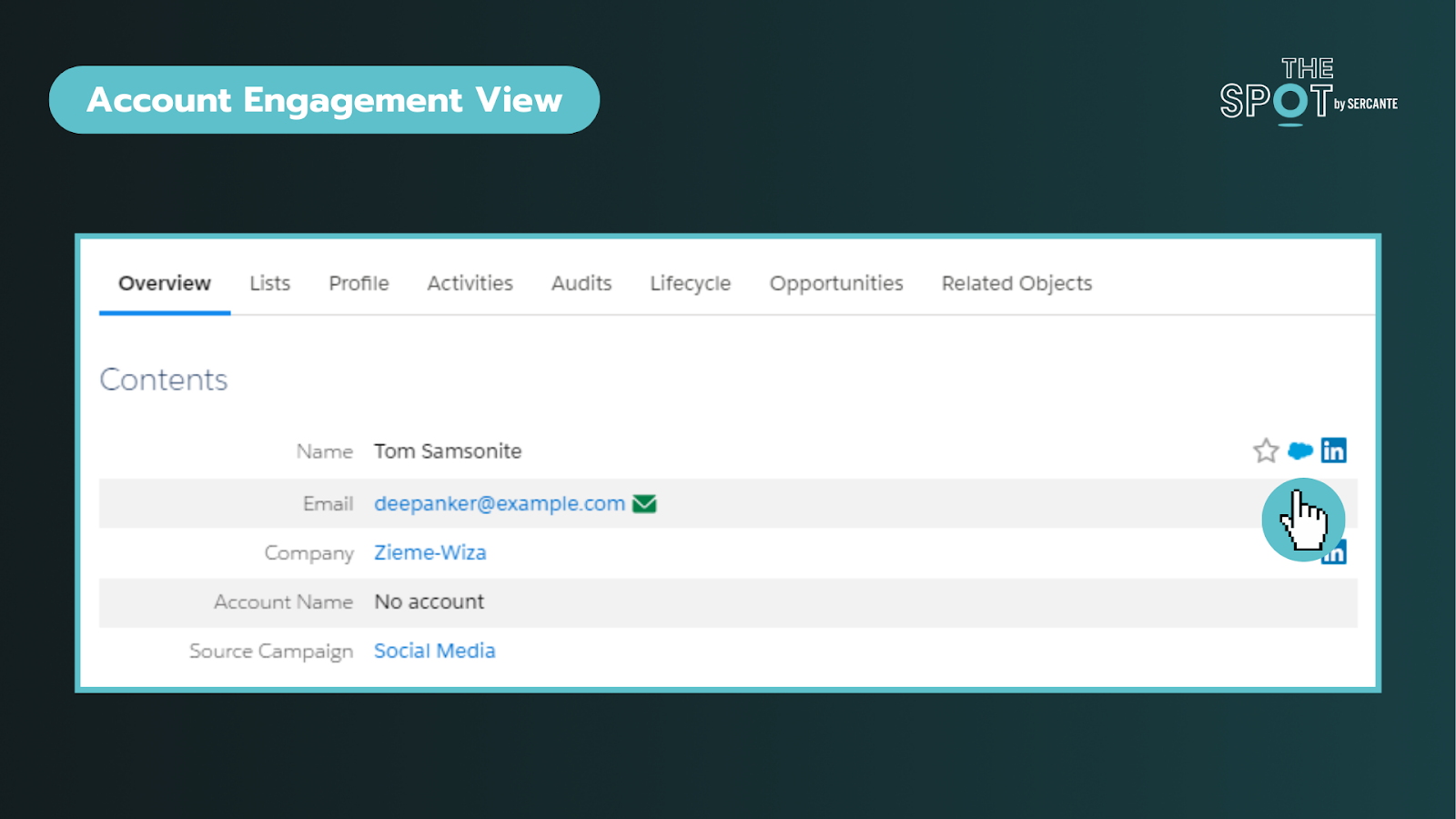
In Salesforce, you are accustomed to working with Leads and Contacts. While this does carry over, the platform labels “people-records” as Prospects. Prospects can exist solely in Account Engagement or be synced with existing Salesforce records.

Verifying Prospects are linked to Salesforce records

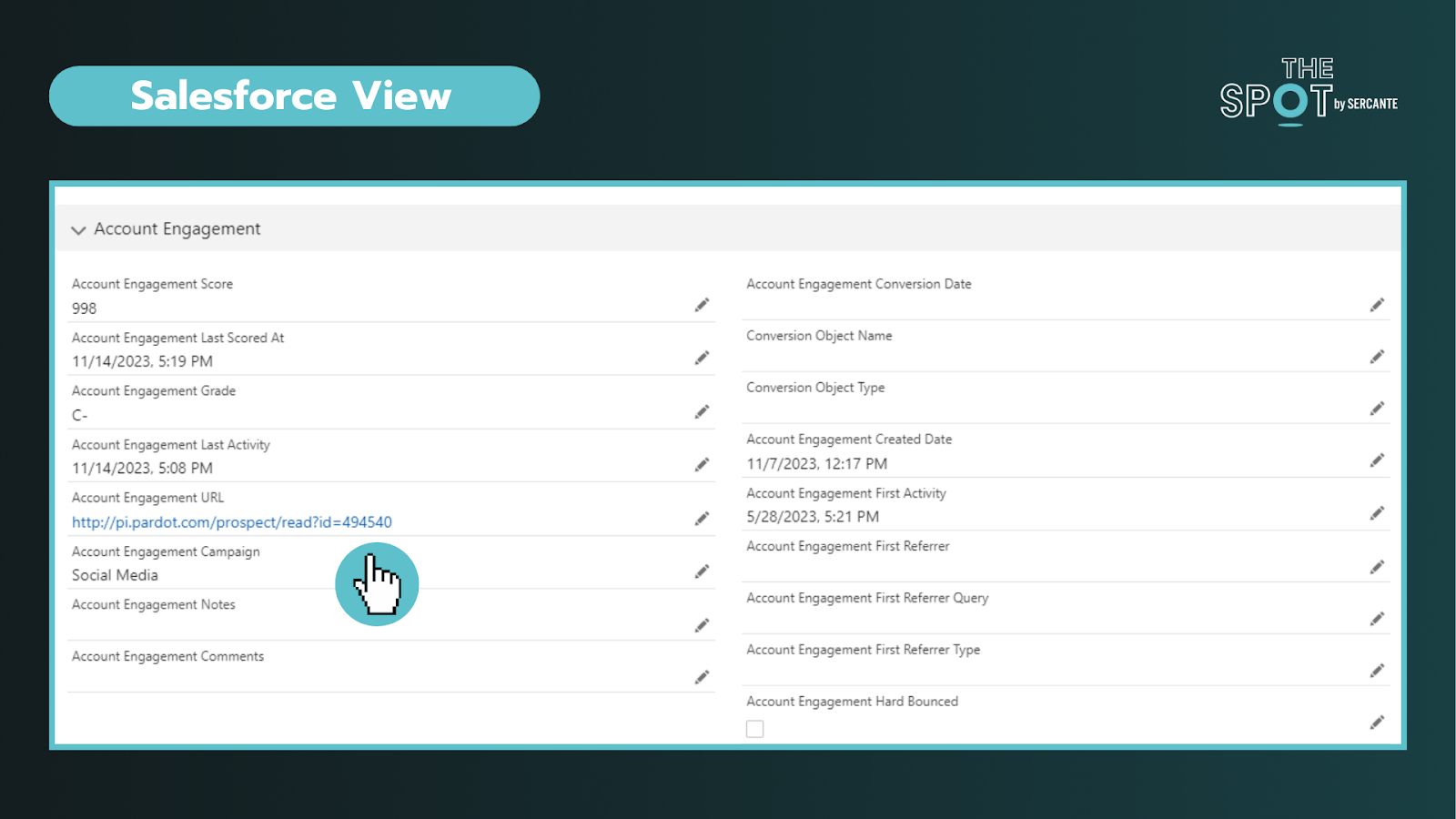
To verify that a Prospect is linked to a Salesforce record, you can click on an individual record and look for the Salesforce cloud icon listed on the right of their name (see above) or by the CRM ID listed at the bottom of the record. Clicking on this cloud icon will take you to the connected Salesforce record. In Salesforce, you can click the Account Engagement URL to bring you into the platform. This is particularly helpful when you are trying to diagnose data sync issues. 

Key reminders:

  • Records are matched using 18-digit IDs and email (if no matching record is found)
  • You can navigate from Salesforce to Account Engagement records and vice versa
  • Managing deleted records and duplicates may require additional effort across both platforms

Tip 2: Add visibility for sales and marketing teams in Salesforce

Enabling Account Engagement introduces several new fields, components, and features exclusive to the integration. You should review the implementation guide and work with your team to align on what information is valuable for sales and marketing to deliver on their respective functions.

The package includes fields like engagement score, fit (grading), what “object” they converted on, and a log of their latest activity in Account Engagement, to name a few. Additionally, depending on your tier, you may also find additional components you can take advantage of, such as B2B Marketing Analytics.

When mapping fields, not all Salesforce field types transfer seamlessly to Account Engagement. To avoid data loss, review your fields (including matching API names) and ensure they are mapped across objects in Salesforce before attempting to sync any data into Account Engagement.

Key reminders:

  • Field types may affect your ability to map fields into Account Engagement
  • Beware that Formula fields do not trigger sync updates in Account Engagement
  • Field level permissions and user profile access on the integration user can affect dataflow

Tip 3: Security matters but looks and works differently

Security is the #1 pillar of any Salesforce Admin role.

There are different levels of access you can give to Salesforce users via permission sets. Those levels include:

  • No access to Account Engagement data – on either platform: This is usually for operations teams who don’t need access
  • Access to Account Engagement data on a page layout in Salesforce: This is usually for sales/SDR teams
  • Access to the Account Engagement app: This is usually for marketing and creative teams


To enter the Account Engagement app, the user’s record must be mapped into Account Engagement. No user in Account Engagement, no access to it regardless of permissions in Salesforce.

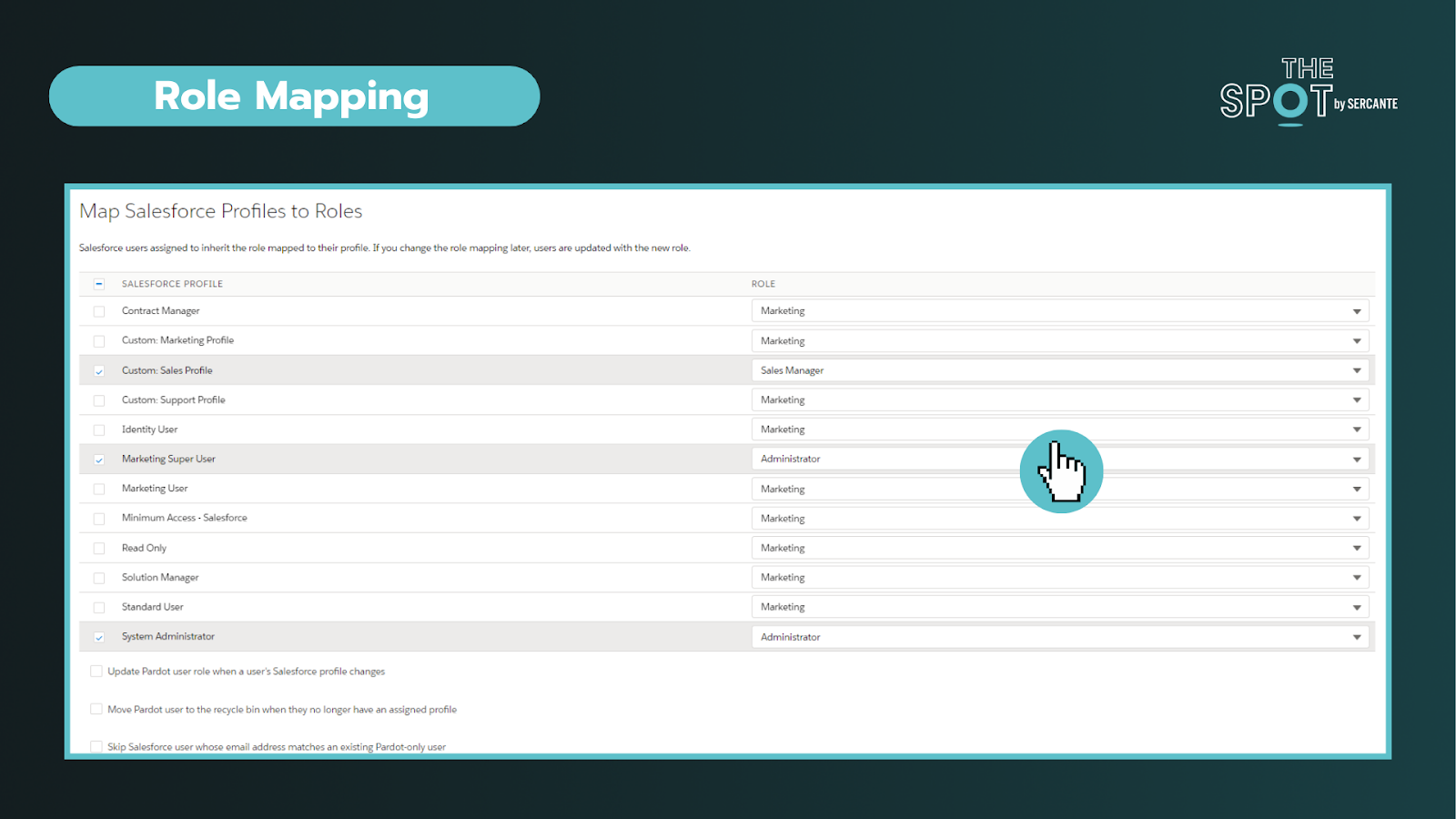
Secondly. while you may be familiar with profiles and roles in Salesforce, well Account Engagement adds another layer of complexity to the mix. Account Engagement has its own “roles” and they do completely different things. These roles only apply within Account Engagement and allow you to see and do specific activities (build segments, forms, etc) on the platform. 

Default Account Engagement user roles include Administrators, Marketing, Sales Manager, and Sales. You can configure these roles under the account settings section and connect profiles to roles within the Salesforce connector section in Account Engagement.


To conclude, you can personalize the levels of access to different Users. You’ll ultimately need two “keys” to get into Account Engagement (a Salesforce permission set and an Account Engagement role assigned to a synced User). It is important to work with marketing to outline the level of access needed to perform daily tasks.


Key reminders:

  • You can create custom roles in Account Engagement (may require an add-on)
  • All the users with the same role, have the same access in Account Engagement, regardless of their permissions in Salesforce

Tip 4: The Salesforce Integration is flexible

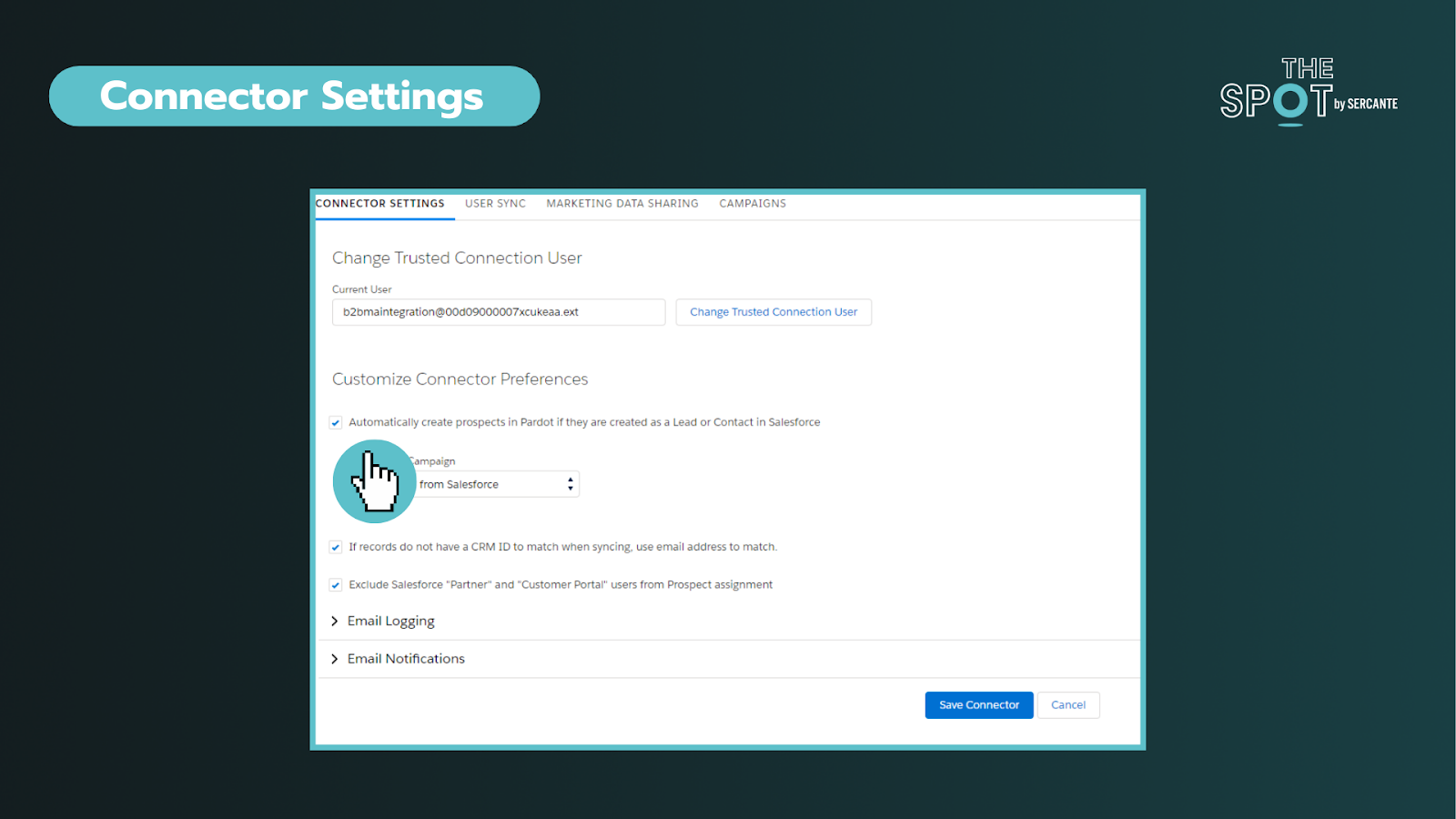
This integration (or connector) is the key to aligning your data between two systems. Through the connector, we can sync everything from Users, objects, fields, and campaigns. You can deep dive into the individual components here.


In these settings, you can choose if you want to allow a bi-directional sync or not. This is your on/off switch. Most customers want this feature enabled. 


Additionally, you can control data flow on a field-to-field level. It is important to discuss how data will be used and by what team. 

You can allow data to be managed by:

  • Salesforce only
  • Account Engagement only
  • Whichever system makes the most recent update

As data comes circulates between the platforms we can be met with conflicts between the two systems. For most teams, these conflicts can be attributed to their use of validation rules or restricted field values and dependencies. The conflicts are called sync errors in Account Engagement

These conflicts can be found under the Salesforce connector gear icon (under Connectors) and can range from:

  • Access issues – Connector user lacks access to read/write to an object
  • Data formatting issues – Issues with field types or values
  • Process alignment issues – dependencies between fields or steps in a process

As an admin, is important to support your team in resolving these issues as quickly as possible to restore data sync on those records. These sync errors offer opportunities to improve communication between teams and for process improvements. Our team at Sercante often uses ProspectUpdater to help customers fix data formatting issues at a scale.

Key reminders:

  • Enabling a bi-directional sync of data is recommended but optional
  • Large imports can cause bottlenecks – if you notice this becoming an issue you may want to check daily processes as well

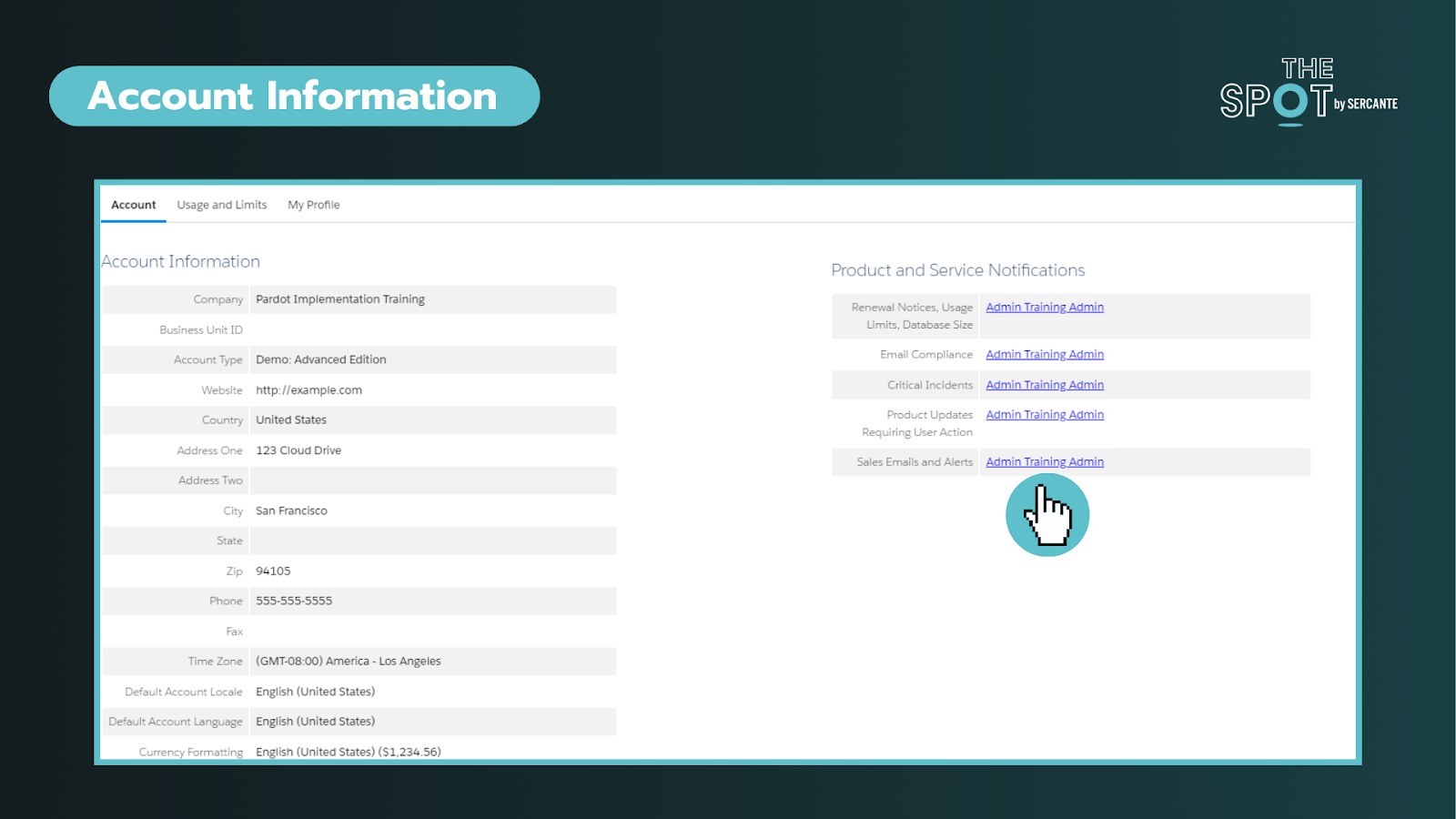
Tip 5: Account settings are the key to understanding your org

This section can help you identify important information about your account such as the Business Unit ID, when the account was enabled, admin alerts, and account limits. On the right side of the screenshot below, you will find the ability to personalize who gets alerts about these items. To ensure these alerts are taken seriously, ensure these are received by team members who are active in the org.


The most common way that admins discover this page is when they have to increase the number of prospects that can be kept in the account or run out of storage.

Key reminders:

Tip 6: Leverage Account Engagement forms

You’re probably familiar with web-to-lead forms. While these mechanisms can help do more with Salesforce they do not cookie leads or contacts upon completion. Why does that matter? Cookies help us identify prospects and avoid duplicates.

With Account Engagement you can simplify the form creation and management (say goodbye to your external tools) or form handlers (similar to webhooks) to streamline your inbound marketing and processes. The forms can be embedded as Iframes on your website, Account Engagements’ landing pages, or stand-alone.

Upon completing a form, you can set a cookie on the Prospect. You can still do notifications (email and Slack), send emails, add to segments, and so much more without complex flows or other Salesforce automation. 

Key reminders:

  • Testing forms incognito mode is strongly recommended
  • Cookie length can be adjusted under your account settings or by individual user browser settings

Tip 7: Encourage campaign collaboration

First thing is first, Account Engagement has campaigns too! However, these are exclusively used in Account Engagement for capturing the 1st touch interactions (all time). This makes it challenging to see the life of the lead across time and also makes reporting difficult.

Luckily, we can create and sync Salesforce campaigns into Account Engagement for the same purposes AND to capture the multiple touches on their journey to conversion and beyond.

By leveraging Account Engagement’s automation to add prospects to Salesforce campaigns, we avoid doing multiple imports to update the Campaign member records. This functionality also allows us to take advantage of standard Campaign reports in Salesforce that can help us see ROI and campaign influence across our initiatives. To help find the latter, we created a Campaign Influence Started Pack, go check it out. 

Key reminders:

  • When creating campaigns, leverage campaign member statuses and make sure to check the “active” checkbox to sync over into Account Engagement
  • Keep an eye on campaign members and campaign influence records, which can eat up your Salesforce storage if created in large volumes over time

Learn the essential Account Engagement concepts for Salesforce admins

While Account Engagement predominately serves marketing functions, Salesforce Admins play a crucial role in understanding and supporting its broader impact. By acting as the bridge between IT and marketing, admins can help facilitate more collaboration and more effective project rollouts on projects affecting users across the organization.

If you are struggling with any of these tasks/concepts, please reach out for assistance. Together, we can foster more seamless experiences that drive transformative outcomes!

A Campaign Member’s First Associated Date records the date a Lead/Contact became a member of a Salesforce Campaign, and it’s a great metric to use in your reporting. First Associated Date can be used to show how many Leads/Contacts a Campaign touched in a given time period, how long the Lead/Contact was in the campaign before they moved to a “Responded” status, or how long the Lead/Contact was in the campaign before an associated Opportunity was opened. However, sometimes the Campaign Member’s first associated date gets skewed. 

Common causes of this are:

  • Lead/Contact should have been added to the campaign on September 15th, but was stuck in the Account Engagement sync queue until October 1st
  • New Leads from an event we’re not uploaded into Salesforce until a few weeks after the event
  • Campaign Members were brought over from another Salesforce org during a migration
  • Sales didn’t enter a new Lead they were working with until after the Opportunity was created

If you are relying on Campaign Member First Associated Date for your reporting, any of the above causes can really throw off your data and make a Campaign, or a time period, look less successful than it actually was. Luckily, you can backdate this field with a few system permissions and the help of Data Loader!

You can insert, but not update!

Before we get into the nitty-gritty of how to do this, it’s important to note that you can’t update the Campaign Member First Associated Date of existing Campaign members. You can only insert new Campaign Members with a backdated first associated date. However, you can use Data Loader to export Campaign Members, their Campaign Status, their dates, etc. from a Campaign, delete the Campaign Members, then re-add them to the Campaign with new dates. 

Permissions needed

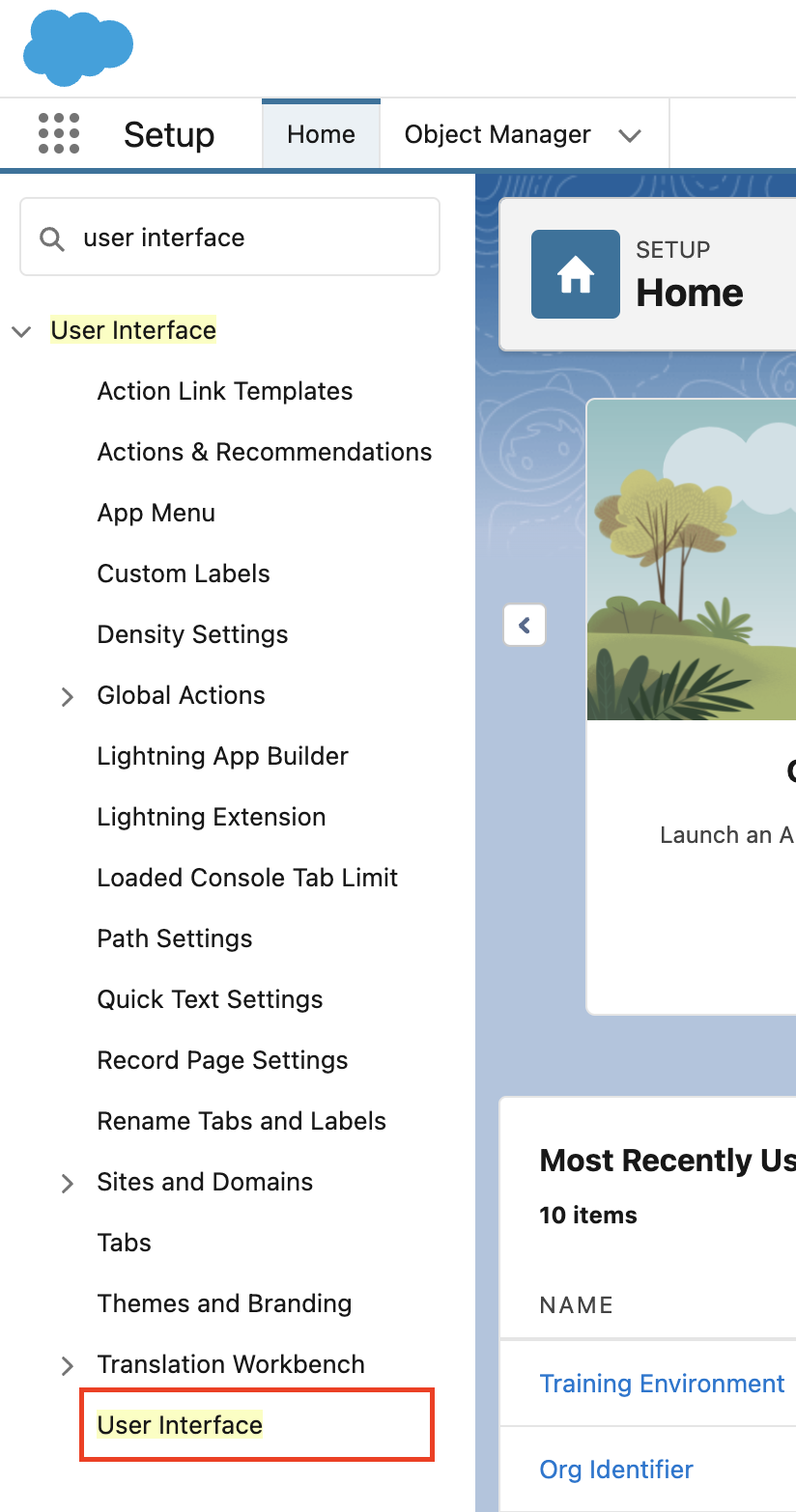
The first step to updating First Associated Date is enabling “Set Audit Fields Upon Record Creation”.

  1. Navigate to Setup > User Interface 
Salesforce screenshot
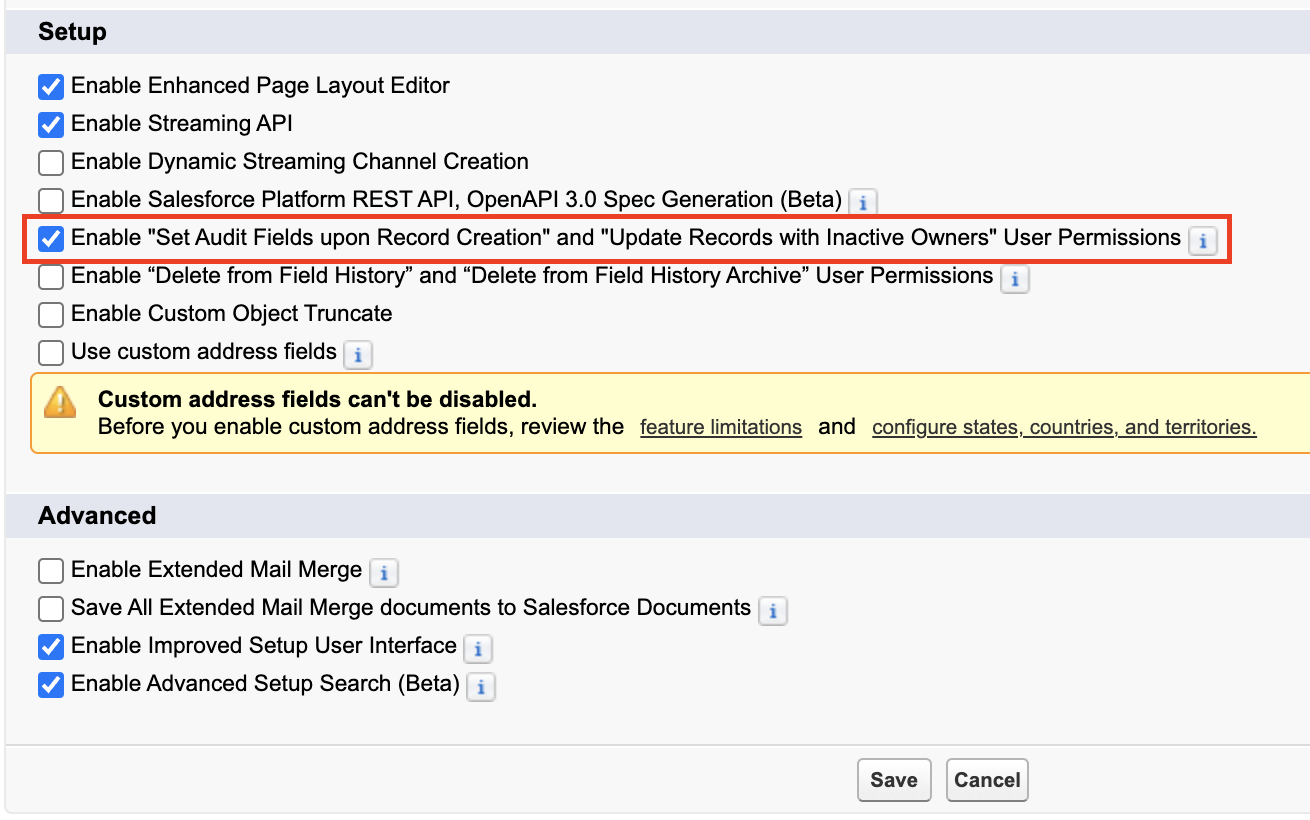
  1. Ensure the “Enable “Set Audit Fields upon Record Creation” and “Update Records with Inactive Owners” User Permissions” option is selected
Salesforce screenshot
  1. Select Save

Next, create a Permission Set for “Set Audit Fields Upon Record Creation” and assign this Permission Set to the user(s) who will handle the Data Loader imports. 

  1. Navigate to Setup > Permission Sets
  2. Select New
  3. Name your Permission Set “Set Audit Fields Upon Creation”
  4. Select Save
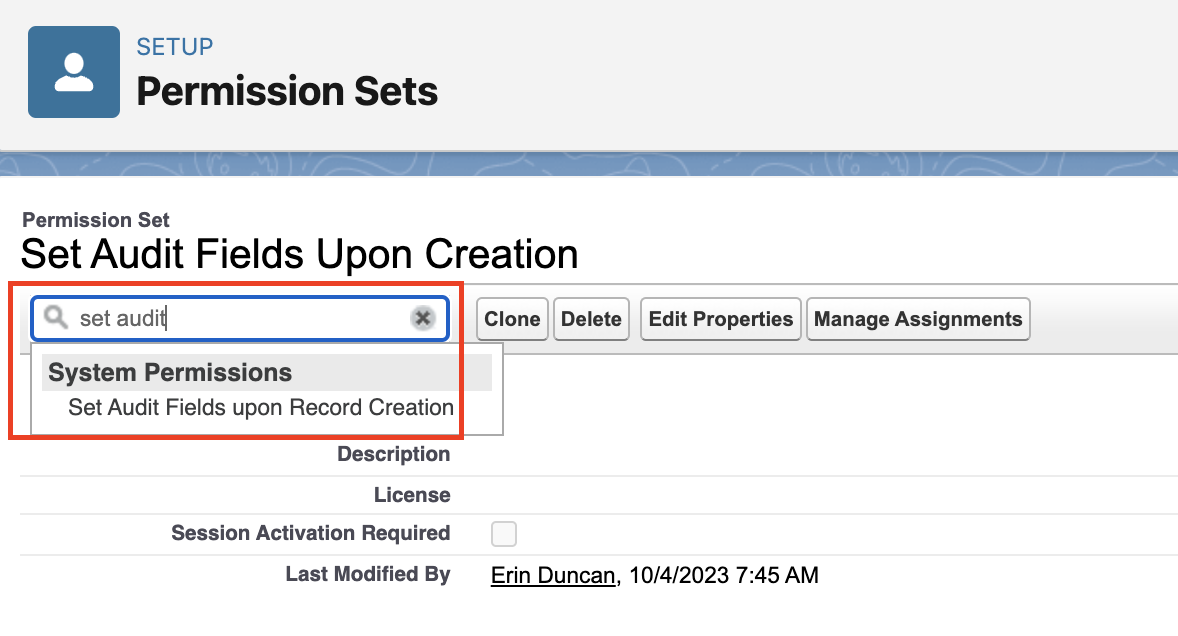
  5. Within your new permission set, type “Set Audit” into the “Find Settings” box
  6. Select Set Audit Fields Upon Creation
Salesforce screenshot
  1. Select Edit on the resulting page and select the Set Audit Fields Upon Creation checkbox 
  2. Select Save
  3. Select Manage Assignments 
  4. Select Add Assignments
  5. Select any users who will be handling the Data Loader imports of Campaign Members, then select Next and Assign

Import your data

Finally, get your Data ready for import! At a minimum, you’ll want to make sure your file includes:

  • Campaign ID
  • Lead ID and/or Contact ID
    • If you are importing both Leads and Contacts into the Campaign, I recommend splitting the import into 2 files. 
  • Campaign Member Status (if different from the Campaign’s default Status)
  • Campaign Member first associated date
    • Ensure the column is formatted using one of the options below, otherwise you will get an error.
      • MM/DD/YYYY (example: 04/23/2012)
      • DD/MM/YYYY (example: 23/04/2012)
      • YYYY-MM-DD (example: 2012-03-25)

To import the data

  1. Open Data Loader and login
    • Note: Updating Campaign Member First Associated Date is not possible with the Data Import Wizard, only Data Loader.
  2. Select Insert
    • Note: The ability to map to Campaign Member First Associated Date will not be available if you select Update or Upsert.
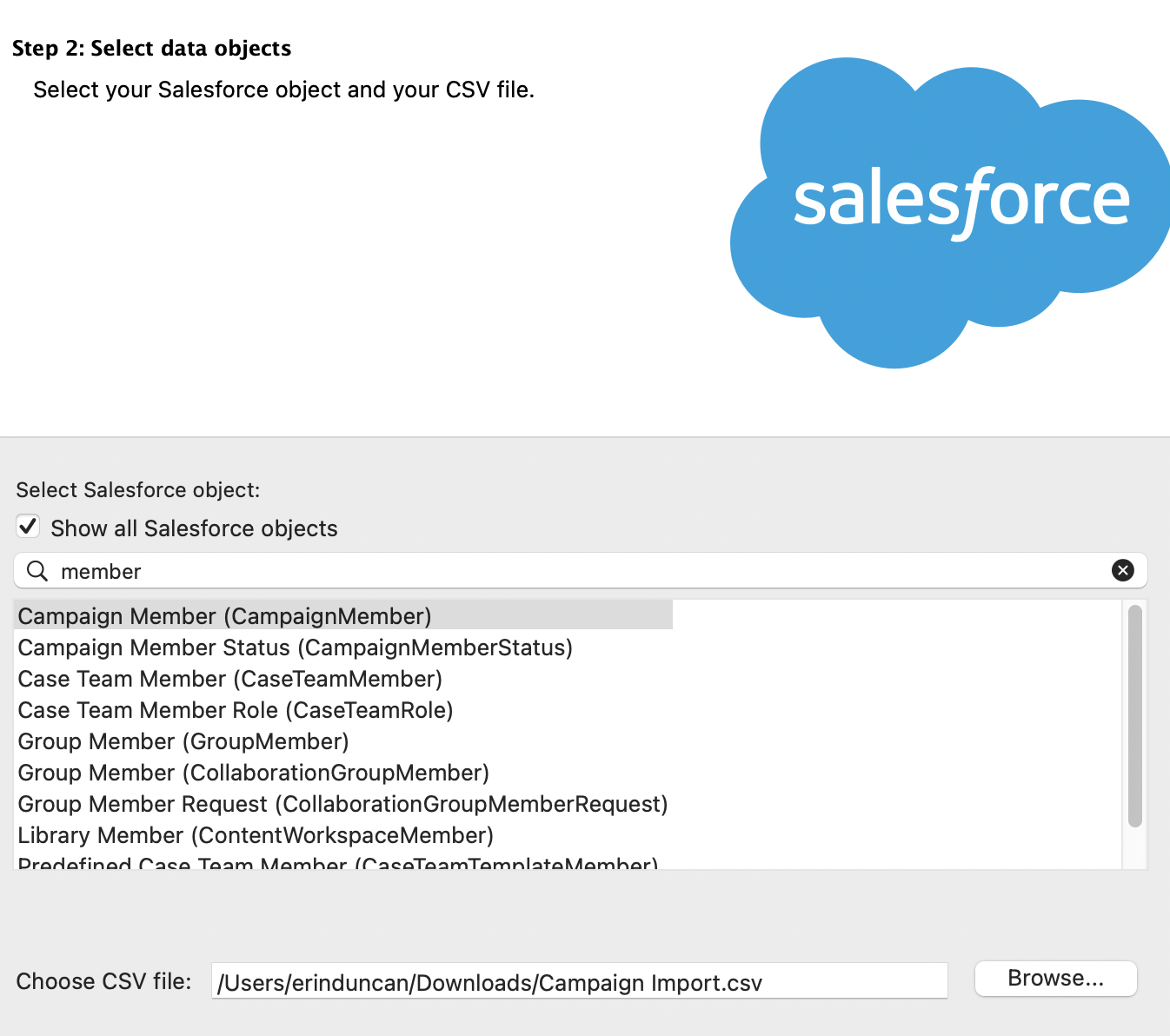
  3. Check the Show all Salesforce Objects checkbox and search for CampaignMember
Salesforce screenshot
  1. Select your CSV file and click Next
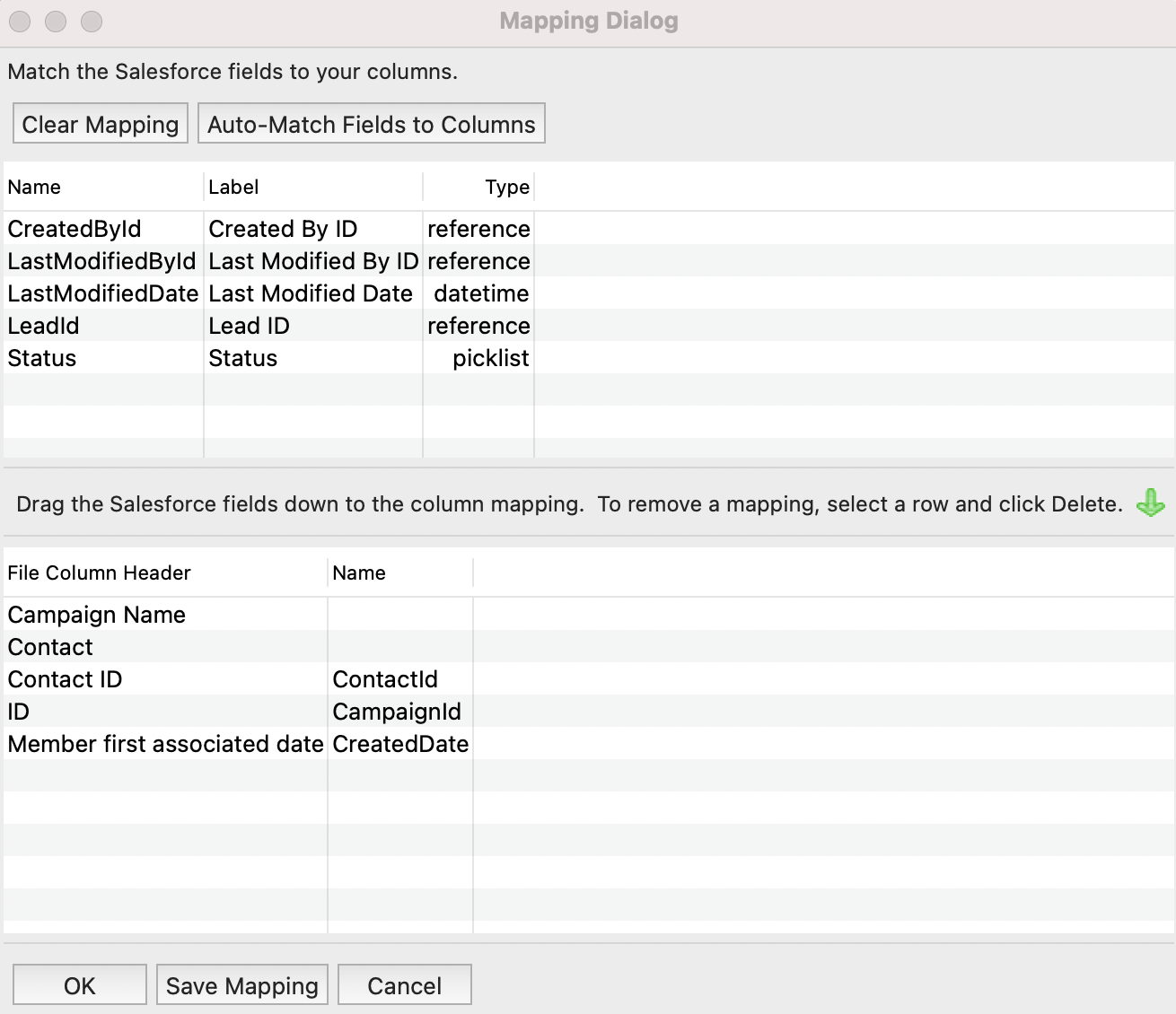
  2. Select Create or Edit a Map and map your fields
    • CreatedDate is the field you’ll need to map to the Member First Associated Date column
Salesforce screenshot
  1. Select OK > Next > Finish

And Voila, beautiful, accurate Campaign Member data!

Salesforce is upping their game in the race to incorporate the latest generative AI tools into their products. Announced during Salesforce Connections on June 7, Marketing GPT and Commerce GPT are coming to Salesforce customers using Marketing Cloud and Commerce Cloud. 

The features are gonna make it easier for marketers to reach the right audiences and generate emails, and commerce teams will create better shopping experiences and customer journeys. But, the best part is that both Marketing GPT and Commerce GPT can be connected to Data Cloud — meaning the tools can do their thing using data from any source.

History of Salesforce in the GPT game

Both Marketing GPT and Commerce GPT are dependent on Einstein GPT, which is the generative AI version of Einstein. 

For a little back story, Salesforce Einstein is the machine learning model the company rolled out in 2016 to analyze large sets of CRM data. So, Salesforce has been on the AI train for a while already. 

Einstein can do things like predict which customers or sales leads are likely to buy by looking at data from a bunch of sources. Or it can analyze data to determine the best time to send emails to your lists.

You can get it in Marketing Cloud Engagement and Account Engagement, Sales Cloud, Commerce Cloud, Experience Cloud, and Service Cloud, along with other platform tools.

In March 2023, Salesforce released Einstein GPT, which combines the machine learning model Salesforce developed with the chatbot from generative AI company OpenAI. (On a side note, Salesforce is going heavy on the AI devotion and has already invested $250 million into other AI technology companies.)

So, how are Marketing GPT and Commerce GPT related to Einstein GPT?

Both Marketing GPT and Commerce GPT are powered by Einstein GPT — the AI-powered set of solutions that marries Salesforce AI with OpenAI’s technology. They are both iterations of Einstein GPT that are tailored for the respective clouds. Stay tuned because we’re seeing GPT features getting infused across all Salesforce clouds in addition to these two.

What capabilities do Marketing GPT and Commerce GPT have?

Both of the sets of features combine generative AI capabilities, which use data from OpenAI, with Salesforce Data Cloud. That means you can use customer profiles in Data Cloud that include data from any source in real time. And while you don’t have to use Data Cloud to take advantage of the Salesforce GPT features, you’ll definitely be able to do more if you have it.

So, what exactly can you do with Marketing GPT and Commerce GPT?

Marketing GPT Capabilities

We’re really gonna be cooking now by giving the people super valuable experiences through email and content marketing. We already have Einstein features in our marketing back pocket, but now we’re throwing GPT into the overall mix. That means we can use conversational language prompts to get Marketing Cloud to do things for us. 

I mean, it’s not going to organize all those random newsletter graphics you’ve been uploading to Account Engagement without using a naming convention (yet???). But it will do things like analyze the data you have and use that information to predict the best ways to improve your emails. 

Source: Salesforce

Here’s what Marketing GPT can do (so far):

  • Segment Creation | generally available Oct. 2023
    This is a whole new fancy way to build your audience segmentation strategy. You can tell Marketing Cloud to create audience segments for you using natural language prompts, and it will help you to improve your targeting using AI recommendations and audience data that’s in Data Cloud.
  • Email Content Creation | generally available Feb. 2024
    Ok, so I’m gonna have to see this one in action, but Salesforce said this feature can “reduce writing workload” by creating auto-generated emails. It can potentially be a big one for marketing teams that have the content but stumble with their email marketing.
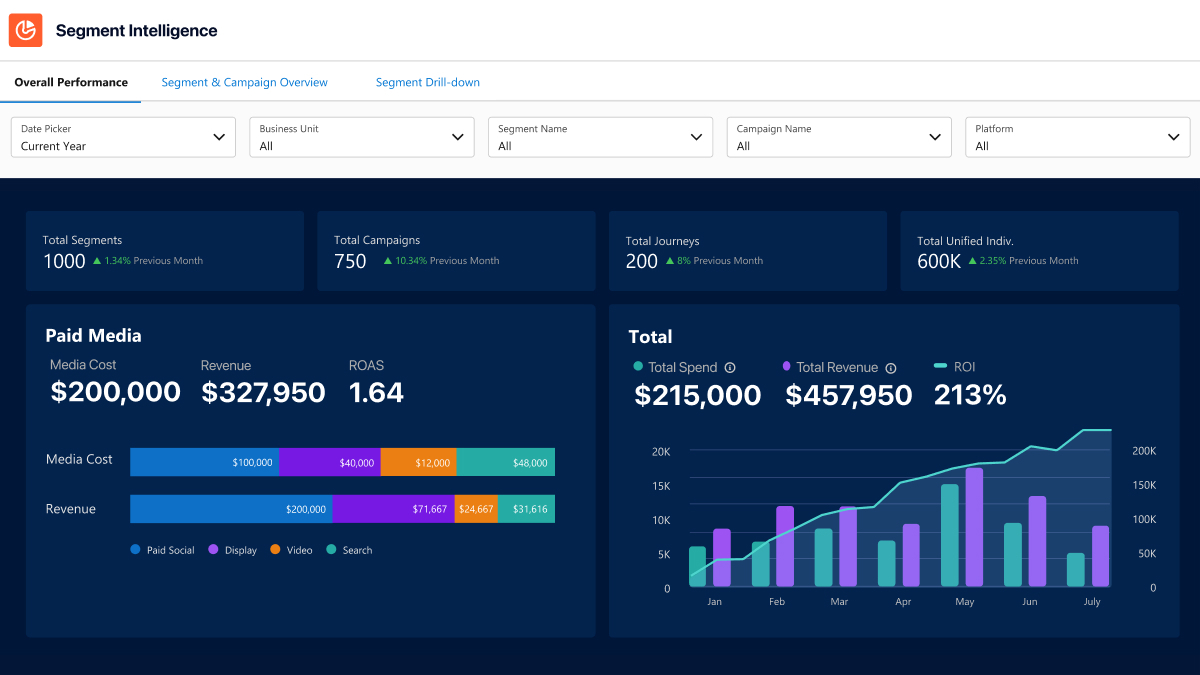
  • Segment Intelligence for Data Cloud | generally available Oct. 2023
    This adds a fancier twist for tracking ROI. Segment intelligence combines first-party audience data, revenue data, and paid media data to show you exactly how your campaigns are doing in relation to your audience segments. 
  • Rapid Identity Resolution, Segmentation, and Engagement | generally available Aug. – Oct. 2023
    Salesforce is going heavy on the ‘transform at the speed of your customer’ theme. The mouthful that is this feature basically keeps Data Cloud segments updated in real time so messaging is always relevant and timely.
  • Typeface content platform | GA date not given yet
    Using a third-party content generator called Typeface, marketers can create branded visual assets (like email graphics or social cards) inside Salesforce. Stay tuned for this one cuz it could be huge.

These are the features that Salesforce outlined during the announcement, but we’re sure the list will grow with each Salesforce release.

Commerce GPT Capabilities

We’re also getting a bunch of generative AI features for B2C companies that use Salesforce tools for commerce. These are especially cool because ecommerce customers can be a fickle bunch. Getting them exactly what they want when they want it makes all the difference.


Source: Salesforce

Here’s what Commerce GPT can do (so far):

  • Goals-Based Commerce | generally available Feb. 2024
    This is one of those a-ha tools for businesses with big growth goals. It unites Data Cloud, Einstein, and Flow to lay out everything commerce companies need to do to reach their goals. Users give it a goal, like increase average order value (AOV) by XX%, and it gives recommendations on how to get there.
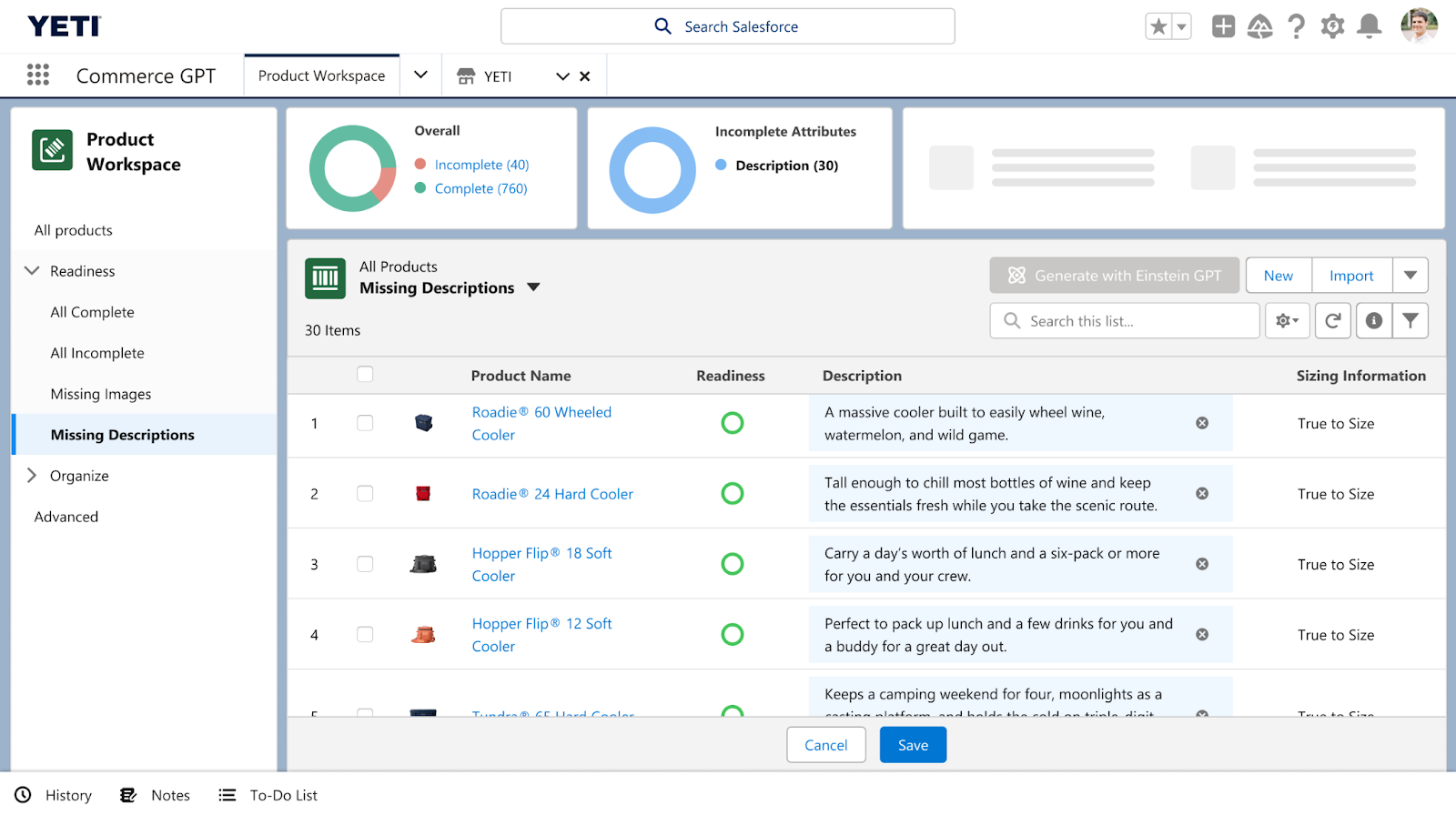
  • Dynamic Product Descriptions | generally available July 2023
    Okay, so we’ve seen how serving up product recommendations based on customer preferences has shaken things up for commerce companies. But now we’re gonna be taking it even further by introducing dynamic copy capabilities for product descriptions. It could be a serious game changer.
  • Commerce Concierge | generally available Feb. 2024
    Not all of the Commerce GPT features are specifically for Salesforce users. Online shoppers can use Commerce Concierge to find what they need using language prompts across channels from online stores to SMS messaging.

Comments on generative AI + Salesforce from the peanut gallery

My two cents: My mind immediately goes to the content creation features of Marketing GPT. There is SO MUCH copywriting that goes into marketing. And we’ve seen a whole bunch of copywriting GPT tools pop up in the last year, like the free Stensul email toolkit or paid ones like GrammarlyGo. Some people are naysaying the tools in fear that they will replace copywriting jobs, but I don’t think that’s the case at all.

In my experience, leaner marketing teams rarely have dedicated copywriters. Those responsibilities are usually lumped into other marcom roles. I see the tools giving marketers the ability to edit copy instead of writing from scratch. Then, they can have bandwidth to dig deeper with their messaging and present higher quality work that hits their audience in the feels. And being able to do that inside Salesforce just sweetens the whole deal.

I opened the floor to my teammates about what they think about Marketing GPT and Commerce GPT, and here’s what they had to say.

Cate Godley

“I’m excited to see how Marketing GPT can help marketers to craft better subject lines and calls to action to increase engagement with content. There are so many ways to use generative AI to inspire creativity in our marketing efforts, and I can’t wait to see how people are using these tools in new and exciting ways.”

Courtney Cerniglia

“As marketers, we’re constantly asked what content is resonating most with customers, what action will increase likelihood to purchase, and how we identify our highest value leads. Marketing GPT is going to help prove our assumptions and give us the data in real-time, across platforms, so we can quickly pivot and personalize experiences for customers.”

Mike Creuzer

“There have been a few inflection points where human knowledge growth hockey sticked. Gutenberg press took centuries, computers took decades, the internet took years, and this generative AI appears to be taking… months?

According to the 2023 Connections Keynote, there were 1 million users in two months for ChatGPT (if I remember correctly).

We are at the start of the next great change in pace of human knowledge and communication.

2023 is the year where AI is no longer hidden away behind RFID badged doors and is widely available to EVERYBODY in a usable, general way.

In business, AI has been baked into the tools that we use for many years now. But it’s been a one trick pony. It’s now anything WE want it to be, not just what our vendors built.”

Continue the conversation 

What are your thoughts on Salesforce and generative AI? Any hot takes? Tell us about it in the comments, or reach out to team Sercante to see how the tools fit into your overall marketing and operations strategy.

Summer ’23 Release Update: With this release, Salesforce is re-allowing the Account Engagement Opt-Out field to be set to “Use Most Recently Updated”. However, We’ll leave this blog post up in case it helps anyone who does want to set their Opt-Out field to “Use Account Engagement’s Value” or “Use Salesforce’s Value”.

Original Blog Post

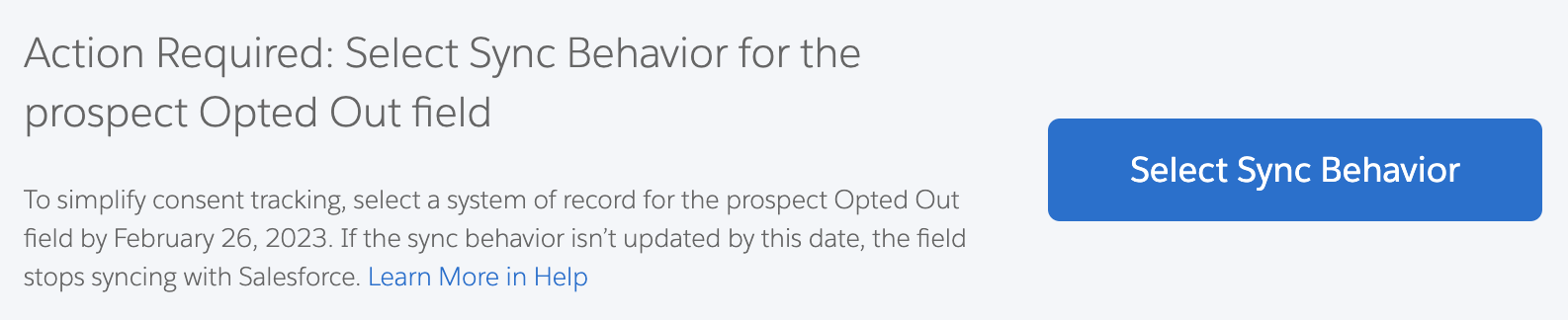
The Salesforce Winter ’23 release is bringing some changes to the Marketing Cloud Account Engagement (Pardot) “Opted Out” field. After this release, the sync options will change and “Use most recently updated” will no longer be an option for this field. 

Pardot Admins must choose between “Use Salesforce’s Value” or “Use Pardot’s Value” before July 11th, 2023 or this field will stop syncing with Salesforce. All Pardot Orgs created after August 26th, 2022 will default to use Pardot’s Value.

So, how do you keep Pardot and Salesforce Opt Outs in sync between the two systems after this change? Well, it all depends on where your emails are coming from. 

If you are only sending emails from Pardot

If you are only sending emails from Pardot, then Pardot being the system of record should not cause any issues. 

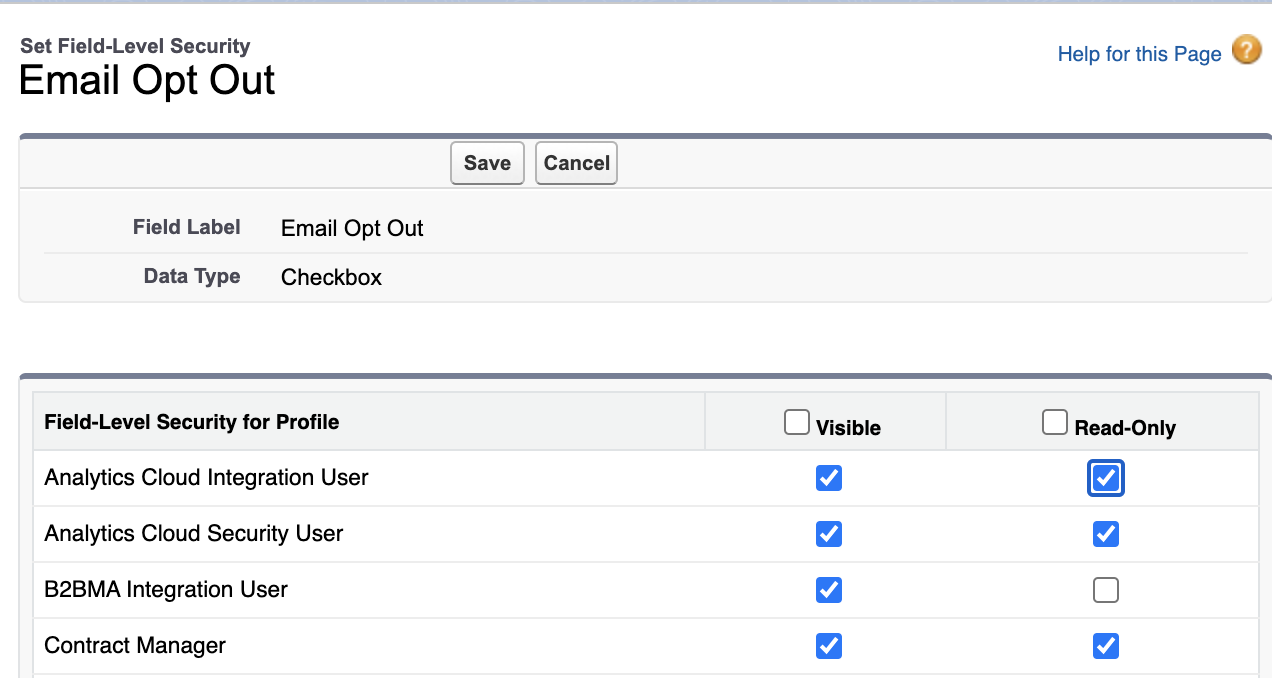
Before you change your Opt Out sync behavior in Pardot, check the permissions of your “Email Opt Out” field on the Lead and Contact Objects. You will want to ensure only the Pardot to Salesforce connector user’s profile can edit this field so Salesforce users don’t incorrectly think they can opt out Leads/Contacts from the Salesforce side. 

  1. In Salesforce navigate to Setup > Object Manager > Lead > Fields & Relationships
  2. Locate and open the Email Opt Out field
  3. Select Set Field-Level Security
  4. Ensure Read-Only is selected for any profiles who have visibility to this field except for the connector user’s profile (this will be the “B2BMA Integration User” profile if you are using the B2BMA integration user as your connector user)
  1. Select Save
  2. Repeat steps 1-5 for the Contact Object

Next, change your Pardot Opted Out field to use Pardot’s Value and voila! You are ready for this update. 

But Salesforce Users want to be able to Opt Out Leads/Contacts

If your Salesforce users need to maintain the ability to opt Leads/Contacts out of Pardot Email from the Salesforce side, they can use the “Do Not Email” field going forward. Make sure you go through the “If you are only sending emails from Pardot”  steps above, as well as:

#1 – Create a “Do Not Email” field for Leads/Contacts

  1. In Salesforce navigate to Setup > Object Manager > Lead > Fields & Relationships
  2. Select New
  3. Select the field type Checkbox, then Next
  4. Name the field “Pardot: Do Not Email”
  5. In the Help Text field, enter “Prevents this Lead/Contact from receive Marketing emails in Pardot”
  1. Select Next
  2. On the Establish field-level security screen, ensure all profiles that will need update this field have visibility to it especially the Connector user’s profile (this will be the “B2BMA Integration User” profile if you are using the B2BMA integration user as your connector user)
  3. Select Next
  4. Select the page layouts you’d like to add this field to, select Save
  5. Repeat steps 1-9 for the Contact Object 

# 2 – Map the “Pardot: Email Opt Out” field upon Conversion

  1. In Salesforce navigate to Setup > Object Manager > Lead > Fields & Relationships
  2. Select Map Lead Fields
  3. Select the Contact tab
  4. Locate the Pardot: Do Not Email field in the Lead Fields column and select the Pardot: Do Not Email  field under the Contact Fields Column
  1. Select Save

# 3 – Map the Pardot “Do Not Email” field to Salesforce

  1. In the Pardot Lightning app, navigate to Pardot Settings > Prospect Fields > Default Fields > Do Not Email
  2. Select Edit default Prospect field
  3. In the salesforce.com Field Name drop down, select Pardot: Do Not Email
  4. In the Sync Behavior field, select Use the most recently updated value
  1. Select Save default field

If you’re sending email out of multiple systems

If you’re sending emails out of Pardot and Salesforce, Marketing Cloud, or various other systems, my recommendation would be to create an Opt Out field for each system then use a Salesforce flow to keep these checkboxes in line. 

For instance, if a Lead/Contact opts out of Pardot emails, you likely want to also opt them out of Salesforce and Marketing Cloud emails coming from the same company or email domain,  otherwise you’re likely to get some SPAM complaints. 

Tell us how Pardot Opt Out Field Sync changes affect you

How are you handling the Pardot Opt Out field sync changes? Do you have any scenarios that are more complex than the examples above? Let us know in the comments!

The Salesforce Summer ‘22 Release is sending lots of love to CRM Analytics (formerly Tableau CRM) users in the form of updates and new features that make reporting work easier using the tool.

These are the features we’re going to start using ASAP.

What CRM Analytics features are there to love in the Salesforce Summer ‘22 Release?

They said it was coming. They said it would be here soon. Now it’s here. The CRM Analytics data manager has gotten a facelift and some groovy new features. 

Flows are headed out the door. Hello recipe driven data sets! Will you be ready? 

Read ahead to find out how some of these new features will change the way you use CRM Analytics

Reviewing Usage of CRM Analytics limits

Viewing usage is now a breeze! No more wondering what the limits are or how close you are to reaching them. This usage is unique to what’s used by CRM Analytics. I’ve been using this feature since the beta so I can’t even remember how we did it before.

All recipes, all the recipes, all the time (well pretty soon)

The retirement of flows is imminent. No, they won’t disappear, but this release shows that a strong “nudge” is being given to moving away from Data Flow (happy dance on my part).

Side note: the Flow to Recipe conversion (Beta) does not appear to be ready for primetime and flows are not going anywhere any time too soon! 

As part of this transformation, new Recipe features are being released to close the gap.

You now can give each step in a transform a name in a recipe

Before
After

Salesforce resource

The “update” Join is now out of beta! 

Use Case: The update can be used to replace fields with those from another table. For example, instead of joining and adding a bunch of fields, you can update the Campaign name directly in related objects — less complexity and mess! 

Improved Data Sampling in Recipes

Select how you want the preview to work! 

You can now select a “sampling mode.” This is REALLY useful when the results you want to see might not exist in the initial rows returned (like when you are selecting filters). No more guessing when bucketing and filtering your values!

Salesforce resource

Connections screen that connects with your needs 

The connections area now has a simpler layout. That means seeing what’s available for use has never been easier. You can also view filters, multi values and other specific information about your connected data sources in one screen. 

When selecting connectors (add connector) you can now pick the type easily and see what options are available (and the list is growing). Open any object to see the new streamlined layout!

Improved Data Manager Layout

 It’s now super easy to see what’s happening, happened or will happen!

And finally, a small but wonderful change…. The status “circle” in Data manager now actually means something. The “green” shows how much of the recipe/dataflow has run so you can have some idea of how far into the process your data generation has gone!

Salesforce resource

See all the possibilities in CRM Analytics 

Maybe one of the most compelling things about the changes has nothing to do with what you can do, but with what you can now easily SEE. With all the possibilities becoming more visible, I anticipate many CRM Analytics admins and users digging into more of what the product has to offer.

Let us know what you’re working on in the comments section or reach out to us here.

Happy reporting everyone! 

Further Reading

No more posts to show