The Salesforce Summer ’24 release notes have arrived, and with them, the delivery of one of the most highly sought-after Marketing Cloud Account Engagement (MCAE/Pardot) features ever requested. In fact, sending operational emails in Engagement Studio functionality has garnered the fifth most points in the Account Engagement category on the IdeaExchange.
When an email is marked as “operational,” it bypasses the recipient’s opt-in status and will send the message even if the subscriber has opted out. You must only use operational emails for their intended purpose, as this can affect your sending reputation and put you on the wrong side of the CAN-SPAM Act.
How Do I Enable Operational Emails in MCAE?
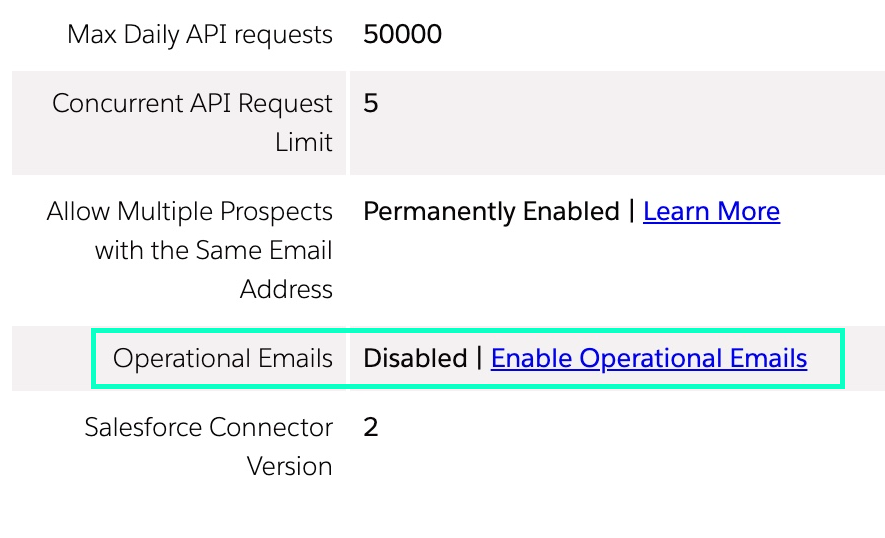
Navigate to Account Engagement Settings
Click Enable Operational Emails
Review the restrictions associated with sending operational emails and confirm your selection
Keep in mind that only Account Engagement Admin users and custom user roles can send operational emails.
Sending Operational Emails with Engagement Studio
Previously, operational emails could only be sent from list sends. This required selecting an audience, building email content, and manually sending at a single point in time. Now, users can send operational emails directly from Engagement Studio, where recipients are enrolled based on user-defined criteria and emails are automatically sent based on your parameters.
Let’s put this into practice. Imagine you are a SaaS company and need to deliver communications regarding your product’s planned system outages. Instead of setting up multiple operational list sends, you could create an Engagement Studio program to automate the outage and issue-resolved notifications to your selected audience.
Another example could be letting your customers know that their product’s license is about to expire. You could create an Engagement Studio program that could send notifications to let them renew their product on a more time-based cadence. Once the Engagement Studio is set and running, you do not need to reconfigure manual email list sends.
Other use cases could include:
Renewal or expiration reminders
Order updates
Event registration reminders
Internal employee onboarding
As with all effective communications, using operational emails in engagement studios will take planning. You will need content to create your emails, data to ensure that the right emails are being sent to the right person, and, most importantly, compliance with the Marketing Cloud Account Engagement Permission Based Marketing Policy.
If a program is running and the Operational Email setting is disabled, operational emails aren’t sent. Prospects skip those steps and proceed to the next one.
If a program with a Send Operational Email card is paused and the account setting is disabled. To restart the program, remove the steps or re-enable the Operational Email setting.
If a program with a Send Operational Email card isn’t running and the account setting is disabled, the program can’t be started or resumed. To start or resume the program, you must re-enable the setting or remove the step.
One Small Step for Email Marketing, One Giant Leap Forward for Efficiency
This is a huge improvement in saving marketers time and improving customers’ experiences with your brand. It ensures that customers can receive mission-critical information at the right time without having to manually and tediously configure the email sends.
How do you plan on using Engagement Studio to send operational emails? Let us know in the comments.
Engagement Studio Programs (ESPs) are key for nurturing prospects until they are ready to send over to your sales team. But have you ever thought about A/B testing in ESPs?
ESPs allow you to automatically send your cold prospects awareness content and consistently stay top of mind so they can gradually warm up to a sales-ready stage. Although ESPs can be used for everything from basic email sends to complex process automations, one feature it lacks is native functionality for A/B testing. The feature exists natively (and wonderfully) for list emails, but in the realm of automated emails and ESPs, this is something marketers are chomping at the bit for.
Let’s dig into some of the creative workarounds that make A/B testing possible in ESPs as well as the pros and cons of each option.
How does native A/B Testing work?
Within the native functionality of list emails, A/B testing is very user-friendly. You can:
Create and edit two versions of your email (Version A & B) via the WYSIWYG editor or by editing the HTML
Specify if the email versions should be measured by email opens or email clicks (we prefer clicks)
Determine the length of the A/B testing period (1 hour to 30 days)
Determine the percentage of your audience that is tested
Automating the A/B testing process
The beauty of A/B testing with list emails is that so much of the process is automated.
Once the criteria have been set, Account Engagement automatically and randomly splits the test recipients from the intended recipient lists, sends the email variations to the test group, and, once a winner has been selected, automatically sends the winning version of the email to the remaining recipients on the list.
This native functionality allows marketers to fine-tune their marketing content by testing which subject lines, CTAs, and even images best resonate with their target audience.
A/B Testing in an ESP
To A/B Test in an ESP, you have a few options:
Split your recipient list before starting the ESP
Split recipients by last name
Split recipient by a random number from Salesforce
Split recipient lists using Prospect Updater
Using Native Split List Functionality
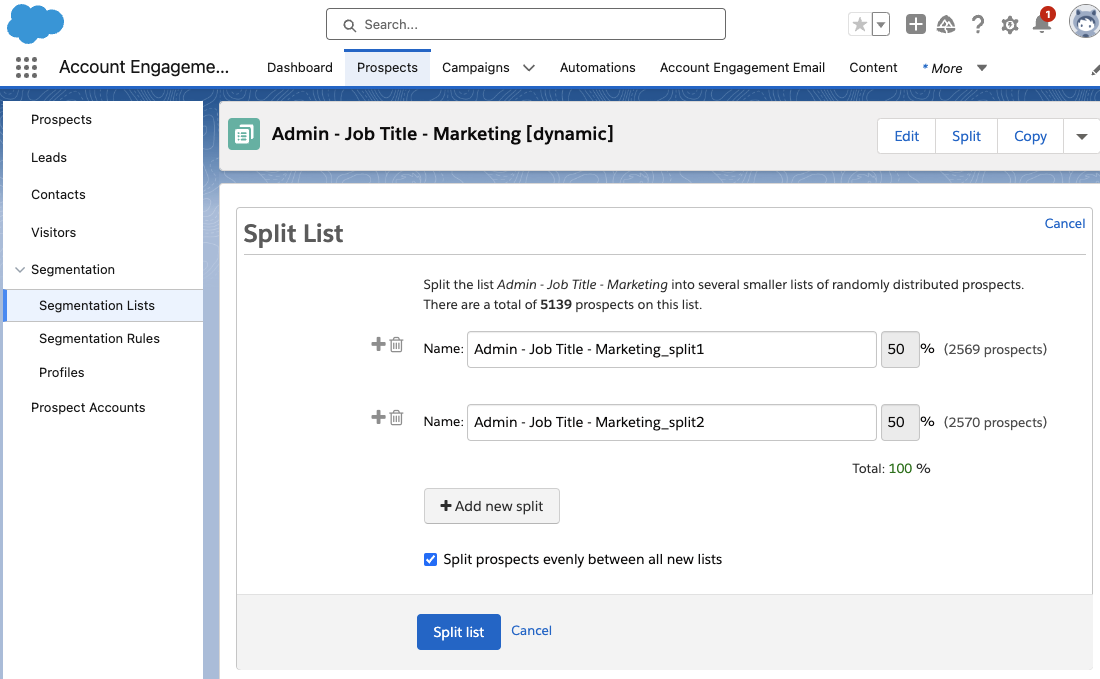
All Account Engagement Static and Dynamic lists can be split into smaller lists. While viewing your list, the split option will be available in the top right-hand corner. This allows you to split lists evenly, or specify the percentage on each list.
It’s important to remember that when splitting a dynamic list, the resulting lists will be static.
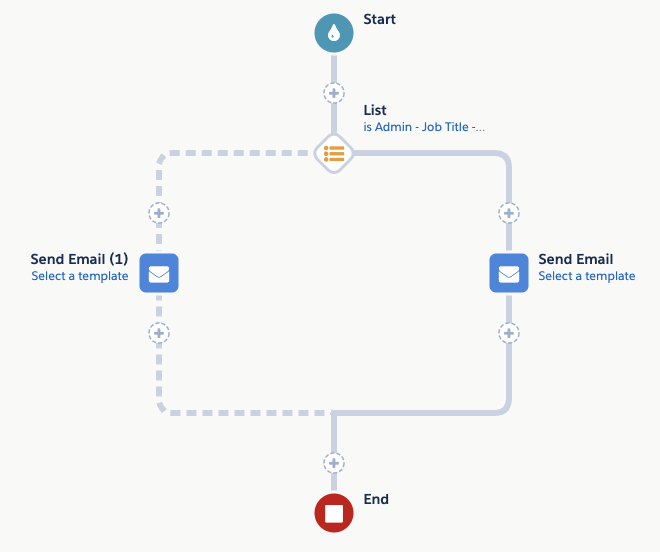
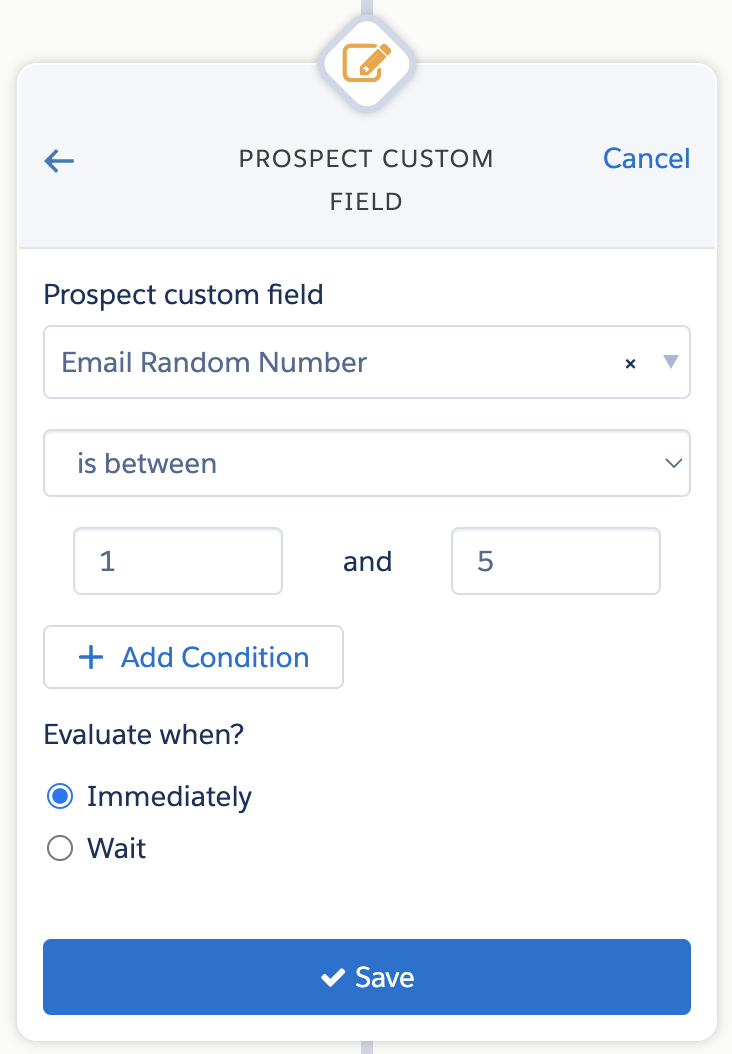
When using this option in an ESP, add an Action node before your email send that checks if the recipient is on split list 1. If they are a member of this list, they receive version A of your email. If they are not, they receive version B.
This option works best when your ESP has a static recipient list that you are not adding to later, for example, an event follow-up nurture. If you intend on gradually adding more prospects to this ESP, there isn’t a way to easily and automatically split the new prospects between the two lists.
Splitting by Last Name
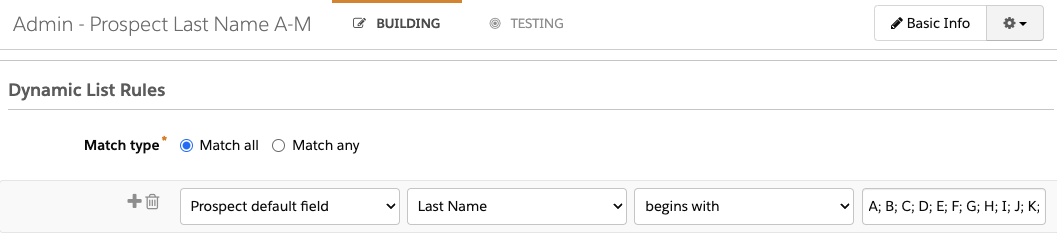
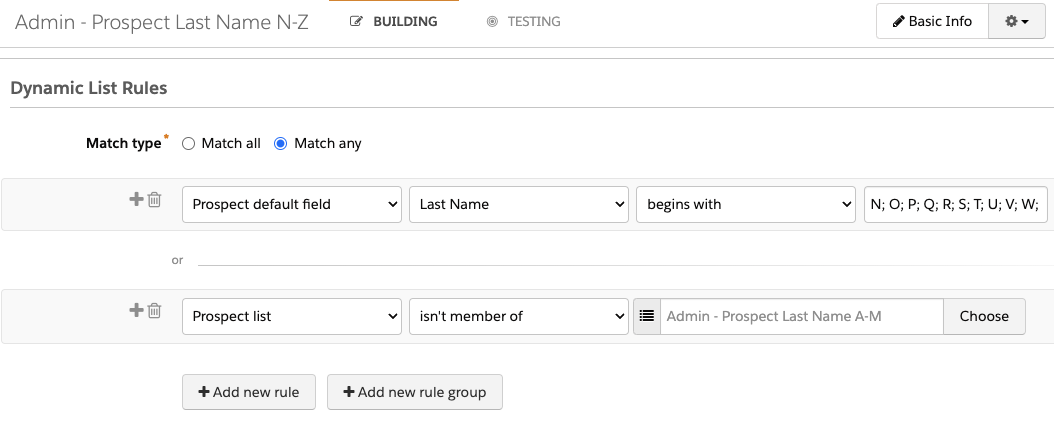
Another strategy is to split the recipients by last name. This allows you to split recipients with dynamic lists so you can continually add new recipients to the ESP. To do so, you’ll need two dynamic lists.
Your first list will capture prospects with last names starting with A-M:
Your second list will capture any prospects with last names beginning with N-Z, as well as any prospects with last names that start with characters, non-English letters, or numbers.
Finally, use these lists to split ESP recipients between your email variations.
Things to keep in mind
The drawback to this solution is that splitting by last name is not likely to evenly split your recipients. S, B, H, M, and C are the most common initials for last names, so if you split your recipients by “last name begins with A-M” and “last name begins with N-Z”, the “A-M” list is likely to be larger and can skew your data.
Generate a Random Number in Salesforce
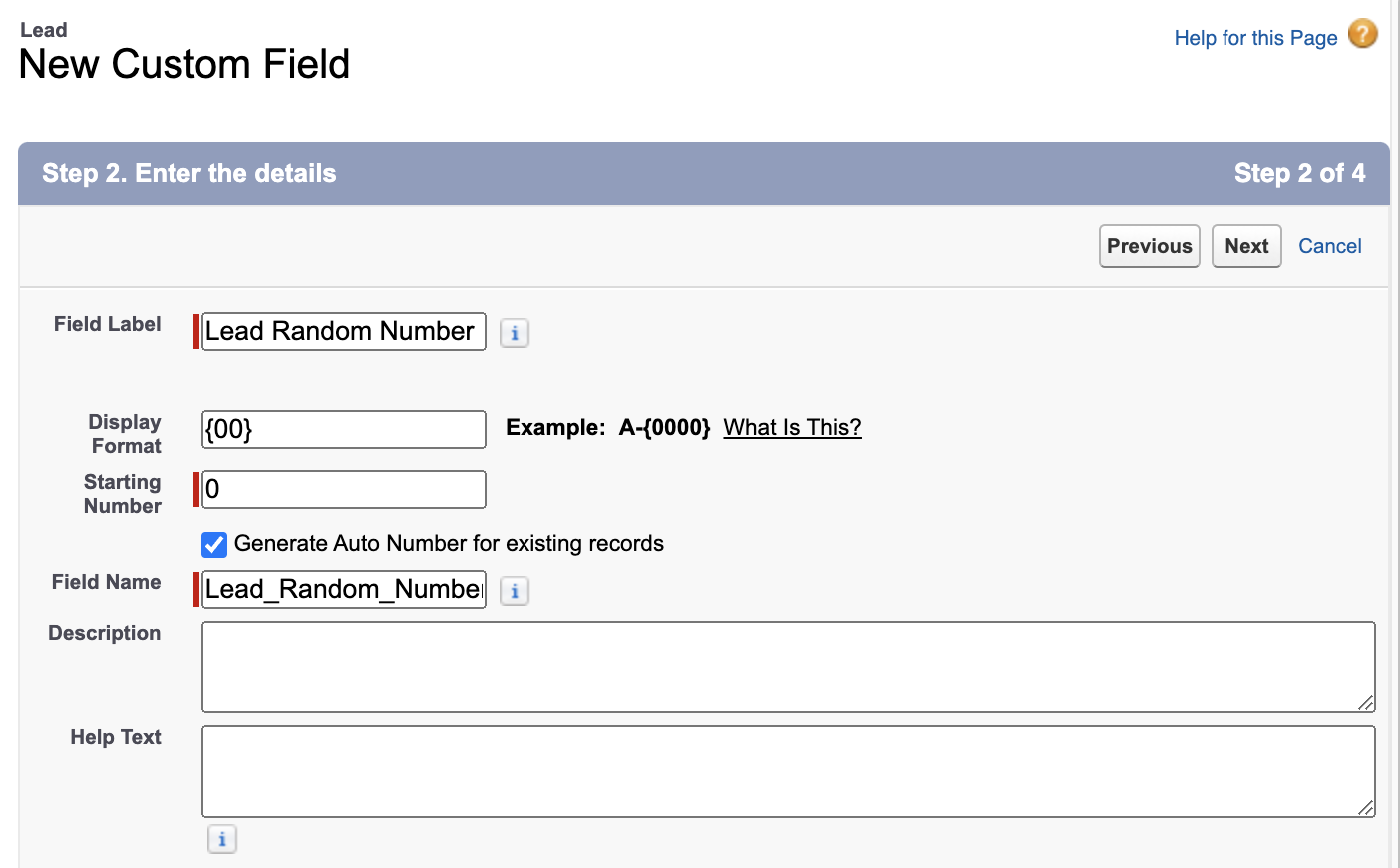
Another strategy for randomly splitting your recipient list is by using Salesforce’s Auto Number functionality. This allows you to auto-generate a random number for each Lead or Contact and push this data down to Account Engagement.
In Salesforce Setup, select Object Manager then Lead
Select Fields & Relationships
Select New
Select Auto Number then Next
Enter the following details
Field Label: Lead Random Number
Display Format: {00}
Starting Number: 0
Generate Auto Number for existing records: Selected
Select Next
Select which profiles have access to view this field.
Select Next
Select any Lead pages where this field should appear. I recommend leaving this field off your page layouts. Select Save.
Next, create a Formula field. While still in the Fields & Relationships tab of the Lead object, select New
Select Formula, then Next
Enter the following details
Field Label: Email Random Number
Formula Return Type: Number
Options – Decimal Places: 0
Select Next
Enter the formula MOD(VALUE({! Lead_Random_Number__c}) ,9)
Select Next
Select which profiles have access to view this field. Ensure the B2BMA Integration User profile, or your connector user’s profile, has access so Account Engagement can map to this field.
Select Next
Select any Lead pages where this field should appear. I recommend leaving this field off your page layouts. Select Save.
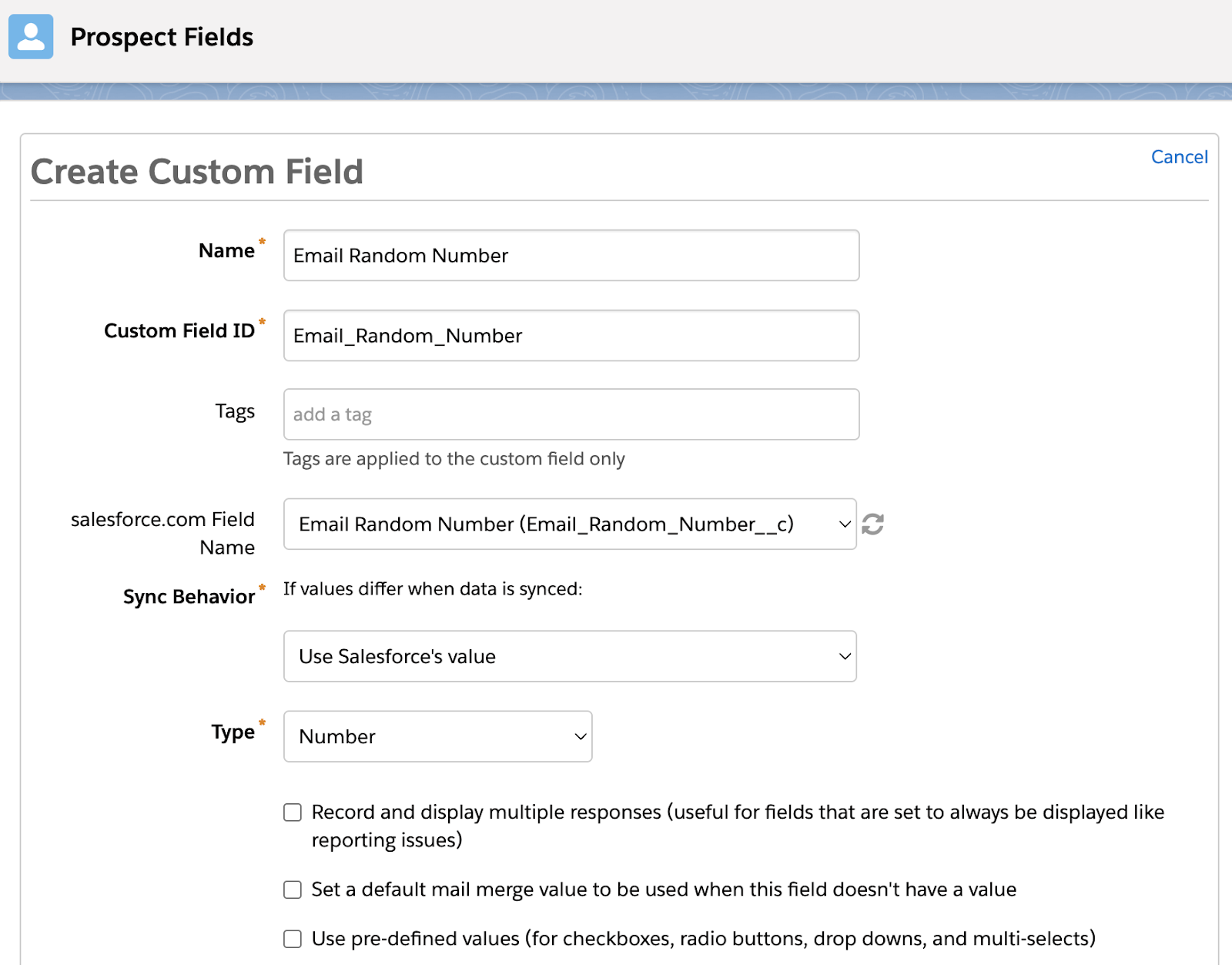
This formula field will auto-generate a random number between 1-9 for each Lead. Optionally, repeat the steps above for the Contact object. Finally, map the “Email Random Number” field to Account Engagement so this new field can be used to randomly split ESP recipients for an A/B Test.
Now, the only downside of this approach is that all your Account Engagement prospects must be synced to Salesforce before they will get an Email Random Number value. If you regularly nurture prospects in Account Engagement before syncing them over to Salesforce, you could use a combination of the Random Number and Last Name methods, or you can move to our last option.
Use Prospect Updater
Sercante’s Prospect Updater is a Swiss army knife for advanced data updates, cleansing, and manipulation within Account Engagement. This solution allows you to work with your prospect data in more streamlined ways and enables you to create a truly random recipient list split without your data being in Salesforce.
With Prospect Updater, you can use a RANDBETWEEN function to auto-generate a random number and stamp the number on new prospect records within minutes of them being added to Account Engagement. Then, use an Action node in an ESP to split your prospects into your A/B test groups.
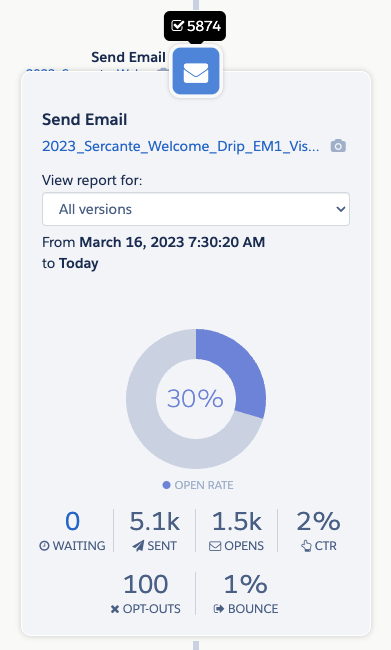
After you’ve selected your method of A/B testing and let your ESP run, it’s time to choose a winner and, optionally, consolidate your ESP down to 1 email version. The best way to compare the data between your A and B email versions is by using the ESP reporting tooltips. While on the Reporting tab of your ESP, select the email send node to view the metrics for that particular send.
The tooltips allow you to easily view the number of sends and opens as well as your click-through rate. If you want to dive deeper into each template’s metrics, select the name of the template from within the tooltip view to open the full email template report.
Start A/B testing in Engagement Studio Programs
It’s clear that Engagement Studio Programs (ESPs) are the backbone of effective prospect nurturing, guiding them along the journey until they’re ripe for the sales pitch.
So, let’s embrace the challenge, get creative, and make the most of our ESPs. With a bit of ingenuity and a keen eye on the metrics, we can craft killer campaigns that resonate with our audience and drive those all-important conversions. Here’s to pushing the boundaries and unleashing the full potential of our ESPs.
Remember, you can always reach out to the team at Sercante for help setting up your Account Engagement (Pardot) Engagement Studio Programs and configuring your A/B tests within them.
For Account Engagement users, the most exciting feature coming with the Salesforce Winter ‘24 release is the ability to get more precise with wait steps in Engagement Studio Programs. Gone are the days waiting a full day to trigger an action, we can now set wait steps anywhere from 2-8 hours. This provides more flexibility with our programs and what we are able to do.
How do we get started with shorter wait steps in Engagement Studio?
In Engagement Studio, we’ve always had the ability to add wait steps. We were able to do this in day long increments after an event took place. We’ve used these for things like, sending follow up emails after a form fill, or sending an additional email days after an initial send.
Sometimes, a day seemed like too long of a wait, but that was all we had to work with.
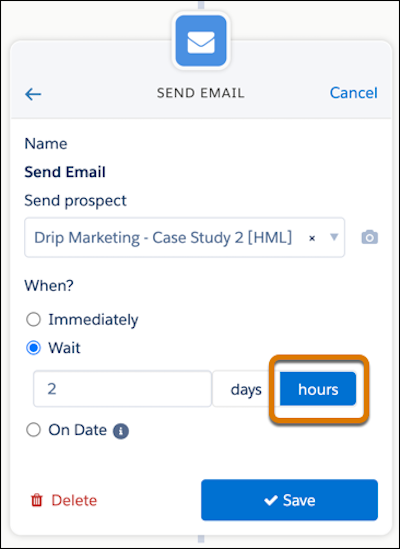
Now, we can use these new hour increments. When adding an action to an Engagement Studio Program, click “wait”, then toggle to “hours” and set the desired amount of hours. That’s it!
When you should use hour wait steps…
Wondering how you can make the most of this feature? We’ve compiled a list of scenarios that we think would be best suited for a short, hours-long wait period.
Welcome Programs
Prospects signed up for your mailing list or were imported? Add an hour wait step to send that first welcome email instead of waiting days.
Post Form Follow Up Emails from Sales Team Members
If your follow up emails are sent immediately, prospects know it’s automated, and waiting days to follow up can lead you to miss out on an opportunity. With a wait step of just a couple hours, it gives your prospects time to finish looking at your website, gives your internal assignment processes time to complete, and feels more personal than an automated reply.
System Processing Time For List Evaluation
When using automations that evaluate which lists a prospect is on, a two hour wait step will ensure your dynamic lists have time to run and prospects newly added to the list are included.
Custom Redirect/ Page Action Follow Ups
Set up custom redirects or page actions on high priority pages and have them funnel leads into an Engagement Studio Program. From there, suggest the next step a prospect should take or the next piece of content the prospect might be interested in a few hours after they have left your website.
Time to get started with shorter wait times in Engagement Studio
This feature is one that hundreds of trailblazers have been asking for because it can be so useful in customizing programs. Once it becomes available, we recommend revisiting your existing engagement studio programs and seeing if this would be a better fit for some of the current day long wait steps you are currently using.
Being able to take action in hours, rather than days can really help personalize the experience you give to prospects.
Nothing is more frustrating than when you experience a slowdown in your Marketing Cloud Account Engagement (Pardot) org.
I just need this one Dynamic List to run, why is it taking so long!?!
These slow downs are frustrating. But they’re typically a sign that you need to archive old, continuously running, processes and/or optimize how you are using the platform.
The following best practices will help keep your Pardot org running efficiently. Many of these strategies are going to be more relevant to large orgs with 1 million+ prospects. But this information can be used to help increase processing times in Pardot orgs of any size.
1. Clean your Dynamic Lists
Dynamic lists are constantly running, matching and unmatching prospects as they fit or do not fit criteria. Old Dynamic Lists that are no longer matching prospects, or Dynamic Lists that are not actively being used can be a big strain on your system.
Salesforce recommends a limit of 1,000 Dynamic Lists per Pardot org. Also, if you have millions of Prospects, consider reviewing Dynamic Lists matching over 5 million prospects to see if these lists can be broken into smaller pieces.
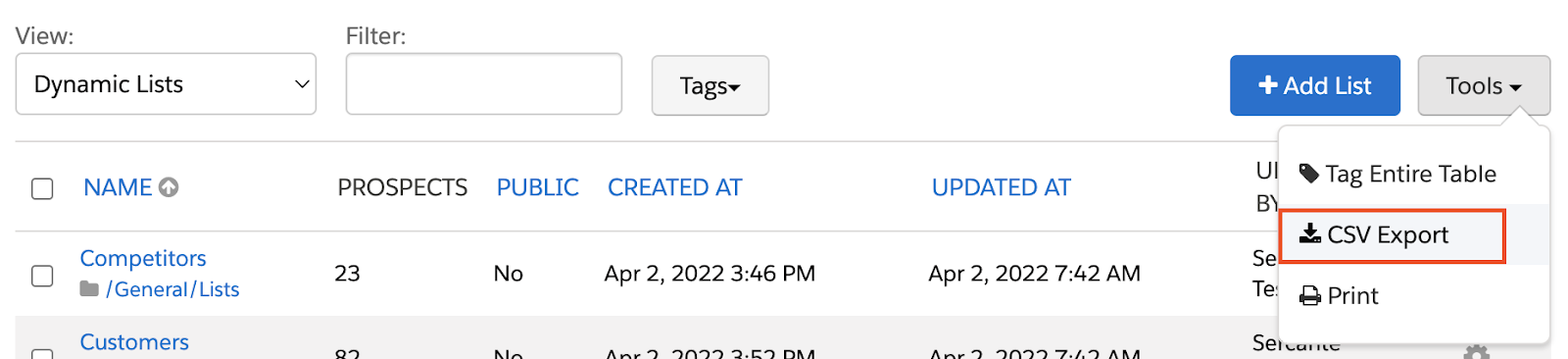
I like to CSV export my Dynamic Lists so I can sort them by Updated Date and look at the oldest ones first. You can also sort by number of Prospects to tackle your biggest Dynamic Lists.
2. Check those Automation Rules
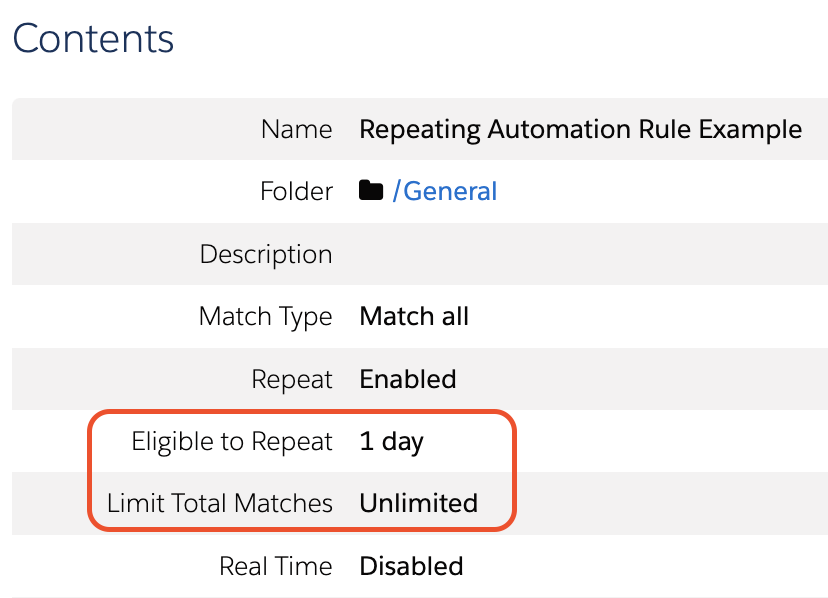
To keep things running smoothly, limit your automation rules to 5 million actions per day. This is a lot more than I see most Pardot orgs needing or using, but it doesn’t hurt to review your repeating automation rules and ensure the “Repeat Rule” settings are set appropriately to your needs.
I also recommend reviewing which Automation Rules are set to run in real time. Although Pardot can handle this, it is still not recommended to use this for every rule. I find most of the time a Real Time Automation Rule can instead be replaced by a Completion Action.
3. Only keep the best Prospects
The more Prospects you have in your Pardot Org, the more processing your org needs to do. Cleaning up unwanted or unneeded Prospects is a great way to cut down the number of processing requests quickly and our Junk Data in Your Pardot Org and 7 Ways to Clean Your Mailable List in Pardot blog posts have some great tips on how to do so.
Dynamic Lists and Automation Rules are also going to look at every Prospect in your org to see if they match criteria. If you can’t cut down on the number of Prospects in your org, consider adding criteria that will exclude Prospects from recurring automations.
For example, if I am creating a dynamic list for an email send, I don’t have to include the criteria “Prospect email status isn’t Opted Out” because any Prospects who have Opted Out won’t be sent the email anyway. However, including this in my Dynamic List criteria means Pardot can rule out that chunk of Prospects and process by request faster.
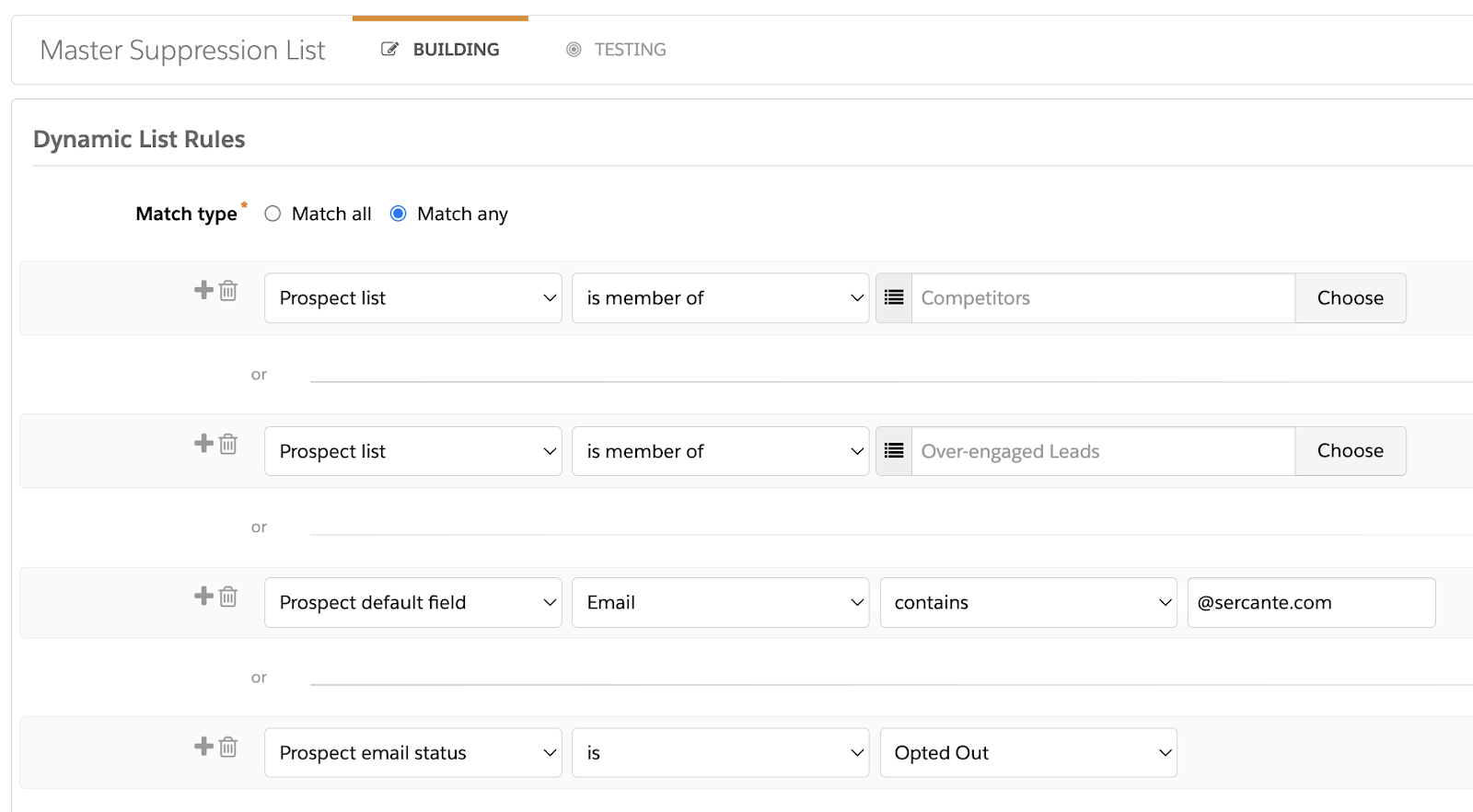
If you exclude the same set of Prospects from most of your emails and/or automations, consider creating a “Master Suppression List” that can easily be referenced.
4. Optimize your Engagement Studio Programs (ESPs)
Spread out your wait steps
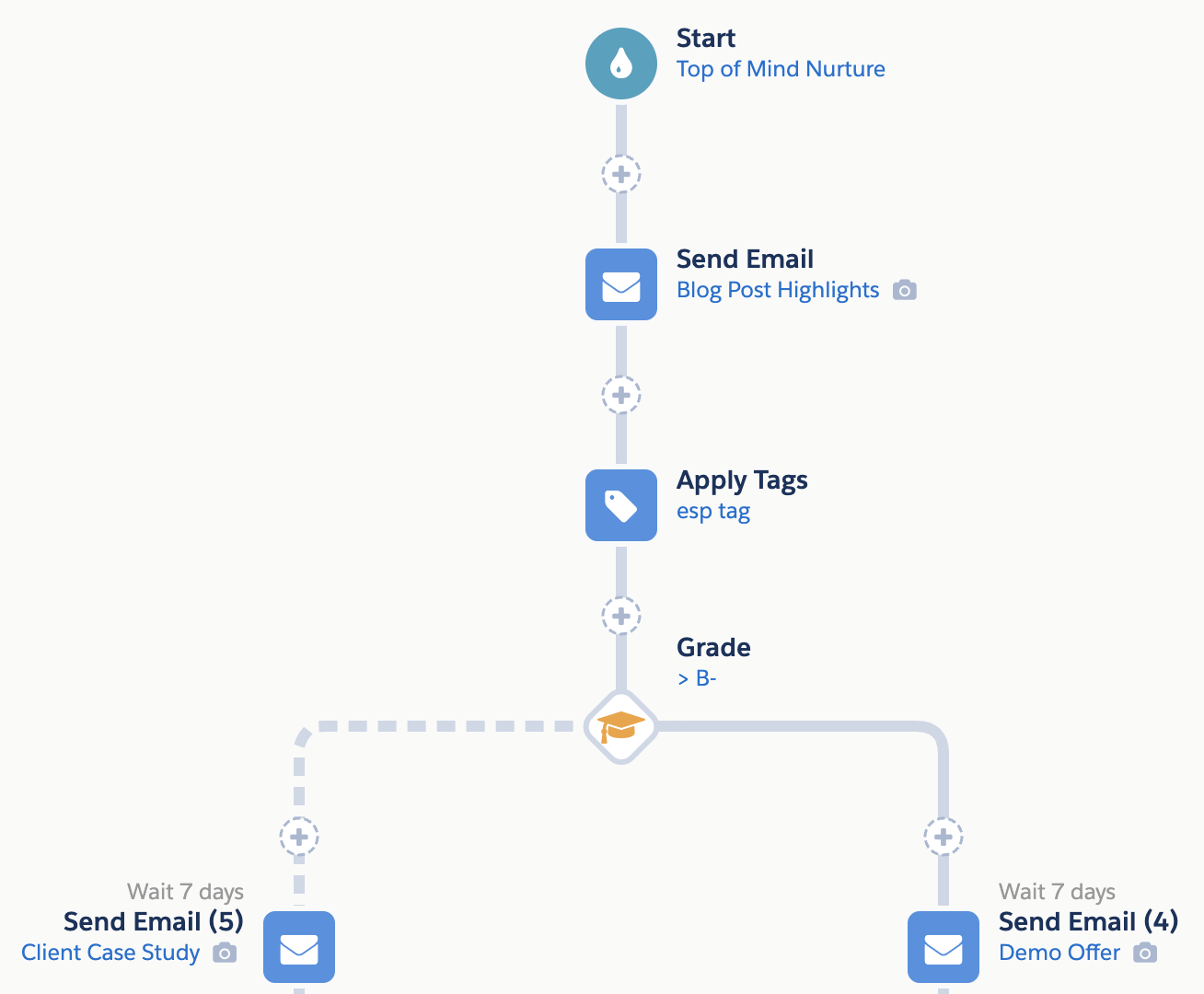
ESPs can perform a ton of actions on a ton of prospects. Keep in mind that an ESP performs an action per node per prospect. For example, if my ESP starts with
Send Email
Apply Tag
Check if Grade is B- or above
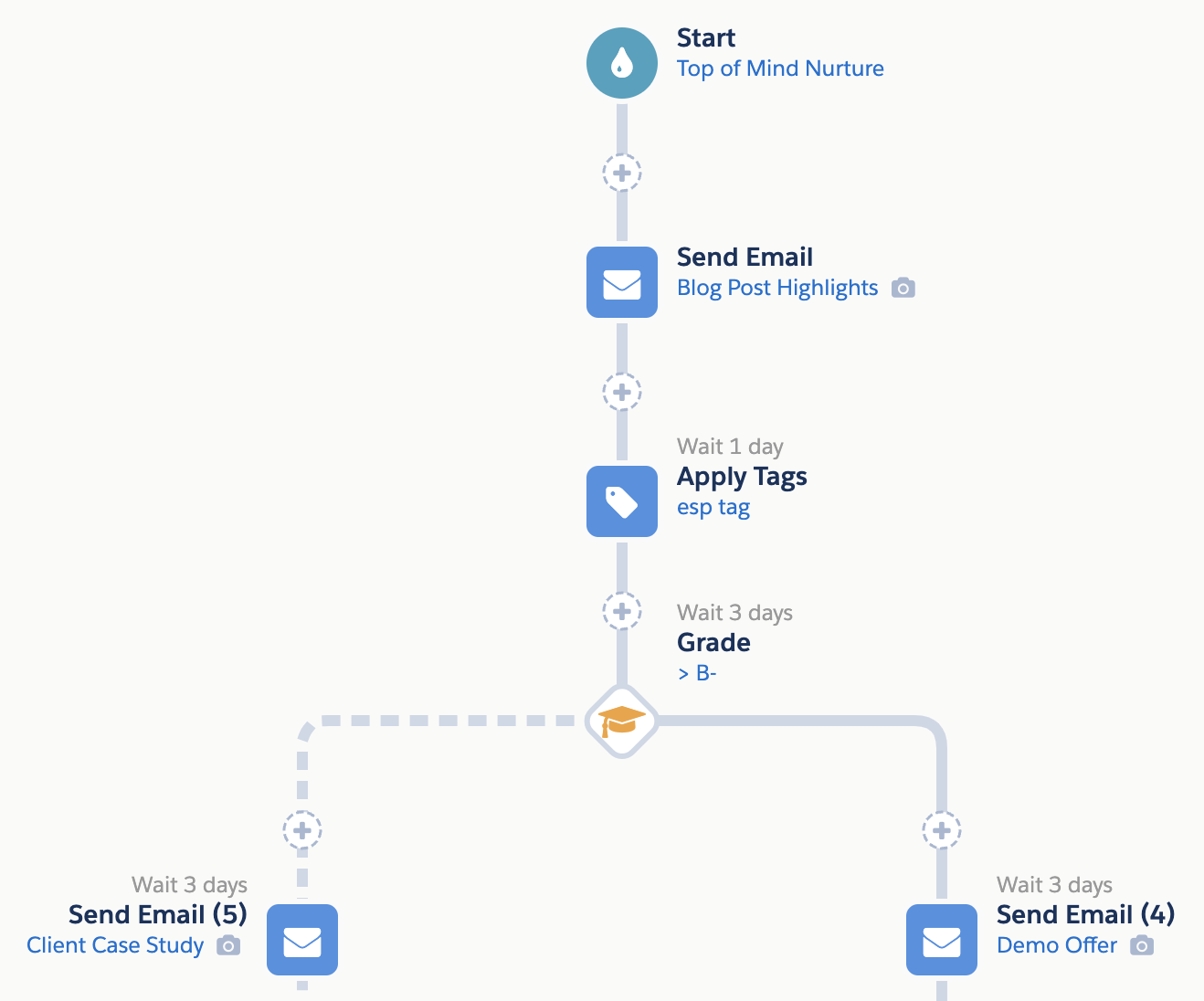
And I’m sending 5,000 Prospects through this ESP, that is 15,000 processing requests right off the bat. Wait steps can be used to space out the amount of processing one ESP needs to do per day.
For example, going from this:
To this:
There are still 7 days between the 1st and 2nd email sends, but the processing requests are spread out over the wait period rather than happening all at once.
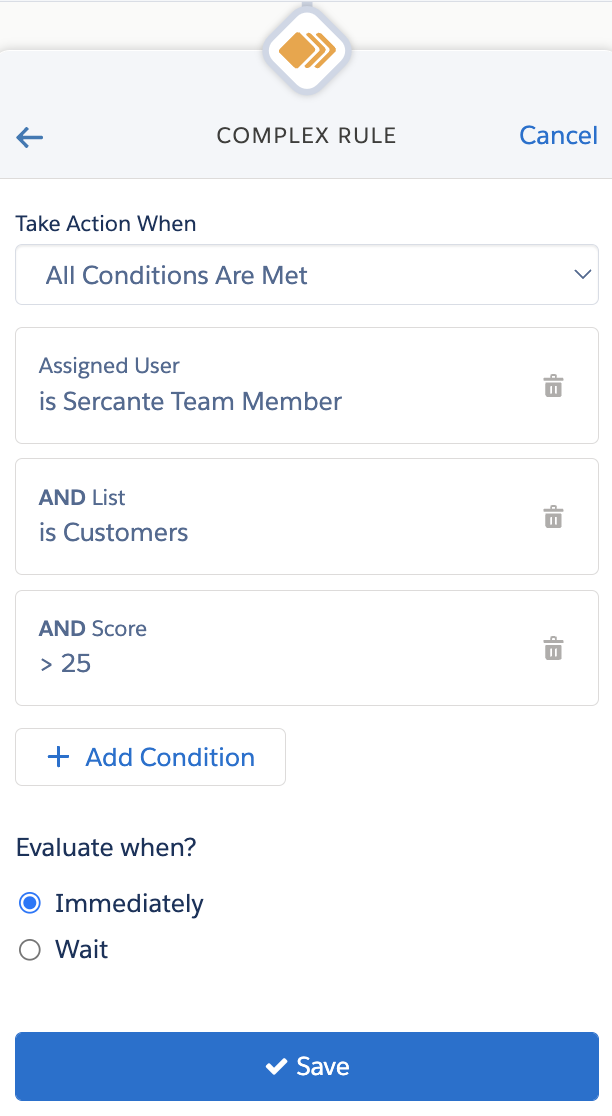
Use Complex Rules
Complex Rules are another great way to streamline your ESPs. Rather than have multiple Rule nodes
Combine your rules into one Complex Rule node to simplify your ESP.
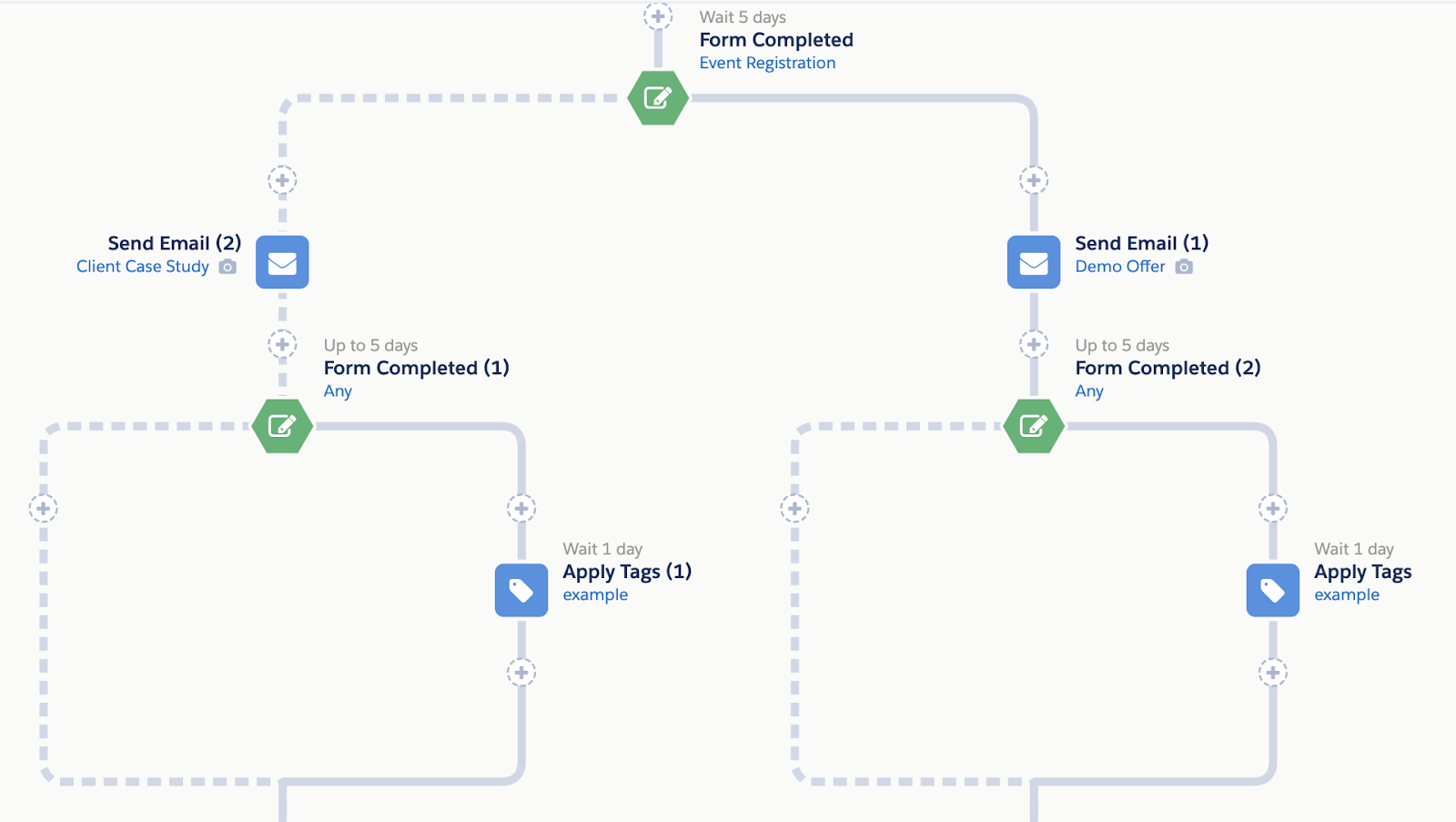
Consolidate Branches
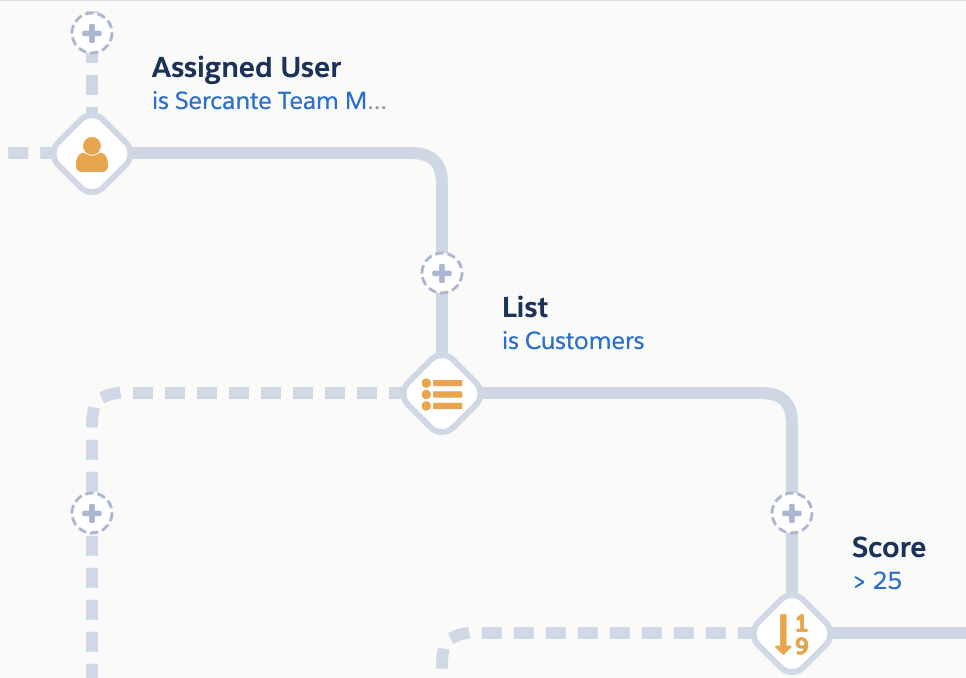
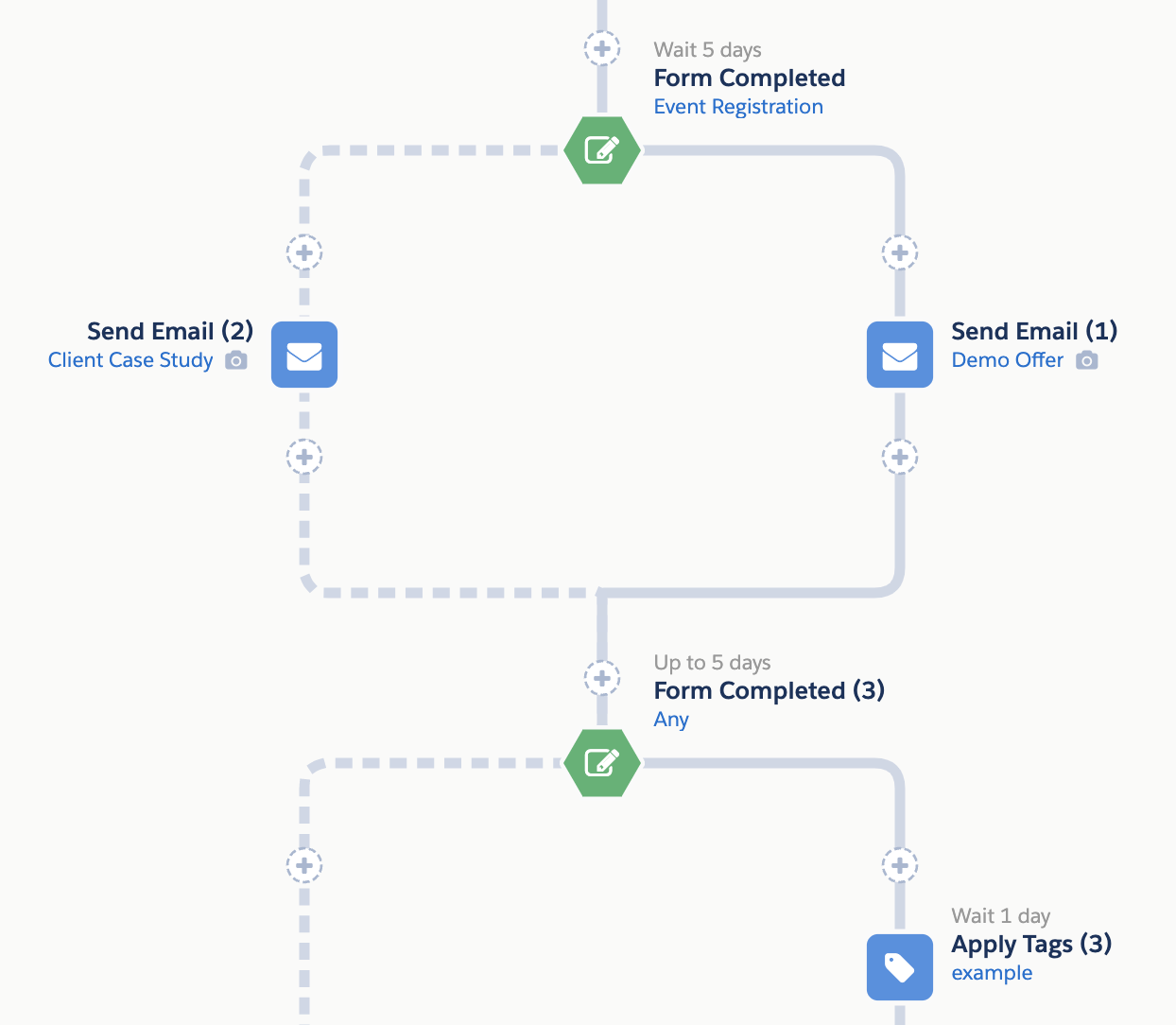
Consolidating ESP branches is another great way to cut down on the number of nodes an ESP has and therefore the number of requests it has to process. I find a lot of times users forget that ESPs can branch out, then back in, then back out again etc. When you don’t consolidate branches, your ESP will get very wide and updating them can be a big headache.
For example, moving from this:
To this:
A little Pardot org cleanup goes a long way
These are just some of the strategies you can employ to keep your Pardot org running smoothly, especially if you have a large org that is tackling numerous processes everyday.
Regularly auditing your org and Pardot processes is not only going to improve processing times, but it will make the system easier to use overall.
What other tactics do you use to keep your org clean? Tell us in the comments!
Feel more confident as a budding admin or end user by kicking ass at Pardot quality assurance testing. (includes downloadable PDF checklist)
We’ve all been there before. Everything is set up in Pardot for an email or engagement studio program. But the fear hits before clicking the button to launch it. Is everything set up so it tracks correctly? Could there be a typo or broken link somewhere? This is where checklists and quality assurance (QA) testing are helpful.
The term ‘quality assurance testing’ makes the process seem more complicated than it needs to be. What you’re essentially doing is checking the details to be sure everything looks and behaves the way it should before you finalize and launch whatever it is you’re doing in Pardot.
While checklists give us a certain level of assurance real confidence comes from experience and learning, if you are interested in learning from our seasoned experts then why not check out these Pardot training courses Sercante offers to immerse yourself in the topics you aren’t totally confident about yet.
What types of Pardot quality assurance testing should admins do?
Lots of quality assurance testing needs to be completed to be sure that any Pardot instance works as expected. Pardot advanced users and admins can complete quality assurance in a Pardot sandbox environment. But most of the day-to-day Pardot QA testing tasks happen in production orgs. Typically, QA tasks related to the flow of data between Pardot and Salesforce are completed in a sandbox environment to prevent the potential loss of data.
Get a PDF checklist to use for QA testing in Pardot
You can view and download a handy PDF checklist to use every time you’re launching Pardot admin campaign materials here.
You should complete quality assurance testing in a Pardot production environment (that’s a fancy term for your regular ol’ Pardot instance) when you create or launch the following:
Engagement studio program
List email
Pardot form or form handler
Static list
Dynamic list
Social media post
Custom redirects
Page actions
Dynamic content
Email preference centers
Scoring
Grading
Seasoned Pardot admins likely have lists in their heads to double-check each of these items before sending, saving, or launching them. But admins and end users who are newer to Pardot lack the experience of knowing what can go wrong without proper QA testing.
If you’re in the latter category, then you’re in the right place! These checklists are for Pardot admins and end-users who are in the beginning stages of learning to use Pardot.
You can find information about more advanced types of Pardot quality assurance testing & the Pardot Sandbox in this blog from Mike Fazio.
Pardot quality assurance testing checklists for admins and end users
As you build your confidence in Pardot, you’ll feel less apprehensive about sending your marketing efforts out into the world. You’ll also get less and less of those “please fix it” messages from your team.
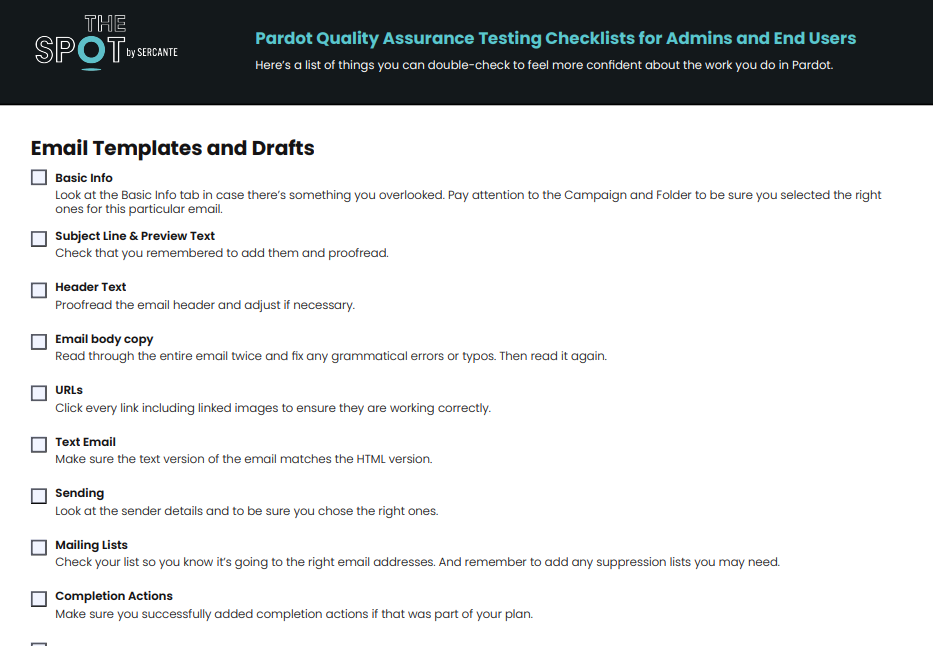
Here’s a checklist of things you can double-check to feel more confident about the work you do in Pardot. Or, download the PDF version of the checklist here.
Email templates and drafts
You can perform basic quality assurance checks on Pardot email templates and list email drafts. But you may need to invest in a more advanced tool, like Litmus, to be sure your email will render correctly and pass through email spam filters.
When you’ve finished building your email, click on the ‘Testing’ tab in Pardot to send yourself and any other reviewers test emails. This list may be longer depending on the complexities of the email itself. But we’re going to assume it’s a simple email for the purposes of this checklist.
Basic info Look at the Basic Info tab in case there’s something you overlooked. Pay attention to the Campaign and Folder to be sure you selected the right ones for this particular email.
Subject line & preview text Check that you remembered to add them and proofread.
Header text Proofread the email header and adjust if necessary.
Email body copy Read through the entire email twice and fix any grammatical errors or typos. Then read it again.
URLs Click every link including linked images to ensure they are working correctly.
Text email Make sure the text version of the email matches the HTML version.
Sending Look at the sender details and to be sure you chose the right ones.
Mailing lists Check your list so you know it’s going to the right email addresses. And remember to add any suppression lists you may need.
Completion actions Make sure you successfully added completion actions if that was part of your plan.
Pardot form or form handler
Complete the form to test Using incognito mode in your browser, complete the form or form handler. You can add the word “test” as you’re completing the form so other Pardot users know your form data is from a test.
Find your test data Verify data from your test entry made it into Pardot and Salesforce, if applicable, as expected. Pay attention to every field.
Check completion actions Verify completion actions are carried out as expected.
Cause form errors Repeat testing the form by trying to “break” it. Fill out the form again, and mess up your entry (use an incomplete email address, leave required fields blank, etc.)
Test in other browsers You can use a tool like Browserling (free and paid versions) to mimic different types of browsers and operating systems for further testing.
Segmentation lists
Static list
Spot-check the list to ensure the correct prospects are present.
Dynamic list
Click the Preview button. Spot-check the prospects on the list to ensure the correct prospects are present.
Engagement studio program
Test every path Click on ‘Testing.’ Run the test several times until you’ve tested every possible path.
Check your dates Double check all of your dates to be sure they align with your goals and best practices.
Add test prospects Create test prospects and add them to your program first when you want to test more complex programs (make sure your test prospects fit your rules). You may have to shorten your wait times to complete the test in a reasonable amount of time.
Automation rules
Check the preview Preview automation rule to be sure it matches your expectations.
Social media post
Review post copy Proofread your text. Then read it again.
Verify @ mentions Go to the social media channel and search for actual profiles to verify any @ mentions you include in the post. Keep in mind that @ mentions on one social media channel probably won’t work on other channels. You’ll have to duplicate tje post and change the @ mentions for other social media channels.
Check hashtags Look up any new hashtags you want to include on the social media channel you want to use it on. This is so you know you’re using something that’s related to your post and not already in use or irrelevant.
Link to something Remember to include a call-to-action URL if applicable. Click ‘Insert Link’ if you’re sending people to something that’s in Pardot or a custom redirect.
Check the link Copy the URL and paste it into a separate tab to check the link.
Include a graphic Make sure you include a graphic (if applicable). Also, check that the graphic size is appropriate for the social media channel.
Check the profile Double check that you selected the correct social media profile for the post.
Proofread again Read the text one last time.
Custom redirects
Click the link Access the link from your usual web browser. Then, look for your prospect record in the custom redirect prospect list.
Test in incognito Test the link again from a web browser that’s in incognito mode and look for your click on the custom redirect.
Check completion actions Verify any completion actions are carried out as expected.
Page actions
You can check that your page actions are working properly after you add tracking code to your website.
Configure page actions Set up your desired page actions.
Go to the pages Visit those pages as a cookied prospect.
Look for results Verify that your page actions worked as expected.
Be fearless with your Pardot quality assurance testing skills
It’s totally normal to feel uneasiness before completing tasks in Pardot. I mean, you’re sending things out into the world that hundreds or thousands of people might see. Sorry to startle you. But that’s also the cool part about working in marketing. The stuff you’re marketing is going to solve problems for people. And you’re going to help them find out about it!
Confidence will come to you in time after you click around in Pardot and test all the things you’re building.
Build confidence faster through Pardot training courses
You can fast-track yourself to feeling confident in Pardot by attending structured training sessions. There is so much to learn about Pardot with a seemingly endless list of resources. But nothing beats the real-life applications you learn through talking to people who understand Pardot and use it every day.
Check out the training courses and workshops Sercante offers for Pardot users and admins. You can find specific courses for deep-dives into a topic or beginner-level overviews for people who are new to Pardot.
One of the most highlighted and versatile Pardot features is the Engagement Studio program.
Plain and simple it is the most flexible feature Pardot has when it comes to building strong workflows, email sequences, and even taking your Pardot (and Salesforce) operational game to the next level. This is without a doubt my favorite platform feature. (more…)