Category

Setup & Admin

Product Note: Marketing Cloud Growth and Advanced are editions of Marketing Cloud Next and have also been referred to as Agentforce Marketing.

Your marketing team just concluded a successful trade show, returning with over 2,500 new leads from booth scans that need to be imported. In this post, we’ll review the options for importing these trade show records into Marketing Cloud Next (aka Growth and Advanced) without creating duplicates and while adding the records to the correct Salesforce campaign.

Marketing Cloud Next – Import Options

The primary methods for importing records into Marketing Cloud Growth and Advanced are File Import and the Data Import Wizard.

The Data Import Wizard is a more advanced import tool that supports multiple objects, including Custom Objects. The key benefits of the Data Import Wizard are the ability to set matching criteria (to prevent the creation of duplicates) and the ability to add members to Campaigns during the import.

In short, when choosing between the native import options, you can’t go wrong with the Data Import Wizard.
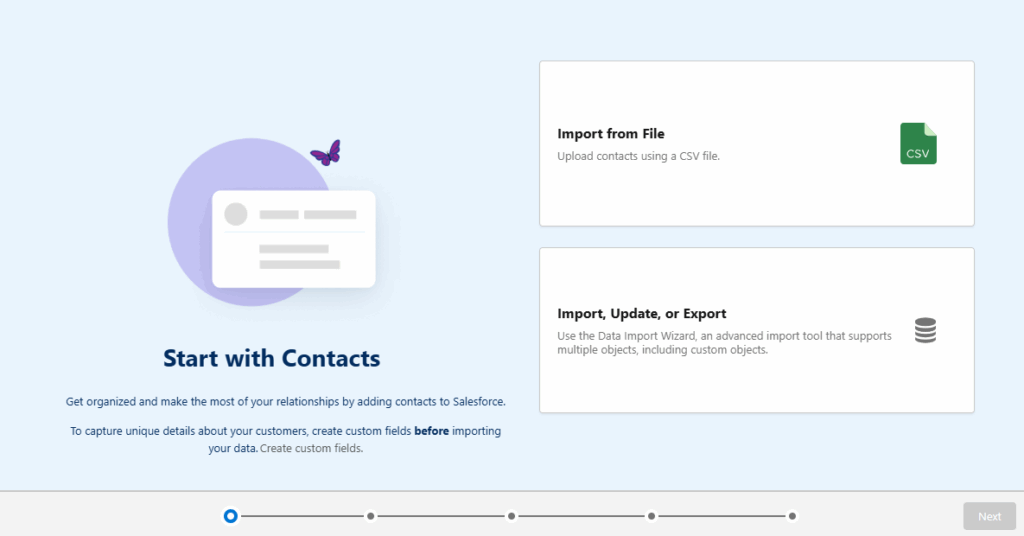
Options for importing contacts and data

Importing with Data Import Wizard

  1. Create an import template for use with all imports.
    • Be sure to include columns for campaign id and campaign member status.
    • Consider including a “Marketing Consent” field that can be used to selectively create consent records. 
    • Below is an example of my template using data from Mockaroo.

Instructions for creating and importing contact data using a template
  1. Format data into your import template.
  2. Import contacts first.
    • From the Marketing App – Select the Contacts tab.
    • Click the “Import” button.
    • Select the “Import, Update, or Export” option.
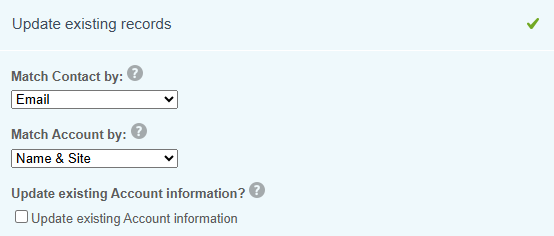
    • Select Accounts and Contacts” and then the “Update existing records” option.
      • Match Contact by: Email
        • This will be used to find matching contacts to update.
      • Match Account by: Name and Site
        • This setting is used to update the Accounts the updated Contact, but will not create new Accounts because no new Contacts are being created.
      • Leave the “Update existing Account information” box unchecked.
        • This ensures that the import file does not overwrite any account data.
Updating contacts and accounts with matching options
  • Select the “Assign contacts to campaigns” option at the bottom of the page – if you would like to add contacts to a campaign.
  • Upload the CSV file.
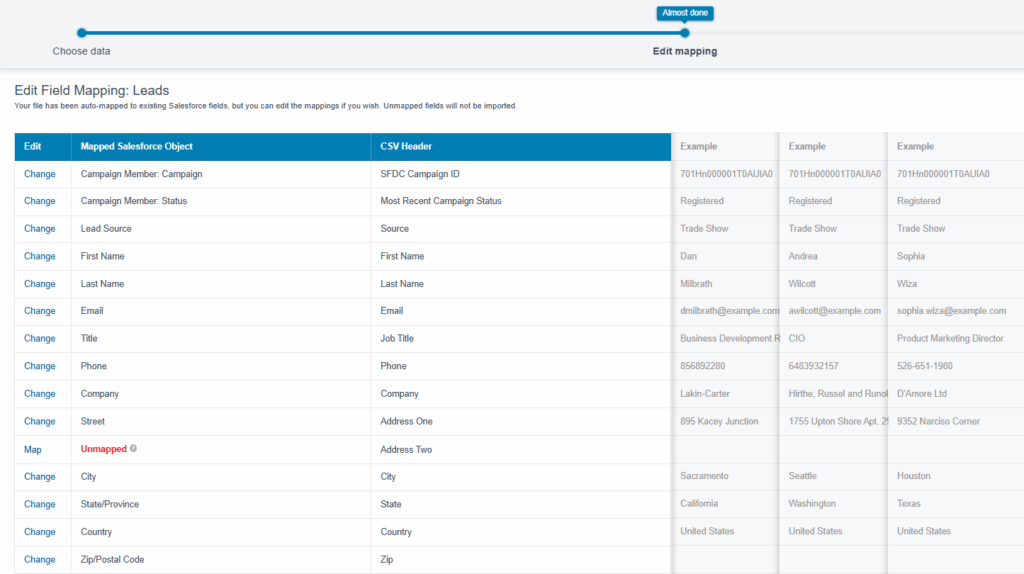
  • Complete the field mappings.
Salesforce data field mapping
  • Review the import and click the “Start Import” button.
  • This import will add existing contacts to the Salesforce specified Salesforce campaign. 
  1. Update and Import leads.
    • Remove the contact records from the original import file.
      • This can be done by reviewing the Bulk Data Load Job detail and removing records that were updated in step 2.
    • From the Marketing App – Select the Leads tab.
    • Click the “Import” button.
    • Select the “Import, Update, or Export” option.
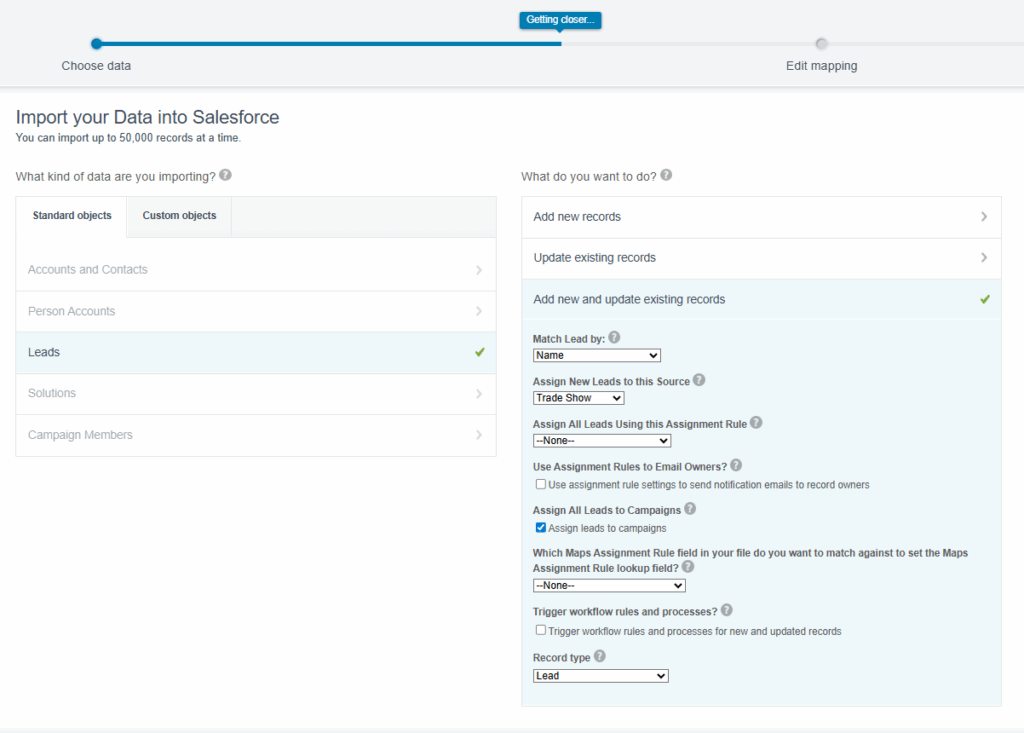
    • Select “Lead” and then the “Add new and update existing records” option.
      • Match Lead by: Email
      • Assign New Leads to this Source: Select the correct lead source
      • Assign All Leads Using this Assignment Rule: Optional
      • Assign leads to campaigns: Check
Data import in Salesforce
  • Upload the CSV file.
  • Complete the field mappings.
Importing data on field mapping
  • Review the import and click the “Start Import” button.
  • This import will update the existing leads and add them to the Salesforce specified Salesforce campaign. It will also create new leads and add them as well.
  1. Review campaign members.
    • Once both imports are complete, review and confirm members in the Salesforce campaign.
Shows campaign members


Don’t Forget About the Consent Imports 

The steps above have successfully updated existing records (contact & leads), created new lead records, and also created/updated campaign member records. That’s a great start, but consent records are also needed to send messages to Unified Individuals from Marketing Cloud Next.

Consent records are channel and subscription specific. If you have 5 subscriptions and send emails and SMS messages, a total of 10 consent imports that need to be completed to opt subscribers into all. The process is straightforward and fast, but requires some extra work.

Consent Imports

  • Format the consent import file for each subscription
    • The same file can be used for multiple imports – if the records should be added to all subscriptions.
    • The file must include the email address or phone number and consent date of the record.
    • Ensure the consent date field is formatted correctly.
  • Select the “Consent” tab from the Marketing App.
    • Click the “+ Import” button.
  • Select the channel, subscription, and consent status in the wizard.
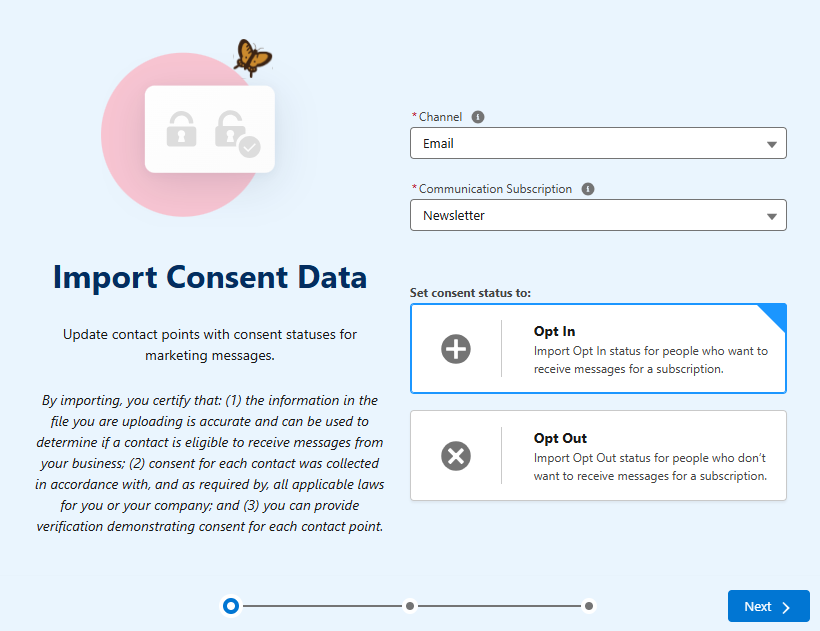
Importing consent data with opt in and opt out options
  • Click ‘Next’, upload the file and then complete the import.
  • Repeat the process for all needed subscriptions across all needed channels.

Whew! That’s a Lot of Work!

The process detailed above does the job, but there are quite a few steps involved. Our simple trade show import has gone from one import to a dozen imports (2 Import Wizard jobs and 10 Consent Imports – 5 subscriptions x 2 channels) .

This is fine for the occasional event, but what if your event team has a robust trade show calendar? This process does not scale well.

There has to be a better way.

What about Data Loader?

I’m a big fan of Data Loader and Daloader.io, but they simply don’t meet the needs in this case. There are two major shortcomings that can’t be overlooked.

  1. Data loader does not have deduplication capabilities.
  2. Data loader does not have the ability to create/update campaign member records when importing or updating records (contacts or leads).

Data Loader also does not address the need to do consent imports.

There is Another Way

Many of my clients attend a large number of trade shows, and our goal is to minimize work and automate where possible.

With this in mind, I developed another process using a custom object and flow. This requires some upfront work but will streamline the process and make things faster in the long run.

The logic of this process could also be adapted to use other tools like LeanData and TractionComplete. Both are designed to match new leads to existing contacts and leads before creating new ones. Additionally, they can both create and update Campaign Member records. Creation of consent records is a potential gap and would need to be tested.

Solution Breakdown

Here’s a summary of how the solution works.

  1. Create a custom object for Marketing Imports.
    • Mine is creatively named “Marketing Import” (Data Loader can’t import in the “Prospect” object).
    • Include all fields from your import template as fields on the custom object.
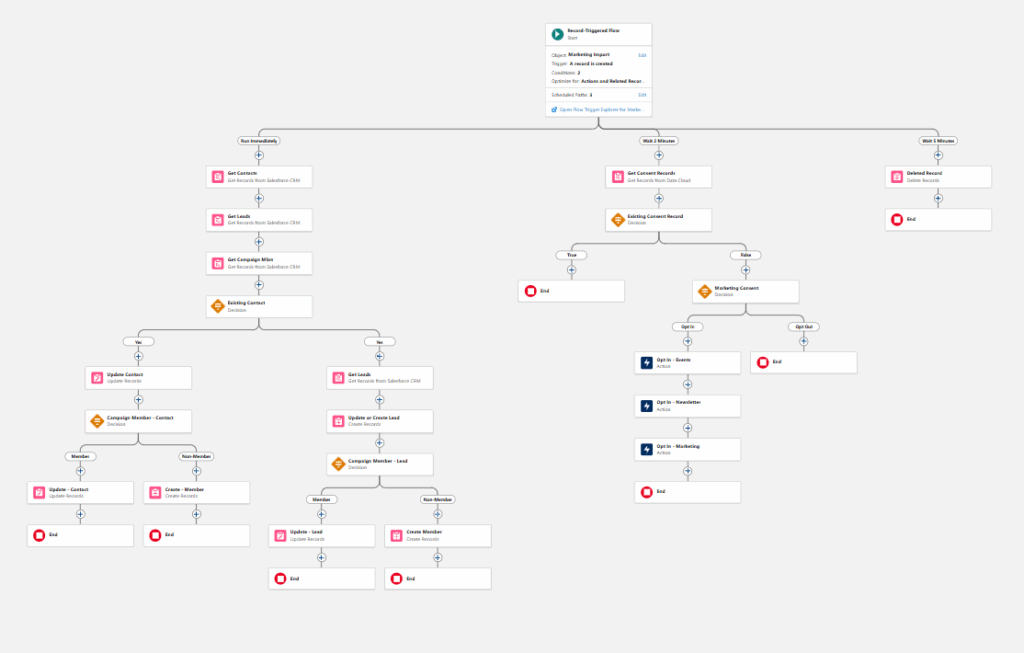
  2. Create a record-triggered flow that runs when a new record is created on a “Marketing Import” custom object.
    • The flow performs the following actions:
      • Updates existing contacts.
      • Updates existing leads.
      • Creates new leads.
      • Updates or creates campaign member records.
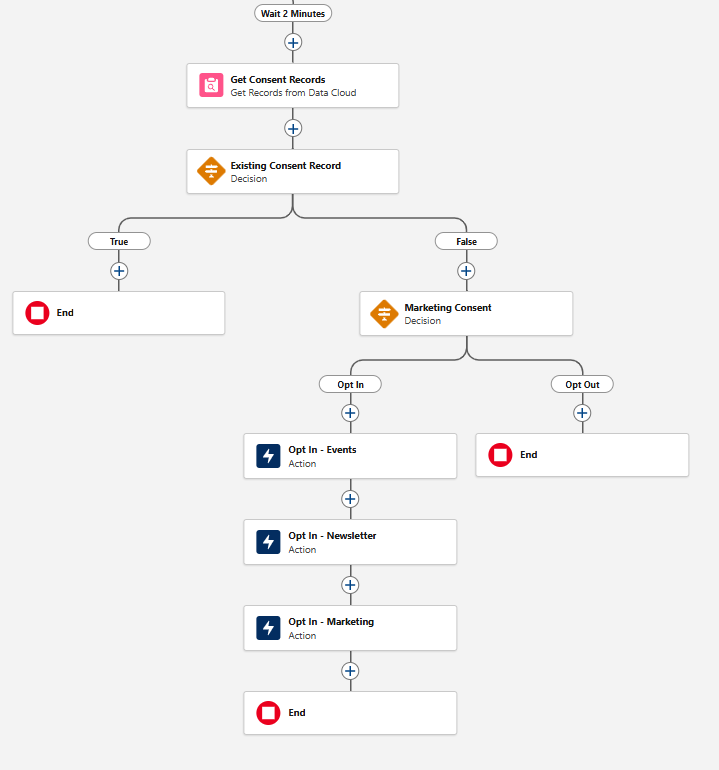
      • Creates consent records (for new leads).
  3. A single file loaded into the “Marketing Import” object (using Data Loader or Datloader.io) triggers the flow and performs all the needed actions. 

Building the Flow

The flow performs three major functions and a bit of clean up on the backend. All functions are completed in separate paths to ensure they take place in the proper sequence and allow time for record creation.

  • Path 1 (Run Immediately)
    • Checks for and updates existing contacts and leads. If a matching record is not found, a new lead is created.
    • Compares the contact and lead records to the existing campaign members. If a match is found, the campaign member status is updated. If a match is not found, a new campaign member with the proper campaign member status is created.
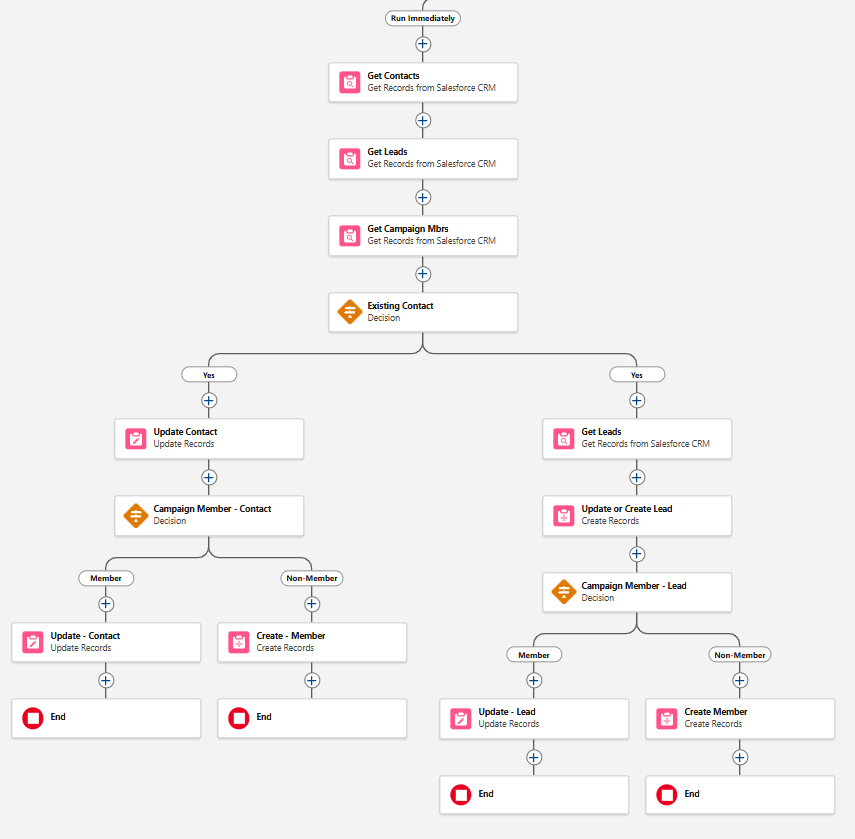
Flowchart showing marketing process
  • Path 3 (Wait 5 Minutes)
    • Deletes records that were created on the “Marketing Import” object. The idea here is to not store a large amount of redundant data in Salesforce. Since lead records have been created for the newly imported records, this data is no longer needed.
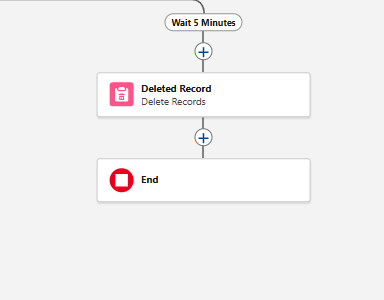
Flowchart showing marketing process

Complete Flow

Flowchart showing marketing process

Consent Records 

Consent records are a tricky issue. 


If you choose to automatically create consent records, I recommend including a “Marketing Consent” field in your import file. This field will indicate the consent status for each record being imported.

My example flow uses this value to selectively create consent records for new leads upon creation. However, you have options:

  • Option 1 – Include this step directly in your import flow.
  • Option 2 – Create a separate record-triggered flow. This flow will create consent records when a new lead is created with a “Marketing Consent” value of “Yes/True”. Important: This flow will trigger anytime a new lead is created, not just during marketing imports.


It’s important to note that the neither option updates the consent records of existing leads and contacts. An additional Data Cloud-Triggered flow is required to manage those updates.

Develop and Implement an Import Plan

Importing records into Marketing Cloud Growth and Advanced requires upfront planning and internal discussion. The process does not include the automatic matching process that Account Engagement users are accustomed to, necessitating careful data preparation. There are also additional considerations related to consent imports that must be discussed (be sure to include the legal team) and decisions related to who should have permission to import using Import Wizard or Data Loader, since imports will modify data in Salesforce. 

If you’d like support thinking through your data planning, preparation, and importing records into Marketing Cloud Next, reach out to the Sercante team.

Product Note: Marketing Cloud Growth and Advanced are editions of Marketing Cloud Next and have also been referred to as Agentforce Marketing.

If you are an Account Engagement User, you’ve likely been hearing for months that Account Engagement Orgs can get free access to Marketing Cloud Growth and Advanced Edition with their current contract. There have been numerous webinars, blog posts, and speaking topics exploring the features and functionalities of Growth and Advanced, and encouraging you to get started, but we’ve all been missing one key element. It wasn’t until Sercante’s recent Dreamforce recap webinar that someone said, “The Implementation Guide is 53 pages long, how do we actually get started, and what is required to just test the platform?”

This question struck me as a no-brainer once someone said it out loud. Of course, 53 pages of implementation steps are overwhelming! This new platform is uncharted territory for a lot of Marketing users, so it totally makes sense that users feel a bit nervous and confused about where to start. So, let’s talk through the base implementation you need to just test out the platform and see if it is a good fit. 

Step 1: Data 360

Before you implement Marketing Cloud Growth and Advanced Edition, you need Data 360 (formerly Data Cloud). If your org doesn’t already have this tool, you have a couple of options:

  1. Salesforce Foundations
    1. Foundations is a $0 SKU that allows you to “access the powerful AI capabilities of Agentforce and discover key features in Agentforce, Sales Cloud, Service Cloud, Marketing Cloud, Commerce Cloud, and Data Cloud — all at no cost”. This SKU includes 250k credits for Data Cloud, more than enough to get started
  2. Free Data Cloud SKU
    1. Salesforce also offers a free Data Cloud SKU to help orgs get started. This also includes 250k credits.

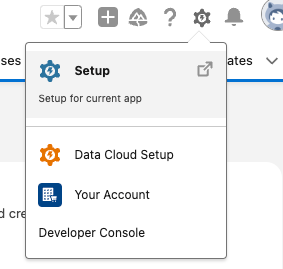
Once you have Data 360, set it up by going to Setup > Data Cloud Setup and select Get Started.

A screenshot hovering over the gear settings icon in Salesforce and clicking Setup.

This will take 5-15 minutes to run, and your page should auto-refresh once complete. Next, select Assign Permissions. Assign your user both the Data Cloud Architect (fka Data Cloud Admin) and Marketing Cloud Admin permission sets.

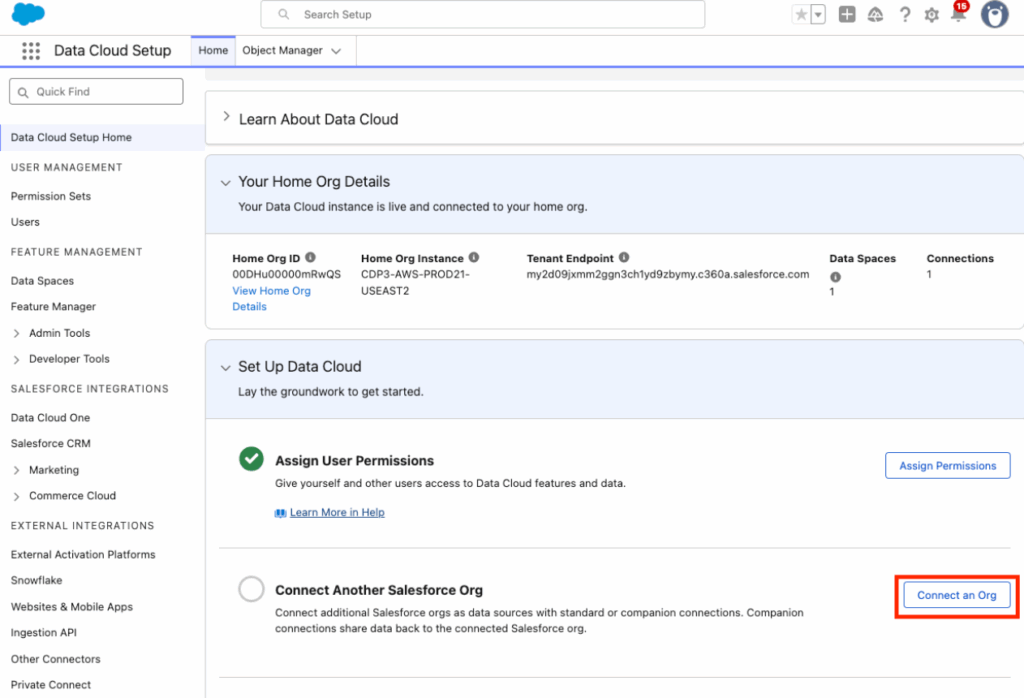
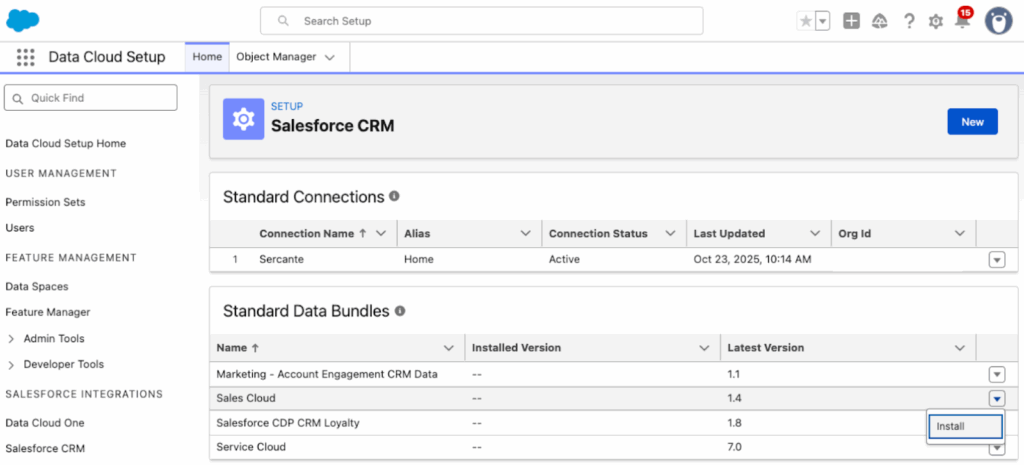
Finally, back on the Data Cloud Setup page, select Connect an Org and install the Sales Cloud Standard Data Bundle

A screenshot of the Data Cloud Setup screen with a red rectangle pointing out the Connect an Org button, underneath the Assign User Permissions step.
A screenshot showing the Standard Data Bundles and clicking the dropdown arrow to install.

This is going to ensure Data 360 has access to all the Salesforce Objects you’ll need, we will deploy this Data Bundle in a bit. 

Step 2: Enable Marketing Cloud

Next, we are going to set up Marketing Cloud, navigate to Setup > Assistant Home. The Assistant Home page guides you through the required and recommended tasks as well as gives you an overview of where you are in the setup process. We’re going to jump around a bit, but make sure you come back to this page if you decide to fully deploy Growth or Advanced Edition later. 

Select Go to Basic Settings. The first four tasks should kick off and complete on their own, the only step you’ll need to do is select your data space. Most orgs will just have the “default” data space to work with, at least until the Business Unit feature is available (expected in Spring ‘26). Marketing Cloud will auto-enable once the data space is selected. If it does not, select Enable Marketing Cloud.

Step 3: Data Streams

Next, select Update within the “Install the Marketing Data Kits” section. This will take 5-10 minutes to finish running. Don’t worry if initially some of the data kits fail, just select Refresh or Retry to try them again. Once all the data kits have successfully been installed, we will go into Data 360 to deploy them.

First, we want to take care of the Sales Cloud Data Bundle we installed earlier.  

  • Navigate to the App Manager >  Data Cloud > Data Streams
  • Select New
  • Select Salesforce CRM, then Next
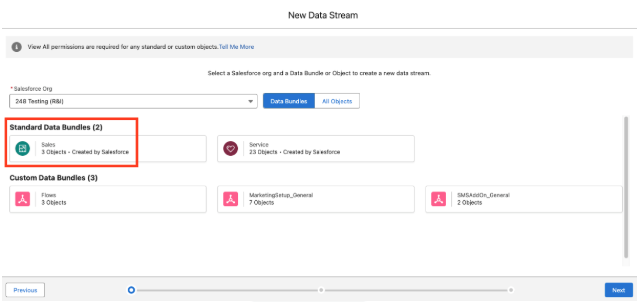
  • Select the Sales Standard Data Bundle
A screenshot of the Data Streams selection where we select Standard Data Bundles.

  • Select Next, then Deploy

Next you’ll deploy the data kits. Use the instructions in the Manually Deploy the Updated Data Streams section here for guidance. You’ll need to do this about 5 or 6 times to ensure all the data kits are deployed.

Step 4: Identity Resolution

Now we’ll set up our Identity Resolution Ruleset. This step will create the Unified Individuals that Marketing Cloud Growth and Advanced use (similar to how MCAE uses Prospects). Creating Unified Individuals and running Identity Resolution Rulesets uses Data 360 credits. How many credits depends on:

  1. The number of records it is ingesting (likely just your Leads and Contacts, unless you have other data sources connected) 
  2. How many rulesets you have per object (I recommend having just one for the Individual Object)
  3. How often the ruleset runs

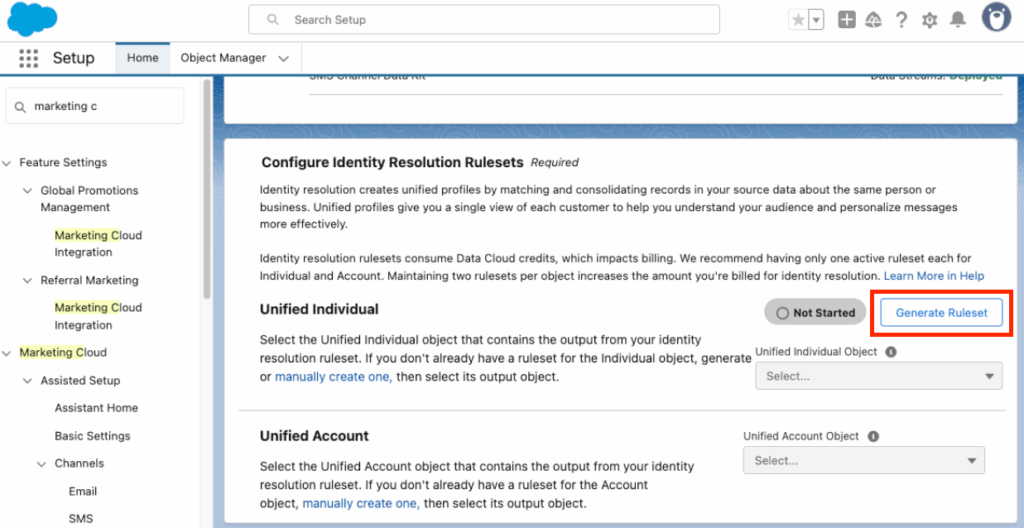
Back on our Setup > Basic Settings page, you should see a Generate Ruleset button in the “Configure Identity Resolution Rulesets” section. Select this and give the system a few minutes to run, a green banner should appear when complete. 

A screenshot of the Basic Settings page where you will see the Generate Ruleset button. It's under the Configure Identity Resolution Rulesets section.

Your new Identity Resolution Ruleset should autopopulate in the Unified Individual Object dropdown. 

If you want to manually build an Identity Ruleset or build a Ruleset for Accounts (Advanced only and needed for Account Scoring), use this help article

Step 5: Add Additional Users

Ok we’re done with the highly technical stuff, now let’s add some users and get to the fun features! Your Growth and Advanced users will need a couple of different permissions depending on what they need to do in the system.

Permission Sets

To use Marketing Cloud Growth and Advanced users will need either Marketing Cloud Admin or Marketing Cloud Manager. You can also set up your own permission set or even create an Identity License profile for users without an existing Salesforce license. 

If your users need to work with the Data 360 side of things, they will also need a Data 360 permission set. The comparison chart in this help article always helps me pick the right one.

Workspace Contributors

Next, add users as contributors to your “Content Workspace for Marketing Cloud”. This article outlines the steps. The available roles for contributors are:

  • Content Admin: Manage users and sharing settings, create and publish all content in a CMS workspace, and assign a default brand to a marketing workspace.
  • Content Manager: Create and publish all content in a CMS workspace and assign a default brand to a marketing workspace.
  • Content Author: View, edit, and create all content in a CMS workspace. They can’t publish content.

Site Contributors

This is needed if you are going to work with Landing Pages during your testing. This article outlines the steps. The available roles are: 

  • Experience Admin: These contributors can do just about everything in an assigned Experience Builder site. They can access Experience Builder, can manage contributors, and publish the site.
  • Publisher: These contributors help you build and publish the assigned Experience Builder site. They can access Experience Builder, and they can publish the site. They can’t manage contributors. They have read-only access to the Experience Workspaces Administration | Contributors tab.
  • Builder: These contributors help build the assigned Experience Builder site. They can access Experience Builder. They can’t publish the site or manage contributors. They have read-only access to the Experience Workspaces Administration | Contributors tab.
  • Viewer: These contributors have read-only access to Experience Builder in an assigned site. They can’t publish the site or manage contributors. They have read-only access to the Experience Workspaces Administration | Contributors tab.

The remaining setup items depend on what you’d like to test out in Growth and Advanced. 

Try out AI Features

There are a lot of Agentforce and Einstein features you can enable within Growth and Advanced. Using these features does consume credits, but I wouldn’t let that stop you from testing and exploring their capabilities. Have a plan around who is testing and what they are testing, so you don’t duplicate work and credit usage. 

Enable Gen AI for Campaign and Content Creation

For the Generative AI features of Growth and Advanced, we will need to enable Einstein and add some topics to the default Agentforce Agent. 

  1. Navigate to Setup > Einstein & Agentforce > Agentforce & Gen AI
  2. Select Go to Einstein Setup
  3. Toggle the switch for Turn on Einstein
  4. Back on the Setup > Einstein & Agentforce > Agentforce & Gen AI page, select Go to Agent Studio
  5. Toggle the switch for Agentforce to on
  6. Wait for your screen to refresh or manually refresh
  7. Toggle the switch for Enable the Agentforce (Default) Agent to on
  8. Select the dropdown arrow next to your Agent and select Open in Builder
  9. Deactivate Agent if already activated
  10. Select the New dropdown
  11. Select Add from Asset Library
  12. Select the Content Creation and Marketing Cloud: Campaign Planning assets
    1. If you are an MCE user, you can also select Journey Decisioning
  13. Select Finish
  14. Select the dropdown arrow next to your new topics and select View Details
  15. Select This Topic’s Actions
  16. Ensure the actions outlined in the Enable Marketing-Specific Topics and Standard Actions in Agent Builder section are present. If they are not, use this article to manually add them
  17. Once done, Activate your Agent

Note: Any users who need access to use these features will need the “Access Agentforce Default Agent” permission set.

Activate Einstein Segment Creation 

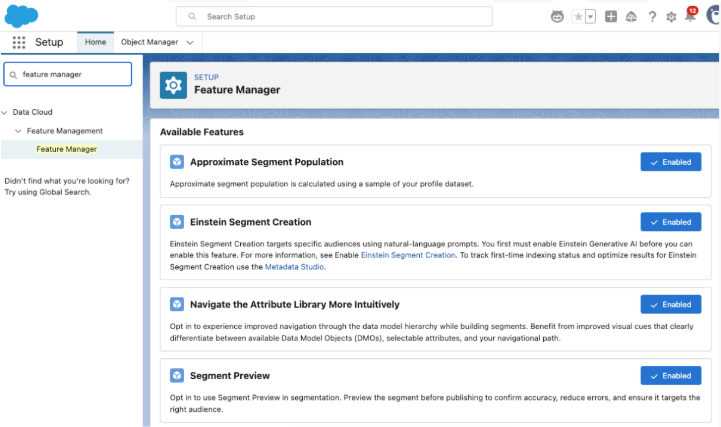
Einstein Segment Creation allows you to use natural language prompts to build segments within Data 360. Use this help article to enable Einstein Segment Creation. You will also likely want to enable:

  • Approximate Segment Population
  • Navigate the Attribute Library More Intuitively
  • Segment Preview
A screenshot of the Feature Manager screen in Setup with all of the following features Enabled: Approximate Segment Population, Einstein Segment Creation, Navigate the Attribute Library More Intuitively, and Segment Preview.

Enable Additional Einstein Features

Einstein Send Time Optimization, Einstein Metrics Guard, Einstein Engagement Frequency, and Einstein Scoring are all just one click each to enable and all the instructions are consolidated in one help article.

Build and Personalize Assets

Enable Personalization to Test Dynamic Content

If you would like to test out Dynamic Content in Growth and Advanced, you will need to enable Personalization and configure your Data Graph. I recommend setting up your Data Graph first, Cate Godley wrote a really great blog post that will walk you through this process. Finally, use the Set Up Personalization steps here to complete the process. 

Configure a Brand

Setting up a Brand in Growth and Advanced will let you auto-style your Marketing Assets and update the branding within Marketing Assets en masse. Check out Ambre Juryea-Amole’s blog post on setting up a brand for guidance on using this feature. A couple of additional features have been added since Ambre wrote her post; we can now configure a Brand Identity and Tone, which will be used by Agentforce when generating content, and assign a default Brand to the CMS workspace. 

Dig Into Reports

Set up Marketing Performance

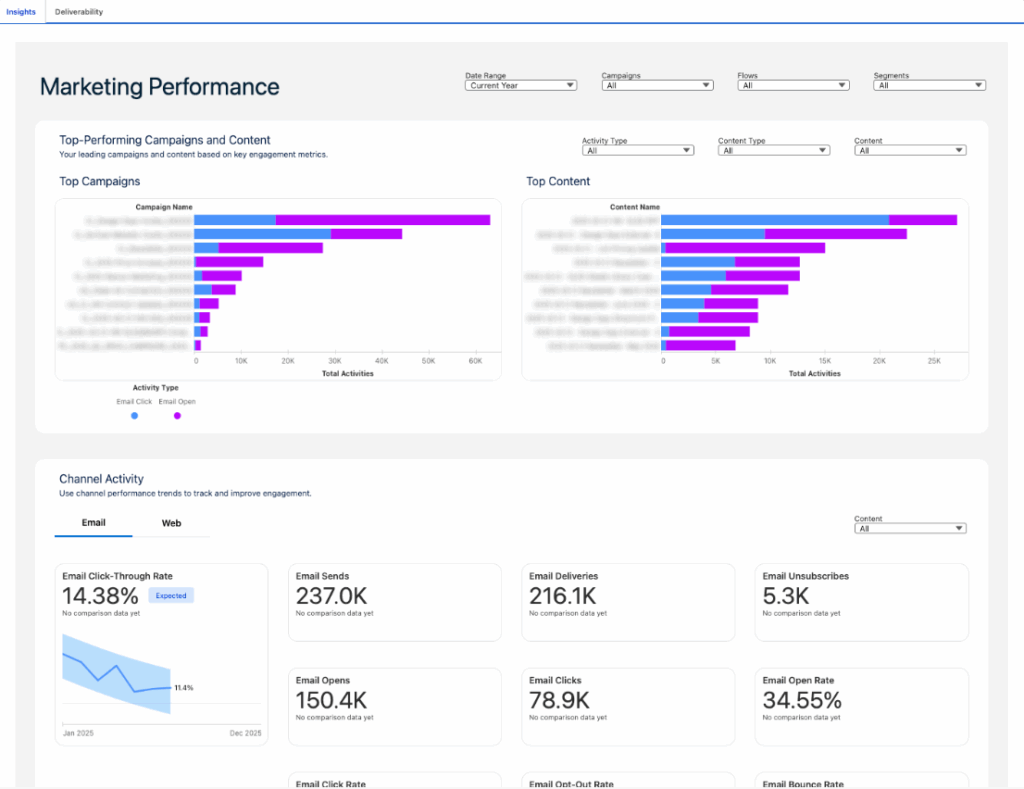
To dig into campaign metrics and content, install Marketing Performance using this help article. Once installed, you will have a Marketing Performance tab within the Marketing Cloud Growth/Advanced app where you can view campaign, channel, and content insights. 

A screenshot of the Marketing Performance tab.

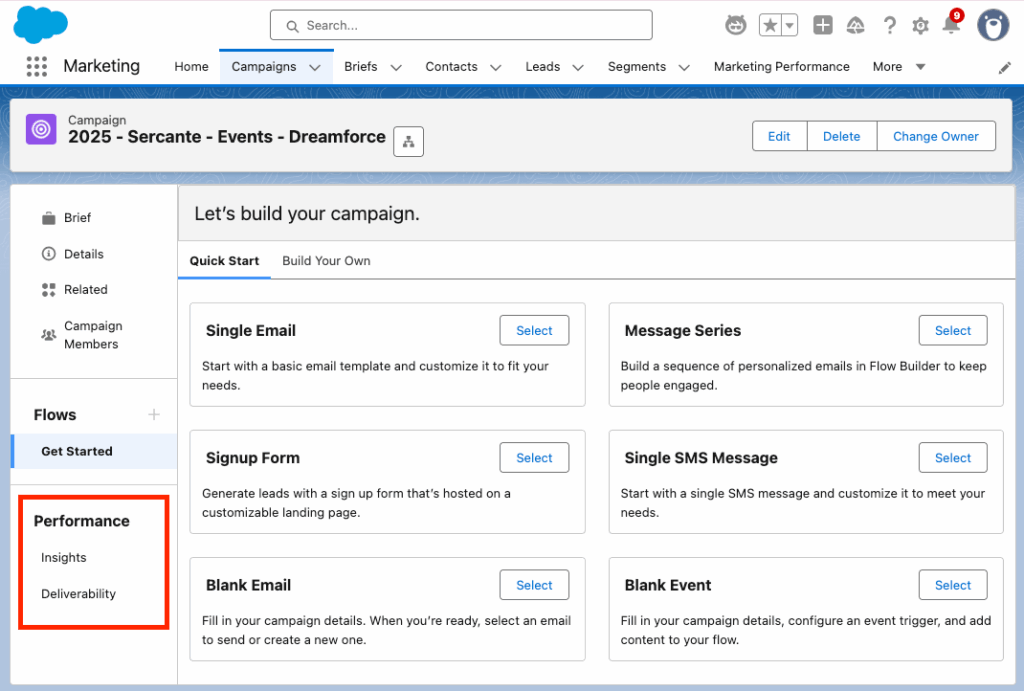
You can also view an individual’s campaign Performance reports on the left side of the Campaign view. 

A screenshot highlighting the Performance menu options in the campaign view on the left-hand side, below Flows.

Note: Any users who need access to Marketing Performance reports will need the “Tableau Next Included App Business User” permission set.

Connect Analytics

Finally, install the Analytics packages for access to preconfigured dashboards and reports on your Marketing activities. This article walks you through everything you need to do to get Analytics up and running. 

What’s Next?

The above steps are enough to get you started, so you can test Growth and Advanced and determine if you want to use it alongside Account Engagement. Additional implementation steps will really depend on what you want to use Growth and Advanced for, but here are some likely paths forward. 

If you’d like help implementing or exploring Marketing Cloud Growth and Advanced, reach out to the Sercante team!

Product Note: Marketing Cloud on Core is now known as Marketing Cloud Next. Marketing Cloud Growth and Advanced are editions of Marketing Cloud Next and have also been referred to as Agentforce Marketing.

As someone who primarily focuses on B2B and Account Engagement, I’ll admit I was a little lost the first time I approached the topic of SMS and Marketing Cloud Growth Edition. SMS was just not regularly part of my Marketing world, so trying to figure out the difference between Long Code and Short Code, go through the provisioning process, and advise others on which code is right for them felt overwhelming. However, thanks in large part to my B2C and Marketing Cloud Engagement focused co-workers, I now have a good handle on this topic and want to make sure others in the community can too! 

Long Code versus Short Code

The first thing to make sense of is the two types of SMS codes within Marketing Cloud on Core, their provisioning process, and which type is right for you.

Note: For some countries only one type of SMS code is currently supported (for example, only Short Code is available for Canada). If you are outside of the US, ensure you check the SMS Rate Card to see which SMS Codes are currently supported for your country.

Long Code

Long codes are a good choice for businesses that want to send messages to a smaller number of customers or create a more personal touch. Long Code SMS is also

  • More cost-effective and take less time to set up
  • Needed for International SMS
  • Needed for Conversational SMS
  • Has a longer send time (roughly 1 sec per message per recipient)

In summary, if you are sending delivery updates, appointment or event reminders, customer service communications etc. Long Code is likely the better choice. 

Long Code Provisioning

Long Code Provisioning takes between 4-6 weeks and is a multi-step self-service process. 

Step 1: Request a Brand

You’ll need to compile some basic info about your company for this form and then wait roughly 5 business days for the Brand to be approved (aka verified). 

Step 2: Request a Campaign

After your Brand is “verified” you can then request a Campaign. This step is a little more complex and you’ll need to provide some sample SMS messages for the form. Campaigns take roughly 10 business days to be approved (aka registered).

Step 3: Request a Code

Once your Campaign is “Registered” you can complete the final step of requesting your Long Code. This step should only take 2 business days to complete. 

Short Code

Short codes are the preferred method for organizations sending high volumes of SMS and expect very fast delivery times.

Short codes are also country-specific. A short code is only able to send messages to and receive messages from, same-country phone numbers. US short codes can only send to US phone numbers on US carrier networks that have approved that short code.

Short codes are the better choice if you intend on sending promotional messages to a large audience, such as sending limited-time offers and discount codes to all your current customers.

Short Code Provisioning

Short Code Provisioning takes an average of 12 weeks to set up and can only be done through a Mobile Approved Partner. Each partner has their own fees for Short Code Provisioning, but you can expect anywhere between $8k-$15k for this process. 

That was a lot of information, could you put it in a chart?

You got it!

ScenarioLong CodeShort Code
Provisioning Timeline4-6 Weeks12+ Weeks
Provisioning CostNone, Self Service$8k-$14k
PurposeSmall sends, personal touchesLarge sends, promotions
Supports International RecipientsYesNo
Supports Conversational SMSYesNo
Send SpeedSlow – 1 sec per message per recipientFast – can handle large sends quickly

SMS Credits

Both Short and Long Code SMS require Salesforce Messaging Credits to send SMS. Credits are consumed differently based on their multipliers (which can change so ensure you check the multipliers page for the most up to date info). For example, US Short Codes currently have a multiplier of 4 and Long Code a multiplier of 5. Based on 15K text sends, Short Code US requirement will be 60K of Credits , Long Code: 75K of Credits.

SMS and Consent

Consent for SMS channels can’t be imported until after the SMS Code has been provisioned. Once provisioned you can proceed with importing existing consent records to tie opt-ins and opt-outs to your unified individuals. Ensure your phone numbers use the E164 format in your consent files!

What’s next?

After your SMS code has been provisioned and you’ve imported your Consent Records there are a few additional setup steps you’ll want to tackle before you start sending:

Product Note: Marketing Cloud Growth and Advanced are editions of Marketing Cloud Next and have also been referred to as Agentforce Marketing.

Marketing Cloud on Core (also known as Marketing Cloud Growth or Advanced Edition) can now track how marketing efforts contribute to revenue! With the Spring ‘25 release, Salesforce introduced Opportunity Influence, helping businesses connect marketing engagement to pipeline and revenue. But how does it work, and what’s the difference between Opportunity Influence and Campaign Influence? Let’s dive in!

Opportunity Influence vs. Campaign Influence: What’s the Real Deal?

Before we break down how to customize and report on Opportunity Influence, let’s clarify how it differs from Marketing Cloud Account Engagement’s Customizable Campaign Influence. While both models aim to connect marketing efforts to revenue, they function in distinct ways and serve different use cases. 

FeatureOpportunity InfluenceCampaign Influence
Data SourceMarketing Cloud Engagement (emails, ads, automation, etc.)Salesforce Campaign Membership
Influence ScopeTracks engagement across multiple touchpointsTracks Leads/Contacts who are Salesforce Campaign Members
IntegrationSyncs Marketing Cloud engagement data to Salesforce OpportunitiesWorks within Salesforce CRM using Campaigns and Opportunities
Attribution ModelsMulti-touch attribution (first-touch, last-touch)Campaign Influence and Customized Models
Reporting & InsightsMeasures marketing-driven revenue impactMeasure campaign-driven revenue impact

🚨 Important Note for Account Engagement Users 🚨

You cannot use Opportunity Influence alongside Customizable Campaign Influence. If your team already relies on Account Engagement’s Campaign Influence Models, keep this in mind when deciding which model to use.

Additionally, Account Engagement users cannot activate Opportunity Influence as it does not currently integrate with Account Engagement’s Campaign Influence model. If your organization currently tracks marketing-driven revenue using Campaign Influence reports, you’ll need to continue using that model. However, if you’re considering a shift to Marketing Cloud on Core, Opportunity Influence could offer enhanced multi-touch attribution and engagement tracking.

Battle of Influences: Campaign vs. Opportunity – Which One Wins?

Let’s say you’re running a B2B software company and you’ve executed multiple marketing campaigns using a variety of platforms, including ads, email, an e-book, and a webinar, to engage your prospects.

  • Campaign Influence: A prospect attends the webinar, clicks on an email, and downloads the e-book before being transitioned to sales as a marketing-qualified lead. These interactions are recorded under a Salesforce Campaign and can be manually associated with the Opportunity when created based on the Opportunity Contact Role and Campaign Member. You can assign influence weight based on your customized rules.
  • Opportunity Influence: Marketing Cloud on Core automatically tracks all marketing engagement, including the ad view and click, webinar attendance, and e-book download. These touchpoints are automatically associated to attribute influence based on the predefined model and associated to the Opportunity upon creation.

If Campaign Influence were a fine-dining experience, it would be a chef-curated meal—meticulously crafted with manual customization to fit your exact taste. You decide which interactions get the most credit, but it requires hands-on effort. On the other hand, Opportunity Influence is like an all-you-can-eat buffet with an expert chef behind the scenes. It automatically dishes out credit across touchpoints, giving you a full spread of marketing influence with minimal effort. If you love precision and control, Campaign Influence is for you. But if you want a seamless, automated view of your entire marketing impact, Opportunity Influence takes the crown.

How to Set Up Opportunity Influence

Setting up Opportunity Influence requires configuration in Sales Cloud to ensure marketing engagement is properly attributed to revenue-generating activities. To fully connect marketing efforts with sales outcomes, ensure that contacts engaging with marketing campaigns are linked to Opportunities. This allows for accurate tracking of marketing interactions that influence deals.

Enabling Opportunity Influence

  1. Navigate to Salesforce Setup > Opportunity Influence
  2. Enable Opportunity Influence
  3. Select an Attribution Model
    • First-Touch: Gives full credit to the first marketing engagement that led to the opportunity. It’s ideal for understanding which top-of-funnel efforts drive initial interest.
    • Last-Touch: Assigns full credit to the last marketing interaction before the opportunity was created. It helps measure the final push that converted a lead into an opportunity.

Going Beyond Activation

Customization is key to maximizing Opportunity Influence. Marketers should align influence models with their sales cycle, ensuring critical marketing touchpoints, such as email engagements, paid ads, and automation journeys, are correctly captured. Because Opportunity Influence consumes Data Credits, it’s essential to be strategic when enabling multiple models to avoid unnecessary credit usage.

Making Sense of Your Data: Reporting on Opportunity Influence

Once Opportunity Influence is enabled and tracking data, you can start reporting on marketing’s impact. The key to unlocking valuable insights is leveraging Salesforce’s Reports & Dashboards to tell a clear story about how marketing drives revenue.

Your Treasure Map to Salesforce Reports & Dashboards

  • Head over to Salesforce Reports and search for Opportunity Influence Reports. This is your go-to hub for seeing which marketing touchpoints are helping close deals.
  • Get specific with your insights! Use filters to refine reports by timeframe, campaign, or opportunity. Want to know which emails led to the most revenue? Adjust your filters to see the impact.
  • Create Salesforce Dashboards to visualize Opportunity Influence. Need a quick snapshot for your leadership team? Build an easy-to-read chart that shows exactly how marketing is fueling revenue.

The Ultimate Guide to Opportunity Influence Report Types

Salesforce provides several built-in report types to help you analyze how marketing efforts contribute to revenue. Here are the key report types you can use:

  • Opportunity Influence Summary Report – This high-level report shows how marketing engagements are influencing revenue across all opportunities. Use it to track overall marketing impact.
  • Opportunity Influence Detail Report – A more granular report that breaks down individual touchpoints per opportunity, allowing you to analyze which specific marketing interactions played a role in closing deals.
  • Influence Attribution Model Comparison Chart – Compare first-touch and last-touch models side by side to see which one provides the best insights for your marketing strategy.
  • Marketing Touchpoint Analysis Report – Identifies which marketing channels (email, ads, website visits, etc.) are contributing the most to opportunity creation and pipeline growth.

By setting up and analyzing Opportunity Influence reports, marketing teams can gain deeper insights into which touchpoints matter most, optimize their strategies accordingly, and confidently demonstrate their return on investment.

Why Opportunity Influence is a Game-Changer

Opportunity Influence is a must-have tool for any marketing team looking to measure true revenue impact. No more guessing which emails, ads, or landing pages are driving pipeline – Opportunity Influence connects the dots, giving you a clear picture of how marketing fuels business growth. With built-in attribution models, you can customize insights based on what matters most to your strategy.

Whether you’re aiming to prove marketing ROI, optimize your campaigns, or align better with sales, Opportunity Influence provides automated, data-driven attribution that simplifies reporting and enhances decision-making. If you want better visibility into marketing’s role in revenue generation, this feature is your new best friend!

💡Next Steps:

  1. Check your org to see if the new update is available.
  2. Test Opportunity Influence tracking before rolling it out company-wide.
  3. Monitor data service credit usage if you’re using multiple attribution models.

📣 Want to learn more? Check out the full Spring ‘25 release highlights or dive into the official release notes.

🚀 What are your thoughts on Opportunity Influence? Drop a comment below, and let’s discuss!

Autonomous AI is transforming the way organizations operate, and Salesforce’s Agentforce is at the forefront of this revolution. The product was made generally available by Salesforce in October 2024. Whether you want to streamline case management, enhance lead nurturing, or delight customers, Agentforce empowers businesses to accomplish more with fewer resources. In this post, we’ll share five practical tips to help you successfully implement and use Agentforce. 

Feeling anxious about diving all in with Agentforce? Contact the Sercante team for an Agentforce readiness assessment. That way, you can be sure you’re getting set up for success before you implement Agentforce in your org.

Understanding Agentforce

Before diving into the tips, let’s take a closer look at what Agentforce is.

Agentforce enables autonomous AI agents to perform tasks without human intervention, acting as digital workers within Salesforce or external customer channels. These agents enhance productivity by automating routine tasks and assisting with complex ones. With tools like Agent Builder, you can customize agents using pre-built topics and actions or create entirely new ones tailored to your organization’s needs.

Agentforce integrates seamlessly across the Salesforce platform, leveraging Data Cloud for reasoning and learning. Out-of-the-box agents include Service Agents for case deflection, with more capabilities to be released in December 2024, such as SDR and sales coaching agents.

Unleashing the Power of Agentforce: Five Steps to Get Started

Follow these five steps to get started on the right foot when you dive into Agentforce.

Tip 1: Identify Use Cases

Start by identifying where Agentforce can deliver the most value in your organization. Ask yourself:

  • How are you using your CRM today?
  • What are the current pain points in your processes?
  • Are there routine tasks that could be automated to free up team capacity?
  • Are there new processes you’ve avoided due to resource constraints?

Examples of use cases include automating FAQ responses for service teams, generating campaign briefs for marketing, or assisting sales reps with lead prioritization and moving deals faster.

Then for each use case, think about what would be needed to transition to an agent:

  • What job should they do?
  • What actions will they need to take?
  • What actions should they NOT take?  (This is just as if not more important to make sure you have defined the lane where an agent should operate within that use case)

Your responses to those questions are going to help you to understand the level of effort involved in use case. This in turn is going to help you to prioritize based on the level of effort and potential value

Tip 2: Define Success Metrics

To gauge the success of your Agentforce implementation, establish clear goals and KPIs. 

Questions you can ask:

  • What does success mean? How will we know we have addressed our problem? 
  • What metrics are we tracking today that we want to see improvement on?
  • Are there additional metrics that will let us know we are seeing success?

For example:

  • Reducing average case handling time by 20%
  • Improving lead response times
  • Increasing campaign ROI by automating content creation

Ensure you have baseline data for comparison and that the necessary measurement tools are in place to help you track success.

Tip 3: Assess Your Data

Your AI agents are only as good as the data they access. For the use cases identified, evaluate your data readiness:

  • What data do need? 
  • Where is it located? Is it in your CRM, Data Cloud, or other external systems?
  • Is it accessible from your CRM? If it’s stored in an external system, do you have APIs in place to get that information?
  • Is the data clean, accurate, and up-to-date?
    • Follow this blog post for tips on how to keep your imported Pardot prospect data clean.
  • Do you have a single view of the customer across systems?
  • Lastly, are knowledge bases and metadata structured for easy access? 
    • Agents need knowledge to inform how they will operate and answer questions. This is all of the background configurations your agents actions will rely on — flows, prompts, and Apex for example — they need to also be clearly identifiable and accessible. 
    • When you add actions to your topics, it uses the descriptions to help fuel the instructions. The naming conventions of your resources will also make it easier to determine what the inputs and outputs need to be.

Data and metadata are the backbone of AI performance, so this is an important area to pay attention to.

Tip 4: Start Small

After completing the previous steps, you may have more than one great use case to start with. Here’s where you ask yourself: What are the quick wins that we can get started on that can move the needle and that we can expand on as we mature?

It’s really easy to get caught up on how this can solve ALL the things. There are many challenges to starting a complex process all at once. If a lot of effort is required to get the data in place or to get the actions set up, it will be more difficult to roll out, not to mention making it potentially disruptive and prone to issues 

Avoid the temptation to tackle complex processes right away. Instead, focus on a simple, high-impact use case to pilot Agentforce. There are many out-of-the-box topics and actions that make getting started easier. For example, automating a single FAQ response or generating summaries for sales reps.

Starting small helps build confidence, momentum, and organizational buy-in, and it also reduces the risk of missteps.

Tip 5: Nail Down Clear Instructions

When designing agents, clarity is key. Use the Agent Builder to create and test well-defined topics and actions:

  • Topics – Include precise instructions for classifying user requests, setting guardrails, and outlining scope.
  • Actions – Clearly define what the agent should do, including required inputs and expected outputs.

Salesforce Agentforce Topic Instruction Best Practices

Instructions are the foundation for grounding how agents perform. They set the guardrails for how the agent should behave and give the agent the context it needs to do its job. 

Here are a few best practices for writing Agentforce topic instructions:

  • Start simple
    • Start with the main use case first to ensure the agent is performing as expected. Then, add in more detail to address edge cases. Be sure to test existing instructions for any conflict. You don’t want to confuse the agent! 
  • Use plain language
    • Use concise natural language to describe what your action does. Keep it to 1-3 sentences, and it can include the goal of the action, any use cases, and the objects or records it uses or modifies. 
    • In general, the more relevant detail you include in your instructions, the easier it is for the agent to differentiate between actions. Also, be sure to vary the words you use. For example, use a mix of “Get,” “Find,” “Retrieve,” or “Identify” for actions that will query records.
  • Avoid industry or company jargon
    • Write like you are instructing someone who doesn’t know your business. Even terms like ‘qualified lead’ could mean something different from one organization to another. Give context where necessary, and reference clear criteria using the data it will have access to. 
    • For example, instead of vague terms like “qualify lead,” specify conditions such as “lead status equals MQL.” 
    • The agent isn’t not going to know your business processes either, so be explicit about the sequence of instructions or any conditions a conversation must meet for an agent to apply an action.
  • Think of all the paths
    • You want to go through every possible permutation to determine the actions required. For example: a customer reaches out because they didn’t receive their order. 
    • First think about the order status ( Order Shipped, Delayed, Not Found, Processing). If the status is Shipped then there could be different tracking statuses (In Transit or Delivered for example). If the order is showing as Delivered, was it delivered to the customer’s correct address? Was it stolen? …and so on.
  • Remember the Guardrails
    • Keep the Agent in its lane by providing clear instructions on what the agent should not do to prevent unwanted responses. In cases where the agent is customer-facing, be sure to also give clear direction on when an interaction should be routed to a human.

Test these instructions thoroughly in the Agent Builder’s testing environment to ensure your agents behave as expected.

Ready to Explore Agentforce?

Agentforce offers an exciting opportunity to enhance productivity and streamline operations. By identifying the right use cases, preparing your data, and starting with manageable projects, you can set your organization up for success.

Want to learn more? Check out Salesforce’s Agentforce Trailhead and virtual workshops to get hands-on experience. Need expert guidance? Contact the Sercante team for an Agentforce readiness assessment.

Event marketing is a fantastic way to connect with your audience, build brand awareness, and generate leads. However, managing event marketing activities can take time and effort. That’s where Account Engagement can help — in more ways than you probably thought!

Salesforce Marketing Cloud Account Engagement (f.k.a. Pardot) can streamline your event marketing efforts from initial promotions and registrations to post-event follow-up and nurturing. In this post, we’ll explore how you can use Account Engagement for event marketing to ensure a seamless and impactful experience. We’ll show you which out-of-the-box tool(s) we recommend using at what time during the event process so you can maximize your efforts.

Using Account Engagement for Event Marketing: Planning and Promotion

A marketing event is only as good as the planning that goes into it. Ensuring you have your campaigns and other assets created in advance with a clear goal and structure in mind will dramatically improve the organization of your initiatives and enable consistent reporting down the road.

Here’s how to do that.

Set Up Your Event in Account Engagement (Pardot)

If you’re using Connected Campaigns, start by creating a campaign (or hierarchy of campaigns) in Salesforce for your event. This will help you track all marketing activities and ROI related to the event. You’ll then associate all your event assets (emails, landing pages, forms) with these campaigns later.

If you’re not using Connected Campaigns, then we highly recommend you read this blog post to understand the advantages of Connected Campaigns and how to enable the feature. Then, reach out to Sercante if you’re unsure of your next steps.

Create Your Campaign Structure

These are the steps to create your campaign structure:

  1. Navigate to Campaigns and click on + Add Campaign.
    • Name your campaign using your organization’s standard naming conventions.
    • Set default and/or custom fields, like cost, start/end date, and type.
      • If it is a child campaign, select the appropriate parent to create your hierarchy
    • Ensure your campaign is marked “Active” so it can sync with Account Engagement via Connected Campaigns.

Design Event Registration Forms

Now it’s time to design your forms to collect attendee information such as name, email, job title, and company.

  1. Under Content  > Forms, click + Add Form.
    • Ensure your form includes fields that are crucial for segmenting and personalizing follow-up communications.

Develop Event-Specific Landing Pages

Create engaging landing pages to capture registrations. These pages should highlight the event’s benefits, speakers, and agenda, and include a clear call-to-action (CTA).

  1. Navigate to Content  > Landing Pages and click on + Add Landing Page.
    • Choose a layout template that fits your event’s branding.
    • Customize the page with relevant content and images.
    • When prompted, select the form you created in the previous step.

Promoting Your Event

Develop Email Marketing Campaigns

After all, Account Engagement is an email marketing platform! Let’s use that core functionality to promote our event. Next, you’ll create a series of emails to promote your event. 

Your campaign will include some form of the following emails:

  • Invitations
  • Reminders
  • Last-chance registration prompts
  • Follow-up correspondence with attendees

Some emails may be used as List Emails, while others may be automated sends using email templates.

I always recommend my clients have a comprehensive, universal email template on hand in their org. What I mean by that is a repeatable template that has lots of different sections for all types of emails. You’d clone this template, remove the sections you don’t need, and save.

On the right is an example of a Sercante Ultimate Email Template the team built for The Spot. It’s a common request our clients bring to us, so drop us a message if you don’t have a universal email template and want to get one.

Sending One-Off List Emails

If you’re sending a one-off List Email, follow these basic steps:

  1. Navigate to Account Engagement Email > List Emails and choose one of your published Email Templates.
    • Modify your sections accordingly, while keeping consistent branding.
    • Craft compelling subject lines and body content that convey the value of attending your event.
    • Include a call to action, depending on the needs of the event.
    • Make sure to always test before you schedule or send your emails. There’s a handy QA checklist in this blog post so you can hit the send button confidently.

Segmentation and Targeting

Use Account Engagement’s segmentation features to target specific audience groups with tailored messages.

  1. Go to Prospects > Segmentation Lists and create lists based on criteria such as past event attendance, industry, or engagement level.
    • Use dynamic lists for criteria-based segmentation (i.e. location, job title, CRM status).
    • Use static lists for manual segmentation (i.e. adding individual prospects to an invitation list).

Want to go a step further? Use social media connectors

Tap Account Engagement’s social posting capabilities to promote your event on LinkedIn, Twitter, and Facebook.  You’ll need to set up your social media connectors under Account Engagement Settings > Connectors and log in to connect your social media accounts with Account Engagement. 

Under Content > Social, you can create, manage, and schedule social posts. To complete the circle, you can insert CTAs in your posts that link back to your event landing page.

Managing Marketing Event Registrations with Account Engagement

Tracking Registrations

Forms

Use Forms to ensure all data flows into Account Engagement seamlessly. There’s a handy form style generator here you can use to customize your forms to match your branding.

  1. Navigate to Content > Forms and click + Add Form (or clone one you already have!)
    • Map your fields to capture all necessary registration information.
    • Ensure you customize your Completion Actions for autoresponders, assignments, campaign membership, etc.

Automation Rules for Registration Management

If Completion Actions don’t offer the functionality you’re looking for, consider creating Automation Rules to manage registrants. 

Automation Rules allow you to automate actions such as adding them to a list, sending confirmation emails, or notifying your sales team when hot prospects or accounts are actively engaging.

  1. Go to Automations > Automation Rules and click + Add Automation Rule.
    • Set criteria (i.e. form completion) and corresponding actions (ie. add to list, send email, update campaign member status).
    • Once you’re ready to run it, make sure you “unpause” the automation rule.

Confirmation and Reminder Emails

For this, we highly recommend using Account Engagement’s automated nurture engine: Engagement Studio. This powerful tool comes out of the box with all MCAE editions.

Under Automations > Engagement Studio, you can create intelligent nurture programs to automate follow-up, update records and act immediately on interactions with your prospects.

Sending Confirmation Emails

Ensure that every registrant receives an immediate confirmation email with event details. 

Reminder Emails

Schedule reminder emails leading up to the event to keep registrants engaged and reduce no-shows. Create a series of reminders — starting a week before the event, a day before, and a few hours before the start.

Event Marketing Doesn’t End There. Keep it Going!

You’ve made it to the day of your event! While your pre-event promotion is over, and your email invitations and reminders have all been sent, you can still use Account Engagement to engage with your prospects during and after the event, and throughout the sales process.

During the Event

Engaging Attendees with Personalized Content

Use Account Engagement’s dynamic content features to personalize the content displayed to attendees based on their profiles. 

  1. Navigate to Content > Dynamic Content and create content blocks that change based on prospect data (i.e. industry, job title, location).

Real-Time Data Collection

Use Account Engagement’s tracking capabilities to monitor attendee interactions during the event, such as session attendance and engagement with event content. You can also implement tracking codes on event-related pages and materials to capture real-time data.

Feedback Forms

Create and send feedback forms immediately after each session to gather attendee insights and improve future events. This is a crucial step that will help your team continuously improve and build stronger relationships with your audience.

Post-Event Follow-Up

Analyzing Event Performance

Generating Reports

Use Account Engagement’s reporting features to analyze event performance, including registration numbers, attendance rates, and engagement metrics.

  1. Navigate to Account Engagement Reports to view detailed reports on your event’s asset performance (forms, landing pages, emails, etc.).
  2. You can filter and export data, or use other tools like Salesforce Lightning Reports or B2B Marketing Analytics for more advanced reporting and data visualization.

ROI Analysis

Calculate the ROI of your event by comparing the costs associated with the event to the revenue generated from leads and opportunities. 

  1. Use Account Engagement’s ROI reporting tools under Reports > Marketing Assets.

Nurturing Leads

Follow-Up Emails

Create a series of follow-up emails to thank attendees, share event highlights, and provide additional resources. Use Engagement Studio to automate these follow-up emails for timely and relevant communication.

Lead Scoring and Grading

Update lead scoring and grading models based on attendees’ behaviors during the event.

  • Go to Account Engagement Settings > Scoring to adjust scoring rules, and use this updated data to prioritize leads for sales follow-up.

Re-Engaging Non-Attendees

Post-Event Outreach

Don’t forget about those who registered but didn’t attend. Reach out with recorded sessions, summaries, and key takeaways to keep them engaged. Use segmentation lists to identify non-attendees and create a specific follow-up campaign for them.

Surveys and Feedback

Send a survey to non-attendees to understand why they couldn’t attend and gather insights to improve future events. 

  1. Use Forms to create and distribute these surveys, and analyze responses to enhance your event strategy.

Planning Future Events

Reviewing Your Feedback

Incorporate feedback from attendees and non-attendees into your planning for future events to continuously improve the experience. 

  1. Use Account Engagement Reports > Forms to analyze the feedback forms you’ve sent after previous events, and make data-driven decisions and adjustments to your approach.

Early Bird Promotions

Start promoting your next event early with exclusive offers and early bird discounts to previous attendees. 

  1. Use Account Engagement Email to create and send promotional emails, and leverage Dynamic Content for personalized offers.

Now you’re an Account Engagement event marketing pro!

Using Account Engagement’s powerful features and capabilities, you can streamline every aspect of your event marketing activities, from initial planning and promotion to post-event follow-up and long-term nurturing. This ensures a seamless and impactful event experience and maximizes your marketing ROI and strengthens your relationships with prospects and customers.

Utilizing Account Engagement for event marketing can lead to more organized, efficient, and successful events, ultimately driving more meaningful interactions with your customers.

Wanna take a deeper dive into event marketing with Salesforce? Check out this blog post, 5 Event Marketing Best Practices To Implement For Your Next Campaign, which is a roundup of insights from seasoned event marketing professionals.

No more posts to show