Marketing Cloud Next can make the future of marketing look like a whole new world. Agentic campaign creation, real-time data, connected journeys—the demos make it easy to imagine what your marketing team could do with more automation and fewer manual processes. The harder question comes when you start to think through: What does Marketing Cloud Next look like for us? To start answering this question, the Sercante l Trilliad Marketing Cloud Next Readiness Checklist guides marketers to self-assess their existing technology and processes and how they align with Marketing Cloud Next, to see where they could get started.
Your team already has technology, processes, data, integrations, and ways of working that aren’t going to disappear overnight. So getting started isn’t just simply about identifying the newest features you want to use. It’s also about figuring out where those capabilities could make a meaningful difference within the marketing operation you already have.
Instead of jumping straight into the platform, our Marketing Cloud Next Readiness Checklist helps teams take stock of their current environment and determine where Marketing Cloud Next deserves a closer look.
Turn Your Marketing Pain Points Into a Starting Point
To start this process, you need to stop and ask: Where is your marketing team losing time today?
Are marketers manually exporting data every time they need to build an audience?
Does important customer information live across multiple systems, making personalization harder than it should be?
Has campaign creation itself become a chain of repetitive tasks that keeps marketers from focusing on strategy?
Those pain points are clues for where to start with Marketing Cloud Next.
The Readiness Checklist helps teams connect challenges to capabilities worth exploring. It asks whether disparate data is creating segmentation challenges, whether teams want to expand into new channels, whether AI agents could support marketing and sales operations, and whether manual campaign and content creation is eating into the team’s time.
By the end of the assessment, teams will have a clearer picture of where Marketing Cloud Next could deliver value now, which capabilities deserve a closer look, and where additional planning may be needed before moving forward.
What Should Your Organization Consider Before Getting Started?
Identifying a promising use case is only one part of determining readiness. The Marketing Cloud Next Readiness Checklist also prompts marketers to think about the realities surrounding that opportunity.
The goal isn’t to create a list of reasons to wait. It’s to uncover the dependencies that could shape how your organization gets started. A promising capability becomes much easier to act on when you understand what needs to be true around it. As you evaluate your readiness, consider questions like:
Consideration
What your team should think about
Current technology
Where does your existing platform already meet your needs, and where are workarounds or integrations creating friction?
Data & integrations
How is customer data moving between systems today, and what integrations would still need to be maintained?
Channels & experiences
Which channels or customer experiences do you want to add or improve?
Feature requirements
Are capabilities your team depends on today available in Marketing Cloud Next, different from your current platform, or still on the roadmap?
Cost & infrastructure
How could consumption-based pricing, Salesforce CRM requirements, or custom API needs influence your approach?
From Marketing Friction to More Strategic Work
The friction uncovered during a readiness assessment isn’t unique to one marketing team. Across the industry, marketers are trying to deliver increasingly sophisticated customer experiences while still working around disconnected data, manual processes, and technology that doesn’t always work together.
That complexity has a real cost. 37% of leaders say organizational silos prevent efficient data sharing across marketing and operations (MarTech), while 31% of marketers cite slow execution caused by manual processes or rigid technology as their biggest barrier to delivering personalized campaigns (MoEngage).
Every hour spent exporting lists, moving data between systems, or piecing together campaign workflows is time marketers aren’t spending understanding customers, improving creative, testing new ideas, or building better experiences.
That’s the opportunity Marketing Cloud Next presents.
By bringing data, campaign execution, automation, and agentic capabilities closer together, Marketing Cloud Next creates the potential to reduce some of those operational handoffs. The guide highlights opportunities ranging from generating campaign structures and content from plain-language prompts to creating dynamic segments without manual exports and using agentic decisioning to determine next-best actions. The payoff isn’t simply faster campaign execution. It’s giving marketers back more of their creative and strategic bandwidth.
Adopting Marketing Cloud Next doesn’t have to mean moving your entire marketing operation onto a new platform at once. A more practical approach is to start with the opportunities that can create value now, learn from them, and expand as your organization is ready.
Think of it as a crawl, walk, run approach.
Crawl: Teams can use the Marketing Cloud Next Readiness Checklist to assess their current environment and identify one or two high-impact use cases worth exploring.
Walk: Teams can begin deploying those capabilities alongside existing systems, measuring what works and building confidence along the way.
Run: Teams can expand their use of Marketing Cloud Next and continue to scale alongside their existing technology as it makes sense for their business.
There’s no universal timeline for that progression. Differences in data structures, processes, team skill sets, and business goals mean some organizations will be positioned to move faster than others. The goal is to create a path that balances near-term wins with a longer-term vision for the platform.
Getting Started with Your Marketing Cloud Next Readiness Checklist
The question isn’t whether your organization can use everything Marketing Cloud Next has to offer. It’s where the platform can make the biggest difference first.
If you’d like an expert to walk through the Marketing Cloud Next Readiness Checklist with your team—or help you fast-track the next best steps—connect with Sercante | Trilliad. We’ll help you turn your questions and current challenges into a clear, practical path forward.
Too many marketers today are trapped in “survival mode.” Day after day, marketing ops professionals churn out campaign after campaign, wading through rigid data silos, manual list exports, and tedious workarounds that sap their creative and strategic brainpower. Solutions like Agentforce Marketing give marketers a clear way out. But while many marketing leaders have watched the impressive platform demos, most are left asking the critical tactical questions: “How do we actually get started?” “How are other marketers using the platform, and what successes are they seeing thus far?
To answer those exact questions, I sat down for a fireside chat with Brittany Cowan, Director of Marketing at Denver Public Schools (DPS). We talked through how she and her team took a pragmatic crawl, walk, run approach to adopting Agentforce Marketing. Eliminating manual workarounds, deploying multi-channel journeys, and tracking true attribution.
When Denver Public Schools first started thinking about adopting a new marketing automation platform, their goals centered around driving enrollment. Like many urban districts, they faced student population declines from rising competition with private schools, families having fewer children, and more families moving out of the city.
To reach their goal as seamlessly as possible, and to ensure they engage families with personalized messaging, DPS needed a way to centralize family data, streamline communication during major district initiatives like Round 1 and Round 2 school enrollment, and reach families through their preferred channels without drowning them in irrelevant emails.
When Brittany and her leadership team were first considering Agentforce Marketing, those early conversations focused heavily on alignment, technical readiness, and bandwidth. Critical success factors were top-of-mind, but instead of trying to rebuild their entire marketing ecosystem overnight, leadership focused on immediate, high-impact needs.
Ultimately, DPS chose Agentforce Marketing because of its native scalability. Since they were already using the Salesforce platform for their enrollment application, it was a natural evolution. The ability to unify customer data, leverage native multi-channel tools like email and SMS within a single Flow, and lay a foundation for future AI enhancements made it the clear choice for the district.
Setting the Stage: First Use Cases & Multi-Channel Deployment
Once the platform was implemented, the team immediately jumped into their highest-priority initiative: student enrollment campaigns. Rather than overcomplicating their initial setup, they mapped out essential segmentations and structured core messaging flows to ensure families completed their application steps on time.
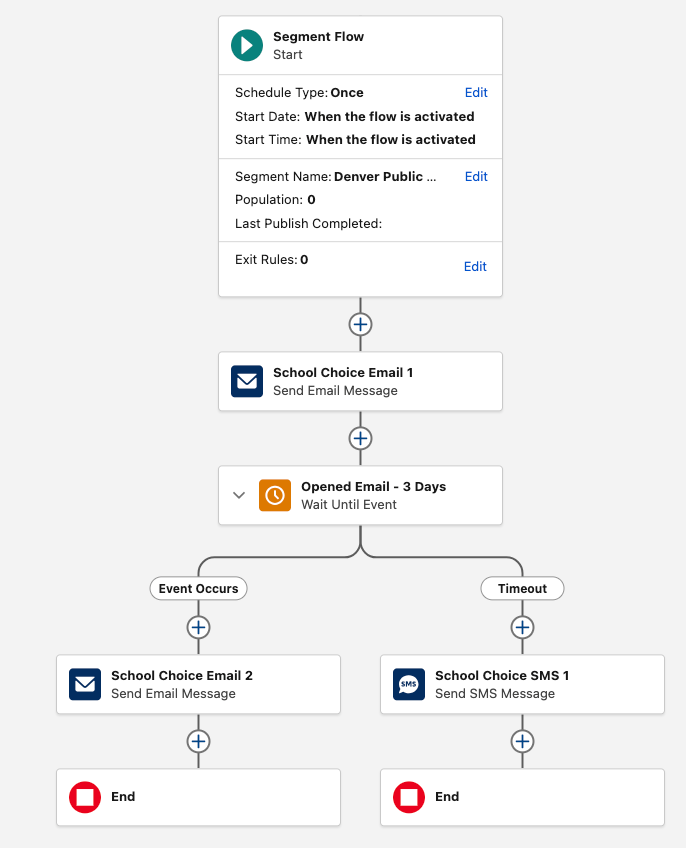
A major benefit of Agentforce Marketing is the ability to build seamless multi-channel journeys combining email and SMS. They did not use a lot of SMS communications previously, but when they surveyed their families, they found that many of them prefer this channel, and decided to lean in. Before adopting Agentforce Marketing, this would have involved tedious, manual processes such as data uploads. Now, DPS leverages Flow Builder decision paths, such as the example below:
Email First: An initial email goes out to families regarding enrollment deadlines.
Smart Logic: If a family doesn’t open the email within 3 days, the system automatically triggers a targeted SMS reminder.
Because families receive endless communications from various sources, this multi-channel strategy ensures urgent reminders land on the device they actually check, fostering better engagement.
When it came to reporting, DPS approached attribution by establishing baseline metrics early on. Unified campaign tracking allowed them to connect outreach activity directly to application completions, proving ROI across both email and SMS.
Looking Back: Lessons Learned & What’s Next
Reflecting on how far the team has come, Cowan shared that she is most proud of their ability to deliver tailored, relevant communications while leveraging smart exit rules. Instead of blasting generic district news, messaging is now personalized based on geographic zones, student life stages, and specific program interests.
Even better, automated exit rules remove families from reminder flows the moment they complete an application. Families appreciate not being bombarded with irrelevant information once they’ve taken action, creating a far better overall experience for district families.
“The ability to cater our messages more specifically—both to specific programs and not bombarding people with comms once they’ve already taken action—has been wonderful.”
– Brittany Cowan, Director, Marketing, Denver Public Schools
Looking ahead to the next phase of their journey, DPS is excited to tap into more advanced capabilities:
Language-Based Routing: Delivering fully automated Spanish-language communications to Spanish-speaking families.
Send Time Optimization: Sending messages at the precise day and time an individual is most likely to engage.
Path Experiments: Testing different channels and messaging sequences to continually optimize conversion rates.
When asked about the biggest lessons learned along the way, the marketing team emphasized the importance of respecting the crawl, walk, run process. Focusing on super-advanced features in year one would have been overwhelming. The real win was establishing clean segments, setting up Flows, and securing baseline reporting.
Your Strategic Roadmap for Adopting Agentforce Marketing
Whether auditing a current tech stack or preparing to launch advanced AI automations, adopting Agentforce Marketing works best when structured in defined phases:
Phase 1: Learn & Plan (Crawl)
Audit existing data structures and align stakeholders on immediate business requirements.
Pick 1–2 initial use cases (like event registration, lead nurture, or enrollment).
Establish baseline performance metrics to track against legacy manual processes.
Deploy core journeys using native target segmentation and dynamic content rules.
Phase 3: Optimize & Evolve (Run)
Einstein Engagement Frequency: Dynamically suppress sends to saturated contacts to avoid burnout.
Einstein Send Time Optimization (STO): Deliver communications when individual recipients are statistically most likely to open.
Path Experiment: Scientifically test journey variations (e.g., SMS vs. Email follow-ups) to evaluate top-performing paths.
Ready to Take Your Next Step?
Successfully adopting Agentforce Marketing isn’t about replacing your strategy with AI, it’s about giving your team the operational foundation needed to eliminate manual workarounds, engage your audience, and drive measurable growth.
If you’d like to get expert guidance on planning your next steps with Agentforce Marketing, or figure out how it can be used alongside your existing platform, reach out to the Sercante l Trilliad team.
Artificial intelligence and real-time data are shifting the landscape under our feet. For a long time, Salesforce Flow was considered “admin territory.” Marketers stuck to traditional journey builders and engagement programs. But things have changed. Flow is no longer just a backend automation tool for admins. It can now be directly harnessed by marketers in the Agentforce Marketing platform (also known as Marketing Cloud Next, or Marketing Cloud Growth or Advanced Edition) to streamline workflows and deliver personalized, multi-channel journeys at scale. And for marketers with Marketing Cloud Engagement or Account Engagement, they can already access these features. To start taking advantage, it’s critical to start learning Agentforce Marketing Flow fundamentals.
See how fellow marketers at Denver Public Schools are already using Flow and Agentforce Marketing features to streamline campaign workflows, deliver multi-channel campaigns, and track attribution. Register Here
The Foundation: Diving into Flow Basics
Historically, Flow Builder was seen as a tool reserved only for Salesforce Admins because of its ability to perform deep backend activities like creating records, automating heavy backend logic, or running APEX.
With the arrival of Agentforce Marketing, we now have Marketing Flows—sometimes referred to as “citizen flow”. It uses the exact same interface and requires a similar foundational skillset, but it gives marketers unprecedented control over their campaigns. Don’t worry, admins: access to Marketing Flow does not equal full admin rights. Granular control remains secure through specific user permissions.
What is Flow Builder?
Flow Builder is a drag-and-drop visual interface used to automate complex business processes, workflows, and user interactions. Think of it as the core automation engine of Agentforce Marketing. It seamlessly orchestrates your three most vital assets:
Segment: Your targeted audience.
Content: Your dynamic messaging.
Actions: Your delivery mechanisms.
What can you do with Flow?
Marketing Flows provide a massive playground of strategic options:
Send: Deploy emails, SMS, and WhatsApp messages directly through the canvas.
Wait: Pause an individual’s progress for a specific amount of time (from minutes to months) or until a specific event occurs.
Update: Dynamically push data to multiple objects or auto-create tasks for your internal team members.
Customize: Branch engagement paths using real-time data or user interactions.
Optimize: Utilize built-in Path Experiments to split-test channels, content variations, and delivery cadences.
What are the types of Flow?
There are several core marketing flow types tailored to your specific orchestration needs. Below are the most common flow types you’ll need in Agentforce Marketing:
Automation Event-Triggered: Runs quietly in the background and fires immediately when an action occurs—such as a form fill, an email click, or a new subscriber signup. These are frequently used as completion actions or to instantly route leads.
Segment Triggered (recently renamed to “Audience Flow”): Targets a specific group of people (segments, lists, campaign members, etc.) when the flow runs. It is ideal for nurturing new leads or managing ongoing communications, allowing users to exit via rules or end steps.
Data 360 Flows: Powered by Data Cloud permissions, these flows can auto-convert records or trigger automation based on calculated insights and real-time score changes.
CRM Record-Triggered Flow: This type fires the moment CRM record data changes or updates.
Autolaunched Flow: Background automation kicked off by subflows, Apex code, or REST APIs.
Elements: The Building Blocks of Flow
Every flow you build is constructed using three basic types of canvas elements:
Logic Elements: Includes options like Decisions to branch your paths, Wait Time based on a date, time, or event, and Path Experiments to test different paths.
Data Elements: Elements that let you directly Create, Get, Update, or Delete records across the platform.
Interaction Elements: The execution steps, where you can Send Email, Send SMS, Send WhatsApp, create Consent, or trigger a Subflow.
Agentforce Marketing Flow: Three Ways to Build
Building out your vision doesn’t mean staring at a blank whiteboard. Agentforce Marketing gives you three flexible onboarding paths depending on your technical comfort level and campaign complexity.
Start learning how to build your own flows with this hands-on training, Agentforce Marketing Flow Fundamentals Workshop. Learn more and sign up here.
Building Flows with Agentforce
If you are a new Flow user or simply want to quickly stand up a simple nurture, you can use the conversational Agentforce Campaign Creation interface. By providing a prompt grounded in a campaign brief, Agentforce will automatically generate a campaign preview and lay out the flow steps for you. From there, you can ask the agent to refine text tones, add messages, or alter paths using natural language.
Building Flows with Campaign Canvas
The Campaign Canvas is perfect for simple nurtures and straightforward customer journeys that do not require complex decision splits. It offers a streamlined “Quick Start” interface where you can rapidly add linear steps for your triggers, target segments, message content, and wait periods.
Using Flow Builder
When your campaign demands advanced nurtures, exit rules, behavioral decisions, or experiments, it’s time to open up the full Flow Builder. Here, you get full access to the toolbox, manager tabs, canvas layout, and the ability to cleanly cut, copy, paste, and configure every element.
You can also combine these approaches to building flow. Using Agentforce or the Campaign Canvas is a great way to start your flow structure. You can then use the Flow Builder to fine-tune the flow details and add more advanced flow logic.
Lean on Flow Templates to Save Time
You don’t have to reinvent the wheel every time you launch a new campaign. Salesforce provides over 300 out-of-the-box templates, including multiple marketing-focused options.
Furthermore, once you build a custom flow architecture that works perfectly for your brand, you can save your own flows as templates for your wider marketing team to replicate safely. Flow templates are a great way to avoid starting from scratch. Learn more about Flow Templates from Mike Morris’ blog, Saving Time with Flow Templates in Agentforce Marketing.
Getting Started with Flow & Agentforce Marketing
It’s critical for marketers to start learning Flow to take advantage of the latest automation, AI, and real-time data features in Agentforce Marketing. However, the path to not only learn Flow but also figure out the best deployment approach for your organization to start using these features alongside your current platform can feel overwhelming.
You don’t have to continue on this journey alone. Tap into the expertise of the Sercante | Trilliad team. We’ve developed a proven Marketing Cloud Convergence Path that we tailor to each marketing team’s business outcomes, ensuring you can continue maximizing your existing platform while fast-tracking your overall time to value.
Agentforce Marketing has quickly become a focal point for Salesforce Marketers. However, many Account Engagement customers are still trying to understand how this new platform operates and how it fits alongside their current tools. While Agentforce Marketing is designed to encompass all the features of Account Engagement, it introduces distinct features and a completely new lexicon. To bridge the gap, let’s dive into the Account Engagement that you know and love and how these features are translated, in name and functionality, to Agentforce Marketing.
What’s in a Name?
Let’s start with what initially trips users up – the product name. A common question I get from users is whether this new platform is called “Agentforce Marketing” or “Marketing Cloud Next” and the answer is both!
“Agentforce Marketing” appears to be the name that will stick around in the long term, but “Marketing Cloud Next” is used in most of the help articles and guides about this new platform. My guess is “Marketing Cloud Next” may be phased out as the tool grows and evolves. For the time being, both names are correct and refer to the latest Marketing Automation Tools from Salesforce.
There are also a few other names you may run into, including
Marketing Cloud Growth: This refers to the “Growth” edition of Agentforce Marketing.
Marketing Cloud Advanced: This refers to the “Advanced” edition of Agentforce Marketing.
Marketing Cloud on Core: This name was adopted by the community pre “Marketing Cloud Next”. It helped us designate a difference between OG “Marketing Cloud” (aka Marketing Cloud Engagement) and the new platform. “On Core” designates that this Marketing Platform, unlike Engagement or Account Engagement, is truly built on the core Salesforce platform.
Account Engagement +: This term is more Salesforce SKU-based and refers to Account Engagement users who are also using the Agentforce Marketing Platform alongside their Account Engagement org.
Engagement + / Marketing Cloud +: Similar to the above, this is Salesforce SKU-based and refers to Marketing Cloud Engagement customers using the Agentforce Marketing Platform alongside their Engagement org.
Features and Terminology
Prospects
In Account Engagement, a Prospect refers to an identified individual. Prospects can remain solely in Account Engagement or sync to Salesforce Leads and Contacts. The equivalent of a Prospect in Agentforce Marketing is a Unified Individual.
A Unified Individual is a consolidated record of metadata related to multiple Prospect, Lead, and Contact records for the same person. To put this in simpler terms, say you have multiple Lead and Contact records for the same individual within your CRM. Each of these records has different information about said customer and each record retains its own engagement and activity data. This disparate view of your customer gives your teams an incomplete and sometimes incorrect picture of your customer. Data 360 unites these disparate records using Identity Resolution rules and provides your team with a consolidated and complete view of each customer, the Unified Individual.
Now, a few releases ago, Salesforce also added a Prospect object to CRM. This means that marketers can create pre-lead or unqualified records directly in Salesforce to mimic the same functionality we have in Account Engagement. Currently the CRM Prospect record cannot sync with Account Engagement Prospects, but I expect functionality around the Prospect CRM object to grow and this could be something we see in a few releases.
Lists
In Account Engagement, there are two main List types:
Static Lists are built one time and only update with manual changes.
Dynamic Lists are rule-based and automatically update when a Prospect’s data changes.
The equivalent of a List in Agentforce Marketing is a Data 360 Segment.
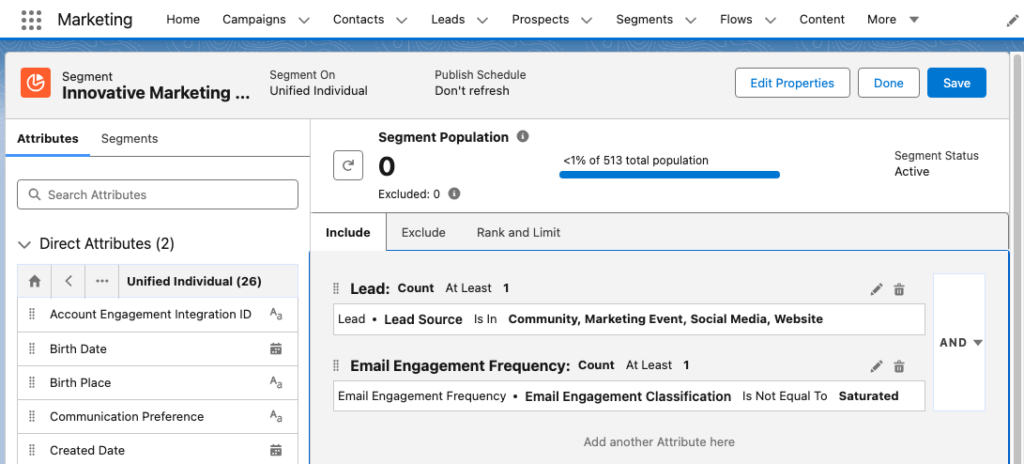
Data 360 Segments consist of Unified Individuals that match filtering rule criteria that you set. Similar to Account Engagement Dynamic Lists, you can assign multiple rule criteria to a Segment with AND/OR logic between each rule. You can also match a field against multiple values using the “Is In” operator. The image below shows an example of a Segment using multiple rule criteria in Agentforce Marketing.
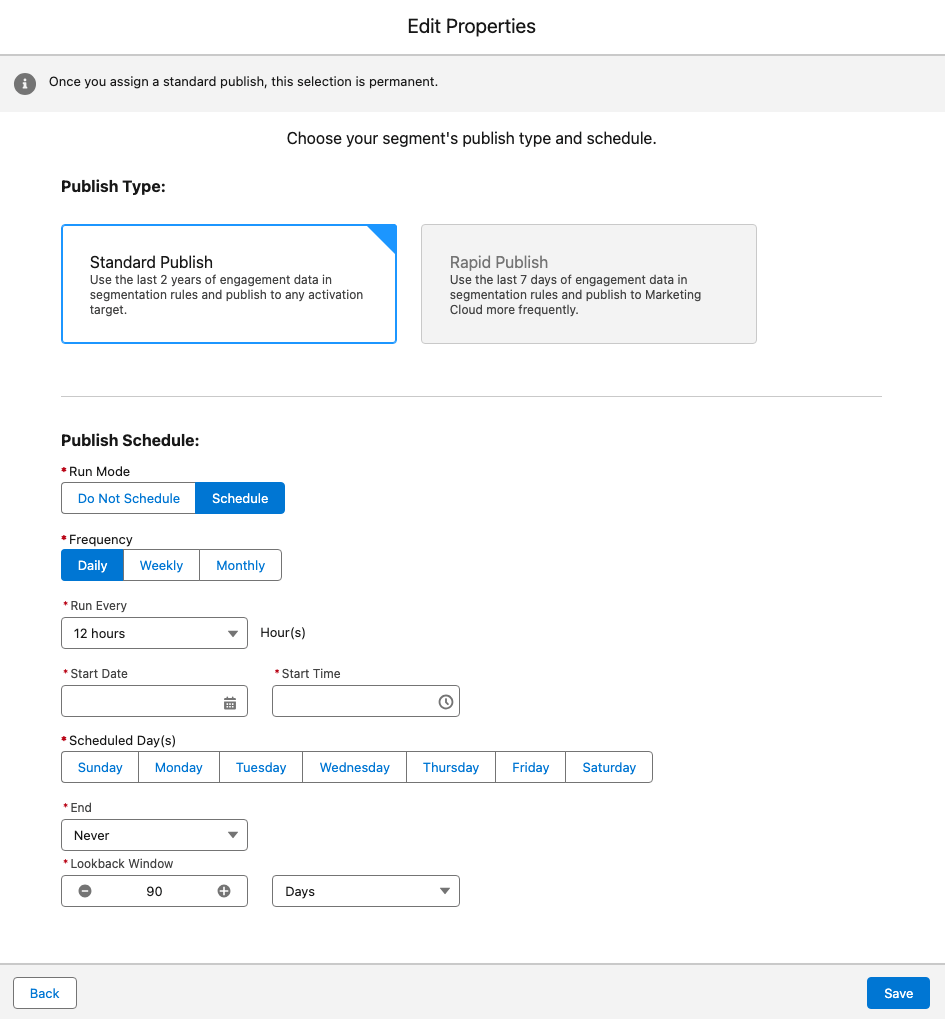
Whether a Data 360 Segment is static or dynamic depends on its publish schedule. You can set a Segment to “Do Not Schedule”, essentially making the list static, or configure a publish schedule to refresh your Segment as needed. The image below depicts the Edit Properties window in Agentforce Marketing where the publish schedule is defined.
Segments can be used in Agentforce Marketing or, with the Data 360 Connector, synced down to Account Engagement as a Dynamic List.
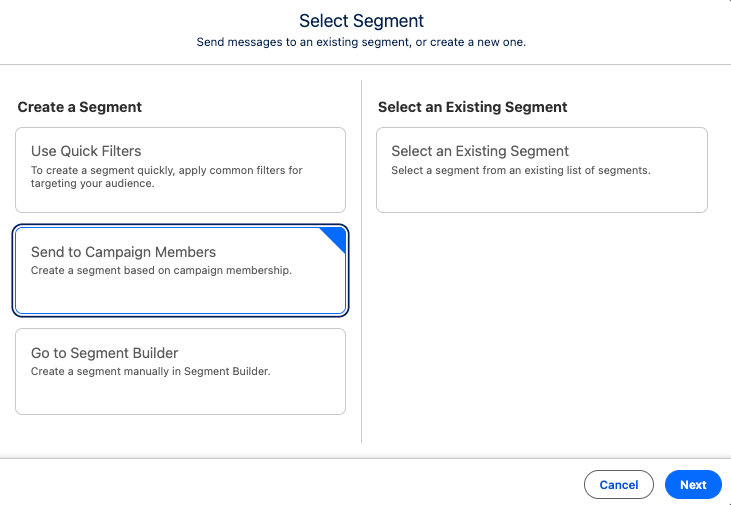
Now, if you prefer to curate your list rather than use Segment rules, you can either add Leads/Contacts to your Campaign and then create a Segment of Campaign Members:
Or, after the Summer ‘26 release, utilize the new List and Audience Flow features to circumvent the need for a Data 360 Segment.
Engagement Studio Programs enable you to automate multi-touch customer journeys using triggers, rules, and actions. These programs nurture Prospects through the sales funnel and ensure timely and relevant communications. The Agentforce Marketing equivalent to Engagement Studio Programs is Flow Builder.
Flow Builder is the automation engine of Agentforce Marketing, helping you build and execute complex, multi-channel marketing campaigns. Engagement Studio Programs and Flow Builder have a lot of overlap: They both have a top-down vertical layout, use elements as steps within the program/flow, and allow you to customize processes down different paths based on conditions.
In Account Engagement, Completion Actions trigger when a Prospect takes a specific action, such as filling out a form. The Agentforce Marketing equivalent of this is Automation Event-Triggered Flows.
Automation Event-Triggered Flows, sometimes referred to as Form-Triggered Flows or just Event-Triggered Flows, trigger when an individual takes an action. Automation Event-Triggered Flows allow you to trigger a single action or build an entire customer journey to nurture the individual after an event.
Agentforce Marketing includes several pre-configured events and Engagement Signals can be used to build any additional desired events.
Automation Rule
Account Engagement Automation Rules are repeatable, criteria-based rules that find matching Prospects and apply actions to them. The Agentforce Marketing equivalent to Automation Rules is Flow Builder, but the type of flow depends on your criteria.
If you are converting Lead records when they meet specific criteria, use a Data 360 Triggered Flow.
If you have multiple criteria and/or want more control over when the action fires, create a Segment and use a Segment-Triggered Flow.
Scoring and Grading
Account Engagement uses Scoring and Grading to help you identify, qualify, and prioritize Prospects in your org.
In Account Engagement, Scoring indicates how engaged a Prospect is by assigning numerical points to each activity the Prospect performs, its Agentforce Marketing equivalent is Engagement Scoring. Similar to Account Engagement Scoring, Agentforce Marketing’s Engagement Scoring assigns numerical points to activities. A default scoring system is provided, but you can fully customize the conditions and points.
In Account Engagement, Grading indicates how closely the prospect fits your ideal customer by evaluating pre-configured criteria and assigning a letter grade. The Agentforce Marketing equivalent of Grading is Fit Scoring. Similar to Engagement Scoring, Fit Scoring assigns numerical points to individuals if they match your fit criteria. Fit Scoring conditions and points can also be fully customized.
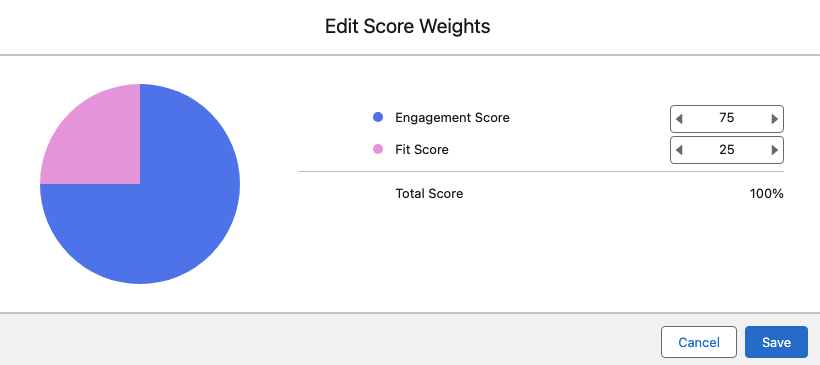
In Account Engagement, Prospects do not have a metric that reflects a combination of the Score and Grade. Score and Grade are kept as completely separate metrics, but can be used together to establish a qualification threshold. In Agentforce Marketing, individuals do have a combined rating called Overall Score. The Overall Score will always be between 0 and 100. The Overall Score is initially 50% Engagement and 50% Fit, but this can be customized as needed as well.
The image below shows how Agentforce Marketing’s score weights can be customized.
In Account Engagement, a prospect’s mailability or mailable status refers to whether or not they can receive marketing emails. If an Account Engagement Prospect has a hard bounce, five soft bounces, has unsubscribed themselves, or has been manually opted out, they are considered unmailable.
Agentforce Marketing uses Consent for a more comprehensive approach to mailability. Within Agentforce Marketing, individuals set their subscription preferences to indicate the channel they want to receive communication within (Email, SMS, WhatsApp) and the subscription (newsletter, events, product updates etc.). For example, an individual may subscribe to receive event updates via SMS and receive your newsletter via email. Agentforce Marketing will create a consent record within Data 360 for each choice.
In Account Engagement, A/B Testing allows you to optimize your email content by sending two versions of an email to a small subset of your recipient list. The engagement data of these two email variations is used to determine a winning version that is then sent to the remaining subset of your recipient list. Agentforce Marketing’s equivalent is Path Experiment, however Path Experiment allows you to do much more than send just two variations of a single email.
Path Experiment, which is available for the Advanced Edition of Agentforce Marketing, allows you to experiment with up to 10 different versions of a customer journey to determine the most effective path. This means you can test content variations (i.e. which subject line gets more opens?), channel variations (i.e. do you get more opens with email or sms?), and even cadence variations (do we get better results sending more or less emails?). Similar to A/B Testing, Path Experiment allows you to test with a subset of your audience before sending your remaining audience members down the winning path.
In Account Engagement, Sender Domains define where you can send emails from. For example, if my Sender is [email protected] then Salesforce.com is my Sender Domain. The Agentforce Marketing equivalent is Authenticated Domains. For both sender and authenticated domains you will need to work with your IT team to create DNS records. These records help improve the deliverability of your emails by defining you as a legitimate sender.
In Account Engagement, Dynamic Content enables you to create field-based variations of content. If the Prospect’s field matches the designated field value, then they will see that content variation on your website or within your marketing assets. Agentforce Marketing also has Dynamic Content, but it has more advanced functionality.
Agentforce Marketing’s Dynamic Content functionality allows you to personalize your email based on fields or any data source connected to your individual. For example, you can build the variations based off of Account data or data from an event the recipient recently attended. You can also personalize multiple sections of your marketing assets, or personalization points, within one Dynamic Content variation. This allows you to dynamically update nearly every aspect of an email more efficiently.
Agentforce Marketing Dynamic Content relies on:
Personalization Point: An element of content that’s eligible for a personalization decision. For example, an email’s subject line and preheader or an image component within the email are “points” that you can personalize.
Personalization Decision: Criteria that determines who’s eligible to receive a personalization response.
Targeting Rule: Conditions for showing a specific variation.
In Account Engagement, Page Actions trigger additional actions after a Prospect views a specific page of your website. In Agentforce Marketing, you can accomplish the same goal using website tracking and the Website Engagement Data Model Object (DMO).
The Website Engagement DMO records website page views and clicks, and engagement signals can be created to zero in on specific page view activities. For example, you can create an Engagement Signal that records when a visitor lands on your Pricing page, a good indicator that they may be interested in making a purchase. These Engagement Signals can then be used to trigger Automation Event-Triggered Flows so you can further automate next steps.
Account Engagement uses both Salesforce and Account Engagement Campaigns. Account Engagement Campaigns are considered thematic touchpoints (similar to a source in other systems), while Salesforce campaigns are a Salesforce CRM object used to plan, manage, and track marketing initiatives. Salesforce and Account Engagement Campaigns are united with the Connected Campaigns feature.
Agentforce Marketing utilizes the Salesforce CRM Campaigns object for both purposes. Campaigns are not only a record that helps organize the audience, assets, and metrics for a specific marketing effort, but they also indicate a touchpoint for your individual.
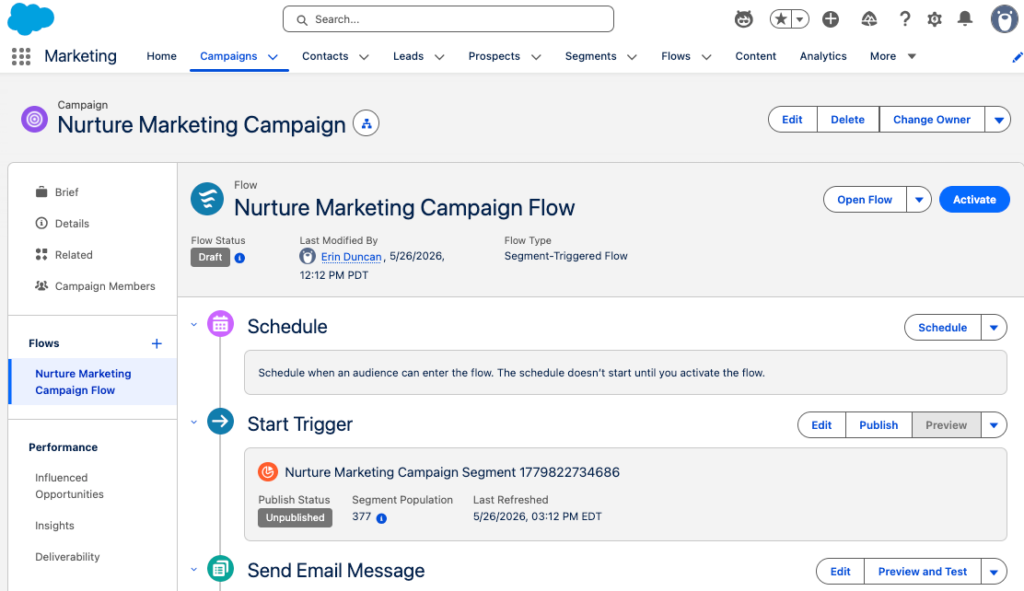
Campaigns serve as a centralized hub for a marketing initiative within Agentforce Marketing. Within a Campaign you will find all the relevant information for your Campaign including your Campaign Brief, Campaign Members, associated flows, and reports.
The user interface shown above is unique to viewing Campaigns within the Marketing app. Don’t let the user interface confuse you though, this is the default Salesforce Campaign object that is used by other processes and applications within Salesforce.
Campaign Influence
In Account Engagement, Campaign Influence helps you tie marketing efforts to your opportunities to see which campaigns are the most influential and successful. Account Engagement Campaign Influence can be a little hands-on, requiring you to add all Leads/Contacts that engage with your Campaign as Campaign Members. Agentforce Marketing uses Opportunity Influence to automate and streamline influence. Opportunity Influence uses engagement data to automatically tie Opportunity revenue back to a specific Campaign without the need for Campaign Membership.
In Account Engagement, AI Assistant is generative AI that assists in drafting forms and landing pages as well as creating email subject lines, headers, and body copy. Agentforce Marketing uses Agentforce and Generative AI to assist with generating copy and so much more. Agentforce Marketing not only helps you generate forms, landing pages, and email content, but can also streamline the entire campaign creation process with the Campaign Creation and Content Builder agents.
Learn more about Agentforce Marketing’s AI features in the AI in Marketing Cloud Next Trailhead Module.The above gives you an overview of how terminology and features translate between Account Engagement and Agentforce Marketing. If you are ready to take the next step in your Agentforce Marketing journey, check out our A Strategic Path to Navigating Marketing Cloud Convergence blog post or contact us!
Product Note:Marketing Cloud Growth and Advanced are editions of Marketing Cloud Next and have also been referred to as Agentforce Marketing.
If you are an Account Engagement User, you’ve likely been hearing for months that Account Engagement Orgs can get free access to Marketing Cloud Growth and Advanced Edition with their current contract. There have been numerous webinars, blog posts, and speaking topics exploring the features and functionalities of Growth and Advanced, and encouraging you to get started, but we’ve all been missing one key element. It wasn’t until Sercante’s recent Dreamforce recap webinar that someone said, “The Implementation Guide is 53 pages long, how do we actually get started, and what is required to just test the platform?”
This question struck me as a no-brainer once someone said it out loud. Of course, 53 pages of implementation steps are overwhelming! This new platform is uncharted territory for a lot of Marketing users, so it totally makes sense that users feel a bit nervous and confused about where to start. So, let’s talk through the base implementation you need to just test out the platform and see if it is a good fit.
Step 1: Data 360
Before you implement Marketing Cloud Growth and Advanced Edition, you need Data 360 (formerly Data Cloud). If your org doesn’t already have this tool, you have a couple of options:
Foundations is a $0 SKU that allows you to “access the powerful AI capabilities of Agentforce and discover key features in Agentforce, Sales Cloud, Service Cloud, Marketing Cloud, Commerce Cloud, and Data Cloud — all at no cost”. This SKU includes 250k credits for Data Cloud, more than enough to get started
Salesforce also offers a free Data Cloud SKU to help orgs get started. This also includes 250k credits.
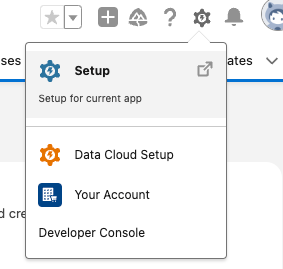
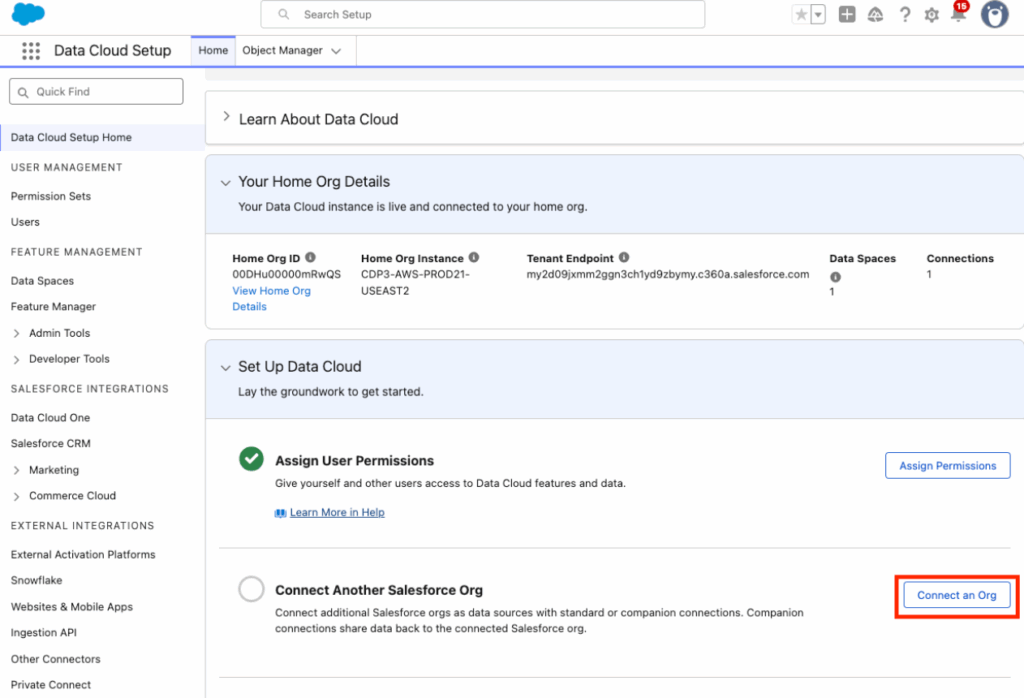
Once you have Data 360, set it up by going to Setup > Data Cloud Setup and select Get Started.
This will take 5-15 minutes to run, and your page should auto-refresh once complete. Next, select Assign Permissions.Assign your user both the Data Cloud Architect (fka Data Cloud Admin) and Marketing Cloud Admin permission sets.
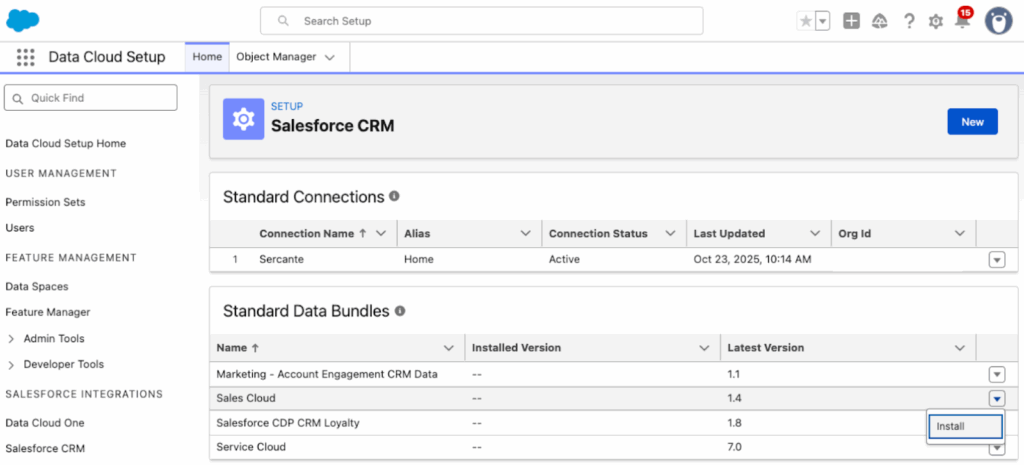
This is going to ensure Data 360 has access to all the Salesforce Objects you’ll need, we will deploy this Data Bundle in a bit.
Step 2: Enable Marketing Cloud
Next, we are going to set up Marketing Cloud, navigate to Setup > Assistant Home. The Assistant Home page guides you through the required and recommended tasks as well as gives you an overview of where you are in the setup process. We’re going to jump around a bit, but make sure you come back to this page if you decide to fully deploy Growth or Advanced Edition later.
Select Go to Basic Settings. The first four tasks should kick off and complete on their own, the only step you’ll need to do is select your data space. Most orgs will just have the “default” data space to work with, at least until the Business Unit feature is available (expected in Spring ‘26). Marketing Cloud will auto-enable once the data space is selected. If it does not, select Enable Marketing Cloud.
Step 3: Data Streams
Next, select Update within the “Install the Marketing Data Kits” section. This will take 5-10 minutes to finish running. Don’t worry if initially some of the data kits fail, just select Refresh or Retry to try them again. Once all the data kits have successfully been installed, we will go into Data 360 to deploy them.
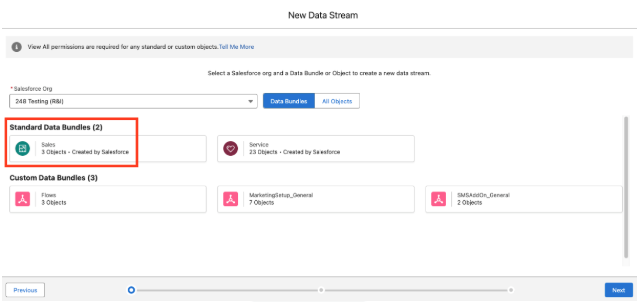
First, we want to take care of the Sales Cloud Data Bundle we installed earlier.
Navigate to the App Manager > Data Cloud > Data Streams
Select New
Select Salesforce CRM, then Next
Select the Sales Standard Data Bundle
Select Next, then Deploy
Next you’ll deploy the data kits. Use the instructions in the Manually Deploy the Updated Data Streams section here for guidance. You’ll need to do this about 5 or 6 times to ensure all the data kits are deployed.
Step 4: Identity Resolution
Now we’ll set up our Identity Resolution Ruleset. This step will create the Unified Individuals that Marketing Cloud Growth and Advanced use (similar to how MCAE uses Prospects). Creating Unified Individuals and running Identity Resolution Rulesets uses Data 360 credits. How many credits depends on:
The number of records it is ingesting (likely just your Leads and Contacts, unless you have other data sources connected)
How many rulesets you have per object (I recommend having just one for the Individual Object)
How often the ruleset runs
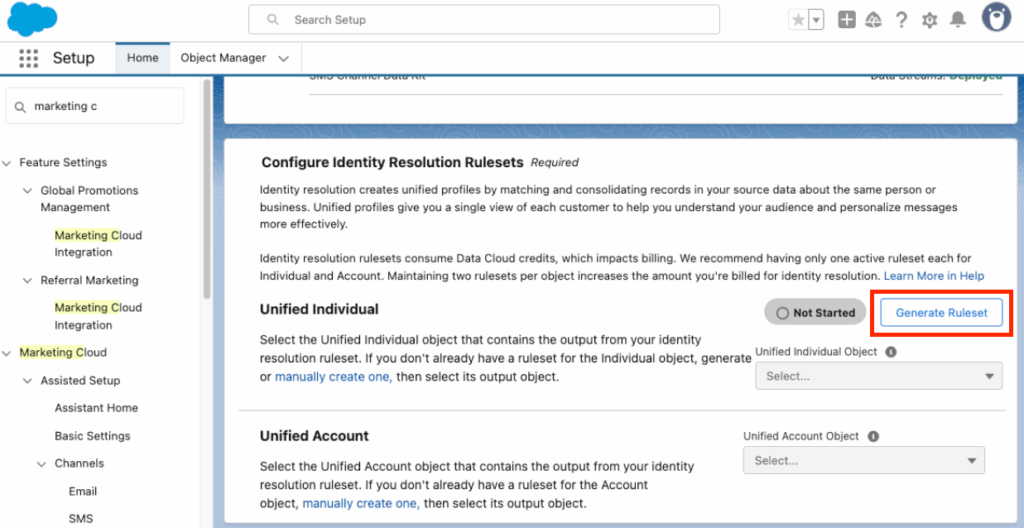
Back on our Setup > Basic Settings page, you should see a Generate Ruleset button in the “Configure Identity Resolution Rulesets” section. Select this and give the system a few minutes to run, a green banner should appear when complete.
Your new Identity Resolution Ruleset should autopopulate in the Unified Individual Object dropdown.
If you want to manually build an Identity Ruleset or build a Ruleset for Accounts (Advanced only and needed for Account Scoring), use this help article.
Step 5: Add Additional Users
Ok we’re done with the highly technical stuff, now let’s add some users and get to the fun features! Your Growth and Advanced users will need a couple of different permissions depending on what they need to do in the system.
If your users need to work with the Data 360 side of things, they will also need a Data 360 permission set. The comparison chart in this help article always helps me pick the right one.
Workspace Contributors
Next, add users as contributors to your “Content Workspace for Marketing Cloud”. This article outlines the steps. The available roles for contributors are:
Content Admin: Manage users and sharing settings, create and publish all content in a CMS workspace, and assign a default brand to a marketing workspace.
Content Manager: Create and publish all content in a CMS workspace and assign a default brand to a marketing workspace.
Content Author: View, edit, and create all content in a CMS workspace. They can’t publish content.
Site Contributors
This is needed if you are going to work with Landing Pages during your testing. This article outlines the steps. The available roles are:
Experience Admin: These contributors can do just about everything in an assigned Experience Builder site. They can access Experience Builder, can manage contributors, and publish the site.
Publisher: These contributors help you build and publish the assigned Experience Builder site. They can access Experience Builder, and they can publish the site. They can’t manage contributors. They have read-only access to the Experience Workspaces Administration | Contributors tab.
Builder: These contributors help build the assigned Experience Builder site. They can access Experience Builder. They can’t publish the site or manage contributors. They have read-only access to the Experience Workspaces Administration | Contributors tab.
Viewer: These contributors have read-only access to Experience Builder in an assigned site. They can’t publish the site or manage contributors. They have read-only access to the Experience Workspaces Administration | Contributors tab.
The remaining setup items depend on what you’d like to test out in Growth and Advanced.
Try out AI Features
There are a lot of Agentforce and Einstein features you can enable within Growth and Advanced. Using these features does consume credits, but I wouldn’t let that stop you from testing and exploring their capabilities. Have a plan around who is testing and what they are testing, so you don’t duplicate work and credit usage.
Enable Gen AI for Campaign and Content Creation
For the Generative AI features of Growth and Advanced, we will need to enable Einstein and add some topics to the default Agentforce Agent.
Navigate to Setup >Einstein & Agentforce > Agentforce & Gen AI
Select Go to Einstein Setup
Toggle the switch for Turn on Einstein
Back on the Setup >Einstein & Agentforce > Agentforce & Gen AI page, select Go to Agent Studio
Toggle the switch for Agentforce to on
Wait for your screen to refresh or manually refresh
Toggle the switch for Enable the Agentforce (Default) Agent to on
Select the dropdown arrow next to your Agent and select Open in Builder
Deactivate Agent if already activated
Select the New dropdown
Select Add from Asset Library
Select the Content Creation and Marketing Cloud: Campaign Planning assets
If you are an MCE user, you can also select Journey Decisioning
Select Finish
Select the dropdown arrow next to your new topics and select View Details
Note: Any users who need access to use these features will need the “Access Agentforce Default Agent” permission set.
Activate Einstein Segment Creation
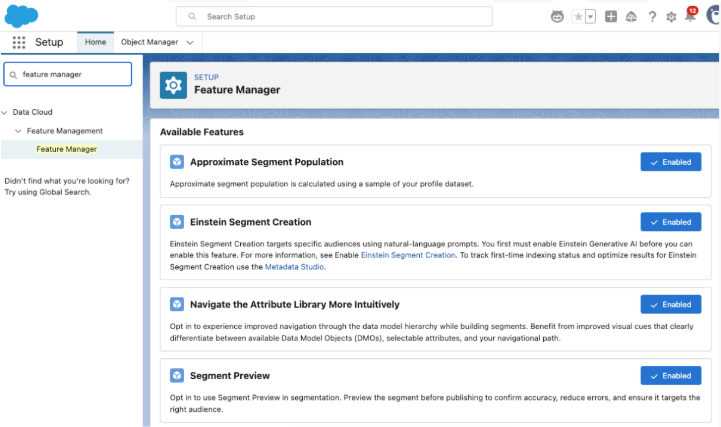
Einstein Segment Creation allows you to use natural language prompts to build segments within Data 360. Use this help article to enable Einstein Segment Creation. You will also likely want to enable:
Approximate Segment Population
Navigate the Attribute Library More Intuitively
Segment Preview
Enable Additional Einstein Features
Einstein Send Time Optimization, Einstein Metrics Guard, Einstein Engagement Frequency, and Einstein Scoring are all just one click each to enable and all the instructions are consolidated in one help article.
Build and Personalize Assets
Enable Personalization to Test Dynamic Content
If you would like to test out Dynamic Content in Growth and Advanced, you will need to enable Personalization and configure your Data Graph. I recommend setting up your Data Graph first, Cate Godley wrote a really great blog post that will walk you through this process. Finally, use the Set Up Personalization steps here to complete the process.
Configure a Brand
Setting up a Brand in Growth and Advanced will let you auto-style your Marketing Assets and update the branding within Marketing Assets en masse. Check out Ambre Juryea-Amole’s blog post on setting up a brand for guidance on using this feature. A couple of additional features have been added since Ambre wrote her post; we can now configure a Brand Identity and Tone, which will be used by Agentforce when generating content, and assign a default Brand to the CMS workspace.
Dig Into Reports
Set up Marketing Performance
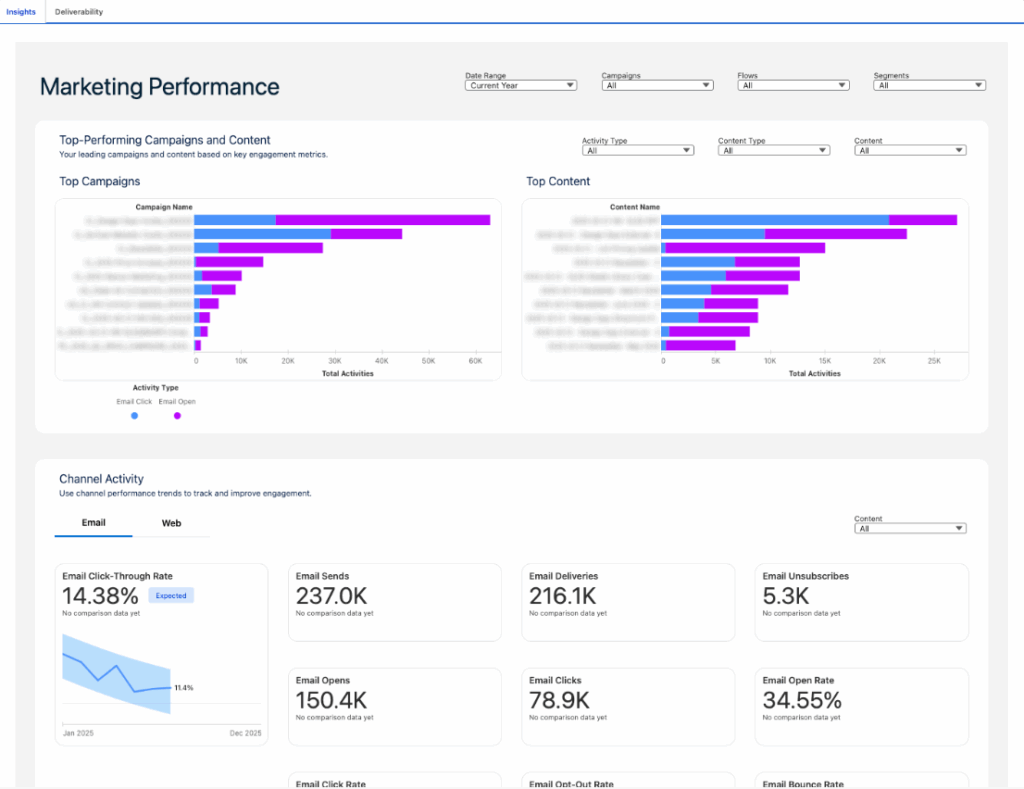
To dig into campaign metrics and content, install Marketing Performance using this help article. Once installed, you will have a Marketing Performance tab within the Marketing Cloud Growth/Advanced app where you can view campaign, channel, and content insights.
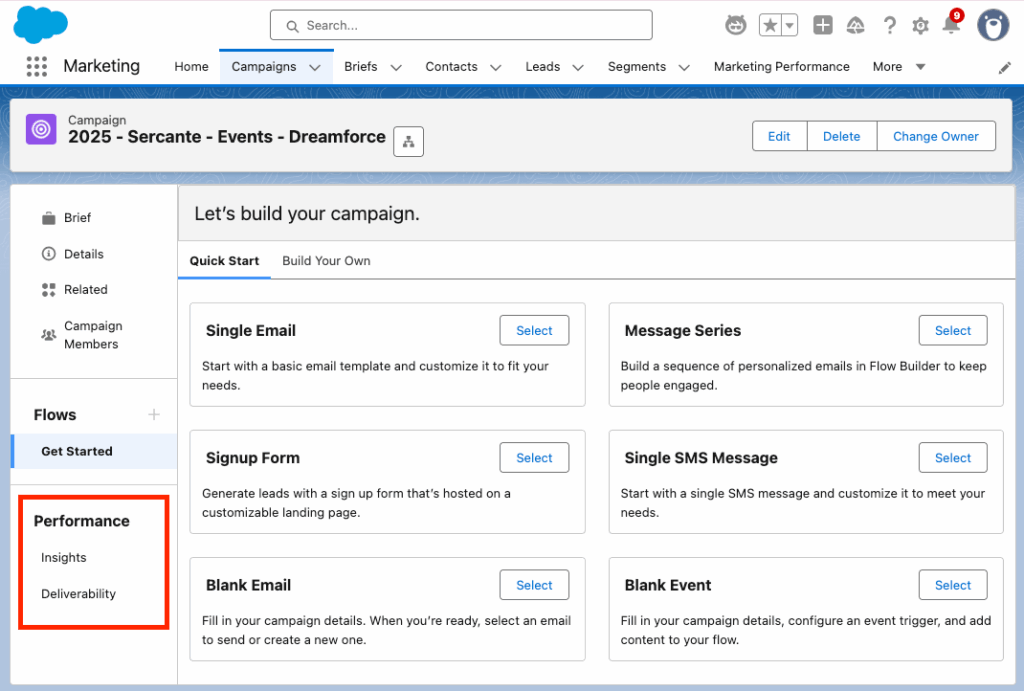
You can also view an individual’s campaign Performance reports on the left side of the Campaign view.
Note: Any users who need access to Marketing Performance reports will need the “Tableau Next Included App Business User” permission set.
Connect Analytics
Finally, install the Analytics packages for access to preconfigured dashboards and reports on your Marketing activities. This article walks you through everything you need to do to get Analytics up and running.
What’s Next?
The above steps are enough to get you started, so you can test Growth and Advanced and determine if you want to use it alongside Account Engagement. Additional implementation steps will really depend on what you want to use Growth and Advanced for, but here are some likely paths forward.
Product Note:Marketing Cloud Growth and Advanced are editions of Marketing Cloud Next and have also been referred to as Agentforce Marketing.
Marketing Cloud Next offers an intuitive, drag-and-drop email builder packed with smart features that streamline the email creation process. In this blog post, we’ll walk through the key features and functionality of the Email Builder—everything from layout and design features to personalization and testing options—so you can confidently build, preview, and send your first email.
Before we dive into using the builder, let’s have a quick overview of the builder and its different sections:
View Mode – Use this to switch between Desktop and Mobile view. You can also show or hide the HTML code in this section.
Components Panel – This section displays the available components for the email. This section will include standard components as well as layout components and, after the Winter ‘26 release, any reusable content blocks created in your org.
Row – All Components are placed in rows. These are the editable sections of your email.
Canvas – Add components by dragging and dropping them onto the canvas.
Property Panel – Displays what can be changed and customized for the currently selected row. When no row is selected, this panel allows you to select a brand, specify your email details, and set your preheader and subject line. You can also specify styling for the email as a whole or configure your email’s data source.
Customizing a Component
Let’s dive into the features and options when building a component. We’ll drag-and-drop a Paragraph component into our email for this section.
The editing options vary depending on which component you have selected, but the Paragraph component shows a good variety of the options. Let’s talk about these from Left to Right
Container Component – this helps you toggle between the component and the container the component resides in. For example, if you wanted to change the background for the container entirely, select the Container Component to switch from the Paragraph component to its container. The Property panel on the right will change as you toggle between these two items.
Component Type – the next section will just display which type of component you are currently working with (button, divider, heading, etc.)
Draft with Agentforce (aka Agentforce Sparkles [insert jazz hands here]) – this option allows you to use Agentforce to write or revise your email content. If a Brand is associated with your email, Agentforce will even use the Brand Identity and Tone specified in the brand when generating content. Agentforce also gives you the option to revise the content by your key message or target audience (which is defined in the Campaign Brief), change the tone of the content, or increase/decrease the content length, all within the Agentforce window.
Formatting Components – The next couple of components are pretty universal to WYSIWYG editors, so we’ll cover these quickly. We have:
Indent
Bold
Italize
Underline
Strikethrough
Link
Merge Fields – Here you can populate required information, like your organization’s address or email preference center link, or insert fields from your Data Graph to personalize the email to the recipient. If your team has merge fields they want to use again and again, create and save a Reusable Expression in your CMS for quick access here.
The final three icons all deal with things you can DO with the component, from left to right, we have
Drag
Duplicate
Delete
Styling your Email
If you’ve set a default Brand for your CMS workspace, your email will be autobranded before you even start building. However, if you need to apply or switch your brand, you can do so at any time from the Property Panel.
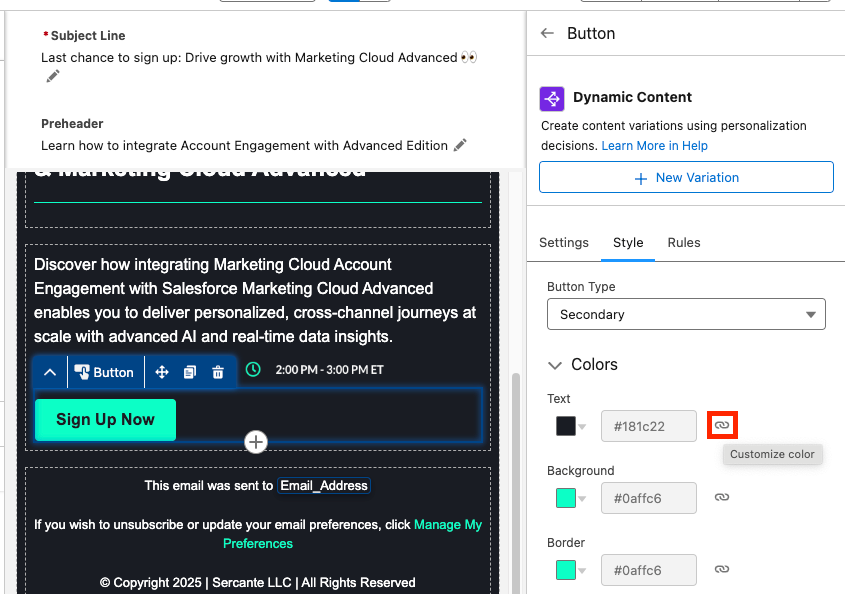
When building your email components, you can access the Style of said component in the right side Property Panel. This will display what is auto-styled from the Brand as well as what can be edited without straying from the Brand specifications. You can override the branding by changing the style options to “custom”, just keep in mind that if the Brand itself later changes, those changes will not automatically update any components where the styling has been overridden.
Personalizing your Email
Beyond Merge Field, you also have two great personalization options in the builder: Dynamic Content and Email Repeaters.
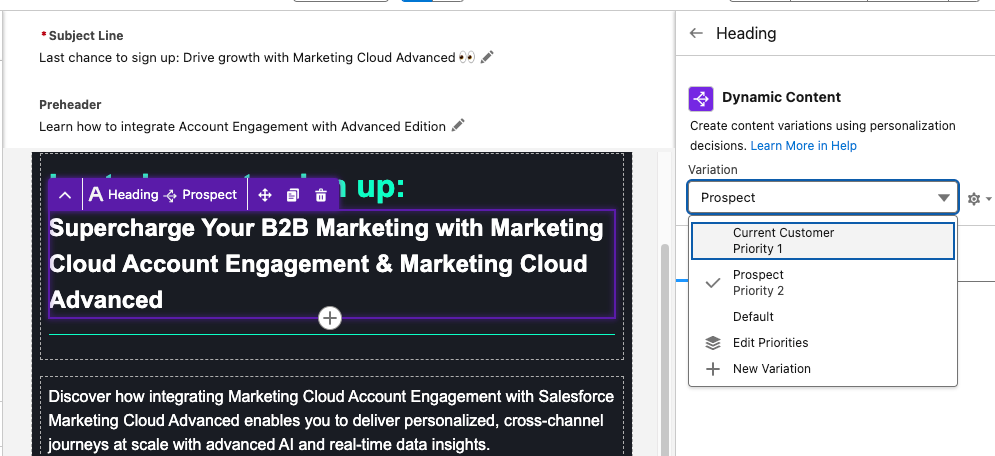
Dynamic Content allows you to create variations in your email and specify when those variations appear. For example, you can change your email heading text depending on if the recipient is a prospect or a customer. When you have a component selected, the Dynamic Content option will appear in the Property Panel. Learn how to set up Dynamic Content variations from our previous blog post.
Email Repeaters allow you to show a series of items customized to the recipient. For example, we could display upcoming events that the reader may be interested in attending and tailor which events we display based on the Marketing Tech the reader is interested in.
To test your email first, toggle between the Desktop and Mobile views within the View Mode to make sure your email looks great on both. Then ensure you’ve customized your Subject Line and Preheader text. You can edit your Subject Line and Preheader both above your email or in the Property Panel on the right. You can also insert Merge Fields or Dynamic Content into both.
Then select Preview from the top right corner. You’ll need to select a published Segment with at least one recipient in order to preview the email.
Next select the Test tab and enter the test email recipient and the From Name and Address. Your From Address needs to match the authenticated DKIM domain in Marketing Cloud.
The final step will be sending your email, which can be done in a couple of different ways, but all revolve around using Flow. See some of the resources below for help building and activating a Marketing Cloud Flow:
Can we create reusable Email Templates for Marketing Cloud? Yes, this feature is coming as part of the Winter ‘26 release.
Can we view or edit the HTML of Marketing Cloud Emails? Yes, in the View Mode, you can toggle between the drag-and-drop builder and the HTML of the email. Here you can view the HTML, if you want to edit your email via HTML you can select Convert to HTML. However, once an email is converted to HTML, it cannot be converted back, so be careful! My guess is that this will change with future releases.
Can we use Custom Fonts with Marketing Cloud Emails? Only if you build your emails via HTML, or you could build an email with the drag-and-drop builder, convert it to HTML, then add the custom font code. However, this isn’t ideal. I believe Custom Fonts will be supported in a future release though.
Should Account Engagement users start using this builder? I’ll have to give you the annoying consultant answer of “it depends”. Account Engagement orgs can use the Marketing Cloud builder but, without Marketing Cloud also installed, it has some limitations that I don’t love. However, Account Engagement users can also get free access to Marketing Cloud Growth/Advanced as part of their Account Engagement license, so my recommendation would be to install Marketing Cloud Growth/Advanced and give the new builder a shot.
Can I build an email in the Marketing Cloud Drag-and-drop builder and copy the email HTML to Account Engagement? I was asked this recently, and you know what, that could work! However, proceed with caution and test often. I briefly gave this a shot, and the email in Account Engagement turned out pretty OK. I had to do some tweaking and had to replace the merge tags, but it looks like a viable solution in a pinch. Marketing Cloud specific features, like Dynamic Content based on personalization points, Cross Object Personalization, Repeaters etc. will not translate, but the structure and styling of the email should be pretty good.
Marketing Cloud Next’s Email Builder delivers a streamlined, drag-and-drop experience that helps marketers craft personalized communication at scale with the help of AI, Agentforce, Dynamic Content, and Cross Object Personalization. The more familiar you are with its features, the more you’ll see what’s possible for creating even better communication experiences for your audience.
When you’re ready to start building, refer back to this guide—and if you’d like help with navigating your next steps in the meantime, reach out to the Sercante team, we’ll help you map out your next steps for success.