Category

Marketing Cloud

Product Note: Marketing Cloud Growth and Advanced are editions of Marketing Cloud Next and have also been referred to as Agentforce Marketing.

Repeaters are one of the newer features in Marketing Cloud Next (aka as Marketing Cloud Growth or Advanced Edition), and one of the coolest in my opinion. In this post, we’ll review what repeaters are, how to set them up, and look at how Fellowes Brands is using them to simplify the customer experience.

What are Repeaters?

Before we get too deep, let’s talk a bit about what repeaters are and how they function. Repeaters are used to display a series of items in an email. These can include recent purchases, upcoming events, product recommendations, and more. The repeater’s layout can be configured to show images, merge fields, CTA buttons, and links.

The magic of repeaters lies in their configuration. All configuration is done in the first item. Additional items inherit this configuration but display the relevant data based on the associated data source. Their layout also allows for customization of the number of items to display and the number of items included per row.
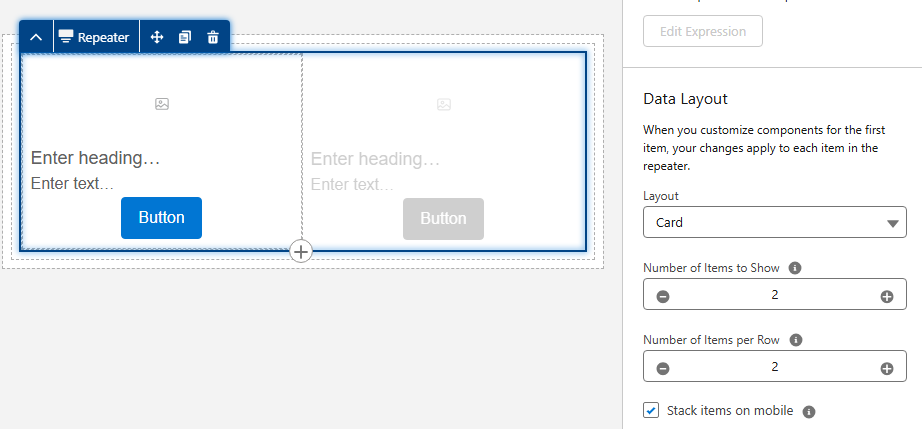
Web design interface with a repeater function.

Learn more about repeaters

The Need

Fellowes is recognized for their innovation in indoor air quality and produces a line of commercial air purifiers scientifically proven to remove COVID, SARS, H1N1 and other harmful viruses. Regular filter changes are key to optimizing the performance of their air quality products.

Fellowes needed a way to improve the customer experience by delivering timely reminders when filter changes were due and by providing relevant filter options based on the specific air purifier. There was also a need to simplify the purchase process by providing direct links to the filters with additional details and purchase options. 

The Solution

Data 360, Marketing Cloud Next, and repeaters were utilized to deliver a scalable solution that met the needs of Fellowes and their customers.

The end result was a tailored email sent to customers based on the expiration date of their current filters. The email offered filter recommendations specific to their air purifier and provided direct links to the corresponding product pages with purchase options and additional details. Below is an image of the repeater section of the final email.

Highlights of note:

  • The number of options vary based on the number of related products for the specific unit.
  • Images are rendered from base URLs appended with specific product codes using merge fields.
  • Images are linked to the product page on the website.
  • The product name and item number are merge fields.
  • The “Learn More” buttons use dynamic URLs to link to the product page on the website.

Filter options for air purifier.

The Build

The focus of this post is on repeaters, but it all starts with data. First, the proper relationships must be established in Salesforce. Then, the data must be ingested into Data Cloud, and a link to the unified individual must be established through the data graph. Once the data structure is in place, configuration of the repeater can begin.

Data Structure

The standard Product object is used to store all product data, including air purifiers and their filters. While this is a great starting point that uses the standard object as intended, it does not include the necessary relationships between the air purifiers and their filters.

A custom junction object named Product Relationships was created to establish these needed connections. This custom object consists of two lookups to the Product object: one for the Parent product and one for the Related product. The custom object also includes several additional “related product” fields used as merge fields, such as Related Product Code and Related Product Name.

Data 360 (Data Cloud)

The Product and Product Relationships objects were ingested into Data 360, and the necessary fields were mapped. The critical step was establishing a relationship between these two Data Model Objects (DMOs).

This was achieved by creating a relationship from the Product Relationship DMO to the Product DMO, using the Product ID as the connecting key.

Data Graph

Data Graphs are essential for enabling personalization and configuring repeaters within Marketing Cloud Next. As stated previously, a relationship was needed between the Related Product and the Unified Individual to deliver upon the requirements of this use case.

The data graph was constructed using several objects to “hop” from the Product Relationship DMO to the Unified Individual record.
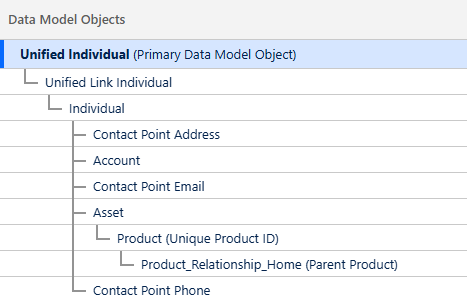
Data model diagram outlining relationships between different data objects.

Adding the Repeater

The email was built using the Marketing Cloud Next email builder. If you have any questions about this builder, be sure to check out Erin Duncan’s post, “Everything to Know About the Marketing Cloud Next Email Builder.”


The Repeater component, located in the Layout section of the Components Panel, was dragged onto the canvas where it should appear in the email.
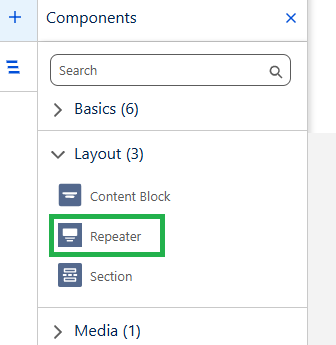
Email builder highlighting the "repeater" component within the "layout" section.

Configuring the Repeater

The Repeater component in this use case includes the following elements:

  • Filter image with a corresponding link and alt text
  • Filter name and item number
  • Call-to-Action (CTA) link that redirects to the filter page on the website


The repeater’s data source was set to use the Product Relationship DMO. The Card layout was selected, and the settings for both the number of items to show and the number of items per row were set to 2.
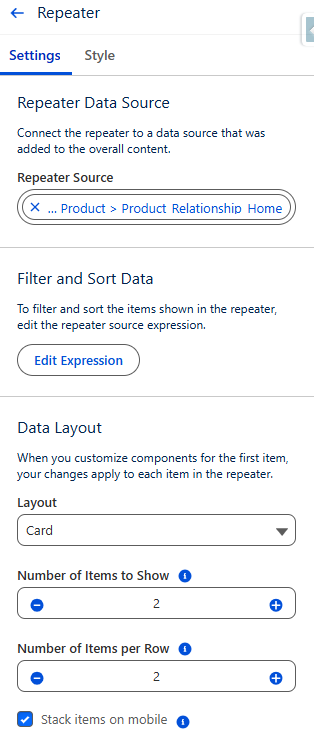
Shows settings related to a repeater data source. Shows options for filtering, sorting, and data layout.

Adding the Image

There are several options for adding images to a repeater, depending on where the image is hosted. If the image is in Salesforce CMS, it can be added using the Image component and selecting the Salesforce CMS image source option. If the image is not in the CMS, the Image component can still be used with the Merge field option.

In this specific example, more control was desired, so the Image component was replaced with an HTML component.


Here are the steps that were followed:

  1. The Image component in the first item of the repeater was replaced with an HTML component.
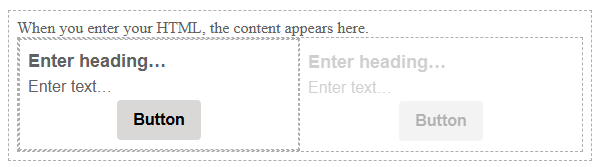
How to use HTML components.
  1. HTML code was added into the HTML component.
    • All images were stored externally and followed a consistent format. Since all image URLs used the same base URL with the product code appended, the base URL could be hardcoded into the HTML, and the product code was appended using a merge field.
    • A consistent format was also used for the product page URLs on the website, so the same process was used to generate the product link.
    • The alt text was added using a merge field.
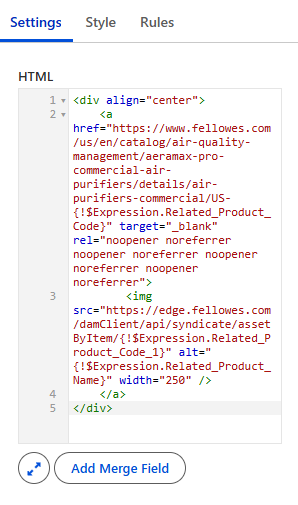
HTML code
  1. The product name and item number were populated using merge fields from Product Relationship DMO. 
  2. The Call-to-Action (CTA) button was configured using a Dynamic URL.
    • The product code was added to the end of a consistent base URL to generate a unique URL linking to the specific product page on the website.
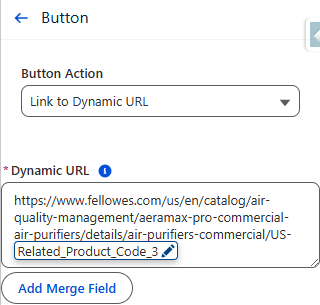
Shows a button configuration with a dynamic URL.

Important:

When adding merge fields into a Repeater component, the fields must be selected from the repeater data source as opposed to the data graph. Since the Product Relationship object serves as the repeater data source in this configuration, all merge fields were added from this source.
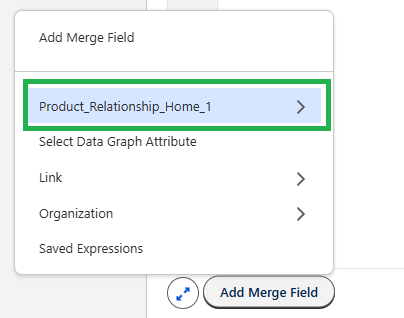
Shows a highlighted "add merge field" option

Testing

A segment was created that selected unified individuals who had purchased an air purifier. Test emails were sent using the “Preview” feature in Marketing Cloud Next.

Products displayed in the repeaters were checked against the Product Relationship object for accuracy. All links were also tested and confirmed.

How Will You Use Repeaters?

This use case is a great example of how repeaters can improve the customer experience and drive sales of related products. Building this process opened my eyes to the power of this feature, and I can’t wait to use it more. I hope this post has demystified repeaters and inspired you as well.

Let us know how you are using repeaters (or ideas you have for using them), by dropping a note in the comments section.

Product Note: Marketing Cloud Growth and Advanced are editions of Marketing Cloud Next and have also been referred to as Agentforce Marketing.

Your marketing team just concluded a successful trade show, returning with over 2,500 new leads from booth scans that need to be imported. In this post, we’ll review the options for importing these trade show records into Marketing Cloud Next (aka Growth and Advanced) without creating duplicates and while adding the records to the correct Salesforce campaign.

Marketing Cloud Next – Import Options

The primary methods for importing records into Marketing Cloud Growth and Advanced are File Import and the Data Import Wizard.

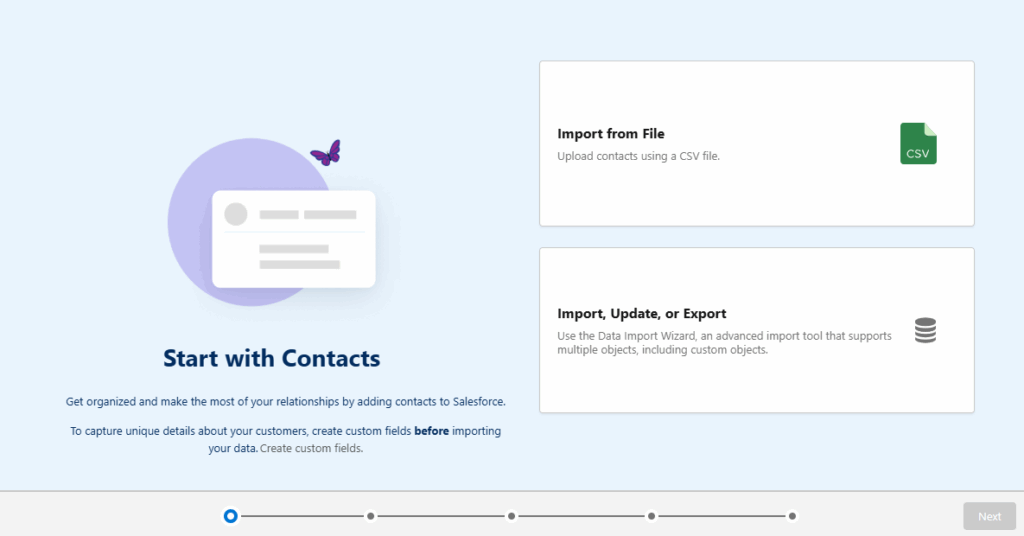
The Data Import Wizard is a more advanced import tool that supports multiple objects, including Custom Objects. The key benefits of the Data Import Wizard are the ability to set matching criteria (to prevent the creation of duplicates) and the ability to add members to Campaigns during the import.

In short, when choosing between the native import options, you can’t go wrong with the Data Import Wizard.

Options for importing contacts and data

Importing with Data Import Wizard

  1. Create an import template for use with all imports.
    • Be sure to include columns for campaign id and campaign member status.
    • Consider including a “Marketing Consent” field that can be used to selectively create consent records. 
    • Below is an example of my template using data from Mockaroo.
Instructions for creating and importing contact data using a template
  1. Format data into your import template.
  2. Import contacts first.
    • From the Marketing App – Select the Contacts tab.
    • Click the “Import” button.
    • Select the “Import, Update, or Export” option.
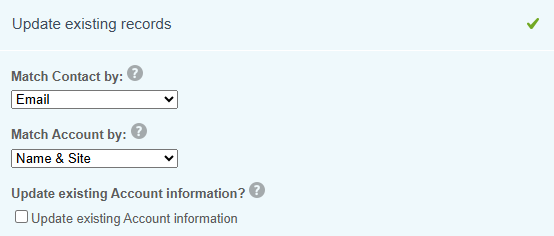
    • Select Accounts and Contacts” and then the “Update existing records” option.
      • Match Contact by: Email
        • This will be used to find matching contacts to update.
      • Match Account by: Name and Site
        • This setting is used to update the Accounts the updated Contact, but will not create new Accounts because no new Contacts are being created.
      • Leave the “Update existing Account information” box unchecked.
        • This ensures that the import file does not overwrite any account data.
Updating contacts and accounts with matching options
  • Select the “Assign contacts to campaigns” option at the bottom of the page – if you would like to add contacts to a campaign.
  • Upload the CSV file.
  • Complete the field mappings.
Salesforce data field mapping
  • Review the import and click the “Start Import” button.
  • This import will add existing contacts to the Salesforce specified Salesforce campaign. 
  1. Update and Import leads.
    • Remove the contact records from the original import file.
      • This can be done by reviewing the Bulk Data Load Job detail and removing records that were updated in step 2.
    • From the Marketing App – Select the Leads tab.
    • Click the “Import” button.
    • Select the “Import, Update, or Export” option.
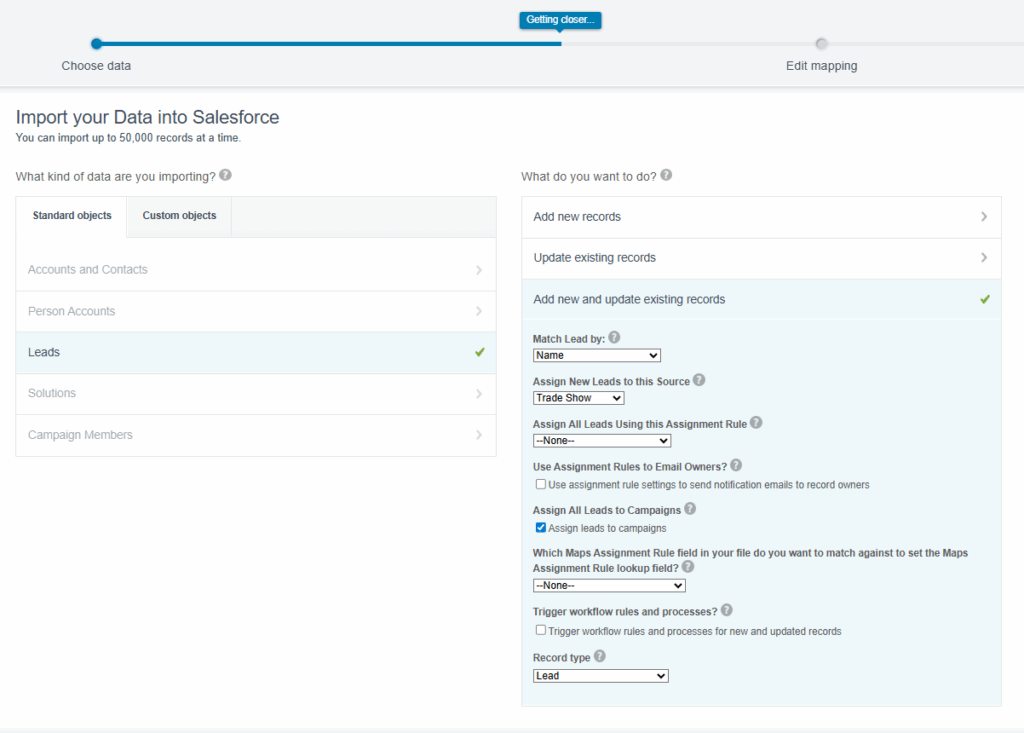
    • Select “Lead” and then the “Add new and update existing records” option.
      • Match Lead by: Email
      • Assign New Leads to this Source: Select the correct lead source
      • Assign All Leads Using this Assignment Rule: Optional
      • Assign leads to campaigns: Check
Data import in Salesforce
  • Upload the CSV file.
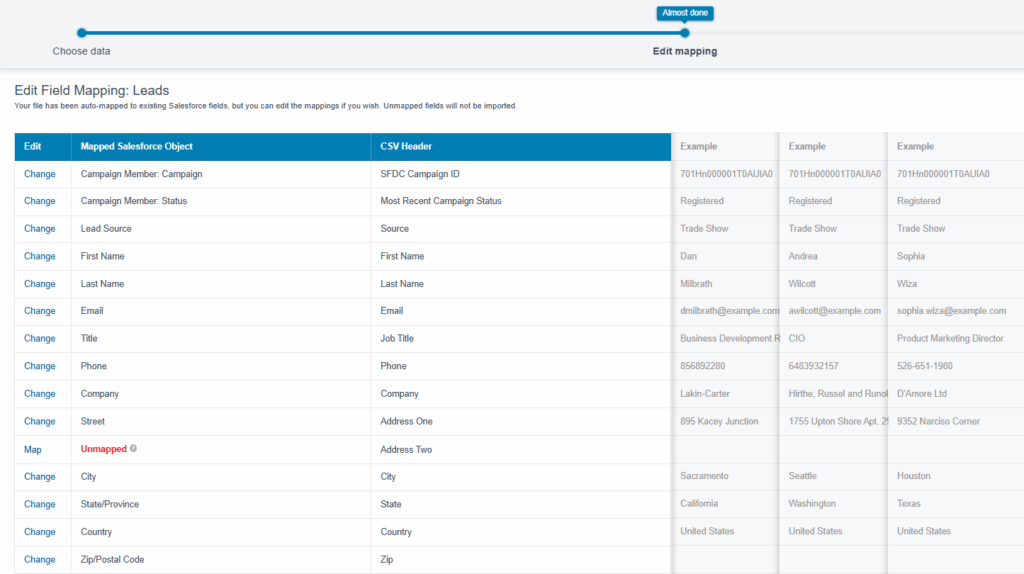
  • Complete the field mappings.
Importing data on field mapping
  • Review the import and click the “Start Import” button.
  • This import will update the existing leads and add them to the Salesforce specified Salesforce campaign. It will also create new leads and add them as well.
  1. Review campaign members.
    • Once both imports are complete, review and confirm members in the Salesforce campaign.
Shows campaign members


Don’t Forget About the Consent Imports 

The steps above have successfully updated existing records (contact & leads), created new lead records, and also created/updated campaign member records. That’s a great start, but consent records are also needed to send messages to Unified Individuals from Marketing Cloud Next.

Consent records are channel and subscription specific. If you have 5 subscriptions and send emails and SMS messages, a total of 10 consent imports that need to be completed to opt subscribers into all. The process is straightforward and fast, but requires some extra work.

Consent Imports

  • Format the consent import file for each subscription
    • The same file can be used for multiple imports – if the records should be added to all subscriptions.
    • The file must include the email address or phone number and consent date of the record.
    • Ensure the consent date field is formatted correctly.
  • Select the “Consent” tab from the Marketing App.
    • Click the “+ Import” button.
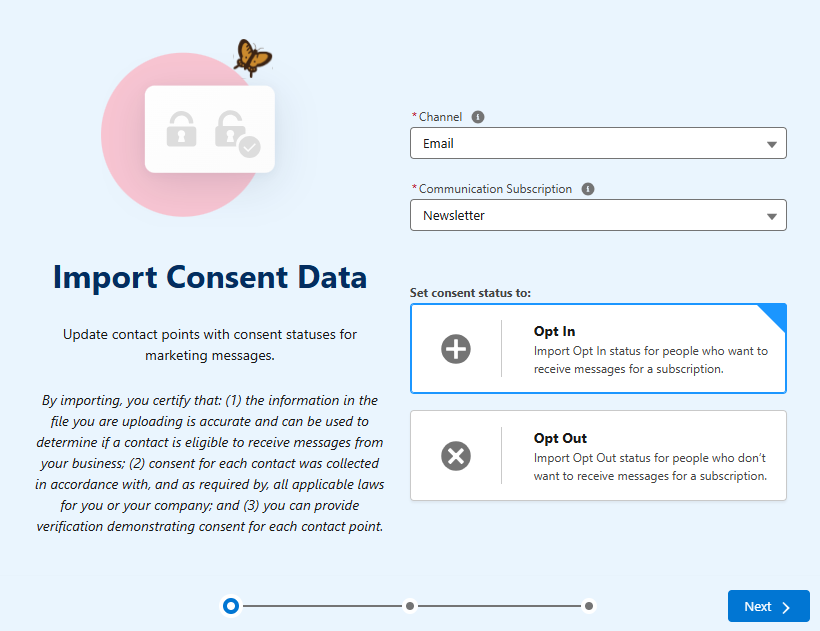
  • Select the channel, subscription, and consent status in the wizard.
Importing consent data with opt in and opt out options
  • Click ‘Next’, upload the file and then complete the import.
  • Repeat the process for all needed subscriptions across all needed channels.

Whew! That’s a Lot of Work!

The process detailed above does the job, but there are quite a few steps involved. Our simple trade show import has gone from one import to a dozen imports (2 Import Wizard jobs and 10 Consent Imports – 5 subscriptions x 2 channels) .

This is fine for the occasional event, but what if your event team has a robust trade show calendar? This process does not scale well.

There has to be a better way.

What about Data Loader?

I’m a big fan of Data Loader and Daloader.io, but they simply don’t meet the needs in this case. There are two major shortcomings that can’t be overlooked.

  1. Data loader does not have deduplication capabilities.
  2. Data loader does not have the ability to create/update campaign member records when importing or updating records (contacts or leads).

Data Loader also does not address the need to do consent imports.

There is Another Way

Many of my clients attend a large number of trade shows, and our goal is to minimize work and automate where possible.

With this in mind, I developed another process using a custom object and flow. This requires some upfront work but will streamline the process and make things faster in the long run.

The logic of this process could also be adapted to use other tools like LeanData and TractionComplete. Both are designed to match new leads to existing contacts and leads before creating new ones. Additionally, they can both create and update Campaign Member records. Creation of consent records is a potential gap and would need to be tested.

Solution Breakdown

Here’s a summary of how the solution works.

  1. Create a custom object for Marketing Imports.
    • Mine is creatively named “Marketing Import” (Data Loader can’t import in the “Prospect” object).
    • Include all fields from your import template as fields on the custom object.
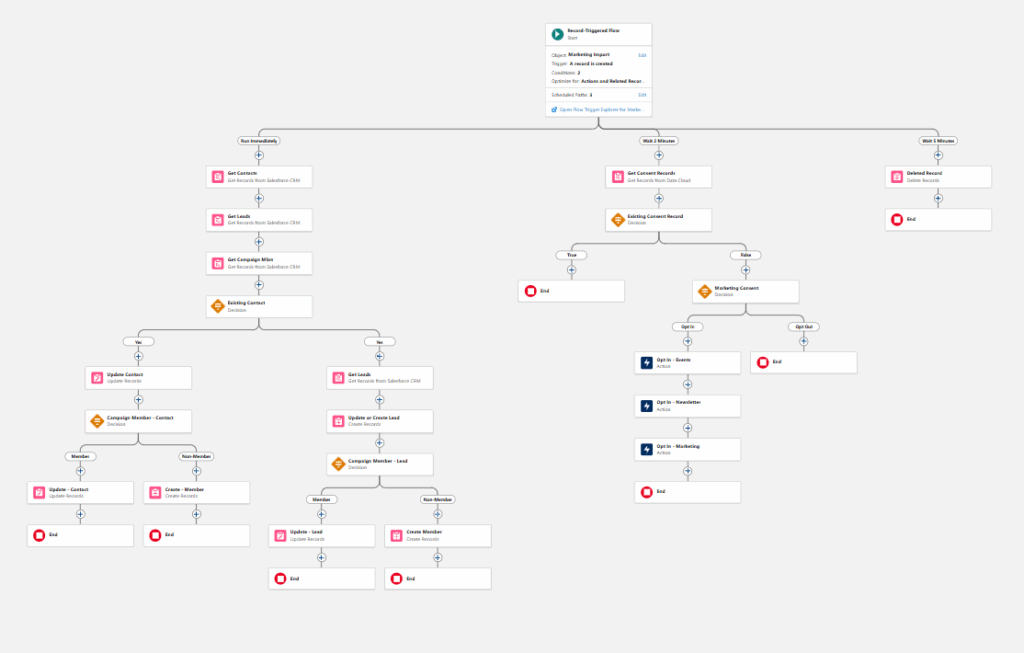
  2. Create a record-triggered flow that runs when a new record is created on a “Marketing Import” custom object.
    • The flow performs the following actions:
      • Updates existing contacts.
      • Updates existing leads.
      • Creates new leads.
      • Updates or creates campaign member records.
      • Creates consent records (for new leads).
  3. A single file loaded into the “Marketing Import” object (using Data Loader or Datloader.io) triggers the flow and performs all the needed actions. 

Building the Flow

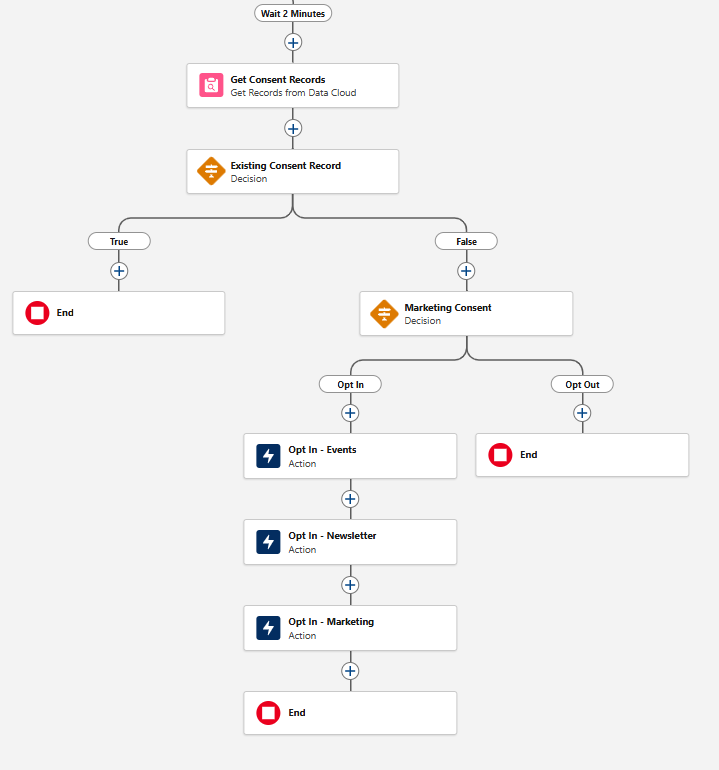
The flow performs three major functions and a bit of clean up on the backend. All functions are completed in separate paths to ensure they take place in the proper sequence and allow time for record creation.

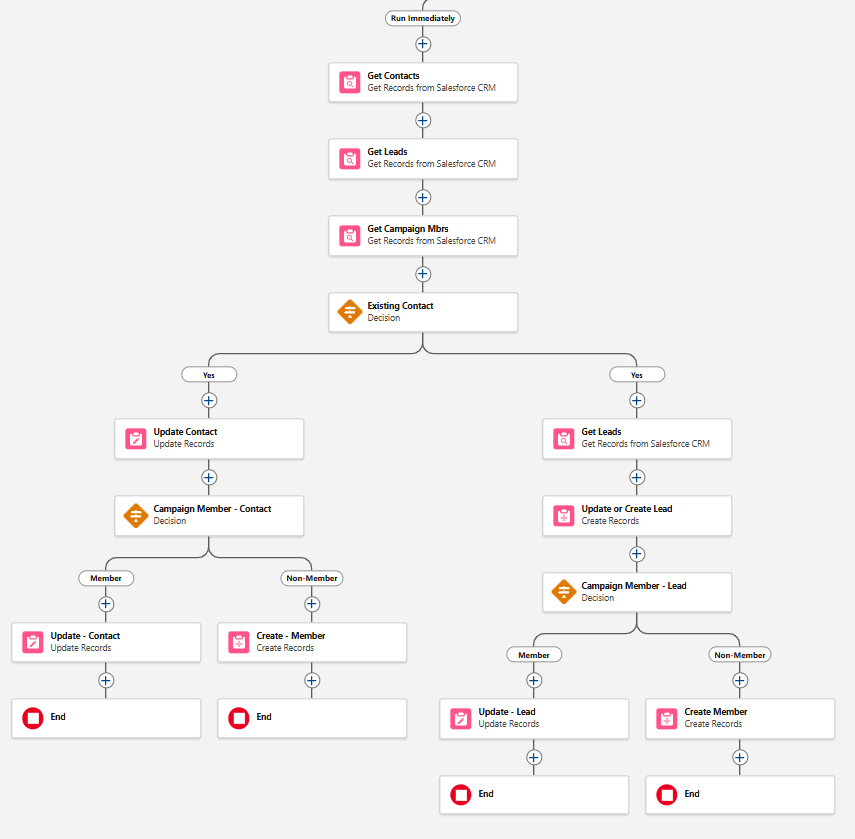
  • Path 1 (Run Immediately)
    • Checks for and updates existing contacts and leads. If a matching record is not found, a new lead is created.
    • Compares the contact and lead records to the existing campaign members. If a match is found, the campaign member status is updated. If a match is not found, a new campaign member with the proper campaign member status is created.
Flowchart showing marketing process
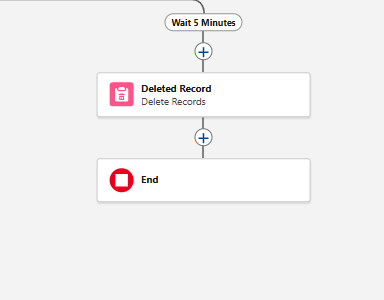
  • Path 3 (Wait 5 Minutes)
    • Deletes records that were created on the “Marketing Import” object. The idea here is to not store a large amount of redundant data in Salesforce. Since lead records have been created for the newly imported records, this data is no longer needed.
Flowchart showing marketing process

Complete Flow

Flowchart showing marketing process

Consent Records 

Consent records are a tricky issue. 


If you choose to automatically create consent records, I recommend including a “Marketing Consent” field in your import file. This field will indicate the consent status for each record being imported.

My example flow uses this value to selectively create consent records for new leads upon creation. However, you have options:

  • Option 1 – Include this step directly in your import flow.
  • Option 2 – Create a separate record-triggered flow. This flow will create consent records when a new lead is created with a “Marketing Consent” value of “Yes/True”. Important: This flow will trigger anytime a new lead is created, not just during marketing imports.


It’s important to note that the neither option updates the consent records of existing leads and contacts. An additional Data Cloud-Triggered flow is required to manage those updates.

Develop and Implement an Import Plan

Importing records into Marketing Cloud Growth and Advanced requires upfront planning and internal discussion. The process does not include the automatic matching process that Account Engagement users are accustomed to, necessitating careful data preparation. There are also additional considerations related to consent imports that must be discussed (be sure to include the legal team) and decisions related to who should have permission to import using Import Wizard or Data Loader, since imports will modify data in Salesforce. 

If you’d like support thinking through your data planning, preparation, and importing records into Marketing Cloud Next, reach out to the Sercante team.

Product Note: Marketing Cloud Growth and Advanced are editions of Marketing Cloud Next and have also been referred to as Agentforce Marketing.

If you are an Account Engagement User, you’ve likely been hearing for months that Account Engagement Orgs can get free access to Marketing Cloud Growth and Advanced Edition with their current contract. There have been numerous webinars, blog posts, and speaking topics exploring the features and functionalities of Growth and Advanced, and encouraging you to get started, but we’ve all been missing one key element. It wasn’t until Sercante’s recent Dreamforce recap webinar that someone said, “The Implementation Guide is 53 pages long, how do we actually get started, and what is required to just test the platform?”

This question struck me as a no-brainer once someone said it out loud. Of course, 53 pages of implementation steps are overwhelming! This new platform is uncharted territory for a lot of Marketing users, so it totally makes sense that users feel a bit nervous and confused about where to start. So, let’s talk through the base implementation you need to just test out the platform and see if it is a good fit. 

Step 1: Data 360

Before you implement Marketing Cloud Growth and Advanced Edition, you need Data 360 (formerly Data Cloud). If your org doesn’t already have this tool, you have a couple of options:

  1. Salesforce Foundations
    1. Foundations is a $0 SKU that allows you to “access the powerful AI capabilities of Agentforce and discover key features in Agentforce, Sales Cloud, Service Cloud, Marketing Cloud, Commerce Cloud, and Data Cloud — all at no cost”. This SKU includes 250k credits for Data Cloud, more than enough to get started
  2. Free Data Cloud SKU
    1. Salesforce also offers a free Data Cloud SKU to help orgs get started. This also includes 250k credits.

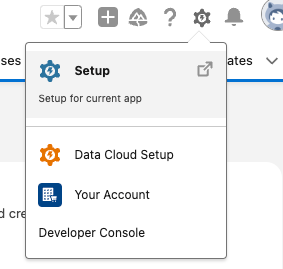
Once you have Data 360, set it up by going to Setup > Data Cloud Setup and select Get Started.

A screenshot hovering over the gear settings icon in Salesforce and clicking Setup.

This will take 5-15 minutes to run, and your page should auto-refresh once complete. Next, select Assign Permissions. Assign your user both the Data Cloud Architect (fka Data Cloud Admin) and Marketing Cloud Admin permission sets.

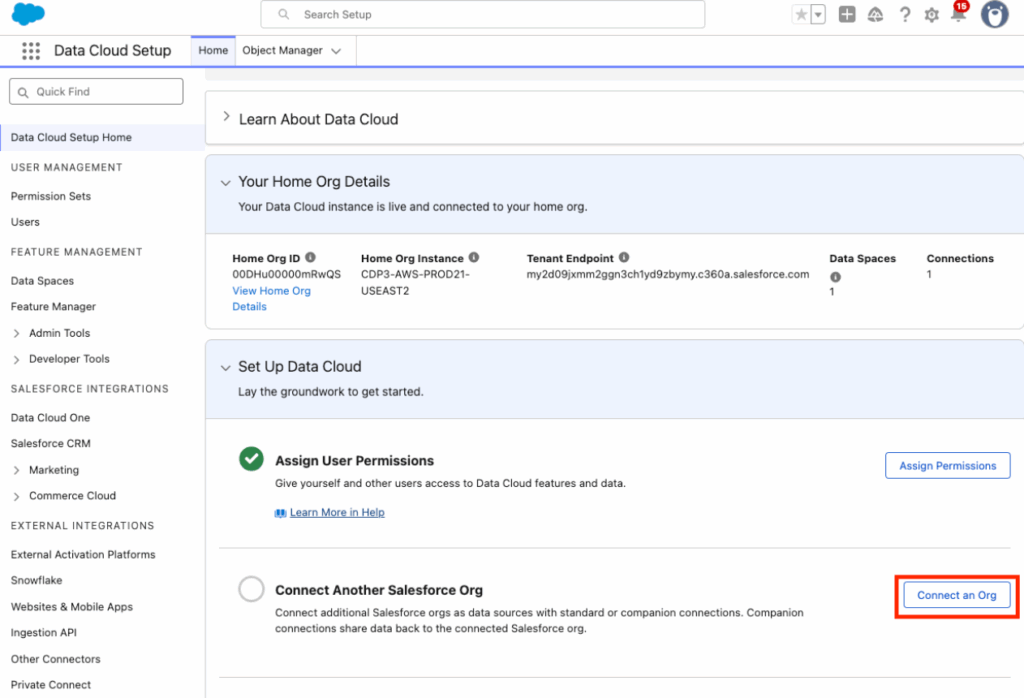
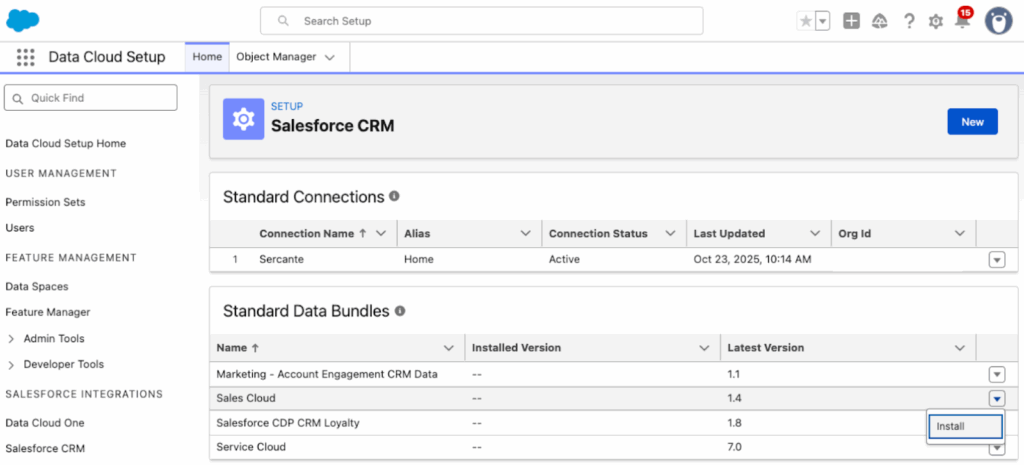
Finally, back on the Data Cloud Setup page, select Connect an Org and install the Sales Cloud Standard Data Bundle

A screenshot of the Data Cloud Setup screen with a red rectangle pointing out the Connect an Org button, underneath the Assign User Permissions step.
A screenshot showing the Standard Data Bundles and clicking the dropdown arrow to install.

This is going to ensure Data 360 has access to all the Salesforce Objects you’ll need, we will deploy this Data Bundle in a bit. 

Step 2: Enable Marketing Cloud

Next, we are going to set up Marketing Cloud, navigate to Setup > Assistant Home. The Assistant Home page guides you through the required and recommended tasks as well as gives you an overview of where you are in the setup process. We’re going to jump around a bit, but make sure you come back to this page if you decide to fully deploy Growth or Advanced Edition later. 

Select Go to Basic Settings. The first four tasks should kick off and complete on their own, the only step you’ll need to do is select your data space. Most orgs will just have the “default” data space to work with, at least until the Business Unit feature is available (expected in Spring ‘26). Marketing Cloud will auto-enable once the data space is selected. If it does not, select Enable Marketing Cloud.

Step 3: Data Streams

Next, select Update within the “Install the Marketing Data Kits” section. This will take 5-10 minutes to finish running. Don’t worry if initially some of the data kits fail, just select Refresh or Retry to try them again. Once all the data kits have successfully been installed, we will go into Data 360 to deploy them.

First, we want to take care of the Sales Cloud Data Bundle we installed earlier.  

  • Navigate to the App Manager >  Data Cloud > Data Streams
  • Select New
  • Select Salesforce CRM, then Next
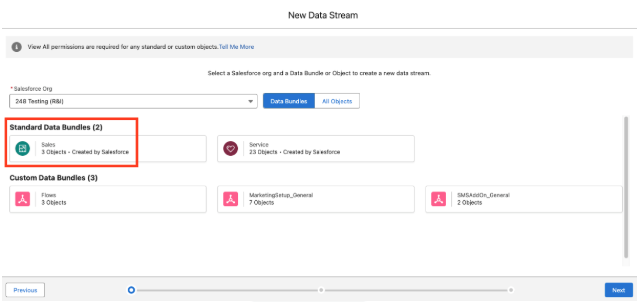
  • Select the Sales Standard Data Bundle
A screenshot of the Data Streams selection where we select Standard Data Bundles.

  • Select Next, then Deploy

Next you’ll deploy the data kits. Use the instructions in the Manually Deploy the Updated Data Streams section here for guidance. You’ll need to do this about 5 or 6 times to ensure all the data kits are deployed.

Step 4: Identity Resolution

Now we’ll set up our Identity Resolution Ruleset. This step will create the Unified Individuals that Marketing Cloud Growth and Advanced use (similar to how MCAE uses Prospects). Creating Unified Individuals and running Identity Resolution Rulesets uses Data 360 credits. How many credits depends on:

  1. The number of records it is ingesting (likely just your Leads and Contacts, unless you have other data sources connected) 
  2. How many rulesets you have per object (I recommend having just one for the Individual Object)
  3. How often the ruleset runs

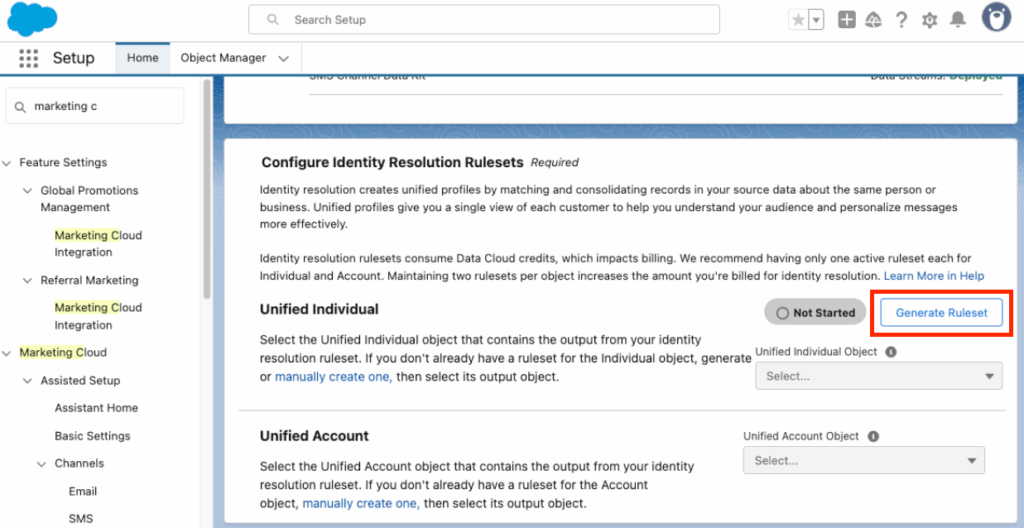
Back on our Setup > Basic Settings page, you should see a Generate Ruleset button in the “Configure Identity Resolution Rulesets” section. Select this and give the system a few minutes to run, a green banner should appear when complete. 

A screenshot of the Basic Settings page where you will see the Generate Ruleset button. It's under the Configure Identity Resolution Rulesets section.
Your new Identity Resolution Ruleset should autopopulate in the Unified Individual Object dropdown. 

If you want to manually build an Identity Ruleset or build a Ruleset for Accounts (Advanced only and needed for Account Scoring), use this help article

Step 5: Add Additional Users

Ok we’re done with the highly technical stuff, now let’s add some users and get to the fun features! Your Growth and Advanced users will need a couple of different permissions depending on what they need to do in the system.

Permission Sets

To use Marketing Cloud Growth and Advanced users will need either Marketing Cloud Admin or Marketing Cloud Manager. You can also set up your own permission set or even create an Identity License profile for users without an existing Salesforce license. 

If your users need to work with the Data 360 side of things, they will also need a Data 360 permission set. The comparison chart in this help article always helps me pick the right one.

Workspace Contributors

Next, add users as contributors to your “Content Workspace for Marketing Cloud”. This article outlines the steps. The available roles for contributors are:

  • Content Admin: Manage users and sharing settings, create and publish all content in a CMS workspace, and assign a default brand to a marketing workspace.
  • Content Manager: Create and publish all content in a CMS workspace and assign a default brand to a marketing workspace.
  • Content Author: View, edit, and create all content in a CMS workspace. They can’t publish content.

Site Contributors

This is needed if you are going to work with Landing Pages during your testing. This article outlines the steps. The available roles are: 

  • Experience Admin: These contributors can do just about everything in an assigned Experience Builder site. They can access Experience Builder, can manage contributors, and publish the site.
  • Publisher: These contributors help you build and publish the assigned Experience Builder site. They can access Experience Builder, and they can publish the site. They can’t manage contributors. They have read-only access to the Experience Workspaces Administration | Contributors tab.
  • Builder: These contributors help build the assigned Experience Builder site. They can access Experience Builder. They can’t publish the site or manage contributors. They have read-only access to the Experience Workspaces Administration | Contributors tab.
  • Viewer: These contributors have read-only access to Experience Builder in an assigned site. They can’t publish the site or manage contributors. They have read-only access to the Experience Workspaces Administration | Contributors tab.

The remaining setup items depend on what you’d like to test out in Growth and Advanced. 

Try out AI Features

There are a lot of Agentforce and Einstein features you can enable within Growth and Advanced. Using these features does consume credits, but I wouldn’t let that stop you from testing and exploring their capabilities. Have a plan around who is testing and what they are testing, so you don’t duplicate work and credit usage. 

Enable Gen AI for Campaign and Content Creation

For the Generative AI features of Growth and Advanced, we will need to enable Einstein and add some topics to the default Agentforce Agent. 

  1. Navigate to Setup > Einstein & Agentforce > Agentforce & Gen AI
  2. Select Go to Einstein Setup
  3. Toggle the switch for Turn on Einstein
  4. Back on the Setup > Einstein & Agentforce > Agentforce & Gen AI page, select Go to Agent Studio
  5. Toggle the switch for Agentforce to on
  6. Wait for your screen to refresh or manually refresh
  7. Toggle the switch for Enable the Agentforce (Default) Agent to on
  8. Select the dropdown arrow next to your Agent and select Open in Builder
  9. Deactivate Agent if already activated
  10. Select the New dropdown
  11. Select Add from Asset Library
  12. Select the Content Creation and Marketing Cloud: Campaign Planning assets
    1. If you are an MCE user, you can also select Journey Decisioning
  13. Select Finish
  14. Select the dropdown arrow next to your new topics and select View Details
  15. Select This Topic’s Actions
  16. Ensure the actions outlined in the Enable Marketing-Specific Topics and Standard Actions in Agent Builder section are present. If they are not, use this article to manually add them
  17. Once done, Activate your Agent

Note: Any users who need access to use these features will need the “Access Agentforce Default Agent” permission set.

Activate Einstein Segment Creation 

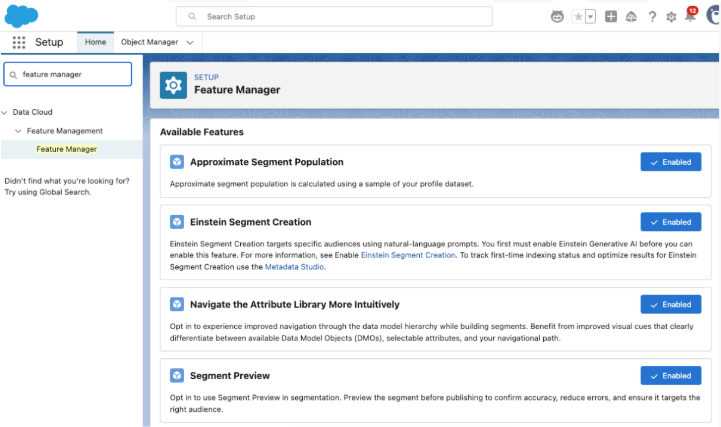
Einstein Segment Creation allows you to use natural language prompts to build segments within Data 360. Use this help article to enable Einstein Segment Creation. You will also likely want to enable:

  • Approximate Segment Population
  • Navigate the Attribute Library More Intuitively
  • Segment Preview
A screenshot of the Feature Manager screen in Setup with all of the following features Enabled: Approximate Segment Population, Einstein Segment Creation, Navigate the Attribute Library More Intuitively, and Segment Preview.

Enable Additional Einstein Features

Einstein Send Time Optimization, Einstein Metrics Guard, Einstein Engagement Frequency, and Einstein Scoring are all just one click each to enable and all the instructions are consolidated in one help article.

Build and Personalize Assets

Enable Personalization to Test Dynamic Content

If you would like to test out Dynamic Content in Growth and Advanced, you will need to enable Personalization and configure your Data Graph. I recommend setting up your Data Graph first, Cate Godley wrote a really great blog post that will walk you through this process. Finally, use the Set Up Personalization steps here to complete the process. 

Configure a Brand

Setting up a Brand in Growth and Advanced will let you auto-style your Marketing Assets and update the branding within Marketing Assets en masse. Check out Ambre Juryea-Amole’s blog post on setting up a brand for guidance on using this feature. A couple of additional features have been added since Ambre wrote her post; we can now configure a Brand Identity and Tone, which will be used by Agentforce when generating content, and assign a default Brand to the CMS workspace. 

Dig Into Reports

Set up Marketing Performance

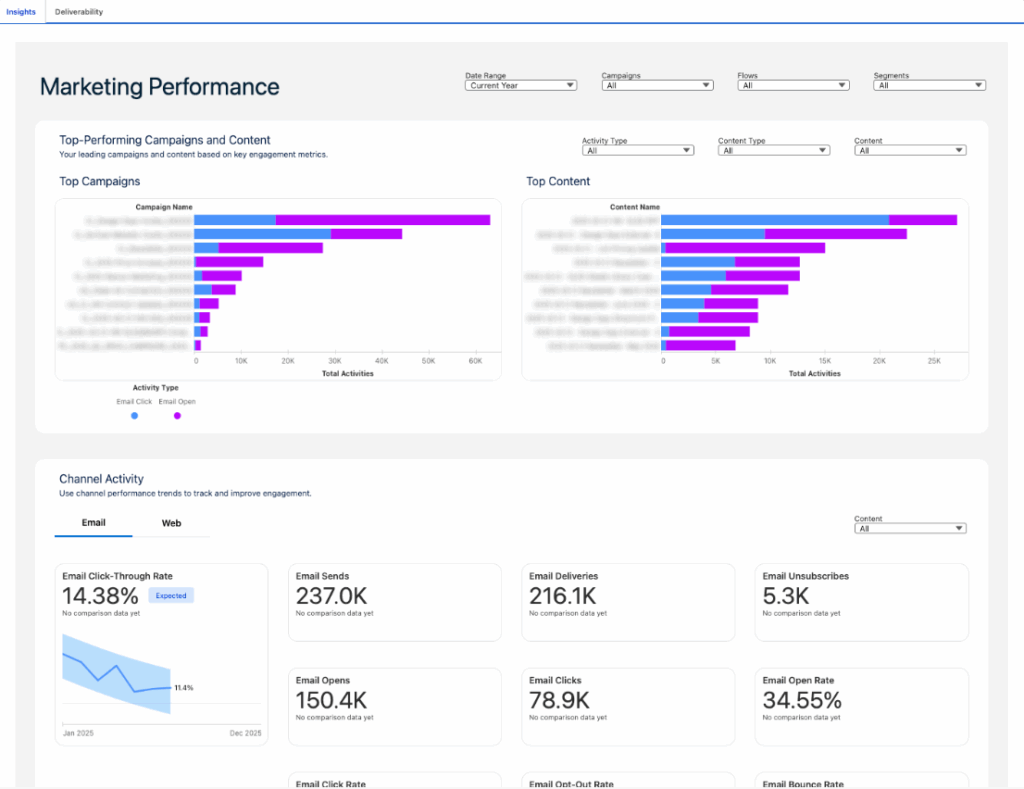
To dig into campaign metrics and content, install Marketing Performance using this help article. Once installed, you will have a Marketing Performance tab within the Marketing Cloud Growth/Advanced app where you can view campaign, channel, and content insights. 

A screenshot of the Marketing Performance tab.

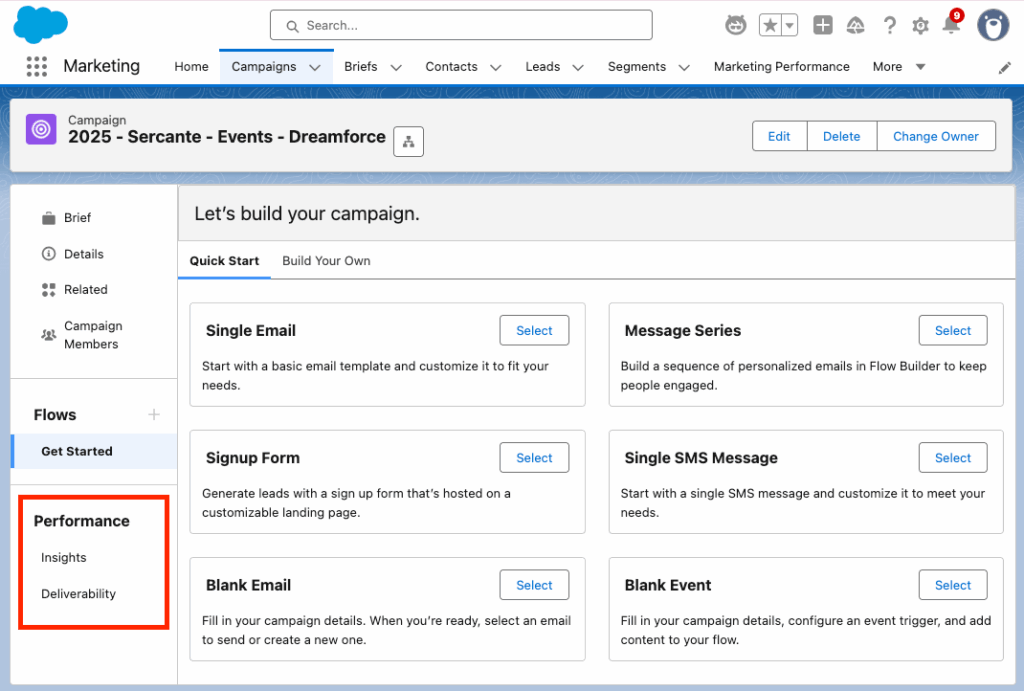
You can also view an individual’s campaign Performance reports on the left side of the Campaign view. 

A screenshot highlighting the Performance menu options in the campaign view on the left-hand side, below Flows.

Note: Any users who need access to Marketing Performance reports will need the “Tableau Next Included App Business User” permission set.

Connect Analytics

Finally, install the Analytics packages for access to preconfigured dashboards and reports on your Marketing activities. This article walks you through everything you need to do to get Analytics up and running. 

What’s Next?

The above steps are enough to get you started, so you can test Growth and Advanced and determine if you want to use it alongside Account Engagement. Additional implementation steps will really depend on what you want to use Growth and Advanced for, but here are some likely paths forward. 

If you’d like help implementing or exploring Marketing Cloud Growth and Advanced, reach out to the Sercante team!

Product Note: Marketing Cloud Growth and Advanced are editions of Marketing Cloud Next and have also been referred to as Agentforce Marketing.

Marketing Cloud Next offers an intuitive, drag-and-drop email builder packed with smart features that streamline the email creation process. In this blog post, we’ll walk through the key features and functionality of the Email Builder—everything from layout and design features to personalization and testing options—so you can confidently build, preview, and send your first email.

Before we dive into using the builder, let’s have a quick overview of the builder and its different sections:

A screenshot of the Marketing Cloud Next Email Builder with the components labeled 1 - 5. 1: View Mode, 2: Components Panel, 3: Row, 4: Canvas, and 5: Property Panel.
  1. View Mode – Use this to switch between Desktop and Mobile view. You can also show or hide the HTML code in this section.
  2. Components Panel – This section displays the available components for the email. This section will include standard components as well as layout components and, after the Winter ‘26 release, any reusable content blocks created in your org.
  3. Row – All Components are placed in rows. These are the editable sections of your email.
  4. Canvas – Add components by dragging and dropping them onto the canvas. 
  5. Property Panel – Displays what can be changed and customized for the currently selected row. When no row is selected, this panel allows you to select a brand, specify your email details, and set your preheader and subject line. You can also specify styling for the email as a whole or configure your email’s data source.

Customizing a Component

Let’s dive into the features and options when building a component. We’ll drag-and-drop a Paragraph component into our email for this section. 

A screenshot of the Paragraph component in the Marketing Cloud Next Email Builder.

The editing options vary depending on which component you have selected, but the Paragraph component shows a good variety of the options. Let’s talk about these from Left to Right

  1. Container Component – this helps you toggle between the component and the container the component resides in. For example, if you wanted to change the background for the container entirely, select the Container Component to switch from the Paragraph component to its container. The Property panel on the right will change as you toggle between these two items. 
  2. Component Type – the next section will just display which type of component you are currently working with (button, divider, heading, etc.)
  3. Draft with Agentforce (aka Agentforce Sparkles [insert jazz hands here]) – this option allows you to use Agentforce to write or revise your email content. If a Brand is associated with your email, Agentforce will even use the Brand Identity and Tone specified in the brand when generating content. Agentforce also gives you the option to revise the content by your key message or target audience (which is defined in the Campaign Brief), change the tone of the content, or increase/decrease the content length, all within the Agentforce window.
A screenshot of all the actions available when drafting with Agentforce.
  1. Formatting Components – The next couple of components are pretty universal to WYSIWYG editors, so we’ll cover these quickly. We have:
    1. Indent
    2. Bold
    3. Italize
    4. Underline
    5. Strikethrough
    6. Link
  2. Merge Fields – Here you can populate required information, like your organization’s address or email preference center link, or insert fields from your Data Graph to personalize the email to the recipient. If your team has merge fields they want to use again and again, create and save a Reusable Expression in your CMS for quick access here. 
  3. The final three icons all deal with things you can DO with the component, from left to right, we have
    1. Drag
    2. Duplicate
    3. Delete

Styling your Email

If you’ve set a default Brand for your CMS workspace, your email will be autobranded before you even start building. However, if you need to apply or switch your brand, you can do so at any time from the Property Panel. 

A screenshot of the Brand Settings in the Property Panel of the Marketing Cloud Next Email Builder.

When building your email components, you can access the Style of said component in the right side Property Panel. This will display what is auto-styled from the Brand as well as what can be edited without straying from the Brand specifications. You can override the branding by changing the style options to “custom”,  just keep in mind that if the Brand itself later changes, those changes will not automatically update any components where the styling has been overridden. 

A screenshot of overriding the branding by changing the styling options to custom.

Personalizing your Email

Beyond Merge Field, you also have two great personalization options in the builder: Dynamic Content and Email Repeaters. 

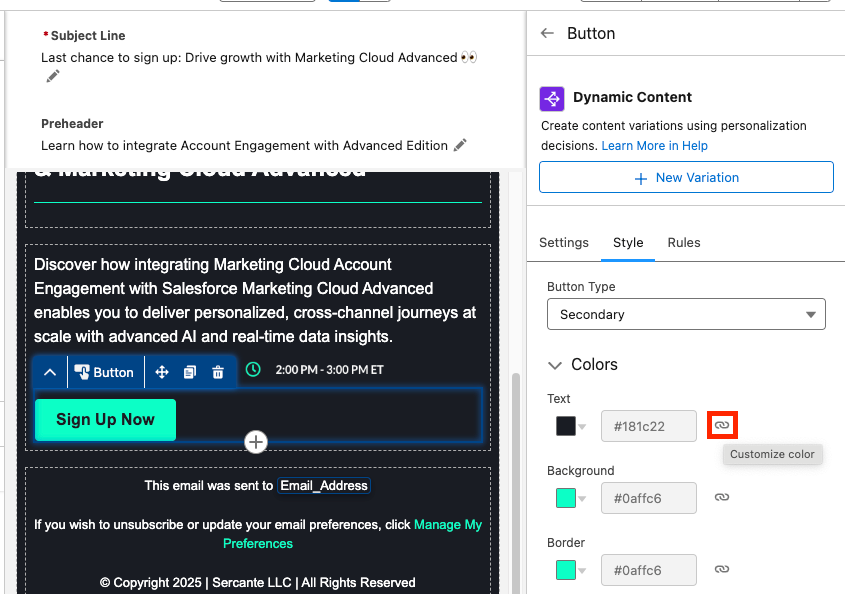
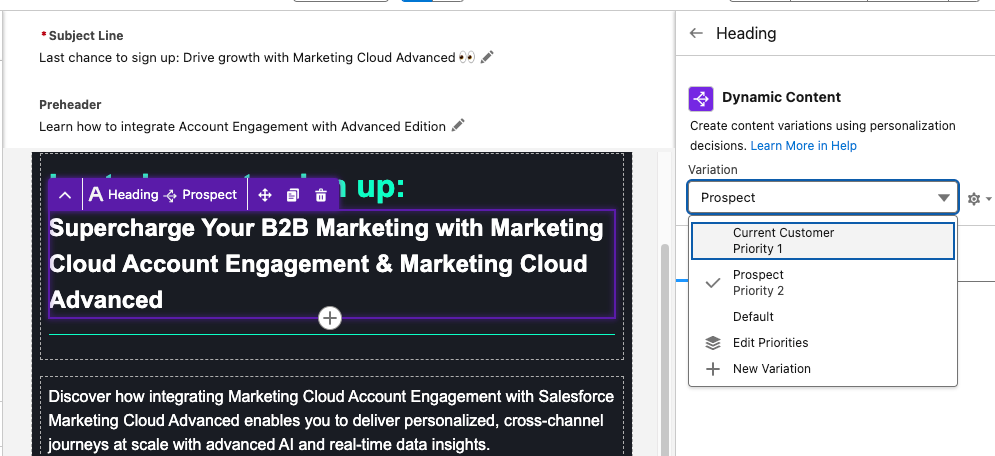
Dynamic Content allows you to create variations in your email and specify when those variations appear. For example, you can change your email heading text depending on if the recipient is a prospect or a customer. When you have a component selected, the Dynamic Content option will appear in the Property Panel. Learn how to set up Dynamic Content variations from our previous blog post.

A screenshot of the Dynamic Content option appearing in the Property Panel.

Email Repeaters allow you to show a series of items customized to the recipient. For example, we could display upcoming events that the reader may be interested in attending and tailor which events we display based on the Marketing Tech the reader is interested in. 

A screenshot using Email Repeaters in the Marketing Cloud Next Email Builder.

Email Repeaters require a Data Source, but you can learn how to set those up here

Testing Your Email

To test your email first, toggle between the Desktop and Mobile views within the View Mode to make sure your email looks great on both. Then ensure you’ve customized your Subject Line and Preheader text. You can edit your Subject Line and Preheader both above your email or in the Property Panel on the right. You can also insert Merge Fields or Dynamic Content into both. 

A screenshot showing where you can edit your Subject Line and Preheader, both above the email or in the Property Panel on the right.

Then select Preview from the top right corner. You’ll need to select a published Segment with at least one recipient in order to preview the email.

A screenshot showing how to select a published Segment with at least one recipient to preview the email.

Next select the Test tab and enter the test email recipient and the From Name and Address. Your From Address needs to match the authenticated DKIM domain in Marketing Cloud.  

The final step will be sending your email, which can be done in a couple of different ways, but all revolve around using Flow. See some of the resources below for help building and activating a Marketing Cloud Flow:

Email Builder FAQ

Can we create reusable Email Templates for Marketing Cloud? Yes, this feature is coming as part of the Winter ‘26 release

Can we view or edit the HTML of Marketing Cloud Emails?  Yes, in the View Mode, you can toggle between the drag-and-drop builder and the HTML of the email. Here you can view the HTML, if you want to edit your email via HTML you can select Convert to HTML. However, once an email is converted to HTML, it cannot be converted back, so be careful! My guess is that this will change with future releases.

Can we use Custom Fonts with Marketing Cloud Emails? Only if you build your emails via HTML, or you could build an email with the drag-and-drop builder, convert it to HTML, then add the custom font code. However, this isn’t ideal. I believe Custom Fonts will be supported in a future release though.

Should Account Engagement users start using this builder? I’ll have to give you the annoying consultant answer of “it depends”. Account Engagement orgs can use the Marketing Cloud builder but, without Marketing Cloud also installed, it has some limitations that I don’t love. However, Account Engagement users can also get free access to Marketing Cloud Growth/Advanced as part of their Account Engagement license, so my recommendation would be to install Marketing Cloud Growth/Advanced and give the new builder a shot.

Can I build an email in the Marketing Cloud Drag-and-drop builder and copy the email HTML to Account Engagement? I was asked this recently, and you know what, that could work! However, proceed with caution and test often. I briefly gave this a shot, and the email in Account Engagement turned out pretty OK. I had to do some tweaking and had to replace the merge tags, but it looks like a viable solution in a pinch. Marketing Cloud specific features, like Dynamic Content based on personalization points, Cross Object Personalization, Repeaters etc. will not translate, but the structure and styling of the email should be pretty good. 

Do Keyboard Shortcuts work with this builder? Yes!

Final thoughts 

Marketing Cloud Next’s Email Builder delivers a streamlined, drag-and-drop experience that helps marketers craft personalized communication at scale with the help of AI, Agentforce, Dynamic Content, and Cross Object Personalization. The more familiar you are with its features, the more you’ll see what’s possible for creating even better communication experiences for your audience.
When you’re ready to start building, refer back to this guide—and if you’d like help with navigating your next steps in the meantime, reach out to the Sercante team, we’ll help you map out your next steps for success.

Product Note: Marketing Cloud Growth and Advanced are editions of Marketing Cloud Next and have also been referred to as Agentforce Marketing.

If you’ve ever built a marketing campaign, you know the drill: after agreeing on your brief, you still need to draft emails, nail the design, run approvals, and put it all into motion. That process often takes weeks, or even longer. And while you and your team have your heads down in the mechanics, there’s less bandwidth for the personalization and creative thinking that truly builds connection with your audience and drives growth. Which is why leaning into your tech stack and using the latest solutions, such as Marketing Cloud Growth and Advanced, to streamline the campaign creation process, so your team can be freed up to focus more on the human element, is critical to continue to scale and grow in this modern age.
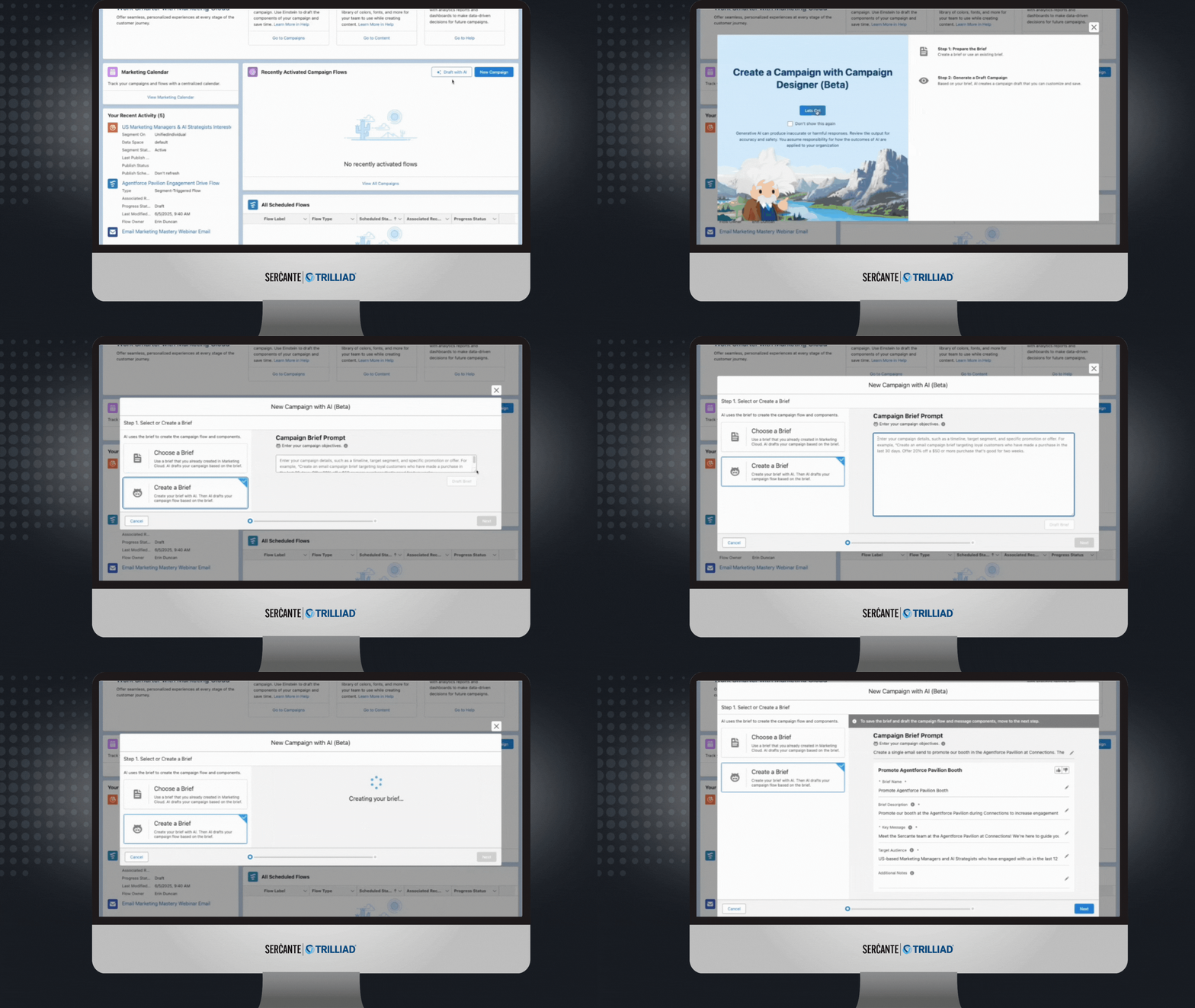
Product experts and Marketing Champions, Erin Duncan and Heather Rinke led a webinar, Elevating Your Campaigns with Next Gen Marketing Cloud, to walk you through how to use Marketing Cloud Growth and Advanced to streamline your campaign creation process. In their session, they dive into the platform and take you through step by step from prompt to flow to email creation and Path Experiment configuration. Watch the full webinar on-demand and get the highlights to start exploring how you can lean into the latest tech to scale your marketing efforts and create personalized, seamless cross-channel experiences that build deeper relationships with your audience.
Elevating Your Campaigns with Next Gen Marketing Cloud
Watch On Demand

What is Next Gen Marketing Cloud?

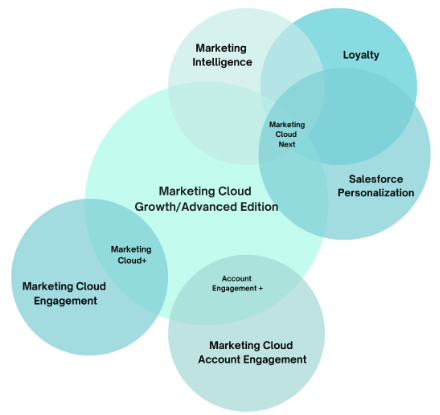
Let’s take a step back and level set on what we mean by Next Gen Marketing Cloud. “Next Gen Marketing Cloud” refers to the latest Marketing Cloud platform, Marketing Cloud Growth and Advanced. However, at Connections 2025, you may have also heard the term “Marketing Cloud Next”, this is an umbrella term for all of the latest Marketing Cloud offerings and refers to the combined functionality of features from Marketing Cloud Growth and Advanced, Marketing Intelligence, Loyalty, and Salesforce Personalization.

Other terms that have been used are Marketing Cloud+ and Account Engagement+. This refers to using the combined features of Marketing Cloud Engagement and Marketing Cloud Growth and Advanced (Marketing Cloud+) and Marketing Cloud Account Engagement and Marketing Cloud Growth and Advanced (Account Engagement+). 

Marketing Cloud Next is “a strategic reframe of marketing itself”. Its vision is to end “no-reply marketing” and help companies provide a better overall experience for their audience. The Venn diagram below illustrates how these product features work in conjunction with each other and the different product names that may be used when these products are used together.

A Venn Diagram of all the Marketing Cloud product names and how they relate to each other

Using AI to streamline campaign creation in Next Gen Marketing Cloud

Campaigns can take weeks for a marketing team to plan and launch. According to Email Vendor Selection, 35% of marketing teams take up to two weeks just for their email production process and 5% take over a month. Meaning the more that marketers can find ways to help streamline and fast-track the process, the better, which is where the AI features of Next Gen Marketing Cloud can help.

By folding AI into the campaign workflow—from brief to email draft to segmentation—it dramatically shortens campaign turnaround time. That means your team can spend more of that precious time dialing in personalization, tweaking messaging, and creating marketing that feels human—not just efficient.

Starting with a strong campaign prompt

To use the AI features in Marketing Cloud Growth and Advanced, start by drafting your campaign. First select Draft with AI, then Create a Brief and provide your prompt, AI will draft your campaign brief in seconds. 

The campaign brief will include your campaign title, description, key messaging, and the target audience. Your campaign brief will only be as good as your prompt, which is why it’s important to make sure you include all the right details.

Best practices for prompts:

  • Be specific about audience, channel, timing, and tone.
  • Use clear, conversational language without unnecessary jargon.
  • Include parameters such as word count, required inclusions/exclusions, and target personas.

Example prompt:

“Create an email campaign inviting marketers who have engaged in the last 12 months to our ‘Elevate Your Campaigns with Next Gen Marketing Cloud’ webinar on July 10th at 1 PM ET. Highlight how attendees will learn to apply AI at each stage of campaign creation.”

Therefore, before you create your prompt, make sure you and your team are aligned on the overall strategy for the campaign so that you can provide a clear detailed prompt.

A GIF of a user walking through how to use the Draft with AI feature to use AI to create your campaign in Marketing Cloud Growth and Advanced.

Watch the full Agentforce for Marketing demo

Editing your campaign emails in Next Gen Marketing Cloud

After you review and edit your campaign brief, click Next to view the emails and SMS messages that have been created based on your prompt and campaign brief. 

You can click into each message and edit the subject line, pre-header text, and the body paragraphs to ensure the messaging is exactly the way you want it. You can also provide feedback with a thumbs-up or thumbs down so the system can learn and grow each time it generates content. Again, depending on how well you specified your audience, tone, and channels in the prompt will determine how much editing and tweaking you’ll have to do.

Using Einstein Engagement Frequency to manage audience saturation

After fine-tuning your messages, configure your audience segment. An important piece of creating experiences that build meaningful connections with your audience is not over saturating them, which is where Einstein Engagement Frequency can help. 

Einstein Engagement Frequency helps ensure contacts receive the right amount of communication by analyzing their engagement to generate a personalized engagement frequency score and then classifying their engagement. The classifications are as follows

  • Saturated
  • Almost Saturated
  • On Target
  • Under Saturated

Excluding Saturated contacts helps to ensure that you’re not emailing or messaging your audience too much, and this Einstein feature makes sure the evaluation is done automatically, so you don’t have to spend time tracking this manually.

Testing with Path Experiment

Another way to elevate the campaign experience for your audience is to test different journey options and lean into what is resonating and driving the most engagement.

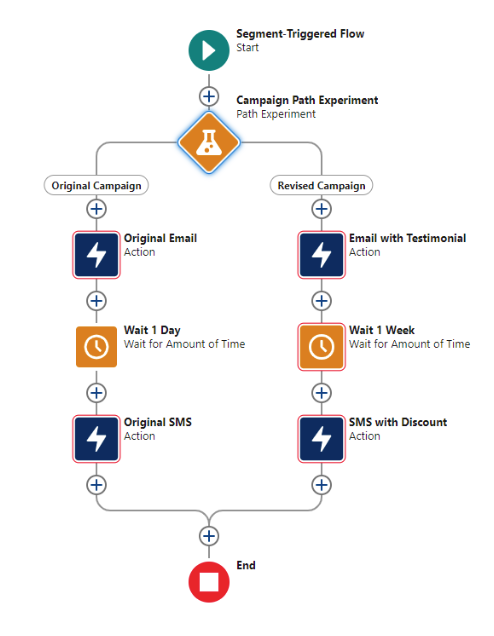
Path Experiment is available for Marketing Cloud Advanced and expands on traditional A/B testing by allowing up to 10 different paths within a single experiment. You can test variations in content, channels, or cadence to see what produces the strongest engagement.

For example, you could create two paths consisting of an email followed by a wait period and then an SMS message. In the second path, you can add as many variations as you would like, such as adding a testimonial quote to the email, making the wait period longer, or adding a discount code to the SMS message, and then see which path performs the best.

A screenshot of a path experiment in Next Gen Marketing Cloud showing two paths with an original email, 1-day wait period, and an SMS message on the left path with a revised email, a wait period of 1 week, and an SMS message with a discount on the right path.

Engaging your audience with SMS

Next Gen Marketing Cloud supports multiple SMS approaches:

  • Long Code SMS – cost-effective, supports international, suited for smaller sends.
  • Short Code SMS – faster sends for large audiences, higher provisioning cost, and longer provisioning time.
  • Conversational SMS – enables two-way communication using Flow automation or chatbots. Conversational SMS is available for Advanced Edition with the Digital Engagement add on.

This flexibility allows you to select the right SMS format for your organization depending on your needs and strategy. For further guidance on setup, read Erin Duncan’s article on SMS provisioning and Marketing Cloud Growth and Advanced, it takes you through all the steps and considerations for success.

The path to start using Marketing Cloud Growth and Advanced features

The platform you have now will determine what your next steps might look like to start diving into Marketing Cloud Growth and Advanced.

Announced at Connections 2025, Marketing Cloud Engagement customers will get access to Marketing Cloud Growth/Advanced around Dreamforce (October 2025), more details around how and when customers can start diving in further with the platform is coming. Here are the requirements:

The best action to take now is to learn and build your strategy for how your team will start taking advantage of Next Gen Marketing Cloud features once you get access.

The announcement for Marketing Cloud Account Engagement customers getting access to Marketing Cloud Growth and Advanced features came back in October 2024. Our experts led a session, Unlocking Next-Gen Marketing: How to Activate New Features Available for Account Engagement Customers, on all the capabilities that marketing teams can start tapping into with Marketing Cloud Growth and Advanced. Watch On Demand

Here are the requirements to keep in mind:

Elevate your campaigns with Next Gen Marketing Cloud

The AI capabilities in Next Gen Marketing Cloud offer significant efficiency gains for campaign creation. By starting with a clear prompt, using audience saturation data to manage send frequency, testing multiple engagement paths, and incorporating multi-channel outreach, marketers can deliver more relevant, timely, and effective campaigns. Giving your audience personalized, seamless experiences that build deeper connections and ultimately drive growth for your business.

This technology is at our fingertips. It’s up to us to educate ourselves, know what it can do, and start exploring and using it to help us all do what we do best more efficiently and give our customers the engagements they’re expecting. But the path to navigating all of this can be challenging, so if you would like an expert guide to achieve success, reach out to the Sercante team.

Person Accounts, an organizational feature of Salesforce, can be a powerful way to differentiate between a business contact (think Cate Godley who works at Sercante) and an individual you do business with that is not associated with a company (think Yuki Godley, shown below).

The reality is that Person Accounts are actually not that scary, but the fact that once they have been enabled they cannot be disabled is likely what causes a lot of that trepidation. This permanent enablement is also present when deciding to sync Marketing Cloud Account Engagement (Pardot) Prospects with Person Accounts in Salesforce, and there are definitely a few things that should be considered before enabling this option in your (or your clients’) Account Engagement organization. Read on to learn more about how to prepare for this setup.

Okay, but what’s a Person Account anyway?

Before we get into the things you’ll want to consider before enabling Person Accounts with Pardot Marketing Cloud Account Engagement (I’m a sucker for alliteration, always) let’s talk about what a Person Account in Salesforce actually is. 

Person Accounts allow for a business to accurately track and manage relationships with customers if they’re in a B2C driven space, like education, health care, or non-profits. There are several considerations for Person Accounts inside the Salesforce platform, but here’s a quick summary:

  • Store information about individuals instead of businesses
  • Combines Account fields and Contact fields into one record and page layout – the Person Account
  • Takes up twice the Salesforce storage space due to having a backend Account and Contact record

Once Person Accounts are enabled, you’ll have the option to create a Business Account or a Person Account when creating a new Account from scratch in Salesforce. If you’re converting a lead using the standard Salesforce conversion process, you can create a Person Account by ensuring that the Company field on the lead is blank. No Company? Person Account. Company? Business Account.

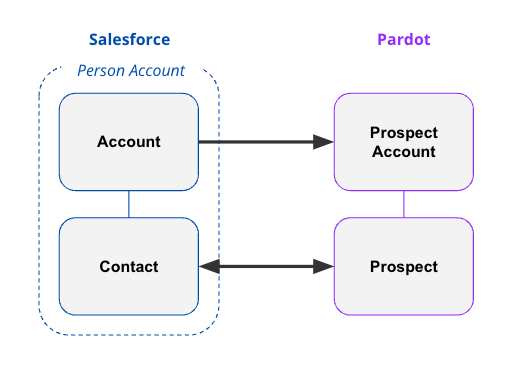
The important thing to note here is that a Person Account is like two kids in a trenchcoat, Account & Contact, wearing a sign that says Person Account. In the backend of Salesforce, there is a Contact record and an Account record that are combined to show you the single Person Account record.

Great, but what about Marketing Cloud Account Engagement?

Now that we’ve got the initial details out of the way, it’s time to talk Person Accounts with Marketing Cloud Account Engagement. Just like in Salesforce, once you enable syncing with Person Accounts in Account Engagement you are not able to disable it. Additionally, when you sync a Person Account record with Account Engagement you’ll get a Prospect record and  a Prospect Account record which will remain separate in Account Engagement (more on that later). The Prospect record will impact your mailable database number, but there are not any Prospect Account data limitations that you need to keep in mind.

Account Engagement Setup Options

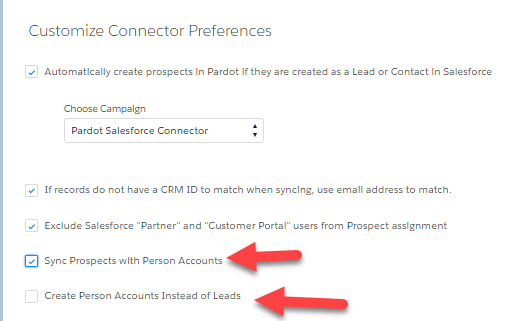
When I first started out as a consultant, syncing Person Accounts with Pardot Account Engagement required reaching out to Salesforce Support to have the feature enabled. With recent updates to the Account Engagement Settings options, Admins are now able to turn on “Sync Prospects with Person Accounts” from within the setup menu. 

Create Person Accounts on Assignment (instead of Leads)

In addition to enabling the option to sync Prospects with Person Accounts, you’re also able to tell the system to “Create Person Accounts Instead of Leads”. Turning this functionality on will tell the system to never create a lead when sending a Prospect to Salesforce and is irreversible. This is a good option if you never use leads, however if your organization does use leads or you are using both Business Accounts and Person Accounts you should leave this setting turned off.

Syncing Records Between Salesforce and Account Engagement

One of the biggest considerations with Person Accounts is how you set up your fields in Salesforce and in Account Engagement. Most of the Salesforce literature will tell you to create new custom fields on the Account record to have them added to the Person Account record and page layout. There’s nothing wrong with this setup, however if you’re going to be syncing Person Accounts with Pardot Account Engagement you should keep the Salesforce Connector sync directions in mind. 

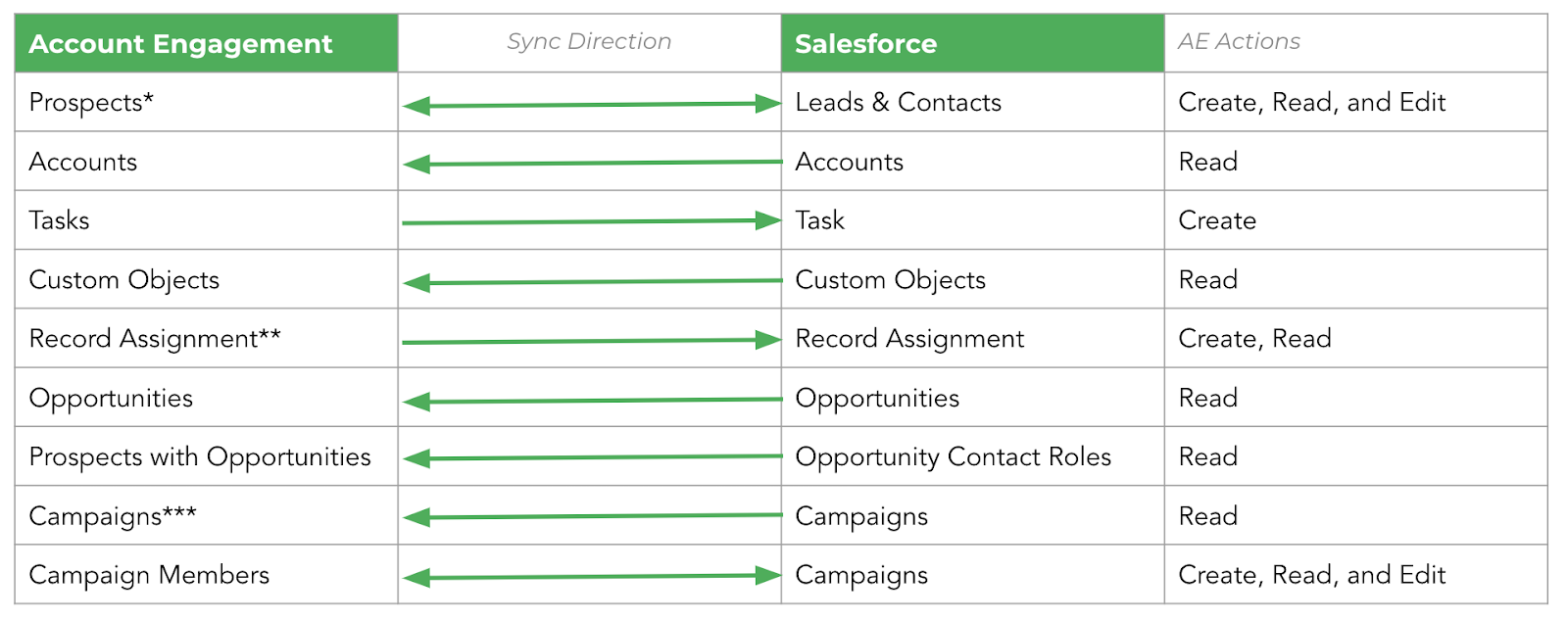
The Salesforce Connector for Account Engagement has Read & Write permissions for the Lead and Contact objects in Salesforce, and Read Only permissions for the Account object. 

If you’re just starting out with Person Accounts in Salesforce, my recommendation is that you create any custom fields that you’ll want Account Engagement to be able to change on the Contact object in Salesforce. This will mean that when creating your custom field in Account Engagement, you’ll be able to do so on the Prospect object and use the standard Salesforce Connector sync options. If you have custom fields for the Person Account already created on the Account object in Salesforce, check out the section on automations below for how to keep these fields in sync.

In the Account Engagement system, the Prospect record that is synced with a Person Account will show the Prospect Name and Prospect Account as the same name. The Prospect record will have any Contact level fields you have added to Account Engagement showing, as well as a Record Type ID of a Person Account. The Prospect Account page will show you any Account level fields you have added to Account Engagement (remember, these are Read Only fields). Both the Prospect and Prospect Account records will show the owner as the Account Owner from Salesforce.

Other Gotchas to Know About

Person Accounts do not support scoring categories in Account Engagement, so if that’s a major player in your marketing strategy, you may need to think about other ways to achieve your goals. In addition to this, the Person Account will only sync to a single record type (the Person Account record type). 

Finally, the Prospect Owner will always be the Account Owner in Salesforce. Crucially, this owner cannot be assigned from Account Engagement as we do not have write permissions to the Account record via the Salesforce connector.

Automations for Data Integrity

My earlier recommendation of creating any custom fields that you’d like to be updated by Account Engagement should be created on the Contact record in Salesforce. But what if you’ve already created custom fields on the Account level that you need to update and keep in sync in the Account Engagement system? 

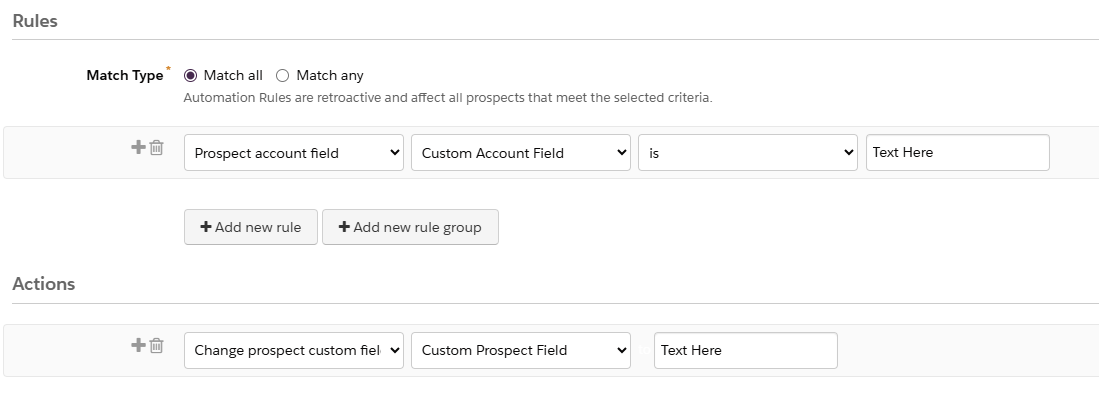
The best practice here is to create custom fields on the Prospect record in Account Engagement to hold this information, then create Automation Rules to keep it in sync with Salesforce. This will ensure that custom field information appears at the Account and Prospect levels and keeps bi-directional sync on the Prospect records active.

Enable Person Accounts without Fear

Did I write this entire blog post to get my dog’s photo online? Maybe, maybe not. But I did write this post after helping to answer questions about implementing Person Accounts in Pardot Marketing Cloud Account Engagement many, many times. I, too, used to be filled with trepidation at the idea of using Person Accounts both in Salesforce and in Account Engagement. 

Once I understood the fundamentals of how this functionality works in both systems, I felt a lot more confident about getting this set up for clients in multiple business types. I hope this blog post helps you to feel more comfortable with this setup yourself! If you’ve still got questions, comment below or reach out to the team at Sercante and we’ll see how we can help.

No more posts to show