Agentforce Marketing Form Flows can take time to add all of the elements needed, such as autoresponders, lead notifications, and whatnot. Let’s use a handy Marketing Cloud flow template to solve a few problems with one simple subflow!
Product Note: In previous blog posts, Agentforce Marketing has also been referred to or known as Marketing Cloud on Core and Marketing Cloud Next. This product may have also been referred to under its Edition names, Marketing Cloud Growth and Marketing Cloud Advanced.
What Problem Are We Solving?
When someone fills out a form we need a scaleable, reusable way to determine if the person filling out the form is an existing Lead and/or Contact in Salesforce. If you include an email component to your form flow, such as an autoresponse email, then the first node in your form flow must be a create element. This makes it arduous to check for existing records and send an autoresponder in the same flow.
Form Triggered Flows
When creating a new form in Agentforce Marketing you may have received the error message below warning you that a form triggered flow must begin with a Create Record.
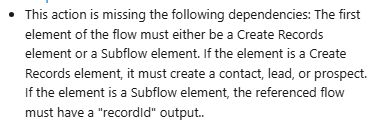
This can be frustrating because sometimes you want to first check if there is an existing record that matches what was just entered in the form, then decide if you should create or update a record.
Now you can!
Introducing: Upsert a Record for a Person (Flow Template)
This handy flow template makes life easier. It is also the ONLY exception to the rule above about starting with a Create Element. You can also start your form flow with a subflow that uses the “Upsert a Record for a Person” template, which is very useful.
The main benefit of creating a subflow is that you can call the same subflow from multiple form flows, no reinventing the wheel needed to scale. This new flow will handle the following:
- Check if a Contact exists > Update if found
- If no Contact exists, check if a Lead exists > Update if found
- If no Lead exists, create a new Lead
Optionally we can also add email alerts, add to campaign elements, and more.
Let’s Build the Flow
- In the Marketing App, select the Flows tab
- Click New
- In the search window, search for “Person”
- Select the template Upsert a Record for a Person
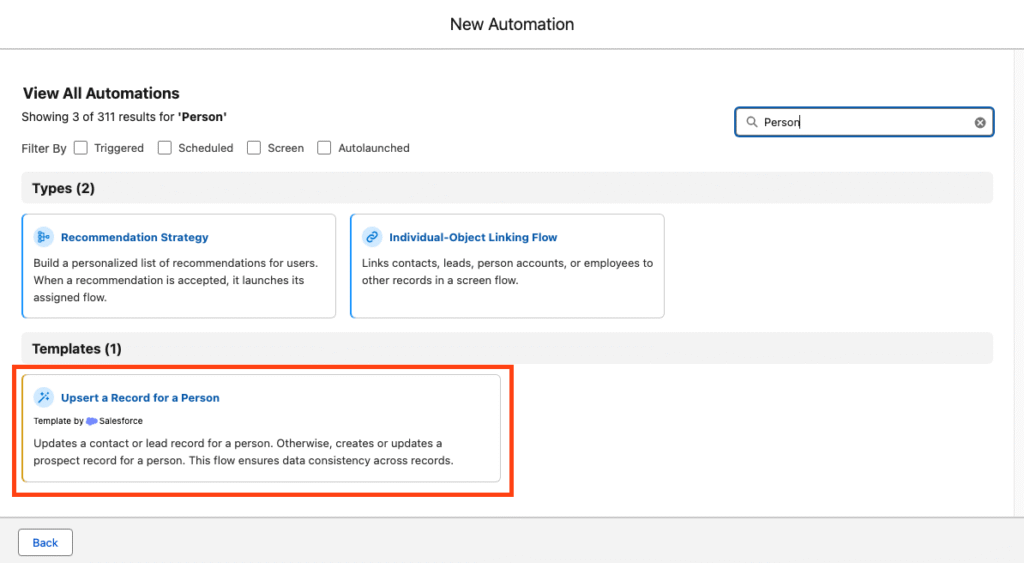
Your flow should open to the following canvas layout.
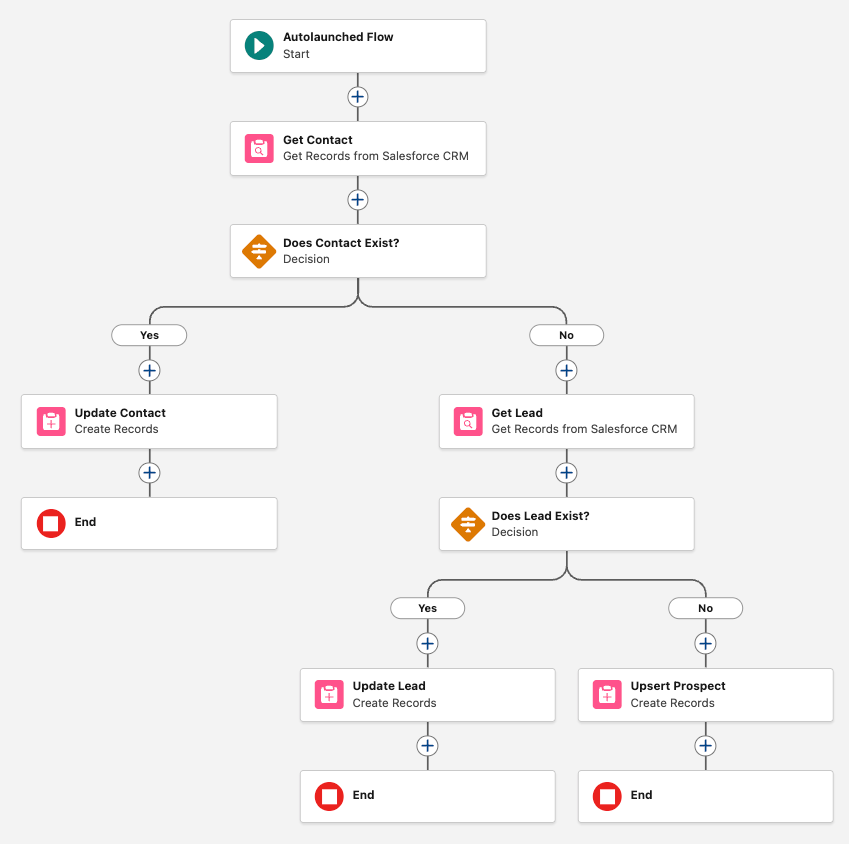
The flow is autolaunched because we’ll call it from another flow (our form triggered flow).
- Click Next
- Name the flow “Look for Existing Contact/Lead”
- Click Create
This flow will ingest data from your form triggered flow and return a recordId. For this to work, we need to first create the variables in the subflow so that we can send the necessary data.
- Within the flow builder, select the Toolbox
- You should see three variables: company, lastName, recordId. These are the default variables because they’re technically all that’s required to create a record. You certainly will need more than this.
Important: when you add a new variable, like firstName, for example, you’ll need to make sure the checkbox for “Available for Input” is checked. This insures that any new variables you add will be able to accept the data from the form flow that this new flow is connected to. You’ll notice the three default variables already have that option checked.
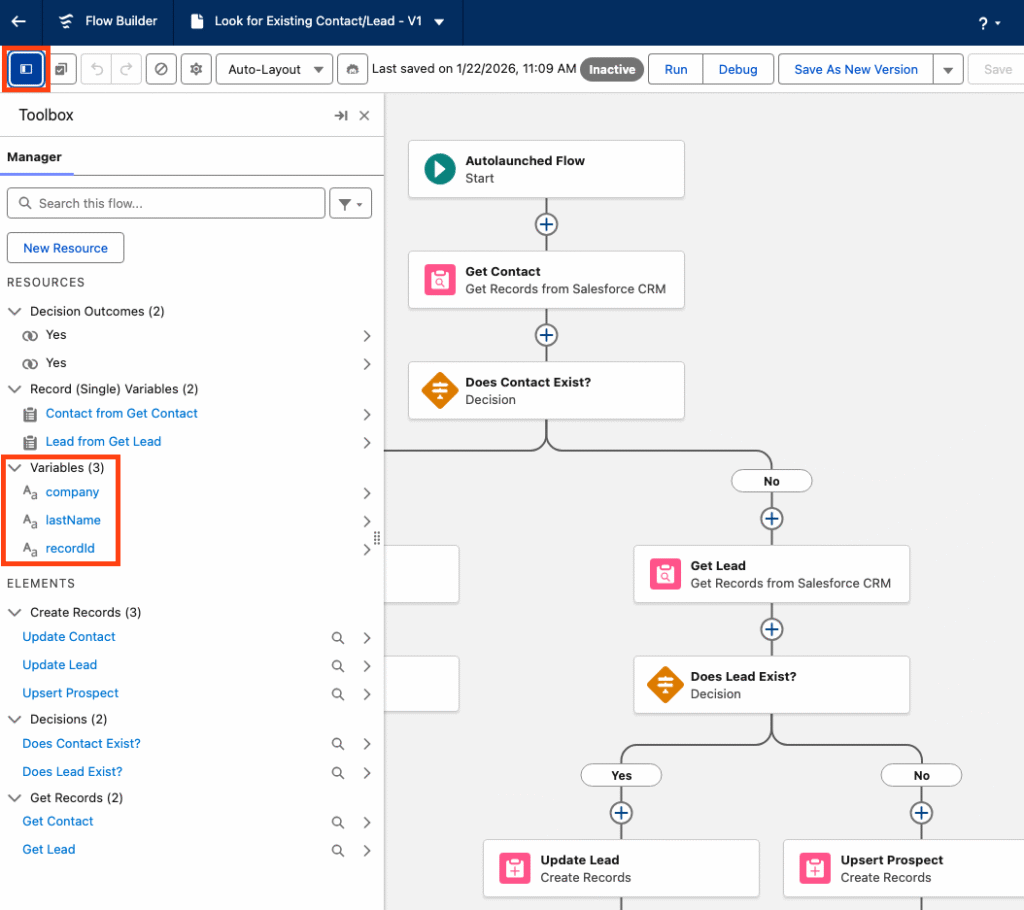
Next we will create any necessary variables. Any data that your form is going to capture should be a variable for this flow to ingest. For example, firstName, phone, favoriteCandy, whatever!
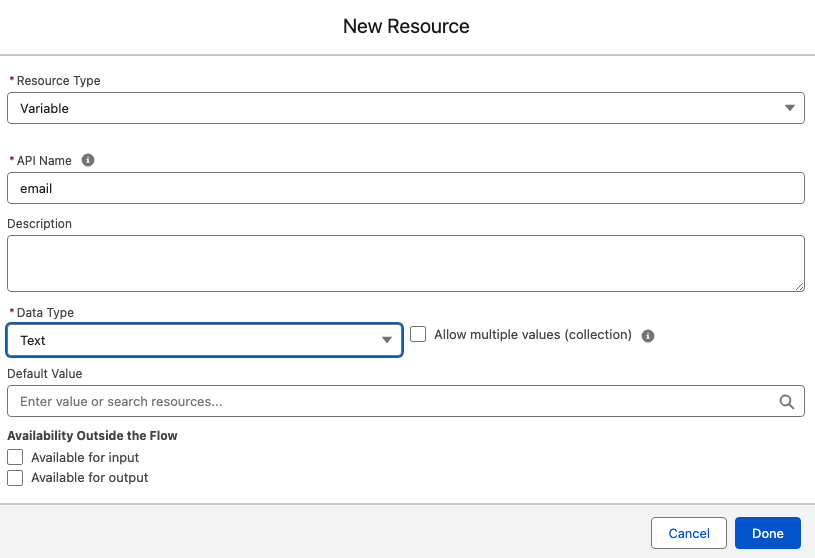
- Within the Toolbox, select New Resource
- Select the Resource Type Variable
- Enter your API Name, well use email for our example
- Select your Data Type, this will typically be Text
- Select Done
- Repeat for any additional variables
Customize the Sub Flow
Now that the basic setup of the sub flow is done we can configure the elements to suit our needs.
- Start by selecting the Get Contact element.
- By default the template only looks for lastName to determine if a matching Contact exists. We’ll switch this out for a more reliable unique identifier, email address.
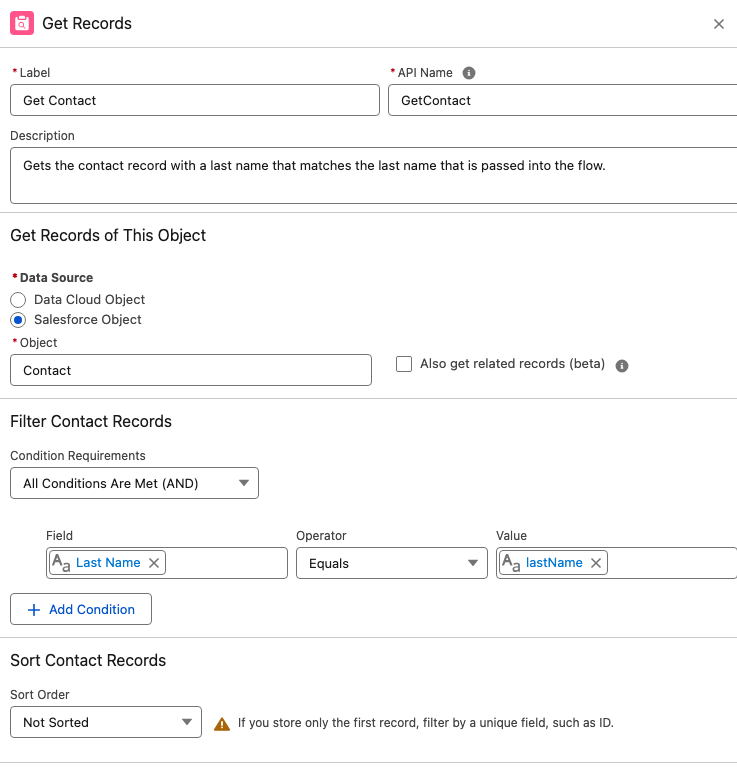
- Select + Add Condition
- Enter the Record Field Email equals variable Email
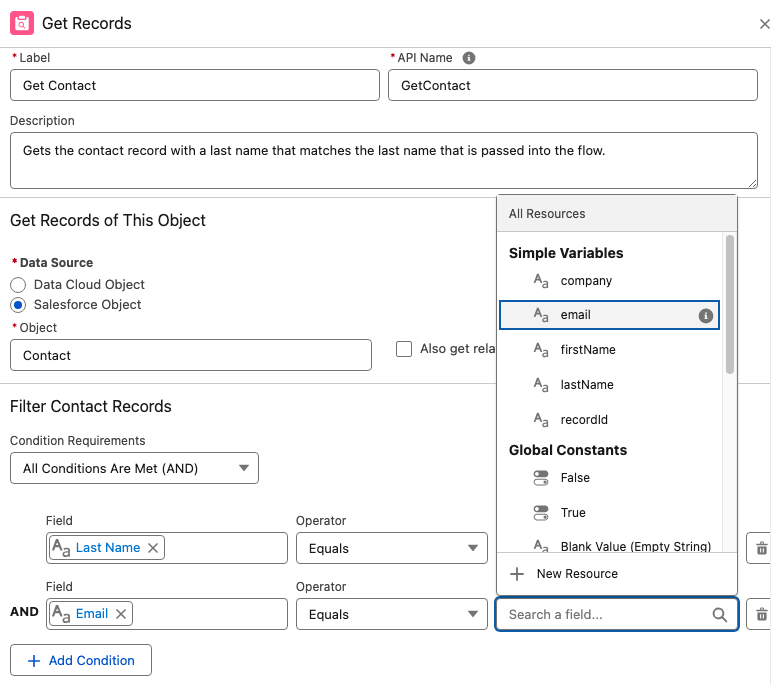
- Select the trash can icon next to the Last Name condition to remove it
Important: When mapping the fields remember your variables represent the inbound data from your form, the field represents the object’s fields in Salesforce.
5. Once complete, you should be mapping (at least) the Email field with the email variable you created.
2. Next selecting the Decision element.
- The Decision element will determine if there is an existing Contact found. Name the element “Does Contact Exists?”.
- Under Outcomes, let’s name the first outcome “Yes”.
- For the Yes outcome, your Resource should be the Contact ID from the Get Contact element. So if the Get Contact found a Contact, there will be a Contact ID present.
- Map the Get Contact > Contact ID with the Operator “Is Null” which should equal False.
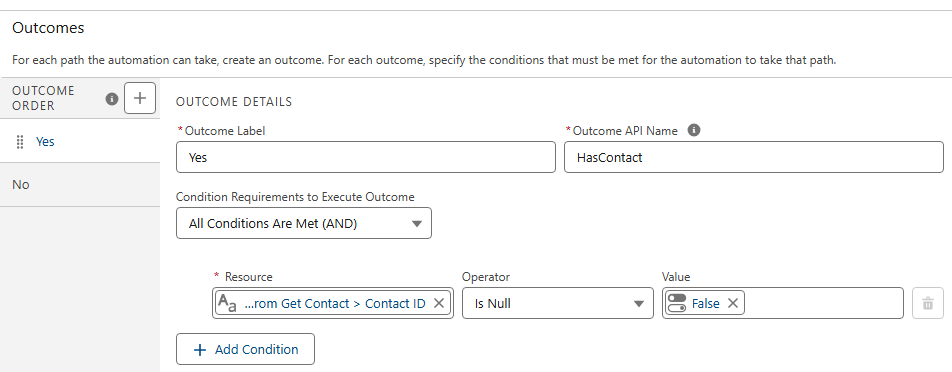
If a contact is found the Contact ID will not be null.
- For the default outcome, simply name it No. There is no criteria needed because either the new record is a contact or it’s not.
3. If it’s NOT a contact.
If your new record is not a Contact you’ll see by how the template is laid out, it will go down the right hand path and hit another set of checks to look for an existing Lead.
A. Configure your Get Lead node the same way you did with your Get Contact, mapping your Lead Email field with the email variable. This means it will look for any lead records that match that email address.
B. Configure the Decision element in the same way you did the Contact Decision element. You want to determine if it found a Lead ID from the Get Lead node above.

Finally, we’re either creating or updating records.
On the left path, where a record will travel if a matching contact record is found, we’ll update the existing Contact with the details from our variables. Remember, the variables represent the data that the person entered into the form. Map the variables to the appropriate Contact fields to update the values.
Important: As of this writing, if a variable has a null value because the form field was optional, and the person did not fill in the field, that null value will overwrite the value on the contact record! For example, if your phone field is optional and a person doesn’t fill that out and their existing contact record does have a phone number, it will be overwritten with a null value and you will lose that data. If you would like to prevent this from happening, see Solution #2 of this blog post for a workaround.
On the right path, records that are not existing contacts will travel to check for an existing Lead. If a Lead is found, you’ll configure the Update Lead node and map your lead fields with the variables.
If a lead is not found, you’ll create a new lead. Configure the Create Lead node, mapping your variables to the lead fields.
Very important last step for this flow:
For each update or create element at the end of the branches you must check the box for “Manually assign variables (advanced)” and store the variable in your recordId variable. If you don’t do this the flow won’t send the recordId back to your original form flow.
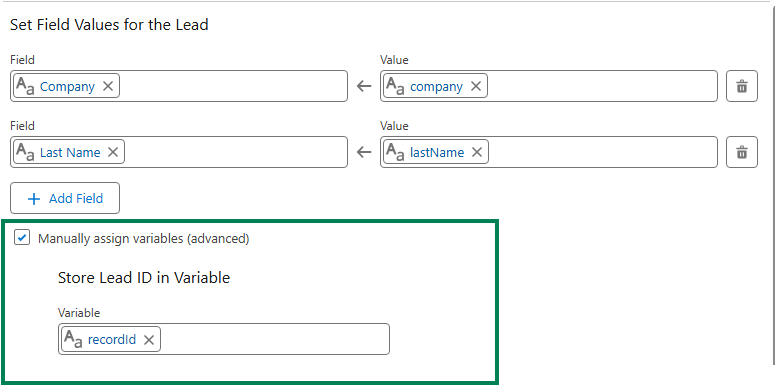
Once all the elements are configured and you’re sure that each exit point (create or update element) will store the recordId, you’re done with this flow and can save and activate. The flow must be activated before returning to your form flow.
Wait a minute, doesn’t the Create Records element include a check for matching records?
Yes, it does! That will work for your forms but you first need to know if the person filling out the form is a lead or contact. This subflow is the only way to first determine if the person filling out the form is an existing contact, lead or brand new.
Let’s go back to our form flow
Now that we’re back in our original form triggered flow, we have much less work to do to create an effective way to check for existing records before we decide if we want to create a lead or contact, or update an existing record.
When you start your form flow, instead of using a Create element, add your subflow.
- Delete the default “Create Lead” element that’s usually added
- Click the plus icon to add an element directly after your start
- Select the Interaction element “Subflow”
- One the right hand menu of flows, search for the flow you just created. You may have called it “Look for Existing Records” or something similar.
- Configuring the subflow node is important. You’ll see a toggle next to each variable you created in the subflow. This allows you to map your Form Fields directly to your variables in the subflow.
- Click the toggle and map all of the fields from your form.
Note: you do NOT need to map all of the fields, only the ones you want to use to create or update records in your subflow. You may include extra variables in your subflow to make it scaleable. For example, your subflow may include “favoriteColor” but you may not collect this data in all of your forms. That’s ok, you can toggle it on any of the forms you collect that data.
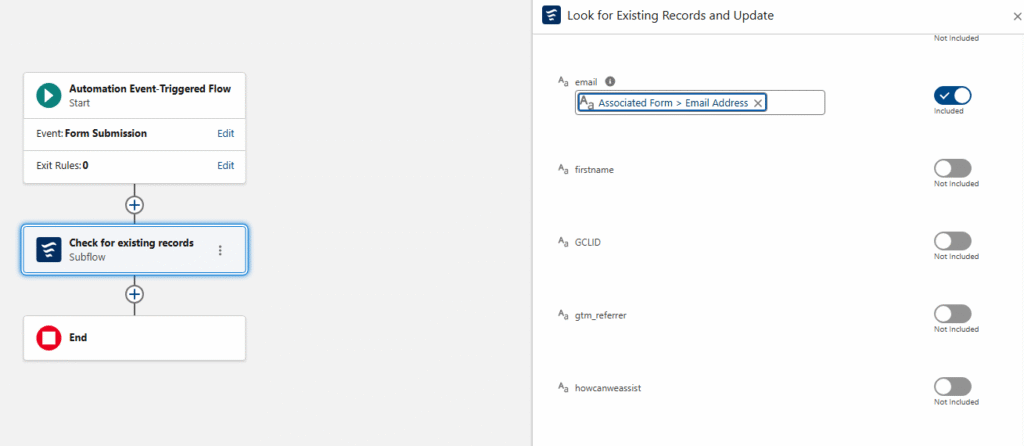
Using the recordId that was found in the subflow
What’s really nice about this subflow is that your form receives back a recordId for the record that was either found and updated, or the newly created record. There is no 24 hour wait. If you want to take additional steps in your form flow, like adding people to a campaign you’re going to need that recordId.
Final thoughts
Creating and calling a subflow might seem intimidating to newer platform users, but if you take the time to configure it you will have an invaluable, reusable resource. In simplest terms you’re bypassing Data 360’s 24 hour wait period for checking a form submission for existing records and you’re receiving back (almost instantly) the recordId of the existing record or newly created record. This opens up all sorts of options in your form flow and makes them much easier to scale.
I also encourage you to have the subflow do as much work as possible. The more you have your subflow do, the less work your individual form flows need to do which means you’re up and running with new forms really quickly. For example, I recently set up a subflow that checks for existing records, adds the person to a campaign based on the UTM value in their form submission and sends the sales team an email alert, all within that subflow.
One additional added benefit to the subflow strategy is that it’s far easier to deactivate, add-to and debug a regular flow. Form flows are notoriously fickle, so once activated, I like to leave them alone. But the subflow behaves similarly to any other admin flow in Salesforce that can be added to and edited as needed. (eh ahem, in the sandbox, of course).
Special thanks to our friend, Francois Perret for his terrific article on the subject.