In this blog, I’ll walk you through how to prevent a lead source from being overwritten in Salesforce and how to activate and test it.
Create a validation rule
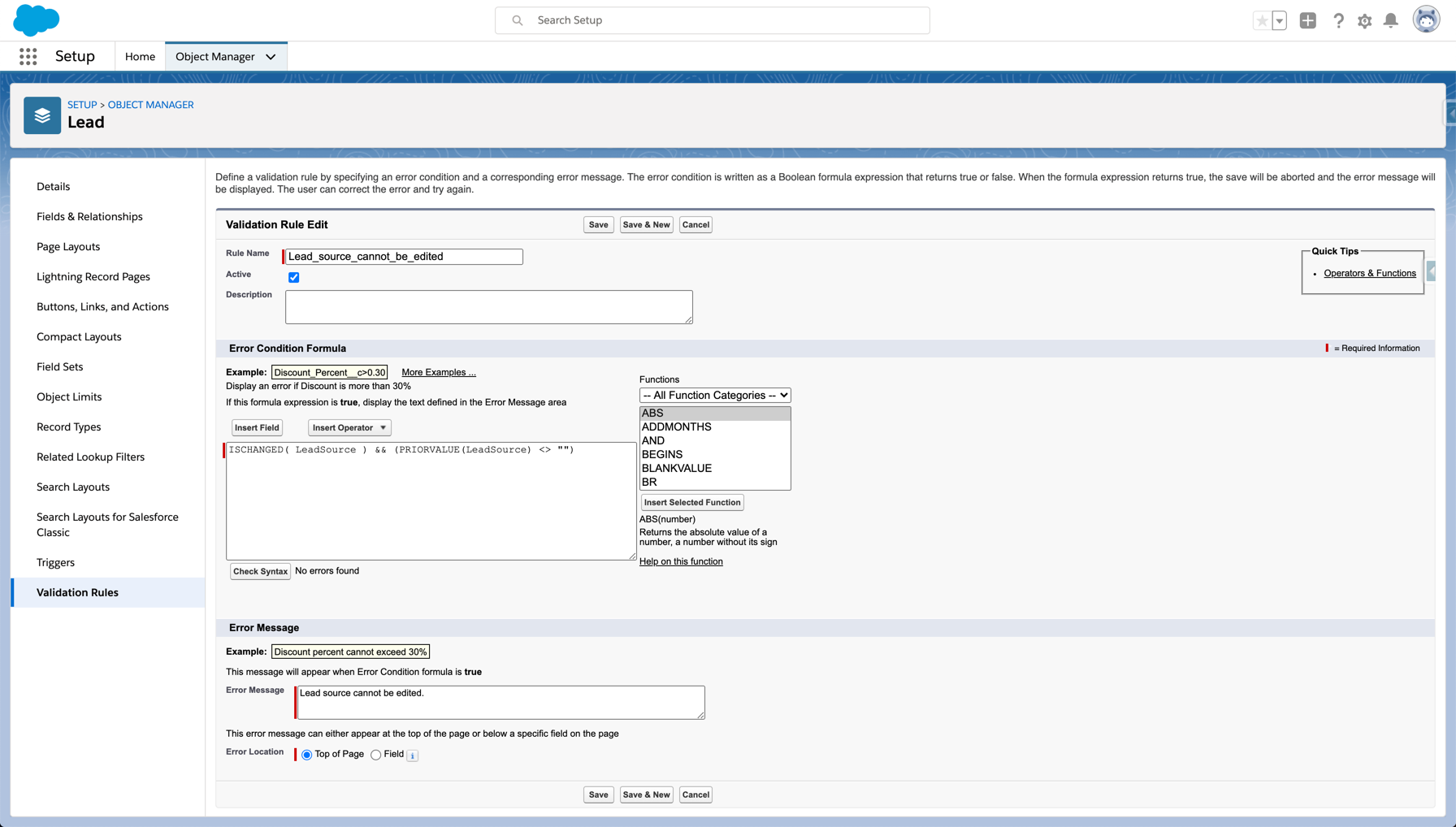
To prevent lead source for being overwritten, create a validation rule in Salesforce. Navigate to the lead object > validation rules > new and enter the required information.
To run the validation rule if the lead source is changed and if the current value is not empty use this as your error condition formula.
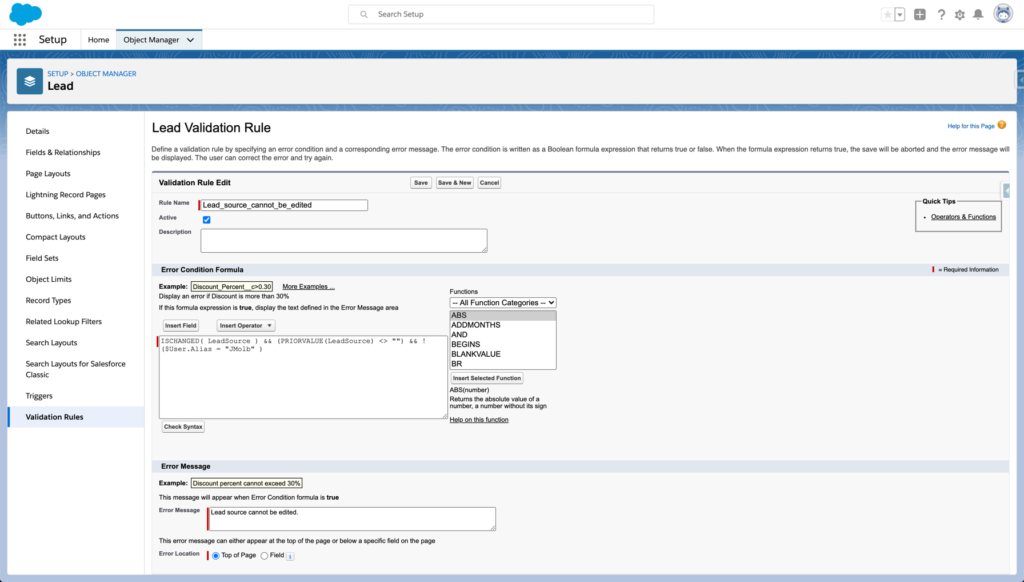
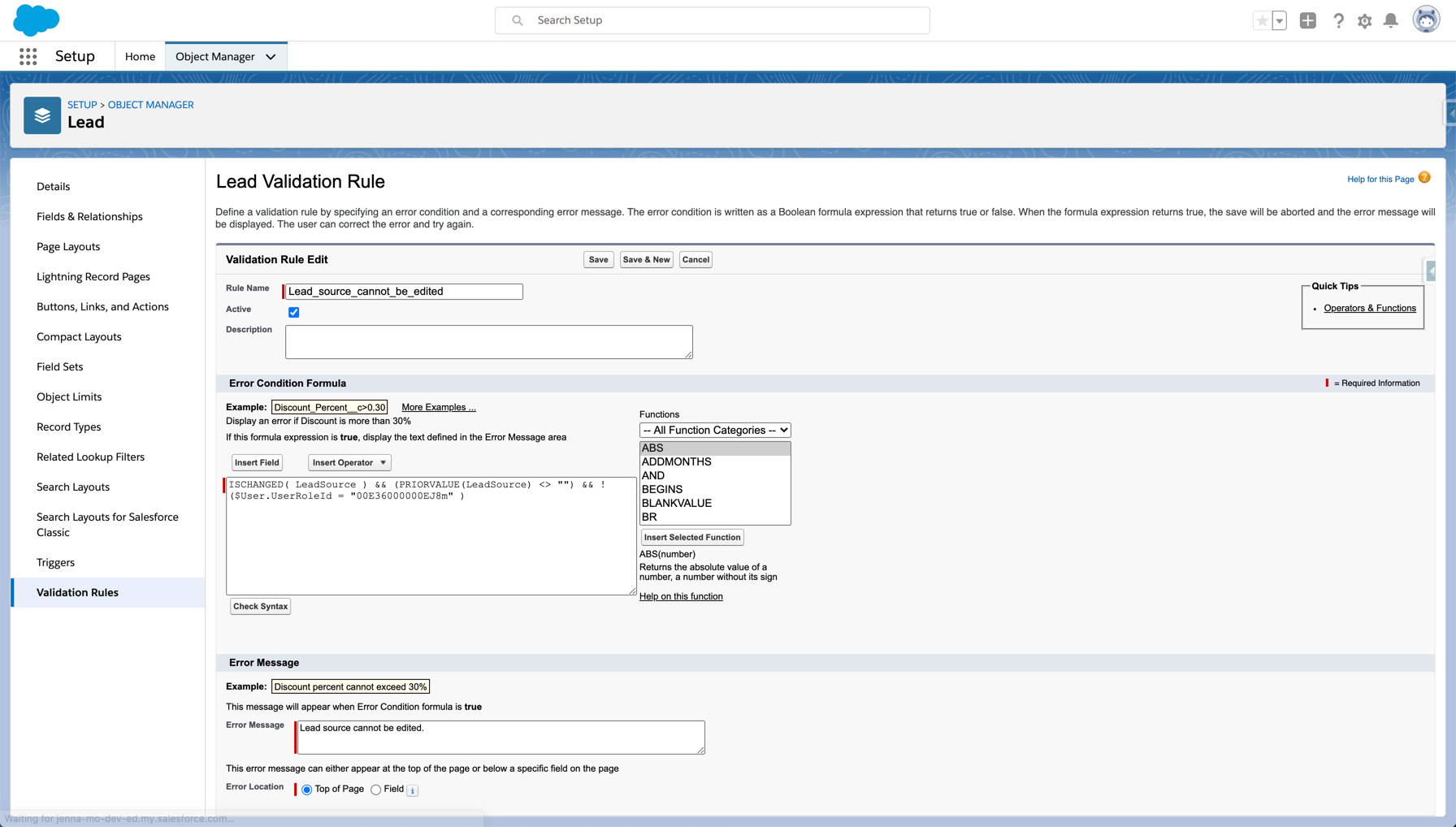
You might want to allow some users to update the lead source field. For example, a marketing manager might need to update this field to correct data. To run the validation rule if the lead source is changed, if the current value is not empty AND allow a particular user alias to bypass the validation rules, use this as your error condition formula.
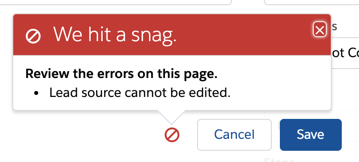
Activate your validation rule and test it by updating the lead source for a lead that already has a value. You should see an error message when saving the record.
Do another test by creating a new lead. Fill out the lead source field to ensure that you have the ability to update the field.
Collecting accurate data is essential to your marketing strategy so you can continually optimize it to fit your goals. In most cases, companies capture data through form submissions and keep this data in-house. But what if the data collected needs to be shared?
Marketing is ever-growing, so it isn’t uncommon for two companies to collaborate on a campaign or event. But when these companies work together, sharing data can get messy.
Traditionally, most marketing teams use spreadsheets to pass data back and forth between partners. This begs the question: is it possible to automate the transferring of data when users submit forms? Well, with Pardot, it’s not only possible, it’s simple— and with no spreadsheets necessary.
There are two ways to trigger this kind of automation. In our first post, we walked you through transferring data from a Pardot Form to a Pardot Form Handler. In this post, we’ll walk you through transferring data from a Pardot Form Handler to another Pardot Form Handler.
The initial submission is captured via a Pardot Form then data is passed directly to a Pardot Form Handler. Two fictitious companies, Utica Paper and Printers Rock are co-marketing an event. Utica Paper is the main host of the event and they leverage a Pardot form for registrations. In the Pardot form’s completion actions, they have added JavaScript code to forward submission data to a form handler. This Pardot form handler is tied to Printers Rock Pardot org. To simplify, this process is a Pardot Form (Utica Paper) > Pardot Form Handler (Printers Rock).
A Pardot Form Handler captures the initial submission and the data is forwarded to a second Pardot Form Handler. In this scenario, The Halpert Company, uses their website to host a registration page for an upcoming event. After a form is submitted, they capture data in Pardot via a form handler. The Halpert Company has partnered with Utica Paper on this campaign. They leverage the data forwarding option on Pardot form handlers to send submission data over to Utica Paper immediately after a form is submitted. To simplify, this solution is Pardot form handler (Halpert Industries) to Pardot form handler (Utica Paper).
Scenario: Pardot Form Handler to Pardot Form Handler
Create Pardot Form Handler in the primary org Under this scenario, The Halper Company created a Pardot form handler to capture event registrations from their website form. Their web team has configured the site to post data to this form handler after someone submits. This form handler contains all the information their team wants to track within Pardot.
Pro Tip: only mark the email field as required. Leave all other fields optional on the form handler. Let the website form handle which fields are required when the user completes the form.
Create the Pardot form handler in the secondary org The second company in our scenario is Utica Paper. They would create a form handler with identical fields to capture data in their instance. The secondary company will send the form handler endpoint URL to the primary company.
Pro Tip 1: The external fields names must match exactly to how they’re defined on the primary company’s Pardot form handler.
Pro Tip 2: Use the HTTPS encoded URL to capture data. (see screenshot below)
On the primary company’s Pardot form handler, do these things:
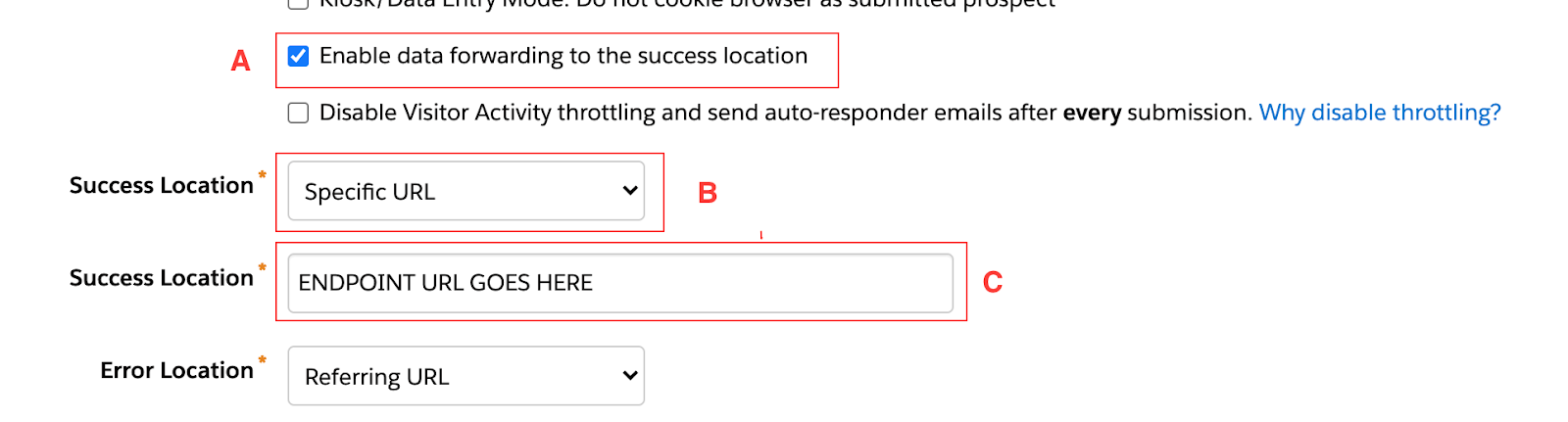
a. Check the ‘enable data forwarding to the success location’ box. (see A in screenshot)
b. Change the Success Location dropdown to ‘specific url. (see B in screenshot)
c. Paste the endpoint URL from step 1 in the field (see C in screenshot)
(optional) Update the secondary org’s Pardot form handler with a success location. This step depends on if the Thank You page a user sees is controlled by the form handler or the original source. In many cases, the thank you page an end user sees is controlled by the website form (outside of Pardot) which is why most form handler’s are in the kiosk mode.
If the form handler controls the thank you page, that page will be ultimately controlled by the secondary companies Pardot form handler. With the Success Location set to ‘specific url’, the secondary company would input the thank you page link into the ‘success location’ url box.
Pro Tip: Set up a custom redirect in the primary company’s Pardot for the thank-you page. That way if the link needs to change, the primary company’s admin can easily update it.
Final step: TEST EVERYTHING! Don’t skip this step – trust us, your future self will thank you. Testing will ensure that data is being captured and passed between the two Pardot instances.
The last thing you want is to launch a shiny new campaign to find out a week later your data was not captured properly.
Check out our post on how to use the format above to pass conditional completion actions through a Pardot form. If you need Pardot help or training, check out some of our mini-courses and bootcamps, or contact us to speak with a consultant. Sercante can help you maximize the investment of your Pardot instance.
You have your lead lifecycle set up, your scoring set up, and the marketing qualified leads (MQLs) are flowing in. Now it’s time to pull reports in Salesforce to see how you are doing against your targets. Maybe you don’t know where to start, what reports to pull or what extra data points you need. In this post, I’ll share some example MQL reports and some tips and tricks for creating reports in Salesforce.
Getting your MQL data ready
To pull the reports outlined in this post, you will need to ensure you are collecting appropriate data points. Here are some data points that are used to create the MQL reports.
MQL Date: The date the lead became an MQL.
Recycle/Nurture Date: The date the lead went from MQL to recycle/nurture or whatever the equivalent status you have set up.
Rejected Date: The date the lead was rejected because it’s not the right fit.
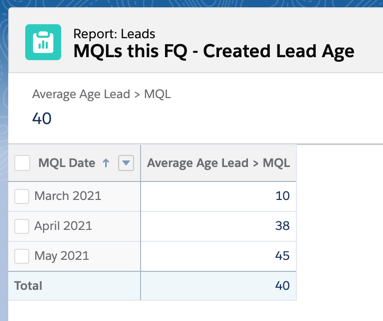
Age New Lead > MQL: The number of days between when the lead was created and when the lead became an MQL.
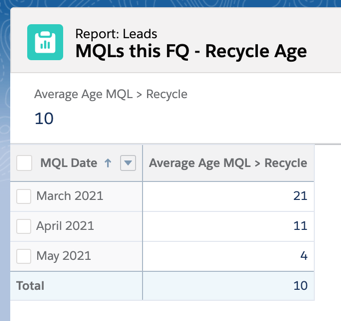
Age MQL > Recycle/Nurture: The number of days the lead was an MQL before moving to the next stage.
Recycle/Nurture Reason: The reason the lead was marked as recycle/nurture.
Rejected Reason: The reason the lead was marked as rejected.
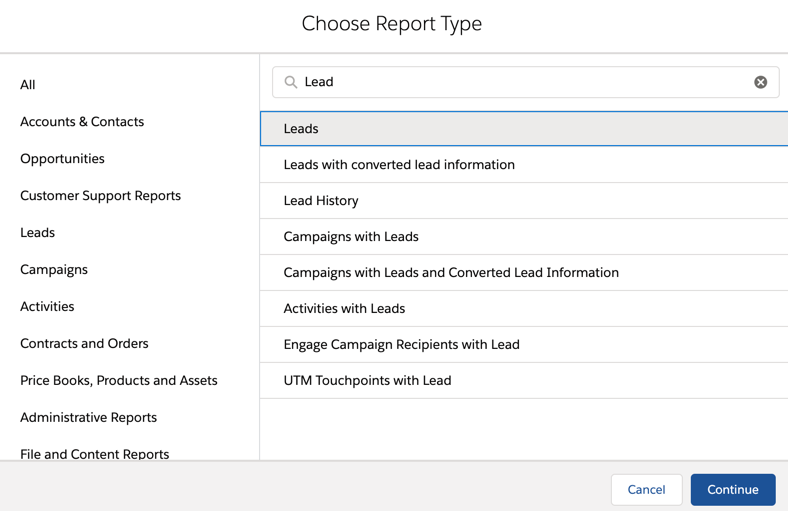
Most MQL reports will use the default “Leads” report type.
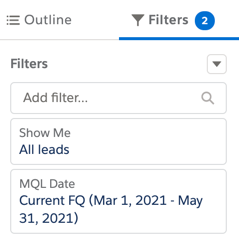
For the report filters, you almost always want to use the show me all leads option. You also can update the date filter from created date to MQL date.
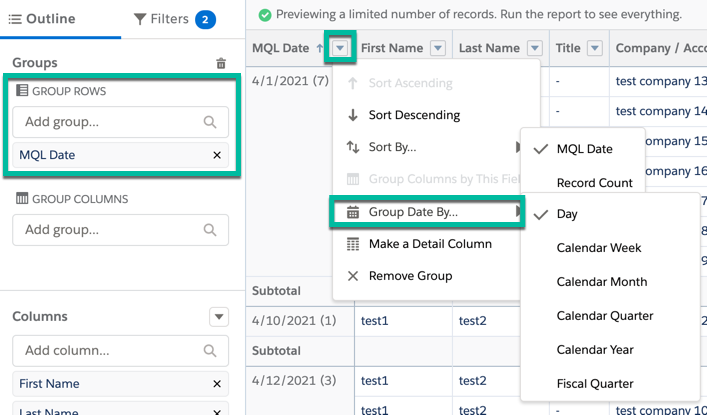
Group rows by searching for the field name in the group rows section. When grouping by a date range, click on the arrow next to the field to group the date by day, week, month, etc.
Tip: Don’t forget you can group by more than one row!
You can also group columns by searching for the field name in the group columns section.
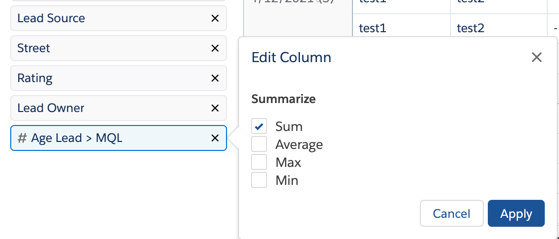
When adding a number field to your report, you have the option to summarize the field using sum, average, max and min. To change the summary option, click on the field name to bring up the edit column options.
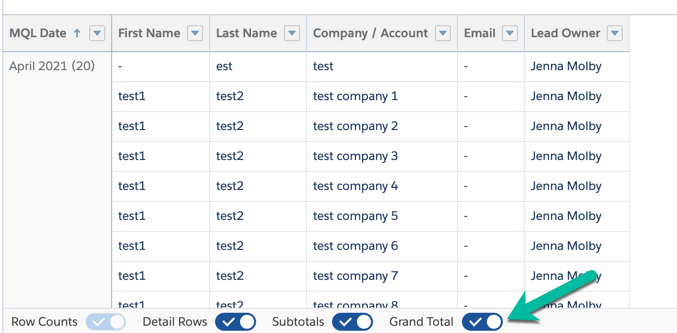
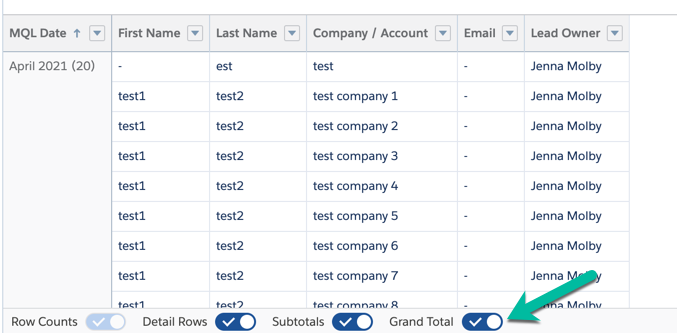
Use the toggles along the bottom of the report to show/hide information for your report. For most reports, you will probably want to hide the detail rows.
Example Reports
Here are some example reports and what filters to use to create them.
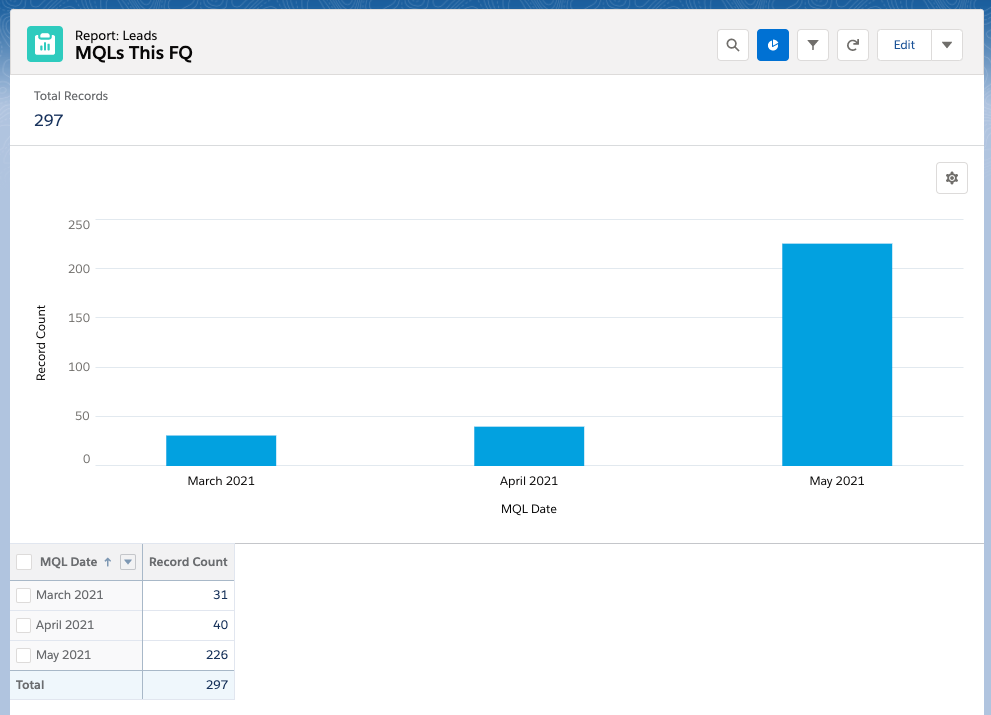
MQLs this quarter
How many MQLs did we have this quarter? Filters: All leads, MQL Date is current FQ. Grouped by MQL date (by month).
Average number of days between lead created date and MQL date
How long does it take for a new lead to become an MQL? Filters: All leads, MQL date is current FQ. Grouped by MQL date and with the average filter turned on for the field “Age New Lead > MQL.
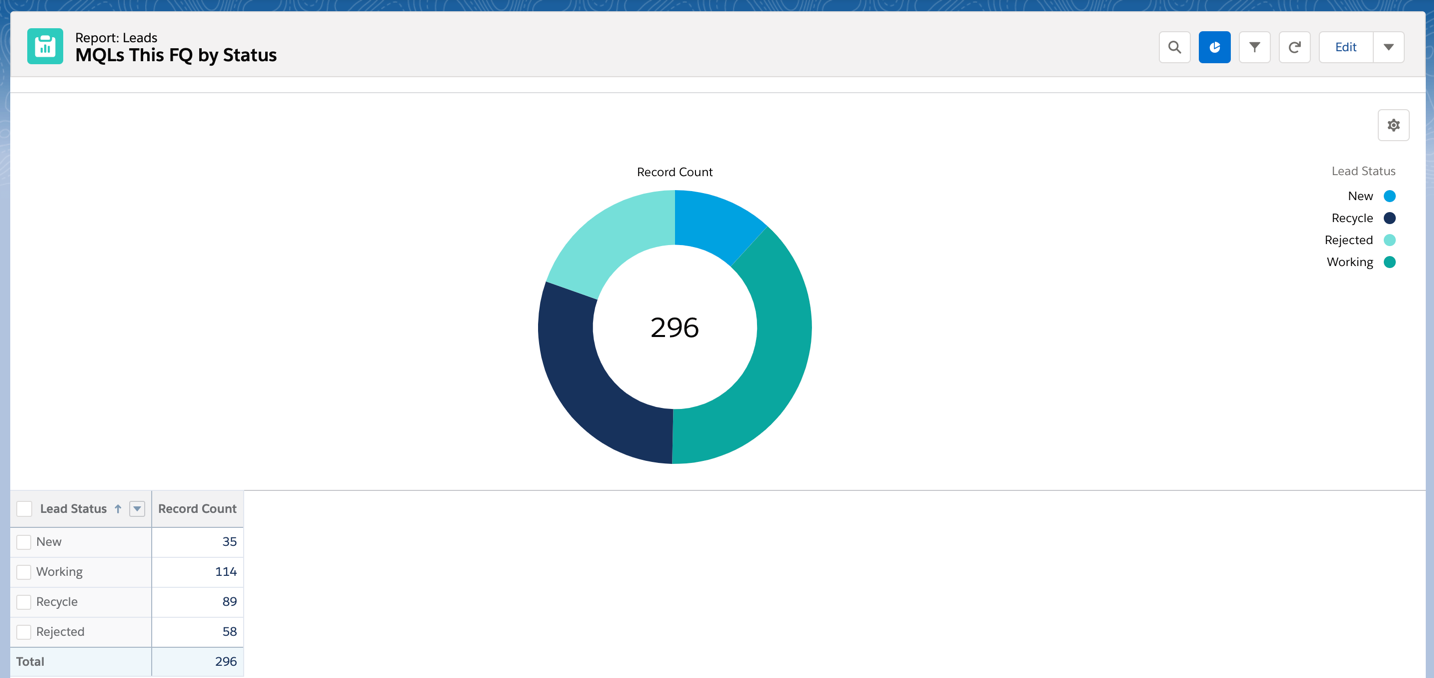
MQLs by Status
What status are the MQLs in? Filters: All leads, MQL date is current FQ. Grouped by Lead Status.
Aveage number of days between when an MQL is created and when the status is changed to recycle
How long is a lead in the MQL stage before being recycled? Filters: All leads, MQL date is current FQ, recycle date is equal to “”. Grouped by MQL date with the average filter turned on for the field “Age MQL > Recycle”.
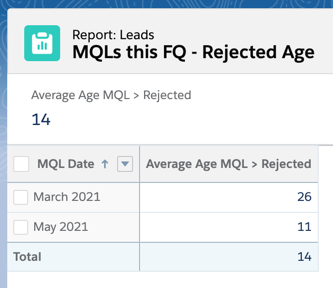
Aveage number of days between when an MQL is created and when the status is changed to rejected
How long is a lead in the MQL stage before being rejected? Filters: All leads, MQL date is current FQ, rejected date is equal to “”. Grouped by MQL date with the average filter turned on for the field “Age MQL > Rejected”.
Leads by recycle reason
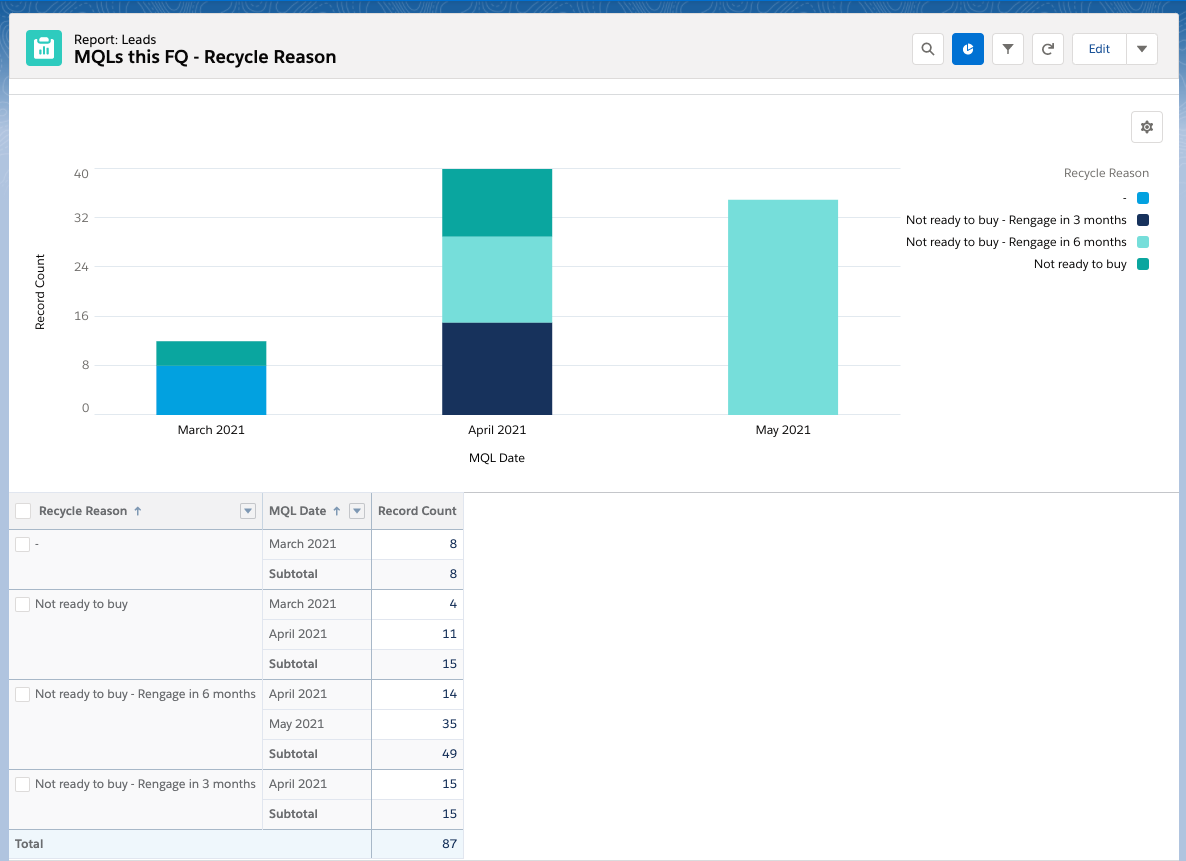
What are the main reasons for an MQL being recycled? Filters: All leads, MQL date is current FQ, recycle date is equal to “”. Grouped by recycle reason and MQL date.
Same report can be pulled for rejected reason or any other related field.
MQLs that have been converted
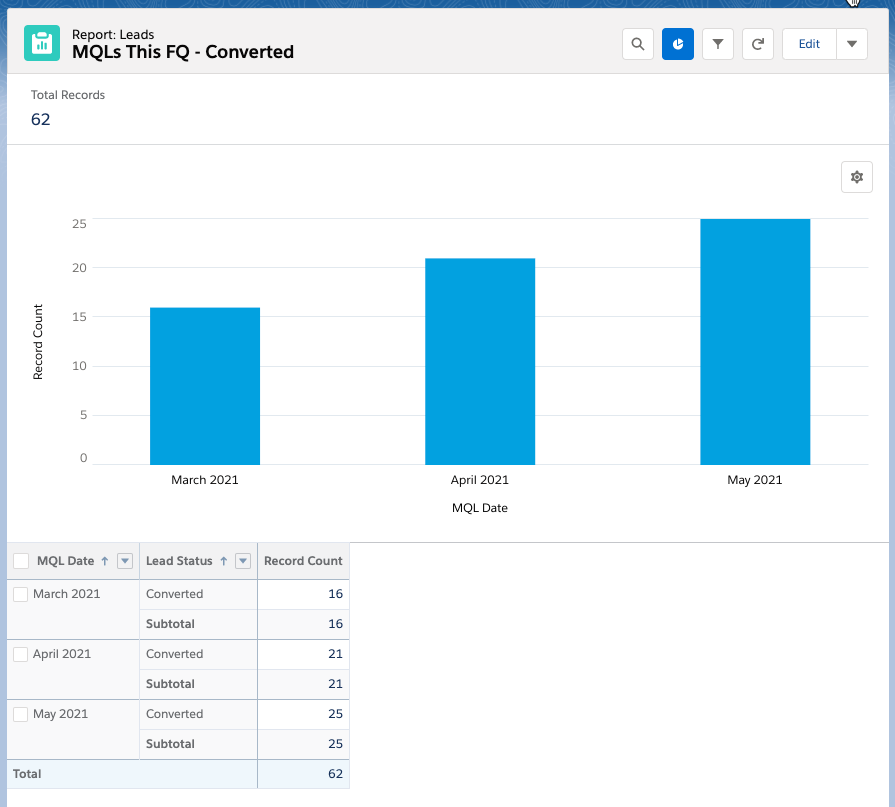
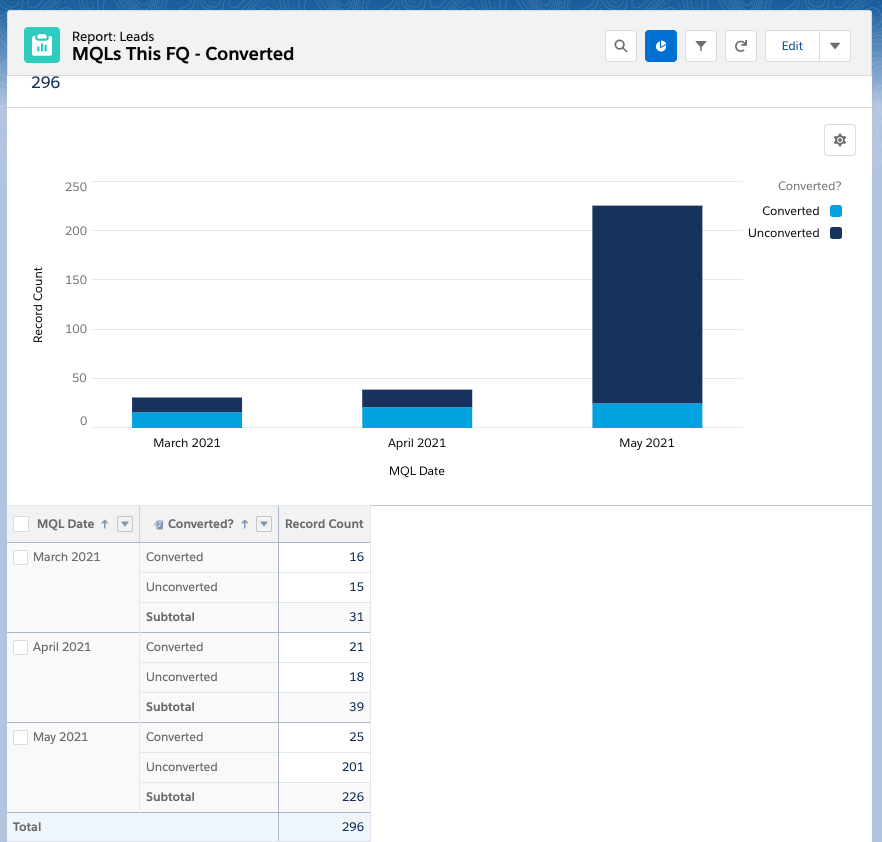
How many MQL leads have been converted this quarter? Filters: All leads, MQL date is current FQ and lead status equals converted. Grouped by MQL date and Lead Status.
Tips & tricks
Add targets to your reports
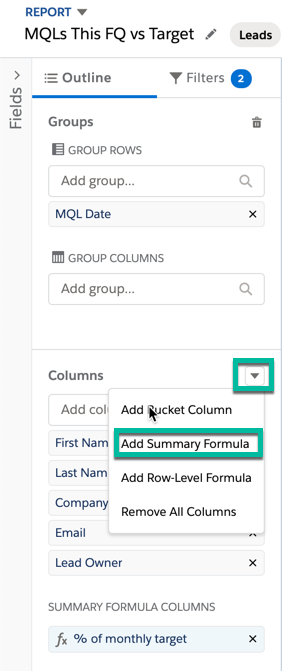
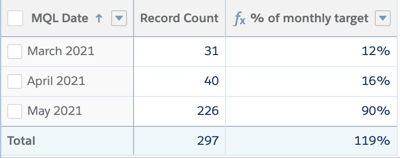
How far away are you from your MQL target? You can add a formula field to your report to calculate the percentage of how close you are to any number. To do this, click on the arrow next to the columns section and click on add summary formula.
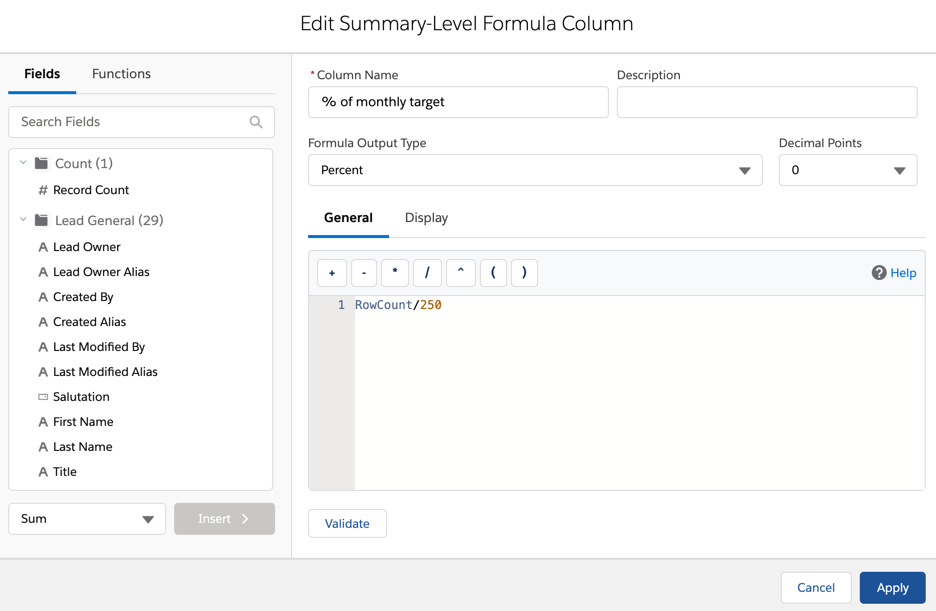
Give your column a name, select percent as the formula output type and use this formula RowCount/250. Replace 250 with whatever your target MQL number is.
Run your report to see the calculation in action!
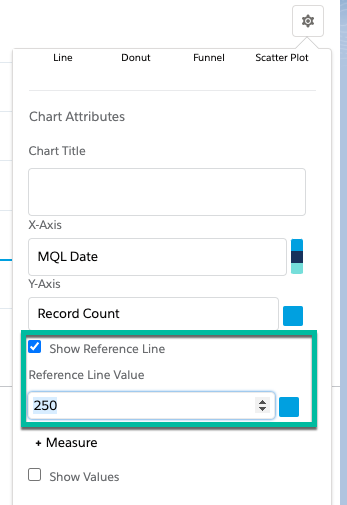
You can also add a target to your chart by going to chart settings. Check the box for show reference line and enter your MQL target in the text box.
Add bucket fields
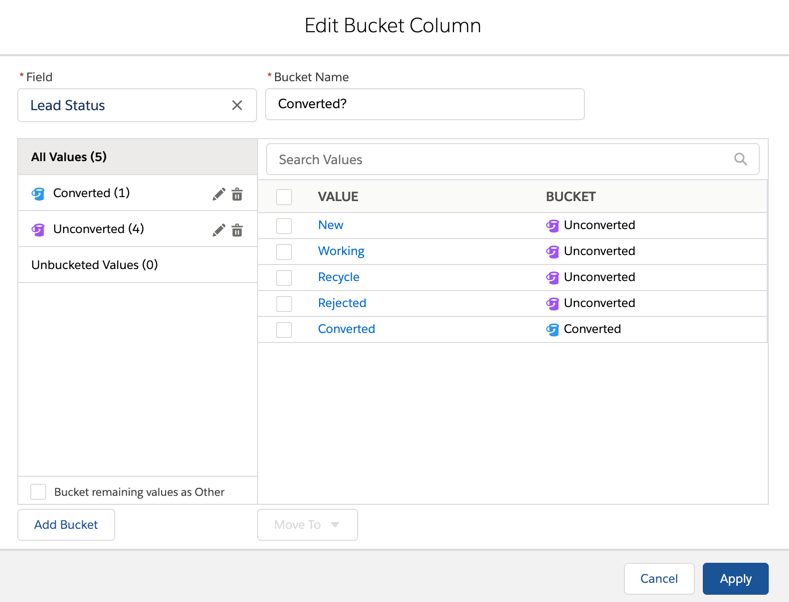
Bucket fields are a great way to clean up your report by grouping field values. One way I like to use them is to show converted vs unconverted leads. In this example, lead status is updated to “converted” when a lead is converted, so I can use that field to bucket my fields to determine converted vs unconverted.
Note: There is also a field called “converted” on the lead which is a checkbox. You can also use this in your reports, but I it will only be a “true” or “empty” which can be confusing.
Don’t start from scratch every time
As long as you are using the same report type for your reports, there is no need to create a new report every time. Use one report and build off of it. Adding different filters and columns. Just make sure you use the save as button!
Dashboards
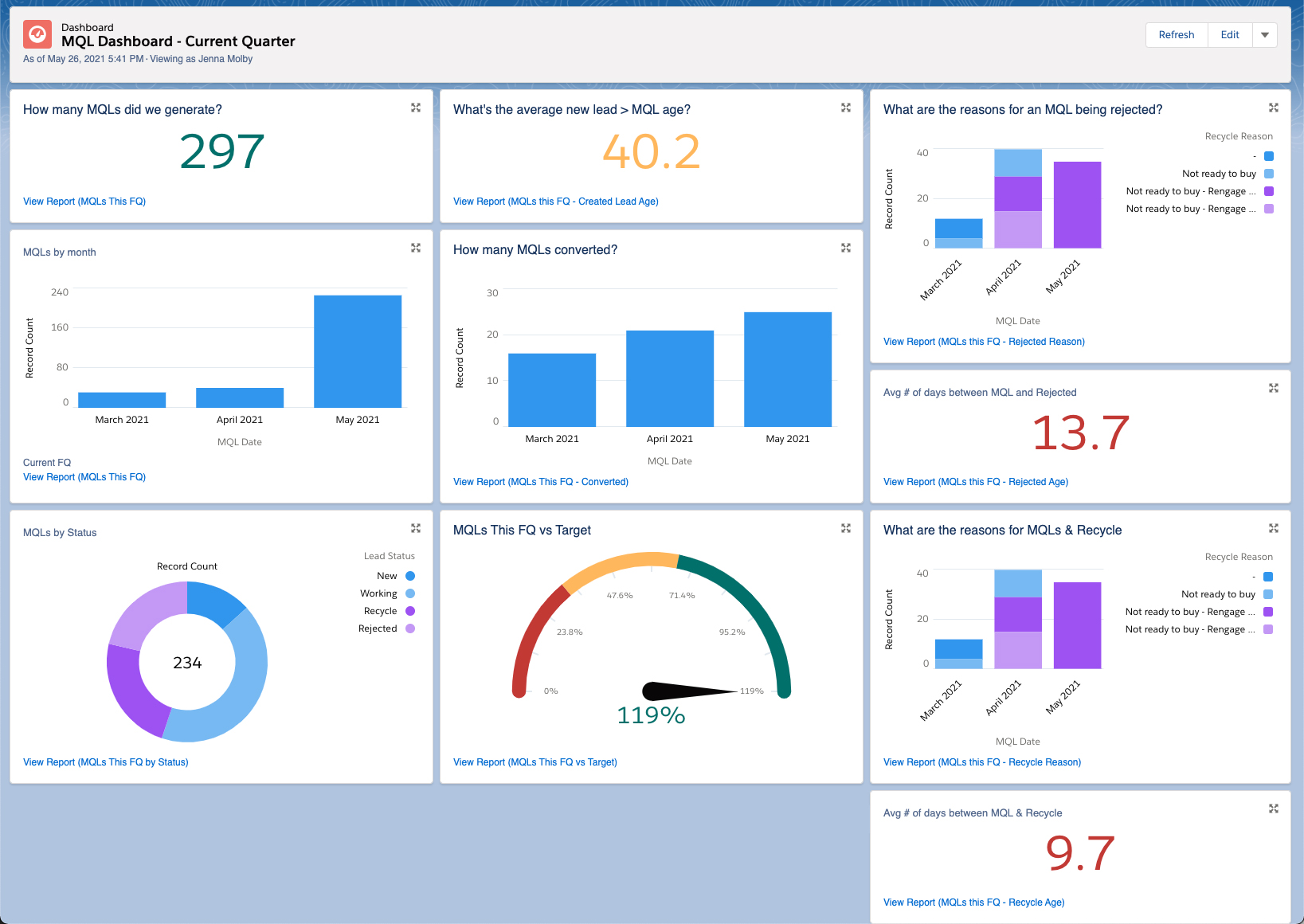
Once all your MQL reports are created, the reports can be used in dashboards like this MQL dashboard.
Capturing data is a key piece of any marketing strategy. It’s imperative that you capture the right data so you can continue improving your marketing efforts. Pardot is the vehicle we see many companies use to capture form submission data, but what if that data needs to be shared?
As marketing grows, it’s become more of a common place for two companies to work together on a campaign or an event. The tricky thing is sharing data. Traditionally, marketing teams use the spreadsheets – oh, the dreaded spreadsheets – to pass over data to their co-marketing partner.
Is it possible to automate the distribution of data when a user submits a form? With Pardot, it’s surprisingly easy to do away with spreadsheets and move to a completely automated system.
There are two ways to trigger this kind of automation. We’ll go into detail on both of these options, but first here’s a 10,000 ft view of each.
The initial submission is captured via a Pardot Form then data is passed directly to a Pardot Form Handler. Two fictitious companies, Utica Paper and Printers Rock are co-marketing an event. Utica Paper is the main host of the event and they leverage a Pardot form for registrations. In the Pardot form’s completion actions, they have added JavaScript code to forward submission data to a form handler. This Pardot form handler is tied to Printers Rock Pardot org. To simplify, this process is a Pardot Form (Utica Paper) > Pardot Form Handler (Printers Rock).
A Pardot Form Handler captures the initial submission and the data is forwarded to a second Pardot Form Handler. In this scenario, The Halpert Company, uses their website to host a registration page for an upcoming event. After a form is submitted, they capture data in Pardot via a form handler. The Halpert Company has partnered with Utica Paper on this campaign. They leverage the data forwarding option on Pardot form handlers to send submission data over to Utica Paper immediately after a form is submitted. To simplify, this solution is Pardot form handler (Halpert Industries) to Pardot form handler (Utica Paper).
Let’s dive into the details…
Scenario: Pardot Form to Pardot Form Handler
Create Pardot Form in the Primary Pardot Org Utica Paper created their Pardot form to capture form submissions.
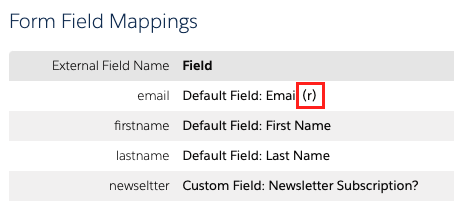
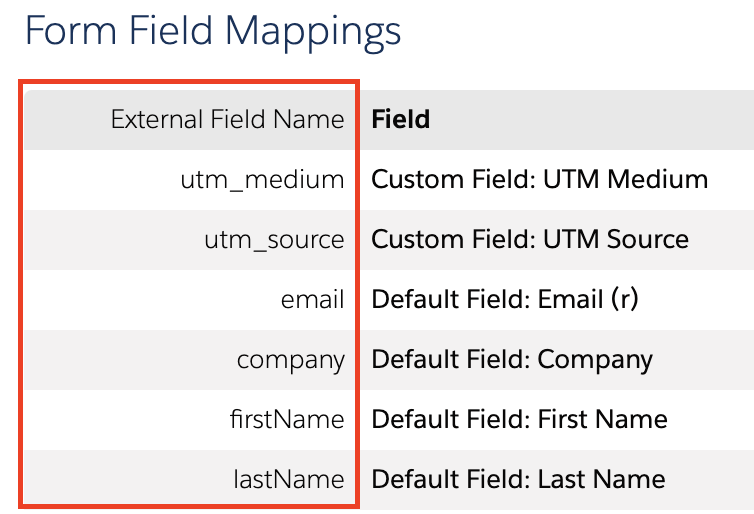
Create a Pardot Form Handler in the secondary Pardot Org This is where Printers Rock created a form handler inside Pardot. They include fields for all the data points they’d like to capture. All fields should be left as optional except the email address field. As a final step, Printers Rock sent over the form handler endpoint url and a list of field names (see red box in screenshot) to Utica Paper, so they would know where to map the data to.
Connect the Pardot Form to the Form Handler Utica Paper incorporates the field names from Printer Rock into a JavaScript post. This gets tricky so let’s take it step-by-step:
a. Copy / Paste the following JavaScript code into the Thank You code section on the Pardot Form.
<script type=”text/javascript”>
var email = encodeURIComponent(‘%%email{js}%%’)
//Update the src URL below to match the destination form handler endpointdocument.write(‘<iframe src=”URL_HERE?email=’ + email + ‘” height=”1px” width=”1px” />’);

//Update the location URL below to point to the Thank You pagewindow.location = “http://pardot.com/”;
</script>
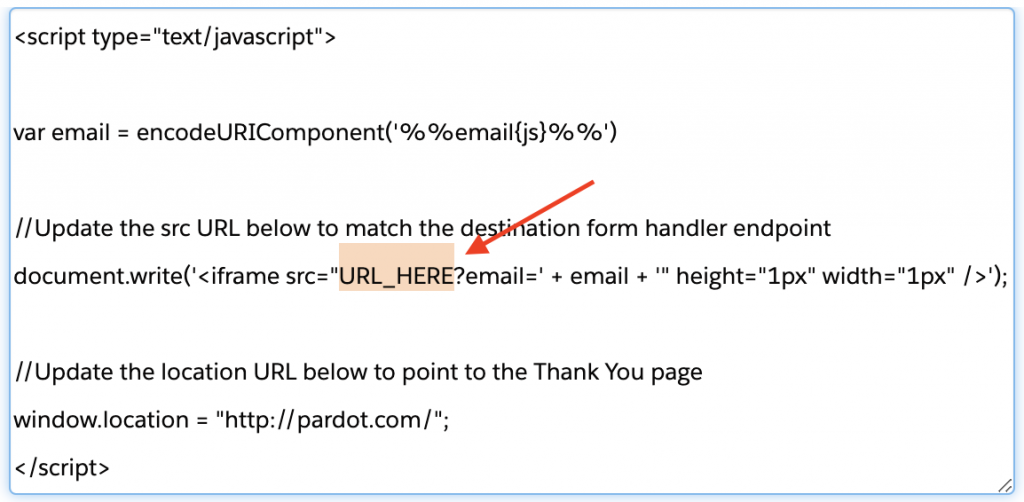
b. Within the JavaScript code, replace the URL_HERE (highlighted below) with the form handler URL. In our example, Utica Paper would paste the endpoint url that they received from Printers Rock.
Important: make sure you use the secure HTTPS link.
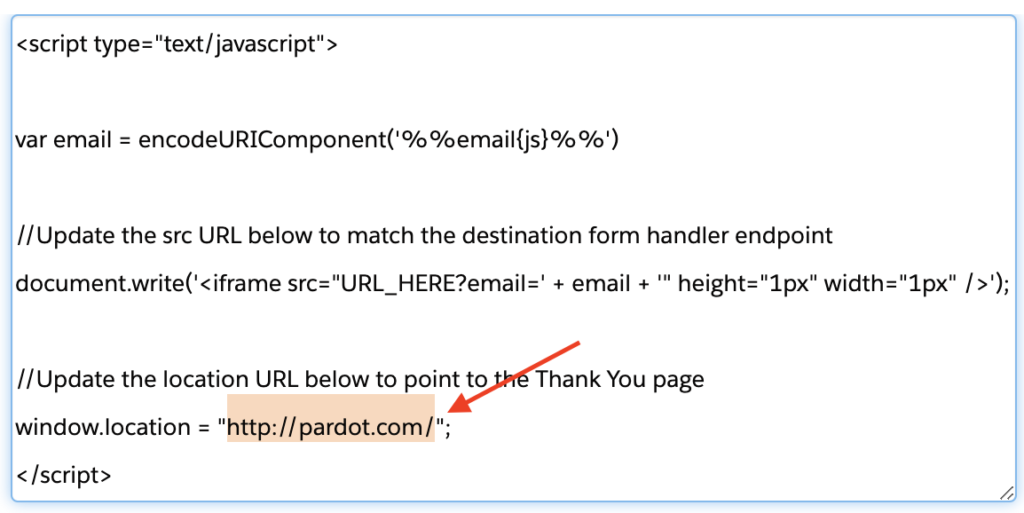
c. Within the JavaScript, update the final destination URL. Replace the highlighted text with your thank you page link. This is the page users will be directed to after the form is submitted.
d. Save and test! Submit a test through the Pardot form. The expected behavior is that the submission will be captured in the Pardot form and the Pardot form handler will display a submission too (email only). Your browser should redirect to the link you updated in the previous step. If anything does not fire correctly, review the above steps again to make sure your configuration matches.
Now you have a fully configured script that will pass the email address to a form handler url. Optionally you can add in additional fields to capture in this submission. To do so, navigate back to the Pardot thank you code section. You’ll want to add in additional variables, one for each additional field you’d like to send to the form handler. First add in the variable tags and then update the encoded url framework.
Variable Tags
var email = encodeURICompenent (‘%%email{js}%%’)
1. Copy the line you see above, hit return, and paste it as a new row.
2. Replace email (1) with the field name that’s defined on the form handler. In our example, this is the data sent over from Printers Rock in Step 2.
3. Replace email (2) with the Pardot field name. This is the field name in the Pardot instance that’s tied to the Pardot form. You’ll want to navigate to the field itself in Pardot to find the field ID (see screenshot below).
Update the Encoded URL
Right before the circled plug button, add the following:
+ ‘&formHandlerFieldName=’ + variableName
The Pardot form handler field name is the external field name listed on the form handler. Make sure you create one without spaces. Replace ONLY the highlighted part with the field name, leave the quotes, ampersand, and equal sign.
The variableName is the name you created in the Variable Tags section. If you followed the suggestion, this will match your Pardot Field Name.
Note: Replicate the Variable Tag and Update Encoded URL section for each field you want to sync to the Form Handler.
Final step: TEST EVERYTHING! Don’t skip this step – trust me, your future self will thank you. Testing will ensure that data is being captured and passed between the two Pardot instances. The last thing you want is to launch a shiny new campaign to find out a week later your data was not captured properly.
Wait, what is Marketing Data Sharing?!? If you are not familiar with Marketing Data Sharing, it essentially allows you to restrict which leads, contacts, opportunities, and/or custom objects are eligible to sync from Salesforce to Pardot. Let’s break this down and discuss its requirements, use cases, and setup.
What is Marketing Data Sharing?
Marketing Data Sharing (MDS) allows you to restrict which leads, contacts, opportunities, and/or custom objects are eligible to sync from Salesforce to Pardot. This is especially useful if only a subset of your leads and contacts are marketable. If you are using multiple Pardot Business Units, MDS enables you to specify which leads, contacts, etc. sync to which Business Units.
Requirements for MDS
MDS is available in the Pardot Lightning app for Advanced and Premium Pardot editions. Your Pardot instance also needs to be using the V2 Connector. The V2 Connector is the default for any Pardot accounts purchased after February 2019, but if you purchased before then you can learn how to upgrade your connector here.
How does Marketing Data Sharing work?
MDS relies on one rule per object and objects that match the rule’s criteria sync to Pardot. For example, say your Leads and Contacts have a checkbox field called “Marketable”. If “Marketable” is checked (true) the Lead or Contact is eligible to sync to Pardot. If the “Marketable” field is unchecked (false) the Lead or Contact is ineligible to sync to Pardot. If an existing Pardot Prospect’s “Marketable” field changes from checked to unchecked, they will be archived.
Considerations and gotchas
Most of Marketing Data Sharing considerations are pretty straightforward:
Both Lead and Contacts must have MDS criteria. You cannot use MDS to only control which Leads sync but not Contacts, or vice versa.
If you have multiple business units, you will need to set up MDS for both Lead and Contacts in every business unit.
If a Lead or Contact no longer matches the MDS criteria, the corresponding Prospect record will be sent to the Pardot recycle bin.
But then the documentation gets a little murky with these two:
“If you update a prospect record in Pardot but not the corresponding record in Salesforce, you can unintentionally archive prospects.”
“Imported prospects that don’t match Marketing Data Sharing rules are automatically archived.”
Essentially what this means is that you should not add the field that is used in your MDS criteria to Pardot because if you do, you can accidentally archive the prospect before it even has a chance to get to Salesforce. Keeping the MDS field out of Pardot means that Pardot-only prospects can never unmatch the MDS rules.
Finally, two big gotchas I learned from recently setting up MDS
Make sure the connector user or B2BMA Integration user (depending on your Connector) has view and edit permissions to the field controlling MDS.
Add the MDS field to your page layouts as a read-only field so it is easy to see which leads/contacts/etc. are syncing to Pardot.
How to set up Pardot Marketing Data Sharing
It’s best to set up MDS with a dedicated Salesforce field that is solely used to control syncing to Pardot. You don’t want to try and repurpose a field that other users may change and not realize there are downstream effects. This field should have pre-determined values (i.e. not a text field) and should only exist in Salesforce.
When you are ready to turn on MDS rules, open Pardot in the Lightning App (you cannot set this up in classic)
Navigate to the Pardot Settings tab and select Connectors
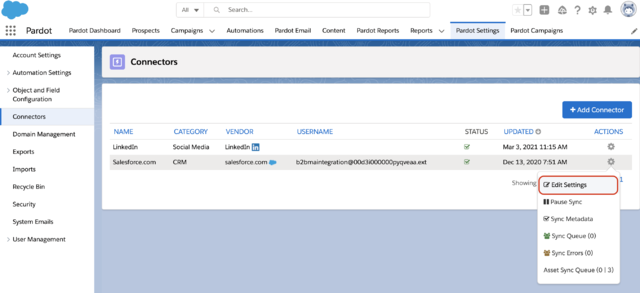
Select the action wheel next to your Salesforce Connector and select Edit Settings
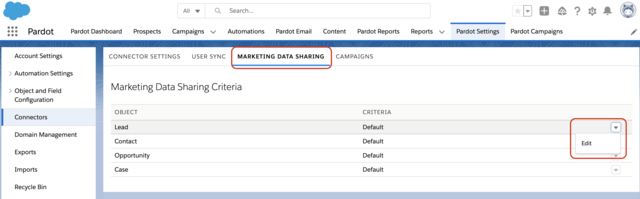
Select the Marketing Data Sharing tab and use the down arrow to edit the Criteria for your first object
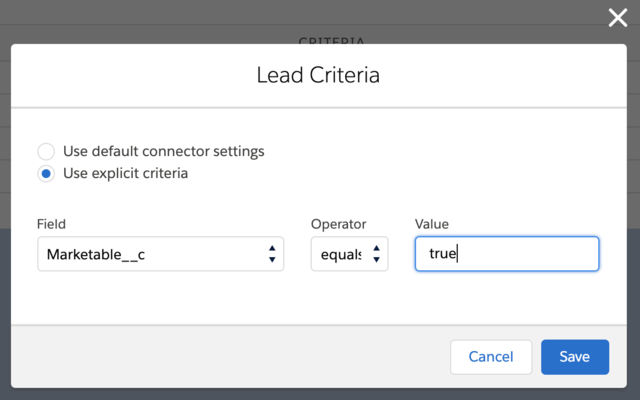
Select “Use explicit criteria” and set your rule
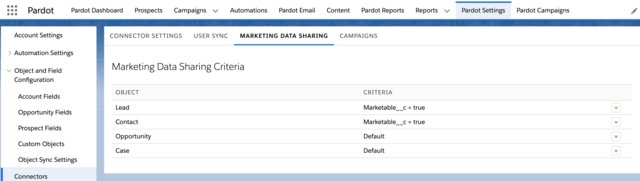
Repeat for the other object(s)
Conclusion
Marketing Data Sharing is a valuable tool, especially if only a subset of your leads and contacts are marketable and if you are using multiple Pardot Business Units.
Are you currently utilizing Marketing Data sharing rules? We’d love to hear your experience and share any insights in the comments.
Did you know you can add report charts to your campaign page layout in Salesforce? Adding report charts will give you insight into a particular campaign’s performance without creating a separate report or leaving the campaign page.
These reports can show you how many campaign members were added, by month or by status, how many opportunities are influenced by the campaign by opportunity stage, etc. All this is made easy by customizing your campaign lightning record page.
Example
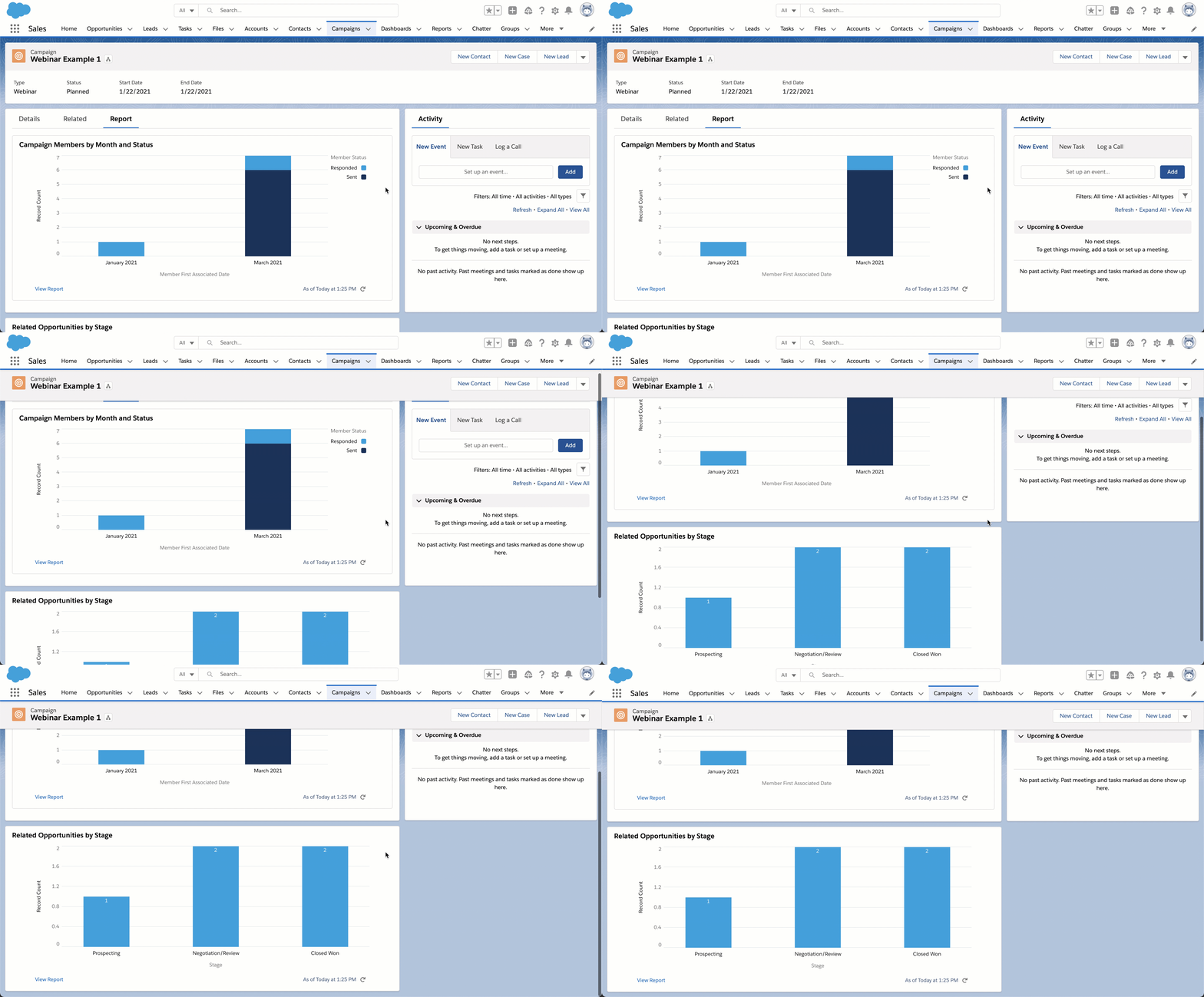
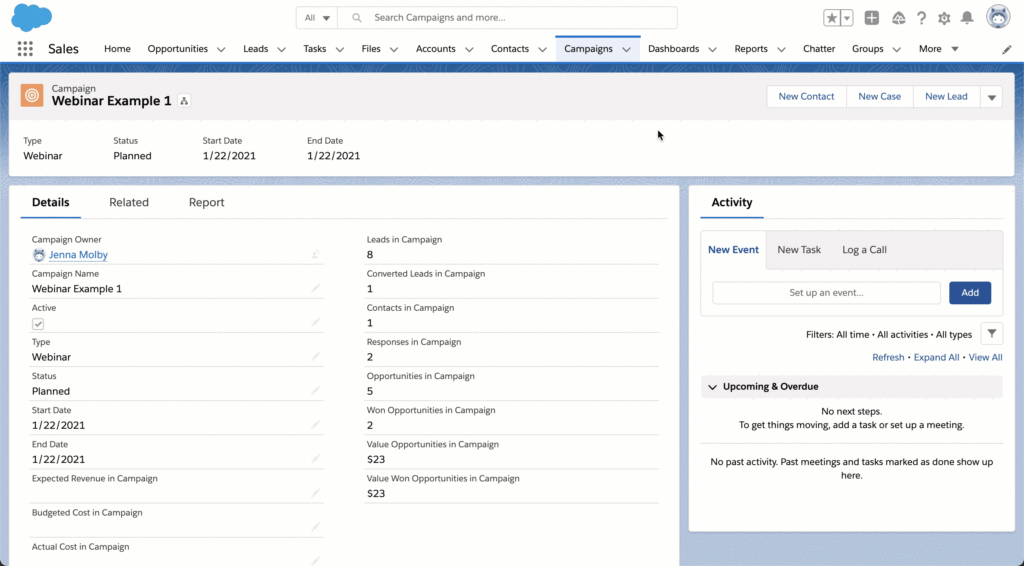
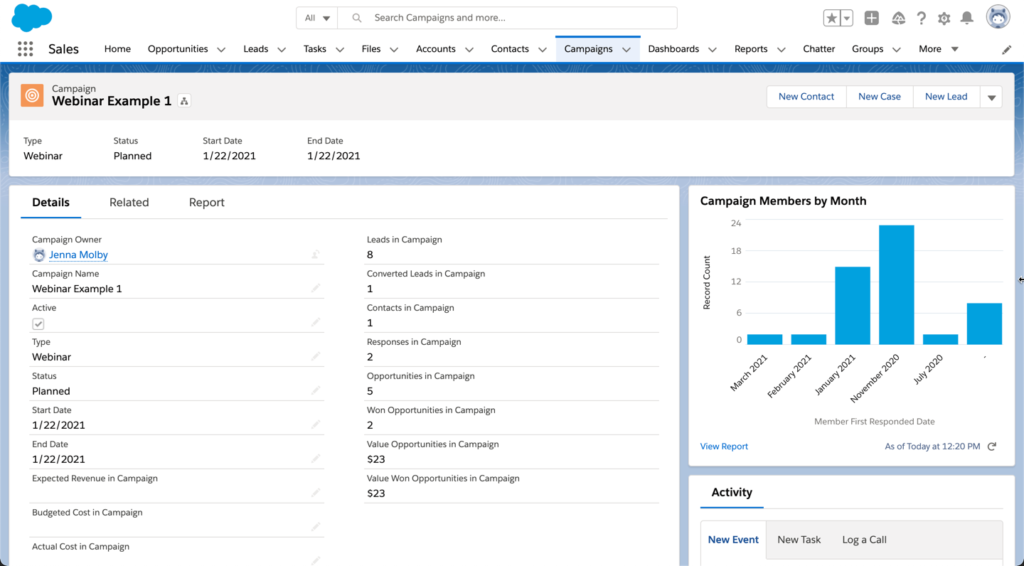
Here’s an example of a campaign that has a separate reports tab containing report charts.
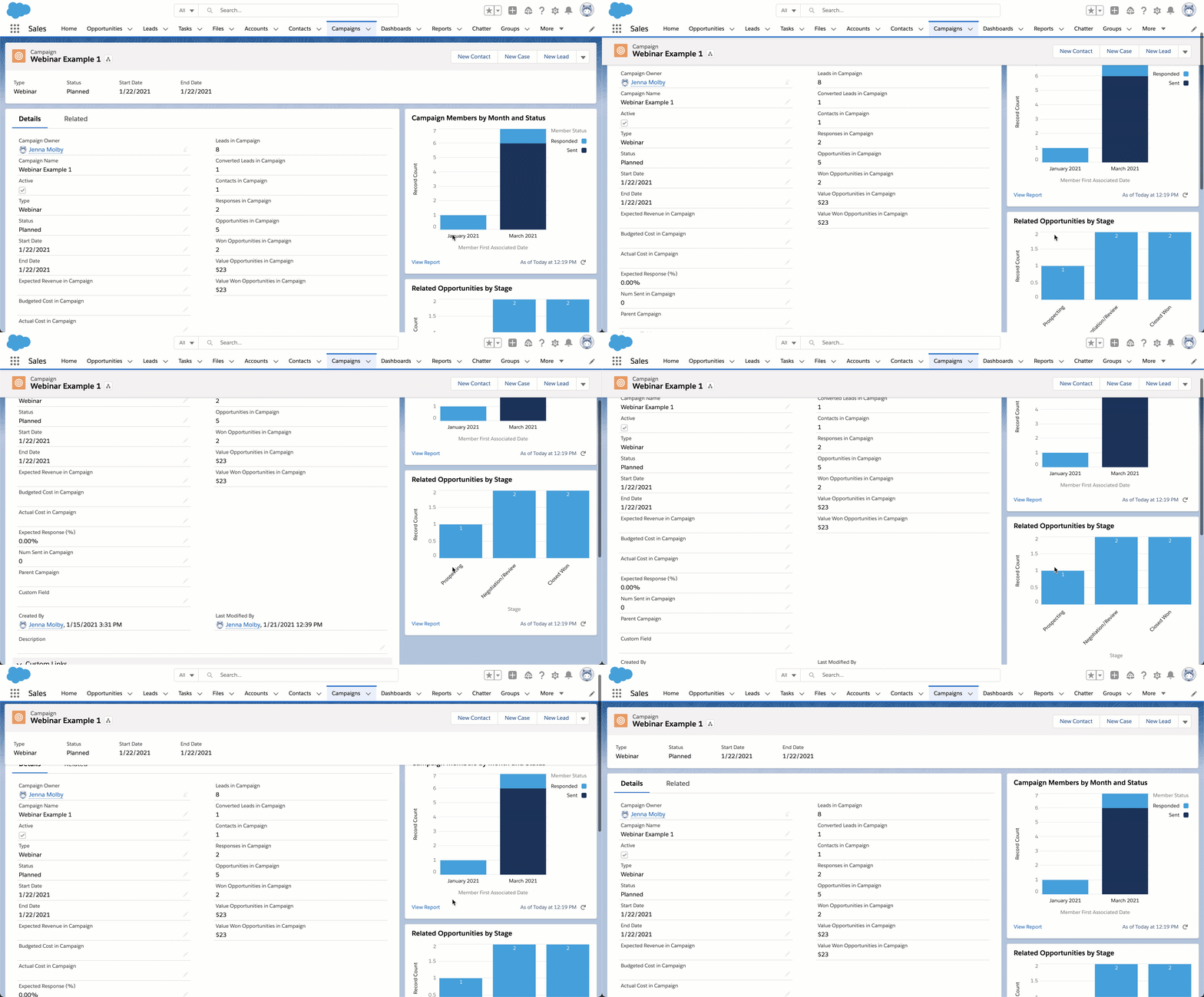
This example has the report charts directly on the page instead of a new tab.
Step 1: Create the reports
The first step is to create the reports you want to add. There are two things to keep in mind when creating your reports:
Only reports with charts are available to add to campaign page layouts.
The reports must be saved within a public folder in order to add them to the page layout.
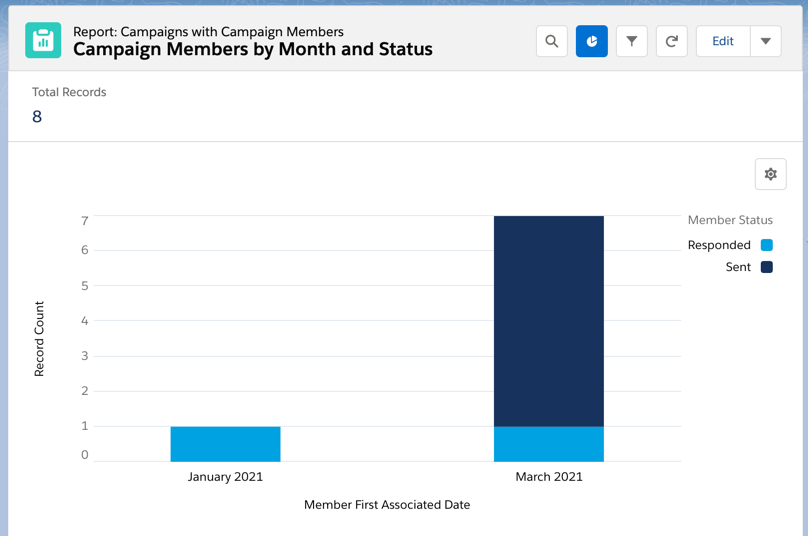
Example: Campaign members by month and status
When added to the page layout, this report will show a chart of all the campaign members (leads & contacts) by status and by month.
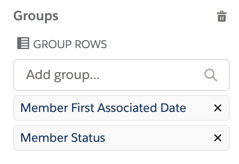
The report type is campaigns with campaign members, and the report is grouped by member first associated date and member status.
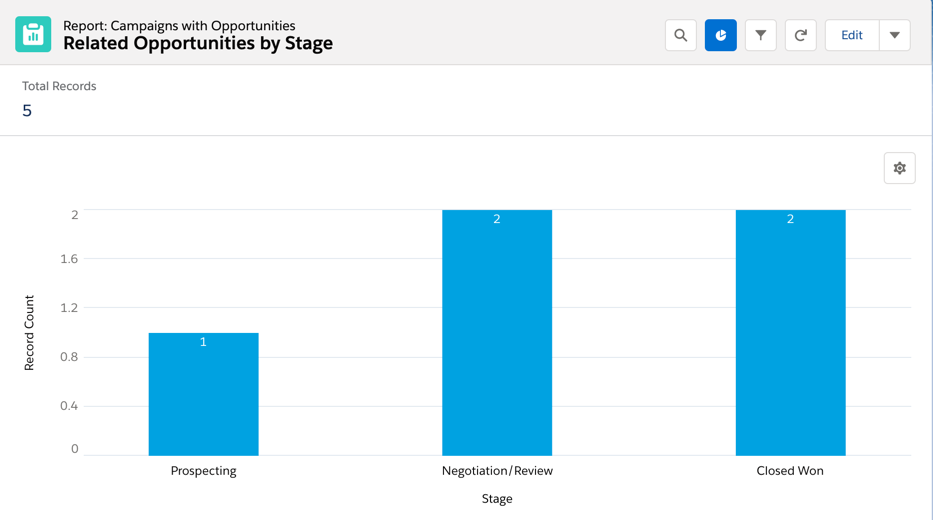
Example: Related opportunities by stage
When added to the page layout, this report will show a chart of all associated opportunities by opportunity stage.
The report type is campaigns with opportunties and the report is grouped by stage.
Step 2: Add the reports to the campaign page layout
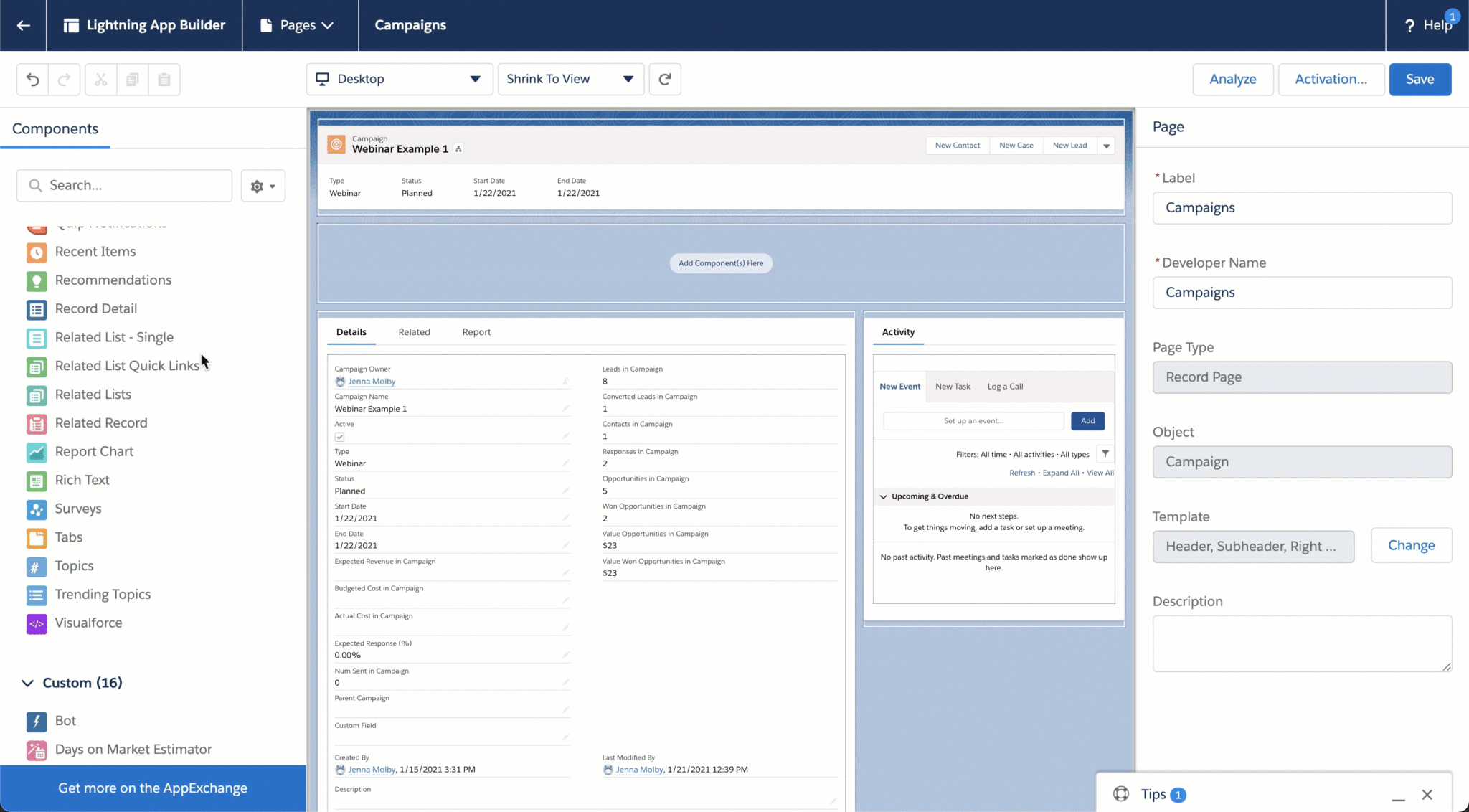
Now that your reports are created, you can add them to the campaign page layout. Navigate to one of your Salesforce campaigns, click on the gear icon, and click on edit page. This will take you to the Lightning Page Builder.
Note: Editing the page will overwrite the existing page. You might want to create a new custom record page instead of overwriting an existing page.
Drag & drop the report chart component anywhere on the page.
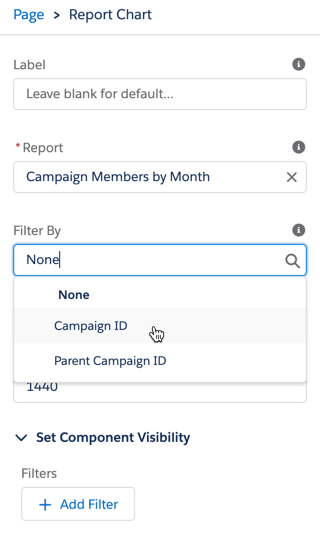
Select your report from the panel on the right. Add a filter for either campaign ID or parent campaign ID.
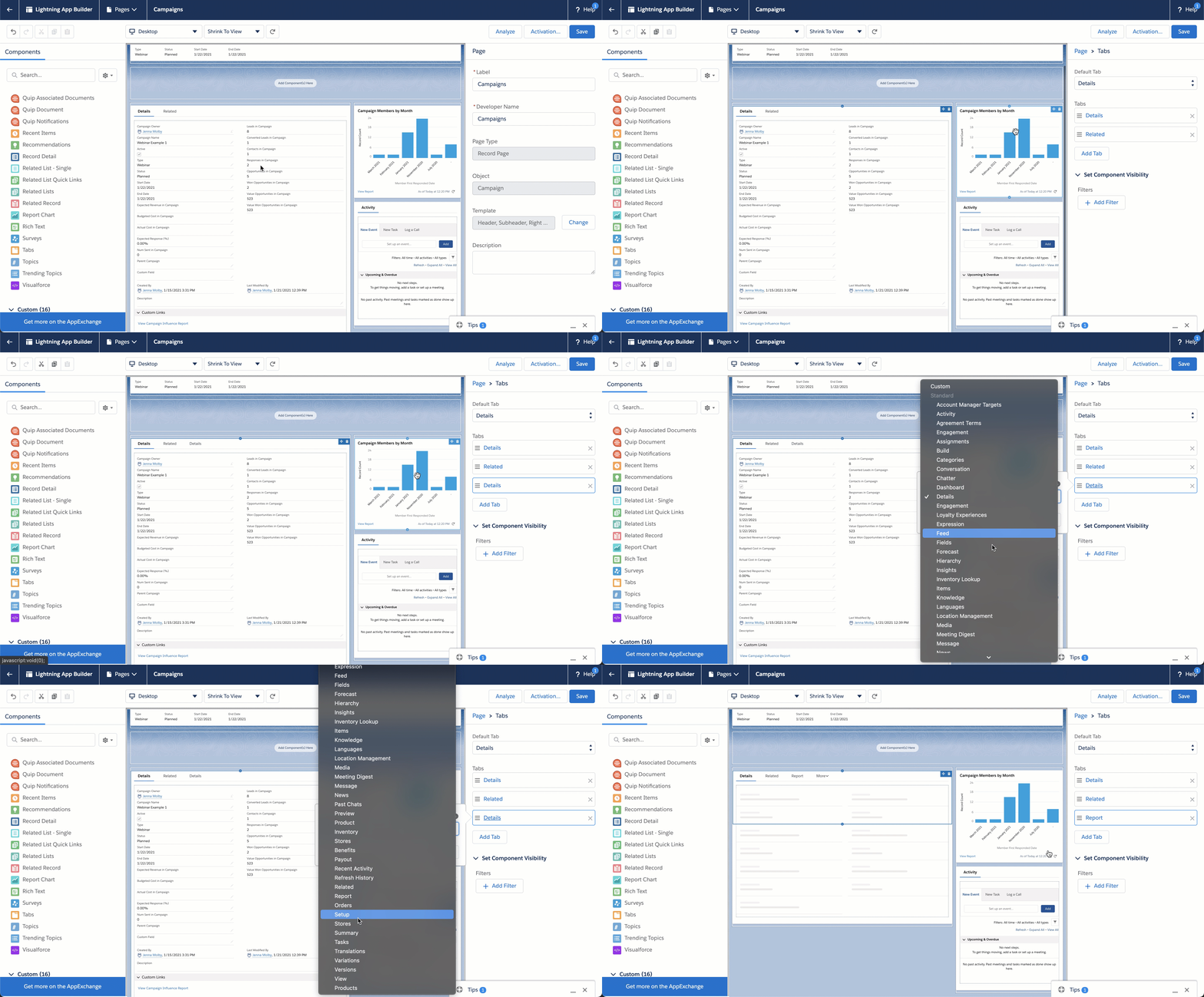
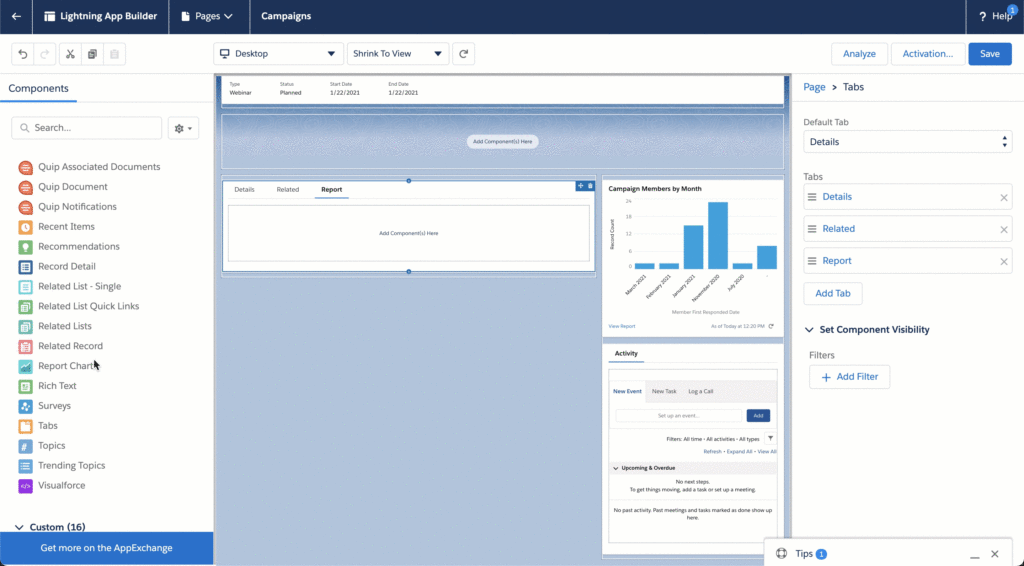
You can also add reports to a new tab within the page layout. To do this, click on the tab group, and click the add tab button. Click on the name of the new tab and select report from the menu.
Drag & drop the report chart element to the report tab to add your reports.
Save the Lightning Page and navigate to a campaign to see your reports in action!