Category

Analytics & Reporting

Marketing Cloud Intelligence (formerly known, and forever in my heart, as Datorama) is a deep platform for marketers who have Salesforce in their tech stack. It’s a robust tool for optimizing data across various channels, enabling you to track spend, engagement, and conversion data, among other options. If you’ve landed on this page, I assume that you already have a working knowledge of the Intelligence platform. Now, let’s take your skills to the next level with insights you didn’t even know you needed to unlock greater insights through Intelligence formulas. 

We also recommend you check out this blog post to understand how you can get more from your Intelligence implementation through an audit.

Let’s dive in.

What’s on the Horizon?

In this blog post, we’re going beyond the basics of your standard Trailhead module. Our journey will uncover hidden Intelligence formula secrets in the following areas:

  • Formula Syntax with JavaScript
  • Parsing Dates
  • Referencing CSV/Data Model Fields and When to Use Each Syntax
  • Formula Fears – Goodbye!

Intelligence Formula Syntax with JavaScript

Let’s start on some behind-the-scenes basics to give everyone a little bit more working knowledge, and then we’ll hit some deep cuts.

You’ve probably wondered what governs the formulas in the Intelligence platform that somehow you can write Excel-esque statements but also do JavaScript work (more on this in a moment).  Basically, the platform was programmed to contain Excel-like formulas while also allowing for MVEL, a Java-based language, to do some variations of formula work that can work a little differently in processing and possibility than Excel formulas. 

You can read more of an overview here directly from Salesforce on the governance of formulas and the basics to fiddle with, and below you’ll get my deeper cuts that don’t really get elaborated on anywhere I can find, officially. 

The Writer’s Strike did not affect this (Java) Script 

There are two common experiences I’ve had for the last five years when it comes to if statements:

  1. Someone implemented the platform and used JavaScript language, and no one still on the team understands how to read or manipulate the formula.
  2. Someone made an unruly Excel-like IF(condition, true, false) statement and it’s become unwieldy.

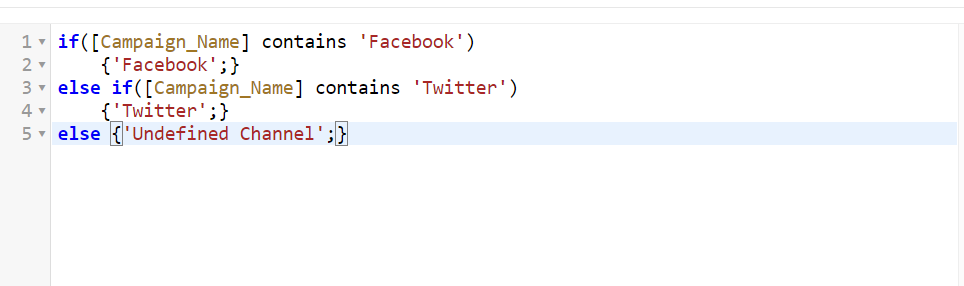
Luckily, I have your fix, and I’ll give a brief why on this too, beyond the notes above — I want to introduce everyone to using lowercase ‘ifs.’ Let’s take the below-calculated dimension (there would be no difference if this was setup in mapping of a data stream, to be clear).

  1. We define our first if statement — in a lowercase if context, you just do if() for the first line. Unlike in EXCEL IFs (henceforth capital IFs), you do not need to define a false condition, just a true condition (in this case, if the campaign name contains ‘Facebook’). 
  2. If our first condition is true, ‘Facebook’ will be the value returned, as defined by line 2. This is defined by the squiggly brackets {} and the defined value is ended with a semicolon {‘Facebook;’}

*This is an exciting performance element that adds up across large statements, and especially if the value is in a calculated field, which loads in real time, not before a page is loaded. If the statement finds a true match, it doesn’t run through every line of the code, it just stops and computes the next value. An uppercase IF statement, on the other hand, would check through every true/false possibility and then load the next row, which en masse could make a performance difference. 

  1. Else if defines some other condition to check for specifically. If you wanted a simple true/false, you could skip straight to the else statement on line five. But for example’s sake, we will assume there’s an else if. This is effectively how you can nest ifs. As noted, the platform stops checking as soon as it hits a true value, so you want to be mindful that you stack this accordingly in your checking if multiple conditions could be true.
  2. Once again, you return a value if true on line 4, no variation in formatting to the first true value.
  3. Finally, we close by doing a return value with the word “else”, indicating for all other conditions we close off here.

This is about as far as you need to know for JavaScript usage in Intelligence. But if you’re making deeply complex conditional formatting, this will hopefully make the process much cleaner and decipherable for you!

Parsing Parsedates

Magic letters you should write down, and yes this probably looks nonsensical before my description, but roll with it: “EEE MMM dd hh:mm:ss zzz yyyy

This is your fix to one of two likely parsedate situations I have seen regularly. It’s a string that dates frequently get passed into Intelligence as, and you inexplicably get a “cannot parse data” error in your mapping. This is infuriating. The formula in full that you are probably looking for is PARSEDATE(csv[insert field name here], EEE MMM dd hh:mm:ss zzz yyyy”). 

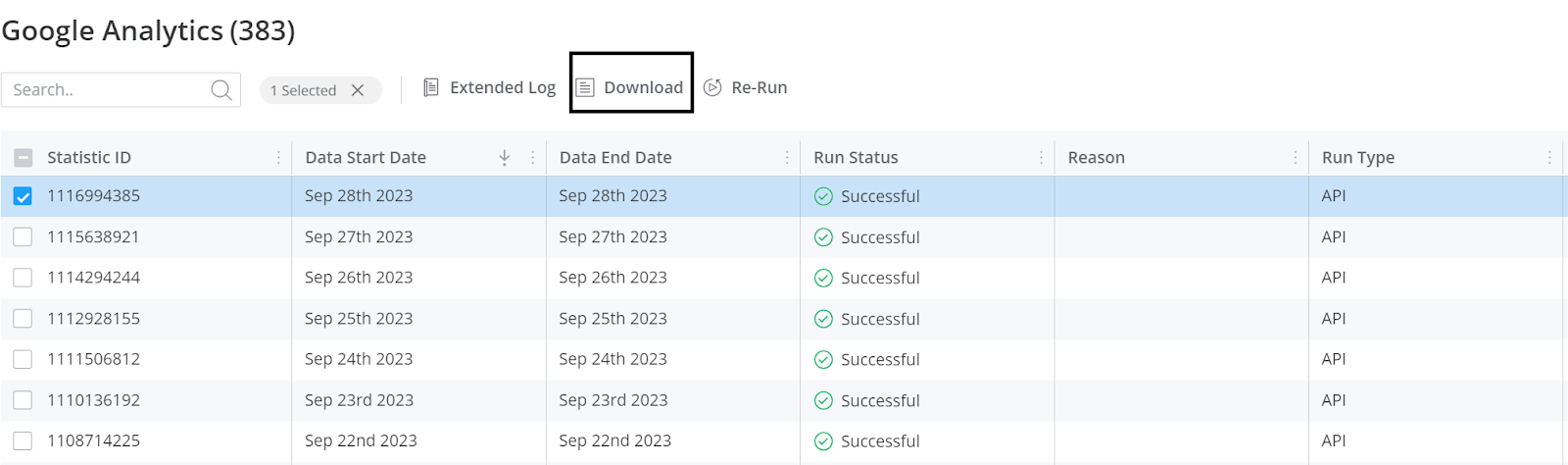
I’ll also note here that this is likely what is being pushed into the platform, even if you see something different in your Excel file/csv file from an Intelligence log (highlighted below from the data streams list in Connect & Mix, in case you need guidance on how to find your log files). You should, anytime you get this error, open your log files using a note program (Sublime Text was my go-to for years as a Windows user for bigger files, though for most people programs like notepad will work just fine). Even if not the above format, you can see definitively (with your columns instead separated and broken out by commas, hence the term csv, comma-separated values) what format your dates come in as (and the magic of a program like Excel to just know how a human reads this data cleanly).

There’s also an error I’ve gotten numerous times in platform and have helped people with but have not been unfortunate enough to encounter recently myself, so I am approximating here with a known fix instead. This happens entirely in calculated dimensions, and it effectively amounts to “Unparseable date: 1234”. This will fully stop you from saving a calculated dimension and it’s infuriating. My fix:

At the top of your formula, set a condition: if([insert field here, likely day but whatever the error tells you] == 1234 ) 

{‘error’}

else if… and continue on with your calculated dimension as planned

*note: if this does not work, you may also want to try “1234” instead of 1234, as a string of text instead of as a number, depending how the platform is reading the problematic value.  

csv verses Dat

Through the course of the above pieces of guidance, you may have noticed something: in my calculated if example, there were yellow highlighted fields simply called “Campaign_Name,” and in my examples referring to mapping, I surrounded fields with the language of “csv[field name]”. Why would I do that to you (the answer is not that I am cruel and seek to confuse you further as I write this blog, I promise)?!?! Well, it’s because there are three variations of referencing fields in Intelligence.

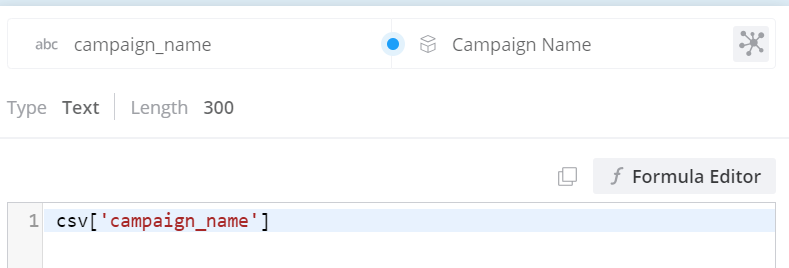
  1. When you map data, the csv syntax is needed to establish we expect a column from the inbound file. Even if you use Excel format, tsvs, pdfs, etc., this context will always be referred to as csv in your mapping formulas to establish a recurring column. Commonly this looks like the below, and is probably not something you’ve thought about a lot.
  2. So you may be wondering, if this is so commonplace, why even explain it? Surely the easy explanation is that csv appears in mapping, and the highlighted field appears in calculated dimensions. Well, kind of, yes. There’s a twist coming below, but yes in calculated dimensions, because you are operating outside of a data stream and inclusive of your whole workspace, you get the highlighted yellow names, showcased again below, to indicate this is a field in the platform.
  3. It’s important to understand those two variations because the third is a marriage of them: referencing data stream fields, not source file columns, in data stream mapping. I have very rarely seen any use of this outside of Vlookups, but for that case alone I’ll highlight what this does: it notes that a value is meant to reference an already existing data point in platform. In the context of a vlookup below, you can see the reason for differentiating these items. 

We have a csv field we reference at every ingestion of data, which we then use to look into first our campaign advertiser data already in the platform, and return us the associated campaign name, also already in the platform. You can see the data model section of the formula editor below, where these existing data model fields can be referenced in mapping.

Else…

Hopefully, these tips have been helpful and can act as an easy cheat sheet as you use Intelligence going forward. Whether it’s using if statements, parsing dates,  or understanding how to reference different types of fields, you hopefully found some new information today to help make you better at the platform (I won’t call you a Dato-dork yet, but I happily will wear that cap and keep trying to take more of you with me)!

Keep an eye out for more in this series. We look forward to growing your Intelligence!

Remember to drop us a line when you’re ready to realize the full potential of your Intelligence implementation and how it fits in with your overall marketing strategy.

One of the biggest trouble spots I see with customers customizing in CRM Analytics and B2B Marketing Analytics (B2BMA) is using recipes and joins — specifically when it comes to the Account Engagement customizable Campaign Influence model. 

Recently, a customer and I were diving into their Campaign Influence Model, and the numbers were just not right. They had done a great job of knowing what objects to select in the recipe. On the surface, everything looked great, but once they started reviewing the data in a lens they saw a lot of data discrepancy. This type of recipe can get tricky if you aren’t aware of some of the nuances of CRM Analytics.

In this blog, I want to walk you through step by step so you can build your custom recipe in B2BMA utilizing Campaign Influence and feel confident about the data you have on your CRM Analytics dashboards.

What is Campaign Influence? 

Now I don’t want to go on a diatribe on Campaign Influence. Chances are if you are reading this, you are already aware of it and how great it is. But on the off chance you just stumbled upon this blog, I will give you a brief overview.

Quite frankly, besides CRM Analytics, Account Engagement influence models and Campaign Influence are my favorite Salesforce reporting features. Account Engagement Campaign Influence models are a way to give a campaign credit for a closed opportunity. 

As a recovering marketer myself, I know how important it is for the marketing team to identify which campaigns are performing well and leading to closed deals and revenue.  The magic is that Account Engagement’s Campaign Influence Models go way beyond just the first touch like the Account Engagement’s campaign source. 

3 Models Included in the Account Agagement Customizable Campaign Influence Pack

There are three different models included in the Account Engagement Customizable Campaign Influence pack. 

These different models showcase each part of the marketing funnel. The best part is, they are each reflected based on the opportunity. That means they’re great for cross-selling, add-ons, and upgrades!

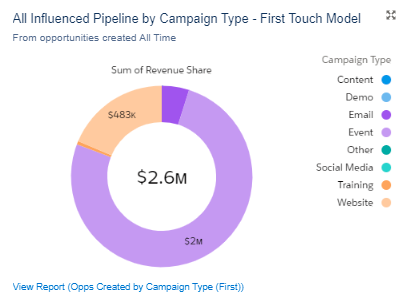
First-Touch Model

Influence will be attributed to the campaign associated with a contact role whose Campaign Membership Created Date is the earliest of all contact roles associated with an opportunity.

account engagement b2bma screenshot - graph example first touch model

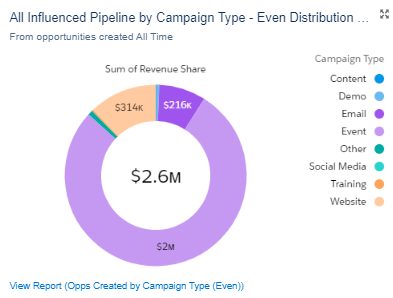
Even Attribution Model

Attribution is divided evenly across all campaigns associated with each contact role on the opportunity. As an example, imagine a scenario where there is a contact associated with four campaigns. Each campaign would receive 25% of the attribution. If they were only on two campaigns it would be 50%.

account engagement b2bma screenshot - graph example influenced by pipeline

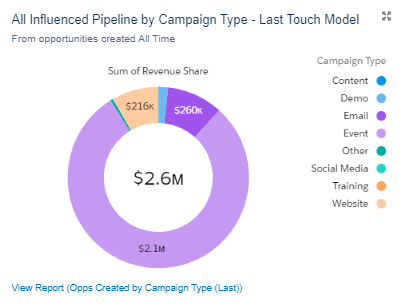
Last-Touch Model

Influence will be attributed to the campaign associated with a contact role whose Last Modified date of the campaign member is last for all contact roles associated with the opportunity.

account engagement b2bma screenshot - graph example

There is so much you can do with these models, and it gives you great insight into how assets are performing all across the marketing funnel. For even more information on why campaign influence should be a part of your strategy, check out this blog on Salesforce and Account Engagement Marketing Reporting here. 

We at Sercante even have a great starter pack that has the report types built out automatically making the process easy to set up! You can check out the Campaign Influence Starter Pack here. 

Step-by-Step Instructions to Build the Custom Recipe in B2BMA Using Campaign Influence Models

Now to the fun part!

Step 1: Selecting the Objects in the recipes

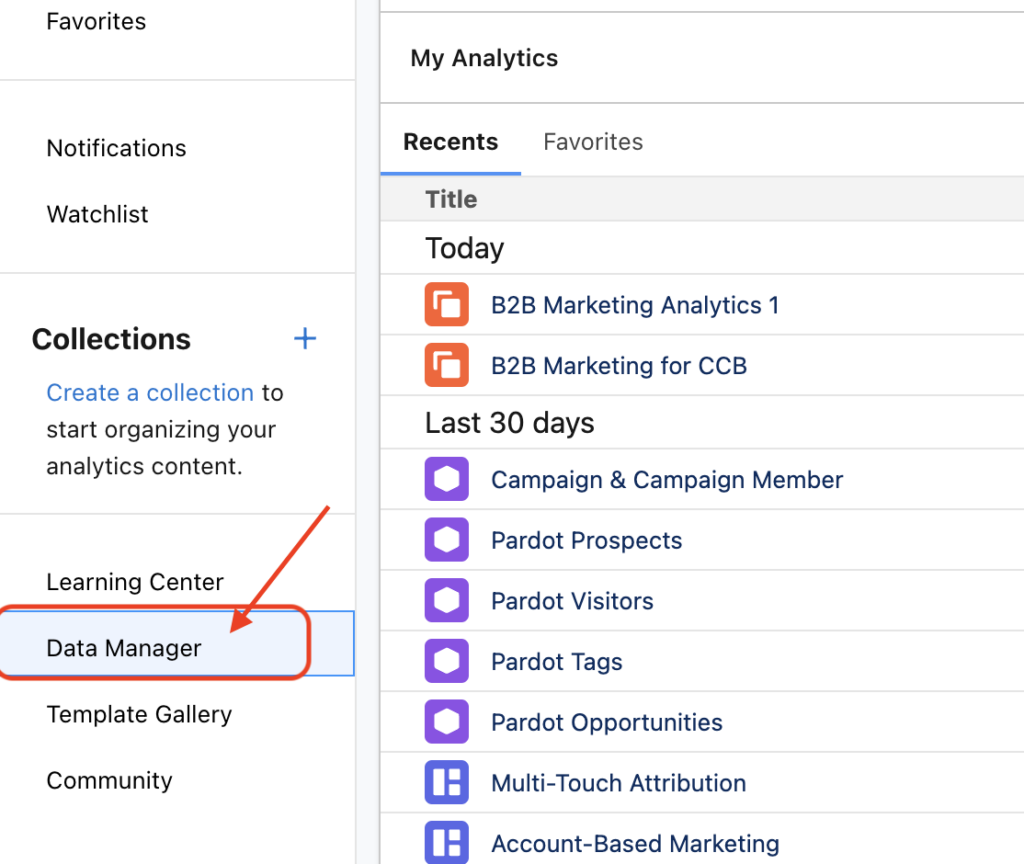
Before we get too far, we want to make sure we select the right objects in Data Manager.  Open Analytics Studio from the app launcher. From there, select Data Manager.

account engagement b2bma screenshot

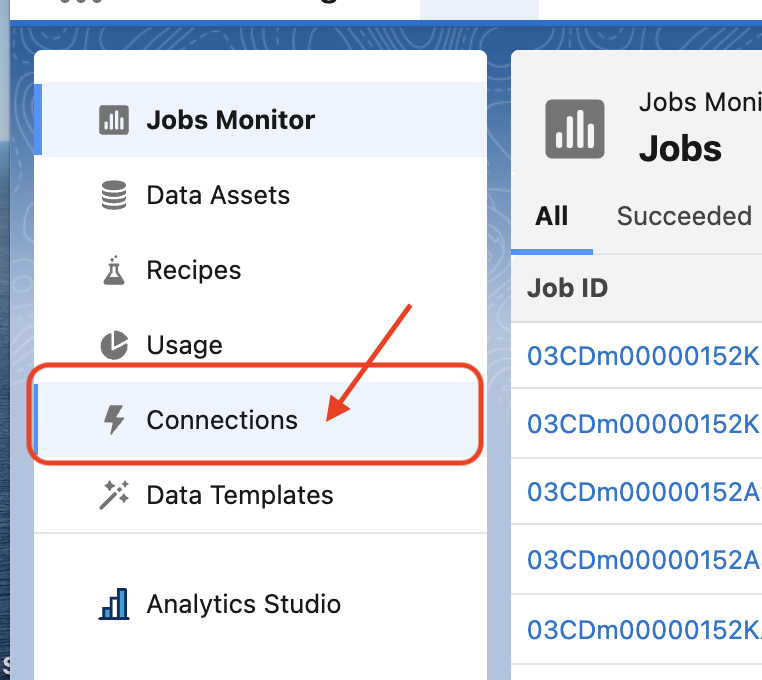
Now we are in Data Manager. We want to make sure the Campaign and Campaign influence objects are syncing. Select the Connections tab and review the list of currently syncing objects.

Pardot Screenshot -  b2bma custom recipe

Once you have verified your objects are there and ready to go, we can build out the recipe!

Step 2: Selecting joins

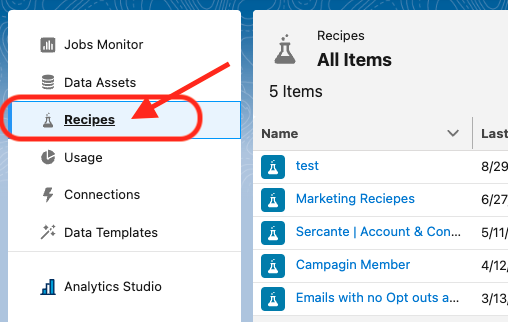
First, select the recipes tab. You can create a brand-new recipe or group it into an already-created recipe.

Pardot Screenshot - b2bma select joins

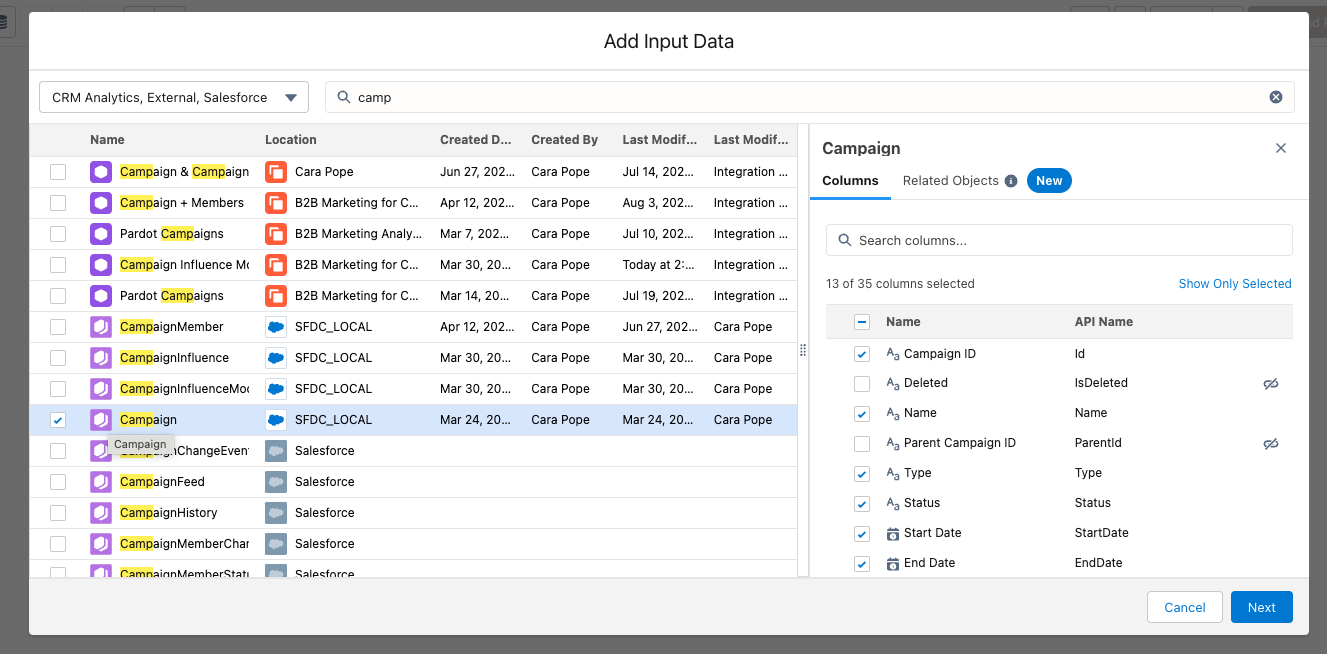
Then Add in your data. Select Add Input. 

* Note: If you are using an existing recipe, you can click on the Add Input button at the top left. 

Pardot Screenshot - b2bma add input data build recipe

Select Campaign object.

Pardot Screenshot - add input data campaign

This will be the step where if there are specific campaign fields like budget, leads in campaign, or any additional campaign fields, you will make sure they are selected in the fields’ columns.

Don’t worry, the party isn’t done yet!

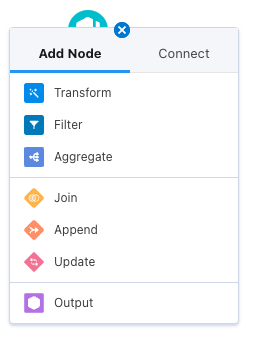
To add in Campaign Influence, hit the plus button next to the campaign. Then, select Join.

Pardot Screenshot - b2bma add node

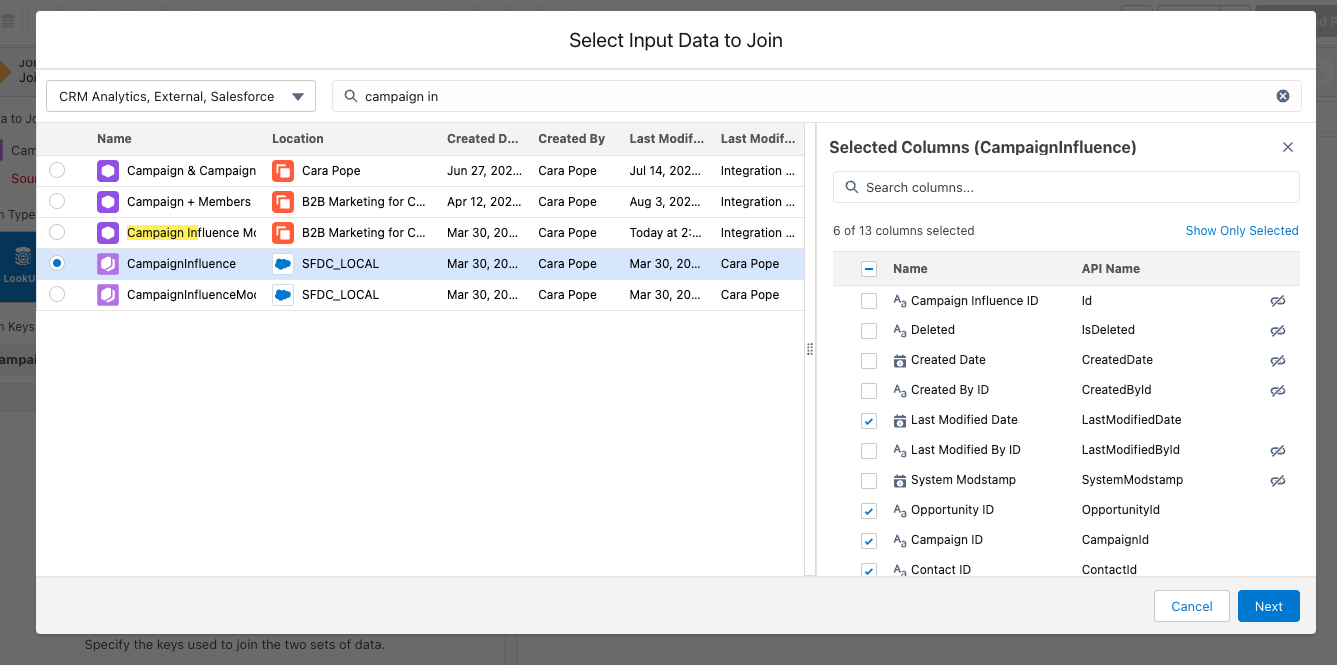
Then select Campaign Influence: again if you see any Campaign Influence field you want, select it here!

Pardot Screenshot - select data input to join

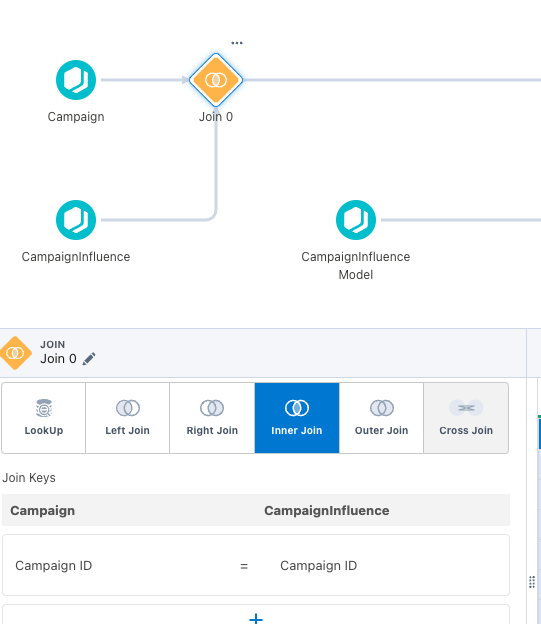
This next part is KEY to get the whole thing to work. When selecting the join make sure you select an Inner Join. Make sure your Join Keys are IDs.

Pardot Screenshot - b2bma inner join

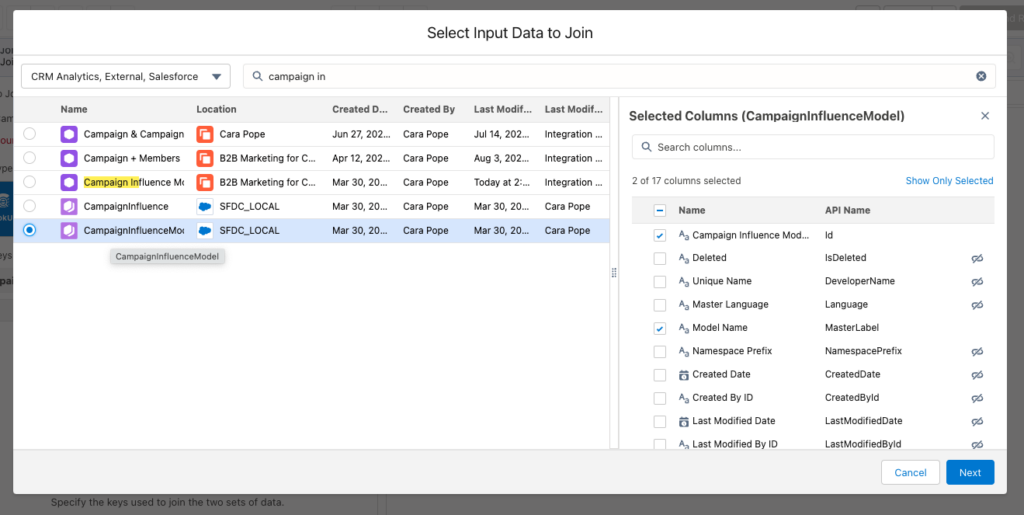
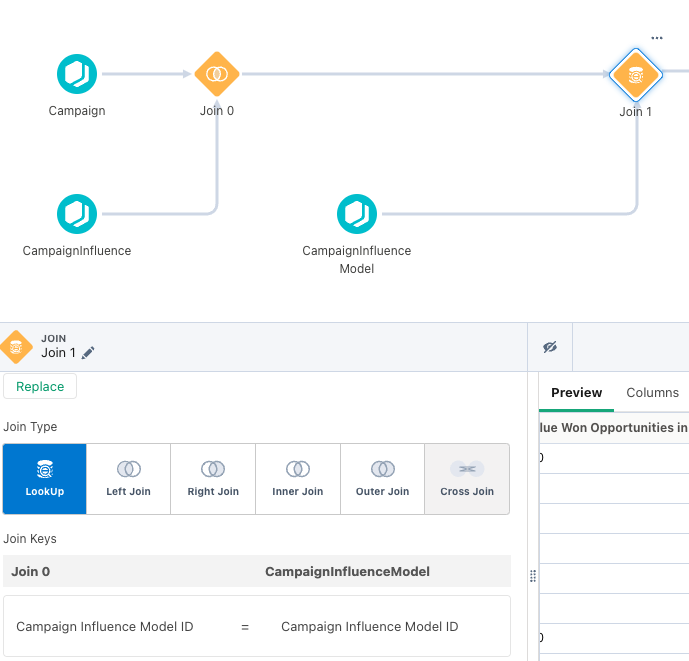
Final step: do one more join. Select the plus button again, and this time add in Campaign Influence Model.

Pardot Screenshot - Select data input to join

This is key because it allows us to have the model name versus just the model ID. Jin Keys will be the Campaign Influence Model ID.
Pardot Screenshot - campaign influence model join keys
Step 3: Output and Review

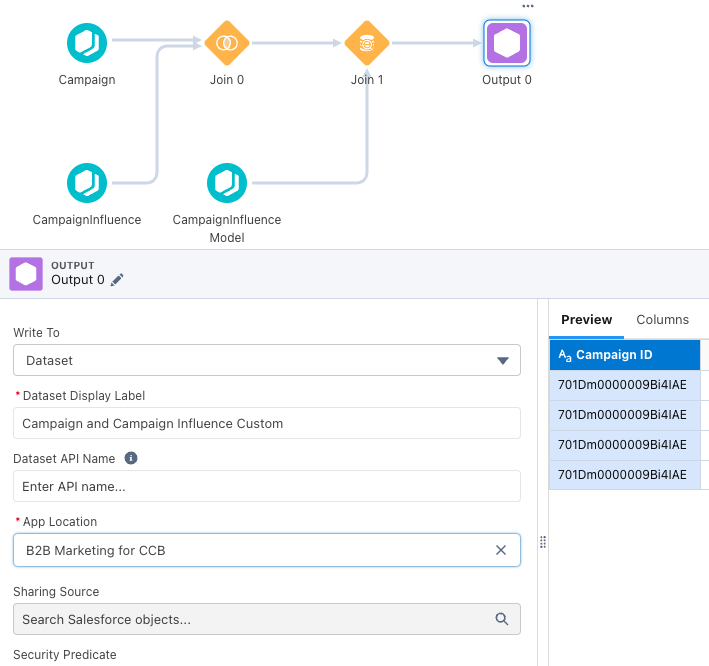
The last step is adding an output! Now from here, if you want to do any data manipulation or transformation, you can simply click the plus button and apply them in the data model. Filtering is great to break down by business units or even specific campaigns or campaign types. If you don’t need anything additional, that is it! 

Your recipe should look something like this:

From there, it is always best to check naming conventions and make sure you know where the dataset will be hosted. You can leave it in your private app if you want to do some testing before you move it to the B2B Marketing Analytics app.

After the dataset has been created, you want to begin testing. Take a small set of data (I personally like using a month date filter — makes the data easier to digest!) and see if it matches up to the data you are seeing in Salesforce. 

Once you feel good. you are ready to hit the ground running!
Let’s wrap it up so you can start building your custom recipe in B2BMA!

Creating this custom recipe in B2BMA can open up a ton of possibilities, from looping in additional campaign and contact fields to even making a whole dashboard that reflects your ABM Strategy and what campaigns helped influence those results! 

Either way, you now have more accessible Campaign and Campaign Influence data with the enhanced features of CRM Analytics. And remember, you can always reach out to team Sercante for help along the way.

A Campaign Member’s First Associated Date records the date a Lead/Contact became a member of a Salesforce Campaign, and it’s a great metric to use in your reporting. First Associated Date can be used to show how many Leads/Contacts a Campaign touched in a given time period, how long the Lead/Contact was in the campaign before they moved to a “Responded” status, or how long the Lead/Contact was in the campaign before an associated Opportunity was opened. However, sometimes the Campaign Member’s first associated date gets skewed. 

Common causes of this are:

  • Lead/Contact should have been added to the campaign on September 15th, but was stuck in the Account Engagement sync queue until October 1st
  • New Leads from an event we’re not uploaded into Salesforce until a few weeks after the event
  • Campaign Members were brought over from another Salesforce org during a migration
  • Sales didn’t enter a new Lead they were working with until after the Opportunity was created

If you are relying on Campaign Member First Associated Date for your reporting, any of the above causes can really throw off your data and make a Campaign, or a time period, look less successful than it actually was. Luckily, you can backdate this field with a few system permissions and the help of Data Loader!

You can insert, but not update!

Before we get into the nitty-gritty of how to do this, it’s important to note that you can’t update the Campaign Member First Associated Date of existing Campaign members. You can only insert new Campaign Members with a backdated first associated date. However, you can use Data Loader to export Campaign Members, their Campaign Status, their dates, etc. from a Campaign, delete the Campaign Members, then re-add them to the Campaign with new dates. 

Permissions needed

The first step to updating First Associated Date is enabling “Set Audit Fields Upon Record Creation”.

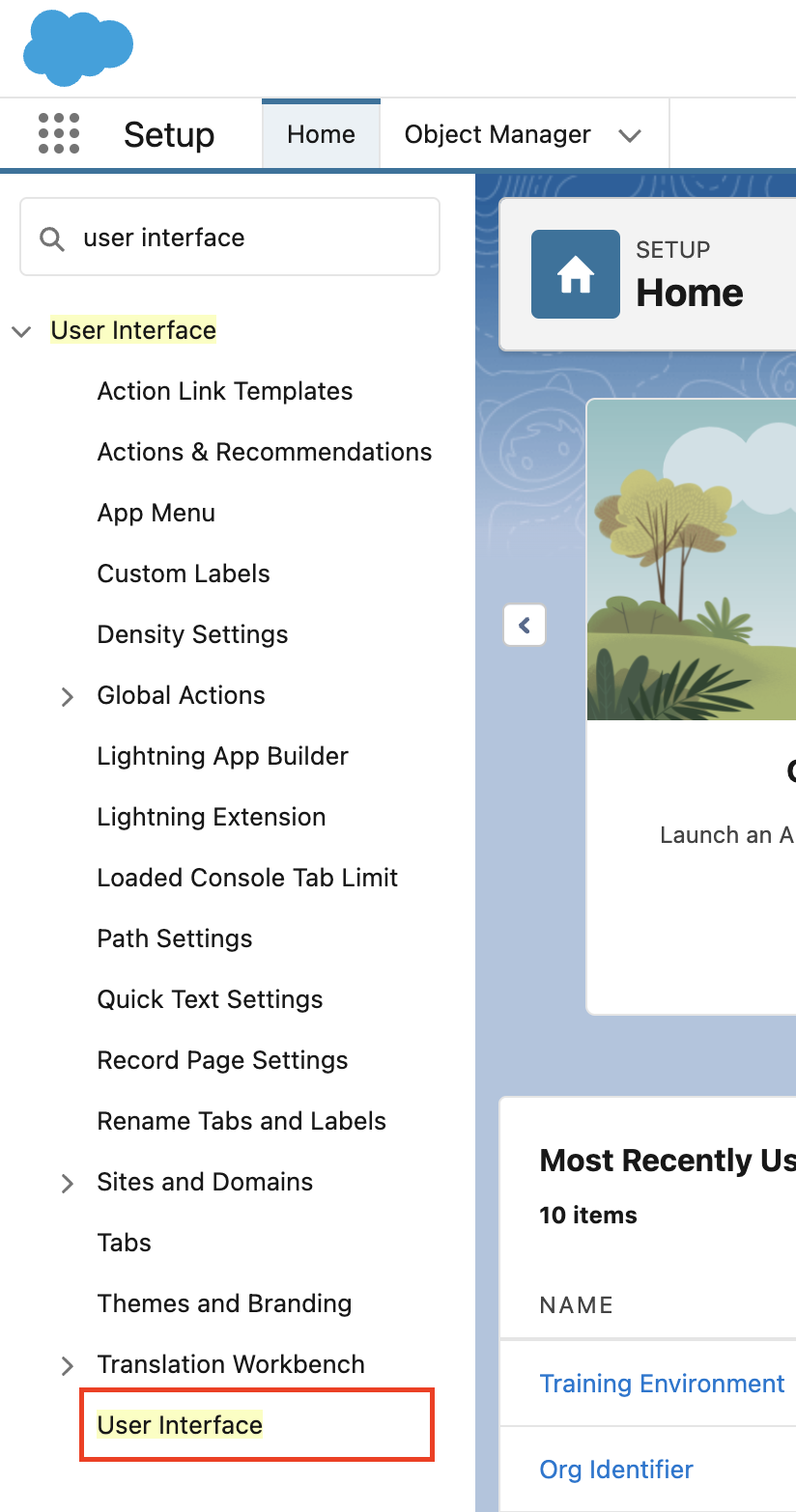
  1. Navigate to Setup > User Interface 
Salesforce screenshot
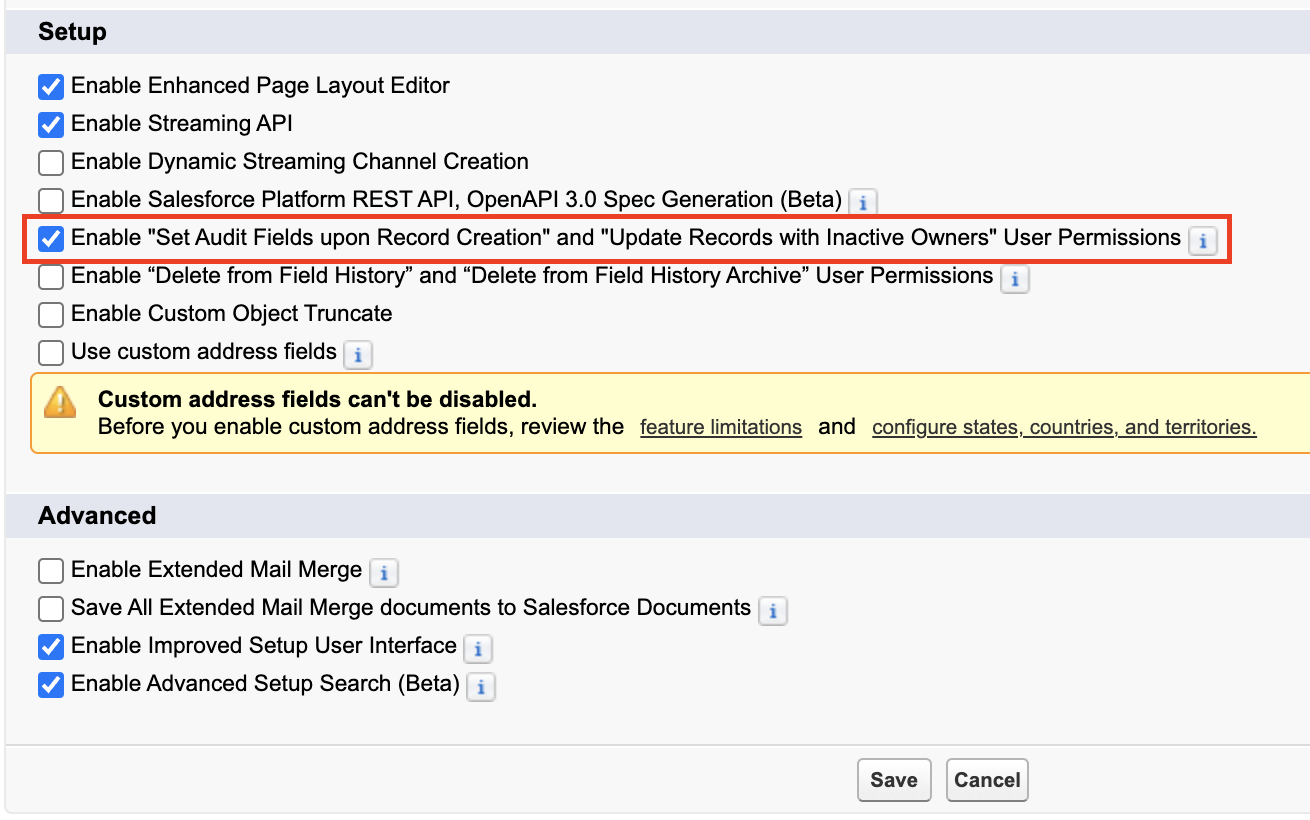
  1. Ensure the “Enable “Set Audit Fields upon Record Creation” and “Update Records with Inactive Owners” User Permissions” option is selected
Salesforce screenshot
  1. Select Save

Next, create a Permission Set for “Set Audit Fields Upon Record Creation” and assign this Permission Set to the user(s) who will handle the Data Loader imports. 

  1. Navigate to Setup > Permission Sets
  2. Select New
  3. Name your Permission Set “Set Audit Fields Upon Creation”
  4. Select Save
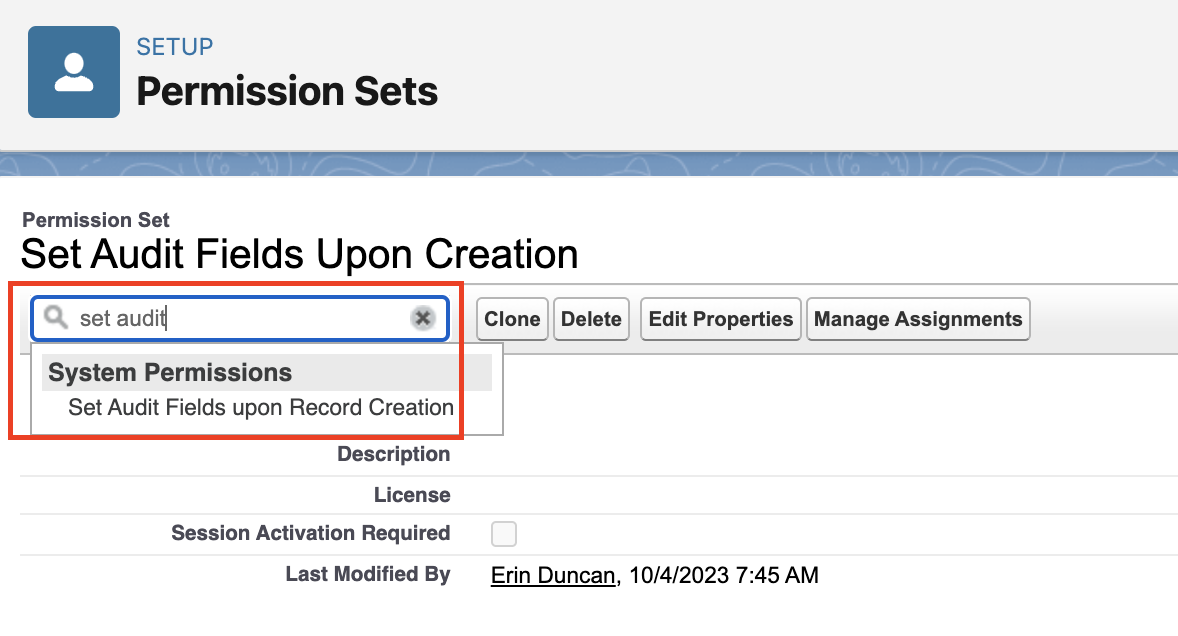
  5. Within your new permission set, type “Set Audit” into the “Find Settings” box
  6. Select Set Audit Fields Upon Creation
Salesforce screenshot
  1. Select Edit on the resulting page and select the Set Audit Fields Upon Creation checkbox 
  2. Select Save
  3. Select Manage Assignments 
  4. Select Add Assignments
  5. Select any users who will be handling the Data Loader imports of Campaign Members, then select Next and Assign

Import your data

Finally, get your Data ready for import! At a minimum, you’ll want to make sure your file includes:

  • Campaign ID
  • Lead ID and/or Contact ID
    • If you are importing both Leads and Contacts into the Campaign, I recommend splitting the import into 2 files. 
  • Campaign Member Status (if different from the Campaign’s default Status)
  • Campaign Member first associated date
    • Ensure the column is formatted using one of the options below, otherwise you will get an error.
      • MM/DD/YYYY (example: 04/23/2012)
      • DD/MM/YYYY (example: 23/04/2012)
      • YYYY-MM-DD (example: 2012-03-25)

To import the data

  1. Open Data Loader and login
    • Note: Updating Campaign Member First Associated Date is not possible with the Data Import Wizard, only Data Loader.
  2. Select Insert
    • Note: The ability to map to Campaign Member First Associated Date will not be available if you select Update or Upsert.
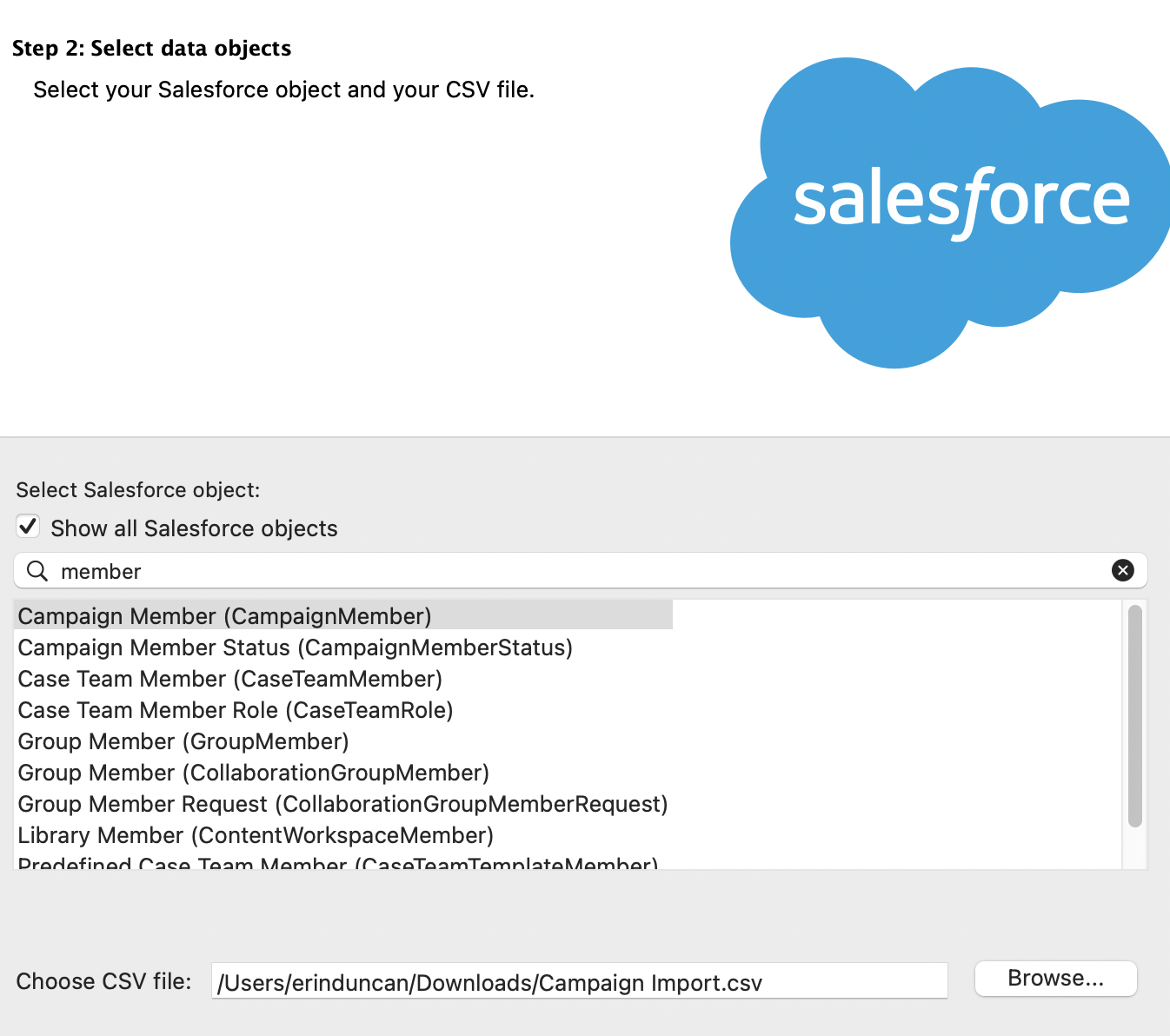
  3. Check the Show all Salesforce Objects checkbox and search for CampaignMember
Salesforce screenshot
  1. Select your CSV file and click Next
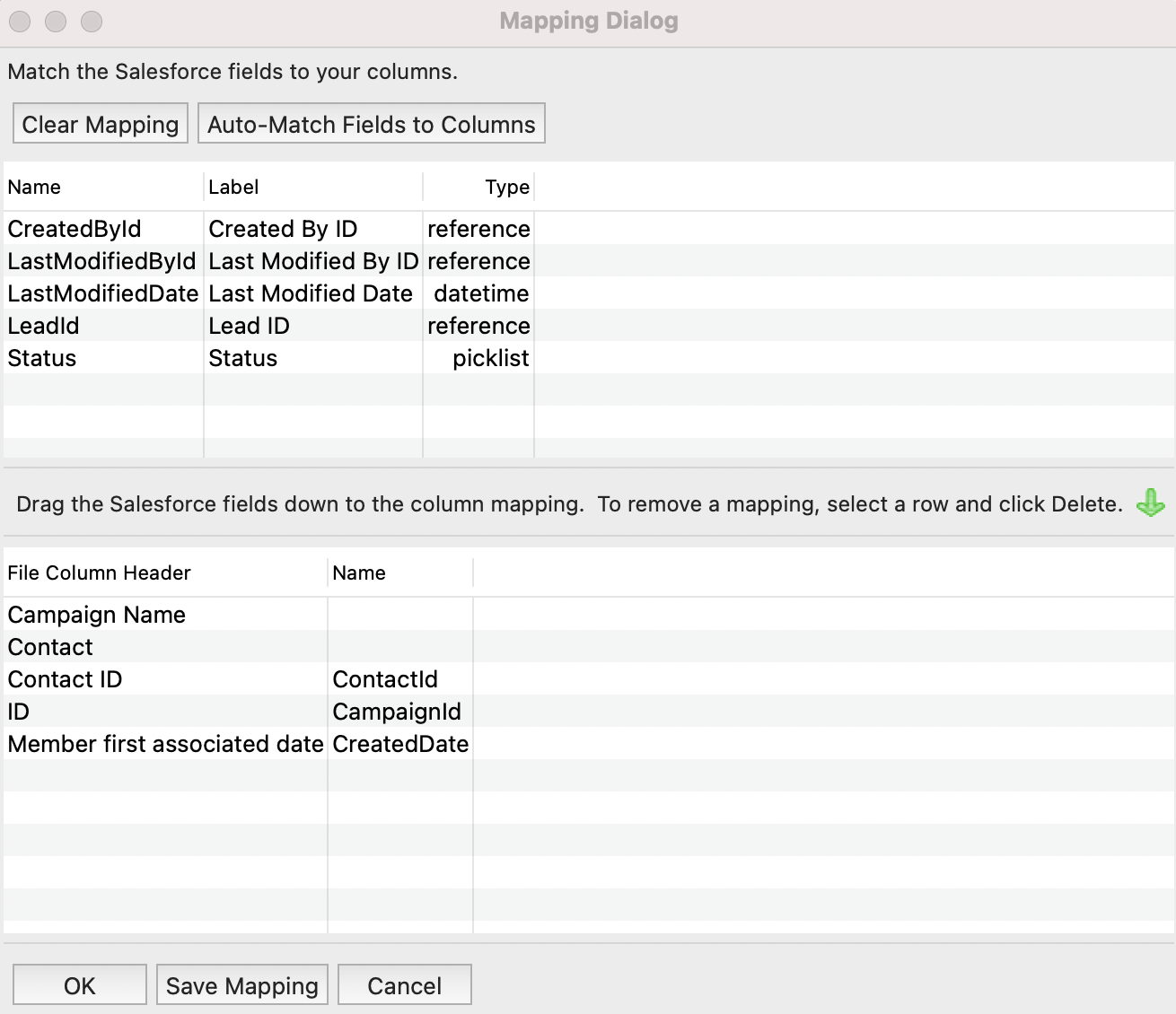
  2. Select Create or Edit a Map and map your fields
    • CreatedDate is the field you’ll need to map to the Member First Associated Date column
Salesforce screenshot
  1. Select OK > Next > Finish

And Voila, beautiful, accurate Campaign Member data!

Marketing Cloud Intelligence  (previously known as Datorama) is a tool that offers many potential uses. But with those uses comes the uncertainty that you are using the tool to its maximum potential or even correctly. That’s where a Marketing Cloud Intelligence audit can help.

In this blog post, we’ll cover the reasons you should audit your Marketing Cloud Intelligence instance, the steps to take during your audit, and what you should do with the information you gain.

Why would I need a Marketing Cloud Intelligence audit?

There are several reasons you could need an audit, including but not limited to the following topics.

 Reason #1. You want to validate the effectiveness of your work within the platform

Having worked with this tool for years, we have seen it all. An Intelligence audit serves as a second set of eyes to ensure your performance is not being stretched or that you are governing your field usage effectively. It can make a serious difference.

Reason #2. You want to explore if you are missing value adds in the platform

Suppose you are already using Marketing Cloud Intelligence for one set use case and not the full suite of features. In that case, an Intelligence audit will review options based on your needs and ask the right questions to ensure you are maximizing value. As a constantly evolving tool, there is always a new data connector, app, or feature to utilize and build value for your team from a few clicks.

Reason #3. API connectors show inaccurate data in reporting/dashboards

It can be discouraging to set up a data flow into Marketing Cloud Intelligence only to find your output from the platform, whether it be reports or visualizations, look off. An audit can guide you on everything from filtering your data to managing redundancies in setup.

Reason #4. Your Marketing Cloud Intelligence instance has mostly sat idle

You can do so much with Marketing Cloud Intelligence, and even automate processes you may not expect. But that is not of help if the platform is sitting empty or unused. An audit will take what you currently have and guide you toward possible uses you may not have explored.

Reason #5. A key admin has recently left your company or organization

Want to understand what your admin was working on and how data flowed before disaster strikes (or perhaps after)? An audit can help put it into clean process flows and documentation that you may be missing, or even help break down existing documentation into usable guidance.

What does our audit look like in practical steps?

After going through lots of Intelligence audits, we’ve come up with a straightforward process that works in most cases.

Every audit will be a bit different (a series of 3,000+ data streams is more complex than a workspace with five streams). But these are the core processes we review during an Intelligence audit.

Step 1. Having a conversation to discover your goals with marketing analytics

With minimal dialogue, we help clients route to what steps are needed to get the most out of Marketing Cloud Intelligence and their larger tech stack.

Step 2. Combining your priorities and our standard template

We center our solutions around clients’ needs, using our standard process as a springboard to ensure there is always something to explore.

Step 3. We share a detailed breakdown of the usage of platform features

We recommend various features to explore such as Einstein Marketing Insights, Reporting, and Dashboards, and how you can maximize their functionalities for the client’s needs.

Step 4. Reviewing premium features, such as Sandbox and Granular Data Center

When you buy into the more complex and pricier features of Marketing Cloud Intelligence, it may be frustrating to find new learning accompanying these tools. We break it all down so those learnings are succinct and easy to follow.

Step 5. Breaking down the impact and effort of platform features 

We showcase what tasks are high impact and low effort (and of course other levels of impact and effort) to make sure you get the most out of the platform in a swiftly actionable manner.

What will a Marketing Cloud Intelligence audit provide?

We know that an audit can unlock a powerful set of tools for you, such as the following.

Recommended platform features to utilize

We tailor our audit to your specific needs and make high-level and in-the-weeds recommendations that are centric to your business needs.

A clearer sense of data challenges to explore and recommended fixes

We showcase any glaring issues for you to skip the puzzle-solving and instead work with our tailored guidance to have a steady QA process.

Reducing redundancies for simpler data flow

We make it easy for clients to organize their data streams and remove reporting duplications so they have a clear roadmap to avoid data duplication and increase ease of navigation.

A path forward for using the platform to its full potential

At the end of our audit, you have a simple must-hit checklist based on your needs and a whole set of status updates on platform features and guidance on how to maximize their use when time allows, making a complex journey into a series of steps to explore.

How can I explore an audit with the Sercante team?

We are here to help. Our team includes Marketing Cloud Intelligence system administrator experts and readiness to explore your data to maximum effect. 

You can contact our team to explore what your audit could look like and how we can best work together!

It’s very common for sales and marketing teams to leverage title-based “personas” to influence their activities. Knowing who you are speaking to can radically alter the message content, type, and frequency needed to progress the buying process. In this post, we’ll address why and how to update marketing persona fields in Salesforce using Flow to assist sales and marketing.

Why Use Flow to Update Marketing Personas?

Let’s start with a very simple question. Why flow? The answer is really based on where your data lives and who needs access to it. I’ve used Engagement Studio in Account Engagement to update persona values in the past, but what happens if the prospect is not in Account Engagement? That’s right — no persona will be updated.

This solution accounts for the fact that all Salesforce data might not be syncing to Account Engagement (or Marketing Cloud Engagement) and that sales still needs persona values. 

Step 1 – Understand Your Buyers and Influencers

Before we can classify records, we first need to understand who is buying from us, who is influential in the purchase decision, and who is not (this is just as important). This is best achieved by analyzing data and speaking to your sales team.

Analyze the data

Create reports based on closed won opportunities and look at the contact roles for job titles that stand out. Odds are there will be clear winners – titles that appear with greater frequency. It’s also likely that you’ll see a mix of the people who actually use your product and a level above them (based on the purchasing authority needed to complete the transaction).

Talk to sales

Chat with some of the top sales representatives to find out where they are having success. Are there certain leads that they cherry-pick based on job titles? Are there certain leads that they deprioritize based on the same criteria? 

Step 2 – Group your data

Now that we know what titles we should be going after (and those that we should avoid), we need to group them into “Personas” (think of these as containers that hold records with similar/related titles). These are the values that we will be populating from our flow and will be used in future segmentation.

It’s important to create values for those that you want to target and those that you do not. An exclusion persona can be just as valuable as a target persona.

Target Personas

Records that are buying from you or are key influencers in the purchase process.

Exclusion Personas

Records that are in your system that do not buy from you and should not be included in campaigns.

  • Examples could include: Marketing, Sales, Students, and Human Resources to name a few.  

Once you have your target and exclusion persona values defined, create custom “Persona” fields (picklist) on the lead and contact objects. I like using global picklists when creating picklists with the same values between objects. Global picklists speed the setup, are great for ensuring consistency, and make maintenance a breeze (should more values need to be added in the future).

Don’t forget to: 

  • Use the same API name on both objects when creating custom fields (this is critical if you want to map the fields back to Account Engagement).
  • Map the lead field to the contact field on conversion.

Example: Global Picklist Value Set

Step 3 – Determine Keywords

Now that we know what titles we should be going after (and those that we should avoid), and we’ve defined the groups that we would like to use for categorization, we need to identify keywords that can be used to query the records (actually – we’ll be using them in formulas). It would be great if titles were standardized, but they are not. Based on this, we are going to look for common factors.

Example: Marketing

Here are some common marketing titles. It would be great if “marketing” was included in all of them, but it’s not. Therefore, we’re going to use keywords like: marketing, brand manager, campaign, content, media relations, product research, SEM, and SEO in our formula to make sure that we properly tag our records.

  • Brand manager
  • Campaign manager
  • Channel marketing director
  • Chief marketing officer
  • Content marketing manager
  • Content specialist
  • Digital marketing manager
  • Director of email marketing
  • Internet marketing specialist
  • Media relations coordinator
  • Product research analyst
  • SEM manager
  • SEO specialist
  • Web marketing manager

Step 4 – Create the Flow (In Sandbox)

We’re going to use a record-triggered flow to update our persona values. The flow will automatically update the persona value when the title field is updated. Since contacts and leads are distinct objects, a flow will need to be created for each object.

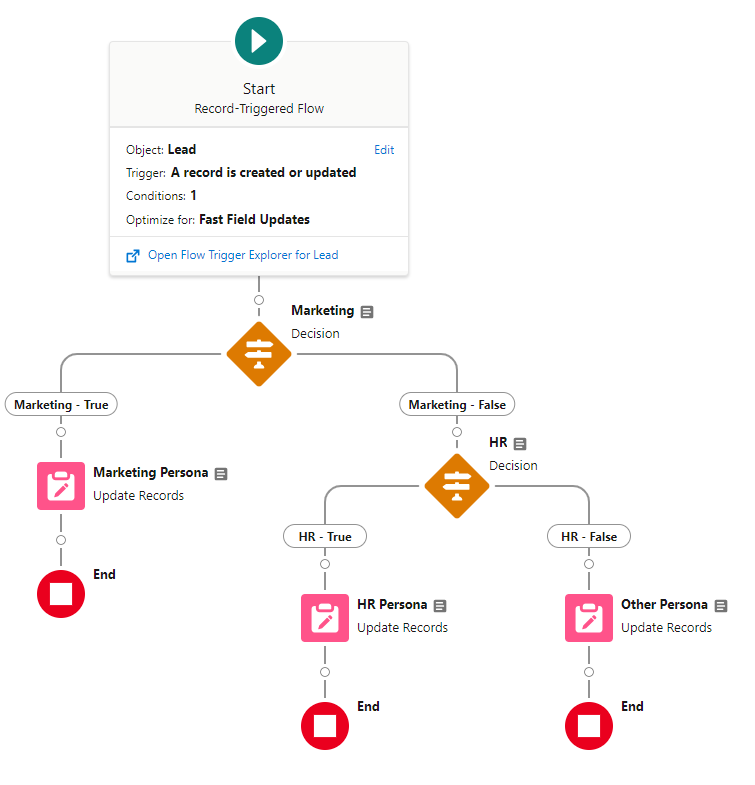
Here’s an example of what a very basic flow would look like. This flow is just updating the value to be Marketing, Human Resources, or Other. A full version of this flow would contain many more paths. 


Configure Start

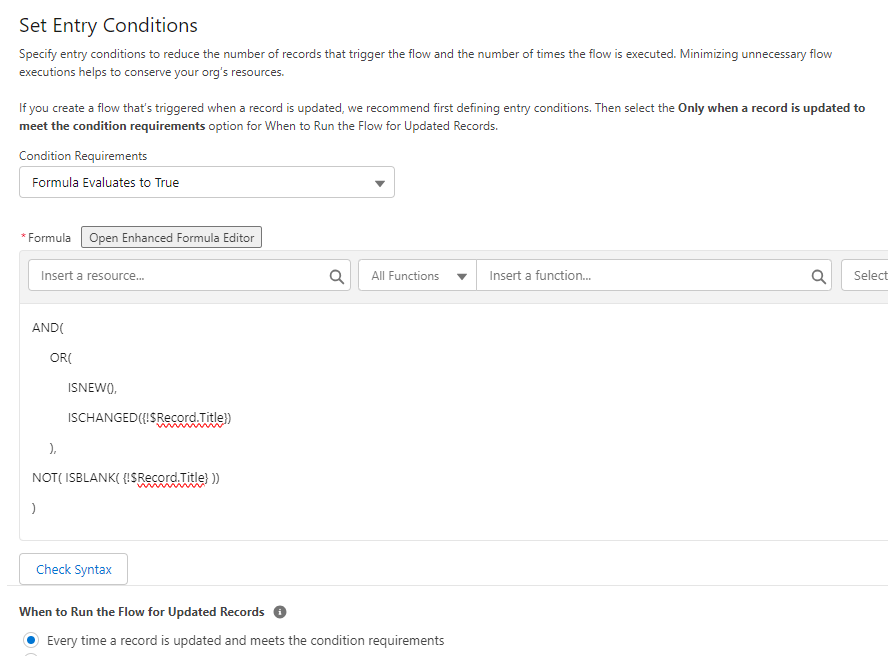
This flow is based on the lead object and is triggered when a record is created or updated. Since we don’t want to trigger the flow whenever a lead is updated, we’re using a formula to set the entry conditions. We want the flow to run only when new leads are created (and the title is not blank) or the title field of existing leads is updated to a non-blank value.


Finally, the flow will be optimized for Fast Field Updates, since we are updating fields on the same object.

Create Persona Formulas

This is probably the hardest part of this process. We are going to need to create formulas for each of our persona groups using the keywords that we’ve already defined. It’s important to note that formulas are case-sensitive by default. This is good in some cases but could cause records to be missed in other situations. Fortunately, we can address this as well.

Sample Formula 1 

This formula selects the marketing keywords that we identified, but it’s case-sensitive. It would evaluate “True” for a lead with the title “digital marketing manager”, but would not for the title “Digital Marketing Manager”.

OR( 

  /* Title contains any of these title strings */ 

  CONTAINS({!$Record.Title}, “marketing”), 

  CONTAINS({!$Record.Title}, “brand manager”), 

  CONTAINS({!$Record.Title}, “campaign”), 

  CONTAINS({!$Record.Title}, “content”), 

  CONTAINS({!$Record.Title}, “Content marketing manager”), 

  CONTAINS({!$Record.Title}, “media relations”), 

  CONTAINS({!$Record.Title}, “product research”), 

  CONTAINS({!$Record.Title}, “SEM”), 

  CONTAINS({!$Record.Title}, “SEO”) 

)

Sample Formula 2 

This updated formula evaluates the same keywords that were identified but addresses the case sensitivity issue. Here, we’ve used a function to convert the titles to lowercase and then compared them to a lowercase value. This formula would evaluate “True” for the titles “digital marketing manager”, “Digital Marketing Manager”, or “DIGITAL MARKETING MANAGER”.


OR(

    /* Title contains any of these title strings */

    CONTAINS(LOWER({!$Record.Title}), “marketing”),

    CONTAINS(LOWER({!$Record.Title}), “brand manager”),

    CONTAINS(LOWER({!$Record.Title}), “campaign”),

    CONTAINS(LOWER({!$Record.Title}), “content”),

    CONTAINS(LOWER({!$Record.Title}), “content marketing manager”),

    CONTAINS(LOWER({!$Record.Title}), “media relations”),

    CONTAINS(LOWER({!$Record.Title}), “product research”),

    CONTAINS(LOWER({!$Record.Title}), “sem”),

    CONTAINS(LOWER({!$Record.Title}), “seo”)

)

Sample Formula 3

Sometimes, you are going to need a mix of case sensitivity and case insensitivity. As an example, we would not want to update any job title that contains “hr” to Human Resources. This could lead to a lot of false matches. In this case, only titles that contain “HR” in all capitals will evaluate “True”.

OR(

  /* Title contains any of these title strings */

    CONTAINS(LOWER({!$Record.Title}), “human resources”),

    CONTAINS({!$Record.Title}, “HR”)

)

Sample Formula 4

There are also going to be times when you need to look for a specific value, like CEO, and also look for title strings. We can do that too! 


OR(

    /* Title is any of these values */

    {!$Record.Title} = “CEO”,

    /* Title contains any of these title strings */

    CONTAINS(LOWER($Record.Title), “chief executive”),

    CONTAINS(LOWER($Record.Title), “president”)

)


As you can see, there’s a fair bit of work involved in creating and testing the formulas. That’s why working in a sandbox is critical. If you can get all the formulas to update all the values exactly as you would like on the first try, I encourage you to check out our careers page!

Configure Flow Elements

Each path includes a Decision and an Update Records element (learn more about Flow Elements). We’ll walk through the marketing paths and the same logic can be applied to additional paths. The only difference is that the “No” outcome for the final decision should update the persona value to “Other”. We want to add a value to leads that don’t match any of our formulas for two reasons.

  1. We want to verify that they were processed by the flow.
  2. We want to be able to identify the leads that were not matched by our formulas so we can evaluate and improve. This is VERY important.

Decision Element 

The element is pretty straightforward. The “True” outcome looks for leads where the marketing formula evaluates to “True”. Leads that do not evaluate true progress down the “False” outcome and move to the next decision element.


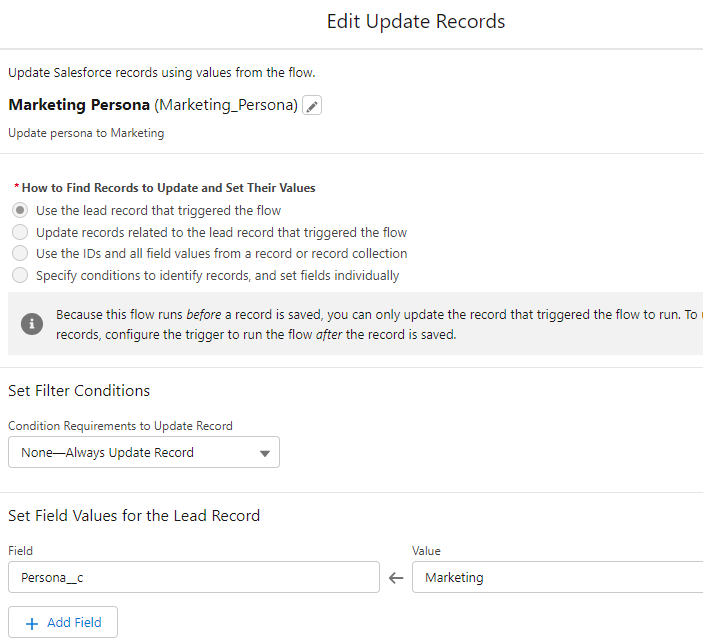
Update Records 

Leads that match the “True” outcome conditions then proceed to the Update Records element. This is where the magic happens and the record is updated in Salesforce.

Debug

The final step before activating your flow is to do some debugging. Test by updating the titles of a few leads to make sure that they progress down the correct path, Be sure to vary the case of the titles to make sure that upper, lower, and mixed cases work as expected.

Step 5 – Rinse and Repeat

Once deployed into production, your flow is not going to be perfect. There are going to be some records that are classified as “Other” that should fall into other categories. That’s OK!

The final step is to do regular reviews and updates of the records that have the “Other” persona. It’s possible that we missed a keyword on our first pass or that a new hot title has emerged. I compare this a lot to scores in Account Engagement. You don’t quit once you define your scoring model, you evaluate and refine it. The same process applies here. 

Give it a Shot! 

We’ve done a lot in a short post. I encourage you to give this a shot in your sandbox. You’ll be surprised by the number of records that you’ll be able to update and the value that it will bring to your sales and marketing teams. If you get stuck, let us know. That’s why we are here! 

Shout out to Heather Rinke and Jason Ventura for their collaboration in building this process!

At 8 p.m. ET on Wednesday 9/13, the second full day of Dreamforce, I was sitting in front of my computer curious and a little anxious. I was using my usual evening streaming service catch up hour to tune into the live Salesforce+ broadcast of Dreamforce session, Empowering Nonprofits in Times of Change with Data + AI + CRM + Trust

As a former boots-on-the-ground nonprofit employee and current consultant primarily working with nonprofit clients, I am acutely aware of the ever-increasing demands on nonprofits. I understand and empathize with the daunting task nonprofits face to tell their story and convey their impact in novel ways and through a multichannel approach. 

I also am acutely aware that nonprofits are frequently hindered by low ROI on donor dollars due to the immense staff effort needed to cultivate donations. I was especially eager to hear what Salesforce has to say about the future of nonprofits on their platform and how they might help solve some of these big issues for the sector.

graphic from empowering nonprofits in times of change dreamforce session

A Year of Change for Nonprofits on Salesforce

This has been a year of big changes for nonprofits and Salesforce. A few headlines were the sunset of Elevate and the rollout of the new Nonprofit Cloud platform

This session added a few more items to the list of highlights, namely the announcement of Einstein, Salesforce’s proprietary AI, for Nonprofit Cloud*. This promises to allow nonprofits to tap into predictive and generative AI to go further and dive deeper with their donor data, with their programmatic metrics and outcomes, and with their tenacious and often time-strapped staff. 

Having the ability to leverage data more robustly than ever before is further extended by the offerings of Data Cloud — Salesforce’s data management and harmonization tool. At the core of Salesforce’s Einstein for Nonprofit Cloud + Data Cloud message, they vow to help you do more with less.

* Currently, the Einstein AI features advertised in the session Empowering Nonprofits in Times of Change with Data + AI + CRM + Trust are only available as a part of the Nonprofit Cloud curated solution package.

Einstein for Nonprofit Cloud + Data Cloud Promise to Make Annual Reports Easier and Better than Ever

I am going to use the example of building an annual report (a thought that may give former or current nonprofit employees shudders of anxiety) to illustrate the key promises of Einstein for Nonprofit Cloud + Data Cloud. 

First let’s start with a short overview of what an annual report is from a nonprofit standpoint. An annual report usually serves as a physically manifested summation of the prior year for a nonprofit. They typically contain programmatic impact data (frequently with fancy charts), thank yous and recognitions of various groups from the highest dollar donors to volunteers, financial data for the year, and a call to action. They are intended to be compelling, illustrate transparency, and highlight mission, vision and outcomes. They are also an absolute BEAST to create.

Here are some of the ways Einstein for Nonprofit Cloud + Data Cloud can help nonprofits complete the daunting task of creating an annual report:

Compiling Programmatic Data and Communicating Meaning

Einstein for Nonprofit Cloud offers the ability to summarize programmatic data over a specific amount of time with consideration to the intended audience. In the case of an annual report this would look like a summary of your programmatic data for the prior year, intended for an external audience. 

Einstein for Nonprofit Cloud also allows you to choose if this summary should be long form (more detailed) or short form (less detailed) increasing flexibility to help you meet the needs of your specific annual report requirements with less manual work.

Segmenting and Standardizing People Data for Acknowledgement Lists

Data Cloud shines in its potential ability to solve the problem of disjointed data for Nonprofits. We all know the pain of manually sleuthing through and deduplicating your database and external systems of that one historical volunteer record for one of your major donors who is also an event attendee and auction lot buyer. This hypothetical generous philanthropist could have upwards of 4 records in your Salesforce CRM and connected systems! Data Cloud to the rescue! 

Through the power of the unified profile you can see all of that disorganized and disconnected data in one place. This is especially helpful in the annual report example as it allows you to be absolutely sure you are thanking and acknowledging your kind supporters for ALL the ways they support, financial contributions, event support, volunteerism through a single 360 view.

Crafting a Compelling Donation Appeal

Admit it or not, a key function of an annual report is to compel folks to donate. Einstein for Nonprofit Cloud + Data Cloud have your back in your daunting donor segmentation and compelling storytelling efforts. 

Through use of the 360 Constituent view made possible by Data Cloud, you can use Einstein for Nonprofit Cloud to segment your donors and its predictive AI capabilities to draw conclusions based on historical data. 

You could put together a segment of those donors identified as having high propensity to give, high affinity for your organization and high capacity and really hit them in the feels with your call to action. Generative AI can then help you craft an irresistible donation appeal and from there the dollars are sure to roll in to support your important work.

Einstein for Nonprofit Cloud + Data Cloud: Getting Nonprofits Closer to their Core Missions

Overall, I am cautiously optimistic that, together, Einstein for Nonprofit Cloud + Data Cloud have the potential to improve the way nonprofits communicate with their donors and the public. By automating time-consuming tasks and providing insights that were previously unavailable, or extremely time or resource-intensive to procure, these tools can help nonprofits focus on their core mission of making a difference in the world. 

I encourage nonprofit leadership to explore and invest in these powerful tools. I think they can help support and extend the capabilities and impact of a nonprofit’s greatest strength, its team.

Need help navigating these new announcements and ever growing suite of Salesforce products? Sercante is here to guide you through and help you achieve your nonprofit’s mission by leveraging the power of the Salesforce platform. Reach out!

No more posts to show