Category

Heather Rinke

You may be aware that when it comes to improving user experience on a record page,  Dynamic Forms have become more and more powerful over the last few Salesforce releases. A good example is the ‘Add Fields from Related Objects to Dynamic Forms-Enabled Pages’ feature from the Spring ‘24 release, which came from a  Salesforce IdeaExchange request.

Dynamic forms are a huge win for making more customizable and engaging user experiences, at least for custom objects and most standard objects. There are still a few that don’t have this feature yet. (I’m looking at you, Campaigns) 

Here’s a handy workaround that may help where dynamic forms in Salesforce aren’t supported.

Check out the latest Spring ‘24 Release updates here, including where you can display related record fields on a record. 

The Use Case: A “Dynamic” Campaign Page

You want to collect certain information for your campaigns, but the data differs depending on the type of campaign. 

Examples may include:

  • Events
    • Location
    • Venue Address
    • Venue Contact Info
    • # of Days
  • Webinar
    • Webinar platform
    • Presenter details
  • Partnerships
    • Partner Information
    • Type of Partnership
    • Partner Contact Info

All of this different data living on the record page can be cluttered and noisy, and forcing the user to scroll through the page to get to the data they need to fill in. It’s not a great user experience and not a great recipe for capturing quality data. 

Wouldn’t it be nice if we could bump up specific fields to more prominent areas of the page based on the type?

Unfortunately, Dynamic Forms can’t help us here (at least not yet — you can upvote the idea here). Some may choose to use record types and page layouts, but that may not be ideal for all companies. 

An Alternative Solution for Salesforce Dynamic Forms

While we may not be able to use Dynamic forms, there are some other Lightning features that can give us a potential workable solution: 

  • First we create a Quick Action, which allows us to build a mini page layout of the fields we want to highlight.
  • Then we use Lightning Page builder features to display this mini-layout above the fold so it’s easy for the user to find and update:
    • Related Record component
    • Set Component Visibility 

Here’s how.

Create an Action for Partner fields

  1. From Object Manager > Campaign > Buttons, Links, and Actions
  2. Click New Action
  3. For Object Name, select Campaign
  4. For Action Type select Update a Record
  5. For Label, enter a label that is appropriate for this purpose. It’s a good idea to make it relevant and easy to idenity what it’s for.
    • For example ‘Update Campaign – Event Details’
  6. Enter a Description outlining the purpose of this action
  7. Click Save

Edit the Action Layout

Once you have saved, you will be looking at the Action Layout page. Here is where you can choose what Campaign fields to display and the arrangement. 

  1. Just like you would for a page layout, drag and drop the fields that you want to be visible. 
  2. Click Save
  3. If you see this message, go ahead and select Yes. We won’t need the Campaign Name on this layout for our use case.
  4. You can edit this later from the Edit Layout button at the top of the page.

Now we can add our new layout to the Campaign record page

  1. From Object Manager > Campaign > Lightning Record Pages
  2. Select the Lighting Record Page you want to update and click Edit.
  3. Drag the ‘Related Record‘ component where you want it on the page
  4. In the Related Record settings panel on the right, update the following:
    • Header Label = the heading that should appear at the top of that layout on the page
    • Lookup Field = Use this Campaign
    • Update Action = the action that you created in Step 1
    • Click Save
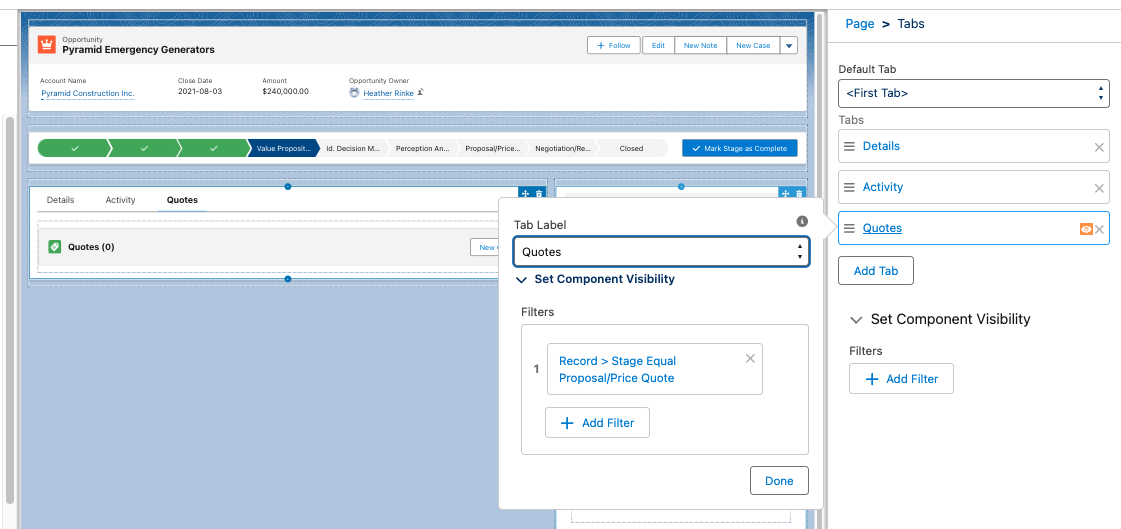
  5. Select ‘Set Component Visibility’ for the Related Record component. 
  6. In the filter area, select Type = ‘Conference’

Voila! Now when working on a Campaign record, the Event Details will appear in their own “section” when the Campaign Type = Conference.  You can repeat this for other fields you want to appear on the page in specific circumstances.

To edit these fields, click the pencil icon next to the field you want to edit. All of the fields in that section will become editable, and notice that the other fields are not. These fields are edited separately because they are part of another component. When done, click the Save button to save the fields in that section. 

Build better experiences with this alternative to Dynamic Forms

While Dynamic Forms in Salesforce are fantastic for jazzing up user experiences, there are times when you need alternatives. Diving into Lightning features such as Quick Actions and Lightning Page Builder can help you to cook up custom solutions that do the job,  like the workaround we’ve explored here for displaying those crucial record fields based on different scenarios.

As you tinker around with ways to supercharge your Salesforce setup, remember, we’re in your corner. Want to chat about how to make your Salesforce dreams a reality? Reach out to the Sercante team today. Let’s brainstorm together and unlock the full potential of your Salesforce journey.

Wow, where did the time go? The Salesforce Spring ‘24 Release notes are out and some cool new features are right around the corner!  Here are the key Salesforce platform features marketers and Salesforce admins should know about. You can also get a closer look at the features from an Account Engagement admin’s perspective in this blog post.

Salesforce Spring ’24 User Interface (UI) Updates

Add Fields from Related Objects to Dynamic Forms-Enabled Pages 

Salesforce continues to build on Dynamic form capabilities by extending the functionality to access fields from related objects. I’m very excited to see this in place, as this is a common ask that previously would have to be delivered using less-than-simple methods. This Idea has been around since 2006 and has logged more than 35,000 points!

Customization Updates for mobile:

This release also includes features that will bring more design flexibility by device, and making the user experience more relevant based on how they are working:

Confirmation Message When You Select the Multi-Select Picklist Field Type

You can say Multi-Select picklists are sort of like raisins much like tags in Account Engagement. For some they are useful for their use case, and for others, they are a no-go because of their limitations (if you’ve tried to use them in reporting or automation you know what I mean 😉) 

Now, when you create a new field and select the Mutli-Select picklist data type, you will be presented with this pop-up highlighting the limitations to make sure this is the right approach before creating.

Reporting & Dashboard Updates

Easily Update Fields in Lightning Report Filters

This little update will probably save admins a lot of headaches. No more having to completely remove a filter to update it.  Now you can update the field being used in the filter. If you realize after building a report that you used the wrong date filter, all you have to do is swap the data field. The criteria remain intact.

Transfer Lightning Dashboard Ownership (Generally Available)

When someone leaves your organization, it’s now easier to transfer ownership of the dashboard to another user. In the past this had to be achieved by cloning or recreating the dashboard. 

In the Lightning Dashboard view, you can transfer ownership one dashboard at a time 

If you’re using the new Analytics tab, you can select multiple dashboards and change the owner for all selected at once.

Add Images, Rich Text, and Widgets to Dashboards in All Editions

Now you can add images or rich text widgets to make your dashboards more engaging with logos, contextual images, titles and descriptions. This feature previously available only in Unlimited and Premium editions is now available for all editions!

Five dashboard Filters now in All Editions

When creating dashboards you now can use up to five filters to give users even more ways to slice and dice the way they want and get the key information they need.

Automation Updates 

Create Multiple Instances of a Set of Fields with the New Repeater Component (Beta) 

I was very excited to see this feature, which lets users create multiple records in a single screen element. This will be ideal in situations like adding project members to a project team, or even providing a quick custom Create Contact flow. Users just populate the info for one record, then hit Add Item and new form appears allowing them to create the next one!

Supported fields include: Text, Number, Checkbox, Date, DateTime, Currency,Choices (except Choice Lookup), Display Text, Long Text Area

More Awesome Reactivity in Screen Flows

Screen flows have been getting a lot of reactivity love over the last few releases, and Spring ‘24 is no exception. Here’s a summary of features from this release:

Identify Flows Containing Email Alerts

On the Email Alerts page, you can now see what flows are using that alert, and whether the flow is active. This can be great if you’re looking to update your emails and want to understand what processes will be impacted by the change.

Other Notable Spring ’24 Release Updates

Marketing App is being Renamed

If you typically use the out-of-the-box Marketing App to access your Campaigns, Leads or Contacts, you’ll notice that the all has been renamed to ‘Marketing CRM Classic’. There doesn’t seem to be any change to the features available beyond the name change, though.

Get Help Understanding Salesforce Spring ’24 Release Enhancements

Contact the team at Sercante to get help implementing these enhancements in your Salesforce org. And leave us a comment below to let us know what you think about the Spring ’24 Release.

Dreamforce 2023 has come and gone, and wow, it did not disappoint. Not only was this my first Dreamforce, I had the honor of co-presenting the Marketing Cloud Release Highlights session with two amazing members of Salesforce product team:  Ruth Bolster, product marketing manager, and Whitni Freeman, lead solution engineer.

In this session, we covered key Winter ’24 release highlights across each of the Marketing Cloud products:

  • Data Cloud
  • Intelligence
  • Engagement
  • Account Engagement 
  • Personalization

Here’s a recap of the Marketing Cloud Winter ‘24 release features covered…

Highlight #1: Segment Intelligence (Data Cloud)

Source: Salesforce

A new Data Cloud for Marketing feature, Segment Intelligence connects and harmonizes customer and marketing performance data — like revenue data, first party data, as well as paid media data — so you can understand how your segments are interacting with your marketing.

Using out of the box dashboards, you can see how segments are performing across channels, and gives you an executive understanding of how segments are performing across channels.

Plus, you can use Einstein to optimize existing segments, or create new ones based on performance data.

With all that data in one place this allows marketers to have a more holistic view of how segments are doing, without being bogged down by time consuming data management and reconciliation. And having those insights to optimize channel performance by segment – that level of visibility and adaptability means more impactful and relevant marketing campaigns, which leads to better marketing ROI. 

And the built in dashboards and connections means that marketers can get started right away!

This feature will be available for select customers starting in October, and will be available to all customers later this winter. 

Highlight #2: AI-Powered Segment Creation (Data Cloud)

Source: Salesforce

Another Winter ‘24 feature for Data Cloud for Marketing is Segment Creation. Powered by Einstein, this allows marketers to build complex segments using a descriptive prompt. 

So, for example, I can just tell Einstein “Big spenders in North America who made a purchase in the last 3 months and love hiking”, and it will generate the segment for me, showing what that segment looks like, and the attributes used.  

This means that marketers can build their segments without having to be a data scientist to do it. Being able to pull data based on specific criteria has often required technical knowledge of the data model to know where to look, and SQL skills to query the data to know how to access it. This feature will allow marketers to be more self-sufficient to get the data they need when they need it. 

This will be Generally Available in October for Data Cloud Customers.

Highlight #3: Intelligence GA4 Connector (Intelligence)

Source: Salesforce

As of Winter ‘24, Marketing Cloud Intelligence will have a built-in GA4 connector and pre-defined data sets available to ingest GA4 data. Marketing data is the foundation of Marketing Cloud Intelligence. Its data models, dashboards and guidance are built for marketers. There are already more than 100 native connectors available, and now with GA4 data connector this is a natural addition to the platform to have relevant marketing data in one place.

How this will work: When setting up data streams, GA4 properties will appear under the ‘Website’ dropdown. These new properties will be supported in API connectors as well as Marketplace apps.

Marketplace apps will replace previous UA 360 websites and support the new GA4 web properties, dimensions, and other fields for data retrieval. 

One thing to keep in mind: Due to the differences between GA4 and UA properties, the new connector will pull different, yet very similar, datasets into the platform when the GA4 property is selected, so your visualization may need to be tweaked when setting up the data stream for the first time. Marketplace will discontinue support of UA360 properties after the GA4 support begins. 

Highlight #4: Trigger Action on GA4 Data (Engagement)

Source: Salesforce

Marketing Cloud Engagement has some goodies in the Winter ‘24 Release as well. The first is Google Analytics 4 Integration, which lets marketers activate journeys based on Google Analytics 4 segments and events.

This new integration will include two key features in one:

  • Visual dashboards embedded within Engagement reporting so that marketers can see real time impact on revenue, AOV, and conversion metrics. 
  • Audience activation, which allows marketers to create engagement and re-engagement campaigns based on customer interactions using that GA4 data.
    • So for example, if you had a customer that viewed your product pages for backpacks and hiking boots, then abandon the session, you can use audience activation to trigger an abandoned browse journey.  This also allows you to get cross-channel insights across mobile, web, and email.

There is a fully paid version which includes both Reporting and Audience Activation.  There is also a free version that will feature the Reporting feature only.

Highlight #5: AI-Powered Email Content Creation  (Engagement)

Source: Salesforce

AI is coming to Marketing Cloud Engagement with Email Content Creation, including Typeface partnership!

Marketers can set up and specify personalities with brand voice and tone, and using natural language prompts can get draft ideas on subject, body copy and images. With the ability to give feedback on what works and what doesn’t this lets the model learn and improve over time.  

Marketers can consider this a tool to help them get a first draft in place. They still have control over the content throughout. They’re given choices based on their prompts, which they can use, like or dislike. 

That human element and judgment is a crucial part of the whole process.

Content Creation will be available in Marketing Cloud Engagement this October, and it is currently scheduled to be in Marketing Cloud Account Engagement next February

Highlight #6: Transfer Assets from Sandbox to Production (Account Engagement)

Source: Salesforce

Speaking of Account Engagement… With the Summer ‘23 Release  we saw the ability to move assets between business units, which is fantastic! But that still left a gap with sandboxes. Anyone that has used Salesforce sandboxes has been used to building and promoting configurations, and unfortunately that hasn’t been possible with Account Engagement sandboxes, which has been painful to work around. Any assets built in a sandbox had to be built again in production, which is of course time-consuming and also prone to error if something is missed.

In the Winter ’24 release, marketers can now copy assets from sandbox to production using Salesforce Flow. After installing the flow on your campaign, all you need to do is select your sandbox environment and your production environment, select your assets, and then copy it over. And this supports 8 asset types, including email templates, dynamic content, form handlers, custom redirects, custom fields, landing pages, and more.  

This allows for a more useful Account Engagement sandbox, to perform all asset testing and avoid conflicts – and all that test data – when trying to build in production. Not to mention saving time because you won’t have to build assets multiple times. You can even use this to set up a QA process, giving a subset of users access to build in the Sandbox only and then have another subset of users review the assets and push them to production when approved.

This was first mentioned in Erin Duncan’s post on Winter ‘23 Highlights for Account Engagement. 

Highlight #7: Real-Time Event Stream (Personalization)  

Source: Salesforce

With Winter ‘24 Release, Personalization will now include Real Time Customer Event Stream, a Lightning component that can be added to record pages, giving users a real-time view of the marketing assets that a lead or contact has interacted with. 

This gives sales and service teams better insight into the types of content their customers have been engaging with. They can then have more relevant and informed conversations with them about their current needs and interests, and provide a better overall customer experience.

Learn more about the Marketing Cloud release highlights

If you want to learn more about the Marketing Cloud release features covered, here are a few resources:

What do you think about these Marketing Cloud release highlights? Let us know in the comments.

It’s that time – Salesforce Winter ‘24 release notes are out! Here are the key Salesforce platform features marketers and Salesforce admins should know about.

20 Platform Highlights from the Salesforce Winter ‘24 Release

Highlight#1: Migrate to Hyperforce with Hyperforce Assistant (Generally Available)

If you haven’t heard, Salesforce is undergoing a modernization of their infrastructure with Hyperforce, and undertaking steps to move customer orgs to Hyperforce. To help prepare for the migration, Salesforce has made their Hyperforce Assistant generally available, and updated with improved features to help orgs get ready for the move.

If you’re starting your journey to make the jump to Hyperforce we have more details here: Prepare Your Salesforce Org for the Migration to Hyperforce

Permissions & Record Access

Highlight#2: Report on Custom Permission Set and Permission Set Group Assignments

This is the first of many ideas that were delivered in this release. With this update you can create a report type that you can use to report on which users are assigned specific custom permission sets or permission set groups, or look at all of the assignments by user. This is just for custom permission sets and permission set groups, no word yet on when this would be available for standard permission sets and standard permission set groups.

Highlight #3  What’s Enabled in a Permission Set More Easily (Beta)

Admins who have spent so much time trying to uncover the permissions included in a permission set are going to love this. Another idea exchange request, it’s now easier than ever to see the enabled object, user, and field permissions on one page. You can even see the permission set groups a permission set is included in!

Highlight #4 User Access Policy Filters Improved (Beta)

Until now you could create User Access Policies referencing only one permission set, permission set group, or managed package license in your user access policy filters. With this update you can reference a total of three, giving you more flexibility to define your policy criteria.

What to know more about User Access Policies? Jason Ventura covered this in the post Salesforce Summer ’23: User Access Management Updates 

Highlight #5 Report on Who Has Access to Accounts from Manual Shares and Account Teams

Admins and users will have a new way to understand better who has Read or Edit Access to an Account through Account Teams or Manual Sharing. By creating a report type it’s now possible to see which users and groups have access. Another idea was delivered!

Highlight #6 Report on Public Group Members

Another helpful report that’s going to save clicks! With this new custom report type, Admins will be able to more easily view which users, roles or groups are members of public groups.

Automation Updates

Highlight #7 Reactive Components now GA

With the general release of reactive flow screen components, admins will able to build more interactive single page applications, creating a more dynamic user experience.

Highlight #8 Create Custom Error Messages in Record-Triggered Flows

Another Idea Exchange idea delivered! Flownatics everywhere will be cheering for this. Now admins can customize the error that users see on record triggered flows. You can control one or more messages that will appear, what the messages will be, and when you want them to appear. You can even set them to appear as a window on the record page, or as an inline error on a specific field, similar to validation rules.

In the example below, you can see the Custom Error message element where I’ve configured 2 messages to appear if an opportunity has been created or updated and the stage is advanced and no Opportunity Contact Roles are found. One error will appear in a window on the record page, and the other will appear inline on the Stage field.

When active, the flow will display the configured error messages when the criteria has been met:

Highlight #9 Transform Your Data in Flows (Beta)

This is a new element for flow that lets users map data from a data source to a new target data destination. This can follow the HTTP Callout action that grabs data from an external location, and transforms the data before saving to a Salesforce object. Another use can be to transform field values while mapping from one object to another.

Highlight #10 Save a Flow Without Configuring Some Elements

How many times have you started to build a flow and have partially added elements, only to find you have to exit an element before fully completing the configuration. In the past you had to lose the partial configuration already completed, or add dummy data just to get the element to save, and remember to go back and update later. With this new feature, you now exit Start and Create Record elements before fully configuring them. According to Salesforce this is the “first steps to support saving a draft of a flow at any point in the building process”.

Highlight #11 Use Wait Elements in More Types of Flows

Marketers would be familiar with the ability to add a wait step in a customer journey (Marketing Cloud) or Engagement Studio Program (Account Engagement). The new Wait for Amount of Time and Wait Until Date elements are now available in schedule-triggered flows, autolaunched flows, and orchestrations. This adds more flexibility to being able to pause a flow interview for different use cases. The previous Pause element has also been renamed ‘Wait with Conditions’ for clarity.

Highlight #12 Flow Builder user interface moved to right panel

The element properties are now displayed in a panel on the right side of the screen instead of as a popup. So far this appears to be working for Start, Get, Create, Update, Transform (Beta), and Delete.

Highlight #13 Data Cloud Triggered Flows

For orgs with access to Data Cloud, you will be able to create new Data Cloud-triggered flows from the new Flow screen. After selecting Data Cloud-triggered flow, you will be prompted to configure your Start conditions specific to your Data Cloud object.

Highlight #14 Get Data Cloud Records More Easily in Flow Builder

Another Data Cloud related enhancement, admins can more easily choose between Salesforce objects and Data Cloud objects. Based on the choice more options are provided to specify the criteria.

Highlight #15 Use Filters to Find Record-Triggered Flows Quickly

Orgs with increasing numbers of flows will benefit from this handy additional filtering capability that lets you zero in on the flows you’re looking for. You can now filter on flows by Status, Package State or Process Type.

Highlight #16 Migrate to Flow Updates

In the meantime, admins still working on moving legacy automations like workflow rules and process builder to flow may appreciate that the Migrate to Flow tool has been updated to accommodate more use cases:

If you’re in the process of migrating your workflow rules and process builders to flow, have you checked out our guide and tools to help with that migration? Check out Automation Facelift: Migrate Workflow Rules and Process Builder to Salesforce Flow

Cool Admin Updates

Highlight #17 Visualize Lightning Reports with Summary Formulas as You Create Them

I don’t know about you but I still struggle with using PARENTGROUPVAL or PREVGROUPVAL. In Classic there was a great feature that helped build the summary with these functions, and showed how they would work in your report. Now this feature is available in Lightning!

Highlight #18 Select Who Has Access To a Sandbox

When creating or refreshing a sandbox for your team to build or test a new configuration any active user in production could access the sandbox. Now, admins can limit access to specific users by adding them to a group. This then freezes all other users in that sandbox, so they can’t access it (unless you unfreeze them). Only the users in the group will be unfrozen automatically. And the “.invalid” won’t be added to their email addresses either. Bonus! Now, apparently this may not be immediately available when orgs are upgraded to WInter ’24. According to the release notes, this will be available “in production orgs when they’re upgraded to the Winter ’24 release starting in mid-October 2023.”

Highlight #19 & 20 Lead & Contact Intelligence VIews

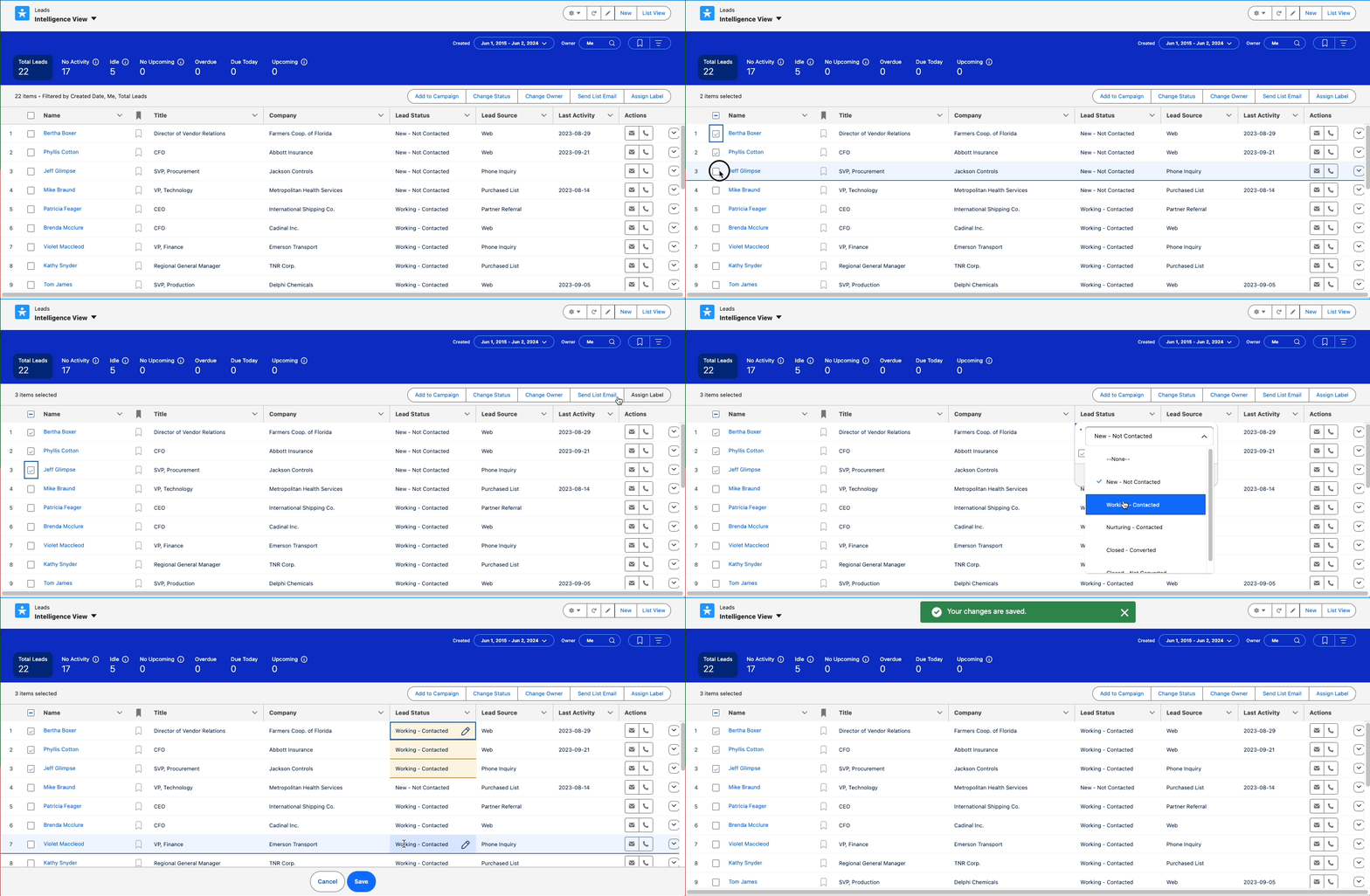
Last but not least…. As part of Winter ’24 release, orgs will now have access to a more actionable lead and contact lists that can help users segment their leads, and take action to build their pipe and grow customer relationships. In one page you can create segments and view key metrics, prioritize important records, view activity history of individual records and make calls or send emails without leaving the list.

Other Notable Updates

Which Salesforce Winter ‘24 features are you excited about? Let us know in the comments!

The introduction of Hyperforce is one of those revolutionary milestones for Salesforce customers. That’s because migrating to Hyperforce is going to give Salesforce customers options when it comes to storing their Salesforce data.

If you’re a Salesforce customer, then you likely store Salesforce data in one of the company’s massive data storage centers. With Hyperforce, Salesforce customers can store their data in public cloud storage centers.

This is huge for companies that operate globally as well as ones in highly regulated industries like financial services and healthcare. That’s because it’ll be easier to store data locally and comply with regulations surrounding data storage in countries around the world.

What is Hyperforce?

First introduced in 2020, Salesforce reimagined its platform architecture for the public cloud with the introduction of Hyperforce. It’s code-based rather than hardware-focused infrastructure that allows more agility within the platform. 

The Customer 360 platform can live on top of Hyperforce, and Salesforce customers will store their data in public clouds like Amazon Web Services (AWS), Google Cloud, and Microsoft Azure, inside onsite servers, or within Salesforce data storage warehouses.

Migrating to Hyperforce

So, why is Salesforce having all customers move to Hyperforce? Well, for one thing, it’s a modernization of the platform to meet changing data demands. 

Salesforce will continue to maintain data warehouses they own to use when needed, but moving data to public cloud infrastructure is the most logical way forward. Imagine having better compliance capabilities, top-notch security, ultimate agility, and the power to scale up like a superhero. 

 Salesforce is all about respecting your privacy, too. So with Hyperforce, they’ve got your back.

  • Worldwide Wonders with Data: Hyperforce is like your personal travel agent for data. Go global while keeping control over where it hangs out — that’s a win-win for you and your customers.
  • Scaling Superpowers: With Hyperforce, growth is more than a dream — it’s a reality. Flexibility and sustainability are your new BFFs.
  • Fort Knox Security: Locking things up tight is Hyperforce’s jam. We’re talking about security measures that make your data sleep soundly, including encryption and zero-trust principles.
  • Privacy Party: Hyperforce comes with its own set of privacy standards, giving you the reins and a spotlight on your customers’ data.
  • Agile Adventures: Who needs downtime? Not us! Hyperforce keeps the party going with seamless releases, environments for testing and development, and an easy-peasy AWS connection.

How do I know it’s time for me to migrate to Hyperforce?

Currently, there is no publicly available migration schedule for Hyperforce, Salesforce is ‘regularly moving customers to balance our workload and modernize our systems.’

Admins of orgs scheduled to migrate will be notified via a Salesforce Product and Service notification, approximately two months and then one month before their migration date. In the meantime, you can check in with your account team to find out when you can expect to receive a notification that it’s time to migrate to Hyperforce.

Below is an example of the product notification Salesforce customers receive:


Learn more about Products & Services Notifications

If you’re notified that you are being migrated but the timeline is inconvenient for your team, you can contact your Salesforce account team (according to this FAQ article).

How to prepare for Hyperforce Migration?

Salesforce has implemented the Hyperforce Assistant in Setup to guide you through your upgrade. The Assistant has all of the latest information and checklist to prepare for the migration. 


For additional information, see the section What can customers do to ensure a smooth upgrade to Hyperforce? in the Hyperforce FAQ article. You can also request a trial org from your account team so you can test your setup and troubleshoot before you make the switch.

Get ready for to migrate to Hyperforce

It’s a matter of time before all orgs are migrated to Hyperforce. So in the meantime, start to think about how data storage location may affect your Salesforce org. For example, the move may affect endpoint things like Single Sign On, OAuth and JSON Web Tokens (JWT). 

Reach out to the team at Sercante to evaluate your data architecture and business goals to see how the migration to Hyperforce may affect your Salesforce org.

Salesforce opportunity record pages are great for displaying all of the key information about a particular record. But, what if you need to be working with and updating multiple related records at the same time, without flipping back and forth?

That’s where this hack for displaying account fields on Salesforce opportunity record pages comes into play. 

Salesforce Opportunity Record Page Example

Let’s say a sales rep is working on an opportunity, but some of the fields they need to see and update are on the account. 

If they only needed to view the information, using custom formula fields on the Opportunity referencing Account fields would have been sufficient. Because they also wanted to update this information while they were on the Opportunity record, an alternative option may be using an Object Specific Action with the Lightning Record Page.

How to Create an Object Specific Action

  1. From Setup, go to Object Manager > Account > Buttons, Links, and Actions
  2. Click New Action
  3. For Action Type select Update a Record
  4. For Label, enter a label that is appropriate for this purpose. For example ‘Update Account Details’
  5. Enter a Description outlining the purpose of this action. For example ‘Displays Account details to users from Opportunity record page’
  6. Click Save.

Edit the Action Layout

This is the key! This is where we decide what fields to display, and how they will be arranged.

  1. Once you have saved, you will be looking at the Action layout.
    • Note: you can also access this later from the Action page by clicking on the Edit Layout button.
  2. Just like a page layout, drag and drop the fields that you want to be visible.
  1. Click Save.

Add the Account Action Layout to the Opportunity record page

Now that we have the Action Layout we want, here’s where we connect it to the Opportunity. 

  1. From Setup, go to Object Manager > Opportunity > Lightning Record Pages.
  2. Select the Lightning Record Page you want to update.
  3. Drag the ‘Related Record’ component where you want it on the page.
  4. In the Related Record settings panel on the right, update the following:
    1. Header Label = the heading that will appear at the top of that layout on the page
    2. Lookup Field = Account
    3. Update Action = the name of the action you created above
  5. Click Save.

Now when looking at an opportunity, the related Account fields will appear on the Opportunity record page!

Editing Account Fields on the Opportunity Page

Unlike formula fields, these fields can be edited directly from the Opportunity. 

To edit the Account fields, click the pencil icon next to the Account field you want to edit. All of the fields in that section will become editable, and notice that the Opportunity fields are not. When done, click the Save button to save the fields in that section. These fields are edited separately from the Opportunity fields. 

Find Key Account Details on the Salesforce Opportunity Record Page

That’s it! Now the sales team can manage the key details on their Account and Opportunity in one place. All with a handy object-specific action layout and the flexibility of a Lightning record page.
Want to know how you can use this tip in your overall technology strategy? Reach out to the team at Sercante to start a conversation.

You can also check out these resources for more ways to make work flow between your sales and marketing teams:

No more posts to show