Category

Analytics & Reporting

If you’re new to using Salesforce campaigns, then this blog post is the perfect starting point. Use these 5 tips to make your life easier as you dip your toe into using Salesforce campaigns.

Even seasoned Salesforce pros may find a gem they haven’t seen before.

Tip #1: View the unique count of records in a report

Want to know how many accounts or companies attended an event, webinar or interacted with a marketing campaign? The “show unique count” option within Salesforce reports can be enabled to view this information.

How it works

While editing a report in the report builder, find the column for which you want to count unique values.

  1. Click Show More | Show Unique Count.
  2. Click Save.

A count of unique values appears as a grand total for the whole report and as a subtotal for each group.

Show Unique Count

Each report support up to 3 unique counts.

Example: Campaigns with contacts report

This example shows the unique count of the accounts touched by a specific marketing campaign.

The report is using the “campaigns with contacts” report type and has a filter for campaign name equals (the virtual event campaign).
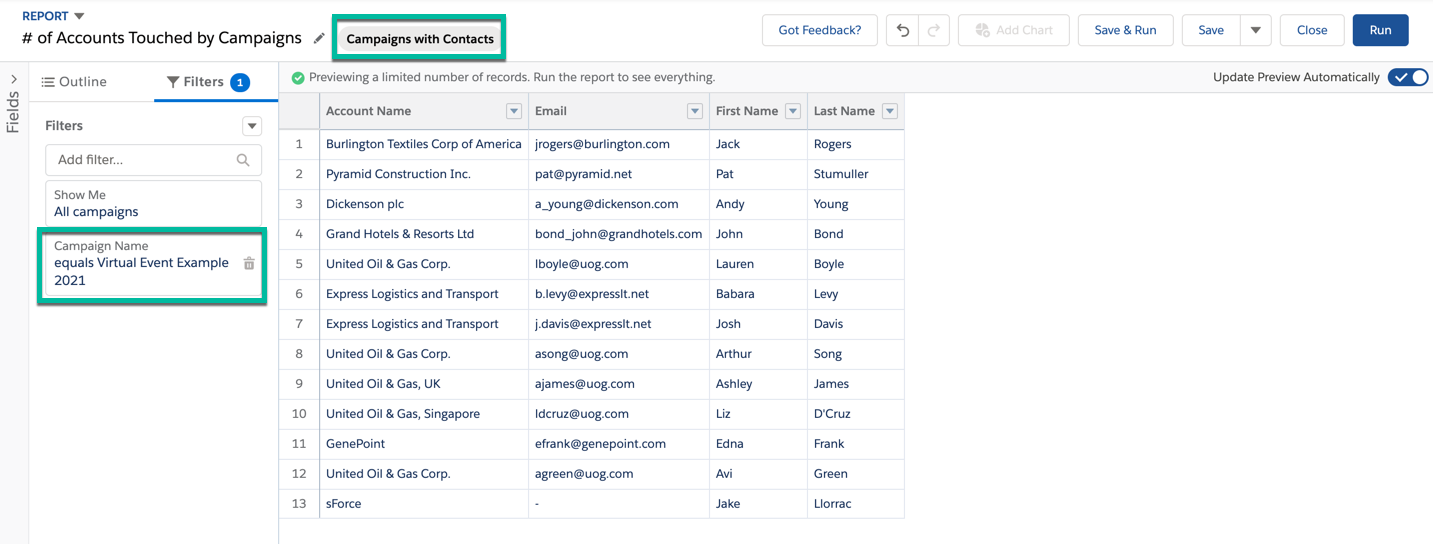
Example: Campaigns with contacts report

The unique count for account can be pulled by selecting the show unique count option for the account column.
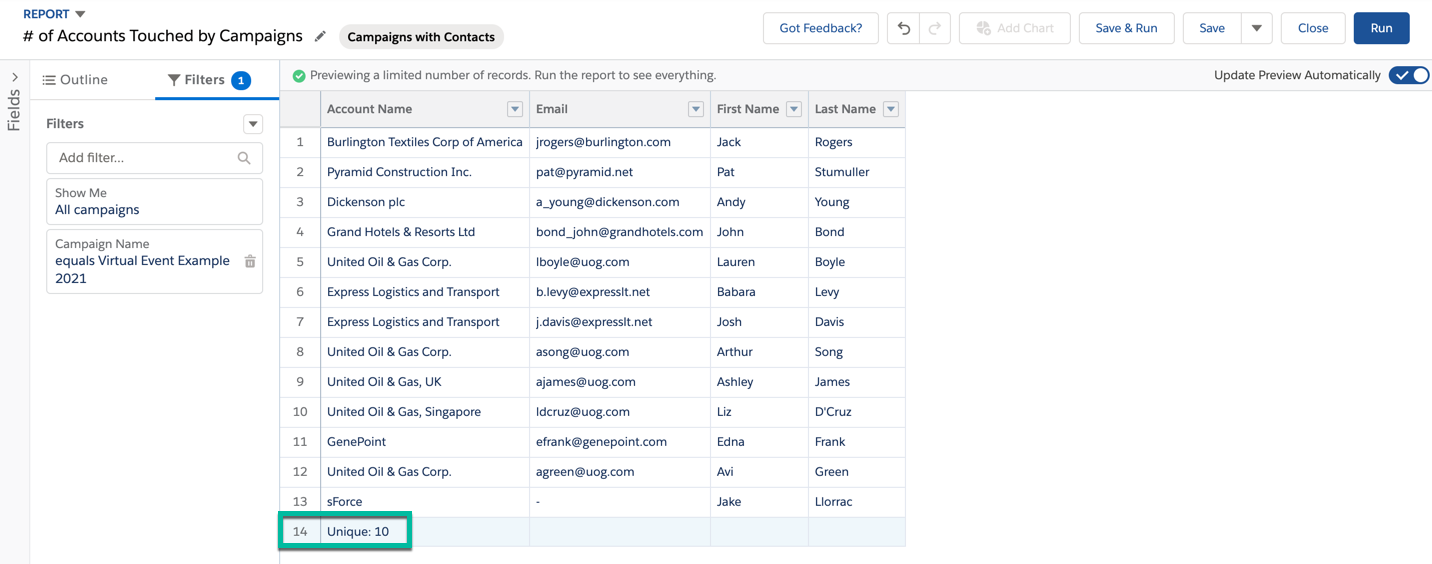
show unique count option for the account column

Running the report allows you to see the total number of records (the number of contacts) and the unique account count (the number of accounts that were touched by the campaign).
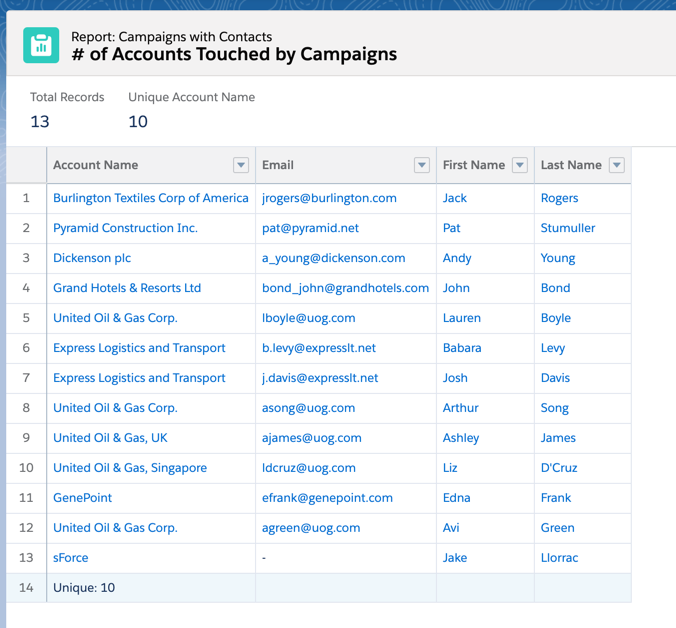
total number of records and the unique account count

Tip #2: Add custom fields to campaign members

The campaign member object in Salesforce represents the association between a campaign and a lead or a contact. While some standard lead and contact fields are available for the campaign member object, if you want to view or pull a report for custom fields, you will need to create a new field.

How it works

Create a formula field on the campaign member object that will check if the campaign member is a Lead or a Contact and populate the field with the custom field value.

Navigate to the campaign member object within the object manager and create a new formula field.
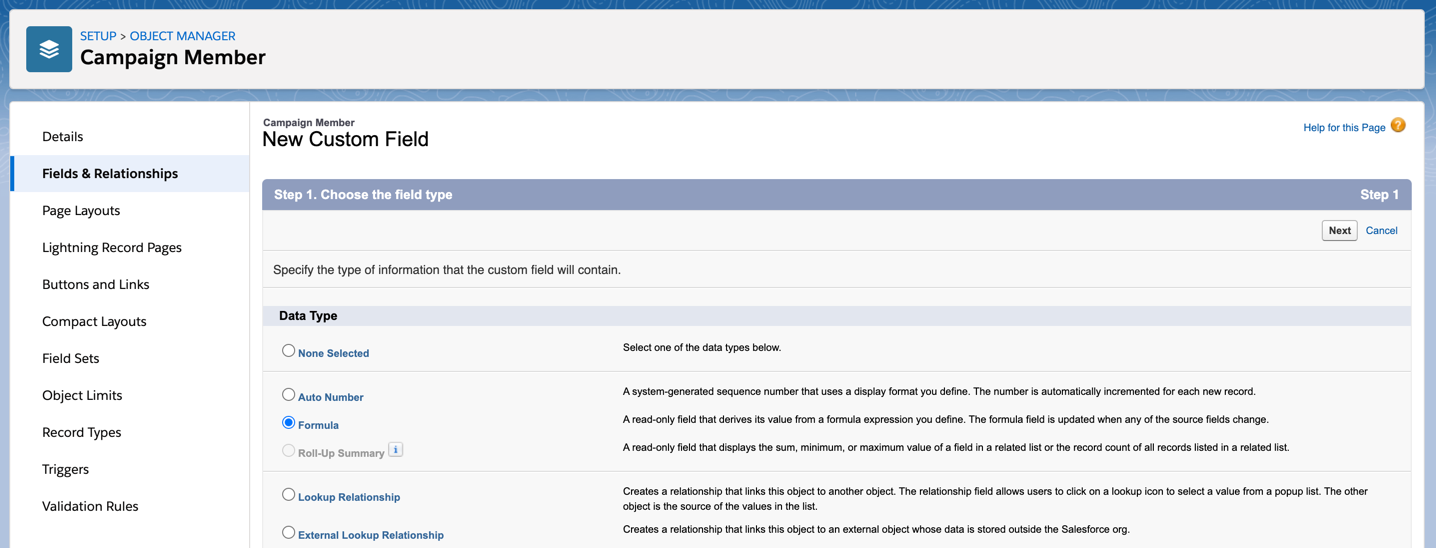
create a new formula field

If your lead and contact fields are picklists, use this syntax for the formula.

IF(ISBLANK(ContactId), TEXT(Lead.Status), TEXT(Contact.Status__c))

If your lead and contact fields are not picklists, use this syntax for the formula.

IF(ISBLANK(ContactId), Lead.Status, Contact.Status__c)
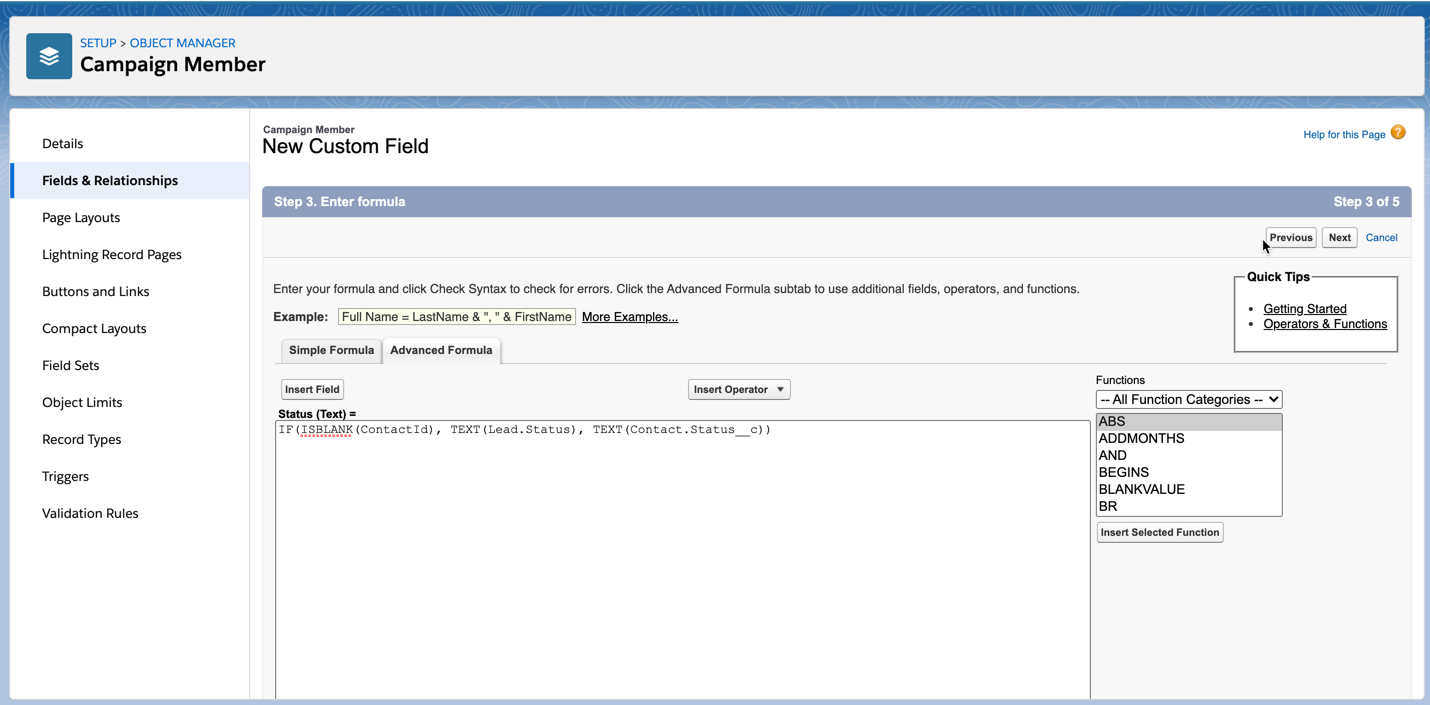
create a new formula field

Add the field to campaign member related list

You can add the new custom field to the campaign member related list by navigating to the campaign object in the campaign manager and selecting your page layout. Scroll to the campaign member related list and click on the wrench icon to select your fields.
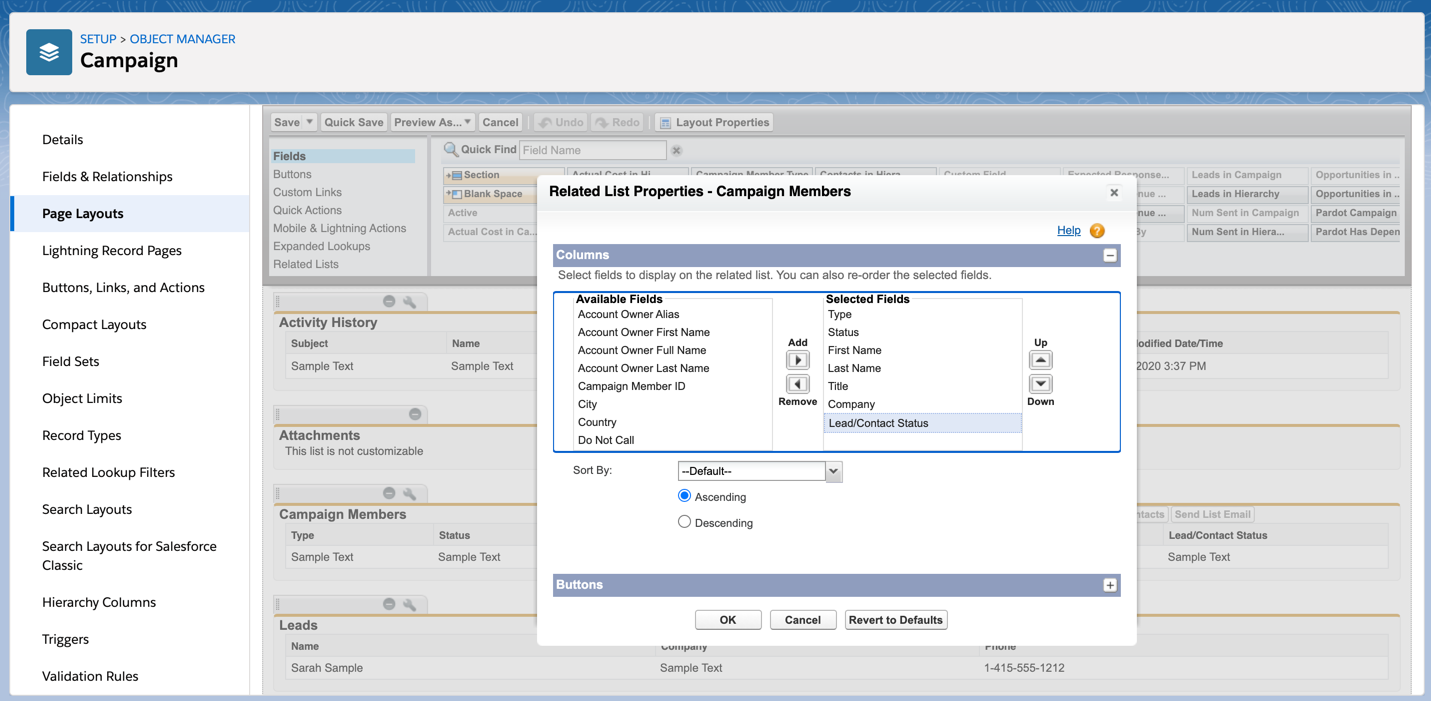
Add the field to campaign member related list

Now the custom field displays in the related list for campaign members.

Now the custom field displays in the related list for campaign members

Tip #3: Create a campaigns calendar (without installing an app)

Did you know you can create a calendar based on any custom object in Salesforce – without using an app? Yes, this applies to the campaigns object as well. While there are a couple of limitations to using this feature, it’s a great way to get a view of all your campaigns in a campaign view without purchasing an app from the Salesforce App Exchange.

How it works

Search for “Calendar” in the App Launcher to find the calendar app.
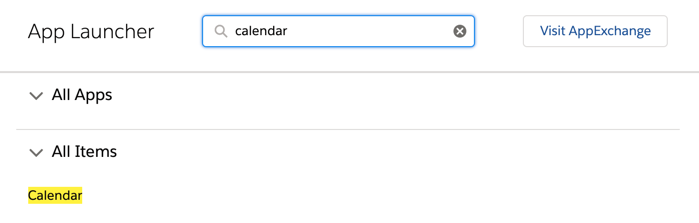
Search for “Calendar” in the App Launcher

Under My Calendars, click on the gear icon to create a new calendar.
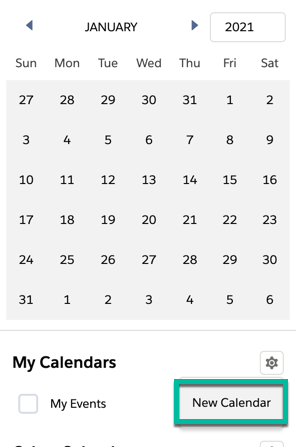
Create new calendar

Select the Campaign object from the drop-down and click next.

Give your calendar a name and select the start date (required) and the end date (optional). You can use the standard Salesforce campaign fields for the start date and end date, or you can select a custom field. For example, if you have a “go live” date field, you can use that as your start date instead.
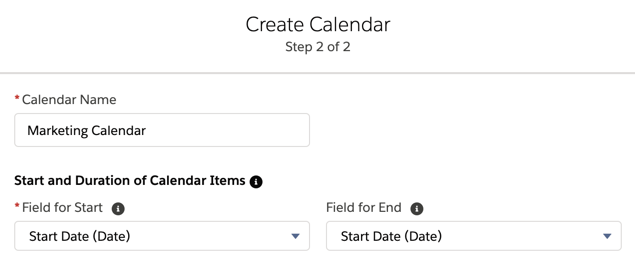
Create new calendar - step 2

You also have the option to add a filter to your calendar. The filter has to be a list view using the campaign object. For example, if you want to have a separate campaign calendar for webinars only, this is what your list view would look like.
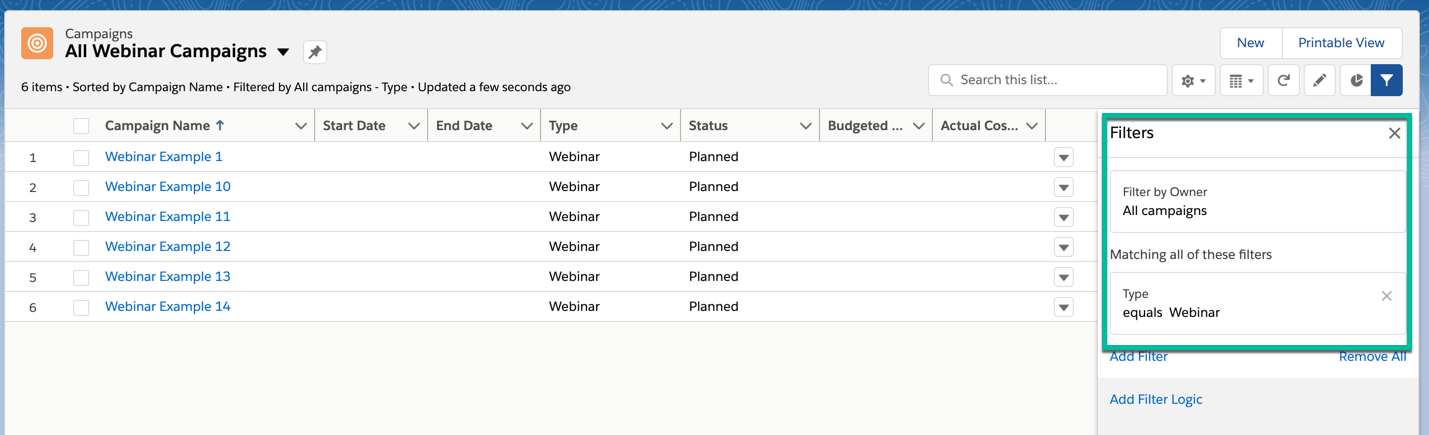
Filter campaigns by webinars only
add filter to calendar

Here’s what my calendar looks like:

finished calendar

Click on the gear icon next to your calendar name to change the colour of the campaigns displayed in the calendar.

change the color of campaigns displayed in the calendar

Hover over the campaign name within the calendar to view more information about the campaign.

view more information about the campaign
Limitations

There is one big limitation when it comes to using this feature… the calendar can not be made shareable without using the API. If you want to use this feature, each user will need to create their own calendar. With that being said, there is an idea open to allow sharing via the UI.

If you are looking for more robust calendar functionality, take a look at these apps on the Salesforce AppExchange.

Tip #4: How to automatically create campaign member status values

When a new campaign is created in Salesforce, there are two default member status values: “Sent” and “Responded”. For the majority of your campaigns, you will want to get more granular with your campaign member statuses than the default values. To do this, there are a couple of options:

Tip #5: Customize your campaign page

One of my favourite Lightning features is customizing the campaign page using the Lightning App Builder. The drag-and-drop App Builder allows you to add tabs, reports and instructions to your page.

How to customize your campaign page

To customize your campaign page, navigate to one of your Salesforce campaigns, click on the gear icon, and click on edit page. This will take you to the Lightning Page Builder.
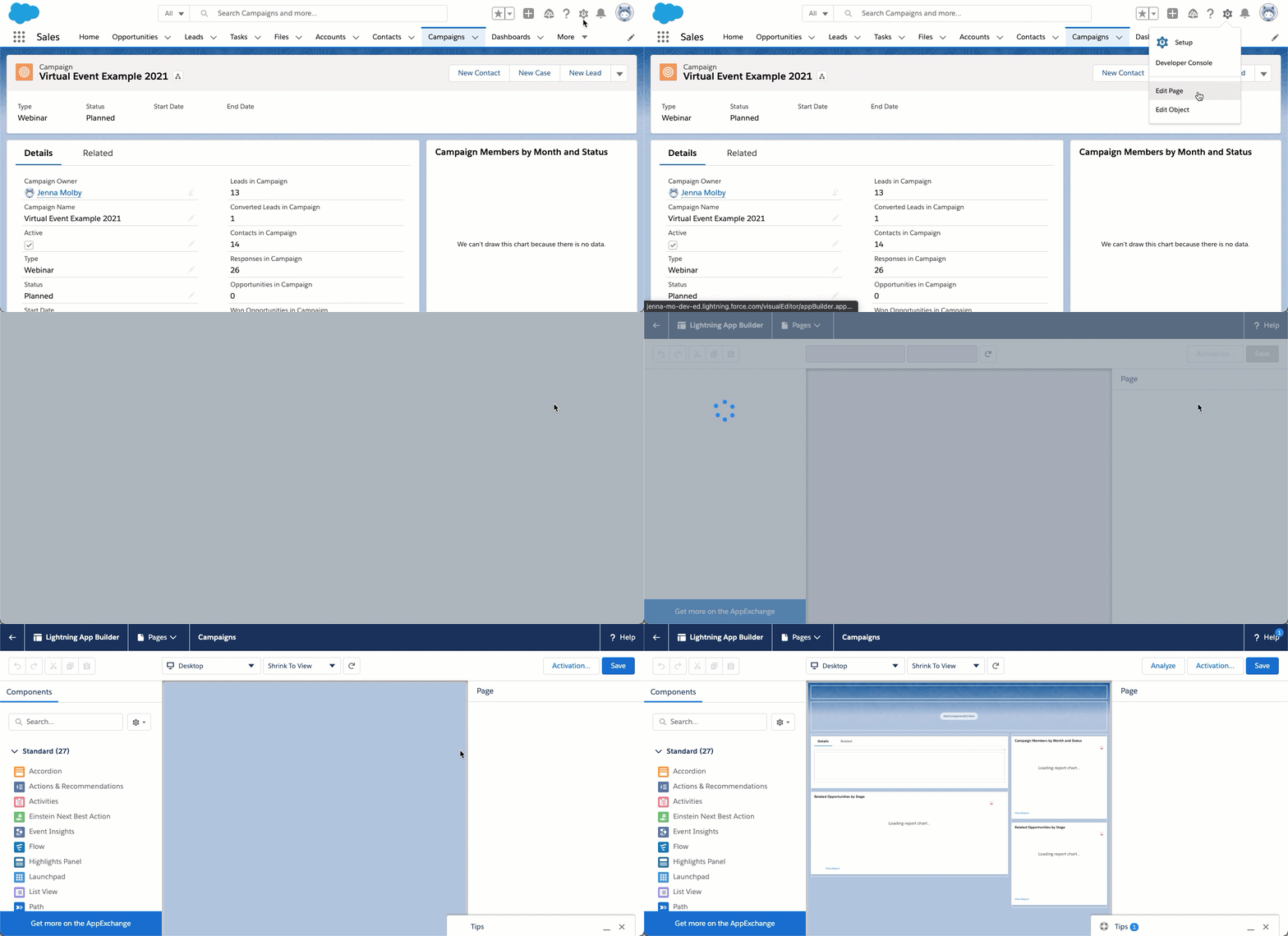
Lightning Page Builder

Note: Editing the page will overwrite the existing page. You might want to create a new custom record page instead of overwriting an existing page.

Check out these 4 changes to make to your campaign page

Questions?

Send me a tweet @jennamolby, or contact the Sercante team for help.

Are you embarking down the Pardot Business Unit (PBU) path with your org? There are a number of considerations when choosing if multiple business units are right for you. Once you make that decision, it’s a great next step to standardize what you can in preparation for the implementation. Standardization across your business units will make your life as a Pardot admin easier, both in implementation and in future maintenance across your business units. 

Already using business units? Use these recommendations to audit your current setup and work towards improving your standardization and org documentation. 

Benefits of standardizing your Pardot Business Units

These five standardization tips come from working with a variety of clients who wanted to see the following benefits: 

  • Easy for users in multiple business units to switch between orgs and navigate a similar organization and performance setup
  • Improve the ability for the Salesforce Administrator to manage related functionality among the business units with fields, record types, sync behaviors, and corresponding automations
  • Consistency on training material and resources, as well as org documentation
  • Reduce effort and costs associated with implementing multiple business units

Pardot highly recommends enlisting a Salesforce Consulting Partner when implementing multiple business units. Standardizing your business unit(s) is something you can get started on right away and will ensure your project moves smoothly, but it is not a good substitute for partner support with this complex project. 

Top five Pardot Business Unit Standardizations

Here are our top five favorite standardizations that we’ve guided clients through for successful multi-business unit implementations.

1. Document your field mappings 

In any Pardot implementation, you’ll need to map fields from Salesforce to Pardot. You should verify fields are consistent in name, type, and function among Pardot Prospects, Salesforce Leads, and Salesforce Contacts. Keeping those mappings synchronized ensures qualified prospects get created in Salesforce without sync errors and ensures no data is lost in the conversion process of a lead to an account and contact. 

Remember, fields in one PBU are not connected to fields in another PBU. The only way to make that connection is through Salesforce. If data from one PBU should be represented in another PBU, you’ll want to make sure that field is established in both PBUs and mapped to the same Salesforce field. Of course, you’ll want those fields’ type to be the same across all systems, too!

It’s also smart to track the sync behavior — for each field — and determine which system is the source of truth. When you set up your fields in Pardot, you’ll select this for each field. This sync behavior is critical to track and communicate to your users. 

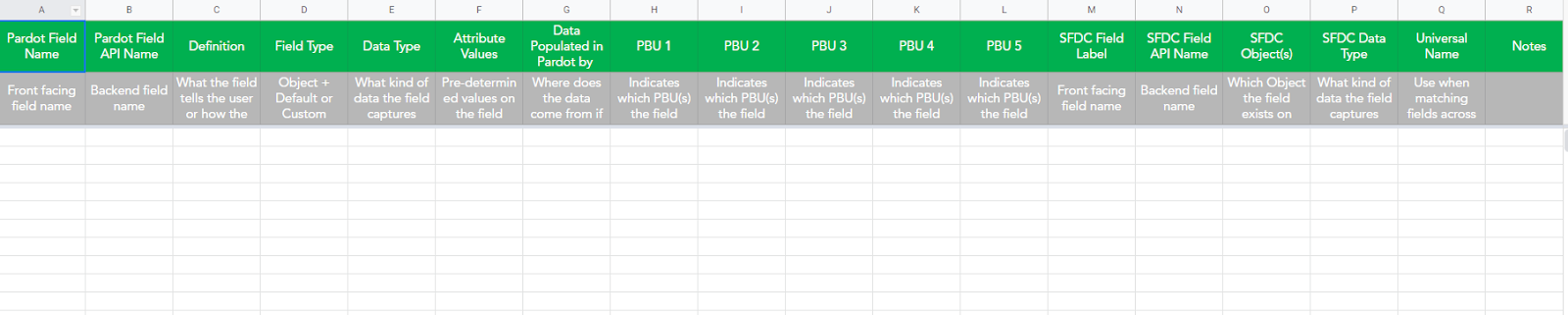
How are you going to keep track of it all? On our team, the first thing we do is create a field mapping spreadsheet that tracks all the mapped fields, their types, the sync behavior, and what system is using which fields. 

Field mapping spreadsheet example

A good field mapping spreadsheet includes: 

  • Field Name and API Name
  • Field Type
  • Sync Behavior 
  • Which PBUs utilize the field 
  • Input Values
  • Default vs. Custom 
  • Notes on how the field is used

For admins, this document becomes invaluable to quickly reference what PBUs use which fields when updates need to be made or troubleshooting is needed. Your end users across PBUs can also use the map to understand what the field is for and how to use it, which establishes congruence across the PBUs.

2. Understand Marketing Data Sharing do’s and don’ts

Setting up Marketing Data Sharing is a simple task in reality, however, it often causes a slew of confusion and questioning once implemented. For your implementation, you’ll need to select or create one field to manage MDS across all BUs. That field should only be used for this purpose. When you work on this strategy, consider the following:

  • Using a single-select picklist field if the Lead/Contact will only ever exist in 1 PBU
  • Using checkboxes for each PBU if the Lead/Contact will be in more than 1 PBU
  • Setting the field as read-only
  • Hiding the field for end users 
  • Activating an automation to maintain the field value on new records (i.e. Flow)
  • Ensure your Pardot connector user (or B2BMA Integration User) has visibility to the MDS field 

3. Enable “Manage Users with Salesforce”

This feature is not yet a requirement in orgs, but if you’re setting out to implement PBUs, we suggest working this into your implementation project. User Sync connects your Salesforce Profiles to Pardot Roles so it’s easier to manage who gets access to Pardot, which business unit they get access to, and which Pardot Role they are assigned. This puts the management of users in Salesforce’s hands, which means you’ll also need to work with your Salesforce admin in its implementation. 

Any time you wish to add new users to a PBU, you’ll manage that in Salesforce instead of setting up their individual user record in Pardot. With the “Manage Users in Salesforce” functionality, it’s easy for an admin to add users directly to a business unit based on either their user record, their role, or their public group association. 

You’ll control the profile to role mappings in Pardot. Remember, one Salesforce Profile can only map to one Pardot Role. If you have custom roles in your Pardot org, you’ll want to do your best to standardize these across PBUs as well so there’s no confusion in access.

This tends to be a tricky thing to catch on to, but once enabled, the long-term maintenance becomes much easier and more in line with regular user activation processes. 

4. Agree on folder structure & naming conventions — bonus points for campaign hierarchies!

Setting an org-wide default for naming conventions and folder structure is an amazing priority to set for your team. When implemented well, we’ve seen clients have a much easier time supporting their users and maintaining organization in the long term. 

Especially since features like connected campaigns sync back to Salesforce, it is critical to have consistent naming conventions on key records like: campaigns, folders, templates, automation rules, lists, and forms. 

One thing to include in your naming convention? The Pardot Business Unit it belongs to. That way, in a glance, you can see what assets are associated with each PBU. This will be even more important with the coming of the new drag-and-drop landing page builder. 

We’ve seen massive enterprise clients with 25+ brands be able to standardize folder structure and conventions, so we challenge you to try as well as part of your implementation.

Nothing is worse than logging in to different PBUs of the same org and seeing polar opposite naming conventions, hierarchies and foldering. We’ve also seen this standardization support internal folder and naming convention changes that better align teams overall. 

Looking for naming convention tips? This is my favorite blog post on it.

5. Email and landing page templates

It’s important to remember templates are unique to each business unit. That is, they can’t be shared across PBUs. However, with the new Lightning email experience, you can share templates built there. 

This functionality is relatively new, yet it may be worth considering if this functionality is right for your project. If so, there is additional setup to include in your implementation to work through the sharing and visibility requirements.

Standardization ensures an efficient Pardot Business Unit

Following these five recommendations is a great start to ensuring your Pardot Business Unit implementation is efficient and well-documented. Taking the time to standardize relieves a lot of confusion throughout the project and in the long-term maintenance of your org.

Reach out to Sercante for guidance with your Pardot Business Units, or tell us what standardization tactic you’ll use first in the comments section.

In September 2021, Apple privacy changes will start having a big impact on Pardot email marketing reporting metrics. Are you ready to pivot your reporting strategy in response to the changes?

Apple announced some big, new privacy changes in June, and that’s what sparked the changes in email marketing reporting metrics. These changes are included with the Apple software update to iOS 15, iPadOS 15, macOS Monterey, and iCloud.com. 

One of these changes, Apple Mail Privacy Protection, is getting lots of attention in the marketing operations community. That’s because of the expected impact to the email open rate metric — a key performance indicator for most marketers. However, there are multiple new changes coming with the iOS update every Pardot professional should be aware of. 

In this article, we’ll cover all three: 

  • Apple Mail Privacy Protection
  • iCloud Private Relay
  • Hide My Email

For each of these changes, we’ll share key features to be aware of plus how to get your org, team, and stakeholders ready. We know how hard these changes can be for your already-swamped team, so we’re here to help you through this. 

Respecting Apple user privacy 

Before we get started, I want to point something out. These changes are a huge win from the perspective of Apple and their users. By using this new software version, users can decrease the amount of data companies are collecting about their behavior and interests. This gives them more control over what information they share and when. 

Our job as ethical marketing professionals is to do three things:

  1. Respect our users.
  2. Treat their data with integrity.
  3. Adapt to the ever-changing technology and regulatory landscape.

So, we’ll do our best to focus on the positive aspects of the changes by providing solutions to the challenges they present.

Apple Mail Privacy Protection

Marketers using Pardot set automations based on email opens because, typically, opening an email indicates that a prospect is interested in a product or service. But, the new Apple privacy changes will skew email open rates and make it more difficult to know when Apple users actually open an email.

Apple Mail Privacy Protection (MPP) has two key features: 

  1. Open tracking prevention
  2. IP protection

Essentially, Apple iOS 15 opens the email and downloads the content when an email hits a prospect’s inbox. This prevents accurate open tracking because all emails going to Apple devices will appear to be opened in reporting metrics. 

Apple also downloads the content through a series of proxy servers. This feature is obscuring the IP address of the email subscriber. As a result, Pardot can’t report on the user’s device and behavior accurately. 

How to adjust your marketing strategy

The first thing you need to do is answer the question, “What proportion of your database uses an Apple email client?” 

Here’s how to do that:

  • Review some of your recent email sends. 
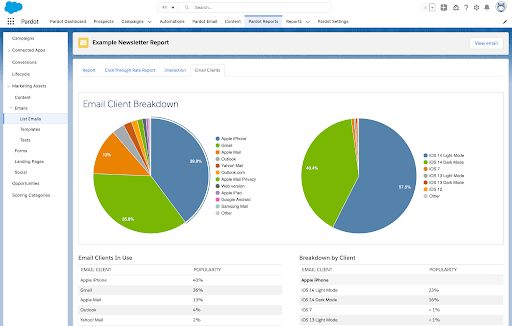
    1. Go to Pardot Reports > List Emails > Email Clients (in Pardot Lightning)
  • Add up the percentages in the “Popularity” column. This will give you a ballpark estimate of the potential impact.

Is it 10%, 25%, or 50%+ of your audience? The greater the proportion of your audience using an Apple email client, the less reliable your email open rate metrics will be after the iOS 15 update.

Conversely, the non-Apple portion of your audience provides a reliable segment for email open stats and future testing (personalization, A/B, etc.)

Questions to ask

Now that you understand the severity with which your data could be impacted, consider the following questions: 

  • Do you have any reports that include email open rate? 
  • Who views these reports? 
  • How can you proactively adjust these reports to decrease the importance of this metric? 
  • How can you communicate with your stakeholders so that they know that the open rate is no longer reliable?

Next, do a thorough review of your Pardot automations. This includes automation rules, engagement studio programs, completion actions, dynamic lists, scoring, etc. Do any of these run based on open rate? If so, develop a plan to leverage an alternative trigger like email click* or form submission.  

*I put a big asterisk next to “email click,” as this metric has been endangered for a while. Email clicks can be caused by spam filters, so be cautious when using email click as a trigger on your automations or as a key metric in your reporting. 

Ultimately, this change is a step in the right direction for marketing teams. There’s never been a better time to shift your focus from vanity metrics like open rate and click through rate to more meaningful campaign performance metrics like conversions and return on investment (ROI).

Apple iCloud Private Relay

The new iCloud Private Relay feature will be baked into iCloud. Launching as a “public beta,” this feature functions similar to a VPN, encrypting all traffic leaving a user’s device when browsing with Safari. Private Relay leverages data encryption and anonymous IP addresses that hide a user’s location and web browsing activity. 

By hiding your specific IP address, Private Relay inhibits websites from building a profile based on your activity across multiple websites and selling your data to advertisers and data brokers. 

This feature is limited to paid iCloud account users who browse with Safari and turn on the Private Relay feature. (All paid iCloud accounts will be automatically upgraded to iCloud+ as part of the update.)

iCloud Private Relay disconnects your IP address from your DNS request (website that you’re visiting), which is great news to those seeking ultimate privacy and not wanting their activity information to be sold to advertisers. Unfortunately, it also disconnects website tracking that Pardot users have in place. With temporary IP addresses assigned, website activity will be difficult to associate to a known prospect. 

This capability does not hide the prospect’s geography. That means you can still track prospect regions, and IP addresses can be identified as proxy servers.

Apple Hide My Email

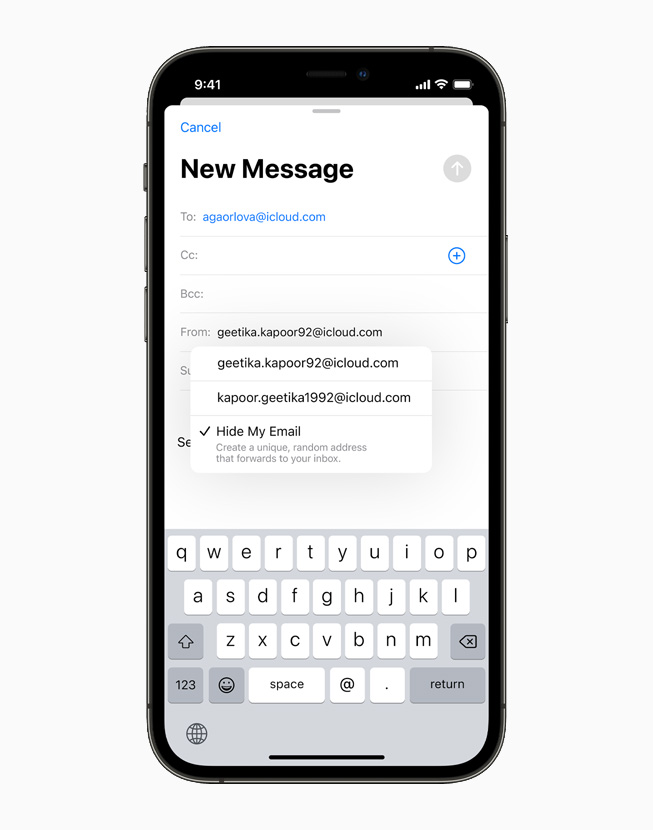
Hide my email

The last change to know about is Hide My Email. This update allows iCloud subscribers to log into a website using a randomized email address that ties back to their iCloud account. 

If your company allows public users to generate accounts or offers free trials, you could encounter a scenario in which a user takes advantage of Hide My Email to acquire multiple free trials.  

Hide My Email is also another challenging feature for Pardot users. That’s because it is once again disconnecting essential data (a prospect’s real email address) from website activity tracking. 

This functionality will impact open rate statistics. That means you will have to shift to other metrics such as click-through rate. It will also affect marketers who use email open rates for retargeting, and those who use email open rate as a varying factor for dynamic content. So you’ll have to pivot those strategies if you’re currently using email open rates for retargeting or dynamic content variations.

Focus on reporting metrics that matter most 

It’s normal to fear what we don’t understand. And these new privacy changes may seem scary without knowing why they’re actually good news. 

All of these privacy changes will impact marketing as a whole, making it harder and harder to track email activity and then associate it with activity in other channels. It is also an opportunity for marketers to take a fresh look at current strategies and craft new ways to put prospects in control.

Here are suggestions to address the changes and adjust your marketing strategy:

  • Update your Email Preference Center to offer subscribers greater insight into the topics they already interact with and other topics that are available.
  • Seek ways to connect email clicks with omnichannel metrics that demonstrate customer engagement. This includes:
    1. Offline purchases
    2. Account activity
    3. Website visits
    4. Mobile app activity
    5. SMS engagement
  • Explore using link clicks, external activity such as webinar registrations, and other engagement signals instead of email opens as more accurate interest indicators.
  • Find ways to understand the sentiment of an email message, perhaps with a thumbs up/down action or NPS-type of question within an email.
  • Look for opportunities to link your marketing channels (email, website, social, etc.), and get the cross-connection data flowing.

iCloud Private Relay and Hide My Email — on top of third-party/first-party tracking cookie changes already afoot — necessitate creative thinking to make prospect activity connections that were once seamless.

Prospect privacy is paramount

These three Apple privacy changes are going to affect the way you currently work in Pardot. But that’s a good thing. Your prospects have more autonomy when interacting with your company through email and your website. All you have to do is adjust your strategy so you can focus on metrics that matter most rather than vanity ones.

Now that you’re better equipped to prepare for the Apple iOS 15 updates, it’s time to  formulate your game plan and switch up your marketing strategy to evolve with the changes.

You can always reach out to the team at Sercante for support while navigating it all. 

Thank you to Pam Carey and Joy Alphanso for contributing to this post.

Integrating Pardot with Zoom webinars allows you to not only collect prospect activity in real time, but also track attendance, handle communications, and send sales new leads quickly and easily. Using the Zoom-native Pardot App simplifies sharing data between these two systems by allowing you to capture Zoom webinar registrants, attendees, and absentees within Pardot lists. 

In this post we’ll cover the pros and cons of this integration as well as walk you through the setup process for a webinar. 

At a high level, to integrate Zoom and Pardot you will need to:

  1. Install and set up the Pardot App from the Zoom App Marketplace.
  2. (Optional) Configure custom Zoom registration fields to go to Pardot.
  3. Start creating Zoom webinars.
  4. Prepare your email notifications.
Ready to scale up your Zoom-Pardot integration?

Click here to check out the Sercante Connector for Zoom Webinars and Pardot.

Considerations for using the Pardot app from Zoom App Marketplace

Before we dig in, there are a few things to consider when using this native integration:

  • The integration works best when using the Zoom registration form.
    • There is an option to use a Zoom Post URL (similar to how we think about Pardot Form Handlers). However, this option relies on the Thank You page of the Pardot Form having an additional hidden form that changes per webinar. This hidden form must be completed and requires JavaScript for a behind-the-scenes submission. That makes this option prone to human error and/or browser issues. 
  • Both email solutions leave something to be desired. You can choose between:
    • Emails styled in Zoom with prospect-specific URLs to join the webinar. With this option you’ll lose out on Pardot tracking and personalization capabilities.
    • Your beautiful Pardot email templates with all the benefits of Pardot data, tracking, and personalization, but no Zoom webinar details or prospect-specific URLs to join the webinar. 
  • This process will not connect prospects with the associated Salesforce campaign. You’ll need additional automations if that’s part of your strategy. 
  • Each webinar requires its own setup and configuration. These take between 1-3 hours each, depending on how granular you get with automations. As a result, this integration is better suited for companies that have a low volume of webinars.
  • There is no mechanism to pull in questions and answers from webinar polls.

Install and set up the Zoom Integration App 

  1. Navigate to the Pardot App on the Zoom App Marketplace and sign into your Zoom account. 
  2. Select “Install” from the top right of the Pardot App listing page.
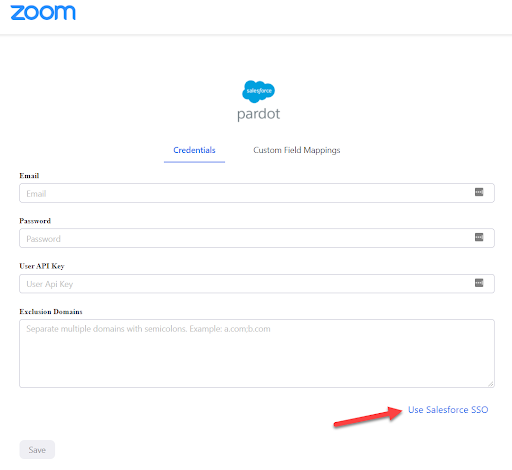
  3. Once installed, you’ll see a prompt to enter your Pardot credentials. If you are not redirected to this screen, click “Manage” from the left-side navigation, scroll down, and click “Configure”). Select “Use Salesforce SSO.”
    Use Salesforce SSO
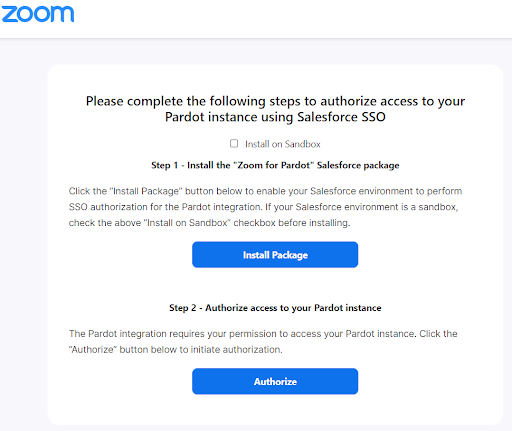
  4. Next, install a very tiny managed package provided by Zoom. This package creates a connected app to allow Zoom to connect to your org. Click “Install Package” and install this for Admins only.
  1. While the package is installing, create a Salesforce and Pardot user for your Zoom integration. Having one user per integration helps in the event that you need to troubleshoot your Pardot org and/or integrations. Once the user is set up, log in as this user to authorize and approve the app.  
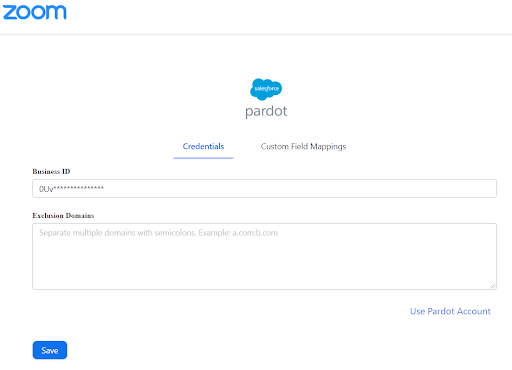
  2. Next, provide Zoom with the Pardot Business Unit ID. You can find the Pardot Business Unit ID by navigating to Salesforce Setup > Pardot Account Setup (you can access detailed instructions here).
    Enter credentials
  3. Select “Save”

Zoom and Pardot are now connected, and they are ready to work together!

(Optional) Configure custom Zoom registration fields sync to Pardot

Zoom automatically passes most of the common fields directly into Pardot. This includes: 

  • Email
  • First Name
  • Last Name
  • City
  • State/Province
  • Zip/Postal Code
  • Country
  • Phone
  • Job Title
  • Organization
  • Industry
  • Questions & Comments
  • Employees

You can also create new fields in Pardot to sync Purchasing Time Frame and Role in Purchase Process from Zoom. 

Depending on what information you are looking to capture in Pardot, you may decide you want to have Zoom pass more fields into the prospect record. A good example of a field you may wish to connect is “Join URL.” This field is a prospect-specific URL that will allow the prospect to join the webinar. 

To add this field, simply:

  1. Navigate to Pardot Settings > Object and Field Configuration > Prospect Fields. Select “+Add Custom Field.”
  2. Complete the required info and select “Create Custom Field.”
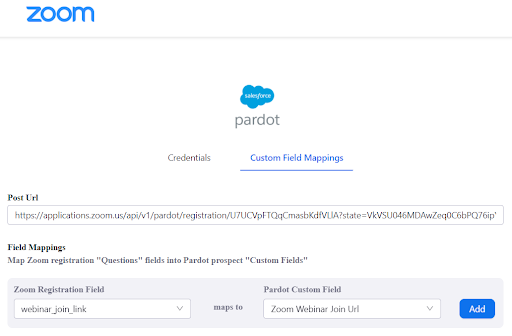
  3. Once created, go back to the Pardot App in the Zoom Marketplace and select the “Custom Field Mappings” tab.
  4. Map the Zoom Registration Field “webinar_join_link” to the Pardot Custom Field that you created. Click “Add.”

Your new custom field is now connected. Future registration captured by Zoom will pass the Zoom Webinar Join URL to your Pardot prospects. But please note, the prospect record will only have values from the latest registration.

Start creating Zoom webinars

You will need to configure the Pardot integration for every webinar you create in Zoom. 

  1. First, create three static lists in Pardot so Zoom knows where to send the data. You will need a:
    • Registration List
    • Attendee List
    • Absentee List

Make sure you use naming conventions so these lists are easy to find in Zoom and any Pardot automations. 

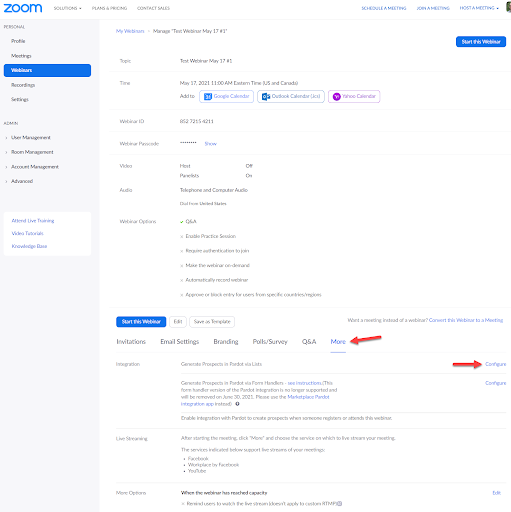
  1. Next, create or locate the webinar in Zoom. Select the webinar name to view details. 
  2. Select the “More” tab and then select “Configure” within the Integration section.
    create a zoom webinar
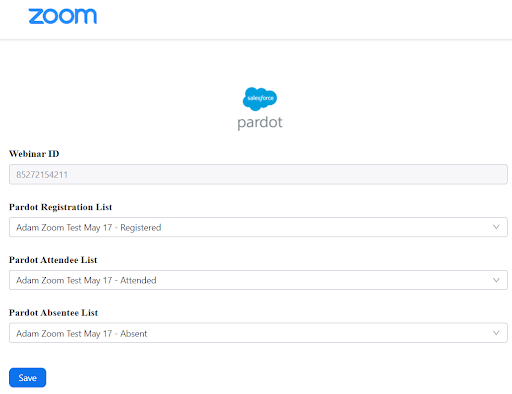
  3. Provide Zoom with the static lists you created in Pardot. All three lists are required.
    Provide zoom with pardot static lists
  4. Click Save

Now your lists will be kept current with the right prospects!

Prepare your Zoom webinar email notifications

Getting prospects to register for a webinar is only half the battle. Now we need to get them to attend! Registration and reminder emails are key here, and getting the right message delivered at the right time will make all the difference.

Both Zoom and Pardot can be used to send these emails, each having their own considerations.

Considerations for using Zoom email notifications

Zoom email settings can be configured at a Zoom Account level (i.e. for your entire company) and at a webinar level. You can customize email templates only at the Account level, and you can’t have webinar-specific templates.

  • Registration emails can include the prospect-specific Join URL and are sent immediately after registration.
  • Reminder emails can include the prospect-specific Join URL and can be sent 1 hour, 1 day, and/or 1 week prior to the webinar.
  • Follow-up emails can be sent 1-7 days after the webinar ends.

Considerations for using Pardot email notifications

With Pardot, create an Engagement Studio program or Automation Rules to automatically send out your registration, reminder, “thank you for attending” and “Sorry we missed you” emails. These automations should look for Prospect that join the webinar’s three static lists.

  • If you configured your integration to send the Zoom Webinar Join URL to Pardot, this value can be included in registration emails sent from Pardot. 
  • Reminder emails can also include the Zoom Webinar Join URL, however if the prospect registered for multiple webinars in close proximity, the Zoom Webinar Join URL on the Prospect’s record may not match the webinar you are reminding the prospect about!
  • Follow-up emails can be sent whenever you like. You can even choose to send a different email template to those who register and attend versus those who register and are absent.

Try the Sercante Connector for Zoom Webinars and Pardot

As mentioned above, if you have a low volume of webinars, this process may not be an issue, especially since the integration is the low-low price of free. However, if you’re hosting one webinar per week (or more), then this process is pretty daunting. 

If you need to scale up your Zoom-Pardot integration, check out the Sercante Connector for Zoom Webinars and Pardot. 

What other tools or webinar platforms are you looking to integrate with Pardot? Tell us in the comments!

This post was originally published on February 2, 2021. After this post was published, Salesforce released the ability to check if a field has been changed. Previously, the solution to capture every UTM touchpoint in Salesforce was to clear out the UTM field values after the flow ran. The new solution is to use the is changed feature instead of clearing out field values.

Refreshed and republished on September 10, 2021

The Concept

If a lead or a contact’s fields for UTM Source, UTM Medium and UTM Campaign have a value, run a Salesforce Flow to create a record in a custom object. The process will run again whenever the UTM information is updated.

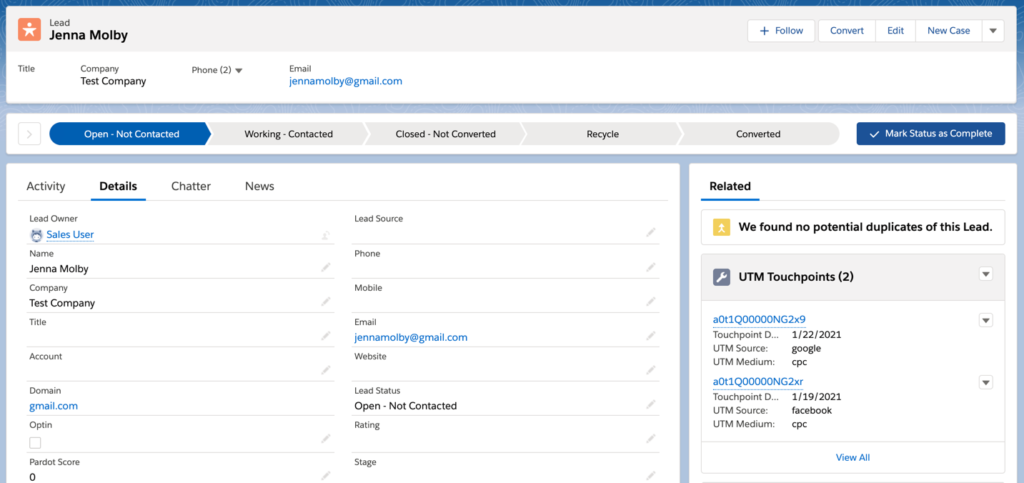
UTM touchpoints displayed on the lead layout

UTM touchpoints displayed on the lead layout

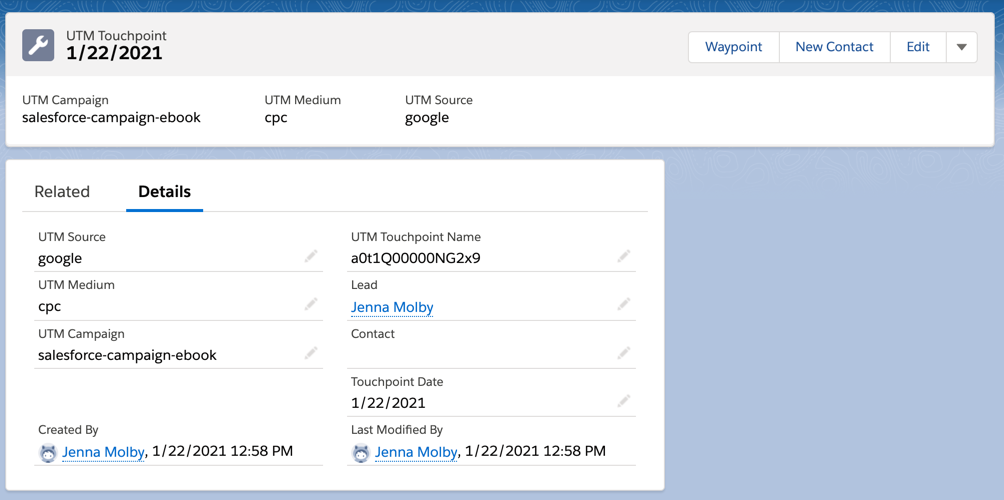
Record detail page for a UTM touchpoint

Record detail page for a UTM touchpoint

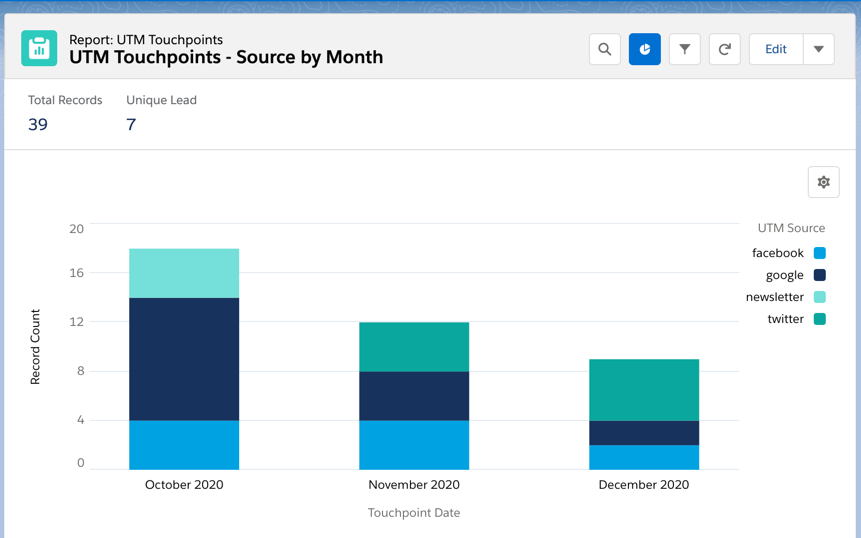
Report preview

Report preview

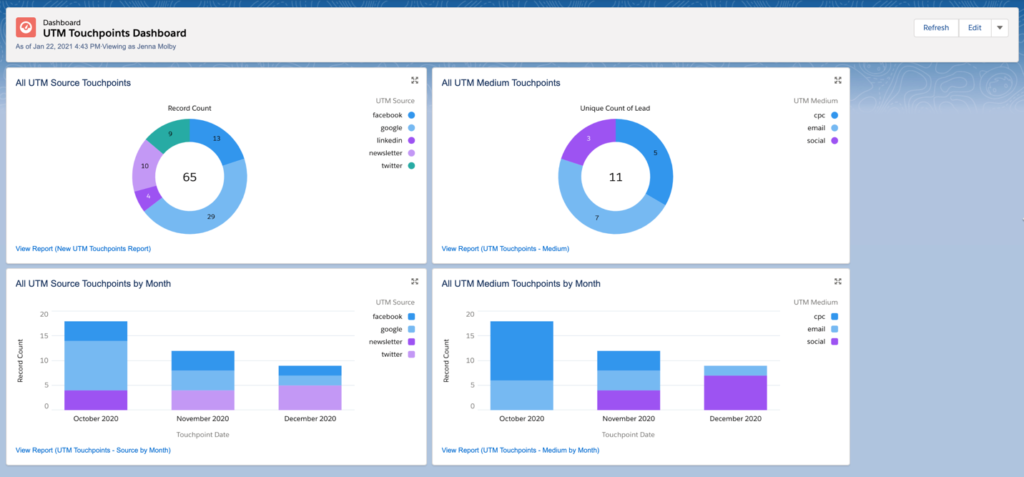
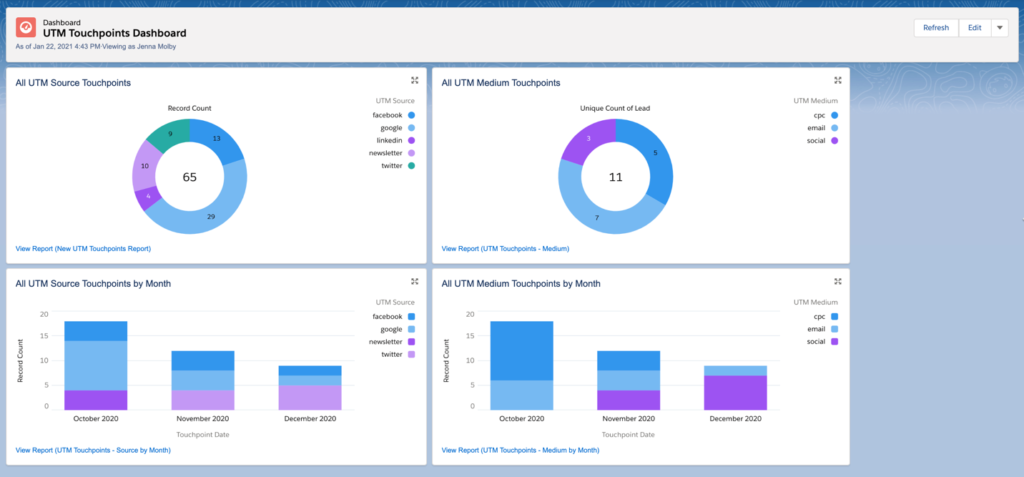
Dashboard preview

Dashboard preview

Planning

In order for this approach to work, there are 2 things you need to plan for:

  1. UTM fields for the Lead and Contact MUST be set up to be overwritten every time.
  2. What to do if there’s EXISTING UTM data in these fields to prevent data loss.

I recommend you review how your UTM fields are currently populated, what data currently exists in these fields and what reports/automations, etc rely on these fields. You should be able to answer these questions before getting started:

  1. How are the UTM fields populated?
  2. Do the UTM fields get overwritten?
  3. What are we going to do with existing data?

What to do if you have existing data

There are plenty of options on how to get this to work if you have existing data in your UTM fields. It all depends on your current setup. Here are some ideas:

  1. Create new fields named “First UTM Source”, “First UTM Medium”, etc. Rename your CURRENT UTM field labels (not API names) as “Last UTM Source, “Last UTM Medium”, etc. Populate the “First UTM” fields with your current data and use the “Last UTM” fields in your Flow.
  2. Once the UTM custom object is set up, use DataLoader.io to create records using all the existing UTM values.

Create the custom object

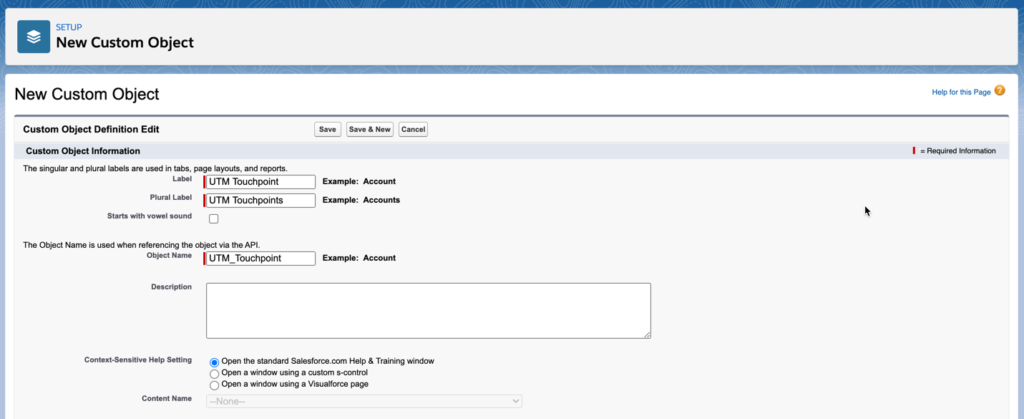
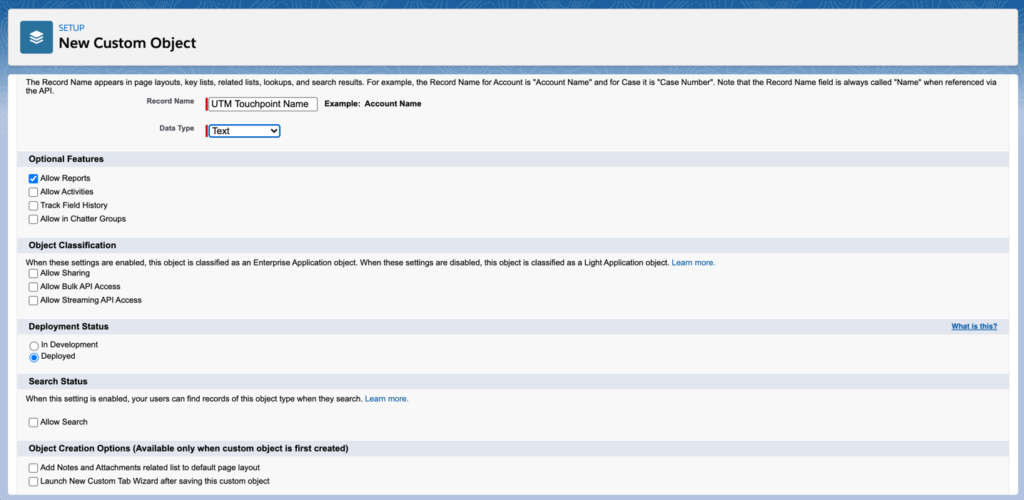
Create the custom object. I named by object “UTM Touchpoint”.

UTM touchpoint custom object 1
UTM touchpoint custom object 2

Create your fields

Next, create the custom fields for your custom object.

Field nameField type
LeadLookup (Lead)
ContactLookup (Contact)
UTM SourceText
UTM CampaignText
UTM MediumText
Touchpoint DateDate

You can also create any other fields you want to track using this object. For example, UTM Term or UTM Content.

Create the Flow for Leads

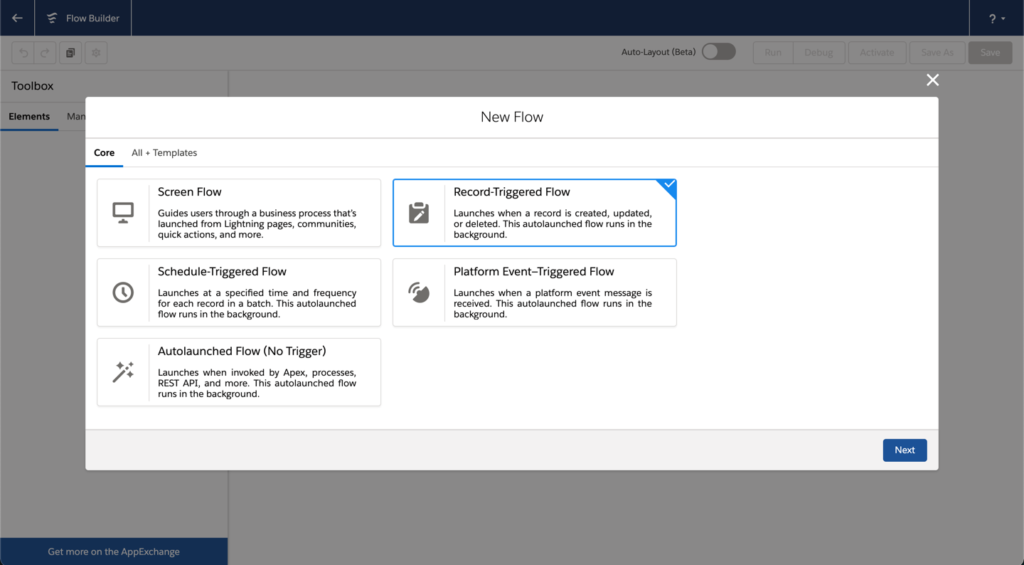
Navigate to the Flow builder and create a new Flow. Select Record-Triggered Flow as your Flow type.

Configure Lead Flow - Step 1

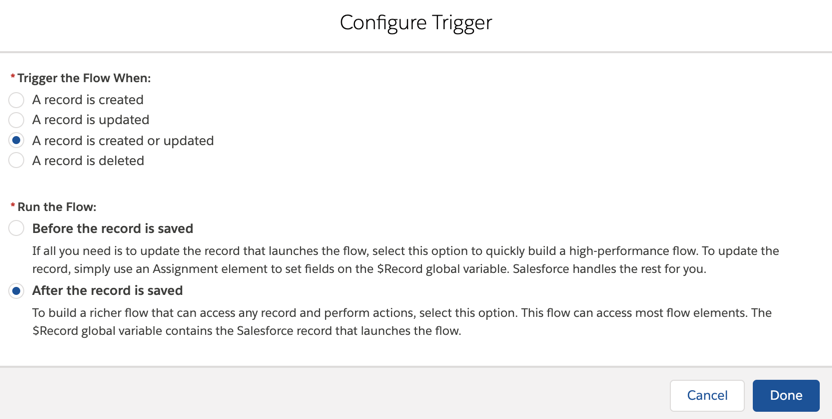
Configure the trigger to run when a a record is created or updated and after the record is saved

Configure Lead Flow - Step 2

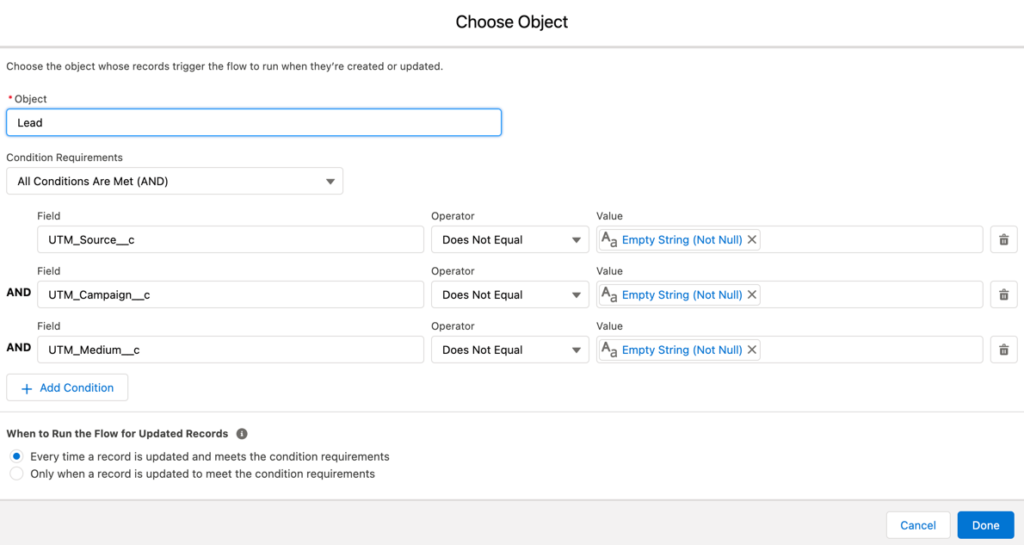
Select the Lead object as the starting object and add in the filters that will trigger your flow. For this example, I want to trigger the flow when UTM Source, UTM Medium AND UTM Campaign have values.

Configure Lead Flow - Step 3

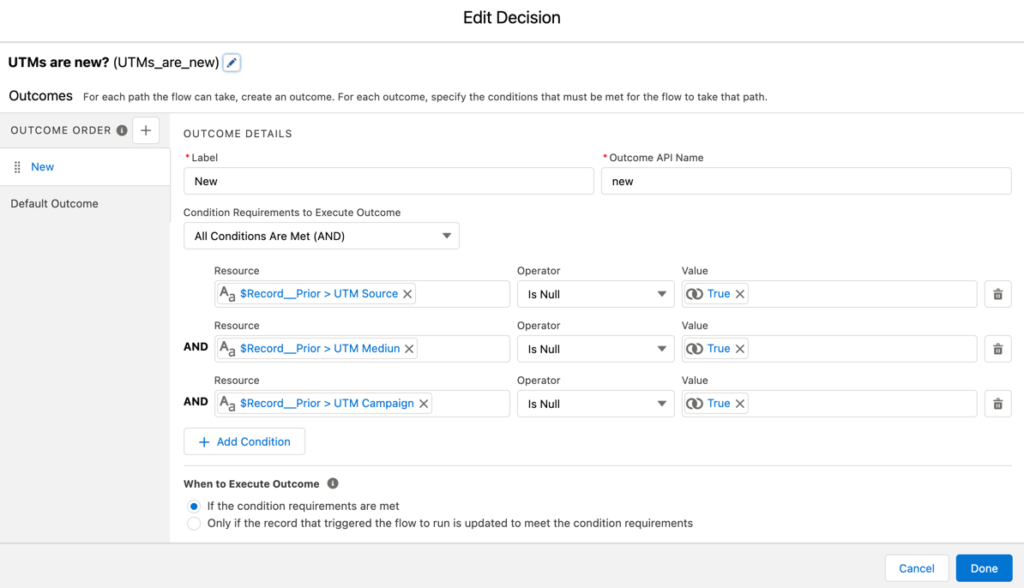
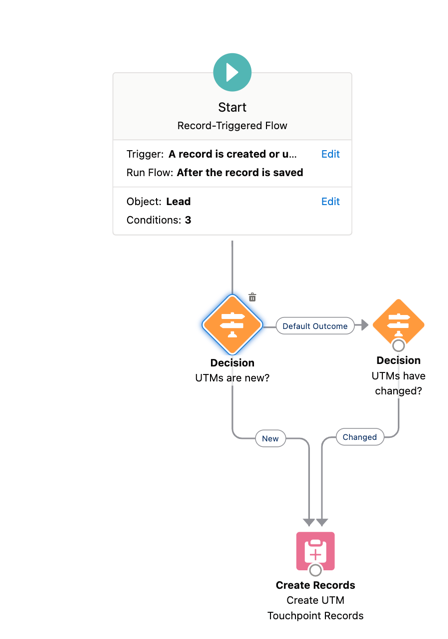
Add a decision element to the flow that will check if the UTM values are set.

Configure Lead Flow - Step 4

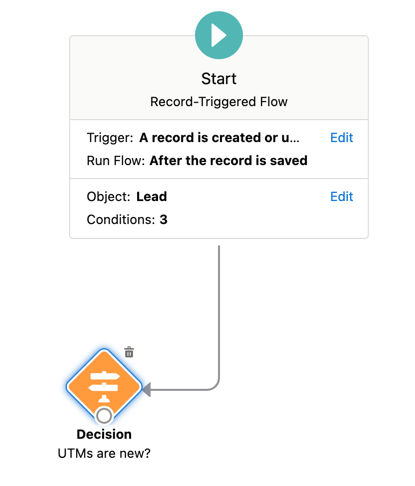
Now your flow should look like this.

Configure Lead Flow - Checkpoint 1

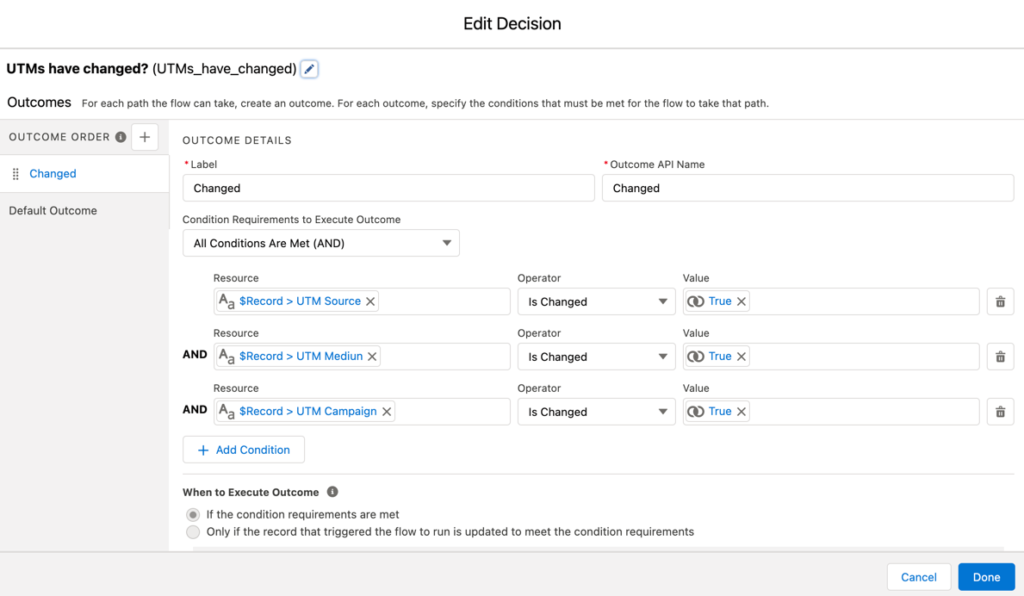
Add another decision element that will check if the UTM fields are updated.

Configure Lead Flow - Step 5

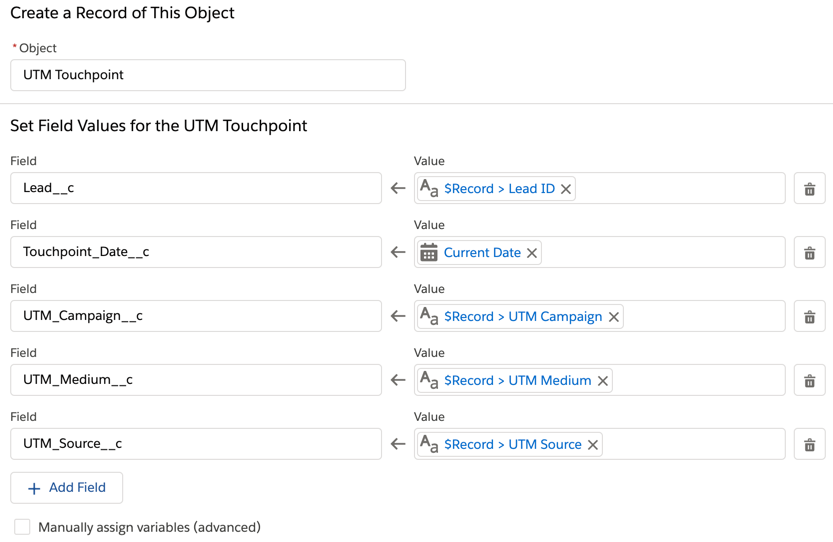
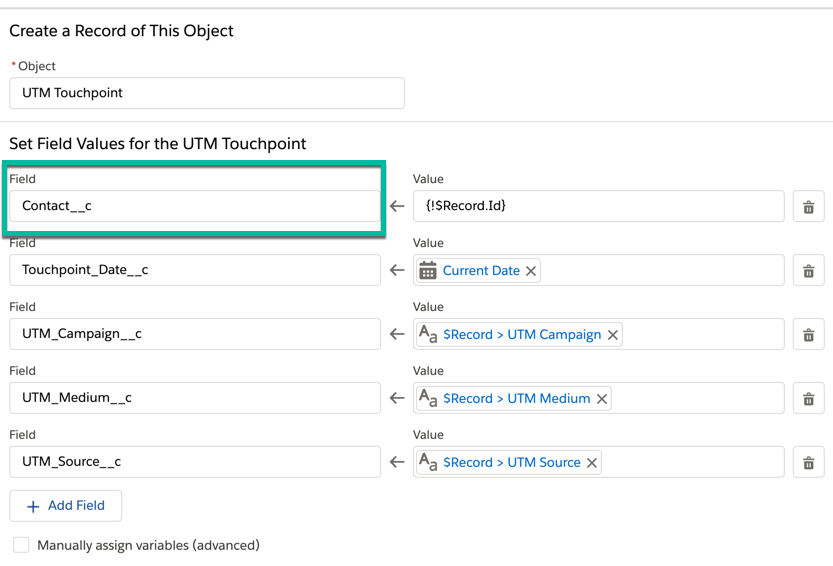
Add a create records element to the Flow that will take the UTM values from the lead and set the values for the UTM Touchpoint object.

Configure Lead Flow - Step 6

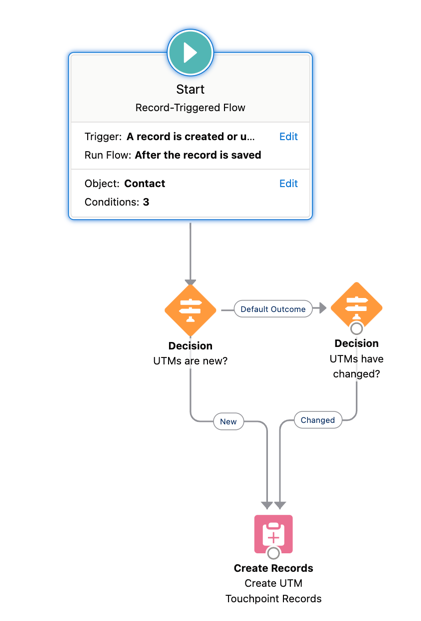
Connect the decision elements and the create records element. The final flow should look like this.

Final Lead Flow

Create the flow for contacts

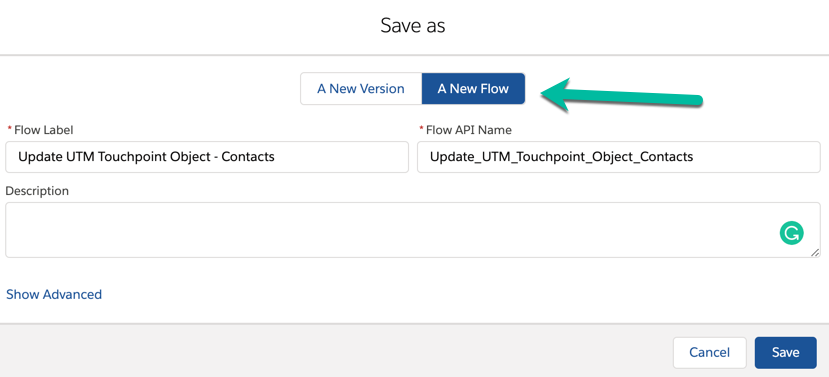
To create the flow for contacts, click save as on the lead flow and select save as new flow.

Configure Contact Flow - Step 1

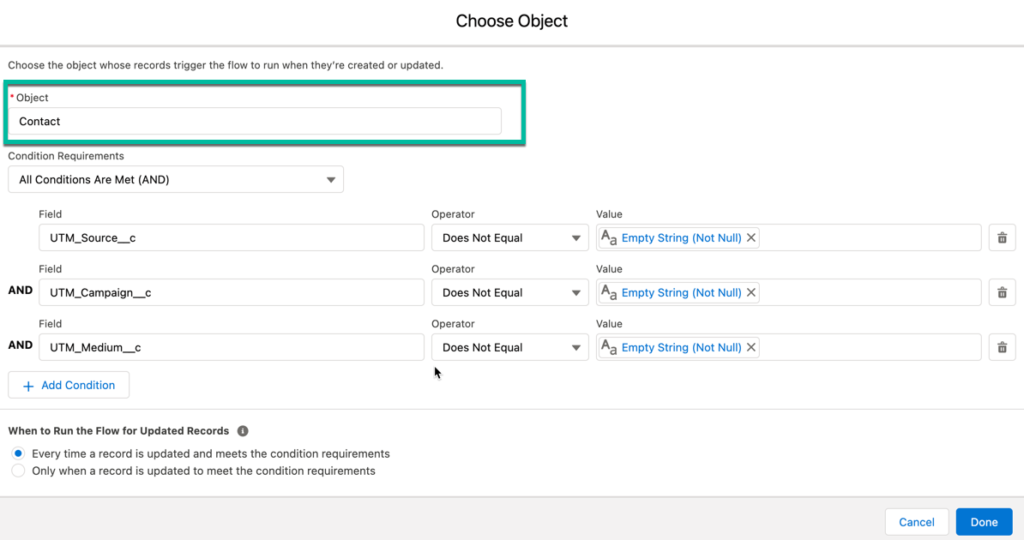
Edit the flow to start on the contact object instead of the lead object.

Configure Contact Flow - Step 2

Edit the create records step to update the contact rather than the lead.

Configure Contact Flow - Step 3

Here’s what my completed flow looks like for contacts.

Final Contact Flow

Creating reports

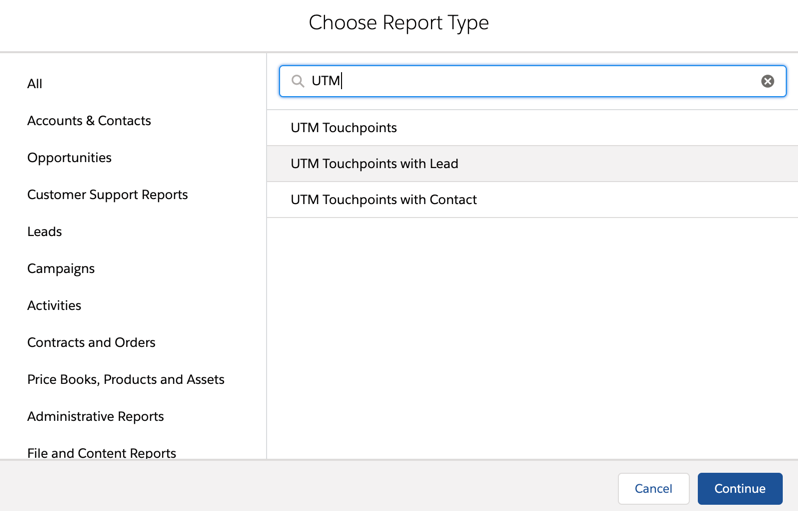
You can create reports by using one of the predefined UTM report types. The report type “UTM Touchpoints” will allow you to pull a report of ALL UTM touchpoints for both leads and contacts.

UTM Touchpoint Report 1

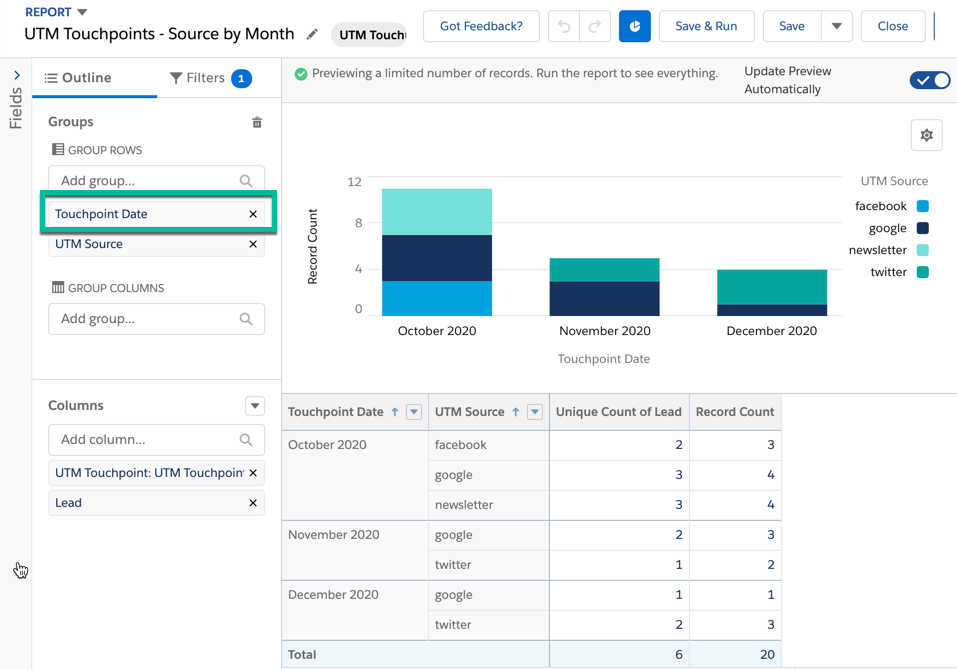
You can group by UTM Touchpoint Date to view all the touchpoints for a specific month, day, quarter, year, etc.

UTM Touchpoint Report 2
UTM Touchpoint Report 3

Questions?

Send me a tweet @jennamolby, or contact the Sercante team for help.
Change your data columns to rows in Pardot B2B Marketing Analytics/Tableau CRM

Has this ever happened to you? You wish you could change your Pardot B2BMA data from columns to rows.
You have all the Pardot B2B Marketing Analytics data you want in a single column, but you need to create B2BMA reports that show the data as rows.

For Example:

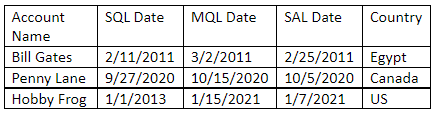
Your data looks like this.

B2BMA Columns to Rows 1

But you want the data to look like this.

B2BMA Columns to Rows 2

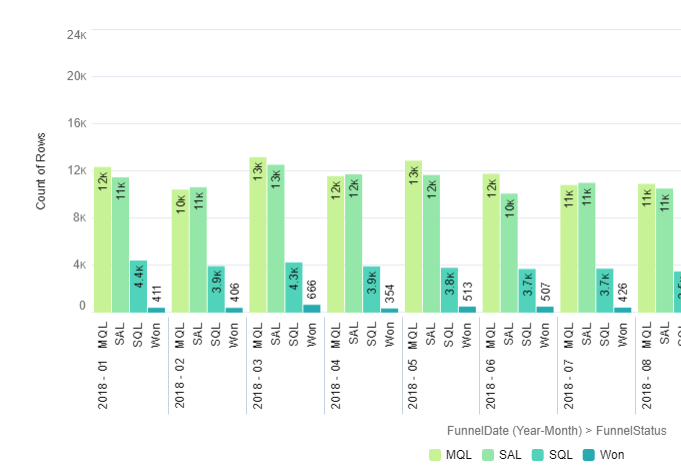
So you can make visuals like this!

B2BMA Columns to Rows 2

And you want to do this without using a complicated query on the front end of your dashboard that could limit the ability to filter and sort the data…

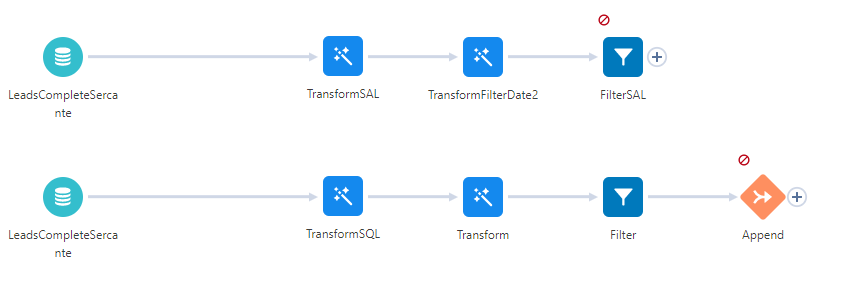
There are many ways to accomplish this. But one of the simplest and most manageable methods is through a data recipe using the Append (UNION) and transform filters. This approach allows you to tweak your rules and data without code on the front end so you can keep your dashboard creation options flexible.

Changing Pardot B2BMA data columns to rows

Step 1: Figure out what fields and filters to add.

The first step is to identify the rules.

  • What determines each type?
  • Which fields are needed for the data visual?
  • What filters do you want to include?

In our example, we know the MQL (Marketing Qualified stage) has been reached if the “Date__Qualified” date is greater than 1971-01-01’. Each stage has its own rules.

To create our dataset, we need to determine what fields and filter to add:

  • MQL Status (rules fields) and MQL Date
  • SQL Status (rules fields) and SQL Date
  • SAL Status (rules fields) and SAL Date

Filters: Country, Account name

When creating your dataset, be sure to document what fields are needed. Keep the field list as small as possible (you can always add more fields later if needed). Less is more for performance and useability in this case.

Step 2: Choose the fields you need.

Open your data recipe and select the dataset. Choose only the fields you need. This will keep the dataset manageable. You should pick all the fields needed to create the rules and the fields you will use to filter. Document everything you select as you will be repeating this process for each row type.

LeadsCompleteSercante

Step 3: Attach a transform to the dataset.

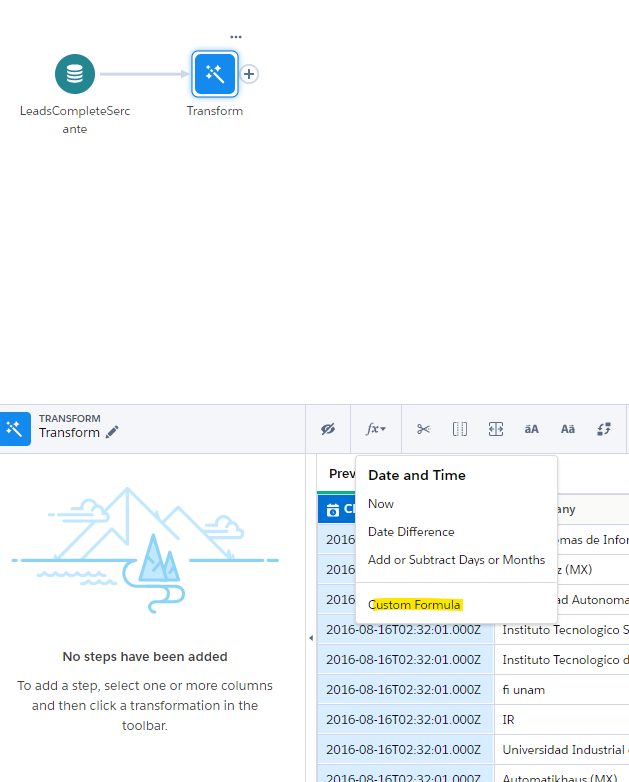
In this next step, you’re going to attach a transform to the dataset. Select the ‘custom formula option.’

In our example, anywhere the qualified data is after ‘1971-01-01’ we flag the type as MQL, otherwise we leave it blank.

Attach a transform to the dataset

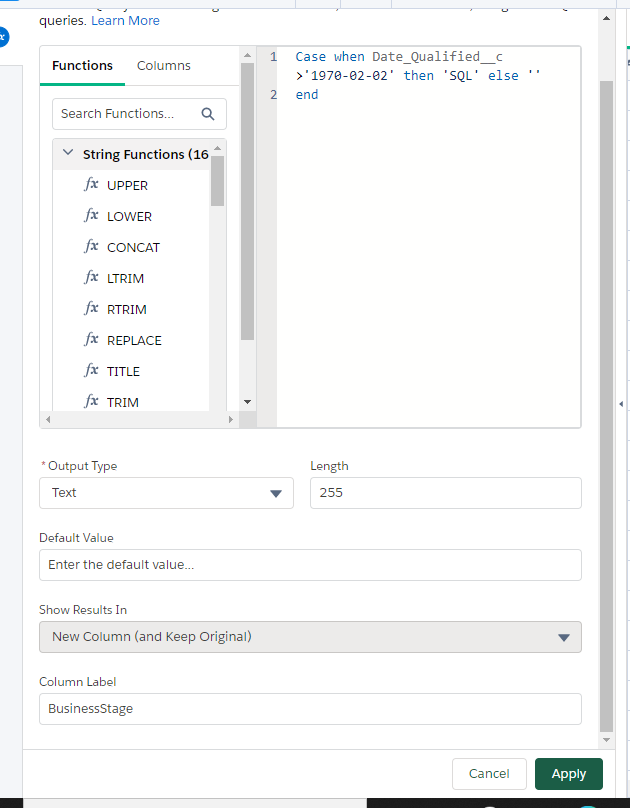
Step 4: Add your rule and create a new field.

Use the “CASE” function to add your rule and create a new field. This will create a new field (BusinessStage) that will indicate ‘MQL’ where the qualified data is valid. Set the field type as text and Make sure to rename the field

Code Sample:

case 
when Date_QualifiedMQL__c >’1971-01-01′
then ‘MQL’
else ‘’
end

Add your rule

Step 5: Attach another transform.

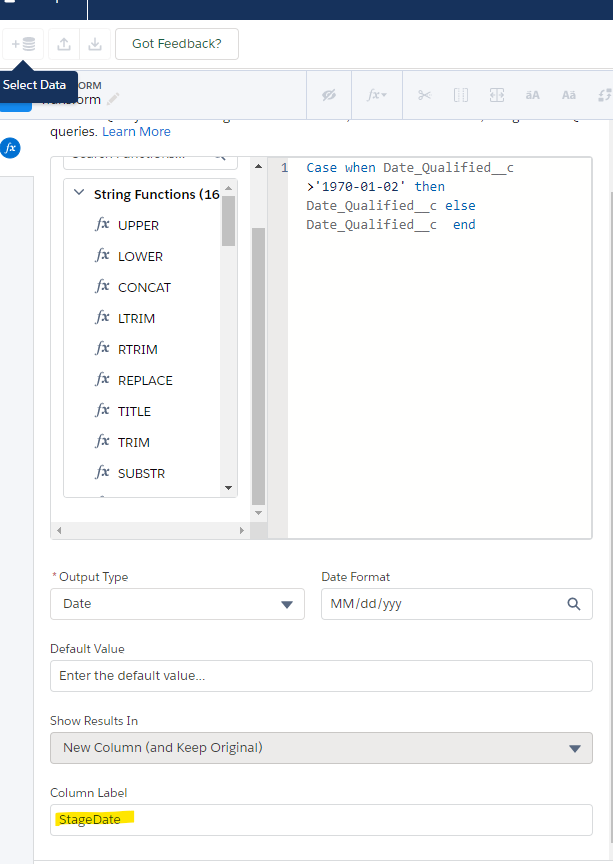
Attach another transform to populate the correct date using the custom formula. We are essentially creating a date field that will be the “main” date for our dataset and allow the aggregate on the dashboard.

Code Sample:

case
when Date_QualifiedMQL__c >’1971-01-01′
then Date_QualifiedMQL__c
else Date_QualifiedMQL__c
end

Attach another transform

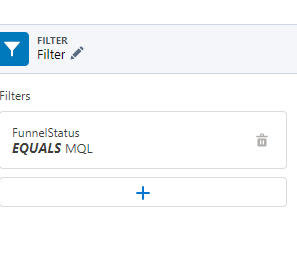
Step 6: Add a filter.

Add a filter to whittle your dataset down to just the “MQL” data.

Filter
B2BMA Columns to Rows 2

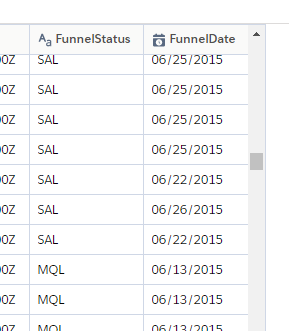
Now your dataset looks like this with “SQL” as a FunnelStatus and the SQL Date as the FunnelDate. 

B2BMA Columns to Rows 2

Step 7: Repeat steps 1 through 6.

Repeat steps 1 through 6 to create the next row type. For each, make sure your CASE statement reflects your rules.

Repeat Steps

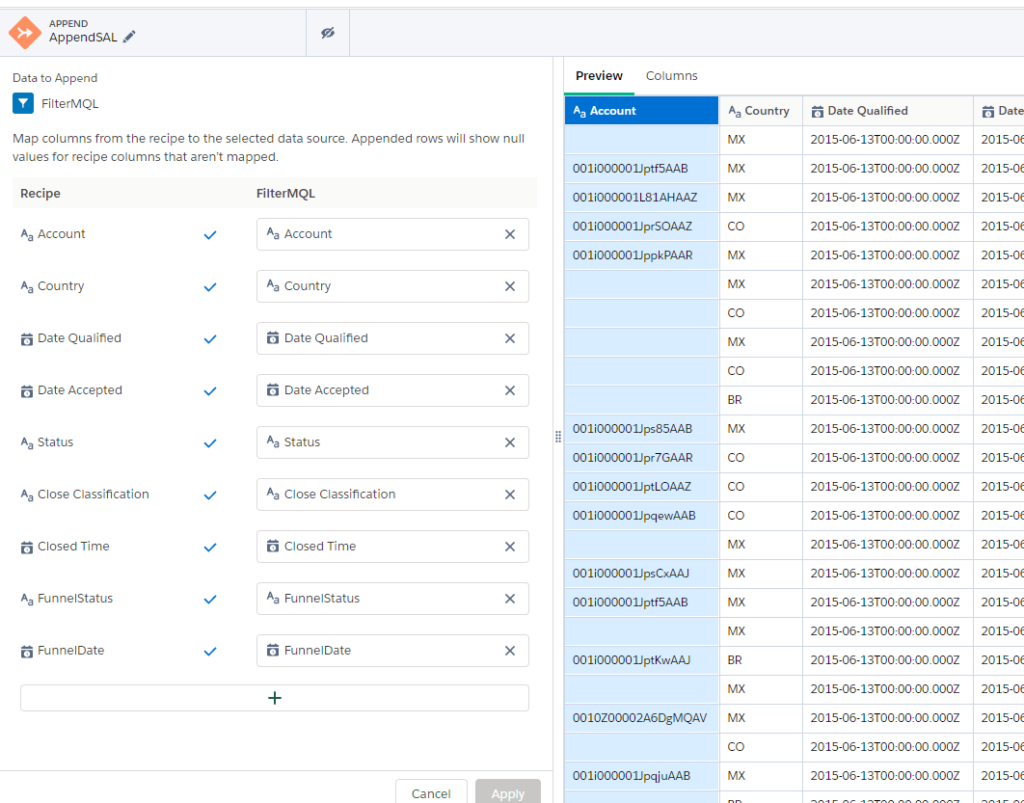
Step 8: Append the dataflows.

Append the two dataflows together with the Append connector. Each dataset must have identical rows to connect them as one (unioned) dataset.

Append the dataflows

Now your dataset looks like this. Your SALs and MQLs have gone from columns to rows!

B2BMA Columns to Rows 2

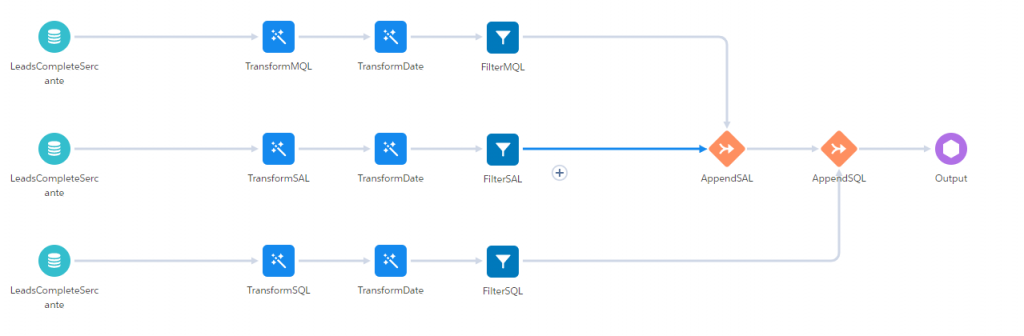
For each remaining variable, repeat steps 1-7 with correct transformation rules and add append to the dataset as you go.

B2BMA Columns to Rows 2

Step 9: Create an output object.

Once you have added all your types in filtered “sub” datasets, create an output object.

Once you run the data flow, you will be able to use the FunnelStage and FunnelDate to do summaries without complex code. If the rules change for creating the FunnelGroups, change the Transforms in the recipe or add new ones.

Now you can use your new dataset to create visuals by date and type or create a summary table. 

Further considerations for reformatting Pardot B2BMA data

Here are a few things to keep in mind as you’re getting started.

  • You can use joins to add other datasets to your recipe – note they have to exist for all “streams”
  • Verify all desired variables have been accounted for (in our example after you filter SQL, SAL and MQL are there rows that are not brought in that you might need in your analysis? )
  • You can bring in as many columns as you need for filtering. Since we are turning each “column’ into its own row, each new column can contain the same data it had before, making all filters in the original dataset available.
  • Make sure you do a reality check on the data including:
    • Expected row counts
    • Expected amount totals
    • Missing values
  • Note that when you create rows from columns, you need to decide if you want ALL data converted or just the data that meets the rules you set. If in doubt, create an additional data stream that filters out all records that don’t meet any of the criteria and make sure to review those. What’s not there might be important too!

Further reading:

No more posts to show