Category

Emails & Forms

Before we dig into the meat of this post and some cool ways you can personalize your marketing efforts with Pardot Advanced Dynamic Content, let’s take a step back and start with…

“What is Advanced Dynamic Content?”

Advanced Dynamic Content displays custom HTML based on the Prospect’s criteria and allows you to customize messaging to the prospect. 

For example, if am trying to sell Pardot to a Sales executive, I might use the subject line, “Increase your close rate with Marketing Automation”, but if I am trying to sell Pardot to a Marketing Automation Manager, I might use, “Automate and personalize your Prospect journey with Pardot”. 

Where to use Pardot Advanced Dynamic Content

Advanced Dynamic Content can be used on Pardot Forms, Landing Pages, and emails and is available for Plus and Advanced editions. 

But wait, why should I worry about personalization in the first place?

Prospects are increasingly expecting a personalized experience and personalization has consistently been shown to increase sales and engagement. Personalization can increase sales by 19%, email opens by 29%, and email clicks by a whopping 41%! (Source: https://www.pardot.com/blog/5-incredible-examples-personalized-marketing/)

Customers are also more likely to switch brands if their experience is not customized. (Source: Salesforce State of Marketing Report: https://c1.sfdcstatic.com/content/dam/web/en_us/www/assets/pdf/datasheets/salesforce-research-fourth-annual-state-of-marketing.pdf)

Isn’t Handlebars Merge Language replacing Advanced Dynamic Content?

Nope! HML adds a new tool to your arsenal for delivering tailored content to your prospects, but there are use cases for both Dynamic Content and HML. With HML you can write if statements right in your emails, while Advanced Dynamic Content provides you more of a library of prewritten content to use based on the Prospect’s data. Learn more about HML in our blog here. And if you really want to get tricky, learn how you can use HML and scoring categories to fuel dynamic content in our blog post here

Ok, back to the topic at hand.  What are some fancy ways you can use Advanced Dynamic Content?

Use dynamic content on standard areas of your email templates

If you have standard language on every single one of your email templates (such as Terms & Conditions, Privacy Policies, legal mumbo-jumbo, etc.) and this language ever changes, you will have to edit every single one of your email templates. To avoid this pain, make this standard language dynamic content. That way, if it ever changes, you only have to update it in one place!

For example, if your standard footer language looks something like this: 

Set up your Dynamic Content with a variation that will match all prospects and enter your standard footer content into each variation.
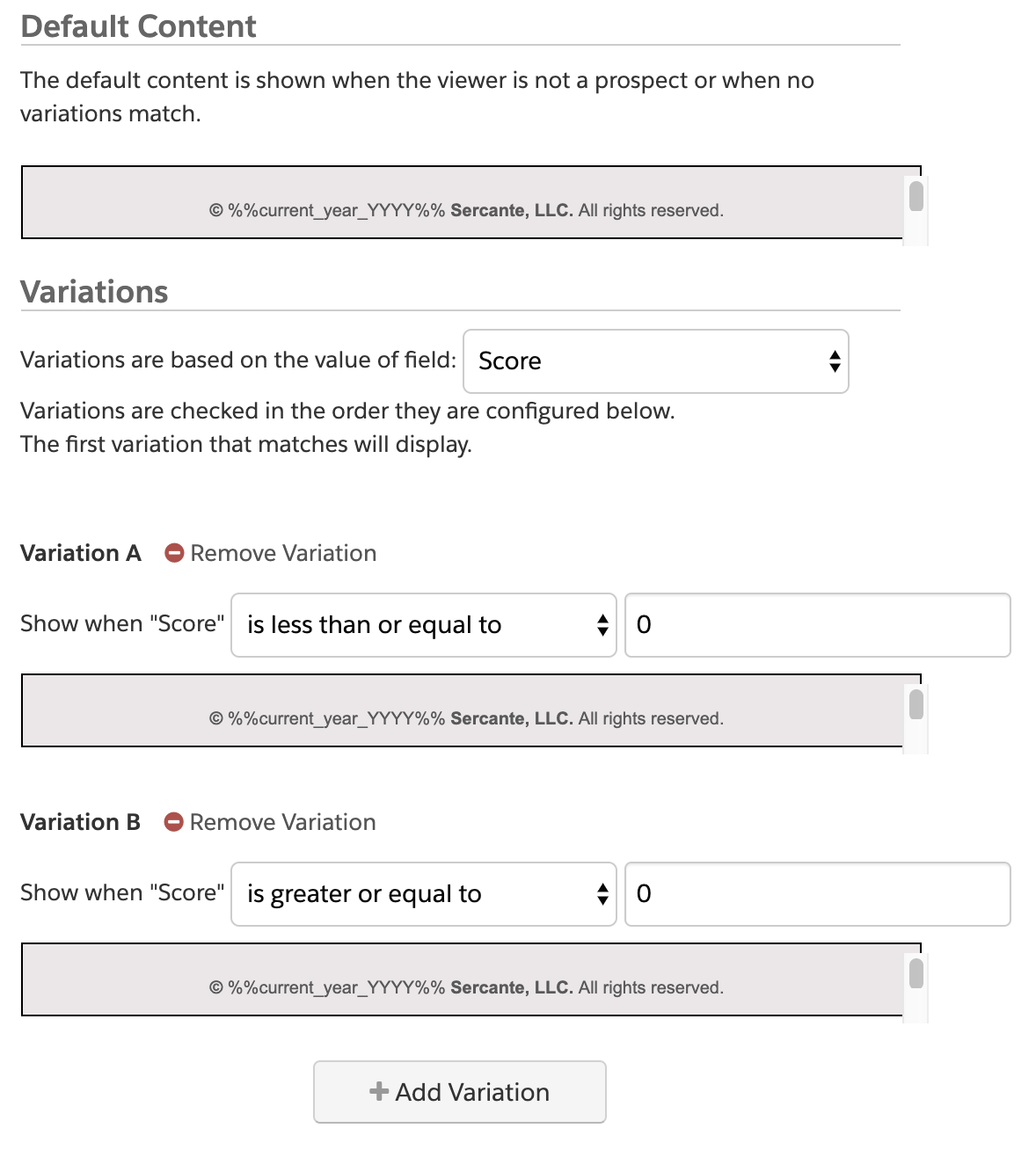
Finally, replace your standard footer content with your Dynamic Content tag.
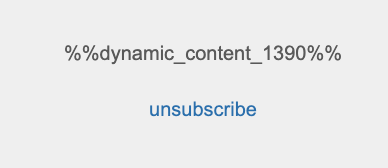
(You’ll need to leave the unsubscribe or email preference center link outside of the dynamic content because Pardot needs to see that one of these links is on your email drafts.)

Use dynamic content to manage translations

If you have an international client base, consider adding Dynamic Content to your forms and landing pages. This example does rely on you capturing the language the prospect speaks somewhere on the prospect’s profile. 

Create content for each stage of the prospect lifecycle

Pardot has 5 Lifecycle Stages for prospects:

  1. Visitor: an anonymous individual who has visited your website or Pardot-tracked assets
  2. Prospect: a Visitor who has converted and is associated with an email address.
  3. Marketing Qualified Leads (MQLs): a prospect that has been assigned to a user
  4. Sales Qualified Leads (SQLs): a prospect who has been assigned to a user and associated with an opportunity in Salesforce
  5. Won Deals: the opportunity the prospect is associated with is changed to “Closed Won”.

The stage a prospect is in is not recorded on each prospect’s profile, but you can easily make that happen with a few automation rules and these instructions.

Once you identify which Lifecycle stage the prospect is currently in, you can use your Dynamic Content to personalize messaging based on the stage. 

For example, if you’re connecting with a prospect who is still in the MQL stage, you may highlight the features of your products or offerings. However, if you are connecting with a prospect who is in the “Won Deals” stage, they’re likely more familiar with the features of your products and offerings already, so they may want to hear about recent case studies or new features you’ve added. 

Customize a “next step” CTA for the prospect

When a prospect fills out a form, the subsequent thank you or success page should not be a dead-end. With dynamic content, you can use these pages to show prospects a “Next Step” CTA that is personalized to them. 

For example, if this is a brand new prospect, you may ask them to subscribe to your emails or link to an overview of your products so they can learn more. If the prospect is a current customer and subscriber, serving up the same content as you would for the brand new prospect is not going to be relevant, so show current customer white papers, case studies, or use the CTA for a cross-sell opportunity.

Ongoing personalization through Pardot 

As you can see, personalizing your marketing is something customers have come to expect and, fortunately, it’s totally doable in Pardot! All you need is a use case and a little creativity. 

What are some interesting ways you’ve used advanced dynamic content? We’d love to hear in the comments!

You presented, you lobbied, you conquered and now you have the fancy new tool — Salesforce Engage.

GREAT!  

A few months later, your excitement has dwindled as you find Engage isn’t being used like you had hoped…or, worse yet, it isn’t being used at all.

So, the looming question, how do you get sales to actually use Salesforce Engage the way you intended? Here are 4 tips: 

1. Become the subject matter expert

First, you have to know how to use the tool inside and out. When you are learning it, train yourself on exact scenarios your sales team would encounter. As you go through scenarios, take screenshots and recordings to help the team easily learn exactly how they should use it.

Now, when sales has questions, they’ll have a subject matter expert nearby. Oh, you don’t want to be the only go-to person? Read my next tip!

2. Launch to a small group of power users first

Before launching Engage to the entire team, pick a handful of team members to use the tool for a month of two. This will help you prepare for frequently asked questions, adjust business processes that could be a conflict, and perfect your training documents.

You will also create additional experts who can help answer team questions after launch.

3. Demonstrate the value (no really, actually demonstrate it!)

 When you are presenting the tool for the first time, start by showing sales the desired end result and how it will help them. It’s like a first impression! Getting buy-in from the beginning is a huge help with increasing adoption and excitement.

Use success stories from your small group launch to show real scenarios the rest of the team can relate to. 

4. Track your teams’ usage

Salesforce Engage gives admins user reporting so you can see who is using the tool. You can compare stats for individual sales reps, and identify the top-performing templates by email opens and clicks. Use these reports to regularly train and update the team, which also keeps the tool top of mind.

Leverage your power users — the ones who adopted the tool quickly and use it regularly — and ask them to lead a session on how they’ve found success. Oftentimes, sales teams need to hear from ‘one of their own’ in order to buy-in completely. 


Launching a new sales tool is never an easy task. Have you found success and care to share? Let me know what tips you would add! 

Congratulations! Your email campaigns are rocking — engagement and revenue are up. Your boss has also noticed your handiwork and, in the spirit of “no good deed goes unpunished,” has asked you to increase the number of email being sent.

Here are 4 tips that will help you honor her request while smartly protecting against email fatigue.

1. Proper audience segmentation

Making sure that you are sending the right email to the right prospects is the first step in ensuring a happy database. Proper segmentation is not just a good idea — it’s critical.

One of the easiest ways to segment your data in Pardot is through completion actions. Available on forms, form handlers, files, custom redirects, emails and page actions, completion actions allow you to directly add prospects to lists, apply tags and update field values (among many other capabilities) based on their actions.

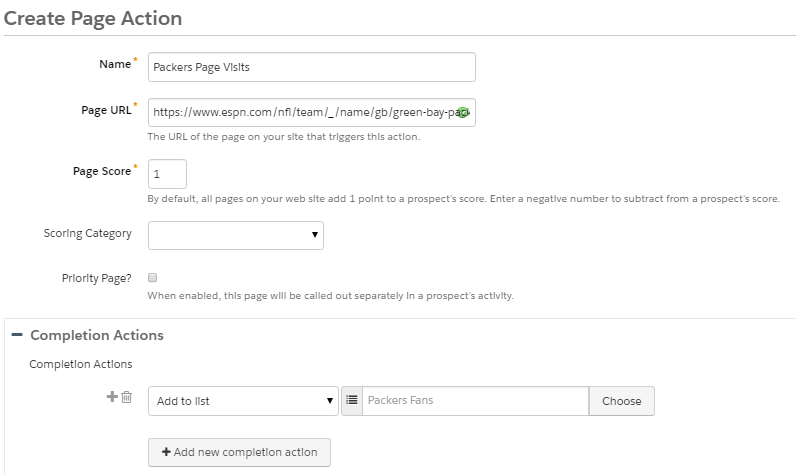
My personal favorite is using the Add to list action in conjunction with page actions to turn identified website visitors into actionable segments. Here’s an example:


In this example, a page action was created on the Green Bay team page. The completion action adds prospects to a targeted list named Packers Fans. This list can now be used for promoting merchandise, tickets or anything related to the Packers. The same methodology can also be applied to your products, services or any page on your website. 

2. Give ‘em a break!

Managing how many emails a prospect gets over a set period of time can be a real challenge. Actually, it’s quite easy if you build out frequency based suppression lists.

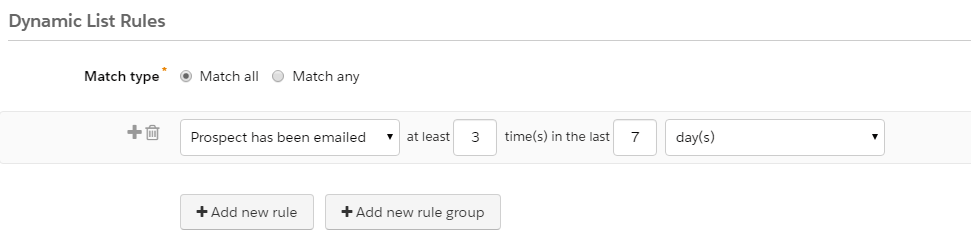
Simply determine the max number of emails that you would a prospect to be sent over a designated time period, build a dynamic list using the criteria and then apply to all your email sends.

In this example, a dynamic list that selects prospects emailed at least 3 times in the last 7 days was created. When applied as a suppression list to email sends, it will allow you to manage the number of communications being sent and ensure that you are not bombarding your prospects. Since the list is dynamic, prospects will be continually added and removed from the list as they meet (or don’t meet) the criteria.

3. Keep it relevant

Nothing bores prospects more than irrelevant content. Keep your subscribers engaged by incorporating content and images that are related to them and their interests with dynamic content.

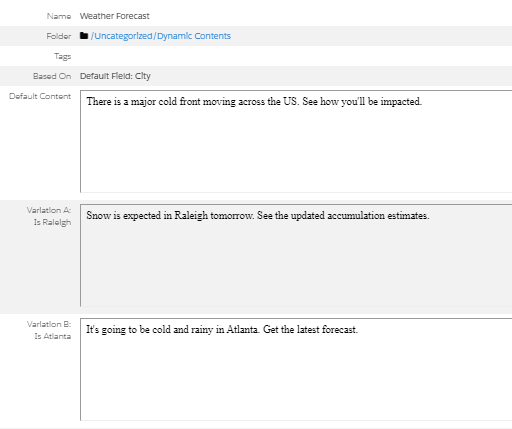
The more data you have the better, but you can get started with something as simple as state or country. Remember that segmentation data that we spoke about earlier? That information can also be used to power your dynamic content.

In this example, dynamic content has been used to customize the text related to local weather forecasts based on city name. Remember, dynamic content can also be used to customize images and entire blocks of HTML based on Pardot default fields, custom fields, scores and grades. Don’t overlook this powerful feature.

4. Make it personal

Personalization has really become an expectation as the amount of data available to marketers has continued to increase. However, you don’t need a ton of data to get started.

Simply inserting a first name into the body of your message or subject line using a variable tag is a start. If your data is sparse, using progressive profiling is an excellent way to build more complete profiles – without creating obnoxiously long forms.

When using variable tags, don’t forget to set default mail merge values in the field properties – nothing is more embarrassing than a failed attempt at personalization.

Handlebars Merge Language (HML) is a simple upgrade to your Pardot account and provides even more flexibility when it comes to personalization. HML gives you the ability to check whether a field is populated (using #if statement) and allows you to provide the best content based on the result. Learn more about HML in this post from Skyler Nakashima – How Pardot’s New Handlebars Merge Language Improves Personalization.

Share your tips & learn more

These are just a few of the ways that Pardot can help you combat email fatigue. Share your favorites in the comments section.

Learn more about the topics addressed in this post in our Pardot Admin Bootcamp Course. This interactive online course will teach you everything needed to become a Pardot Pro.

A question I come across a lot in the Pardot and Salesforce Success Community is how to change Salesforce picklist values on a field synced with Pardot.

A recent example:

Do this wrong and you’ll see the sync errors start flooding in. (more…)

I tend to nerd out when it comes to advanced form styling in Pardot. I get personal satisfaction from taking a form beyond its default “out-of-the-box” capabilities to meet a specific requirement or use case.

Recently a client brought a unique challenge to me that required advanced form styling.

The client in question had a form on their website to collect additional data on Prospects. They had introduced a new field to the form and promptly saw an influx in Connector errors.

The reason?

The field that Pardot synced the data to in Salesforce had a character limit.  Prospects that submitted the form had entered too many characters, which resulted in Connector errors. (more…)

You may want to devote time to keeping a clean mailable list in Pardot on a regular basis.

Pardot has a default limit of 10,000 mailable prospects in an account. If you have more peeps to talk to than that, you can purchase additional prospects in increments of 10,000.

But what if you have 10,003 prospects? Do you really have to pay for a whole 10K person block?

Maybe, maybe not. (more…)

No more posts to show