Category

Marketing Automations

Dynamic lists in Pardot rock. They’re one of my favorite things to demo to a customer who has been working with Mailchimp or a legacy MAP that’s not connected to Salesforce.

The awesome part: You define rule criteria once — and then your dynamic list uses that rule to add and remove prospects from that list based on the criteria. Wahoo!

To those of us who have been on the platform for a while, this is old hat — but it is downright earthshattering for marketers who have had to manually export/import lists for every campaign they rule.

A not awesome part, though: Sometimes you have a LONG list of criteria to include, and making those updates gets really tedious. (more…)

Okay.  I’m taking deep cleansing breaths right now over a really unfortunate discovery.

I’m talking about when suppression lists meet AMPSEA.

Wait, what’s AMPSEA?

Some people love it.  Most OG Pardot peeps loathe it.  Or at least harbor vague resentment while recognizing its utility.

AMPSEA stands for “allowing multiple prospects with the same email address.”  It represents switching from email address as the unique identifier to using Prospect IDs, which was an important milestone in Pardot’s growing up as a platform.

If you got your Pardot org before June 14, 2016, you have the option to opt into AMPSEA.  If you got your org after this date, AMPSEA is enabled by default.  And either way, once it’s enabled, you can’t disable it.

AMPSEA Warning.PNG

Good reasons for AMPSEA (yes, there are some)

There are some legitimate use cases for having duplicate contact and lead records with the same email address, like:

  • Two people who share an email address
  • Different business units who maintain separate contact records in Salesforce
  • A consultant that works with two companies and should get emails targeted at both (small aside: Salesforce now lets you relate the same contact record to multiple accounts… but Pardot doesn’t recognize that, at least not yet.)

How does an AMPSEA org handle 2 people with the same email address on an email send?

Two prospects with the same email address included as recipients for your list email?  No problem — Pardot is smart enough to only send it to them once.

Two prospects with the same email address included as recipients in your Engagement Studio program?  No problem — Pardot is smart enough to only send it to them once.  Per this help article:

“Pardot’s drip and engagement programs allow only one prospect per email address per program. This deduplication ensures that an email address associated with multiple prospects doesn’t receive more than one copy of the same email.”

All good so far.

One prospect on the recipient list, and another prospect with a matching email on the suppression list?  This is where it gets sloppy.

AMPSEA + Suppression Lists = A recipe for disaster

If you have one prospect on the recipient list, and another prospect with a matching email on the suppression list… the first prospect receives the email.  Even though that email address is the list that you’re telling Pardot “DUDE DON’T EMAIL.”

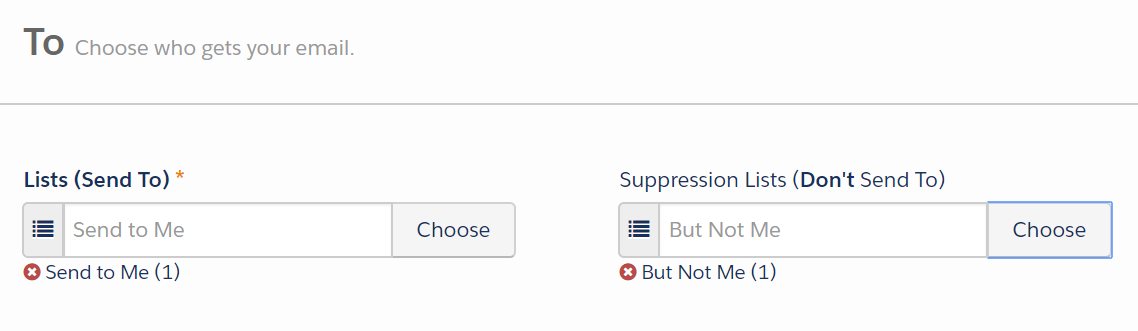
I ran some tests on list emails to see what happens if the same email is on “send to” and “don’t send to”:

Moment of truth...

…and my test record got the email.

I tried it twice.

How can this be.

Cue the existential crisis.

Why this is a gaping flaw in the process

I actually can’t believe I haven’t run into this before. This is a HUGE issue that effectively means if you have duplicates, you can’t use suppression lists reliably.

Here are some pretty logical and common scenarios where this will wreak havoc:

Example #1: Suppressing customers

We’re running a “last call” type of promo for a customer.  Anyone who hasn’t already purchased is getting a 10% off call-to-action.  Anyone who HAS purchased should not get this offer — we’re not trying to give out refunds or make people feel like they missed a deal.

So we suppress anyone who has purchased… but if there’s a prospect with a duplicate email out there, that email address is getting sent the offer.

Example #2: Suppressing people with active opportunities

One of my customers has like 5 dupes for every contact in their system because they use Salesforce web-to-lead forms for partner referrals. They need a better process, and they know it.

But in the meantime, they still want to send emails out to help drum up new demand for sales.  They suppress anyone who has an open opportunity… but again, if there’s a record with a duplicate email out there, that record and that email address is receiving the offer.

NO MEANS NO: Suppression lists should trump recipient lists

The flaw here is that suppression is looking at the unique identifier on the records (which is not email when you have AMPSEA).

I want to suppress that email address from receiving the mailing.

Before anyone screams “GDPR,” chill — opt outs and bounces are handled differently. When someone is unmailable, that status is applied globally across all records sharing that email address.

Why, how, & what now? [yelled into the sky while shaking my fist at the Par-gods]

What do you do with this workflow if you have duplicate contacts or leads in your system (as every single customer does)? How do you send emails with confidence, with the knowledge that you can reliably suppress the people that shouldn’t get certain types of emails?

I don’t have a workaround for this yet.  My team put in a support ticket or three to see if we can get recommendations and ideas.

The most frustrating thing about this to me is that it is documented NOWHERE.  Nowhere.  Trust me, I’ve looked.

Anyway.  If/when I have a solution, I’ll report back.  In the meantime, I’d love to hear your thoughts in the comments.

Is this the behavior you would expect in an AMPSEA org?  Does this mess with your campaign workflow? How would you…. or have you… solved for this?

If you have an internal SDR or BDR team and are looking to round robin prospects, you may have learned that Salesforce Lead Assignment Rules don’t make this super easy to do out of the box. Or, it may be more challenging to get configuration changes made in Salesforce if you don’t have full admin access in that system.

My team was looking to do round robin (RR) assignment using Pardot only, but with a few extra requirements:

  • Kick off the RR process from multiple forms
  • Break RR assignment into industry groups
  • Send the prospect an email after a form submit from their assigned user
  • Have the ability to customize the first touch email for different sales users

The play-by-play to wow your sales team with round-robin functionality in Pardot

Here’s a basic how-to for what I set up as well as all the moving pieces in Pardot you need along the way.

1. Add all users to Pardot

First things first, you’ll want to make sure all your SDRs/BDRs are users in Pardot.  It’s worth noting that even if they don’t have Salesforce licenses, you can still get them set up with Pardot licenses without paying anything additional or changing your contract.

2. Define the logic for Round Robin Groups

Work with your sales leaders to determine the most effective way to segment your leads.  In my case, we were focused on segmentation by industry.  This example could also be applied by product, geographic area, or to mirror an internal sales team structure – whatever fits your company’s needs.

3. Build groups in Pardot

The example I’ll walk through is for a group for inbound website prospects for Commercial Real Estate (CRE) leads titled, “CRE BDR Round Robin Inbound Group”.

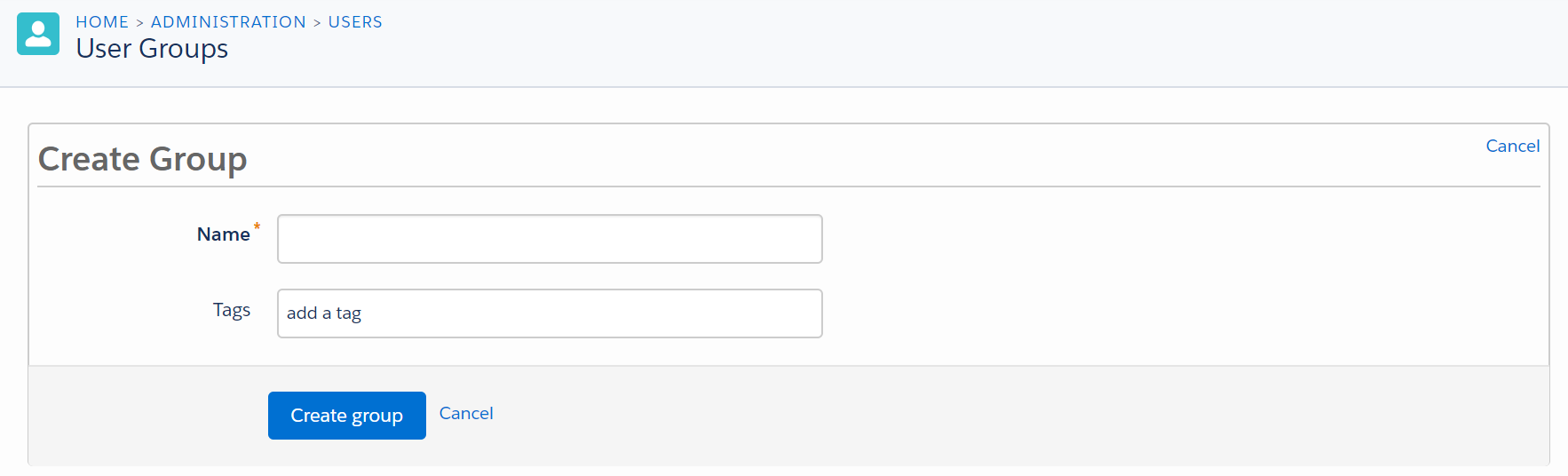
In Pardot, navigate to Admin > User Management > Groups.  Click “Add User Group” and you’ll be prompted to enter some basic details:

Create Pardot Group

Once it is created you will want to add everyone on your BDR team to this group by editing their groups under their Admin >User Management > Users > gear icon “Edit Groups”.

4. Create a list to correspond to your group

Create a list!  Yes, this step is that easy.

As an example, our naming convention was, “CRE BDR Inbound Website Form List – Round Robin”.

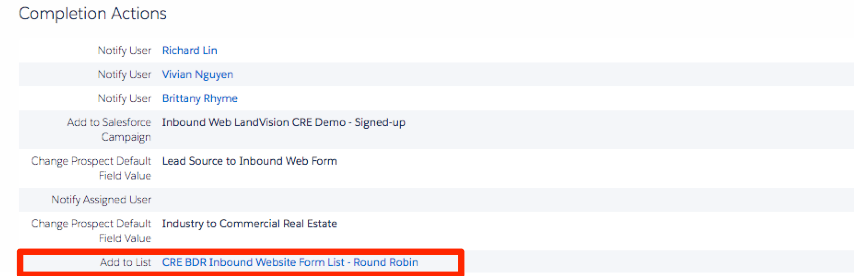
5. Use completion actions on forms to feed the list

Attach that list to form(s) that are CRE industry specific. As many forms as you want!

Add-to-List.png

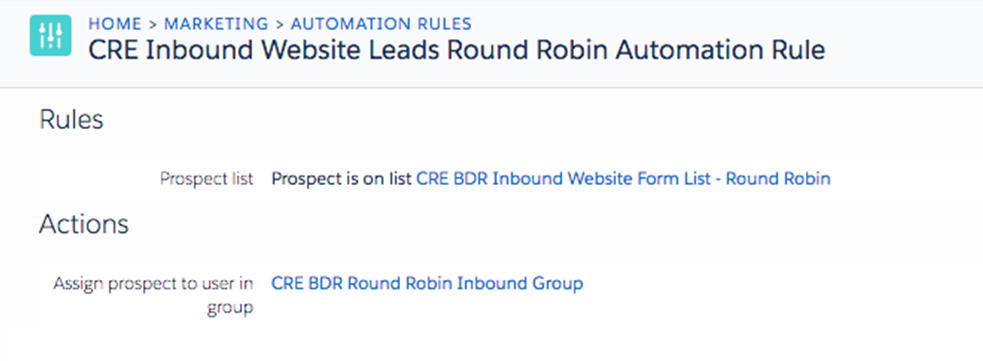
6. Use an automation rule to trigger assignment

Remember that list from step 4?  This is where that comes in.  Create an automation rule with the criteria in the screenshot below.

This is an important process, so we elected to run the rule in real time.
Automation Rule2.png

7. Build an Engagement Studio Program for the notification

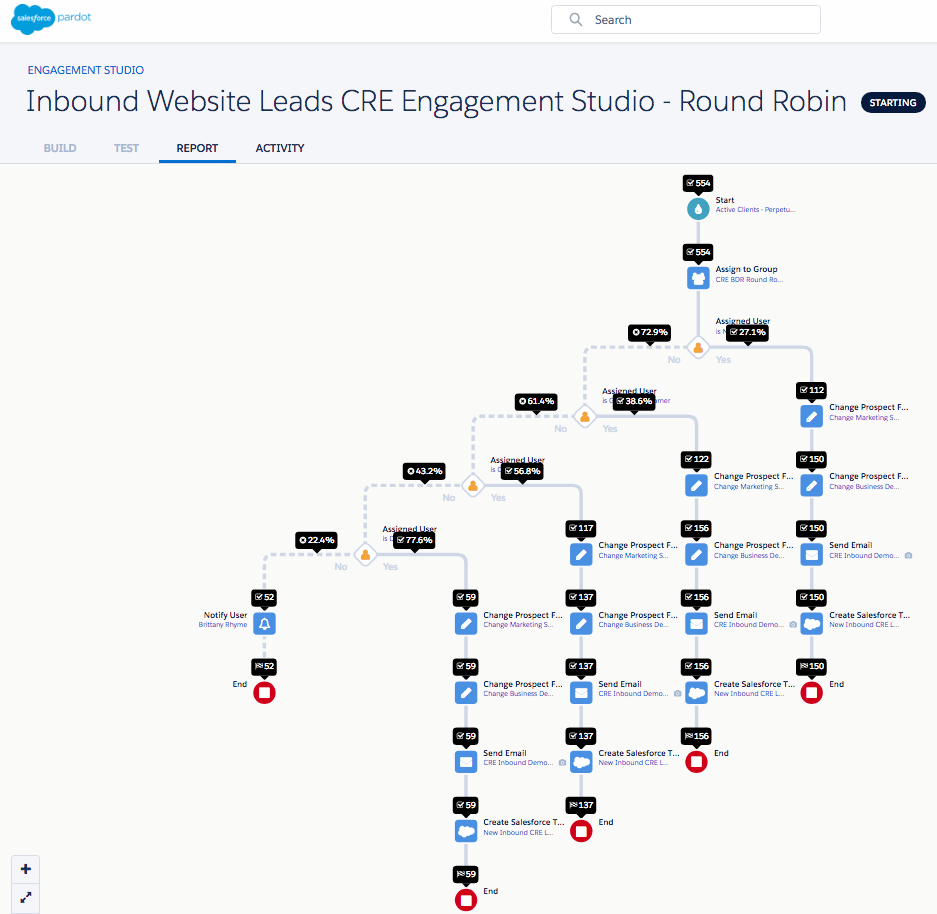
Once prospects were RR’ed, we wanted to create a Salesforce task for each BDR and send out that first email on behalf of a BDR.  We built this in Engagement Studio:

esp.png

You’ll need to use that list you created in Step #4 again – this will be your recipient list. I also always add suppressions for active clients, MQLs, SQLS, etc.

The first action in our ESP is “Assign to Group.” Is this redundant with step 6? Maybe. But we included as a safety net, just in case the automation rules are running slow.

If you have custom emails that are different for team member, the next action should be a rule checking for the “Assigned User”.  I used this because we have Calendly links and other unique content that is specific by BDR.

The next steps should be the email you wish to send and the creating the Salesforce task. Anything else you add is up to you!

As another safety net, I like to get notified if prospects finish the ESP – because it is most likely an existing client, MQL or SQL has filled out a website form.

8. Update as your teams change

Look at that, you built a RR in Pardot!

If you ever have a BDR on PTO or leave the company simply remove them as a user from the Group — no need to change any of the pieces!  Leads will stop being assigned to them once they are removed from the group.

Huge thank you to Brittany for sharing this example of leveraging Pardot to its fullest potential!

Do you have a unique use case?  A crazy cool solution that you built?  A problem that needs solving?  Share it here to get featured on The Spot!

One of the tricky and little-known-things about Pardot is how the system handles blank values.

If you’ve never had a reason to, you probably haven’t thought about it.  But when it DOES come up — here’s what you need to know to be ready. (more…)

Marketing automation was designed to support sales and achieve efficiency in reaching prospects at scale.

But the benefits don’t stop there. Nurturing can be used for many other types of business relationships — including customers, partners, suppliers, and even your employees.

Why would my employees need nurturing?

This is one of my favorite soapboxes.  I firmly believe that internal communications deserve as much, if not, more attention than our customer-facing communications.

It’s not just to get that warm, fuzzy kumbaya feeling — it’s just good business. In today’s war for talent, your employees have options about where to invest their blood sweat and tears.

An ancillary benefit: if you’re just getting started with marketing automation, automating internal communications can be a great “low risk” experiment — and your HR team will likely be hugely appreciative of the extra comms help.

Opportunity #1: New employee onboarding program

The first 90 days at any organization are going to feel like drinking out of a firehose — but a little empathy can go a long way toward making this less painful.

Can you leverage lead nurturing principles to help new employees on their “buyer’s journey” — aka their path from deer-in-the-headlights newbie to fully functioning team member? What are the key questions every new hire has on day 1, day 7, day 30?

Explore using Engagement Studio to schedule communications like:

  • Paperwork requests
  • A welcome letter from the CEO
  • Company background & history
  • Automated tasks at set intervals to remind their manager or HR to check in
  • New kid logistics questions like dress code, where to eat in the area
  • Information on employee perks

Opportunity #2: Employee benefits communication

Another fabulous use case for drip nurturing is during open enrollment season for employee benefits. At most companies, the main communication tools for annual benefits renewals are:

a) the dreaded enrollment meeting where everything’s thrown at you all at once

b) a bunch of stock brochures from the insurance company that mean little to nothing to most of your employees

How might you break this complex message into bite size pieces, and leverage Engagement Studio to “nurture” employees as they build their understanding of their benefits options?  Could you break out key messages into weekly or bi-weekly communications leading up to the enrollment deadline?  Can you apply marketing best practices to cut through the corporate-speak and technical benefits jargon?

Fair warning: your HR may smother you in bear hugs if you offer to take this off their plate.

Opportunity #3: Analyzing success of training & internal messages

Pardot has great analytics on prospect engagement – who’s opening and clicking emails, time spent visiting a page, how long people are watching videos (if you’ve got the Wistia integration in place.)

This can give you some great intel on how employees are reacting to different kinds of content. Leveraging Pardot, you can start to understand:

  • What training materials people actually use
  • Who’s reading monthly reports
  • Link click activity on an employee intranet
  • Engagement rates with leadership communications (CEO updates, “state of the union” type comms, etc.)

What other non-traditional ways can you leverage Pardot?

Have you found success leveraging Pardot for something other than prospect engagement? What ideas do you have for expanding the impact of marketing automation in your organization?

Let your fellow readers know in the comments!

Even with an abundance of documentation, there will always be some degree of trial and error with new features.  Real life is pretty much always much nuanced than your typical 500-word blog post lets on.

I ran into a “gotcha” moment with Pardot’s recently-added capability to repeat automation rules that I didn’t find referenced anywhere. I’m sharing this story so that you can avoid any surprises when using this awesome new feature in your org.

What I WANTED the repeating automation rule to do

I had an easy peasy use case: RSVPs for an office party.  My company had a small list we were targeting that included employees, long term clients, partners, etc – so a great audience for a little experimentation.

The basic logic – if the prospect RSVPs yes, send them a confirmation email and do some stuff.  If they RSVP no, don’t send an email but do some other stuff.

The detailed set-up

So to put this into action, I created a custom prospect field called “Office Party 2017 RSVP” with yes and no as the response options. Then I created a Pardot form and landing page for the event RSVPs:

If a prospect completed the form to say they’ll be attending, then we wanted the automation rule to:

  1.  send a confirmation email to the prospect
  2.  add them to a Salesforce campaign with the status of “RSVPed Yes”

That looked a little like this:

Wrong Rule

If a prospect completed the form to say “nope can’t come”, then we wanted to:

  1. add them to an “RSVPed No” suppression list
  2. add them to a Salesforce campaign with the status of “RSVPed No”

That looked a little like this:

Wrong Rule - No version

I turned on the repeat functionality for these rules, because for events like this, we often run into situations where people come back and fill out the form again to add additional colleagues to the list.  We wanted to be able to re-send the event confirmation email triggered by the automation rule in these cases.

Seems like a fairly simple and straightforward use case, yes?

What the repeating automation rule ACTUALLY did

So, this didn’t quite behave how I was expecting.

Turns out, if you check the little “Repeat Rule” box, and a Prospect meets the criteria… and continues to meet it… it will keep firing. Over, and over, and over.

In this scenario, the first rule was checking all prospects to see if they had RSVPed Yes.  If they did, *boom*, confirmation email sent and add that prospect to the Salesforce campaign.

Then the next day… it checked all prospects again to see if they had RSVPed Yes.  If they ever had (today, yesterday, the day before) and the field value was still “yes,” then *boom*, confirmation email sent and add that prospect to the Salesforce campaign.  Even if that prospect had matched the automation rule prior and the actions had already been applied.

In other words, Pardot was just looking to see if the prospect met the criteria, yes or no — it wasn’t just looking to see if any NEW prospects met the criteria (which is the behavior I would expect, and is more consistent with how Salesforce workflow rules operate).

TL;DR: people who signed up for the bash got a confirmation email Friday, Saturday, and Sunday before I fixed it on Monday morning.  Face, meet palm.

How to fix it

The fix was super simple: adding a step in the match criteria referencing the form submit.  Like so:

Correct Rule.PNG

Apparently, this rule criteria DOES operate by looking to see if any NEW prospects meet the criteria instead of re-matching anyone who has ever submitted it.

Lessons learned?  If you’re using time-delayed actions or repeat rule functionality, try to leave yourself enough time to run a real test.  I know, I know, this isn’t always feasible if you’re on deadline and you have automated actions taking place over several days… but a girl can dream, right?

Also, take the “best practice” examples shared on the interwebs with a grain of salt.  Re-reading a few of the blogs I consulted before building my rule, I realize now that these were 100% theoretical – because they would have run into this exact same issue had their authors actually executed them in real life following the step-by-step they shared.

So what’s YOUR story?

If you’re willing to be an open book for a moment, I’d love to know — what’s the most cringeworthy mistake you’ve made in email marketing?  If you’ve been doing this for more than 5 minutes, you know you’ve got one.

Share in the comments, or if you’re not quite ready to broadcast it, ping me at [email protected].  I’m working on a little project related to this…

No more posts to show