Category

Celine Newsome

It’s time to launch another email campaign and the anxiety sets in. You have a variety of people on different teams who want their eyes (and opinions) on your emails before you can launch them. This back and forth can be overwhelming and gets buried in 50+ long email threads

Stop the madness! Let’s talk about how to organize the chaos — making your life easier when it’s time to launch an email campaign. Here are a few email campaign tips.

Use an Email Brief

It’s a blank sheet of paper for most clients and they get overwhelmed with where and how to start. Sometimes you need to partner with someone who has a plan you can easily take, customize it to your needs, and boom! You have a starting place now. 

Let’s talk about what exactly you should include in an email brief.

What to include in the email brief

Campaign Overview and Objective 

  • Start with a brief description of the campaign’s purpose and main objective
  • Use it as an opportunity to define its purpose with absolute clarity and give helpful background to your team who will be viewing the brief
  • Clearly state what you want to achieve, such as increasing sales, promoting a new product, driving traffic to a website, or building brand awareness

Metrics and Reporting

  • Clearly define the key performance indicators (KPIs) you’ll use to measure the success of the campaign
  • Stick to goals that translate into clear, measurable objectives
  • Link to the report you plan to use once the campaign is launched

Email Content and Format Crafted for the Target Audience

  • Specify the type of content you want to include in the email, such as text, images, videos, or interactive elements
  • Indicate any personalization elements or segmentation strategies you want to implement to make the email more relevant and engaging to the recipients

Email Schedule

  • Provide the proposed sending date and time for the email

Call-to-Action (CTA)

Internal Timeline 

  • A clear timeline can let team members get involved and stay moving quickly. 
  • Include internal deadlines for teams to owe you items or are giving you approval

Identify and Fix Recurring Pain Points

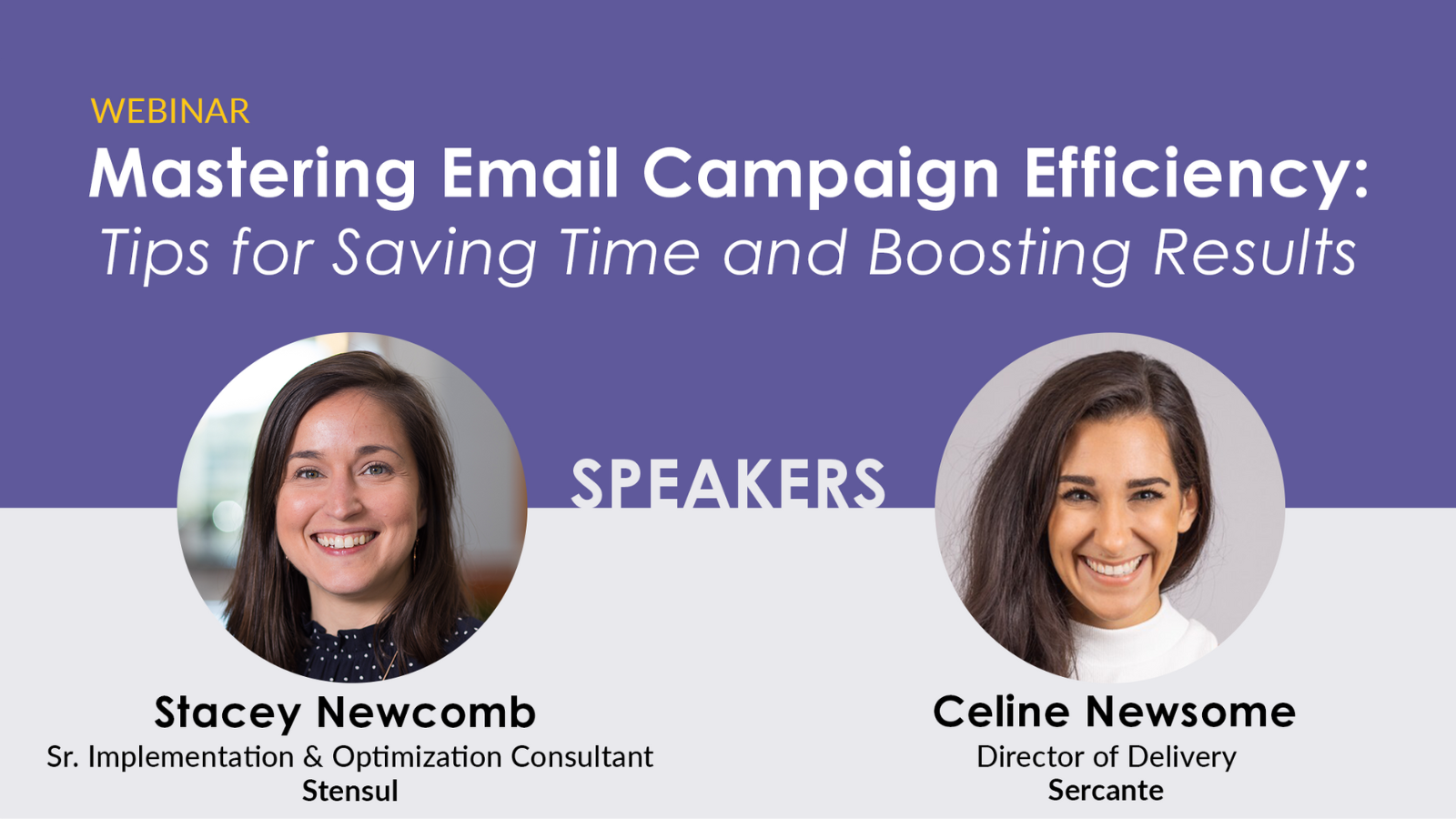
Continuous edits to email HTML and copy is a common pain point among clients. There are tools like Stensul that can make your life easier because it keeps all the edits out of email threads. 

It is essential to have integrations and features like these to have the capacity to scale operations and to accommodate increases in volume while meeting requester’s timing requirements, all without the need to hire additional staff or compromise on quality. 

Check out this webinar with Sercante & Stensul together where they share tips for integrating an email creation platform into your strategy to ease common pain points.
Create a plan, look for ways to add efficiency, and repeat

Ok so let’s recap!

The first thing you’re going to do is draft and use a brief. If you’re stuck, start with the email brief items listed in this post.

Then you’re going to document your process and iterate on it! 

The goal is to make your campaign launch life easier each time. When you identify a pain point, test out a solution for it and see if the process gets even better.


Getting marketing team access to your Salesforce org breaks down company siloes and can lead to enriched data you can use for things like Einstein campaign reporting.

So, you want to make the case for getting your marketing team’s hands into your company or organization’s Salesforce org. But, you’re having trouble making the case to the team that manages it.

The team may come back to you with things like,

Why do you need to get into our Salesforce org?

and

Don’t you have your own marketing automation program and mailing lists?

Well, this post is going to help you make the case for getting marketing admin access to your Salesforce org.

Salesforce needs interconnectivity to fulfill its data hub destiny

Think of Salesforce (a.k.a. Sales Cloud/Service Cloud) as your one stop shop for all your data. 

When you’re working for a company with multiple departments, or at an enterprise-level company with many locations and lines of business, you have multiple technology tools that connect to Salesforce and enrich that data.

And the reality is, you are one person. So, you can’t possibly know all the ins and outs of each tech tool that’s connected to your Salesforce org. 

All the Salesforce admins can live in harmony with shared access

The good news is that other tools probably have their own admins and experts who are part of your company or organization. 

These technology specialists can be your best friend when it comes to troubleshooting something between that tool and Salesforce. But, they can only be an effective best friend if they have the right level of access in Salesforce. 

Otherwise, you’re going to be an annoying best friend who asks them to look at a bunch of things you could easily look at yourself to solve the issue. 

What I’m trying to say is they become a bottleneck — unintentionally or intentionally. 

Build a process to prevent issues from Salesforce user access

They are probably thinking, 

but I don’t want anybody to mess up the Salesforce system I’ve worked so hard to build.

And it’s understandable.

I’m here to tell you that admins can give you access and ask you not to change something in the system without going through the proper process. 

Yes, that means they have to instill trust in you. That’s what makes a good team! 

Understand the Salesforce user roles

The Salesforce Marketing User in Sales/Service Cloud can create, read, edit, and delete records they can access, and they can import leads.

If you’re granted access to Sales Cloud through an Admin role, or something custom, be sure the person communicates the specifics of your user role to you. You should fully understand what you’re capable of before diving in. And the person granting access to you has a responsibility to assign a user role to you that provides an appropriate level of access.

Document a process for marketing users

Work with your Salesforce admin to establish everything marketing users need to know about their level of Salesforce access. Put it all in a document, and remember to include the process for requesting changes beyond the marketing user access level.

Make your case and get the user access you need

In case your Salesforce admin still isn’t sold on the idea of giving you admin access, here are three reasons why they should. Use these to help them understand why it’s so important for the marketing team to have access.

Giving marketing users access to Sales Cloud:

  1. Allows troubleshooting to happen quickly. The marketing user doesn’t have to ping the Salesforce admin every time they need help with simple tasks for things like reporting or connected campaigns.
  2. Makes other software admins learn how Salesforce works. There’s less back-and-forth communication in the long run! 
  3. Creates shared ownership among the tools. This means less finger pointing and more collaborative ownership to build and troubleshoot.

So, if your Salesforce admin was on the fence about giving you access to Salesforce, I hope this helps you get them to rethink and ultimately grant access. I am confident in saying it’s best for the long run.

Use the comments section to tell us how it goes! Or share your Salesforce admin access stories if you dare.

It’s a sad fact in life that sometimes you can do everything right and still encounter issues. This is also true for the Pardot/Salesforce connector.

The three most common Pardot Salesforce Connector errors we see marketing automation admins continuously face are:

  1. “Your Salesforce Connector User does not have all of the permissions Pardot expects”
  2. “Prospect and custom object sync has been paused since [a certain date/time]. If sync is paused for more than 30 days, you’ll need to do a full sync to get all updates.”
  3. The connector is stuck on “Verification in Progress

Here is how to solve these common Pardot Salesforce Connector Errors.

Common problem 1: Your Salesforce Connector User does not have all of the permissions Pardot expects

You ran a successful email campaign last week and are eagerly waiting to hear from the sales team on last week’s MQL report. When you get the report you realize a large majority of your marketing leads are missing. You navigate to the Sync Errors report and notice this message “Your Salesforce Connector User does not have all of the permissions Pardot expects” next to the prospects from your campaign.

No fear, this error sounds more scary than it is.

Pardot is simply letting you know that it is expecting to have access to read and write certain fields, but the profile settings of the connector user currently prohibit that for some number of fields (those listed in the error).

This tends to happen more often in established Pardot orgs if profiles or field-level permissions change in Salesforce, but we’ve seen it come up in newly implemented Pardot orgs also. 

In the newly implemented org case, what typically happens is that you follow steps to set up the V2 connector with a Pardot Connector User and then go to the Connectors tab in Pardot, where you see this warning message:

Your first thought is: “What the heck! I followed every step in the implementation guide.”

The first step of setting up the Pardot Connector User (on either the V1 or V2 connector) is to assign the Pardot Connector User Permission Set but that doesn’t actually give Pardot access to everything it needs. Certain objects aren’t covered by that permission set because of Salesforce security restrictions. After you assign the permission set, you must manually configure your connector user’s permissions for Salesforce standard objects. Here’s a handy guide on how to Assign Object Permissions to the Connector User.

What you need to do:

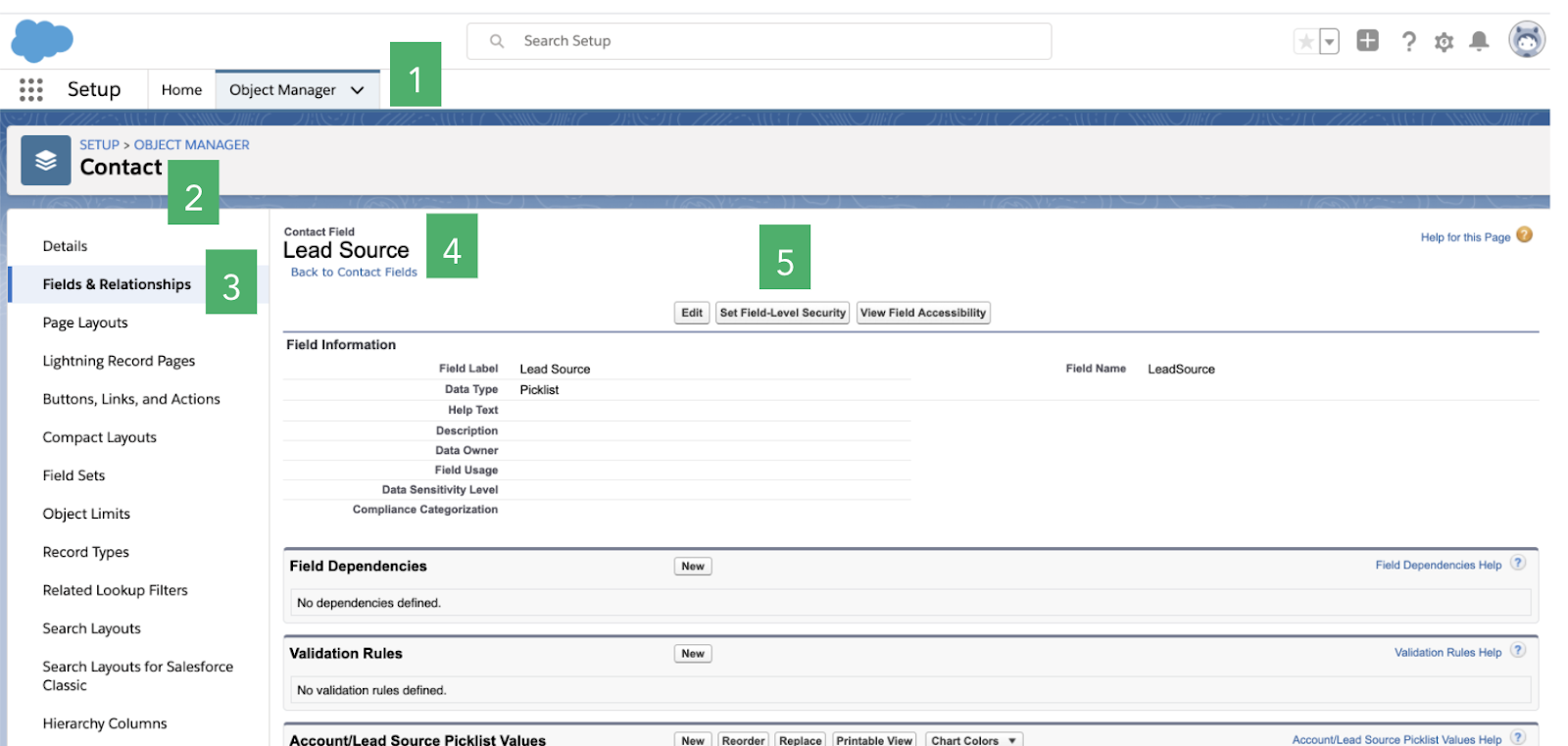
Manually set field-level permissions to the Pardot Integration Profile.  Go into those fields, edit the field-level permissions and add to the connector profile and things should work well going forward.

Here are steps to edit the field-level permissions:

That’s it! It’s not a hard fix but it sure is confusing when you know you set up everything correctly following the Pardot implementation guide. I’m here to at least reassure you that it’s not you, it’s the implementation guide. 

PS: Setting up V2 with an integration user won’t trigger this error because the integration user authenticates directly to Salesforce so we don’t need to assign a permission set or object permissions.

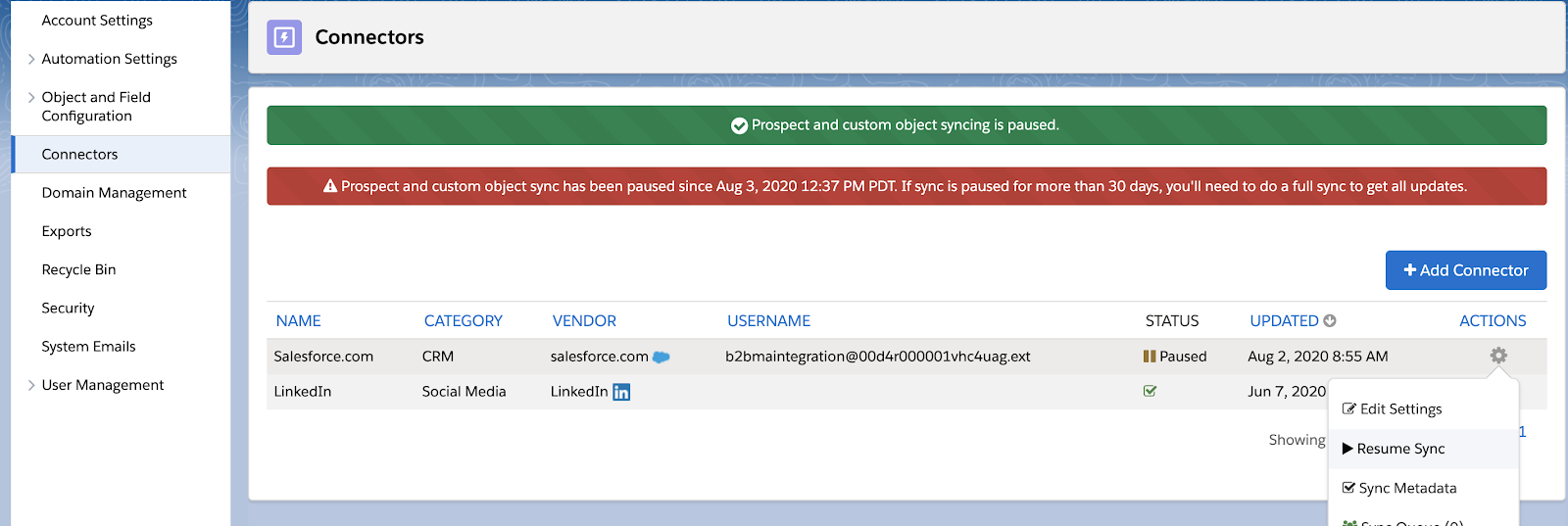
Common problem 2: Prospect and custom object sync has been paused since [a certain date/time]. If sync is paused for more than 30 days, you’ll need to do a full sync to get all updates.

This is another scary-sounding warning message that isn’t hard to deal with. This is Pardot warning you that since the Pardot/Salesforce sync has been down for so long, it’s not going to catch up on data changes older than 30 days.

To fix it, when you’re ready, unpause the sync and click the “sync metadata” button 

Common problem 3: The connector is stuck on “Verification in Progress”

This problem seemed to happen more often in previous versions of the Pardot package and may be a non-issue moving forward. If, however, during implementation you connect and enable your v2 connector in Pardot Lightning and it stays on “Verification in Progress” for more than a couple of hours (Pardot support will probably suggest you wait for 24 hours, but typically if it doesn’t happen somewhat quickly, it’s not going to verify), check out this known issue along with the fix

Got any more for us?

What else threw you off during your Pardot implementation? Share in the comments.

Have you tried to map an important Salesforce field in Pardot, only to realize it’s not available in the Pardot field mapping dropdown list? Yeah, me too. The most common reason for this…It’s a dang lookup field in Salesforce, and Pardot doesn’t like lookup fields. 

If you’re wondering what a lookup field is, it’s when a field value is being sourced from another field or object.

Side note: User lookup fields are an exception here. Salesforce user lookup fields can be mapped to Pardot CRM User type fields.

If you’re still thinking you need that field in Pardot even though standard functionality won’t allow it, lucky for you, we have three solutions so you can still create and map the field you need in Pardot.

1. Create a Record Triggered Flow in Salesforce

This solution is great when you want to automatically trigger a record sync as field values change.

Step 1: Create a custom text field on the desired object in Salesforce

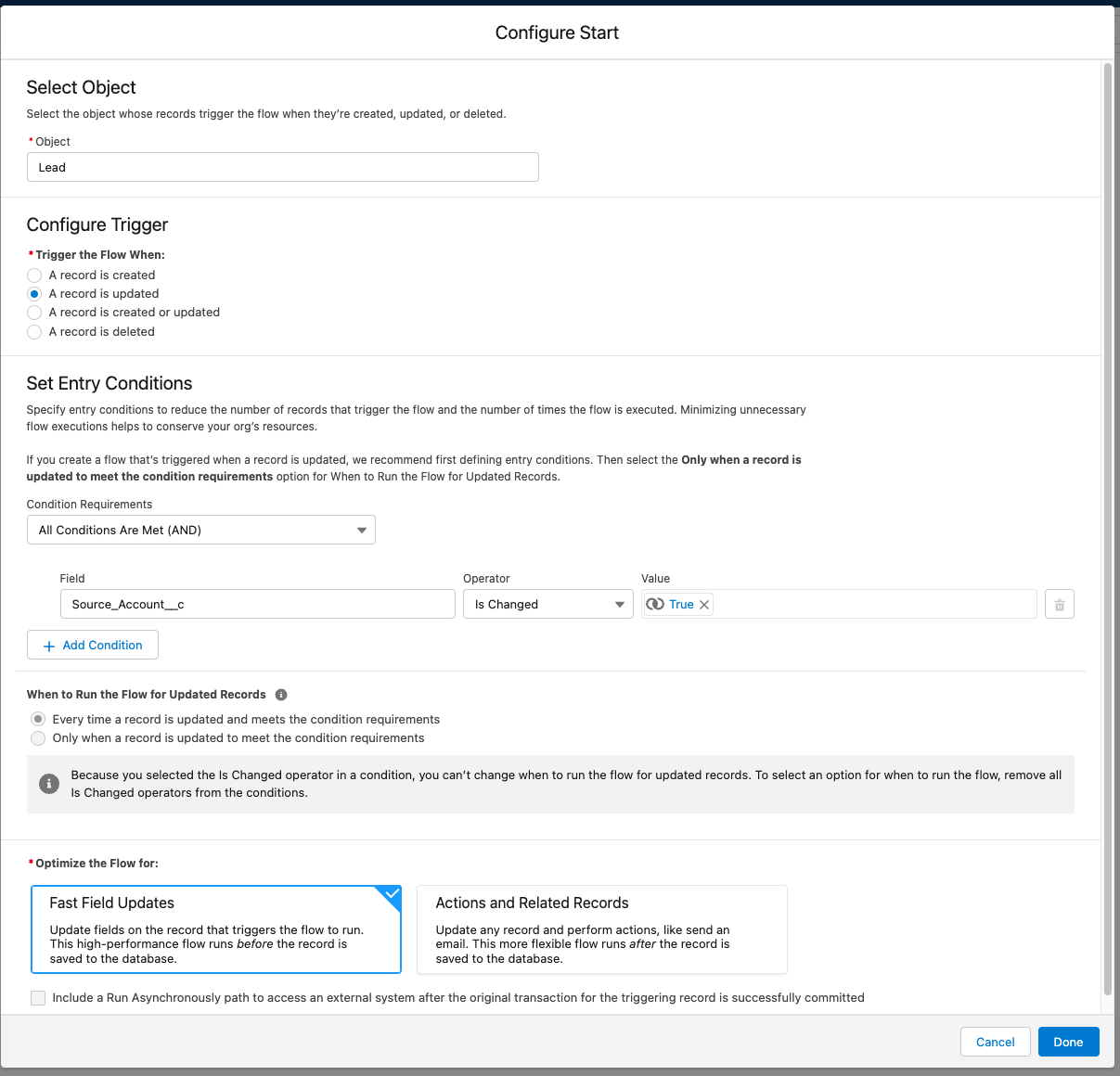
Step 2: Create a Record-Triggered Flow for the object of interest

  • Add the Start Criteria,  for example when a field changes. In this example the flow is set to start when the Lookup field changes, and chose ‘Fast Field Updates’ because we’re updating a field on the same record that triggered the flow.

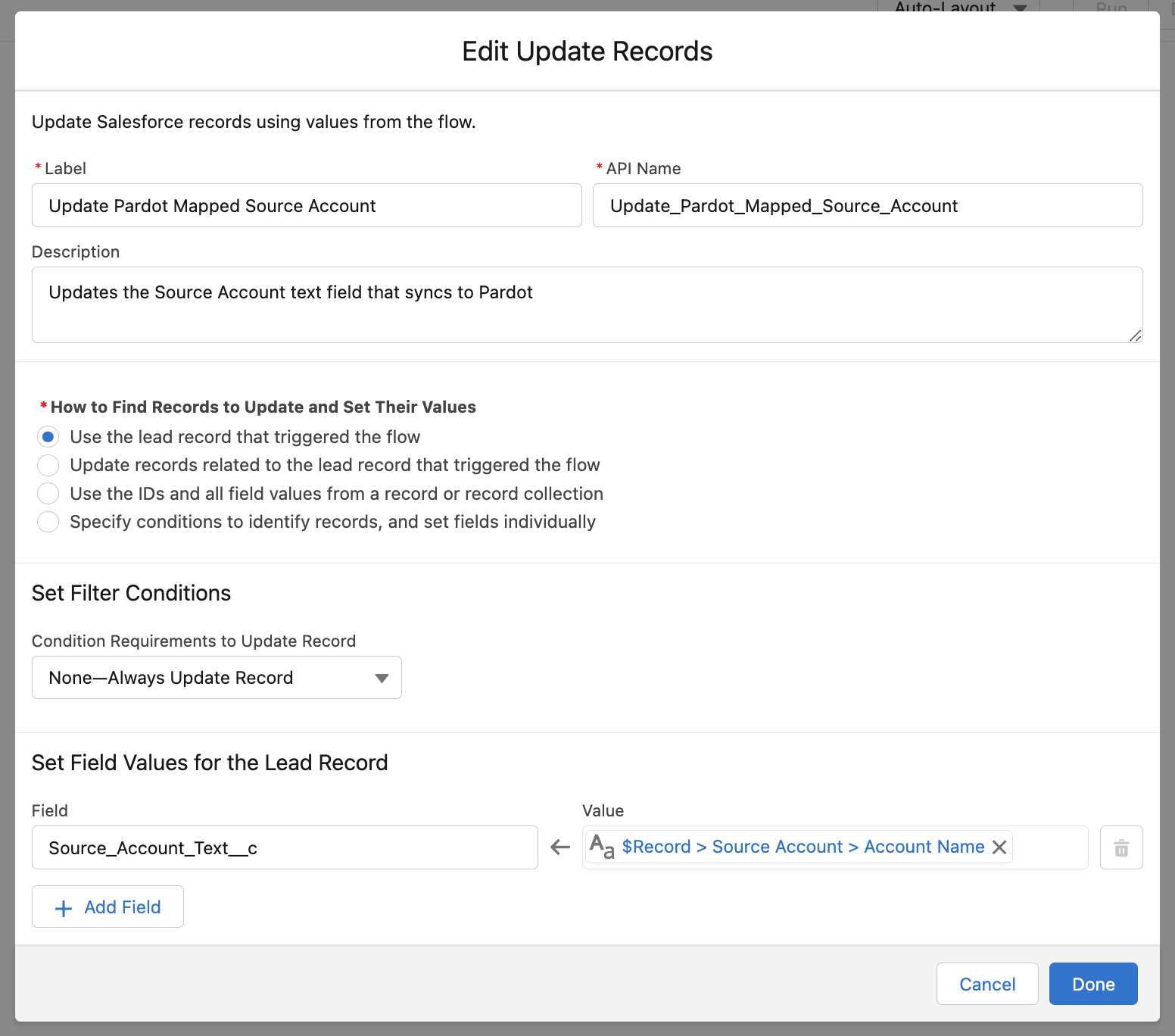
Step 3: Add an Update Record element, set to update the field that will sync with Pardot. 

Note: Do you already have a record triggered flow on this object with similar entry conditions? You may choosed to update that flow instead of creating a new one.

Step 4. Create and map your new field in Pardot

Viola! Problem solved. 

2. Custom Formula Field

Formula Fields can grab any specific field in the lookup object and pull its data into a new field that you can map in Pardot.  A couple things to note about using a formula field as your solution:

  • This isn’t a great option when your lookup fields change frequently, because formula fields do not trigger a sync.
  • Avoid confusion when looking at another field on the object by making this field hidden for all users except the Pardot Connector User.

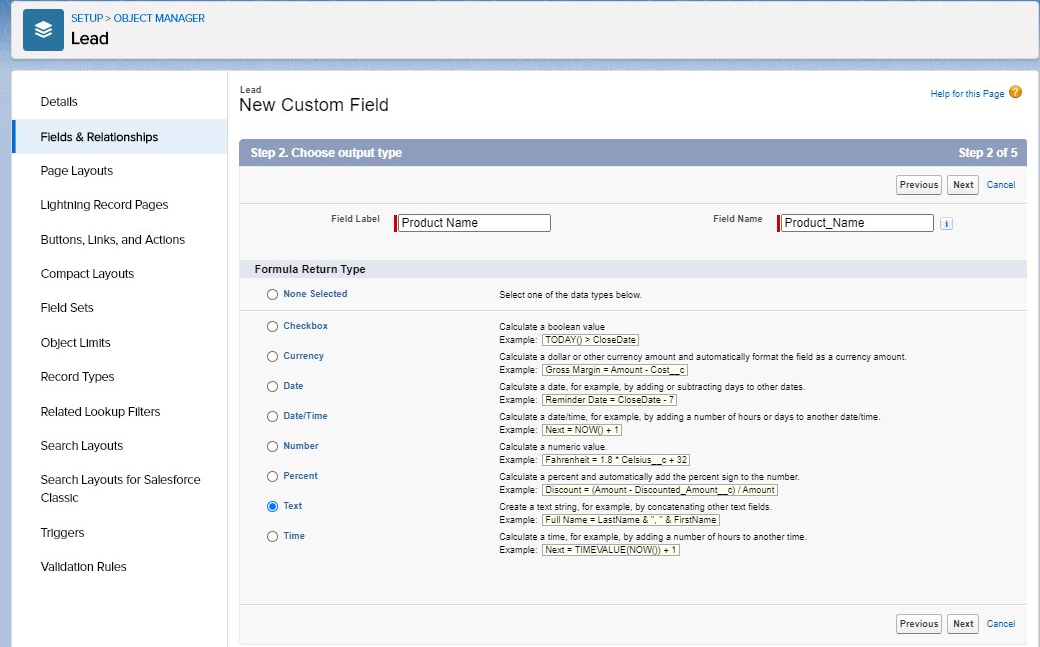
Step 1: Create a Lookup Field on your object of choice (Lead/Contact/Account)

Step 2: Create a new Formula Field on the same object

Step 3: Create a formula for “Insert Field” and pick the field on the Lookup Field object (see screenshot below)

Step 4: Save the formula

Step 5. Create and map your new field in Pardot

Viola, again! Another solution.

3. Custom Object

This could be the solution when you can’t use a default object, meaning you don’t have a one-to-one data relationship but you want to use complex filtering within Pardot. 

Custom Objects are available in Pardot Advanced Edition and Available for an additional cost in Pardot Plus Edition

For this solution we would be pulling in the ‘Individual’ Salesforce object into Pardot. Pardot can run automation around a custom object in your CRM that is not a Pardot default object. The custom object must be tied to a Pardot prospect record through a prospect ID. You can create and sync a custom object from any queryable object that is linked to a contact, lead, or account in your CRM.

Step 1: Create a Custom Object in Pardot (Custom Objects must be enabled in your account first)

Step 2: Use criteria in Pardot to pull the data in a list. To use this field as a custom object, we need to ‘relate’ the value back to the prospect. This is done with the “Prospect Custom Object” related with properties.

Step 3: Click Run Rules and use your list as you normally would.

And, there you have it, our final voila! 

Have you found another solution to map lookup fields into Pardot? Comment below and share.

Last Update: April 2023 (added Salesforce Flow information)

You presented, you lobbied, you conquered and now you have the fancy new tool — Salesforce Engage.

GREAT!  

A few months later, your excitement has dwindled as you find Engage isn’t being used like you had hoped…or, worse yet, it isn’t being used at all.

So, the looming question, how do you get sales to actually use Salesforce Engage the way you intended? Here are 4 tips: 

1. Become the subject matter expert

First, you have to know how to use the tool inside and out. When you are learning it, train yourself on exact scenarios your sales team would encounter. As you go through scenarios, take screenshots and recordings to help the team easily learn exactly how they should use it.

Now, when sales has questions, they’ll have a subject matter expert nearby. Oh, you don’t want to be the only go-to person? Read my next tip!

2. Launch to a small group of power users first

Before launching Engage to the entire team, pick a handful of team members to use the tool for a month of two. This will help you prepare for frequently asked questions, adjust business processes that could be a conflict, and perfect your training documents.

You will also create additional experts who can help answer team questions after launch.

3. Demonstrate the value (no really, actually demonstrate it!)

 When you are presenting the tool for the first time, start by showing sales the desired end result and how it will help them. It’s like a first impression! Getting buy-in from the beginning is a huge help with increasing adoption and excitement.

Use success stories from your small group launch to show real scenarios the rest of the team can relate to. 

4. Track your teams’ usage

Salesforce Engage gives admins user reporting so you can see who is using the tool. You can compare stats for individual sales reps, and identify the top-performing templates by email opens and clicks. Use these reports to regularly train and update the team, which also keeps the tool top of mind.

Leverage your power users — the ones who adopted the tool quickly and use it regularly — and ask them to lead a session on how they’ve found success. Oftentimes, sales teams need to hear from ‘one of their own’ in order to buy-in completely. 


Launching a new sales tool is never an easy task. Have you found success and care to share? Let me know what tips you would add! 

Have you visited the IdeaExchange before? In a nutshell, it’s a place where you can submit product enhancement ideas and vote on existing ideas with simple thumbs up or thumbs down. Kinda like Tinder for Pardot. The Pardot development team then picks the top ideas and builds them into their product roadmap. It’s an awesome way for users to have a say in the future of the platform.

And, right now, there are so many great ideas! Here are my 10 favorites for Pardot. (more…)