Category

Data Management

Should you switch to Pardot Lightning?

Probably. 

The Pardot Lightning App has been available since the Winter ‘19 release, but many Pardot users still prefer the comfort of Pardot Classic. 

Maybe it’s the cute marketing wand in the left-hand menu bar keeping them in Pardot Classic. Or it could be the thought that getting used to a new Pardot experience is gonna be time consuming. 

Salesforce delivered the news via the Winter ‘22 Release that the Pardot Classic app is going to retire after October 17, 2022. That means it’s time for Pardot Classic users to consider a switch to Pardot Lightning.

Are you reluctant to adopt Pardot Lightning? Yeah — me, too. 

But, here’s the thing: I made the switch. And switching to Pardot Lightning is actually pretty cool. Here’s why. 

Pardot Lightning plays well with Salesforce Lightning
Pardot Lightning offers a more seamless transition between Salesforce and Pardot.

Once Salesforce retires the Pardot Classic app, users will only have one way to access Pardot Classic. They will have to log in with their Salesforce credentials at pi.pardot.com

The Pardot Lightning app includes an app launcher within Salesforce Lightning. That means there are no additional sign-in tasks to complete if the user is logged into Salesforce. 

Wanna know another cool reason to shout about this? If you have connected campaigns enabled and you’re creating Salesforce campaigns for your marketing efforts, you can have the Salesforce Campaigns tab visible in your Pardot Lightning App Navigation Bar. You won’t have to toggle back and forth between Pardot Classic and Salesforce for any campaign creation tasks. 

Build Pardot marketing assets faster

Drag-and-drop email and landing page builders

Were you ever designing a Pardot email and wished there was a quick undo button? Sure, you can restore a snapshot, but that takes a few clicks. 

With the Winter ‘21 release, we got the drag-and-drop email builder for Pardot Lightning. Although the jury is still out on this builder, it does provide Pardot users with the opportunity to design emails without using code. And, that’s right. There’s an “undo” button, too. 

With the Winter ‘22 Release, we are also getting a drag-and-drop editor for landing pages that is exclusive to Pardot Lightning users. 

Partition your Pardot prospect database

Pardot Business Units 

Pardot Business Units provide a way for you to partition your Pardot database. You can have Pardot Business Units for different regions, products, brands, etc. It’s essentially a method for you to have discreet marketing databases (read: Pardot Business Units) synced to a single Salesforce instance. 

Certain features for Pardot Business Units are only available in Pardot Lightning. 
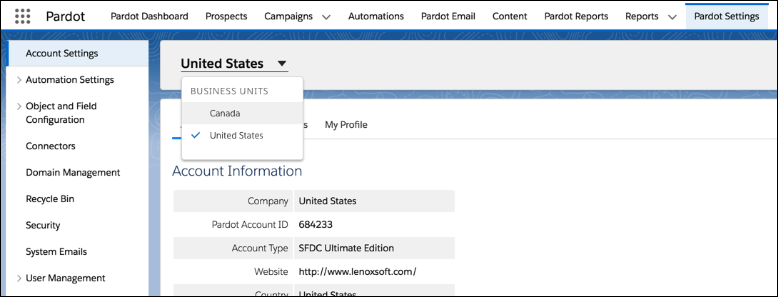
Pardot Business Units

Reuse content blocks in marketing assets

Snippets, Snippets, Snippets!

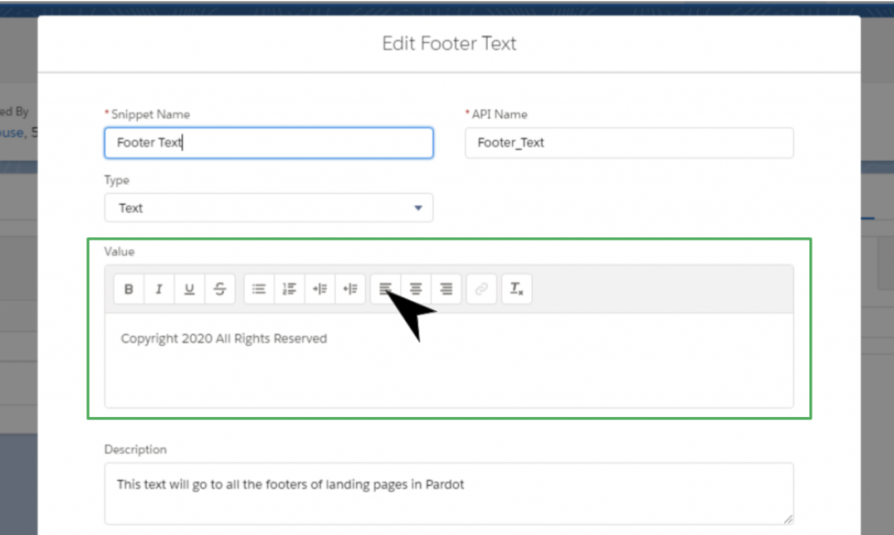
Pardot Snippets give marketers the ability to maintain reusable content blocks for marketing assets like emails, forms, and landing pages. And, they can also be used across Pardot Business Units! 

But, you guessed it. Setting up Snippets requires Pardot Lightning. 
Take the Pardot Lightning plunge

Are you ready to take the jump to Pardot Lightning? 

With each new release, Salesforce is giving Pardot users even more functionality. But, you may have noticed that many of these cool new features are for Pardot Lightning only. 

While Pardot Classic is not going away in the immediate future, it’s clear that Pardot Classic users will continue to miss out. And, while getting used to the slick, new navigation of Pardot Lightning can be trippy at first, it’ll feel like home after using the interface for a few days. I promise.

Are you ready to make the switch? Check out Salesforce’s Pardot Lightning Implementation Guide here
Remember to get in touch with us for help. And let us know how you feel about making the switch to Pardot Lightning in the comments below.

The ability to designate Pardot Accounts as campaign members is finally here!   

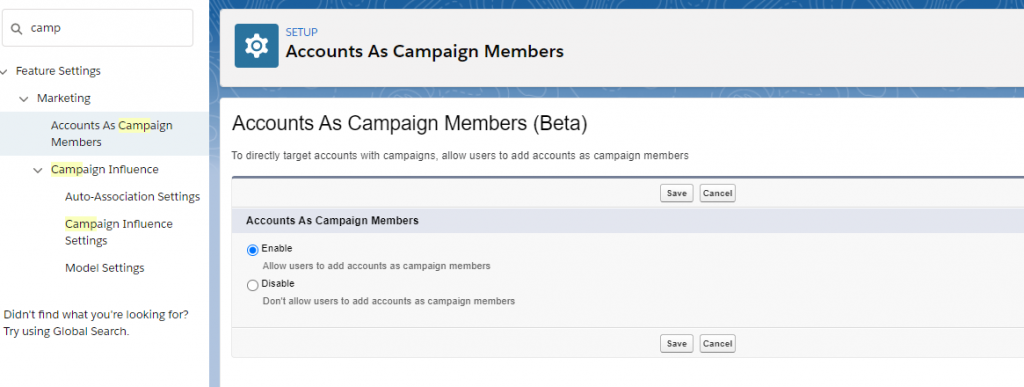
Included in the Salesforce Spring ‘21 release is a beta feature that’s going to make many Pardot admins and users happy. 

Here is what you need to know so you can get started using the new Accounts as Campaign Members feature in Pardot.

One action to reach all contacts within a Pardot account

Why does this new feature matter?  

There are many times when the communication you send to your customers may relate to the full account versus just a single contact.  Adding the account also mitigates potentially missing opportunities.  For example, this would be helpful for when the key contact for the account leaves. Other account contacts would still be able to receive the communication even if the contact is no longer active.

How do I set this up?  

Setup is easy!  Open Salesforce settings and search for “Accounts as Campaign member” then click enable.  That’s it! Well Almost…

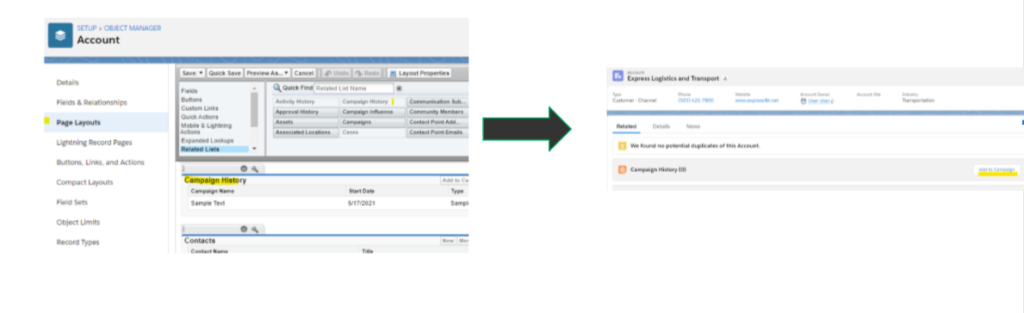
Likely you will want to have the ability to add the account to a campaign from the account page.  To accomplish this, add the Campaign History Related to list to the Account Page layout.

  • Go to Salesforce setup > select objects > open the Account object then open page layouts. Add the related list and save.
Accounts as Campaign Members 2

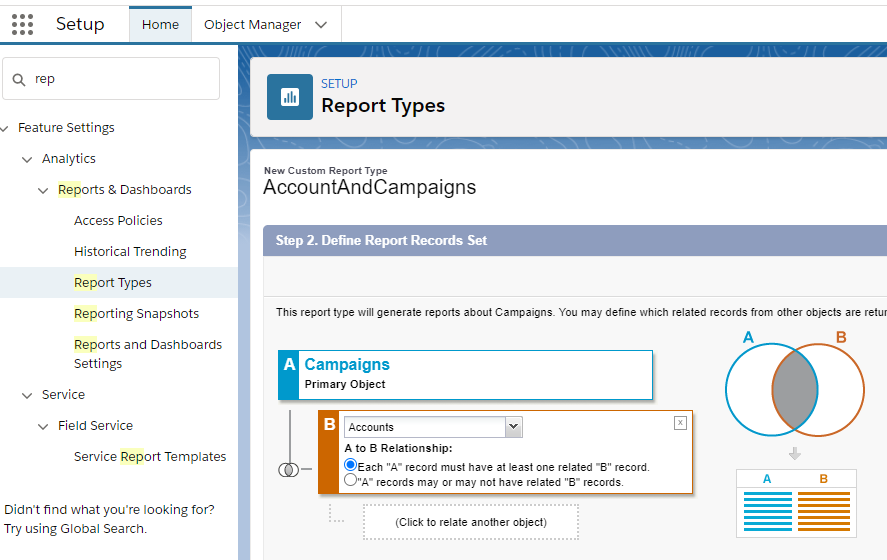
You will also want to make sure you take full advantage of the reporting by adding a new custom report type so you can create reports that show engagement by Account!

Open Salesforce Setup > search for Report Types

  • Select “New Custom Report Type”
  • Select Campaign as the Primary object and the accounts object as secondary as shown below
  • Save 
Accounts as Campaign Members 3

Reporting considerations

What options are available to report on Accounts added to Campaigns?

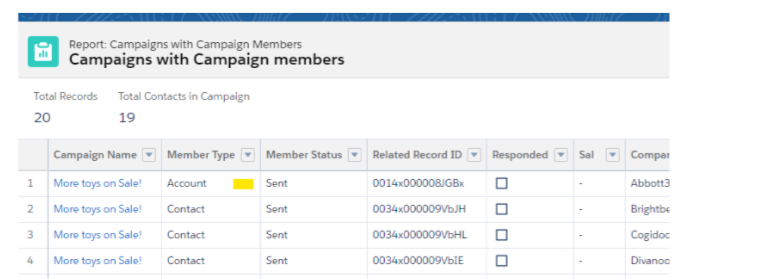
  • The standard campaign with campaign members gets a new member type = Account.
Accounts as Campaign Members 4
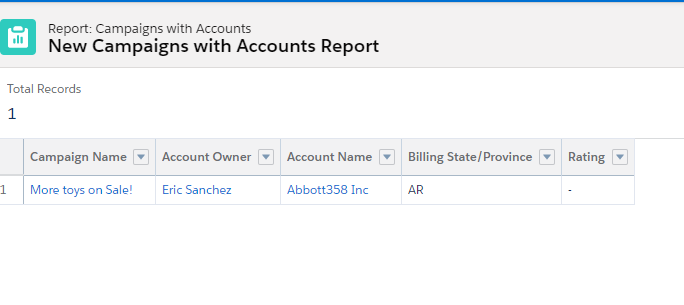
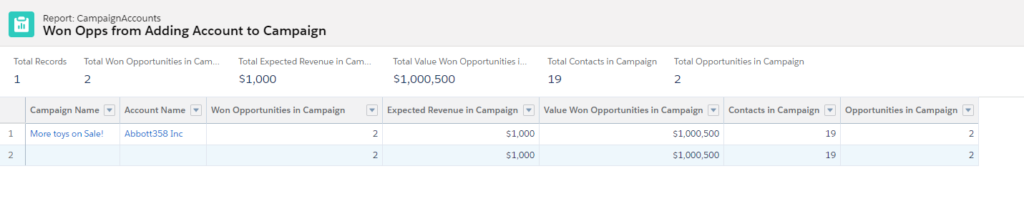
  • The Standard report campaigns with accounts gets the account information added.
Accounts as Campaign Members 5
  • Reports created based on your new custom type allow you to review campaign activity by account.
Accounts as Campaign Members 6

Important things to know

Here are a few other considerations you should keep in mind when you enable the Accounts as Campaign members feature in Pardot.

  • If you add an Account to a campaign and that account has Opportunities but these opportunities are not added to any campaign, you cannot see those opportunities in the campaigns with Opportunity reports.
  • Opportunities created through the campaign will be associated with the account but separate from the campaign.
  • If Opportunities from the campaign are added manually to the campaign, then it will show in the pipeline and won Opportunities reports.
  • Adding accounts to the campaign will not change or affect contact roles for the account members added.
  • Records and activities created on Accounts before or after adding the account to the campaign will not impact the campaign Dashboard or campaign influence
  • Leads associated with accounts (like those through Lean Data or other tools) are not automatically added to the campaign.  These need to be added manually.

How do accounts added to a campaign appear in a Dynamic Pardot List?

Objects that are created around the Account as Campaign members exist in Salesforce to link Account and Campaigns together on the Salesforce side.

Account contacts added to the campaign will NOT show up on Pardot Dynamics lists as a prospect.

Learn more about Accounts as Campaign Members in Pardot

Want to know more?  Check out these helpful links! 

Remember to reach out if you want to know more about setting up these features in your Pardot org. Or comment below to let us know your thoughts.

As part of the Salesforce Summer ’20 release, Pardot announced support for first-party cookies in an open beta.

Some Pardot users’ reaction to the news:

YAY!

The rest of Pardot users’ reactions:

Wait, what is this and do I care?

If you’re among the latter group… read on to learn what this is, why it matters, and how to enable it if you’re interested in joining the beta.

A browser cookie is a small bit of text that a website leaves with the browser so the website can ‘remember’ who you are. It’s kinda like when you give a valet your keys — they attach a number to your keys, keep them, and then they hand you the slip with the same number.  

When you come visit this website, Pardot sets a tracking cookie. The current embed code is using ‘go.pardot.com,’ so the tracking cookie is attached to the Pardot domain. From the point of view of our website, it’s a third party cookie, because it’s a Pardot branded cookie.

Continuing with the analogy — it’s like the valet is wearing a Pardot shirt. We’re asked them to hand out numbers to website visitors, but we’re not from the same company.

This is how it’s always been, but with the introduction of first-party cookies in Pardot, we can do this a different way. Instead, we can use our own domain for setting the Pardot tracking cookie and generate First-Party tracking cookies. It’s as if the valet is now wearing a shirt with our brand on it.

Why do first-party cookies matter?

In a word? Trust.

Right now both Firefox and Safari don’t ‘trust’ third-party cookies. We don’t get prospect tracking if prospects are using these browsers. In the future, Chrome will no longer support third party cookies.  

Switching from third party to first party cookie tracking improves the security of the internet. It’s a huge shift — but browsers are making this difficult transition happen, and marketers need to keep pace.

Who is eligible for the beta?

All Pardot instances. This is an OPEN BETA which means you can opt yourself in.

Beta features are called that because they may not be perfect yet. There is a risk that things go horribly wrong (okay horribly may be hyperbole, but you get the idea.)

If it’s difficult for you to make changes to your website quickly, maybe skip the beta or at least don’t participate early. 

Not all features of Pardot may be supported in a beta, for example, Help & Training states that iframed forms will not be tracked during the beta under First Party Cookies in some circumstances.

What do I need to do to sign up for the beta?

You can self-service enable this in your own account. Here’s the step-by-step:

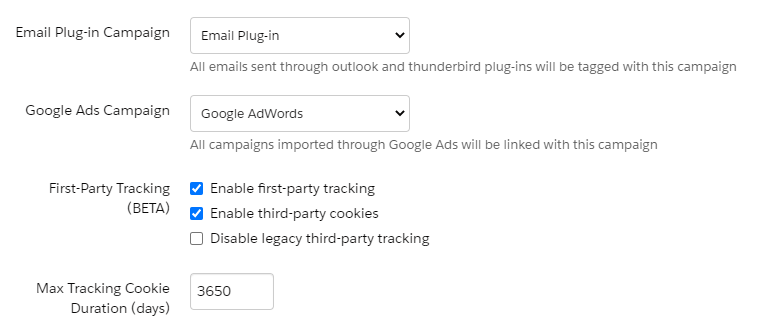
1. Enable first-party tracking beta in account settings

In Pardot, go to your Account Settings, and click Edit.

Near the bottom of the first section you will find a checkbox for First-Party Tracking (BETA). Enable the checkbox. 

When you check the box, a couple new options will appear. For now, leave the Enable third-party cookies checked, as we don’t want to break anything already deployed.

Scroll down a bit more, and click Save Account.

2. Update or create existing tracker domains

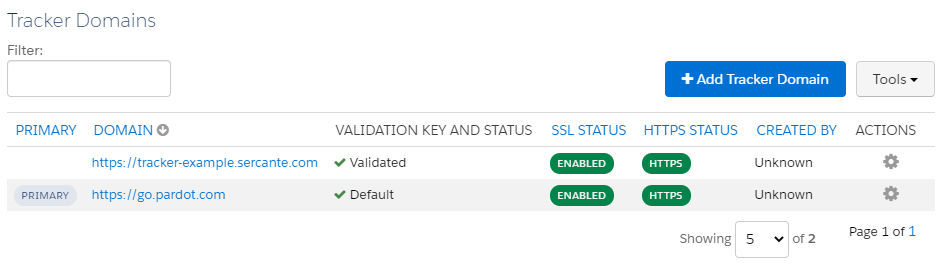
Next, go to Admin > Domain Management.

Look for the tracker domain you want to use First-Party tracking with, then click on the domain. In our example, we are going to turn it on for tracker-example.sercante.com.  

Note: First-Party Tracking will only work if the subdomain of the website in Pardot matches the domain of website you’re embedding the tracking on.

Example: for the subdomain www.sercante.com the domain is sercante.com, and for the subdomain tracker-example.sercante.com the domain also is sercante.com. The 2 match, so First-Party Tracking works.

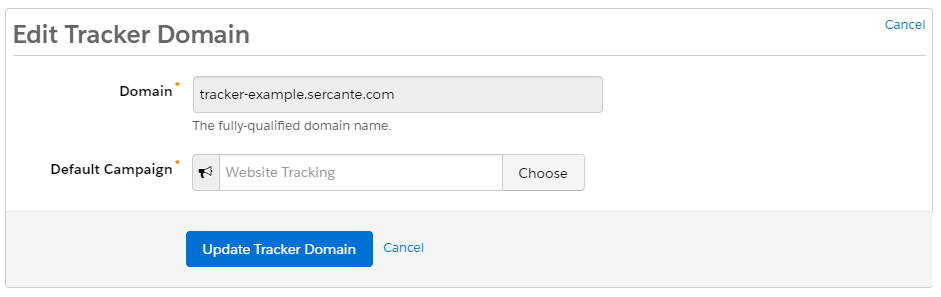
Click the gear icon to edit.

If you don’t already have a Default Campaign, choose one now.

Click Update Tracker Domain.

3. Put the first-party tracking code on your website

Ok great, now you have your Tracker Domain setup! It is time to get the tracking code that you will put on the website.

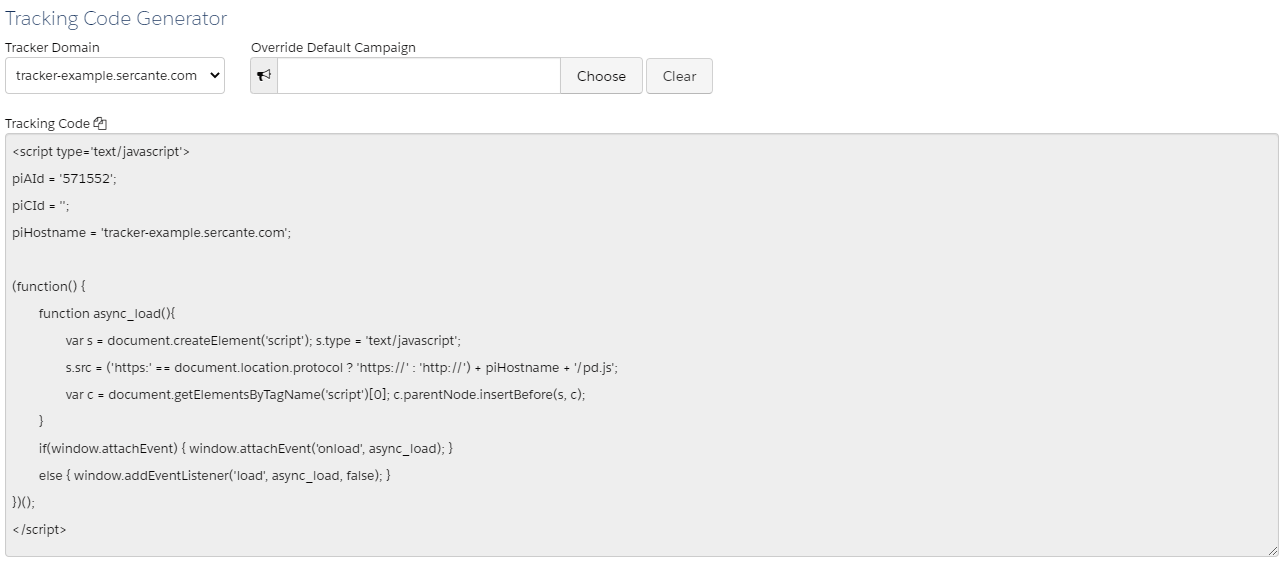
In Pardot, go back to your list of tracker domains. Scroll down to the bottom and there is a section for Tracking Code Generator.

Pick the tracker domain you want to generate code for, and optionally, change the campaign. Paste this code in your website CMS, Google Tag Manager, or wherever you currently have your Pardot tracking code placed.

What does this new tracking code do?

You may notice that this code looks slightly different than what you currently have on your website. What this code (Javascript) does is sets up 3 key pieces of information and then tries to load the actual Pardot tracking code.

piAId = your Pardot Account ID. This will not change for any tracking code used for this Pardot Business Unit / Instance

piCId = an optional override of the Campaign Id used for tracking the source campaign for new conversions

piHostname = the tracker domain that is used later in the script to download the real tracking code.

This is essentially what Pardot needs to track visitor activity on your specific website, linked back to your specific Pardot account.

Are there any gotchas with first-party cookies in Pardot?

If you have multiple domains, be aware that with first party cookie tracking, converting a prospect on one of your sites will no longer track prospect activity on your other website(s) automatically.

For example: the cookies at Sercante.com will no longer trace user activity at TheSpotForPardot.com. Both can have first party cookies embedded, but visitor association would need to take place on both sites to track prospects across both.

Wait, is this a good thing or a bad thing?

Both. And neither?

The move toward first party cookies poses new challenges for marketers, but is a win for data privacy and for us as individuals. While this is an optional change now, many browsers are starting to block third party cookies altogether or have announced timelines when they’ll start doing so — so better to get ahead of this now.

Firefox and Safari already block third party cookies. If you have a larger Safari/Firefox user base, this is exactly the magic we have been waiting for.

Chrome is not far behind. They delayed their timeline for rollout as a repreive for marketers during COVID-19, but are planning to gradually phase third part cookies out altogether.

Have you enabled it, and have a story to share? Thinking about enabling it, and still have more questions?

Let us know in the comments!

Pardot and Sales Cloud.  They’re made for each other. Like peanut butter and jelly, cookies and cream, whiskey and Diet Coke — both function better with the other tightly integrated. (more…)

I have never NOT been asked this question during a Pardot implementation:

“Wait, I don’t get it… what’s the difference between Salesforce and Pardot campaigns?”

Short story: they have the same name, but they’re totally different.  But this is FINALLY changing with some slick new features that are now generally available in their beta form. (more…)

Using Eventbrite to manage your events, and Pardot for your emails and marketing automation?

The good news: they integrate! The bad news: only sorta.

Let’s break it down.

Setting up the Pardot-Eventbrite connector

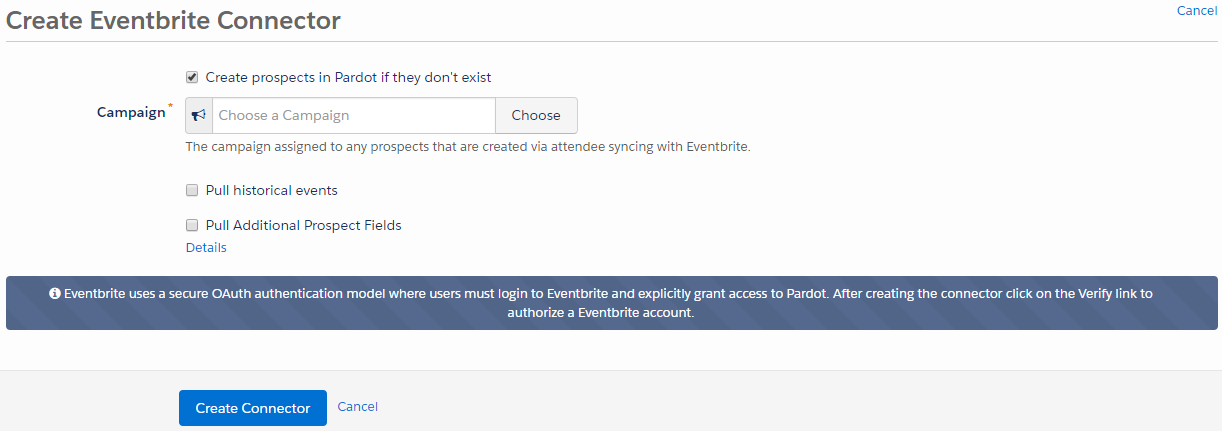
If you’ve been using Eventbrite to manage event sign ups and payment processing, it’s a piece of cake to set up Pardot’s out-of-the box connector.  Just navigate to Admin > Connectors, click the Add Connector button, and you’ll be prompted with this when you select Eventbrite:

Pardot Eventbrite Connector.png

After you save the connector, click “Verify” and it will ask you to authorize the connector to work with your Pardot account.  Then you’re off to the races!

What the Pardot-Eventbrite connector can do

The connector is one way – from Eventbrite to Pardot only.  Once configured, the connector will sync Eventbrite events into a prospect’s activity history, and create a new prospect record for any first-time attendees that aren’t yet in your system.

Easy-to-access reports from within Pardot let you monitor sign ups, and will even show whether they were checked in at the event.  You can also incorporate event attendance into your scoring model.

Key limitations of the Pardot-Eventbrite connector

You can’t use it in automation rules or completion actions

You can’t do some critically important things with the Pardot Eventbrite connector.  For example – for every major marketing initiative, I recommend clients set up a Salesforce campaign and leverage completion actions or automation rules to sync prospects to that campaign.

But Eventbrite can’t be referenced by either completion actions or automation rules.  So there’s no way to automate getting event attendees to the right campaign.

If you wanted to send prospects who register for an Eventbrite event to Salesforce campaign, you’d have to do it manually in Salesforce, or navigate to the event report in Pardot and use a table action to select attendees and send them to a Salesforce Campaign.

You can’t use it in dynamic lists for suppression

Eventbrite can’t be used in dynamic lists either.  So if you’re sending your event invites out through Pardot, but want to suppress people who have already signed up, you’d have to manually create the list to suppress using a table action.

It obscures campaign tracking

The Eventbrite connector can only be associated with one Pardot campaign.

And any net new prospects added by the Eventbrite connector will get added to that campaign, overriding any previous Pardot cookies that would have indicated an earlier “first touch.”

Alternative #1: Using Pardot-native forms

If you want to be able to access the full range of Pardot’s automation capabilities, consider using native forms to manage your event sign ups.  For really straight forward use cases, this actually works really well.  A couple of things to keep in mind:

No payment processing

There’s not a great way to do payment processing with native Pardot forms.  If this is a must have, stick with Eventbrite or another events tool.

Think about a process for adding guest RSVPs

If you’re hosting events that people are bringing guests to, design your forms accordingly.  A surefire way to wreck havoc on your Pardot cookies is to create a form that people submit, and then refresh to register another colleague.

If you expect people to bring guests, either add a field where they can key in “other guest” info, or create the form in kiosk mode so that visitor association doesn’t take place.

Adapt your campaign records in Salesforce to mirror your Eventbrite KPIs

If there are critical metrics you like to review in Eventbrite, work with your Salesforce admin to determine if/how to capture those in your Salesforce campaigns.  Could you set up a special record type with extra fields?

Alternative #2: The Eventbrite connector for Salesforce

Since the Pardot/Eventbrite interface leaves much to be desired, consider installing the Salesforce Eventbrite connector. This is free, but isn’t really supported by either party — so you’re kind of on your own when it comes to putting it into action (well, not totally on your own… feel free to reach out to me if you need help).

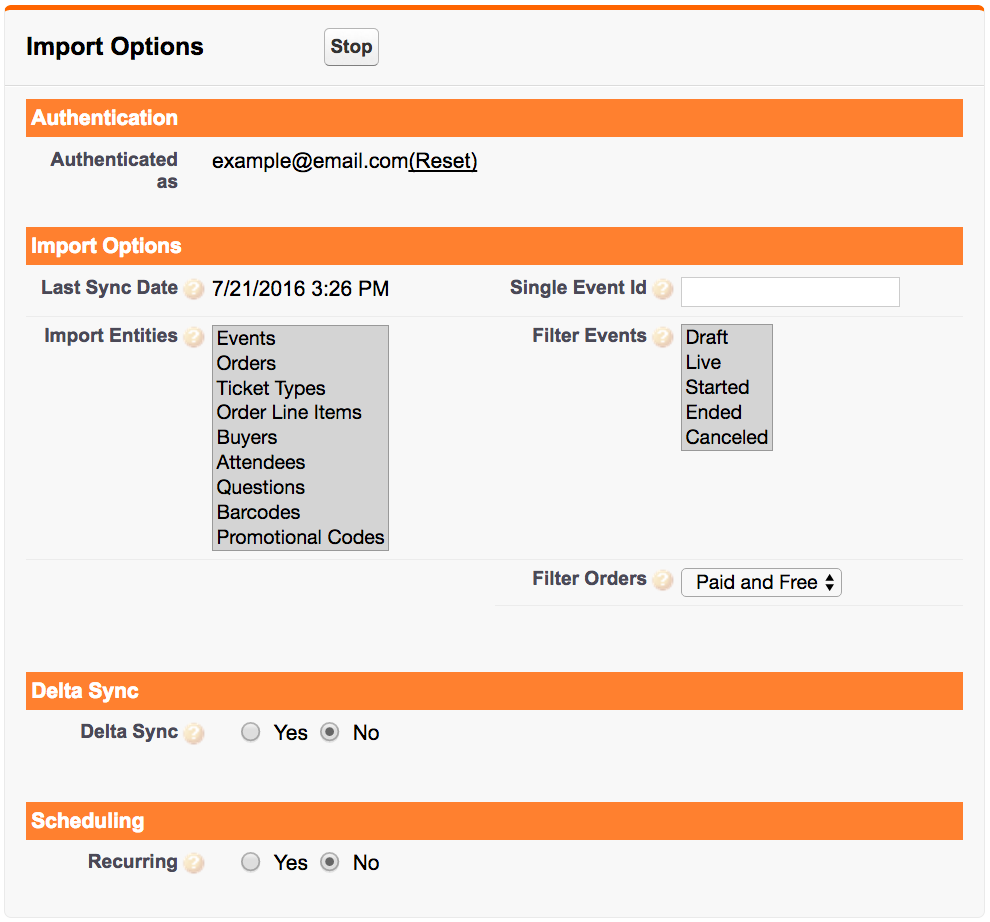
With this connector, you can sync more data from Eventbrite to Salesforce than you can from Eventbrite to Pardot:

Salesforce Eventbrite Connector.png

You can also control at the field level what information to bring over from Eventbrite.

When setting this up, you can map Events to native Salesforce Campaigns and Orders to Campaign Members.  From there, that campaign data will sync over to Pardot and you can reference it in automation rules, dynamic lists, and more.

Alternative #3: Build something yourself

When at first you don’t succeed… consider messing with the API.  Not for the faint of heart, but there is likely a custom solution you could develop if you have a unique workflow that is important enough to you to pay to automate.

Workato, Zapier, and other middleware providers offer tools that can make this easier for non-dev admins to try to take on.

How are you managing events in Pardot and Eventbrite?

What has been your experience with the Pardot Eventbrite connector? Any secret workarounds or tricks that I’ve missed? Let me (and your fellow readers) know in the comments!

No more posts to show