Category

New Features

Product Note: Marketing Cloud Growth and Advanced are editions of Marketing Cloud Next and have also been referred to as Agentforce Marketing.

In February 2024, Salesforce released Marketing Cloud Growth Edition, its first marketing automation platform built fully on the Einstein 1 Platform (a.k.a. “On Core”). Marketing Cloud Growth Edition has been rapidly evolving and expanding the features of this new solution ever since, and Account Engagement (f.k.a. Pardot) users are about to get a taste of it.

Update! In the Dreamforce ‘24 Marketing Keynote, Salesforce announced that all Account Engagement orgs can get Marketing Cloud Growth provisioned at no additional cost. Previously, this offer was only for orgs with Growth Edition Account Engagement, but it now includes all orgs with a current edition of Account Engagement. A banner notifying all Account Engagement orgs that they can now get access to Marketing Cloud Growth Edition was published on October 15th. This blog has been updated to reflect the most recent news around this offering.
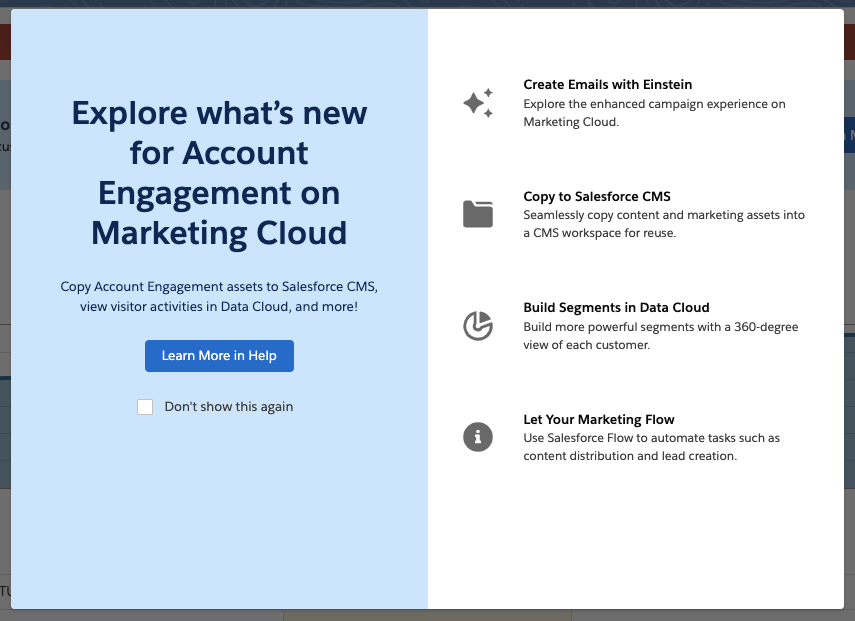
In this post, we’ll cover how to take advantage of the offer and use Marketing Cloud Growth alongside Account Engagement.

A Note on Naming

Now the naming of this new tool has caused quite a bit of confusion in the Salesforce community as it seems to change on a weekly basis. When launched, this new solution was referred to as “Marketing Cloud Growth Edition” or “Marketing Cloud on the Einstein 1 Platform”. During Dreamforce, Advanced Edition was announced, so this solution became “Marketing Cloud Growth or Advanced Edition” or “Marketing Cloud built on Data Cloud”. Finally, during the Winter ‘25 release, this tool started showing up in Salesforce documentation as just “Marketing Cloud” or the “Marketing Cloud App”, much to the chagrin of Marketing Cloud Engagement users. Now, if you are using Marketing Cloud Growth with Account Engagement, it is being referred to as “Account Engagement on Marketing Cloud” but also “Account Engagement powered by Data Cloud”.

Confused? Yes, me too. But all this is to say there is one new Salesforce Marketing tool that is built on core to bring users a truly unified marketing experience. For simplicity, we will continue to refer to this tool as “Marketing Cloud Growth” for this blog post.

What Account Engagement Users Need to Access Marketing Cloud Growth Edition

  1. A current instance of a Marketing Cloud Account Engagement
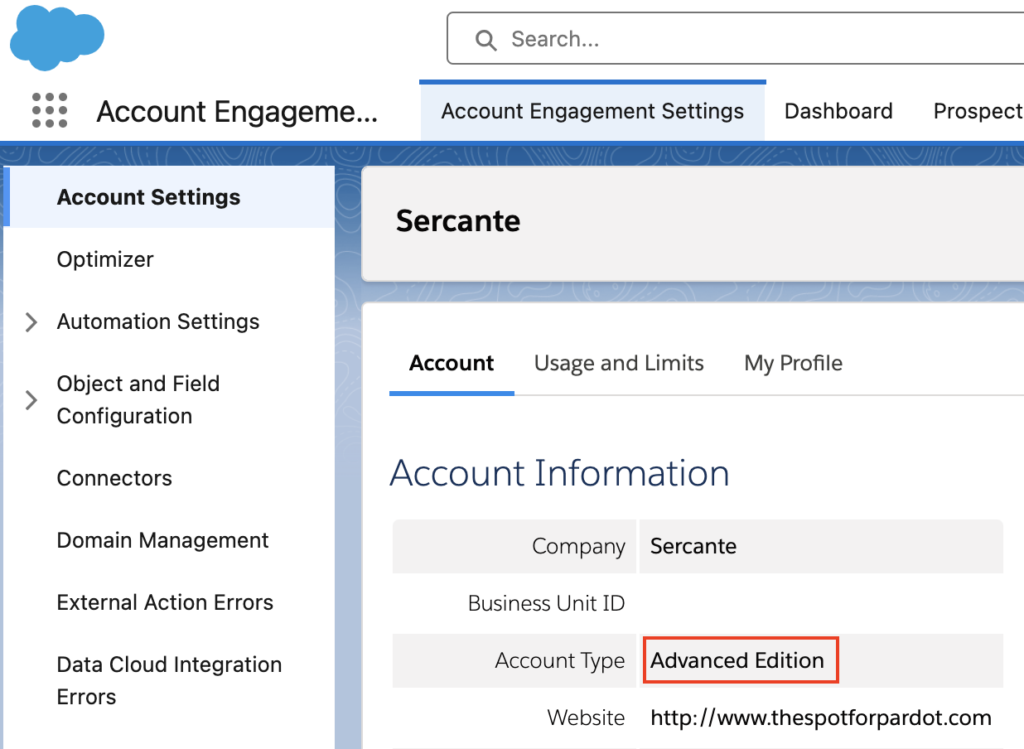
    This includes Growth, Plus, Advanced, and Premium editions of Marketing Cloud Account Engagement (MCAE). Your MCAE Admins can view your Edition by going to the Account Engagement Settings tab.
  1. Data Cloud
    Data Cloud not only unifies customer data for use within Marketing Cloud Growth, but also ensures data continuity between Account Engagement and Marketing Cloud Growth. Free Data Cloud is available for orgs with Enterprise and Unlimited Edition Salesforce customers. If you have a lower edition of Salesforce, check out more information on provisioning and access here.

    If you are brand new to Data Cloud or don’t have a Data Cloud Architect at your disposal, don’t fret! Marketing Cloud Growth comes with Data Kits that help map your Marketing and CRM Data to Data Cloud. The free Data Cloud SKU + Marketing Cloud Growth’s out of the box data kits will cover everything most orgs need to get started, but if you’d like assistance with additional Data Cloud Data Streams or want to dive into more advanced Data Cloud use cases, we’re happy to help!

Data Cloud Credits

Marketing Cloud Growth uses Data Cloud’s credits to fuel its activities. So, although MCAE users will get Marketing Cloud Growth at no additional charge, orgs still need to purchase credits to fuel Marketing Cloud Growth. Think of it like you’re being given a car, but you still have to purchase the gas to make it run.

If you’re new to Data Cloud’s consumption model, our previous blog post and this Trailhead module will help give you an idea of how this works and the different types of credits available. If you’re using the Free Data Cloud SKU to get started, note that this does include some credits to fuel data ingestion and unification. However, orgs will need to reach out to their AE to purchase the credits that fuel sending emails, sending SMS, compiling Segments, and using Einstein.

You don’t necessarily have to purchase these credits before implementing Marketing Cloud Growth for testing purposes, but you may be limited in the features you can play around with without them.

Getting Started

Here are a few things to keep in mind as you start using Account Engagement and Marketing Cloud Growth side by side.

Understanding Consent and Subscriptions

Consent works a little differently between the two systems. 

Account Engagement has a permission-based marketing policy, meaning that although there is no default “Opt-in” field, users must certify that they only contact prospects who have expressly consented to receive marketing communications. 

In Marketing Cloud Growth Edition, consent is a bit more rigid. To send marketing communications, each prospect must have a Consent Record comprising of:

  • The Contact Point (email or phone number)
  • The Marketing Channel (Email, SMS, etc.)
  • The Communication Subscription (Webinars, Events, Product updates, etc.)
  • The Date and Time the prospect opted in

More considerations for Consent and Subscriptions are available in this Salesforce Help article

Import Consent Data

Before you import consent data, make sure the contact point exists in Marketing Cloud Growth Edition. A consent import can update consent information for existing contact points, but it can’t create new leads or contacts or update other fields (at least as of the Winter ‘25 release).

First, export your list from Account Engagement:

  1. In Account Engagement, navigate to Prospects > Segmentation > Segmentation Lists
  2. Locate and open the preference list you would like to import into Growth
  3. Select Tools
  4. Select CSV Export

You’ll need to format your export before importing it into Growth, see this help article for guidance

Start Your Import

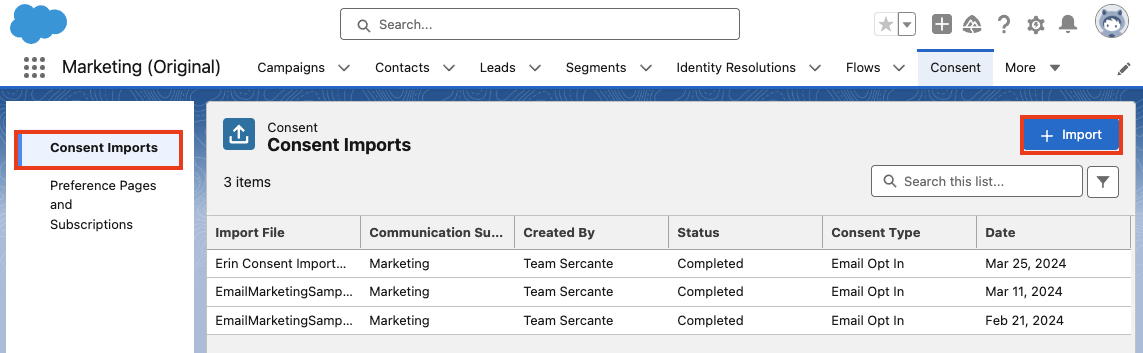
  1. Within Marketing Cloud Growth, navigate to the Consent tab
  2. Ensure you are on the Consent Imports tab, then select + Import
  1. Select your Channel, Communication Subscription, and whether this list is opted in or opted out
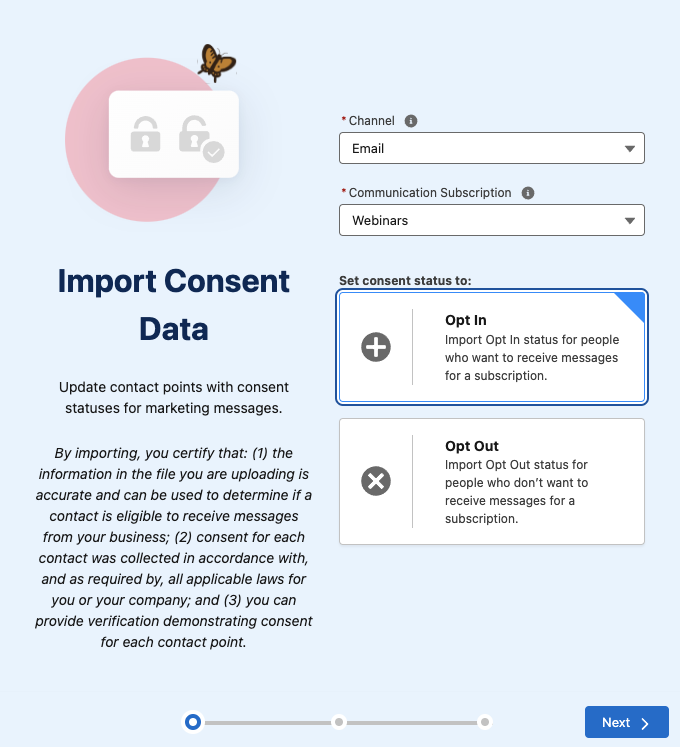
  1. Select Next
  2. Upload your CSV, select Next
  3. Review the import preview and select Import
  4. Select Done

Send Account Engagement Images to CMS

Use images in both Account Engagement and Marketing Cloud Growth by enabling “Copy to CMS”.

  1. In Salesforce, navigate to Marketing Setup > Copy to CMS
  2. Use the dropdown menu next to your Account Engagement business unit to select Enable
  3. Repeat for additional Account Engagement business units

This will create a CMS Workspace named, “Content Workspace for Marketing Cloud Account Engagement – Copied Content – [business unit name]”. To avoid issues, do not change the workspace name or remove the B2BMA Integration user as a contributor. 

Copy Images from Account Engagement to the Growth Edition CMS Workspace

Next, you’ll need to copy the images from Account Engagement to your new CMS Workspace. 

  1. In Account Engagement, navigate to Content > Files
  2. Use the checkboxes on the left-hand side to select the files you would like to move. Once selected, use the dropdown menu at the bottom of the table to select Copy to CMS 
  3. Select Go

Use the New Growth Edition Email Editing Experience

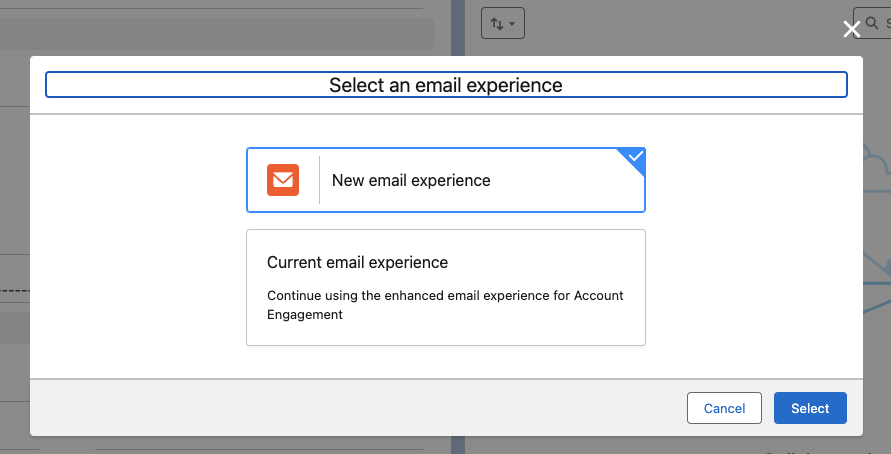
Now you can build emails that are available in both Account Engagement and Growth Edition. When creating or editing Email Content in the Lightning Email Builder, select New Email Experience to use Marketing Cloud Growth Edition’s editor.

Account Engagement Campaign Considerations 

Account Engagement and Marketing Cloud Growth Edition cannot currently share campaigns, so you’ll want to have distinct naming conventions to easily identify which campaigns belong to each platform. You can also keep Marketing Cloud Growth’s campaigns from syncing to Account Engagement by creating a new campaign record type for Growth. 

Read more about Campaigns for Marketing Cloud Growth in this help article. 

Using Account Engagement & Growth Edition Together

Current users of Account Engagement probably have long-standing engagement studio programs that are set up to run on a recurring basis. Account Engagement thrives in this situation and provides flexibility for enrolling prospects and ensuring that the marketing journey you want to happen actually happens. Let’s look at instances where you can use this existing functionality with all the bells and whistles Growth offers.

Use cases for combining the two platforms

  1. SMS functionality. In Account Engagement, You may have a pre-existing engagement studio program set up for every event your company puts on, thanking attendees for joining and sharing pertinent details. If you want to send a reminder text message to people who have registered for the event, you can now take advantage of native Marketing Cloud Growth functionality to do so.
  1. Using cross-object personalization. Say you have a recurring monthly email sent out to your customers letting them know their account status, YTD savings with your company, and other information pertinent to the customer on an ongoing basis. If this information is stored within custom objects, it’s difficult to populate an Account Engagement email with those details. With Marketing Cloud Growth Edition, users can create Data Graphs for cross-object personalization, allowing marketers to personalize emails with data from any object. 
  1. Custom processes for post-form-fill actions. Another great example of how you can use Marketing Cloud Growth Edition alongside Account Engagement is when you want to implement a custom process when someone submits a form.

Since Growth uses Flow for automation, the actions taken after a form is completed can be customized to each unique need. For instance, you can standardize field values or send data to several objects within Salesforce before the Lead/Contact record is updated. 

There you have it

You are now ready to start experiencing Marketing Cloud Growth Edition. The future of Salesforce marketing is bright and evolving every day.

Stay tuned for Growth’s next iterations. In the meantime, use these resources to get started:

If you need help implementing or learning how to use Marketing Cloud Growth Edition, send us a message!

The Salesforce Summer ’24 release notes have arrived, and with them, the delivery of one of the most highly sought-after Marketing Cloud Account Engagement (MCAE/Pardot) features ever requested. In fact, sending operational emails in Engagement Studio functionality has garnered the fifth most points in the Account Engagement category on the IdeaExchange.

What is an Operational Email?

An operational email is informational and is distinct from a marketing email. Erin Duncan has written a great article that goes in-depth about the differences between the two and when it is appropriate to use each.

When an email is marked as “operational,” it bypasses the recipient’s opt-in status and will send the message even if the subscriber has opted out. You must only use operational emails for their intended purpose, as this can affect your sending reputation and put you on the wrong side of the CAN-SPAM Act.

How Do I Enable Operational Emails in MCAE?

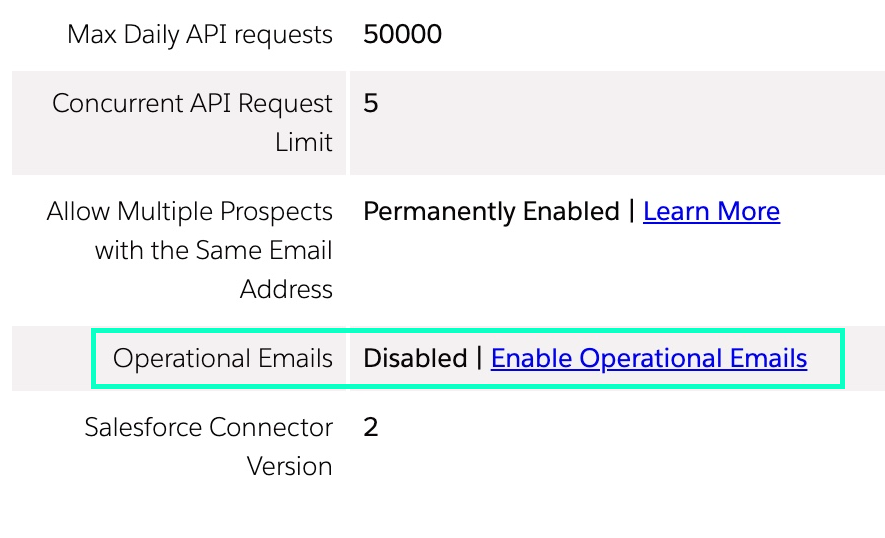
  1. Navigate to Account Engagement Settings 
  2. Click Enable Operational Emails
  3. Review the restrictions associated with sending operational emails and confirm your selection 

Keep in mind that only Account Engagement Admin users and custom user roles can send operational emails.

Sending Operational Emails with Engagement Studio

Previously, operational emails could only be sent from list sends. This required selecting an audience, building email content, and manually sending at a single point in time. Now, users can send operational emails directly from Engagement Studio, where recipients are enrolled based on user-defined criteria and emails are automatically sent based on your parameters.

Let’s put this into practice. Imagine you are a SaaS company and need to deliver communications regarding your product’s planned system outages. Instead of setting up multiple operational list sends, you could create an Engagement Studio program to automate the outage and issue-resolved notifications to your selected audience.

Another example could be letting your customers know that their product’s license is about to expire. You could create an Engagement Studio program that could send notifications to let them renew their product on a more time-based cadence. Once the Engagement Studio is set and running, you do not need to reconfigure manual email list sends.

Other use cases could include:

  • Renewal or expiration reminders
  • Order updates
  • Event registration reminders
  • Internal employee onboarding

As with all effective communications, using operational emails in engagement studios will take planning. You will need content to create your emails, data to ensure that the right emails are being sent to the right person, and, most importantly, compliance with the Marketing Cloud Account Engagement Permission Based Marketing Policy.

What are the limitations?

Salesforce has provided a list of limitations for using operational emails in Engagement Studio:

  • If a program is running and the Operational Email setting is disabled, operational emails aren’t sent. Prospects skip those steps and proceed to the next one.
  • If a program with a Send Operational Email card is paused and the account setting is disabled. To restart the program, remove the steps or re-enable the Operational Email setting.
  • If a program with a Send Operational Email card isn’t running and the account setting is disabled, the program can’t be started or resumed. To start or resume the program, you must re-enable the setting or remove the step.

One Small Step for Email Marketing, One Giant Leap Forward for Efficiency

This is a huge improvement in saving marketers time and improving customers’ experiences with your brand. It ensures that customers can receive mission-critical information at the right time without having to manually and tediously configure the email sends.

How do you plan on using Engagement Studio to send operational emails? Let us know in the comments.

The Salesforce Summer ‘24 Release is on its way! Let’s dive into the top declarative features and updates for admins.

In line with messaging from Salesforce, the Summer ‘24 Release includes new and enhanced features that all center on the relationships between CRM, data, AI, and trust.

Salesforce Summer ’24 Highlights

Security & Access

Get a Summary of a User’s Permissions and Access

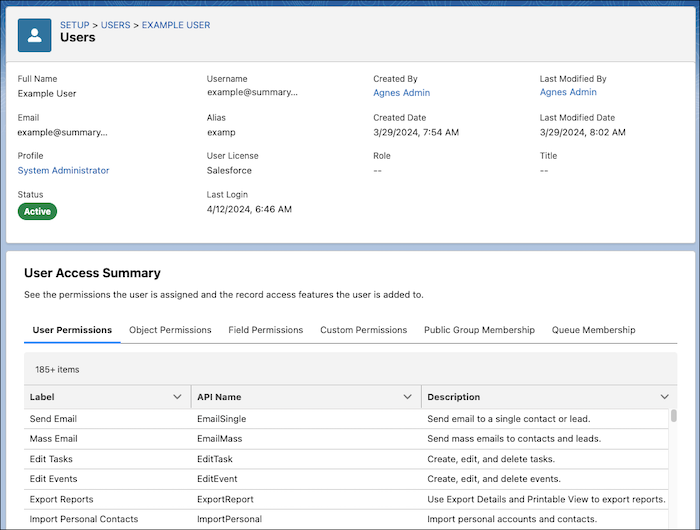
Viewing what access a user has will be easier with the User Access Summary. Accessible directly from the user details record, you can see what a user has access to without having to spend multiple clicks checking each profile, permission set, public group, or queue.

Other great Security & Access Updates:

Customization

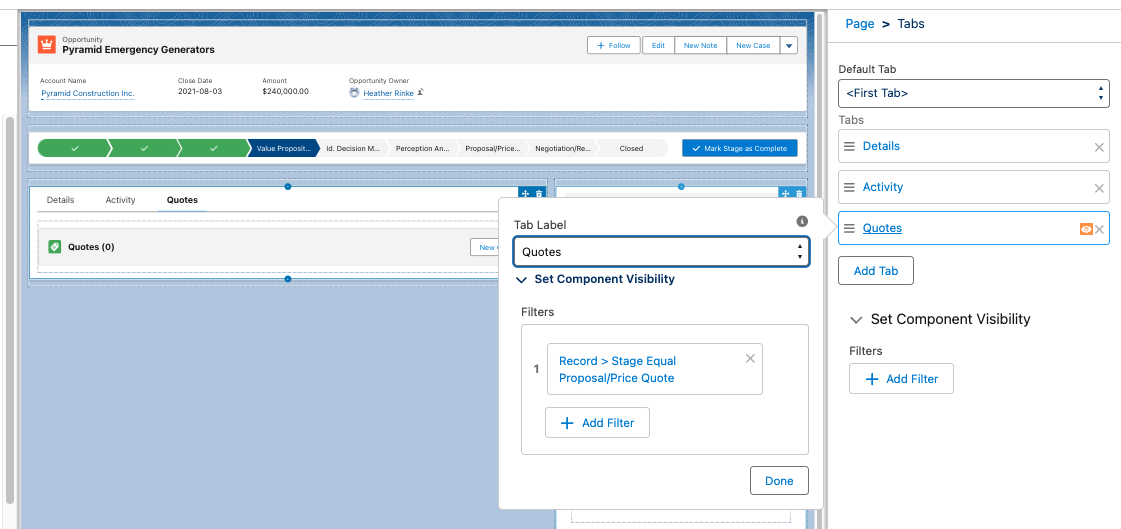
Set Conditional Visibility for Individual Tabs in Lightning App Builder

Now you can control visibility to tabs and their contents in the Lightning App Builder, based on specific criteria, giving you another tool to customize the user experience, and what users can see and when. 

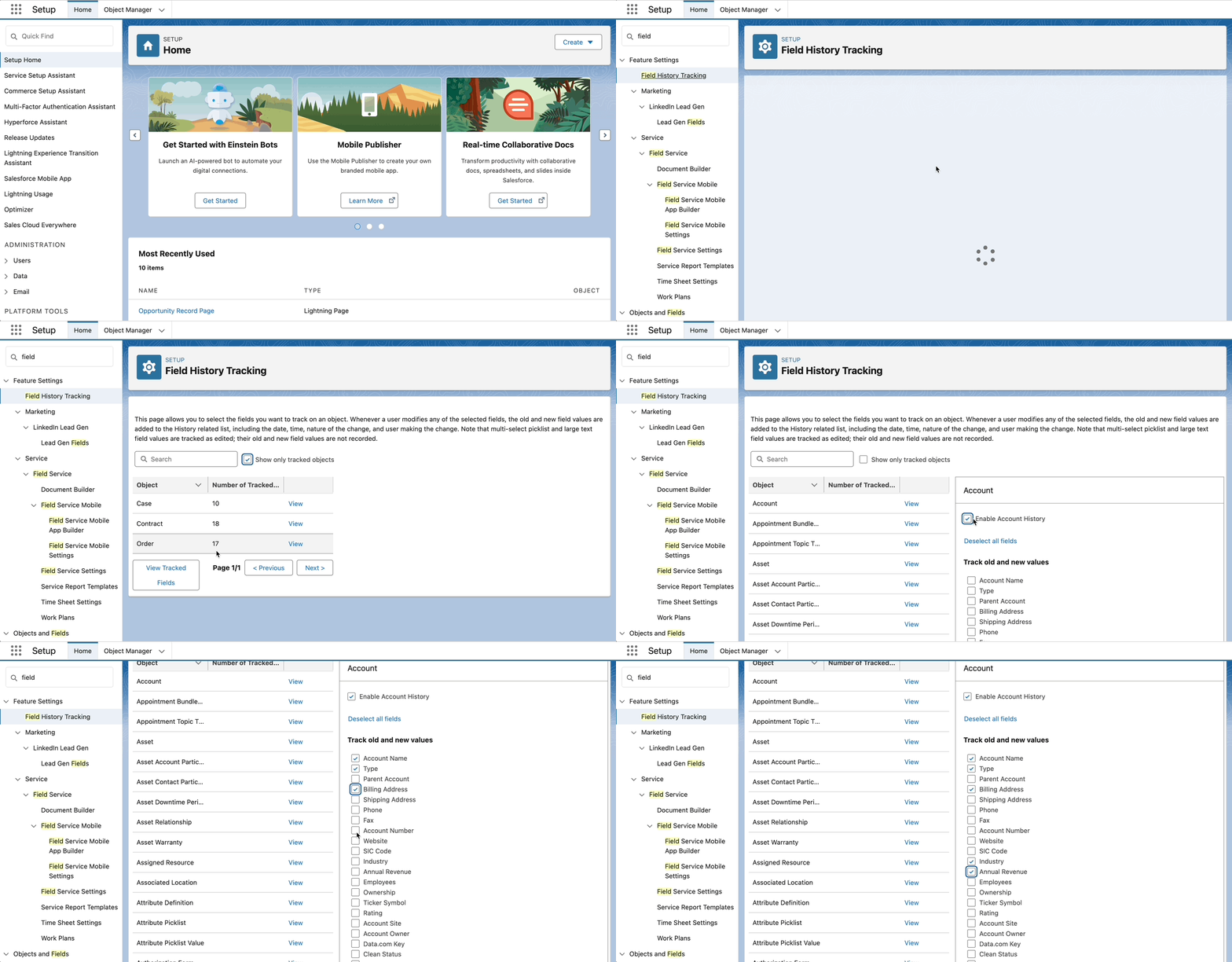
View Field History Tracking from Setup

Admins can now view and control field history tracking across objects in on place, from the Setup menu. From here you can view and control the objects that have tracking en tracked, and enable, view and update the fields. 

Other Customization updates worth mentioning:

Sales Productivity

Do More in the Intelligence Views

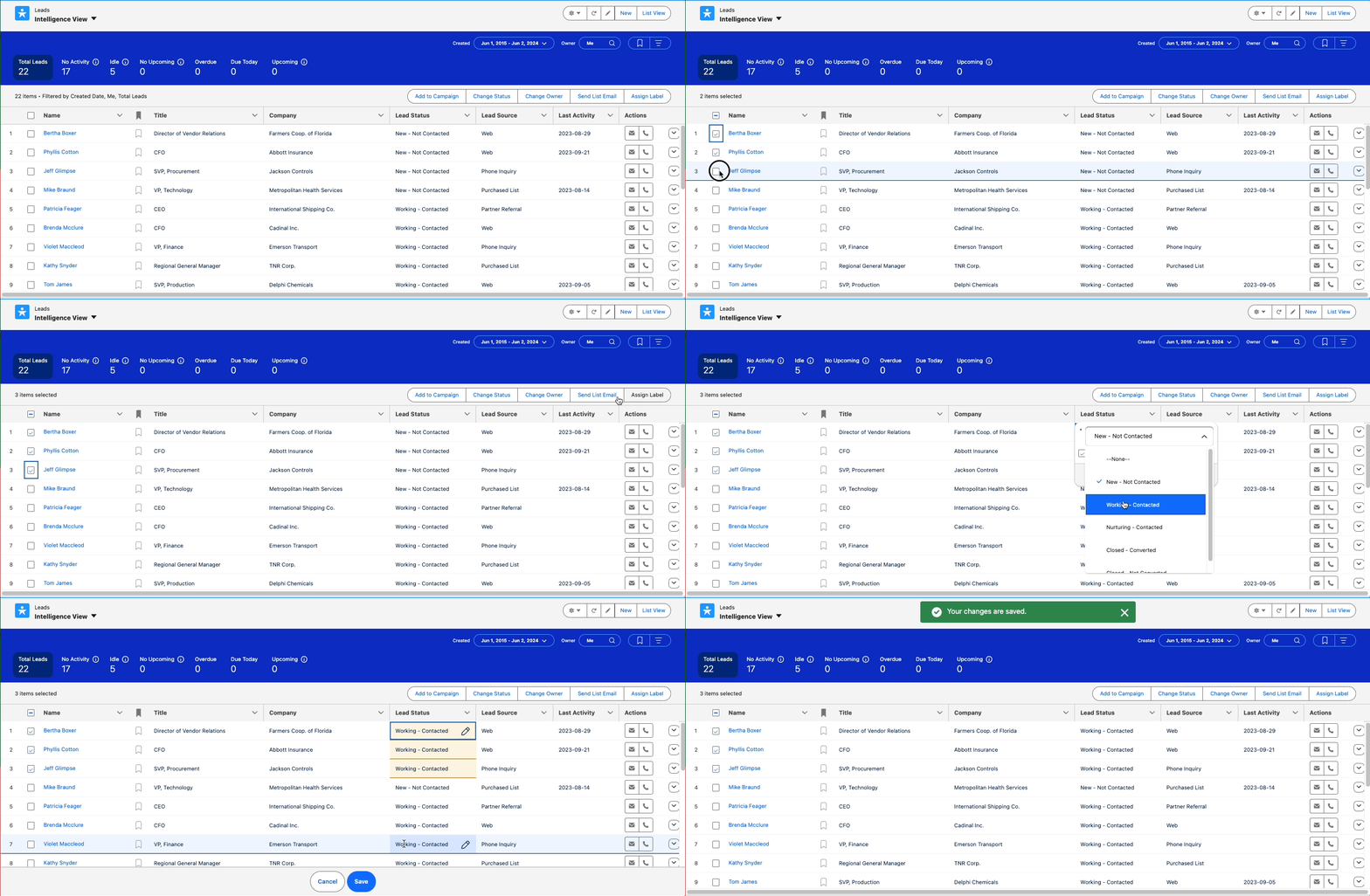
More functionality is coming to Account, Contact, Lead and Pipeline Intelligence views to help users do more in one place. Now it’s possible to perform mass actions like Add to Campaign or Send Email, and inline editing of the same field, from these Intelligence views.

Organize and Find Records Easily with Personal Labels

Users can apply their own private labels to records to help them organize, track, and find the records they need quickly and easily. Labels work on several objects including:

  • Account
  • Campaign
  • Contact
  • Case
  • Email Template
  • Lead
  • Opportunity
  • Task
  • …and more

The once added to the page layout, a Labels related list will appear on the record page, allowing users to add their labels. Then the Labels tab provide a view to all of the records that have that Label applied.

Note: Users will need access to the Labels object. This is enabled by default in standard profiles but will need to be granted in custom profiles or permission sets.

Flows

Flow Management 

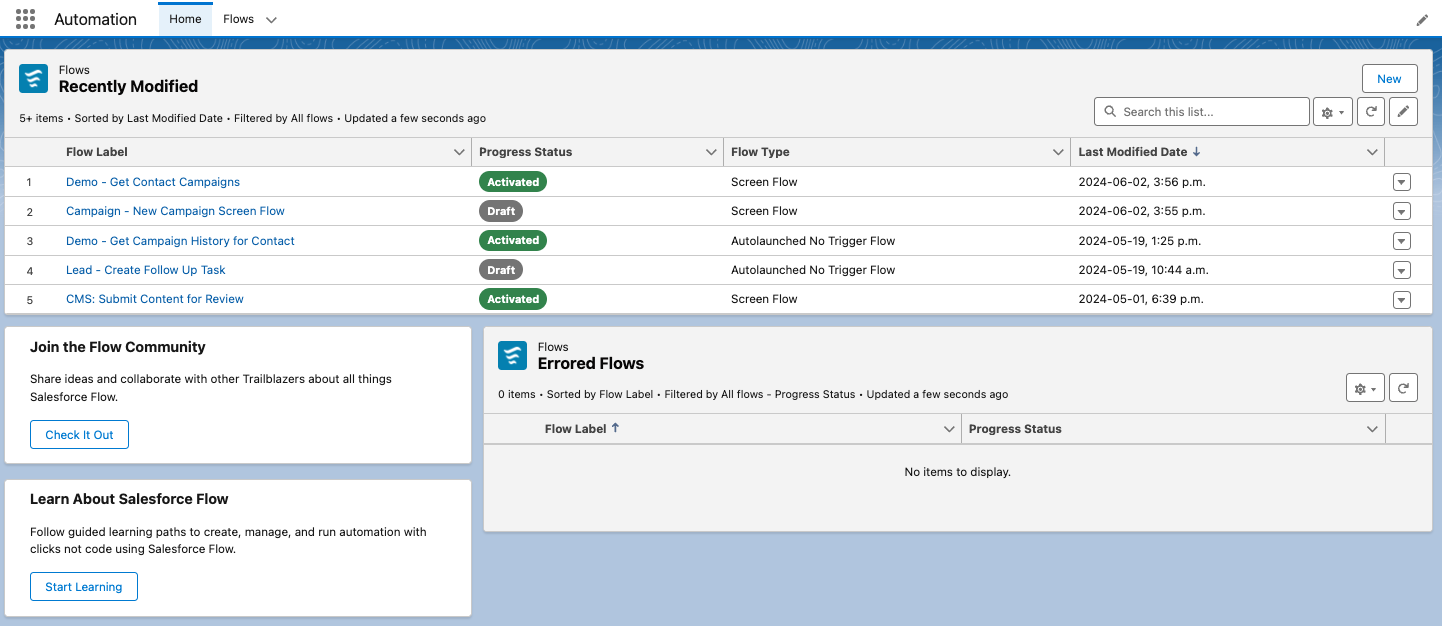
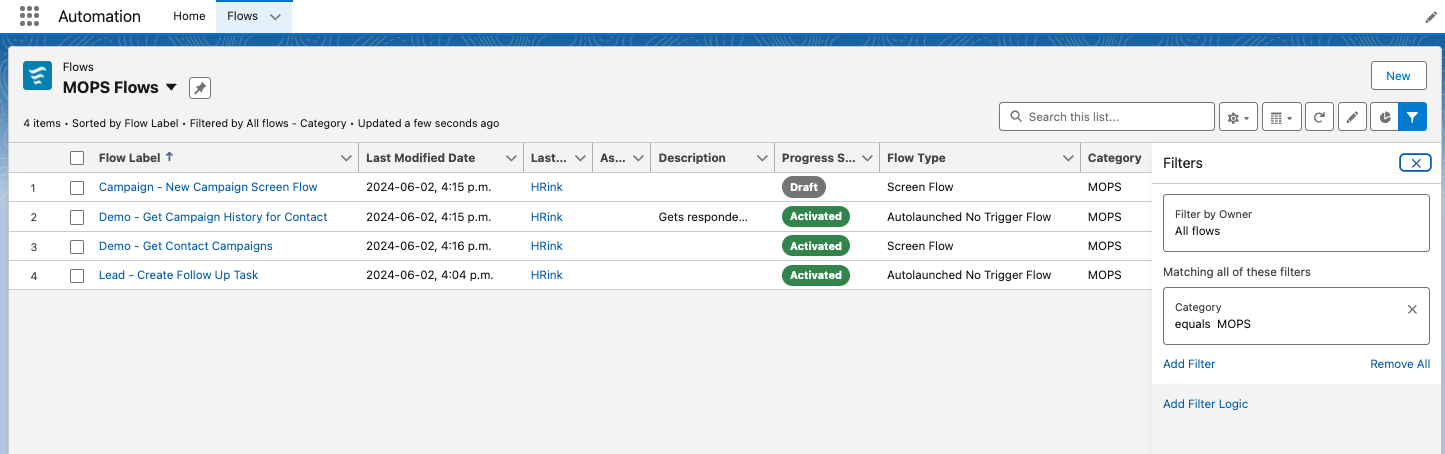
Automation Lightning App

The Automation Lighning App includes a Home page showing recently modified flows, and flow errors, as well as quick links to flow topics on Trailhead and to the Flow Community. 

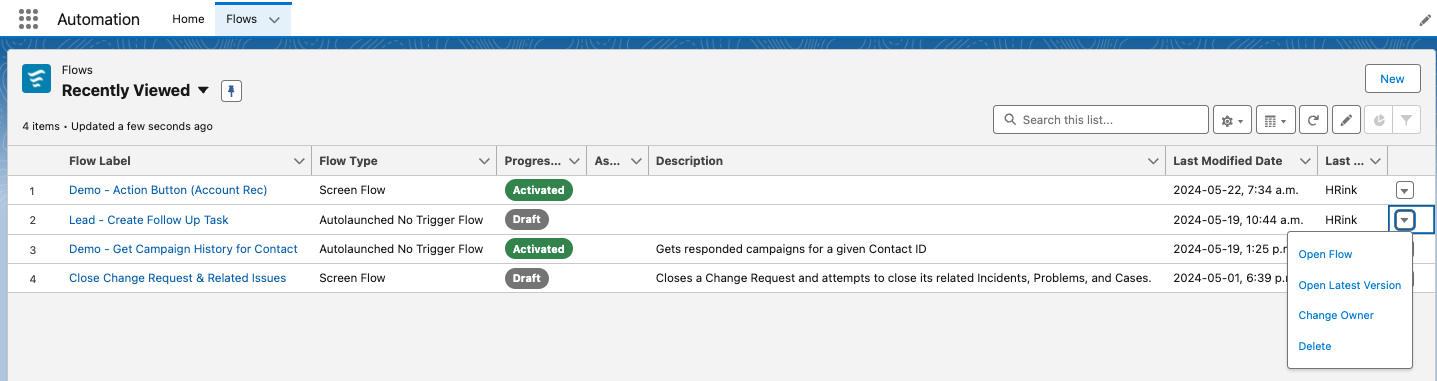
The app also includes a Flows tab where list views to access standard and custom list views of existing flows. From here you can open a flow, open the latest version, change the owner, or delete the flow.

Note you may have to enable this features from Setup > Process Automation Settings, and checking the Enable the Automation Lighting App checkbox.

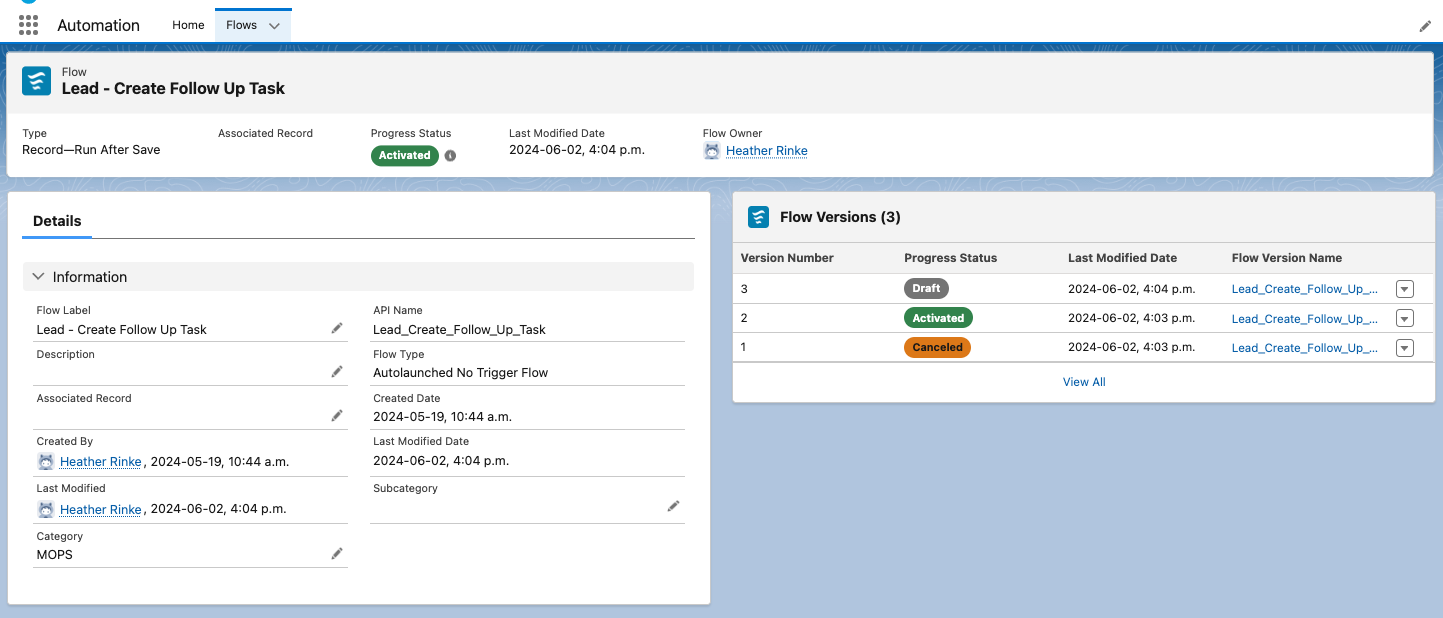
View Flow Details from a Lighting Page

When using the Automation App and list views, you’ll notice that clicking on a flow shows the details on a Lightning record page. This lets you take advantage of customizing your page layout as I’ve done in the screenshot below. 

Organize Your Flows Based on Categories and Subcategories That You Define

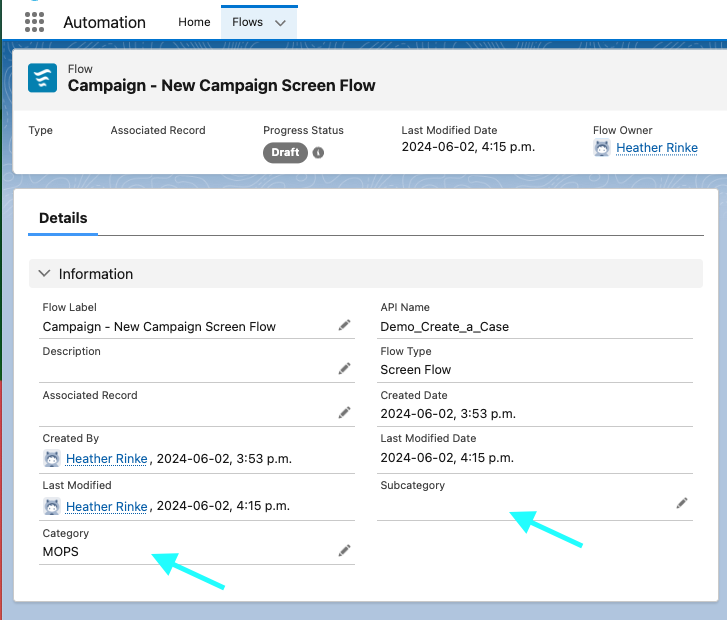
Another new flow admin feature, new Category & Subcategory text fields are now available on the Flow object, and accessible when creating custom list views, which can be a handy tool for organizing long lists of flows. 

Control User Access to Specific Flow Elements

Use new permissions to enable users who don’t have the Manage Flows permission, to use specific flow elements when building segment-triggered and form-triggered flows. Elements supported include:  Assignment, Collection Filter, Collection Sort, Delete Records, Get Records, Loop, and Subflow. 

Keep in mind that these permissions are available for Enterprise and Unlimited Edition with Marketing Cloud Growth. 

Flow Builder

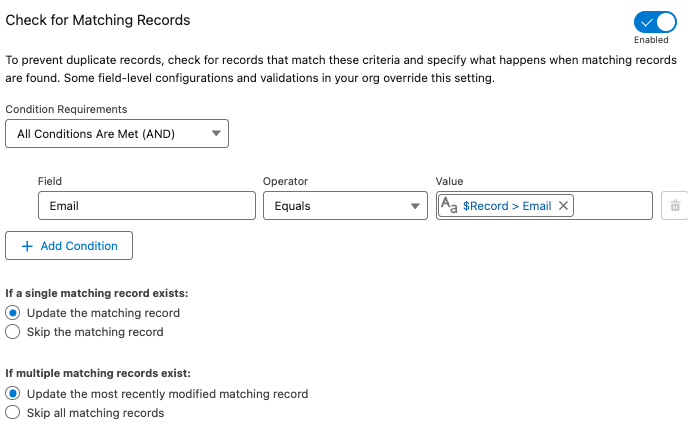
Check for Duplicates Before Creating Records in a Flow

The Create Records element in flow just got more intelligent for preventing duplicates. Now you can first check to see if another record with specific criteria exists before creating a new record.  If an existing record is found, the field values are applied to the existing record, otherwise a new record is created. 

Before you would have to use a Get element to search for an existing record and a decision to check if anything was found before creating a new record. Having this all rolled into one element makes the flow build and maintenance much simpler and more efficient.

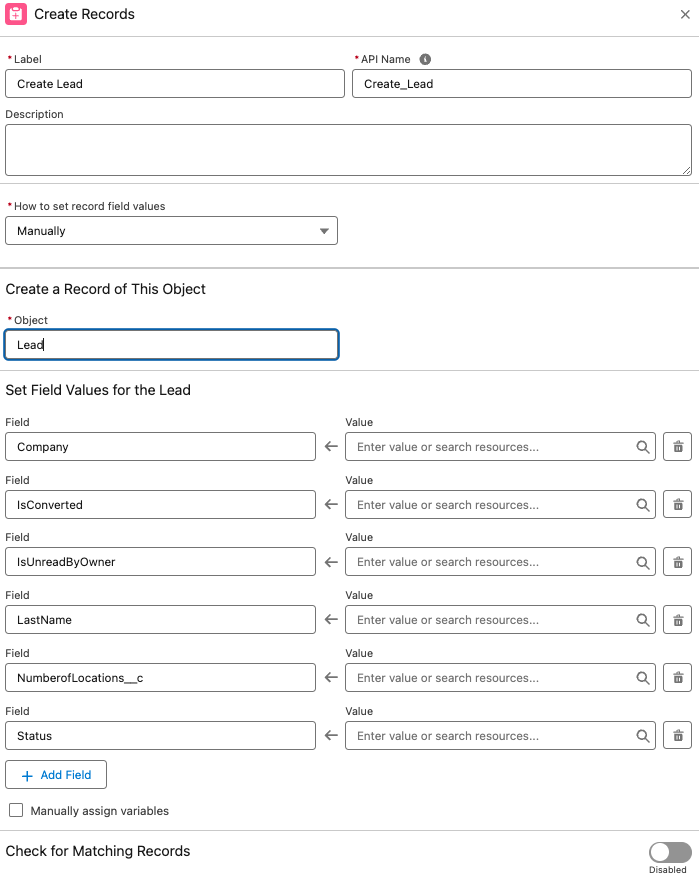
Required fields automatically added for Create elements

Another cool feature spotted in the pre-release org is that Create elements also automatically include required fields.

I didn’t see this feature mentioned in the Release Notes, but as this could be a super helpful I’m hoping it will turn up in the Release. Admins can probably relate to the headache of building a flow that creates a record, hitting error when a required fields are not included, then having to go back the flow to make sure that field is populated… maybe more than once!

A couple of notes to consider for this to be useful: 

  • Only fields that are marked required at the field level are included. Fields that are flagged as required on the page layout are not included. 
  • Also, the element may include other non-required fields. For example when creating a Lead, the IsConverted and IsReadbyOwner fields were also added to the element automatically.  This may be something only seen in the pre-release org, so it may look a bit different in the actual release.

Other cool Flow Builder Updates:

Screen flows

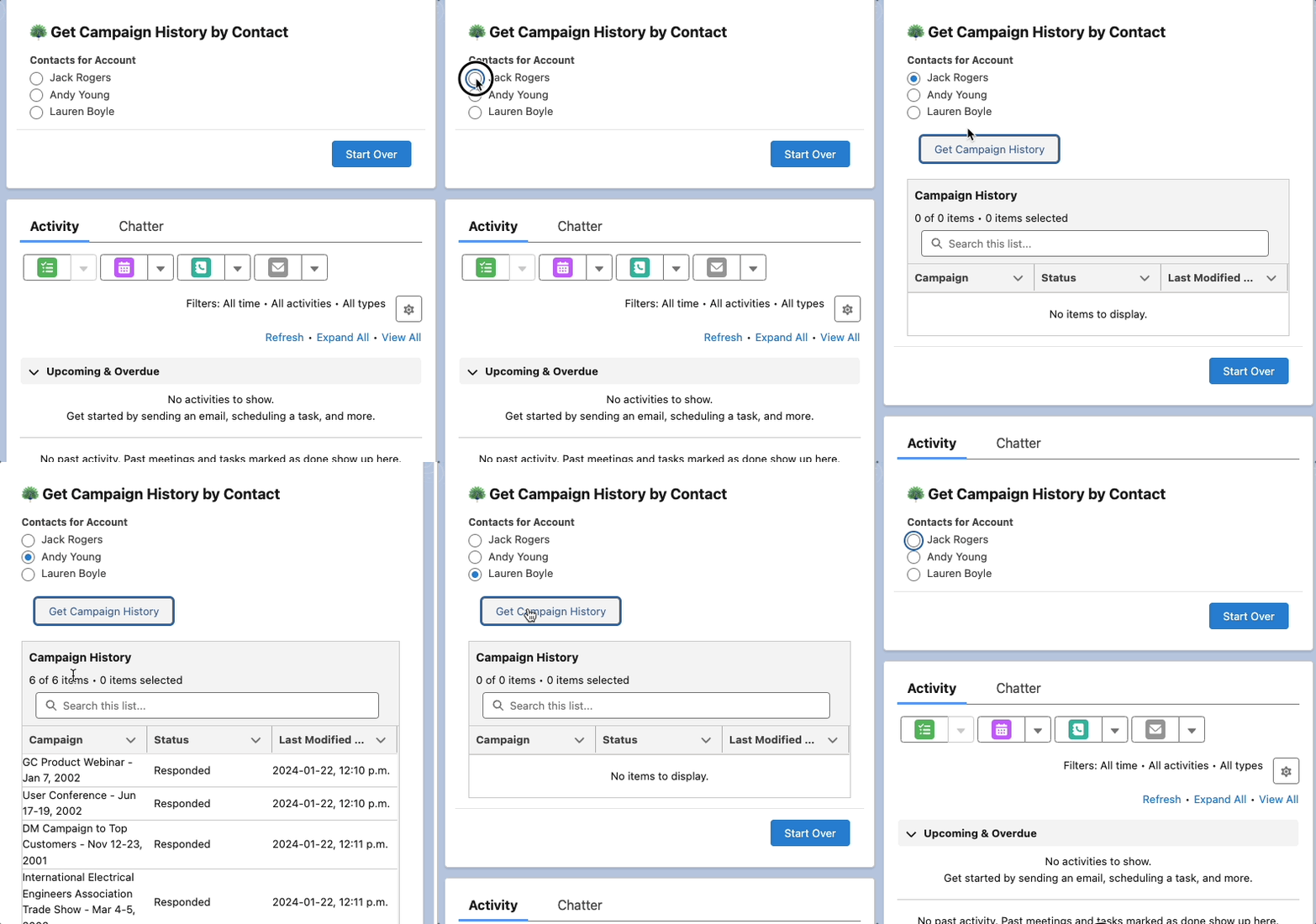
New Action Button Component (Beta)

Now you can Add an Action Button to a flow screen to run and retrieve information from an active autolaunched flow, without leaving the screen. This is a huge win for creating a better user experience. Before you’d have to use one screen to collect some information, then click next to do the necessary actions and display the output on a second screen. 

Other Updates

Other Notable Updates

A few other updates in this release that are worth noting.

Default No-Reply Email Required

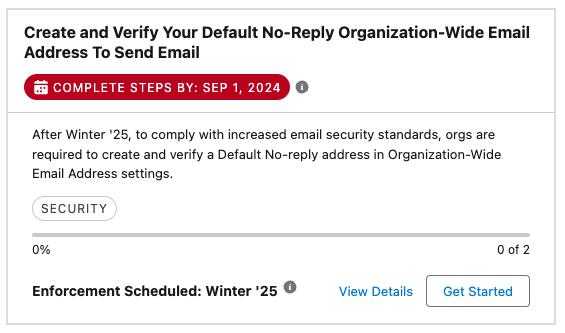
To stay in line with increased email security standards, orgs are required to create and verify a Default No-reply address in their Organization-Wide Email Address settings (replacing [email protected]). This will affect any orgs that send emails from Salesforce. Think automated emails like Lead or Case assignment, or even emails sent from a flow. This is will be enforced starting in Winter’25, meaning that some emails may not send, so its a good idea to set up a default no-reply email address sooner rather than later.

Get Ready for the Salesforce Summer ’24 Release

This is just a handful of platform features planned for the Salesforce Summer ‘24 Release. If you’re interested in diving in to learn more about the updates in this release, I highly recommend reading through the full release notes

You can also check out our post on the Salesforce Summer ’24 Release for Marketing Cloud Account Engagement (Pardot) here.

Which Salesforce Summer ‘24 features have you the most excited? Let us know in the comments!

Salesforce Summer ‘24 release notes are out! Let’s dive into the latest features Account Engagement marketers need to know about. 

Send Operational Emails with Engagement Studio

Marketers can now send Operational (aka Transactional) emails via Engagement Studio Programs! This is a game changer for any orgs that need to send renewal reminders, shipping notices, invoices etc. through Account Engagement. To use this new feature, ensure Operational emails are enabled in your Account Engagement Business Unit and make sure you’re familiar with what does, and does not, count as Operational. 

Copy Images from Account Engagement to CMS

Salesforce CMS workspaces rolled out for Account Engagement users with the Lightning Builders. However, if you are using both the Classic and Lightning builders, you’ve likely struggled with your content being in two places. With this new feature, you can easily copy images from your Account Engagement Business Unit over to CMS to help ensure everything is in one easily accessible place. 

View in Account Engagement Optimizer

If you’re not yet using the Account Engagement Optimizer, I highly recommend checking it out. This feature provides critical insights into the performance of your Account Engagement Business Unit and highlights actionable measures to keep your org running smoothly. With the Summer ‘24 release, a new messaging section is being added to Optimizer to make it even easier to view alerts and feature recommendations.

Misc Updates

Which Salesforce Summer ‘24 update are you most excited about? Let us know in the comments!

Product Note: Marketing Cloud Growth and Advanced are editions of Marketing Cloud Next and have also been referred to as Agentforce Marketing.

Even though Marketing Cloud Growth Edition just launched in February, it’s already receiving a ton of new features as part of the Salesforce Summer ‘24 release! I feel like this will be par for the course for Growth Edition and I personally cannot wait to see what this application will be able to do by Dreamforce. Below are just a few of the highlights coming to Growth Edition in the upcoming release. 

Updated Flow Functionality

Flow functionality for Growth Edition is, well, growing as part of the Summer ‘24 release. Users can now create Marketing Consent records directly from form fills, set criteria for when records should exit a Flow, and check for and manage duplicates. Data Graph attributes can also be pulled in, allowing Marketers to work with related objects within their Flow logic. 

Cross Object Personalization

Personalize your marketing assets with data from related objects! If you’ve ever wanted to pull in a Record’s Account Owner’s information or their most recent Opportunity details to personalize your marketing asset, you’ve likely experienced how this is a more complex ask than most people think. However, with the help of Data Cloud Data Graphs, Marketers can now add other objects and fields as related attributes and then use those attributes as merge fields within the Flow.

Work More Efficiently With Campaigns

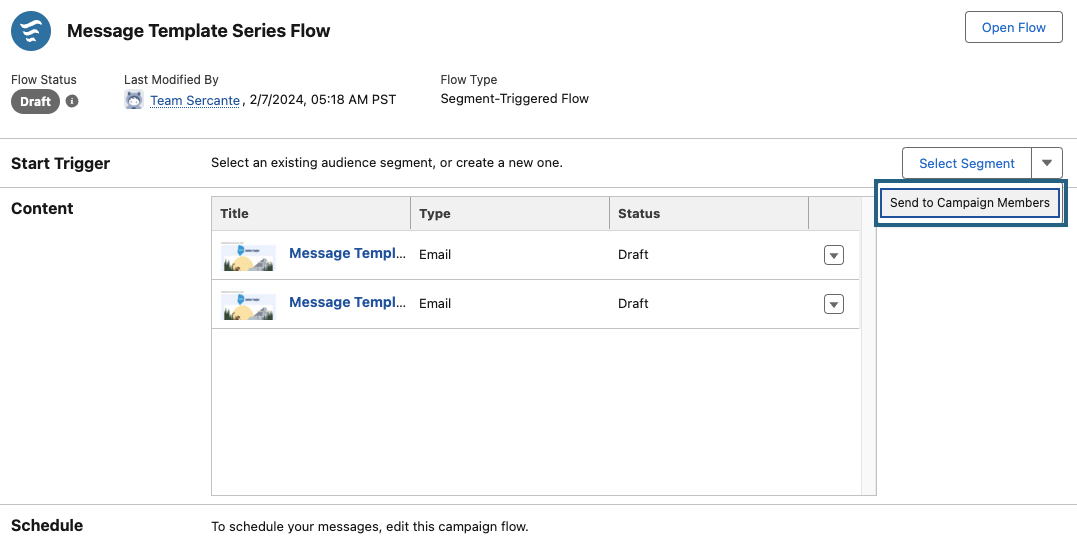
Campaigns continue to be a central part of any Marketing initiative. With the Summer ‘24 release, Growth Edition is getting a few new functionalities that will make working with Campaigns even more seamless. Users can now add templated flows to campaigns, easily preview and test campaign content, and quickly send communications to Campaign members. 

Brand Guidelines are Generally Available

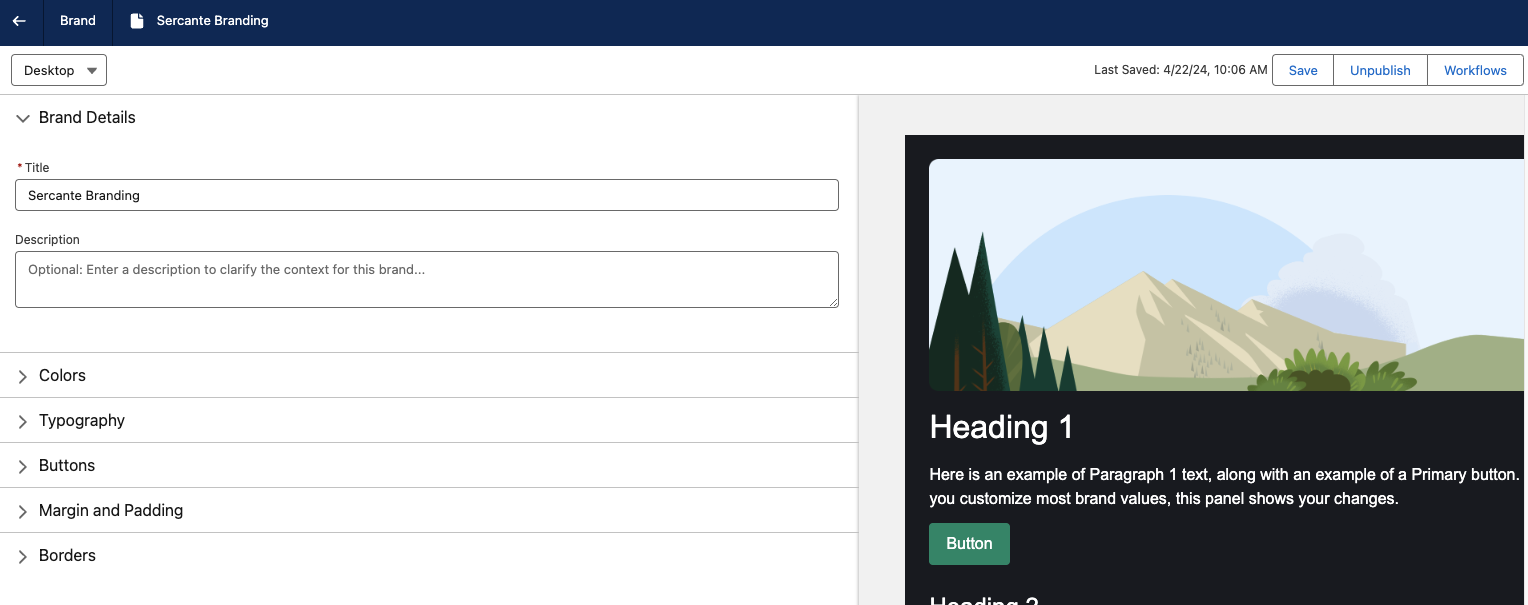
One of my favorite features of Growth Edition, Brand Guidelines, is moving from Beta to Generally Available. With this move, Marketers can now specify new aspects of their branding, such as spacing, borders, and text formatting. Marketers can also view how their branding will look within assets while configuring their guidelines. Separate Brand Guidelines can also be created for Desktop and Mobile versions of Landing Pages to ensure a great viewing experience no matter the device. 

Engagement and Fit Scoring

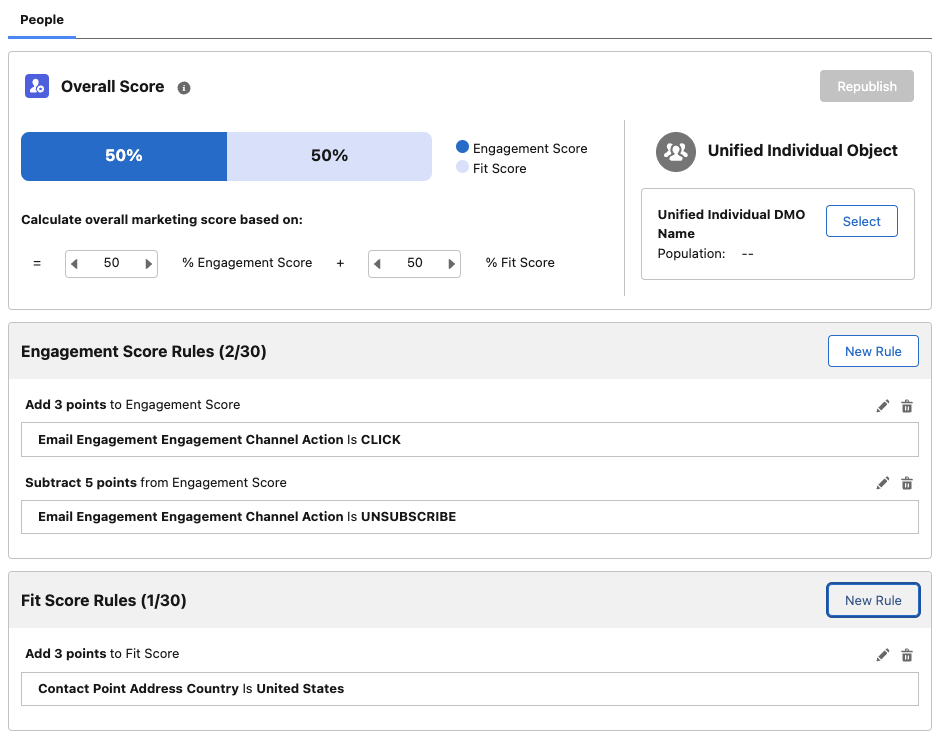
Engagement Scoring in Growth Edition can now be customized to fit your company’s needs. The updated scoring functionality allows you to add your own Engagement Score Rules (up to 30) and add or subtract points when a record meets a rule. Fit Scoring is also being introduced as part of this update. Fit Scoring is similar to Account Engagement Grading, whereas its goal is to tell Marketing and Sales how closely the individual and their company matches the ideal client persona. Fit Scoring rules can be added for the individual and/or their Account. 

Again, this is just some of Marketing Cloud Growth Edition’s Summer ‘24 features. If you’re interested in using Growth Edition, I highly recommend reading through the full notes to see the long list of features coming your way!

These are my highlights and key takeaways from Salesforce World Tour D.C. 2024, where the Salesforce community converged to explore the latest in AI, data management, and nonprofit marketing. 

From actionable tips on implementing Data Cloud to insights into trusted AI with Einstein Copilot, this recap unveils the strategies and innovations driving success in today’s dynamic business landscape. 

Join us as we delve into the transformative power of unified data, organizational alignment, and customer-centricity, shaping the future of Salesforce in Washington, D.C., and beyond.

Nick Kanthadai at World Tour D.C. 2024

Salesforce World Tour D.C. 2024 Highlights

Salesforce checked in for their annual World Tour D.C. on April 10, 2024, at the Walter E. Washington Convention Center.

I had the pleasure of attending and being a part of the growing Salesforce community in the DMV area.

The focus of World Tour D.C. this year just like every other Salesforce event for 2024 was AI, AI, and more AI. 

Pro Tip: If you missed the event this time around, you can catch all the main sessions & keynote videos here

That said, here are my top takeaways from World Tour D.C.

Highlight 1: Top Tips for Getting Started with Data Cloud

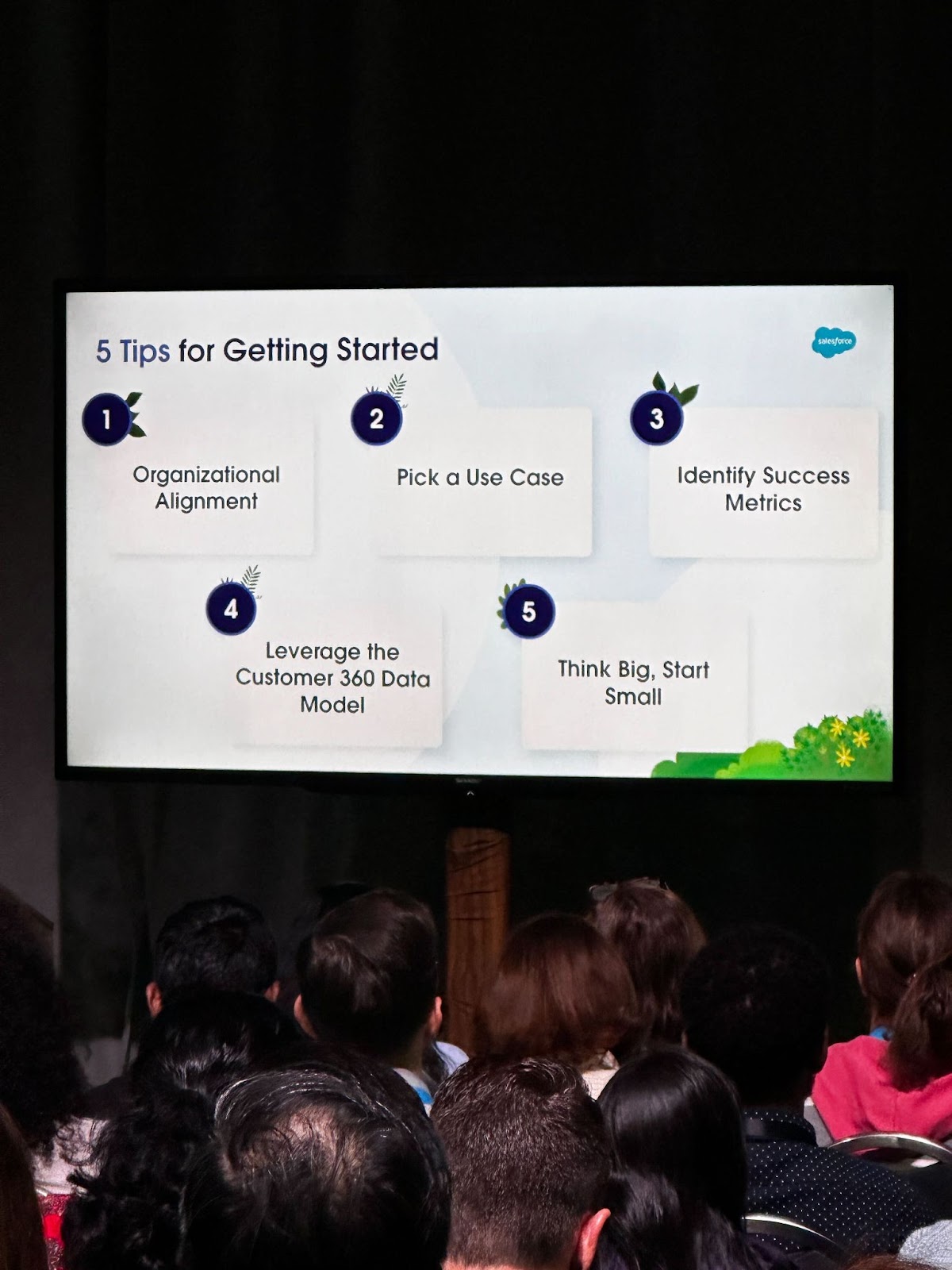
World Tour D.C. showcased the top 5 must-have tips if your organization is thinking about implementing Data Cloud and harnessing the power of all your siloed data infrastructure under one unified SF Data Cloud platform. 

  • Organizational Alignment: Establish a clear owner and get all departments/stakeholders on the same page.
  • Pick a Use Case: Focus on one or two initial use cases that drive team optimization and deliver tangible results within a reasonable timeframe.
  • Identify Success Metrics: Define KPIs, establish baseline metrics, monitor data quality, track user adoption, and always iterate to improve. 
  • Leverage the Customer 360 Data Model: You have to walk before you can run. Use the out-of-the-box data models when you’re getting started.
  • Think Big, Start Small: The platform has growth capabilities so you can scale, but you have to take small bites in the beginning.

My takeaways

The two tips around Organizational Alignment and Think Big, Start Small resonated with me the most as these two tips will surely put your organization on the right track for success. 

Getting buy-in from every major stakeholder around defined goals is paramount to achieving the success needed. Shoot for the stars in what you want to achieve with Data Cloud, but start small with a basic use case that can showcase the power of unifying your data and implementing a customer journey that can show value to your organization.

Favorite quote from the presentation

“Customer experiences are only as good as your insight into your customer data”

Highlight 2: Great Insights from the Main Keynote 

During the main keynote, Salesforce leaders took to the stage to show how everyone can become an Einstein with CRM + AI + Data + Trust.

Emphasizing Data Trust

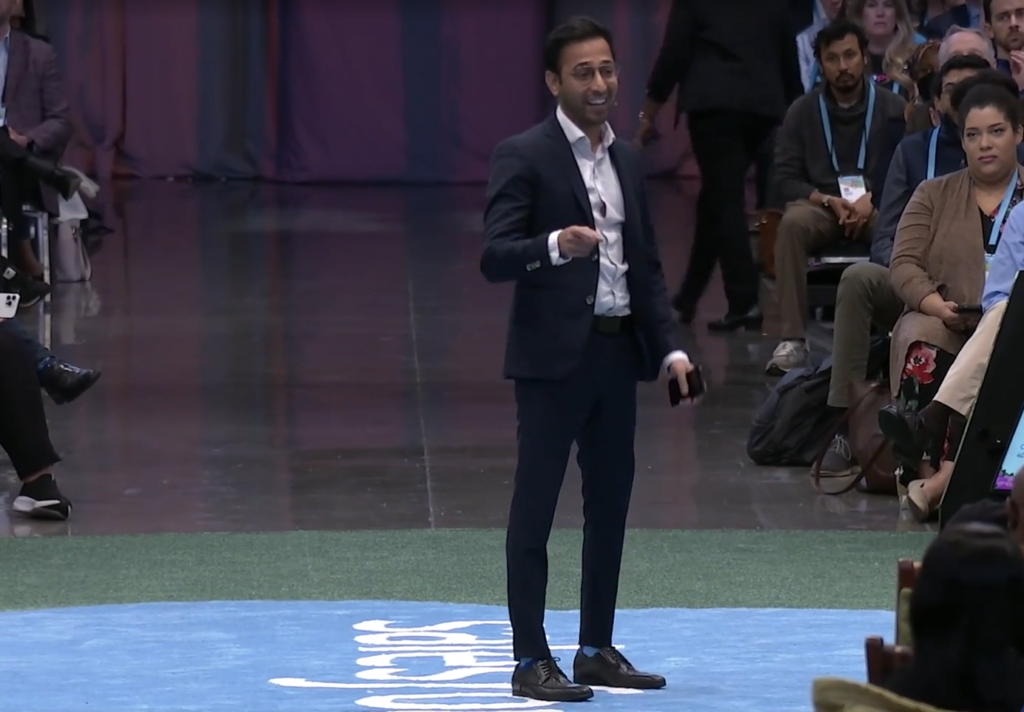
Parth Shah

Parth Shah, Senior Manager for Product Marketing at Salesforce, was on hand to discuss how trusted AI requires trusted data to achieve your organization’s success. 

Key Insight from Parth Shah: 81% of IT leaders say data silos hinder digital transformation

Einstein Copilot

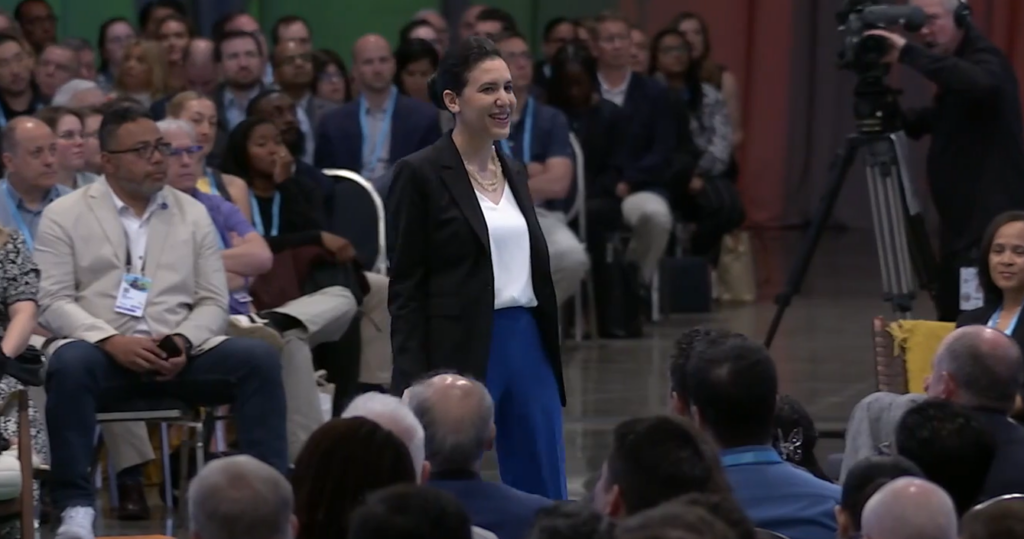
Alice Steinglass, EVP & GM Platform at Salesforce, spoke to all the exciting features of Einstein Copilot. She explained that Einstein Copilot uses trusted AI grounded with your own company’s data, so you can tap into Copilot across every app and reduce repetitive work. 

A study from Asana in 2023 found that 62% of work time is lost to repetitive tasks. Why not use the great features of Einstein Copilot to reduce the need for repetitive work by your team? That way, you can focus on what is most important — your customers!!

Alice Steinglass

Highlight 3: How to use Data Cloud for Nonprofit Marketing

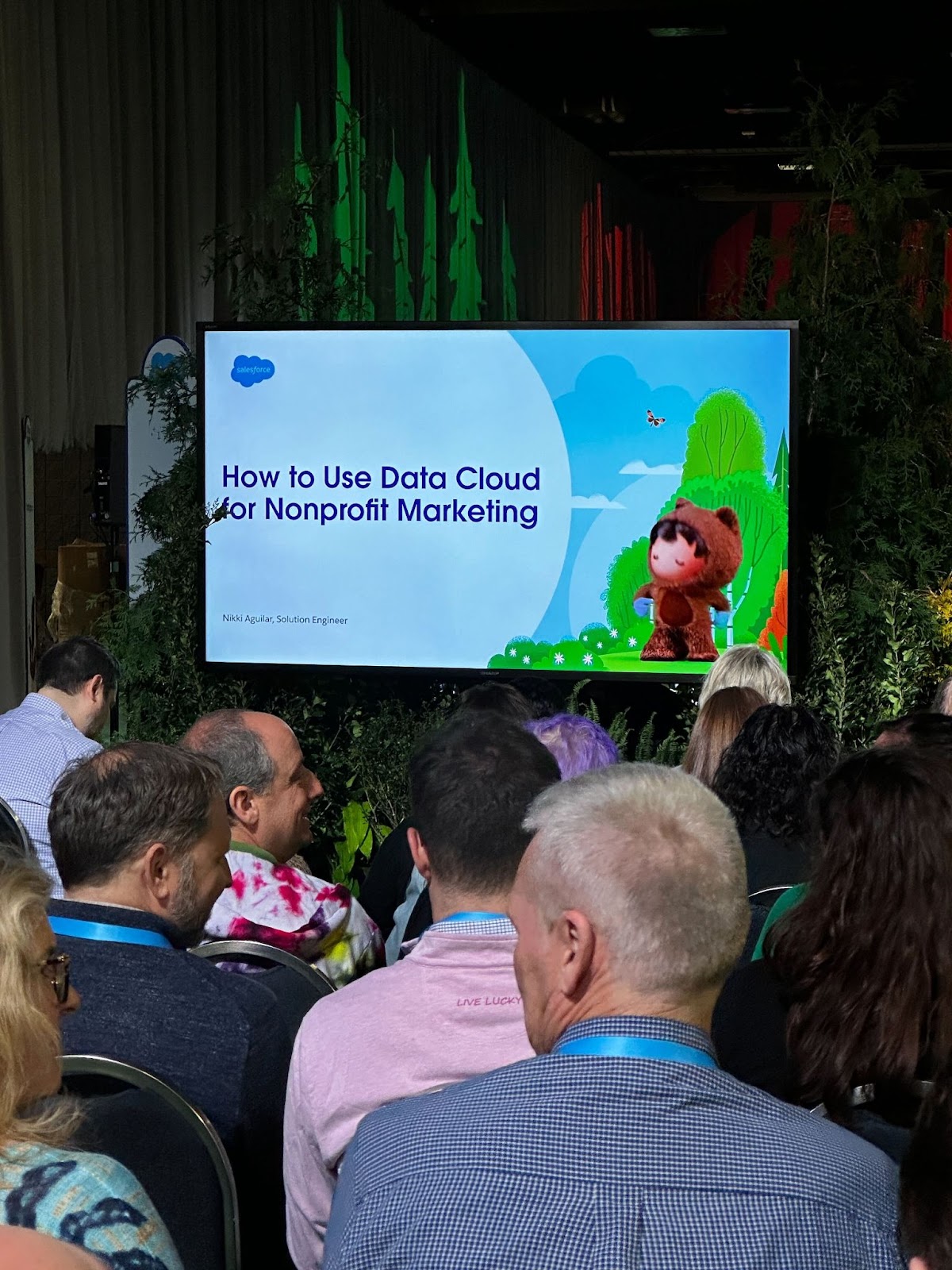
If you are a Salesforce Marketing Cloud user in the nonprofit arena, How to Use Data Cloud for Nonprofit Marketing was a must-see presentation. Nikki Aguilar, Salesforce Solution Engineer, spoke about the reasons unified data matters. 

My 3 takeaways for using Data Cloud for Nonprofit Marketing

  1. Increase awareness & collaboration. Collaboration and awareness are the keys to being successful when using Data Cloud for nonprofit marketing. It solidifies trust and facilitates connections across the organization.
  2. Deliver unified, accessible, and actionable data. To support awareness and collaboration at nonprofits, delivering unified, accessible, and actionable data helps with getting resources on board who can elevate the fundraising and marketing experiences.
  3. Create a culture of data as a strategic asset. Your data is a strategic asset for the organization as a whole. Creating a culture where data is a strategic asset helps advance operational and program excellence and establish trust among all stakeholders.

World Tour D.C.: Innovations in AI, data management, and nonprofit marketing

World Tour D.C. April 2024 brought together the vibrant Salesforce community in Washington, D.C., for a dynamic event showcasing the latest trends and innovations in AI, data management, and nonprofit marketing. From insights into leveraging Data Cloud to the unveiling of Einstein Copilot’s capabilities, we left with inspirational tips to take home and share with our teams. 

As we reflect on the event, it’s clear that the path to success lies in aligning organizational goals, harnessing the power of trusted AI, and embracing a culture where data drives strategic decisions. 

I hope you enjoyed my top 3 takeaways from World Tour D.C. 2024! As always, you can send us a message to chat about your Salesforce org and ways to get more ROI from your technology.

No more posts to show