Category

Release Notes

It’s that time – Salesforce Winter ‘24 release notes are out! Here are the key Salesforce platform features marketers and Salesforce admins should know about.

20 Platform Highlights from the Salesforce Winter ‘24 Release

Highlight#1: Migrate to Hyperforce with Hyperforce Assistant (Generally Available)

If you haven’t heard, Salesforce is undergoing a modernization of their infrastructure with Hyperforce, and undertaking steps to move customer orgs to Hyperforce. To help prepare for the migration, Salesforce has made their Hyperforce Assistant generally available, and updated with improved features to help orgs get ready for the move.

If you’re starting your journey to make the jump to Hyperforce we have more details here: Prepare Your Salesforce Org for the Migration to Hyperforce

Permissions & Record Access

Highlight#2: Report on Custom Permission Set and Permission Set Group Assignments

This is the first of many ideas that were delivered in this release. With this update you can create a report type that you can use to report on which users are assigned specific custom permission sets or permission set groups, or look at all of the assignments by user. This is just for custom permission sets and permission set groups, no word yet on when this would be available for standard permission sets and standard permission set groups.

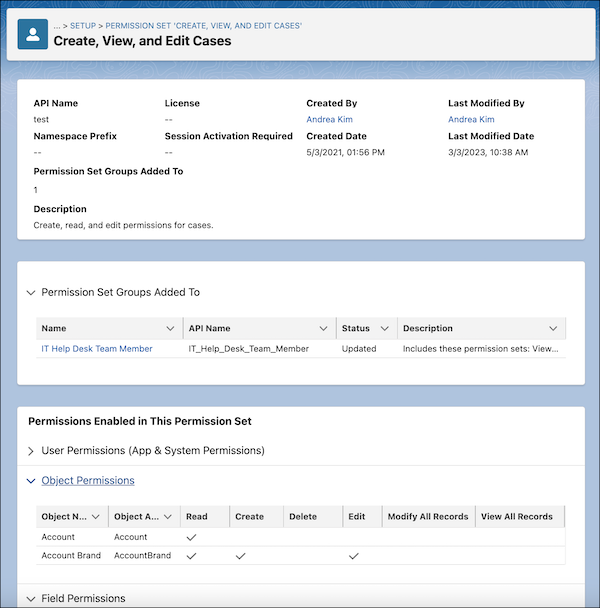
Highlight #3  What’s Enabled in a Permission Set More Easily (Beta)

Admins who have spent so much time trying to uncover the permissions included in a permission set are going to love this. Another idea exchange request, it’s now easier than ever to see the enabled object, user, and field permissions on one page. You can even see the permission set groups a permission set is included in!
Highlight #4 User Access Policy Filters Improved (Beta)

Until now you could create User Access Policies referencing only one permission set, permission set group, or managed package license in your user access policy filters. With this update you can reference a total of three, giving you more flexibility to define your policy criteria.

What to know more about User Access Policies? Jason Ventura covered this in the post Salesforce Summer ’23: User Access Management Updates 

Highlight #5 Report on Who Has Access to Accounts from Manual Shares and Account Teams

Admins and users will have a new way to understand better who has Read or Edit Access to an Account through Account Teams or Manual Sharing. By creating a report type it’s now possible to see which users and groups have access. Another idea was delivered!

Highlight #6 Report on Public Group Members

Another helpful report that’s going to save clicks! With this new custom report type, Admins will be able to more easily view which users, roles or groups are members of public groups.

Automation Updates

Highlight #7 Reactive Components now GA

With the general release of reactive flow screen components, admins will able to build more interactive single page applications, creating a more dynamic user experience.

Highlight #8 Create Custom Error Messages in Record-Triggered Flows

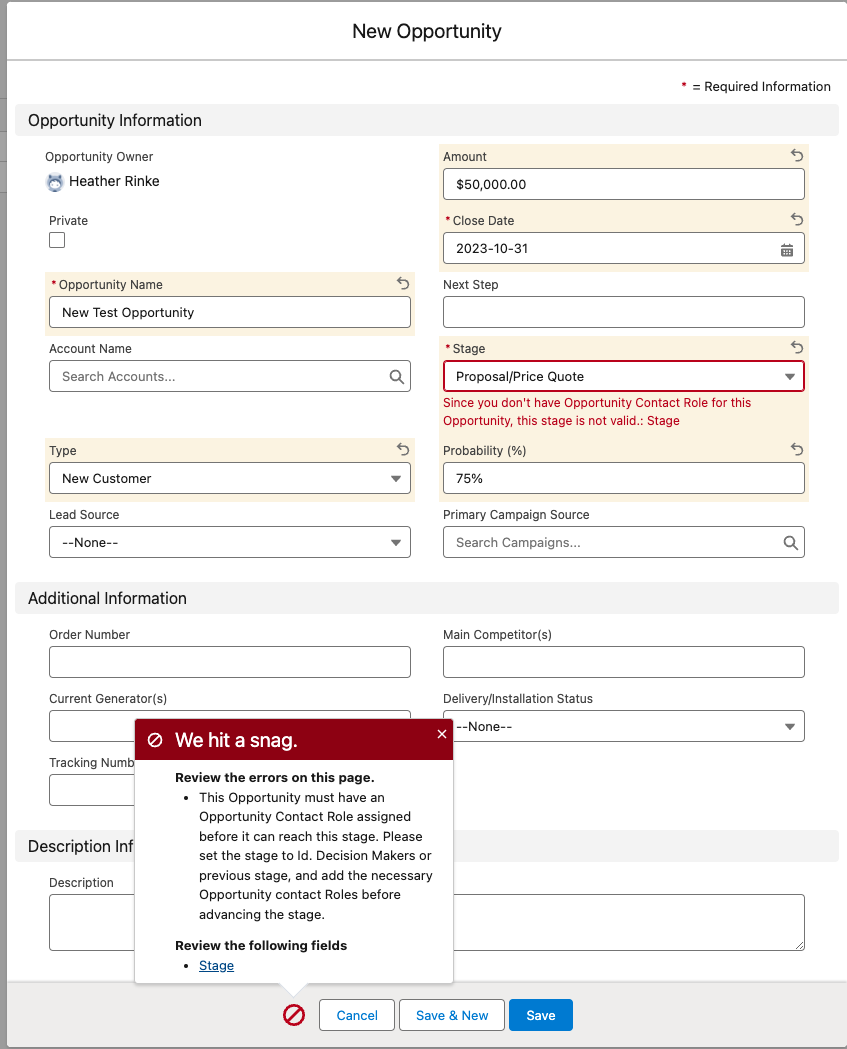
Another Idea Exchange idea delivered! Flownatics everywhere will be cheering for this. Now admins can customize the error that users see on record triggered flows. You can control one or more messages that will appear, what the messages will be, and when you want them to appear. You can even set them to appear as a window on the record page, or as an inline error on a specific field, similar to validation rules.

In the example below, you can see the Custom Error message element where I’ve configured 2 messages to appear if an opportunity has been created or updated and the stage is advanced and no Opportunity Contact Roles are found. One error will appear in a window on the record page, and the other will appear inline on the Stage field.
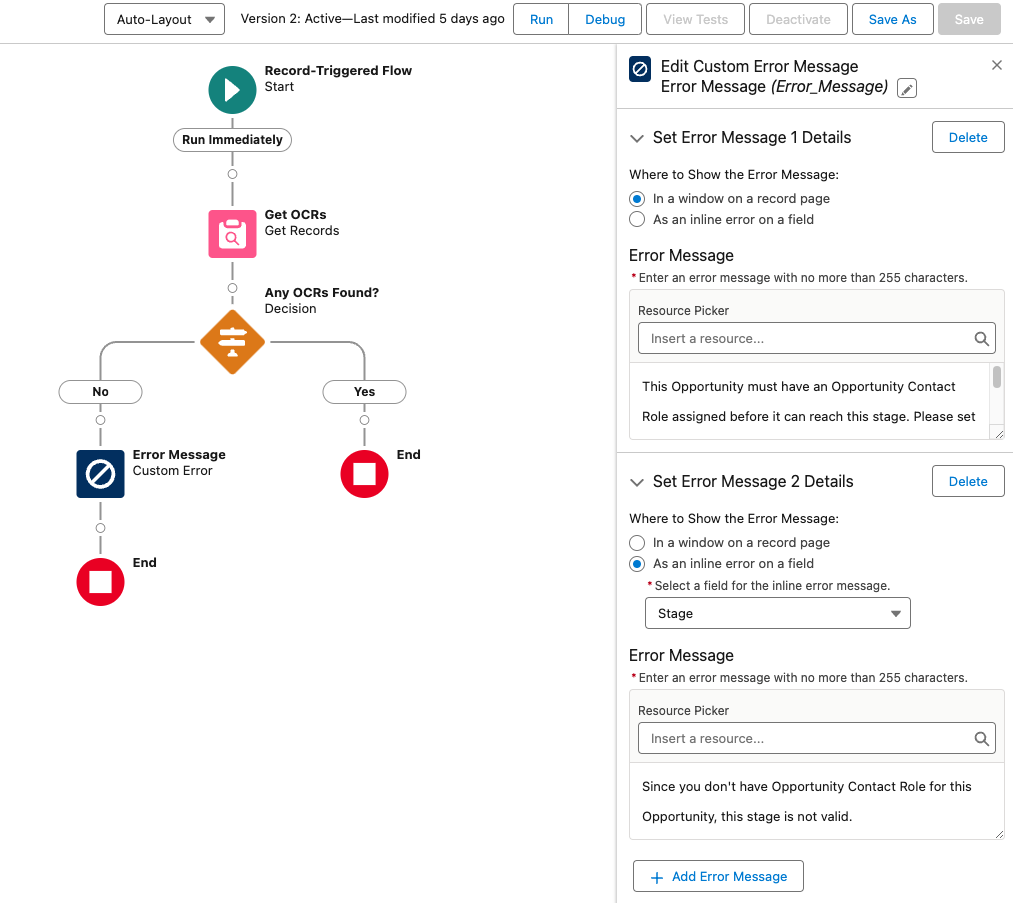
When active, the flow will display the configured error messages when the criteria has been met:
Highlight #9 Transform Your Data in Flows (Beta)

This is a new element for flow that lets users map data from a data source to a new target data destination. This can follow the HTTP Callout action that grabs data from an external location, and transforms the data before saving to a Salesforce object. Another use can be to transform field values while mapping from one object to another.

Highlight #10 Save a Flow Without Configuring Some Elements

How many times have you started to build a flow and have partially added elements, only to find you have to exit an element before fully completing the configuration. In the past you had to lose the partial configuration already completed, or add dummy data just to get the element to save, and remember to go back and update later. With this new feature, you now exit Start and Create Record elements before fully configuring them. According to Salesforce this is the “first steps to support saving a draft of a flow at any point in the building process”.

Highlight #11 Use Wait Elements in More Types of Flows

Marketers would be familiar with the ability to add a wait step in a customer journey (Marketing Cloud) or Engagement Studio Program (Account Engagement). The new Wait for Amount of Time and Wait Until Date elements are now available in schedule-triggered flows, autolaunched flows, and orchestrations. This adds more flexibility to being able to pause a flow interview for different use cases. The previous Pause element has also been renamed ‘Wait with Conditions’ for clarity.

Highlight #12 Flow Builder user interface moved to right panel

The element properties are now displayed in a panel on the right side of the screen instead of as a popup. So far this appears to be working for Start, Get, Create, Update, Transform (Beta), and Delete.

Highlight #13 Data Cloud Triggered Flows

For orgs with access to Data Cloud, you will be able to create new Data Cloud-triggered flows from the new Flow screen. After selecting Data Cloud-triggered flow, you will be prompted to configure your Start conditions specific to your Data Cloud object.
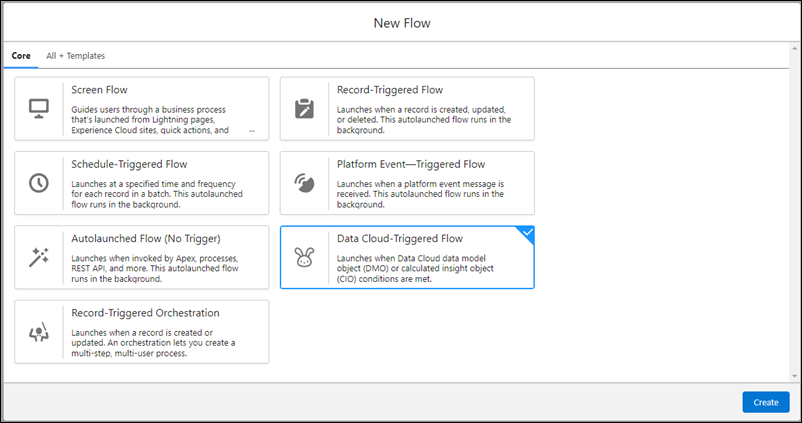
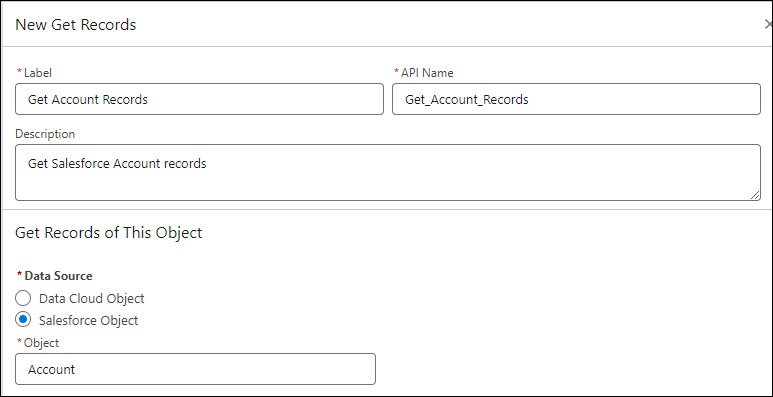
Highlight #14 Get Data Cloud Records More Easily in Flow Builder

Another Data Cloud related enhancement, admins can more easily choose between Salesforce objects and Data Cloud objects. Based on the choice more options are provided to specify the criteria.
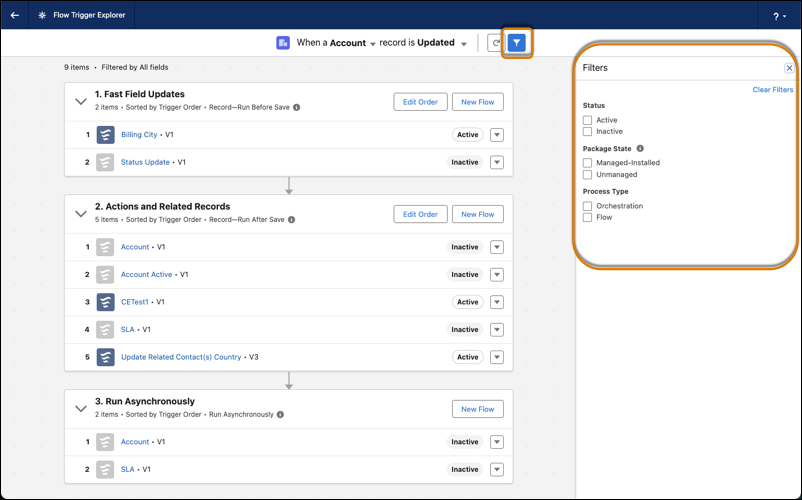
Highlight #15 Use Filters to Find Record-Triggered Flows Quickly

Orgs with increasing numbers of flows will benefit from this handy additional filtering capability that lets you zero in on the flows you’re looking for. You can now filter on flows by Status, Package State or Process Type.
Highlight #16 Migrate to Flow Updates

In the meantime, admins still working on moving legacy automations like workflow rules and process builder to flow may appreciate that the Migrate to Flow tool has been updated to accommodate more use cases:

If you’re in the process of migrating your workflow rules and process builders to flow, have you checked out our guide and tools to help with that migration? Check out Automation Facelift: Migrate Workflow Rules and Process Builder to Salesforce Flow

Cool Admin Updates

Highlight #17 Visualize Lightning Reports with Summary Formulas as You Create Them

I don’t know about you but I still struggle with using PARENTGROUPVAL or PREVGROUPVAL. In Classic there was a great feature that helped build the summary with these functions, and showed how they would work in your report. Now this feature is available in Lightning!

Highlight #18 Select Who Has Access To a Sandbox

When creating or refreshing a sandbox for your team to build or test a new configuration any active user in production could access the sandbox. Now, admins can limit access to specific users by adding them to a group. This then freezes all other users in that sandbox, so they can’t access it (unless you unfreeze them). Only the users in the group will be unfrozen automatically. And the “.invalid” won’t be added to their email addresses either. Bonus! Now, apparently this may not be immediately available when orgs are upgraded to WInter ’24. According to the release notes, this will be available “in production orgs when they’re upgraded to the Winter ’24 release starting in mid-October 2023.”

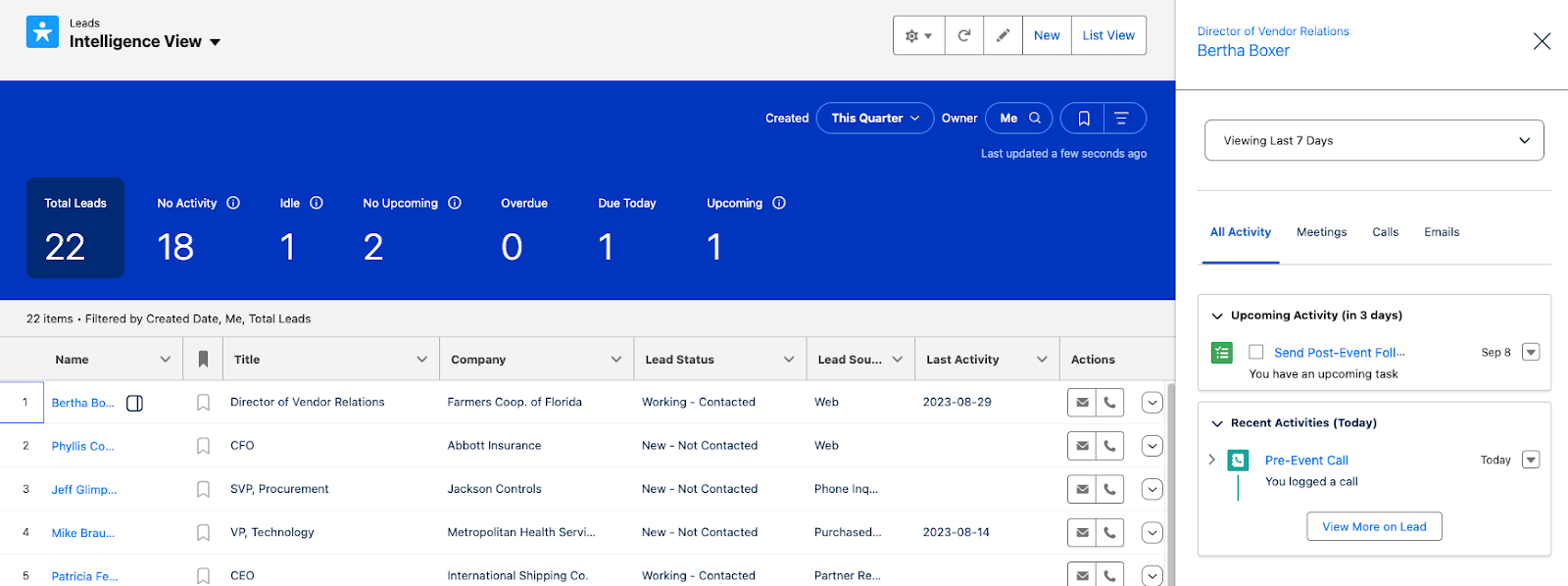
Highlight #19 & 20 Lead & Contact Intelligence VIews

Last but not least…. As part of Winter ’24 release, orgs will now have access to a more actionable lead and contact lists that can help users segment their leads, and take action to build their pipe and grow customer relationships. In one page you can create segments and view key metrics, prioritize important records, view activity history of individual records and make calls or send emails without leaving the list.
Other Notable Updates

Which Salesforce Winter ‘24 features are you excited about? Let us know in the comments!

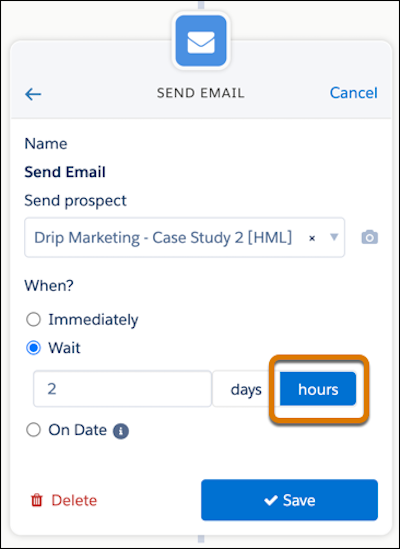
For Account Engagement users, the most exciting feature coming with the Salesforce Winter ‘24 release is the ability to get more precise with wait steps in Engagement Studio Programs.  Gone are the days waiting a full day to trigger an action, we can now set wait steps anywhere from 2-8 hours. This provides more flexibility with our programs and what we are able to do.

How do we get started with shorter wait steps in Engagement Studio?

In Engagement Studio, we’ve always had the ability to add wait steps. We were able to do this in day long increments after an event took place. We’ve used these for things like, sending follow up emails after a form fill, or sending an additional email days after an initial send. 

Sometimes, a day seemed like too long of a wait, but that was all we had to work with. 

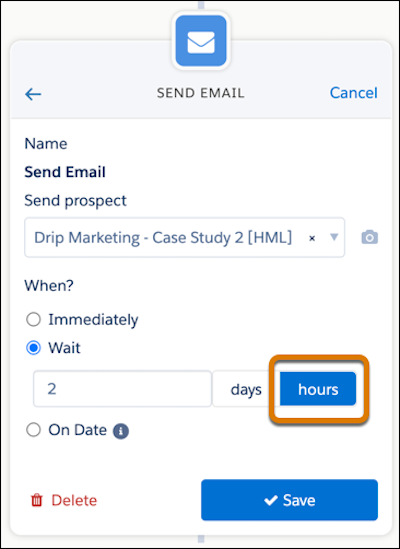
Now, we can use these new hour increments. When adding an action to an Engagement Studio Program, click “wait”, then toggle to “hours” and set the desired amount of hours. That’s it!

When you should use hour wait steps…

Wondering how you can make the most of this feature? We’ve compiled a list of scenarios that we think would be best suited for a short, hours-long wait period.

  • Welcome Programs
    • Prospects signed up for your mailing list or were imported? Add an hour wait step to send that first welcome email instead of waiting days.
  • Post Form Follow Up Emails from Sales Team Members
    • If your follow up emails are sent immediately, prospects know it’s automated, and waiting days to follow up can lead you to miss out on an opportunity. With a wait step of just a couple hours, it gives your prospects time to finish looking at your website, gives your internal assignment processes time to complete, and feels more personal than an automated reply.
  • System Processing Time For List Evaluation
    • When using automations that evaluate which lists a prospect is on, a two hour wait step will ensure your dynamic lists have time to run and prospects newly added to the list are included.
  • Custom Redirect/ Page Action Follow Ups
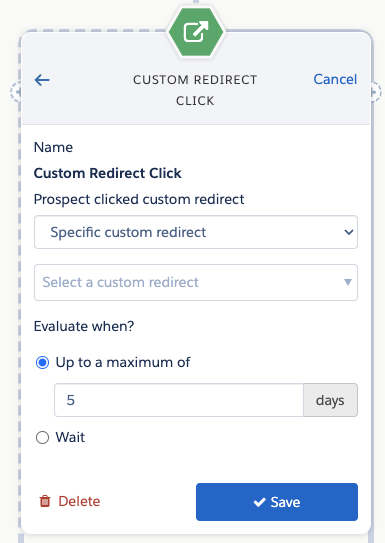
    • Set up custom redirects or page actions on high priority pages and have them funnel leads into an Engagement Studio Program. From there, suggest the next step a prospect should take or the next piece of content the prospect might be interested in a few hours after they have left your website.

Time to get started with shorter wait times in Engagement Studio

This feature is one that hundreds of trailblazers have been asking for because it can be so useful in customizing programs. Once it becomes available, we recommend revisiting your existing engagement studio programs and seeing if this would be a better fit for some of the current day long wait steps you are currently using.  

Being able to take action in hours, rather than days can really help personalize the experience you give to prospects.

Want to learn more about how to create the most effective Engagement Studio Programs? Consider taking  our Workshop: Engagement Studio for Marketers.

Salesforce winter ‘24 release notes are out! Here are the most important features coming to Account Engagement that marketers should know about.

Winter ’24 Highlights for Marketers

Highlight #1 – Engagement Studio Program wait times less than 1 day!

Marketers have been keeping their fingers crossed for this feature for a long time, and it received over 8k points in the IdeaExchange.

With the Winter ‘24 release, you’ll be able to set Engagement Studio Program wait steps to 2-8 hours. This will be especially helpful if you’d like to give other processes time to run before moving onto next steps or before syncing the Prospect to Salesforce. This feature will be available to all Account Engagement Editions. 

Get an in-depth look at the new feature in this post – Shorter Wait Steps in Engagement Studio Are Here.

Highlight #2 – Sandbox to Production Flow

Details are sparse on this new feature, but it appears orgs will be provided with an example flow that can be copied and used to push Account Engagement Sandbox assets to Account Engagement Production. No details on which aspects of Sandbox will be able to be pushed to Production, but I have a feeling it will be somewhat similar to the Bulk Assets Copy Flow for multiple Business Units. 

Highlight #3 – Review Email Templates with Invalid Senders

New Domain restrictions took effect in the Spring ‘23 release. As a result, you will now be prevented from sending an Account Engagement email with a sender from an unverified email domain. This is aimed to help protect your sender reputation.

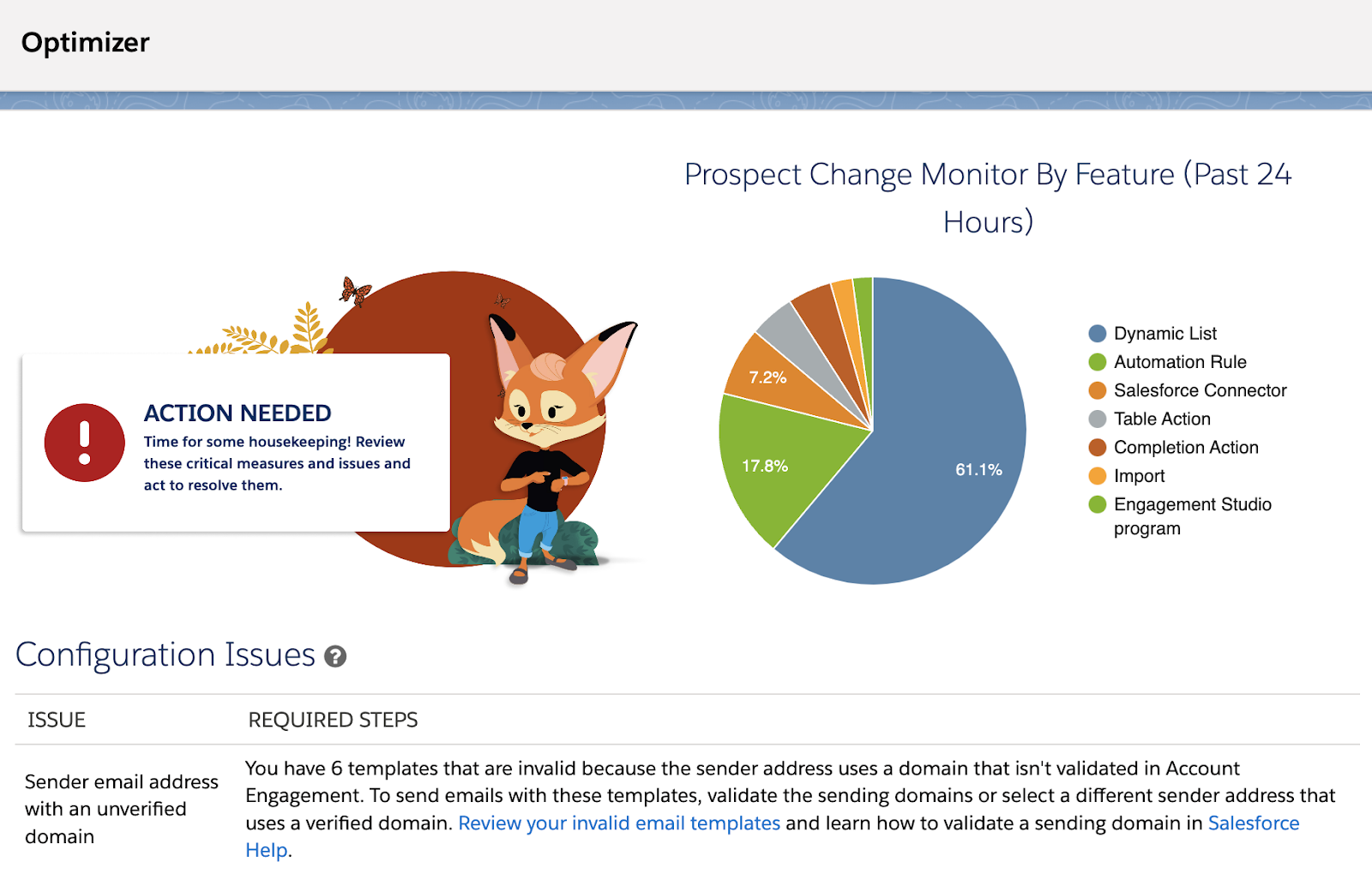
This new feature will allow you to identify which email templates currently have an unverified sender so you can easily update them and keep using the email template. These notifications are already showing up in Optimizer, so may be able to proactively check for this issue rather than waiting until the release is out. To check, navigate to Account Engagement Settings > Optimizer and look for any Configuration Issues with “Sender email address with an unverified domain.”

Highlight #4 – Change Monitor Histogram

Account Engagement Optimizer is also getting a new feature that will allow you to review Prospect changes. Details on this new feature are a little sparse. Optimizer already has a way to view Prospect Changes (discussed in our Everything You Need to Know About the Account Engagement Optimizer blog post), so my guess is this view is going to have new and improved ways to filter and chart the data. 

Highlight #5 – Restrict which domains can iframe Account Engagement Assets

With the Winter ‘24 release you can now restrict which domains Account Engagement assets, such as forms and landing pages, can be iframed on, or restrict iframing assets all together. This helps you ensure your assets can’t be used on websites you don’t own, such as competitors or partners, as well as ensure assets are only iframed on the domains belonging to that particular Business Unit. 

Business Units created after the Winter ‘24 release will have iframing restricted by default.

A Few Other Salesforce Winter ‘24 Updates

Which Salesforce Winter ‘24 features are you most excited about? Let us know in the comments!
Components are a hidden gem in the CRM Analytics (formerly Tableau) toolbox. You can re-use them in any dashboard and then centrally make changes that affect any dashboard where the Component is placed. But before the Salesforce Summer ‘23 release, they had to be identical on every dashboard! 

If you wanted revenue by State on one dashboard and revenue by Country on another Dashboard, you needed two different components. 

Not anymore! Here we provide a step-by-step guide (with pictures) to get you feeling confident and excited about using (and re-using) these amazing widgets. Thanks to the Salesforce Summer ‘23 release, you can now use parameters to make component widgets dynamic.

How to Make Component Widgets Dynamic in CRM Analytics

Ready to get started? Here are the steps to making your CRM Analytics component widgets display dynamically using parameters.

Step 1: Create a Component

There are a few ways to do this. I’ll outline the method that flows best with dashboard creation. But like many Salesforce tasks, there is more than one way.

  1. From a dashboard, drag the component widget to your dashboard.
  2. From the dialog box, select Create New Component.
  1. Add a widget to your new component.
    • In our example, we are using the Account Engagement (Pardot) Prospects and grouping by country.
  1. Save your component

2. Add a Parameter to your component

  1. Click on the Component Widget and choose the advanced editor from the widget menu. 

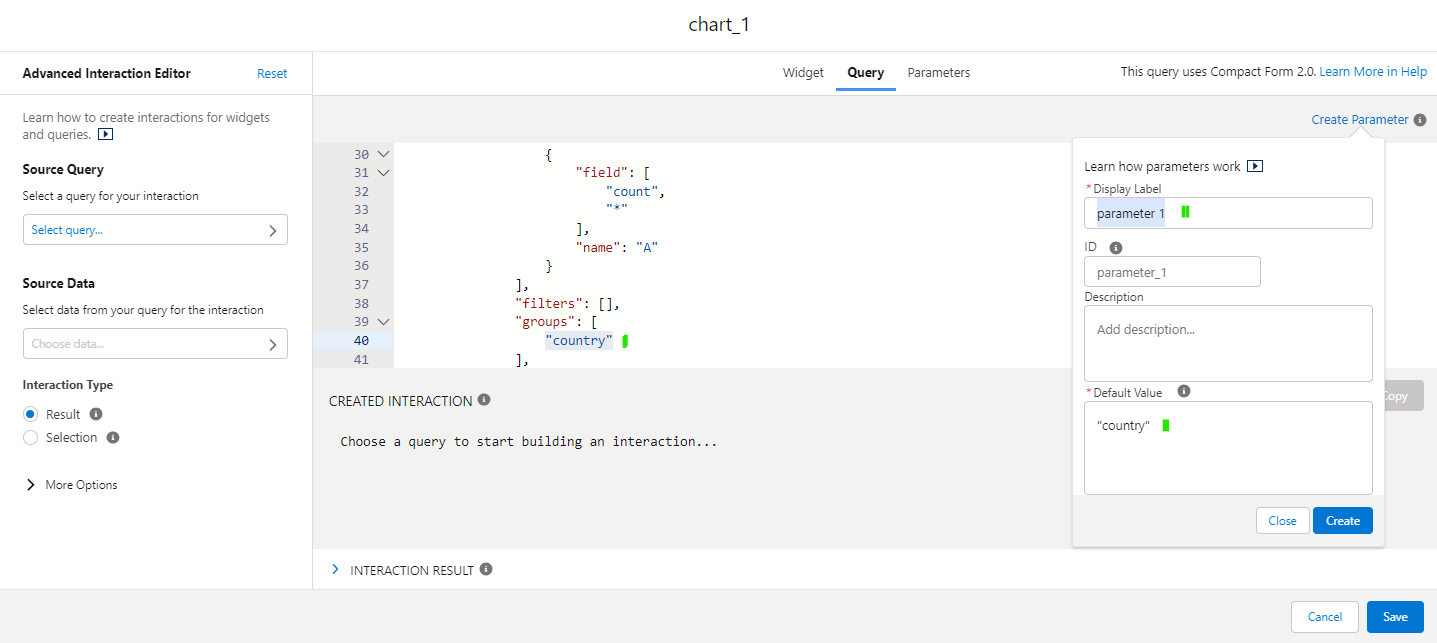
2. On the Query Tab, find the value you want to parameterize. In our case it’s “Country.”

    • Click on the pages icon (next to ID to copy the parameter to your clipboard)
    • Click Create (or update if altering an existing parameter). Note: The value MUST be in the correct case (NOT Country)
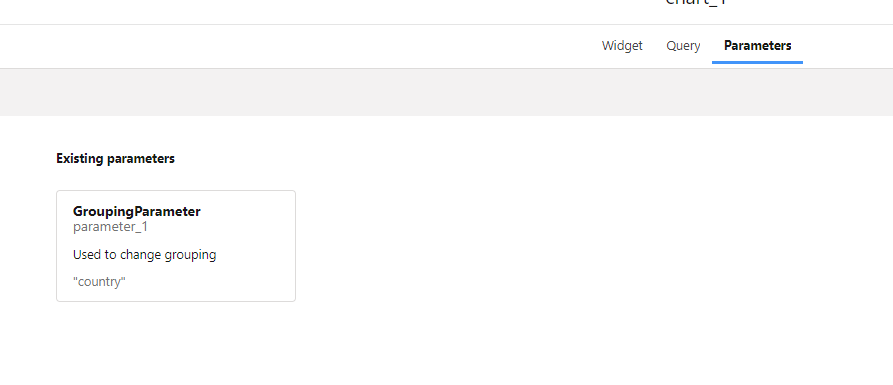
    • Click on the Parameters tab to see what you just created.
    1. Next, change the query to use the parameter. Go to the query tab and replace the group and name with your new filter. Where you see city, replace as shown below for the group and name

    Group:

          "groups": [
              "[[parameter_1]]"
            ],
            "filters": [],
            "joins": [],
            "name": "pdProspect1"
          }
        ],
    

    Name:

      {
            "name": "[[parameter_1]]",
            "ascending": true,
            "filters": []
          }
    
    1. Save your query.
    2. Save your component.

    3. Using the Component on Your Dashboard with the Parameter

    Now that you have your component with a parameter created, let’s add it to a dashboard and change the parameter. This is the fun part!

    Return to the dashboard tab (should be an open tab in your browser), and click on the component widget to select the new component we just created.

    Pro tip: To refresh component content or edit, look for the actions in the right side toolbox when the component is selected.

    Preview the Dashboard

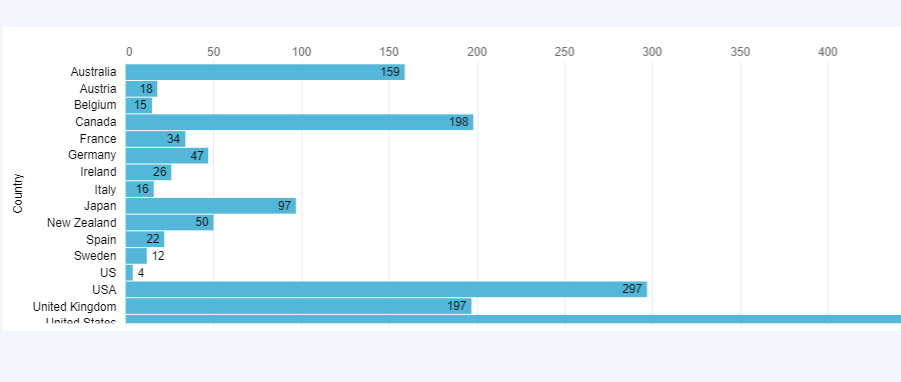
    It looks like this: It’s displaying by Country

    Change parameter

    Now let’s change the parameter.

    1. Edit the dashboard.
    2. Click on the component, and click on Parameters (right hand side).
    3. Click on the parameter you created.
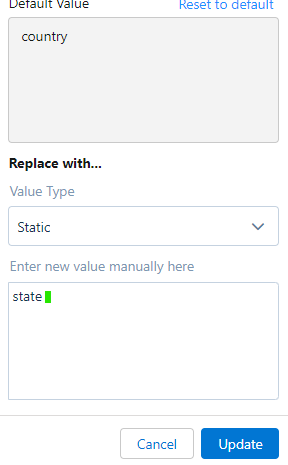
    4. Select Static for Value Type.
    1. Replace country with state. Click update.

    The component now displays State.

    You can parameterize other aspects of the component (filters, etc.), so there are lots of possibilities here.

    What else can I do when I make component widgets dynamic?

    The example in this blog is quite simple. However, it gives you the elements to be successful in creating and using CRM Analytics components. 

    These CRM Analytics enhancements give us opportunities to make dashboards more useful and allow us to finally re-use components effectively.

    Some great use cases:

    • Sales by Group or District
    • Product type filtering (for different dashboard)
    • Scenarios where you have different revenue fields (USD or CAD for example or expected vs actual)

    The Salesforce Summer ‘23 release has given us so many gems. This CRM Analytics update is a big one along with the ones we’re seeing with Account Engagement including the ability to copy marketing assets between business units, and this update to Salesforce user access management

    Need help digging into this super helpful feature? Or wondering how this can fit into your overall marketing reporting strategy? Reach out to the team at Sercante to start a conversation.

    The Salesforce Summer ’23 release includes many changes to the platform, like the ones we’re seeing with Account Engagement that include the ability to copy marketing assets between business units. However, the thing we’re going to talk about in this blog post are two new features that (hopefully) help you simplify user access management for the Salesforce platform.

    First, we’re going to quickly go over the new User Access Policies (Beta) feature and then we’ll talk about setting field-level security in permission sets.

    Salesforce User Access Policies (Beta)

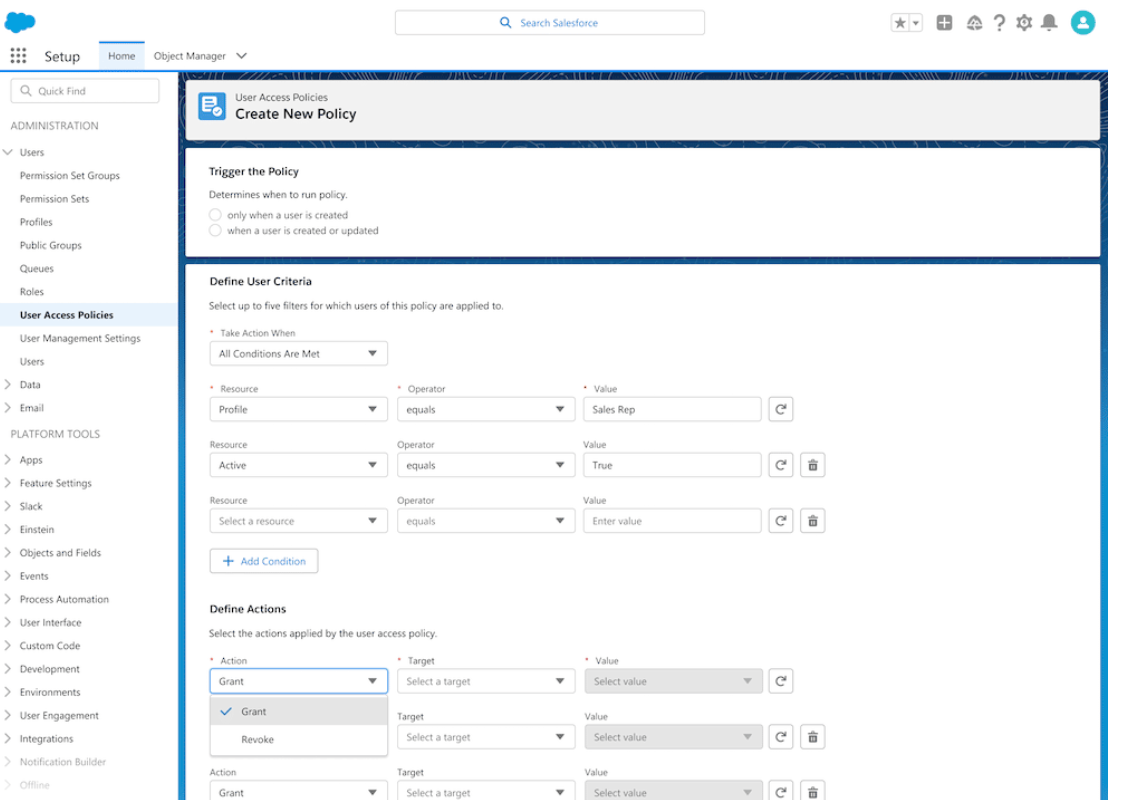
    User access policies are a new feature that allows you to control user access based on criteria such as user roles profile, or other user fields. For example, we can give users different access to the same data, depending on their role in the organization or their department.

    Users can be assigned to permission set licenses, permission sets, permission set groups, package licenses, queues, and groups using user access policies.

    User Access Policies are broken down into two types, Manual User Access Policies and Active User Access Policies. 

    Manual User Policies

    Manual User Access Policies are one-time processes to grant or revoke bulk access for designated users. What this means is that you can identify users by using filters and modify, add, or remove access that you define in the policy itself. 

    Example: You’re migrating permissions for a group of users from profiles to permission sets. You would create filters to identify the users assigned to the profile, then create actions in the user policy to assign permission sets and permission set groups. 

    Active User Policies

    Active User Access Policies automatically grant or revoke user access. An active user access policy runs in the background and is triggered by an event like a created or updated user record. 

    Example: You can have an active policy set to assign a series of permission sets permission set licenses and groups to a user when they are created and have the Sales Manager role, or grant/revoke assignments to an existing user who’s been updated with this role. 

    Sounds like a flow if you ask me…

    Ok, that’s cool Jason. So how do I get to it? 

    • Go to Setup > Quick Find “User Management Settings” then enable User Access Policies (Beta). 
    • Then, Quick Find “User Access Policies” to create or manage user access policies.

    Considerations before enabling User Access Policies

    A couple of things to be aware of before you go and enable this setting in your org:

    1. Each org is limited to 20 access policies in total. 
    2. This feature is in Beta and is subject to change without notice. Be sure to watch future Salesforce releases to find out when this will be made Generally Available (GA).

    Set Field-Level Security for a Field on Permission Sets Instead of Profiles (Generally Available)

    In the past, field-level security could only be set on profiles which, even with the Enhanced Profile User interface, could be extremely tedious. However, in the Summer ’23 release, you can now set field-level security on permission sets when creating a new custom field. 

    What does this mean? 

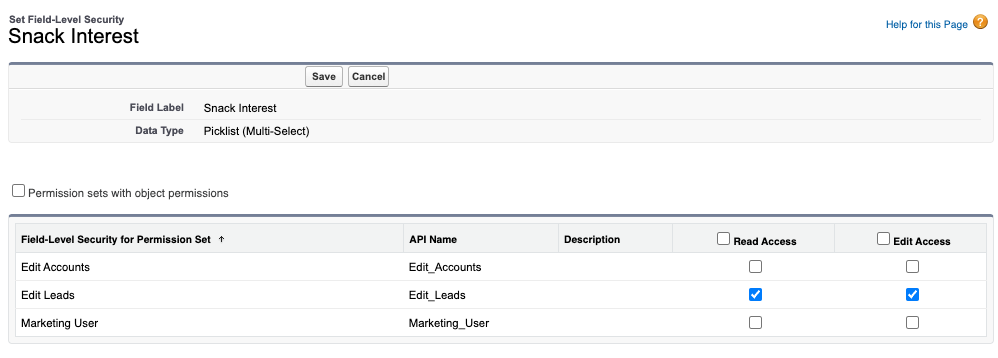
    When creating a field you would normally have a step that would have you pick which profiles have access to view or edit.. 

    Now, once the Set Field Level Security for a Field on Permission Sets feature is enabled, this step (Profiles step) is replaced with something that looks like this screenshot:

    This was originally a beta feature in Spring ’23 but is now Generally Available in Summer ’23

    How do you enable it? 

    • Go to Setup>Users>User Management Settings, then Enable Field Level Security for Permission Sets During Field Creation.

    Considerations for the Set Field Level Security for a Field on Permission Sets feature

    Things to keep in mind when enabling Field Level Security for Permission Sets During Field Creation:

    • Enabling this setting will remove the profile list from view when setting or changing field level security at the profile level. 
    • When you set or change field-level security for a field on permission sets, you can view by permission sets with object permissions, or by all permission sets. 

    Streamlining Salesforce user management today and beyond

    Cool stuff, but how is this going to affect me now and in the future? 

    These changes are all part of Salesforce’s master plan to streamline User Management to make it less tedious, less challenging, and less time-consuming so we can spend more time taking the dog for a walk or enjoying the awesome Pacific Northwest Summers. 

    Eventually, we will see Salesforce sunset Profiles and move solely to controlling record access via permission sets as outlined in this Salesforce Admins Article.  

    If you would like to know more about the future of User Management I encourage you to check out this awesome blog by Cheryl Feldman and the Awesome Admin team over at Salesforce. And reach out to Sercante when you’re ready to talk about how these changes fit in with your overall marketing and technology operations strategy.

    It’s here! It’s finally here! It’s the Account Engagement Business Unit Bulk Asset Copy Flow.

    Marketing Cloud Account Engagement (f.k.a. Pardot) Business Units have become my niche over the past few years. I love setting them up and standardizing them, but I don’t love copying over assets when configuring a new Business Unit(BU). 

    With the Summer ‘23 release, we can now use Salesforce Flow to copy:

    • Custom fields
    • Engagement studio programs
    • Files
    • Custom redirects
    • Email templates
    • Form handlers
    • Layout template
    • Dynamic Content

    Note: This blog post was updated on November 2, 2023, to include the three new Assets types that were recently added to the flow!

    Access the Account Engagement Business Unit Bulk Asset Copy Flow

    During the Summer ‘23 release, your org should have received a new flow called “Account Engagement Bulk Asset Copy Flow.” 

    To find this Flow: 

    1. In Salesforce, navigate to Setup > Flow
    2. Select the Account Engagement Bulk Asset Copy Flow
    3. From the Flow Builder, select Run

    Set up the Flow

    The flow itself is pretty straightforward. It will walk you through selecting your assets and setting the new asset details.

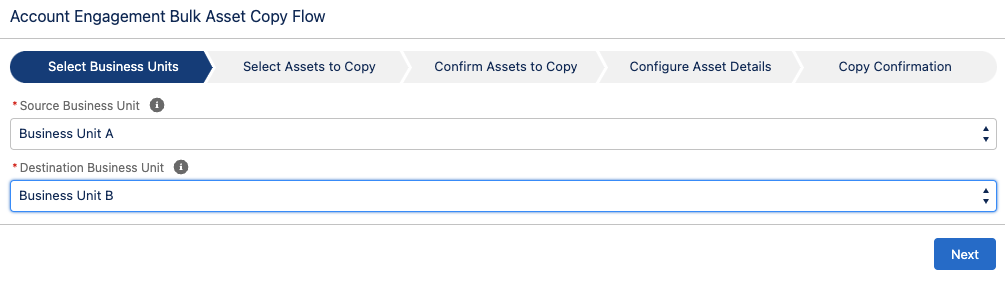
    1. Select your Source and Destination Business Units, select Next
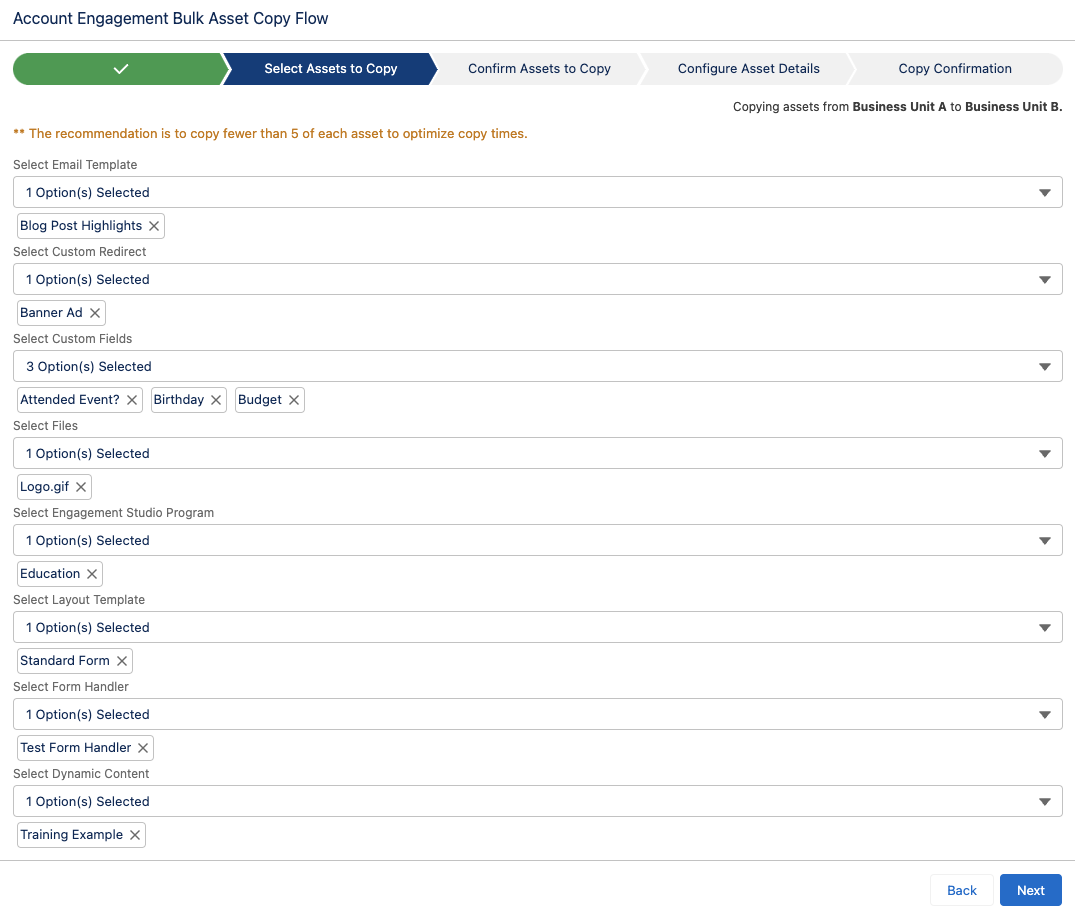
    1. Select the assets to copy, select Next

    Note: Keep in mind, all assets selected here will be copied to the same Folder, will be assigned the same Campaign, and use the same tracker domain. You may want to run the Flow multiple times if your new assets need to have different settings. 

    1. Confirm the Assets, select Next
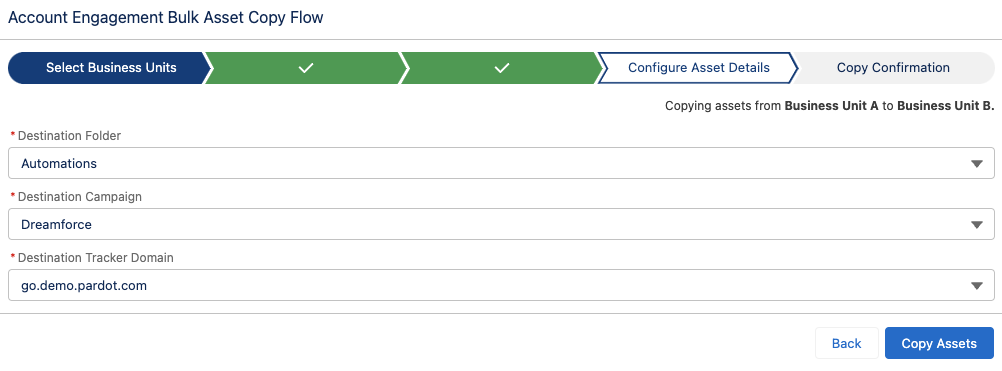
    2. Select your Folder, Campaign, and Tracker Domain for your new assets
    1. Select Copy Assets

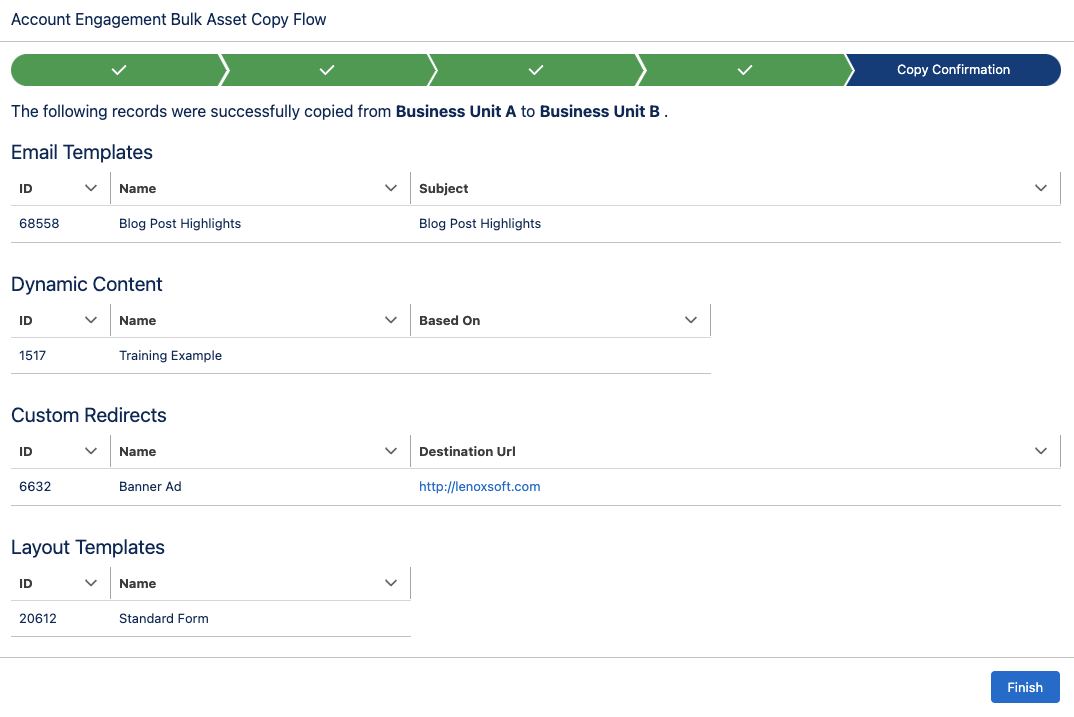
    Bulk Asset Copy Confirmation Screen

    If your action was successful, you will see the list of assets created on the Confirmation screen.

    You don’t get an error message if your action was unsuccessful, but your confirmation screen won’t have any/all assets listed.

    Considerations for Using Business Unit the Bulk Asset Copy Flow

    Since this is a brand new capability for Account Engagement, there are some details and settings that do not come over when copied. I thoroughly tested each asset type and below are the considerations that I found. 

    Custom Fields

    When you copy custom fields from one Business Unit to another, only the following information comes over

    • Field Name
    • Field API Name
    • Field Type

    The field’s mapping to Salesforce, Salesforce sync behavior, predetermined values (for dropdowns, radio buttons, etc.), and optional settings will not be configured.

    Email Templates

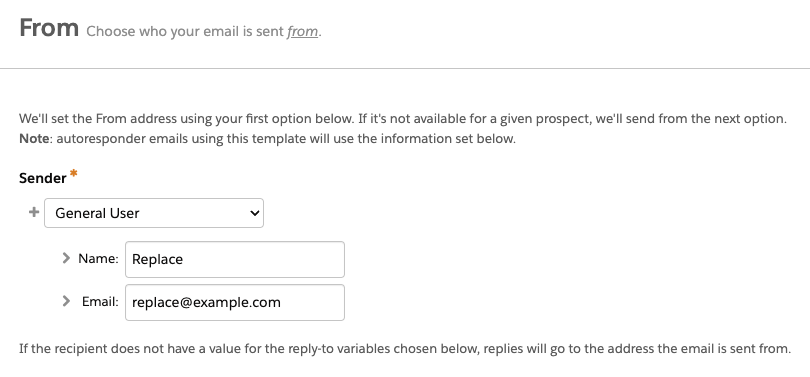
    • When copied, the email sender will be replaced by a General User with the email [email protected]. This applies even if you have a sender hierarchy specified using “Assigned User” and ‘Account Owner.”
    • Email Templates containing Dynamic Content will not copy over.  This is because dynamic content is unique to the Business Unit. Even if you have the same Dynamic Content in each Business Unit, they will have a different asset ID and merge tag. 
    • Watch for email template nuances between BUs. If you copy an email template from Business Unit A to Business Unit B, make changes to Business Unit A’s template, then copy the template from Business Unit A to Business Unit B again, the flow will not update the existing template in Business Unit B. Instead it will create a brand new email template with the updated changes. 

    Files

    During my testing, I was only able to get image files to copy over view the flow. I tested .pdf, .ics, and .css files with and without Completion actions and was unable to get anything but images to successfully copy. 

    Engagement Studio Programs

    • When you copy an Engagement Studio Program (ESP) to a new Business Unit, only the ESP structure is copied. The Recipient List, Suppression lists, Send days/times, and “Allow prospects to enter more than once” settings do not come over and will need to be reconfigured in the new Business Unit.
    • The assets specified in a Trigger or Action node, such as email templates, landing pages, and forms, will need to be reselected in the new ESP. However, the number of wait days specified in the node will copy over. 
    • If an Action node looks at a Prospect field (i.e. Prospect default field “Job Title” is not blank) and that field is in both business units, then the node will be copied to the new ESP with the field and value/settings specified. If the field does not exist in both business units, then the Action node will still be in the ESP but the field and value/settings will need to be reconfigured. 

    Custom Redirects

    When a Custom Redirect is copied from one Business Unit to another, the redirect’s Completion Actions will not copy over, however, the Google Analytics Parameter values do.

    Layout Templates

    If you use Dynamic Content within your Layout Templates, keep in mind that the Dynamic Content will not come over when the Layout Template is copied. You can copy the Dynamic Content over as a separate asset, but you will still need to edit the Layout Template in your destination Business Unit to make sure it has the correct Dynamic Content ID. 

    Form Handlers

    If your Form Handler only uses Default Prospect Fields, then all of the fields will come over when the Form Handler is copied. However, if your Form Handler uses any Custom Prospect Fields, only the “Email” field will be present in the Form Handler Copy. In my testing, this was true even if the Custom Prospect Field was in both Business Units. When copied, the Success Location and Error Location details will copy over to the new asset. Completion Actions do not copy over.

    Dynamic Content

    If the Dynamic Content depends on a Custom Prospect Field that is not already in the destination Business Unit, the copy will fail. To copy over Dynamic Content that depends on a new custom field:

    1. Run the Bulk Asset Copy Flow to first bring over the Custom Field
    2. Once finished, run the flow again to bring over the Dynamic Content
      • If you try to create both the Custom Field and the Dynamic Content in the same run, it will fail. 

    Now it’s even easier to work with Account Engagement Business Units

    This new Flow is a huge step toward making Business Units easier to set up and manage. My hope is that the capabilities of this Flow will continue to grow until we can make a near-identical copy of an entire Business Unit. 

    What other capabilities would you like to see in this Flow? Let us know in the comments!

    No more posts to show