Dynamic lists in Pardot rock. They’re one of my favorite things to demo to a customer who has been working with Mailchimp or a legacy MAP that’s not connected to Salesforce.
The awesome part: You define rule criteria once — and then your dynamic list uses that rule to add and remove prospects from that list based on the criteria. Wahoo!
To those of us who have been on the platform for a while, this is old hat — but it is downright earthshattering for marketers who have had to manually export/import lists for every campaign they rule.
A not awesome part, though: Sometimes you have a LONG list of criteria to include, and making those updates gets really tedious. (more…)
This week, you may have noticed lower-than-average email deliverability from your Pardot email sends.
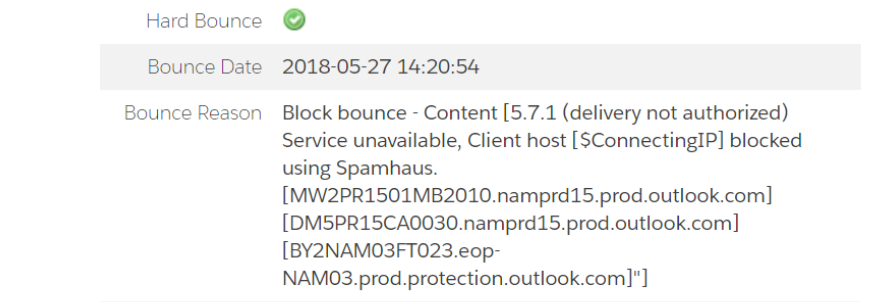
That’s probably because of the Barracuda Email Firewall issue that occurred this week, which incorrectly blocked more IPs than usual from many email vendors — including Pardot. (more…)
Are you trying to send something to opted out prospects in Pardot and wondering if operational emails could be a fit? This article breaks down everything you need to know.
1. What are Pardot operational emails?
Operational emails allow you to send critical information to a prospect even if they have previously unsubscribed.
This feature is great if you send legal notices, invoices, shipping confirmations, or internal company emails out of Pardot, but can greatly impact your sending reputation if it used for Marketing emails.
2. What is considered operational email?
Operational emails fall into two categories:
Transactional, meaning the prospect has initiated the transaction.
A few examples would be things like:
Shipping notices
Event registration confirmations
Order confirmations
Invoices
Relational, meaning the email contains critical information on how you do business with the prospect.
Examples of relational emails include:
Critical system changes that require prospect action
Terms of Service notices
Legally required notices
System outage notifications
3. All of our information is mission critical, can we send everything as operational?
With great power comes great responsibility. Use operational emails in Pardot wisely.
If you’re going to send something out as an operational email, it should contain no — as in ZERO — marketing content.
4. What is NOT allowed in operational emails?
Any email containing promotional, non-critical, or non-transactional information is considered “Marketing” and should not be included in an operational email.
Examples of marketing content include:
Product announcements
Event and webinar invites
Permission Passes
Surveys
Company newsletters and announcements
5. Got it. How do I enable operational emails?
This feature has to be enabled by a Pardot Admin. Once it is, it will be available for use in list emails. To enable this feature:
Step 1: Within the Account Engagement Lightning app, select the “Account Engagement Settings” tab.
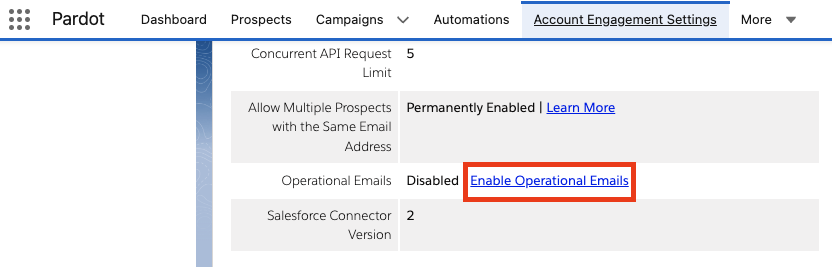
Step 2: Scroll to the bottom of the screen and select “Enable Operational Emails.”
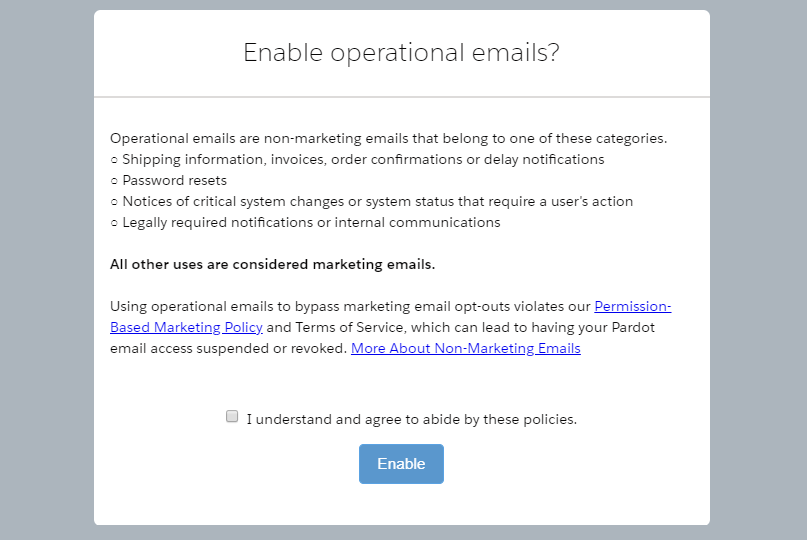
Step 3: Review the Operational email restrictions notice and click Enable. It will look something like this:
6. Who can send operational emails?
Only Pardot Admins and custom user roles can send Operational emails.
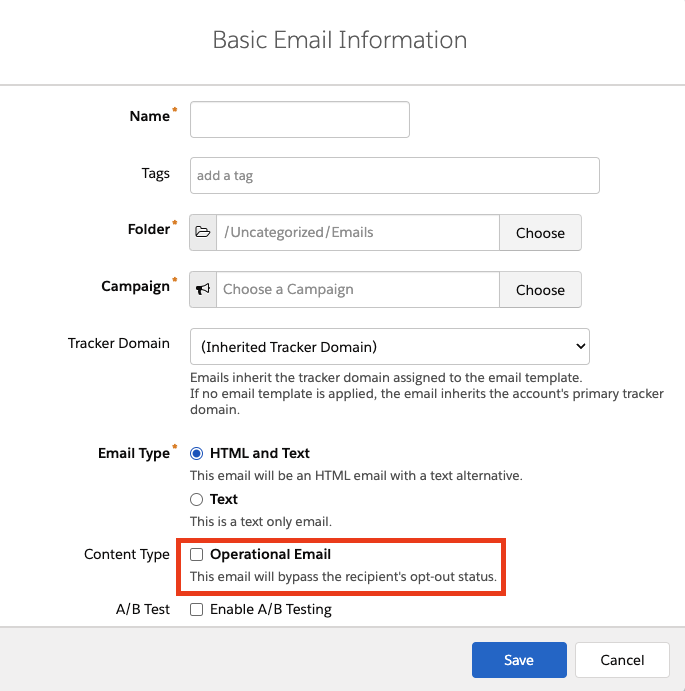
If you have access to send Operational emails, you will see this option under Basic Info when setting up a List Email.
7. What if I’m not sending as a list email — Can it still be operational?
There are a few quirks to keep in mind about how this can be used in other areas of Pardot:
Autoresponders sent from a Form or Form Handler will send to unsubscribed prospects.
Autoresponders sent from an Automation Rule will not send to unsubscribed prospects.
Emails from Engagement Programs cannot be sent as Operational… but you can vote for this feature to be added in the Trailblazer Community.
How are you using operational emails?
What other questions do you have about operational emails in Pardot? Are you trying to evaluate whether a specific use case is operational?
So picture this scenario: Pardot says you can’t email someone. But you want to. So how do you override what the system says so you can send your gosh darn email?
Here’s a standard consultant-y answer for you:
It depends.
It depends on WHY you can’t email people, the age of your Pardot org, and if you’ve done anything to mess with the default behavior of the subscription management fields.
This blog is going to outline currently available default options in new, AMPSEA enabled orgs. I’ve seen plenty of client orgs that do NOT play by these same rules. My best guidance if you’re seeing something in your org that doesn’t match up is play this song, and TEST, TEST, TEST before doing anything crazy.
With that disclaimer out of the way, let’s break this down.
The fields that control mailable status in Pardot & Salesforce
There are three little checkboxes in Salesforce and Pardot that are key here: Email Opt Out, Do Not Email, and Pardot Hard Bounced.
Email Opt Out
This default field is intended to show who has actually opted out of email and unsubscribed. In Pardot, this is labeled “Opted Out.” In Salesforce it’s labeled “Email Opt Out” (API name: HasOptedOutOfEmail.)
These Pardot and Salesforce fields are mapped to each other by default, and are mapped from the Lead to the Contact on record convert by default.
Do Not Email
This default field in Pardot that is intended to be the master list of anyone you can’t email — unsubscribes, people who have hard bounced, and people who have soft bounced 5 or more times.
It does NOT exist in Salesforce by default. But it can be mapped to a Salesforce field.
Pardot Hard Bounced
This is a custom field created in Salesforce by default when you install the Pardot connector. It’s available to pull into reports, list views, and page layouts in Salesforce.
But strangely, it does not show up as a field you can edit or touch in Pardot. When you actually have a hard bounce though, you see these pop up on the prospect record:
If you try to edit the prospect record to get at these, no dice — MC Hammer style, you can’t touch this.
3 ways to opt people back in who have unsubscribed
The default behavior of Pardot is to err on the side of respecting Opt Outs. If you opt someone back in via Pardot, and Salesforce still has an opt out value, Salesforce will update Pardot to show the prospect as opted out.
This makes sense, conceptually. The person opted out, the system tries to honor that. In practice, this is sometimes problematic because:
Sales reps love to opt people out and then complain about them not being emailed
You might import legacy lists with questionable mailing status as “Opted Out,” and can’t email them even if they later re-engage
A million other random scenarios
But, you have options to work around this.
Option #1: Individually opt people back in both places, super fast
You can opt someone in really quick in Pardot, and then race the connector sync and opt them back in via Salesforce too.
This works okay — but it means only Pardot admins can opt people back in, provided they have access to the Salesforce record in question and can toggle between browser tabs fast.
Option #2: Mass opt people back in with the help of Pardot Support
If you need to opt people back in en masse, you can plead your case to Pardot Support and pinky swear that these people really want emails from you.
If they’re on board, you can unverify your connector, use DataLoader to clear the Opt Outs on the Salesforce side, and get Pardot Support to clear the Opt Outs on the Pardot side.
Not a terrible process, but it does result in some downtime for the connector, which is not ideal.
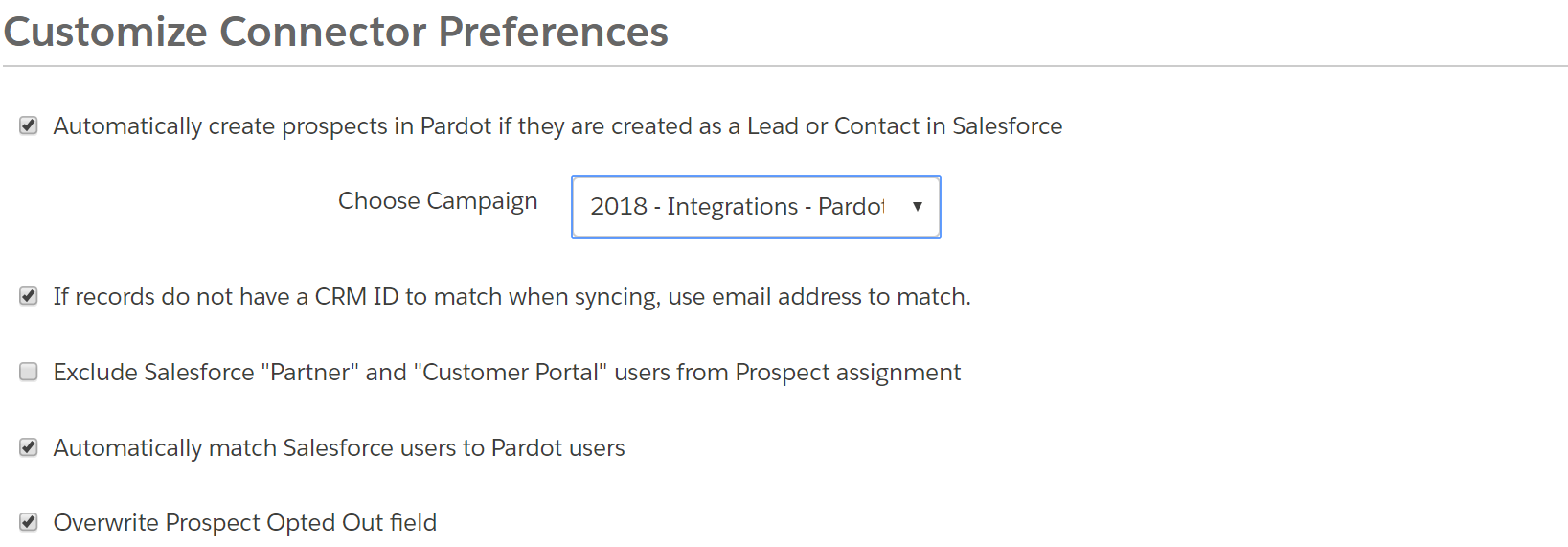
Option #3: Enable connector setting to overwrite prospect opted out field
As of very recently, there’s a new option available if you edit your Salesforce connector:
If you check the box, each user can opt in up to 100 people per day.
3 ways to update prospects who are Do Not Email, but NOT unsubscribed
Pardot is also pretty protective of the system generated bounce statuses and the “Do Not Email” field. This makes total sense — if you had a bunch of people bounce out, there are probably bigger changes that you need to make to ensure future successful deliverability.
As mentioned above, the Do Not Email field isn’t even mapped to Salesforce by default. But Pardot Hard Bounced is. If you click in to edit this field, Salesforce will let you “unbounce” a prospect:
…but this effectively does nothing. The field will continue to be unchecked in Salesforce, even after the records sync. But Pardot looks at this and says:
“Nah, bro.”
…and keeps the prospect marked as Do Not Email and Hard Bounced on the Pardot side.
But again, you have options to bend the system to your will, you powerful admin, you.
Option #1: Click “Remove Do Not Email from all Records with this email” on each prospect record
If you go into each bounced or DNE prospect record, you’ll see this link:
Click it, and BOOM, they’re back in biz.
Option #2: Uncheck Do Not Email on each prospect record
Edit the individual prospect in Pardot, uncheck Do Not Email, and save.
You won’t have the ability to edit the Hard Bounced, Hard Bounce Date, or Hard Bounced Reason field — but they will disappear from the prospect record in Pardot. The prospect’s “Pardot Hard Bounced” field in Salesforce will remain checked. But they’re mailable.
Option #3: Change their email address, then change it back
If you edit a prospect’s email address in Pardot or Salesforce, it clears the Hard Bounce and Do Not Email fields.
If a prospect hard bounces, that means the email address was bad, right? So, if the email address changes, then that prospect should be mailable again — which is why the system clears these fields.
You can use this to your advantage if you need to clear the Do Not Email field en masse. Here are the steps:
a. Export the list of bounces you need to opt back in
Be sure to include email address and CRM Lead FID and CRM Contact FID.
b. Add a column called “new email” and add the formula =CONCATENATE([cell where you have email],”.test”)
You’ll end up with something that looks like this:
c. Import a CSV to Pardot to overwrite the Prospect’s Email field
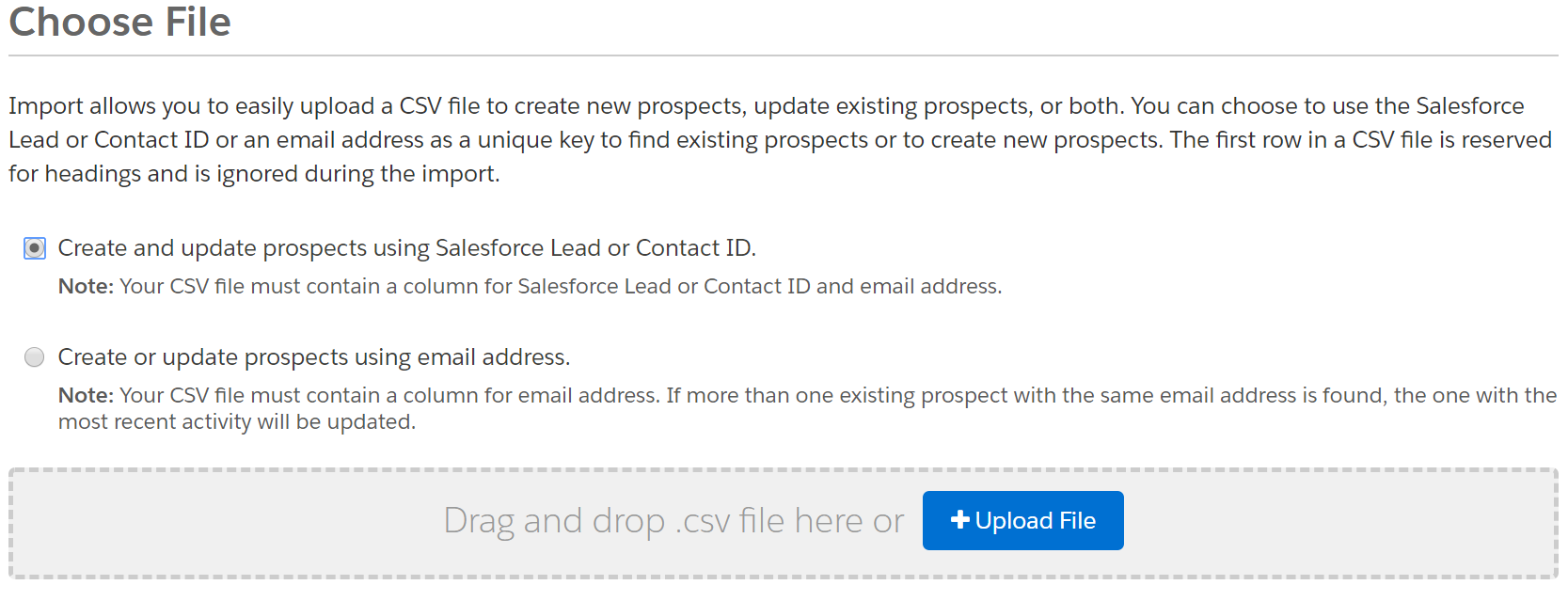
In Step 1 of the import wizard, choose to match on CRM ID:
When you get to the field mapping step — map your “New Email” field to “Email” and check the box to overwrite existing data.
d. Import a CSV to Pardot to FIX the prospect’s email field
Let your import do its thing, then spot check a few records. These should now be mailable — woo hoo!
But now you have to fix the email addresses so that they’re actually correct. So re-import your same spreadsheet, and this time map “Email” to “Email,” and tell Pardot to overwrite existing data.
…is one of the frequent concerns I hear when people are ramping up email marketing and/or launching a new program.
My rule of thumb for 98% of people: take the amount that you think you should be emailing your subscribers, 5-10X that, and that number is probably about right.
Always remember… that no one cares
As marketers, we think a lot about our content, creative, strategy, yada yada — everything that fuels our email marketing. Our customers don’t think about it that way. When they’re looking at their inboxes, they’re thinking to themselves:
“How do I delete as many emails as possible so I can focus on what I really need to do?”
That’s literally how I start every day. I pick up my phone from the nightstand, squint at it with one eye, click ‘edit’ on my iPhone, and multi-select as many emails as possible to delete.
Betcha you have a similar routine. Let’s all take a moment of silence for the brilliant, stunning, strategic email campaigns that failed the one eye 5 a.m. test.
What the data tells us Re: Too Much
Anecdotally, people unsubscribe from emails because of volume.
If you offer people the opportunity to tell you why they’re unsubscribing, the biggest reason cited is “too many emails.” (69% of the time, according to Constant Contact.)
If you ask sales for their opinion on how many emails you’re sending… well, just don’t.
Does the data support the idea that “too much of a good thing” will hurt you?
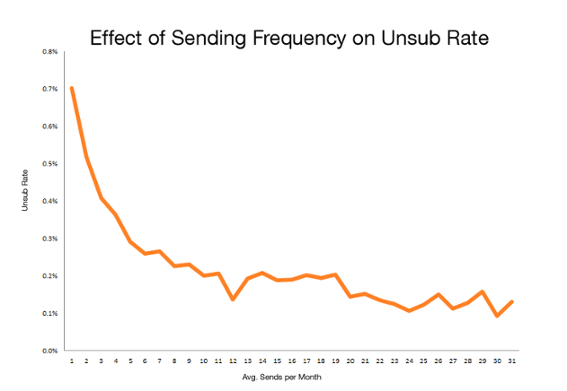
CMB Consumer Pulse did a study on MailChimp’s data to see how frequency correlates to unsubscribe rate. And actually…. it doesn’t really.
This data shows that higher volume of email sends don’t send people flocking to your unsubscribe link.
A better visualization would probably be the percentage of subscriber churn over time. But you get the idea.
An even better plan: Look at your own data
Try increasing your email frequency and see what happens. ReturnPath did a really interesting study with a few of its customers where it split subscribers into three tiers of engagement and looked at impact of frequency on each.
As a mini experiment: send 2X the amount of email you usually send for the next 30 days. Do unsubscribe rates spike?
Beyond the per email metrics and unsubscribe rate, what is the total number of clicks, opens, and unsubscribes you’re driving across all of your efforts?
If there IS an increase in subscriber churn, and opt outs “spike” from… let’s say .5% to 1.5%… is that hit to the metrics worth the tradeoff to drive more traffic?
More of the same can be a good thing [a client example]
With many of Sercante’s clients, we’ve started re-sending all emails 24 hours after the initial send to anyone who hasn’t opened it. As a rule of thumb, we expect 50% of the results of the first send for send #2.
At first, I was really resistant to doing this. I’m competitive, okay? And it’s a bummer to see a client with consistent 35%+ email open rate get 17% on a resend. It takes our overall stats down. Lame.
But if email #1 drives 20K opens, and 2K clicks… is it worth the 180 seconds it takes to queue send #2 and drive another 1K people to the client’s website?
Think about that for a second. In this client example, A THOUSAND PEOPLE cared about their message enough to click through on round two. If we didn’t send email pass #2… I think it would be fair to say that we weren’t emailing people enough.
5 quick tips if your Too-Much-O-Meter is still tingling
Still worried about emailing people too much?
Really, you’re probably not emailing people too much. And you’re missing opportunities to build awareness, generate leads, and nurture pipeline if you’re not optimizing the volume of emails you’re sending.
But if you’re still concerned, here are a few thoughts on how you can mitigate:
Gradually ramp up volume over time. If you’re sending weekly, try 2X weekly.
Use recency/frequency suppression lists, and suppress recipients in active Engagement Studio programs to stagger what people see when (more to come on this in a later post.)
The bottom line: Share good content, and do it a lot
Don’t worry about emailing people too much.
Worry about creating awesome content. Worry about emailing the right people, at the right time, with the right message. Worry about growing your list in a healthy (or at least hand wavy healthyish) way.