
Agentforce Marketing forms are built in Salesforce CMS and can be hosted on Agentforce Marketing landing pages or embedded on external sites. These forms utilize Salesforce Flow to create and update records and represent a significant shift for users transitioning from Marketing Cloud Account Engagement. In this post, I’ve compiled five considerations that I encountered and provided solutions to help speed up your adoption.
Product Note: In previous blog posts, Agentforce Marketing has also been referred to or known as Marketing Cloud on Core and Marketing Cloud Next. This product may have also been referred to under its Edition names, Marketing Cloud Growth and Marketing Cloud Advanced.
Consideration #1 – Duplicate Record Creation
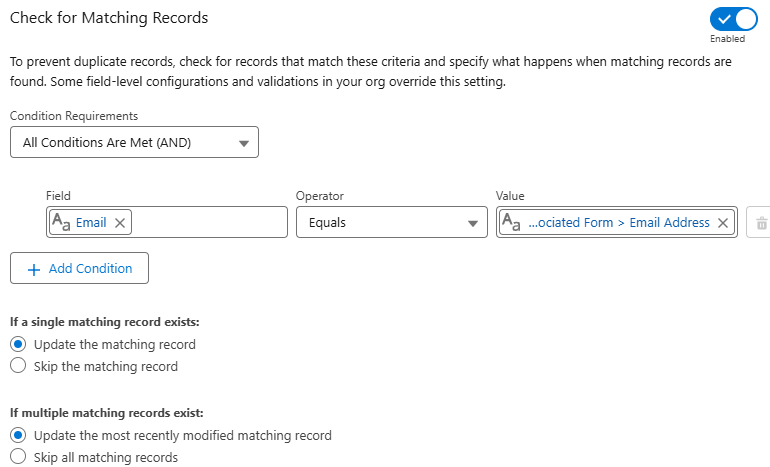
The Create Records element in Flow includes a feature to check for existing records and define actions when matches are found. However, the configuration of your organization impacts this setting and, in some cases, can cause duplicate records to still be created even with this feature enabled.
To prevent duplicate records, check for records that match these criteria and specify what happens when matching records are found. Some field-level configurations and validations in your org override this setting.
Solution – Test and Validate
Before getting too concerned about this one, do some testing. Salesforce is extremely customizable, so I get the disclaimer. It’s totally possible that duplicate rules, validation rules, or other configurations could impact this feature in your org.
I tested in my development org and a couple live orgs and did not run into any issues. Still this is worth noting and validating.
Consideration #2 – Specifying the Created By User for New Leads
When new leads are created from a form-triggered flow, the“Created By” field defaults to the user who activated the flow. This is not ideal – especially when flows are activated by users that the sales team is unfamiliar with.
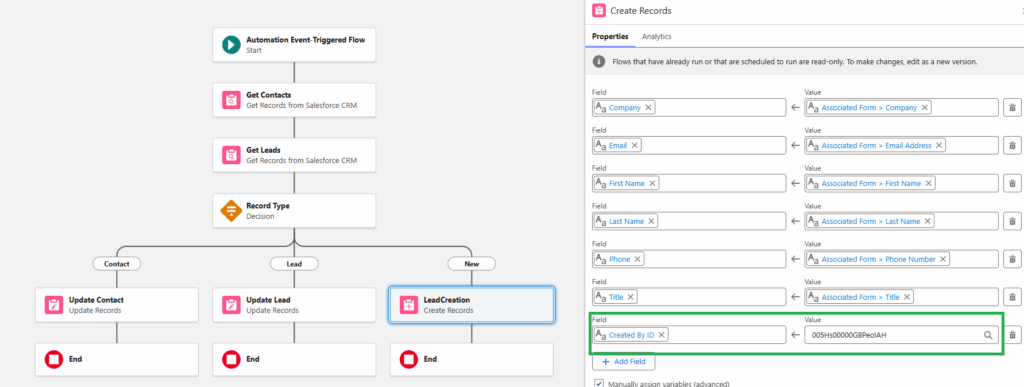
The simple fix is to specify the “Created By ID” in the create records element of the flow. However, this field is an audit field and might not be available to you in your org.
Even if you have access to this field, there are limitations if you try to use it in conjunction with the “Check for Matching Records” setting. The “Created By ID” can’t be updated on matching records, which makes total sense.

Solution – Audit Fields and Flow Updates
The first step is ensuring that the “Created By ID” field is available and accessible to the user building the form-triggered flow.
This feature must be activated by your System Administrator and assigned to users. The full instructions are included in the Salesforce support article Enable the ‘Create Audit Fields’ Permission in Salesforce.
The second step is addressing the issue related to updating existing records. Since you can’t update the “Created By” field on an existing record, the best option is to add a decision element to your flow. This allows you to create different paths and actions based on the type of record.
This solution replicates the functionality of the “Determine CRM Record for Individual” element that’s currently available in segment-triggered flows. Fingers crossed that this element will be available in form-triggered flows in the future. Until then, this solution gives the flexibility to set the “Created By ID” on new records without impacting existing records.
Consideration #3 – Overwriting Data
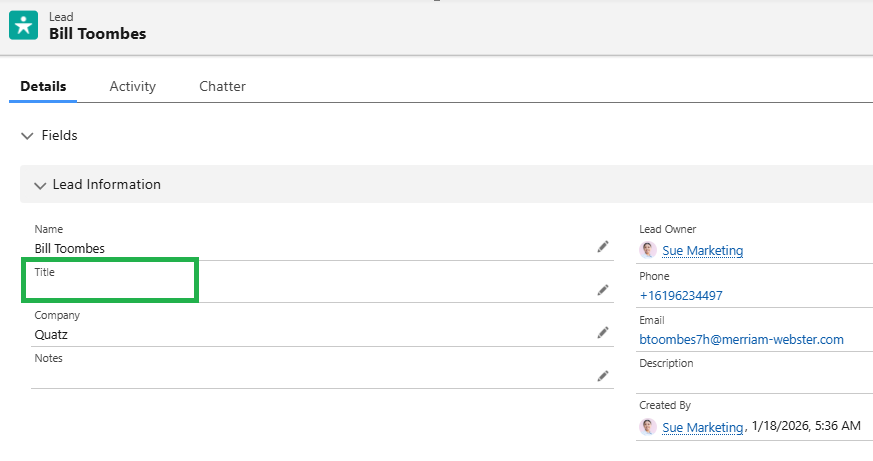
When an existing record completes an Agentforce Marketing form and leaves a field blank, the empty input overwrites the current Salesforce data. For example, if a lead with the job title ‘Quality Engineer’ submits a form with the title field empty, the existing value will be overwritten with a blank.
Before

After
Solution #1 – Required Fields
The quick and easy solution is to prevent blank data from being submitted in the first place. This can be done by updating the field to required in the form.
Solution #2 – Formula Fields
Depending on the number of fields on your form, making all fields required could impact the user experience and reduce completion rates. Understanding that there will likely be times that there are optional fields on forms, we can still protect good data using formula fields.
Creating formula fields allows you to check to see if the form value is blank before updating data in Salesforce. If the form value is blank, the current value from the contact or the lead can be preserved.
The formulas are complicated by the fact that form fields can’t be used in formulas. This is due to the fact that the data has not yet been committed to the flow’s local memory. This can be addressed by adding the value from the field to an assignment element and using it in the formula.
Protecting Fields
- Create a Variable
- Toolbox > New Resource > Variable
- Resource Type: Variable
- API Name: varFormTitle
- Data Type: Text
- Toolbox > New Resource > Variable

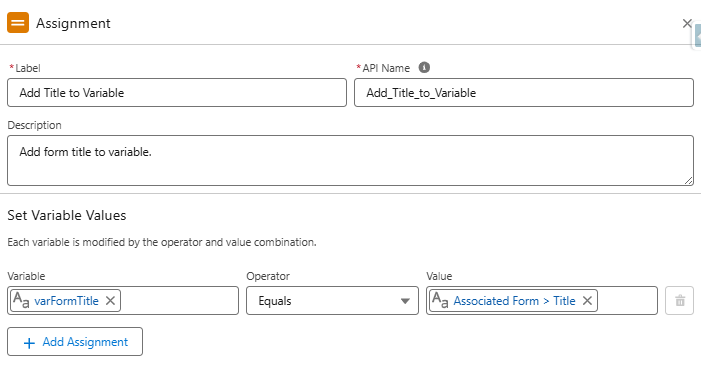
- Add Assignment Element
- Set variable values as follows:
- varFormTitle Equals Associated Form > Title
- Set variable values as follows:
- Create Formula
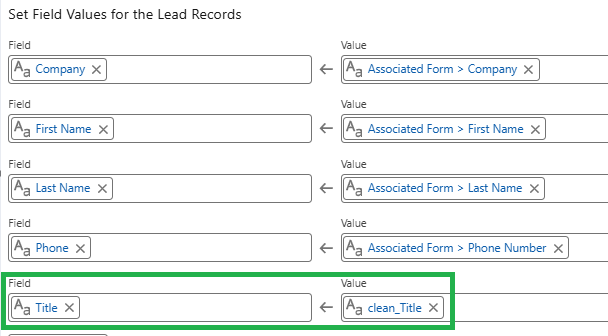
- API Name: “clean_Title” (data type – text)
- This formula will return the value of the varFormTitle variable if it has a value. If it’s blank, it will return the title from the contact record. If a contact record is not found, the final fallback is the title field from the lead.
- This ensures that if a blank value is submitted in the form, the current title from the contact will be retained (for contact records) and the title from the lead will be retained for lead records.
IF(
NOT(ISBLANK(TRIM({!varFormTitle}))),
{!varFormTitle},
IF(
NOT(ISBLANK({!Get_Contacts.Title})),
{!Get_Contacts.Title},
{!Get_Leads.Title}
)
)
- Configure Update Elements
- Use the “clean_Title” formula in the “Update Contacts” and “Update Leads” elements.
Consideration #4 – Campaign Member Records
Agentforce Marketing uses Opportunity Influence to track revenue as opposed to Campaign Member Influence, so campaign member records are not really needed. However, many marketers (present company included) rely on campaign member records for much more than just revenue tracking.
At this time, there is no single flow element that automatically adds submissions to a Salesforce campaign, but I’m optimistic that one will be added. Until this happens, we have a couple options.
Solution #1 – Customize Each Form Flow
While possible, this option is not very practical. Even with flow templates, this adds a lot of extra complexity to the form-triggered flow.
Solution #2 – Campaign Manager Flows
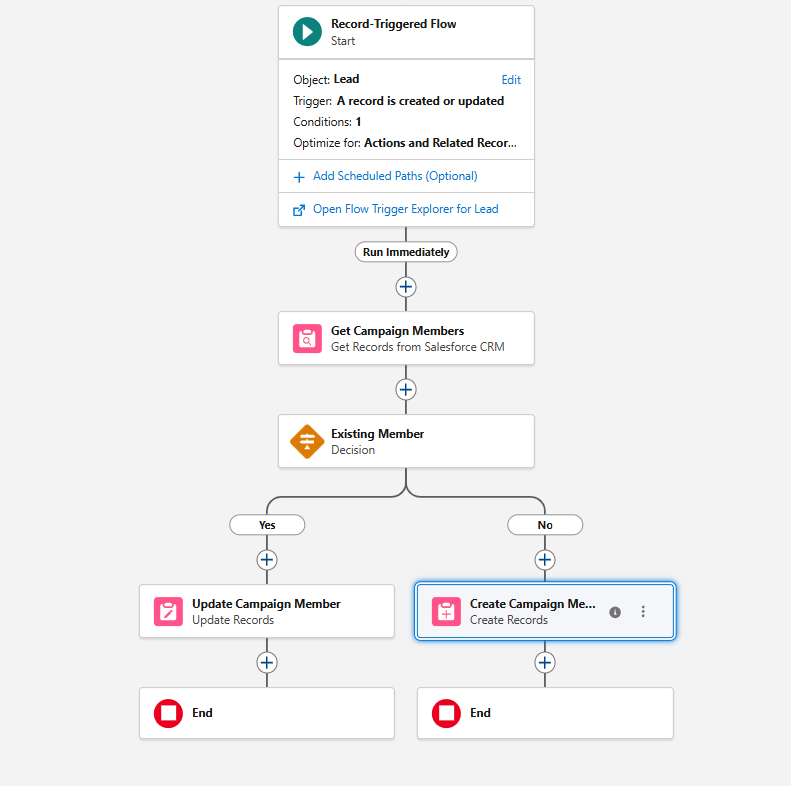
My preferred method for creating campaign member records is separate record-triggered flows. These flows are triggered when new records are created or the campaign or campaign member status on an existing record is changed.
Creating Campaign Manager Flows
- Create Contact and Lead Fields
- Last Campaign ID (text)
- Last Campaign Member Status (text)
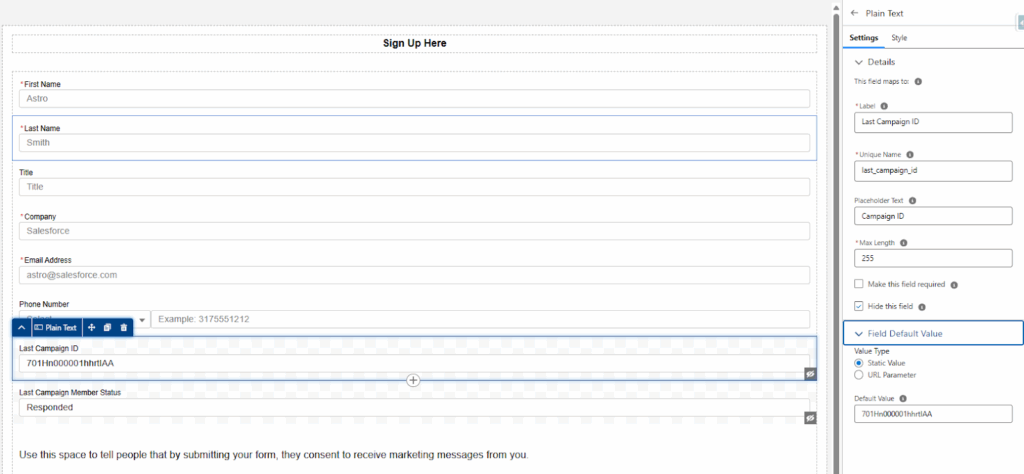
- Add Hidden Fields (to the form)
- This makes it easy for users to update the values for specific forms by updating the default values of the hidden fields. This is preferable to modifying the flow, in my opinion.
- Add the campaign ID associated with the form as the default value for the “Last Campaign ID” field.
- Add the desired campaign member status as the default value for the “Last Campaign Member Status” field.
- This makes it easy for users to update the values for specific forms by updating the default values of the hidden fields. This is preferable to modifying the flow, in my opinion.
- Create the Flow (separate flow are needed for each object)
- Type – Record-Triggered Flow
- Object – Contact, Lead, or Account (if person accounts are being used)
- Trigger – A record is created or updated
- Entry Conditions – This formula triggers when a new record is created and the Last Campaign ID field has a value or when the Last Campaign ID or Last Campaign Member Status value on an existing record is changed.
OR(
AND(
ISNEW(),
NOT(ISBLANK({!$Record.Last_Campaign_ID__c}))
),
ISCHANGED({!$Record.Last_Campaign_Member_Status__c}),
ISCHANGED({!$Record.Last_Campaign_ID__c})
)
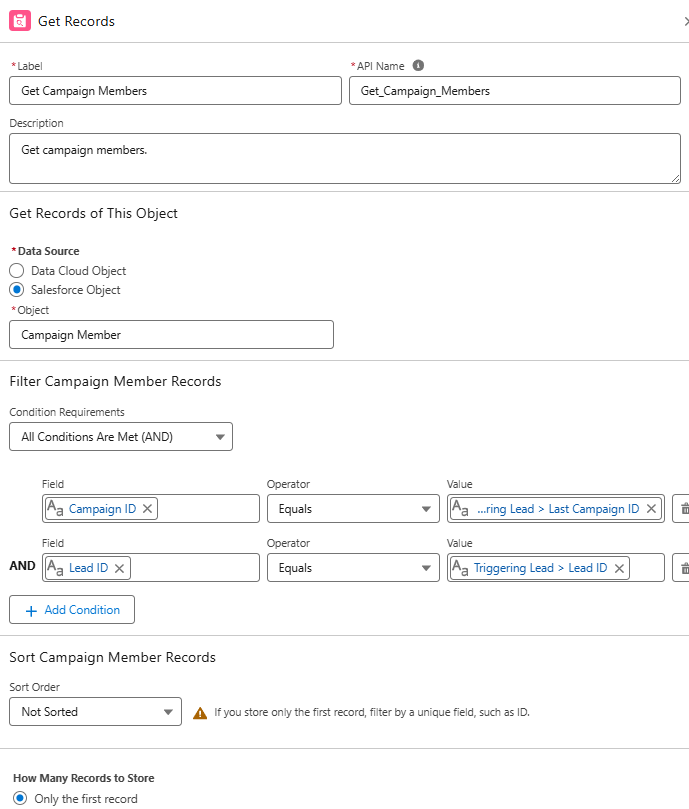
- Get Campaign Members
- Add a “Get Records” element to get all the members of the campaign (based on the Last Campaign ID value from the form).
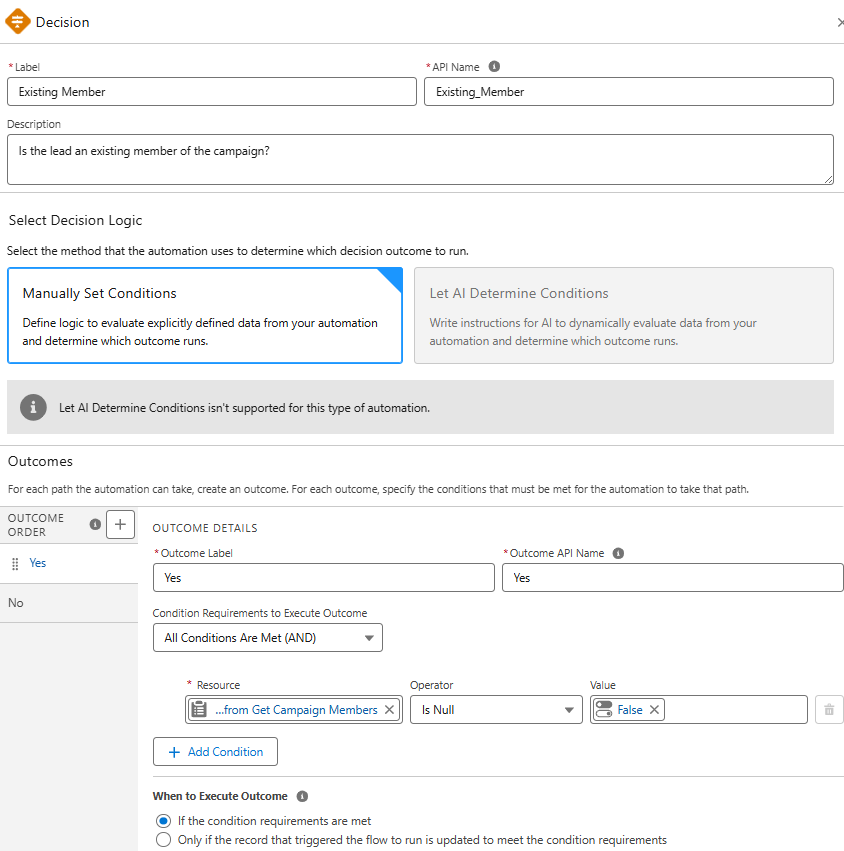
- Check for Existing Campaign Members
- Add a “Decision Element” to create distinct paths for existing vs. new records.
- Update/Create Records
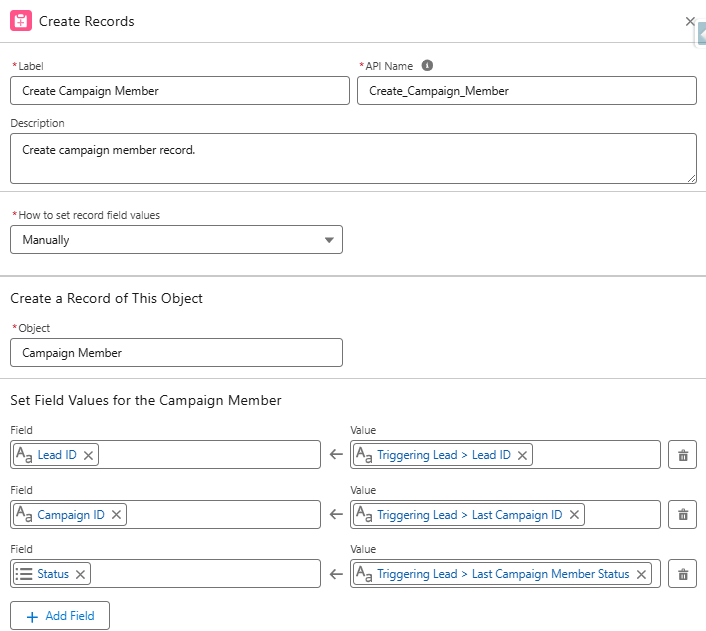
- Add an element to update the campaign member status of existing campaign members to the “Last Campaign Member Status” value.
- Add an element to create campaign members for new records based on the record ID, “Last Campaign ID” and ““Last Campaign Member Status”.
- Activate the Flow
- Based on the example flow (created on the lead object), new lead records or existing members that meet the entry conditions, will now be automatically added to the target campaign.
Consideration #5 – Time Spent Building Flows
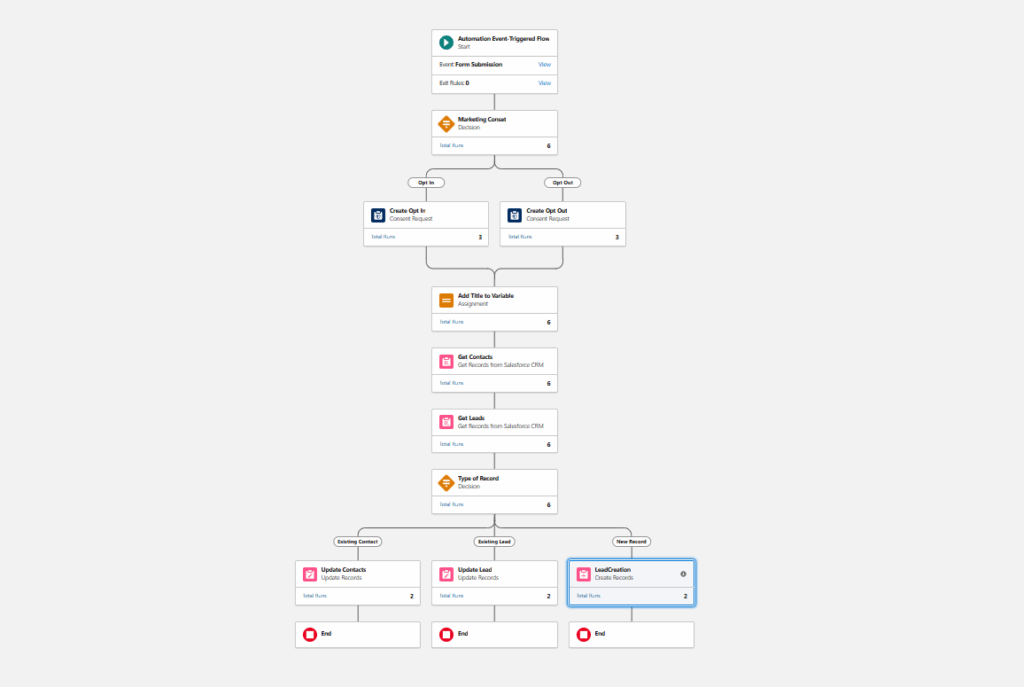
Over the course of this post, we’ve taken a very basic flow and enhanced it with additional elements, assignment variables, and formula fields.
The most frequent concern I hear from clients is that they don’t have the time or skills to manage these builds. However, you don’t actually have to build everything from scratch.
Final Flow
Solution – Flow Templates
Flow templates are a great way to jumpstart flow creation. An existing flow can be saved as a template and a new flow can be created from it. Once created, the new flow can be connected to a form.
Creating a Flow Template
- Open and existing flow.
- Click “Edit As New Version”.
- Open the “Start” element and remove the connected form.
- Select the “Save As New Flow” option, name, and save.
- Note: You will have a large number of errors and warnings. This is expected as the flow is referencing form fields and there is no connected form.
- With the new flow open, select the “Save as Template” option. This will set the flow type as a template.

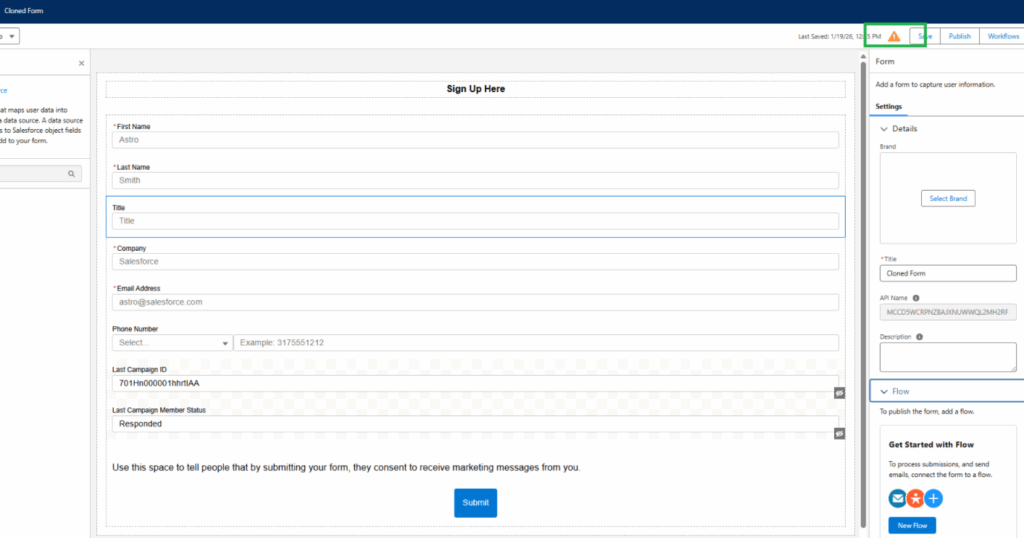
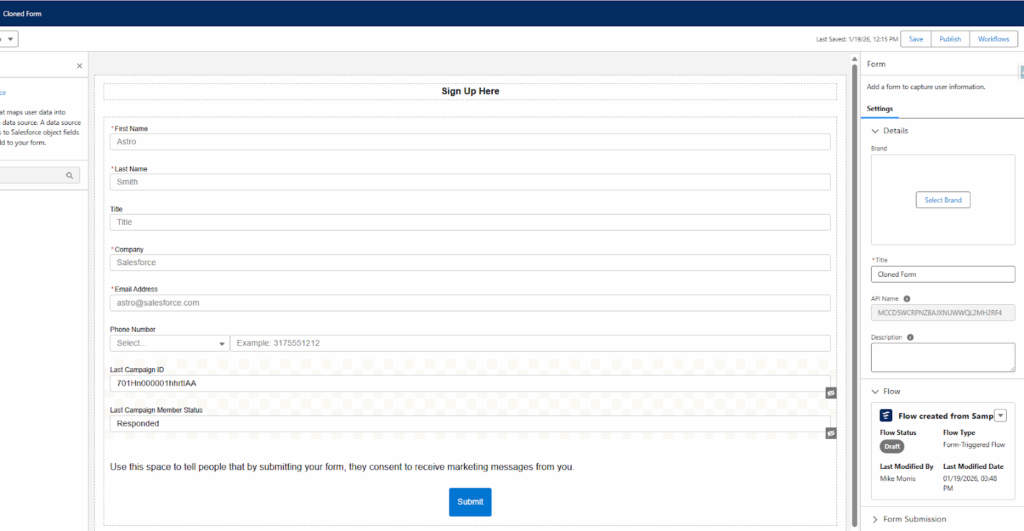
- Clone the source form.
- Since the original flow was created from a form, you can clone this form (essentially using it as a template). This will ensure that all fields map correctly to the flow and resolve the errors and warnings.
- Update the hidden field as needed (Last Campaign ID, Last Campaign Member Status, and any other fields that may have been added).
- Note – You will see a warning because a flow has not been created. This is expected.
- Create a new flow using the flow template.
- Flow > New
- Use the “Search automations” box to your flow template.
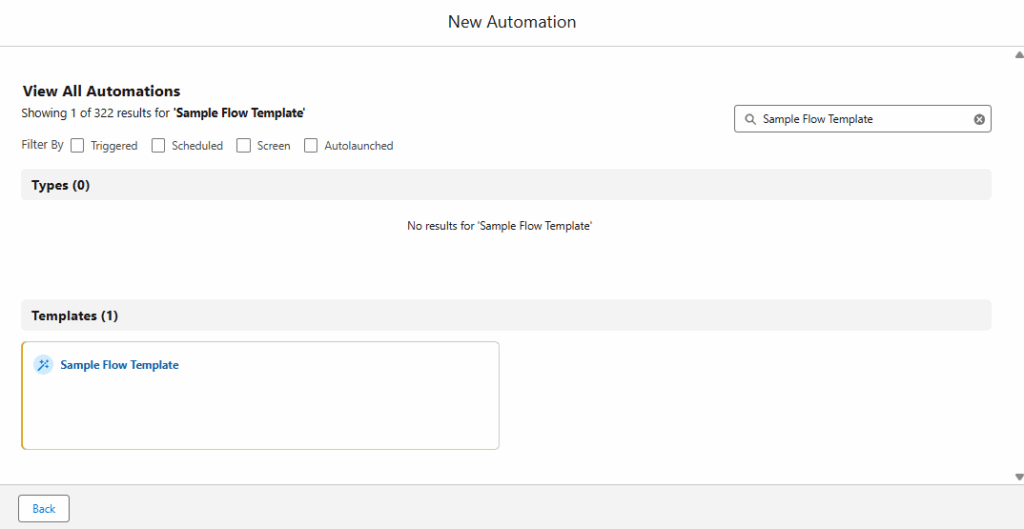
- Select the template.
- Close the “Something when wrong” message.
- Open the “Event” section in the state element and select the new form that was created.
- Click “Save” and name the flow.
- Confirm all errors and warnings have been resolved.
- DO NOT ACTIVATE.
- Publish the form.
- Return to the new form, confirm that the flow has been connected, click “Publish”.
Accelerate Your Success
Agenforce Marketing forms function a bit differently than Marketing Cloud Account Engagement forms, but they perform the same function. There’s an expected learning curve when adopting a new platform and my hope is that understanding some of the considerations will help speed up your adoption and success.
Sercante is recognized as a Marketing Cloud Growth and Advanced Implementation Expert and has the expertise to support your Agentforce Marketing needs. Let us know how we can help.