Category

Adam Erstelle

The Salesforce Winter ‘22 release introduced the ability to create a custom Lightning Web Component (LWC) for Lightning Email Content, and with Spring ‘22 we have the same ability for Pardot Lightning Email Templates.

With this new feature, you can create components for standard areas of emails, such as footers or headers. Or, use it for more complex items, such as displaying upcoming events or gathering prospect feedback.

In this post, we will present the code for 5 different LWCs, walking you through the most simple example and incrementing from there.

It is important to note that these custom components behave differently than Pardot Snippets or Dynamic Content. Unlike those features, when you change the LWC, existing Pardot Email Content and Templates do not get automatically updated. You need to go into each one to refresh them.

Because we all like analogies, think of the LWC as a rubber stamp and the Pardot Email Content & Template as paper. We can craft the stamp however we like (from simple to very complex), and once it is ready it will stamp the ink (HTML) onto the Email Content or Template. Changing the stamp does not change the ink already on the paper — you need to use the new/adjusted stamp and do it again.

Feel free to check out the code project in our github repository. If you aren’t already familiar with Salesforce Lightning Web Components, check out this Trailhead Quick Start.

Simple hard-coded HTML

This example is a pretty good one for anyone to get started. It demonstrates what is needed to at least have something work at the most basic level. Consider it the Hello World of Custom Email Components. In our github repository, this is the fixedAddress component.

This type of custom component is great to use for standard sections of your emails that do not change with each send. For example, the copyright notice, legal disclaimer, unsubscribe language etc.

At a minimum, our LWC will need 3 files:

  1. .html -> The HTML which will become rendered and stamped into the Email Content/Template
  2. .js -> Any coding required to support the component
  3. .js-meta.xml -> Salesforce Metadata, enabling this component to be used in Email Content/Templates

First, we will explore the Salesforce Metadata.

<?xml version="1.0" encoding="UTF-8"?>
<LightningComponentBundle xmlns="http://soap.sforce.com/2006/04/metadata">
    <apiVersion>52.0</apiVersion>
    <isExposed>true</isExposed>
    <masterLabel>Fixed Company Address</masterLabel>
    <targets>
        <target>lightningStatic__Email</target>
    </targets>
</LightningComponentBundle>

Some key notes:

  • isExposed (line 4) is needed to tell Salesforce that this component can be displayed in the Component Toolbox
  • masterLabel (line 5) is the name to display in the Component Toolbox
  • target = lightningStatic__Email is needed to tell Salesforce that this component can be used in the Lightning Email Builder. Other examples have a bunch of other targets, these are not needed and may result in your component showing up in unexpected places.

Next we will look at the JavaScript.

import { LightningElement } from 'lwc';

export default class FixedAddress extends LightningElement {}

Because our example is mostly hard-coded, there is nothing of value here. As we evolve, we’ll start seeing this get built out.

Finally, the HTML.

<template>
  <p>Our Address is: 123 Main St, Atlanta GA, USA</p>
</template>

Again, very simple. When the email HTML is rendered, everything in between the <template> tags will be written.

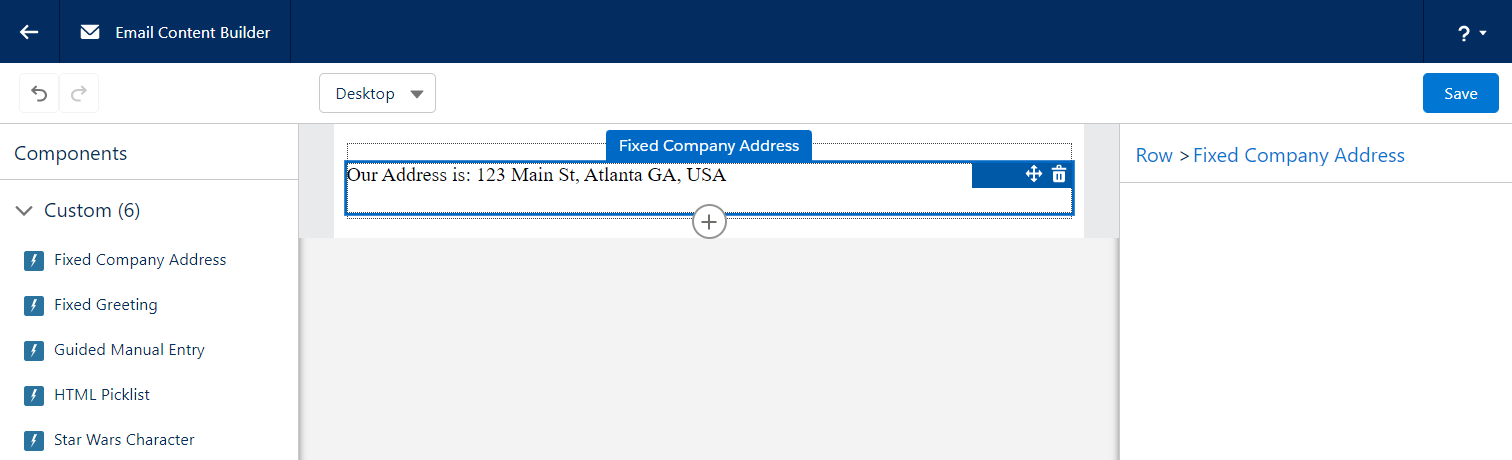
Here’s what it looks like in the builder. Once the component is added to the email, it is just simple text that is rendered.
Hard-coded HTML, which includes a merge field

This example is nearly identical to the previous one, so we will skip showing the JavaScript and the Metadata.  In our github repository, this is the fixedWithMergeFields component.

Straight to the HTML:

<template>
 <p>Hello {{{Recipient.FirstName&#125;&#125;&#125;, 
     I hope you are having a great time learning 
     about our products and services.</p>
</template>

What you might notice is how the merge tag has been written. Due to some very technical reasons, we can’t just use the usual {{{FIELD}}} syntax, we have to instead “escape” the closing curly brackets to make the LWC gods happy. This appears to only be the case when the merge tags are placed into the HTML file, as normal syntax can be used when the merge tags appear in the JavaScript.

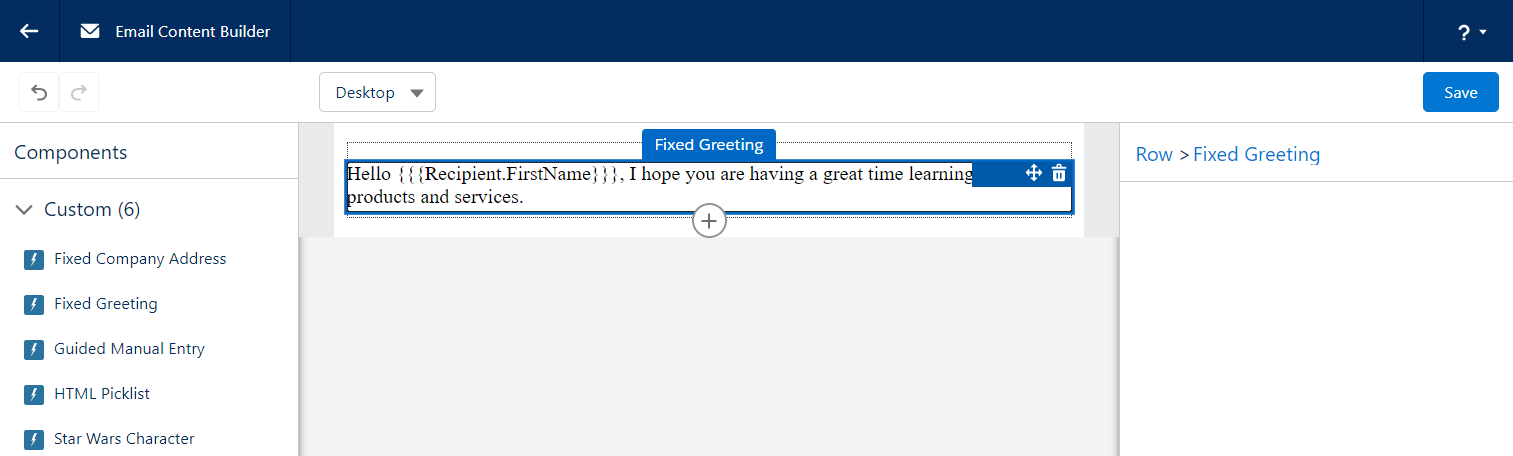
Here’s what it looks like in the builder. Similar to the previous example, you get text that cannot be adjusted.
Allow someone creating an email to provide text

Now we are going to start allowing the user of a custom component to provide their own values. In our example we are going to start off a bit slow, simply allowing them to provide some text. In our github repository, this is the guidedManualEntry component.

We need to decide which “attributes” (or values) we want a user to provide. For this example, we will ask for a Title, an Image URL, and a Description. 

First, let’s take a look at our JavaScript. It needs to define these attributes.

import { LightningElement, api } from 'lwc';

export default class GuidedManualEntry extends LightningElement {
  @api
  title=""
  @api
  imageUrl=""
  @api
  description=""
}

You will note that each “attribute” has a variable name and the @api annotation. This annotation tells the LWC system that these can be referenced by the HTML file as well as our metadata file.

Next, we will tell our Metadata file to prompt the user to fill in these values.

<?xml version="1.0" encoding="UTF-8"?>
<LightningComponentBundle xmlns="http://soap.sforce.com/2006/04/metadata">
  ...
  <targetConfigs>
    <targetConfig targets="lightningStatic__Email">
      <property 
        label="Title"
        name="title"
        type="String"
        default="Title of Entry"
        required="false" />
      <property 
        label="Image URL" 
        name="imageUrl"
        type="String"
        placeholder="https://"
        description="Enter Image URL for this image. Be sure that it is a secure URL starting with https://"
        default="https://via.placeholder.com/575x150"
        required="false" />
      <property 
        label="Description"
        name="description"
        type="String"
        default="Description of Entry"
        required="false" />
    </targetConfig>
  </targetConfigs>
</LightningComponentBundle>

Ok, that’s a lot! What we are doing is giving our lightningStatic__Email target a list of properties to present on the right hand side of the Lightning Builder when someone wants to use our component.

Each property (to be presented) has a bunch of levers we can adjust to enable our user to give us what we need. Let’s break down the ones we use here:

  • label > basically a form field’s label
  • name > the name of the attribute in the LWC’s JS file
  • type > the type of input to present. For an email builder our current choices are:
    1. Boolean > displays a checkbox
    2. Integer > displays a text input allowing digits
    3. String > displays a text input allowing any character
    4. Color > displays a color selector
    5. HorizontalAlignment > displays a horizontal alignment selector
    6. VerticalAlignment > displays a vertical alignment selector
  • default > the default value to use when a new component is created
  • required > whether or not a value is required to save the component

The Salesforce LWC Developer documentation is a great resource for getting more details on all the abilities of the LWC metadata file.

Now that we are getting values from a user, we need to display them in the HTML!

<template>
  <h3>{title}</h3>
  <img src={imageUrl} />
  <p>{description}</p>
</template>

Here we are using LWC variables to place the values provided by the user. The syntax for this is the variable name (that has the @api annotation in your JavaScript file) wrapped by a single set of curly brackets. 

Now we can kind of understand why our HML syntax which includes 3 sets of curly brackets doesn’t really work, we can’t mix the two.

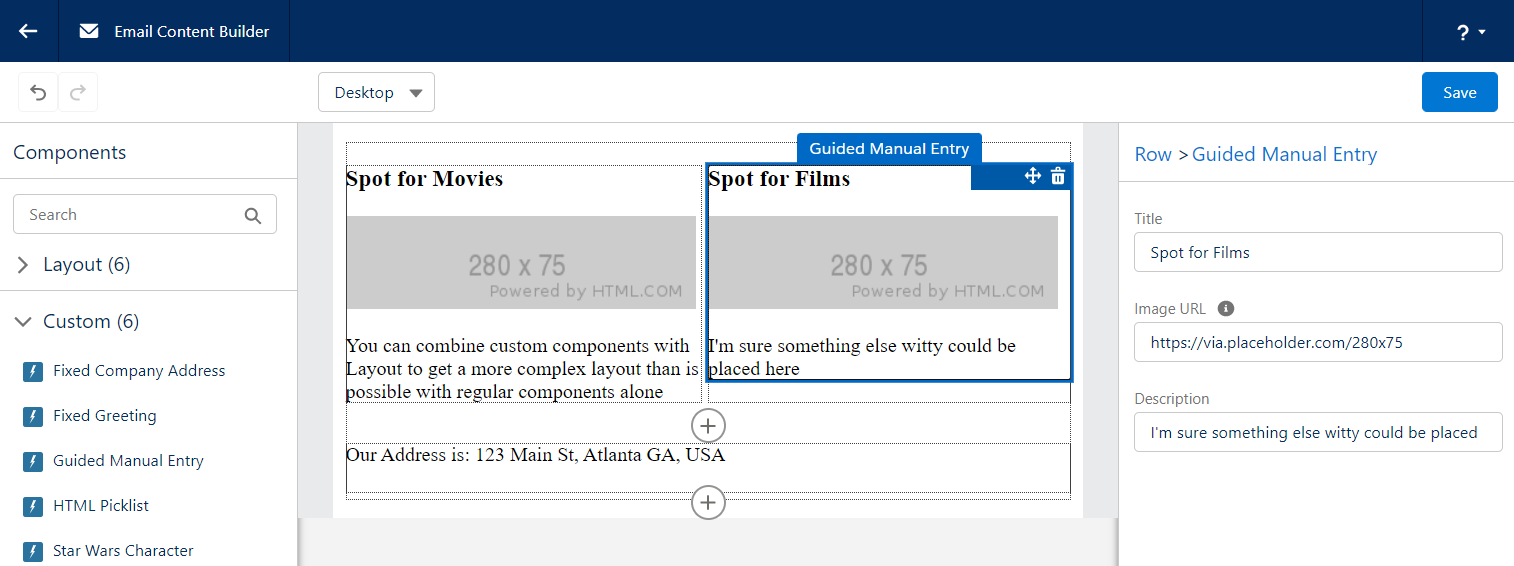
Here’s what this looks like in the builder. We are asking for the user to provide values within the section on the right hand side. 

You can combine your Custom Components with Layout components to build a nice consistent email.
Present a picklist of values, coming from APEX

Now things start to get interesting. We will tie our LWC to some APEX code, opening our world of options. Before we get started, it is important to know that you don’t have to use APEX to present a picklist of options, it can entirely be done in the Metadata. Sadly we can’t show every variation of example. In our github repository, this is the htmlPicklist component.

Before we get started, we want to give credit to the original author of this example to jrattanpal on github. We simply made some minor changes to enable it to be used as a learning example.

First, we need an APEX class which will provide the options that are available.

global class HTMLSources extends VisualEditor.DynamicPickList{
    
  global override VisualEditor.DataRow getDefaultValue(){
      VisualEditor.DataRow defaultValue = 
          new VisualEditor.DataRow('--Select--', '');
      return defaultValue;
  }

  global override VisualEditor.DynamicPickListRows getValues() {
      VisualEditor.DynamicPickListRows options = new VisualEditor.DynamicPickListRows();
      options.addRow(new VisualEditor.DataRow('HTML Option 1', '<h1>Sample 1, simple header</h1>'));
      options.addRow(new VisualEditor.DataRow('HTML Option 2', '<h3>Sample 2, smaller heading</h3>'));
      options.addRow(new VisualEditor.DataRow('HTML Option 3', '<h4>Sample 3, multiple blocks of HTML</h4><div>hello<p>testing html picklist</p></div>'));
      options.addRow(new VisualEditor.DataRow('HTML Option 4', '<h2>Hello Trailblazer</h2>'));
      options.addRow(new VisualEditor.DataRow('HTML Option 5', '<h2>This was swell</h2>'));
      return options;
  }
}

Note that the class extends VisualEditor.DynamicPickList, which requires us to provide 2 method overrides.

  • getDefaultValue -> provides the value selected when the component is first added to an Email. In our example above we simply prompt for a choice.
  • getValues -> provides all of the options that a user can pick from. To our knowledge you can’t retrieve a list of values dynamically based on another input from the user, though if this changes in the future be sure to let us know!

Now that we have APEX which can provide our values, let’s set up our LWC. We will start with our JS.

import { LightningElement, api } from 'lwc';

export default class HtmlPicklist extends LightningElement {
  @api
  set htmlValue(value) {
    if (this.attachmentPoint) {
      this.attachmentPoint.innerHTML = value;
    }
    this._htmlValue = value;
  }
  get htmlValue() {
    return this._htmlValue;
  }
  renderedCallback() {
    this.attachmentPoint = this.template.querySelector('div[ishtmlcontainer=true]');
    this.attachmentPoint.innerHTML = this.htmlValue;;
  }
}

The approach here is a little bit different than all the other examples. The goal is to take the “htmlValue” (which comes from APEX) and have that HTML be the entire HTML that gets stamped onto the Content/Template. This keeps our LWC HTML very lightweight and gives full control over the HTML to APEX (or wherever the APEX is getting the value).

Next, we will tell our Metadata file to prompt the user to choose one of the options.

<?xml version="1.0" encoding="UTF-8"?>
<LightningComponentBundle xmlns="http://soap.sforce.com/2006/04/metadata" fqn="banner">
  ...
  <targetConfigs>
    <targetConfig targets="lightningStatic__Email">
      <property 
        name="htmlValue"
        label="Pick an HTML Sample"
        type="String" 
        required="true" 
        datasource="apex://HTMLSources"/>
    </targetConfig>
  </targetConfigs>
</LightningComponentBundle>

Some of our properties are similar to the previous example, however we introduce a new one.

  • datasource > 

As for the HTML file, it simply has a DIV that the JS can grab onto and fill.

<template>
  <div ishtmlcontainer="true" lwc:dom="manual"></div>
</template>

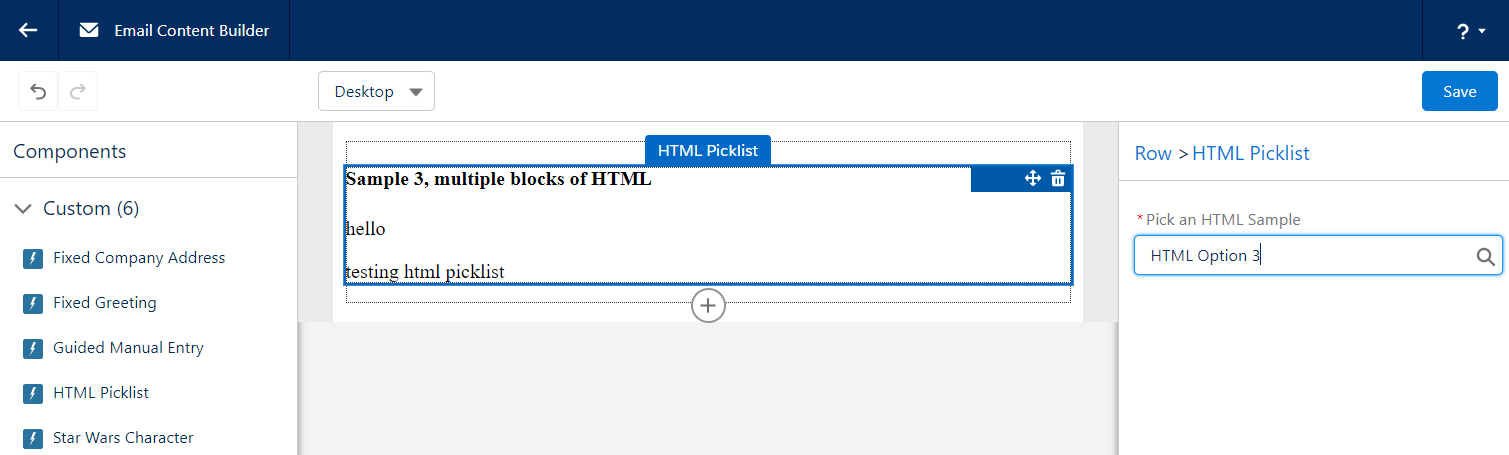
Here’s what it looks like in the builder. Similar to the previous example, the right hand side allows us to make a choice, and once made the content of our component is rendered.
Pull information from an Open API

This is the last of our examples, and it goes all out. By using an Open API, we don’t need to worry about authentication and all the additional steps to set it up in Salesforce. In our github repository, this is the starWarsCharacter component.

Similar to the previous example, we will start with some APEX. While there can be a lot going on here, the end result of the APEX is to provide a JSON String representing the attributes of each Object, or dropdown choice.

global with sharing class StarWarsCharacterPicklist extends VisualEditor.DynamicPickList {

  global override Boolean isValid(Object attributeValue){
      return true;
  }

  global override VisualEditor.DataRow getDefaultValue(){
      return new VisualEditor.DataRow('--Select a Character--', 'no-character-selected');
  }

  global override VisualEditor.DynamicPickListRows getValues() {
      System.debug('Providing Star Wars Character values now!');
      return getApiOptions();
  }

  private VisualEditor.DynamicPickListRows getApiOptions() {
    VisualEditor.DynamicPickListRows pickListRows = new VisualEditor.DynamicPickListRows();

    //Make API call to StarWarsAPI and get a list of characters
    List<StarWarsCharacterServices.StarWarsCharacter> characters = StarWarsCharacterServices.getCharacterList();


    // When a choice is made from the VisualEditor, the DataRow value will be provided to the LWC
    // We are choosing to have that "value" be a JSON string, so that the LWC can parse it and
    // render the properties as it sees fit
    for(StarWarsCharacterServices.StarWarsCharacter character: characters){
      String characterInfoAsJson = System.JSON.serialize(character);
      pickListRows.addRow(new VisualEditor.DataRow(character.name, characterInfoAsJson));
    }
    return pickListRows;
  }
}

Note that the class extends VisualEditor.DynamicPickList, which requires us to provide 2 method overrides.

  • getDefaultValue -> here we explicitly set a value that the JavaScript can look for, allowing it to determine if a character has been chosen or not
  • getValues -> the for loop iterates over a list of options that we’ve retrieved from some other source (just so happens to be a Star Wars API with a list of characters). For each option/star wars character, we build a JSON string of all the attributes we might care about in the LWC, and then return them.

Now, let’s take a look at the JavaScript.

import { LightningElement, api } from 'lwc';

export default class StarWarsCharacter extends LightningElement {
  @api
  character = {}
  @api
  characterChosen = false
  @api
  hasFilms = false
  @api
  hasStarships = false

  @api
  set characterJson(value) {
    // the "value" is the DataRow value that came from APEX
    // in our example, this is the JSON encoded string which contains details about our character
    console.log('setting characterJson::', value);
    this._characterJson = value;
    if(value==='no-character-selected') {
      console.log('There has been no character selected yet');
      this.characterChosen = false;
    }
    else {
      try {
        console.log('A StarWars character has been selected, parsing the JSON returned from APEX');
        this.character = JSON.parse(value);
        this.characterChosen = true;
        if(this.character.hasOwnProperty('films') && this.character.films.length > 0) this.hasFilms=true;
        if(this.character.hasOwnProperty('starships') && this.character.starships.length > 0) this.hasStarships=true;
        console.log('ok done');
      }
      catch(ex) {
        console.log('got an exception trying to parse json', ex.message);
        console.log(ex);
      }
    }
  }
  get characterJson() {
    return this._characterJson;
  }
}

Some things to note with this code:

  • @api character -> the JS Object which will contain all the attributes of a chosen Star Wars character.
  • characterChosen -> a flag that lets the HTML know which block to render
  • hasFilms -> a flag that lets the HTML know if the chosen character was in any films
  • hasStarships -> another flag
  • @api set characterJson -> a setter method, this is how the Email Builder will provide the JSON encoded string to the LWC once a choice has been made. The LWC then parses it and sets some of the flags.

Next, we will tell our Metadata file to prompt the user to choose one of the Characters.

<?xml version="1.0" encoding="UTF-8"?>
<LightningComponentBundle xmlns="http://soap.sforce.com/2006/04/metadata">
  ...
  <targetConfigs>
    <targetConfig targets="lightningStatic__Email">
      <property 
        label="Star Wars Character"
        name="characterJson"
        type="String"
        datasource="apex://StarWarsCharacterPicklist" 
        required="true" />
    </targetConfig>
  </targetConfigs>
</LightningComponentBundle>

It looks fairly similar to the previous example. A minor difference is that the “name” attribute specifies the setter method in the JavaScript as opposed to a property. Not a big difference, but worth calling out that you have a couple of options as you build your own.

Now, let’s look at our HTML.

<template>
  <template if:false={characterChosen}>
    <h3>Please select a Star Wars character from the picklist to the left</h3>
    <p>It may take a moment for Salesforce to retrieve the list of Characters and make them ready to display</p>
    <p>To my knowledge, it isn't possible to bind a search criteria to the API request, so all options need to be fetched first, however I'd love to know if someone figures this out!</p>
  </template>
  <template if:true={characterChosen}>
    <div class="card">
      <h2>{character.name}</h2>
      <p>
        Height: {character.height}<br />
        BirthYear: {character.birth_year}<br />
        HairColor: {character.hair_color}<br />
        HomeWorld: {character.homeworld}
        <template if:true={hasFilms}><br />Featured in {character.films.length} films</template>
        <template if:true={hasStarships}><br />Found in {character.starships.length} starships</template>
      </p>
    </div>
  </template>
</template>

We have 2 templates, the first displays some instructions when a choice has not yet been made, and the other displays information about the choice nicely. You can see we are using simple dot-notation to merge the character attributes into the HTML of the Email Content / Template.

The web developer inside of me really does prefer this approach for rendering HTML into an email, though it does prefer a consistent structured payload for each option.

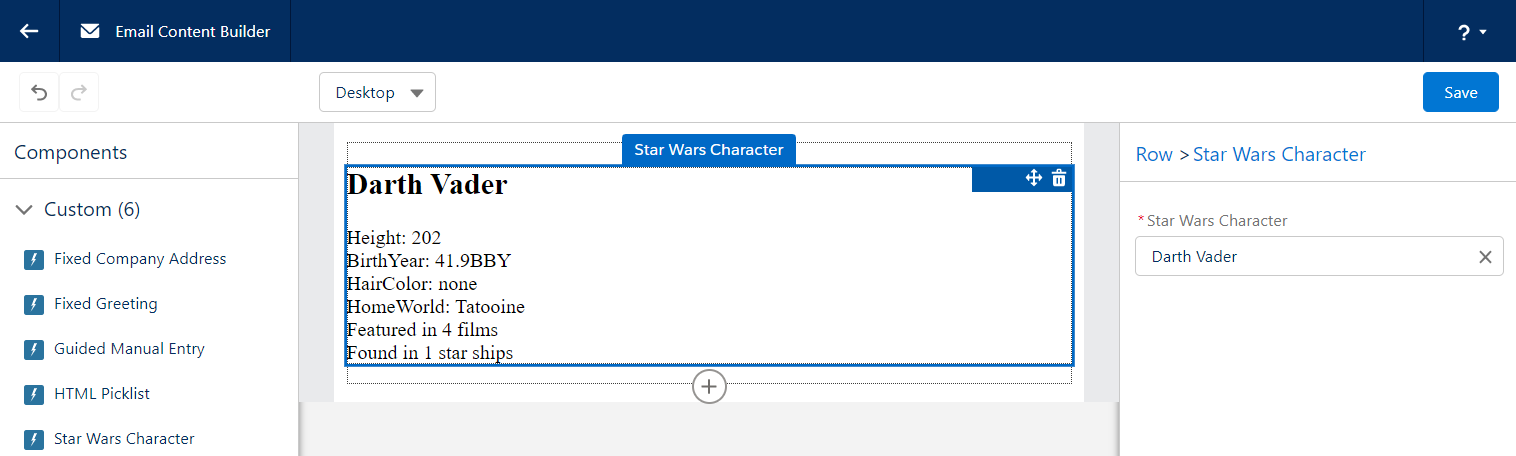
Here’s what it looks like in the builder. Similar to the previous examples, the right hand side container is where the user makes their selection and, once made, the details are rendered in the email.
Custom components are platform assets, meaning they do not belong to a specific Pardot Business unit and can easily be shared across all of your Business Units. These components will enable your users to easily drag in standard areas of emails (copyright notice, unsubscribe language, etc.) as well as more technical components, making email building faster and easier. With no backend HTML access to Lightning Builder Email Content and Email Templates, custom components are vital to building advanced emails. 

What custom components do you plan on building? Let us know in the comments!

Pardot is delivering a whole new way to leverage your prospect data in the Salesforce Winter ‘22 release. Our earlier blog post covers this new feature and how to set up the Pardot External Activity in Salesforce so any third-party service can begin sending these activities to Pardot via API. This post explains what third-party services need to do to send these activities to Salesforce using Salesforce declarative solutions (Flow/Process builder). 

At a high level, we need to:

  • Configure Salesforce to allow our solution to call the Pardot API
  • Implement Salesforce APEX code to handle the Pardot API request
  • Add an action to a Flow to make use of our new code
  • Test

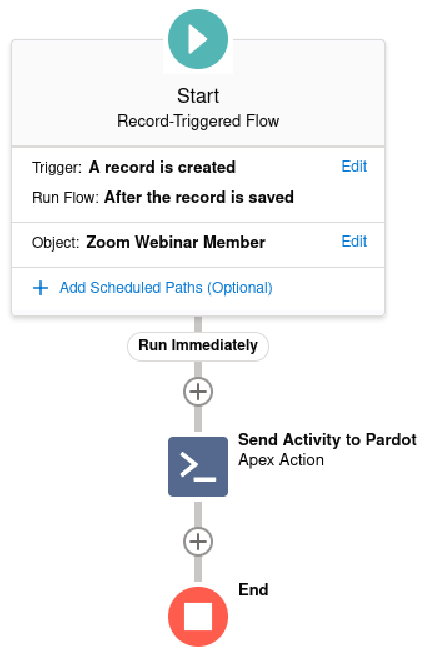
This solution is a little more technical than our post on Zapier. Once you are done, you will end up with a Flow like this:

Start Record-triggered flow

Configure Salesforce

Any time we want to work with the Pardot API, we need to “authenticate” with Salesforce in order to get an Access Token. 

First, follow the steps in our earlier blog post Connecting to Pardot API from APEX. By the end, you should have:

  • A brand new Connected App (to avoid issues, don’t re-use previously created Connected Apps unless they were created using the instructions above) 
  • Named Credential for connecting to the API 

Salesforce APEX code

To build this capability, we need to create an @InvocableMethod so that our Salesforce declarative automations can see it and call it to do our bidding.As with any code solution, there are a variety of ways that we can tackle this. The code sample below will work for readers with one Pardot Business Unit. The original code file (and APEX Tests) can be found in our GitHub repository: external-activities-sfdx

public with sharing class PardotExternalActivityPublisher {
    public static final Integer HTTP_REQUESTS_PER_BATCH = 50;
    public static final String ONLY_ONE_BUSINESS_UNIT_ID = '0UvB00000004000AAA';
    public static final String NAMED_CREDENTIAL = 'APEX_Pardot_Credential';

    public class ExternalActivity {
        // @InvocableVariable(label='Business Unit Id')
        // public String businessUnitId;
        @InvocableVariable(label='Extension' required=true)
        public String extension;
        @InvocableVariable(label='Type' required=true)
        public String type;
        @InvocableVariable(label='Value' required=true)
        public String value;
        @InvocableVariable(label='Prospect Email' required=true)
        public String email;
    }

    @InvocableMethod(label='Send Activity to Pardot')
    public static void sendActivityToPardot(List<ExternalActivity> activities) {
        //Very quickly pass this request into the ASYNC Queue, eliminating delays for Users
        System.enqueueJob(new QueueablePardotCall(activities));
    }

    /**
     * Handles Asynchronously firing each Activity to Pardot
     */
    public class QueueablePardotCall implements System.Queueable, Database.AllowsCallouts {
        private List<ExternalActivity> activities;

        public QueueablePardotCall(List<ExternalActivity> activities) {
            this.activities = activities;
        }

        public void execute(System.QueueableContext ctx) {
            //depending on how many Activities we are processing, 
            //we might hit the APEX limit of 100 Web Callouts
            List<ExternalActivity> remainingActivities = new List<ExternalActivity>();
            Integer processedCount = 0;

            for(ExternalActivity activity : activities) {
                if(processedCount < HTTP_REQUESTS_PER_BATCH ) {
                    HttpRequest req = new HttpRequest();
                    req.setHeader('Pardot-Business-Unit-Id', ONLY_ONE_BUSINESS_UNIT_ID);
                    req.setHeader('Content-Type', 'application/json');
                    // req.setHeader('Pardot-Business-Unit-Id', activity.businessUnitId);
                    // activity.businessUnitId=null;

                    req.setEndpoint('callout:'+NAMED_CREDENTIAL+'/v5/external-activities');
                    req.setMethod('POST');
                    String body = System.JSON.serialize(activity, true);
                    System.debug('Submitting: ' + body);
                    req.setBody(body);
                    Http http = new Http();
                    try {
                        http.send(req);
                    }
                    catch(Exception e) {
                        //we fire it off and don't do anything if there's an error
                        //probably not the best approach for Production, though it will
                        //be up to you how to handle it
                        System.debug('There was an error submitting the External activity');
                        System.debug('Message: ' + e.getMessage() + '\n' +
                                        'Cause: ' + e.getCause() + '\n' +
                                        'Stack trace: ' + e.getStackTraceString());
                    }
                    processedCount++;
                }
                else {
                    //we will process this in the next batch of Payloads
                    remainingActivities.add(activity);
                }
            }
            if(!remainingActivities.isEmpty()) {
                System.enqueueJob(new QueueablePardotCall (remainingActivities));
            }
        }
    }
}

To use this code, make sure you replace the Business Unit ID at the top of the code with your Business unit ID (to find this, navigate to Salesforce Setup > Pardot Account Setup).

For readers with multiple Pardot Business Units, remove the constant ONLY_ONE_BUSINESS_UNIT_ID and then uncomment the businessUnit lines throughout. You will need to either specify the Business Unit ID in your Flow, or you could write additional APEX to iterate through your Pardot Business Units by working with the PardotTenant object in Salesforce.

You might also want to specify how you want to handle any exceptions you get from making the Pardot API call. In our example, we simply write exceptions to the debug log.

Our APEX code does assume that the Contact has synced over to Pardot already. If you can’t make this assumption, you may consider calling a Pardot Form Handler to make sure that the prospect is in Pardot already. We have an APEX example for that too (which follows a very similar pattern, so it should be easy to merge them).

Adding an Action to a Flow

Once the APEX has been deployed, you will now be able to use it declaratively.

In our example, we have a Zoom Webinar Member (which is a Junction Object between a Zoom Webinar and a Contact).

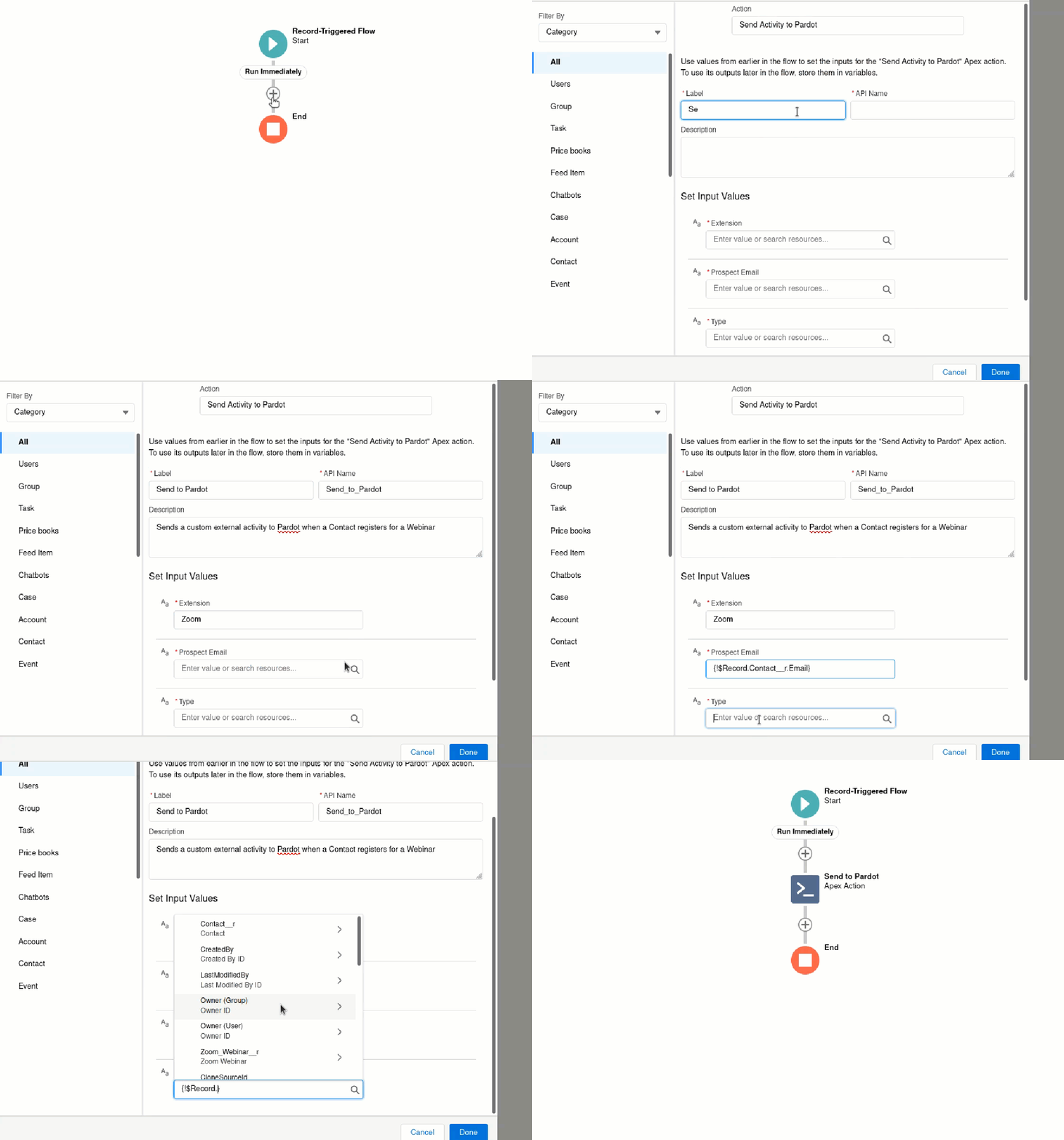
To set this up in a Flow:

  1. Navigate to Setup > Flows
  2. Select “New Flow” or edit an existing Flow
  3. Select the + symbol to add a new Element, select “Action”
  4. In the “Search all actions” window, locate “Send Activity to Pardot”
  5. Provide a meaningful Label and Description
  6. Set your input values
    • Extension: Enter the name of the Marketing App Extension you created in Salesforce
    • Prospect Email: Source the email from one of the fields/variables in your flow
    • Type: Enter one of the activities you set up and associated with your Marketing App Extension in Salesforce
    • Value: Enter (or source from a field/variable) the unique value to identify this Activity, event IDs work great here
  7. Click “Done”
Send activity to pardot

Test

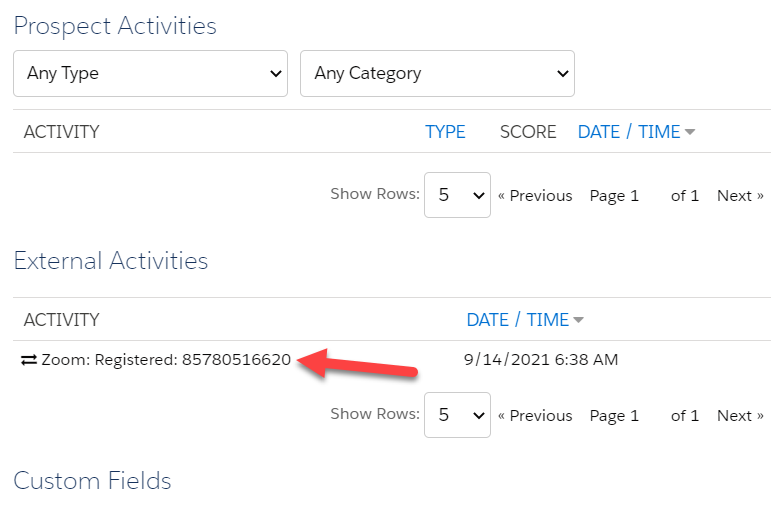
Once all elements of your Flow are ready, testing can begin. Activate your Flow and perform the action you are using to trigger the Flow. After a couple of moments, check the Pardot prospect you are testing with, and you should now see all the information you passed through.

prospect activities

Testing is a little bit tricky, for two reasons:

  1. We are executing this functionality asynchronously, meaning a problem won’t show up in Salesforce like you are used to seeing. Debug logs will be your friend here. But don’t worry, there isn’t too much to sort through.
  2. If the Named Credential or anything else isn’t quite set up right (from step 1), Salesforce and debug logs aren’t very helpful in troubleshooting. You will have to painstakingly go through the instructions again to make sure that nothing was missed / done incorrectly.

Considerations

  • The Export Activity API call only works for known prospects, and it will not work if the email address is not already associated with a prospect in your Pardot Business Unit (this is why we have the form handler in our example).
  • If you have multiple Pardot Business Units, there is no intelligence of “choosing the right one.” You need to target the right one with your APEX solution, which assumes all prospects going through this code are from the same Pardot Business Unit. As we mentioned in the APEX section, you have the flexibility to code whatever you need to handle your business case. 

 For assistance with this or other Pardot External Activities, reach out to Sercante!

Pardot is delivering a whole new way to leverage your prospect data in The Salesforce Winter ‘22 release. Similar to webhooks, the new Pardot External Activities feature allows users to receive data from third-party systems and use the data in automations and Engagement Studio Programs. For instance, you could record when a prospect registers for a webinar, completes a survey, or watches a video.

In an earlier blog post, we describe how to set up the External Activity in Salesforce so a third party can begin sending activities to Pardot via API. This post will detail how to actually send the activities with Zapier. Similar approaches can be done with other meta-services. If you want hands-on help, we’d love to work with you.

Pardot External Activities Zapier Solution

Before we get started, it is important to note that Zapier doesn’t actually support this Pardot API request. Zapier only supports four of the many API requests possible, so we will be taking advantage of the Zapier Webhook capability to build our solution.

At a high level, we need to:

  • Configure Salesforce to allow our Zap to make API requests to Salesforce and Pardot
  • Create a new Zap which listens for a third-party event (such as registering for a Webinar)
  • Enhance the Zap to submit prospect information to a Pardot Form Handler
  • Enhance the Zap to get an OAuth token from Salesforce
  • Enhance the Zap to publish the External Activity (which works well as the Form Handler has ensured the Prospect exists already)
  • Test

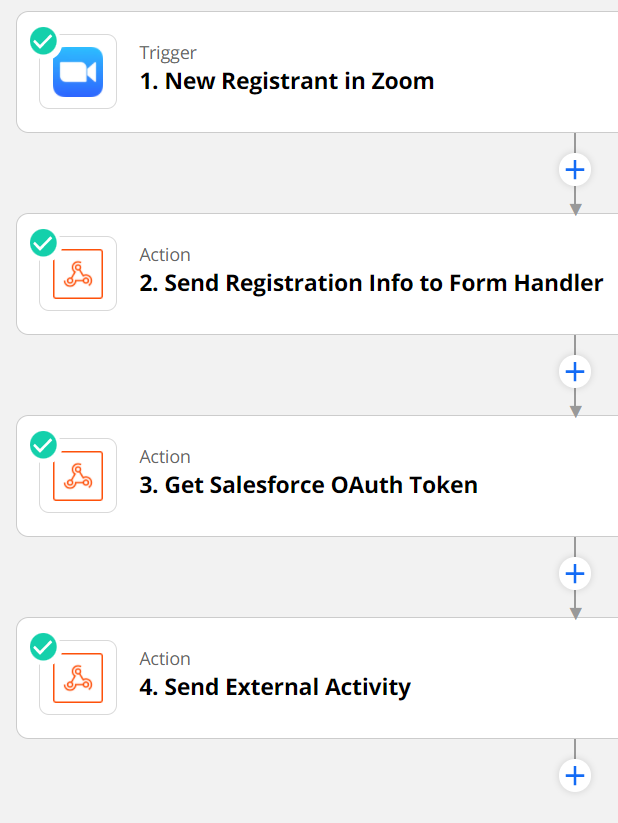
Now I realize this is a lot, but don’t worry, we’ll walk through it all. Once you are done building this Zap, you’ll end up with something like this:

Configure the Salesforce Connected App

Anytime we want to work with the Pardot API, we first need to “authenticate” with Salesforce to receive an Access Token that can be used with the Pardot API. To do so, create a new Salesforce Connected App for Zapier. We highly recommend creating and testing this new Connected App by following the steps in our earlier blog post, Pardot API and Getting Ready with Salesforce SSO Users.

Once you have created your new Connected App, you should have a new Salesforce and Pardot User for the Zapier connection. Keep the user’s username, password, and security token handy for later.

In our example, we will be creating a Zap for a Zoom Webinar Registration. Due to the way Zoom Webinars are integrated with Zapier, you will need to create a Zap for each webinar, as well as creating automations in Pardot for each webinar. This may vary depending on which App you are using in Zapier.

Create a new Zap in Zapier

  1. Log in to your Zapier Account
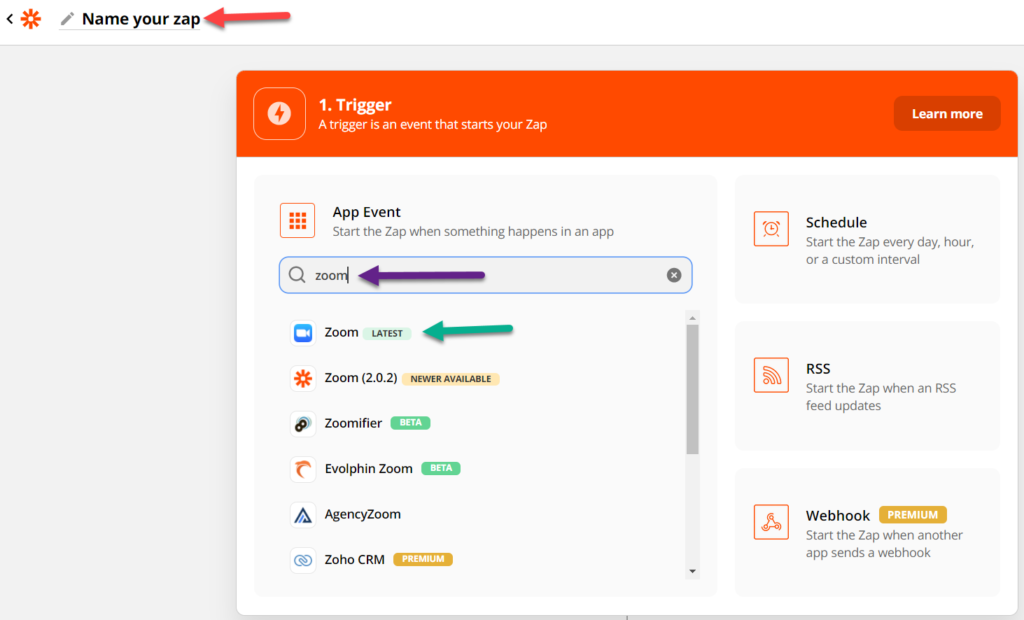
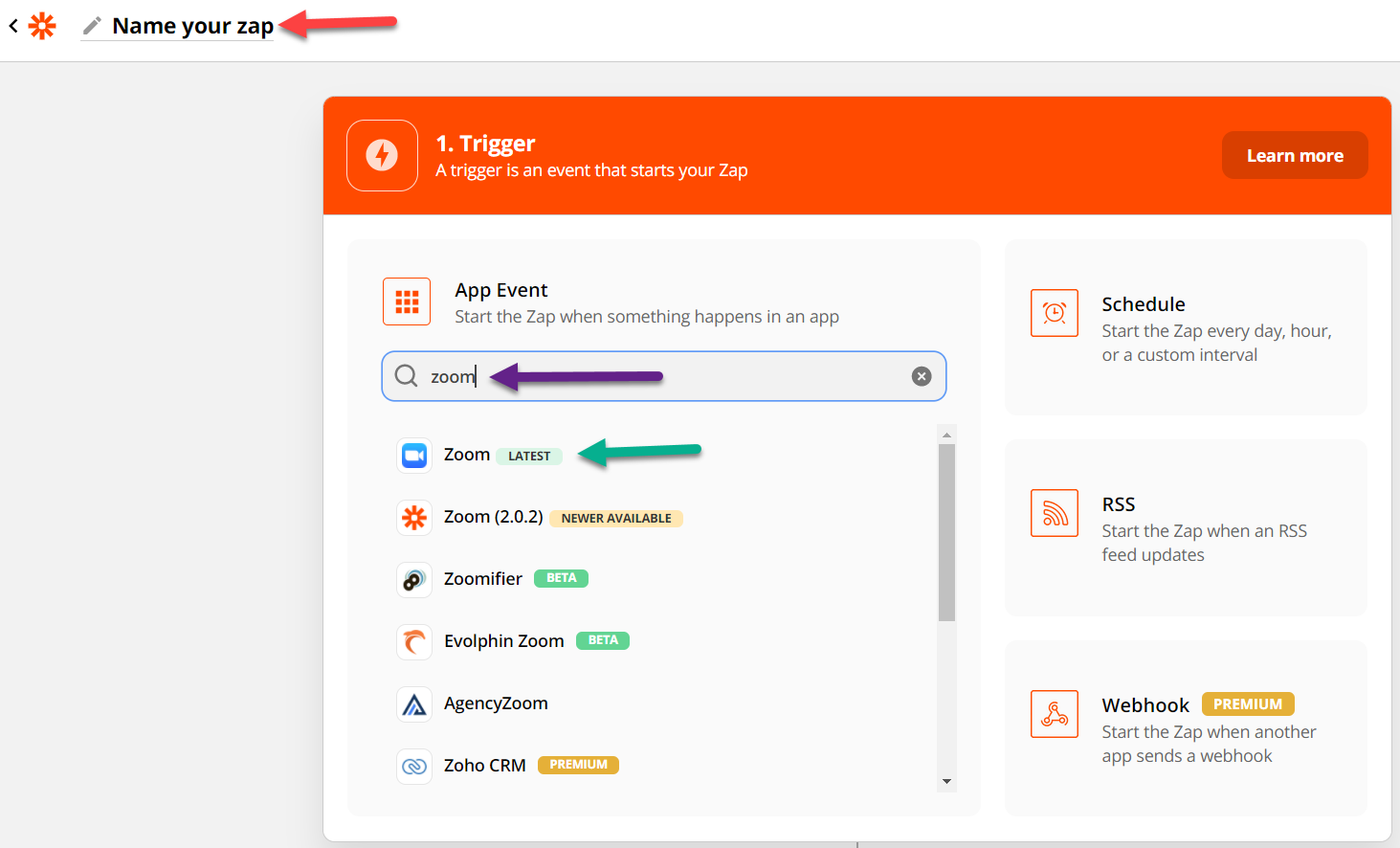
  2. Create a new Zap and give it a name
  3. Find the third-party app that will trigger this Zap. For our example, we’ve chosen Zoom.

  4. Select your Trigger event. For our example, we have chosen “New Registrant”.
  5. Choose the Zoom account for your connection. If you haven’t already connected the app, now will be your chance!
  6. Next, (and this might differ based on your app), select the upcoming webinar you wish to integrate.
  7. Click “Test trigger”
    • This often works best if you have a recent “event.” For Zoom webinars, it helps if you have at least 1 person who has already registered for the webinar via the Zoom registration page. In doing so, you will see sample fields and values, making the process a bit easier. 
  8. Finally, click “Continue” and you should have a nice clean “trigger.” Zapier will prompt you to make your first Action.

Enhance Zap to submit the Pardot Form Handler

Zapier now has a handle on prospects registering for the selected webinar, now we need to send this information to Pardot. 

In this first Action, we are going to send details about the person who registered for the Zoom webinar to a Pardot Form Handler. This allows us to create/update a Pardot prospect with the right field values.

Why are we using a Form Handler instead of API calls? 

  1. This approach greatly simplifies the integration by natively handling new prospect creation.
    • Reduces sync errors for new prospects who have not interacted with a Pardot form yet
    • More cost effective and efficient than using the Read API to create new prospects
    • Ensures duplicates are not accidentally created
  2. The action that the person took will actually show up as Prospect Activity. This is good since they took real action and submitted a form.
  3. You can apply Completion Actions, which are not available in the API.

Make sure you have the Pardot Form Handler created and that you have the field names and the https URL handy.

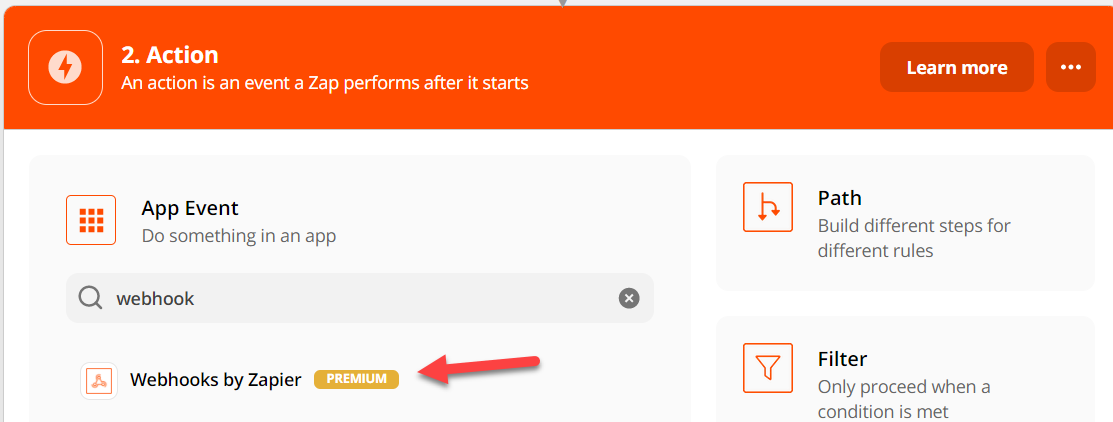
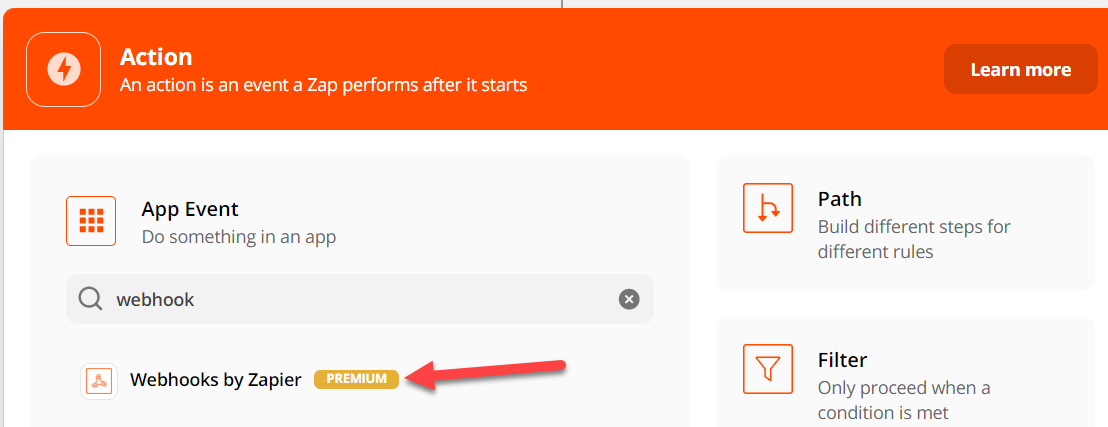
  1. Continuing from the previous section, create a new Webhook Action by selecting “Webhooks by Zapier.”
    • This step is important to establish who is registering and to make sure we associate the External Activity with a prospect. 
  1. For the Action Event, choose POST.
  2. Set up the action by filling in the following fields:
    • URL: The https URL of your Pardot Form Handler
    • Payload Type: form
    • Data: Enter the Pardot Form Handler field name, and the values coming from the trigger setup earlier. Add new “rows” for each field you wish to populate in the Pardot Form Handler based on your trigger data available.
  3. Once you have finished setting up the Action, test the action, check that the Pardot Form Handler was called, and verify that the data is where it should be.
  4. Rename the Action to “Send Registration Info to Form Handler” so that it’s clear what this Action is accomplishing. 

Enhance Zap to get OAuth token from Salesforce

Now things start to get a bit tricky. Since we can’t leverage the Pardot app in Zapier, we need to do things manually. This is where we will use the Salesforce and Pardot User we set up with the Connected app in the first section.

  1. Create a new Webhook Action by selecting “Webhooks by Zapier”
  2. For the Action Event, choose POST
  3. Set up the action by filling in the fields:
    • URL: https://login.salesforce.com/services/oauth2/token
    • Payload Type: form
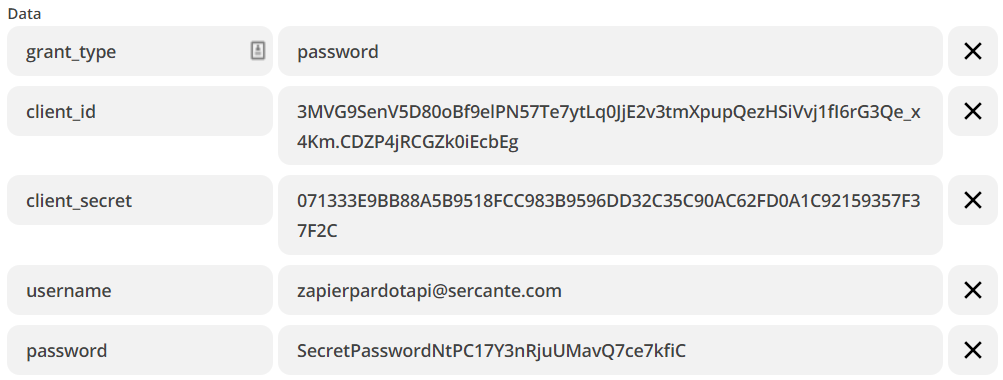
    • Data -> grant_type: password
    • Data -> client_id: Enter the Consumer Key from your Connected App
    • Data -> client_secret: Enter the Consumer Secret from your Connected App
    • Data -> username: Enter the Salesforce Username of the Pardot user we will use for API calls
    • Data -> password:  Enter your Salesforce user’s password followed by the Security Token
  4. Once you’ve provided all the values above, Test and Review. A successful request should show values like access_token and instance_url for your Salesforce org.
  5. Rename this Action to “Get Salesforce OAuth Token” so that it’s clear what this Action is accomplishing. 

Enhance Zap to publish Pardot External Activity

Finally, we will send the External Activity to Pardot

  1. Create a new Webhook Action by selecting “Webhooks by Zapier”
  2. For the Action Event, choose POST
  3. Set up the action by filling in the fields:
    • URL: https://pi.pardot.com/api/v5/external-activities
    • Payload Type: json
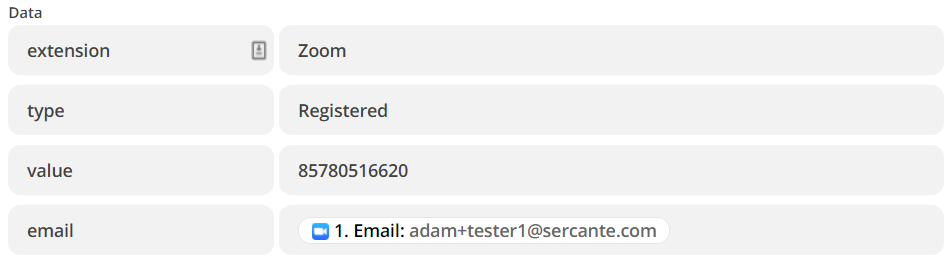
    • Data -> extension: Enter the name of the Marketing App Extension you created in Salesforce
    • Data -> type: Enter one of the Activities you set up and associated with your Marketing App Extension in Salesforce
    • Data -> value: Enter a unique value to identify this Activity, event IDs work great here
    • Data -> email: Enter the email address that was used in step 3 of the “Enhance Zap to submit the Pardot Form Handler” section
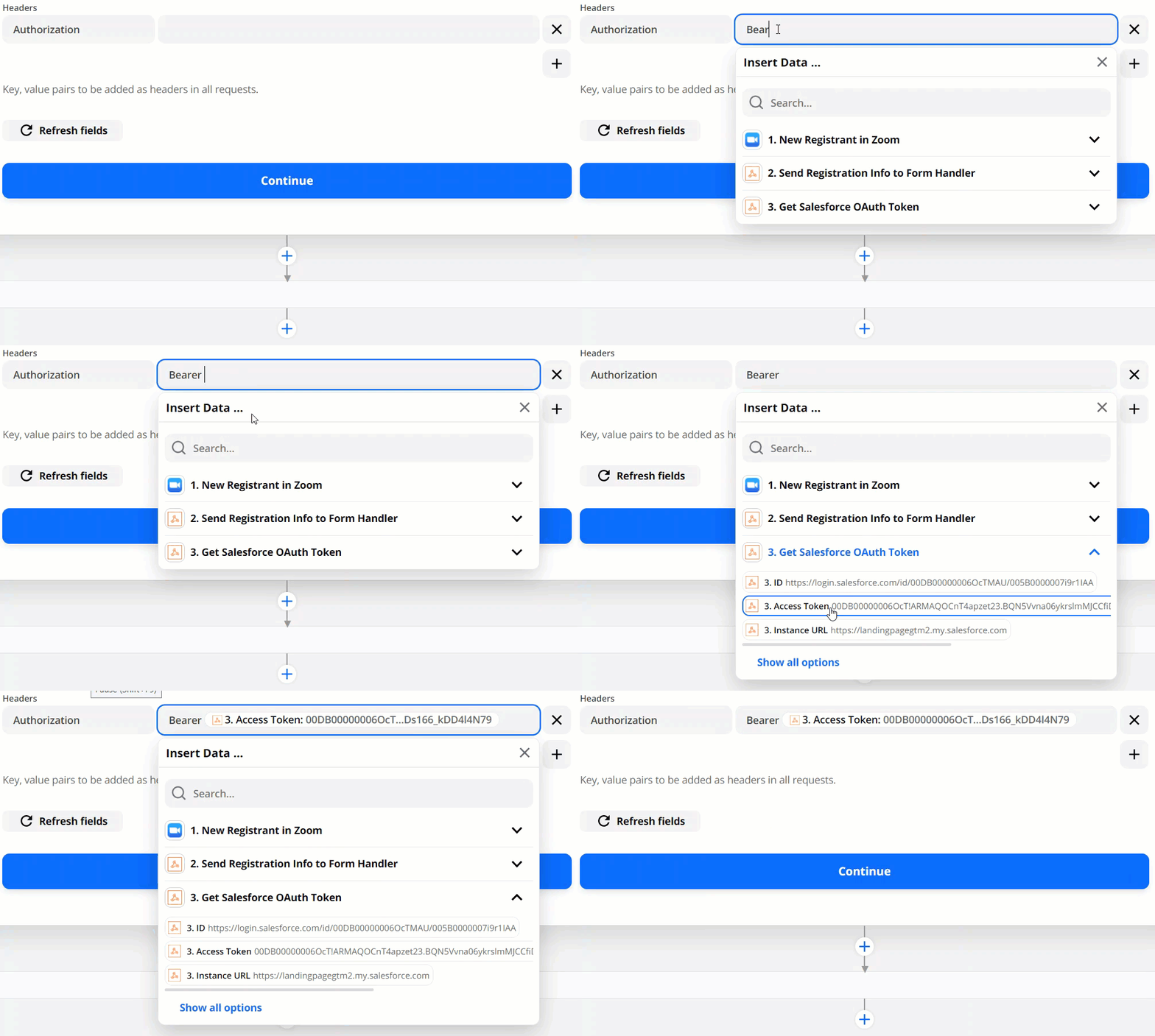
    • Headers -> Authorization: This one is a bit tricky to fill out. First, when you click in the text box, type “Bearer “ (with the space) and then select the Access Token.
    • Headers -> Pardot-Business-Unit-Id: Enter the ID of the Pardot Business Unit that is associated with the Marketing App Extension. You can find the Pardot Business Unit ID by navigating to Salesforce Setup >Pardot Account Setup. (Detailed instructions here).
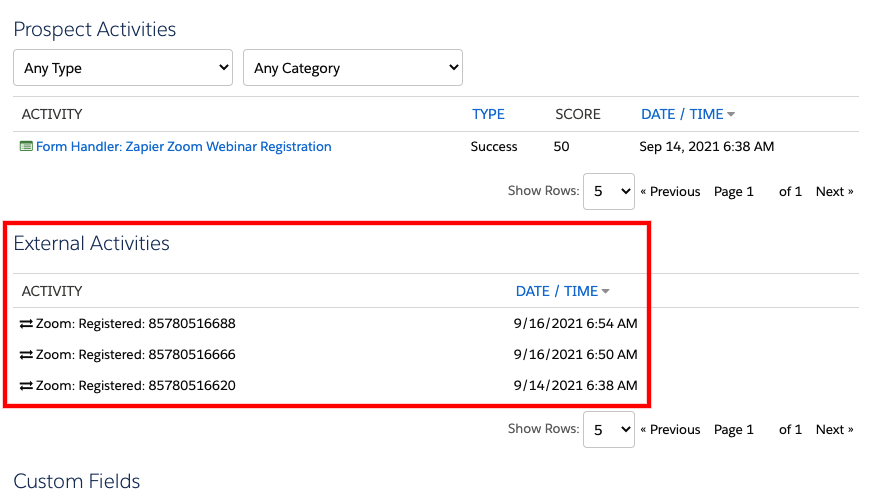
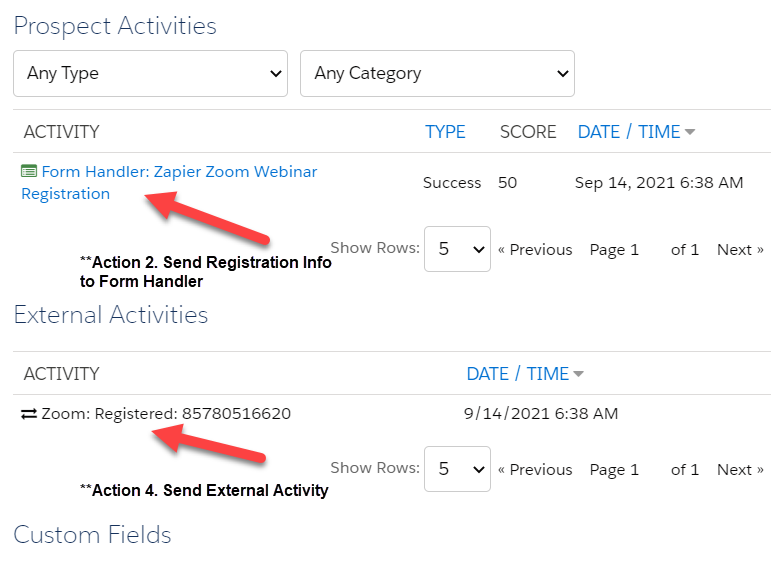
  4. Once you’ve provided all the values above, Test and Review. Check the Pardot Prospect for the new Activity record. This activity will appear between the Prospect Activities and Custom Fields section of the prospect page.
  1. Rename this Action to “Send External Activity” so that it’s clear what this Action is accomplishing. 

Test

Now it’s time to test our Zap end-to-end. 

Activate your Zap and perform the action that you are capturing in the Zap’s Trigger (i.e. register for the Zoom webinar). After a couple of moments, check the Pardot prospect that you are testing with. You should now see all the information you passed through the Zap!

Considerations

  • The Export Activity API call only works for known prospects, and it will not work if the email address is not already associated with a prospect in your Pardot Business Unit. This is why we have the form handler in our example.
  • If you have multiple Pardot Business Units, there is no intelligence of “choosing the right one.” You need to target the right one with your Zap, which assumes all prospects going through this trigger are from the same Business Unit. Proceed with caution and test rigorously when attempting more advanced solutions with business units.
  • Salesforce only allows five access tokens to be issued at a time. With high volumes of a triggering event, it is possible that Zaps may fail due to Salesforce Access tokens getting recycled before they can be used in the following actions (this is due to us manually getting an Access Token with the second Action).
  • Any time the user’s password and/or security token changes in Salesforce, each ZAP that uses it will also need to be updated.

These considerations are best addressed by writing your own code, which can properly address the edge cases, etc. For assistance with this or other Pardot External Activities, reach out to Sercante!

Integrating Pardot with Zoom webinars allows you to not only collect prospect activity in real time, but also track attendance, handle communications, and send sales new leads quickly and easily. Using the Zoom-native Pardot App simplifies sharing data between these two systems by allowing you to capture Zoom webinar registrants, attendees, and absentees within Pardot lists. 

In this post we’ll cover the pros and cons of this integration as well as walk you through the setup process for a webinar. 

At a high level, to integrate Zoom and Pardot you will need to:

  1. Install and set up the Pardot App from the Zoom App Marketplace.
  2. (Optional) Configure custom Zoom registration fields to go to Pardot.
  3. Start creating Zoom webinars.
  4. Prepare your email notifications.
Ready to scale up your Zoom-Pardot integration?

Click here to check out the Sercante Connector for Zoom Webinars and Pardot.

Considerations for using the Pardot app from Zoom App Marketplace

Before we dig in, there are a few things to consider when using this native integration:

  • The integration works best when using the Zoom registration form.
    • There is an option to use a Zoom Post URL (similar to how we think about Pardot Form Handlers). However, this option relies on the Thank You page of the Pardot Form having an additional hidden form that changes per webinar. This hidden form must be completed and requires JavaScript for a behind-the-scenes submission. That makes this option prone to human error and/or browser issues. 
  • Both email solutions leave something to be desired. You can choose between:
    • Emails styled in Zoom with prospect-specific URLs to join the webinar. With this option you’ll lose out on Pardot tracking and personalization capabilities.
    • Your beautiful Pardot email templates with all the benefits of Pardot data, tracking, and personalization, but no Zoom webinar details or prospect-specific URLs to join the webinar. 
  • This process will not connect prospects with the associated Salesforce campaign. You’ll need additional automations if that’s part of your strategy. 
  • Each webinar requires its own setup and configuration. These take between 1-3 hours each, depending on how granular you get with automations. As a result, this integration is better suited for companies that have a low volume of webinars.
  • There is no mechanism to pull in questions and answers from webinar polls.

Install and set up the Zoom Integration App 

  1. Navigate to the Pardot App on the Zoom App Marketplace and sign into your Zoom account. 
  2. Select “Install” from the top right of the Pardot App listing page.
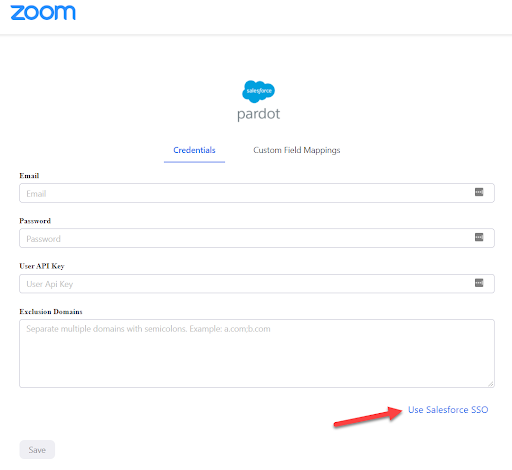
  3. Once installed, you’ll see a prompt to enter your Pardot credentials. If you are not redirected to this screen, click “Manage” from the left-side navigation, scroll down, and click “Configure”). Select “Use Salesforce SSO.”
    Use Salesforce SSO
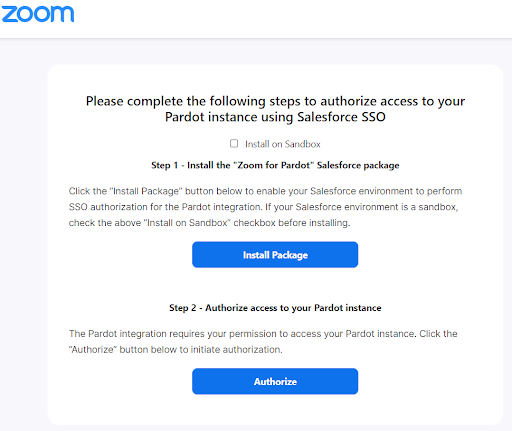
  4. Next, install a very tiny managed package provided by Zoom. This package creates a connected app to allow Zoom to connect to your org. Click “Install Package” and install this for Admins only.
  1. While the package is installing, create a Salesforce and Pardot user for your Zoom integration. Having one user per integration helps in the event that you need to troubleshoot your Pardot org and/or integrations. Once the user is set up, log in as this user to authorize and approve the app.  
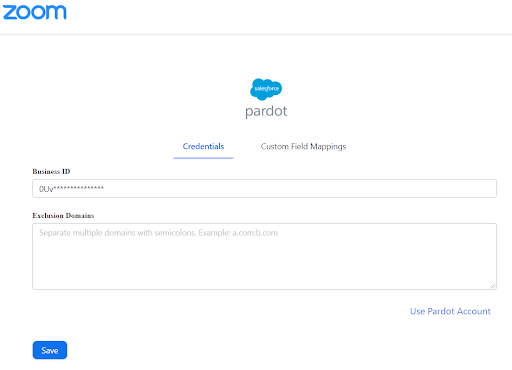
  2. Next, provide Zoom with the Pardot Business Unit ID. You can find the Pardot Business Unit ID by navigating to Salesforce Setup > Pardot Account Setup (you can access detailed instructions here).
    Enter credentials
  3. Select “Save”

Zoom and Pardot are now connected, and they are ready to work together!

(Optional) Configure custom Zoom registration fields sync to Pardot

Zoom automatically passes most of the common fields directly into Pardot. This includes: 

  • Email
  • First Name
  • Last Name
  • City
  • State/Province
  • Zip/Postal Code
  • Country
  • Phone
  • Job Title
  • Organization
  • Industry
  • Questions & Comments
  • Employees

You can also create new fields in Pardot to sync Purchasing Time Frame and Role in Purchase Process from Zoom. 

Depending on what information you are looking to capture in Pardot, you may decide you want to have Zoom pass more fields into the prospect record. A good example of a field you may wish to connect is “Join URL.” This field is a prospect-specific URL that will allow the prospect to join the webinar. 

To add this field, simply:

  1. Navigate to Pardot Settings > Object and Field Configuration > Prospect Fields. Select “+Add Custom Field.”
  2. Complete the required info and select “Create Custom Field.”
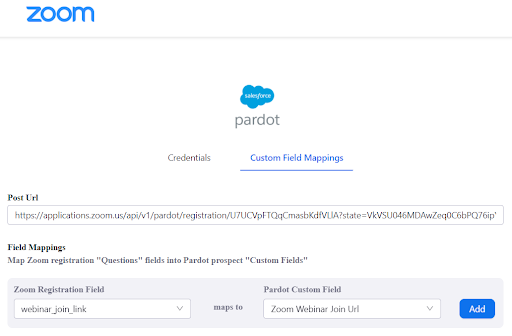
  3. Once created, go back to the Pardot App in the Zoom Marketplace and select the “Custom Field Mappings” tab.
  4. Map the Zoom Registration Field “webinar_join_link” to the Pardot Custom Field that you created. Click “Add.”

Your new custom field is now connected. Future registration captured by Zoom will pass the Zoom Webinar Join URL to your Pardot prospects. But please note, the prospect record will only have values from the latest registration.

Start creating Zoom webinars

You will need to configure the Pardot integration for every webinar you create in Zoom. 

  1. First, create three static lists in Pardot so Zoom knows where to send the data. You will need a:
    • Registration List
    • Attendee List
    • Absentee List

Make sure you use naming conventions so these lists are easy to find in Zoom and any Pardot automations. 

  1. Next, create or locate the webinar in Zoom. Select the webinar name to view details. 
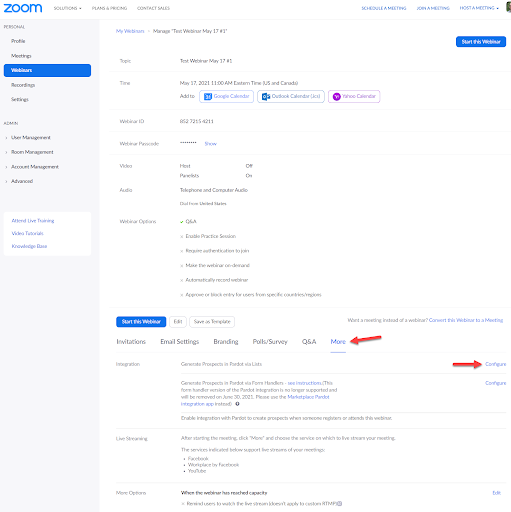
  2. Select the “More” tab and then select “Configure” within the Integration section.
    create a zoom webinar
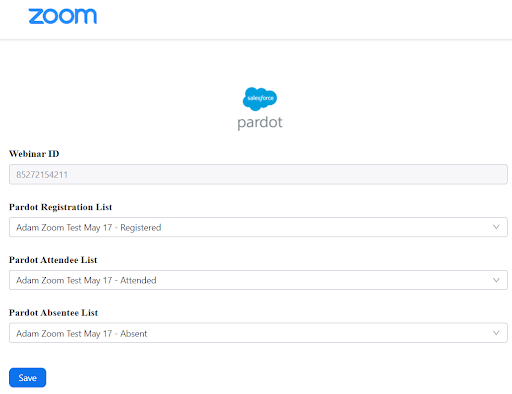
  3. Provide Zoom with the static lists you created in Pardot. All three lists are required.
    Provide zoom with pardot static lists
  4. Click Save

Now your lists will be kept current with the right prospects!

Prepare your Zoom webinar email notifications

Getting prospects to register for a webinar is only half the battle. Now we need to get them to attend! Registration and reminder emails are key here, and getting the right message delivered at the right time will make all the difference.

Both Zoom and Pardot can be used to send these emails, each having their own considerations.

Considerations for using Zoom email notifications

Zoom email settings can be configured at a Zoom Account level (i.e. for your entire company) and at a webinar level. You can customize email templates only at the Account level, and you can’t have webinar-specific templates.

  • Registration emails can include the prospect-specific Join URL and are sent immediately after registration.
  • Reminder emails can include the prospect-specific Join URL and can be sent 1 hour, 1 day, and/or 1 week prior to the webinar.
  • Follow-up emails can be sent 1-7 days after the webinar ends.

Considerations for using Pardot email notifications

With Pardot, create an Engagement Studio program or Automation Rules to automatically send out your registration, reminder, “thank you for attending” and “Sorry we missed you” emails. These automations should look for Prospect that join the webinar’s three static lists.

  • If you configured your integration to send the Zoom Webinar Join URL to Pardot, this value can be included in registration emails sent from Pardot. 
  • Reminder emails can also include the Zoom Webinar Join URL, however if the prospect registered for multiple webinars in close proximity, the Zoom Webinar Join URL on the Prospect’s record may not match the webinar you are reminding the prospect about!
  • Follow-up emails can be sent whenever you like. You can even choose to send a different email template to those who register and attend versus those who register and are absent.

Try the Sercante Connector for Zoom Webinars and Pardot

As mentioned above, if you have a low volume of webinars, this process may not be an issue, especially since the integration is the low-low price of free. However, if you’re hosting one webinar per week (or more), then this process is pretty daunting. 

If you need to scale up your Zoom-Pardot integration, check out the Sercante Connector for Zoom Webinars and Pardot

What other tools or webinar platforms are you looking to integrate with Pardot? Tell us in the comments!
Get a solution for Protected Campaign Member Statuses in Pardot and step-by-step instructions for installation.

We go through all the effort of setting up beautiful Salesforce Campaigns, naming standards and maybe even a hierarchy. The next challenge in completing your beautiful work of campaign art is getting a hold on your Campaign Member Statuses for each campaign.

When a new Salesforce Campaign is created, many people aren’t just happy with the two default statuses of Sent and Responded. This prompts them to create what they think makes the most sense. Though as time goes on and as reporting starts to be needed, everyone making their own Campaign Member Statuses can be a nightmare that prevents you from getting meaningful and actionable intelligence. It would be really nice to take the guesswork out of status reporting and have a standard set of Campaign Member Statuses everyone uses consistently.

Jenna Molby posted a fantastic solution that enables you to automatically create the right Statuses on Campaign creation.

The automation here is good, though as you increase the number of Types the Flow could become a bit unwieldy.

Another thing that could be a problem comes later when other people might make changes to your carefully crafted structure. What happens if someone edits or even removes these statuses?

Install Protected Campaign Member Statuses

Protected Campaign Member Statuses is a free solution you can install and easily configure to solve this problem. It allows you to:

  1. Define the Campaign Member Statuses that should always be present on given Campaign Types.
  2. Restore the Protected Statuses on Active Campaigns should someone make changes.
  3. Create additional Statuses for specific reasons.
  4. Override by authorized users on a per-Campaign basis.

I don’t want the details, just let me install it

(Don’t worry. Keep reading to learn exactly what’s going on inside.)

We have an Unlocked Package you can install that sets up the application.

Get started

Once installed, you need to define your Protected Statuses. This is done with Custom Metadata Types.

  1. Login to Salesforce Lightning, and go to Setup.
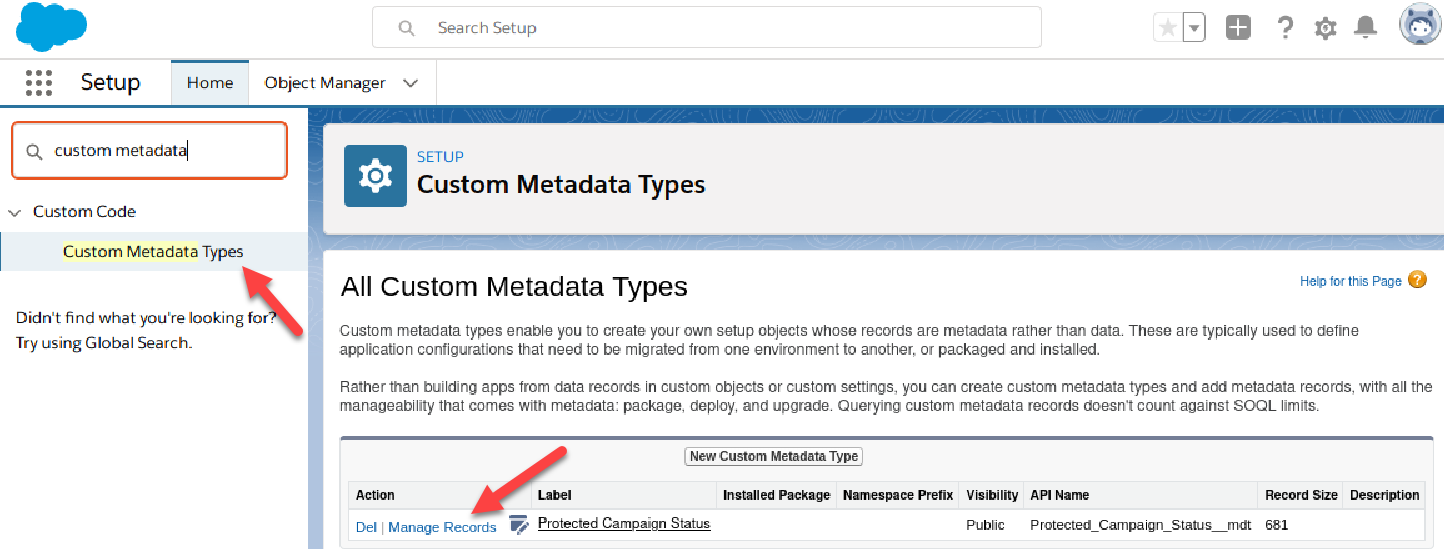
  2. Navigate to Custom Metadata Types, and click Manage Records for Protected Campaign Status.
    Pardot Protected Campaign Member Statuses
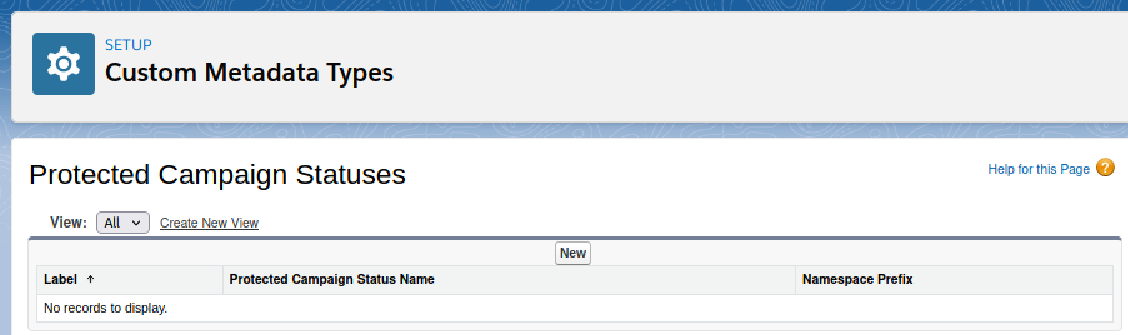
  3. To create your first ones, click New
    Pardot Protected Campaign Member Statuses
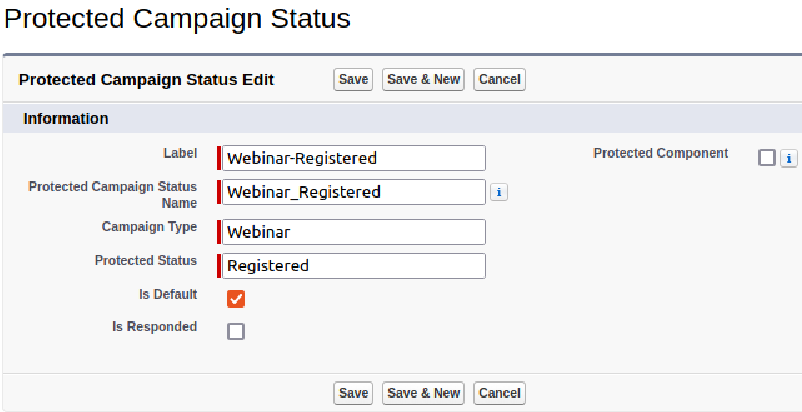
  4. Fill in the various fields.
    • Label: Used in the List of Campaign Statuses in the Setup view in step 3 above. Recommended convention:  TYPE-STATUS
    • Name: This is an API name that can be used by developers. Not required by this package. Recommended: let this autofill after you type in the Label.
    • Campaign Type: This is the actual value for the Campaign’s Type field.
    • Protected Status: This is the Status value that will become protected.
    • Is Default: Select this if this Status should be the default (please pick only 1 per Type).
    • Is Responded: Select this if this Status should be marked as Responded.
    • When complete, your screen may look something like this:
      Pardot Protected Campaign Member Statuses
  5. Click Save (or Save & New) and repeat a whole bunch.
  6. Lastly, time to set up a scheduled job to restore deleted protected statuses.
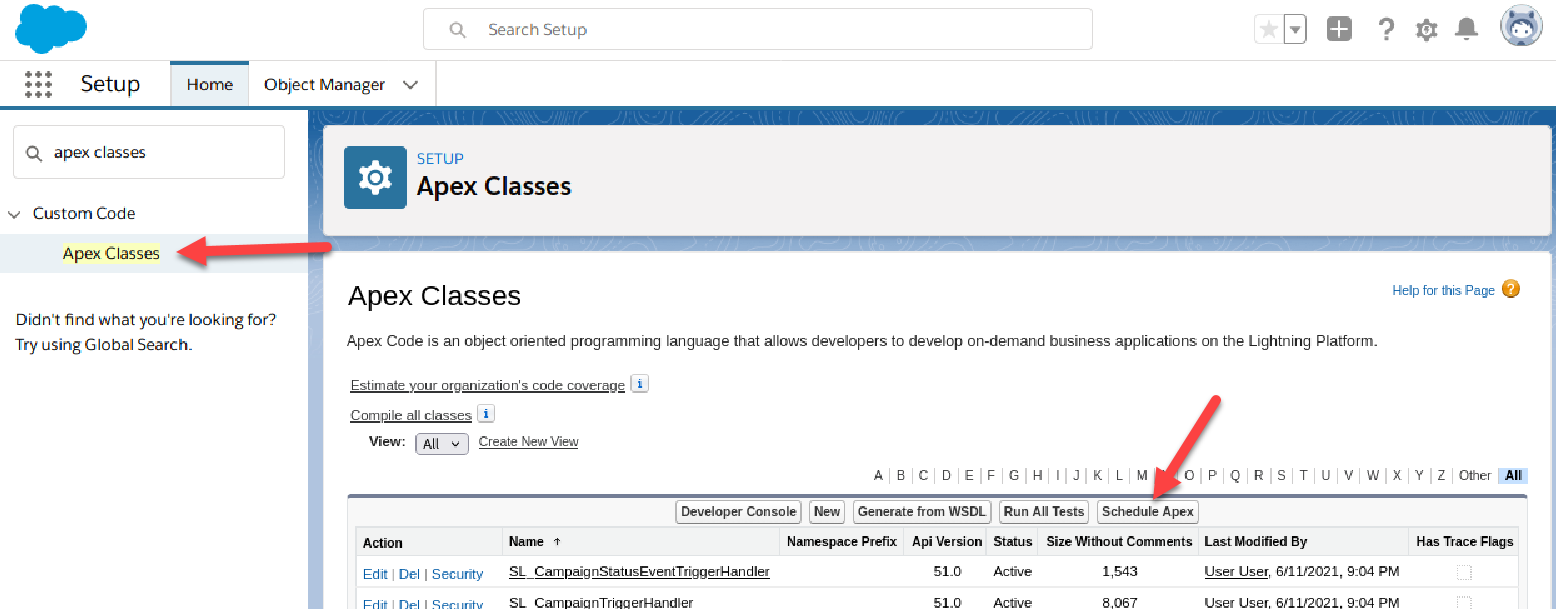
  7. Back in Setup, go to Apex Classes and click Schedule Apex.
    Pardot Protected Campaign Member Statuses
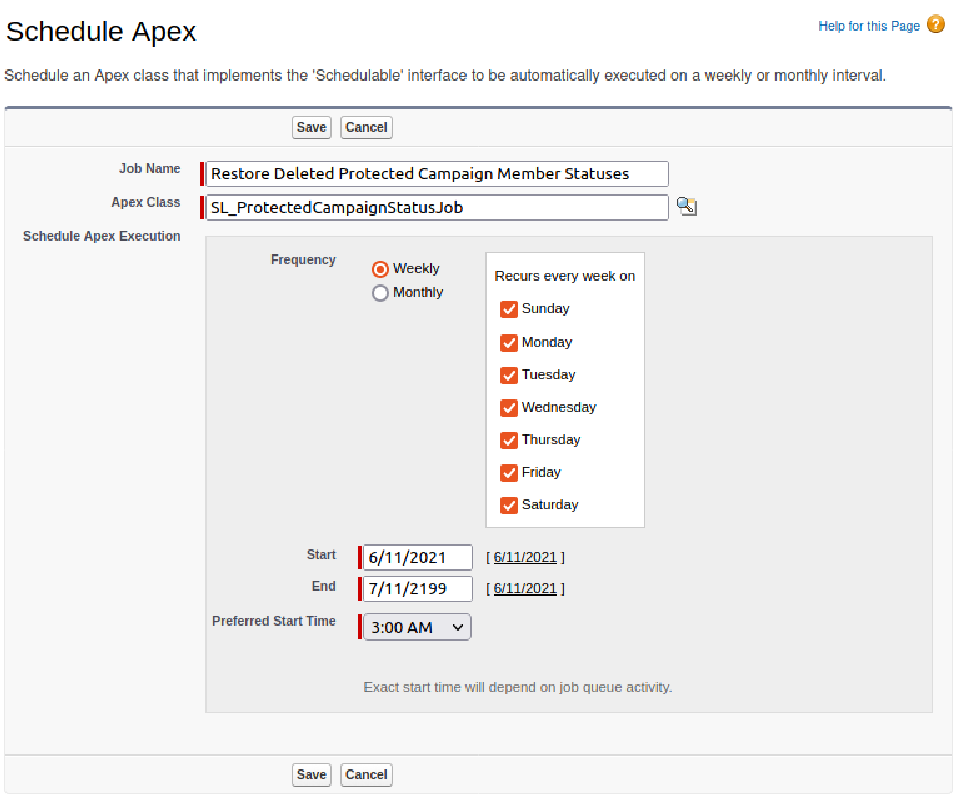
  8. Fill in the few fields.
    • Job Name: give this a nice descriptive name so you remember what it is in 3 months.
    • Apex Class: SL_ProtectedCampaignStatusJob
    • Frequency: set this to what works for you. We recommend running this daily during off-peak hours.
    • Start: today
    • End: some time in the distant future
    • Preferred Start Time: off peak hours
    • When complete, your screen may look something like this:
      Pardot Protected Campaign Member Statuses

You are good to go once you have provided your statuses. Give it a whirl by creating a new Campaign with the Type you have set up. Then take a look at the statuses already created.

Campaigns with Types not already set up will keep the default two statuses that Salesforce creates.

That’s cool. What’s behind the curtain?

To accomplish this, we leverage a few cool tools available to us:

  • Custom Metadata Types: Allows the Protected Statuses to be treated like normal Salesforce metadata and can be deployed around like any other metadata (changesets, insert devops tool here)
  • Campaign Custom Field: Has_Protected_Campaign_Member_Statuses__c is automatically checked by the solution if a Campaign is created and there are Custom Metadata Type records that specify this Campaign’s Type. It is also what allows the rest of the code to keep the statuses intact. You can clear the checkbox for this field to make changes to the statuses if you need to. However, you can’t enable protection afterwards.
  • Change Data Capture: We turn this on for CampaignMemberStatus so we can detect edits to statuses and then fix the records after-the-fact. Sadly we can’t (yet?) put any triggers on CampaignMemberStatus (which would have been ideal).
  • Triggers: yea these have been around for a while and are quite handy. We use them to kick off the automation that we’ve built when a Campaign is created. We also use them to watch for Campaign Member Status edits (through the ChangeEvents from Change Data Capture) so we can set things right afterwardsd.

If you want even more details, check out the Github project where you can see all the inner workings of what is going on.

Further reading

Here are some resources you can use to learn more about Salesforce Campaigns and how they work in Pardot:

Let us know how you did with this solution in the comments!
As our Pardot integrations are coping and adjusting to using the Pardot API with Salesforce SSO users, one of the new requirements is to provide the Pardot Business Unit ID in each API request. It is easy for Salesforce Administrators to get the ID, but what if we could do this with code? 

Right now, most Apps are directing Salesforce Administrators to grab the Pardot Business Unit ID  by going through these simple steps:

  1. In Salesforce Lightning, Navigate to Setup
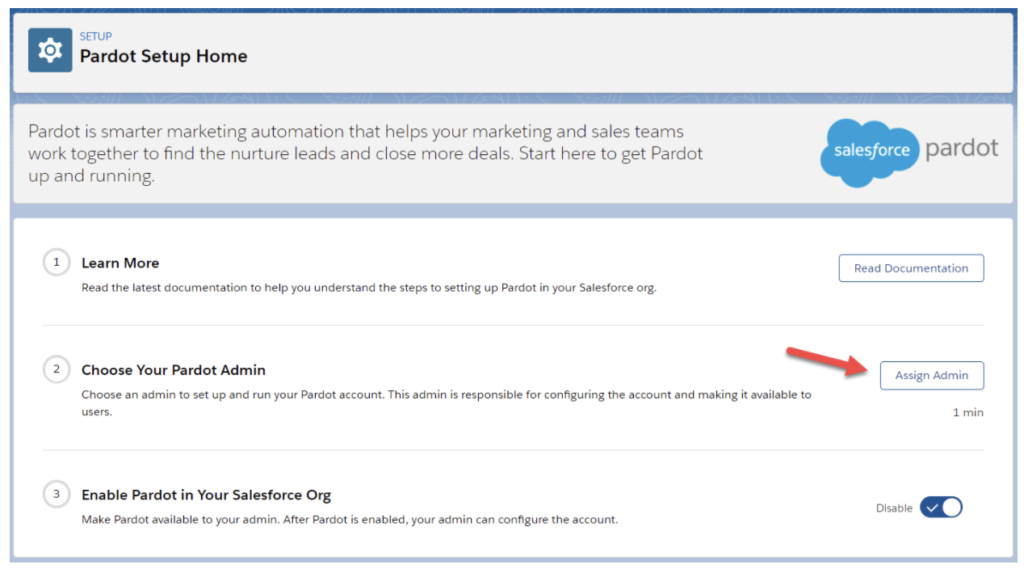
  2. Navigate to Pardot Setup Home under Platform Tools > Pardot
  3. Next, click Assign Admin

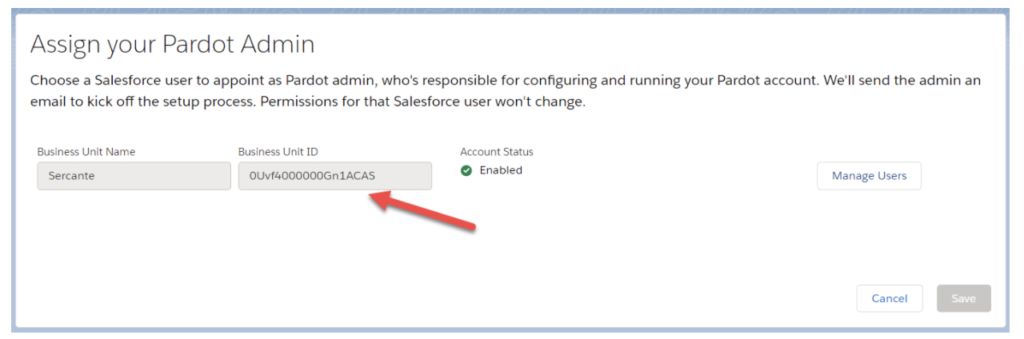
4. On this page, you will see your Business Unit Id. Note: some people might have many Business Units!
Currently, this step can leave room for configuration errors. So now that we know how to ask for a Business Unit ID, let’s look at how  we can do this with code?  Well as you might have noticed, the Business Unit ID is a Salesforce record Id, and after a little discovery we learned that the Salesforce object name is PardotTenant.

Working with PardotTenant – REST API

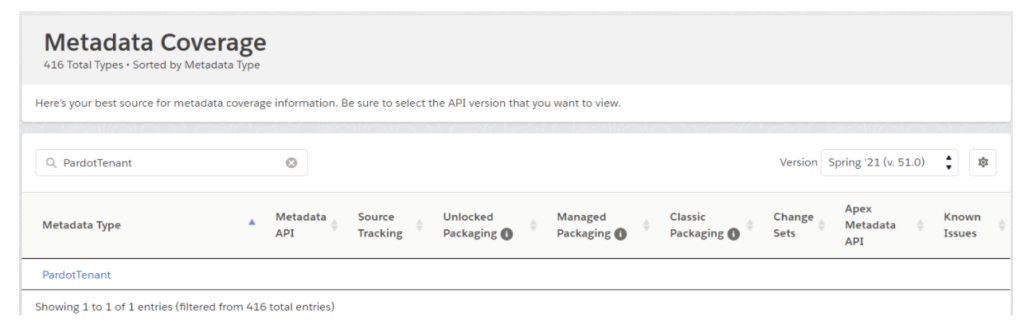
Disclaimer: at the time of writing, PardotTenant is not documented and the Metadata Coverage Report shows basically nothing is supported.

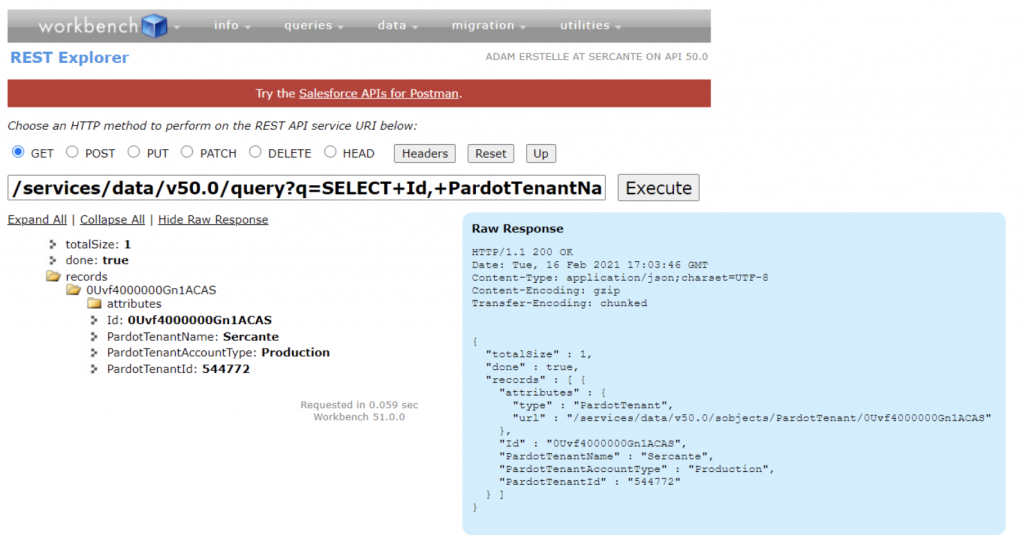
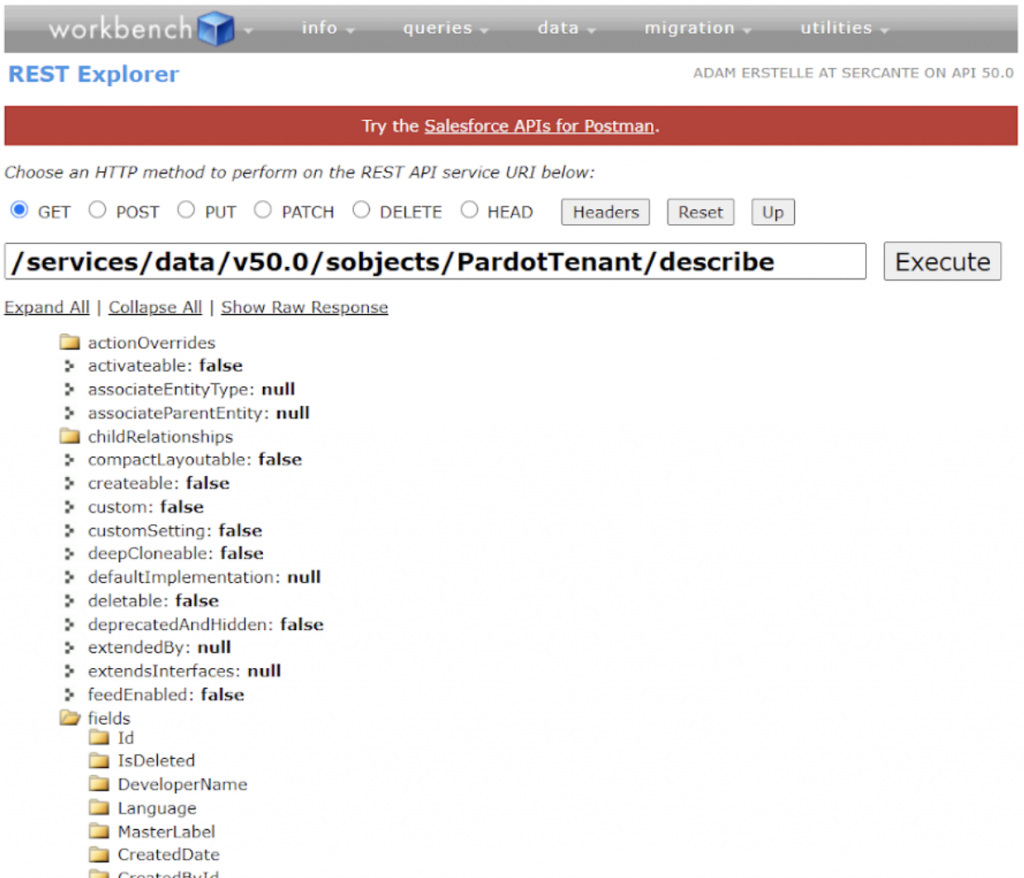
That’s ok, as developers we are used to wanting documentation right! So let’s use Salesforce’s standard functionality to learn as much as we can.  For this exploring, we will be using the Workbench: REST Explorer.

Once you are logged in, we will use a GET request with the following path: /services/data/v50.0/sobjects/PardotTenant/describe

Here’s a breakdown of what we think the key fields are and what we can use:

  • Id: The Business Unit Id that is used for the API
  • PardotTenantName: The Business Unit Name that we see beside the ID in Setup.
  • PardotTenantAccountType: We’ve seen Production and Demo as values, could be used to determine which Pardot URL to use for the API
  • PardotTenantId: The Pardot Account ID that you see in Account Information in Pardot’s Settings page.

Now that we know what the fields are and what may be of use to us (for the application we are working on right?), we can use a new REST call to get the list of PardotTenants with the following path:

/services/data/v50.0/query?q=SELECT+Id,+PardotTenantName,+PardotTenantAccountType,+PardotTenantId+FROM+PardotTenant

Great, we know what REST calls need to be made and the format of the response. The tricky part is getting our Connected App to be correctly configured to enable us to get the information we need.

There are 2 key things that you need to be able to use the Salesforce REST API and get a list of Pardot Business Units.

  1. A Connected App which includes the API scope.
  2. A Salesforce User with at least a Platform license.

Needing at least a platform license is where things can get tricky.  Normally for working with the Pardot API, a User with the Identity License (along with the Connected App) is good enough.  Identity Licenses don’t provide access to most of the Pardot objects, PardotTenant included.

Troubleshooting REST Errors

This is pretty tricky, and even just writing this post I came across a few errors.

Session is not valid

[{"message": "This session is not valid for use with the REST API", "errorCode": "INVALID_SESSION_ID"}]

You will get this error if your Connected App is missing the API scope, even if your Salesforce User can see the PardotTenant object.  Simply edit your Connected App, add the API scope, wait a few minutes and then try again.

Invalid Type or The Requested Resource Does Not Exist

There could be 2 causes for you getting one of these 2 errors.

The first is that the Salesforce Org you are connecting to just might not have Pardot setup. Pretty easy to check why.

The next (that I’m not 100% sure why yet) seems to be when I used an Access Token that I received from a Username/Password Oauth authentication request, but when I issued a JWT Bearer flow authentication request this worked fine.  For production-level code, it’s best to not use Username/Password flows anyways, but during experimentation this might cause a small issue.

Working with PardotTenant – APEX

This is pretty simple, we can use a plain old SOQL statement to retrieve the information we need.

List<PardotTenant> pardotTenants = [
        SELECT Id, PardotTenantName, PardotTenantAccountType, PardotTenantId
        FROM PardotTenant
        WHERE IsDeleted = false];

However, if you are working on a Managed Package, you might get a lot of packaging complaints about PardotTenant not being available to you. In that case, you can do something a little more dynamic:

public List<PardotTenantDto> getBusinessUnits() {
        List<sObject> pardotTenants = Database.query(
                'SELECT Id, PardotTenantName FROM PardotTenant WHERE IsDeleted = false');

        List<PardotTenantDto> businessUnits = new List<PardotTenantDto>();
        for(sObject pardotTenant : pardotTenants) {
            businessUnits.add(new PardotTenantDto(
                    (String)pardotTenant.get('Id'),
                    (String)pardotTenant.get('PardotTenantName')
            ));
        }
        return businessUnits;
    }

Conclusion

Depending on your app, it might provide a better user experience to allow users setting up their Pardot connection to select from a list of Pardot Business Units, in order to help reduce the chance of configuration errors. Exploring the PardotTenant object might be a great way to get you to being able to do this. Have questions or need help exploring if this is the right path for your app? We would love to help. Reach out or shoot a question in the comments.

No more posts to show