The Salesforce Spring ‘22 Release has been out for nearly a month now, and it included important features for marketers who are on the Salesforce platform.
We get three major releases from Salesforce each year — Spring, Summer and Winter. Each Salesforce release includes upgrades and enhancements that affect Salesforce orgs in different ways.
So, if you’re using and managing marketing operations for your company or organization and want to know more about Salesforce, then you’re in the right place. We’re going to cover everything you need to know about the Salesforce Spring ‘22 Release if you’re a marketer who uses Salesforce.
Salesforce Spring ’22 Release: Highlights for Marketers
Marketers who use the Salesforce platform are getting lots of attention from the Salesforce Spring ‘22 Release.
Some updates are changing the way we work to meet evolving technology demands. Others are saving us time by connecting the dots in a logical way.
All we know is, this release includes big updates for people in the marketing world.
Highlight #1: Salesforce CMS Name Change to Digital Experiences
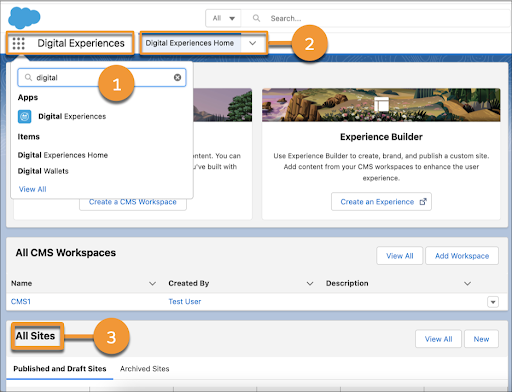
Salesforce CMS was a tool within Lightning Experience that provides the ability to curate and share content, manage multiple languages, and control who can create what content. However, along with a slew of Salesforce product name changes, Salesforce renamed the tool Digital Experiences to stay consistent with the former Community Cloud change to Experience Cloud.
There are no changes to the features that were available with Salesforce CMS, and Salesforce even allows users to type Salesforce CMS in the App Launcher to reach Digital Experiences.
Marketers on Salesforce have so many options when it comes to viewing marketing reporting metrics. Every tool in your tech stack has some sort of native reporting tools. But that data is limited to the tool.
Feeding that data into your marketing automation platform (MAP) gives you access to more insights when you can combine datasets. But you’re still limited.
But connecting your MAP to Salesforce platform reporting tools unlocks a whole world of data insights. We’re talking about sharing data from Pardot and Marketing Cloud with Salesforce Reports and Analytics Studio (Tableau CRM).
Here are the reporting updates marketers on Salesforce will want to know about.
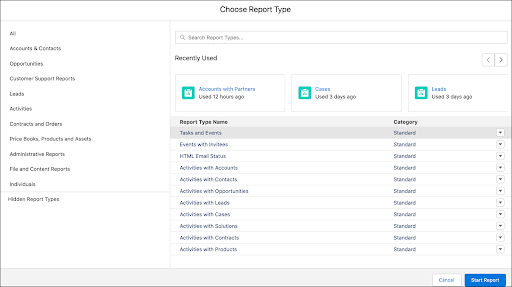
Building reports in Salesforce can be very confusing at first if you don’t know what report type to look for. So, this improvement is definitely an exciting one.
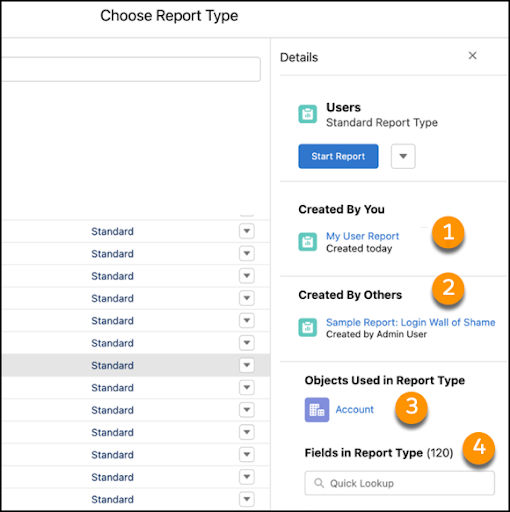
With the new enhanced report type selector, users can view their most recently used report types and see if a report type is standard or custom.
Another feature provided in this update is the ability to view the objects and fields available with the report type. And you can also see what reports have been created by yourself and other users using the report type.
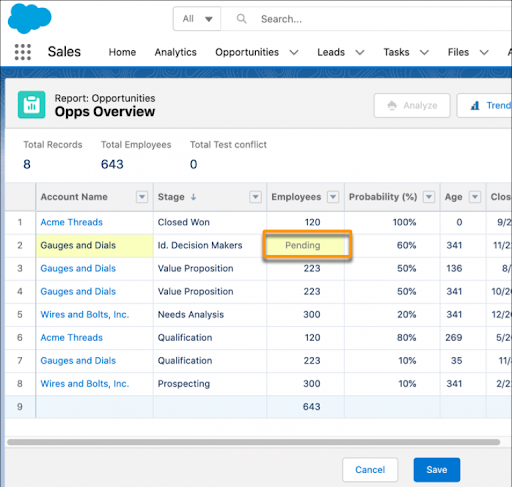
Salesforce users and marketers both have a need to update information on the fly while viewing a report in Salesforce. This new feature provides the ability to edit fields within your report on multiple records.
You can make as many changes as you want, as long as the field is not locked, and then save all of the changes at once without rerunning the report. Fields that are related to other fields within that same record will update those additional fields as well once you save your changes within the report.
The example below is a preview of what happens when the Account on an Opportunity is updated and the Employees field shows as pending. Seeing this screen means the field will update as well once the record is saved.
If you have ever used a Salesforce Dashboard to track your campaign metrics, then you might have used a Gauge Report chart before.
Gauge charts typically track performance toward a certain goal that you set in place when the dashboard was created. This new feature will provide you with the ability to track your performance dynamically instead of setting a singular goal for the year.
This means Salesforce will use your report metrics and dynamically update your goal as it responds to your business and performance whether it is a positive or negative change.
Improvement #4: Personal Information Security Updates
Marketers should always ensure that their customer data is compliant and respects the customer’s personal preferences. With that in mind, Salesforce has released a new update to help hide customer’s personal data from other customers who are in the same portal or community.
Enabling Enhanced Personal Information Management will replace the current Hide Personal Information setting available in Setup and will secure even more PII data on the User record. The new feature provides the ability to select which standard and custom fields are considered PII in your Salesforce org.
Companies should be aware that customers will no longer have access to their own personal data in the community or portal for the fields you select to hide on the User record. This feature will become enforced in all Salesforce organizations during the Winter ‘23 release.
Salesforce is getting bigger and better all the time
B2B marketers who come to Salesforce are usually looking to scale their efforts and grow in a way that makes sense. These latest enhancements from the Salesforce Spring ‘22 Release get marketers closer to those goals by saving them time and resources.
Contact the team at Sercante to get help implementing these enhancements in your Salesforce org. And leave us a comment below to let us know what you think about the Spring ‘22 Release.
The Salesforce Winter ‘22 release introduced the ability to create a custom Lightning Web Component (LWC) for Lightning Email Content, and with Spring ‘22 we have the same ability for Pardot Lightning Email Templates.
With this new feature, you can create components for standard areas of emails, such as footers or headers. Or, use it for more complex items, such as displaying upcoming events or gathering prospect feedback.
In this post, we will present the code for 5 different LWCs, walking you through the most simple example and incrementing from there.
It is important to note that these custom components behave differently than Pardot Snippets or Dynamic Content. Unlike those features, when you change the LWC, existing Pardot Email Content and Templates do not get automatically updated. You need to go into each one to refresh them.
Because we all like analogies, think of the LWC as a rubber stamp and the Pardot Email Content & Template as paper. We can craft the stamp however we like (from simple to very complex), and once it is ready it will stamp the ink (HTML) onto the Email Content or Template. Changing the stamp does not change the ink already on the paper — you need to use the new/adjusted stamp and do it again.
Feel free to check out the code project in our github repository. If you aren’t already familiar with Salesforce Lightning Web Components, check out this Trailhead Quick Start.
Simple hard-coded HTML
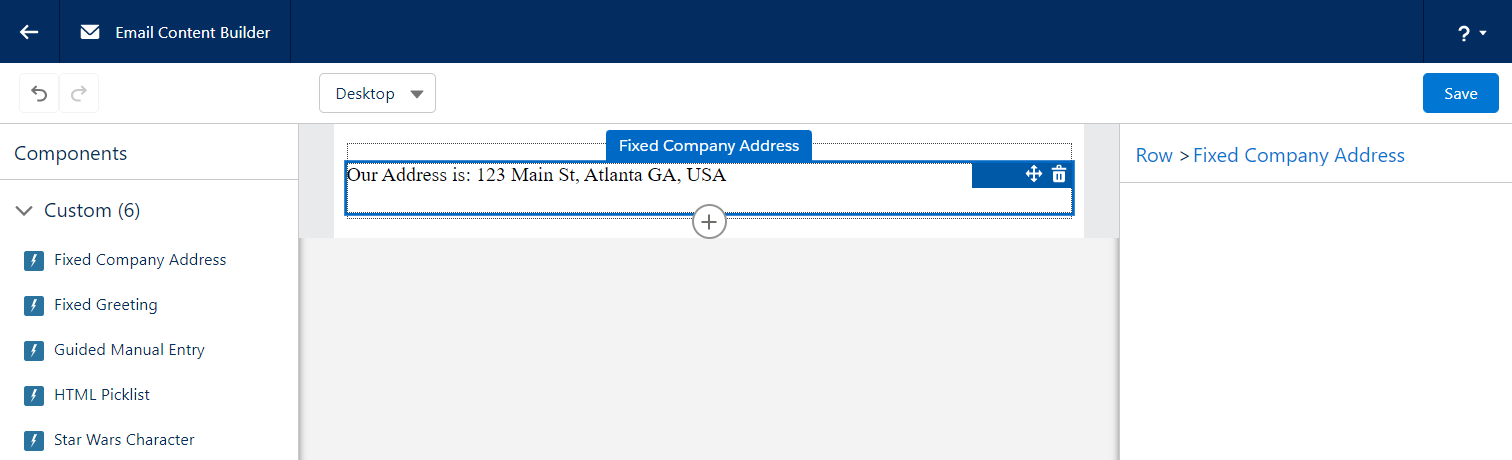
This example is a pretty good one for anyone to get started. It demonstrates what is needed to at least have something work at the most basic level. Consider it the Hello World of Custom Email Components. In our github repository, this is the fixedAddress component.
This type of custom component is great to use for standard sections of your emails that do not change with each send. For example, the copyright notice, legal disclaimer, unsubscribe language etc.
At a minimum, our LWC will need 3 files:
.html -> The HTML which will become rendered and stamped into the Email Content/Template
.js -> Any coding required to support the component
.js-meta.xml -> Salesforce Metadata, enabling this component to be used in Email Content/Templates
isExposed (line 4) is needed to tell Salesforce that this component can be displayed in the Component Toolbox
masterLabel (line 5) is the name to display in the Component Toolbox
target = lightningStatic__Email is needed to tell Salesforce that this component can be used in the Lightning Email Builder. Other examples have a bunch of other targets, these are not needed and may result in your component showing up in unexpected places.
Next we will look at the JavaScript.
import { LightningElement } from 'lwc';

export default class FixedAddress extends LightningElement {}
Because our example is mostly hard-coded, there is nothing of value here. As we evolve, we’ll start seeing this get built out.
Finally, the HTML.
<template>
  <p>Our Address is: 123 Main St, Atlanta GA, USA</p>
</template>
Again, very simple. When the email HTML is rendered, everything in between the <template> tags will be written.
Here’s what it looks like in the builder. Once the component is added to the email, it is just simple text that is rendered.
Hard-coded HTML, which includes a merge field
This example is nearly identical to the previous one, so we will skip showing the JavaScript and the Metadata. In our github repository, this is the fixedWithMergeFields component.
Straight to the HTML:
<template>
<p>Hello {{{Recipient.FirstName}}},
I hope you are having a great time learning
about our products and services.</p>
</template>
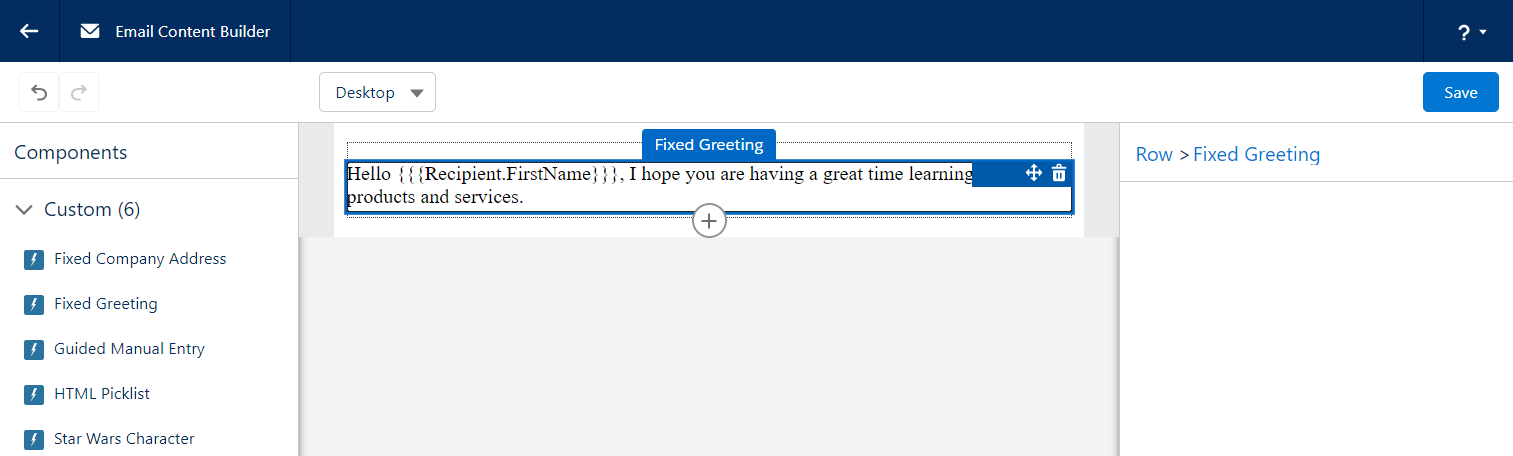
What you might notice is how the merge tag has been written. Due to some very technical reasons, we can’t just use the usual {{{FIELD}}} syntax, we have to instead “escape” the closing curly brackets to make the LWC gods happy. This appears to only be the case when the merge tags are placed into the HTML file, as normal syntax can be used when the merge tags appear in the JavaScript.
Here’s what it looks like in the builder. Similar to the previous example, you get text that cannot be adjusted.
Allow someone creating an email to provide text
Now we are going to start allowing the user of a custom component to provide their own values. In our example we are going to start off a bit slow, simply allowing them to provide some text. In our github repository, this is the guidedManualEntry component.
We need to decide which “attributes” (or values) we want a user to provide. For this example, we will ask for a Title, an Image URL, and a Description.
First, let’s take a look at our JavaScript. It needs to define these attributes.
import { LightningElement, api } from 'lwc';

export default class GuidedManualEntry extends LightningElement {
  @api
  title=""
  @api
  imageUrl=""
  @api
  description=""
}
You will note that each “attribute” has a variable name and the @api annotation. This annotation tells the LWC system that these can be referenced by the HTML file as well as our metadata file.
Next, we will tell our Metadata file to prompt the user to fill in these values.
<?xml version="1.0" encoding="UTF-8"?>
<LightningComponentBundle xmlns="http://soap.sforce.com/2006/04/metadata">
  ...
  <targetConfigs>
    <targetConfig targets="lightningStatic__Email">
      <property
        label="Title"
        name="title"
        type="String"
        default="Title of Entry"
        required="false" />
      <property
        label="Image URL"
        name="imageUrl"
        type="String"
        placeholder="https://"
        description="Enter Image URL for this image. Be sure that it is a secure URL starting with https://"
        default="https://via.placeholder.com/575x150"
        required="false" />
      <property
        label="Description"
        name="description"
        type="String"
        default="Description of Entry"
        required="false" />
    </targetConfig>
  </targetConfigs>
</LightningComponentBundle>
Ok, that’s a lot! What we are doing is giving our lightningStatic__Email target a list of properties to present on the right hand side of the Lightning Builder when someone wants to use our component.
Each property (to be presented) has a bunch of levers we can adjust to enable our user to give us what we need. Let’s break down the ones we use here:
label > basically a form field’s label
name > the name of the attribute in the LWC’s JS file
type > the type of input to present. For an email builder our current choices are:
Boolean > displays a checkbox
Integer > displays a text input allowing digits
String > displays a text input allowing any character
Color > displays a color selector
HorizontalAlignment > displays a horizontal alignment selector
VerticalAlignment > displays a vertical alignment selector
default > the default value to use when a new component is created
required > whether or not a value is required to save the component
Here we are using LWC variables to place the values provided by the user. The syntax for this is the variable name (that has the @api annotation in your JavaScript file) wrapped by a single set of curly brackets.
Now we can kind of understand why our HML syntax which includes 3 sets of curly brackets doesn’t really work, we can’t mix the two.
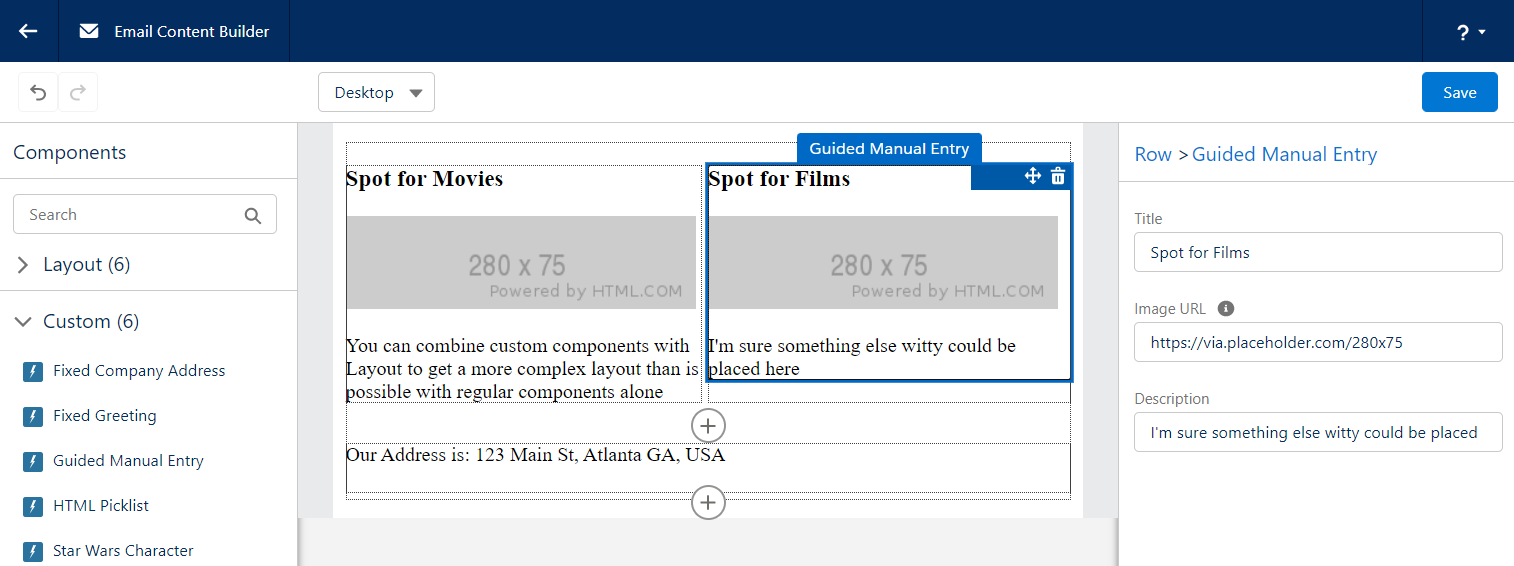
Here’s what this looks like in the builder. We are asking for the user to provide values within the section on the right hand side.
You can combine your Custom Components with Layout components to build a nice consistent email.
Present a picklist of values, coming from APEX
Now things start to get interesting. We will tie our LWC to some APEX code, opening our world of options. Before we get started, it is important to know that you don’t have to use APEX to present a picklist of options, it can entirely be done in the Metadata. Sadly we can’t show every variation of example. In our github repository, this is the htmlPicklist component.
Before we get started, we want to give credit to the original author of this example to jrattanpal on github. We simply made some minor changes to enable it to be used as a learning example.
First, we need an APEX class which will provide the options that are available.
global class HTMLSources extends VisualEditor.DynamicPickList{

  global override VisualEditor.DataRow getDefaultValue(){
      VisualEditor.DataRow defaultValue =
          new VisualEditor.DataRow('--Select--', '');
      return defaultValue;
  }

  global override VisualEditor.DynamicPickListRows getValues() {
      VisualEditor.DynamicPickListRows options = new VisualEditor.DynamicPickListRows();
      options.addRow(new VisualEditor.DataRow('HTML Option 1', '<h1>Sample 1, simple header</h1>'));
      options.addRow(new VisualEditor.DataRow('HTML Option 2', '<h3>Sample 2, smaller heading</h3>'));
      options.addRow(new VisualEditor.DataRow('HTML Option 3', '<h4>Sample 3, multiple blocks of HTML</h4><div>hello<p>testing html picklist</p></div>'));
      options.addRow(new VisualEditor.DataRow('HTML Option 4', '<h2>Hello Trailblazer</h2>'));
      options.addRow(new VisualEditor.DataRow('HTML Option 5', '<h2>This was swell</h2>'));
      return options;
  }
}
Note that the class extends VisualEditor.DynamicPickList, which requires us to provide 2 method overrides.
getDefaultValue -> provides the value selected when the component is first added to an Email. In our example above we simply prompt for a choice.
getValues -> provides all of the options that a user can pick from. To our knowledge you can’t retrieve a list of values dynamically based on another input from the user, though if this changes in the future be sure to let us know!
Now that we have APEX which can provide our values, let’s set up our LWC. We will start with our JS.
import { LightningElement, api } from 'lwc';

export default class HtmlPicklist extends LightningElement {
  @api
  set htmlValue(value) {
    if (this.attachmentPoint) {
      this.attachmentPoint.innerHTML = value;
    }
    this._htmlValue = value;
  }
  get htmlValue() {
    return this._htmlValue;
  }
  renderedCallback() {
    this.attachmentPoint = this.template.querySelector('div[ishtmlcontainer=true]');
    this.attachmentPoint.innerHTML = this.htmlValue;;
  }
}
The approach here is a little bit different than all the other examples. The goal is to take the “htmlValue” (which comes from APEX) and have that HTML be the entire HTML that gets stamped onto the Content/Template. This keeps our LWC HTML very lightweight and gives full control over the HTML to APEX (or wherever the APEX is getting the value).
Next, we will tell our Metadata file to prompt the user to choose one of the options.
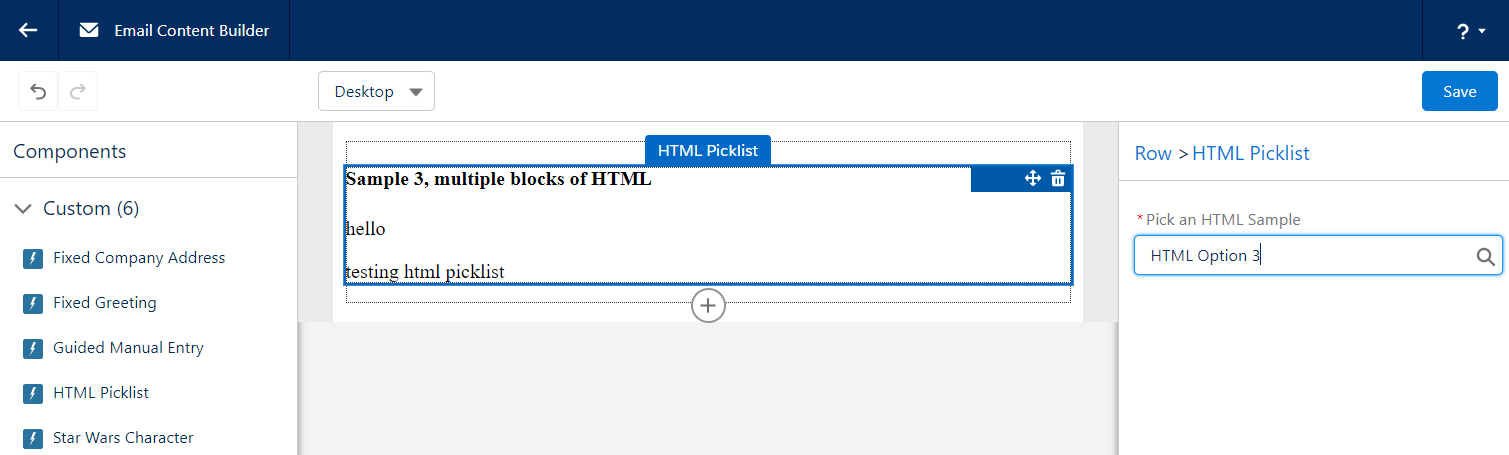
Here’s what it looks like in the builder. Similar to the previous example, the right hand side allows us to make a choice, and once made the content of our component is rendered.
Pull information from an Open API
This is the last of our examples, and it goes all out. By using an Open API, we don’t need to worry about authentication and all the additional steps to set it up in Salesforce. In our github repository, this is the starWarsCharacter component.
Similar to the previous example, we will start with some APEX. While there can be a lot going on here, the end result of the APEX is to provide a JSON String representing the attributes of each Object, or dropdown choice.
global with sharing class StarWarsCharacterPicklist extends VisualEditor.DynamicPickList {

  global override Boolean isValid(Object attributeValue){
      return true;
  }

  global override VisualEditor.DataRow getDefaultValue(){
      return new VisualEditor.DataRow('--Select a Character--', 'no-character-selected');
  }

  global override VisualEditor.DynamicPickListRows getValues() {
      System.debug('Providing Star Wars Character values now!');
      return getApiOptions();
  }

  private VisualEditor.DynamicPickListRows getApiOptions() {
    VisualEditor.DynamicPickListRows pickListRows = new VisualEditor.DynamicPickListRows();

    //Make API call to StarWarsAPI and get a list of characters
    List<StarWarsCharacterServices.StarWarsCharacter> characters = StarWarsCharacterServices.getCharacterList();


    // When a choice is made from the VisualEditor, the DataRow value will be provided to the LWC
    // We are choosing to have that "value" be a JSON string, so that the LWC can parse it and
    // render the properties as it sees fit
    for(StarWarsCharacterServices.StarWarsCharacter character: characters){
      String characterInfoAsJson = System.JSON.serialize(character);
      pickListRows.addRow(new VisualEditor.DataRow(character.name, characterInfoAsJson));
    }
    return pickListRows;
  }
}
Note that the class extends VisualEditor.DynamicPickList, which requires us to provide 2 method overrides.
getDefaultValue -> here we explicitly set a value that the JavaScript can look for, allowing it to determine if a character has been chosen or not
getValues -> the for loop iterates over a list of options that we’ve retrieved from some other source (just so happens to be a Star Wars API with a list of characters). For each option/star wars character, we build a JSON string of all the attributes we might care about in the LWC, and then return them.
Now, let’s take a look at the JavaScript.
import { LightningElement, api } from 'lwc';

export default class StarWarsCharacter extends LightningElement {
  @api
  character = {}
  @api
  characterChosen = false
  @api
  hasFilms = false
  @api
  hasStarships = false

  @api
  set characterJson(value) {
    // the "value" is the DataRow value that came from APEX
    // in our example, this is the JSON encoded string which contains details about our character
    console.log('setting characterJson::', value);
    this._characterJson = value;
    if(value==='no-character-selected') {
      console.log('There has been no character selected yet');
      this.characterChosen = false;
    }
    else {
      try {
        console.log('A StarWars character has been selected, parsing the JSON returned from APEX');
        this.character = JSON.parse(value);
        this.characterChosen = true;
        if(this.character.hasOwnProperty('films') && this.character.films.length > 0) this.hasFilms=true;
        if(this.character.hasOwnProperty('starships') && this.character.starships.length > 0) this.hasStarships=true;
        console.log('ok done');
      }
      catch(ex) {
        console.log('got an exception trying to parse json', ex.message);
        console.log(ex);
      }
    }
  }
  get characterJson() {
    return this._characterJson;
  }
}
Some things to note with this code:
@api character -> the JS Object which will contain all the attributes of a chosen Star Wars character.
characterChosen -> a flag that lets the HTML know which block to render
hasFilms -> a flag that lets the HTML know if the chosen character was in any films
hasStarships -> another flag
@api set characterJson -> a setter method, this is how the Email Builder will provide the JSON encoded string to the LWC once a choice has been made. The LWC then parses it and sets some of the flags.
Next, we will tell our Metadata file to prompt the user to choose one of the Characters.
It looks fairly similar to the previous example. A minor difference is that the “name” attribute specifies the setter method in the JavaScript as opposed to a property. Not a big difference, but worth calling out that you have a couple of options as you build your own.
Now, let’s look at our HTML.
<template>
  <template if:false={characterChosen}>
    <h3>Please select a Star Wars character from the picklist to the left</h3>
    <p>It may take a moment for Salesforce to retrieve the list of Characters and make them ready to display</p>
    <p>To my knowledge, it isn't possible to bind a search criteria to the API request, so all options need to be fetched first, however I'd love to know if someone figures this out!</p>
  </template>
  <template if:true={characterChosen}>
    <div class="card">
      <h2>{character.name}</h2>
      <p>
        Height: {character.height}<br />
        BirthYear: {character.birth_year}<br />
        HairColor: {character.hair_color}<br />
        HomeWorld: {character.homeworld}
        <template if:true={hasFilms}><br />Featured in {character.films.length} films</template>
        <template if:true={hasStarships}><br />Found in {character.starships.length} starships</template>
      </p>
    </div>
  </template>
</template>
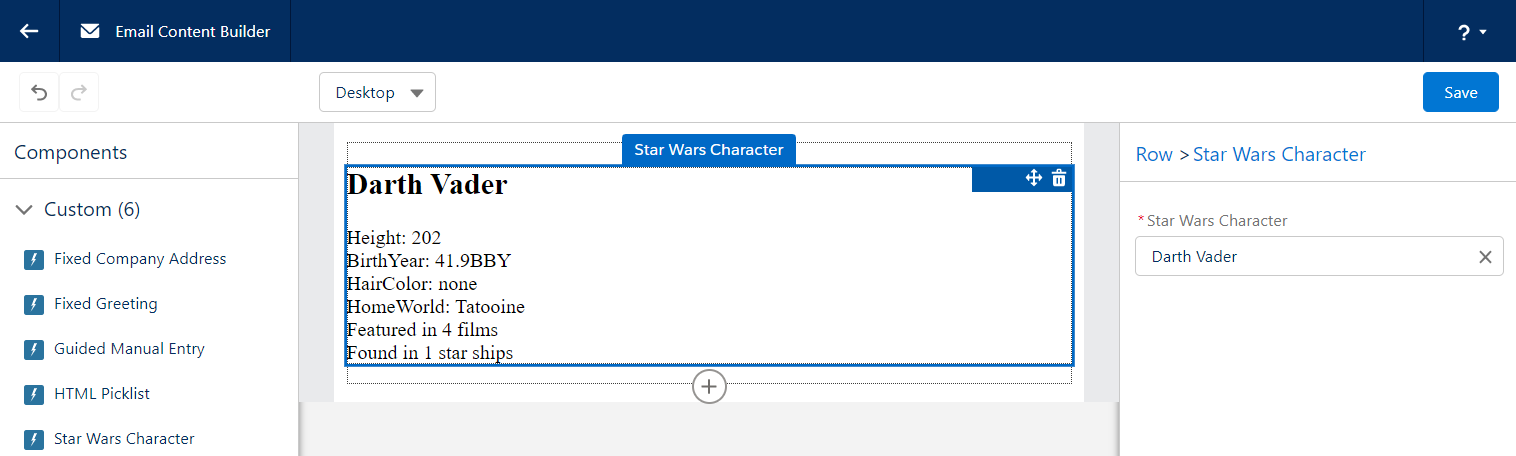
We have 2 templates, the first displays some instructions when a choice has not yet been made, and the other displays information about the choice nicely. You can see we are using simple dot-notation to merge the character attributes into the HTML of the Email Content / Template.
The web developer inside of me really does prefer this approach for rendering HTML into an email, though it does prefer a consistent structured payload for each option.
Here’s what it looks like in the builder. Similar to the previous examples, the right hand side container is where the user makes their selection and, once made, the details are rendered in the email.
Custom components are platform assets, meaning they do not belong to a specific Pardot Business unit and can easily be shared across all of your Business Units. These components will enable your users to easily drag in standard areas of emails (copyright notice, unsubscribe language, etc.) as well as more technical components, making email building faster and easier. With no backend HTML access to Lightning Builder Email Content and Email Templates, custom components are vital to building advanced emails.
What custom components do you plan on building? Let us know in the comments!
Included in the Salesforce Winter ‘22 release is a beta feature that highlights the beginning of an integration between Pardot and Slack.
Salesforce officially acquired Slack on July 21, 2021, and the company is already looking to push out new features to integrate Slack with your Salesforce instance. The newest announcement regarding the integration between the two systems went into detail about how every company should have a digital headquarters and what features will soon be available.
Here is what you need to know so you can understand how Slack will work with Pardot.
Connecting Pardot with your company Slack workspace
What does the beta service include?
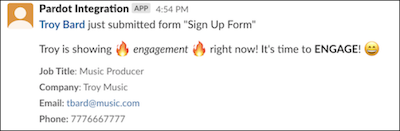
This beta feature allows your marketing and sales teams to receive updates in their Slack workspace when a prospect engages with your marketing assets. Through a completion action on your marketing asset, a new post will be shared within your Slack workspace informing your team of what asset the prospect interacted with and their basic contact information. When setting up the completion action, you are able to select which Slack channel you want your team to receive the notification.
How do I enable the Pardot and Slack integration?
Before enabling the Pardot Slack connector, you will need to create a Slack app that will be installed in your Slack workspace so you can connect Slack to Pardot. If you are like me and have never heard of a Slack app, that’s fine! A Slack app should be created when you need to use Slack APIs to connect your workspace with a third-party service through an integration.
It’s recommended to create an app from an app manifest when setting up the basic Slack app, but it is possible to create your own. The Salesforce documentation for this integration includes JSON code for you to use in the manifest file.
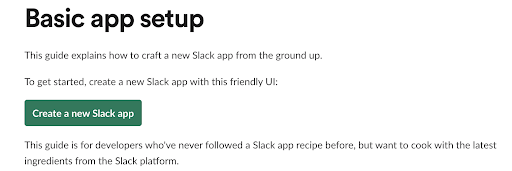
Slack provides an easy-to-navigate article that helps you create your Slack app for whichever Slack workspace you want to integrate with Pardot. By following the steps shown through the “Create a new Slack app” button, you will be able to create your own app within a couple of minutes.
Once your app is created, you will have to install it in your Slack workspace. This is so the Pardot and Slack integration is connected and ready to be used. Finally, you will have to generate a token and scope through your Slack app to add your workspace to the Slack connector in Pardot.
Enable the Pardot Slack Connector
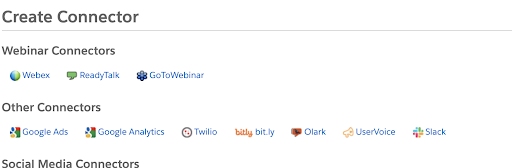
Now that we have everything set up on the Slack side of the integration, you should navigate to your Pardot settings through the Pardot Lightning App to enable the Pardot Slack connector. Once you have enabled this setting, Slack will be available as a Connector through your connector settings through the Pardot Settings tab.
When you choose the Slack connector, you will be prompted to add a Slack workspace to integrate with Pardot. To connect to your workspace, you will have to use the bot token provided when you generated the token and scopes for your Slack app. Once your workspace is added to the Slack connector, you can then choose up to 10 channels from that workspace to connect to Pardot.
You will need to copy the channel links in order to set them up through the connector. You can find these by right clicking on the designated channel within your Slack workspace.
Configure Slack Notification Completion Actions in Pardot
Now that you have your Slack workspace and channel(s) set up through the Slack connector in Pardot, you can use the “notify Slack channel” Completion Action on your marketing assets. When setting up your completion action, you are able to select which channel you want to post to as well as customize the message that is posted in the Slack channel. With each post, Pardot will also include the following fields for the prospect so your teams can easily identify them in Pardot:
Name
Job Title
Company
Email
Phone
These fields will show as blank values if they are not populated for the prospect who has completed the particular action you have set up.
Upcoming features
Salesforce announced Slack-First Marketing in mid-September and emphasized how the initiative will enable marketing teams to be able to collaborate through a shared digital workspace in Slack.
Pardot Automation for Slack is the newest feature available for Pardot users to integrate with Slack. Although there is not much information on this new feature yet, we know it is expected to be available with the Spring ‘22 release and provides a shared view of your customer in Slack while streamlining notifications for the sales department.
Important things to know
Here are a few considerations you should keep in mind when you enable the Slack integration in Pardot.
You will need to work with your Slack workspace admin to create an app for the workspace you want to integrate with Pardot.
The Pardot Slack Connector is a beta feature and is only available in English.
The Pardot Slack Connector is not available through Pardot Classic, so you will need to install the Pardot Lighting App to use this feature.
You can only create the completion action to notify a Slack channel through a Pardot form, form handler, file download, custom redirect, page action, and Pardot Classic emails.
At this time, you are only able to connect one Slack workspace to Pardot and add up to 10 Slack channels for the integration.
Learn more about the Slack integration with Pardot
Remember to reach out to Sercante if you want to know more about setting up these features in your Pardot org. Or, comment below to let us know your thoughts.
Pardot is delivering a whole new way to leverage your prospect data in the Salesforce Winter ‘22 release. Our earlier blog post covers this new feature and how to set up the Pardot External Activity in Salesforce so any third-party service can begin sending these activities to Pardot via API. This post explains what third-party services need to do to send these activities to Salesforce using Salesforce declarative solutions (Flow/Process builder).
At a high level, we need to:
Configure Salesforce to allow our solution to call the Pardot API
Implement Salesforce APEX code to handle the Pardot API request
Add an action to a Flow to make use of our new code
Test
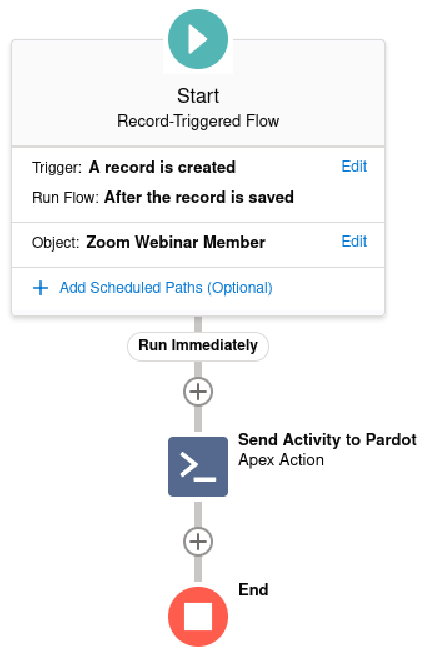
This solution is a little more technical than our post on Zapier. Once you are done, you will end up with a Flow like this:
Configure Salesforce
Any time we want to work with the Pardot API, we need to “authenticate” with Salesforce in order to get an Access Token.
A brand new Connected App (to avoid issues, don’t re-use previously created Connected Apps unless they were created using the instructions above)
Named Credential for connecting to the API
Salesforce APEX code
To build this capability, we need to create an @InvocableMethod so that our Salesforce declarative automations can see it and call it to do our bidding.As with any code solution, there are a variety of ways that we can tackle this. The code sample below will work for readers with one Pardot Business Unit. The original code file (and APEX Tests) can be found in our GitHub repository: external-activities-sfdx
public with sharing class PardotExternalActivityPublisher {
    public static final Integer HTTP_REQUESTS_PER_BATCH = 50;
    public static final String ONLY_ONE_BUSINESS_UNIT_ID = '0UvB00000004000AAA';
    public static final String NAMED_CREDENTIAL = 'APEX_Pardot_Credential';

    public class ExternalActivity {
        // @InvocableVariable(label='Business Unit Id')
        // public String businessUnitId;
        @InvocableVariable(label='Extension' required=true)
        public String extension;
        @InvocableVariable(label='Type' required=true)
        public String type;
        @InvocableVariable(label='Value' required=true)
        public String value;
        @InvocableVariable(label='Prospect Email' required=true)
        public String email;
    }

    @InvocableMethod(label='Send Activity to Pardot')
    public static void sendActivityToPardot(List<ExternalActivity> activities) {
        //Very quickly pass this request into the ASYNC Queue, eliminating delays for Users
        System.enqueueJob(new QueueablePardotCall(activities));
    }

    /**
     * Handles Asynchronously firing each Activity to Pardot
     */
    public class QueueablePardotCall implements System.Queueable, Database.AllowsCallouts {
        private List<ExternalActivity> activities;

        public QueueablePardotCall(List<ExternalActivity> activities) {
            this.activities = activities;
        }

        public void execute(System.QueueableContext ctx) {
            //depending on how many Activities we are processing,
            //we might hit the APEX limit of 100 Web Callouts
            List<ExternalActivity> remainingActivities = new List<ExternalActivity>();
            Integer processedCount = 0;

            for(ExternalActivity activity : activities) {
                if(processedCount < HTTP_REQUESTS_PER_BATCH ) {
                    HttpRequest req = new HttpRequest();
                    req.setHeader('Pardot-Business-Unit-Id', ONLY_ONE_BUSINESS_UNIT_ID);
                    req.setHeader('Content-Type', 'application/json');
                    // req.setHeader('Pardot-Business-Unit-Id', activity.businessUnitId);
                    // activity.businessUnitId=null;

                    req.setEndpoint('callout:'+NAMED_CREDENTIAL+'/v5/external-activities');
                    req.setMethod('POST');
                    String body = System.JSON.serialize(activity, true);
                    System.debug('Submitting: ' + body);
                    req.setBody(body);
                    Http http = new Http();
                    try {
                        http.send(req);
                    }
                    catch(Exception e) {
                        //we fire it off and don't do anything if there's an error
                        //probably not the best approach for Production, though it will
                        //be up to you how to handle it
                        System.debug('There was an error submitting the External activity');
                        System.debug('Message: ' + e.getMessage() + '\n' +
                                        'Cause: ' + e.getCause() + '\n' +
                                        'Stack trace: ' + e.getStackTraceString());
                    }
                    processedCount++;
                }
                else {
                    //we will process this in the next batch of Payloads
                    remainingActivities.add(activity);
                }
            }
            if(!remainingActivities.isEmpty()) {
                System.enqueueJob(new QueueablePardotCall (remainingActivities));
            }
        }
    }
}
To use this code, make sure you replace the Business Unit ID at the top of the code with your Business unit ID (to find this, navigate to Salesforce Setup > Pardot Account Setup).
For readers with multiple Pardot Business Units, remove the constant ONLY_ONE_BUSINESS_UNIT_ID and then uncomment the businessUnit lines throughout. You will need to either specify the Business Unit ID in your Flow, or you could write additional APEX to iterate through your Pardot Business Units by working with the PardotTenant object in Salesforce.
You might also want to specify how you want to handle any exceptions you get from making the Pardot API call. In our example, we simply write exceptions to the debug log.
Our APEX code does assume that the Contact has synced over to Pardot already. If you can’t make this assumption, you may consider calling a Pardot Form Handler to make sure that the prospect is in Pardot already. We have an APEX example for that too (which follows a very similar pattern, so it should be easy to merge them).
Adding an Action to a Flow
Once the APEX has been deployed, you will now be able to use it declaratively.
In our example, we have a Zoom Webinar Member (which is a Junction Object between a Zoom Webinar and a Contact).
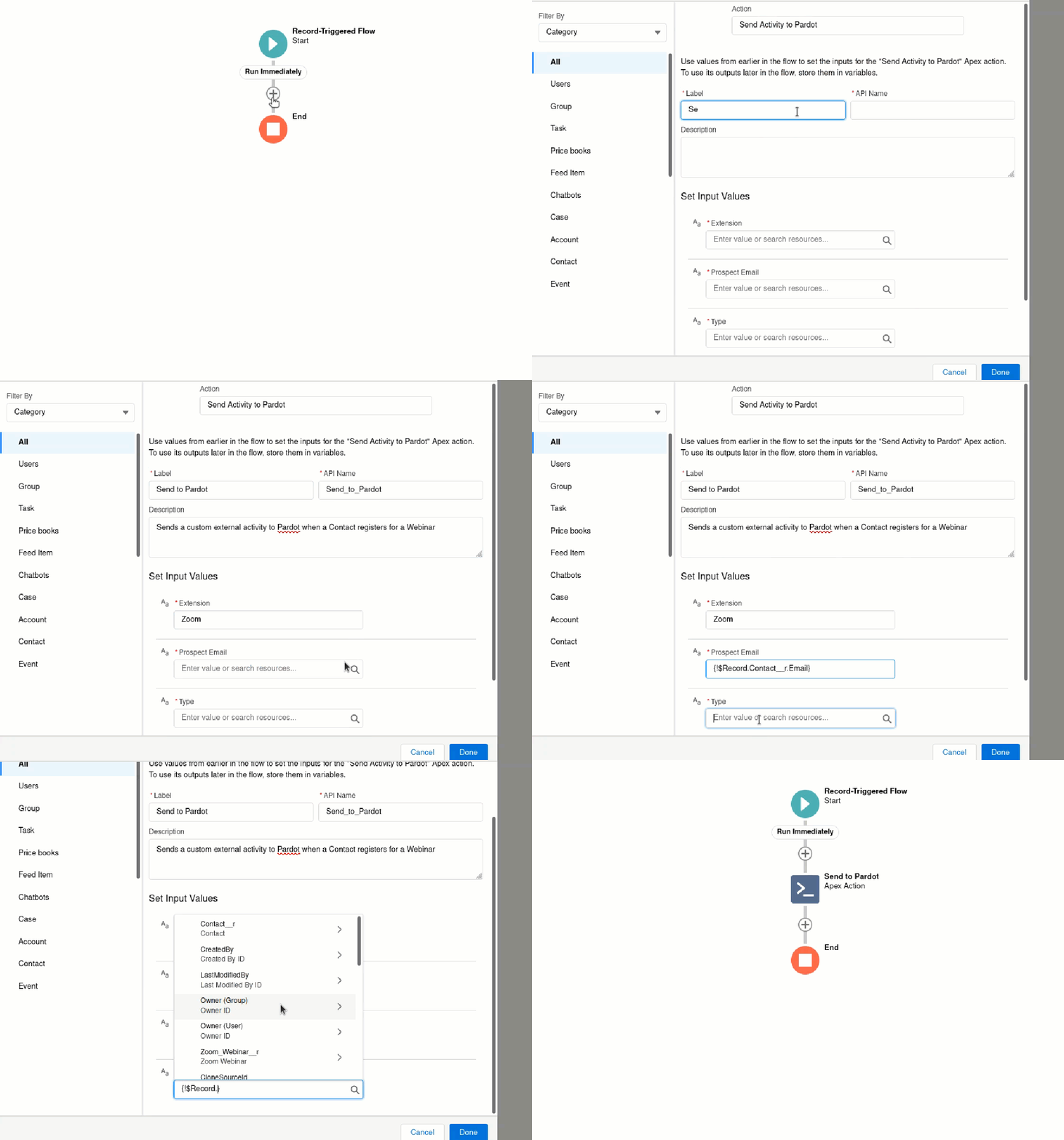
To set this up in a Flow:
Navigate to Setup > Flows
Select “New Flow” or edit an existing Flow
Select the + symbol to add a new Element, select “Action”
In the “Search all actions” window, locate “Send Activity to Pardot”
Provide a meaningful Label and Description
Set your input values
Extension: Enter the name of the Marketing App Extension you created in Salesforce
Prospect Email: Source the email from one of the fields/variables in your flow
Type: Enter one of the activities you set up and associated with your Marketing App Extension in Salesforce
Value: Enter (or source from a field/variable) the unique value to identify this Activity, event IDs work great here
Click “Done”
Test
Once all elements of your Flow are ready, testing can begin. Activate your Flow and perform the action you are using to trigger the Flow. After a couple of moments, check the Pardot prospect you are testing with, and you should now see all the information you passed through.
Testing is a little bit tricky, for two reasons:
We are executing this functionality asynchronously, meaning a problem won’t show up in Salesforce like you are used to seeing. Debug logs will be your friend here. But don’t worry, there isn’t too much to sort through.
If the Named Credential or anything else isn’t quite set up right (from step 1), Salesforce and debug logs aren’t very helpful in troubleshooting. You will have to painstakingly go through the instructions again to make sure that nothing was missed / done incorrectly.
Considerations
The Export Activity API call only works for known prospects, and it will not work if the email address is not already associated with a prospect in your Pardot Business Unit (this is why we have the form handler in our example).
If you have multiple Pardot Business Units, there is no intelligence of “choosing the right one.” You need to target the right one with your APEX solution, which assumes all prospects going through this code are from the same Pardot Business Unit. As we mentioned in the APEX section, you have the flexibility to code whatever you need to handle your business case.
For assistance with this or other Pardot External Activities, reach out to Sercante!
Pardot is delivering a whole new way to leverage your prospect data in The Salesforce Winter ‘22 release. Similar to webhooks, the new Pardot External Activities feature allows users to receive data from third-party systems and use the data in automations and Engagement Studio Programs. For instance, you could record when a prospect registers for a webinar, completes a survey, or watches a video.
In an earlier blog post, we describe how to set up the External Activity in Salesforce so a third party can begin sending activities to Pardot via API. This post will detail how to actually send the activities with Zapier. Similar approaches can be done with other meta-services. If you want hands-on help, we’d love to work with you.
Pardot External Activities Zapier Solution
Before we get started, it is important to note that Zapier doesn’t actually support this Pardot API request. Zapier only supports four of the many API requests possible, so we will be taking advantage of the Zapier Webhook capability to build our solution.
At a high level, we need to:
Configure Salesforce to allow our Zap to make API requests to Salesforce and Pardot
Create a new Zap which listens for a third-party event (such as registering for a Webinar)
Enhance the Zap to submit prospect information to a Pardot Form Handler
Enhance the Zap to get an OAuth token from Salesforce
Enhance the Zap to publish the External Activity (which works well as the Form Handler has ensured the Prospect exists already)
Test
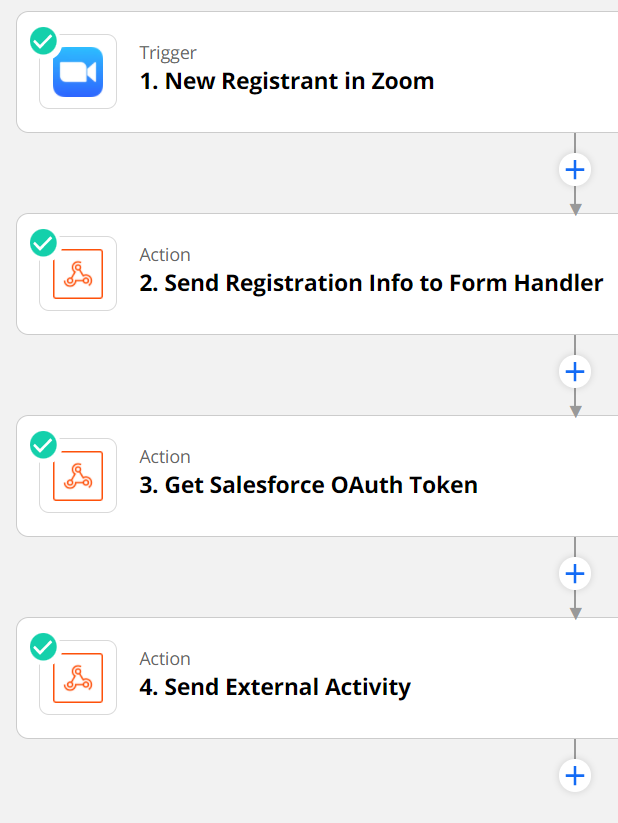
Now I realize this is a lot, but don’t worry, we’ll walk through it all. Once you are done building this Zap, you’ll end up with something like this:
Configure the Salesforce Connected App
Anytime we want to work with the Pardot API, we first need to “authenticate” with Salesforce to receive an Access Token that can be used with the Pardot API. To do so, create a new Salesforce Connected App for Zapier. We highly recommend creating and testing this new Connected App by following the steps in our earlier blog post, Pardot API and Getting Ready with Salesforce SSO Users.
Once you have created your new Connected App, you should have a new Salesforce and Pardot User for the Zapier connection. Keep the user’s username, password, and security token handy for later.
In our example, we will be creating a Zap for a Zoom Webinar Registration. Due to the way Zoom Webinars are integrated with Zapier, you will need to create a Zap for each webinar, as well as creating automations in Pardot for each webinar. This may vary depending on which App you are using in Zapier.
Create a new Zap in Zapier
Log in to your Zapier Account
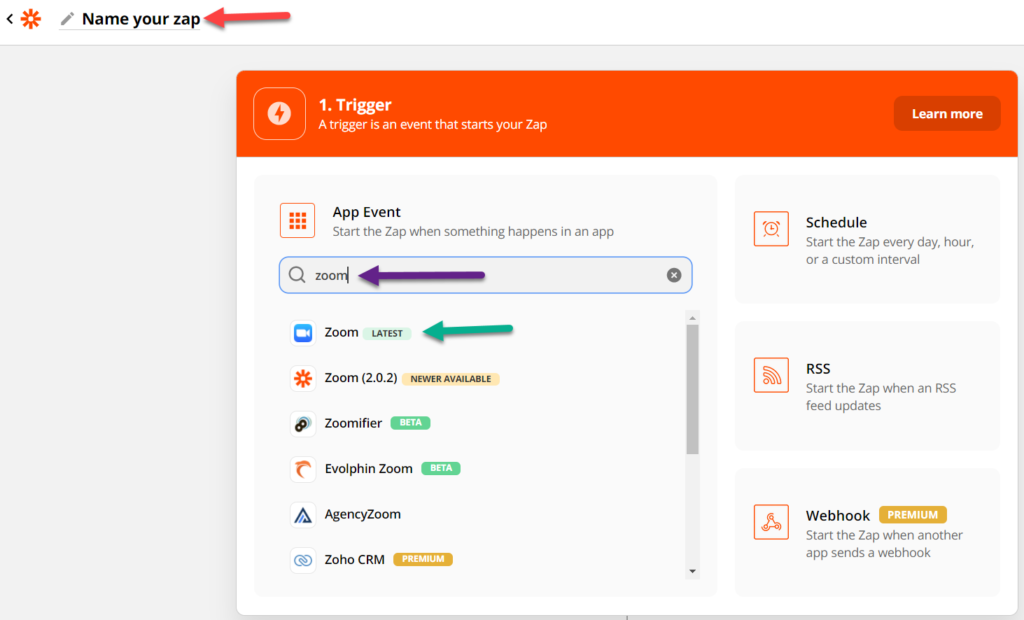
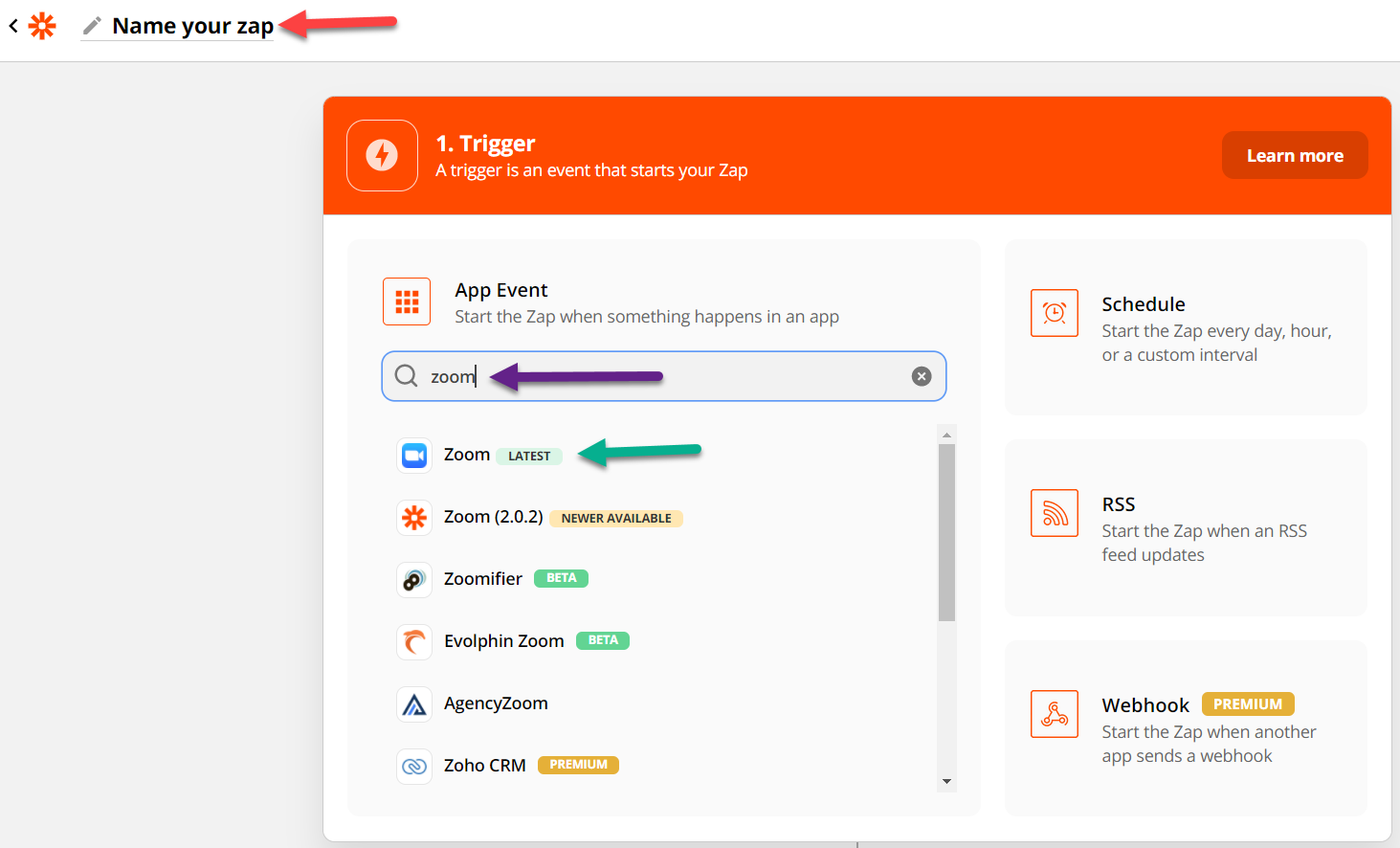
Create a new Zap and give it a name
Find the third-party app that will trigger this Zap. For our example, we’ve chosen Zoom.
Select your Trigger event. For our example, we have chosen “New Registrant”.
Choose the Zoom account for your connection. If you haven’t already connected the app, now will be your chance!
Next, (and this might differ based on your app), select the upcoming webinar you wish to integrate.
Click “Test trigger”
This often works best if you have a recent “event.” For Zoom webinars, it helps if you have at least 1 person who has already registered for the webinar via the Zoom registration page. In doing so, you will see sample fields and values, making the process a bit easier.
Finally, click “Continue” and you should have a nice clean “trigger.” Zapier will prompt you to make your first Action.
Enhance Zap to submit the Pardot Form Handler
Zapier now has a handle on prospects registering for the selected webinar, now we need to send this information to Pardot.
In this first Action, we are going to send details about the person who registered for the Zoom webinar to a Pardot Form Handler. This allows us to create/update a Pardot prospect with the right field values.
Why are we using a Form Handler instead of API calls?
This approach greatly simplifies the integration by natively handling new prospect creation.
Reduces sync errors for new prospects who have not interacted with a Pardot form yet
More cost effective and efficient than using the Read API to create new prospects
Ensures duplicates are not accidentally created
The action that the person took will actually show up as Prospect Activity. This is good since they took real action and submitted a form.
You can apply Completion Actions, which are not available in the API.
Make sure you have the Pardot Form Handler created and that you have the field names and the https URL handy.
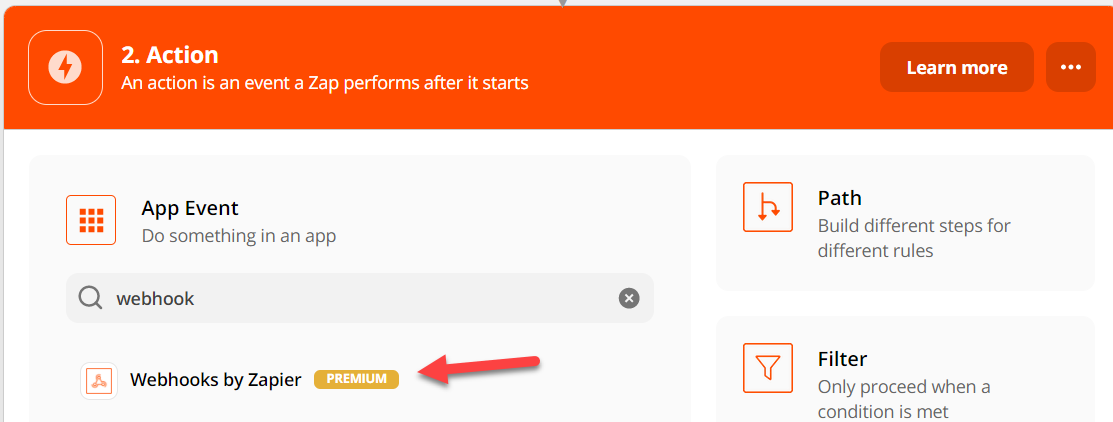
Continuing from the previous section, create a new Webhook Action by selecting “Webhooks by Zapier.”
This step is important to establish who is registering and to make sure we associate the External Activity with a prospect.
For the Action Event, choose POST.
Set up the action by filling in the following fields:
URL: The https URL of your Pardot Form Handler
Payload Type: form
Data: Enter the Pardot Form Handler field name, and the values coming from the trigger setup earlier. Add new “rows” for each field you wish to populate in the Pardot Form Handler based on your trigger data available.
Once you have finished setting up the Action, test the action, check that the Pardot Form Handler was called, and verify that the data is where it should be.
Rename the Action to “Send Registration Info to Form Handler” so that it’s clear what this Action is accomplishing.
Enhance Zap to get OAuth token from Salesforce
Now things start to get a bit tricky. Since we can’t leverage the Pardot app in Zapier, we need to do things manually. This is where we will use the Salesforce and Pardot User we set up with the Connected app in the first section.
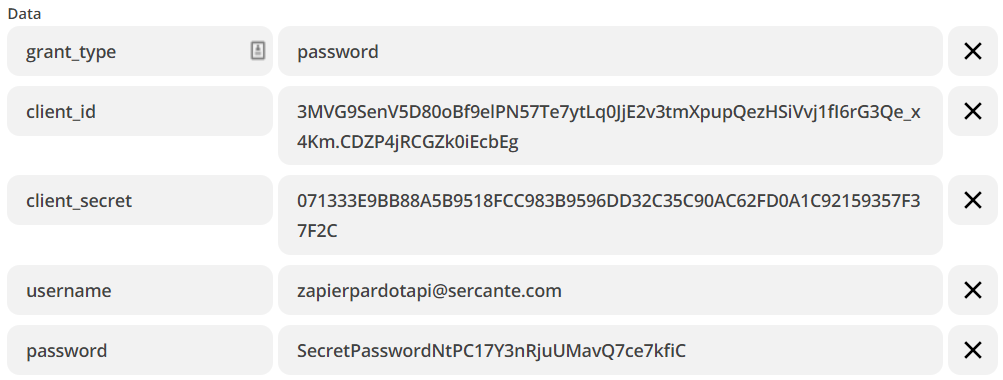
Create a new Webhook Action by selecting “Webhooks by Zapier”
Data -> client_id: Enter the Consumer Key from your Connected App
Data -> client_secret: Enter the Consumer Secret from your Connected App
Data -> username: Enter the Salesforce Username of the Pardot user we will use for API calls
Data -> password: Enter your Salesforce user’s password followed by the Security Token
Once you’ve provided all the values above, Test and Review. A successful request should show values like access_token and instance_url for your Salesforce org.
Rename this Action to “Get Salesforce OAuth Token” so that it’s clear what this Action is accomplishing.
Enhance Zap to publish Pardot External Activity
Finally, we will send the External Activity to Pardot
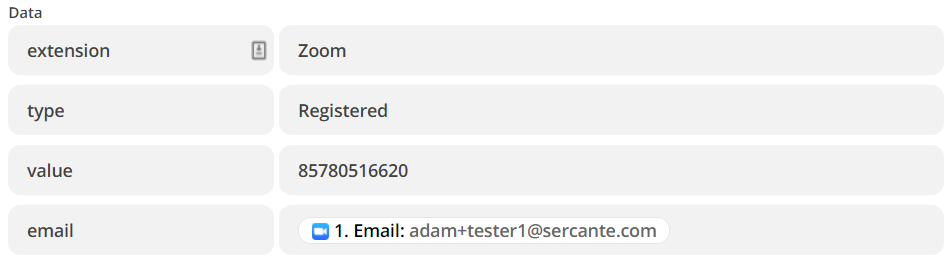
Create a new Webhook Action by selecting “Webhooks by Zapier”
Data -> extension: Enter the name of the Marketing App Extension you created in Salesforce
Data -> type: Enter one of the Activities you set up and associated with your Marketing App Extension in Salesforce
Data -> value: Enter a unique value to identify this Activity, event IDs work great here
Data -> email: Enter the email address that was used in step 3 of the “Enhance Zap to submit the Pardot Form Handler” section
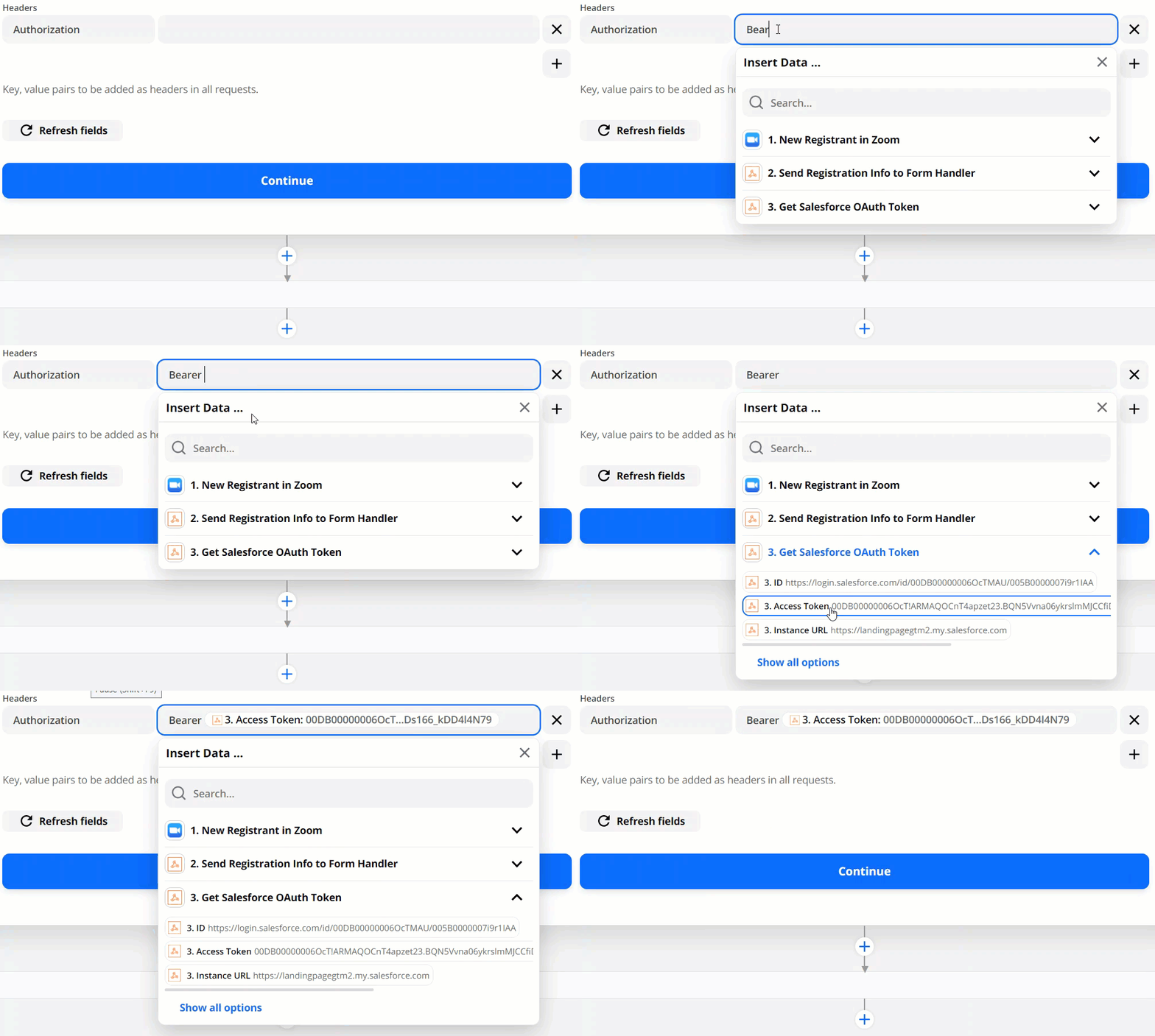
Headers -> Authorization: This one is a bit tricky to fill out. First, when you click in the text box, type “Bearer “ (with the space) and then select the Access Token.
Headers -> Pardot-Business-Unit-Id: Enter the ID of the Pardot Business Unit that is associated with the Marketing App Extension. You can find the Pardot Business Unit ID by navigating to Salesforce Setup >Pardot Account Setup. (Detailed instructions here).
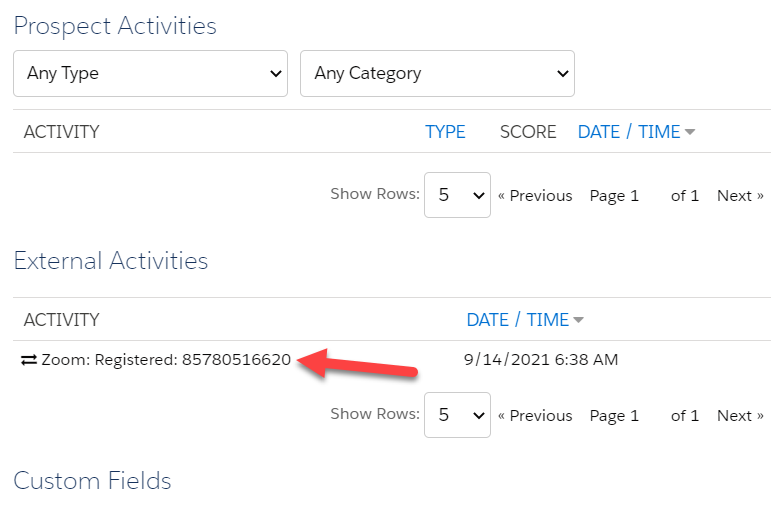
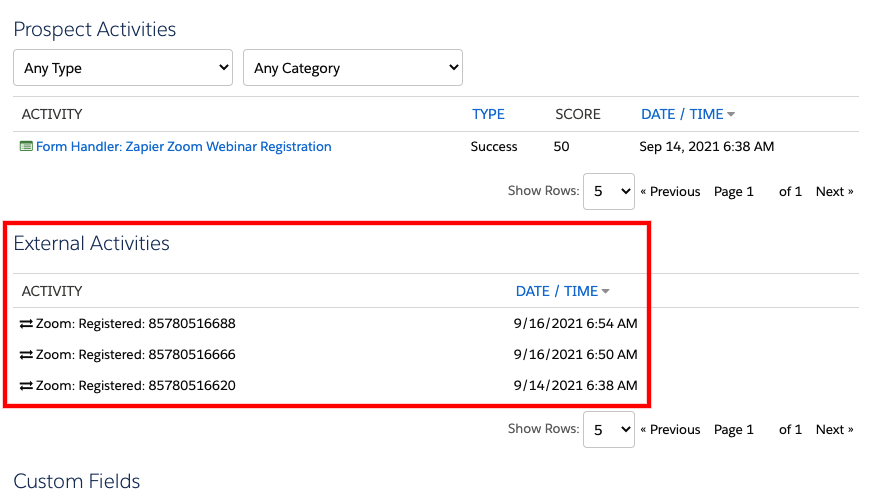
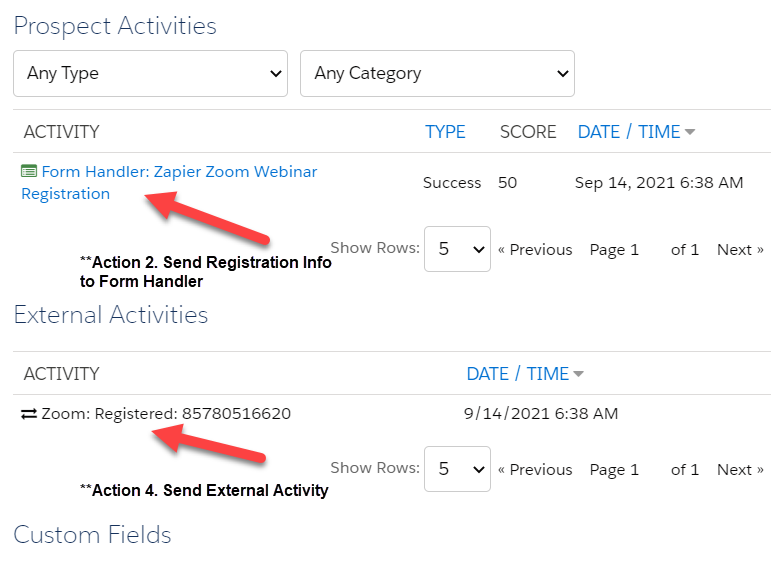
Once you’ve provided all the values above, Test and Review. Check the Pardot Prospect for the new Activity record. This activity will appear between the Prospect Activities and Custom Fields section of the prospect page.
Rename this Action to “Send External Activity” so that it’s clear what this Action is accomplishing.
Test
Now it’s time to test our Zap end-to-end.
Activate your Zap and perform the action that you are capturing in the Zap’s Trigger (i.e. register for the Zoom webinar). After a couple of moments, check the Pardot prospect that you are testing with. You should now see all the information you passed through the Zap!
Considerations
The Export Activity API call only works for known prospects, and it will not work if the email address is not already associated with a prospect in your Pardot Business Unit. This is why we have the form handler in our example.
If you have multiple Pardot Business Units, there is no intelligence of “choosing the right one.” You need to target the right one with your Zap, which assumes all prospects going through this trigger are from the same Business Unit. Proceed with caution and test rigorously when attempting more advanced solutions with business units.
Salesforce only allows five access tokens to be issued at a time. With high volumes of a triggering event, it is possible that Zaps may fail due to Salesforce Access tokens getting recycled before they can be used in the following actions (this is due to us manually getting an Access Token with the second Action).
Any time the user’s password and/or security token changes in Salesforce, each ZAP that uses it will also need to be updated.
These considerations are best addressed by writing your own code, which can properly address the edge cases, etc. For assistance with this or other Pardot External Activities, reach out to Sercante!
Pardot is delivering a whole new way to leverage your prospect data in the Salesforce Winter ‘22 release. Similar to webhooks, the new Pardot External Activities feature allows users to receive data from third-party systems and use the data in automations and Engagement Studio Programs. For instance, you could record when a prospect registers for a webinar, completes a survey, or watches a video, and then trigger automations from those actions.
There are 3 main steps we will be guiding you through in this post.
Register the Pardot External Activity types in Salesforce
Integrate third-party systems with Pardot External Activity (we use the API here)
Leverage the new External Activities inside Pardot
To use External Activities, you must have a Plus, Advanced, or Premium Pardot Account and be using the Pardot Lightning App (remember, the Pardot Classic app is being retired).
Register the External Activity types in Salesforce
Similar to how a Salesforce Custom Object needs to be defined before you can start creating records, we need to set up an Extension and the Extension’s Types before we can record External Activity on Prospect records. A Salesforce Administrator or a Marketing Setup Administrator will need to perform these steps.
Create a Marketing App Extension.
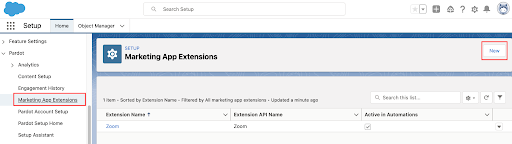
Navigate to Setup > Marketing App Extensions.
Select “New.”
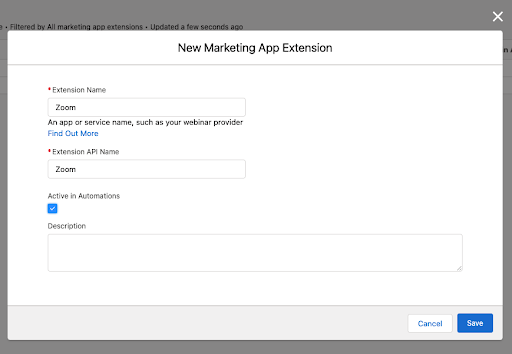
Name your new Extension.
Select “Active in Automations.” This is what allows the extension to show up within Pardot.
Select “Save.”
Create an associated Activity.
Select the “Related” tab.
Select “New” next to Activity Types.
This will be an action your prospects perform, such as registering, attending, or being absent from a webinar.
Activity types cannot be shared across extensions, so make sure you create these activities for each extension!
Choose activity type names that make sense to your users.
Select “Active in Automations.”
Select “Save.”
Assign the extension to your Pardot Business Unit(s). You’ll need to perform this step even if you only have one Business Unit. Extensions can be assigned to multiple Business Units.
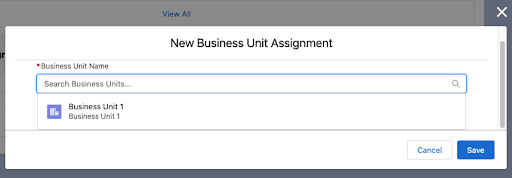
Within the Related tab, select “New” next to Business unit Assignments.
Select the first Business Unit.
Select “Save.”
Repeat if you’re using multiple Business Units.
Before you build/set up this external activity, check to make sure the solution you are looking to integrate doesn’t have an existing solution built. They may handle this whole side of the process for you, or you may only need to assign the extension to your Pardot Business Unit(s).
Integrate third-party systems with Pardot External Activity
This step is where we’ll connect the third-party system that is collecting the prospect’s activities and extension we built above. This step will use the Pardot API and should be included in any vendor’s solution that supports External Activity. Given this is a brand new feature, odds are External Activity is not yet supported by existing integrations.
If it is not included, you should be able to glue things together yourself. Below are two guides that will help:
Leveraging the new External Activities inside Pardot
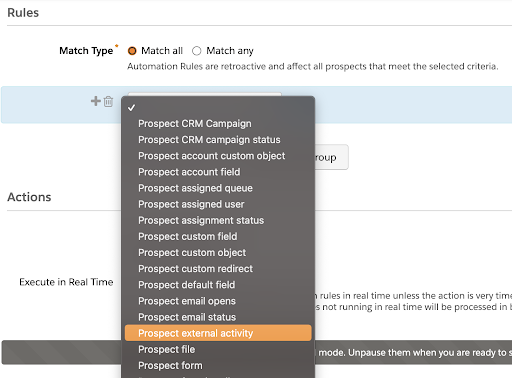
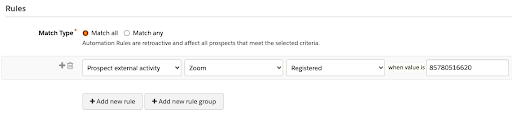
Now that you’ve created an External Activity and have a solution to send the prospect’s activities to Pardot, “Prospect External Activity” will be available within Automations:
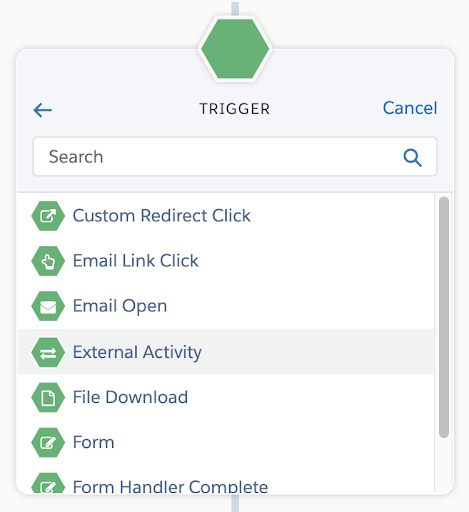
And “External Activity” will be an available Trigger in Engagement Studio:
The value for the External Activity refers to the individual event, webinar, etc. These values will change for each activity and will NOT be pre-populated, so you’ll want to ensure your users know the exact values to look for when using the External Activities in Pardot. You can use the semicolon operator for a list of values.
Keep in mind
External Activities do not update the prospect’s last activity time stamp. That means external activities will not trigger a sync between SFDC and Pardot, and they should not be used to indicate the last time the prospect took an action.
Finally, Automations will process External Activity data even if the external activity is inactive within Salesforce. So, if you deactivate an extension, you’ll want to review the Automations and Engagement Studio Programs that are using the External Activity. Consider using tags on your Pardot Automations to help you easily find and administer them.
Requirements
Plus, Advanced, or Premium editions of Pardot
Requires the Pardot Lightning App
Work with your Salesforce Admin or Marketing Setup Admin to configure this.
External Activity helps Pardot customers send information to Pardot from external systems. While many things are possible with the Pardot API, this feature does not send information from Pardot to other systems. If this is a critical capability for your org, you can help impact the Pardot Roadmap by sharing your Product and feature ideas on the Salesforce Idea Exchange.
Want to keep learning about External Activity? Check out these two additional blog posts: