Category

Pro Tips

As part of the Winter ‘24 release, Account Engagement users gained the ability to copy assets to and from Account Engagement Sandboxes. This allows marketers to test automations and assets before pushing them to their Production Account Engagement org. It also allows them to pre-populate Sandboxes with assets so they don’t have to start from scratch. 

The Account Engagement to Sandbox-to-Production Flow currently supports seven asset types: 

  1. Email Templates
  2. Custom Redirects
  3. Custom Fields
  4. Files
  5. Engagement Studio Programs
  6. Layout Templates
  7. Form Handlers

Account Engagement Sandbox-to-Production Flow Installation Instructions

To start using the Sandbox-to-Production flow, you will need to create a Connected App and two named credentials. 

Step 1: Create the Connected App in the Sandbox Org

This provides the interface to authenticate into an org.

  1. In your source org (Production), grab the Sandbox Asset Auth Flow callback URL.
    • Go to Setup > Auth. Providers
    • Open the Sandbox Asset Flow Auth
    • Copy the Callback URL, you will need this shortly
  2. In your Sandbox org, navigate to Salesforce Setup > App Manager and then select New Connected App.
  3. Configure the Connected App as follows:
    • Connected App Name: MCAE Sandbox to Production
    • Contact Email: Email Address of the admin who will be managing the Sandbox-to-Production promotion process. 
    • Enable OAuth Settings: Checked
    • Callback URL: The Source Org Callback URL you copied in step #1
    • Selected OAuth Scopes:
      1. Access the Salesforce API Platform (sap api)
      2. Access unique user identifiers (openid)
      3. Manage Pardot services (pardot_api)
      4. Manage user data via APIs (api)
      5. Manage user data via Web browsers (web)
      6. Perform requests at any time (refresh token, offline_ access)
    • Require Secret for Web Server Flow: checked
    • Require Secret for Refresh Token Flow: checked
  4. Select Save
    • Note: It may take 10-15 minutes for the connected app to be ready for authentication.
  5. Select Manage Consumer Details
  6. Copy your Consumer Key and Consumer Secret for later use.

Step 2: Update Auth Provider in Production Org

This handles the authentication process.

  1. In your Source Org (Production), enter the Consumer Key and Consumer Secret from your Connected App
    1. Go to Setup > Auth. Providers
    2. Open the Sandbox Asset Flow Auth
    3. Select Edit
    4. Enter the Consumer Key and Consumer Secret
  2. Select Save

Step 3: Create an Account Engagement API Named Credential

This establishes access via an integration user to the Account Engagement API.

  1. In your Source Org (Production), navigate to Setup > Named Credentials
  2. Select New Legacy
    1. Note: Do not select “New”, it should be “New Legacy”!
  3. Configure the Named Credential as Follows:
    1. Label/Name: MCAE API Access
    2. URL: https://pi.demo.pardot.com
    3. Identity Type:  Named Principle
    4. Authentication Protocol: OAuth 2.0
    5. Authentication Provider:  Sandbox Asset Flow Auth
    6. Scope: Pardot_api refresh_token
      1. Make sure this says “pardot_api refresh_token”, not just “api refresh_token”
  1. Start Authentication Flow on Save: Checked
  2. Generate Authorization Headers: Checked
  1. Select Save
  2. Log back into the Sandbox org with your credentials. Doing so finalizes the authentication for the named credential.

Step 4: Salesforce Metadata API Named Credential

This establishes access via an integration user to the Metadata API to retrieve BU details.

  1. In your Source Org (Production), navigate to Setup > Named Credentials
  2. Select New Legacy
    • Note: Do not select “New”, it should be “New Legacy”!
  3. Configure the Named Credential as Follows:
    • Label/Name: Metadata API Access
    • URL: https://mydomain—sandboxname.sandbox.my.salesforce.com, but replace “mydomain” and “sandboxname” with the value from your sandbox url.
      1. ex: https://sercante–testing.sandbox.my.salesforce.com
    • Identity Type:  Named Principle
    • Authentication Protocol: OAuth 2.0
    • Authentication Provider:  Sandbox Asset Flow Auth
    • Scope: api refresh_token
    • Start Authentication Flow on Save: Checked
    • Generate Authorization Headers: Checked
  4. Select Save
  5. Log back into the Sandbox org with your credentials. Doing so finalizes the authentication for the named credential.

Running the Flow

Before you run the flow, ensure the destination org has at least one Folder, Campaign, and Tracker Domain. If your destination does not have these assets, you will run into issues with the flow.

  1. In your Source Org (Production), navigate to Setup > Flow
  2. Open the Account Engagement Sandbox-Production Bulk Asset Copy Flow
  3. Select Run
  4. For “Named Credential for Salesforce API Access” select the Metadata API Access (step 4 above)
  5. For “Named Credential for Account Engagement API Access” select the MCAE API Access (step 3 above)
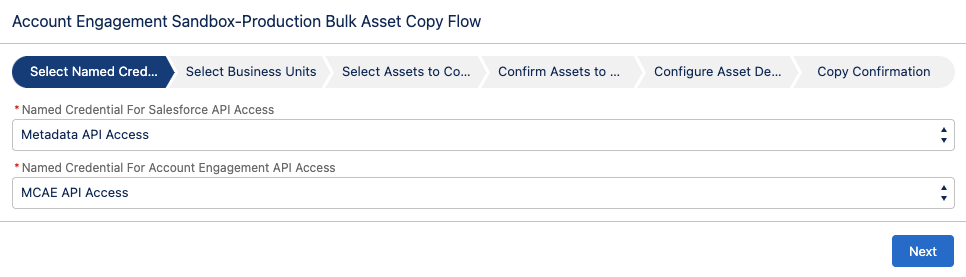
  1. Select Next
  2. Select your direction of Copy
    • From a Sandbox to Production
    • From Production to a Sandbox
  3. Select your Production and Sandbox Business Units
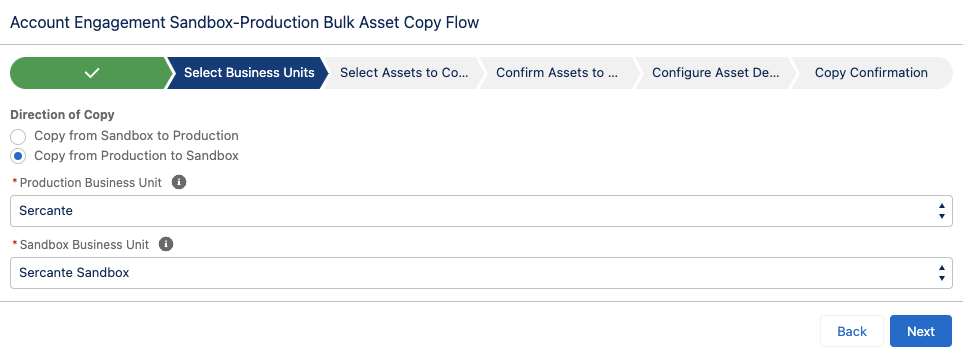
  1. Select Next
  2. Select assets to copy over, select Next
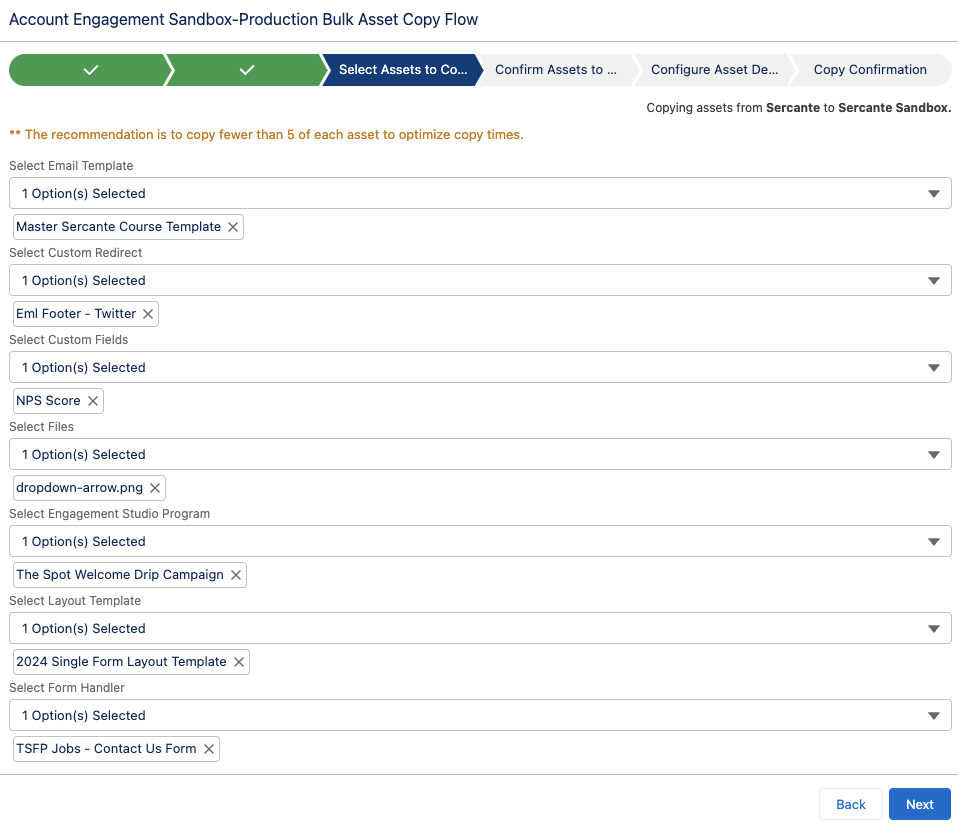
  1. Confirm the Assets, select Next
  2. Select your Folder, Campaign, and Tracker Domain for your new assets
  3. Select Copy Assets
  4. The final screen will provide details regarding the copied assets as well as let you know if there were any errors.
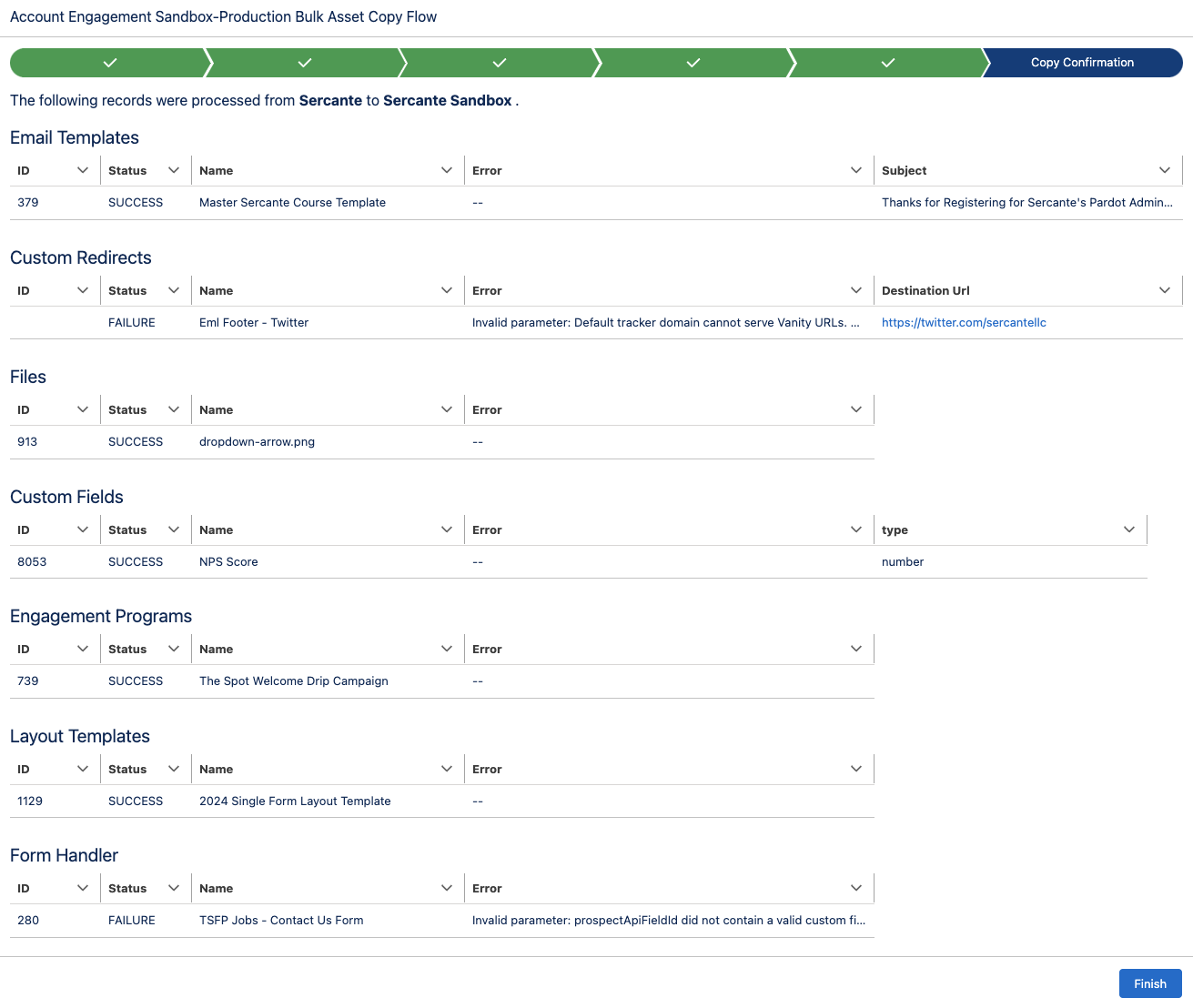
Considerations for Using the Sandbox to Production Flow

Since this is a new capability for Account Engagement, there are some details and settings that do not come over when copied. I thoroughly tested each asset type and below are the considerations that I found.

Tracker Domain

You must verify the Tracker Domain in your Sandbox. Otherwise, Email Templates, Custom Redirects, and Files will fail when the unverified Tracker Domain is selected. You can use the default tracker domain (go.pardot.com) but this will cause issues when copying over any Custom Redirects with a Vanity URL.

Email Templates

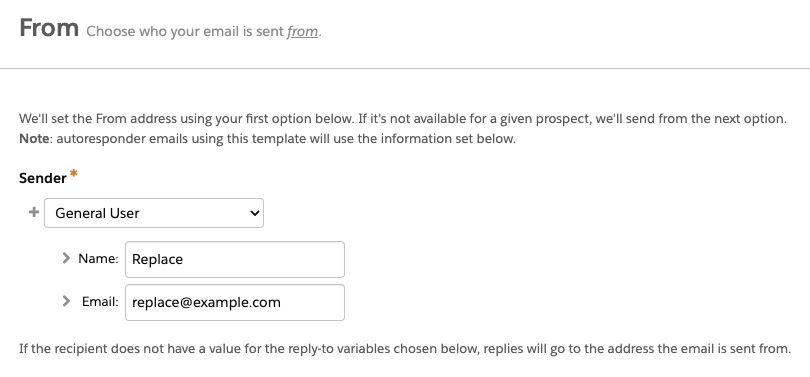
  • When copied, the email sender will be replaced by a General User with the email [email protected]. This applies even if you have a sender hierarchy specified using “Assigned User” and ‘Account Owner.”
  • Email Templates containing Dynamic Content will not copy over. This is because dynamic content is unique to the Business Unit. Even if you have the same Dynamic Content in each Business Unit, they will have a different asset ID and merge tag.
  • If the Email Template contains a merge tag for a field that is not in the destination org, the flow will fail. Ensure all needed fields are copied to the destination org before copying over any assets that use custom field merge tags.

Custom Redirects

A Custom Redirect’s Completion Action(s) will not copy over, however, the Google Analytics Parameter values do.

Files

During my testing, I tested PNG, JS, JPG, GIF, SVG, CSS, and PDF file types, and all successfully copied over!

Custom Fields

When you copy custom fields, only the following information comes over:

  • Field Name
  • Field API Name
  • Field Type

Engagement Programs

  • When you copy an Engagement Studio Program (ESP) only the ESP structure is copied. The Recipient List, Suppression lists, Send days/times, and “Allow prospects to enter more than once” settings do not come over and will need to be reconfigured.
  • The assets specified in a Trigger or Action node, such as email templates, landing pages, and forms, will need to be reselected in the new ESP. However, the number of wait days specified in the node will copy over. 
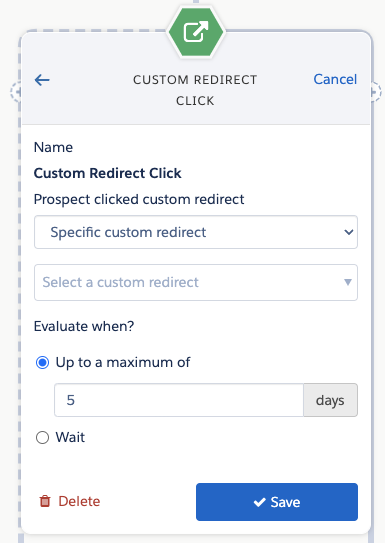


  • If an Action node looks at a Prospect field (i.e. Prospect default field “Job Title” is not blank) and that field is in both Production and Sandbox, then the node will be copied to the new ESP with the field and value/settings specified. If the field does not exist in both Production and Sandbox, then the Action node will still be in the ESP but the field and value/settings will need to be reconfigured. 

Layout Templates

If you use Dynamic Content within your Layout Templates, keep in mind that the Dynamic Content will not come over when the Layout Template is copied. You can copy the Dynamic Content over as a separate asset, but you will still need to edit the Layout Template in your destination Business Unit to make sure it has the correct Dynamic Content ID.

Form Handler

  • Ensure all the fields on the Form Handler exist in the environment you are copying to before copying the Form Handler.
  • If your Form Handler only uses Default Prospect Fields, then all of the fields will come over when the Form Handler is copied. However, if your Form Handler uses any Custom Prospect Fields, the custom field needs to be in the destination org before you copy the Form Handler.
  • When copied, the Success Location and Error Location details will copy over to the new asset. Completion Actions do not copy over.

Now it’s even easier to work with Account Engagement Sandboxes!

This new Flow is a huge step toward making Account Engagement Sandboxes user-friendly for testing and staging. What other capabilities would you like to see in this Flow? Let us know in the comments!

Welcome to the marketing side of Salesforce! As a Salesforce admin, you may occasionally need to assist your marketing team in developing processes or generating reports from data in Salesforce and Marketing Cloud Account Engagement (Pardot). Understanding Account Engagement and how it affects your Salesforce org can enhance your ability to contribute to those initiatives. 

7 Account Engagement Facts Salesforce Admins Must Know

In this blog, we will review several fundamental concepts in Account Engagement and how they relate to your role as a Salesforce Administrator. This guide is designed to provide you with insights from a Salesforce perspective about Account Engagement so that you can best support marketing and other teams using the platform. While these features are available to all organizations, access to the features can vary based on your org configuration and tier.

Tip 1: We call people “prospects”

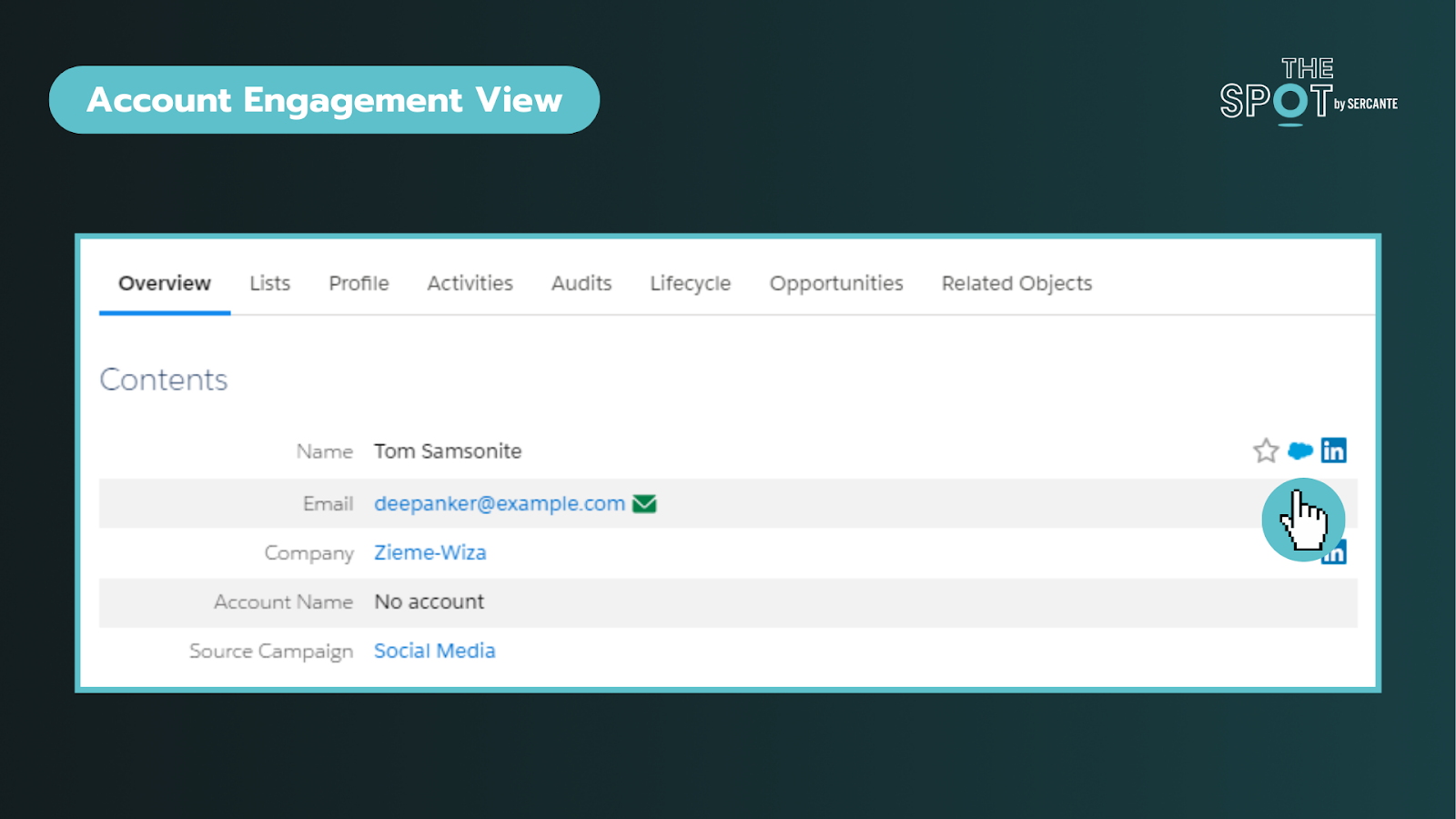
In Salesforce, you are accustomed to working with Leads and Contacts. While this does carry over, the platform labels “people-records” as Prospects. Prospects can exist solely in Account Engagement or be synced with existing Salesforce records.

Verifying Prospects are linked to Salesforce records

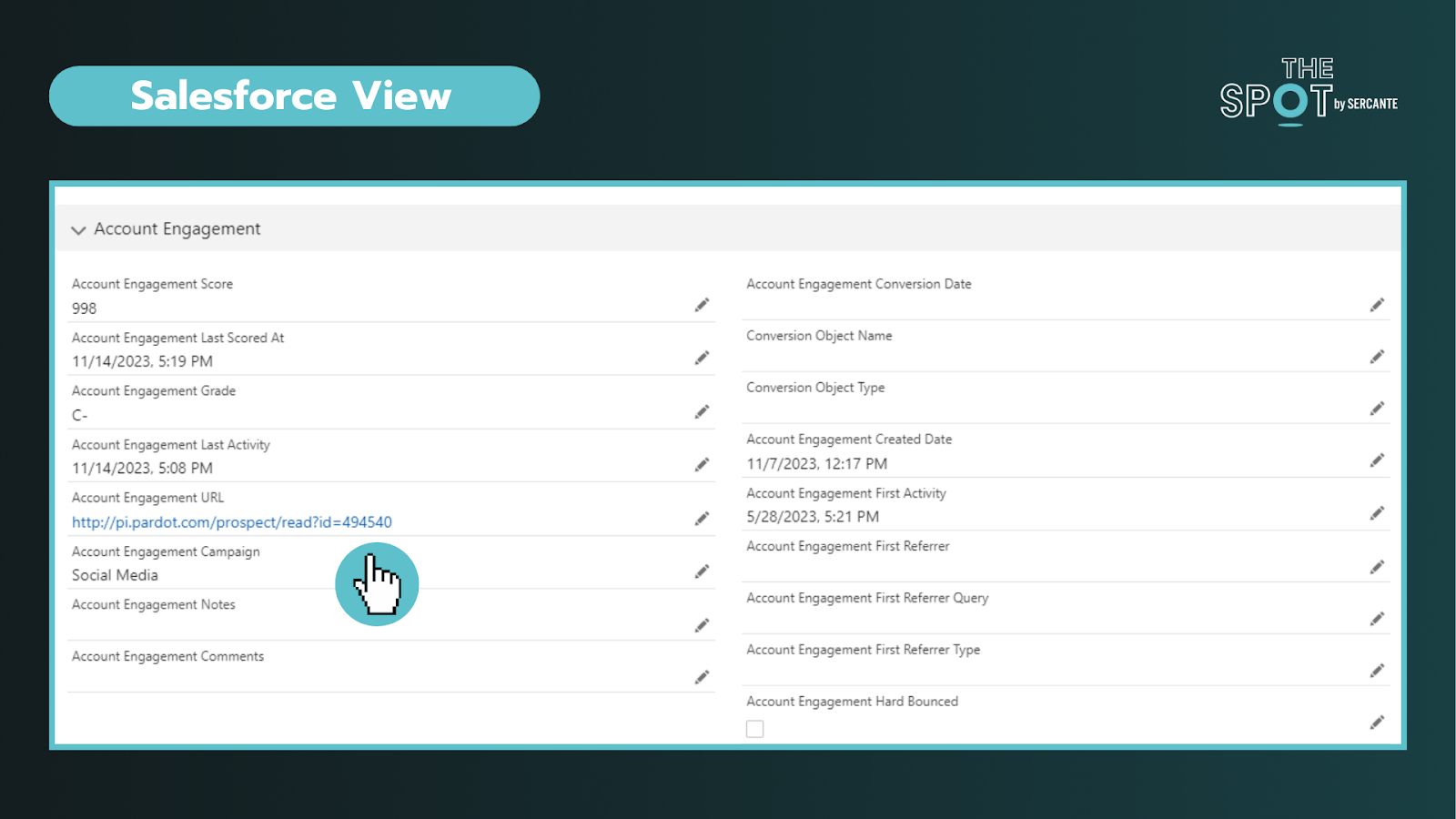
To verify that a Prospect is linked to a Salesforce record, you can click on an individual record and look for the Salesforce cloud icon listed on the right of their name (see above) or by the CRM ID listed at the bottom of the record. Clicking on this cloud icon will take you to the connected Salesforce record. In Salesforce, you can click the Account Engagement URL to bring you into the platform. This is particularly helpful when you are trying to diagnose data sync issues. 

Key reminders:

  • Records are matched using 18-digit IDs and email (if no matching record is found)
  • You can navigate from Salesforce to Account Engagement records and vice versa
  • Managing deleted records and duplicates may require additional effort across both platforms

Tip 2: Add visibility for sales and marketing teams in Salesforce

Enabling Account Engagement introduces several new fields, components, and features exclusive to the integration. You should review the implementation guide and work with your team to align on what information is valuable for sales and marketing to deliver on their respective functions.

The package includes fields like engagement score, fit (grading), what “object” they converted on, and a log of their latest activity in Account Engagement, to name a few. Additionally, depending on your tier, you may also find additional components you can take advantage of, such as B2B Marketing Analytics.

When mapping fields, not all Salesforce field types transfer seamlessly to Account Engagement. To avoid data loss, review your fields (including matching API names) and ensure they are mapped across objects in Salesforce before attempting to sync any data into Account Engagement.

Key reminders:

  • Field types may affect your ability to map fields into Account Engagement
  • Beware that Formula fields do not trigger sync updates in Account Engagement
  • Field level permissions and user profile access on the integration user can affect dataflow

Tip 3: Security matters but looks and works differently

Security is the #1 pillar of any Salesforce Admin role.

There are different levels of access you can give to Salesforce users via permission sets. Those levels include:

  • No access to Account Engagement data – on either platform: This is usually for operations teams who don’t need access
  • Access to Account Engagement data on a page layout in Salesforce: This is usually for sales/SDR teams
  • Access to the Account Engagement app: This is usually for marketing and creative teams


To enter the Account Engagement app, the user’s record must be mapped into Account Engagement. No user in Account Engagement, no access to it regardless of permissions in Salesforce.

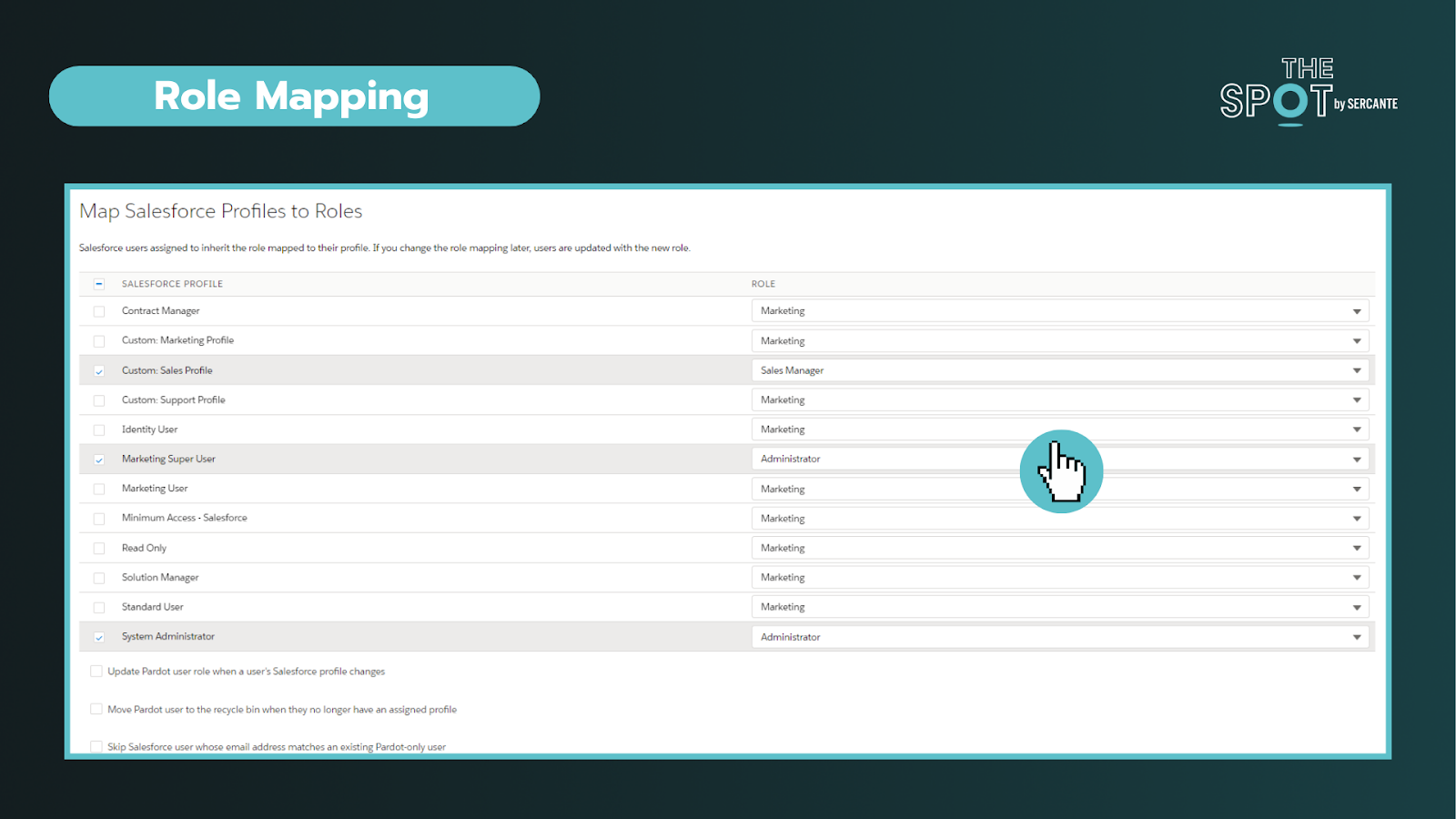
Secondly. while you may be familiar with profiles and roles in Salesforce, well Account Engagement adds another layer of complexity to the mix. Account Engagement has its own “roles” and they do completely different things. These roles only apply within Account Engagement and allow you to see and do specific activities (build segments, forms, etc) on the platform. 

Default Account Engagement user roles include Administrators, Marketing, Sales Manager, and Sales. You can configure these roles under the account settings section and connect profiles to roles within the Salesforce connector section in Account Engagement.


To conclude, you can personalize the levels of access to different Users. You’ll ultimately need two “keys” to get into Account Engagement (a Salesforce permission set and an Account Engagement role assigned to a synced User). It is important to work with marketing to outline the level of access needed to perform daily tasks.


Key reminders:

  • You can create custom roles in Account Engagement (may require an add-on)
  • All the users with the same role, have the same access in Account Engagement, regardless of their permissions in Salesforce

Tip 4: The Salesforce Integration is flexible

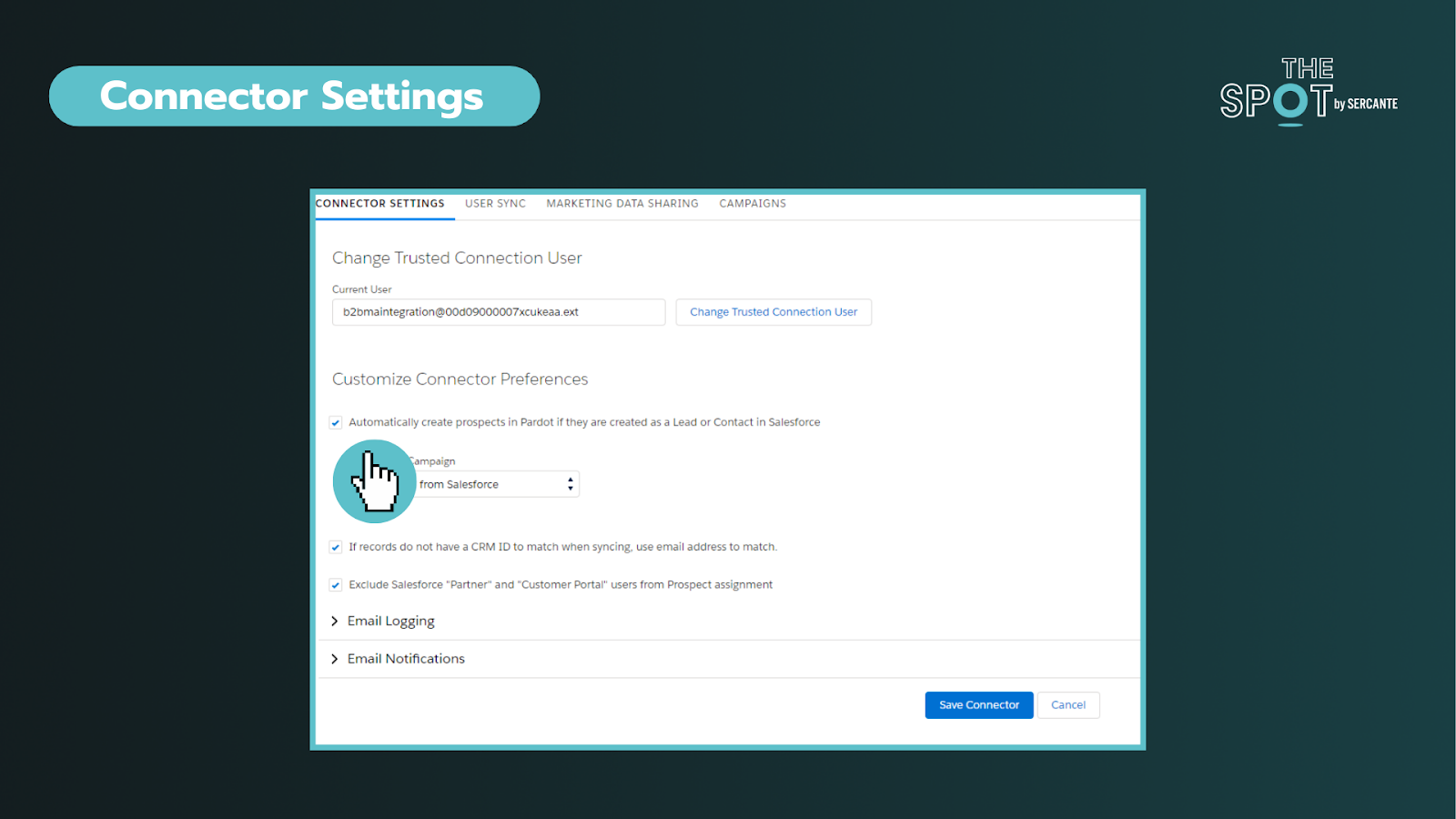
This integration (or connector) is the key to aligning your data between two systems. Through the connector, we can sync everything from Users, objects, fields, and campaigns. You can deep dive into the individual components here.


In these settings, you can choose if you want to allow a bi-directional sync or not. This is your on/off switch. Most customers want this feature enabled. 


Additionally, you can control data flow on a field-to-field level. It is important to discuss how data will be used and by what team. 

You can allow data to be managed by:

  • Salesforce only
  • Account Engagement only
  • Whichever system makes the most recent update

As data comes circulates between the platforms we can be met with conflicts between the two systems. For most teams, these conflicts can be attributed to their use of validation rules or restricted field values and dependencies. The conflicts are called sync errors in Account Engagement. 

These conflicts can be found under the Salesforce connector gear icon (under Connectors) and can range from:

  • Access issues – Connector user lacks access to read/write to an object
  • Data formatting issues – Issues with field types or values
  • Process alignment issues – dependencies between fields or steps in a process

As an admin, is important to support your team in resolving these issues as quickly as possible to restore data sync on those records. These sync errors offer opportunities to improve communication between teams and for process improvements. Our team at Sercante often uses ProspectUpdater to help customers fix data formatting issues at a scale.

Key reminders:

  • Enabling a bi-directional sync of data is recommended but optional
  • Large imports can cause bottlenecks – if you notice this becoming an issue you may want to check daily processes as well

Tip 5: Account settings are the key to understanding your org

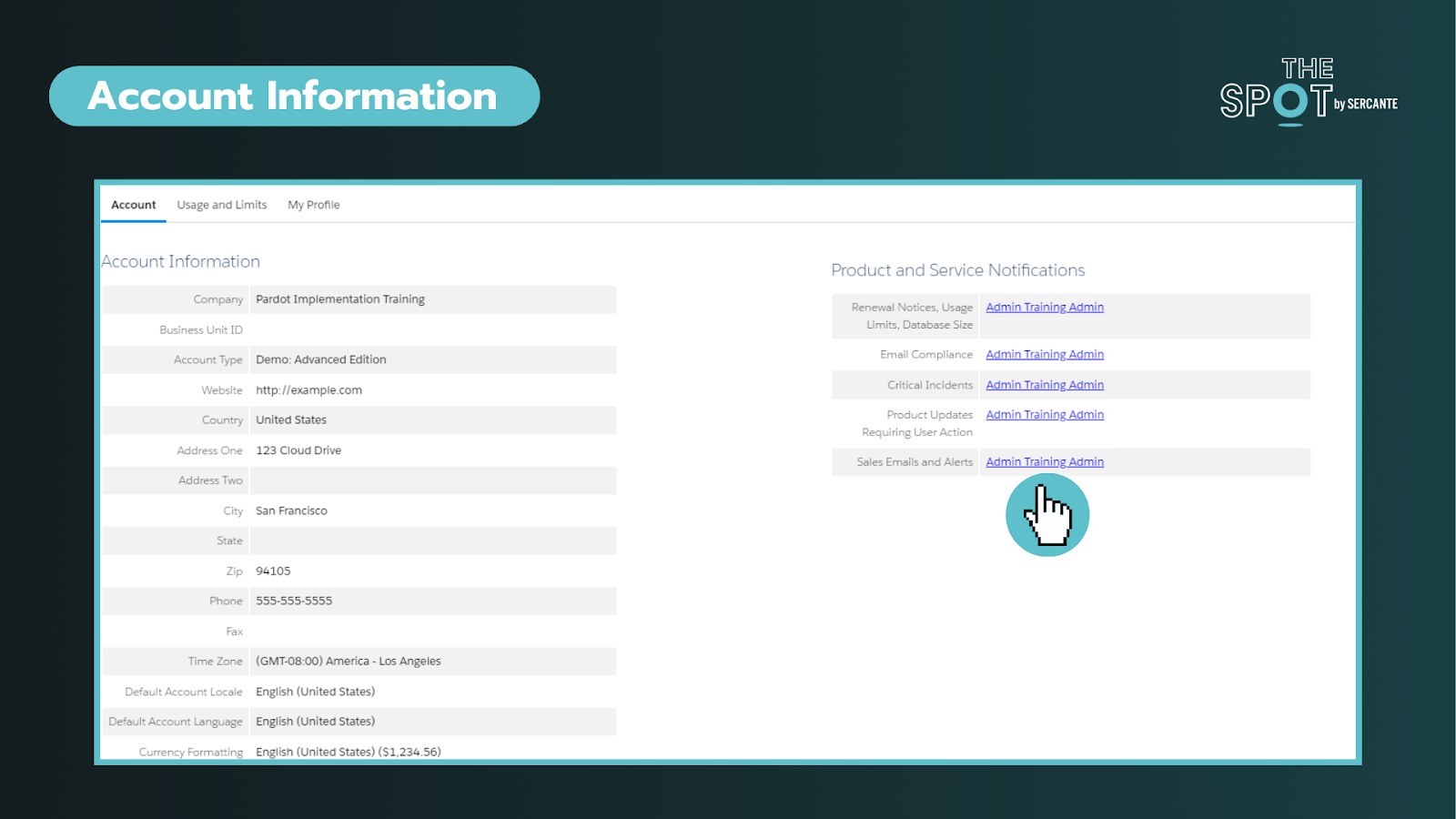
This section can help you identify important information about your account such as the Business Unit ID, when the account was enabled, admin alerts, and account limits. On the right side of the screenshot below, you will find the ability to personalize who gets alerts about these items. To ensure these alerts are taken seriously, ensure these are received by team members who are active in the org.


The most common way that admins discover this page is when they have to increase the number of prospects that can be kept in the account or run out of storage.

Key reminders:

Tip 6: Leverage Account Engagement forms

You’re probably familiar with web-to-lead forms. While these mechanisms can help do more with Salesforce they do not cookie leads or contacts upon completion. Why does that matter? Cookies help us identify prospects and avoid duplicates.

With Account Engagement you can simplify the form creation and management (say goodbye to your external tools) or form handlers (similar to webhooks) to streamline your inbound marketing and processes. The forms can be embedded as Iframes on your website, Account Engagements’ landing pages, or stand-alone.

Upon completing a form, you can set a cookie on the Prospect. You can still do notifications (email and Slack), send emails, add to segments, and so much more without complex flows or other Salesforce automation. 

Key reminders:

  • Testing forms incognito mode is strongly recommended
  • Cookie length can be adjusted under your account settings or by individual user browser settings

Tip 7: Encourage campaign collaboration

First thing is first, Account Engagement has campaigns too! However, these are exclusively used in Account Engagement for capturing the 1st touch interactions (all time). This makes it challenging to see the life of the lead across time and also makes reporting difficult.

Luckily, we can create and sync Salesforce campaigns into Account Engagement for the same purposes AND to capture the multiple touches on their journey to conversion and beyond.

By leveraging Account Engagement’s automation to add prospects to Salesforce campaigns, we avoid doing multiple imports to update the Campaign member records. This functionality also allows us to take advantage of standard Campaign reports in Salesforce that can help us see ROI and campaign influence across our initiatives. To help find the latter, we created a Campaign Influence Started Pack, go check it out. 

Key reminders:

  • When creating campaigns, leverage campaign member statuses and make sure to check the “active” checkbox to sync over into Account Engagement
  • Keep an eye on campaign members and campaign influence records, which can eat up your Salesforce storage if created in large volumes over time

Learn the essential Account Engagement concepts for Salesforce admins

While Account Engagement predominately serves marketing functions, Salesforce Admins play a crucial role in understanding and supporting its broader impact. By acting as the bridge between IT and marketing, admins can help facilitate more collaboration and more effective project rollouts on projects affecting users across the organization.

If you are struggling with any of these tasks/concepts, please reach out for assistance. Together, we can foster more seamless experiences that drive transformative outcomes!

Engagement Studio Programs (ESPs) are key for nurturing prospects until they are ready to send over to your sales team. But have you ever thought about A/B testing in ESPs?

ESPs allow you to automatically send your cold prospects awareness content and consistently stay top of mind so they can gradually warm up to a sales-ready stage. Although ESPs can be used for everything from basic email sends to complex process automations, one feature it lacks is native functionality for A/B testing. The feature exists natively (and wonderfully) for list emails, but in the realm of automated emails and ESPs, this is something marketers are chomping at the bit for. 

Let’s dig into some of the creative workarounds that make A/B testing possible in ESPs as well as the pros and cons of each option.

How does native A/B Testing work?

Within the native functionality of list emails, A/B testing is very user-friendly. You can:

  • Create and edit two versions of your email (Version A & B) via the WYSIWYG editor or by editing the HTML
  • Specify if the email versions should be measured by email opens or email clicks (we prefer clicks)
  • Determine the length of the A/B testing period (1 hour to 30 days)
  • Determine the percentage of your audience that is tested

Automating the A/B testing process

The beauty of A/B testing with list emails is that so much of the process is automated. 

Once the criteria have been set, Account Engagement automatically and randomly splits the test recipients from the intended recipient lists, sends the email variations to the test group, and, once a winner has been selected, automatically sends the winning version of the email to the remaining recipients on the list. 

This native functionality allows marketers to fine-tune their marketing content by testing which subject lines, CTAs, and even images best resonate with their target audience. 

A/B Testing in an ESP

To A/B Test in an ESP, you have a few options:

  1. Split your recipient list before starting the ESP
  2. Split recipients by last name
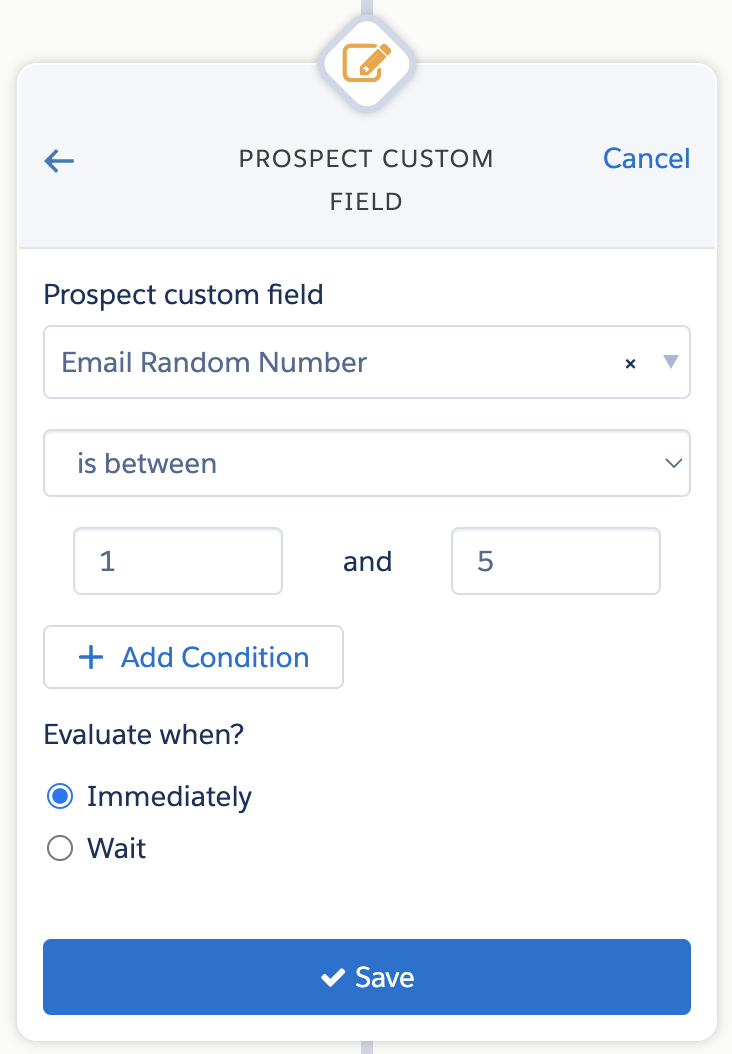
  3. Split recipient by a random number from Salesforce
  4. Split recipient lists using Prospect Updater

Using Native Split List Functionality

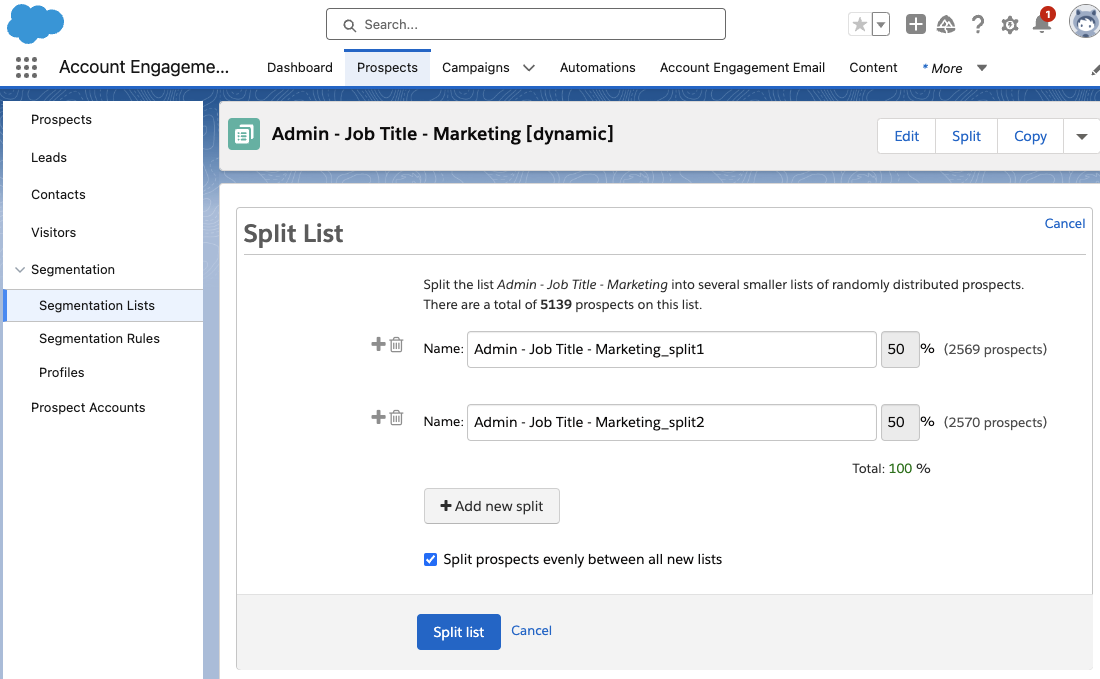
All Account Engagement Static and Dynamic lists can be split into smaller lists. While viewing your list, the split option will be available in the top right-hand corner. This allows you to split lists evenly, or specify the percentage on each list. 

It’s important to remember that when splitting a dynamic list, the resulting lists will be static. 

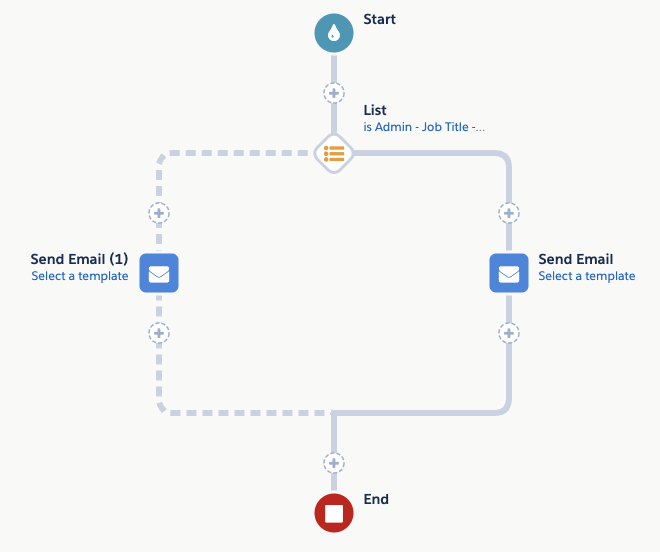
When using this option in an ESP, add an Action node before your email send that checks if the recipient is on split list 1. If they are a member of this list, they receive version A of your email. If they are not, they receive version B.

This option works best when your ESP has a static recipient list that you are not adding to later, for example, an event follow-up nurture. If you intend on gradually adding more prospects to this ESP, there isn’t a way to easily and automatically split the new prospects between the two lists. 

Splitting by Last Name

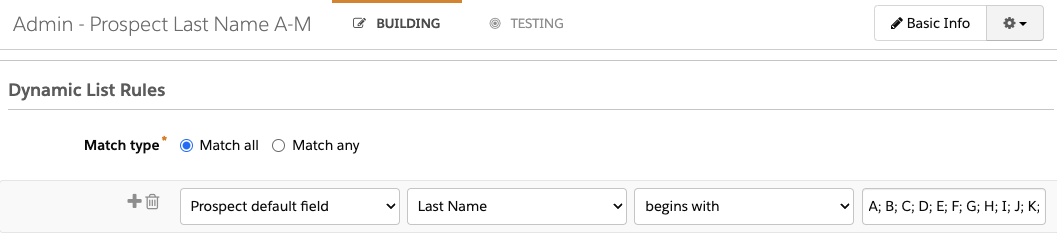
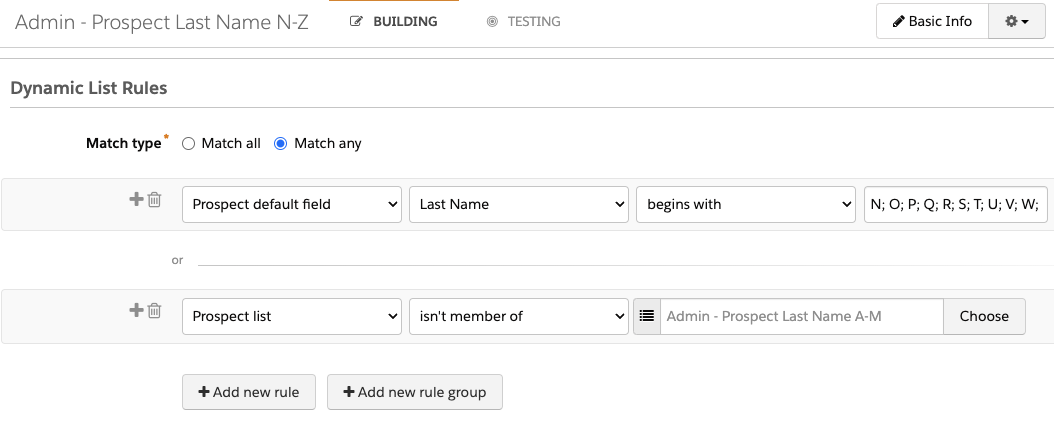
Another strategy is to split the recipients by last name. This allows you to split recipients with dynamic lists so you can continually add new recipients to the ESP. To do so, you’ll need two dynamic lists. 

Your first list will capture prospects with last names starting with A-M:  

Your second list will capture any prospects with last names beginning with N-Z, as well as any prospects with last names that start with characters, non-English letters, or numbers. 

Finally, use these lists to split ESP recipients between your email variations. 

Things to keep in mind

The drawback to this solution is that splitting by last name is not likely to evenly split your recipients. S, B, H, M, and C are the most common initials for last names, so if you split your recipients by “last name begins with A-M” and “last name begins with N-Z”, the “A-M” list is likely to be larger and can skew your data.

Generate a Random Number in Salesforce 

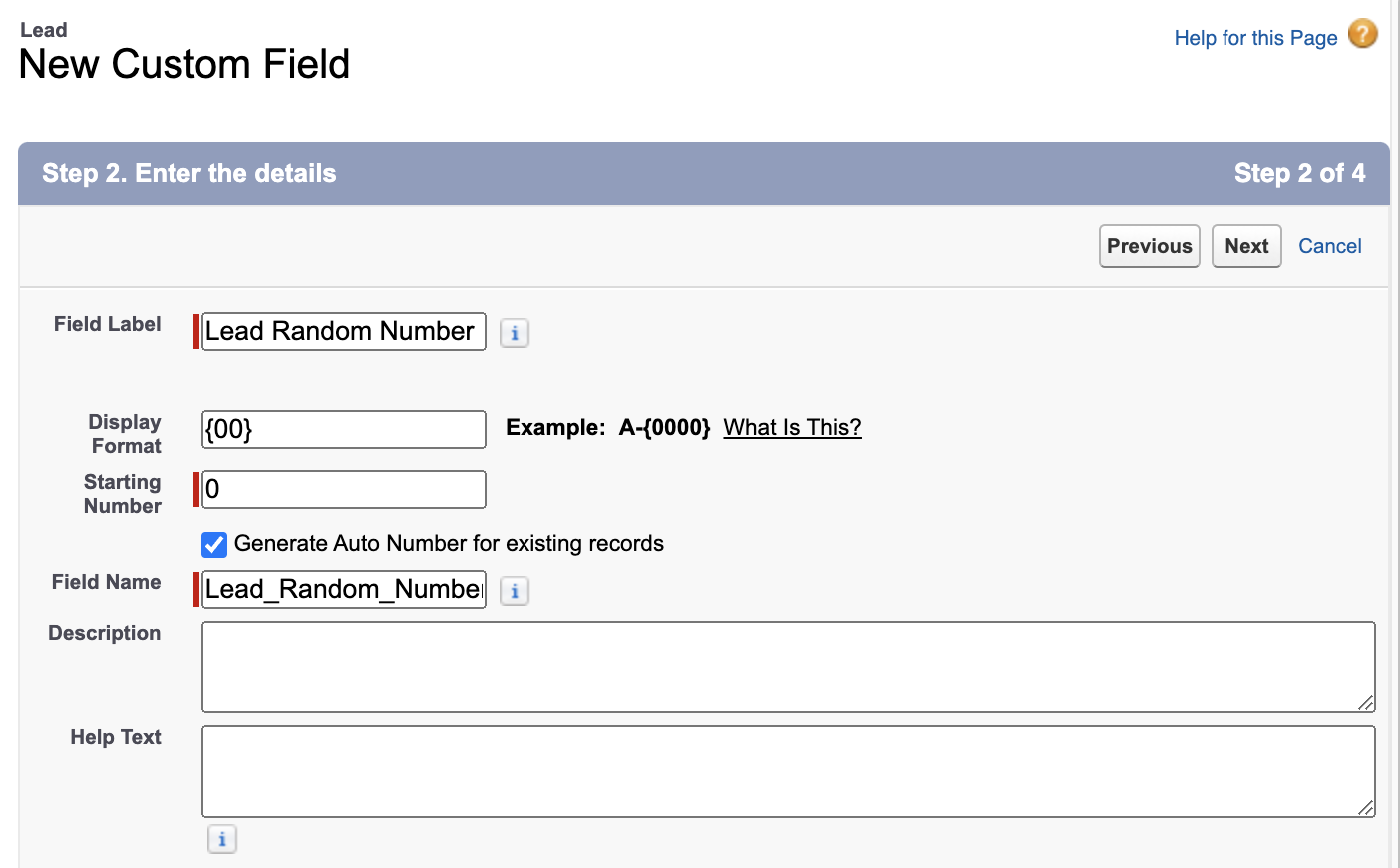
Another strategy for randomly splitting your recipient list is by using Salesforce’s Auto Number functionality. This allows you to auto-generate a random number for each Lead or Contact and push this data down to Account Engagement.

  1. In Salesforce Setup, select Object Manager then Lead
  2. Select Fields & Relationships
  3. Select New
  4. Select Auto Number then Next
  5. Enter the following details
    1. Field Label: Lead Random Number
    2. Display Format: {00}
    3. Starting Number: 0
    4. Generate Auto Number for existing records: Selected
  1. Select Next
  2. Select which profiles have access to view this field.
  3. Select Next
  4. Select any Lead pages where this field should appear. I recommend leaving this field off your page layouts. Select Save.
  5. Next, create a Formula field. While still in the Fields & Relationships tab of the Lead object, select New
  6. Select Formula, then Next
  7. Enter the following details
    • Field Label: Email Random Number
    • Formula Return Type: Number
    • Options – Decimal Places: 0
  8. Select Next
  9. Enter the formula MOD(VALUE({! Lead_Random_Number__c}) ,9)
  10. Select Next
  11. Select which profiles have access to view this field. Ensure the B2BMA Integration User profile, or your connector user’s profile, has access so Account Engagement can map to this field. 
  12. Select Next
  13. Select any Lead pages where this field should appear. I recommend leaving this field off your page layouts. Select Save.

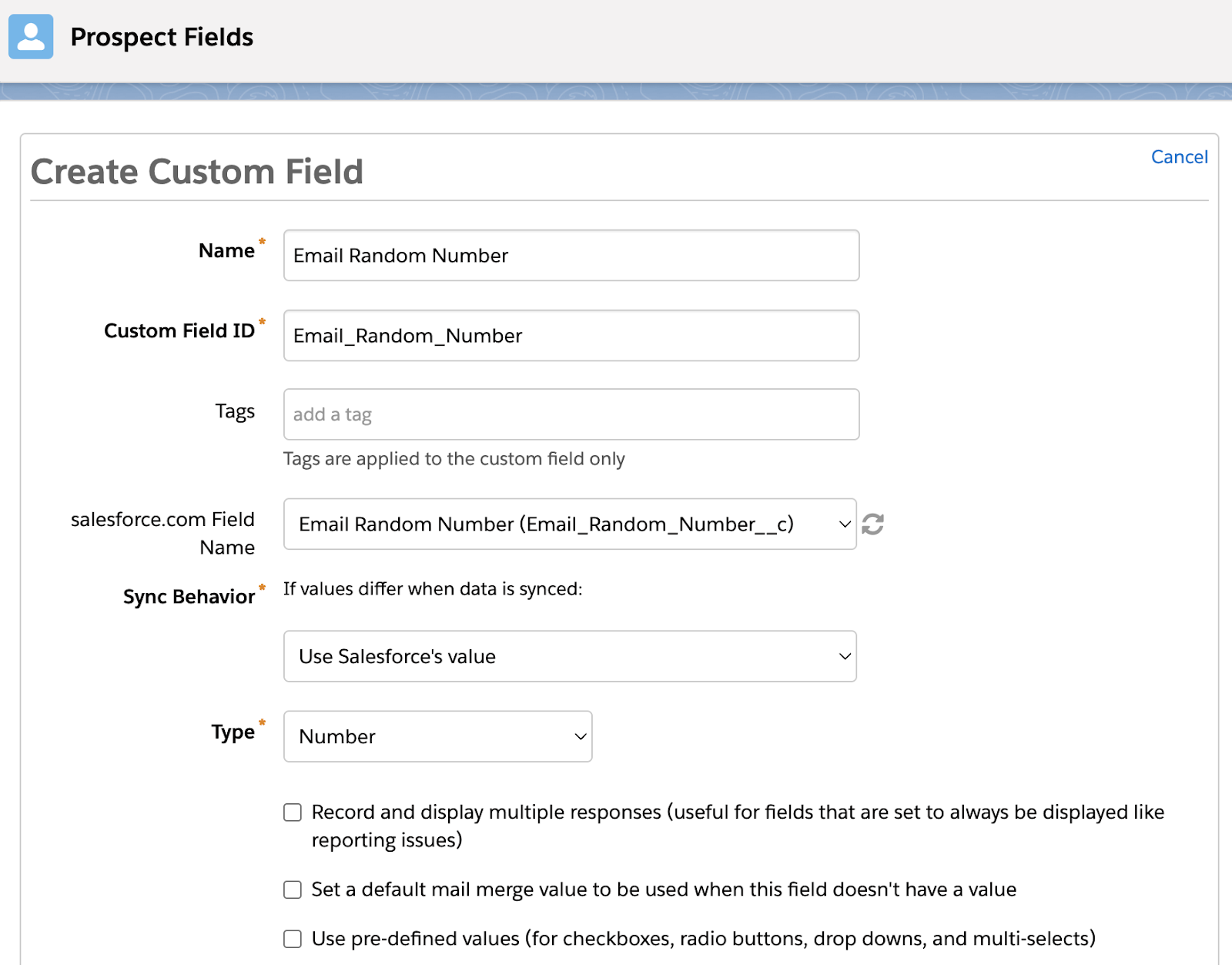
This formula field will auto-generate a random number between 1-9 for each Lead. Optionally, repeat the steps above for the Contact object. Finally, map the “Email Random Number” field to Account Engagement so this new field can be used to randomly split ESP recipients for an A/B Test. 

Now, the only downside of this approach is that all your Account Engagement prospects must be synced to Salesforce before they will get an Email Random Number value. If you regularly nurture prospects in Account Engagement before syncing them over to Salesforce, you could use a combination of the Random Number and Last Name methods, or you can move to our last option.

Use Prospect Updater

Sercante’s Prospect Updater is a Swiss army knife for advanced data updates, cleansing, and manipulation within Account Engagement. This solution allows you to work with your prospect data in more streamlined ways and enables you to create a truly random recipient list split without your data being in Salesforce. 

With Prospect Updater, you can use a RANDBETWEEN function to auto-generate a random number and stamp the number on new prospect records within minutes of them being added to Account Engagement. Then, use an Action node in an ESP to split your prospects into your A/B test groups. 

If you want to learn more about Prospect Updater, check out our Supercharge sales ‘speed to lead’ with clean Pardot data and Creating a Pardot Spam Identification Process with Prospect Updater blog posts or contact us!

Selecting a Winner

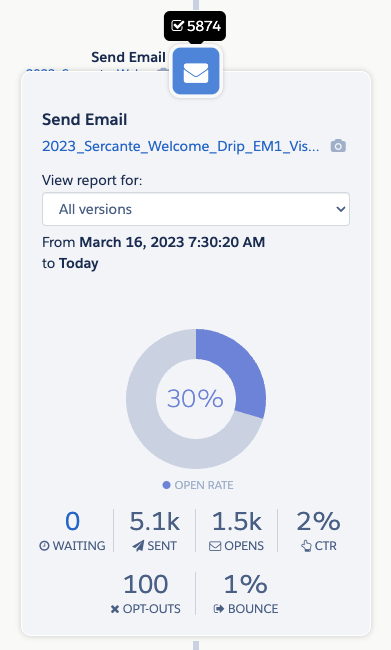
After you’ve selected your method of A/B testing and let your ESP run, it’s time to choose a winner and, optionally, consolidate your ESP down to 1 email version. The best way to compare the data between your A and B email versions is by using the ESP reporting tooltips. While on the Reporting tab of your ESP, select the email send node to view the metrics for that particular send. 

The tooltips allow you to easily view the number of sends and opens as well as your click-through rate. If you want to dive deeper into each template’s metrics, select the name of the template from within the tooltip view to open the full email template report. 

Start A/B testing in Engagement Studio Programs

It’s clear that Engagement Studio Programs (ESPs) are the backbone of effective prospect nurturing, guiding them along the journey until they’re ripe for the sales pitch. 

So, let’s embrace the challenge, get creative, and make the most of our ESPs. With a bit of ingenuity and a keen eye on the metrics, we can craft killer campaigns that resonate with our audience and drive those all-important conversions. Here’s to pushing the boundaries and unleashing the full potential of our ESPs.

Remember, you can always reach out to the team at Sercante for help setting up your Account Engagement (Pardot) Engagement Studio Programs and configuring your A/B tests within them.

Before we dive into the details of finding success with your Salesforce Data Cloud implementation, let’s set the stage. Whether you’re a seasoned Salesforce admin or just stepping into the realm of cloud-powered data solutions, Data Cloud is a game-changer, and here’s why you should care.

Navigating the Data Cloud Landscape

Salesforce Data Cloud is a platform that takes all of your data and turns it into actionable insights. It’s for anyone eager to supercharge their Salesforce experience. Whether you’re a department manager or an admin serving sales, marketing, customer service, or any other department, Data Cloud is your ticket to streamlined processes, informed decision-making, and ultimately, success.

The key to success is covering your bases early — before and during implementation. That means asking the right questions, collaborating with the right people, and establishing processes that keep everything running smoothly. 

Why Data Cloud Matters

Imagine having a centralized hub where diverse data streams — from identity platforms and purchase history to website interactions — seamlessly come together. Data Cloud does just that, offering a unified space to make sense of the data chaos. You may also be wondering what to do with the free Data Cloud license that you got as part of another cloud package.

You might wonder, “Why should I care?” Well, the answer is simple — efficiency, effectiveness, and exponential growth.

How to Ensure a Successful Salesforce Data Cloud Implementation

Now that we’ve set the groundwork, let’s delve into five practical tips you can use to guide your Data Cloud implementation with the ultimate goal of unlocking the platform’s full potential. We’ll explore how to propel your Salesforce Data Cloud implementation to new heights. You can also check out this post for a few ‘gotchas’ you may encounter during your Data Cloud implementation.

5 Tips for a Successful Data Cloud Implementation:

  1. Reach for organizational alignment
  2. Choose impactful use cases
  3. Measure success effectively
  4. Use out-of-the-box data models
  5. Be intentional with your data

Tip#1: Reach for organizational alignment

Now, let’s talk tactics. Aligning your organization before embarking on a Data Cloud implementation is paramount. Here are a few specific tactics to ensure everyone is on the same page:

Establish a Clear Owner

Designate a dedicated owner for the Data Cloud implementation. This individual should be someone with a comprehensive understanding of your organization’s goals and processes. Having a clear owner ensures accountability and a streamlined decision-making process.

Conduct Cross-Functional Workshops

Bring together representatives from various departments for workshops. Discuss the potential impact of Data Cloud on each team and encourage open communication. These sessions not only educate team members but also foster a collaborative spirit.

Define Roles and Responsibilities

Clearly outline the roles and responsibilities of each team involved in the implementation. From data management teams to end-users, everyone should know their part in the process. This clarity prevents confusion and sets the stage for a smoother implementation.

Communicate the Benefits

Emphasize the benefits of Data Cloud to every stakeholder. Whether it’s time savings, improved insights, or enhanced customer experiences, make sure everyone understands how Data Cloud aligns with the organization’s overarching goals.

Address Concerns Proactively

Open the floor for questions and concerns. Addressing potential roadblocks early on builds confidence among team members. Proactively seeking and resolving concerns sets the tone for a collaborative and supportive implementation journey.

Tip#2: Choose impactful use cases

Now, let’s talk about choosing the right use case — the cornerstone of a successful Data Cloud implementation. We urge you to start with the end goal in mind (instead of a technology-first approach, which many of us are so tempted to do). Focus on one or two initial use cases that drive team optimization and deliver tangible results within a reasonable timeframe. Whether it’s streamlining contact behaviors or enhancing customer segmentation, these impactful use cases showcase the value of the platform and generate positive buy-in across the organization.

Start with end goals in mind

Begin by identifying the desired outcomes of your Data Cloud implementation. What specific business objectives are you aiming to achieve? Whether it’s improving sales efficiency, enhancing marketing targeting, or optimizing customer service, starting with clear end goals ensures alignment and focus.

Evaluate business processes

Conduct a thorough assessment of your organization’s existing business processes. Identify pain points, inefficiencies, and areas for improvement. Look for processes that rely heavily on data and could benefit from the insights provided by Data Cloud. Consider areas where you’ve got trapped data and manual flows/processes.

Prioritize use cases with high impact and feasibility

Once you’ve identified potential use cases, prioritize them based on their potential impact and feasibility. Focus on use cases that offer significant benefits with manageable implementation efforts. Consider factors such as resource availability, data availability, and technical complexity.

Involve stakeholders in use case selection

Engage stakeholders from relevant departments in the use case selection process. Gather input from sales, marketing, customer service, and other teams to ensure alignment with their needs and priorities. Collaborative decision-making increases buy-in and promotes cross-functional synergy.

Prototype and validate use cases

Before committing to a full-scale implementation, consider prototyping and validating selected use cases. Build prototypes to test the feasibility and effectiveness of the proposed solutions. Use feedback from stakeholders and pilot tests to refine and iterate on use case designs. This is a great use case of taking advantage of the $0 Data Cloud SKU as well.

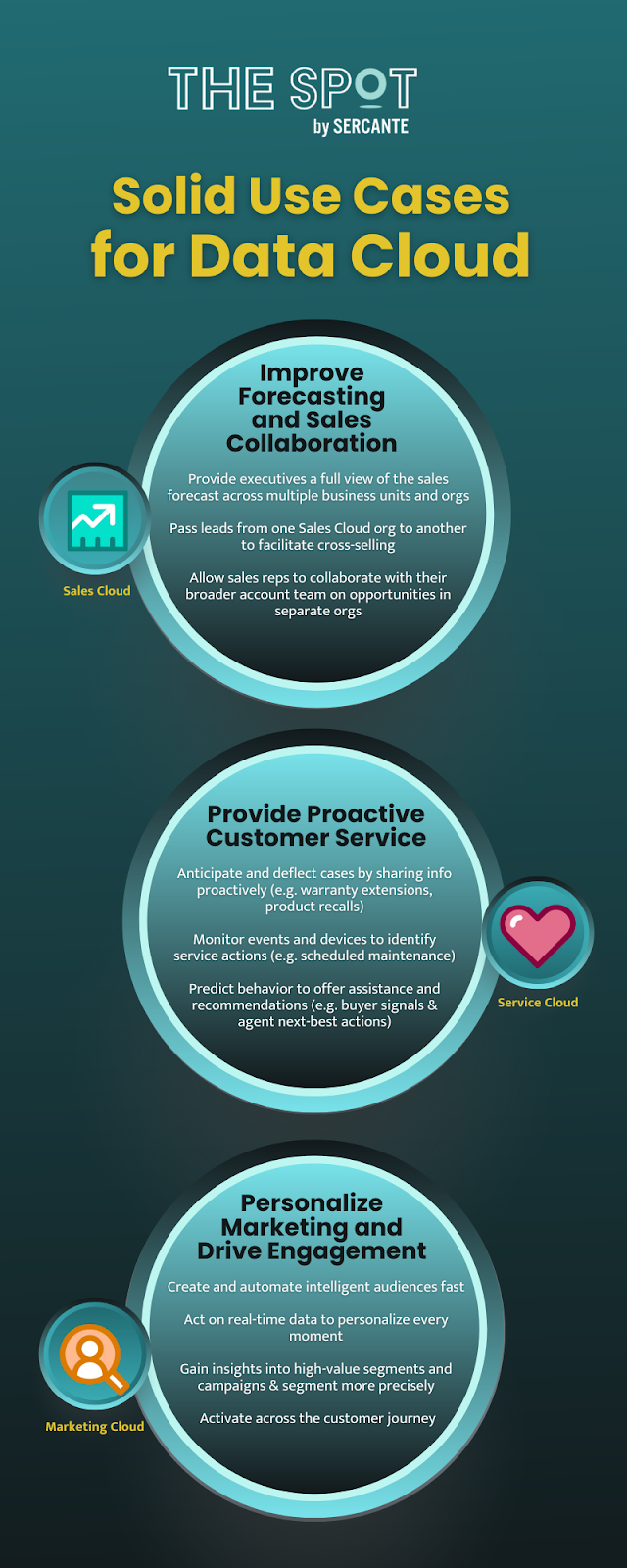
Data Cloud Use Case Examples

Examples of how customers across Salesforce Clouds are using Data Cloud

Improve Forecasting and Sales Collaboration 

Admin Type: Sales Cloud

  • Provide executives a full view of the sales forecast across multiple business units and orgs
  • Pass leads from one Sales Cloud org to another to facilitate cross-selling
  • Allow sales reps to collaborate with their broader account team on opportunities in separate orgs

Provide Proactive Customer Service

Admin Type: Service Cloud

  • Anticipate and deflect cases by sharing info proactively
    • Examples:  warranty extension notifications, product recalls 
  • Monitor events and devices to identify service actions
    • Examples: proactively avoid usage or entitlement overcharges or schedule proactive maintenance based on device data
  • Predict behavior to offer assistance and recommendations
    • Examples: provide agents with customer’s propensity to buy and next-best action

Personalize Marketing and Drive Engagement 

Admin Type: Marketing Cloud

  • Create and automate intelligent audiences fast
  • Act on real-time data to personalize every moment 
  • Gain insights into high-value segments and campaigns
  • Segment more precisely 
  •  Activate across the Customer Journey

Tip#3: Measure success effectively

Now, let’s discuss how to measure the success of your Data Cloud implementation effectively. Here are a few specific tactics to guide you.

Define key performance indicators (KPIs)

Identify measurable metrics that align with your organization’s goals. Whether it’s increased revenue, improved customer satisfaction, or enhanced operational efficiency, define KPIs that reflect the impact of Data Cloud on your business outcomes. And don’t forget to keep them SMART (specific, measurable, attainable, realistic, and timely)

Establish baseline metrics

Before implementing Data Cloud, establish baseline metrics to benchmark your current performance. This allows you to track progress over time and quantify the impact of the implementation.

Monitor data quality

Ensure that the data ingested into Data Cloud is of high quality and accuracy. Implement data quality checks and validation processes to maintain data integrity throughout the implementation. This is where taking advantage of our Data Cloud Readiness Assessment is key.

Track user adoption and engagement

Monitor user adoption and engagement with Data Cloud tools and features. Track user logins, usage patterns, and feedback to gauge the effectiveness of training and support initiatives.

Iterate and improve

Once you’ve successfully implemented, continuously review and iterate on your measurement approach. Get feedback from stakeholders, analyze performance data, and identify areas for improvement. Adjust your measurement strategy accordingly to ensure ongoing success.

Tip#4: Use out-of-the-box data models

You have to walk before you can run. Let’s delve into using the out-of-the-box data models during your Data Cloud implementation.

Explore standard data models

Familiarize yourself with the standard data models offered by Data Cloud. These pre-built models cover common data structures and relationships, saving you time and effort in designing custom solutions. Take advantage of these models wherever possible to accelerate your implementation.

Align with Salesforce Einstein 1 (Core) data model

Ensure alignment between the Data Cloud data models and the Salesforce core data model. By aligning these models, you facilitate seamless integration and interoperability between Data Cloud and other Salesforce products. This alignment simplifies data management and enhances overall system efficiency.

Customize only when necessary

While out-of-the-box data models provide a solid foundation, don’t hesitate to customize them to meet your specific requirements. However, exercise caution and prioritize customization only when absolutely necessary. Striking the right balance between standardization and customization ensures long-term scalability and maintainability.

Tip#5: Be intentional with your data

Now, let’s take a look at how you can be intentional with your data. Careful planning on how to use it within Data Cloud is crucial. Whether it’s analytics, segmentation, or real-time data actions, understanding the tools available and selecting the right ones for your use case is key. From calculated insights to data segmentation and AI capabilities with Einstein Studio, being intentional with data ensures effective utilization and actionability.

Data governance framework

Establish a robust data governance framework to govern the lifecycle of data within your organization. Define policies, procedures, and standards for data collection, usage, and management. Ensure compliance with regulatory requirements and industry best practices to maintain data integrity and security.

Data quality management

Implement data quality management processes to ensure the accuracy, completeness, and consistency of your data. Utilize data cleansing tools and techniques to identify and rectify errors, duplicates, and inconsistencies. Regularly monitor data quality metrics and address any issues promptly to maintain the reliability of your data.

Data privacy and security measures

Prioritize data privacy and security by implementing robust measures to protect sensitive information. Encrypt data in transit and at rest, restrict access to authorized users, and implement multi-factor authentication. Stay informed about data privacy regulations such as GDPR and CCPA, and ensure compliance to safeguard customer data.

It’s crucial to promote ethical data practices and mitigate bias in data analysis and decision-making. Educate stakeholders about the ethical implications of data usage and the potential impact on individuals and communities. Implement fairness, accountability, and transparency principles to ensure equitable outcomes and build trust in your data-driven initiatives.

Data lifecycle management

Develop a data lifecycle management strategy to govern the flow of data from creation to archival or deletion. Define retention policies based on regulatory requirements and business needs, and automate data archival and deletion processes where possible. Regularly review and update data lifecycle policies to adapt to evolving business and regulatory requirements.

Data-driven decision-making culture

Foster a data-driven decision-making culture within your organization by promoting data literacy and empowering employees to leverage data in their day-to-day activities. Provide training and resources to enhance data skills across departments, and encourage collaboration and knowledge sharing around data insights and best practices.

Bonus: Tap into expert guidance

Salesforce Data Cloud implementation requires strategic planning, thoughtful execution, and continuous refinement. By aligning your organization, selecting impactful use cases, leveraging out-of-the-box data models, measuring success effectively, and being intentional with data, you can unlock the full potential of Data Cloud and drive transformative outcomes for your business. 

As a bonus tip, we suggested looking toward expertise available in the Salesforce community. Seeking guidance from those who have navigated Data Cloud’s complexities can be invaluable. Whether through expert coaching sessions, community groups, or support office hours, connecting with experienced professionals can enhance your success with Data Cloud.

However, if you find yourself in need of expert guidance or support along the way, don’t hesitate to reach out to the Sercante team. Our experienced consultants are equipped with the knowledge and expertise to help you navigate every step of your Data Cloud journey and ensure success. Contact us today to learn more about our Data Cloud readiness assessment so you can embark on your Data Cloud implementation with confidence.

Related Resources:

Product Note: Marketing Cloud Growth and Advanced are editions of Marketing Cloud Next and have also been referred to as Agentforce Marketing.

Since the announcement of Marketing Cloud Growth Edition on February 20th, we’ve been digging into the features of this new product as well as listening closely to the community’s questions about Marketing Cloud (Growth and Advanced Edition). We’ve compiled the most common questions from Salesforce webinars, Slack communities, our internal team, and our clients to get all your Marketing Cloud questions answered in one place. 

NOTE: This blog post was updated in May 2025 to reflect new release features and product updates.

Answers to all of your Marketing Cloud questions

Here’s a list of the most common questions we’ve seen.

Wait, what is the “official” name

So, this product was originally launched as “Marketing Cloud Growth Edition”. A few months later Advanced Edition was released and the product evolved to “Marketing Cloud Growth or Advanced Edition”. However, this was later shortened to just “Marketing Cloud”.  Now I know “Marketing Cloud” means “Marketing Cloud Engagement” to a large portion of the community so I also refer to this tool as “Marketing Cloud on Core” so no one assumes I mean “Engagement”. 

What is Marketing Cloud (on Core)?

Marketing Cloud is a new marketing automation platform from Salesforce. Marketing Cloud is built on the Salesforce Platform (aka “on Core”) and allows you to build multi-channel campaigns with Data Cloud, personalize marketing assets with Experience Cloud, and automate journeys with Flow. Marketing Cloud also includes Einstein and Agentforce capabilities throughout the platform as well as out-of-the-box content approval processes. 

Is Marketing Cloud Account Engagement and/or Engagement being retired?

This is the most common question we’ve heard so far and the resounding answer is No, Engagement and Account Engagement are not being retired. Marketing Cloud is another option for organizations that want to bring their marketing operations into Salesforce. Engagement and Account Engagement will continue to have their own robust product roadmaps. 

Which Salesforce Editions does Marketing Cloud work with?

Currently, Marketing Cloud works with Salesforce Enterprise Edition (EE) and Unlimited Edition (UE).

Is this the direction the Marketing Cloud Platform is going? All bundled within Core?

Yes, building Marketing Cloud’s foundation on core allows Marketers to get full access to customer data across the CRM and other clouds connected to the Salesforce platform. Breaking down data silos and uniting your data on one platform also allows Marketers to better leverage Einstein’s AI functionality as well as personalize every step of the customer journey. 

Can Marketing Cloud be purchased without Data Cloud?

Marketing Cloud requires Data Cloud. If you do not yet have Data Cloud, check if you’re eligible for the Free Data Cloud SKU or Salesforce Foundations. 

What is included out of the box with Marketing Cloud?

This is subject to change as the platform changes and grows but, as of May 2025 Growth Edition includes: 

See our previous blog post for more information on the credit consumption model of Marketing Cloud. 

Does Marketing Cloud consume super messages for email and SMS?

Marketing Cloud has different entitlements, emails and SMS do not consume super messages.

Do users need Salesforce licenses to access Marketing Cloud?

Currently users do need Salesforce licenses to access Marketing Cloud, but support for Identity Licenses is expected in the Summer ‘25 release (June).

Can clients with their own Data Warehouses use Marketing Cloud? 

Yes, Marketing Cloud is built on top of Data Cloud, which means they can connect to your data wherever it lives.

What is the setup of Marketing Cloud like? 

Setup for Marketing Cloud is being streamlined with each new release. Users with the Marketing Cloud Admin permission set can access the setup assistant for easier implementation of Marketing Cloud. Use the setup assistant to install or update all the required data marketing kits.

Is the intention to have customers self implement Marketing Cloud and do everything themselves?

The intention is to reduce the amount of energy spent on behalf of the customer to get to where they need consultants. Simply put, Marketing Cloud has very good defaults and a streamlined setup process, but there is still value to be added by consultants. If you’d like support setting up or optimizing Marketing Cloud, send us a message.

Can you configure marketing asset branding/brand standards within Marketing Cloud?

Yes! Users can create Brand Guidelines within Marketing Cloud that allow you to specify brand colors, typography, button styling, margins, and borders that can be applied to your marketing assets. If your brand standards are later updated, any marketing assets using that brand will also be updated. You can have multiple brand guidelines and also set a default Brand for your CMS Workspace so any new assets that are created for Marketing Cloud will be automatically branded. 

Does Marketing Cloud use a different Flow than the Salesforce Admin Flow?

Marketing Cloud uses the same Flow that users would have access to when building a backend, or admin, Flow. However, the elements and processes that the Marketing Cloud Flow has access to are limited by permission sets. Out of the box, the Marketing Cloud Flow is tailored elements and actions that focus on automating Marketing Campaigns and Marketing processes. Additional Permissions can be added or removed to custom tailor what users can do within the Marketing Cloud Flow. In short, Salesforce Admins are not giving Marketers full Flow functionality by granting them access to the Marketing Cloud Flow Builder.

What scoring features are included with Marketing Cloud?

Marketing Cloud has both People and Account Scoring. 

  • People Scoring
    • Engagement Score: Adds or removes points based on how engaged a person is with your Marketing initiatives.
    • Fit Score:  Similar to Account Engagement Grading, Fit Scoring tells Marketing and Sales how closely the prospect and their company aligns with the ideal client persona.
  • Account Scoring
    • Engagement Score: Aggregates how engaged Contacts associated with the Account are with your Marketing initiatives.
    • Fit Scoring: How closely the Account matches your ideal customer.
    • Intent Score: Optional AI driven scoring that measure how likely an Account is to make a purchase.  

What Einstein features are included with Marketing Cloud?

This is another area that is growing and changing with each release, but at of May 2025, Marketing Cloud includes:

  • Agentforce: Assists in building campaign briefs and campaign assets as well as generates copy for subject lines, preheaders, and body copy.
  • Einstein Metrics Guard: Uses predictive AI to filter bot activity from your org’s engagement metrics
  • Einstein Send Time Optimization: Send messages to your customers when they’re most likely to engage.
  • Einstein Segment Creation: Assists in building Data Cloud segments from natural language prompts.

Three additional Einstein features are available in Advanced Edition:

  • Campaign Designer (currently Beta): Assists in crafting campaign flows based on campaign objectives.
  • Einstein Engagement Frequency: Uses Predictive AI to determine how frequently to contact customers and improve the likelihood of engagement. 
  • Einstein Engagement Scoring: Uses predictive AI to assign individual contact-level scores and determine the most efficient way to message recipients to increase customer engagement.

Does Marketing Cloud include Campaign Influence models?

Marketing Cloud has Opportunity Influence rather than Campaign Influence.  Opportunity Influence assists marketers in identifying which campaigns were impactful for opportunities but relies on engagement rather than Campaign membership. 

Can Marketing Cloud personalize messages based upon the individual record? 

Yes, any fields connected to the Unified Individual can be used for personalization, this allows Marketers to even pull in data from other objects for cross object personalization. Dynamic Content is also available for use in email subject lines, email preheaders, and email components. 

Variation Targeting Rule screenshot

Does Data Cloud segment creation mean that SQL Queries will become a thing of the past?

Eventually, Salesforce is moving in the direction of clicks-not-code. Marketing Cloud includes prompts to help marketers build the appropriate filters in the segmentation builder, but you can also start from scratch within the builder. 

Will SMS have the same process around provisioning and approvals as MC Engagement?

There are two SMS code options available in Marketing Cloud, Short Code and Long Code. The short code option follows the same provisioning process that exists today for Marketing Cloud Engagement today. Check out our blog post for more information on the Short vs Long code and the provisioning processes.

Does Marketing Cloud include A/B Testing capabilities?

Yes! Except it is called Path Experiment and it does even more than simple A/B Testing. Take a look at our blog post on Marketing Cloud Advanced Edition for more info on this feature. 

How does Marketing Cloud handle pre-lead, unassigned records?

Salesforce introduced a new CRM Object for Prospects as part of the Spring ‘26 release. This new object can be used to store pre-lead records in CRM, similar to how Account Engagement keeps Prospects within its system and only sends Prospects to Salesforce when they are Sales/Lead ready. 

How can Account Engagement and Engagement Customers start using Marketing Cloud?

Account Engagement Customers get access to Marketing Cloud as part of their current contract. Check out our blog post for more details. 

Marketing Cloud Engagement customers will get a similar provisioning path soon (Safe Harbor!)

How has Sercante been involved in the launch of Marketing Cloud? 

Members of the Sercante team have been involved with Marketing Cloud since the pilot in 2023. We were also members of the Pioneer Program at launch in 2024 and have over 30 customers using Marketing Cloud today. We were also the first partner to be provisioned a Marketing Cloud Growth Edition Partner Org so we could provide feedback, documentation help, and FAQs to the development team. 

Learn more about Marketing Cloud Growth Edition

Want to learn more about Marketing Cloud Growth Edition? Check out some of our previous blog posts and subscribe to The Spot so you stay in the loop as we dive deeper into this new product.

Send Sercante a message if you still have questions that aren’t on the Marketing Cloud Growth Edition FAQ list.

You may be aware that when it comes to improving user experience on a record page,  Dynamic Forms have become more and more powerful over the last few Salesforce releases. A good example is the ‘Add Fields from Related Objects to Dynamic Forms-Enabled Pages’ feature from the Spring ‘24 release, which came from a  Salesforce IdeaExchange request.

Dynamic forms are a huge win for making more customizable and engaging user experiences, at least for custom objects and most standard objects. There are still a few that don’t have this feature yet. (I’m looking at you, Campaigns) 

Here’s a handy workaround that may help where dynamic forms in Salesforce aren’t supported.

Check out the latest Spring ‘24 Release updates here, including where you can display related record fields on a record. 

The Use Case: A “Dynamic” Campaign Page

You want to collect certain information for your campaigns, but the data differs depending on the type of campaign. 

Examples may include:

  • Events
    • Location
    • Venue Address
    • Venue Contact Info
    • # of Days
  • Webinar
    • Webinar platform
    • Presenter details
  • Partnerships
    • Partner Information
    • Type of Partnership
    • Partner Contact Info

All of this different data living on the record page can be cluttered and noisy, and forcing the user to scroll through the page to get to the data they need to fill in. It’s not a great user experience and not a great recipe for capturing quality data. 

Wouldn’t it be nice if we could bump up specific fields to more prominent areas of the page based on the type?

Unfortunately, Dynamic Forms can’t help us here (at least not yet — you can upvote the idea here). Some may choose to use record types and page layouts, but that may not be ideal for all companies. 

An Alternative Solution for Salesforce Dynamic Forms

While we may not be able to use Dynamic forms, there are some other Lightning features that can give us a potential workable solution: 

  • First we create a Quick Action, which allows us to build a mini page layout of the fields we want to highlight.
  • Then we use Lightning Page builder features to display this mini-layout above the fold so it’s easy for the user to find and update:
    • Related Record component
    • Set Component Visibility 

Here’s how.

Create an Action for Partner fields

  1. From Object Manager > Campaign > Buttons, Links, and Actions
  2. Click New Action
  3. For Object Name, select Campaign
  4. For Action Type select Update a Record
  5. For Label, enter a label that is appropriate for this purpose. It’s a good idea to make it relevant and easy to idenity what it’s for.
    • For example ‘Update Campaign – Event Details’
  6. Enter a Description outlining the purpose of this action
  7. Click Save

Edit the Action Layout

Once you have saved, you will be looking at the Action Layout page. Here is where you can choose what Campaign fields to display and the arrangement. 

  1. Just like you would for a page layout, drag and drop the fields that you want to be visible. 
  2. Click Save
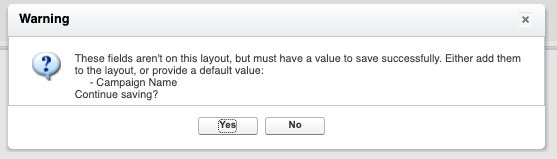
  3. If you see this message, go ahead and select Yes. We won’t need the Campaign Name on this layout for our use case.
  4. You can edit this later from the Edit Layout button at the top of the page.

Now we can add our new layout to the Campaign record page

  1. From Object Manager > Campaign > Lightning Record Pages
  2. Select the Lighting Record Page you want to update and click Edit.
  3. Drag the ‘Related Record‘ component where you want it on the page
  4. In the Related Record settings panel on the right, update the following:
    • Header Label = the heading that should appear at the top of that layout on the page
    • Lookup Field = Use this Campaign
    • Update Action = the action that you created in Step 1
    • Click Save
  5. Select ‘Set Component Visibility’ for the Related Record component. 
  6. In the filter area, select Type = ‘Conference’

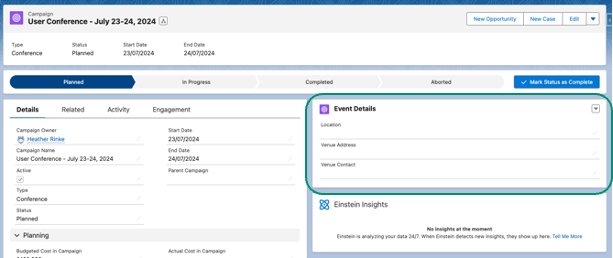
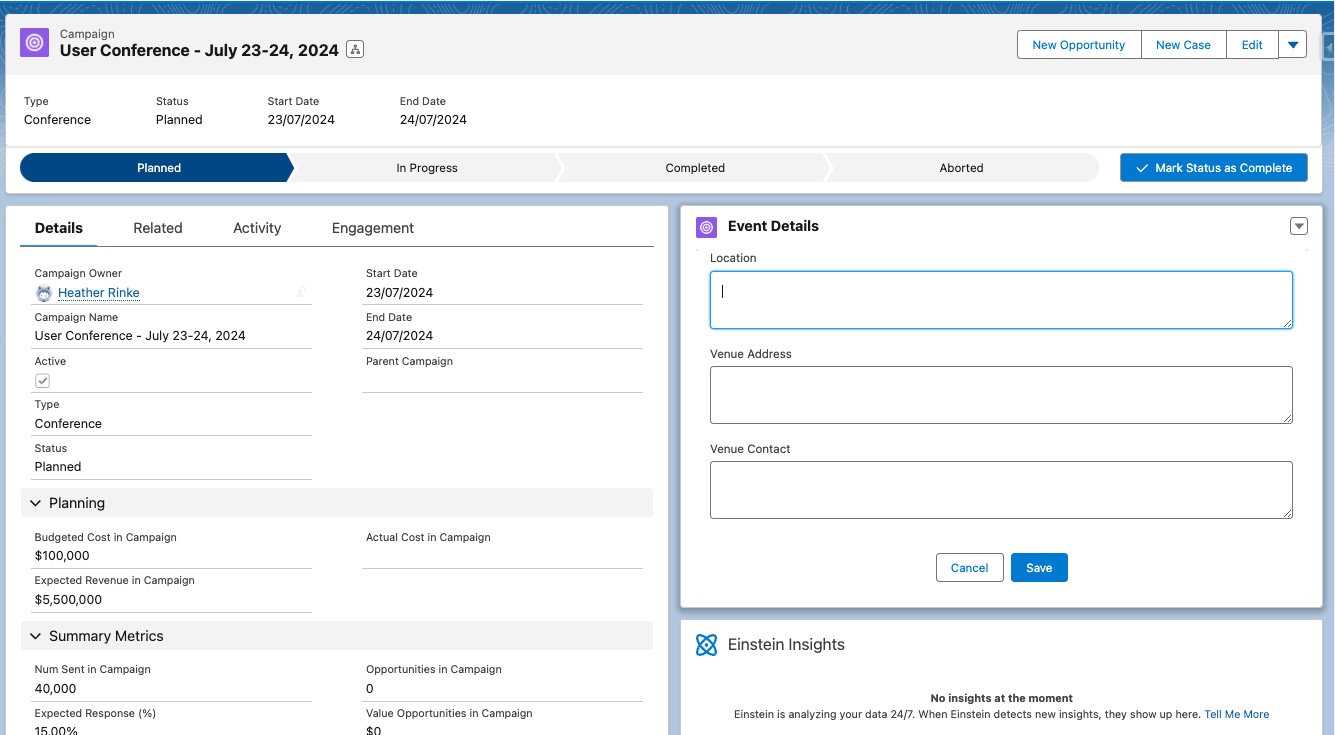
Voila! Now when working on a Campaign record, the Event Details will appear in their own “section” when the Campaign Type = Conference.  You can repeat this for other fields you want to appear on the page in specific circumstances.

To edit these fields, click the pencil icon next to the field you want to edit. All of the fields in that section will become editable, and notice that the other fields are not. These fields are edited separately because they are part of another component. When done, click the Save button to save the fields in that section. 

Build better experiences with this alternative to Dynamic Forms

While Dynamic Forms in Salesforce are fantastic for jazzing up user experiences, there are times when you need alternatives. Diving into Lightning features such as Quick Actions and Lightning Page Builder can help you to cook up custom solutions that do the job,  like the workaround we’ve explored here for displaying those crucial record fields based on different scenarios.

As you tinker around with ways to supercharge your Salesforce setup, remember, we’re in your corner. Want to chat about how to make your Salesforce dreams a reality? Reach out to the Sercante team today. Let’s brainstorm together and unlock the full potential of your Salesforce journey.

No more posts to show