Category

Erin Duncan

Product Note: Marketing Cloud Growth and Advanced are editions of Marketing Cloud Next and have also been referred to as Agentforce Marketing.

Marketing Cloud Growth Edition builders enable marketers to build beautiful landing pages and forms with ease. The builders have a robust set of styling and functionality options that allow Marketers to customize their assets without needing extensive custom coding. Let’s dive into the features of these builders and walk through how to build your first Growth Edition assets. 

Creating a New Landing Page

Users can create a new landing page in two ways:

Option 1

  1. Navigate to Content > CMS Workspace for Marketing Cloud
  2. Select Add > Content
  3. Select Landing Page

This option starts you with a completely blank canvas and does not auto-generate a form or flow for your page.

Option 2

  1. Navigate to Campaigns and create a new campaign
  2. Select Save
  3. Select the Signup Form Template

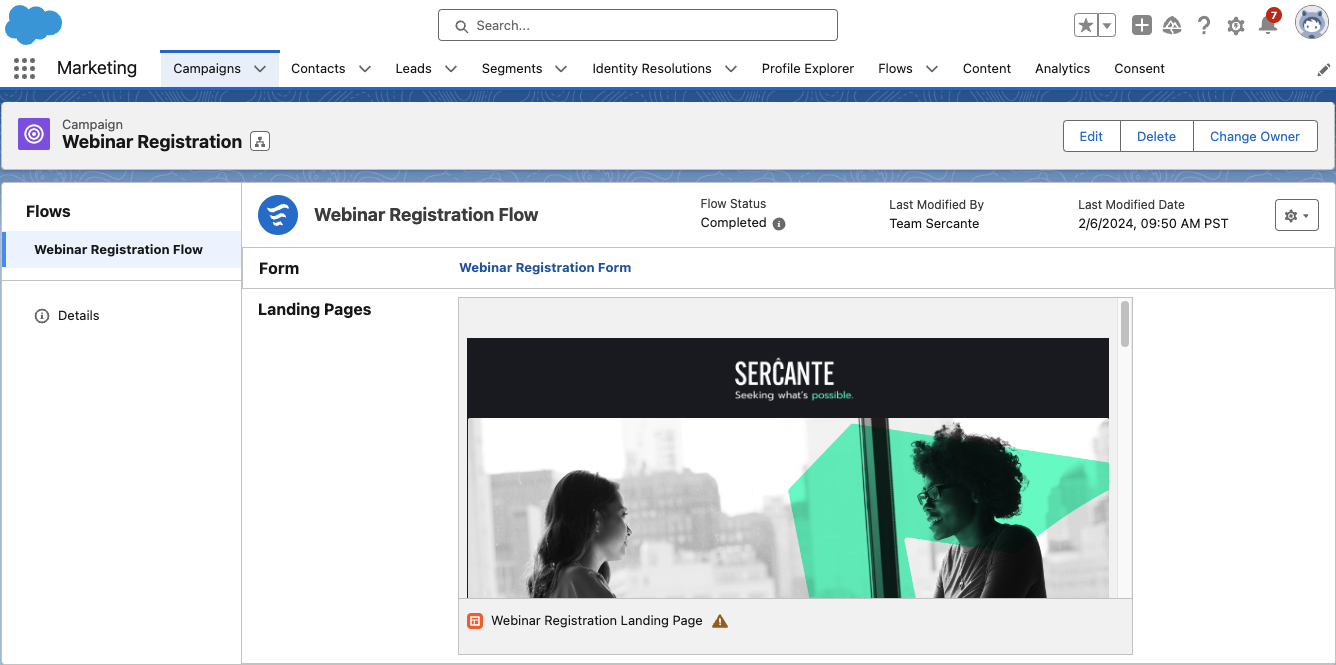
This option starts you with a Salesforce Landing Page that can be easily customized with your own content and styling. It also auto-generates a form and flow for the form. 

Landing Page Builder

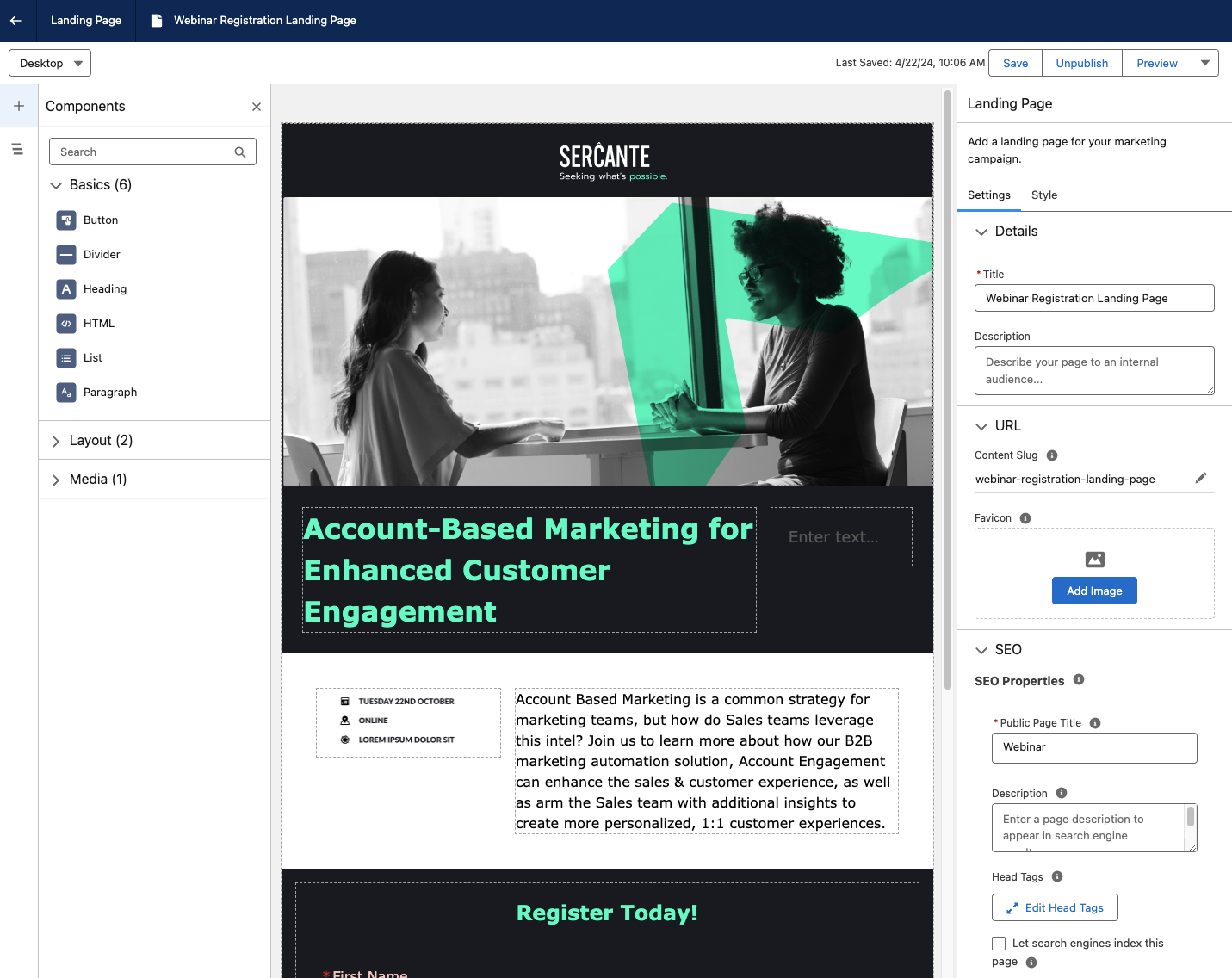
Once you’re in the landing page builder, you can begin setting up the landing page’s basic info. 

This includes:

  • Internal title and description
  • URL content slug, this is the URL-friendly name for your page (a.k.a. vanity URL)
  • Favicon
  • Public page title (max 70 characters)
  • Public Description (max 2000 characters)
    • If SEO indexing is enabled and this field is blank, the search engine results display the first text that the search engine finds on the page.
  • Head Tags
  • Whether or not the Landing Page should be hidden from search engine indexing
You can also optionally set a background image for the Landing Page on the Style tab. 

Drag-and-drop components

Similar to the Lightning Builder experience for Account Engagement, you can begin building your Landing Page by dragging and dropping components from the left-hand components menu. 
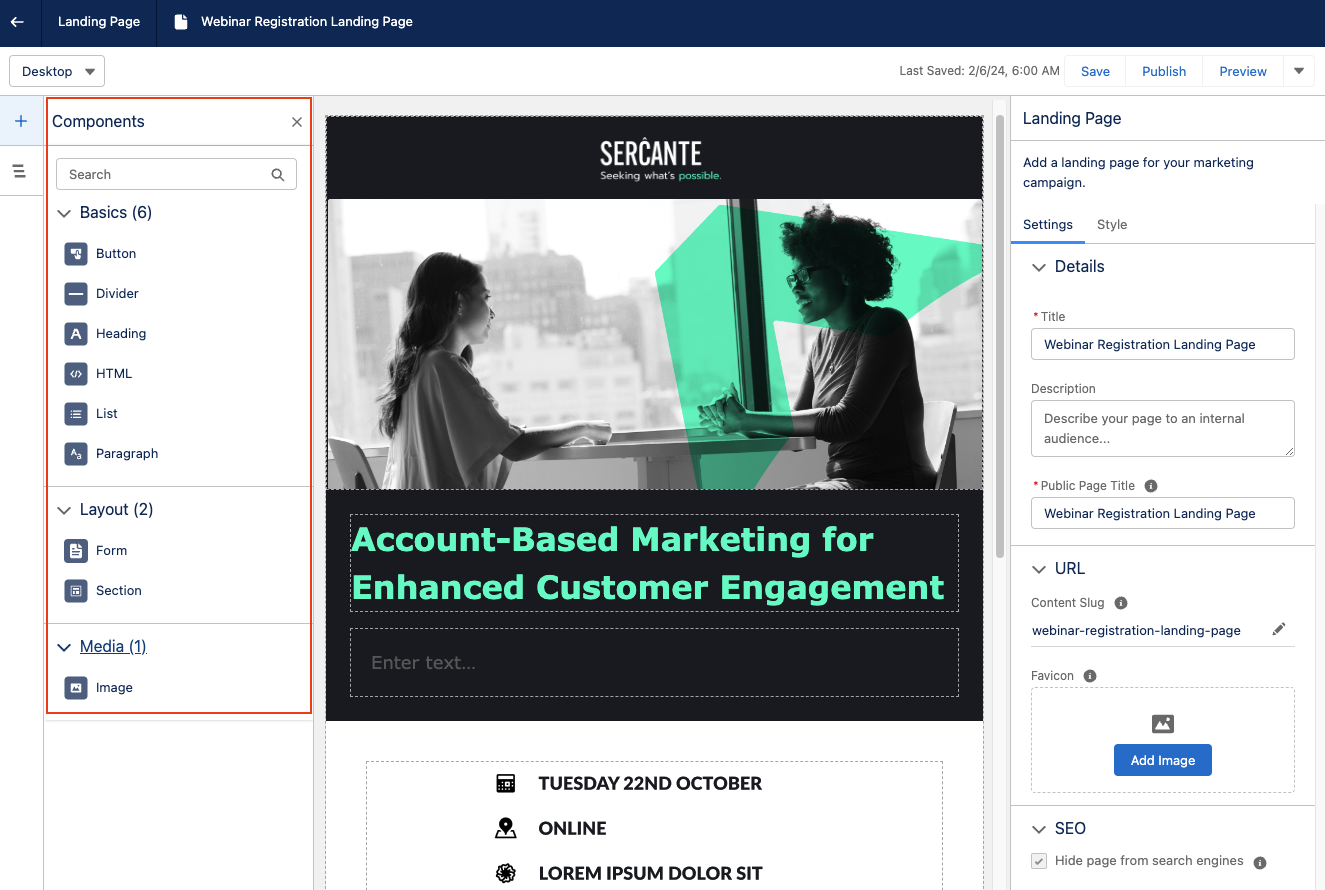
I always like to start with a Sections component so I can divide up my section and set the style before dragging in another component for my content. The Sections component can be divided up to 12 and includes an option to stack columns when the page is viewed on mobile.

Add more components to the section

Once you’ve formatted your section, you can drag and drop additional components into said section. This includes:

  • Buttons
  • Dividers
  • Headings
  • HTML
  • Lists
  • Paragraphs
  • Forms
  • Images

All components and sections have robust editing options and have an optional area to enter Custom CSS for more granular customization.
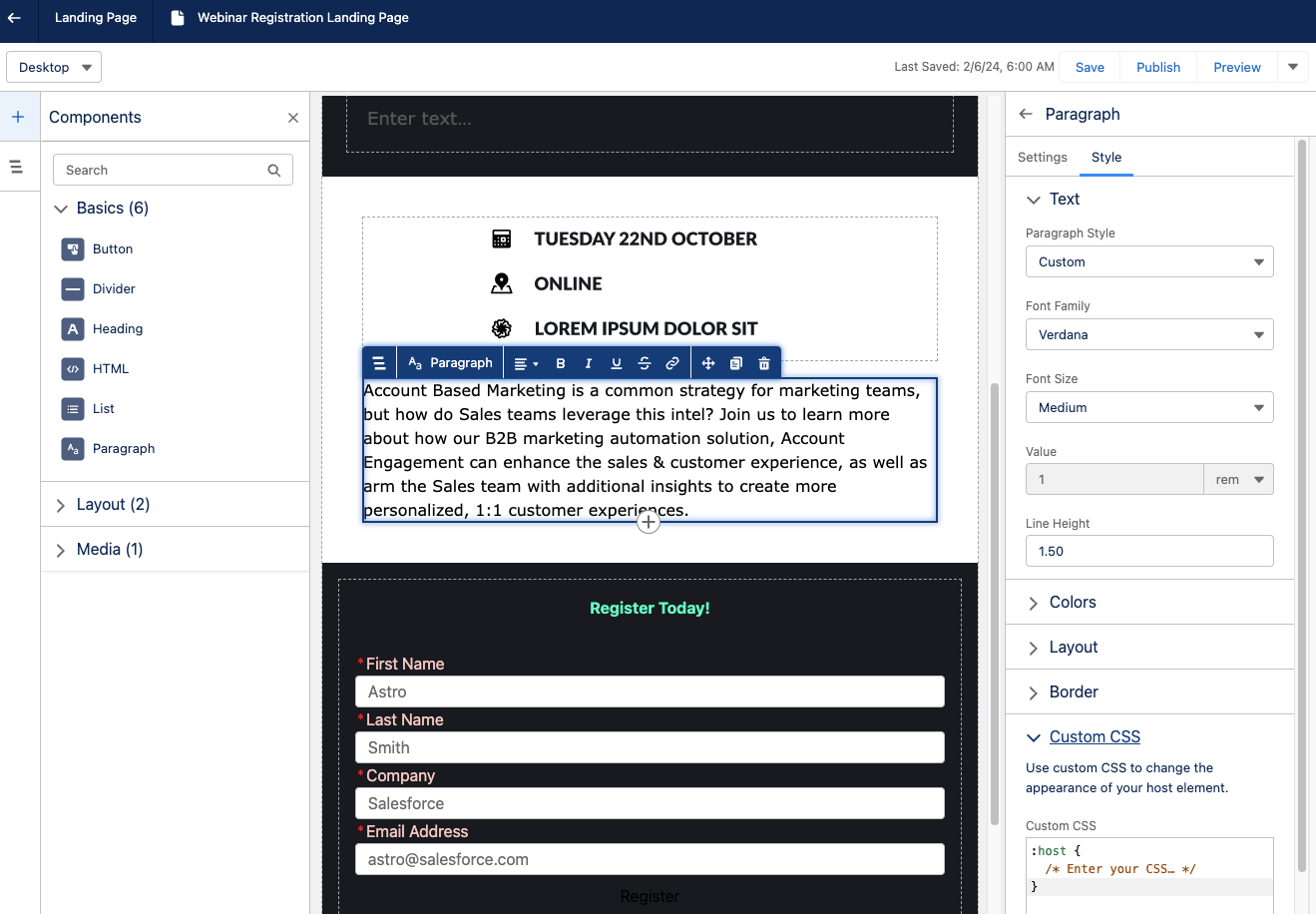
Add form to landing page

To add a form to your Landing Page, drag and drop a form component anywhere on the builder canvas. Once a form component is added, select the existing form you’d like to use. You cannot create a new form while in the landing page builder, but you can open the form builder to edit an existing form or switch out the form later. You can only have one form on your Landing Page.
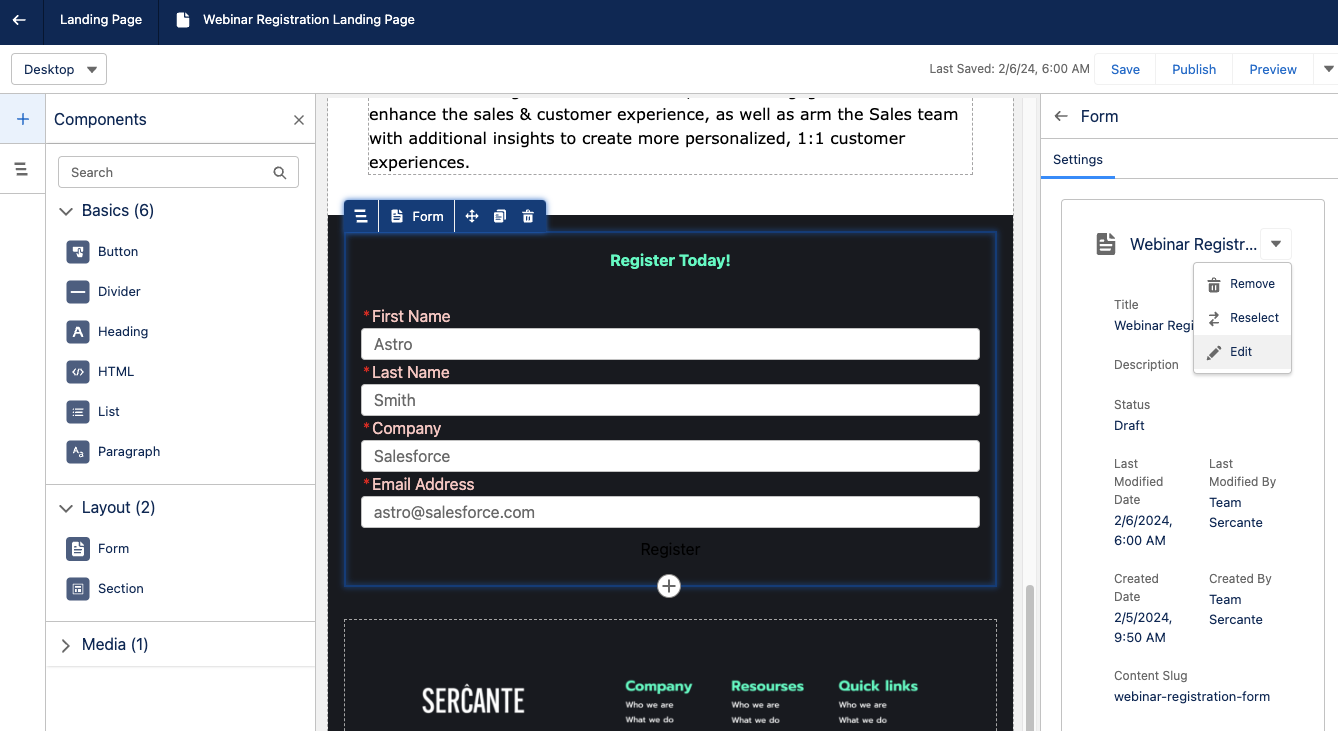
Form Builder

Build your form by selecting edit within the form component on your landing page. Once in the form builder, you have the option to configure a data source to pull in Lead, Contact, or Account fields into your form. Doing so allows you to easily see which fields are required to create a new record of that type. 
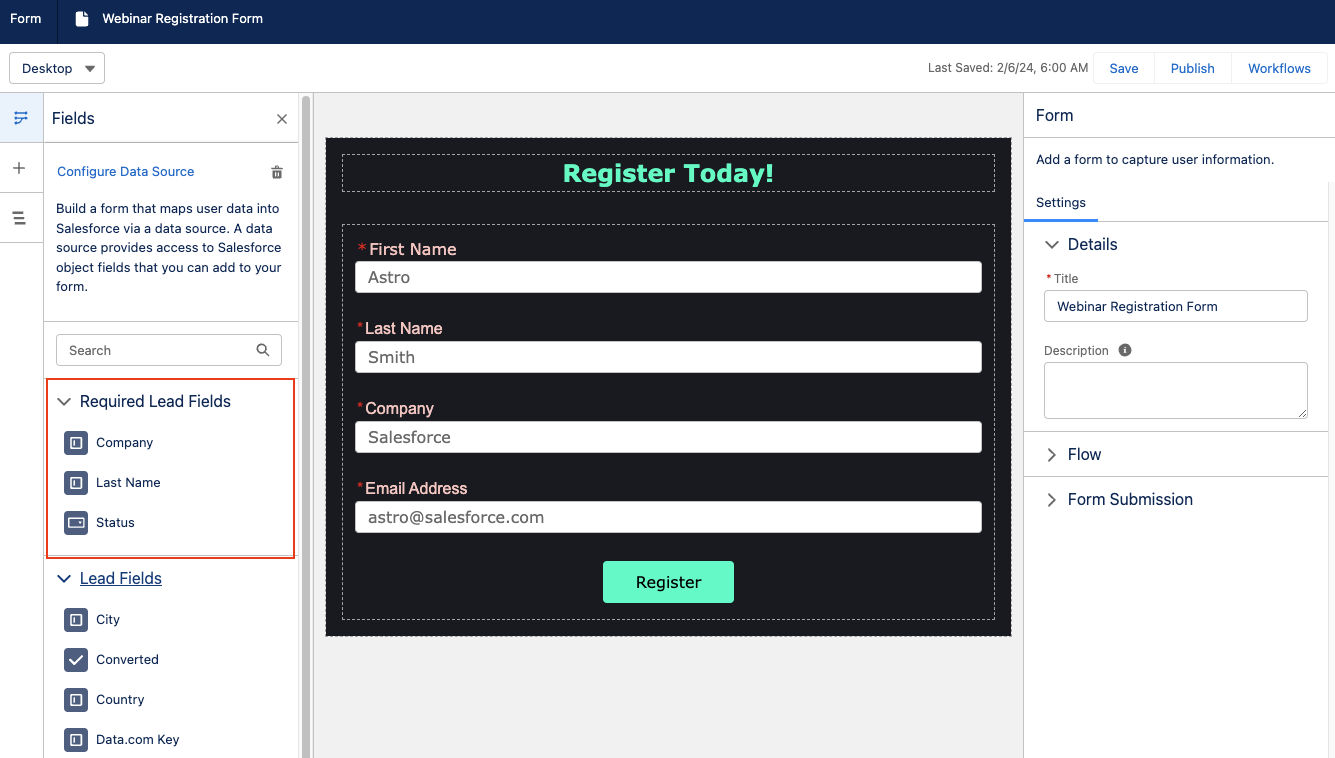
If you opt to not configure a data source, just ensure your fields are mapped accordingly within the flow. 

Customize your form

The components panel has several options for customizing your form. You can enter buttons, dividers, headings, HTML, lists, and paragraphs above, below, or in between form fields. You can also create a new section or insert images. The following form field types (aka Inputs) are supported in this form builder: 

  • Email
  • Phone Number
  • Plain Text
  • Checkbox
    • This is an individual checkbox, but multiple checkbox components can be added in if you want a multi-picklist.
  • Dropdown
  • You must manually enter the picklist options for dropdown components. Labels and Unique Names can be set for each value within the field.
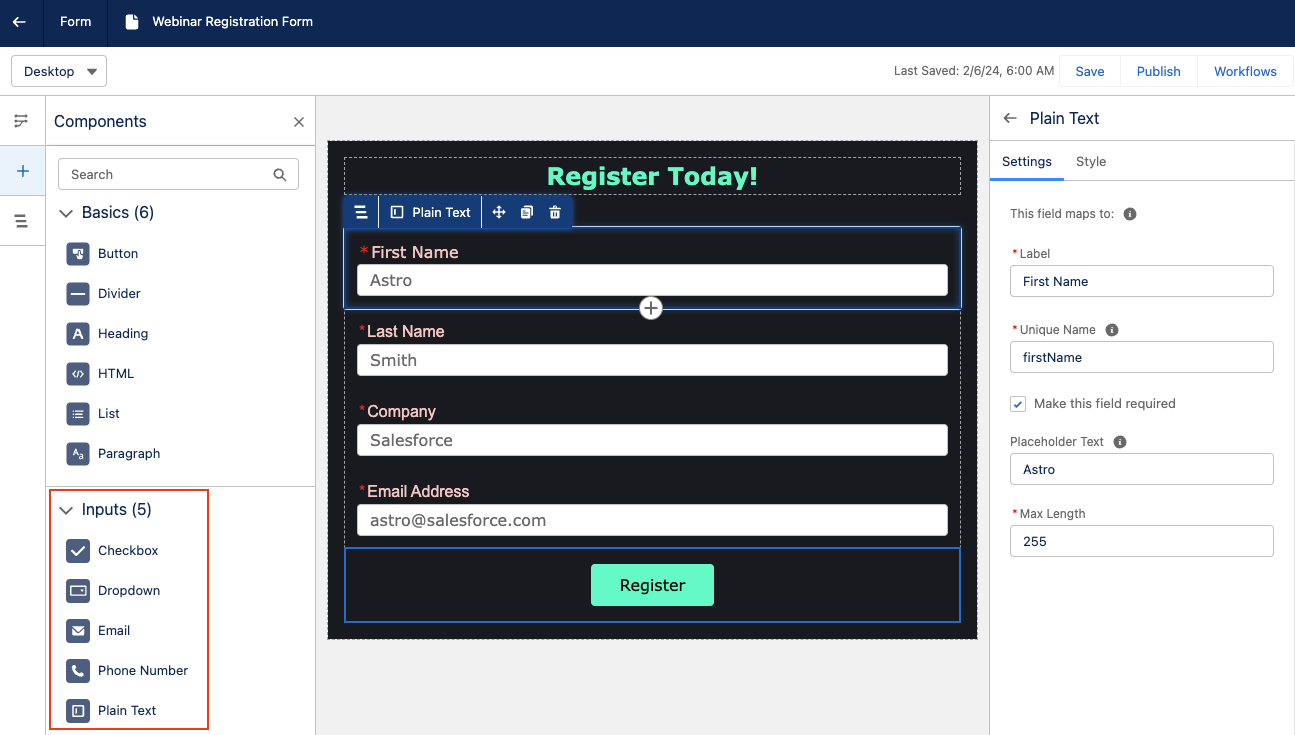
Drag and drop Inputs into your form to add new fields. Options to add placeholder text, make the field required, and set the max length of the entered data are available on the right-side panel. You can also fully customize the field’s text styling, background, padding, border etc., as well as insert Custom CSS.

Edit any flows

Keep in mind that adding or removing fields from the form does not automatically update the flow that is associated with it. When you are done building your form, you will need to edit your flow to correctly map the final form fields to their destinations.

Publishing your Landing Page

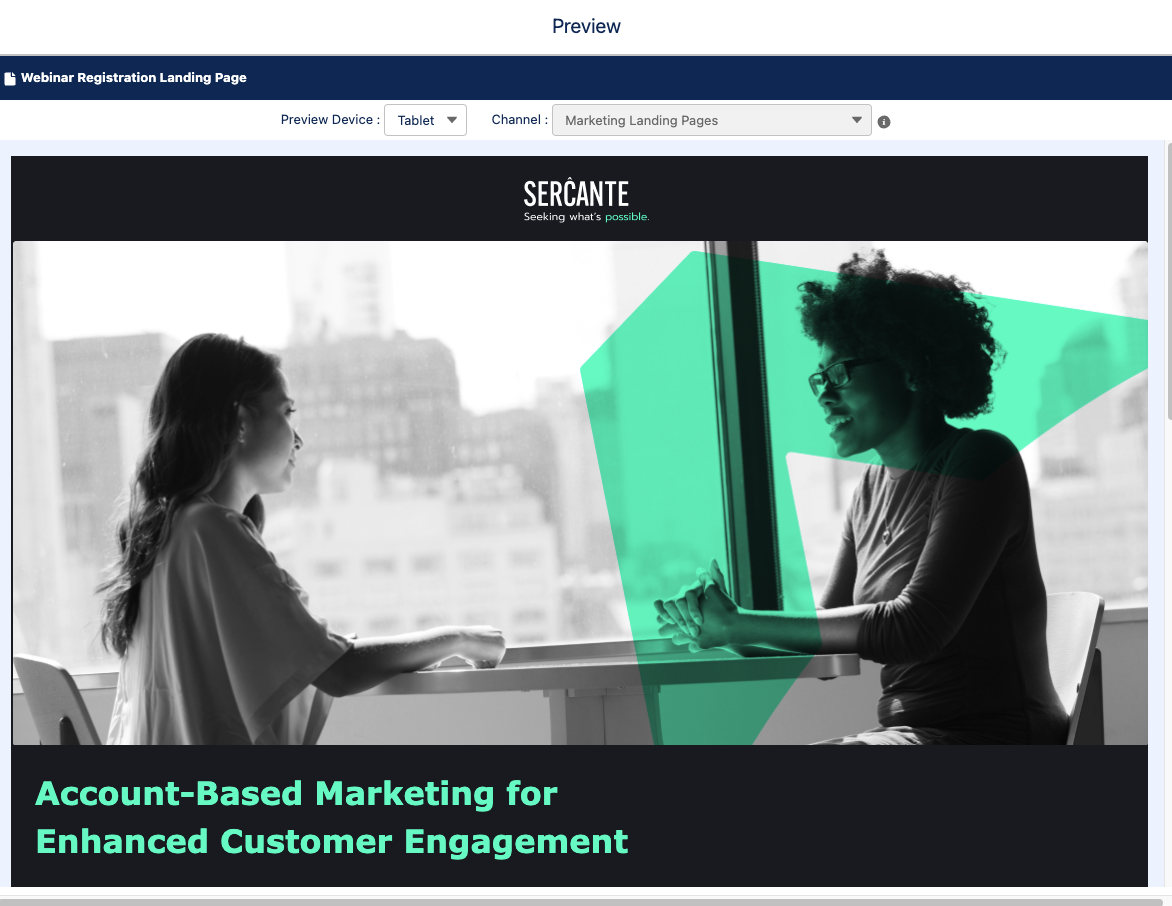
Once you’re ready to test and publish your landing page, select the Preview option from the top right-hand corner. The Preview will allow you to view your landing page in Desktop, Tablet, and Mobile views to ensure everything looks good no matter how your audience is viewing the page. 
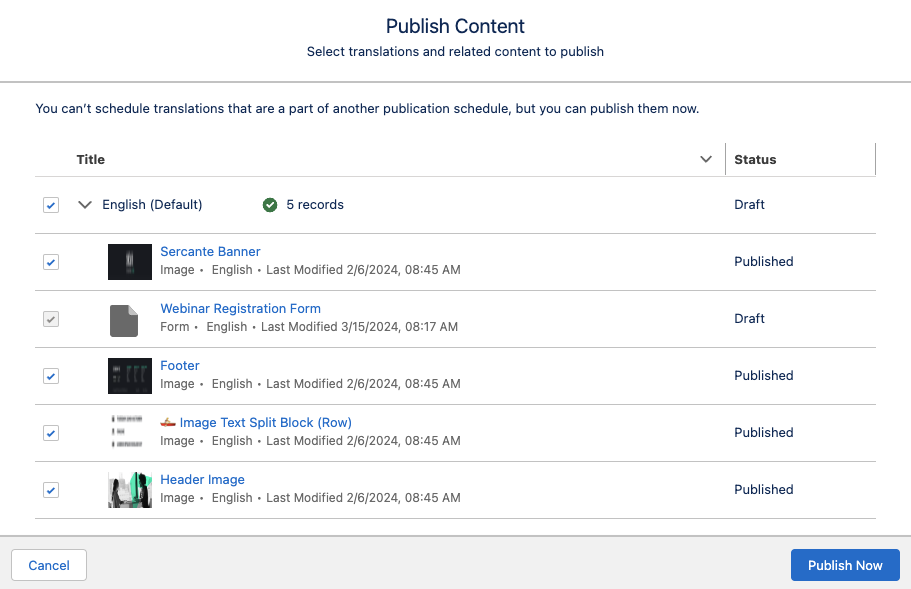
When you are ready to push the landing page live, select the Publish button in the top right-hand corner. You can then confirm the related content that needs to be published with your landing page, such as images used on the page, translations, and your form. 
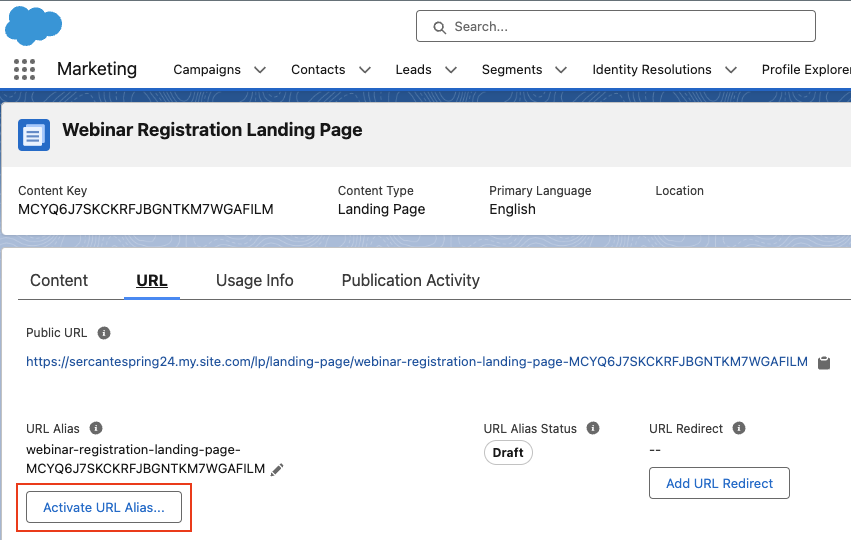
Activate URL Alias

Once published, you also need to activate your URL alias. Publishing a landing page indicates that the content is ready to be made available online, but the content isn’t accessible until you also activate the URL alias. To do so, 

  1. Navigate to Content > CMS Workspace for Marketing Cloud 
  2. Select your landing page
  3. Select the URL tab
  4. Select Activate URL Alias
  1. Select Activate

Start Building in Growth!

Now you’re ready to build your first landing page in Marketing Cloud Growth Edition! Be sure to return to The Spot for more posts about Marketing Cloud Growth. We’ll dive into Flows, building emails and all our other Growth learnings in future blog posts.  

Want to know more about Marketing Cloud Growth, like, today? Then reach out to the team at Sercante to start a conversation.

Product Note: Marketing Cloud Growth and Advanced are editions of Marketing Cloud Next and have also been referred to as Agentforce Marketing.

Since the announcement of Marketing Cloud Growth Edition on February 20th, we’ve been digging into the features of this new product as well as listening closely to the community’s questions about Marketing Cloud (Growth and Advanced Edition). We’ve compiled the most common questions from Salesforce webinars, Slack communities, our internal team, and our clients to get all your Marketing Cloud questions answered in one place. 

NOTE: This blog post was updated in May 2025 to reflect new release features and product updates.

Answers to all of your Marketing Cloud questions

Here’s a list of the most common questions we’ve seen.

Wait, what is the “official” name

So, this product was originally launched as “Marketing Cloud Growth Edition”. A few months later Advanced Edition was released and the product evolved to “Marketing Cloud Growth or Advanced Edition”. However, this was later shortened to just “Marketing Cloud”.  Now I know “Marketing Cloud” means “Marketing Cloud Engagement” to a large portion of the community so I also refer to this tool as “Marketing Cloud on Core” so no one assumes I mean “Engagement”. 

What is Marketing Cloud (on Core)?

Marketing Cloud is a new marketing automation platform from Salesforce. Marketing Cloud is built on the Salesforce Platform (aka “on Core”) and allows you to build multi-channel campaigns with Data Cloud, personalize marketing assets with Experience Cloud, and automate journeys with Flow. Marketing Cloud also includes Einstein and Agentforce capabilities throughout the platform as well as out-of-the-box content approval processes. 

Is Marketing Cloud Account Engagement and/or Engagement being retired?

This is the most common question we’ve heard so far and the resounding answer is No, Engagement and Account Engagement are not being retired. Marketing Cloud is another option for organizations that want to bring their marketing operations into Salesforce. Engagement and Account Engagement will continue to have their own robust product roadmaps. 

Which Salesforce Editions does Marketing Cloud work with?

Currently, Marketing Cloud works with Salesforce Enterprise Edition (EE) and Unlimited Edition (UE).

Is this the direction the Marketing Cloud Platform is going? All bundled within Core?

Yes, building Marketing Cloud’s foundation on core allows Marketers to get full access to customer data across the CRM and other clouds connected to the Salesforce platform. Breaking down data silos and uniting your data on one platform also allows Marketers to better leverage Einstein’s AI functionality as well as personalize every step of the customer journey. 

Can Marketing Cloud be purchased without Data Cloud?

Marketing Cloud requires Data Cloud. If you do not yet have Data Cloud, check if you’re eligible for the Free Data Cloud SKU or Salesforce Foundations. 

What is included out of the box with Marketing Cloud?

This is subject to change as the platform changes and grows but, as of May 2025 Growth Edition includes: 

See our previous blog post for more information on the credit consumption model of Marketing Cloud. 

Does Marketing Cloud consume super messages for email and SMS?

Marketing Cloud has different entitlements, emails and SMS do not consume super messages.

Do users need Salesforce licenses to access Marketing Cloud?

Currently users do need Salesforce licenses to access Marketing Cloud, but support for Identity Licenses is expected in the Summer ‘25 release (June).

Can clients with their own Data Warehouses use Marketing Cloud? 

Yes, Marketing Cloud is built on top of Data Cloud, which means they can connect to your data wherever it lives.

What is the setup of Marketing Cloud like? 

Setup for Marketing Cloud is being streamlined with each new release. Users with the Marketing Cloud Admin permission set can access the setup assistant for easier implementation of Marketing Cloud. Use the setup assistant to install or update all the required data marketing kits.

Is the intention to have customers self implement Marketing Cloud and do everything themselves?

The intention is to reduce the amount of energy spent on behalf of the customer to get to where they need consultants. Simply put, Marketing Cloud has very good defaults and a streamlined setup process, but there is still value to be added by consultants. If you’d like support setting up or optimizing Marketing Cloud, send us a message.

Can you configure marketing asset branding/brand standards within Marketing Cloud?

Yes! Users can create Brand Guidelines within Marketing Cloud that allow you to specify brand colors, typography, button styling, margins, and borders that can be applied to your marketing assets. If your brand standards are later updated, any marketing assets using that brand will also be updated. You can have multiple brand guidelines and also set a default Brand for your CMS Workspace so any new assets that are created for Marketing Cloud will be automatically branded. 

Does Marketing Cloud use a different Flow than the Salesforce Admin Flow?

Marketing Cloud uses the same Flow that users would have access to when building a backend, or admin, Flow. However, the elements and processes that the Marketing Cloud Flow has access to are limited by permission sets. Out of the box, the Marketing Cloud Flow is tailored elements and actions that focus on automating Marketing Campaigns and Marketing processes. Additional Permissions can be added or removed to custom tailor what users can do within the Marketing Cloud Flow. In short, Salesforce Admins are not giving Marketers full Flow functionality by granting them access to the Marketing Cloud Flow Builder.

What scoring features are included with Marketing Cloud?

Marketing Cloud has both People and Account Scoring. 

  • People Scoring
    • Engagement Score: Adds or removes points based on how engaged a person is with your Marketing initiatives.
    • Fit Score:  Similar to Account Engagement Grading, Fit Scoring tells Marketing and Sales how closely the prospect and their company aligns with the ideal client persona.
  • Account Scoring
    • Engagement Score: Aggregates how engaged Contacts associated with the Account are with your Marketing initiatives.
    • Fit Scoring: How closely the Account matches your ideal customer.
    • Intent Score: Optional AI driven scoring that measure how likely an Account is to make a purchase.  

What Einstein features are included with Marketing Cloud?

This is another area that is growing and changing with each release, but at of May 2025, Marketing Cloud includes:

  • Agentforce: Assists in building campaign briefs and campaign assets as well as generates copy for subject lines, preheaders, and body copy.
  • Einstein Metrics Guard: Uses predictive AI to filter bot activity from your org’s engagement metrics
  • Einstein Send Time Optimization: Send messages to your customers when they’re most likely to engage.
  • Einstein Segment Creation: Assists in building Data Cloud segments from natural language prompts.

Three additional Einstein features are available in Advanced Edition:

  • Campaign Designer (currently Beta): Assists in crafting campaign flows based on campaign objectives.
  • Einstein Engagement Frequency: Uses Predictive AI to determine how frequently to contact customers and improve the likelihood of engagement. 
  • Einstein Engagement Scoring: Uses predictive AI to assign individual contact-level scores and determine the most efficient way to message recipients to increase customer engagement.

Does Marketing Cloud include Campaign Influence models?

Marketing Cloud has Opportunity Influence rather than Campaign Influence.  Opportunity Influence assists marketers in identifying which campaigns were impactful for opportunities but relies on engagement rather than Campaign membership. 

Can Marketing Cloud personalize messages based upon the individual record? 

Yes, any fields connected to the Unified Individual can be used for personalization, this allows Marketers to even pull in data from other objects for cross object personalization. Dynamic Content is also available for use in email subject lines, email preheaders, and email components. 

Variation Targeting Rule screenshot

Does Data Cloud segment creation mean that SQL Queries will become a thing of the past?

Eventually, Salesforce is moving in the direction of clicks-not-code. Marketing Cloud includes prompts to help marketers build the appropriate filters in the segmentation builder, but you can also start from scratch within the builder. 

Will SMS have the same process around provisioning and approvals as MC Engagement?

There are two SMS code options available in Marketing Cloud, Short Code and Long Code. The short code option follows the same provisioning process that exists today for Marketing Cloud Engagement today. Check out our blog post for more information on the Short vs Long code and the provisioning processes.

Does Marketing Cloud include A/B Testing capabilities?

Yes! Except it is called Path Experiment and it does even more than simple A/B Testing. Take a look at our blog post on Marketing Cloud Advanced Edition for more info on this feature. 

How does Marketing Cloud handle pre-lead, unassigned records?

Salesforce introduced a new CRM Object for Prospects as part of the Spring ‘26 release. This new object can be used to store pre-lead records in CRM, similar to how Account Engagement keeps Prospects within its system and only sends Prospects to Salesforce when they are Sales/Lead ready. 

How can Account Engagement and Engagement Customers start using Marketing Cloud?

Account Engagement Customers get access to Marketing Cloud as part of their current contract. Check out our blog post for more details. 

Marketing Cloud Engagement customers will get a similar provisioning path soon (Safe Harbor!)

How has Sercante been involved in the launch of Marketing Cloud? 

Members of the Sercante team have been involved with Marketing Cloud since the pilot in 2023. We were also members of the Pioneer Program at launch in 2024 and have over 30 customers using Marketing Cloud today. We were also the first partner to be provisioned a Marketing Cloud Growth Edition Partner Org so we could provide feedback, documentation help, and FAQs to the development team. 

Learn more about Marketing Cloud Growth Edition

Want to learn more about Marketing Cloud Growth Edition? Check out some of our previous blog posts and subscribe to The Spot so you stay in the loop as we dive deeper into this new product.

Send Sercante a message if you still have questions that aren’t on the Marketing Cloud Growth Edition FAQ list.

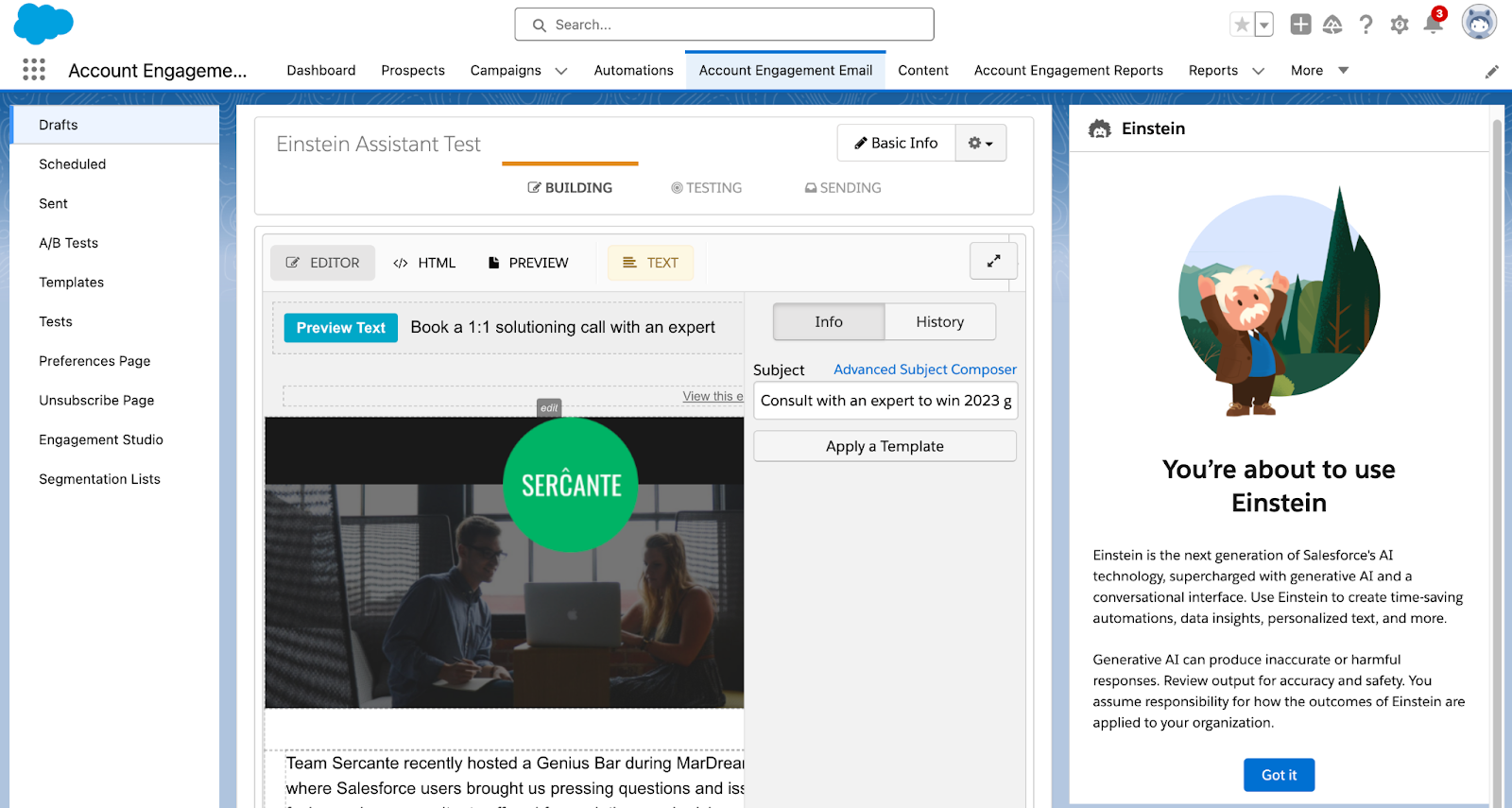
Einstein Assistant is the latest AI functionality for Account Engagement. With the Spring ‘24 release, Account Engagement Advanced and Premium editions can utilize generative AI when creating marketing assets. Let’s deep dive into the features of Einstein Assistant and how to enable it for your Account Engagement Business Units!

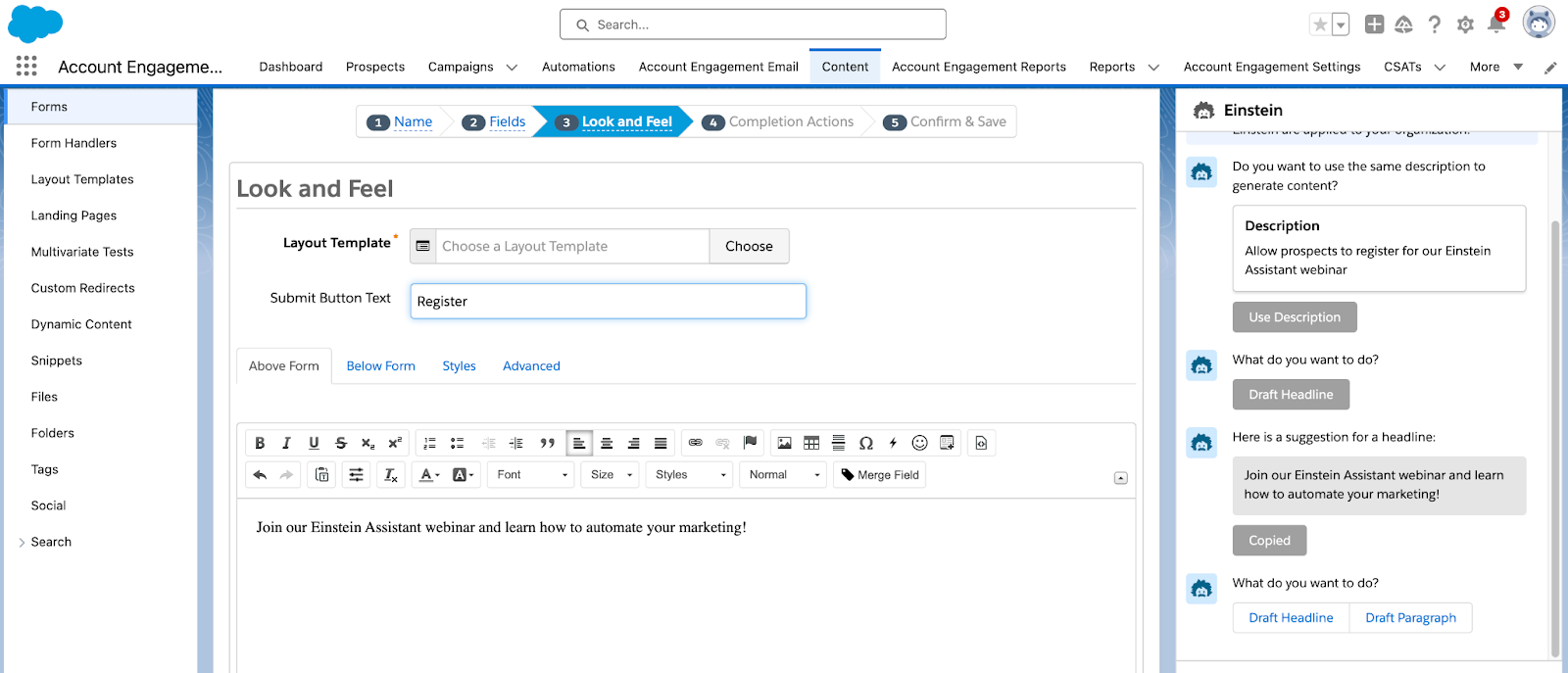
Einstein Assistant helps you create landing pages, forms, and list emails. When creating a new asset, or editing an existing one, the Einstein Assistant window appears so you can describe what you are creating. 

Einstein Assistant will then recommend content that you can copy or revise for each of your assets. 

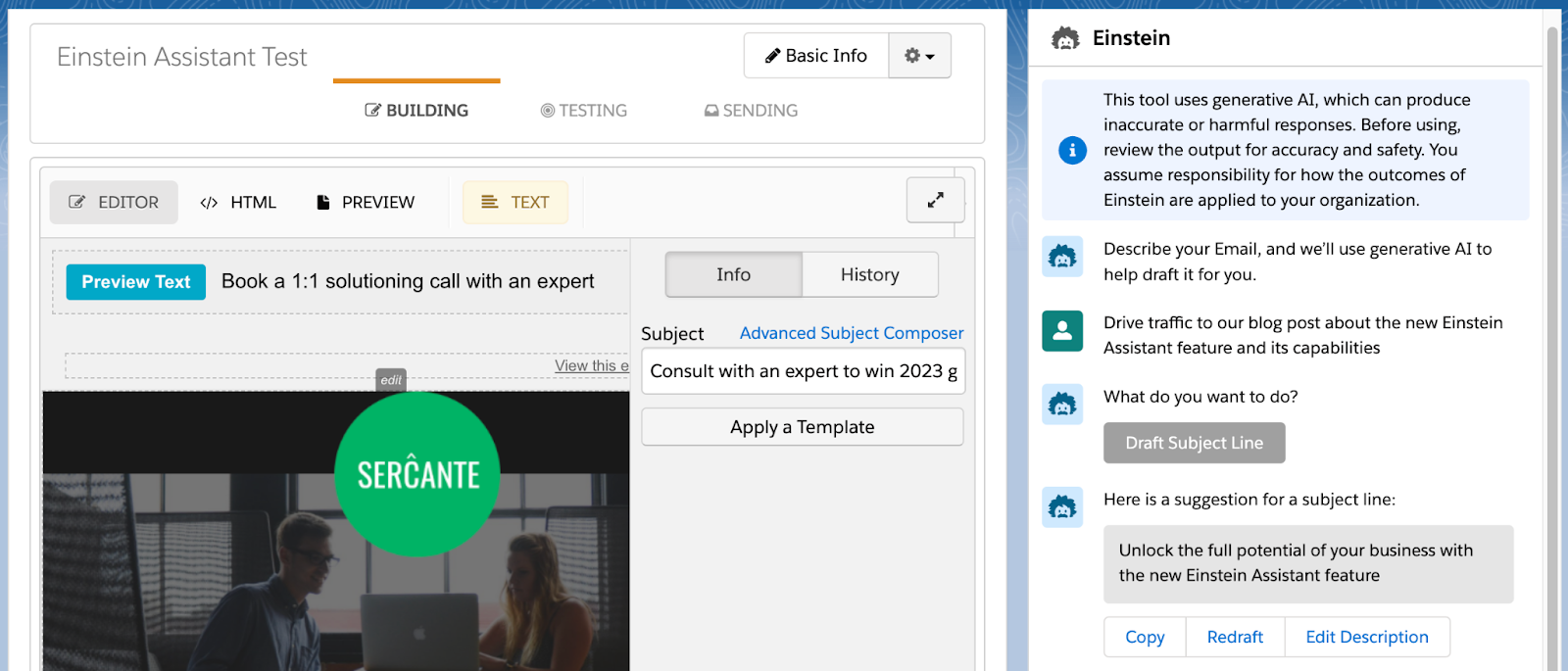
Using Einstein Assistant with List Emails

Einstein Assistant gives you the option to draft an email Headline, Paragraph, and/or Subject Line. Once drafted, you can copy or redraft the content, or edit the prompt provided to Einstein Assistant.

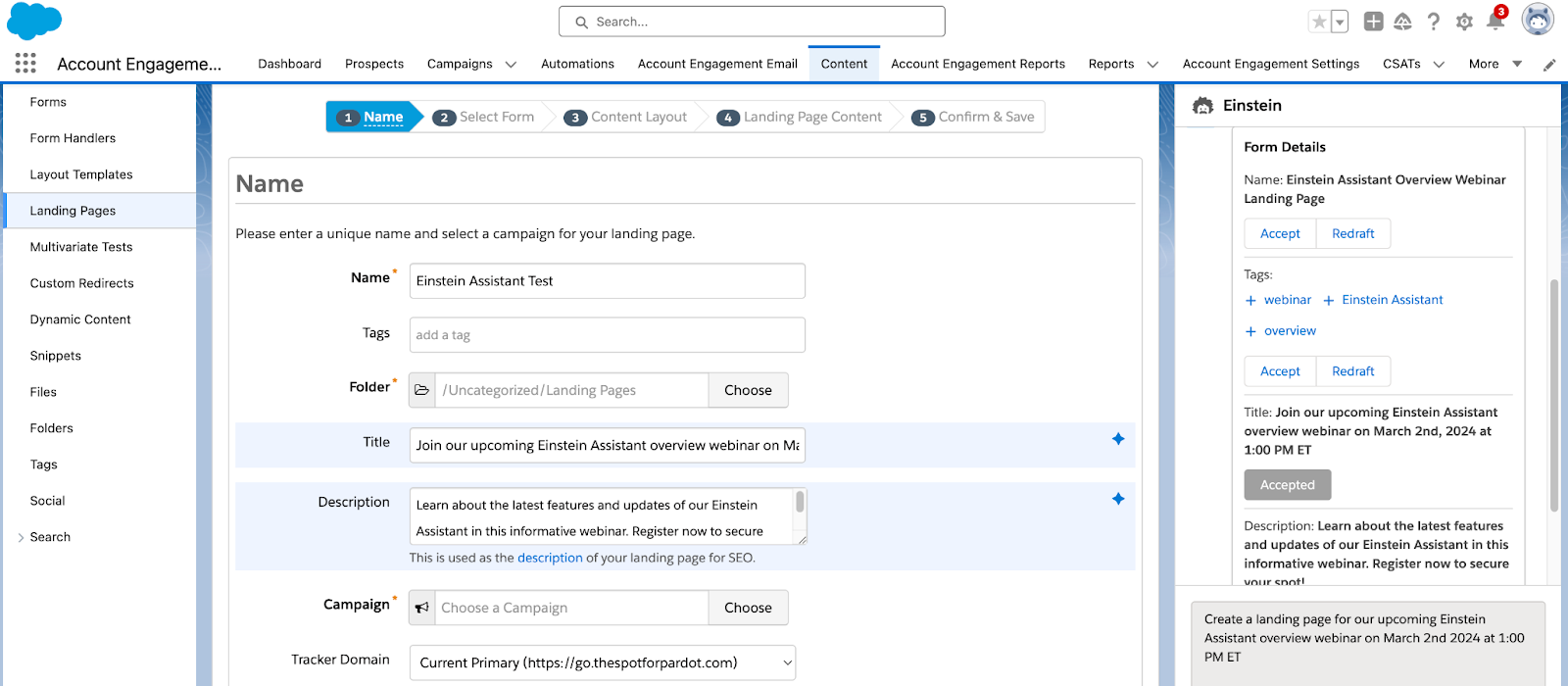
Using Einstein Assistant with Landing Pages

When building Landing Pages, Einstein Assistant can generate the Landing Page’s name, tags, title, and description. Here you have the option to accept, and the copy will automatically be entered into the associated Landing Page field, or redraft the content.

Once you navigate to the Landing Page Content tab, you can then generate a Landing Page Headline and/or paragraph for your page.  

Using Einstein Assistant with Forms

When building Forms, Einstein Assistant will first allow you to generate a name and tags for your new form. You can accept Einstein’s suggestions and the content will auto-fill into the name and tag fields, or select redraft. On the Look and Feel tab, Einstein can generate a Headline or Paragraph to be used above or below the form.

Finally, on the Completion Actions tab, you can again use Einstein Assistant to generate a headline or paragraph for your Thank You Content.

Ready to get started?

Here is how to enable Einstein Assistant

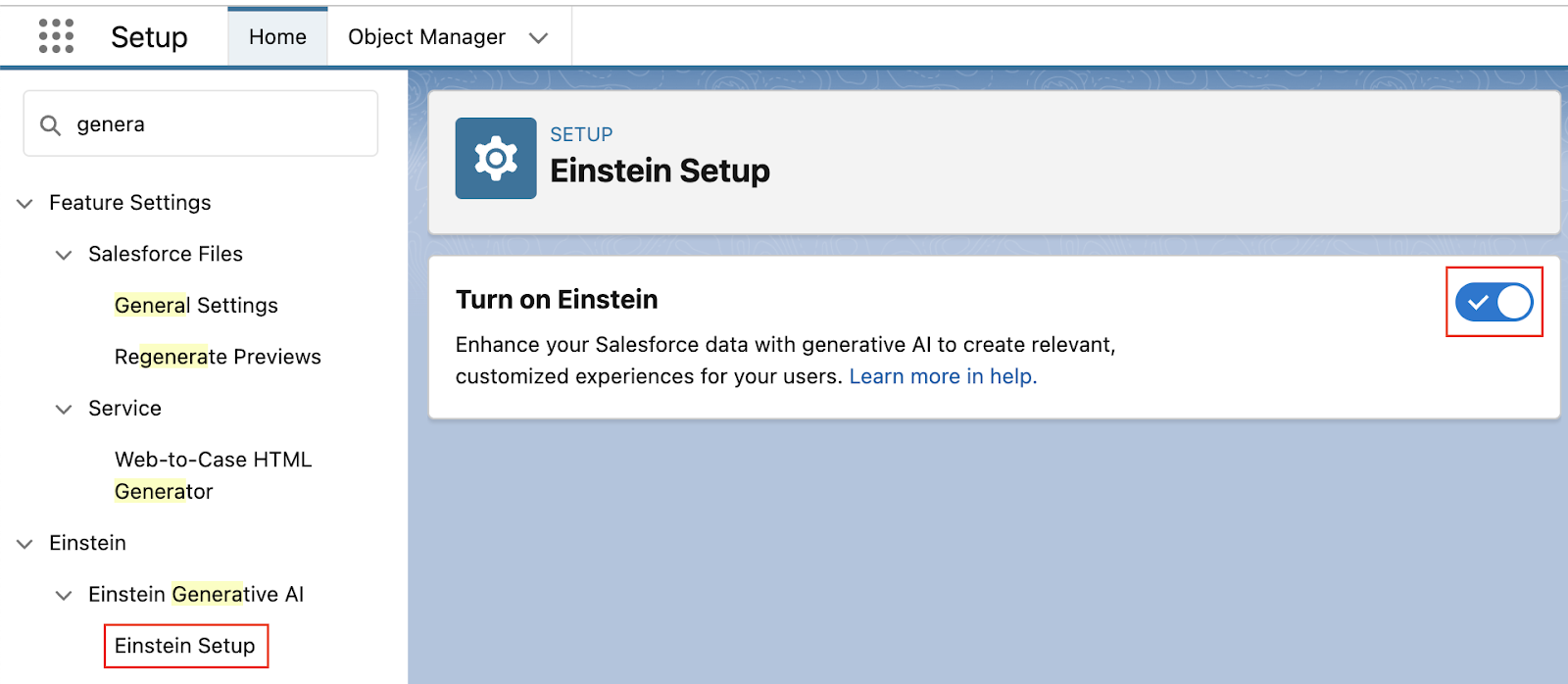
  1. In Salesforce, navigate to Setup > Einstein Generative AI
  2. Select Einstein Setup then Enable
  1. Still in Setup, navigate to Einstein Account Engagement > Einstein Assistant
  2. Select any Account Engagement Business Units that will be using Einstein Assistant
    • Note: even if you only have one Business Unit, you still need to do this step!
  3. Select Connect

If you’re interested in what else Einstein can do for Account Engagement, check out our previous blog posts:

Tap into Salesforce generative AI functionality

Salesforce is releasing new generative AI features all the time. Reach out to the team at Sercante to build strong foundations so you can tap into these features and stand apart from the pack.

Product Note: Marketing Cloud Growth and Advanced are editions of Marketing Cloud Next and have also been referred to as Agentforce Marketing.

Earlier today, Salesforce announced the release of Marketing Cloud Growth Edition. This innovative new product is another option for marketing automation built natively on the Salesforce platform and comes with Einstein Generative AI and Data Cloud out of the box. 

You might be wondering: What is this new product, really? What does this mean for the future of Marketing Cloud Account Engagement and Marketing Cloud Engagement? Well, we have answers to help you understand the ins and outs of the platform, what to expect, and what to consider for the near future. Let’s get started!

What is Marketing Cloud Growth Edition?

Marketing Cloud Growth Edition is the culmination of years of Salesforce working to bring marketing automation into the Salesforce platform (also known as “Einstein 1”). This new marketing automation platform allows you to build multi-channel campaigns with the unified customer data of Data Cloud, build personalized marketing assets with the power of Experience Cloud, and automate customer journeys with Salesforce Flow. 

Marketing Cloud Growth Edition also includes Generative AI and content approval processes out of the box to help streamline your Marketing efforts. 

What does this mean for the future of Marketing Cloud Engagement and Account Engagement?

If you’re an Engagement or Account Engagement customer, you may be thinking “But what does this mean for the future of my product?”

This is what we’re most excited about. Because Marketing Cloud Growth Edition is built on Einstein 1, existing customers of Engagement and Account Engagement will eventually get access to features and functionality introduced to this new product. In addition, Marketing Cloud Engagement and Account Engagement continue to have a robust product roadmap. 

Said differently: Marketing Cloud Growth Edition is another option for organizations that want to bring their marketing operations into Salesforce. If you’re a current Engagement or Account Engagement user, you’ll eventually have the option to use Growth alongside your current platform. So, think of it more as an additional set of features that are available to you. 

Who is Marketing Cloud Growth Edition meant for?

Marketing Cloud Growth Edition is a logical option for small and medium-sized businesses that are new to the Salesforce platform but aren’t currently using marketing automation tools. 

If you’re already using Marketing Cloud Engagement and Account Engagement, then you don’t have to take any action right now. However, watch for future announcements to see when you’ll get access to Marketing Cloud Growth features to use along with your existing tools.

What marketing functionality is included?

Marketing Cloud Growth Edition is feature-rich when it comes to building assets, and the builders provide a flexible and intuitive user experience. 

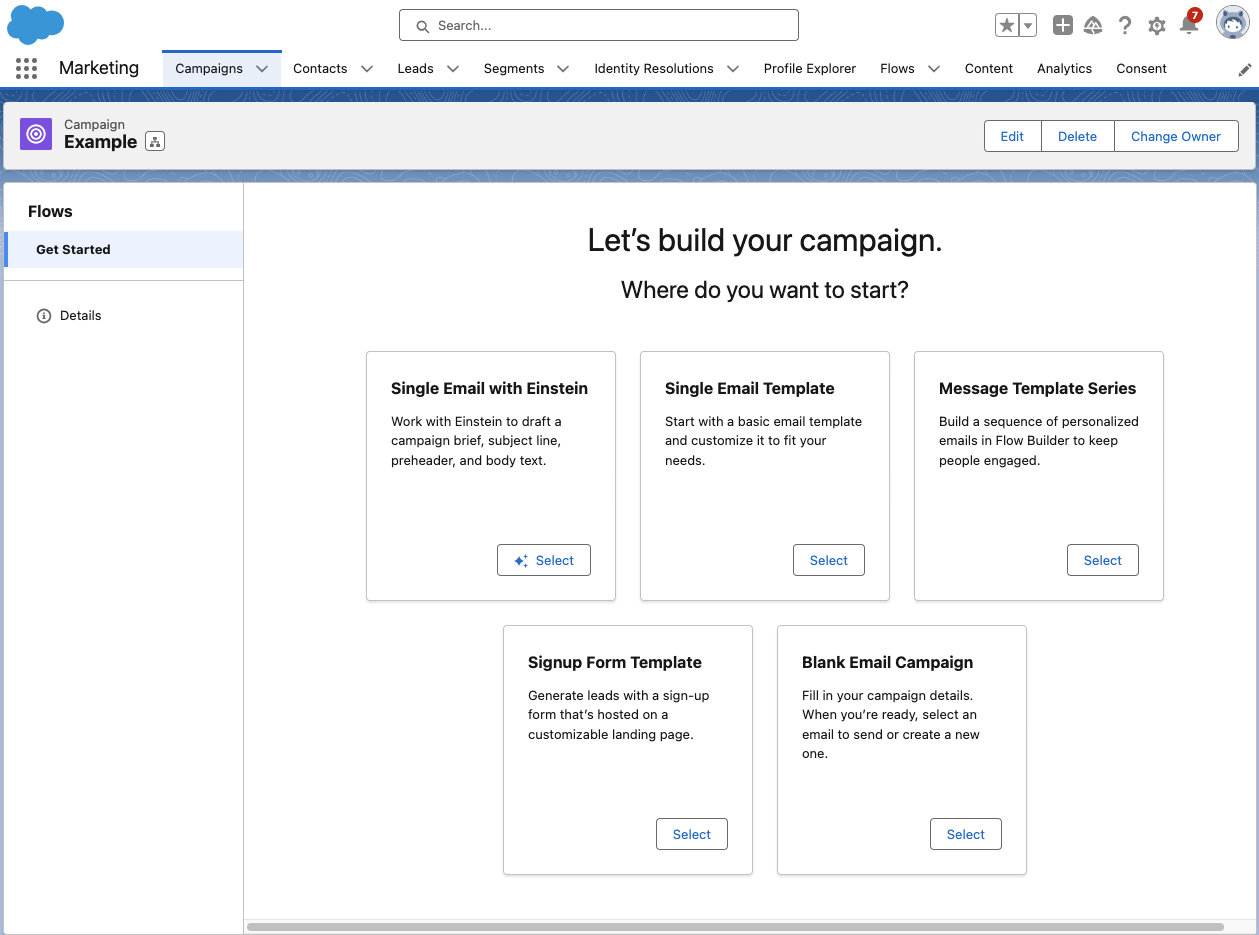
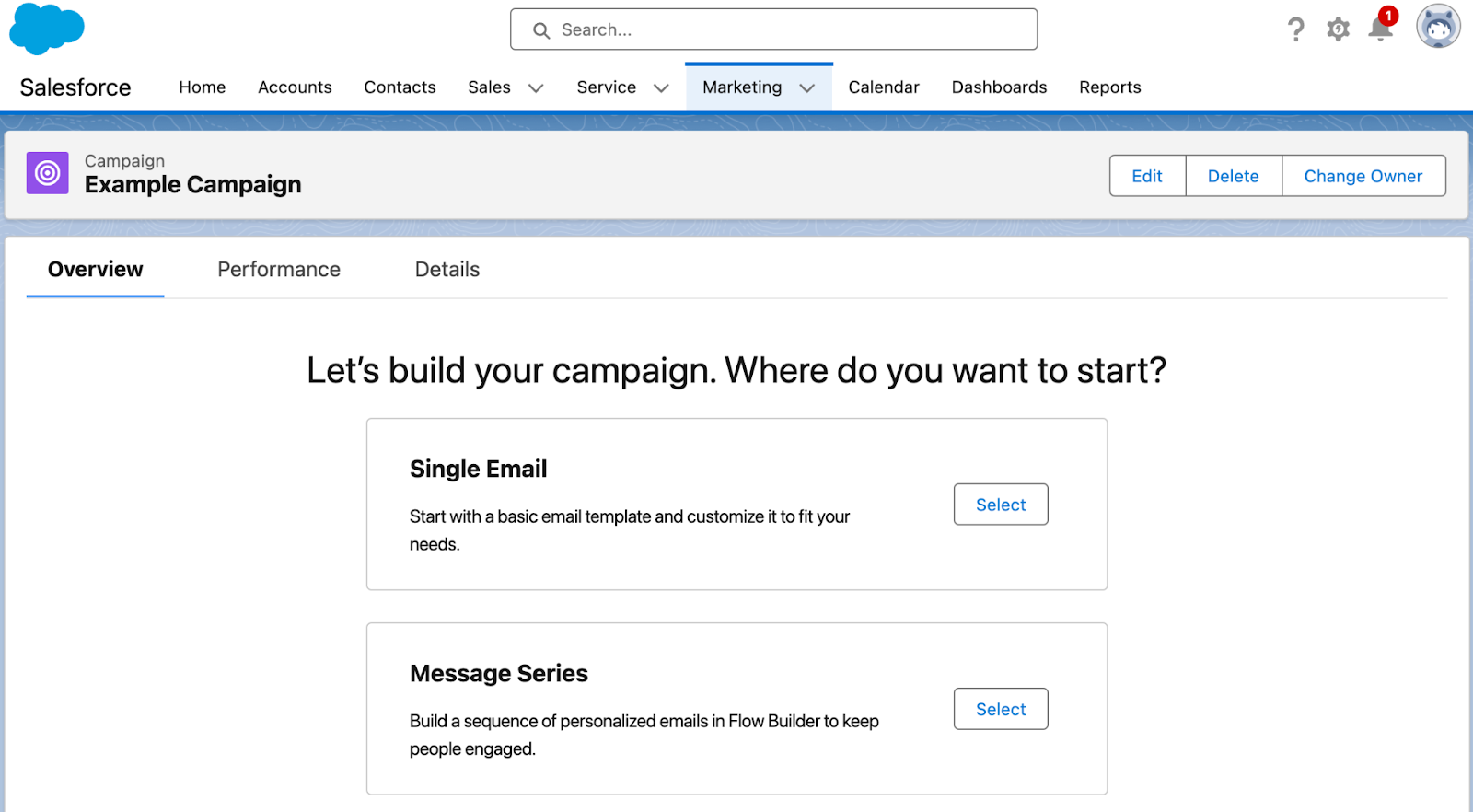
Growth has a campaign-centric workflow and guides users through the process of setting up a new campaign with five pre-set options:

Let’s go through each of these options and what they provide.

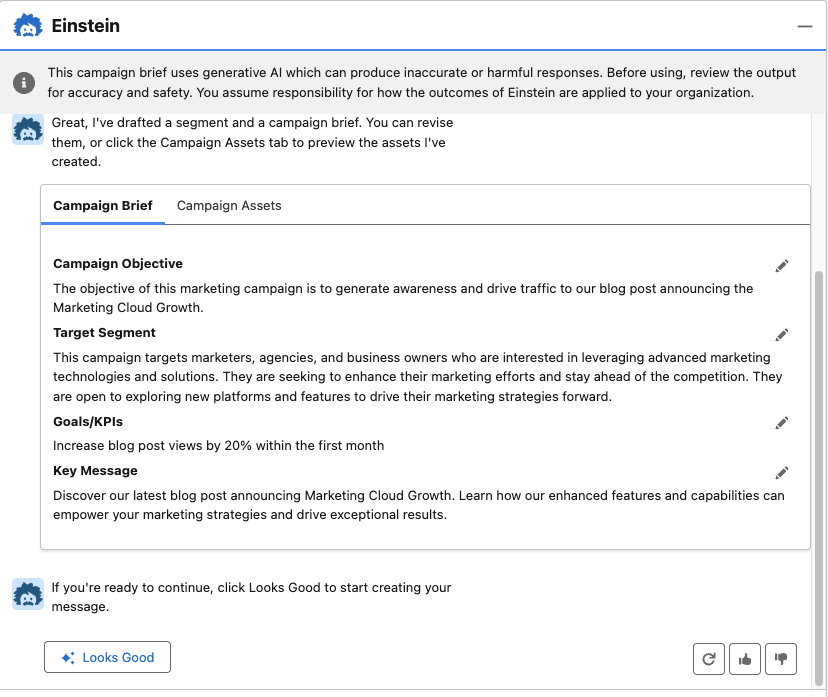
  • Single Email with Einstein: Build your email campaign using Einstein’s generative AI. With this option, you are prompted to describe your email objective (the more detail the better), and Einstein will generate a campaign brief and campaign assets. With all of the content Einstein provides, you can choose to edit, regenerate, and/or upvote and downvote to help the AI learn how to produce better results. 
  • Single Email Template: Begin with a responsive Salesforce email template that you can customize for your campaign.
  • Blank Email Campaign: Start completely from scratch. With this option, you’ll need to add/create your email and segment. A Flow with an empty send email element will also be created to help when you’re ready to send your email. 
  • Message Template Series: Begin with two responsive Salesforce email templates that you can customize for your campaign. This option also provides a flow with a 1-day wait step between emails, but you can customize the flow further to fit your email journey. 
  • Single Form Template: Begin your campaign with a responsive Landing Page template, form, and a flow to create Leads when the form is filled out. 

Building marketing assets with Marketing Cloud Growth 

Marketing Cloud Growth’s assets are built with Experience Cloud, enabling users to easily build responsive assets with a drag-and-drop builder. We’ll do a deep dive into each builder in future blog posts, but, for now, here are some highlights to get excited about:

  • Landing Page SEO capabilities: Landing page public page titles, descriptions, URLs, and even favicons can be customized to improve SEO.
  • Form flexibility: The form builder is intuitive and flexible, allowing users to easily add text, new sections, dividers, placeholder text, and images to forms. 
  • View required form fields: The form builder also allows users to easily view which fields are required for new Lead/Contact creation to ensure any new records can be created successfully.
  • Salesforce Flow automation: All assets are automated with Salesforce Flow, allowing marketers to get granular and customize the next steps and follow-up activities for every asset.
  • Wait step flexibility: Users can set Salesforce Flow wait steps to wait minutes, hours, days, months, or to resume at a specific time.
  • Asset approval workflow: All marketing assets have an optional approval workflow that you can integrate into your marketing team’s existing approval process flow.

(As I mentioned above, we’ll be doing a deep dive on the builders in subsequent posts — so if you have a question on a specific feature, let me know in the comments!)

Marketing Cloud Growth AI capabilities

Marketing Cloud Growth Edition includes AI out of the box so you can take your marketing initiatives to the next level. 

Marketing Cloud Growth Edition AI features include:

  • Einstein Co-Create: Easily build campaign briefs, email assets, and Data Cloud segments with the power of Einstein generative AI.
  • Einstein Send Time Optimization: Ensure prospects receive marketing messages on the day and time they are most likely to engage. 
  • Einstein Metrics Guard: Protects your email activity data by filtering out email security scanner clicks and opens.
  • Einstein Segment Creation: Assists marketers with creating specific audience segments in Data Cloud.

Get ready for Marketing Cloud Growth

I’m excited about the announcement of Marketing Cloud Growth Edition and for the vision of “Marketing Cloud on Einstein 1.” Remember, it will not replace Marketing Cloud Engagement or Account Engagement. If you’re part of a team that’s on the Salesforce platform but not using Salesforce tools for marketing automation, then you may want to explore if this new tool is the right option for you.

Be sure to return to The Spot for more posts about Marketing Cloud Growth. We’ll share all our learnings, tips, and tricks here to help all of you to be successful.

Want to know more about Marketing Cloud Growth, like, today? Then reach out to the team at Sercante to start a conversation.

Salesforce Starter was unveiled in August 2023 as an easy way for small-medium businesses (SMBs) to get started with Salesforce CRM. Historically, SMBs have found CRM systems to be overly complex and difficult to implement, but Salesforce Starter was built with this struggle in mind, allowing customers to get up and running in a matter of minutes while making future growth of the CRM easy.

What is Salesforce Starter? 

Salesforce Starter focuses on sales, service, and marketing and provides guided onboarding to ease users into Salesforce CRM. It’s an easy-to-use platform that’s aimed at getting teams at small businesses up and running with a CRM that can grow as the company scales.

The best part is that getting up and running with Salesforce Starter brings your data into the platform. You’ll avoid some migration expenses later on if you outgrow Salesforce starter and decide to implement other Salesforce clouds to replace it.

What marketing functionality is included in Salesforce Starter?

Salesforce Starter’s marketing features focus on emails, segmentation, and, with Pro Suite, process automation. The marketing features work a bit differently than what we’re used to with Marketing Cloud Account Engagement and Marketing Cloud Engagement. But if you’re familiar with the Lightning Email Builder and Salesforce Flows, you’ll be able to pick up Salesforce Starter’s marketing functionality pretty easily. 

Campaign-Centric Workflow

Marketing in Salesforce Starter revolves around the Campaign. Once you’ve created a campaign, you’re guided to choose between creating a single email (similar to a List Email for Account Engagement users, or a single email send for MC Engagement users) or a Message Series (similar to a “Engagement Studio Program” for Account Engagement users, or a “Email Journey” for MC Engagement users).

Segmentation

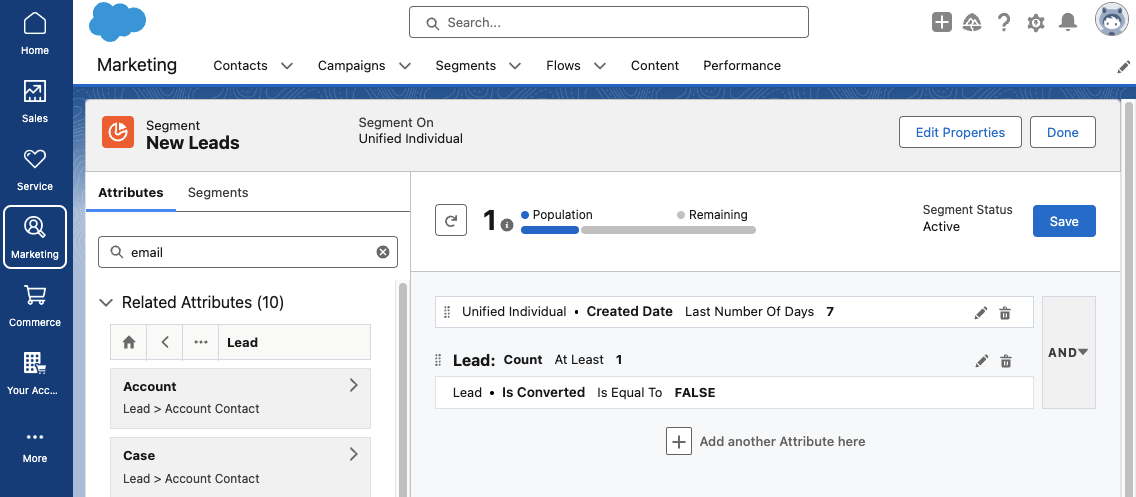
Segmentation in Salesforce Starter is handled with Data Cloud, which allows you to create a unified customer profile and harness data from all interactions your Lead/Contact has with your company. If you’re new to Data Cloud segmentation, I highly recommend working through the Segmentation and Activation Trailhead module to get a feel for creating and editing Segments in Salesforce Starter. This help article also provides several Segment examples to help you get started. 

Before we start building our first email, we’ll want to set up an Audience Segment. A Segment is required to preview and test your email, so we’ll want the Segment running while we’re building the email. Click Select Audience from your Campaign page to begin, then select New Segment. 

Building Emails in Salesforce Starter

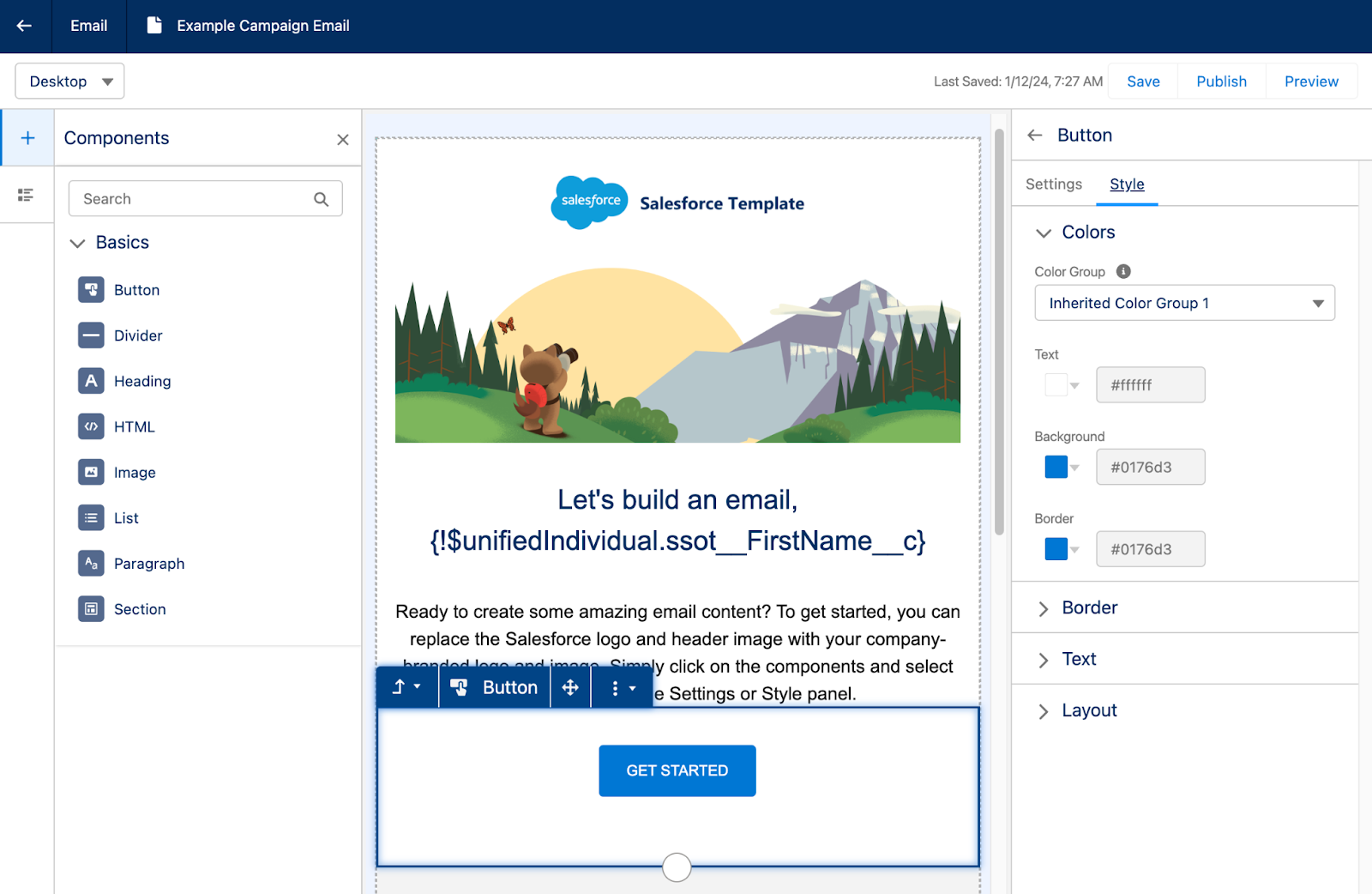
Building emails in Salesforce Starter feels familiar to the Lightning Email Builder. You’ll start off with a pre-built email template that can be edited by dragging and dropping components from the left side menu. Custom styling can be configured on the right side menu and will change depending on the component you have selected. 

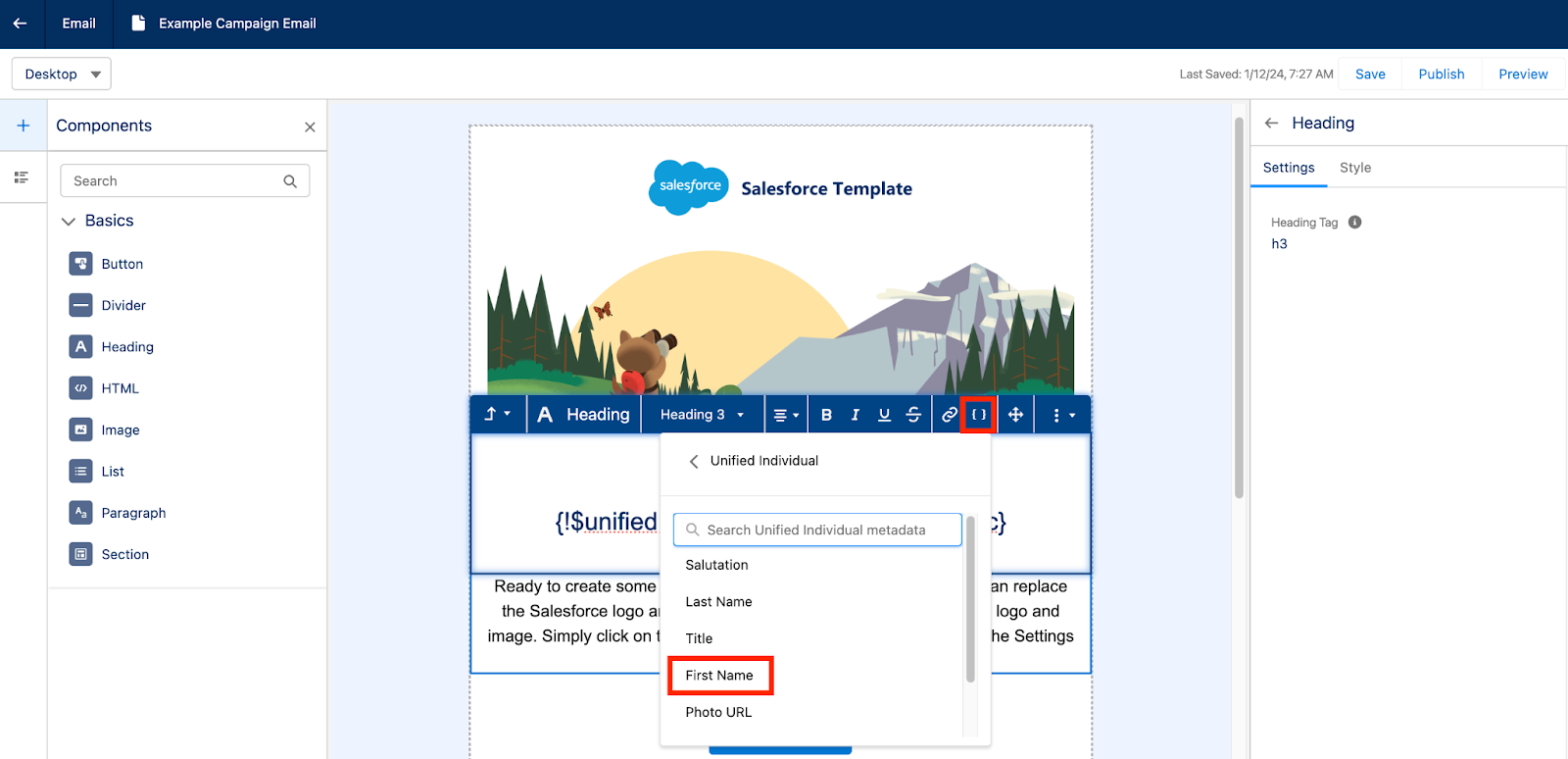
Merge tags can be inserted to personalize the email for each recipient. These merge tags rely on the Data Cloud unified individual rather than having to choose a specific Marketing Platform or Lead Object field. 

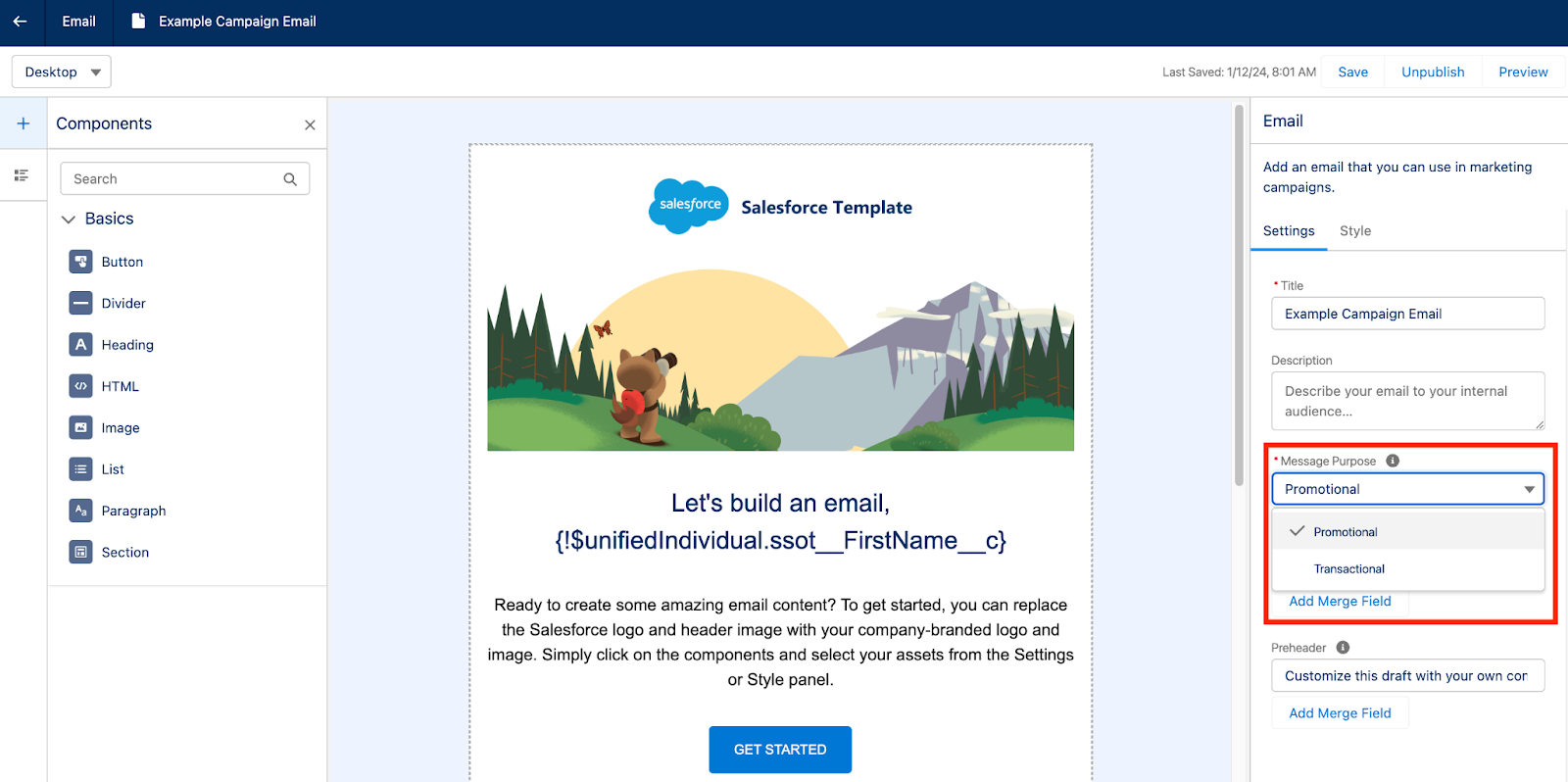
Salesforce Starter also supports sending transactional, also known as operational, emails by toggling the Message Purpose field.

Once you are done building your email, make sure you select Publish before previewing and testing your email. Publishing the email will ensure all the associated images are published and won’t be broken during testing. 

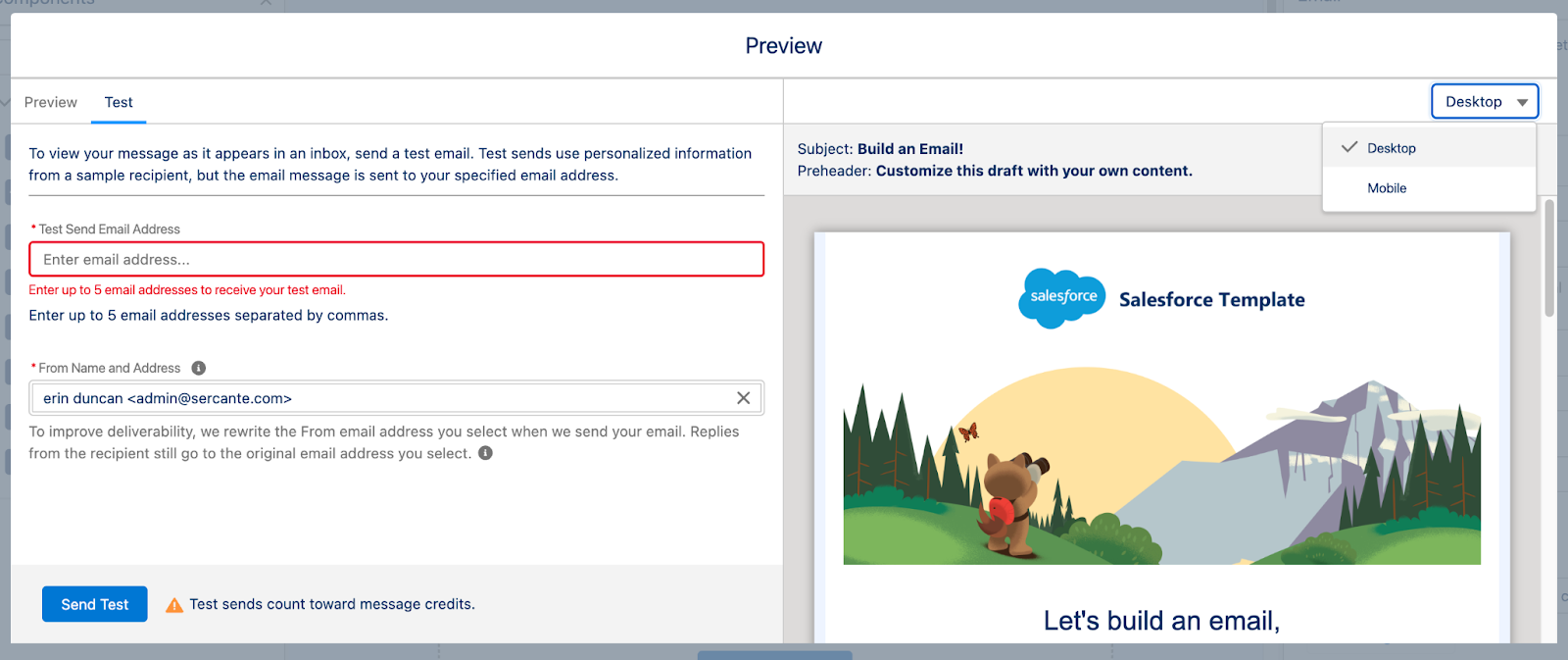
The Preview option allows you to toggle between Desktop and Mobile views to ensure your email is responsive. You can also send your team a test email for review, but note that test sends count towards Salesforce Starter’s base credits of 2,000 emails per org/month.

Sending Single Emails with Salesforce Starter

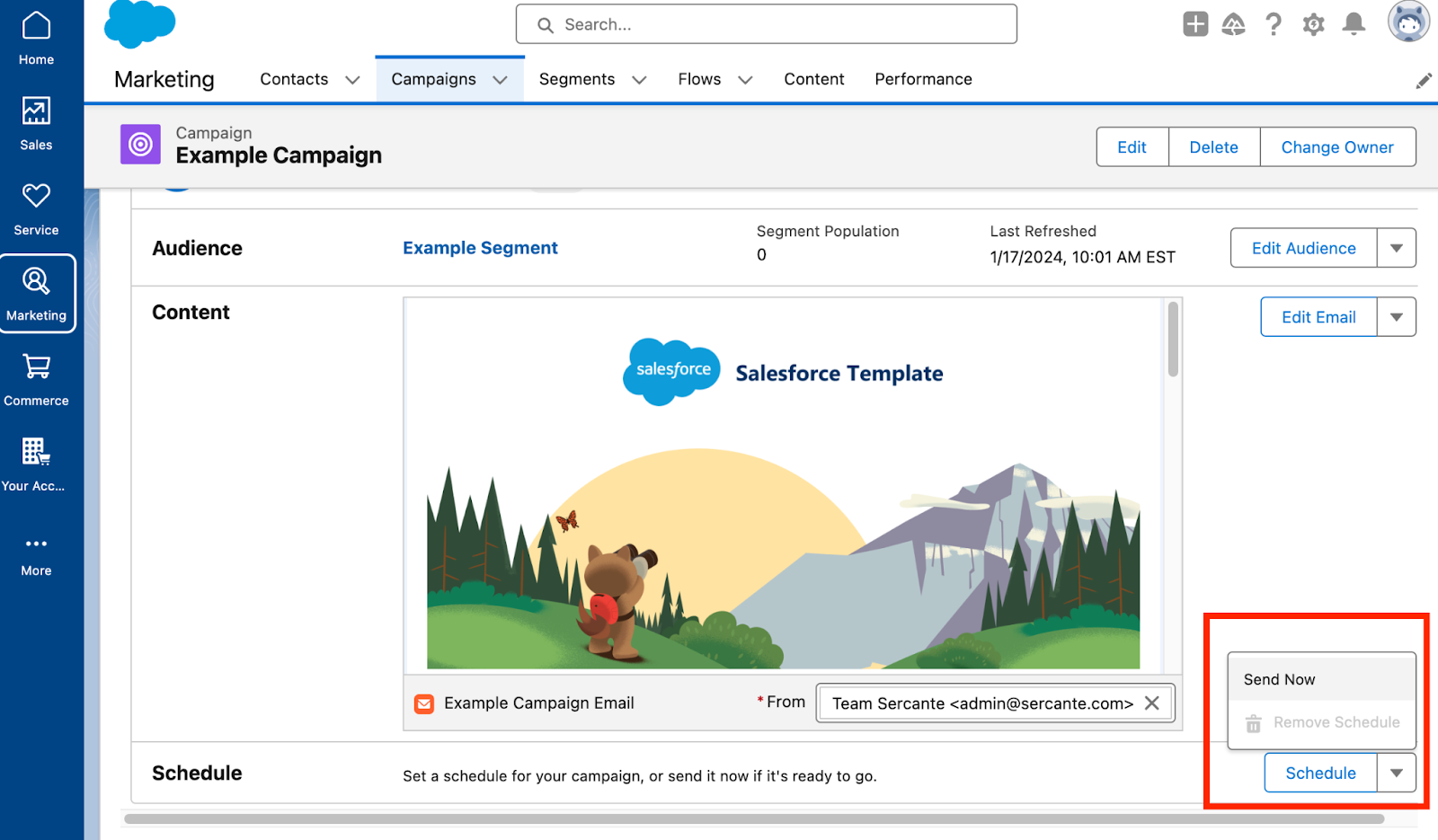
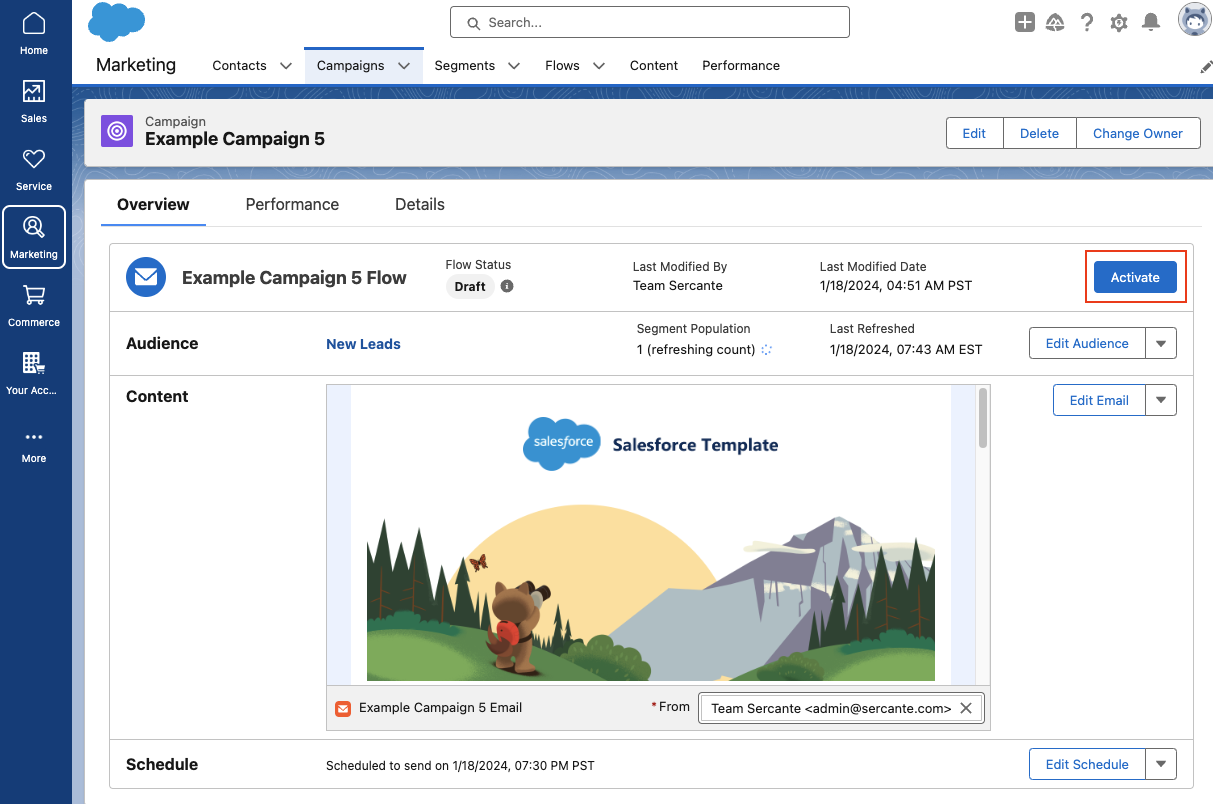
If you’re sending a single email, navigate back to the Campaign Overview page and select Schedule or Send Now.

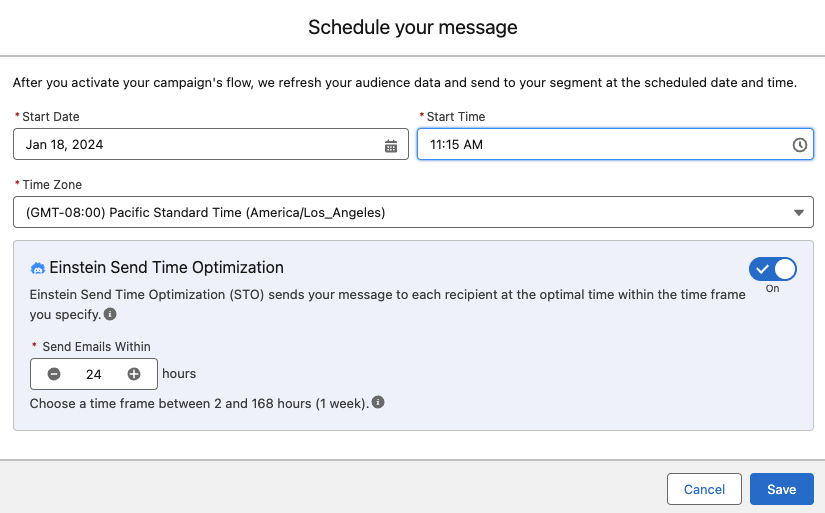
When scheduling, Einstein Send Time Optimization is available to help select the best time for each recipient on your Audience Segment. Check out our blog post, Pardot Einstein Send Time Optimization: A How-To Guide, for more information on how Einstein Send Time Optimization works.

If you’ve selected Send Now your Email Campaign Flow will automatically be activated. However, if you are scheduling the email in advance, you’ll need to manually select the Activate button to ensure the Flow is ready for this email send. 

Sending a Message Series in Salesforce Starter

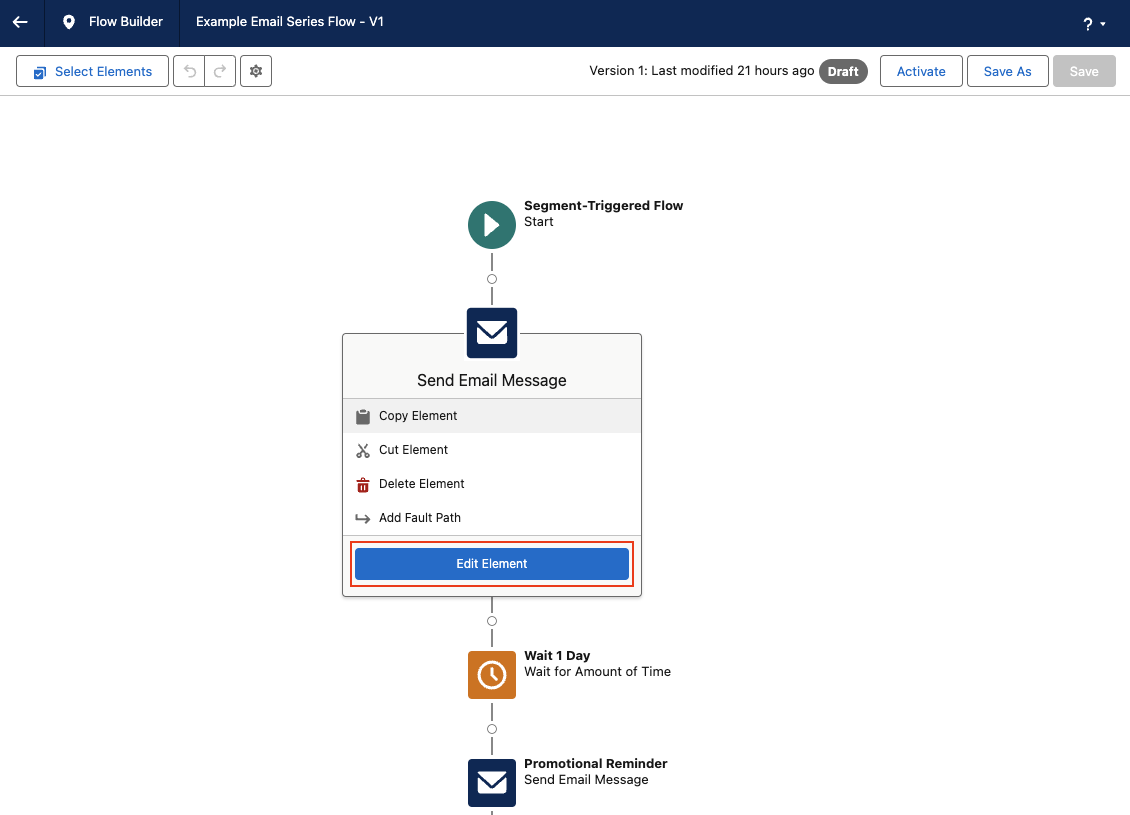
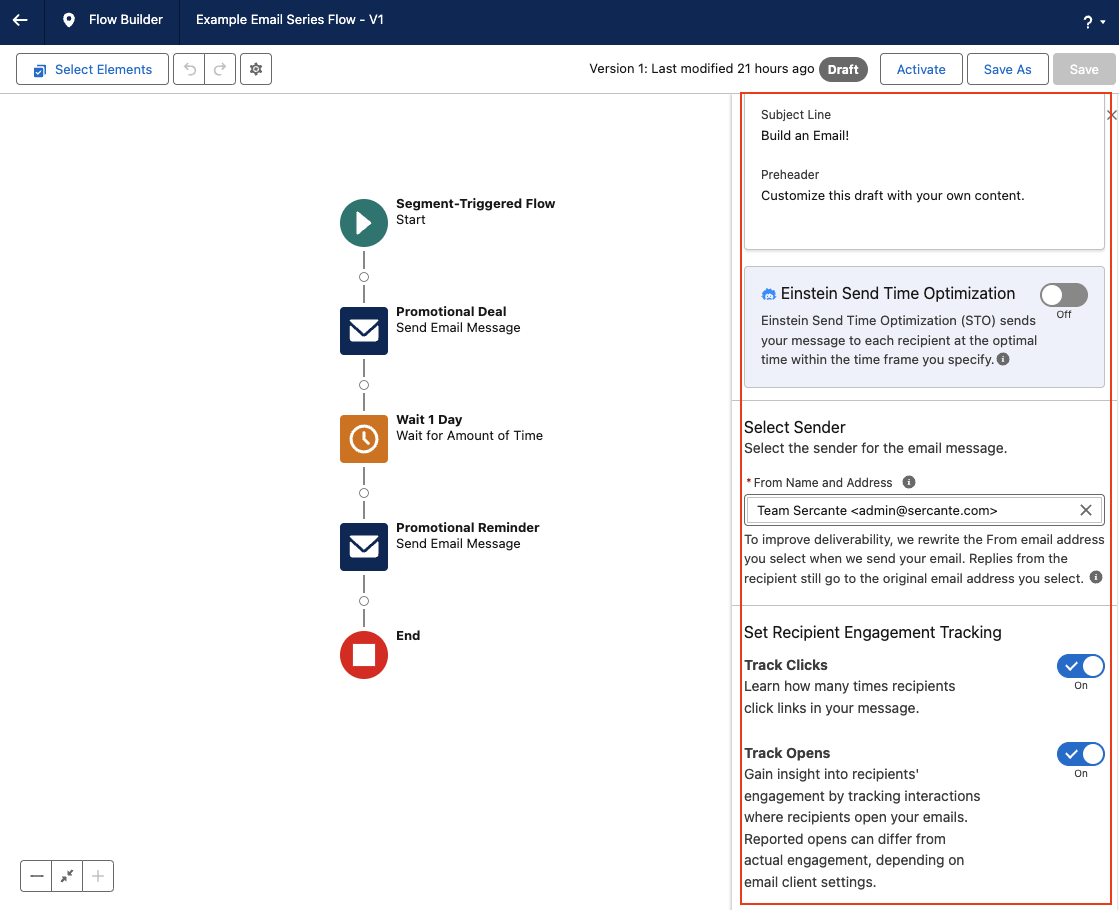
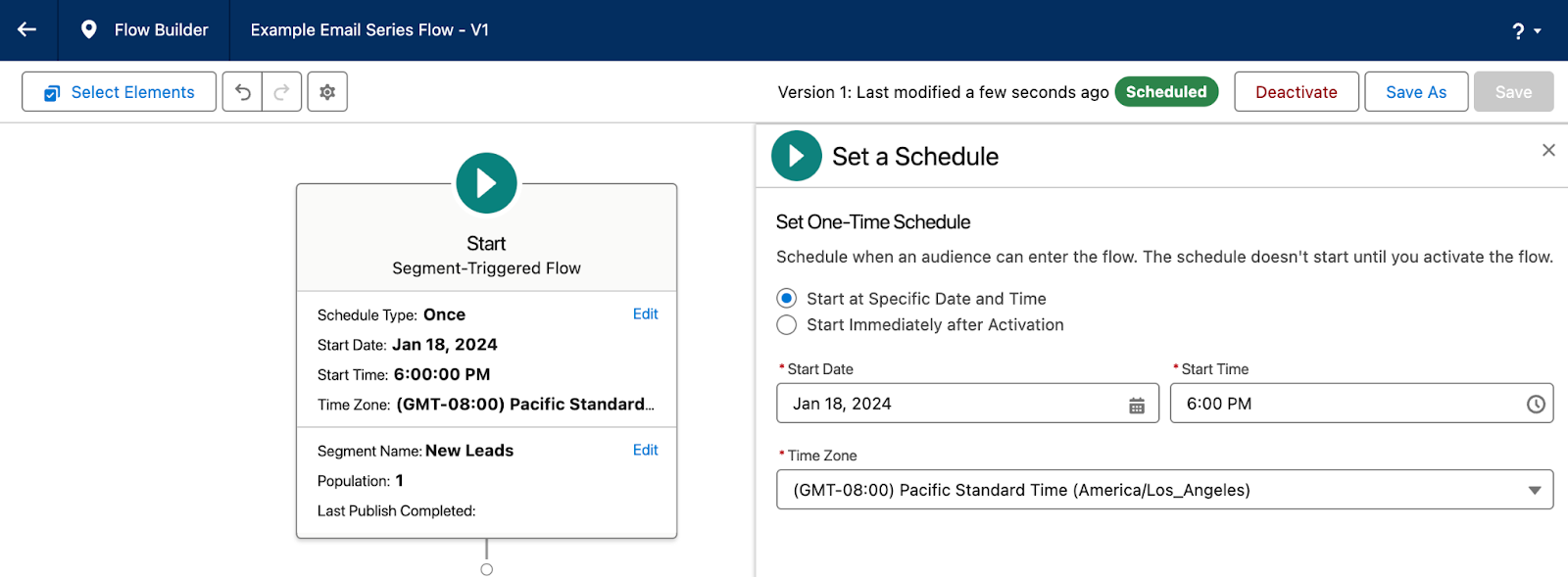
If you’re sending a message series, you will have to first edit your Flow so you can configure the schedule, segment, and wait steps between each email send. By default, the Message Series Flow will be built with a 1 day wait step between each email, Einstein Send Time Optimization is disabled, and Track Clicks and Track Opens is enabled. All of these settings can be reconfigured by clicking each element within the flow. 

Make sure you select the Start element to configure your segment and schedule. 

Once you’ve finished configuring your Message Series Flow, make sure you Save and Activate the flow before navigating back to the Campaign overview page. 

Now, if you are new to Flow and the steps above are causing a bit of existential dread, don’t worry! Flows seem a little intimidating at first, but I promise they are pretty easy to use and you can do some really neat things with them. Check out our blog post, An Introductory Guide to Salesforce Flow for Marketers, or the Flow Builder Basics Trailhead Module to get more familiar with Flows. 

Salesforce Starter Reporting and Performance

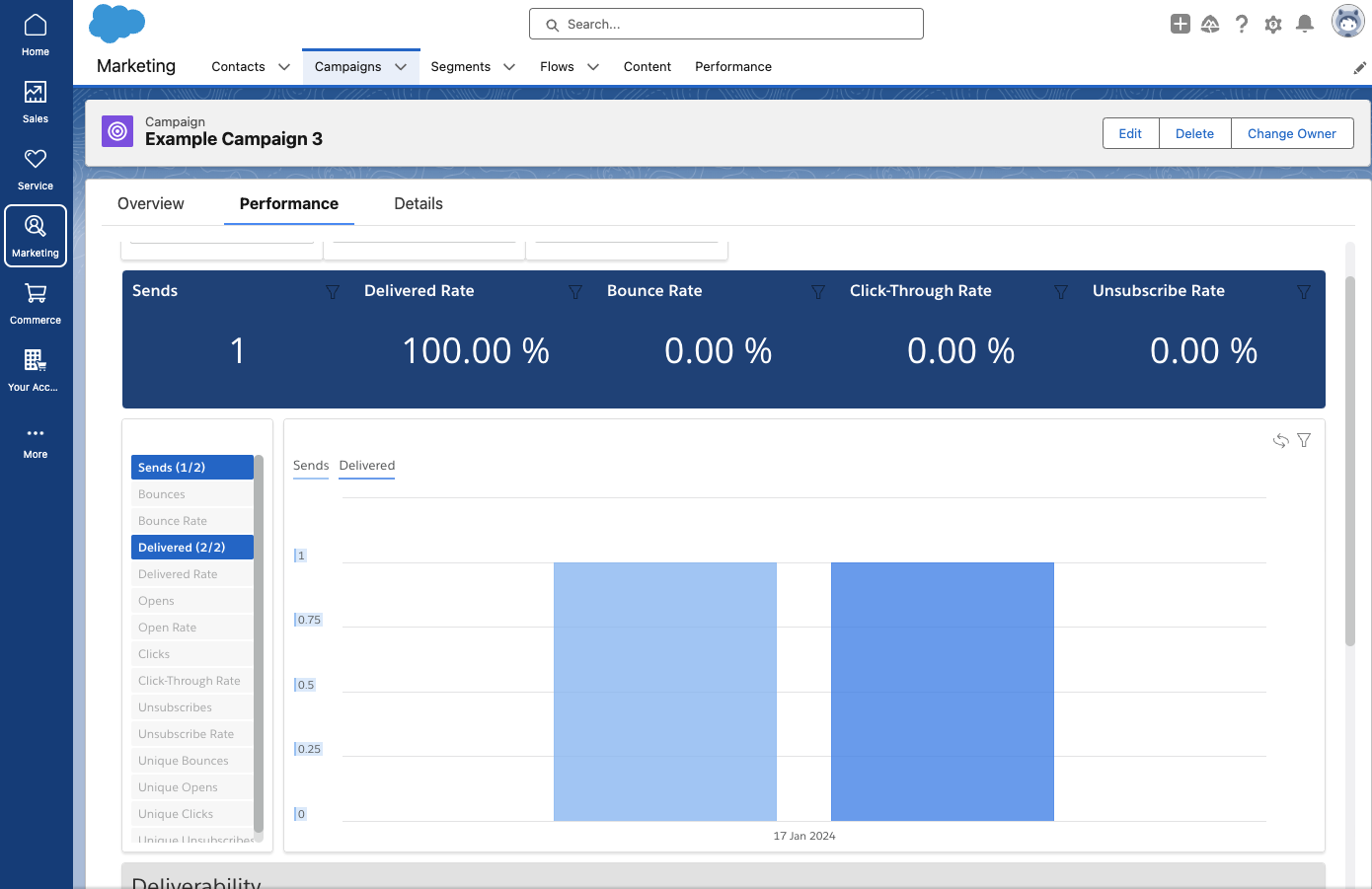
Salesforce Starter automatically collects and displays aggregate engagement data about your campaign on the Performance page. Common metrics, such as opens, clicks, unsubscribes, bounces, etc. can all be viewed in this prebuilt dashboard. 

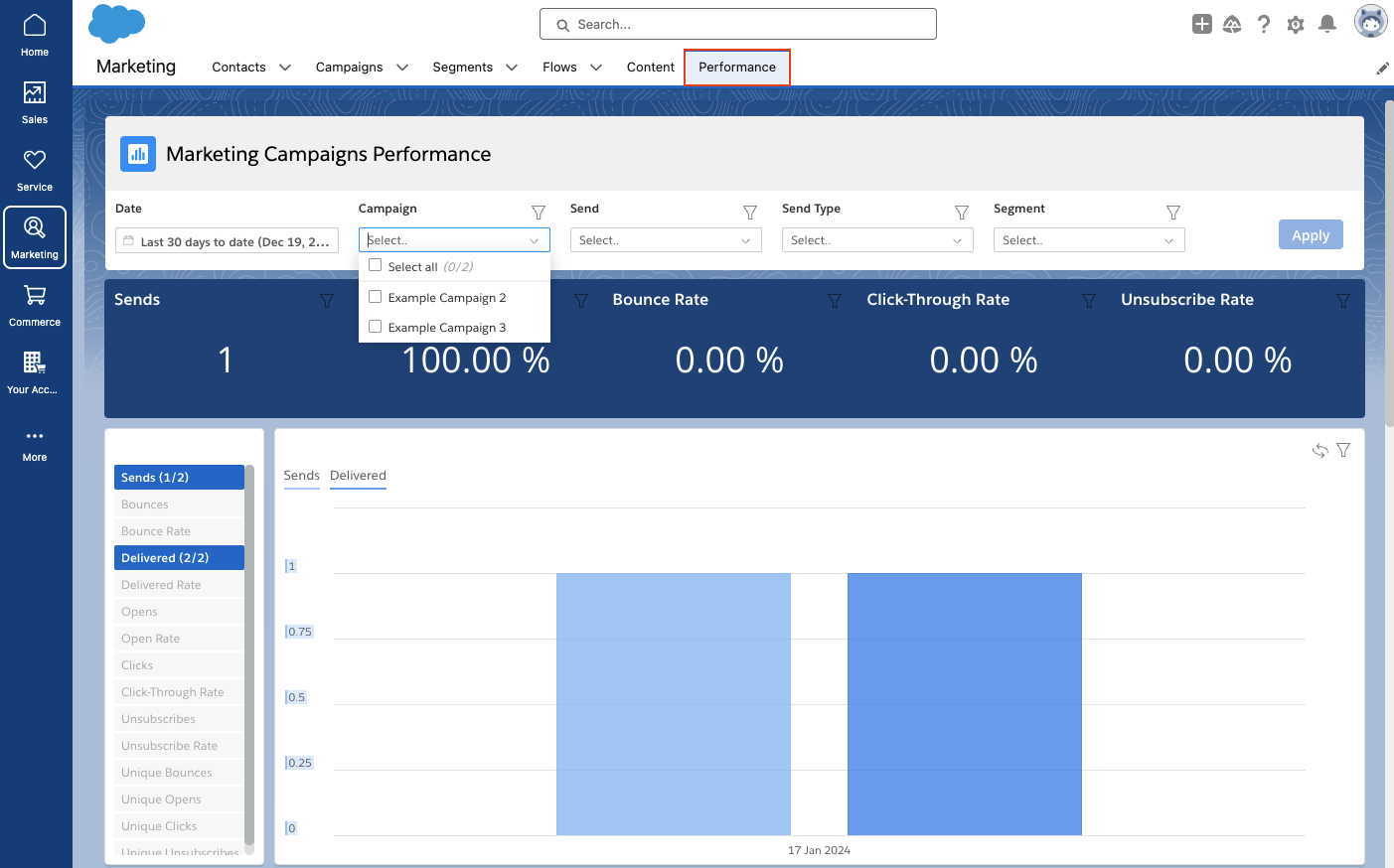
To view the Performance of multiple Campaigns, navigate to the Performance tab. In this view you can filter your dashboard by date range, campaign(s), individual sends, send type, and even segments.

Salesforce Starter — easing small business marketers into CRM life

And there you have it! In summary, Salesforce Starter is a great way for SMBs to get started with CRM and Marketing Automation. As your company and familiarity with CRMs expands, you may outgrow this edition. But the great thing about Salesforce Starter is that you can avoid migration costs because your data is already in the Salesforce platform if you outgrow the product at any point. 

Reach out to the team at Sercante if you have any questions or need help figuring out if Salesforce Starter is the right tool for your team.

As your business grows, so does your Marketing Cloud Account Engagement org. And that’s a good thing. Inevitably you’ll reach a point where your org is stretched too thin. 

You may start to experience issues such as:

  • Frequently hitting System Limits (Automation rules, ESPs, Mailable Database, etc.)
  • Difficulty locating the right assets and segmenting Prospects
  • System Processes running slower than expected
  • Struggling to manage the traffic flow of outgoing emails

There’s no need to panic. When your org is at maximum capacity, there are a few strategies you can follow to optimize your system. Here they are:

  1. Establish regular maintenance and clean-up policies.
  2. Upgrade your Account Engagement edition.
  3. Split your org into multiple Business Units.

Let’s take a look at each of the strategies you can use to prevent org growth issues or address them so you can keep getting the most out of your Account Engagement org.

Establishing Maintenance and Clean-Up Policies

Regularly archiving old assets and prospects is the best practice for all orgs. These strategies will not only keep your system running smoothly and make assets easier to find, but they also protect your sending reputation by preventing you from emailing old, unengaged prospects. 

I like to establish criteria for my regular clean-up efforts in advance. This allows me to ensure other stakeholders are on board with the archiving guidelines and makes the process easier to repeat each month or quarter. 

Below are some of the criteria I use to clean up our internal Sercante org each month:

  • Archive Forms that have not been completed in 2+ years
  • Archive Landing pages with no views in 2+ years
  • Archive Automation Rules that have been paused for 3+ months or have not matched a prospect in 12+ months
  • Archive Prospects who have been inactive for 18+ months and are not associated with an open opportunity
  • Archive any assets with names containing “Test”, “Delete”, “Demo”, or “Example”

The Account Engagement Optimizer will also help you proactively spot potential issues or causes for system lag, so make sure you regularly review your Optimizer report as part of your regular maintenance efforts. 

We have several blog posts that will help guide you through establishing your maintenance and clean-up policies.

If you’re still running into issues after cleaning your org, it may be time to consider an edition upgrade and/or Business Units. 

Upgrading your Account Engagement Edition

If you’re constantly hitting system limits after archiving old processes and assets, it may be time to upgrade your Account Engagement Edition. Below is an overview of the system limitations for each edition. Keep in mind that Advanced and Premium Editions come with added features, such as Einstein and Marketing Data Sharing, that can help streamline your processes as well as extend limits. 

Edition
FeatureGrowthPlusAdvancedPremium
API Access – Calls Per Day25,00050,000100,000100,000
Automation Rules50100150150
Mailable Prospects10,00010,00010,00075,000
Custom Object Integration––44
Engagement Studio Programs20100200200
Repeating ESPs10101015
External Activity Extensions–102030
External Activity API (Daily)–50K100K100K
File Hosting100MB500MB10GB10GB
Forms50UnlimitedUnlimitedUnlimited
Landing Pages50UnlimitedUnlimitedUnlimited
Tracker Domains3102020

Moving to Multiple Business Units

If the above options will not solve your org woes, it may be time to consider splitting your org into multiple Account Engagement Business Units. 

Business Units (BUs) allow you to partition your database while still being connected to the same Salesforce instance. Partitioning your database is a great strategy whenever you have disparate marketing teams or multiple unique audiences that require distinct marketing assets.

Typical partitions are by Region, Product, Brand, or Industry Vertical. The Advanced edition includes 2 BUs, Premium includes 5 BUs, and additional BUs can be purchased as an add-on.

Benefits of Multiple Business Units

  1. Each BU has its own limits in regard to the number of automations, the number of Engagement Studio Programs, etc. 
  2. Each BU has its own sending IP and sending reputation
  3. Each BU can have an Email Preference Center and email opt-in process unique to its own needs.
    • This is especially beneficial when splitting BUs by region and complying with each region’s spam/compliance requirements
  4. Scoring and Grading is separate and unique to each BU
  5.  User access and roles can be changed (and automated) per BU
  6.  Account Engagement Account Settings can differ between BUs (i.e. operational emails, connector settings, 1st/3rd party tracking, etc.)

Considerations for Multiple Business Units

  1. Mailable Database limits are shared across business units. So, if you’re constantly hitting against your mailable limit, Business Units won’t solve your issues. You will need to either reduce the number of mailable prospects in your org or purchase additional Contact blocks. 
  2. Only platform assets are easily shared between BUs. Platform assets consist of Snippets as well as Emails and Landing Pages built in the new Lightning Builders. All other assets can be copied and transferred between BUs using the Bulk Asset Copy Flow. 
  3. BUs do not share Campaigns. When using multiple BUs, you need Campaign record types to manage which campaigns sync to which BUs. A campaign record type can only have a one-to-one relationship with a BU.
    • Campaign hierarchies can be used as a workaround to view a campaign’s metrics across BUs. In the example structure below, you could have the two BU campaigns nested under a parent campaign in order to view the metrics across both campaigns.
      • Webinar ABC (Parent Campaign)
        • Webinar ABC US (Syncs to the US BU)
        • Webinar ABC EU (Syncs to the EU BU)
  4. BUs cannot share the same Tracker/Vanity Domain

If Business Units sound like the best next step for your org, check out some of Business Unit blog posts for tips on getting started:

Solving Account Engagement Org Growth Challenges

Need help figuring out how to deal with your Account Engagement org’s growth? Contact the team at Sercante to start a conversation.

No more posts to show