These are the features we’re going to start using ASAP.
What CRM Analytics features are there to love in the Salesforce Summer ‘22 Release?
They said it was coming. They said it would be here soon. Now it’s here. The CRM Analytics data manager has gotten a facelift and some groovy new features.
Flows are headed out the door. Hello recipe driven data sets! Will you be ready?
Read ahead to find out how some of these new features will change the way you use CRM Analytics
Reviewing Usage of CRM Analytics limits
Viewing usage is now a breeze! No more wondering what the limits are or how close you are to reaching them. This usage is unique to what’s used by CRM Analytics. I’ve been using this feature since the beta so I can’t even remember how we did it before.
All recipes, all the recipes, all the time (well pretty soon)
The retirement of flows is imminent. No, they won’t disappear, but this release shows that a strong “nudge” is being given to moving away from Data Flow (happy dance on my part).
Side note: the Flow to Recipe conversion (Beta) does not appear to be ready for primetime and flows are not going anywhere any time too soon!
As part of this transformation, new Recipe features are being released to close the gap.
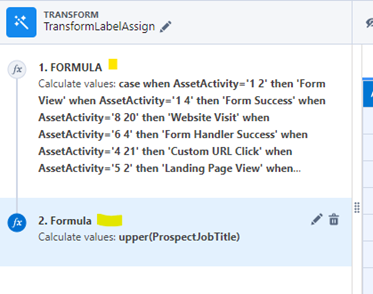
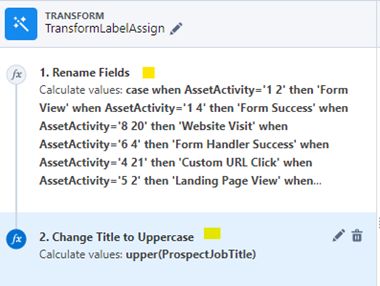
You now can give each step in a transform a name in a recipe
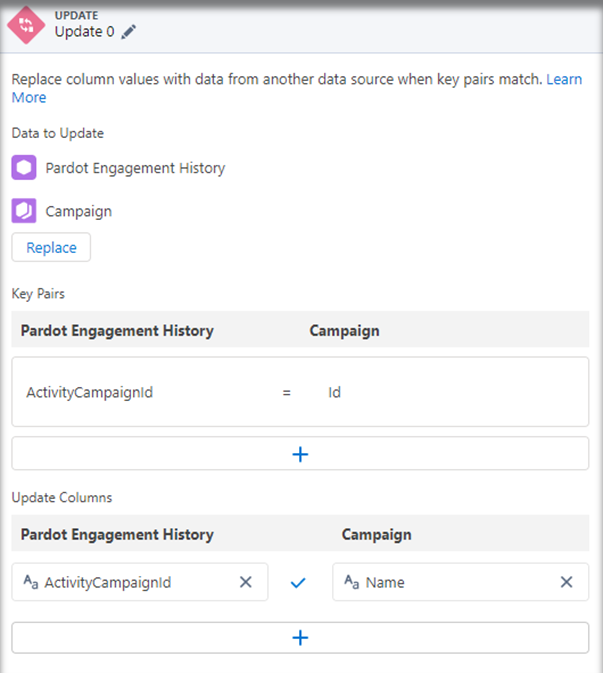
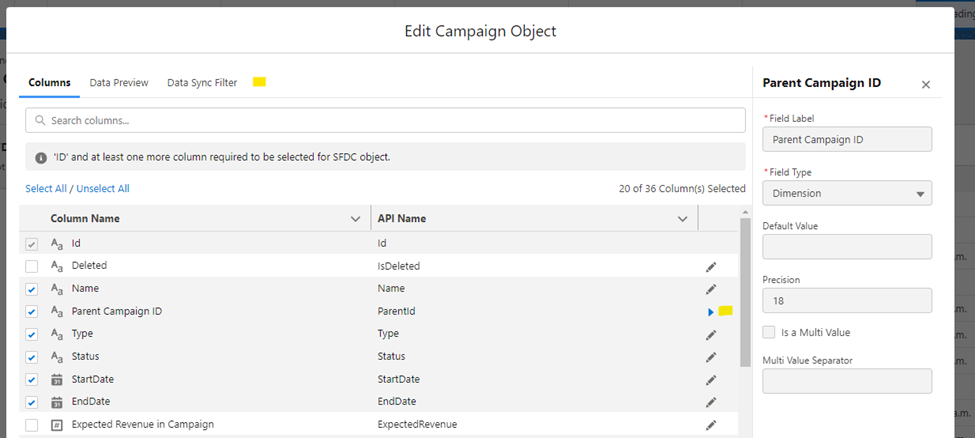
Use Case: The update can be used to replace fields with those from another table. For example, instead of joining and adding a bunch of fields, you can update the Campaign name directly in related objects — less complexity and mess!
Improved Data Sampling in Recipes
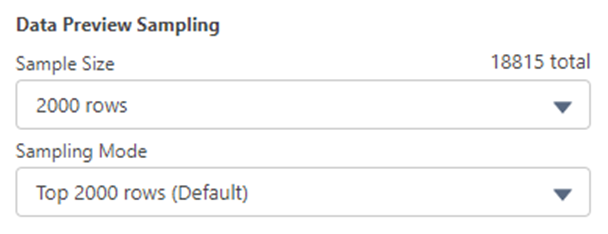
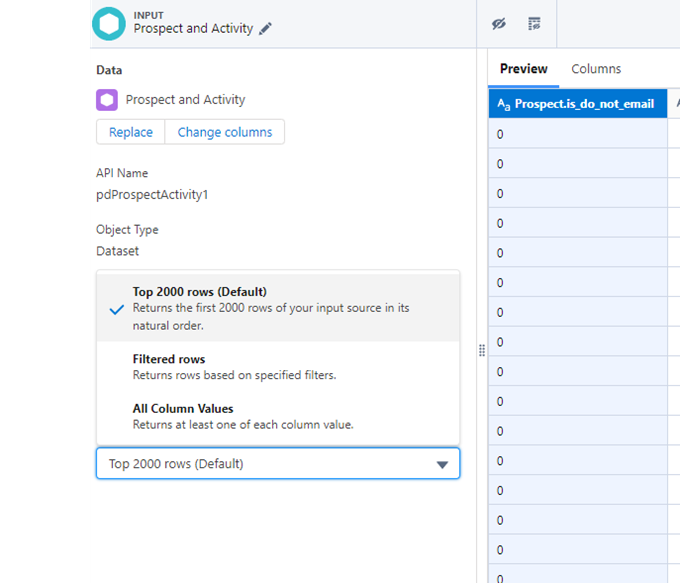
Select how you want the preview to work!
You can now select a “sampling mode.” This is REALLY useful when the results you want to see might not exist in the initial rows returned (like when you are selecting filters). No more guessing when bucketing and filtering your values!
The connections area now has a simpler layout. That means seeing what’s available for use has never been easier. You can also view filters, multi values and other specific information about your connected data sources in one screen.
When selecting connectors (add connector) you can now pick the type easily and see what options are available (and the list is growing). Open any object to see the new streamlined layout!
Improved Data Manager Layout
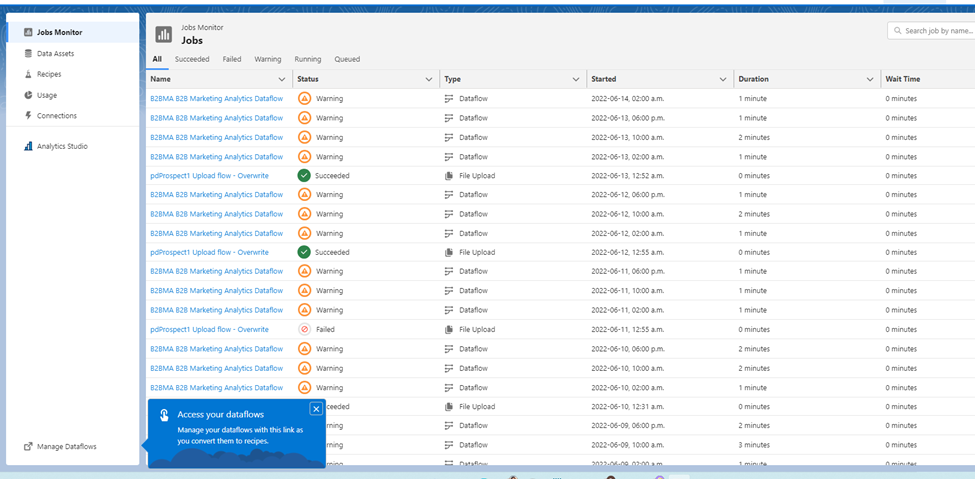
It’s now super easy to see what’s happening, happened or will happen!
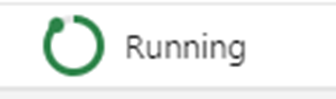
And finally, a small but wonderful change…. The status “circle” in Data manager now actually means something. The “green” shows how much of the recipe/dataflow has run so you can have some idea of how far into the process your data generation has gone!
Maybe one of the most compelling things about the changes has nothing to do with what you can do, but with what you can now easily SEE. With all the possibilities becoming more visible, I anticipate many CRM Analytics admins and users digging into more of what the product has to offer.
Let us know what you’re working on in the comments section or reach out to us here.
If you’ve ever experienced email bounces in Pardot (and chances are you have), you’ll know that reporting on and exporting them has been a labor-intensive task.
That all changes now.
As part of the Summer ‘22 Release, marketers have been blessed with a new tool for Marketing Cloud Account Engagement (Pardot) called Email Bounce Report.
It’s a feature that shows who, when and why prospects bounced. And it also allows you to export all that insightful data.
That’s right, our prayers have been answered. We no longer need to manually pull this data from each and every email report.
What is an email bounce rate?
First, let’s understand what a bounce rate is.
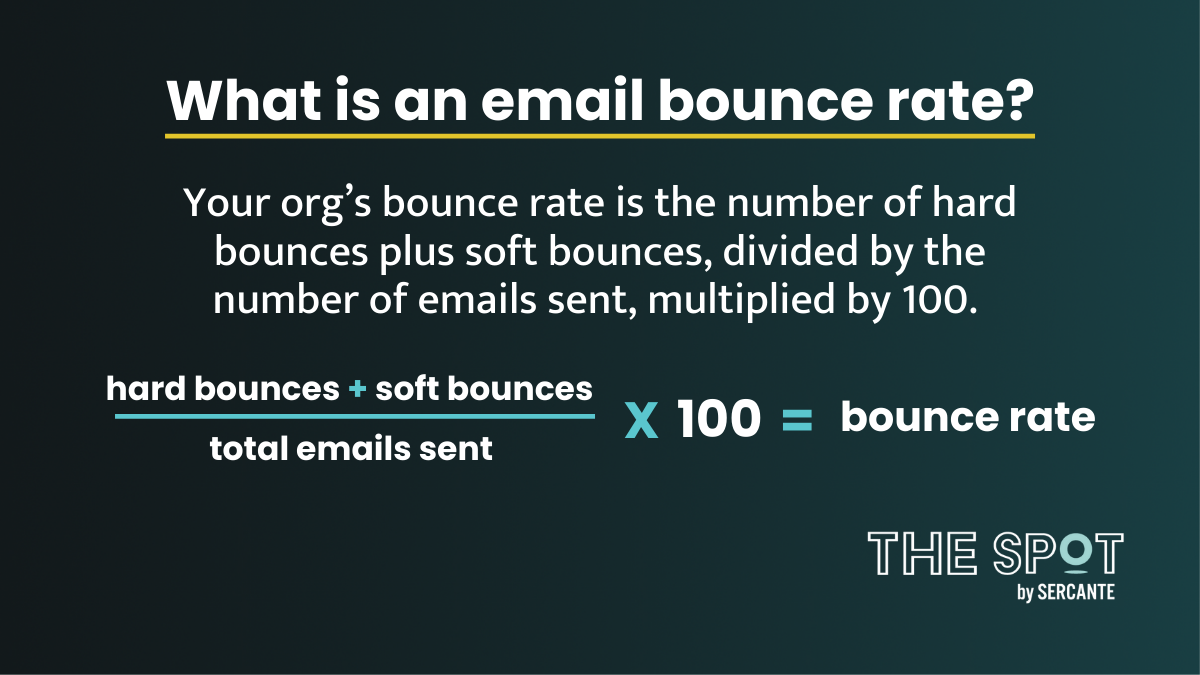
Your org’s bounce rate is the number of hard bounces plus soft bounces, divided by the number of emails sent, multiplied by 100.
In B2B marketing, anything below 10% is considered a good bounce rate.
It’s good practice to monitor your bounce rate. And this report helps you do just that!
Who can get the Pardot Email Bounce Report?
This report is available on all Pardot editions, and it includes bounced email addresses from both Pardot Classic and Lightning.
The report is pretty comprehensive and shows bounce data for ALL Pardot prospects. We’ll go into some of the use cases in another blog post.
From total number of email bounces (filtered by date) to bounce reasons, this report has it all. And yes, all of the bounce rate report data is exportable.
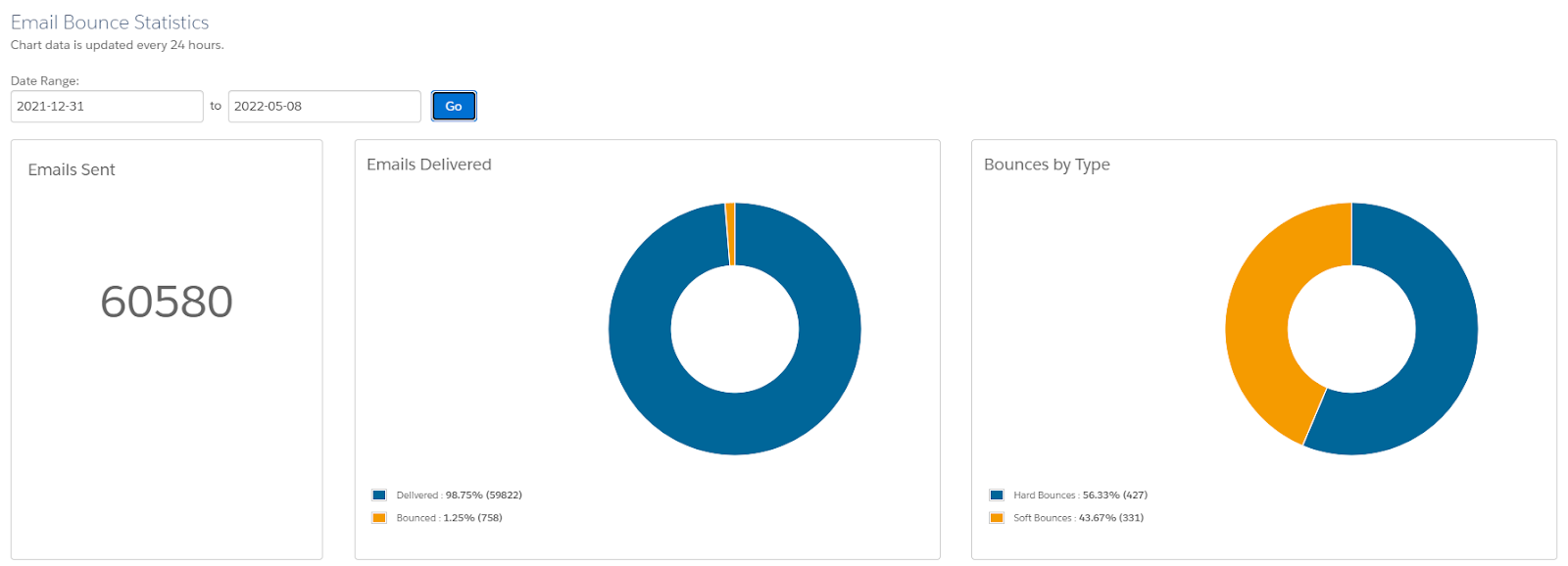
Found under marketing reports, you are greeted with a chart illustrating,
All emails sent over the last year – one year from todays date – so if its the 12 May 2022, you can go back to 12 May 2021. Personally, I’d hope this is amended in future updates as it would be useful to see further than the last year in some cases.
Total emails sent
Total bounced & delivered
Bounce by type – Soft vs. Hard
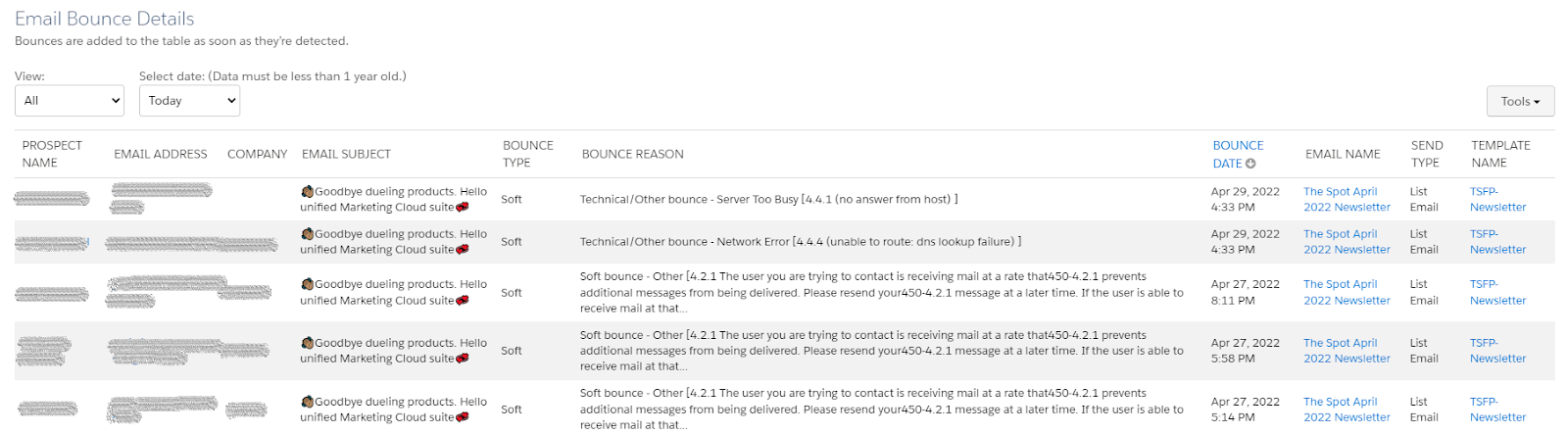
Scroll down, and you get to the good stuff… the bounce details, including bounce reason.
It’s no good seeing the number of bounces you’ve received if you can’t do anything about it. Filtered by bounce type and date, the Email Bounce details table tells you:
Prospects who have bounced
Email addresses and company names
Email subject
Bounce type
Bounce reason
Bounce date
Email name – linked
Email send type and template name
Why is the Pardot email bounce report so useful?
Understand why your emails are bouncing
From full inboxes, invaild email address and none responsive servers, there are a number of reasons why your emails may bounce. This report helps you understand those reasons and potentially act on them.
Types of bounces
Soft bounce – Occurs when an email is recognized by the recipient’s mail server but is returned to the sender because the recipient’s mailbox is full or the mail server is temporarily unavailable.
These prospects may be able to receive emails at a later time. However, after an email soft-bounces five times, Pardot will mark the prospect as undeliverable and suppresses them from receiving emails from you.
Hard bounce – Occurs when the prospect’s email address is invalid, the domain name does not exist, or the sender is suspected as spam and/or has been blocked. Prospects with a hard bounce are no longer mailable.
Bounce reasons – If you’re able to resolve the email bounce issue, you can reset the bounce count on the prospect record and start mailing them again.
2. Spot trends and take action
Use the report and export feature to filter and identify trends that may be contributing to you bounce rate, such as:
Particular templates that continuously bounce
Subject lines that cause bounces – Spammy subject lines?
Dates of email sends – Think back to the Google outage way back December 2020. Are there any significant dates when bounces were high?
Certain companies/ email domains – Contact the recipient and ask them if they’ve configured an email rule that forwards incoming email messages from you to another destination. Their rule could have tried to send a copy of your message to a bad email address. Or, have you simply misspelled the address/email domain?
3. See the bigger picture
Ever sent an email and thought “wow, that bounce rate was high!” You may have wondered if this was an isolated incident or if bounces were in fact an issue in your org?
Often marketers see a few emails with high bounce rate and assume they are destined for failure when it comes to getting their message into the inbox of prospects. Using this report, you can see the bigger picture. Then, you can understand how many bounces you have IN TOTAL out of all the emails sent in the last year.
4. Keep your Pardot data clean
Bounces often relate to the quality of your data and a low bounce rate overall indicates a healthy and clean org. Knowing how big of a problem bounces may (or may not) be can help with keeping your org clean and relevant.
Using the “Reset” feature found on individual prospect records you can reset bounces (hard and soft) and give yourself a second chance.
Still no luck? Consider removing these prospects, particularly if the bounce reason is permanent.
5. Avoid Salesforce account suspension
Salesforce is super serious about permission-based marketing. And its reputation as an email service provider, as well as your reputation as an email sender, is why they monitor accounts with bounce rates over 10% (as well as high spam complaint rates).
If Salesforce notices an issue with either of these numbers, they can suspend email sending from your account.
What can you do to lower your email bounce rate?
No email service provider can ever guarantee your deliverability rates — that’s down to your email practices and behavior.
Here are some things you can do to help with your email sending reputation and lower those bounce rates.
As above, understand why your emails are bouncing and take action.
Understanding email bounces is a big win for marketers
Armed with the data behind the bounces, this report is a win for marketers serious about their email sending reputation. However, if you’re left feeling confused, worried or overwhelmed by the numbers, reach out to the Sercante team to see how we can help.
Knowing the who, what, when, and how of Salesforce and Account Engagement (Pardot) sync behavior is key to understanding how you can use the integration to your advantage.
If you’re a newbie to Marketing Cloud Account Engagement (Pardot), then you may be wondering how in the world this system communicates with the main workhorse of Sales Cloud (Salesforce).
Well, follow me my little pretties, as we look behind the curtain of the Wizard of Oz to find out how it really all works.
1. The Who: Identifying the Wizard
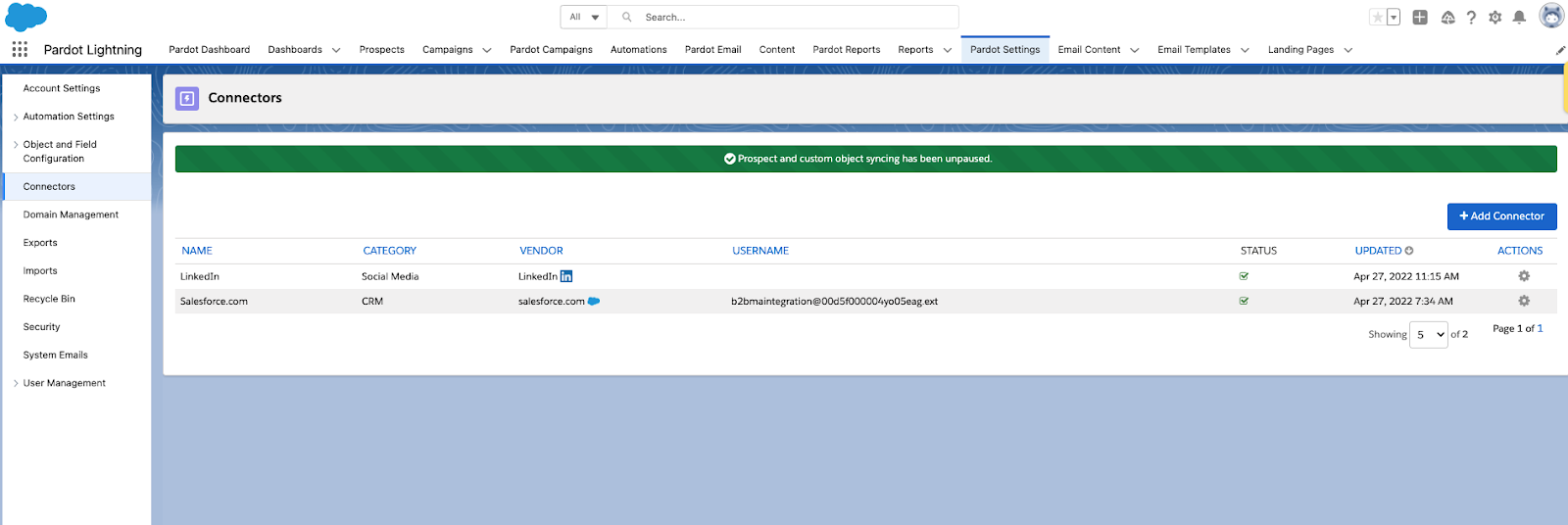
Unmasking the culprit behind the smoke and mirrors of the sync magic is not a difficult path to take. Just navigate to your Pardot Settings tab, and hang a left at the Connectors intersection.
Here you will find the wizard who’s behind all of the shenanigans.
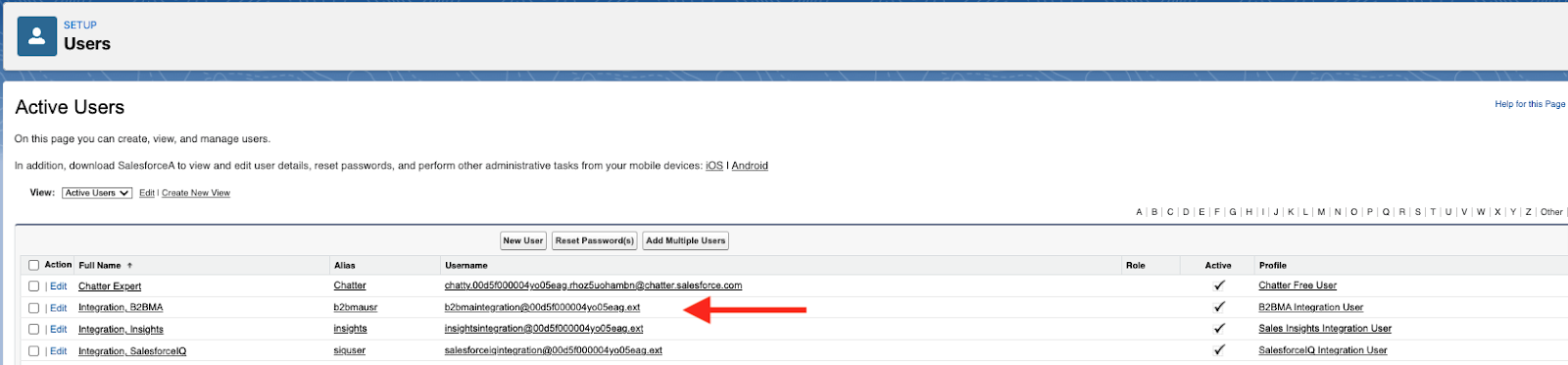
Enter the B2BMA Integration user.
B2BMA Integration User controls Sales Cloud and Pardot Sync behavior
You can find the B2BMA Integration user in your Salesforce setup with the username similar to the following: [email protected] (see below).
This user comes out of the box with the installation of any new v2 MCAE/Pardot instance purchased after February 11, 2019. It’s a free Salesforce licensed user that serves as the handshake between both MCAE/Pardot and Salesforce (Sales Cloud).
Chances are, you have this user available to you. If not, you likely have a custom connector user that’s tied to a company-specific/unique Salesforce username (and license) that’s in its place.
Whichever username you have, the underlying matter is that this is the who the system looks to for direction and instruction on what will sync when the sync occurs. Whatever this user can see, will be what the system will sync when the sync takes place.
2. The What: Determine what will sync to Salesforce
You may be wondering, what do you mean, whatever this user can see? Well, I’m glad you asked.
Connector user access determines what will sync to Salesforce
To understand what will sync when the sync occurs, you first have to understand the fabric of the connector user. This user is special. Whatever this user can see — a la whatever visibility to record data this user has access to will be what is included when the Salesforce-Pardot sync transpires.
Heads up — Salesforce connector user gotchas
As a quick reminder, there are four out-of-the-box standard objects that the connector user can communicate with in Salesforce; that’s the Lead, Contact, Account, and Opportunity objects. The Account and Opportunity objects/fields have a read-only relationship and the Lead and Contact objects/fields have a read/write relationship.
Your connector user (B2BMA Integration User or Custom Connector User) will determine what set of records will be included in the sync between both systems. The out-of-the-box B2BMA Integration User has View All/Modify All permissions for all lead and contact records that exist in Salesforce. Therefore, if this user is the selected user, then all records will have the capability to sync between both systems.
If your Pardot system has a different user (i.e. Custom Connector User) with sharing rules set up to only have access to certain lead/contact records, or if you are using Marketing Data Sharing (Advanced and Premium editions only), then those records will be the only ones that will be synced when the sync ensues.
3. The When: Understand how often Salesforce and Pardot sync
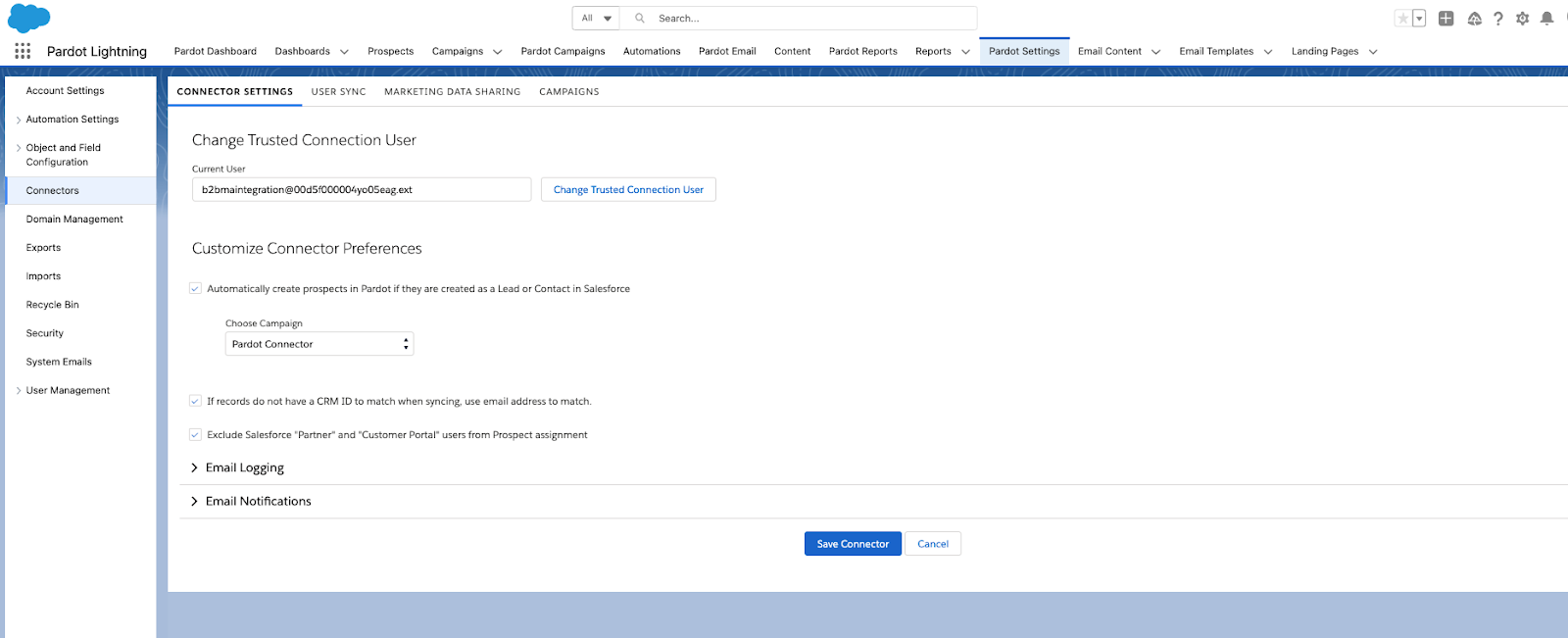
Once the connector user has been set up and is in “play mode” (see below green ticker), watch the wizardry transpire.
The smoke machine behind the curtain is powered by a native feature that automatically syncs record and field data every 2-4 minutes. Certain changes to prospect or lead/contact records will be pushed to Salesforce and certain information that is updated on Salesforce records, that have a matching MCAE/Pardot record, will be pulled into the corresponding prospect record.
4. All Salesforce record changes are not created equal
It is tempting to say that any changes to records will trigger a sync. However, this is not the case.
The Salesforce connector user will only recognize certain “activities” when it’s ready to perform its regularly scheduled automated sync. Such changes to prospect records can be classified by the three types of activities:
System
User
Prospect
The following is a breakdown of each type of action that can cause a prospect record to queue for syncing.
System activities:
Any record changes to field values that occur because of an automation rule or completion action
Using the “Add to Salesforce campaign” in an automation rule, segmentation rule, completion action, or Engagement Program action
Changing/updating a Salesforce campaign status via automation rule, segmentation rule, completion action, or Engagement Program action
User activities:
Performing a prospect import
Changing any prospect fields (including opting out prospects via import or manually)
Making changes to a Pardot campaign (for those who do not have Connected Campaigns)
Making changes to a prospects’ assigned user
Manually syncing from the prospect record (yes you can go the good ole fashioned route and manually sync an individual prospect record by pressing the “Sync with CRM” button on the Prospect record)
Prospect activities:
When a new or existing prospects submits a Pardot form
When a new or existing prospects submits on a Pardot form handler
When a new or existing prospects submits on a Pardot landing page form
When an existing prospect unsubscribes (globally opts out)
5. But what about Salesforce to Pardot?
While there are qualified activities that can cause a sync to trigger from Pardot to Salesforce, there are equally a few activities that can trigger a sync from Salesforce to Pardot.
The following is a breakdown of each type of action that can cause a prospect record to queue for syncing.
Updating the Last Modified timestamp triggers a sync to Pardot for existing prospects
Updating a lead or contact email address
Updating the assigned user (owner) for the lead or contact record
Making field changes to a lead or contact record (Check the Sync Behavior setting on the MCAE/Pardot field to determine whether this value will “win” out when the sync occurs)
Updating a related account record in Salesforce for a lead or contact who is associated to a Pardot prospect.
Each Pardot account comes with two key customizable connector preferences that determine how the sync will follow suit:
Automatically create prospects in Pardot if they are created as a Lead or Contact in Salesforce
and
If records do not have a CRM ID to match when syncing, use email address to match.
The first setting has to do with record creation from Salesforce to Pardot and the second setting relates to the overall sync logic.
With the first setting enabled (turned on/selected), the connector user will check every 2-4 minutes to see if a new lead or contact record with an email address has been created in Salesforce that does not currently exist in Pardot. If found, that record will be swooped up by the connector user, scanned and copied over to Pardot as a new prospect record with the corresponding record data accompanying it.
Recommendations for enabling this setting for your system are on a case-by-case basis depending on your mailable database limits and overall internal operational workflow/strategy.
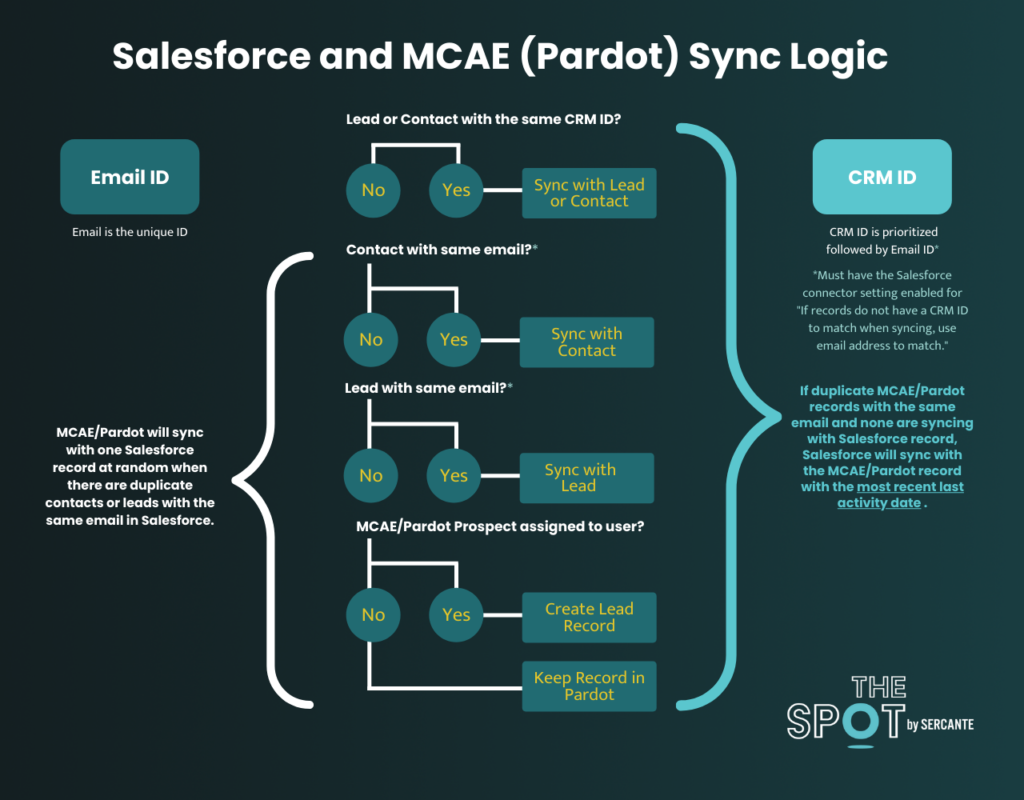
The second connector preference setting relates to how the system performs its hierarchical sync logic when a sync commences. It is highly recommended (best practice) to enable and keep this setting checked on your connector due to its native sync logic behavior as shown in the below diagram:
Essentially, what this outlines is that when the connector user performs the sync, it will first check for a matching CRM ID at the lead or contact level. If no matching record is found for the existing Pardot record, it will then check for a matching email address first at the Contact level then down at the Lead level. If neither a matching CRM ID or email address has been located for the Pardot prospect record, that record will remain in Pardot until the record is assigned (either to a user, a queue or via any active assignment rule).
Now you’re a Salesforce sync Wizard
So, now that you are armed with the who, what, when and how Pardot syncs with Salesforce, it’s time to lock arms with the Tin Man, Scarecrow and Lion to ease on down the road to Oz.
If you’re still feeling a little “cowardly” or “scarecrowy” (yeah totally not a word), then let the Sercante Munchkins escort you along the way!
The Salesforce Spring ‘22 Release has been out for nearly a month now, and it included important features for marketers who are on the Salesforce platform.
We get three major releases from Salesforce each year — Spring, Summer and Winter. Each Salesforce release includes upgrades and enhancements that affect Salesforce orgs in different ways.
So, if you’re using and managing marketing operations for your company or organization and want to know more about Salesforce, then you’re in the right place. We’re going to cover everything you need to know about the Salesforce Spring ‘22 Release if you’re a marketer who uses Salesforce.
Salesforce Spring ’22 Release: Highlights for Marketers
Marketers who use the Salesforce platform are getting lots of attention from the Salesforce Spring ‘22 Release.
Some updates are changing the way we work to meet evolving technology demands. Others are saving us time by connecting the dots in a logical way.
All we know is, this release includes big updates for people in the marketing world.
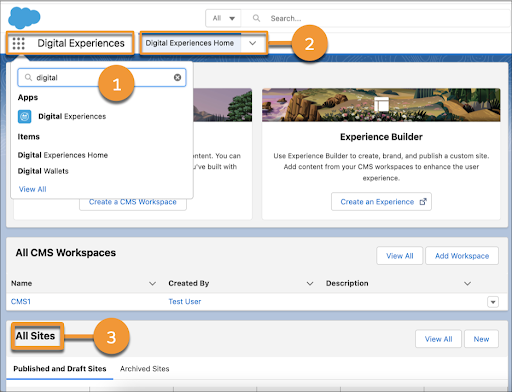
Highlight #1: Salesforce CMS Name Change to Digital Experiences
Salesforce CMS was a tool within Lightning Experience that provides the ability to curate and share content, manage multiple languages, and control who can create what content. However, along with a slew of Salesforce product name changes, Salesforce renamed the tool Digital Experiences to stay consistent with the former Community Cloud change to Experience Cloud.
There are no changes to the features that were available with Salesforce CMS, and Salesforce even allows users to type Salesforce CMS in the App Launcher to reach Digital Experiences.
Marketers on Salesforce have so many options when it comes to viewing marketing reporting metrics. Every tool in your tech stack has some sort of native reporting tools. But that data is limited to the tool.
Feeding that data into your marketing automation platform (MAP) gives you access to more insights when you can combine datasets. But you’re still limited.
But connecting your MAP to Salesforce platform reporting tools unlocks a whole world of data insights. We’re talking about sharing data from Pardot and Marketing Cloud with Salesforce Reports and Analytics Studio (Tableau CRM).
Here are the reporting updates marketers on Salesforce will want to know about.
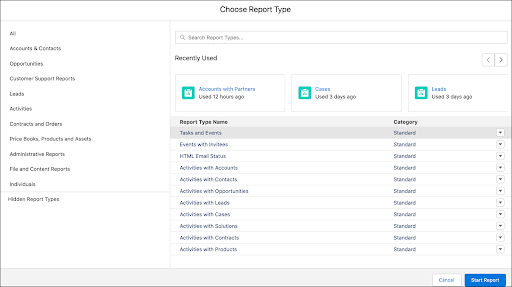
Building reports in Salesforce can be very confusing at first if you don’t know what report type to look for. So, this improvement is definitely an exciting one.
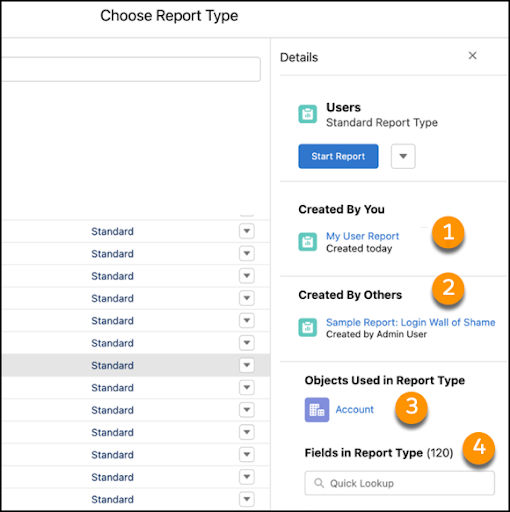
With the new enhanced report type selector, users can view their most recently used report types and see if a report type is standard or custom.
Another feature provided in this update is the ability to view the objects and fields available with the report type. And you can also see what reports have been created by yourself and other users using the report type.
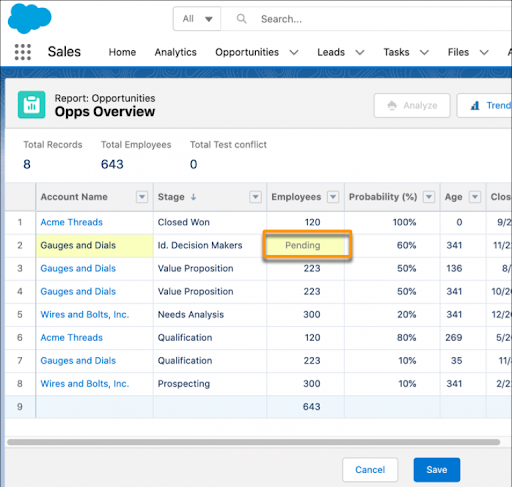
Salesforce users and marketers both have a need to update information on the fly while viewing a report in Salesforce. This new feature provides the ability to edit fields within your report on multiple records.
You can make as many changes as you want, as long as the field is not locked, and then save all of the changes at once without rerunning the report. Fields that are related to other fields within that same record will update those additional fields as well once you save your changes within the report.
The example below is a preview of what happens when the Account on an Opportunity is updated and the Employees field shows as pending. Seeing this screen means the field will update as well once the record is saved.
If you have ever used a Salesforce Dashboard to track your campaign metrics, then you might have used a Gauge Report chart before.
Gauge charts typically track performance toward a certain goal that you set in place when the dashboard was created. This new feature will provide you with the ability to track your performance dynamically instead of setting a singular goal for the year.
This means Salesforce will use your report metrics and dynamically update your goal as it responds to your business and performance whether it is a positive or negative change.
Improvement #4: Personal Information Security Updates
Marketers should always ensure that their customer data is compliant and respects the customer’s personal preferences. With that in mind, Salesforce has released a new update to help hide customer’s personal data from other customers who are in the same portal or community.
Enabling Enhanced Personal Information Management will replace the current Hide Personal Information setting available in Setup and will secure even more PII data on the User record. The new feature provides the ability to select which standard and custom fields are considered PII in your Salesforce org.
Companies should be aware that customers will no longer have access to their own personal data in the community or portal for the fields you select to hide on the User record. This feature will become enforced in all Salesforce organizations during the Winter ‘23 release.
Salesforce is getting bigger and better all the time
B2B marketers who come to Salesforce are usually looking to scale their efforts and grow in a way that makes sense. These latest enhancements from the Salesforce Spring ‘22 Release get marketers closer to those goals by saving them time and resources.
Contact the team at Sercante to get help implementing these enhancements in your Salesforce org. And leave us a comment below to let us know what you think about the Spring ‘22 Release.
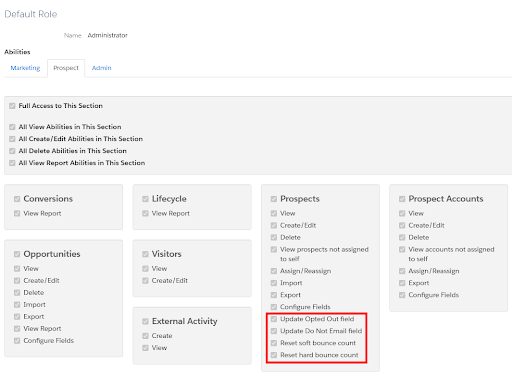
The Salesforce Winter ‘22 release made the Pardot Prospect Mailability upgrade permanent for all orgs. And it also introduced four new user abilities that allow for more control over which Pardot user roles can edit the new Prospect Mailability fields.
New Fields
Update Opted Out Field
Allows the user to edit the “Opted Out” field from the Prospect Overview page
Replaces “Toggle Opt-In Status”
Update Do Not Email Field
Allows the user to edit the “Do Not Email” field from the Prospect Overview page
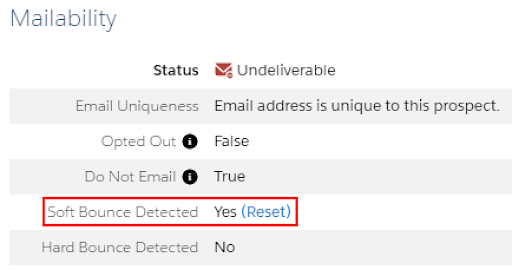
Reset soft bounce count
Allows the user to reset the soft bounce count for a prospect. When soft bounces are detected, a “reset” option will appear.
Reset hard bounce count
Allows the user to reset a hard bounce for a prospect.
“Update Opted Out Field” will be enabled for the Pardot Administrator role by default. The other three abilities will be enabled for the Administrator role and the Marketing role by default. Users will only be able to manually toggle these abilities on and off within a Custom User Role.
When should you reset soft and hard bounces?
You should reset a prospect’s soft or hard bounce if the bounce(s) only resulted from a system issue, such as:
If the bounce(s) resulted from the email address not existing, the email or sender being blocked, or due to a bad sending reputation, you should not reset the bounce(s). Continuing to email prospects who have received a hard bounce for these reasons can have a severe impact on your send reputation! You can learn more about bounce codes and meanings here.
What to watch out for
Removing a user role’s permission to “Update Do Not Email Field” and/or “Update Opted Out Field” only removes the ability to update these fields on the Prospect Overview page. Users will still be able to edit these fields via Automation Rules, Completion Actions, and Engagement Studio Programs. Due to this, I would highly recommend you read the “Ensure these new features are used correctly” section of our first Mailability Upgrade post as well as Lindsey Mark’s post about how to align your data after the upgrade.
What questions do you have about the new Mailability Upgrade? Tell us in the comments!
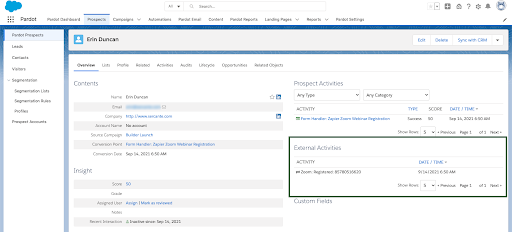
Pardot is delivering a whole new way to leverage your prospect data in the Salesforce Winter ‘22 release. Similar to webhooks, the new Pardot External Activities feature allows users to receive data from third-party systems and use the data in automations and Engagement Studio Programs. For instance, you could record when a prospect registers for a webinar, completes a survey, or watches a video, and then trigger automations from those actions.
There are 3 main steps we will be guiding you through in this post.
Register the Pardot External Activity types in Salesforce
Integrate third-party systems with Pardot External Activity (we use the API here)
Leverage the new External Activities inside Pardot
To use External Activities, you must have a Plus, Advanced, or Premium Pardot Account and be using the Pardot Lightning App (remember, the Pardot Classic app is being retired).
Register the External Activity types in Salesforce
Similar to how a Salesforce Custom Object needs to be defined before you can start creating records, we need to set up an Extension and the Extension’s Types before we can record External Activity on Prospect records. A Salesforce Administrator or a Marketing Setup Administrator will need to perform these steps.
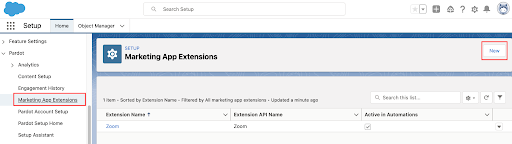
Create a Marketing App Extension.
Navigate to Setup > Marketing App Extensions.
Select “New.”
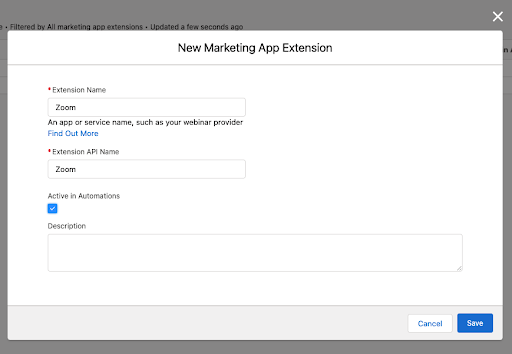
Name your new Extension.
Select “Active in Automations.” This is what allows the extension to show up within Pardot.
Select “Save.”
Create an associated Activity.
Select the “Related” tab.
Select “New” next to Activity Types.
This will be an action your prospects perform, such as registering, attending, or being absent from a webinar.
Activity types cannot be shared across extensions, so make sure you create these activities for each extension!
Choose activity type names that make sense to your users.
Select “Active in Automations.”
Select “Save.”
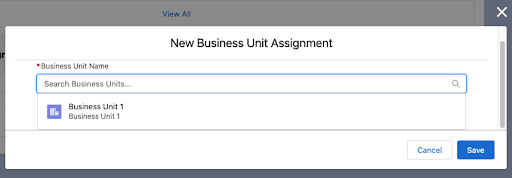
Assign the extension to your Pardot Business Unit(s). You’ll need to perform this step even if you only have one Business Unit. Extensions can be assigned to multiple Business Units.
Within the Related tab, select “New” next to Business unit Assignments.
Select the first Business Unit.
Select “Save.”
Repeat if you’re using multiple Business Units.
Before you build/set up this external activity, check to make sure the solution you are looking to integrate doesn’t have an existing solution built. They may handle this whole side of the process for you, or you may only need to assign the extension to your Pardot Business Unit(s).
Integrate third-party systems with Pardot External Activity
This step is where we’ll connect the third-party system that is collecting the prospect’s activities and extension we built above. This step will use the Pardot API and should be included in any vendor’s solution that supports External Activity. Given this is a brand new feature, odds are External Activity is not yet supported by existing integrations.
If it is not included, you should be able to glue things together yourself. Below are two guides that will help:
Leveraging the new External Activities inside Pardot
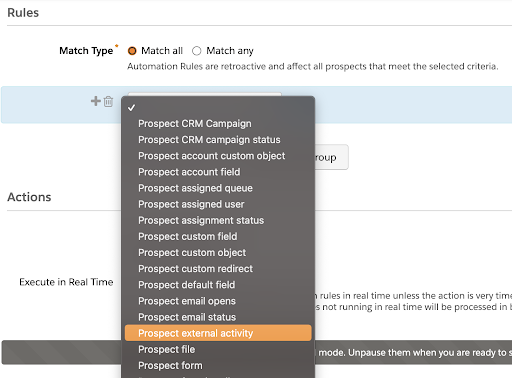
Now that you’ve created an External Activity and have a solution to send the prospect’s activities to Pardot, “Prospect External Activity” will be available within Automations:
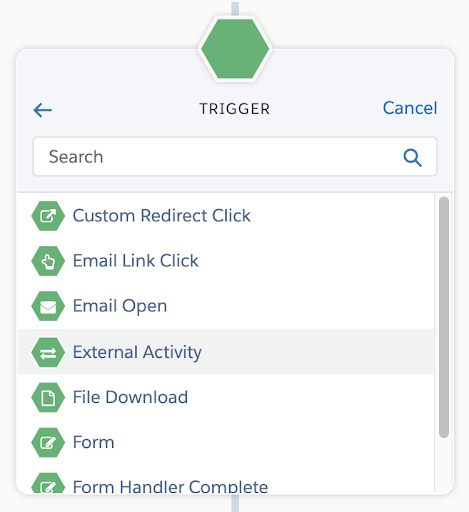
And “External Activity” will be an available Trigger in Engagement Studio:
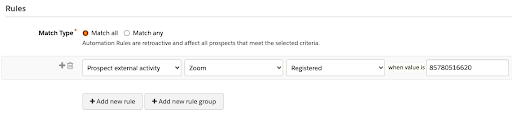
The value for the External Activity refers to the individual event, webinar, etc. These values will change for each activity and will NOT be pre-populated, so you’ll want to ensure your users know the exact values to look for when using the External Activities in Pardot. You can use the semicolon operator for a list of values.
Keep in mind
External Activities do not update the prospect’s last activity time stamp. That means external activities will not trigger a sync between SFDC and Pardot, and they should not be used to indicate the last time the prospect took an action.
Finally, Automations will process External Activity data even if the external activity is inactive within Salesforce. So, if you deactivate an extension, you’ll want to review the Automations and Engagement Studio Programs that are using the External Activity. Consider using tags on your Pardot Automations to help you easily find and administer them.
Requirements
Plus, Advanced, or Premium editions of Pardot
Requires the Pardot Lightning App
Work with your Salesforce Admin or Marketing Setup Admin to configure this.
External Activity helps Pardot customers send information to Pardot from external systems. While many things are possible with the Pardot API, this feature does not send information from Pardot to other systems. If this is a critical capability for your org, you can help impact the Pardot Roadmap by sharing your Product and feature ideas on the Salesforce Idea Exchange.
Want to keep learning about External Activity? Check out these two additional blog posts: