Email templates are essential to marketers who want to create emails efficiently and protect the brand consistency of their communications. Agentforce Marketing email templates became available in the Winter ‘26 release but some exciting new features and updates became available in Spring ‘26! Let’s take a look at the features of email templates and some of the quirky aspects of using them that you’ll want to know.
Product Note: In previous blog posts, Agentforce Marketing has also been referred to or known as Marketing Cloud on Core and Marketing Cloud Next. This product may have also been referred to under its Edition names, Marketing Cloud Growth and Marketing Cloud Advanced.
Creating a custom template
To get started with a new email template, navigate to your Content Workspace for Marketing Cloud, then select Add > Email Template.

You’ll see two options, “Select A Template” and “Use Components”.
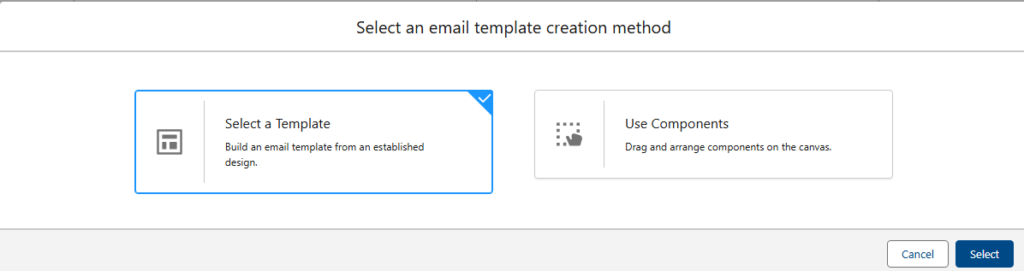
The Components option will launch the drag and drop Email Builder for Marketing Cloud and will provide the email building experience you’re accustomed to.
Important: You cannot save an Email as an Email Template, or an Email Template as an Email, so be sure you’re selecting the correct content type before building!
New: Prebuilt Templates
With the Spring ‘26 release came 17 new pre-built email templates (also 17 pre-built Landing Page templates. These templates are customized by use case, your options are:
- About Us – Brand Story
- Appointment Scheduling
- Coming Soon – Launch
- Free Trial – Demo Request
- Gated Content
- Lead Generation
- Localized Offer
- Newsletter
- Offer Promotion
- On-Demand Content
- Partnership Program
- Product – Service Deep Dive
- Survey – Feedback
- Testimonial – Case Study
- Thank You – Confirmation
- Waitlist – Early Access
- Webinar
You can select each template to get a preview of its layout and components on the right hand side.
Each template has a header component for your logo, a stylized footer, content and image components, and at least one CTA button.

To use a prebuilt template, select the template and then click Select in the bottom right corner. You can also view and access the email templates you’ve saved in your CMS by selecting the Custom Templates header.
Once you’ve selected the email template you’d like to start with, easily stylize the template by applying your brand from the right side menu.

The standard templates can be completely customized like any other template. The stock photos they include are automatically saved in the same location as the email template.
Important: Don’t worry, you cannot overwrite the standard templates. You can customize a standard template to your company and brand and save it as a customized template for future use. This will give you a custom template based on the standard design, but the original standard template is preserved.
New: Change Data Sources
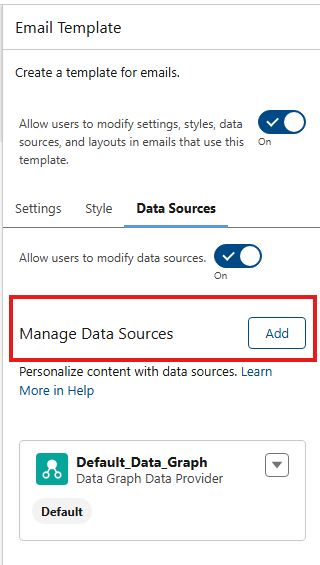
Email templates and Emails can be associated with Data Sources. This allows you to add personalization from a specific data source, including Events.
As of Spring ’26, you can only add one Event Data Provider, meaning you can only add a single unique form (Event) to an email as a data source. By adding an Event Data Provider you’re able to personalize the email with data that was provided in the Event (aka, the form). So if you ask someone their food preference on an event registration form, you can add that field from the form inside the email. This allows you to add the email to an event flow and create a follow-up email in the flow without waiting the standard 24 hours for Unification of the record*.
*Personalization is typically only available in an email for Unified Individuals because the Data Graph (which powers personalization) must run first. So in our example, if a user supplies a food preference in a form, you must wait for the Data Graph to run so the data is added to the Unified Individuals profile and available for use in personalization. Adding an Event Data Provider bypasses the need to do this.
Two important notes: You can only add a single Event Data Provider, you’ll need a unique email for each form you wish to personalize with form data. Furthermore, once you add a data source you cannot remove it! Be careful when adding a data source. If you add the wrong source you’ll need to start a new email to correct your error.

New: Lockable Elements
Marketers and brand managers are going to love the ability to lock elements inside a template! But, this new found power comes with a few quirks.
Newly Created Templates are Automatically Locked!
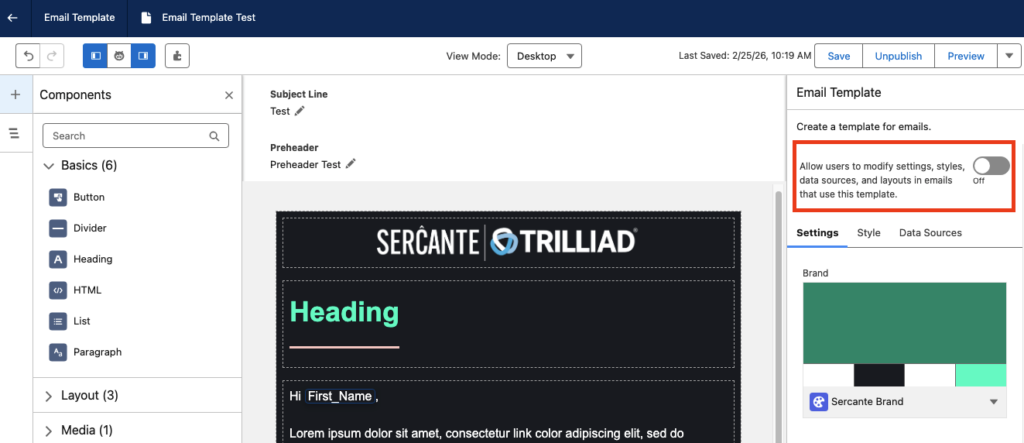
Post Spring ‘26 release, new email templates are locked by default. You’re able to either manually unlock specific sections you would like marketers to be able to edit or use the “Allow users to modify settings, styles, data sources, and layouts in emails that use this template” toggle option found on the settings tab to unlock all sections. When creating a new template, the toggle will be off.
Lock only certain content, but not all
If you wish to restrict users from editing only some content, for example a branded header or footer, but you want to leave the rest of the content open to editing, you have to unlock the sections one at a time. It’s a bit counterintuitive, but everything must be locked first, then sections are individually unlocked.
Step 1: Make sure the “Allow users to modify…” toggle is OFF, meaning no content in the email is currently editable.
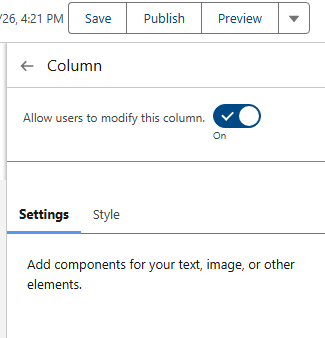
Step 2: Select the individual component you wish to unlock and change the toggle to On. This unlocks the one section component you have selected on the canvas.
Don’t forget your subject line and preheader
If you’re locking down your template and only unlocking certain sections, it’s easy to overlook the Subject line and preheader! On the Email Settings panel, scroll down to the Subject Line and Preheader section and click the lock icon to unlock these settings for your users. This enables your users to change the subject line and preheader when using the template for an email.

Use of templates, important caveats
One final note on using templates, your order of operations is important. As mentioned previously, you cannot save an “Email” as an “Email Template”. Likewise, you cannot save a template as an email. When you’re ready to create an email that’s using a template, make sure you select “Add > Email”, then select a template.
Lastly, something that I learned the hard way after creating a 6-email series for a nurture campaign. Segment Triggered Flows (nurture series) only use Emails, not Email Templates (so the opposite like Account Engagement Engagement Studio Programs). So when you’re adding emails to a flow you will only see Emails, not templates.
Final thoughts
Email templates are a much-needed addition to Agentforce Marketing and I’m excited to see how they grow from here. I love the functionality they offer, like customized data sources and lockable regions. They also did a terrific job creating a large variety of standard templates to get you started!