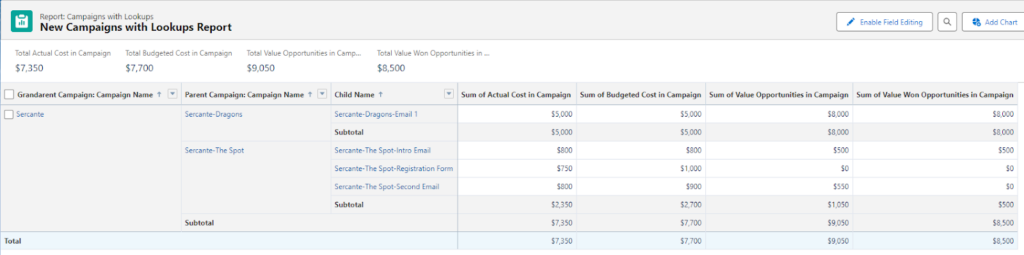
Today, I’m excited to share how you can create a comprehensive Salesforce campaign hierarchy report that groups by grandparent, parent, and child levels (hierarchy) on the Campaign Object in Salesforce.
This type of report can show various metrics, including different campaign amounts and opportunity values along with displaying subtotals and totals. The greatest advantage this report gives you is that it shows the impact of campaigns that are related to one another.
There are many variations that you can do off of this report, but it should get you started in the right direction. Let’s dive into the steps for creating our report!
Step 1: Create Custom Report Types
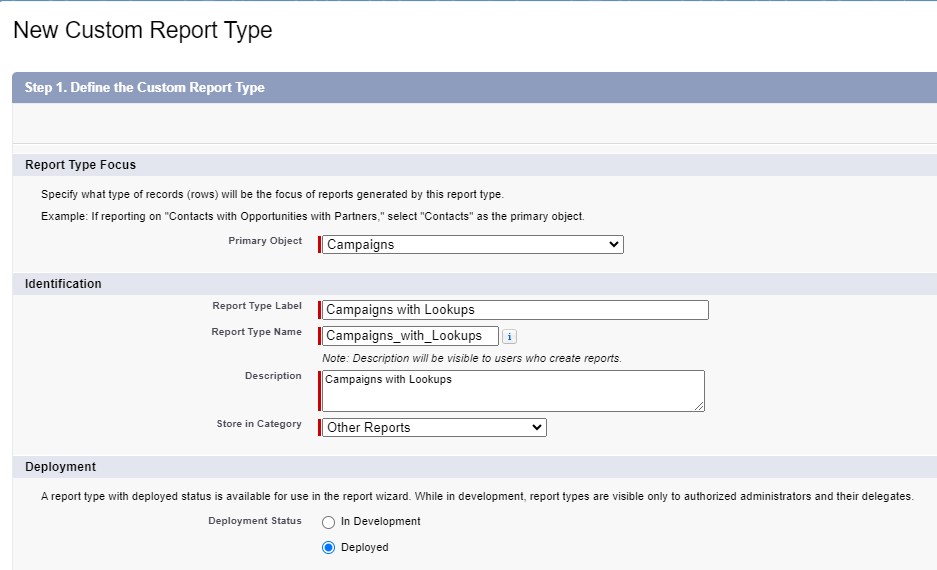
The first step is to create a new custom report type that includes sections for both the Grandparent and Parent Campaigns.
Report Types > New Custom Report Type
Setting Up the Custom Report
Since this report will only relate to the Campaign object, you will need to:
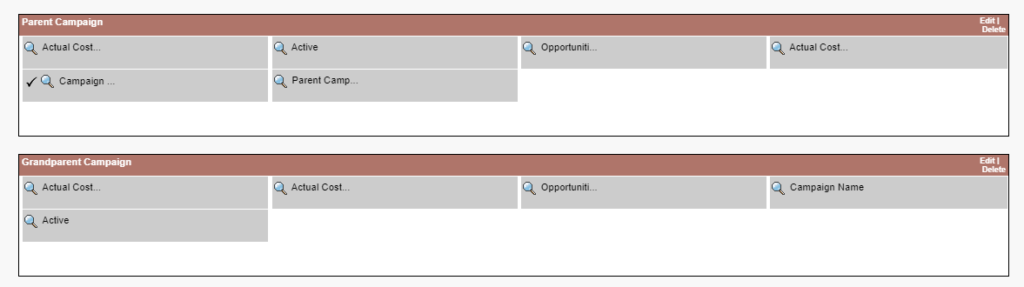
Add two sections to the report: one for the Parent Campaign and one for the Grandparent Campaign.
Edit Layout > Create New Section
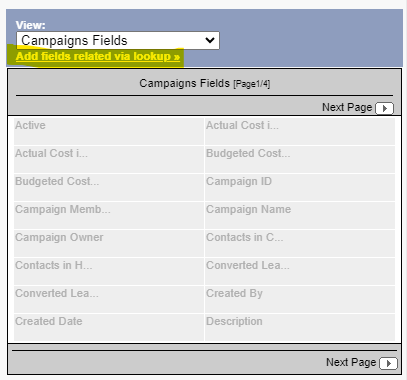
Populate the report with relevant fields. I included the following fields in my report:
Actual Cost
Active
Opportunities in Campaigns
Actual Cost in Hierarchy
Campaign Name
Parent Campaign
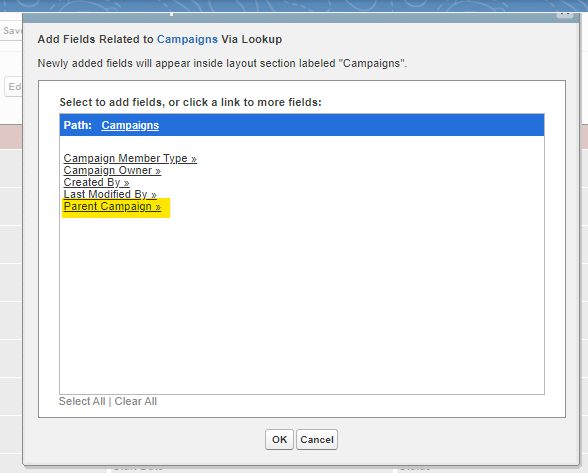
To add these fields, click on the “Add fields related via lookup” link and look for the one associated with “Parent Campaign.” This allows you to select fields from the Parent Campaign.
Including Grandparent Campaign Fields
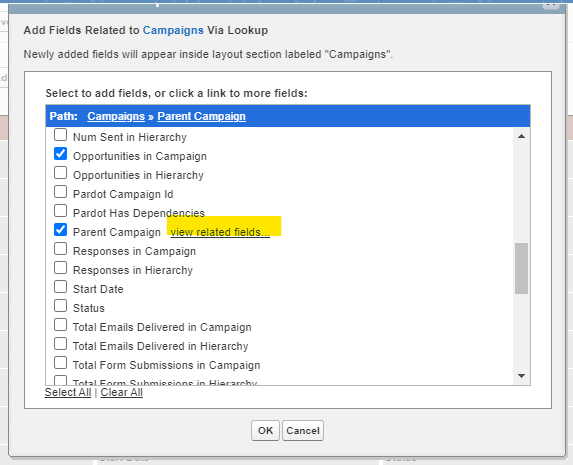
Similarly, to include fields from the Grandparent Campaign, navigate to:
“Parent Campaign”
Then “Parent Campaign view related fields”
Here, I selected the same fields as for the Parent Campaign.
To make the report clearer, I renamed the Campaign Name fields to “Parent Campaign” and “Grandparent Campaign” respectively. This helps in easily identifying them in the report.
Once these steps are completed, save the report type. It will now be available for use when creating your report.
Step 2: Using the Report Builder
Now that your custom report type is ready, let’s create the report:
Select the report type you just created.
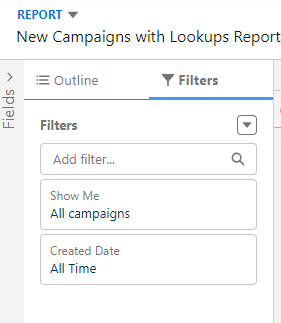
Apply the following filters:
Show Me: All campaigns
Created Date: All Time.
Configuring the Report Layout
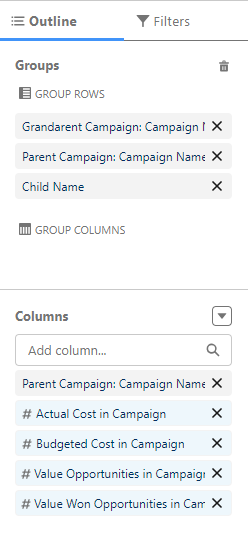
In the Outline tab:
Add “Grandparent Campaign,” “Parent Campaign,” and “Child Campaign” to the Group Rows section.
In the Columns section, select any additional fields you want to display in the report.
And there you have it! With these steps, you can create a detailed Salesforce Campaign hierarchy report that provides valuable insights through different metrics and structured grouping.
I hope you find this guide helpful in creating detailed and insightful reports using the grandparent, parent, and child hierarchies in Salesforce. With these steps, you can better organize your campaign data, track important metrics, and gain deeper insights into your marketing efforts.
If you have any questions or need further assistance, feel free to reach out.
Happy reporting, and may your campaigns be ever successful!
Salesforce Campaign Hierarchy Reports: Dive deeper & keep it going
Interested in learning more about choosing the right Salesforce reporting tool? Or perhaps you’d like to sign up for a workshop to dive deeper into Salesforce Reports or B2B Marketing Analytics?
Shout out to Brian Roff for helping with the solution to this report!
Collecting customer feedback can be a transformative tool that propels your business to new heights, and getting customer feedback through Salesforce is possible through a few methods. Armed with the right feedback, you have everything you need to address customer pain points and capitalize on your biggest strengths.
Without sending surveys and gathering quality feedback, your product or service is navigating success in the dark.
In this post, we’ll outline the ways Salesforce customers can collect feedback while working with the platform including limitations with getting customer feedback with Salesforce forms and solutions for more advanced initiatives.
The Evolution of Customer Feedback Collection on Salesforce
Gone are the days of manually sending out feedback forms. Today, there are countless digital tools to help you out. Of course, we all know there is a lot more to efficiency and automation than simply getting off paper and into the digital space.
Here’s where Salesforce feedback forms become your best friend. The benefit of Salesforce form integration for collecting feedback is that you can automate every step of the survey process while accessing personalized data and reports on every customer. No CRM is more robust or comprehensive.
Once you experience the power of customer feedback with Salesforce forms, your customer success strategy will never be the same. Read on to find out all the ways you can collect customer feedback with Salesforce forms.
The Role of Salesforce Feedback Management
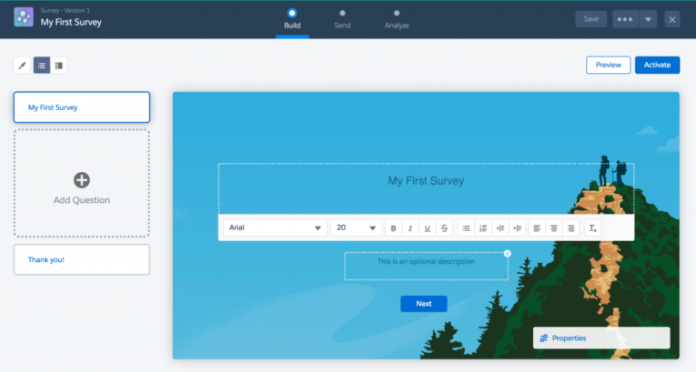
First up, you are probably wondering what tools Salesforce offers for collecting customer feedback with Salesforce forms. Well, Salesforce actually does have a free survey solution that comes with every Salesforce org, which is called Salesforce Surveys.
Limitations of the Out-of-the-Box Salesforce Survey Solution
On the downside, this basic survey feature is limited. For example, you get 300 responses, and you can only relate a survey invitation to limited record types. To get more flexibility with the basic survey tool from Salesforce, you would need to implement custom development or Apex of some kind.
Purchasing Feedback Management by Salesforce
Alternatively, you can purchase Feedback Management by Salesforce, which comes in three editions:
Survey Response Pack
Feedback Management – Starter
Feedback Management – Growth
Of these, it’s Feedback Management – Starter and Feedback Management – Growth that provides the most comprehensive features, including 100,000 responses and unlimited responses respectively.
These native tools offer some exciting capabilities such as Customer Lifecycle Analytics and Data Mapper, which allow you to sync survey responses to standard or custom objects. Investing in feedback management tools is one viable strategy for collecting customer feedback with Salesforce forms.
Considerations of Feedback Management by Salesforce
There are some considerations to make when looking at Feedback Management by Salesforce. These include considerable investment, $13,500 a month per org for the Starter Edition and $46,000 a month per org for the Growth Edition.
Aside from the price, these tools may still require coding and development to cater to custom use cases. This means you have to allocate time and money toward developing these solutions and ongoing maintenance.
Exploring Other Survey Options for Salesforce Feedback Forms
So, what are your other options for implementing customer feedback with Salesforce forms? And what is the best way to collect feedback for your workflows while integrating with Salesforce?
Read on, we have you covered!
Techniques to Collect Feedback Using Salesforce Form Builder
When building forms to collect user feedback via Salesforce, you can choose to implement development work. This will give you great flexibility and customization. However, it will slow down time to market, and you need to be really sure that you are in it for the long haul. Projects like this require ongoing upkeep.
Alternatively, you can purchase a trusted third-party tool for surveys on the AppExchange. This will help you go to market faster and mitigate some of your development work. The biggest con of most products on the market is that they offer limited flexibility. You often won’t get customization without code, and this lands you with some of the problems and obstacles you face when building a custom solution or using Salesforce native tools.
The good news is you don’t have to be stuck in this build versus buy quandary. Not all products are created equal! You can collect customer feedback with Salesforce forms using a robust and flexible form builder with zero code.
One of the best options on the market is Titan Survey, part of an all-in-one super platform for Salesforce. Check out some of the amazing things you can accomplish with Titan Survey below, or read more about building complex Salesforce forms without coding here.
Salesforce Surveys as a Tool for Engagement
One of the strongest features of Titan’s Salesforce survey tools is that you can easily map them to any custom or standard object. The Titan Survey package also offers a range of custom Salesforce Survey Objects included with the platform.
You can draw on multi-patented bi-directional Salesforce integration to craft personalized user journeys. By implementing conditional logic in your surveys, you can ensure that customers taking your surveys remain engaged throughout the process.
Customers can skip irrelevant questions and only get asked questions relevant to them. With the power of conditional logic, watch drop-off rates sink, and market segmentation becomes a whole lot easier.
Automating Salesforce Customer Feedback Forms
The good news is that with a tool like Titan Survey, you can automate every step of the customer feedback form process. Set up ready-to-go customer feedback form templates and have them sent out automatically through Salesforce. You can also trigger follow-up actions and have customer issues routed to the correct support or sales representative with ease!
With Titan Survey, you can send feedback via WhatsApp, SMS, Salesforce Flow, List View, or Reports.
You also have the freedom to send web or email surveys. With web surveys, you get to distribute surveys via a link that can be embedded in your website or anywhere you like. Web surveys are typically more interactive and work better for more complex questions. You can also embed Titan surveys in an email, which is ideal for shorter and simpler surveys!
Titan Forms: A Salesforce Forms Builder Alternative for Feedback Collection
The bottom line is that Salesforce surveys are here to revolutionize the way you interact with customers. They’re a key component to creating the experiences your customers want. Even so, finding an easy-to-use Salesforce feedback form can be challenging!
Custom development has a lot of perks but comes with many obstacles. Similarly, Salesforce’s native solutions carry a price tag and may take longer to implement when handling niche use cases.
A no-code Salesforce feedback form is a winner! And here, Titan Survey offers all the usual survey perks — like any question type and a range of templates. This tool also offers special features like dynamic data sync with any Salesforce record.
Ultimately, it’s up to you to make the right decision for you and your business and customers. Good luck!
It’s time for part two of our three-part series on getting the most out of your Salesforce Marketing Cloud Intelligence, or Datorama, instance. Part 1 of the series touched on little tricks and shortcuts to success with data ingestion and transformation. Today, I’ll be going through how you can speed up the platform for yourself and your team and boost efficiency in reviewing your data. Read on for Marketing Cloud Intelligence tips that will help you maximize its performance.
Marketing Cloud Intelligence Performance Boosts
Marketers are competitive by nature. You’re fighting for bids, placements, and user attention. So why wouldn’t you want the best performance out of the tool you’re using to measure your data and give you insights?
We’re going to walk you through how to ensure you get the speediest and most efficient version of Marketing Cloud Intelligence you can!
Less widgets, more pages – why?
You may be inclined to make a gigantic page of widgets for one humongous dashboard that you use — this is a fine starting point! It’s especially useful for the sake of exporting data in a PDF or PowerPoint in an advanced manner, using the platform’s advanced export feature.
But when it comes to using the actual dashboards in Intelligence, you should try to break your pages out as much as possible. This could be done by channel, campaign, or any other kind of unifying but specific factors you might be thinking about.
We’ll touch on this more below, but the more compact your view and the fewer widgets you have, the less you’ll wait for pages to load.
A load by any other name
You may have sat in front of numerous online analytics tools and seen long loading times. You probably used the old answer as to why: slow internet speeds.
The true answer to why your analytics tool is slow to load though is… it depends:
JavaScript ifs VS. spreadsheet IF formulas
I’ll cite a specific example below, but any calculated fields may slow your load down. I noted some of this in my first blog in this series, but using JavaScript ifs can help a bit by setting quick end criteria (ie. if it’s this thing, this is the output), as opposed to large loops in Excel style IF formulas.
An additional point of clarity: when I note calculated fields, I mean calculated measurements, filtered measurements, calculated dimensions, and patterns.
Data fusions & transitive fusions
Data fusions similarly happen live and can significantly slow down your instance, either with heavy data sets or more than 5-10 fusions existing back end. Transitive fusions (a is fused to b, b is fused to c) can also cause problems in heavy use.
Page reloads
Accessing a page in a way that makes data load anew can cause slow load times.
I’ll hit some rules of this later, but scrolling down will cause data to load anew
Any updates to the data back-end will cause reloads of the data when you open a page with that data
Clearing your cache either in the platform or in your browser will cause data to recalculate and populate the dashboard page
Changing filters will also reset the loading of the page
Identifying load problems & getting help
There is not currently a public-facing timer for loading data in Intelligence, but you know a long load when you see it.
What can help in identifying the root causes of slow loads is that Salesforce support can help diagnose timing issues down to certain widgets. I recommend this (or the next method) to validate that your internet/instance is not the issue. You could also have a colleague access the same dashboard and compare load times with you using a timer to ensure you are capturing the issue correctly.
Come Together (but also maybe don’t)
One of my favorite functions of the Intelligence platform is using Coalesces and other calculated dimensions whenever I can’t cleanly join data. There are other ways to do this — like using if statements with ISEMPTY formulas, using data fusions, or doing Vlookups to tie entities together, among others (we’ll touch on some of these below, too).
Coalesce is often one of the cleanest and quickest ways to join data points where you need a data point from one stream or another, depending on what’s available. A good example is something like lead source, where you may have leads and cost data to join across Salesforce data and paid media APIs. In that case, you would check the lead source field or the channel name of the data stream feeding cost data).
Technical tip sidenote: Coalesces can be incredibly confounding, so here’s a brief walkthrough of this function. In this platform, as documented in Intelligence’s Help Center, they let you return the first non-empty value of a set of data formatted like COALESCE([value1, value2,…]). The really confusing part is that you have to have brackets around those dimensions, so correct syntax would be like COALESCE([[day],[campaign start date]]).
Scroll first, ask questions in a minute
One thing that can be really frustrating, even when things load okay as a page opens, is that as you scroll the content may not be there when you move down. A way to avoid this is to scroll all the way through a page before walking through it.
Why is this? Two big reasons:
Intelligence loads about 15 widgets at a time. Anything more than that queues up, so multiple widgets loading piece by piece can be difficult on the system.
The system only loads what you see. There is no secret back-end loading happening wherein data is populating that you don’t see. You’ll still have to reload widgets when you filter, but by scrolling down, any initial data sets will populate and make you appear to be the marketing superstar we know you are.
Filter secrets-greater than 0
Have you ever gone into a page and waited for a filter to load?
Or, have you opened a filter widget’s dropdown to find hundreds of irrelevant campaigns when you know your workspace should only have a handful of campaigns?
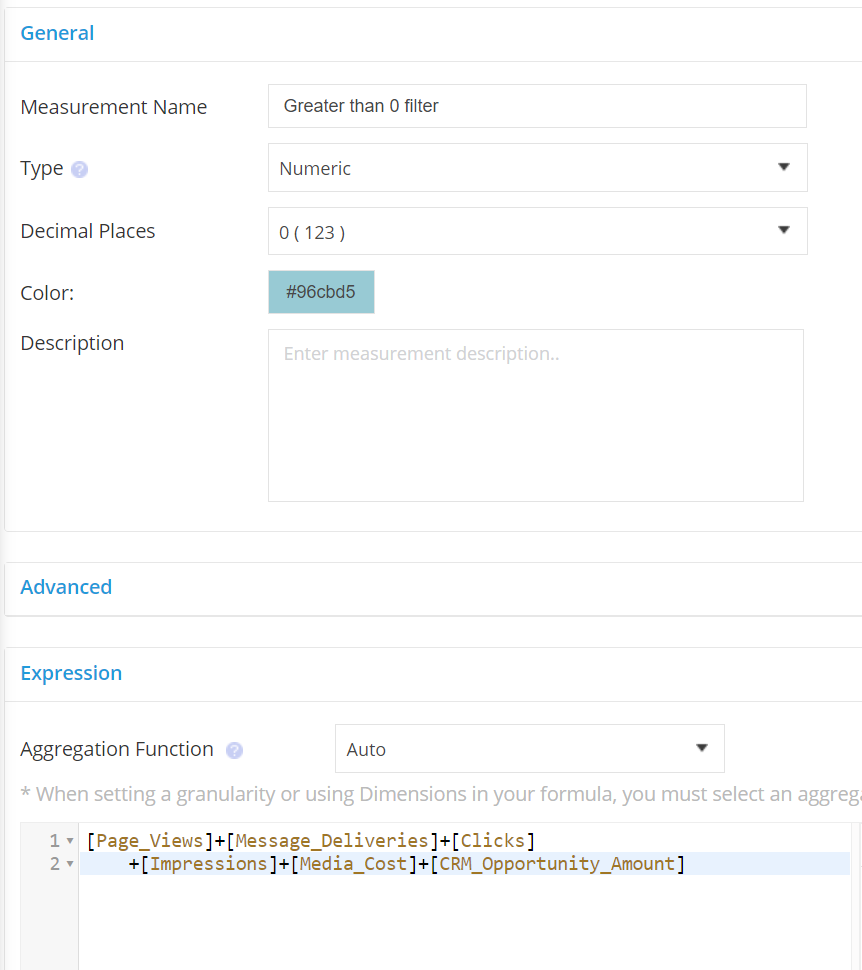
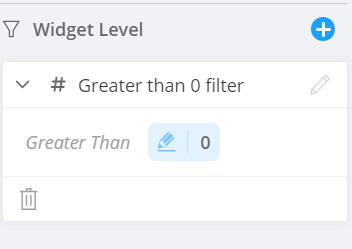
I use a trick that I call “Greater than 0,” which is a calculated measurement that adds all of my measurements in use for a page and filters that on greater than 0 for any relevant filters. My filters load faster and my dropdowns are minimized to just data points I need, not junk data.
You’ve successfully loaded the end of this article
Thanks for scrolling down here successfully and ingesting our content! Now you have quick wins that can help you maximize Marketing Cloud Intelligence performance.
Check out part one of this Marketing Cloud Intelligence series to get a reasonable foundation on some other data topics. And keep an eye out for part three of this series, which will go in-depth on some data stream tricks to get your best data pulls/updates possible.
We hope you get some added productivity out of this piece, and if you’re looking for a tailored conversation to your needs, drop us a line.
Salesforce Campaign Record Types are a great feature to employ when you have varying page layouts, required fields, Campaign processes, or teams for different types of Campaigns. However, often we see orgs deploy Campaign Record Types without really needing them, adding an unnecessary level of complexity to their org. In this post, we’ll cover how to determine if you actually need Salesforce Campaign Record Types and some tips and tricks for better management of Salesforce Campaigns overall.
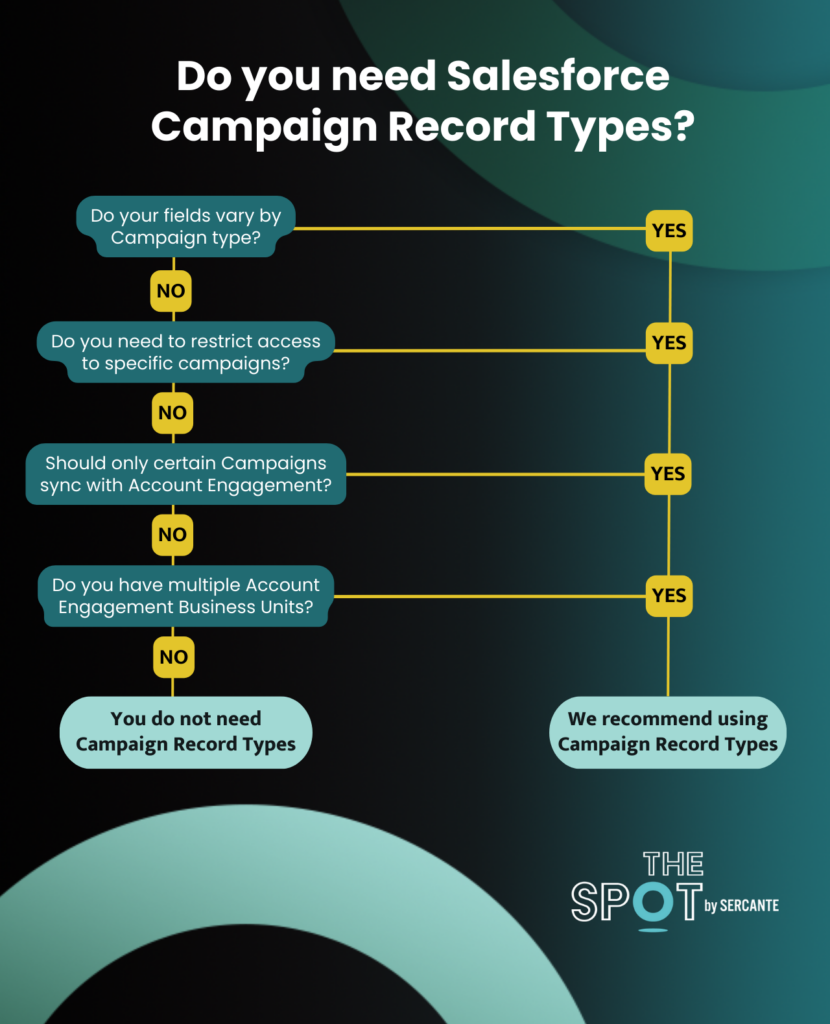
Use this infographic to determine if you need Salesforce Campaign Record Types
Do fields vary by Campaign Type?
Needing different fields and/or having different field requirements for different Campaign Types is a great use case for Campaign Record Types. For example, you may want to record “Start Time” for Webinar Campaigns, but the “Start Time” field should not be required and isn’t relevant for Email or Tradeshow Campaigns. If you only have one or two variations like this, you can create Validation Rules to require fields when appropriate, but if many of your Campaign types have varying Fields and Requirements, you’re better off creating Campaign Record Types with a Page Layout for each variation.
Dynamic Forms would be an excellent solution for the above scenario, but Dynamic Forms are not yet available for the Campaign object, but you can upvote this feature request on the IdeaExchange!
Do you need to restrict access to specific types of Campaigns?
Another use for Campaign Record Types is when you have multiple teams creating Campaigns, but they should be restricted to specific types of Campaigns. For example, if both your Sales and Marketing teams are creating Campaigns, you may want Sales to only create Email Campaigns while Marketing can create campaigns for Email, Event, Webinar, Tradeshow, etc. Campaign Record Types allow you to customize which Profiles have access to which Record Types.
Should only certain Campaigns sync to Account Engagement?
When setting up Account Engagement Connected Campaigns, you have to select which Salesforce Campaign Record Type(s) sync down to Account Engagement. If you are not using Record Types then your only option is to select “Master Record Type” which will sync all active Campaigns. If you have a large number of active campaigns ongoing at any one time, this may make the Campaigns list in Account Engagement too large to navigate easily. Campaign Record Types can be used to segment your Campaigns and only sync the relevant ones down to Account Engagement.
Are you using multiple Account Engagement Business Units?
If you have multiple Account Engagement Business Units then you will definitely need Campaign Record Types. Campaign Record Types have a one-to-one relationship with Business Units, so, if you are syncing the “Marketing” Campaign Record Type to your US Business Unit, you cannot also sync it to your EU Business Unit. Mapping one Campaign to multiple Account Engagement Business Units will cause conflicts and issues with your Campaign data.
If you answered “No” to the four questions above, then Campaign Record Types are likely not a good fit for your org. However, you can still streamline the creation and management of your Campaigns using the tips and tricks below.
Standardize custom Campaign Member Statuses
Protected Campaign Member Statuses is a free solution from Sercante Labs that allows you to standardize which Campaign Member Statuses are available for each Campaign Type. For example, you may want Webinar Campaigns to have “Registered”, “Attended”, and “Absent” while Email Campaigns have “Sent” and “Clicked”. You can also accomplish this using Salesforce Flows.
Automatically Activate and Deactivate Campaigns
Ensure your Campaign’s “Active” checkbox is always correct by automating it with flow. This tip is especially helpful for Account Engagement users since all Active Campaigns will sync down to Account Engagement. If you never deactivate past campaigns, your Campaign list in Account Engagement can quickly get overwhelming and difficult to navigate.
To get the most out of your Campaign reporting, Campaign Members need to be added to relevant Opportunities via Opportunity Contact Roles. You can automate this process by using a flow, or get more granular control over which Contacts are automatically added to Opportunities with the Automated Opportunity Contact Roles tool.
LinkedIn Lead Gen forms are definitely a favorite for those creating LinkedIn Ads, but what happens after people fill out the form? Ideally, you continue to market to LinkedIn leads by sending them your newsletters or adding them to a nurture program. If you are like me, you don’t want to manually export leads from LinkedIn and import them into your marketing platform. This is where Zapier comes in.
Zapier is a user-friendly platform that allows you to automate a wide variety of workflows. With over 5,000 apps available, you can easily set up integrations without coding, including Marketing Cloud Account Engagement (f.k.a Pardot) and LinkedIn Ads. In this blog post, we’ll show you how you can automate the flow of leads from your LinkedIn Ads to Account Engagement in under five minutes.
Deciding between two ways to automatically create Account Engagement leads from LinkedIn using Zapier
There are two ways that you can use Zapier to automatically create Account Engagement leads:
Use Zapier Apps LinkedIn Ad to Webhook, which uses an Account Engagement form handler
Use Zapier Apps Linkedin Ad to Pardot
Here are the key things to consider when deciding which method to use:
API Call vs. Webhooks
The Pardot App within Zapier operates like an API call so there are some specific considerations:
API calls are not supported with basic editions of Account Engagement, so you can only use webhooks.
Records created by API calls will create a duplicate, so it would require additional steps in the Zap to prevent this if you’re using the Pardot App.
Duplicates from personal email addresses
Leads from LinkedIn Lead Gen forms usually come in with personal email addresses, so you might have duplicates with different email addresses.
However, the webhook approach does allow for more control to ensure that a record is updated to reduce the risk of duplicates that can be created via API calls.
Webhooks Require a Zapier Paid Account
Account Engagement, LinkedIn Ads, and Webhook apps are considered Premium Apps and will require a paid Zapier account. Learn more about Zapier pricing here.
LinkedIn Access Considerations
The LinkedIn Account used for the integration will need access to the LinkedIn Ads account, specifically the lead gen forms.
Approach 1: Using Zapier Apps LinkedIn Ad to Webhook
Step 1: Create Lead Gen Forms in LinkedIn Ads
First, you’ll create your LinkedIn Lead Gen form. To help make testing easier, submit a test submission.
Step 2: Create Assets In Salesforce and Account Engagement
1. Create Salesforce Campaign
Update campaign member status as needed
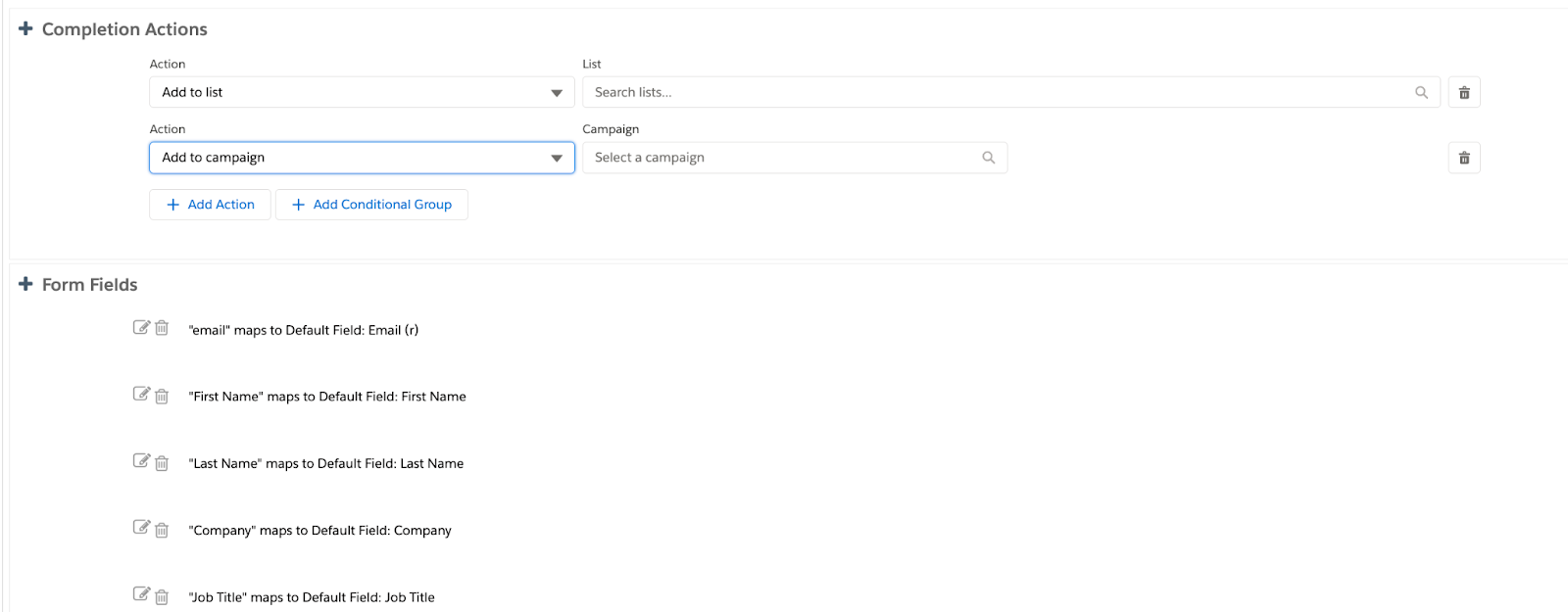
2. Create Form Handler
Next, you’ll create your form handler in Account Engagement
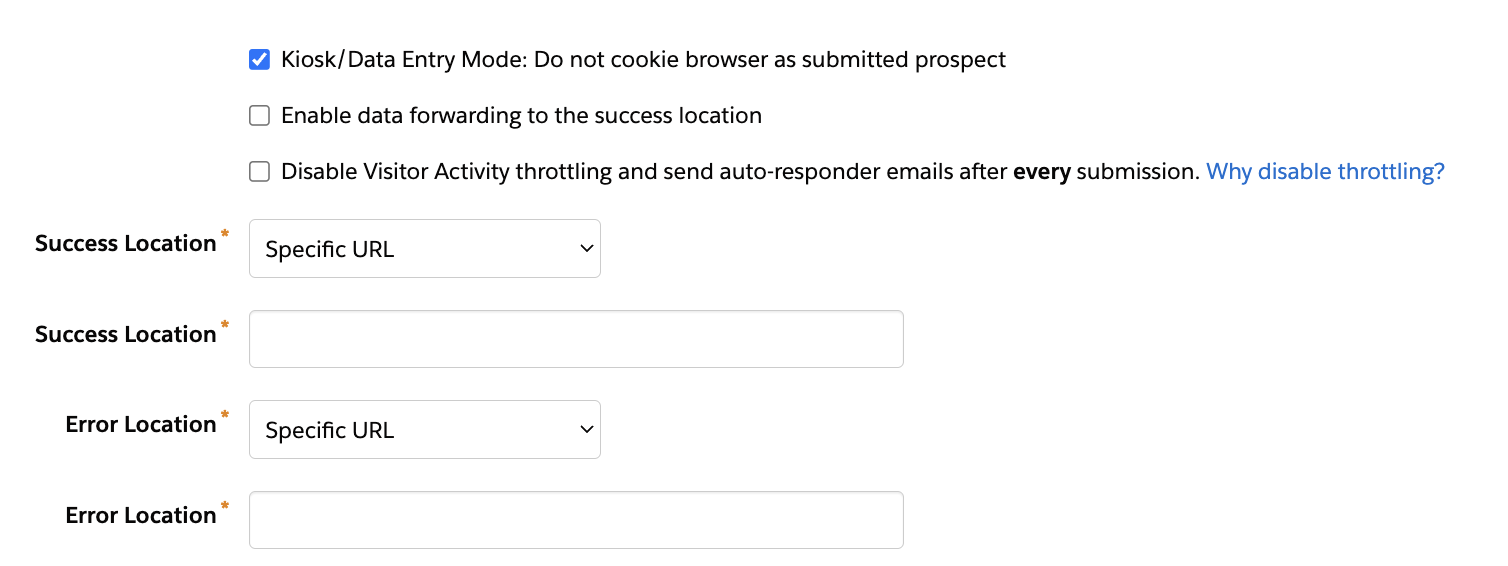
Settings to configure:
Use Kiosk/Data Entry Mode – so that we don’t cookie Zapier!
Set Success and Error Locations
Add any completion actions needed, examples include:
Add to list
Add to campaign
Send Autoresponder email
Add/map fields
Only make the email address required
Step 3: Create a Zap in Zapier for LinkedIn Registration
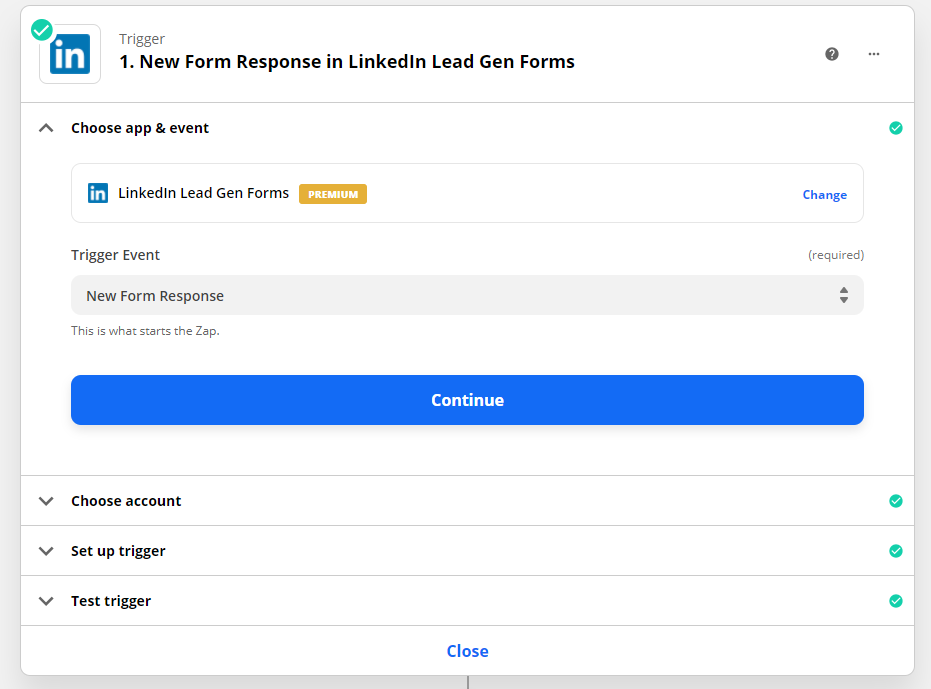
Step 1: New Form Response in LinkedIn Lead Gen Forms
Choose app & event as “LinkedIn Lead Gen Forms”
Trigger event as “New Lead Gen Form Response Response”
Choose Account as “LinkedIn Lead Gen Forms”
In the setup trigger, choose LinkedIn Account and select the respective Lead Gen Form
Test trigger for this action by submitting a test lead on the LinkedIn Lead Gen form
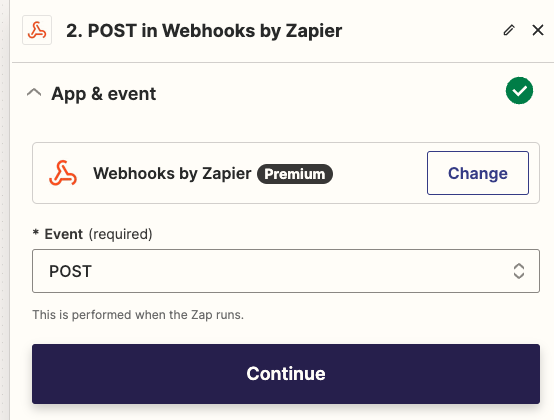
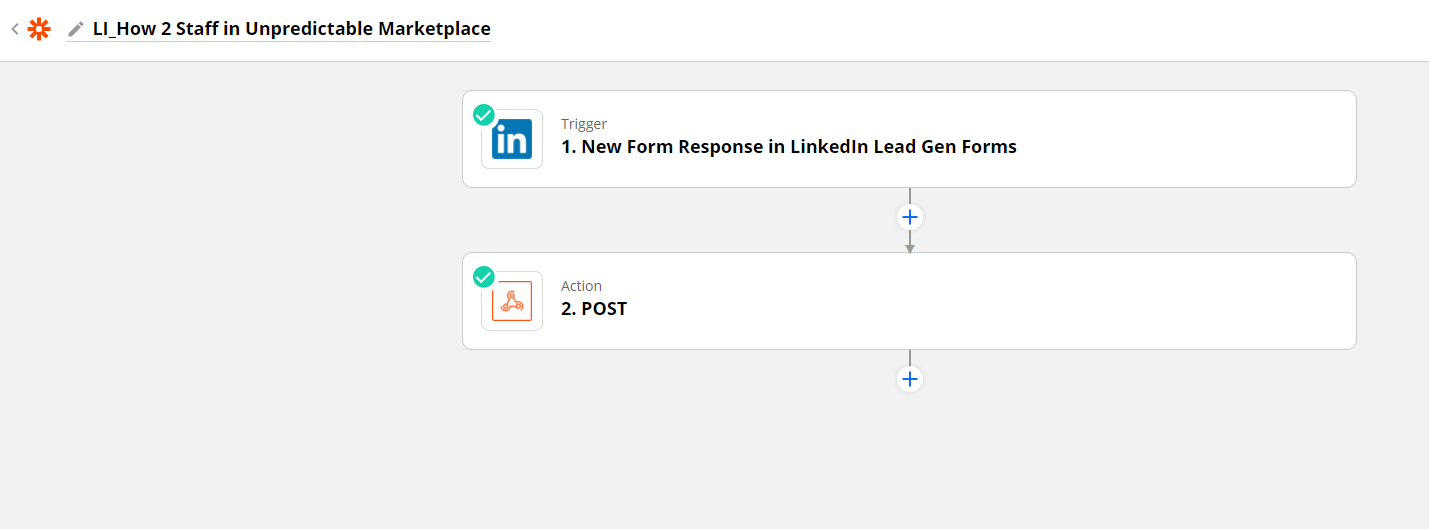
Step 2: Action Post In Webhooks by Zapier
Search “Webhooks by Zapier” and select Action “Post”
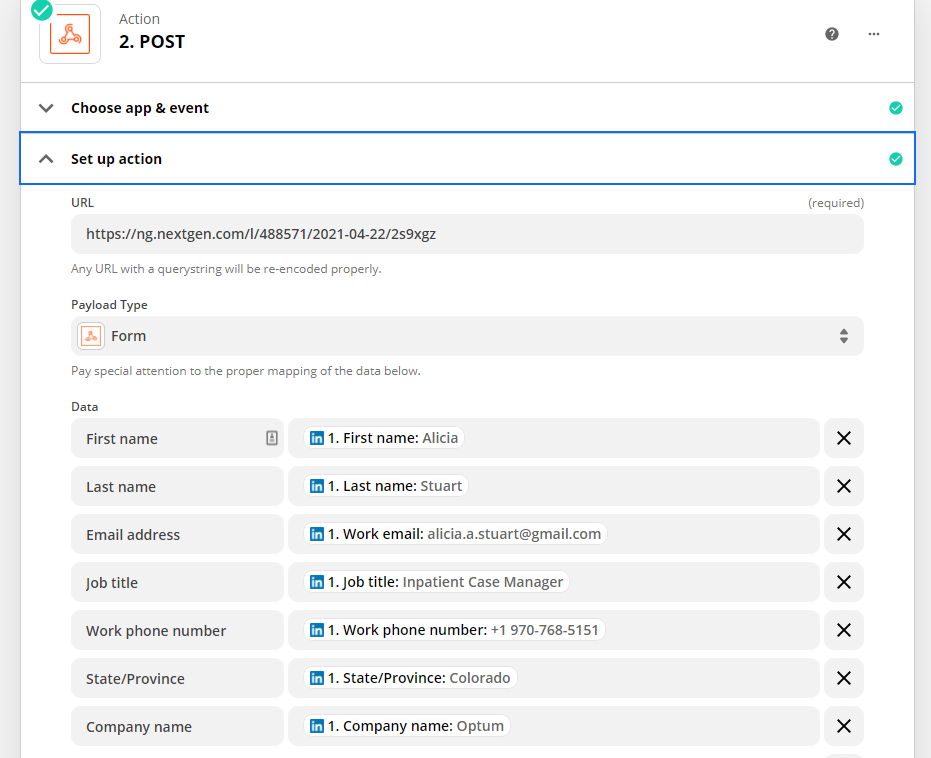
Configure Actions by updating URL and mapping data fields with the External Field Name in the Form Handler.
Test the webhook
The final zap will look like this:
Step 3: Verify Submission in Account Engagement
Navigate to the form handler to confirm that the test submission appears
Step 4: Activate the Zap and LinkedIn Ad
Don’t forget to turn on your zap and your ad!
Approach 2: Using Zapier Apps Linkedin Ad to Pardot
Step 1: Create Lead Gen Forms in LinkedIn Ads
Step 2: Create Assets In Salesforce and Account Engagement
Create Salesforce Campaign
Update campaign member status as needed
Create List
Create other marketing assets as needed, examples include:
Autoresponder email
Add list to any engagement studio programs
Create an Automation Rule
Rule:
Prospect List is a member of the LinkedIn Lead Gen List
Actions – add as many as necessary but here are a few recommendations:
Assign Prospect
Add to CRM Campaign xxx with “Responded” status
Adjust Prospect score
Update any field values
Step 3: Create a Zap in Zapier for LinkedIn Registration
Step 1: New Form Response in LinkedIn Lead Gen Forms
Choose app & event as “LinkedIn Lead Gen Forms”
Trigger event as “New Lead Gen Form Response Response”
Choose Account as “LinkedIn Lead Gen Forms”
In the setup trigger, choose LinkedIn Account and select the respective Lead Gen Form
Test trigger for this action by submitting a test lead on the LinkedIn Lead Gen form
Step 2: Find or Create Prospect in Pardot
Choose app & event as “Pardot” and Action Event as “Find Prospect”
Choose your Pardot account
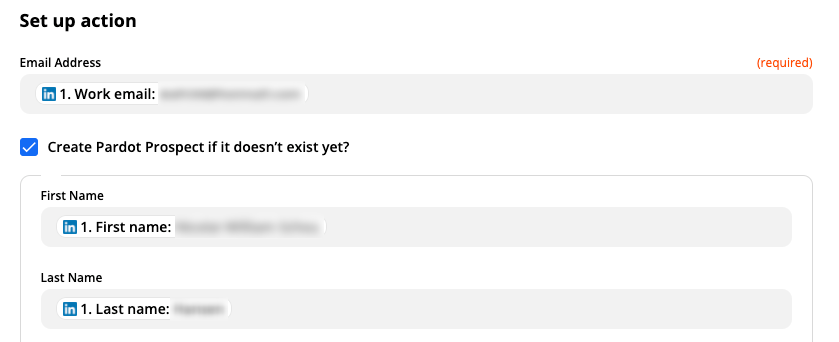
Update set-up actions to map fields, and add all fields gathered in your lead gen form:
Email Address
First Name
Last Name
Test your step
Step 3: Add Prospects to List in Pardot
Choose app & event as “Pardot” and Action Event as “Add Prospect to List”
Choose your Pardot account in the next step
Update set-up action with the following fields
List – Choose the list you have created in Pardot for this campaign
Prospect – Update this field with Prospect ID
Test your step
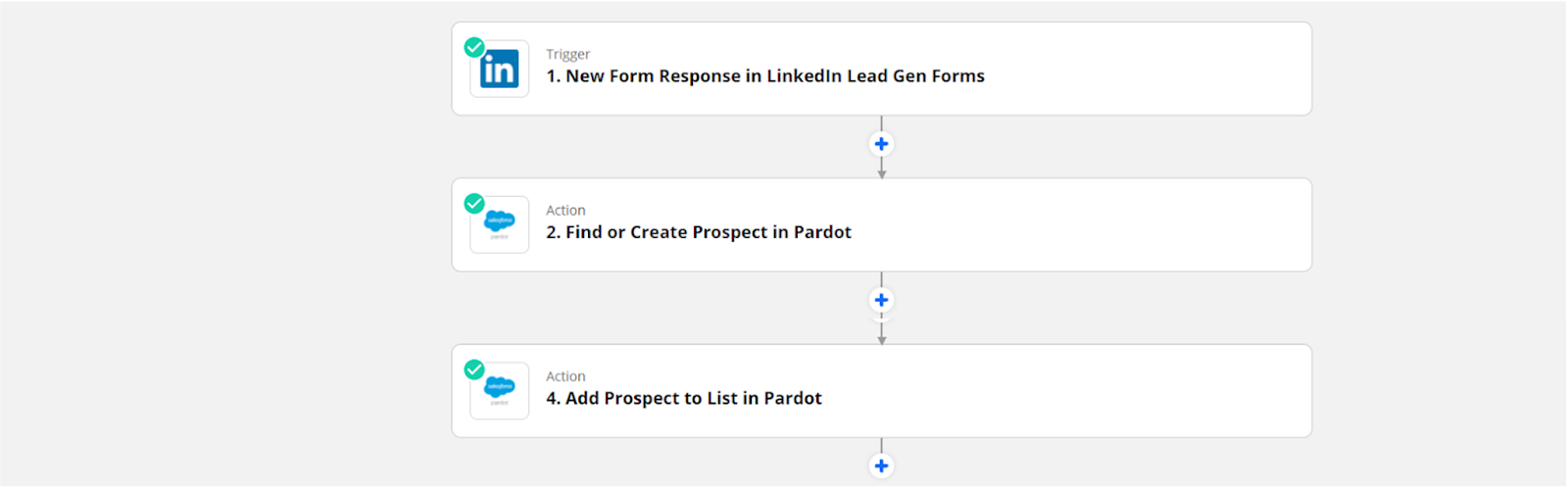
Your final zap will look like this:
Step 4: Verify Submission in Account Engagement
Navigate to the list that you created and confirm the test lead submission is showing on the list.
Step 5: Turn on the Zap and Automation Rule in Account Engagement
Once you have finished testing your Zap and know that the leads are flowing with the data as expected, you can turn on your Zap. Avoid technical debt by pausing your automation rule when your LinkedIn Ad is no longer active.
Now that Zapier is configured, what’s next?
Go forth and build more Zaps! Remember, you have to create a new Zap for each LinkedIn Lead Gen form.
We get it. With all the reporting tools out there it is hard to know which one is correct (or what a tool is named this week). In this blog, we will guide you with four questions to help you decide which Salesforce reporting tool fits best with your goals.
4 Things to help you choose which Salesforce reporting tool to go with
To help you figure out what Salesforce reporting tool fits your situation, we are comparing these tools:
CRM Analytics (Formerly Tableau CRM, Einstein CRM, and Wave)
150+ APIs out of the box and numerous flat file options
Over 50 standard data connectors
If it’s a field in Salesforce, it is available to report on
Audience: Where does it live, and who needs to see it?
Lives in Analytics Studio or native in the app under the Analytics Tab. You can also embed it on Salesforce Lightning pages.
Most users will access via platform.datorama.com. You can embed dashboards for anyone you want to view.
Tableau has desktop and cloud-based versions, and you can buy licenses that include full data control or just view access
Natively in the Salesforce Org
Staffing considerations: Who will build it?
This can be done by someone who has an intimate knowledge of salesforce schema and object relations. If you can create a custom report type, you can be proficient in CRMA
Marketers can take Trailhead training and try to self-implement, or marketing agencies and consultants can also implement
Tableau is a widely adopted tool with knowledgeable users in many organizations, and there is a consultant marketplace on Tableau’s website
Whoever has a permission set that gives access in Salesforce
Licensing Costs
Additional Cost by how many seats and licenses you purchase.
Licensing is mainly determined by data row usage, with user licensing costs as well
Licensing is heavily user and enablement subscription-centric, with a pricing calculator found here
Comes out of the box with your Salesforce Edition. Wouldn’t count toward data storage, but they do have configuration limits
Data input
“Where is my data coming from, and how should I harmonize it?”
CRM Analytics
When it comes to CRM Analytics… it is all about Salesforce data. Think of it like Salesforce reports on steroids. If it is in Salesforce, you can easily pull it into CRM Analytics. That doesn’t mean there aren’t connectors for additional insight, (Hello Data Cloud!), but generally are limited to data lakes and warehouses.
Unlike Salesforce reporting, which imposes significant restrictions on the data sources (objects) you can include in a single report, CRM Analytics overcomes this limitation and lets you get pretty creative with joins. The downside is that you have to know your data really well so when you are joining you are confident what you report on is accurate.
Marketing Cloud Intelligence
When it comes to Marketing Cloud Intelligence… this is where Marketing Cloud Intelligence shines. If you have numerous marketing sources you need to report on — for instance, site data from Google Analytics, CRM data from Salesforce, and engagement data from Google AdWords — this is a marketer’s delight in terms of tools to work with.
You can see the breadth of out-of-the-box marketing-centric connectors below — from Facebook, Adobe Analytics, or any other tool you have credentials to as simply as logging in, or simply uploading any data file you can imagine using the TotalConnect function. Intelligence also has a set of recommended data models for each type of connector with variation allowed upon ingestion and after the fact as well.
Tableau
When it comes to Tableau… you can find a holistic source list here (including numerous Salesforce connectors, among them Marketing Cloud Intelligence). Like Intelligence, you can upload raw files to Tableau and visualize the data accordingly with flexibility.
There are no standard data models, however, so you will need to set these up upon ingestion for your data sources (they will often mirror source data models).
Salesforce Reports
When it comes to Salesforce Reports… The adage “if it’s not in Salesforce it doesn’t count” is a phrase in the ecosystem for a reason!
Whatever data is physically available in Salesforce, generally a standard or custom Salesforce report can see it. This one is pretty easy and probably the piece you are most comfortable with, but don’t count it out.
Sometimes you need something quick and visible to a multitude of people. Let’s just say… if it was a horse, its name would be Ole Faithful. There is no limitation on company size per se, but be cognizant of data storage limits, data fatigue, and how clean that data is in your Salesforce org.
Final Thoughts
If you are an Enterprise customer, really think through different departments that need analytics and if there are data row limits for your products. Processing power can mean all the world when trying to load a report that takes 20 minutes.
What are you already paying for? There might be a way to reach your goal without purchasing an additional tool- this can help guide you to what your pain points are and to decide on a new tool if necessary.
Audience
Where does this report/dashboard live, and who needs to see it?
CRM Analytics
When it comes to CRMA… there are two answers. Most people view this in Analytics Studio, which opens a new browser window when you click on it from the app launcher in Salesforce. However, you can have a tab right in your Salesforce app that points to Analytics or embed the dashboard on objects in Salesforce. The caveat is that to view those reports you would need a license and permission set.
A great silver lining is that you can give the correct permissions to users even where they cannot edit or mess with anything just like you can in Salesforce. Based on the cost, that it requires licenses could limit who in your organization can engage with those dashboards. Another silver lining is that you can always download the dashboard as an image and include it in presentations or post in chatter.
Marketing Cloud Intelligence
When it comes to Marketing Cloud Intelligence… You need credentials to get into the Intelligence platform, and that can come in the form of admins (who can see everything and upload new data sets), power users (who can do reports and dashboard maintenance but not update data sources), and viewers who can, to certainly much surprise, view dashboards. You can also freely send out embedded versions of dashboard pages or activate reports to send to tools like Google Drive, Slack, or email regardless of platform access.
Tableau
When it comes to Tableau… Tableau has numerous views and versions of the tool. There is a desktop version of the tool as well as web versions that allow users to freely access data views as they would like. Recently, Salesforce has allowed users to embed Tableau dashboards into Salesforce Lightning pages as a simple way to broaden their viewer base. Otherwise, you will be paying for different types of licenses in the form of Creators, Explorers, and Viewers.
Salesforce Reports
When it comes to Salesforce Reports…Locking down sensitive data is really easy in Salesforce and a great way to make sure you are being cognizant of data security internally. On the opposite end, Salesforce reports also let you be very open and transparent across your organization leading to the breaking down of silos. Whether you need to get super granular for one individual or macro for company reporting, Salesforce reports can get the job done for your internal teams.
✨
Final Thoughts
Some tools can host an online dashboard through a URL that your customers can see and engage with. (Great for certain industries like the public sector).
A lot of these tools are integrating or have integrated with Slack. Be aware of any gotchas or limitations if that is a priority.
Breaking down of silos can really be achieved with most of these tools. Just try and meet your audience where they live day to day. Make it easily accessible for them.
Staffing considerations
Who will build it? What do people on your team know how to use?
CRM Analytics
When it comes to CRMA… This is easy to learn if you have Salesforce experience. The interface is very user-friendly and once you get over the initial learning curve you can move pretty quickly.
But being transparent, if you haven’t really had experience with building report types on Salesforce or how objects interact in Salesforce it might be a challenge. There are also coding with SAQL and JSON that add an additional layer of flexibility and creativity that isn’t required, but really helpful.
Generally, you want someone who has a few years of Salesforce Report building experience or SQL/ JSON experience/ data modeling. To gain experience, there are great Trailhead Resources as well as getting your Salesforce Admin Certification to help get you started.
Marketing Cloud Intelligence
When it comes to Marketing Cloud Intelligence… There was previously a set of free certifications, but those have transitioned into Trailhead learning modules, found here. The tool is based on a very user-friendly UI for modeling and building out views of your data is relatively easy to learn, and is made even easier by the access to standard API connections.
This tool is also used heavily in marketing agencies and well known for marketing data. Some Salesforce Marketing Cloud users may also be familiar with Intelligence Reports for Engagement, which has some light versions of the full-fledged Intelligence platform’s features.
Tableau
When it comes to Tableau… Tableau is one of the most widely adopted visualization tools on the market right now. While the back-end processes may be a bit of a deep dive for newer users, familiarity with data mapping and formula creation in other tools will go a long way. You can also get certified or find Tableau knowledgeable on Tableau’s certification page at https://www.tableau.com/learn/certification.
Salesforce Reports
When it comes to Salesforce Reports… Salesforce reporting and who has access to build is dependent on permission sets. This means you can give the ability to users as you, the admin, see fit. The ability to create custom report types is also customizable through a permission set but should be thought of as to who would best serve to manage because that can get out of hand. (Too many cooks in the kitchen if you catch our drift).
Final Thoughts:
Who is going to build it might not be who is going to use it. Can you imagine your manager trying to piece together a Tableau report? Let’s let them spend time on other things :]
Licensing costs for users and data
CRM Analytics
When it comes to CRMA… CRM Analytics is generally an additional cost for licensing. However, some clouds have app templates in Analytics Studio that give you a degree of access. Be on the lookout for tools that have app templates (B2B Marketing Analytics) or can be added on at an additional cost (Sales Cloud Analytics).
Another thing to note, you aren’t charged for creating dashboards, transformations, or filtering, but your org has a limit on how much data is being processed called a data row limit (basically how much data you bring in). Just something to keep an eye on home data you are bringing in.
When it comes to Marketing Cloud Intelligence… You can read the full pricing breakdown here-the main difference between these options is best captured in row usage (though users also scale according to package), which is best determined by the breadth and depth of the data you are pulling (for instance, keyword level data across ten sources will be more row-heavy than campaign and media buy data across four or five sources).
Tableau
When it comes to Tableau… You can find the pricing here, which breaks down on a user-by-user basis depending on the type of user license, all of which come with different features and permissions (ranging from viewer-level permissions to interact with already built dashboards to Tableau Creators, who have the full tableau suite of features available to them). There is even a pricing calculator on Tableau’s website if you want to get a clear sense of what it would look like for your organization.
Salesforce Reports
When it comes to Salesforce Reports… Thankfully this is fairly easy! Reports and dashboards are considered metadata and are native out of the box with your Salesforce edition and wouldn’t count toward data storage. They do have configuration limits that you might want to consider when looking at your Salesforce Licensing and Cost.
No wrong answers for Salesforce reporting tools
In conclusion, there isn’t a wrong answer when it comes to which reporting tool to use. Many of them overlap and have similar functionality. But to make heads or tails of which reporting tool fits your goals best, you can start with these 4 simple questions:
Data input. “Where is my data coming from and how should I harmonize it?”
Audience. Where does this report/dashboard live, and who needs to see it?
Staffing considerations. Who will build it? What do people on your team know how to use?
Cost of use. What are Licensing costs for users and data?
We hope that the tidbits we’ve given in service of these questions are helpful, and welcome you to reach out to our team if you have any further questions on these topics or other reporting tool questions.
Keep it going
Here are a few resources to get you started as you figure out which reporting tool works best for you and what it takes to manage those tools.