Category

Emails & Forms

LinkedIn Lead Gen forms are definitely a favorite for those creating LinkedIn Ads, but what happens after people fill out the form? Ideally, you continue to market to LinkedIn leads by sending them your newsletters or adding them to a nurture program. If you are like me, you don’t want to manually export leads from LinkedIn and import them into your marketing platform. This is where Zapier comes in. 

Zapier is a user-friendly platform that allows you to automate a wide variety of workflows. With over 5,000 apps available, you can easily set up integrations without coding, including Marketing Cloud Account Engagement (f.k.a Pardot) and LinkedIn Ads. In this blog post, we’ll show you how you can automate the flow of leads from your LinkedIn Ads to Account Engagement in under five minutes.  

Deciding between two ways to automatically create Account Engagement leads from LinkedIn using Zapier

There are two ways that you can use Zapier to automatically create Account Engagement leads:

  1. Use Zapier Apps LinkedIn Ad to Webhook, which uses an Account Engagement form handler
  2. Use Zapier Apps Linkedin Ad to Pardot 

Here are the key things to consider when deciding which method to use:

API Call vs. Webhooks

The Pardot App within Zapier operates like an API call so there are some specific considerations:

  • API calls are not supported with basic editions of Account Engagement, so you can only use webhooks.
  • Records created by API calls will create a duplicate, so it would require additional steps in the Zap to prevent this if you’re using the Pardot App.

Duplicates from personal email addresses

  • Leads from LinkedIn Lead Gen forms usually come in with personal email addresses, so you might have duplicates with different email addresses. 
  • However, the webhook approach does allow for more control to ensure that a record is updated to reduce the risk of duplicates that can be created via API calls.

Webhooks Require a Zapier Paid Account

Account Engagement, LinkedIn Ads, and Webhook apps are considered Premium Apps and will require a paid Zapier account. Learn more about Zapier pricing here

LinkedIn Access Considerations

The LinkedIn Account used for the integration will need access to the LinkedIn Ads account, specifically the lead gen forms. 

Setup needed for each business unit

Have multiple Account Engagement business units? You will need to set up the Pardot integration for each business unit. 

Approach 1: Using Zapier Apps LinkedIn Ad to Webhook 

Step 1: Create Lead Gen Forms in LinkedIn Ads

First, you’ll create your LinkedIn Lead Gen form. To help make testing easier, submit a test submission. 

Step 2: Create Assets In Salesforce and Account Engagement

1. Create Salesforce Campaign 

  • Update campaign member status as needed

2. Create Form Handler

Next, you’ll create your form handler in Account Engagement

Settings to configure:

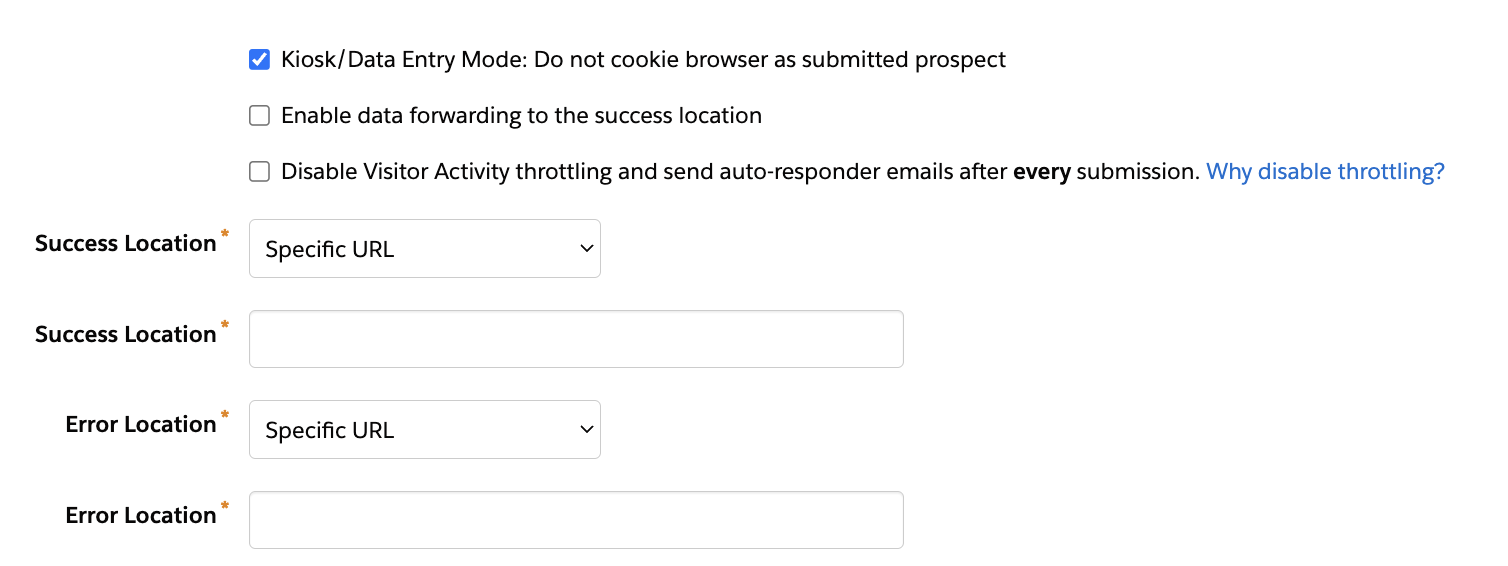
  1. Use Kiosk/Data Entry Mode –  so that we don’t cookie Zapier!
  2. Set Success and Error Locations
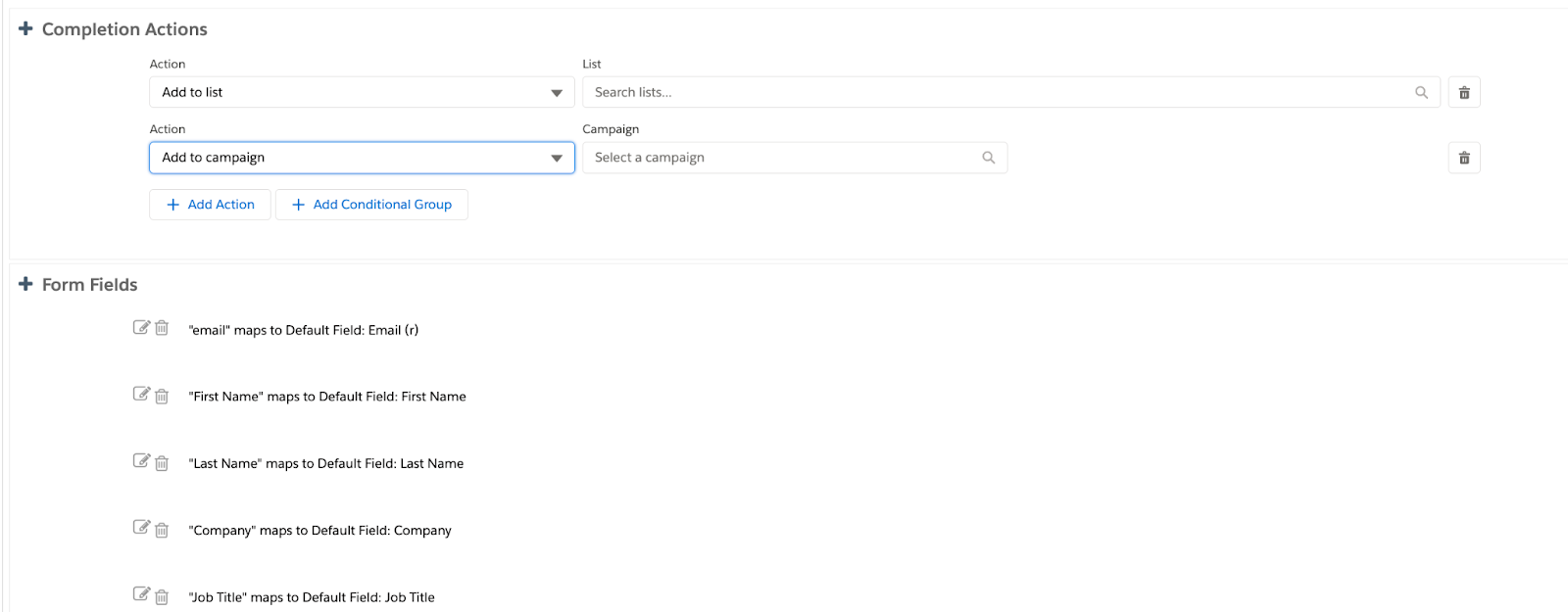
  • Add any completion actions needed, examples include:
    • Add to list
    • Add to campaign
    • Send Autoresponder email
  • Add/map fields
    • Only make the email address required

Step 3: Create a Zap in Zapier for LinkedIn Registration

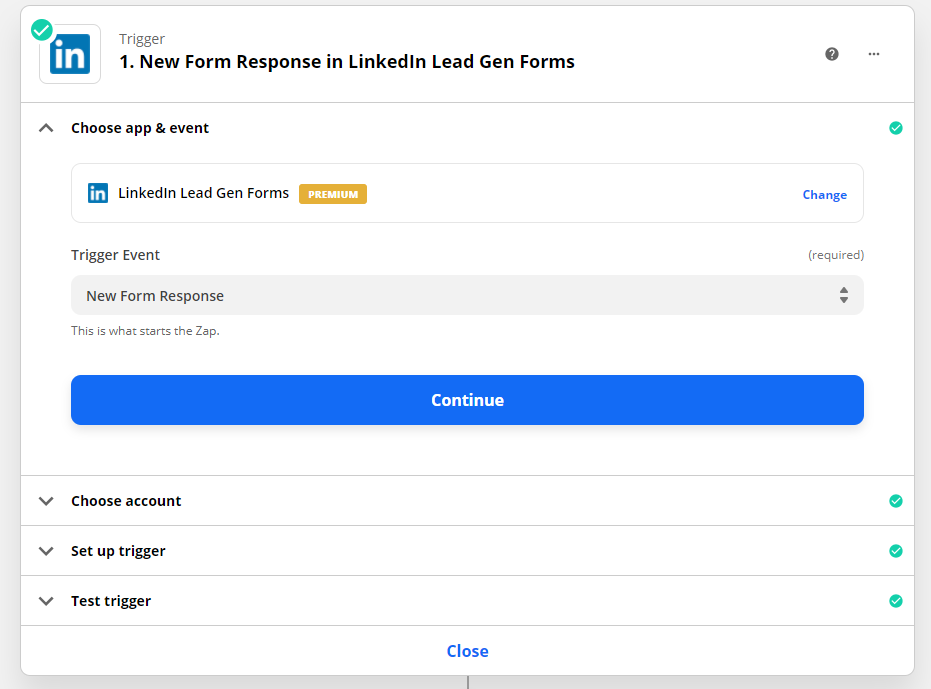
Step 1: New Form Response in LinkedIn Lead Gen Forms

  1. Choose app & event as “LinkedIn Lead Gen Forms”
  2. Trigger event as “New Lead Gen Form Response Response”
  1. Choose Account as “LinkedIn Lead Gen Forms”
  2. In the setup trigger, choose LinkedIn Account and select the respective Lead Gen Form
  3. Test trigger for this action by submitting a test lead on the LinkedIn Lead Gen form

Step 2: Action Post In Webhooks by Zapier

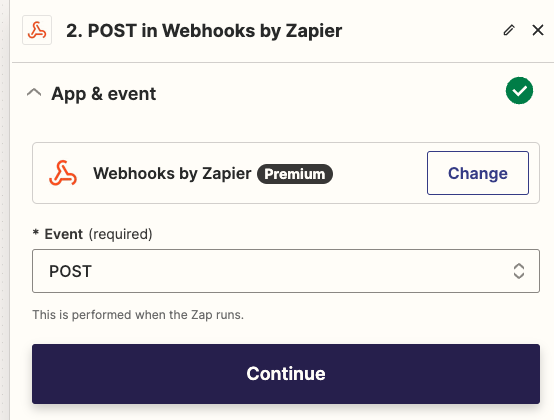
  1. Search “Webhooks by Zapier”  and select Action “Post” 
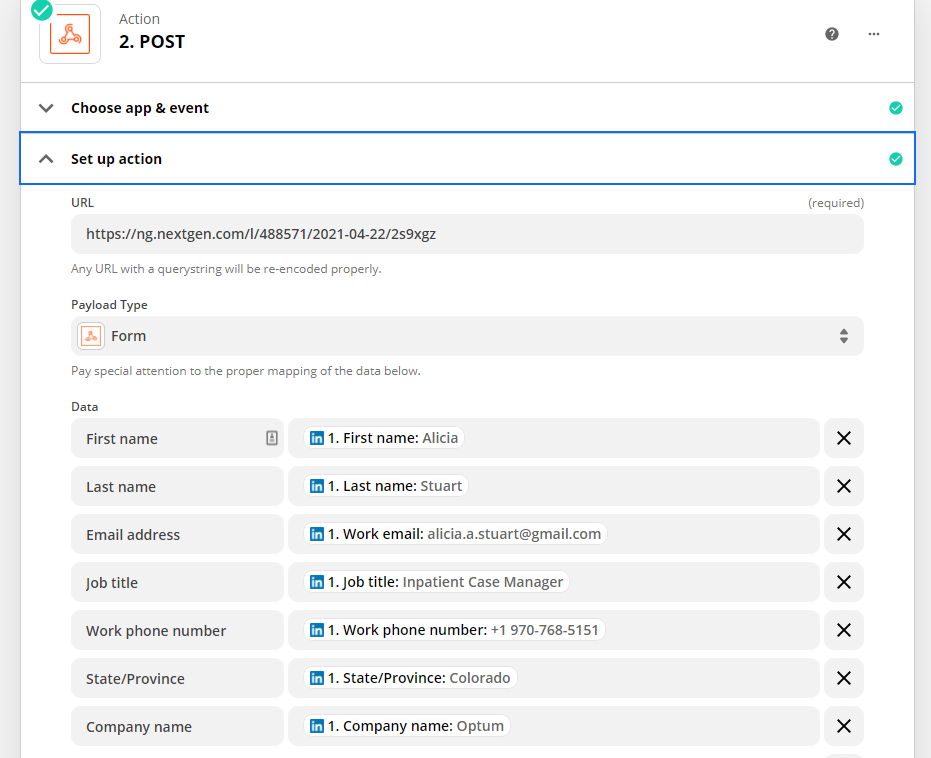
  1. Configure Actions by updating URL and mapping data fields with the External Field Name in the Form Handler. 
  1. Test the webhook

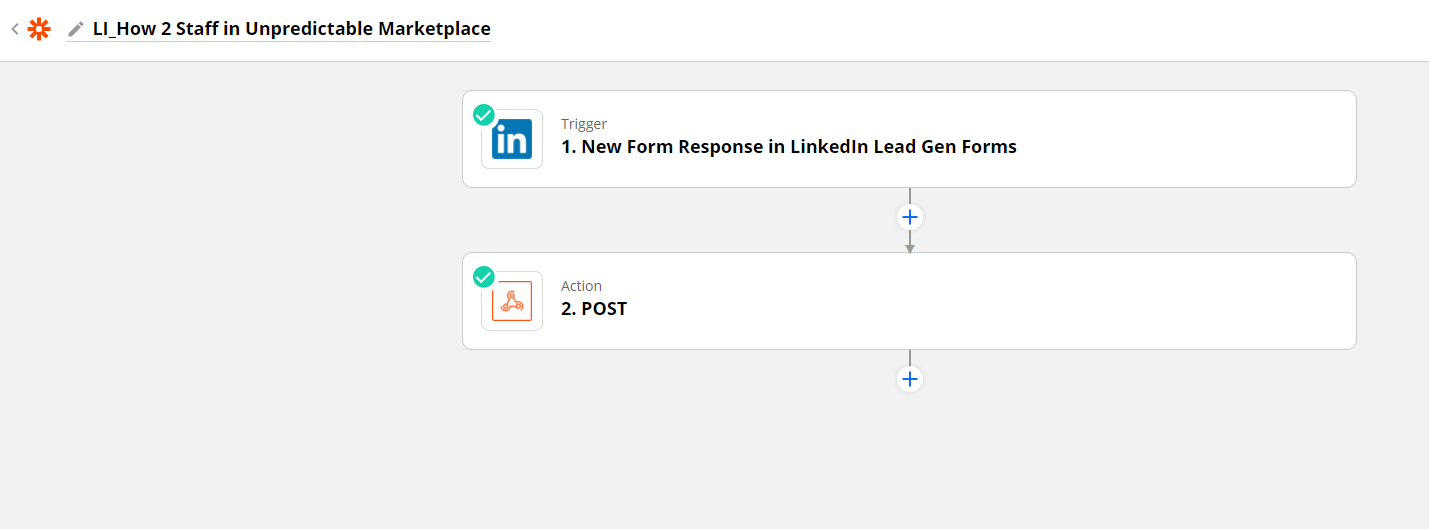
The final zap will look like this:

Step 3: Verify Submission in Account Engagement

Navigate to the form handler to confirm that the test submission appears

Step 4: Activate the Zap and LinkedIn Ad

Don’t forget to turn on your zap and your ad!

Approach 2: Using Zapier Apps Linkedin Ad to Pardot 

Step 1: Create Lead Gen Forms in LinkedIn Ads

Step 2: Create Assets In Salesforce and Account Engagement

  1. Create Salesforce Campaign 
  • Update campaign member status as needed
  1. Create List
  2. Create other marketing assets as needed, examples include:
    • Autoresponder email
    • Add list to any engagement studio programs 
  3. Create an Automation Rule

Rule: 

  • Prospect List is a member of the LinkedIn Lead Gen List

Actions – add as many as necessary but here are a few recommendations: 

  • Assign Prospect
  • Add to CRM Campaign xxx with “Responded” status
  • Adjust Prospect score 
  • Update any field values

Step 3: Create a Zap in Zapier for LinkedIn Registration

Step 1: New Form Response in LinkedIn Lead Gen Forms

  1. Choose app & event as “LinkedIn Lead Gen Forms”
  2. Trigger event as “New Lead Gen Form Response Response”
  3. Choose Account as “LinkedIn Lead Gen Forms”
  4. In the setup trigger, choose LinkedIn Account and select the respective Lead Gen Form
  5. Test trigger for this action by submitting a test lead on the LinkedIn Lead Gen form

Step 2: Find or Create Prospect in Pardot

  1. Choose app & event as “Pardot” and Action Event as “Find Prospect”
  2. Choose your Pardot account
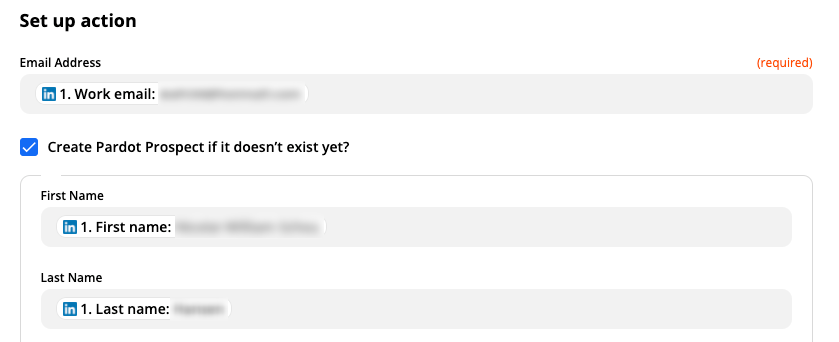
  3. Update set-up actions to map fields, and add all fields gathered in your lead gen form:
    • Email Address
    • First Name
    • Last Name
  4. Test your step

Step 3: Add Prospects to List in Pardot

  1. Choose app & event as “Pardot” and Action Event as “Add Prospect to List”
  2. Choose your Pardot account in the next step
  3. Update set-up action with the following fields
    • List – Choose the list you have created in Pardot for this campaign
    • Prospect – Update this field with Prospect ID
  4. Test your step

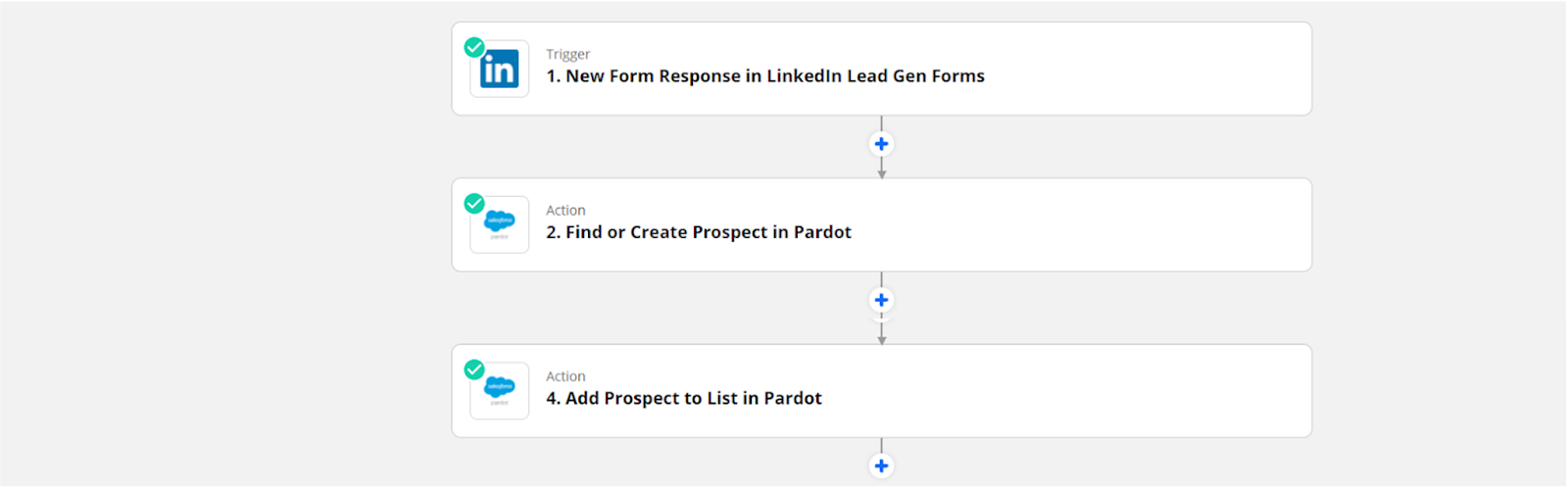
Your final zap will look like this: 

Step 4: Verify Submission in Account Engagement

Navigate to the list that you created and confirm the test lead submission is showing on the list. 

Step 5: Turn on the Zap and Automation Rule in Account Engagement

Once you have finished testing your Zap and know that the leads are flowing with the data as expected, you can turn on your Zap.  Avoid technical debt by pausing your automation rule when your LinkedIn Ad is no longer active. 

Now that Zapier is configured, what’s next?

Go forth and build more Zaps!  Remember, you have to create a new Zap for each LinkedIn Lead Gen form. 

Need help with other integrations? Reach out to the team at Sercante to get the conversation going.

Salesforce web forms can be a game changer by empowering you to create personalized experiences for customers. Complex forms using multiple steps and conditional logic tailor digital journeys to meet the unique needs of the individual. These engaging forms enable savvy sales and marketing teams to foster interest in their product or service and close deals faster. 

While native Salesforce forms have many advantages, they also come with challenges. Specifically, if you want to create complex forms involving detailed steps, containing dynamic content, or with a customized UX, you will need to invest in some kind of development or code. 

Using complex web forms without coding knowledge

If you have time and money to burn or in-house developers to tap for help, then this is no problem. However, if you don’t have knowledge of code or access to a development team or want to speed up time to market, you might want to consider alternatives. 

In this article, we check out how you can get all the perks of complex Salesforce forms without having to write a single line of code. To do this, you will need to venture away from Salesforce native solutions, and their associated limitations, and check out some of the leading tools on the Salesforce AppExchange

Want to learn more? Keep reading! 

Creating leads in Salesforce using web-to-lead forms

Let’s take a look at web-to-lead forms for Salesforce and how these forms can further the aims and objectives of your sales and marketing teams. In the process, we will discover some of the limitations of native Salesforce functionality and find ways to navigate them.

Web-to-lead is a feature that empowers you to create leads in Salesforce via forms embedded on your website. Setting up forms with the native Salesforce web-to-lead feature is relatively easy and doesn’t require any code at all. 

When a user fills in your form and submits it, real-time data gets pushed into Salesforce where the CRM automatically creates a lead. From here, your sales and marketing teams can ensure high-value leads are routed to your best salespeople. That information on your lead is analyzed against relevant metrics and consumer trends. 

Finding flexibility with Salesforce web-to-lead forms

The challenge with the Salesforce web-to-lead is that the out-of-the-box version may leave teams wanting more. For example, you can’t connect your form to other objects in Salesforce such as Case or Opportunity. In addition, you can’t attach files to native web-to-lead forms to provide supporting information on your lead. 

You can accomplish these things and collect detailed information on the preferences and needs of each lead, but the solution requires the implementation of custom code.

Implementing complex web-to-lead forms in Salesforce

To kickstart next-level lead generation and close deals faster, we recommend creating complex web-to-lead forms that capture robust information on a prospective customer such as their likes, dislikes, and purchasing preferences. 

Using a Salesforce form that allows attachments also means you can get comprehensive data on leads and execute deals more effectively. Similarly, complex web-to-lead forms for Salesforce that contain conditional logic and multiple steps are more exciting to the user and give you a more granular picture of their personality and profile. For example, if a user says they are interested in purchasing a particular product, then you can prompt them to fill in follow-up questions such as the specifications they are looking for and the amount of money they are willing to spend. 

On the other hand, if a lead expresses no interest in a product or service, then there is no need to ask them further questions. In this line of thought, if a user answers a question indicating they want to learn more about your organization, you can give them the ability to download a pamphlet or ebook. If not, you don’t need to bother them with this. This kind of dynamic logic saves time and holds the interest of users a lot longer.

You can achieve this level of flexibility and create dynamic, multi-step web-to-lead forms in Salesforce, but it will require coding and development. So, what are your options if you want to skip the heavy dev work but still get all of the perks? 

Alternatives to native Salesforce forms

If you are a seasoned Salesforce user, you will know that the Salesforce AppExchange is a giant marketplace where you can find thousands of platforms that integrate with the planet’s leading CRM. And while there are countless tools with which to create forms in Salesforce, some tools do this more seamlessly than others. 

The best solutions give you the freedom to build forms in Salesforce using any logic or object you want without any limitations or code. This frees up your schedule, saves you money, and requires zero compromise when it comes to your dream solution. 

While it’s up to you to choose the tool that best suits your organization, we will zone in on one app: Titan for Salesforce. Taking its name from the most powerful of Greek gods, Titan is a no-code platform that can implement any custom solution for Salesforce. 

Web-to-lead forms by Titan allow you to: 

  • Connect your web form to any object in Salesforce such as Contact, Opportunity, and Case.
  • Include attachments on your web form for Salesforce.
  • Create tailored customer journeys with multiple steps and conditional logic.
  • Generate leads in Salesforce.
  • Make forms with a custom UX. 
  • Gather comprehensive information on leads. 
  • View comprehensive data on every lead in Salesforce.
  • Data is validated in real-time so you can make sure form data is sent to the correct object:
  • Go-to-market fast! 

And all this requires no code or any special technical expertise, though experience with Salesforce or having worked as a Salesforce administrator will certainly help you work at optimum speed. Learn more about Titan’s Web-to-Lead powers here:

Salesforce Forms Wrapped 

And that’s a wrap on building complex forms for Salesforce using zero code. We hope you learned more about how more complex forms can create intuitive and guided digital experiences for users and help you make deals that much faster. 

Web-to-lead forms automate the lead creation process for marketing and sales teams but Salesforce’s native feature is limited. We suggest finding a no-code alternative on the AppExchange. Titan is one great option, but it’s up to you to choose the perfect solution for your business needs and objectives.

If you’re new to Marketing Cloud Engagement, you may be feeling overwhelmed. Salesforce’s powerful marketing platform can do a lot. And that comes with a steep learning curve.

I’ve been on my Marketing Cloud Engagement journey for a while now and still feel the sense of having so much to learn. My learning journey has consisted of hands-on experience, boot camp-style training courses, and of course, all the Trailheads. 

Florida Dreamin’ Session – How to Write like a Marketer: Intro to AMPscript for Salesforce Marketing Cloud

I knew when I was given the opportunity to attend this year’s Florida Dreamin’, finding Marketing Cloud Engagement sessions was at the top of my event bucket list. That’s why I was super excited to attend Tatiana Romanko’s presentation, How to Write like a Marketer: Intro to AMPscript for Salesforce Marketing Cloud.  

Romanko took a complex topic and simplified it, making her content easy to understand by providing real-world use cases every marketer could relate to. This session was a great introduction to AMPSprcipt for Marketing Cloud Engagement users who are still on that learning curve, and even seasoned veterans took away a thing or two. 

What I especially loved about her session is that, like me, Romanko doesn’t have a coding background. Her message really resonated with me: with hard work and hands-on experience, you too can learn the technical intricacies of Salesforce Marketing Cloud. 

What is AMPScript? 

Before jumping right into a complex topic, Romanko set the stage with a quick introduction to AMPscript. “AMPscript is Marketing Cloud’s proprietary scripting language for advanced dynamic content in emails, landing pages, SMS, and push messages.”

“AMPscript expands Marketing Cloud functionality to help you create the one-to-one, personalized communications that are so coveted by digital marketers. https://trailhead.salesforce.com/content/learn/modules/ampscript-for-nondevelopers/get-to-know-ampscript

AMPscript is used to:

  • Personalize emails using subscriber or contact data.
  • Create complex, highly dynamic emails using conditional logic.
  • Clean and format data.
  • Add real-time information to emails such as date or time.
  • Track impressions.”

(source: https://trailhead.salesforce.com/content/learn/modules/ampscript-for-nondevelopers/get-to-know-ampscript

What is AMPScript used for in Marketing Cloud Engagement?

AMPScript does a lot. At Sercante, we use it to help our clients with personalizing their emails, creating dynamic content, and much more. What I liked about Romanko’s session is that she really honed in on three common use cases that every marketer can relate to. 

Personalization

If you’re a marketer, you already know the power of personalization. One study found that emails featuring personalized subjects are 50% more likely to be opened. AMPScript in Marketing Cloud Engagement allows you to use your subscriber data to personalize your marketing. 

Creating a personalized greeting in Marketing Cloud Engagement through a personalization string isn’t complicated. What I liked about Romanko’s use case is she focused on something I often times see clients overlook: what happens when you don’t have a subscriber’s first name? In this case, we could use AMPscript to set a generic value (Customer) as our greeting if we don’t have this data. 

Formatting Your Data

As a marketer, I’ve seen customers input their data in every way imaginable. Romanko gave the example of asking someone to provide their favorite color. In this instance, we could get a few different variations: 

  • Pink
  • pink
  • PINK

So what happens when we go to pull this data into an email? It could end up looking like we either don’t know our basic grammar, or come across like we are YELLING at our reader. 

Romanko highlighted AMPScript’s ProperCase function here, “which capitalizes the first letter in the specified string and any other letters in the string that follow any character other than a letter. It converts all other letters into lowercase.”

AMPScript Resources

As you can see, Romanko gave some great use cases for using AMPScript. She also provided her audience with some really great resources on where to go to learn more:

Soak in all the lessons learned at Florida Dreamin’

Be sure to check out these other posts from my fellow dragons who attended Florida Dreamin’ with me and shared details about their favorite sessions there.

If your Marketing Cloud Account Engagement (Pardot) email looks broken and you can’t figure out why, then you’re in the right place. In this post, we’ll look at common errors you may uncover when coding your email in Marketing Cloud Account Engagement.

Things to look for when your Account Engagement email looks broken

You may be struggling with these common problems in HTML email code within your Marketing Cloud Account Engagement. But don’t worry, we’re here to guide you through resolving these issues step by step.

Images appear broken

One common issue that marketers face is broken images in their email campaigns. It can be frustrating when images don’t load properly, especially on different devices and email clients. To address this, ensure that your image URLs are correct and properly linked in your HTML code. Additionally, optimize your images for faster loading times and consider using alternative text to provide context if an image fails to load.

Here’s a checklist of things to look for:

Is your image too big? 

Large image file sizes can cause slow loading times or may not display at all. Optimize your images for the web by compressing them without compromising quality. 

Is your image in the correct format? 

Additionally, confirm that the image is in the correct format (e.g., JPEG, PNG, GIF). At the date of this blog, not all email clients will support .webp format.

Are there SSL/HTTPS issues? 

If your Account Engagement account or website is using SSL (Secure Sockets Layer) or HTTPS, ensure that the image URLs are also updated to use HTTPS. Browsers may block or display broken images if there are mixed content warnings due to insecure (HTTP) image URLs on secure (HTTPS) pages.

Is the “pardot-region” inserted in the code correctly? 

When customizing or replacing images in Account Engagement using the WYSIWYG editor, it’s crucial to be mindful of the “pardot-regions” in the HTML code. These regions define editable sections that allow you to modify the content, including images.

When updating your HTML code, it’s important to pay attention to the “pardot-width” and “pardot-height” attributes within the code that correspond to your image holder. By explicitly matching these attributes with your image holder dimensions, you ensure that Account Engagement doesn’t automatically adjust the size, potentially distorting or exceeding the intended size of the image holder. In the example below, by setting the “pardot-height” to be auto will allow the image to automatically adjust and not stretch on a mobile device.

My image appears cut off when adding it using the text editor? 

The template may use an attribute mso-line-height-rule:exactly that controls the line-height of text in Outlook. This can crop the image to be that size. Change the attribute to mso-line-height-rule:at-least to give it more flexibility. It is okay to change all of the attributes to at-least.

Darkmode

Dark mode compatibility is another challenge to consider. With the increasing popularity of dark mode, it’s important to ensure that your emails display correctly in this setting. Test your emails in both light and dark mode to identify any color or readability issues. Use CSS media queries to adjust the styling specifically for dark mode, ensuring a seamless experience for your subscribers.

Here’s a checklist of things to look for:

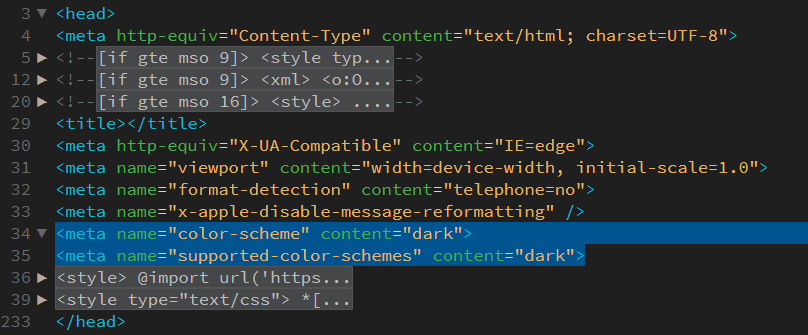
Do you have dark mode meta tags? 

Dark mode (or light mode) meta tags offer an opportunity to enhance the visual presentation and user experience of your website. These tags provide hints to the browser or email client about how the content should be displayed when the user is in dark mode.

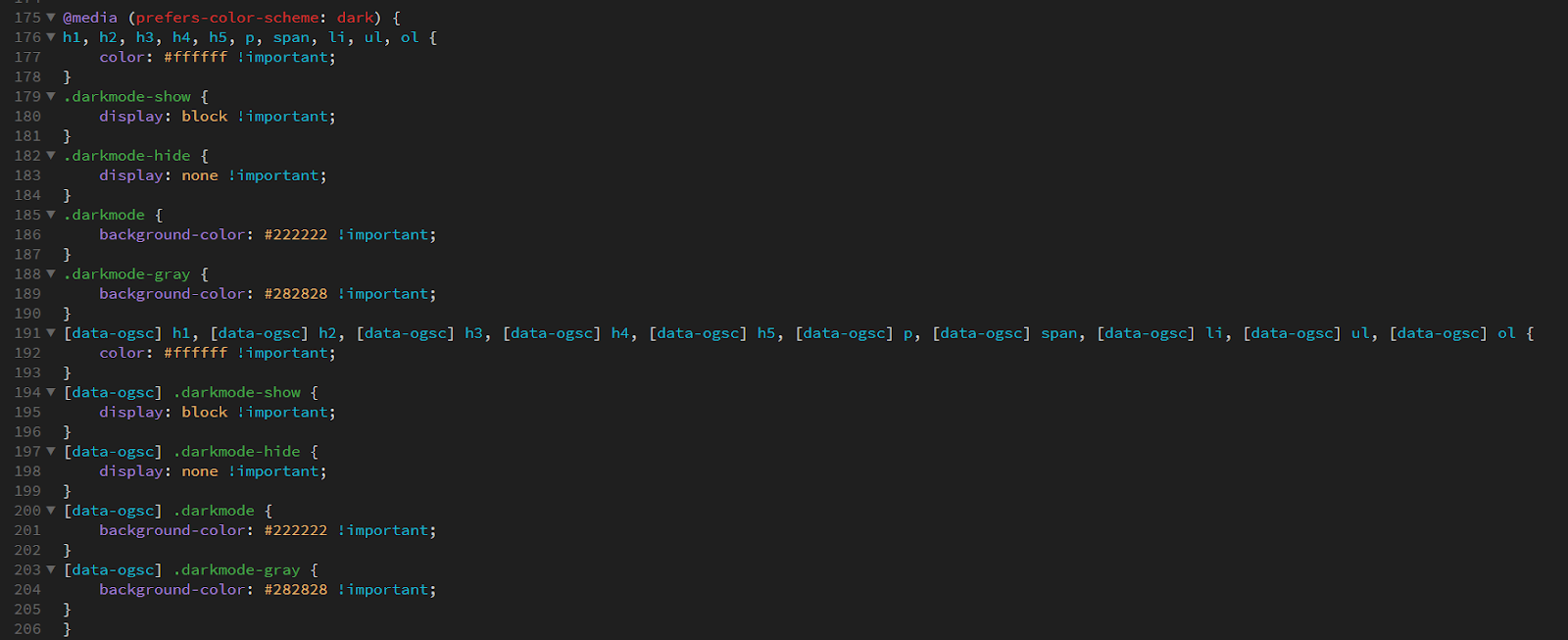
Do you have CSS media queries? 

Dark mode-specific CSS media queries are similar to mobile responsive media queries in the sense that they allow you to target specific conditions and apply different styles accordingly. While mobile responsive media queries focus on adjusting layouts and styles based on screen sizes, dark mode-specific media queries target the user’s preference for dark mode and enable you to modify the appearance of your content accordingly.

When using dark mode-specific media queries, such as (prefers-color-scheme: dark) or @media (prefers-color-scheme: dark), you can detect whether the user has enabled dark mode in their browser or operating system settings. This information helps you adapt the colors, backgrounds, and text within your HTML and CSS code to provide a more suitable and visually appealing experience for users in dark mode. See example code.

Are you swapping your image between dark and light mode? 

Certain images may rely heavily on specific colors or color combinations that work well in light mode but might not be as effective or visually appealing in dark mode. By swapping images, you can create alternative versions that are optimized for each color scheme, enhancing the overall aesthetic and cohesiveness of your email design. See example code.

Is your white text turning black in Outlook? 

Outlook’s dark mode implementation may override the color styles you’ve set for your text, resulting in white text appearing as black. In dark mode, Outlook attempts to adjust the color scheme for better visibility, which can cause unexpected changes to your email’s appearance. You can add the below code to the head tag that will target the Microsoft Outlook email only.

By utilizing this code, you can apply specific CSS styles that will only affect Microsoft Outlook emails. Adjust your desired styles within the provided <style> block.

Here’s an example of how to use a class within an element:

Here is the full tutorial by Nicole Merlin that addresses Outlook emails in dark mode.

Access a complete list of email clients that support dark mode, along with additional tips for optimizing dark mode in your emails, by referring to the following resource.

Preheader text

The preheader text, also known as a preview snippet, is essential for enticing recipients to open your emails. However, it can sometimes get cut off or displayed incorrectly. To avoid this, keep your preheader text concise and within the recommended character limit. Test it across different email clients to ensure it appears as intended.

Here’s a checklist of things to look for:

Do you need this hidden? 

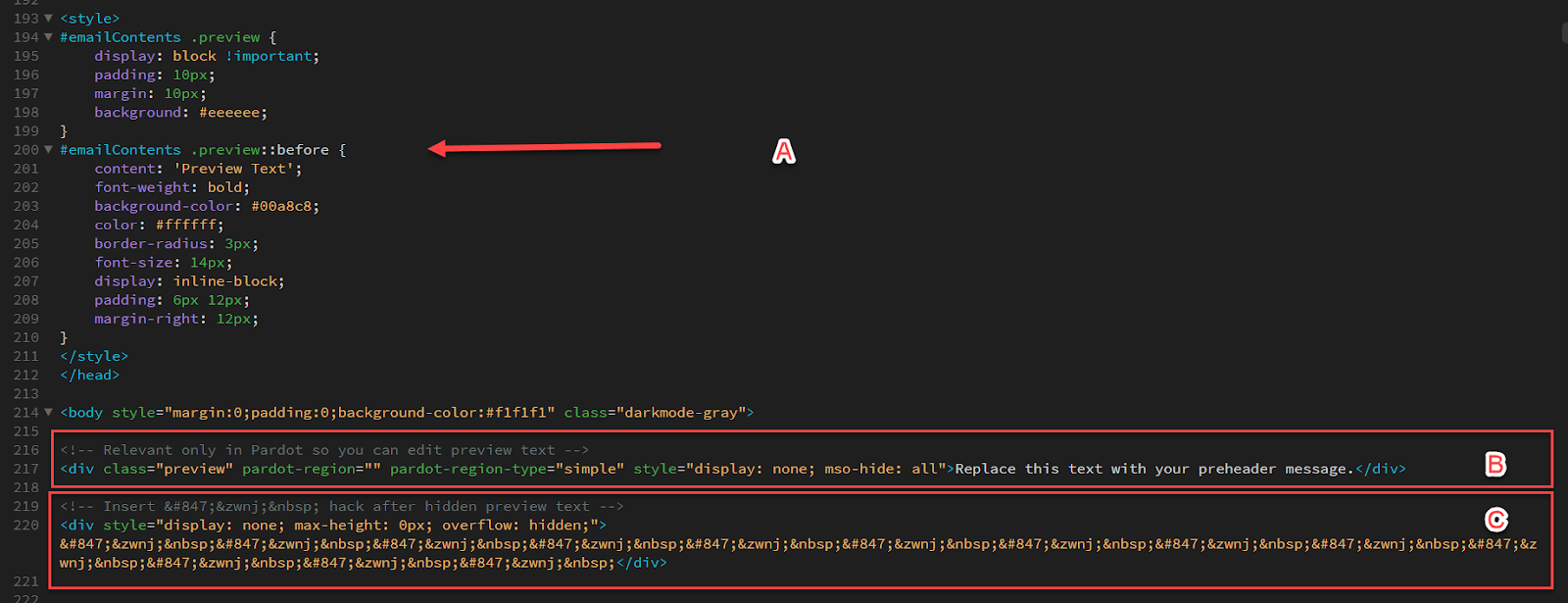
The decision to hide or display preheader text in emails can vary based on several factors, including design preferences, marketing strategies, and the specific goals of the email campaign. If you decide this needs to be hidden on the overall look of the email, you can include a <style> tag within the <head> section of your HTML code. Use CSS selectors to target the desired element and apply the appropriate styling to hide it. See example ‘A’ below.

In this example, the CSS code targets the element with the class name .preview within  the #emailContents container and applies specific styles when the screen width is at least 600 pixels. The #emailContents id is specific to Account Engagement and should allow the editor to edit the content using the WYSIWYG editor. The content within the element is otherwise hidden with the style=”display: none; mso-hide: all” inline style sets the display property to none


Remove unwanted characters from the preheader text

Preheader text should be brief and concise, ideally within the range of 80 to 100 characters. Focus on delivering a clear and compelling message that entices recipients to open your email.

If you prefer not to display any preheader text, you can simply leave the preheader content empty. However, be aware that some email clients may automatically populate the preheader with default content, such as the first line of text from the email body. To mitigate this, consider adding a space or non-breaking space (&nbsp;) in the preheader to override any auto-populated text. See example ‘C’ above.

My link’s not working

Broken links can be frustrating for subscribers and can negatively impact your click-through rates. To avoid this, thoroughly check and test all the links in your email. Double-check the URLs for accuracy and ensure they are properly formatted.

Here’s a checklist of things to look for:

Did you write the correct format? 

Double-check that the URL of the link is accurate and properly formatted. Ensure that the link includes the necessary protocols (e.g., “http://” or “https://”) and does not contain any typographical errors or missing characters.

Is your link broken? 

If the destination page of the link is no longer available or has been moved or removed, the link will not work. Verify that the target webpage is active and accessible.

URL encoding issues 

URLs with special characters or spaces may encounter encoding problems. 

Make sure that the link is correctly encoded using URL encoding standards (e.g., replacing spaces with “%20” or special characters with their corresponding encoded values).

Non-clickable link

If the link is not properly coded as an anchor <a> tag with the appropriate href attribute, it will not function as a clickable link. Ensure that the link is wrapped within the <a> tag and that the href attribute contains the correct URL.

Blocked or filtered by email client

Some email clients may block or filter certain links for security reasons. If the link appears to be working when tested in other environments, it could be due to the specific email client’s settings or policies.

Incompatibility with mobile devices

Links that are designed or formatted in a way that is not mobile-friendly may not work properly on mobile devices or within certain email clients. Optimize your links for mobile responsiveness to ensure they function as intended.

URL redirection issues

If the link involves URL redirection, make sure that the redirection configuration is correct and functioning properly. Incorrect redirection settings can cause the link to fail.

I want to use a custom font

While Account Engagement does not provide font hosting, you can still incorporate custom fonts in your email campaigns by using web-safe fonts or linking to externally hosted font files. You can host the font files on your own server or utilize third-party font hosting services, then reference them in your email’s CSS using @font-face rules. This way, you have more control over the font selection while still working within Account Engagement’s limitations.

Here’s a checklist of things to look for:

Choose a web-safe font or a font that supports email clients

Email clients have limited font support, so it’s best to use web-safe fonts or custom fonts specifically designed for email use. Select a font that is available on most operating systems and widely supported by email clients to ensure consistent rendering.

Host the font files

Upload the font files to your web server or a font hosting service. You’ll typically need the font files in different formats like WOFF, WOFF2, TTF, or EOT to maximize compatibility across email clients. 

Define font-face rules in the CSS

In your CSS code, use the @font-face rule to declare the font family and specify the font file URLs. Include the different font formats to cover a broader range of email clients.

Replace ‘YourCustomFont’ with the desired font name and adjust the file paths in the url() function to reflect the location of your font files.

My font link is being counted as a click

In Account Engagement, links are typically tracked and counted as clicks to provide valuable engagement metrics and insights for your email campaigns. However, when you include a font link in your email, it may unintentionally be counted as a click due to the way Account Engagement tracks link interactions.

This can happen because Account Engagement’s tracking mechanism treats all links as clickable elements by default. When recipients open your email and the email client fetches the font file from the linked source, Account Engagement’s tracking system registers this as a click event.

Here’s a checklist of things to look for:

How are you using custom fonts?

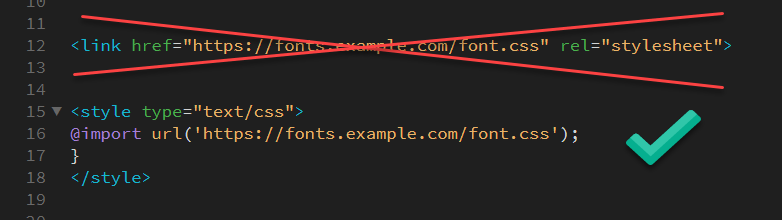
To avoid font links being counted as clicks in Account Engagement, you can use the @import method instead of the traditional <link> method to include custom fonts in your email.

Here’s an example of how to use the @import method:

Background images

Background images in HTML email templates offer creative possibilities for crafting distinctive layouts, adding depth, and showcasing products. They have gained popularity as a design element. However, it is important to consider certain factors when incorporating background images in your Account Engagement email design.

Here’s a checklist of things to look for:

Not all email clients support background images

Some clients may block or ignore background images, resulting in an email that doesn’t display the intended design. Test your email across different email clients to ensure consistent rendering. 

Inline CSS

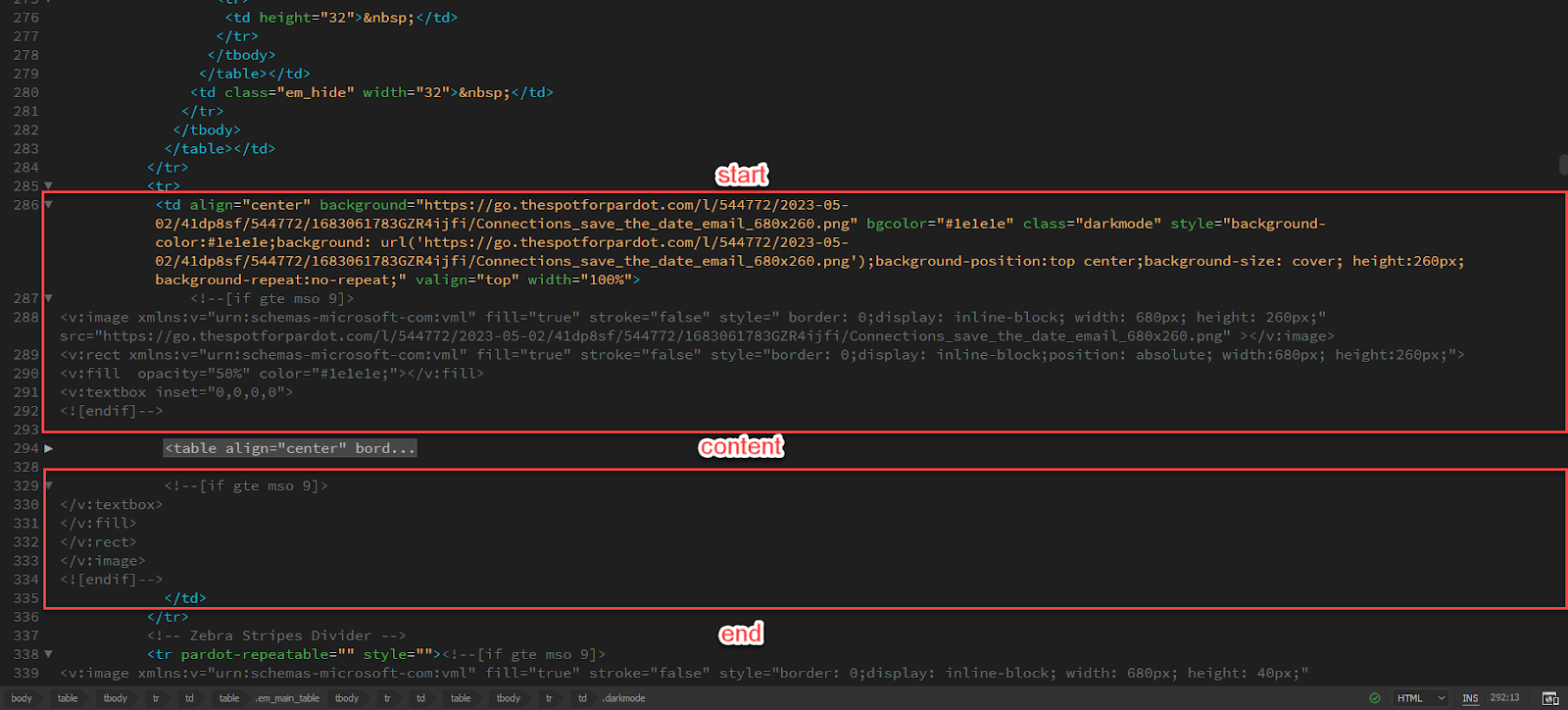
To maximize compatibility, inline CSS is typically recommended for background images in HTML emails. Use the style attribute directly within HTML elements to define the background image and related properties.

The example includes the necessary code to make the background image show in Microsoft Outlook, as well as most popular email clients.

Image size and optimization

Optimize your background image by compressing it to reduce file size while maintaining acceptable quality. Large image files can increase email size and load time, negatively impacting the recipient’s experience. Aim for an optimized image that doesn’t exceed the recommended file size for emails.

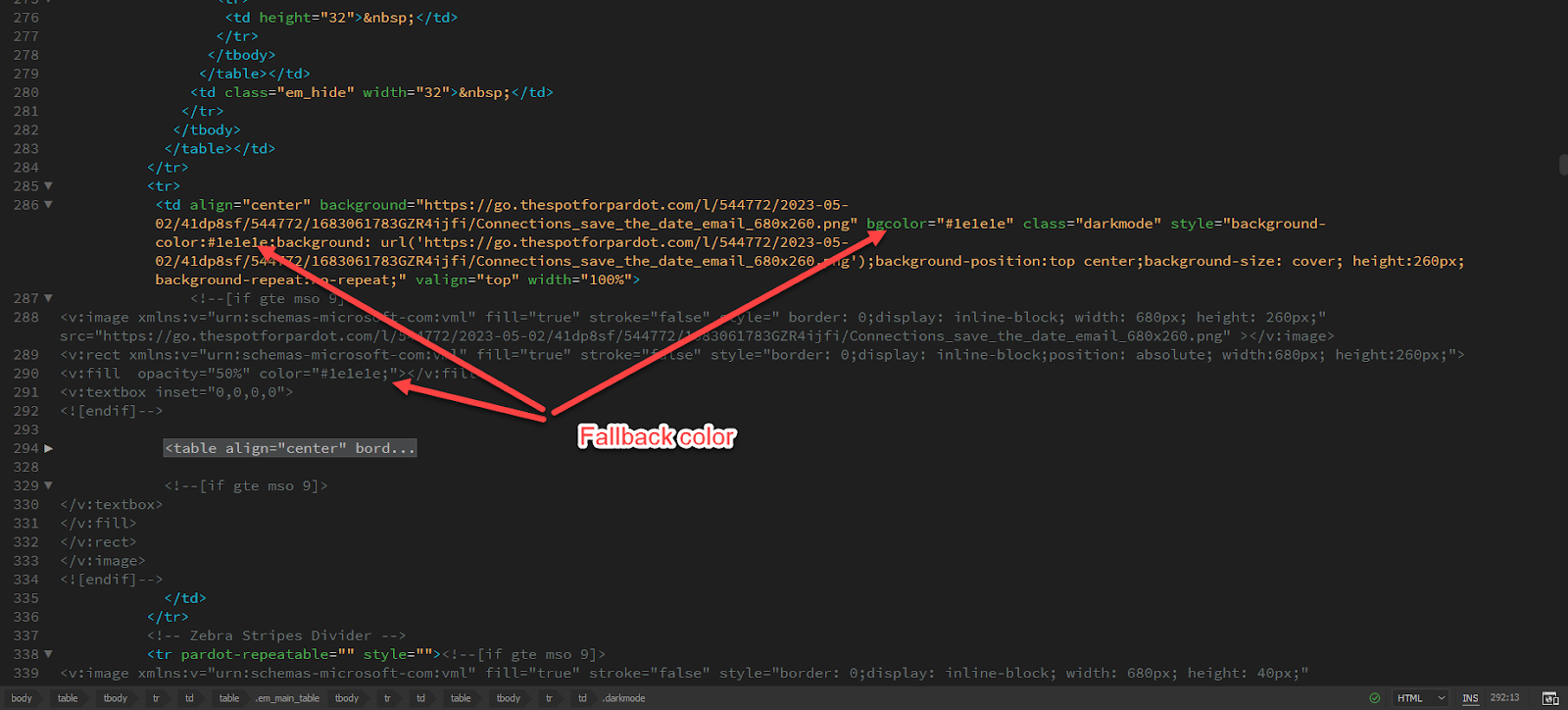
Fallback background color

In case the background image doesn’t load or isn’t supported, provide a fallback background color that complements your design. This ensures that the email still looks visually appealing even without the background image.

Accessibility

Consider accessibility guidelines when using background images. Include alt text for background images so that users with screen readers or email clients that don’t display background images can still understand the context of the email. And of course, it is not recommended or best practice to use text in background images.

Buttons in Outlook

Buttons collapsing or not displaying correctly is another challenge in HTML email coding. To avoid this, use table-based layouts for buttons and set explicit width and height values. Test your buttons across different email clients to ensure they remain consistent and clickable.

Here’s a checklist of things to look for:

I want rounded corners in Outlook. 

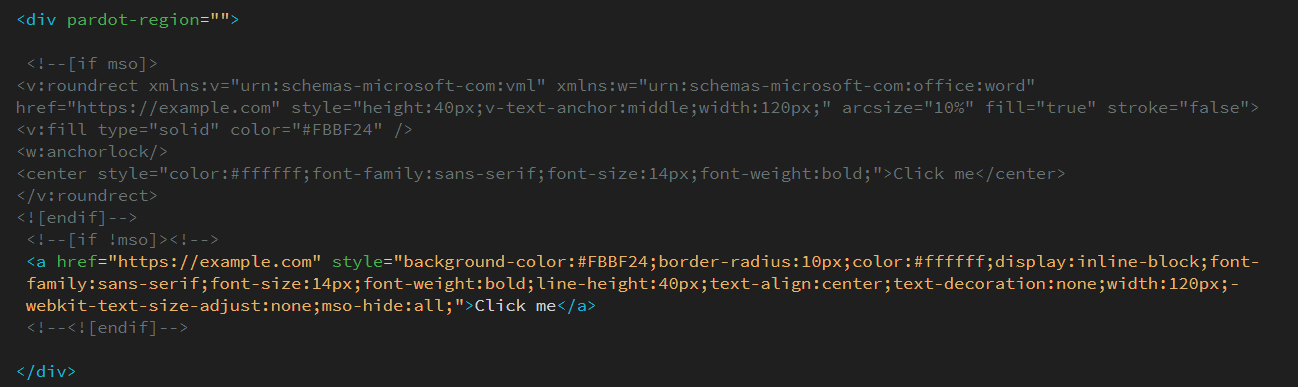
VML (Vector Markup Language) can be used to create buttons with rounded corners, especially in older versions of Outlook that don’t fully support modern CSS features like rounded borders (border-radius). VML allows you to make custom shapes and apply rounded corners to elements. 

Check out this example of an HTML button with rounded corners using VML:

We strongly advise against using this method in HTML email templates within Account Engagement, as it requires replacing the link in two separate locations, which can be easily overlooked if not approached with caution.

Why did my button padding get stripped? 

If you’re facing a situation where the padding of your button appears to be removed or stripped, it is likely because of a collapsing issue in Outlook. To troubleshoot this problem, ensure that the link you are testing is an active and valid link, rather than just using a placeholder like “#” or a dummy link. Using inactive or placeholder links can be the root cause of the problem and result in the unexpected removal of padding from your button.

Create error-free Account Engagement emails

At Sercante, we understand the common pitfalls of HTML email code in Account Engagement, and we’re dedicated to solving them for you. 

With our technical expertise and attention to detail, you can rest assured that your email campaigns will be visually appealing, engaging, and seamless across all platforms and devices. 

It’s time to launch another email campaign and the anxiety sets in. You have a variety of people on different teams who want their eyes (and opinions) on your emails before you can launch them. This back and forth can be overwhelming and gets buried in 50+ long email threads

Stop the madness! Let’s talk about how to organize the chaos — making your life easier when it’s time to launch an email campaign. Here are a few email campaign tips.

Use an Email Brief

It’s a blank sheet of paper for most clients and they get overwhelmed with where and how to start. Sometimes you need to partner with someone who has a plan you can easily take, customize it to your needs, and boom! You have a starting place now. 

Let’s talk about what exactly you should include in an email brief.

What to include in the email brief

Campaign Overview and Objective 

  • Start with a brief description of the campaign’s purpose and main objective
  • Use it as an opportunity to define its purpose with absolute clarity and give helpful background to your team who will be viewing the brief
  • Clearly state what you want to achieve, such as increasing sales, promoting a new product, driving traffic to a website, or building brand awareness

Metrics and Reporting

  • Clearly define the key performance indicators (KPIs) you’ll use to measure the success of the campaign
  • Stick to goals that translate into clear, measurable objectives
  • Link to the report you plan to use once the campaign is launched

Email Content and Format Crafted for the Target Audience

  • Specify the type of content you want to include in the email, such as text, images, videos, or interactive elements
  • Indicate any personalization elements or segmentation strategies you want to implement to make the email more relevant and engaging to the recipients

Email Schedule

  • Provide the proposed sending date and time for the email

Call-to-Action (CTA)

Internal Timeline 

  • A clear timeline can let team members get involved and stay moving quickly. 
  • Include internal deadlines for teams to owe you items or are giving you approval

Identify and Fix Recurring Pain Points

Continuous edits to email HTML and copy is a common pain point among clients. There are tools like Stensul that can make your life easier because it keeps all the edits out of email threads. 

It is essential to have integrations and features like these to have the capacity to scale operations and to accommodate increases in volume while meeting requester’s timing requirements, all without the need to hire additional staff or compromise on quality. 

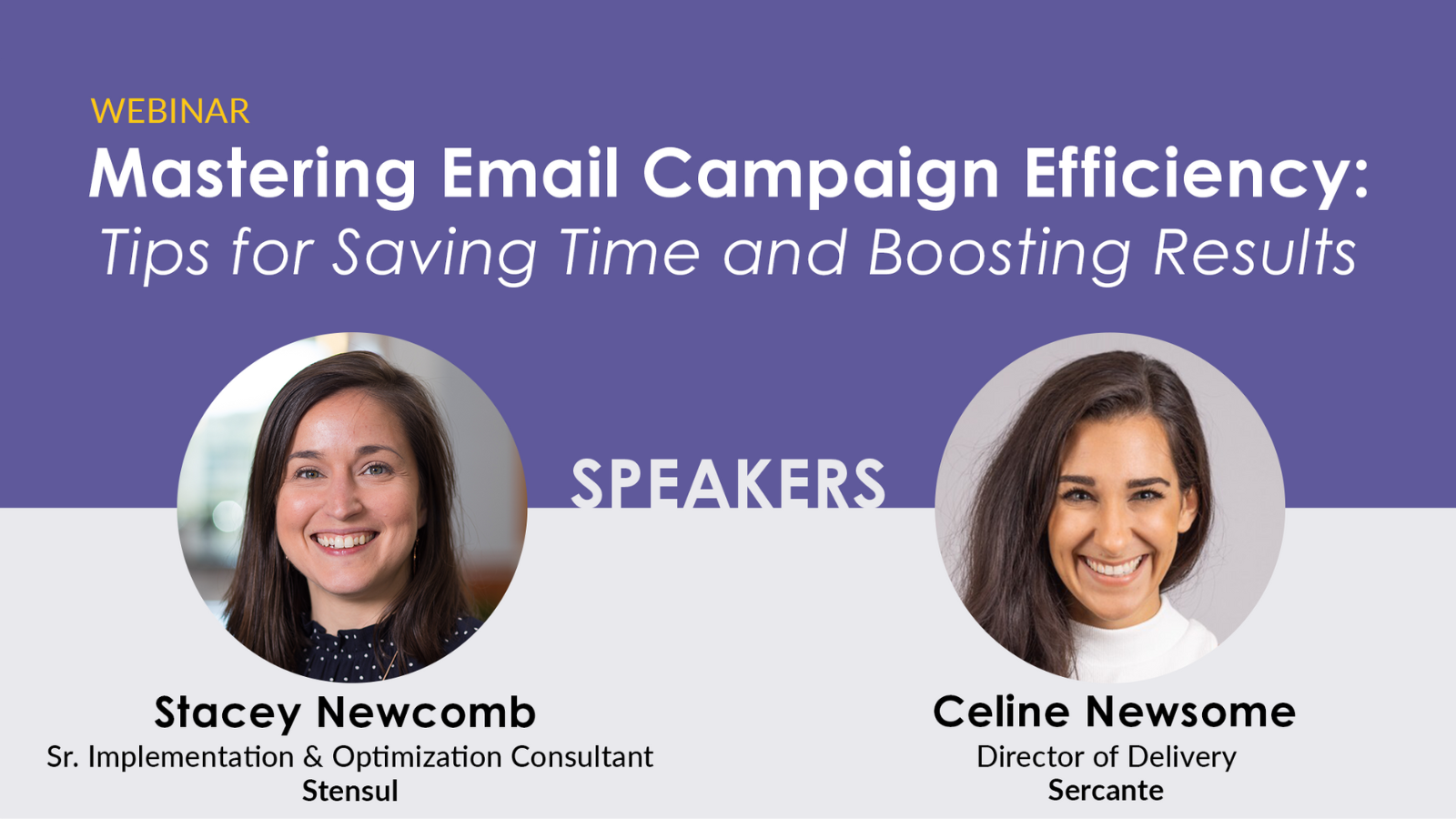
Check out this webinar with Sercante & Stensul together where they share tips for integrating an email creation platform into your strategy to ease common pain points.

Create a plan, look for ways to add efficiency, and repeat

Ok so let’s recap!

The first thing you’re going to do is draft and use a brief. If you’re stuck, start with the email brief items listed in this post.

Then you’re going to document your process and iterate on it! 

The goal is to make your campaign launch life easier each time. When you identify a pain point, test out a solution for it and see if the process gets even better.

Account Engagement (fka Pardot) Scoring Categories and Lightning Builders are two great features to amp up your marketing and segmentation efforts, but they don’t exactly connect like typical Account Engagement assets. This blog will walk you through what you can and cannot do when it comes to combining these two features.
Where we run into issues

Account Engagement Scoring Categories can be super impactful for orgs with multiple services, offerings, products etc. These categories allow you to break down a Prospect’s interest in your different offerings so you can better tailor your messaging and next steps. 

However, Scoring Categories rely on Account Engagement folders, if an asset lives in a folder that is assigned to a Scoring Category then any engagement with that asset is attributed to the Scoring Category, but the Lightning Builders don’t use folders. So can Scoring Categories be used with Lightning Builder assets? The answer is yes, but it’s complicated. 

Scoring Categories and the Lightning Email Builder

When List Emails or Email Templates are sent from Account Engagement, your default Scoring model will adjust the Prospect’s score as the Prospect engages with the email. If this List Email or Email Template is saved in a Scoring Category folder, then the resulting Score would be associated with that category. 

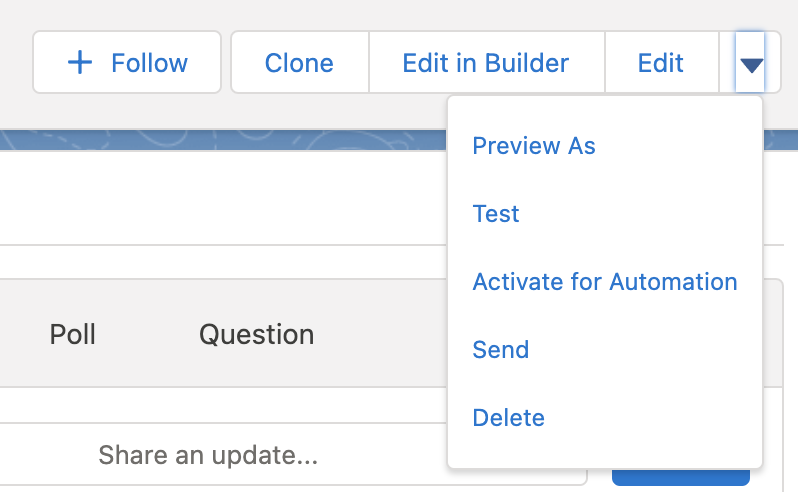
When Lightning Builder Email Content is sent to Prospects as a List Email or “activated for automation” and used as a template, there is no association with folders and therefore Scoring Categories. However, you can still adjust the Scoring Category in three ways:

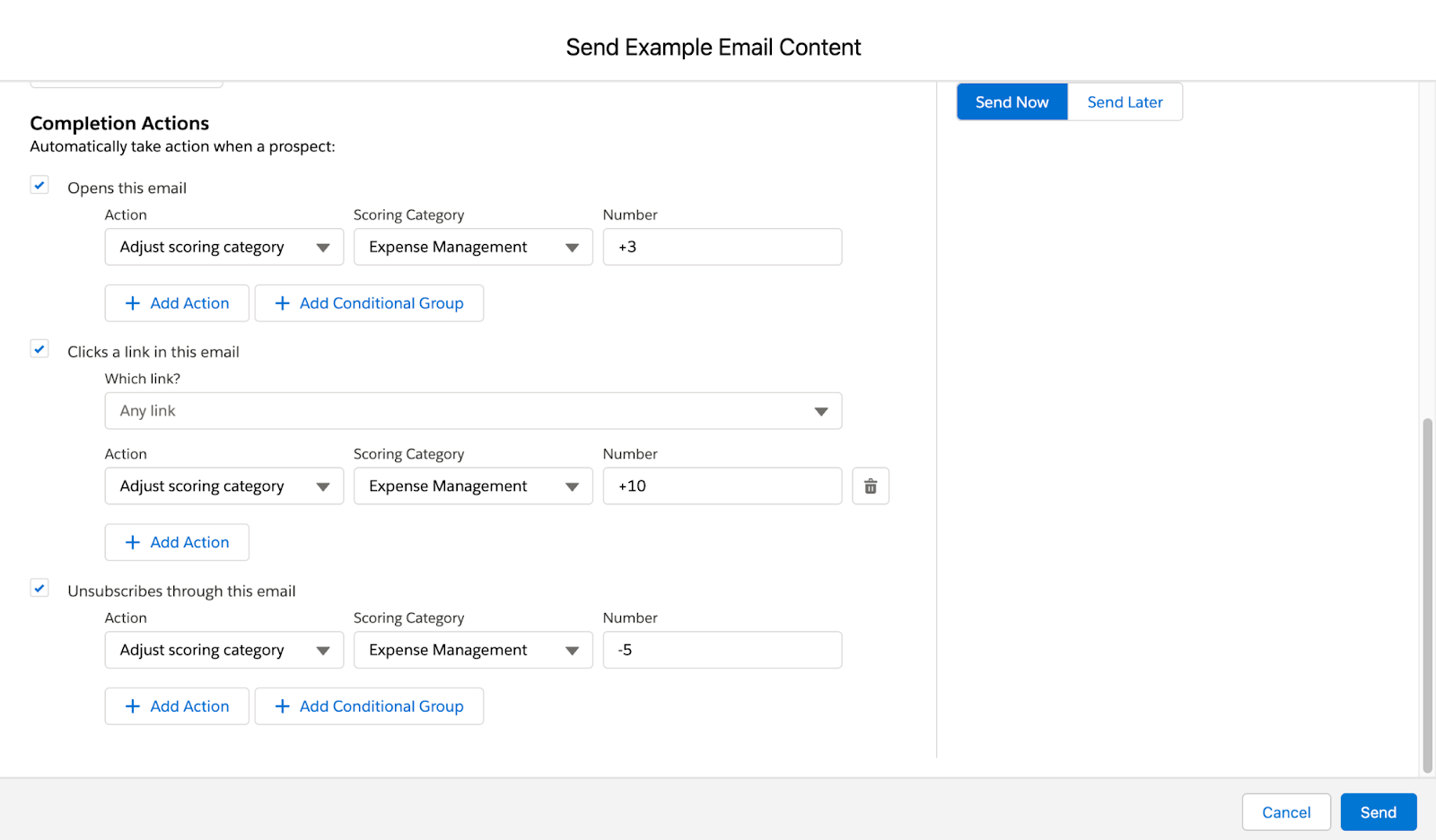
1. Email Content Completion Actions

When sending Email Content you have the option to add completion actions for email opens, email clicks, and unsubscribes. Any of these options can be used to add or remove points from a Scoring Category.

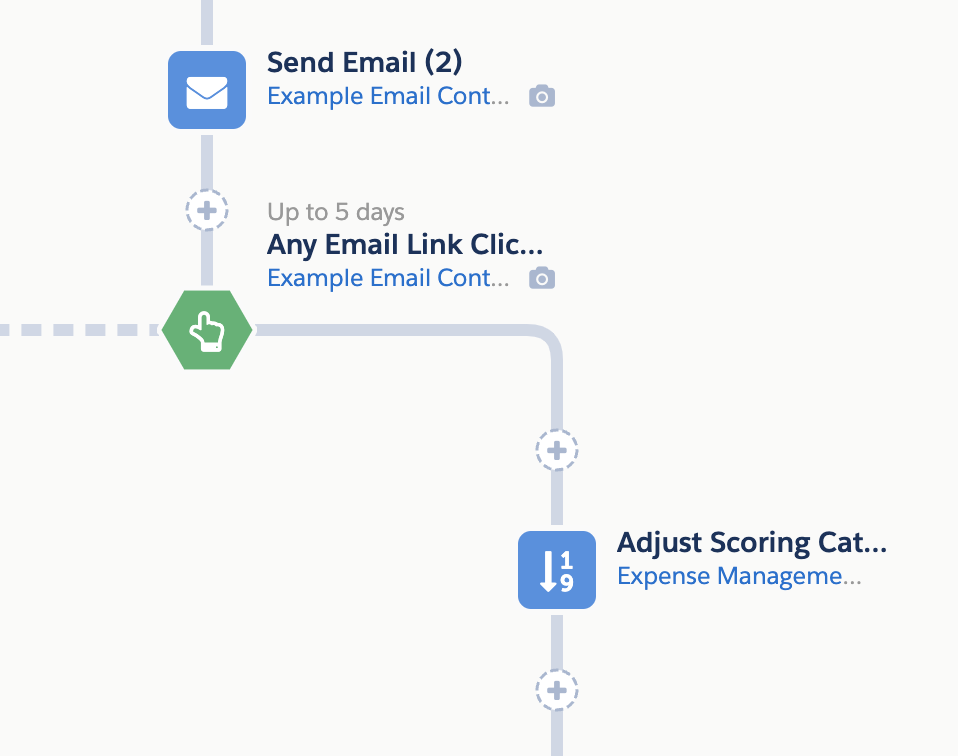
2. Engagement Studio Program Actions

Lightning Builder Email Content can also be used within Engagement Studio programs. Just make sure you’ve selected “activate for automation” to push the Email Content down to Account Engagement:

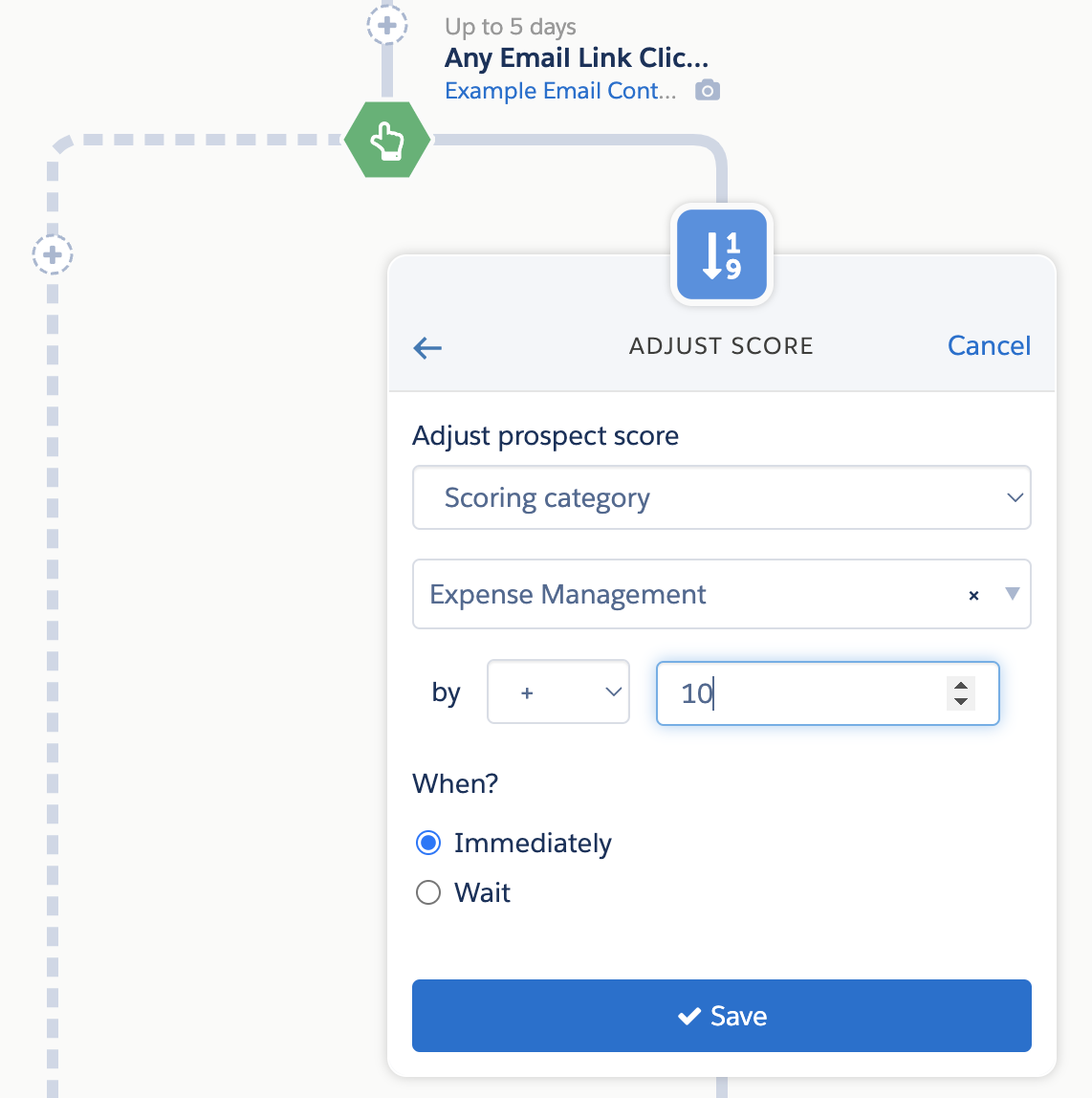
In your Engagement Studio program, select the Email Content in your “Send Email” Action, add the relevant trigger (Email Click, Email Open, etc.), and then adjust the Prospect’s Scoring Category if they take said action. 

3. Custom Redirect used in the Email Content

If you have an especially important link in your email, such as a button to register for an event, you can also create a Custom Redirect for the link. 

Custom Redirects are associated with Folders, so any engagement with the link will update the Prospect’s Score within the category. You can also add a Completion Action to the Custom Redirect to add additional points above your default Scoring model. 

Scoring Categories and the Lightning Landing Page Builder

When Landing Pages are built within Account Engagement, Page Views, Landing Page Successes, and Landing Page Errors will automatically update the Prospect’s Score in accordance with your default Scoring model. If that Landing Page is stored in a folder associated with a Scoring Category then the default scores will go to the Scoring Category rather than the overall score. 

When the Landing Page is built in the Lightning Landing Page Builder, there is no association with folders and therefore Scoring Categories. However, you can still adjust the Scoring Category in two ways:

1. Form Completion Actions

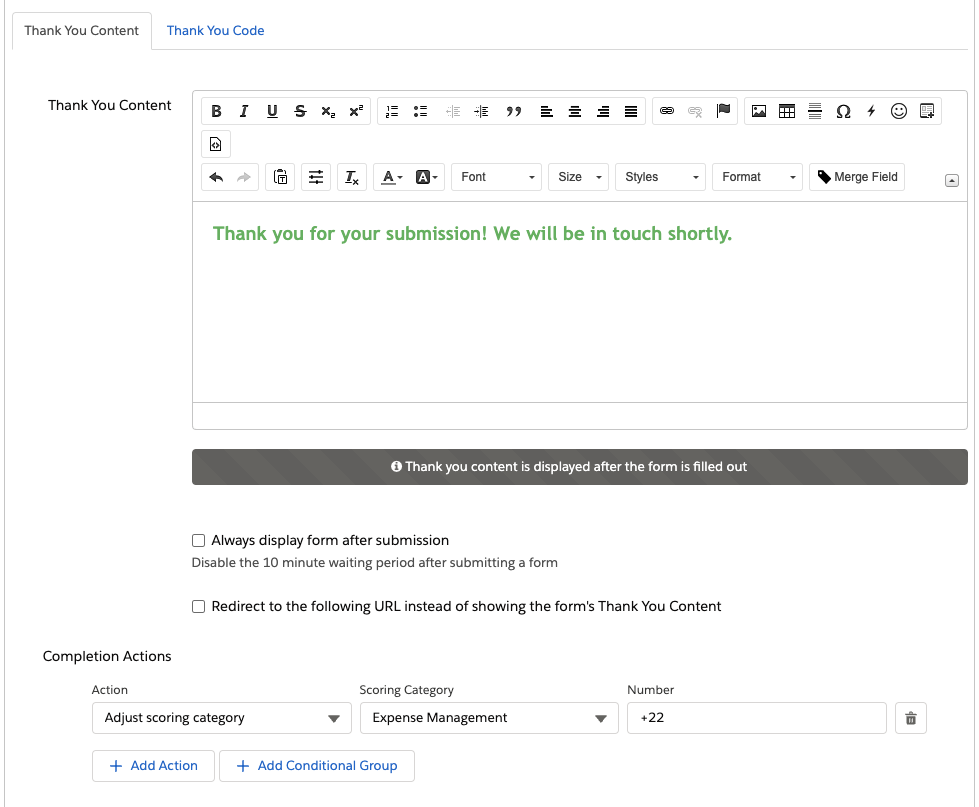
The Form the Lightning Landing Page is using will be stored within Account Engagement and associated with a folder, but form fills completed via a Landing Page are associated with the Landing Page only. However, if your Form has a Completion Action to update a Scoring Category when it is filled out, this will be fired when the Prospect fills out the Form via a Lightning Landing Page.

2. Automation Rules

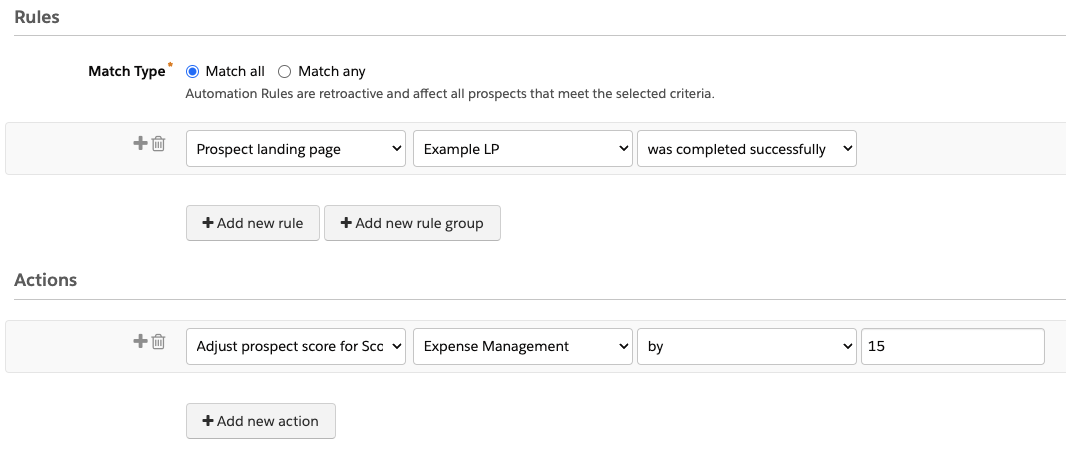
You can also create an Automation Rule to adjust a Prospect’s score if they have filled out a Lightning Landing Page. However, keep in mind this would only fire on the initial Landing Page completion. You can have the Automation Rule repeat, but it would keep giving the Prospect points each repeat even if they did not fill out the Landing Page again.

Go Use Scoring Categories with the Lightning Builder

So there you have it! Yes, you can use Scoring Categories with Lightning Builder assets, but it’s not in the ways you’d expect. 

What other questions do you have about the Lightning Builders? Let us know in the comments!

No more posts to show