Category

Marcos Duran

Conditional Completion actions are coming to Marketing Cloud Account Engagement (Pardot)! And they’re a game changer for adding complexity to completion actions on your marketing assets.

This has been a long awaited request in the IdeaExchange. So, we’re ecstatic to see it finally come to fruition.

Note: This feature is not currently available in production. Conditional Completion actions will be rolled out during the Summer ’22 release (May 21st – June 11th) and this blog will be updated as we get access to this feature. Stay tuned!

What are Marketing Cloud Account Engagement (Pardot) completion actions?

Pardot Completion Actions allow you to add follow up automations to most Pardot assets such as forms, landing pages, files, custom redirects, etc. 

These actions trigger after someone interacts with the asset such as a click or form fill. Pardot Admins and Marketing Users can configure which actions they want Pardot to trigger after the fact. 

Completion actions include:

  • Add Tags
  • Add To List
  • Add to Salesforce Campaign
  • Adjust Score
  • Adjust Score For Scoring Category
  • Assign Prospect via Salesforce Active Assignment Rule
  • Assign To Queue
  • Change prospect custom field value
  • Change prospect default field value
  • Create Salesforce task
  • Increment prospect field value
  • Notify assigned user
  • Notify user
  • Notify user via Twilio (phone)
  • Register for webinar
  • Remove from list
  • Remove tags
  • Send autoresponder email
  • Set profile
  • Set prospect’s first touch campaign

Currently, you can add as many of these as you see necessary. But keep in mind, they trigger on ALL Prospects that interact with the asset. Conditional completion actions are changing that. 

As Pardot stands today, other automation features, such as Engagement Studios and Automation Rules, can provide ways to conditionally process prospects. However, these automations have limits, and using multiple assets per form fill, link click, etc., can bog down your system. 

With Conditional Completion actions, you will be able to perform all the desired actions right from the asset setup page.  

What are Pardot conditional completion actions?

Welcome conditional completion actions! 

Conditional completion actions add complex logic to your existing or new completion actions on your Pardot assets.

Essentially, you are able to create logic similar to dynamic lists or automations rules (or Salesforce Reports) that follow this pattern:

Before: Upon engagement (click/form fill), then trigger Y
New: Upon engagement (click/form fill) look to see if X = Value; then trigger Y


You can still do regular completion actions that apply to ALL Prospects who engage with the asset in specific ways, but now we will be able to create conditional actions as well. 

Below is an example of what you can expect to see in your account when the feature is released later this summer:
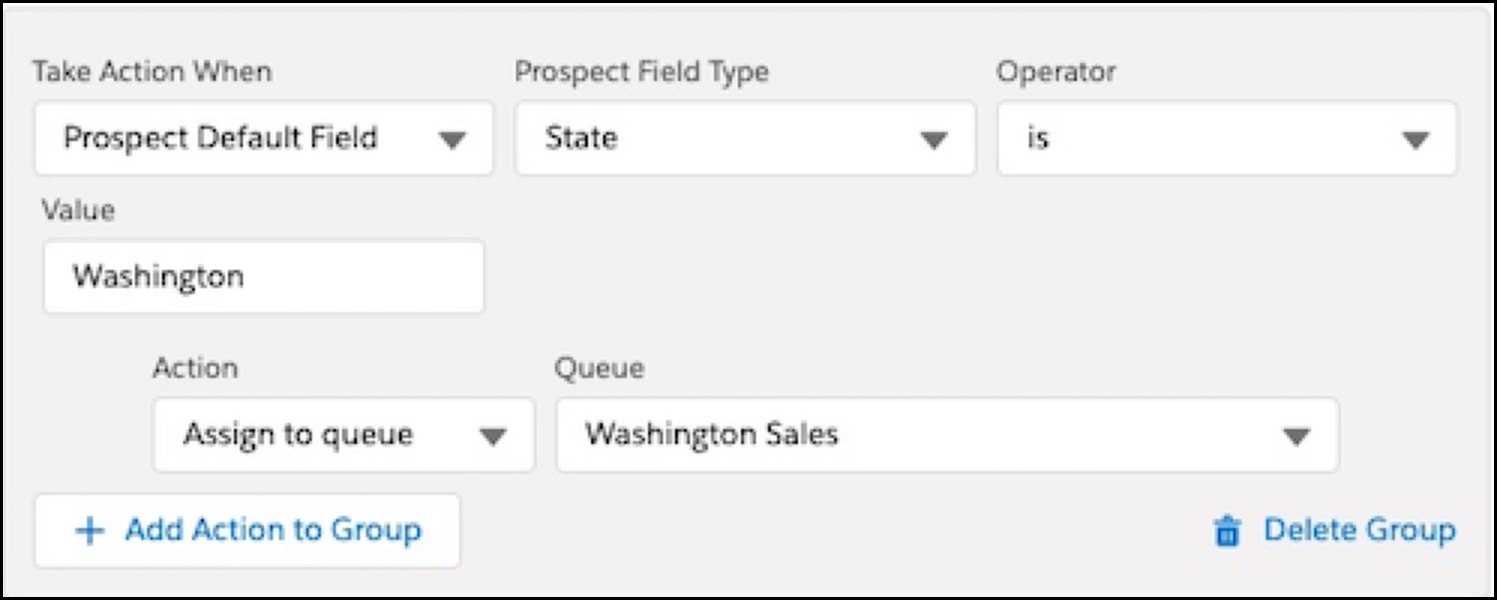
This feature will be available on Lightning list emails, forms, form handlers, files, custom redirects and page actions.

You can read more about it here and watch a quick demo, courtesy of Salesforce, here.

How are conditional completion actions different from normal completion actions?

In terms of functionality, there isn’t much of a difference between regular and conditional completion actions — they look at an action and then apply the necessary follow-up actions. 

However, in terms of usage, conditional completion actions add complexity to the existing completion actions by allowing for criteria in addition to a click or form fill to decide if the action should be completed or not. 

This allows marketers to create branches and manage different types of Prospects differently in Pardot.

Are there any limits or requirements to conditional completion actions?

Lucky for everyone, these actions will be available to everyone upon its release date.

We have identified the following limitations (that could change with further releases):

  • No conditional actions based on list membership
  • No conditional actions on classic email builder list emails (only available in the new Email Lightning Builder)
  • Limit of up to 6 conditional groups per asset (plus your standard completion actions)
  • Limit of up to 15 conditional group actions across all conditional groups per asset

We won’t have a concrete list of limits until this feature goes live, so stay tuned for updates!

What Pardot conditional completion use cases that I can look forward to?

First things first, this particular section will be updated post-release with additional information and screenshots. For now, we are basing these scenarios on existing completion action functionality. So, proceed with caution!

UTM-Based Lead Sources

Reporting on where your online website traffic is coming from is more important now than ever. For many organizations, being able to distinguish between sources of ads and beyond continues to be a hot topic. 

At Sercante, we support our customer’s UTM tracking via custom hidden fields on their forms. Now with conditional completion actions, leveraging these UTM’s real-time to update Lead Source should be easier than ever!

Standard Lead Routing

Nothing magical here, aside from the fact that you can fit multiple territories/region/product assignment criteria into a single form. Previously, this would require multiple automations or a little support from Salesforce to route accordingly. 

If you are interested in learning about how to manage Lead Routing in Pardot, check out my presentation from ParDreamin’!

Block Competitors

For those in industry segments with few players (we know everyone in the ocean), you may find it difficult to exclude competitors currently in Pardot (before they enter Pardot). 

If you have a field that identifies your Prospects as a competitor (email or company for example) you can decide not to send them the email with your latest e-book or asset. This would save you time and effort from setting up individual automation or even using JavaScript.

Streamlined Campaign Management

During ParDreamin 2021, I discussed how you can streamline your asset delivery processes by creating custom fields and leveraging HML, Dynamic Content, and Snippets in the process. Although this is great to reduce the number of assets in the overall process of delivering content, you still need 1 automation rule per asset to update campaign membership. 

By capturing the page title or asset name into a hidden field, you can then leverage this field to add the person to the correct Salesforce Campaign on each form — up to 6 branches (conditional groups). 

This would reduce the number of forms you need to set up overall. 

Multiple Link Click Options For List Emails

One of the most frustrating experiences currently is having an email with more than one CTA and having to pick between “any link” or “specific link” clicks. This feature would allow you to do this with up to 6 different links (we have not seen conditional actions on list emails yet). 

This function would only be available in the Lightning Email Builder and not for the Classic Email Builder. 

Extending The Power of Webinar Connectors

This directly speaks about WebEx and GoToWebinar products. 

Many B2B organizations have webinar series where they would love for people to register for multiple webinars at the same time. As of today, you either had to use (3) automation rules and a custom field, or (3) separate forms as Pardot does not allow for multiple registrations (using Pardot forms).

An alternative to creating multiple automation rules is to use Javascript here, but the hope is that conditional completion actions provide a no-code alternative. 

With this conditional completion actions feature, you can skip setting up the automation across the platform, thus requiring less work and a central location for it all!

Supercharge Your ABM Strategy

Leverage account types or build a new field called “Account Tier” to signal which accounts need the “white glove treatment.” 

Using conditional completion actions, then create custom Slack notifications, User notifications, or User tasks immediately after these Prospects complete their forms. 

In addition, you can also update a custom field such as “Prioritization”  to increase their prioritization in Views in Salesforce. This would be an excellent companion to the Einstein Key Account Identification feature for those on Pardot’s Advance tier or higher.

Imagine the possibilities for conditional completion actions

As a consultant, I am very much looking forward to streamlining automations for my customers by leveraging conditional completion actions in their organizations in the near future. 

If you need to strategize how to leverage this feature in your organization, or you just want to brainstorm ideas, contact us here!

Prospects now more than ever are demanding personalized content. For the last 4 years, adding the first name for personalization in emails has been the default. Unfortunately, that alone isn’t going to cut it anymore. To keep their attention, you have to make sure they know you’re thinking of them— no matter how long your list becomes.

In Pardot, the options to provide these experiences differ depending on your account tier and how you intend to use them.

If you’re a veteran to Pardot, it’s likely you know that there are several ways to accomplish the personalization you need. That’s why we’ve broken down some of the most common use cases that call for Pardot HML, Pardot Snippets, or Pardot Dynamic Content. Understanding how each of these work best in different scenarios will help you save time in your creation process. 

Content personalization using Dynamic Content 

Dynamic content allows you to display custom content, via Javascript, on your company’s website or within Pardot. Think about displaying different content on forms, landing pages, layout templates, and emails based on prospect criteria.

When a prospect matches the criteria for your dynamic content, the content variation corresponding to that field value will display. With this feature, it is possible to display up to 25 variations of content. If there are no matches or that person has no data, then they see the default option.

The instant benefit is that you can use one email template to showcase different pieces of content per Dynamic Content block. This feature is available both in Pardot Classic and Lightning that have a Plus or higher edition.

Popular Use Case: Showing different images or text based on the values found in the country field within an email. See our post about use cases for Dynamic Content here.


Content personalization using Handlebar Merge Language (HML)

HML is a new merge language for personalizing email in Pardot. Basically it’s the representation of a field value that you can showcase anywhere you have access to the WYSIWYG editor. Think of displaying prospects data on landing pages, forms, emails, etc. based on the data found within a prospects record in Pardot.

The benefits of Pardot HML almost immediate:

  • Easy to upgrade your content.
  • Ability to search for the fields you need.
  • The same language is shared across Salesforce Lightning Templates, laying the foundation for more email compatibility down the road. 
  • HML can also be used within Dynamic Content, but not Snippets. 
  • Allows you to do IF/ELSE statements to further expand its uses.
  • HML is available across all editions of Pardot Classic and Lightning (if enabled).


How do you know you’re using HML?

The easiest way to know is to look at your tokens. Do they look like this %%first_name%% or like this {{Recipient.FirstName}}? The option with the curly brackets ({}) is the appropriate one. New accounts from 2020 (or more recent) should have HML activated already, however, if you have an older account and need help migrating over from PML to HML, just follow our guide.

Popular Use Case: Updating email signatures for both sales and marketing emails to quickly create a connection with prospects based on CRM ownership. We also wrote about use cases for HML here.


Content personalization using Pardot Snippets

A Snippet is a reusable block of text, date, or links that can be pulled into multiple Pardot emails, forms and landing pages. These blocks are static, meaning you select the one you want and the values don’t change unless you change them. They’re best for strict text purposes as they do not support HTML/CSS. 

Snippets cannot be used with Dynamic Content. However, you can insert HML into Snippets, you just have to do it manually because there’s no HML option in the Snippet wizard. You must have Connected Campaigns and HML enabled to use them within your instance. 

Snippets are based on Business Unit or Campaign ownership. Although you can use Snippets in Pardot Classic, you cannot create them without access to Salesforce (Pardot Lightning is preferred if you intend to use this feature). Snippets are available for all versions of Pardot.

Popular Use Case: Updating event or footer information across multiple assets. We recently wrote about Snippets and answered a few frequently asked questions on this blog!


Comparing HML, Snippets, and Dynamic Content

The bottom line is that people don’t want to go through a million forms. They want personalized content and they want it now.

This begs the question, when is it appropriate to use each Pardot personalization feature? If you have used Pardot for a while , you know that Pardot allows you to do similar things in several different ways. To help the decision making process, we put together this chart to help you decide when to choose each of these options.

Dynamic Content – Used for personalizing different variations of content blocks based on prospect record informationHandlebar Mail Language (HML) – Used as values from a prospect record for personalizing content across assetsSnippets – Used to personalize assets with static content.
Pardot Lightning required NoNoYes
Available in All Pardot TiersNoYesYes
Created/updated in SalesforceNoYesYes
Association to a Salesforce campaignNoNoYes, or Business Unit
Created/Updated in PardotYesYesNo
Limited by Pardot TierYes, Plus tier or higherNoNo
Updated by changes to Pardot-Salesforce dataYesYesNo
Allows HTML/CSS for customizing contentYesNoNo
Used to personalize Pardot formsYesYes, content regions onlyYes, content regions only
Cross Business Unit SupportNoYesYes


Example Use Cases for Pardot Personalization 

Below are some scenarios you may find useful to differentiate between uses.

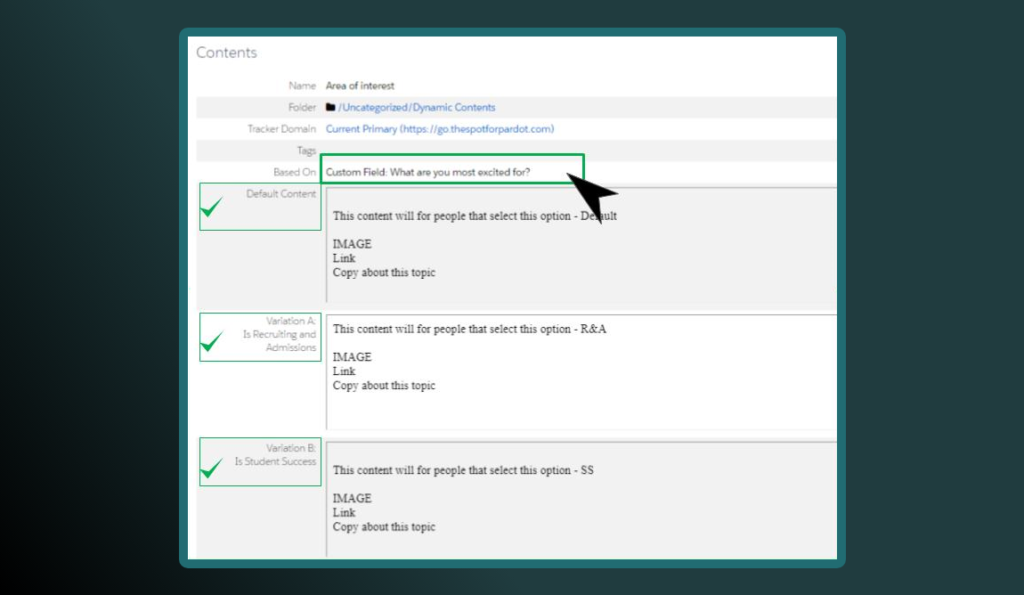
Scenario: You need to set up a completion action on a form that sends out an autoresponder email with specific content based on a picklist option for a field called “Area of Interest”. The picklist field on the form has four options. You don’t want to build multiple email templates. You are on the Plus edition of Pardot.

Solution: Dynamic Content shows specific content in relation to the data on the record of the prospect. This would allow you to use one email template but showcase different content based on which option the prospect chose while completing the form.


Scenario: You need to send a prospect an email receipt of the information they just submitted via a form or form handler to confirm their participation in your program. You are on the Growth edition of Pardot.

Solution: HML only shows what lies within the record of a prospect, nothing more, nothing less. You can customize the rows and order of the data in the email template to look however you want.


Scenario: Your team needs to be able to update and use a content block (with webinar information) across multiple Business Units. The information for this comes from the field marketing team and they do not have access to Pardot.

Solution: Snippets show information that is static that can be shared across different business units or locked down by campaigns. Snippets can be updated by Flows or manually by a person with the right permissions within Salesforce.


Personalization and delivering value are key to moving prospects quickly through the pipeline. Pardot provides you with a variety of features to allow you to leverage the data you already have in your CRM to your benefit.

Are you looking for ways to take your email marketing strategy to the next level with Pardot? With the guidance of our strategists, we can help you identify the fields which are and aren’t actively used by your team — it could be key to qualifying leads faster!

If you are ready to maximize your use of Pardot, give us a shout!

Salesforce just gifted us with their Summer 2021 Release Notes, and our team is— to say the least, ecstatic. With so many new Pardot updates, users and administrators can now optimize their workflow, prevent tedious nuances in dynamic content, and make better data-driven decisions. 

If you’ve been itching for better ways to organize your data, get the most out of your email sends, and have more control over your instance, we’re excited to show you how you can do just that with our top choices for exciting features to boost your marketing capabilities through Pardot and the Salesforce platform.

Pardot Release Highlights

#1: Einstein’s Key Account Identification

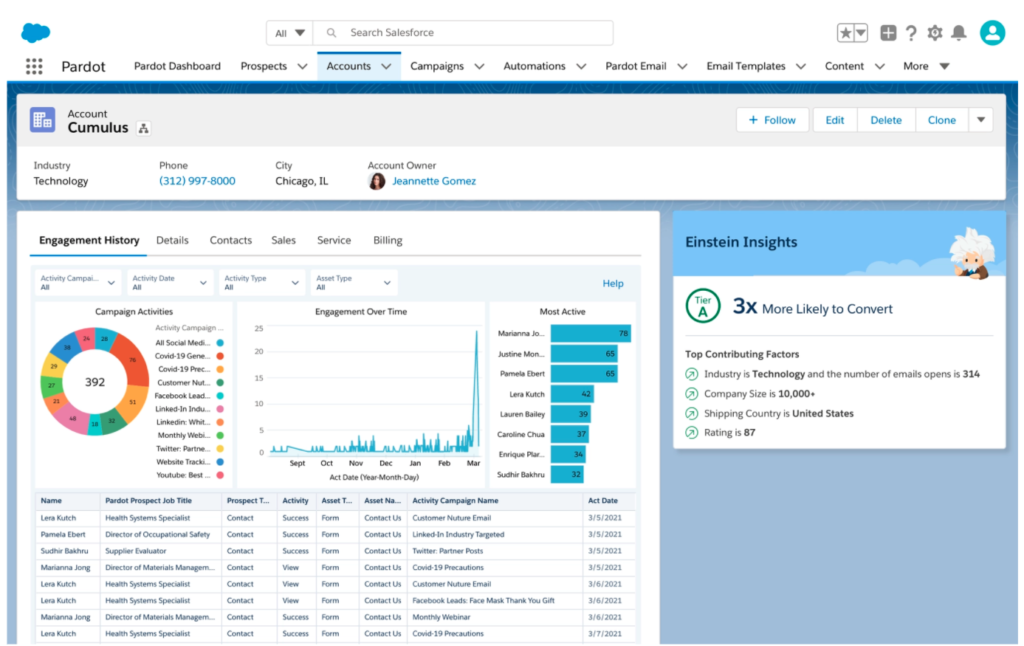
If you’ve been looking for a more accurate way of identifying who your best possible customers are, look no further. The ultimate visibility is within Einstein’s Key Account Identification— Salesforce handles all the dirty work of scrubbing data and spending hours making sense of attributions to show you which prospects are more likely to generate the most revenue.

  • Similar to Pardot grading, Einstein’s Account Tier uses letters to rank your accounts. And unlike Pardot grading, this ranking adjusts itself automatically. No longer will you rely on the decisions of individuals to set the rules, but rather you can make more informed decisions on how to convert the prospects this grading system presents to you.
  • With accounts generating so much data, it can be tedious to identify the most impactful trends in each account. In this game-changing release, Einstein will show you how certain accounts stack up against others using their industry and historical engagement.
Einstein's Key Account Identification

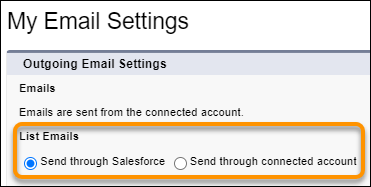
#2: Send List Email Your Way (Pilot)

There’s (probably) nothing worse than getting a disingenuous email that looks like all the other sales pitches your prospects receive. If your sales reps expressed frustration in their limited capability of sending list emails exclusively through Salesforce, this release is for them. Now, they have the ability to send from Outlook or Gmail, giving them more control over their workflow. 

  • Emails sent to qualified leads will look more authentic, like they came directly from a sales rep instead of a system. 
  • Due to the more authentic look, we expect to see higher delivery, open, and click-through rates

One thing we encourage teams to keep an eye on is how it will impact reporting and governance controls at an early stage, so if you participate, advocate for what you would like to see on these grounds. 

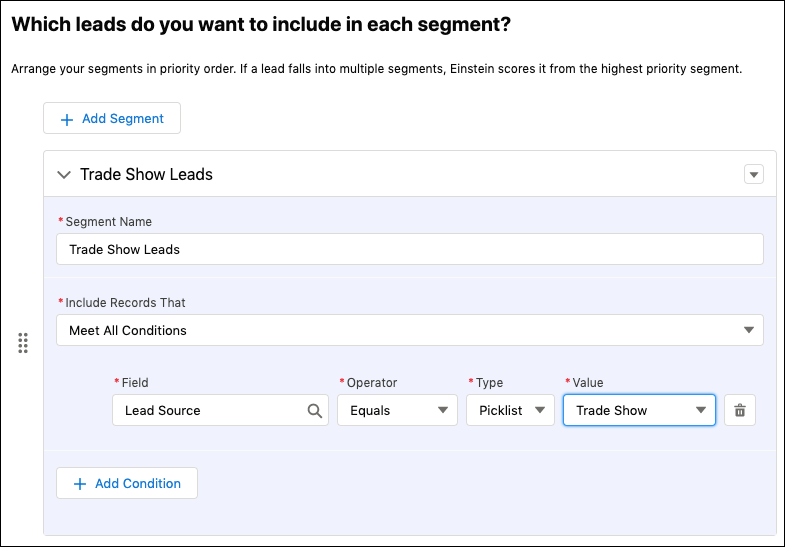
#3: Score Lead Segments Separately for More Accurate Results

If the leads your business works with are vastly different from each other, this new way of tracking conversion patterns could greatly improve your scoring. With enough data, Einstein can calculate accurate scores to better define your segments and provide more clarity into each lead’s conversion patterns.

  • Create fields of criteria that best describe your lead segments. After you’ve prioritized the criteria, Einstein will score it as part of the higher priority segment, essentially categorizing your leads for you. 

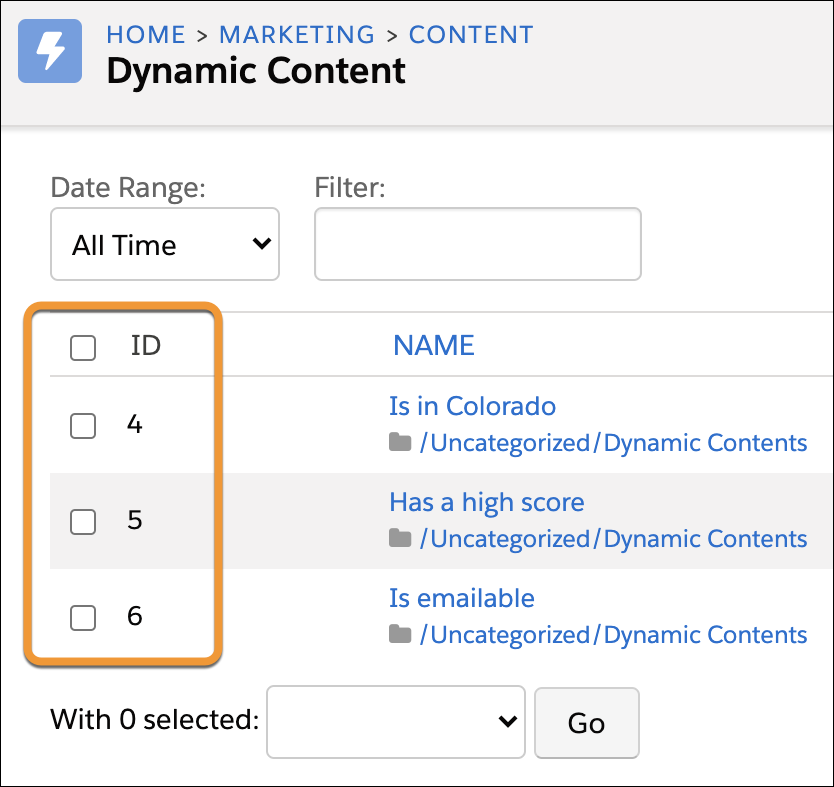
#4: Make Sure Emails Have the Right Dynamic Content

If you’re someone who somehow always has an excessive amount of tabs open at one time, this new feature will allow you to cut that down by a few and give you more confidence in your sends containing dynamic content.

“This one is a killer for me. I typically end up breaking naming conventions by adding (ID) to the end so I can quickly find the dynamic content. This will be great to still easily find without have to disrupt the naming.” – Mike Creuzer

Benefits: 

  • Avoid the back-and-forth of your QA process.
  • View ID numbers on the Dynamic Content list view so you can make sure you have the right merge field in each of your emails.

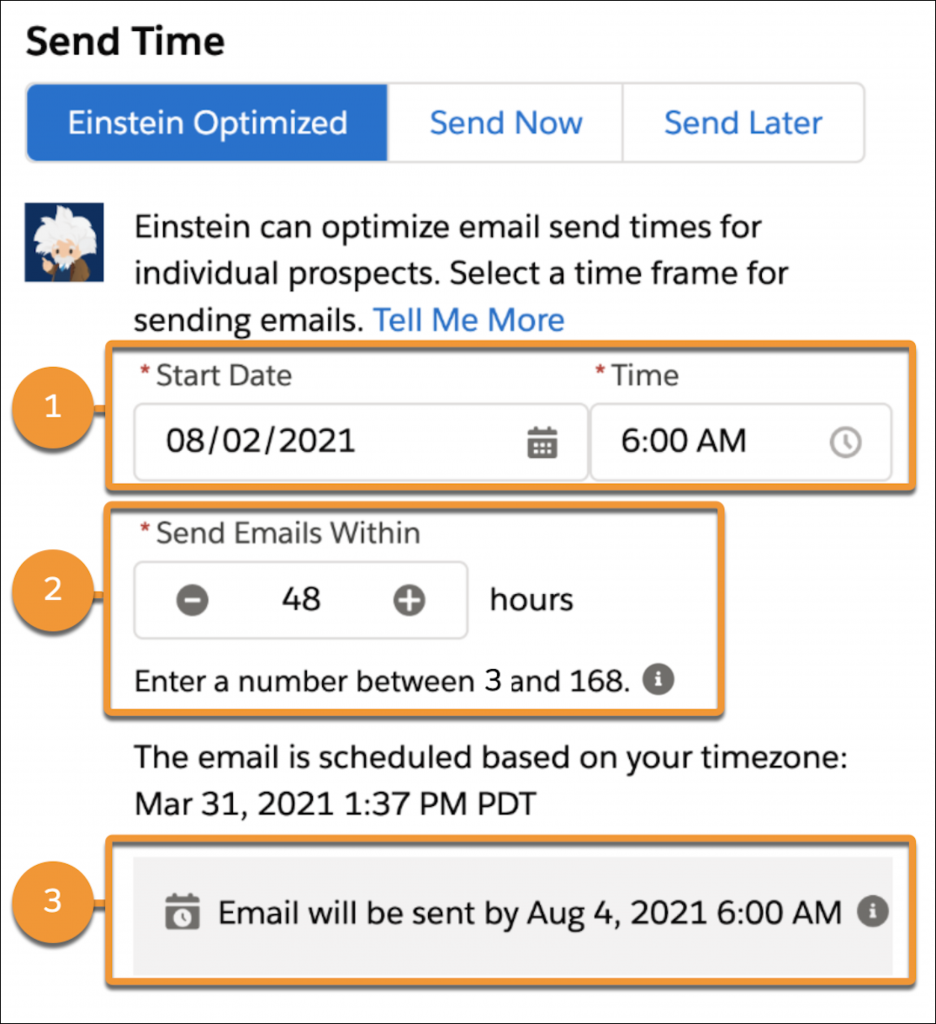
#5: Boost Email Engagement with Einstein Send Time Optimization

Send list emails to individual prospects at their preferred times. Take out the guesswork and elaborate segmentation with Einstein Send Time Optimization. Using Einstein’s machine learning skills, you can be sure your message gets to the right person at the right time.

#6: Designate a Marketing Admin to Handle Pardot Setup Tasks

Never worry about giving a user too many permissions. If you’ve been worried about losing control over Pardot administration, this feature of the release was made for you. Stop losing sleep over security concerns and give users access only to what you want them to have access to. 

A new user permission makes it easy to designate a marketing admin to handle Pardot setup and management tasks. Assign the new Manage marketing setup tasks permission and the View setup and configuration permission to grant access to all the Pardot configuration options in Salesforce Marketing Setup.

Old PermissionsNew Permissions
Required a Pardot Admin & a Salesforce Admin to fully configure PardotA single individual (Most likely the Pardot Admin) can be given permissions to configure Pardot from Salesforce without the need to give them full Admin Access in Salesforce

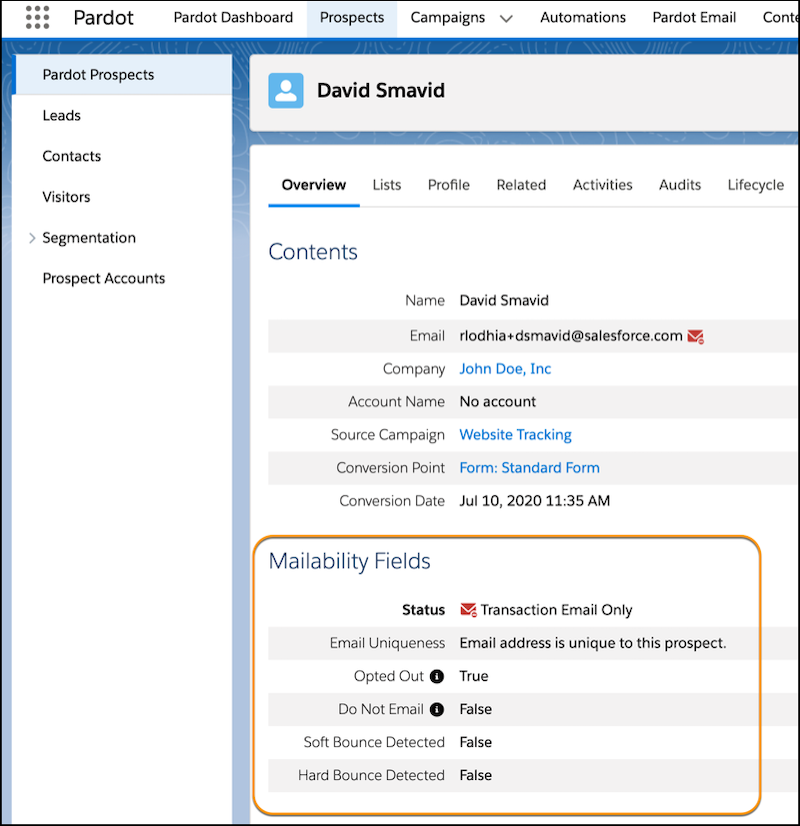
#7: Get More Clarity and Control on Email Marketing Settings

To call this part of the release an upgrade and say that we are “excited about it” would be a huge understatement. Before this was available, it was difficult and time-consuming to see the status of your prospects’ mailability. These settings can be edited in Automation Rules, Engagement Studio, and Prospect Import. 

Activate this feature by clicking the “Get Started” button at the top of your dashboard. Just remember that activating it would be permanent, and you should read Salesforce’s considerations when accessing the upgrade.

Doing so will give you a view of your prospects’:

  • Overall mailable status
  • Do Not Email
  • Opted Out settings
  • Bounce information

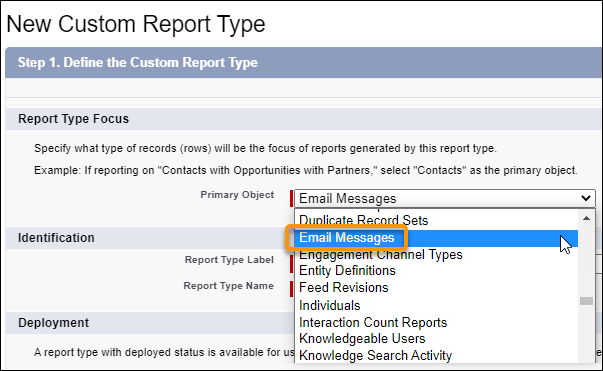
#8: Reporting on Email Messages

Spend less time requesting a useless email log and get more visibility into custom reporting. Previously, you only had access to the email’s delivery status— which is nothing compared to what’s available with this new feature. Now you can see if the customer opened it, when they opened it, bounces, engagement, and more. 

Bonus Platform Features Worth Noting

Inclusive terms are replacing legacy language

As part of Salesforce’s efforts to refine language in their products to more accurately reflect inclusivity, Salesforce is replacing terms deemed non inclusive. Though APIs and older API documentation aren’t included because changing terms in the code can break current implementations, this will allow your messaging to be more inclusive than ever, enabling you to reach a wider audience.

Inline editing of reports

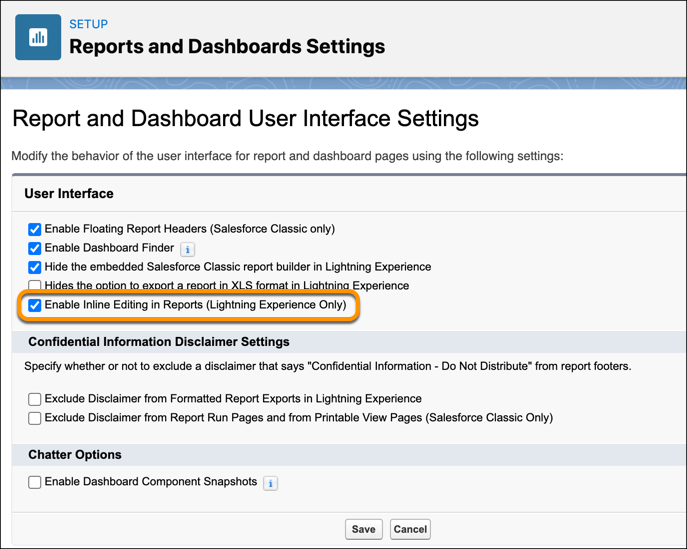
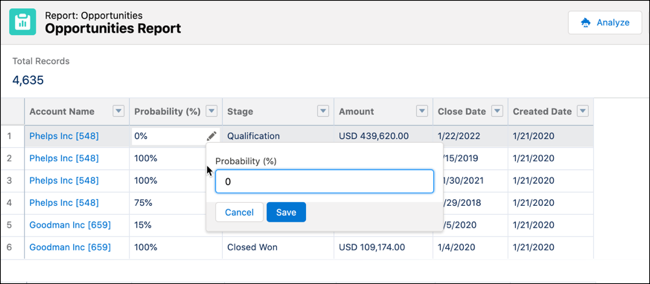
If you have to make changes to records and reports, the previous capabilities might have made that a little tedious to deal with. In recent releases, you have been able to edit records directly in list view. Now, you can do the same thing with reports, saving you unnecessary clicks that bottleneck your workflow.

Enabling this feature is simple. Just go to your Reports and Dashboards Settings and modify the behavior of your interface by checking, “Enable Inline Editing In Reports.”

Once you’ve done that, look for the pencil icon, can click it, modify the value, and save. The field value will update on the report and in the source record, and the report reruns automatically. 

On the Salesforce Radar

It seems that as soon as we’re comfortable with the new features, even more updates are on the calendar. Here’s a couple that any user can be excited about (and will really allow you to take advantage of new Salesforce features).

Sandbox Release

Preview orgs are live now, so if you don’t have one, that should be the first thing you do after reading this!  Remember, Sandbox previews are coming, so now is a good time to look at what instance your sandboxes are on and make your plan.  

Don’t’ forget to join the Release Readiness Trailblazers group. That’s right, there’s a place for all your questions to get answers and share what you’ve found while testing out new features. 

Release Readiness Live (Week of May 21st)

This is a must-attend event. This series of webinars is run by project managers to talk about and demo new features so you can see these new items in action. Ask live questions and get live answers for all the things you’re stuck on.  

Now that you’ve seen all the ways you can customize your interface based on your needs as an administrator or consultant, check out the full Release Notes from Salesforce and let us know in the comments what your team is excited to implement! Be sure to stay on top of more updates and to add these up-and-coming deadlines to your calendar:

May 6 Cut off to refresh sandboxes for preview instance

May 7  Summer Preview Window begins 

(must have an active sandbox on a preview instance by May 6)

May 17  #LearnMOAR page goes live

May 21 Awesome Admin Release Preview

May 24 – 28 Release Readiness Live Week

June 6 – June 12 Main Release Dates

Need help with implementation or want to get training courses to gain a better understanding of Salesforce release features? Head over to our Pardot & Salesforce training page where you can sign up for mini-courses, become more familiar with Pardot basics, or attend bootcamps.

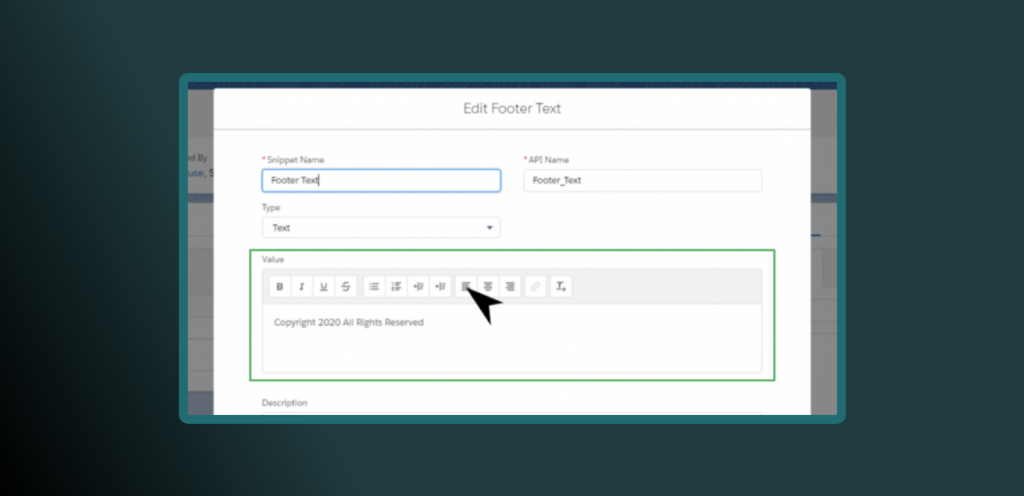
Snippets were added to the Pardot functionality toolset fairly recently as a way to help the marketers of the world stay organized and reuse their content across multiple templates or Pardot Business Units without copy and pasting (*cues angelic music*). 

In short, Pardot Snippets are a content block of dates, links, images*, or plain text that you can leverage across your Pardot instance (or Business Units) with one central hub to manage them – your campaigns. The way Pardot snippets work focuses more on the relationship between the content block and the campaign, versus individual prospect data. Currently this feature is only accessible to marketers via the Pardot Lightning App.

Snippets are incredible for marketers who are running multiple campaigns and need to edit tiny bits of information across multiple landing pages, email templates, etc. If you have had to do this in the past with Pardot, it can be a long process which is prone to errors like forgetting to update one of your templates. Snippets now grant you flexibility as to where you can place the different content you create – – for example different messages customer types of event different Business Units. You can also configure who within your organization can see, create, and use Snippets. This flexibility is great for global marketing teams that would like to limit access to specific assets by region, campaign or Business Unit without custom user roles within Pardot.

In this blog, we will tackle some common questions we have received about Snippets.

Before we get started, I must point out that Snippets do have a few requirements before you can use them in your Pardot org. If you are in an older account (older than 2020) you may need to complete one or multiple steps to enable Snippets in Pardot.

Requirements for using Pardot Snippets:

  • Must activate Pardot Lightning App
    • This can be configured in Sales Cloud and may need Salesforce Admin support
    • This also usually required SSO to be enabled for your Pardot/Salesforce User
  • Enable Handlebars Merge Language (HML)
    • For older accounts, there’s usually a pop-up for this each time you login
  • Connected Campaigns must be enabled
    • This can be turned on under your connector/account settings and may need Pardot Administrator support
  • Access to create and edit Campaigns
    • Requires the Marketing User checkbox to be enabled in your Salesforce and may need Salesforce Admin support
  • Be assigned the Sales Cloud, CRM, or Service Cloud permission set license
    • This can be configured in Sales Cloud and may need Salesforce Admin support

If you have a brand new instance, you should have automatically or manually configure most of these settings already (as part of the Pardot Setup Wizard in Sales Cloud) but it never hurts to take a second look. Make sure your Snippets tab isn’t hidden from your profile, this is usually the only thing preventing you from using Snippets.

Everything you need to know about Pardot Snippets: A Q&A

What are Snippets?

Based on the Salesforce help article, Snippets are reusable pieces of content that streamline how you create recurring marketing assets for your campaigns and business as a whole. Snippets can be leveraged in list emails, email templates, forms, and landing pages.

Why use Snippets?

This feature can save you time during setup and maintenance of your templates and content blocks across Pardot (or Business Units). Snippets can be used to populate and manage repeatable content across your Pardot assets (such as emails, forms and landing pages). These can be short character strings or full paragraphs of information that are tied to specific campaigns (or Business Units). They are also available in standard Salesforce reports.

Can I use Snippets in Pardot Classic?

It is important to note that although you can use Snippets in Pardot Classic’s WYSIWYG editor, you must first create them in the Pardot Lightning App as there is no tab to direct you to the Snippet library from within the Pardot Classic interface. You also cannot manage settings of Snippets such as which campaigns they are associated with from within the Pardot Classic UI.

You can use snippets at the Business Unit level or the campaign level (and share it with as many campaigns/people as you want). Below are some examples of how we can leverage snippets to help you save time across Pardot assets:

  • Emails (use in headers, footers, content blocks, additional CTA’s, navigation and more)
    • Webinar information – imagine being able to update details across multiple templates/landing pages, especially for series from one place
  • Forms (use in before or after text, thank you content, etc)
    • Confirmation information – imagine adding “Add to Calendar” on multiple places without having to copy and paste, directly from the editor
  • Landing Pages (Headers, footers, content blocks, disclaimers)
    • Accessibility requests – imagine adding directions for customer support or privacy notices to all your forms and being able to updates it from one place

Can I use Snippets across different Pardot Business Units?

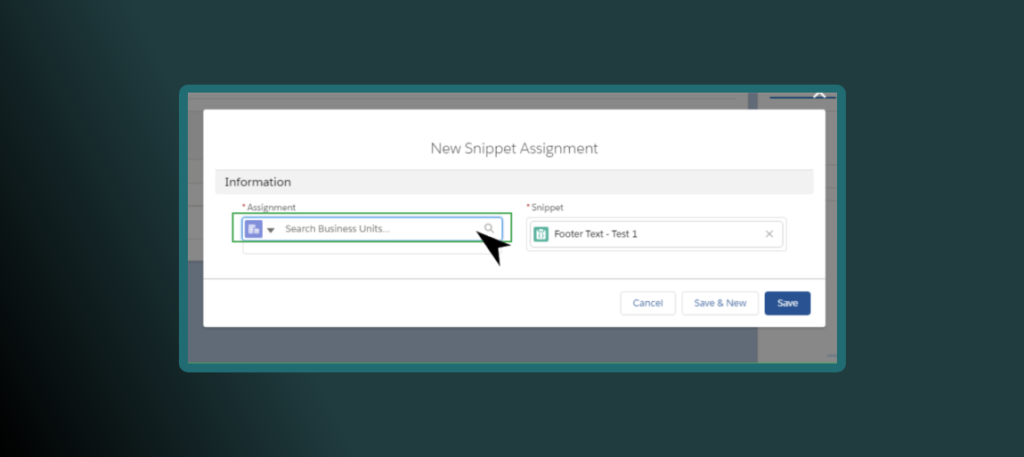
Yes, you can. To be able to use a Snippet in a different Business Units, simply assign it to the right one using the assignment wizard. A Snippet can be used across multiple Pardot Business Units. This allows your team to leverage work used in one Business Unit without having to recreate it. You can also do the opposite, which in this case is limit the content to one Business Unit.

Can I limit who sees/uses Snippet?

Within the Pardot Lightning App, you are able to limit who can see the Snippet NavigationTab (you can hide the Snippets tab from their User Profile), which ultimately prevents you from accessing it.  Additionally, you can prevent certain people using Snippets if they don’t have access to edit the campaign object. If someone does not have the Marketing User checkbox enabled in Salesforce, they won’t be able to create Campaigns which are required to attach to a Snippet.

What if I want a Snippet to be available for multiple/all campaigns?

When you assign the Snippet you can go to each campaign and assign it on the campaign level. If you only have one Business Unit and you don’t want it to be restricted to one or a few campaigns, simply assign it to the Business Unit as illustrated in the step above.

I made a clone of my Snippet but I can’t seem to tie it to the right campaign. Why am I having issues with this?

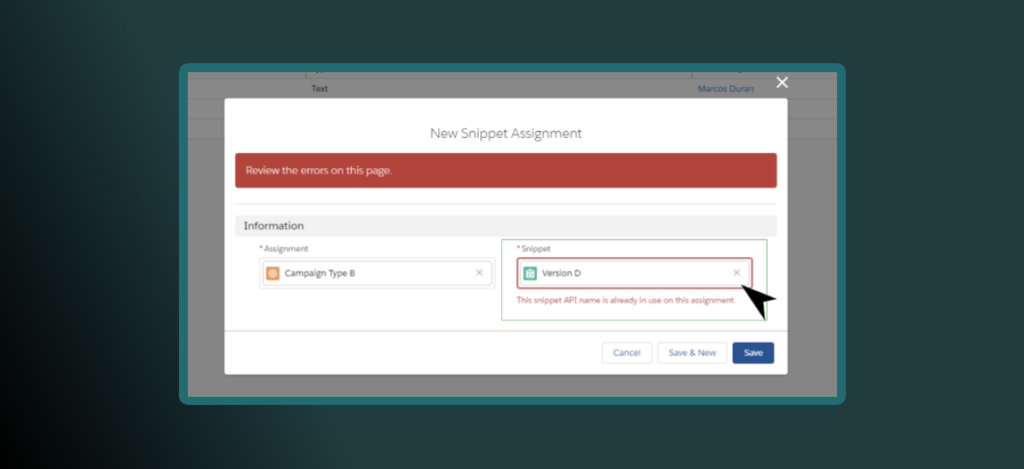
When you Clone a Snippet it keeps the same API_NAME which is the unique identifier for the Snippet. Even if you change the Snippet Name, the API Name must be updated as well. Normally this won’t happen when you create a Snippet from scratch.

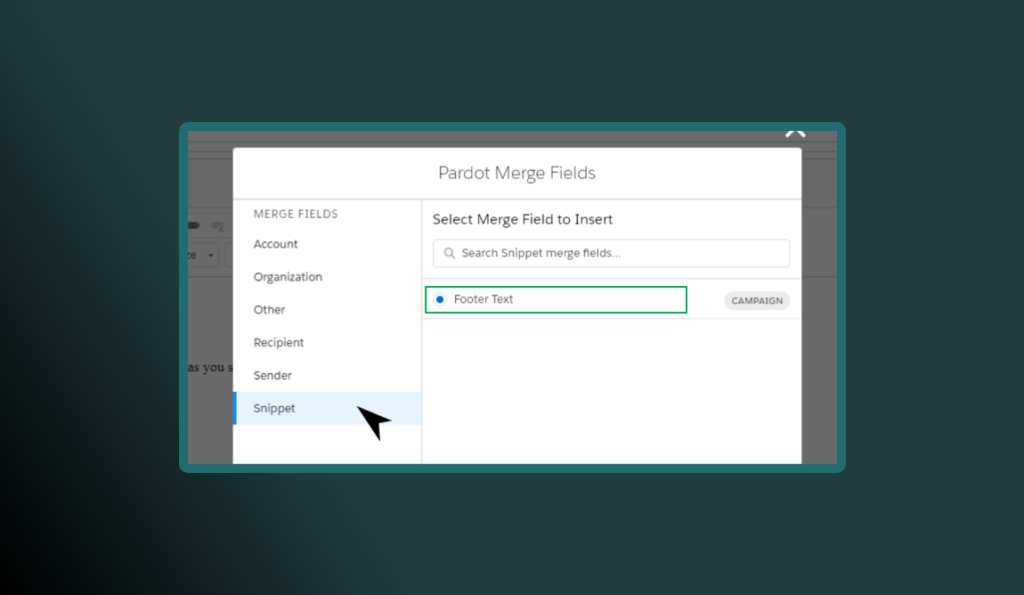
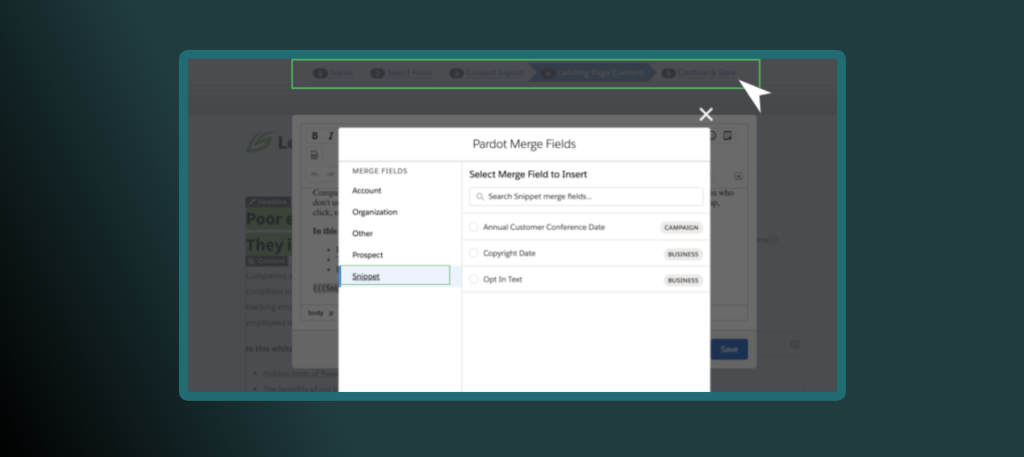
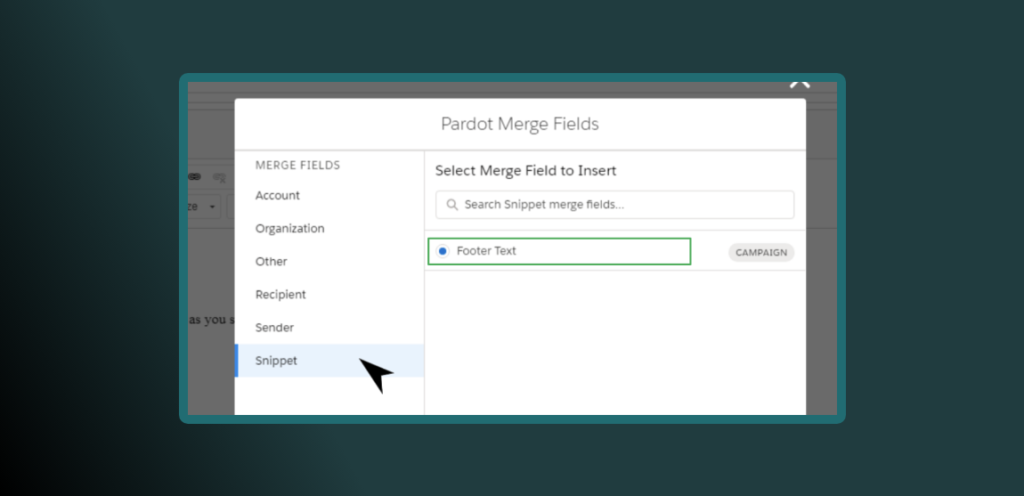
Why can I not see the Snippet tab in the Merge Field picker?

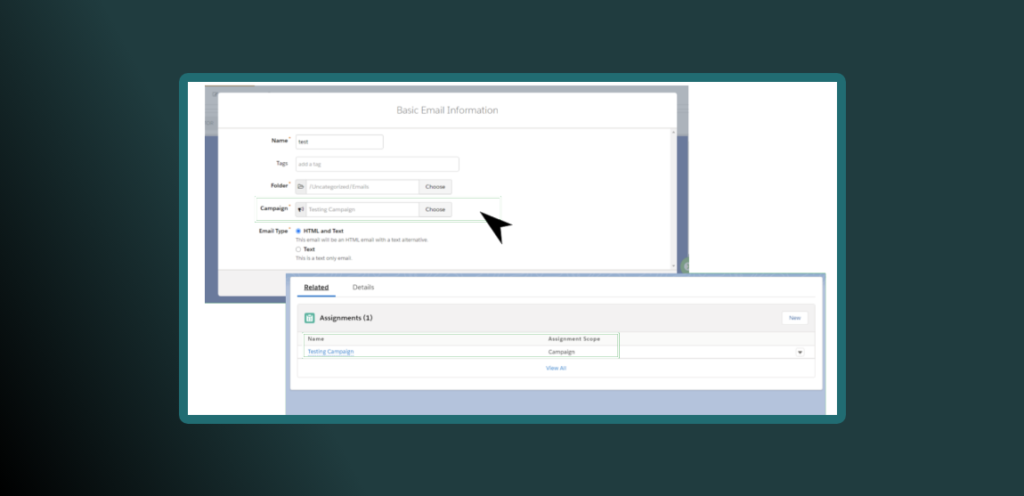
The first thing I would check is to see if you actually created a Snippet, otherwise this won’t appear. However, there are requirements to enable Snippets which could be the cause of you not being able to see them, and usually this is the issue – proper visibility. The first thing to check is to see if the email template or list email you are building has the same campaign associated with it. Nine times out of ten that’s the reason why you can’t see it, the snippet and campaign are not associated correctly (you can check the related list for that campaign), especially if you copied the template and updated the campaign.

Why can I not see my new Snippet but see others?

Notice that there is a short sync period. Usually waiting a few minutes (similar to campaign syncing period) is enough to get it to appear. If this doesn’t resolve on its own, then check the campaign or Business Unit that the Snippet is associated with.

If I edit Snippets, do they mass update or do I have to update each one manually?

Yes, Snippets will mass update, that’s the magical part of this feature. Similar to Dynamic Content any updates will go across all your templates. For example, think of being able to replace the privacy notice jargon on all your templates from one spot, that’s what Snippets can do! No more editing 100 templates. Need I say more?

Additionally, you can open this feature up to other people in your organization (in Sales Cloud) who might be the point of contact for those details.

Will a Snippet update if the email has already been sent? What about updating a landing page?

Similar to other Pardot functionality when an email has been sent already, the Snippet will NOT update after it has been sent. Future email sends with Snippets embedded will provide the latest updated information at the point of the send.

Landing pages, on the other hand, are different and will update close to real time as long as you are referring to the right snippet (via HML) and the campaign associated with this asset allows for the use of Snippets.

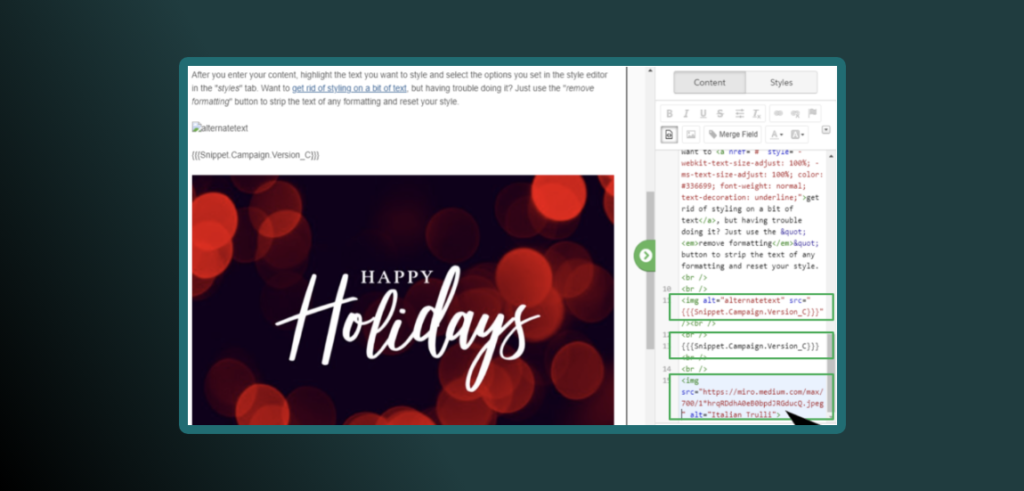
At the moment the image tab is for organization only, you can input an image URL in it but this URL won’t render as an actual image. I tried the URL on its own, the URL within some HTML in the email and the same HTML without the URL reference just the direct reference. The only one that displayed it was the direct URL reference on the template preview, so if you want the actual image to display just add the image on the template, Snippets won’t work for this.

What happens if you dissociate the campaign of the asset that the snippet is on?

You will still see the HML that describes the Snippet name within the email builder. However, if you click on the preview tab, this shows as a blank, similar when you use HML to display a field and it’s empty. I received no warnings about this from the system when trying to save or publish a template.

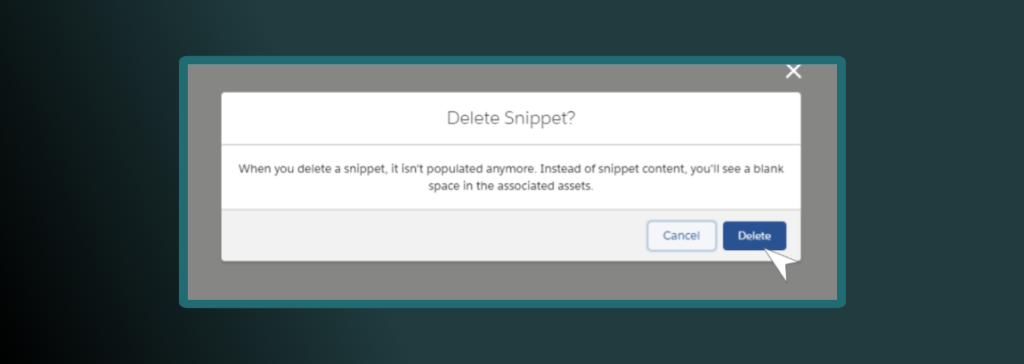
What happens if you delete a Snippet that’s currently being used?

Although the system gives you a warning, it doesn’t act like other assets that prevent you from deleting it if there are dependencies associated with the Snippet. Proceed with caution if you delete a Snippet. Review the Related section under the Snippet tab and remove the Snippet from the assets associated with it prior to deleting it. If you delete a Snippet, it is not removed from your assets, but it will stop working. You would see a blank space where the Snippet should populate.

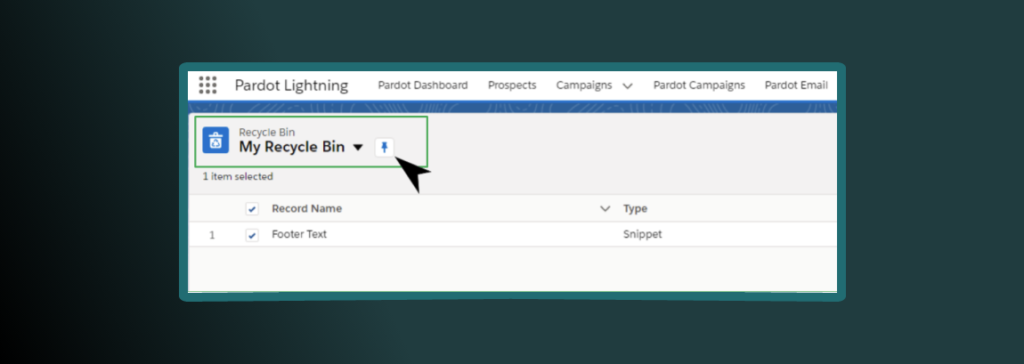
How do I restore a Snippet if I accidentally delete it?

In the App Launcher (in Sale Cloud), search “Recycle Bin” and it should be the top thing there. You can hit the down arrow at the right of the row to restore it. You may need a Salesforce Admin to support you in bringing it back if you can’t see the Recycle Bin. This option is available to you for 30 days.

Can I use standard Salesforce functionality to edit Snippets?

Yes you can. I actually learned this from Marianne Fields at ParDreamin’. In her presentation, she used Flow within Sales Cloud to look up a custom event object and pull data from it into her Snippets, while also automating the information updates from when her events team had changes to any of the event logistics, this would then update in Pardot and when it was time to send emails from Pardot, all the data was in the right spot. This is a great alternative for anyone on the Pardot Growth Tier, who may not have access to Dynamic Content or want more control in editing and approving content that goes out the door.

Wait, I already use Dynamic Content. What is the difference?

The difference here is that Dynamic Content depends on a prospects record data to populate information based on the criteria you established, it also has a limitation of 25 variations of content. Snippets on the other hand are “static” for everyone (meaning everyone sees the same thing) but can be updated universally similar to Dynamic Content. Snippets can be used by anyone with a Pardot instance, while Dynamic Content requires a Pardot Plus account or higher to be able to access it.

Although you can use Dynamic Content and HML together, using Snippets inside Dynamic Content or vice-versa don’t seem to be available at this time. There is no HML button in the Snippet wizard creator but you can manually add HML to Snippets.

This sounds great. How do I enable Snippets for Pardot in my account?

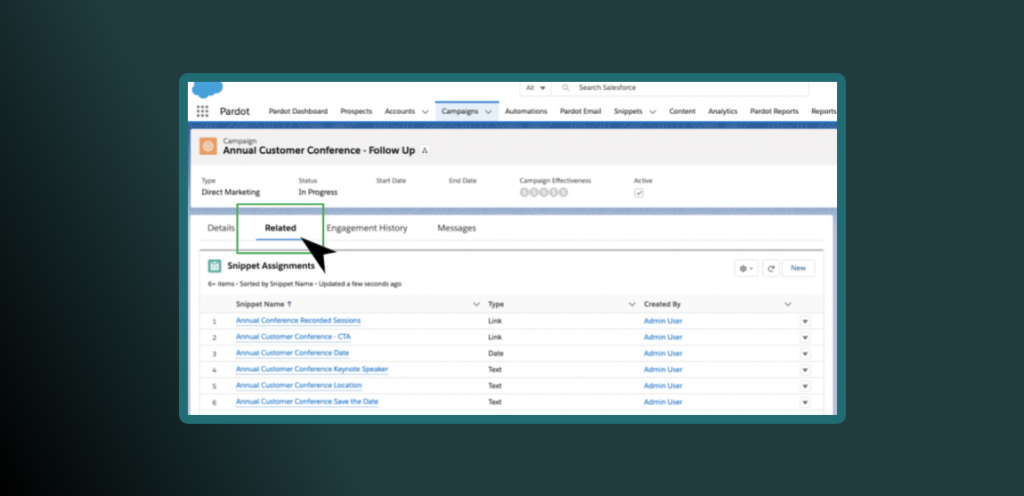
Review the prerequisites at the beginning of this post (and definitely the Salesforce documentation). If all that is completed, then make sure your profile has the Snippets tab turned on (set to Default On), then you can add the Snippets Related list to the Campaign page layout (and Lightning Record Pages if applicable) in order to see associations at the Campaign object level.

Lastly, you must be a Pardot Admin or Marketer User in order to be able to use Snippets within the Pardot Lightning App. Snippets however can be accessed from within Salesforce similar to Campaigns so don’t necessarily require a Pardot login to access.

Conclusion

With marketing teams and budgets changing during this pandemic, one thing is for sure. The winners will be the companies that can pivot quickly by leveraging all the tools at their disposal. Now that you know a little more about Snippets you can start to tinker with them to help you save time and effort. From going through this exercise three times in a week, I can say that it takes longer to set these up initially than actually using Snippets, but that’s a good thing given all the options for sharing and visibility. After that it’s a walk in the park!

Remember to be patient as you experiment with these and feel free to reach out if you need support leveraging this new feature or switching to Pardot Lightning from Classic.

What are some interesting use cases you have seen using Snippets in the wild?

Nearly 90% of marketers are using email (think tools like Pardot) to reach their audiences on a weekly basis, according to Oberlo. And people get roughly ~120 emails a day on average, according to Radicati.

Whoa! That’s a lot of emails. For many organizations in sectors like manufacturing, the switch to digital channels has become a race against time. One could infer that this number has increased due to the shift to digital channels (such as email) in 2020 due to the COVID-19 pandemic.

The shift is probably affecting businesses who perhaps did not depend on email marketing to generate sales, or depended more on brick-and-mortar stores for sales. In any case, these metrics are alarming (to say the least). This begs the question, what are you doing to stand out and make your brand memorable?

In Pardot, there are several ways to send emails. However, the way you organize and set up your email campaigns can differ from team to team.

Roadblocks that affect email marketing efforts

As a marketing team, here are challenges you may be facing in 2021:

  • Planning and executing Pardot email campaigns that scale
  • Creating email banners and graphics (with no designer on staff) 
  • Checking for mobile responsiveness across templates (with little HTML knowledge)
  • Testing your email content (lack of feedback on subject lines, copy, A/B testing, etc)
  • Customizing email templates and trying to stay consistent with branding guidelines
  • Navigating through ambiguous IT documentation around email domains

Regardless if you are a team of one or 15+, this Pardot email guide can help you take your email templates to the next level.

21 resources to help your Pardot emails stand out in 2021

Some of these resources do require that you have basic HTML/CSS understanding to be able to use them properly (we always advise you to work with an email developer). Most of the resources below are free unless otherwise noted. Additionally, you should test everything you decide to implement as it will not look or act the same across devices and email clients (particularly Outlook) and could affect your email KPI’s.

Email building basics

1. Email Brief and Planning Worksheet (Litmus)

Are you new to email marketing? This worksheet (by the team at Litmus) will help you get your process in order. This outline can work for both individuals and teams looking to improve their email campaign creation processes by focusing on efficiency and better quality control in the new year!

2. Email Content Regions Guide (Pardot) 

Pardot Content Regions give you flexibility to lock down content controls to users creating emails and landing pages. Need the footer content to be restricted to edits? There’s a tag for that. Need the ability simply update the text and link of a button without editing code? There’s a tag for that as well!

3. Fonts (Google)

Google Fonts is an easy way to pull additional web fonts for your landing pages and email and use them within Pardot. Note that not all email clients allow the use of other web fonts and you would need to set up a default font (in Pardot it’s Arial) for email clients like Outlook. To use these custom fonts you can find a guide on how to implement this on the Pardot Knowledge Base or work with an email developer to leverage more web fonts properly.

4. Preview & Preheader Text Guide (Sercante)

Many email marketers underestimate or completely ignore the power of Preview Text. A survey conducted by Litmus and Fluent found that about 24% of email readers decided to open an email purely based on the preview text. This guide walks you the fundamentals of using it and how it can impact your email opens. Just remember to keep your preview text close to 40 characters so it doesn’t get cut off (different devices have different cutoff parameters).

Design with your audience in mind

5. Bulletproof Email Backgrounds (Campaign Monitor)

Tired of boring white email backgrounds? This generator allows you to add images and backup colors (especially for Outlook) with a few simple clicks. You can then add this code to the HTML tab of your Pardot email for testing.

6. Color Kits (Scheme Color)

Color Schemes is a great tool to create color palettes especially if you don’t have a designer on staff and you’re just starting to develop your branding guidelines. To use this tool, simply add your HEX or RGB codes from your logo and out goes the color series. Don’t know the color codes? Try the image to color generator on their site and it will generate them for you.

7. Dark Mode Email Design Guide (Litmus)

Designing emails and websites for dark mode is becoming more and more popular. According to a survey from Medium, over 80% of mobile Users prefer dark mode when using their device. This informative guide will walk you through simple tips and tricks you can do to make sure you stand out. 


8. Email Banners (Canva)

Designing banners for email templates and social media posting? Canvas provides you with a series of predefined templates, stock imagery and even video clips (read more about using GIFs in your email campaigns). Remember to use the proper dimensions in your emails to make the banners easier to use.

9. Stock Images (Pexels)

Using images in emails can help spice up your content and promote click throughs. To use Pexels, simply search terms for your specific campaign needs and select the best image, most are free for personal and/or commercial use. Remember to think about considerations of using images in email, especially if the majority of your audience are on Outlook.

10. Social Media Icons (Hootsuite)

There are many social media icons you can find online. You may even have your design create some for you that are branded using your colors. Did you know that social media icons are actually trademarked? This guide will walk you through how to play it safe and access the correct branding and icons for your email marketing campaigns.

Delight your audience

11. Bulletproof Email Button Generator (Campaign Monitor)

Want to add buttons to your email templates but don’t know how? Use this simple generator to add buttons to your emails and landing pages. Simply input the URL link location and text you want on the button and then it will give you a code you can add to the right section to your email template. Guess what? They also work on Outlook. 

12. Calendar Invite Sharing Buttons for Emails (Eventable)

Want to create buttons for webinar registrants to add the event to their calendar? No problem, use this tool to create Add-To calendar buttons, which can be added to your emails with a few clicks!

13. Countdown Timers for Emails (NiftyImages)

Add a little flair and excitement to your emails, landing pages, and website with these countdown timers. To use this tool, add your timing, and then add the code to your email. If you registered for ParDreamin’ this year you will know exactly what it looks like. Similar to other animated images, some email clients only display the first frame of the image and may not work properly (especially in older Outlook accounts)


14. RSS Feed (FeedOtter)

Do you produce a lot of blog, public relations or news content on your website? It’s time to put FeedOtter to work! Although this tool is paid, it can be well worth it, if your organization is producing significant content month to month. Keep your audience engaged by and save on time by automating your newsletters with content from your website using this tool.

15. Video in Emails (Wistia)

You’ve seen the name Wistia before, you can’t remember where though right? It is actually one of the video native connectors you have access to when you buy Pardot. Although Wistia is a separate service to Pardot, they have great insights into how you can make video work for your brand and audience. Just in case you didn’t know, video doesn’t work across all email clients. This article walks you through your options to help your provide the best experience for your audience.

Testing your content

16. A/B Testing Case Studies (GuessTheTest?)

Need ideas of what to A/B test? Learn from other enterprise and B2B customers through their own A/B email testing experiences, you can even search by industry, the item that was tested and by conversion goals.

17. A/B Testing for Emails (Pardot)

Did you know that earlier this year Pardot made A/B testing available to all editions of Pardot? This help document will walk you through the steps on how to do it. It’s a great feature to leverage especially if you are trying to pinpoint what variety of preview text, subject line, or content works best for your audience. Need a little more help setting up A/B tests? Check out our blog post on A/B testing do’s and don’t here.

18. Gmail Email Tab Check (Gmail/Litmus)

Are you curious to see where your emails end up? With this tool you can test it for yourself. Currently it only supports tabs found within Gmail but if you are in the B2C/NGO/HigherEdu/Non-Profit side of email marketing that may be exactly what you need!

19. Subject Line Rater (Subjectline)

When writing copy, do you test subject lines? If you aren’t getting any feedback from your team, you are missing out. This tool gives you a score (scale from 0 – 100) AND feedback on how you can improve your subject lines before they go out the door. A good alternative is Omnisend.

Spam and DKIM Checkers

20. Blacklist Checker (MX Toolbox)

Are your emails even making it to your prospects Spam or Inbox folders? The answer is no if you have been blacklisted. For Pardot customers sharing an IP, this could happen even if you follow all the best email marketing practices. In short, being blacklisted means some of your emails you have sent may not be delivered (to reduce what is perceived email spam by the email clients).

21. Spam Checker (MailTester)

The spam checker checks for spam, DNS/DKIM validation, blacklists, broken links and ways to improve your content all in one! This is an amazing tool for anyone who is a team of one or working in a small team.


BONUS: Avoid these email marketing mistakes outlined by the team at Zapier and several marketing executives across industries.

Conclusion

Although Pardot does provide out of the box email templates that are ready to use, sometimes we crave a little more personalization for our templates to really communicate our message to our audiences.

The resources we covered today can help both novice and veteran email marketers alike improve the way they execute email marketing campaigns. In the world of email marketing, things are constantly changing and we must adapt otherwise our brands can look out of date. In the words of our fellow dragon, Mike Creuzer, “test all the things”.

As your team meets to set Q1 priorities for 2021 ask yourselves, “do we need support building our own customized email templates?” If the answer is yes, our development team is ready to invigorate your designs and add the functionality you need for your 2021 email campaigns. Don’t start 2021 on the wrong foot. Simply reach out to us to get started

This past year has been a great year for Pardot Admins everywhere. With each new release, Pardot has grown in functionality and has also become more integrated with Salesforce. This is fantastic as it allows for tighter data control, better personalization when communicating with prospects, improved user management processes. and an overall better user experience. In the wake of the new year, check out the newest Pardot features and updates on the Salesforce Spring 21 release notes to gain insights into what is coming in 2021.

As Pardot Admins, we often run into corners of the platform that require a little more creativity in order to solve a specific business need. Oftentimes, you can just “Google it” and voilà! Many in the Pardot community have the exact same question or problem you do, and although you find the answer (which is a huge relief), wouldn’t it be fantastic if there was a way for Pardot simply to add a fix for everyone?

Well my friend, grab a seat and let’s head over to the IdeaExchange!

What is the IdeaExchange anyway?

Back in 2006, the #Ideaexchange was born as a way to involve its customers (big and small) in a modern effort to crowdsource ideas for its product roadmap. This would ensure that the community got a platform that they could use to contribute their ideas and wishes. A place where the Pargods could go for inspiration if you will as they build the world of tomorrow.

How does one enter their idea into the IdeaExchange?

  • Come up with an idea and submit it to the exchange
  • You then get trapped and spend 2-4 hours going through other people’s ideas (definitely optional, but highly encouraged). 
  • If your idea gets enough votes (10+ points for you) then a Product Manager gets involved
  • The idea is developed and then delivered, and we all cheer!

Need more details? We wrote a little about the history of the AppExchange.

Our list of top Salesforce IdeaExchange items 

To celebrate the Salesforce IdeaExchange 14th anniversary this year, here are 14 wonderful ideas worth upvoting and adding to your wishlist, just in time for the new year.

Data Management

1. Ability to set field character limit for custom fields on Pardot side
This feature would help reduce conflicts between both platforms when it comes to character limits. We wrote about
how to fix this with Javascript.
Upvote >>

2. Country lists match between Salesforce and Pardot
This feature would help create more symmetry when it comes to Country values between the two instances. Currently, there are several different values between both. We wrote about how to fix this with Heroku
Upvote >>

3. Customize all list view columns
This feature would allow you to customize list columns for easy scanning of field completions and provide reporting-like capabilities.
Upvote >>

4. Notification on SFDC connector errors
This feature would allow Pardot admins to create notifications in summary of sync errors to make sure they are resolved promptly.
Upvote >>

5. Parameter in automation rules for “is changed”
This feature would allow you to see if there was a change in a field to trigger an action based on the change.
Upvote >>

Marketing Operations

6. Allow custom object fields to be used as email tags
This feature would allow email marketers the ability to inject values from custom objects into emails and other pieces of Pardot generated content.
Upvote >>

7. Ability to block competitor domains from all emails including autoresponders
This feature would ensure that none of your competitors receive the email you set up with your forms or enter your nurture series. 
Upvote >>

8. Conditional options for completion actions
This feature would allow marketing operations teams to save on automation rules and contain automations at the form level with some IF/THEN preferences based on user input on forms.
Upvote >>

9. Dynamic content based on list membership
This feature would enable you to do dynamic content criteria based on list membership effectively allowing you to use more than one data point as your criteria.
Upvote >>

10. Email Templates with Completion Actions
This feature would make it easier to build email templates that scale without the need to use Engagement Studio or other automations to prioritize actions. 
Upvote >>

11. SEO/Social media friendly Pardot landing pages: Images and meta tags
This feature would make it easier for marketers to update meta tags and social cards to share content using Pardot native social media capabilities.
Upvote >>

12. Time zone dependent delivery for list emails
This feature would allow marketing operations to choose one time and send it across that time in different time zones. It would save the User from creating multiple list emails with the same content.
Upvote >>

Sales Operations

13. Allow customization of notification email subject/content
This feature would allow you to use Dynamic Content and Variable tags on the subject line of notification emails (e.g. Notify User [when someone fills out the Contact Us form]) which currently is auto generated and cannot be updated.
Upvote >>

14. Allow variable fields in SFDC tasks
This feature would allow you to add variable tags to the Salesforce task you assigned to the User. Currently the message is static and everyone gets the same.
Upvote >>

You can find more ideas to browse while you binge-watch the ParDreamin’ 2020 videos.

Will your Pardot dreams ever come true?

While some Pardot Admin recommendations get picked up and implemented faster than others, it all depends on community participation and perceived need from the Pardot product team. In fact, to help drive ideas, Salesforce created a prioritization system (the next cycle starts in mid January 2021) where you can see top feature suggestions across the ecosystem battle it out!

You may be wondering, do any ideas actually make it to the product? The answer is yes.

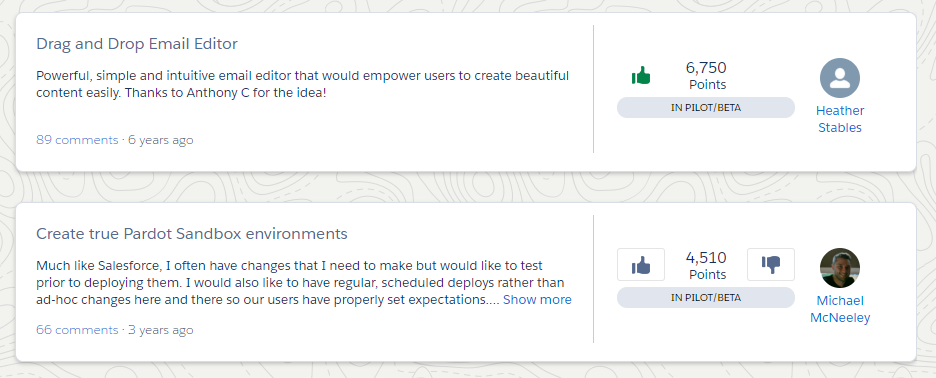
Dreams do come true! In fact, these two ideas were just releases in the last release.


Our friend Jen Kazin recently discussed the new Email Builder at ParDreamin earlier this month. You can watch a quick demo of the feature by Salesforce here

Are there any features or functionality you wish you could see? If so, let us know below. With a little bit of luck and support from your Pardot and Salesforce Ohana, you might also uncover the secrets of the IdeaExchange and get your idea on the scoreboard.

Don’t forget to vote for these ideas, submit your own and chat with us on Twitter, LinkedIn or simply subscribe to the blog.

No more posts to show