Category

Emails & Forms

Agentforce Marketing Form Flows can take time to add all of the elements needed, such as autoresponders, lead notifications, and whatnot. Let’s use a handy Marketing Cloud flow template to solve a few problems with one simple subflow!

Product Note: In previous blog posts, Agentforce Marketing has also been referred to or known as Marketing Cloud on Core and Marketing Cloud Next. This product may have also been referred to under its Edition names, Marketing Cloud Growth and Marketing Cloud Advanced.

What Problem Are We Solving?

When someone fills out a form we need a scaleable, reusable way to determine if the person filling out the form is an existing Lead and/or Contact in Salesforce. If you include an email component to your form flow, such as an autoresponse email, then the first node in your form flow must be a create element. This makes it arduous to check for existing records and send an autoresponder in the same flow. 

Form Triggered Flows

When creating a new form in Agentforce Marketing you may have received the error message below warning you that a form triggered flow must begin with a Create Record. 
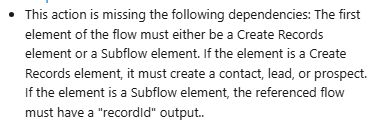
Error message that warns you that a form triggered flow must begin with a Create Record.

This can be frustrating because sometimes you want to first check if there is an existing record that matches what was just entered in the form, then decide if you should create or update a record.

Now you can!

Introducing: Upsert a Record for a Person (Flow Template)

This handy flow template makes life easier. It is also the ONLY exception to the rule above about starting with a Create Element. You can also start your form flow with a subflow that uses the “Upsert a Record for a Person” template, which is very useful.

The main benefit of creating a subflow is that you can call the same subflow from multiple form flows, no reinventing the wheel needed to scale. This new flow will handle the following:

  • Check if a Contact exists > Update if found
  • If no Contact exists, check if a Lead exists > Update if found
  • If no Lead exists, create a new Lead

Optionally we can also add email alerts, add to campaign elements, and more. 

Let’s Build the Flow

  1. In the Marketing App, select the Flows tab
  2. Click New 
  3. In the search window, search for “Person”
  4. Select the template Upsert a Record for a Person
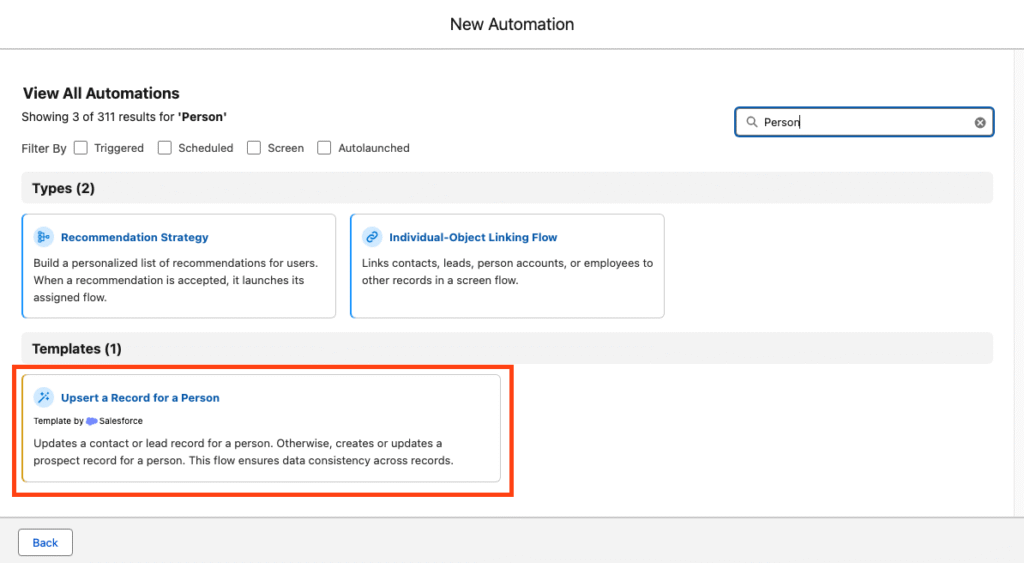
When building a flow you need to select the template "Upsert a Record for a Person."

Your flow should open to the following canvas layout.
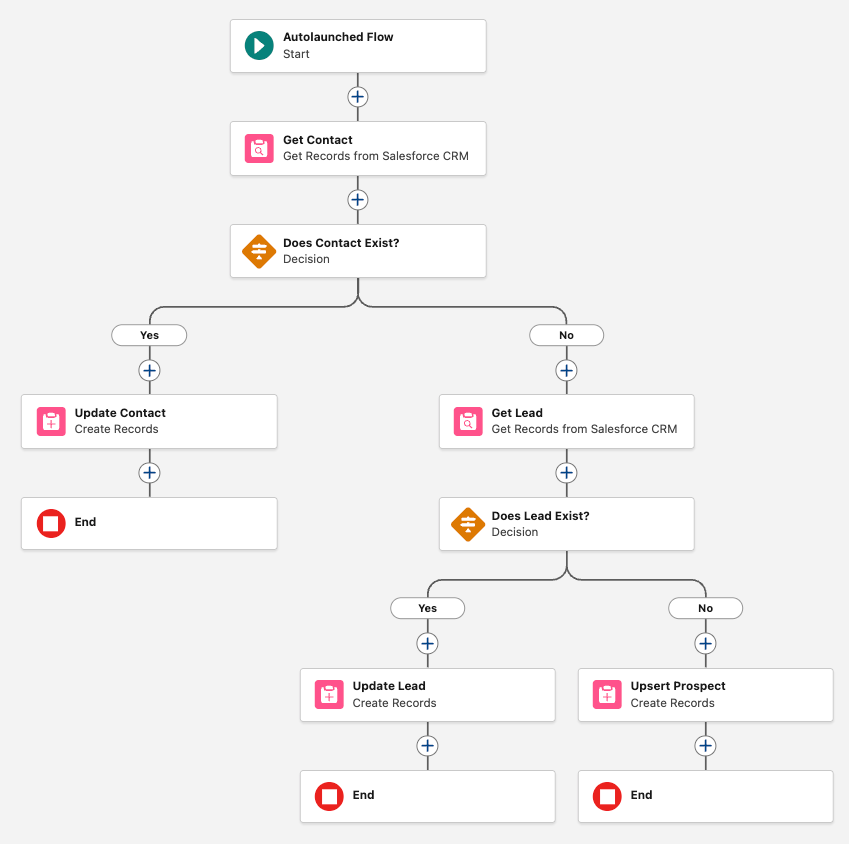
This image shows what your flow should look like when you open it.

The flow is autolaunched because we’ll call it from another flow (our form triggered flow).

  1. Click Next
  2. Name the flow “Look for Existing Contact/Lead”
  3. Click Create

This flow will ingest data from your form triggered flow and return a recordId. For this to work, we need to first create the variables in the subflow so that we can send the necessary data. 

  1. Within the flow builder, select the Toolbox
    1. You should see three variables: company, lastName, recordId. These are the default variables because they’re technically all that’s required to create a record. You certainly will need more than this.

Important: when you add a new variable, like firstName, for example, you’ll need to make sure the checkbox for “Available for Input” is checked. This insures that any new variables you add will be able to accept the data from the form flow that this new flow is connected to. You’ll notice the three default variables already have that option checked.
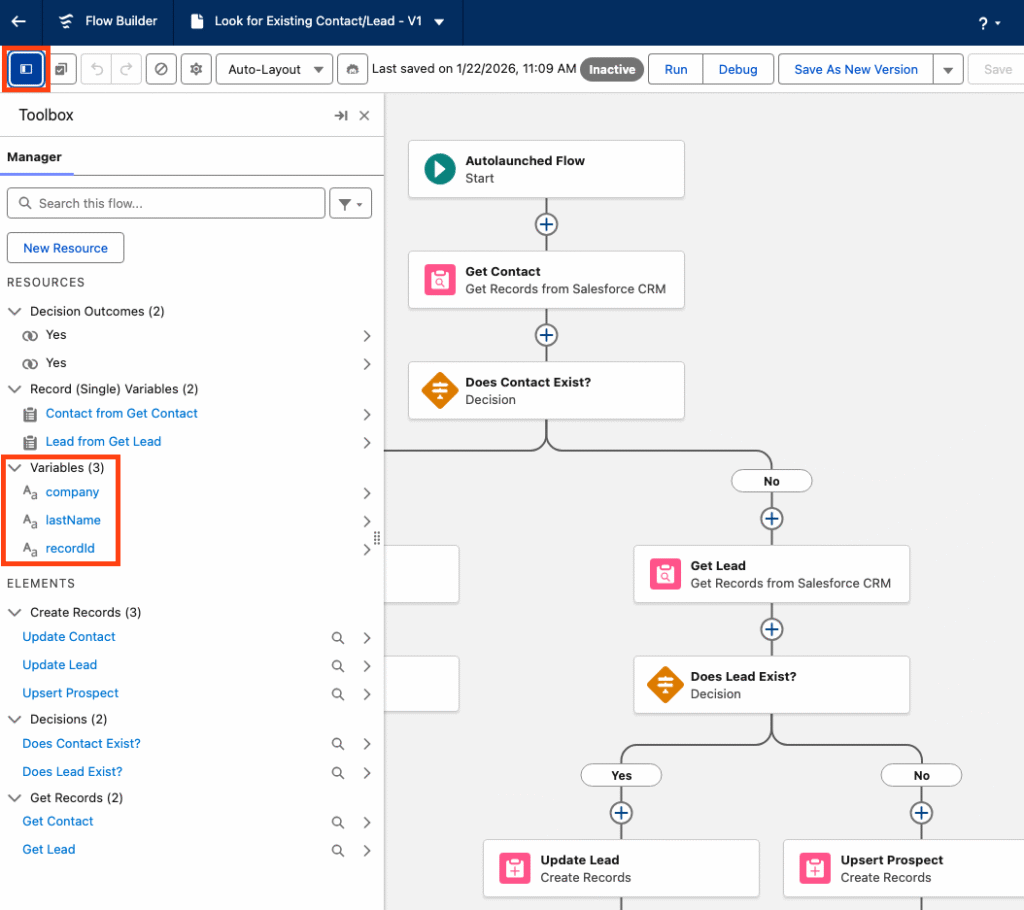
This image shows that when you're in the flow builder, select the Toolbox and you'll see three variables: company, lastName, and recordld. These are the default variables.

Next we will create any necessary variables. Any data that your form is going to capture should be a variable for this flow to ingest. For example, firstName, phone, favoriteCandy, whatever!

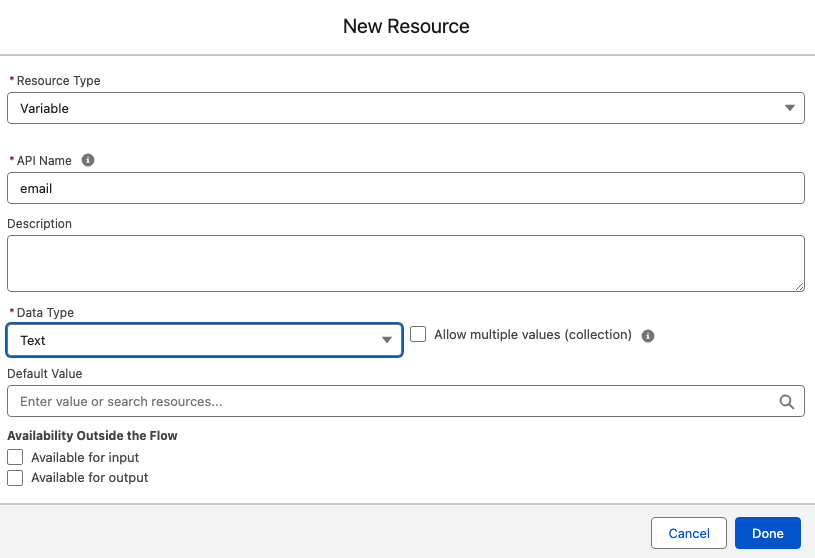
  1. Within the Toolbox, select New Resource
  2. Select the Resource Type Variable
  3. Enter your API Name, well use email for our example
  4. Select your Data Type, this will typically be Text
  5. Select Done
This image shows that when creating a new resource you will see these prompts: resource type variable, API name, data type.
  1. Repeat for any additional variables 

Customize the Sub Flow

Now that the basic setup of the sub flow is done we can configure the elements to suit our needs.

  1. Start by selecting the Get Contact element.
    1. By default the template only looks for lastName to determine if a matching Contact exists. We’ll switch this out for a more reliable unique identifier, email address.
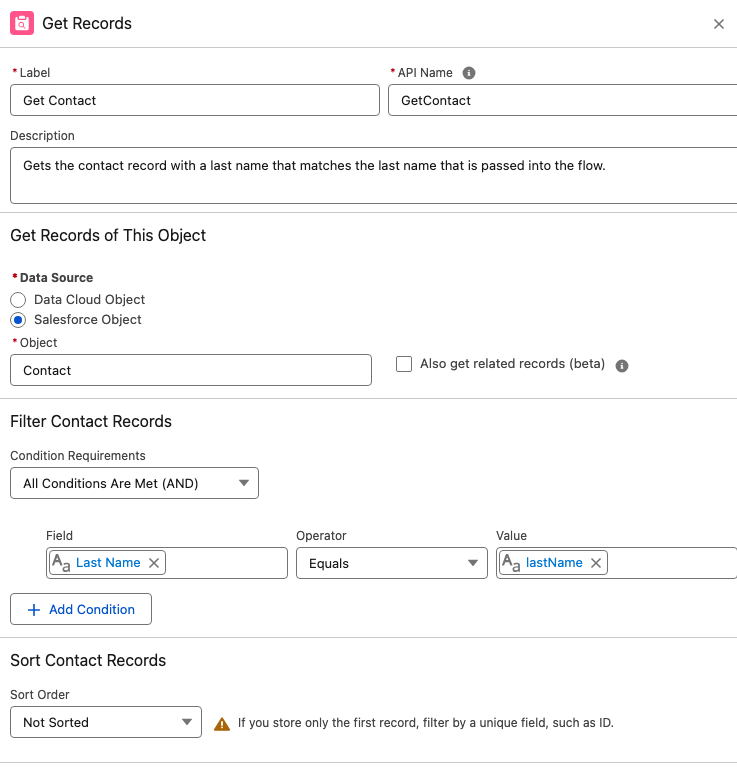
In this photo we see the "get records" section and when selecting "Get Contact" element it automatically looks for lastName but we want to change to email address.
  1. Select + Add Condition
  2. Enter the Record Field Email equals variable Email
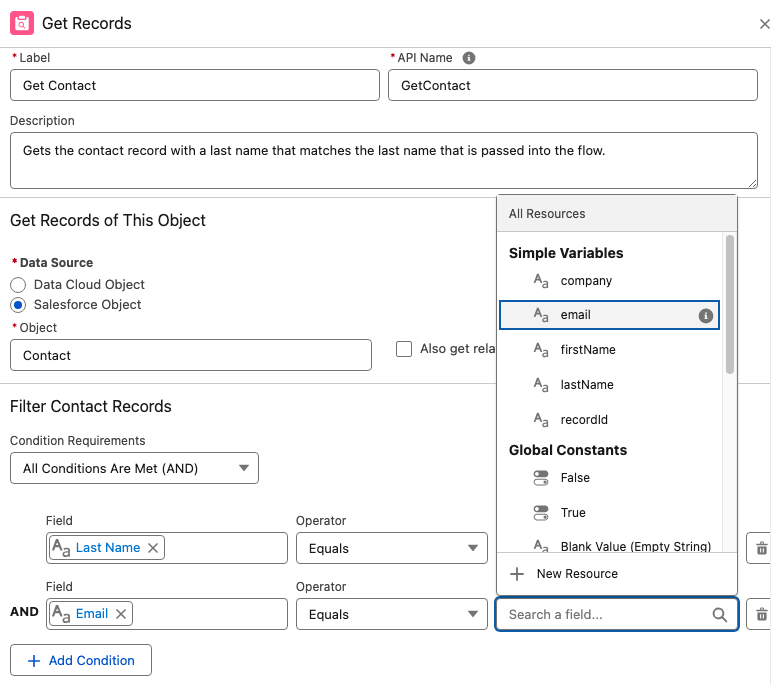
When in "get records" this image shows how to make the Record Field Email equal the variable Email.
  1. Select the trash can icon next to the Last Name condition to remove it

Important: When mapping the fields remember your variables represent the inbound data from your form, the field represents the object’s fields in Salesforce.

5.  Once complete, you should be mapping (at least) the Email field with the email variable you created. 

2. Next selecting the Decision element. 

  1. The Decision element will determine if there is an existing Contact found. Name the element “Does Contact Exists?”.
  2. Under Outcomes, let’s name the first outcome “Yes”. 
  3. For the Yes outcome, your Resource should be the Contact ID from the Get Contact element. So if the Get Contact found a Contact, there will be a Contact ID present.
  4. Map the Get Contact > Contact ID with the Operator “Is Null” which should equal False.
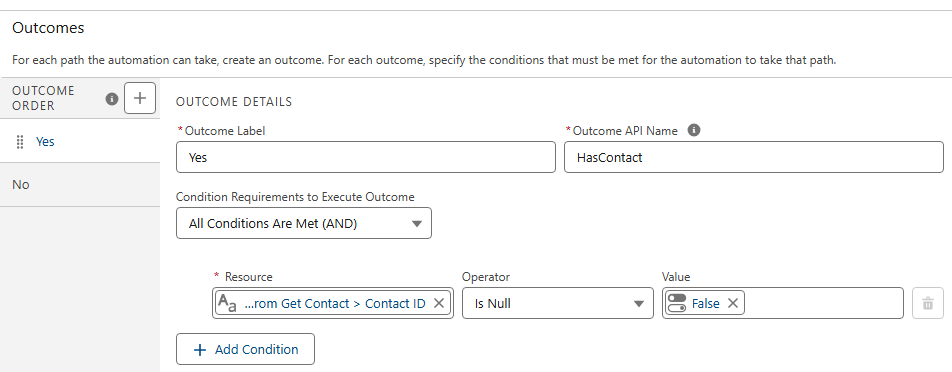
Shows outcome details and mapping the Get Contact > Contact ID with the Operator “Is Null” which should equal False.

If a contact is found the Contact ID will not be null.

  1. For the default outcome, simply name it No. There is no criteria needed because either the new record is a contact or it’s not.

3. If it’s NOT a contact.

If your new record is not a Contact you’ll see by how the template is laid out, it will go down the right hand path and hit another set of checks to look for an existing Lead.

A. Configure your Get Lead node the same way you did with your Get Contact, mapping your Lead Email field with the email variable. This means it will look for any lead records that match that email address.

B. Configure the Decision element in the same way you did the Contact Decision element. You want to determine if it found a Lead ID from the Get Lead node above.

This shows outcome details and determines if it found a Lead ID from the Get Lead node.

Finally, we’re either creating or updating records.

On the left path, where a record will travel if a matching contact record is found, we’ll update the existing Contact with the details from our variables. Remember, the variables represent the data that the person entered into the form. Map the variables to the appropriate Contact fields to update the values.

Important: As of this writing, if a variable has a null value because the form field was optional, and the person did not fill in the field, that null value will overwrite the value on the contact record! For example, if your phone field is optional and a person doesn’t fill that out and their existing contact record does have a phone number, it will be overwritten with a null value and you will lose that data. If you would like to prevent this from happening, see Solution #2 of this blog post for a workaround. 

On the right path, records that are not existing contacts will travel to check for an existing Lead. If a Lead is found, you’ll configure the Update Lead node and map your lead fields with the variables.

If a lead is not found, you’ll create a new lead. Configure the Create Lead node, mapping your variables to the lead fields.

Very important last step for this flow:

For each update or create element at the end of the branches you must check the box for “Manually assign variables (advanced)” and store the variable in your recordId variable. If you don’t do this the flow won’t send the recordId back to your original form flow.
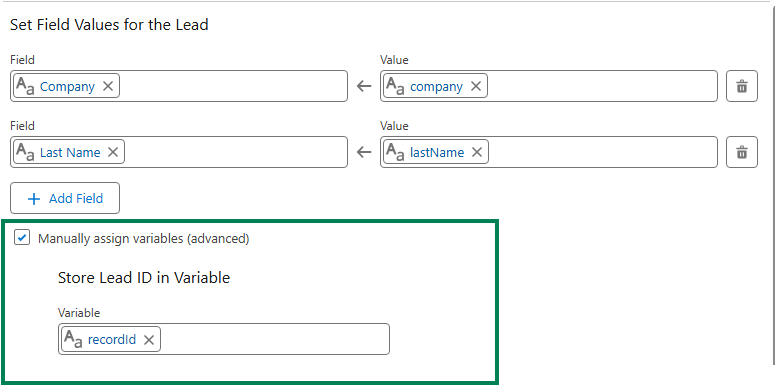
Setting field values for the lead. Make sure to check "Manually assign variables."

Once all the elements are configured and you’re sure that each exit point (create or update element) will store the recordId, you’re done with this flow and can save and activate. The flow must be activated before returning to your form flow.

Wait a minute, doesn’t the Create Records element include a check for matching records?

Yes, it does! That will work for your forms but you first need to know if the person filling out the form is a lead or contact. This subflow is the only way to first determine if the person filling out the form is an existing contact, lead or brand new. 

Let’s go back to our form flow

Now that we’re back in our original form triggered flow, we have much less work to do to create an effective way to check for existing records before we decide if we want to create a lead or contact, or update an existing record. 

When you start your form flow, instead of using a Create element, add your subflow.

  1. Delete the default “Create Lead” element that’s usually added
  2. Click the plus icon to add an element directly after your start
  3. Select the Interaction element “Subflow”
  4. One the right hand menu of flows, search for the flow you just created. You may have called it “Look for Existing Records” or something similar.
  5. Configuring the subflow node is important. You’ll see a toggle next to each variable you created in the subflow. This allows you to map your Form Fields directly to your variables in the subflow.
  6. Click the toggle and map all of the fields from your form.

Note: you do NOT need to map all of the fields, only the ones you want to use to create or update records in your subflow. You may include extra variables in your subflow to make it scaleable. For example, your subflow may include “favoriteColor” but you may not collect this data in all of your forms. That’s ok, you can toggle it on any of the forms you collect that data.
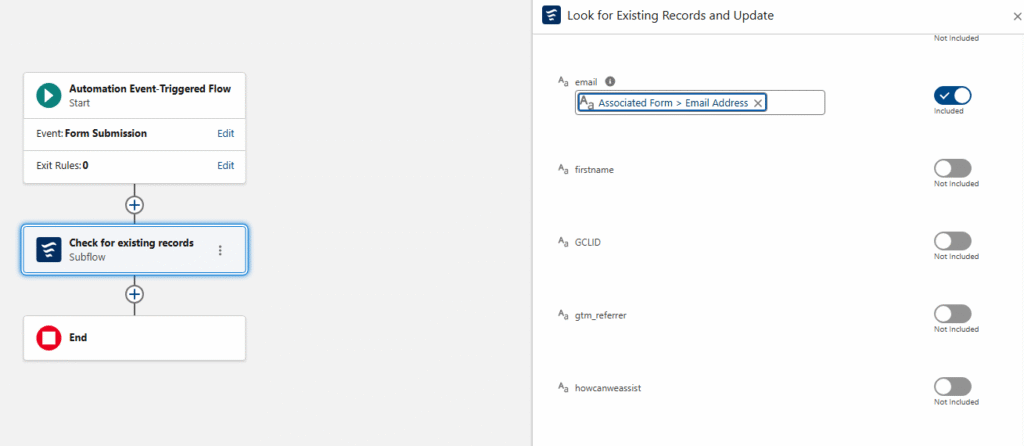
A workflow diagram with blocks for form submissions.

Using the recordId that was found in the subflow

What’s really nice about this subflow is that your form receives back a recordId for the record that was either found and updated, or the newly created record. There is no 24 hour wait. If you want to take additional steps in your form flow, like adding people to a campaign you’re going to need that recordId. 

Final thoughts

Creating and calling a subflow might seem intimidating to newer platform users, but if you take the time to configure it you will have an invaluable, reusable resource. In simplest terms you’re bypassing Data 360’s 24 hour wait period for checking a form submission for existing records and you’re receiving back (almost instantly) the recordId of the existing record or newly created record. This opens up all sorts of options in your form flow and makes them much easier to scale.

I also encourage you to have the subflow do as much work as possible. The more you have your subflow do, the less work your individual form flows need to do which means you’re up and running with new forms really quickly. For example, I recently set up a subflow that checks for existing records, adds the person to a campaign based on the UTM value in their form submission and sends the sales team an email alert, all within that subflow. 

One additional added benefit to the subflow strategy is that it’s far easier to deactivate, add-to and debug a regular flow. Form flows are notoriously fickle, so once activated, I like to leave them alone. But the subflow behaves similarly to any other admin flow in Salesforce that can be added to and edited as needed. (eh ahem, in the sandbox, of course). 
Special thanks to our friend, Francois Perret for his terrific article on the subject.

Product Note: Marketing Cloud on Core is now known as Marketing Cloud Next. Marketing Cloud Growth and Advanced are editions of Marketing Cloud Next and have also been referred to as Agentforce Marketing.

Marketing Cloud on Core (aka Growth and Advanced Edition) offers simple out-of-the-box form-triggered flows that are great for lead generation and straightforward scenarios, but today we’re going to dive into something more complex! In this post, I’ll walk you through the process of building a flow that checks for existing contacts and leads before creating a new lead, creates consent records, and sends an autoresponder email. Let’s get started.

Setup Notes

All testing was conducted after the Spring ‘25 release in a demo org. The standard lead duplicate rule was active and configured to allow the creation of duplicate records with alerts.

OOTB Form-Triggered Flows

Before we begin customizing the out-of-the-box flow, it’s important to understand the capabilities and limitations of Form-Triggered Flows. This helps guide decisions concerning when customization is necessary.

OOTB Form-Triggered Flow without Lead Matching

This is the most basic flow and is what’s automatically generated when the Signup Form template is selected during the campaign creation process. No modifications were made to the flow, outside of configuring the “CreateConsent” element.

Test Results 

ScenarioResult
Submitted by new personNew Lead Created
Submitted by existing leadNew Lead Created
Submitted by existing contactNew Lead Created

Summary 

In all three test scenarios, a new lead record was created leading to duplicates in Salesforce. 

OOTB Form-Triggered Flow with Lead Matching

In this test, a very slight, but important, modification was made to the flow—the “Check for Matching Records” option was enabled in the “LeadCreation” element.

Test Results 

ScenarioResult
Submitted by new personNew Lead Created
Submitted by existing leadExisting Lead Updated
Submitted by existing contactNew Lead Created


Summary 

This small update made a significant improvement. The flow now prevents the creation of duplicate leads when an existing lead submits the form. However, a new lead record is still being created when an existing contact submits the form.

This occurs because flows are object-specific, and the OOTB flow only references the lead object. It lacks visibility into the contact object, so it creates a new lead if an existing lead is not found. In short, the flow is performing exactly as it’s designed to.
OOTB Form-Triggered Flows Summary

The OOTB Form-Triggered flows support simple use cases, but it’s important to be aware of the potential for duplicate record creation. These flows are intended as a starting point for marketers and should be customized to meet more specific requirements.

Form-Triggered Flows with Autoresponder Emails

Use Case

Your company just released its latest white paper, which is expected to have great appeal to potential and existing customers alike. The marketing team is posting the white paper on the website as a gated asset. In addition to redirecting users to a “Thank You” page, marketing also wants to send an autoresponder email. The autoresponder not only provides the recipient with easy access to the white paper should they want to view it again later but also serves as a way to validate the email address that was provided.

Why do we need to customize the OOTB flow?

Since the white paper will “appeal to potential and existing customers,” we know that the form will be submitted by new visitors, existing leads, and existing contacts. If we simply added a “Send Email Message” element to the OOTB flow, we could send the autoresponder email, but we would create new leads in Salesforce if an existing contact submitted the form.

The flow needs to be customized to check for existing contacts, in addition to existing leads, before creating a new lead and sending the autoresponder email.

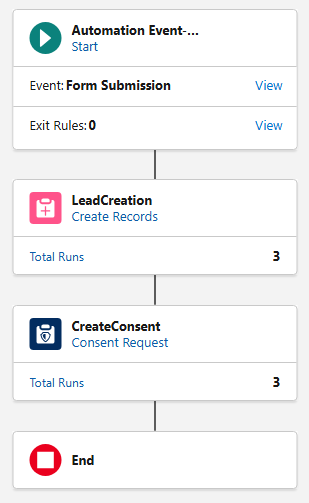
The Finished Product

Before we walk through the build of the flow, let’s first take a look at the finished product. Then, we’ll review each element, discuss its function, and why it’s needed.

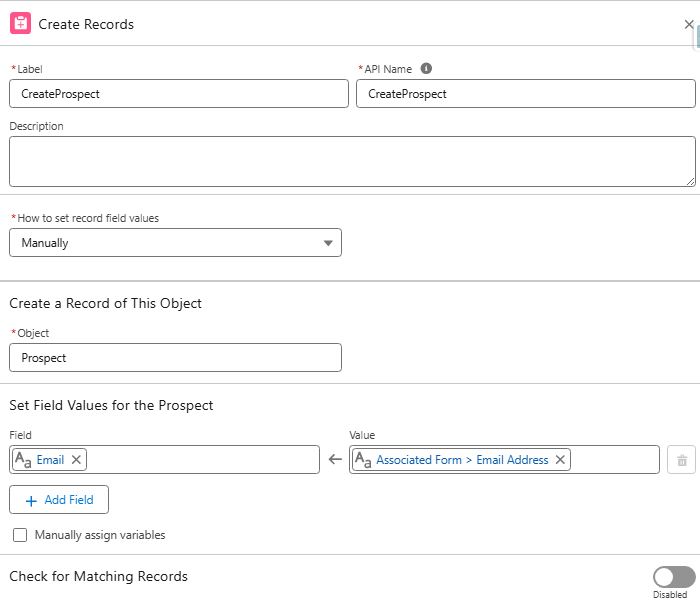
CreateProspect 

Function: Creates a new record on the prospect object for each form submission.
Reason: Flows using the “Send Email Message” element are required to have a “Create Records” element directly after the Start element. The “Create Records” element must create a record on the Contact, Lead, or Prospect object.

If we created records on the Lead object, we would be in the exact same situation as the OOTB flow: we would create duplicate leads when contacts submitted the form. If we created records on the Contact object, we would bypass the Lead object, and submissions from new visitors would be created as contacts.

The Prospect object was introduced as part of the Spring ‘25 release and is designed to keep unqualified prospects unassigned until they meet your organization’s agreed-upon lead requirements. We can satisfy the flow requirement by creating a record on this object without involving the sales team or triggering automations.

GetContacts 

Function: Retrieves all contacts who match the form submission based on the provided email address and last name.
Reason: Before we can check if a form submission is an existing contact, we must first give the flow visibility into contact records so that we have something to compare against in the “Decision” element.

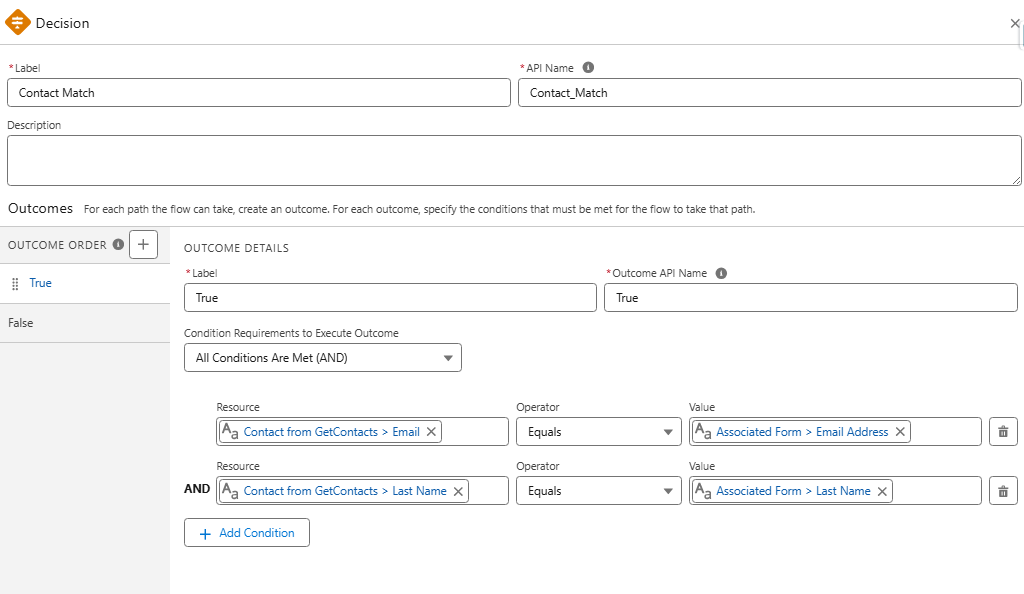
Contact Match 

Function: This “Decision” element is used to check if the form submission is an existing contact. If a match is found, the existing contact record is updated. If a match is not found, the existing lead record is updated (if one is found), or a new lead record will be created.
Reason: Prevent the creation of duplicate leads when existing contacts submit the form.

UpdateContact 

Function: Update existing contact records based on data included in the form submission.

Reason: Update the contact record with the most current data.

LeadCreation 

Function: Create new lead records or update existing lead records based on data included in the form.

  • Important: Make sure “Check for Matching Records” is enabled. 

Reason: Create/update lead record with the most current data.

CreateConsent 

Function: Creates a consent record based on the contact point for the selected channel and subscription.
Reason: Consent records are required for sending promotional emails from Marketing Cloud on Core.

TransactionalEmail 

Function: Transactional emails are non-promotional, immediate, and automated communications sent in response to a user’s action or interaction.
Reason: In this use case, the transactional email is used to send the ungated link to the white paper for future reference. Transactional emails can be used as long as they contain no promotional elements.

DeleteProspect 

Function: Deletes the prospect record created by the first element.
Reason: This step is optional but recommended. Since a prospect record was created solely to satisfy the requirement of having a “Create Records” element first, deleting the record helps keep the org clean. If you are using the prospect record for purposes beyond fulfilling this requirement, you can skip this step.

Other Use Cases & Next Steps

This structure can be applied and adapted to other use cases where there is a need to send autoresponder emails to leads and contacts without creating duplicate records. Examples include flows that create tasks or campaign member records in addition to sending autoresponders. 

Flows might seem challenging at first, but marketers will love them once they gain more experience. The key takeaway is to get hands-on, test, and don’t hesitate to ask for help if needed. Personally, I can say that I received a lot of support from my friends at Sercante when I was starting out, and I still do today!

As part of the Winter ‘24 release, Account Engagement users gained the ability to copy assets to and from Account Engagement Sandboxes. This allows marketers to test automations and assets before pushing them to their Production Account Engagement org. It also allows them to pre-populate Sandboxes with assets so they don’t have to start from scratch. 

The Account Engagement to Sandbox-to-Production Flow currently supports seven asset types: 

  1. Email Templates
  2. Custom Redirects
  3. Custom Fields
  4. Files
  5. Engagement Studio Programs
  6. Layout Templates
  7. Form Handlers

Account Engagement Sandbox-to-Production Flow Installation Instructions

To start using the Sandbox-to-Production flow, you will need to create a Connected App and two named credentials. 

Step 1: Create the Connected App in the Sandbox Org

This provides the interface to authenticate into an org.

  1. In your source org (Production), grab the Sandbox Asset Auth Flow callback URL.
    • Go to Setup > Auth. Providers
    • Open the Sandbox Asset Flow Auth
    • Copy the Callback URL, you will need this shortly
  2. In your Sandbox org, navigate to Salesforce Setup > App Manager and then select New Connected App.
  3. Configure the Connected App as follows:
    • Connected App Name: MCAE Sandbox to Production
    • Contact Email: Email Address of the admin who will be managing the Sandbox-to-Production promotion process. 
    • Enable OAuth Settings: Checked
    • Callback URL: The Source Org Callback URL you copied in step #1
    • Selected OAuth Scopes:
      1. Access the Salesforce API Platform (sap api)
      2. Access unique user identifiers (openid)
      3. Manage Pardot services (pardot_api)
      4. Manage user data via APIs (api)
      5. Manage user data via Web browsers (web)
      6. Perform requests at any time (refresh token, offline_ access)
    • Require Secret for Web Server Flow: checked
    • Require Secret for Refresh Token Flow: checked
  4. Select Save
    • Note: It may take 10-15 minutes for the connected app to be ready for authentication.
  5. Select Manage Consumer Details
  6. Copy your Consumer Key and Consumer Secret for later use.

Step 2: Update Auth Provider in Production Org

This handles the authentication process.

  1. In your Source Org (Production), enter the Consumer Key and Consumer Secret from your Connected App
    1. Go to Setup > Auth. Providers
    2. Open the Sandbox Asset Flow Auth
    3. Select Edit
    4. Enter the Consumer Key and Consumer Secret
  2. Select Save

Step 3: Create an Account Engagement API Named Credential

This establishes access via an integration user to the Account Engagement API.

  1. In your Source Org (Production), navigate to Setup > Named Credentials
  2. Select New Legacy
    1. Note: Do not select “New”, it should be “New Legacy”!
  3. Configure the Named Credential as Follows:
    1. Label/Name: MCAE API Access
    2. URL: https://pi.demo.pardot.com
    3. Identity Type:  Named Principle
    4. Authentication Protocol: OAuth 2.0
    5. Authentication Provider:  Sandbox Asset Flow Auth
    6. Scope: Pardot_api refresh_token
      1. Make sure this says “pardot_api refresh_token”, not just “api refresh_token”
  1. Start Authentication Flow on Save: Checked
  2. Generate Authorization Headers: Checked
  1. Select Save
  2. Log back into the Sandbox org with your credentials. Doing so finalizes the authentication for the named credential.

Step 4: Salesforce Metadata API Named Credential

This establishes access via an integration user to the Metadata API to retrieve BU details.

  1. In your Source Org (Production), navigate to Setup > Named Credentials
  2. Select New Legacy
    • Note: Do not select “New”, it should be “New Legacy”!
  3. Configure the Named Credential as Follows:
    • Label/Name: Metadata API Access
    • URL: https://mydomainsandboxname.sandbox.my.salesforce.com, but replace “mydomain” and “sandboxname” with the value from your sandbox url.
      1. ex: https://sercante–testing.sandbox.my.salesforce.com
    • Identity Type:  Named Principle
    • Authentication Protocol: OAuth 2.0
    • Authentication Provider:  Sandbox Asset Flow Auth
    • Scope: api refresh_token
    • Start Authentication Flow on Save: Checked
    • Generate Authorization Headers: Checked
  4. Select Save
  5. Log back into the Sandbox org with your credentials. Doing so finalizes the authentication for the named credential.

Running the Flow

Before you run the flow, ensure the destination org has at least one Folder, Campaign, and Tracker Domain. If your destination does not have these assets, you will run into issues with the flow.

  1. In your Source Org (Production), navigate to Setup > Flow
  2. Open the Account Engagement Sandbox-Production Bulk Asset Copy Flow
  3. Select Run
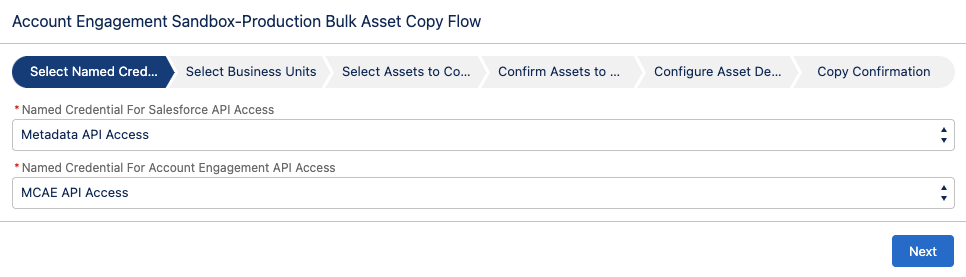
  4. For “Named Credential for Salesforce API Access” select the Metadata API Access (step 4 above)
  5. For “Named Credential for Account Engagement API Access” select the MCAE API Access (step 3 above)
  1. Select Next
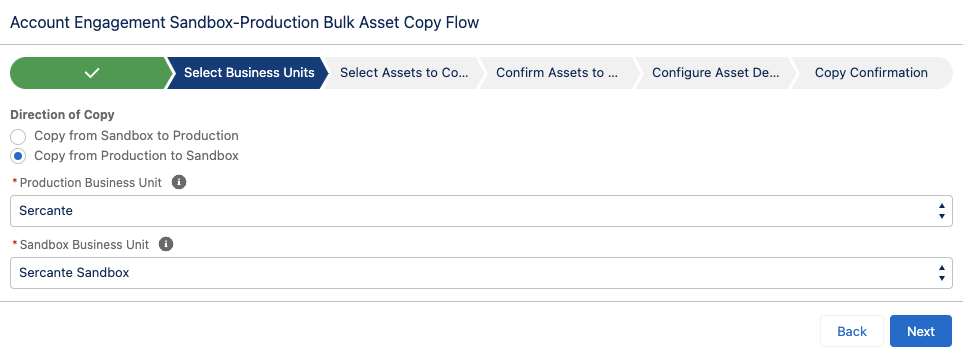
  2. Select your direction of Copy
    • From a Sandbox to Production
    • From Production to a Sandbox
  3. Select your Production and Sandbox Business Units
  1. Select Next
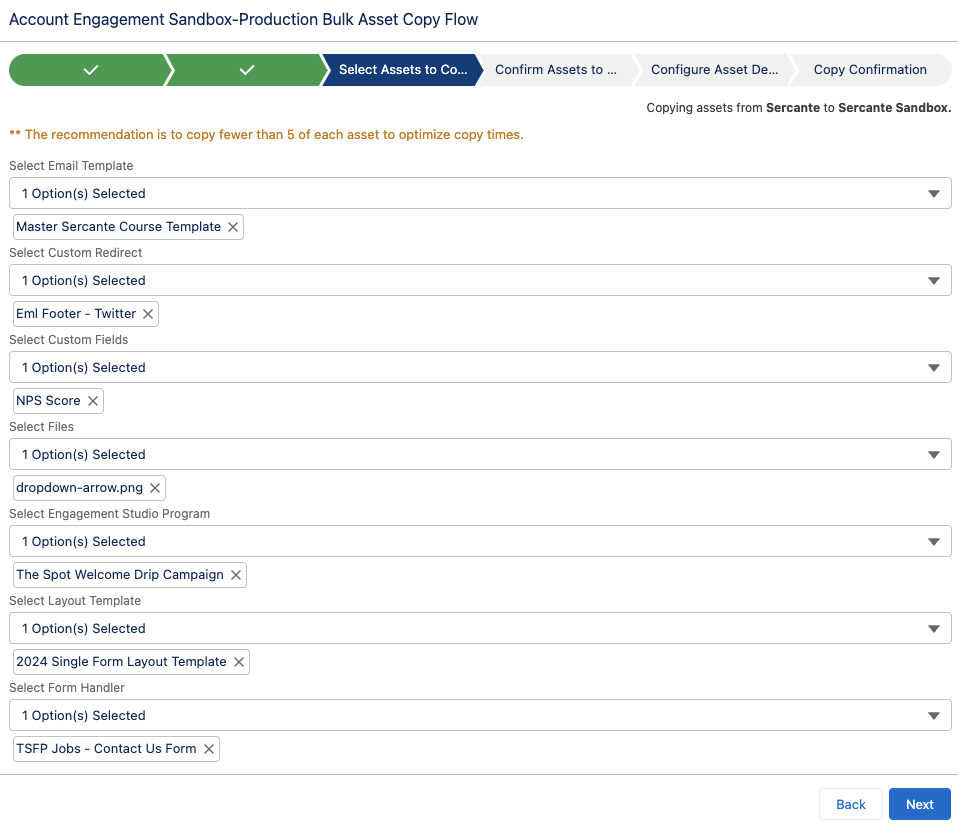
  2. Select assets to copy over, select Next
  1. Confirm the Assets, select Next
  2. Select your Folder, Campaign, and Tracker Domain for your new assets
  3. Select Copy Assets
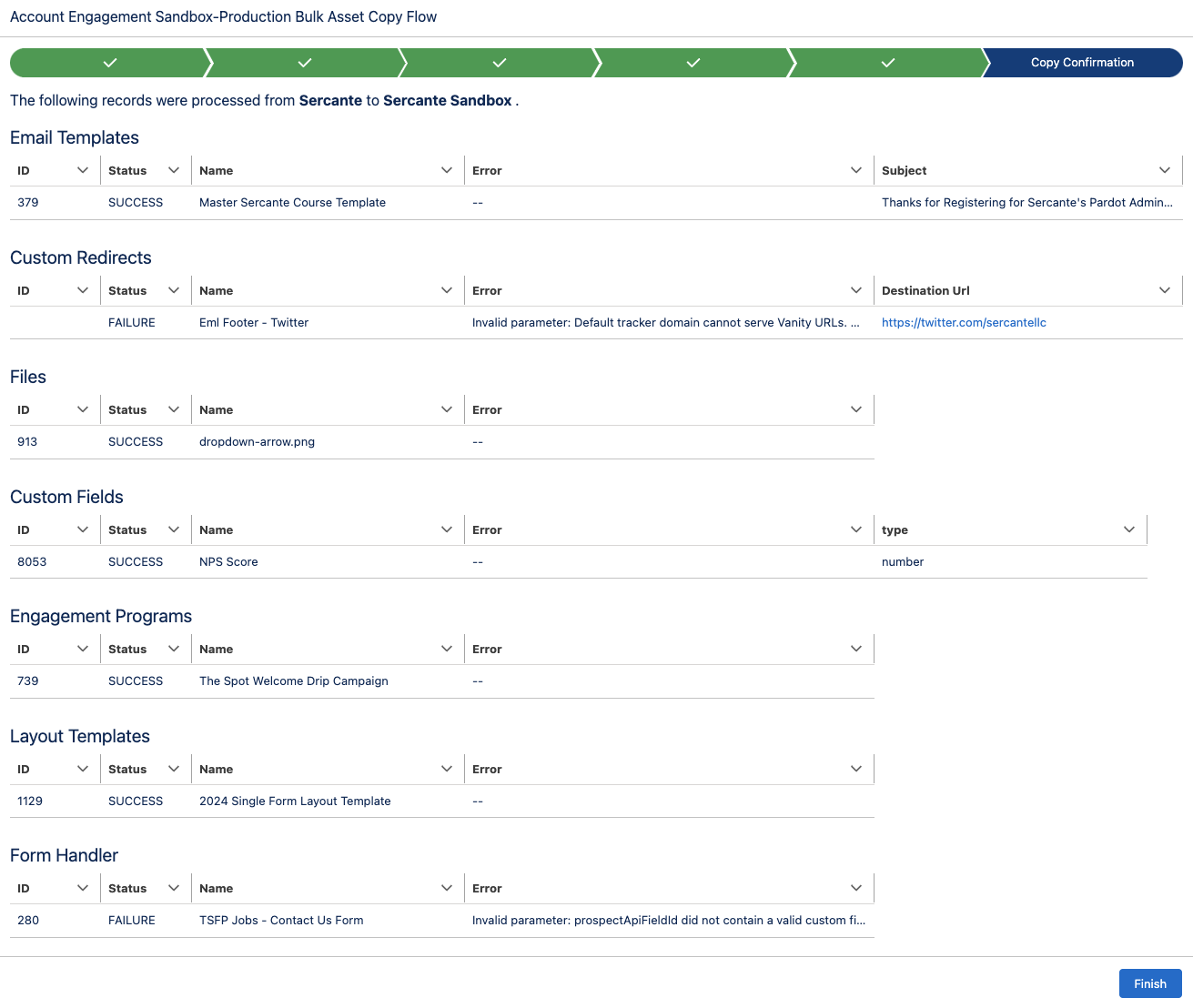
  4. The final screen will provide details regarding the copied assets as well as let you know if there were any errors.

Considerations for Using the Sandbox to Production Flow

Since this is a new capability for Account Engagement, there are some details and settings that do not come over when copied. I thoroughly tested each asset type and below are the considerations that I found.

Tracker Domain

You must verify the Tracker Domain in your Sandbox. Otherwise, Email Templates, Custom Redirects, and Files will fail when the unverified Tracker Domain is selected. You can use the default tracker domain (go.pardot.com) but this will cause issues when copying over any Custom Redirects with a Vanity URL.

Email Templates

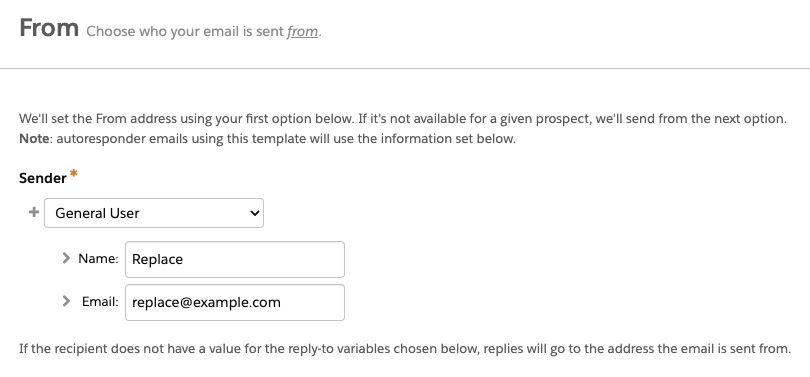
  • When copied, the email sender will be replaced by a General User with the email [email protected]. This applies even if you have a sender hierarchy specified using “Assigned User” and ‘Account Owner.”
  • Email Templates containing Dynamic Content will not copy over. This is because dynamic content is unique to the Business Unit. Even if you have the same Dynamic Content in each Business Unit, they will have a different asset ID and merge tag.
  • If the Email Template contains a merge tag for a field that is not in the destination org, the flow will fail. Ensure all needed fields are copied to the destination org before copying over any assets that use custom field merge tags.

Custom Redirects

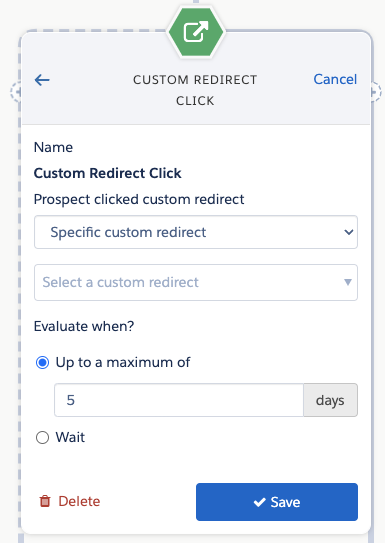
A Custom Redirect’s Completion Action(s) will not copy over, however, the Google Analytics Parameter values do.

Files

During my testing, I tested PNG, JS, JPG, GIF, SVG, CSS, and PDF file types, and all successfully copied over!

Custom Fields

When you copy custom fields, only the following information comes over:

  • Field Name
  • Field API Name
  • Field Type

Engagement Programs

  • When you copy an Engagement Studio Program (ESP) only the ESP structure is copied. The Recipient List, Suppression lists, Send days/times, and “Allow prospects to enter more than once” settings do not come over and will need to be reconfigured.
  • The assets specified in a Trigger or Action node, such as email templates, landing pages, and forms, will need to be reselected in the new ESP. However, the number of wait days specified in the node will copy over. 


  • If an Action node looks at a Prospect field (i.e. Prospect default field “Job Title” is not blank) and that field is in both Production and Sandbox, then the node will be copied to the new ESP with the field and value/settings specified. If the field does not exist in both Production and Sandbox, then the Action node will still be in the ESP but the field and value/settings will need to be reconfigured. 

Layout Templates

If you use Dynamic Content within your Layout Templates, keep in mind that the Dynamic Content will not come over when the Layout Template is copied. You can copy the Dynamic Content over as a separate asset, but you will still need to edit the Layout Template in your destination Business Unit to make sure it has the correct Dynamic Content ID.

Form Handler

  • Ensure all the fields on the Form Handler exist in the environment you are copying to before copying the Form Handler.
  • If your Form Handler only uses Default Prospect Fields, then all of the fields will come over when the Form Handler is copied. However, if your Form Handler uses any Custom Prospect Fields, the custom field needs to be in the destination org before you copy the Form Handler.
  • When copied, the Success Location and Error Location details will copy over to the new asset. Completion Actions do not copy over.

Now it’s even easier to work with Account Engagement Sandboxes!

This new Flow is a huge step toward making Account Engagement Sandboxes user-friendly for testing and staging. What other capabilities would you like to see in this Flow? Let us know in the comments!

Salesforce is upping their game in the race to incorporate the latest generative AI tools into their products. Announced during Salesforce Connections on June 7, Marketing GPT and Commerce GPT are coming to Salesforce customers using Marketing Cloud and Commerce Cloud. 

The features are gonna make it easier for marketers to reach the right audiences and generate emails, and commerce teams will create better shopping experiences and customer journeys. But, the best part is that both Marketing GPT and Commerce GPT can be connected to Data Cloud — meaning the tools can do their thing using data from any source.

History of Salesforce in the GPT game

Both Marketing GPT and Commerce GPT are dependent on Einstein GPT, which is the generative AI version of Einstein. 

For a little back story, Salesforce Einstein is the machine learning model the company rolled out in 2016 to analyze large sets of CRM data. So, Salesforce has been on the AI train for a while already. 

Einstein can do things like predict which customers or sales leads are likely to buy by looking at data from a bunch of sources. Or it can analyze data to determine the best time to send emails to your lists.

You can get it in Marketing Cloud Engagement and Account Engagement, Sales Cloud, Commerce Cloud, Experience Cloud, and Service Cloud, along with other platform tools.

In March 2023, Salesforce released Einstein GPT, which combines the machine learning model Salesforce developed with the chatbot from generative AI company OpenAI. (On a side note, Salesforce is going heavy on the AI devotion and has already invested $250 million into other AI technology companies.)

So, how are Marketing GPT and Commerce GPT related to Einstein GPT?

Both Marketing GPT and Commerce GPT are powered by Einstein GPT — the AI-powered set of solutions that marries Salesforce AI with OpenAI’s technology. They are both iterations of Einstein GPT that are tailored for the respective clouds. Stay tuned because we’re seeing GPT features getting infused across all Salesforce clouds in addition to these two.

What capabilities do Marketing GPT and Commerce GPT have?

Both of the sets of features combine generative AI capabilities, which use data from OpenAI, with Salesforce Data Cloud. That means you can use customer profiles in Data Cloud that include data from any source in real time. And while you don’t have to use Data Cloud to take advantage of the Salesforce GPT features, you’ll definitely be able to do more if you have it.

So, what exactly can you do with Marketing GPT and Commerce GPT?

Marketing GPT Capabilities

We’re really gonna be cooking now by giving the people super valuable experiences through email and content marketing. We already have Einstein features in our marketing back pocket, but now we’re throwing GPT into the overall mix. That means we can use conversational language prompts to get Marketing Cloud to do things for us. 

I mean, it’s not going to organize all those random newsletter graphics you’ve been uploading to Account Engagement without using a naming convention (yet???). But it will do things like analyze the data you have and use that information to predict the best ways to improve your emails. 

Source: Salesforce

Here’s what Marketing GPT can do (so far):

  • Segment Creation | generally available Oct. 2023
    This is a whole new fancy way to build your audience segmentation strategy. You can tell Marketing Cloud to create audience segments for you using natural language prompts, and it will help you to improve your targeting using AI recommendations and audience data that’s in Data Cloud.
  • Email Content Creation | generally available Feb. 2024
    Ok, so I’m gonna have to see this one in action, but Salesforce said this feature can “reduce writing workload” by creating auto-generated emails. It can potentially be a big one for marketing teams that have the content but stumble with their email marketing.
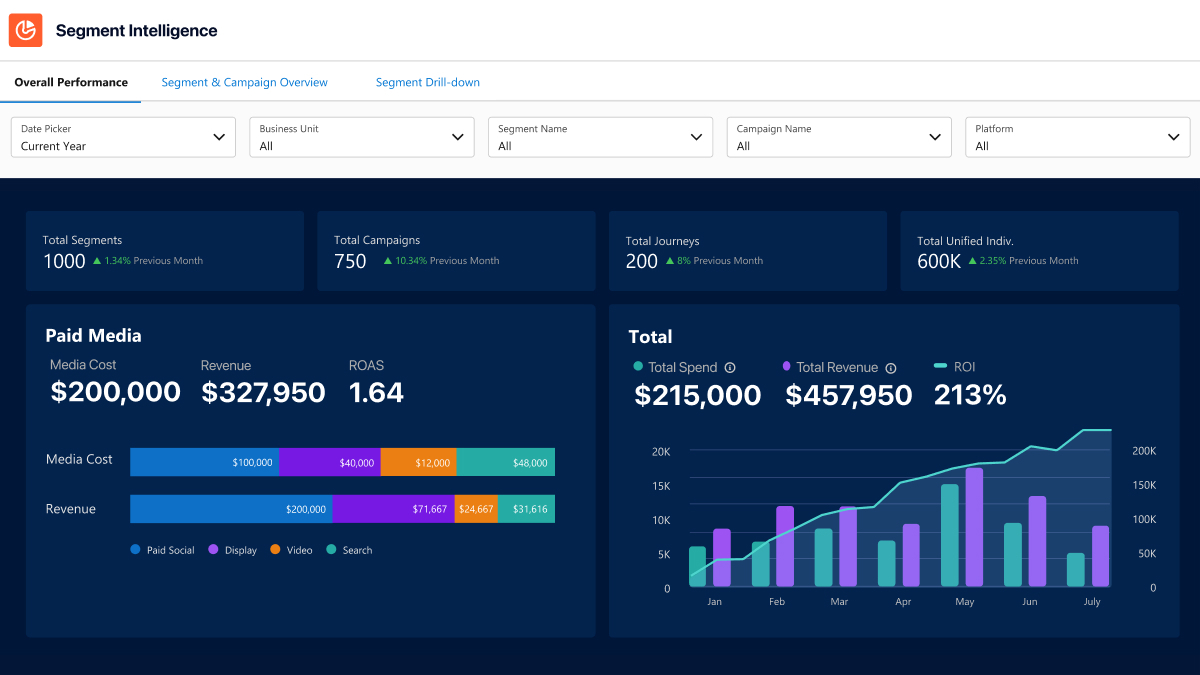
  • Segment Intelligence for Data Cloud | generally available Oct. 2023
    This adds a fancier twist for tracking ROI. Segment intelligence combines first-party audience data, revenue data, and paid media data to show you exactly how your campaigns are doing in relation to your audience segments. 
  • Rapid Identity Resolution, Segmentation, and Engagement | generally available Aug. – Oct. 2023
    Salesforce is going heavy on the ‘transform at the speed of your customer’ theme. The mouthful that is this feature basically keeps Data Cloud segments updated in real time so messaging is always relevant and timely.
  • Typeface content platform | GA date not given yet
    Using a third-party content generator called Typeface, marketers can create branded visual assets (like email graphics or social cards) inside Salesforce. Stay tuned for this one cuz it could be huge.

These are the features that Salesforce outlined during the announcement, but we’re sure the list will grow with each Salesforce release.

Commerce GPT Capabilities

We’re also getting a bunch of generative AI features for B2C companies that use Salesforce tools for commerce. These are especially cool because ecommerce customers can be a fickle bunch. Getting them exactly what they want when they want it makes all the difference.


Source: Salesforce

Here’s what Commerce GPT can do (so far):

  • Goals-Based Commerce | generally available Feb. 2024
    This is one of those a-ha tools for businesses with big growth goals. It unites Data Cloud, Einstein, and Flow to lay out everything commerce companies need to do to reach their goals. Users give it a goal, like increase average order value (AOV) by XX%, and it gives recommendations on how to get there.
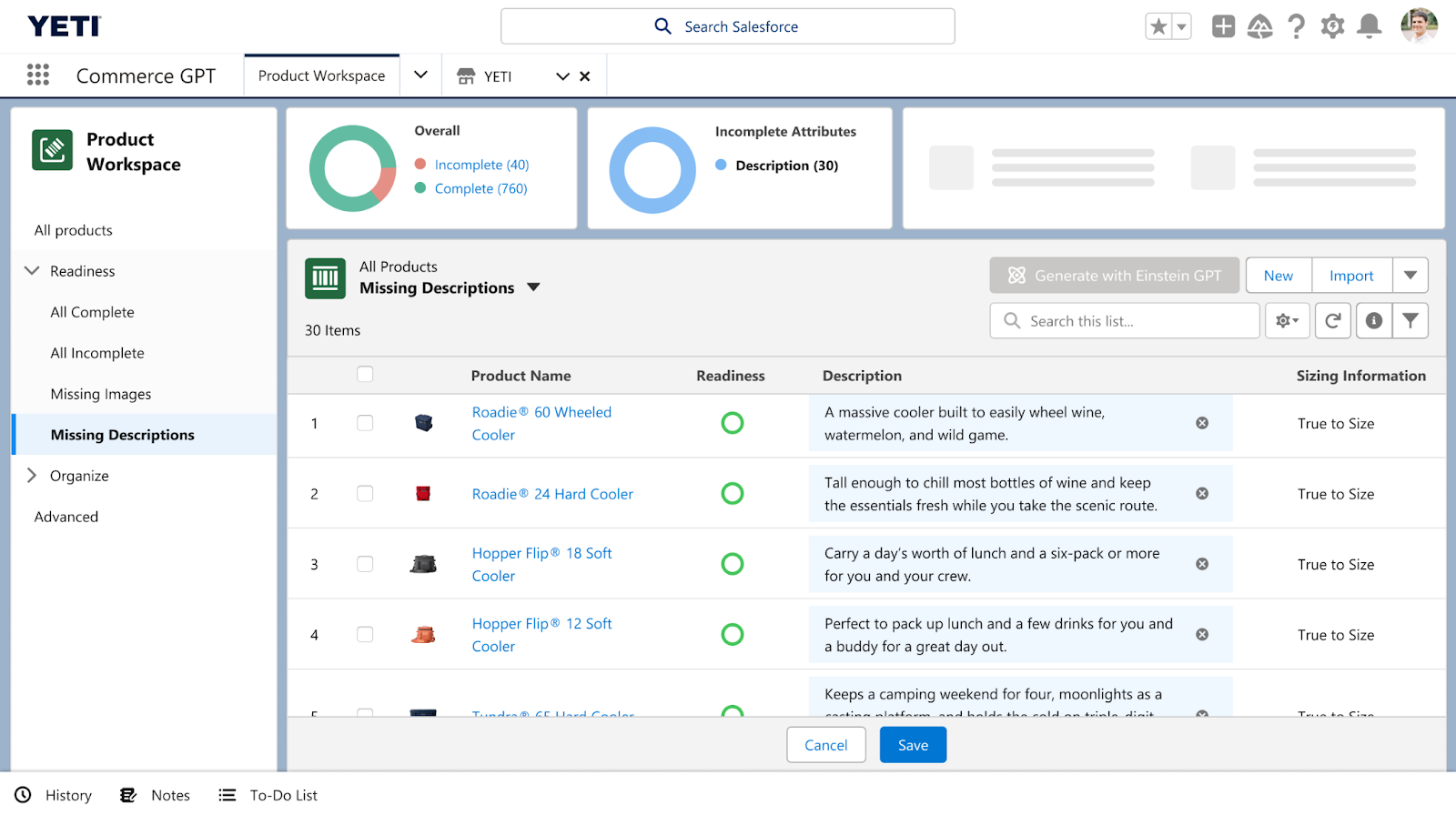
  • Dynamic Product Descriptions | generally available July 2023
    Okay, so we’ve seen how serving up product recommendations based on customer preferences has shaken things up for commerce companies. But now we’re gonna be taking it even further by introducing dynamic copy capabilities for product descriptions. It could be a serious game changer.
  • Commerce Concierge | generally available Feb. 2024
    Not all of the Commerce GPT features are specifically for Salesforce users. Online shoppers can use Commerce Concierge to find what they need using language prompts across channels from online stores to SMS messaging.

Comments on generative AI + Salesforce from the peanut gallery

My two cents: My mind immediately goes to the content creation features of Marketing GPT. There is SO MUCH copywriting that goes into marketing. And we’ve seen a whole bunch of copywriting GPT tools pop up in the last year, like the free Stensul email toolkit or paid ones like GrammarlyGo. Some people are naysaying the tools in fear that they will replace copywriting jobs, but I don’t think that’s the case at all.

In my experience, leaner marketing teams rarely have dedicated copywriters. Those responsibilities are usually lumped into other marcom roles. I see the tools giving marketers the ability to edit copy instead of writing from scratch. Then, they can have bandwidth to dig deeper with their messaging and present higher quality work that hits their audience in the feels. And being able to do that inside Salesforce just sweetens the whole deal.

I opened the floor to my teammates about what they think about Marketing GPT and Commerce GPT, and here’s what they had to say.

Cate Godley

“I’m excited to see how Marketing GPT can help marketers to craft better subject lines and calls to action to increase engagement with content. There are so many ways to use generative AI to inspire creativity in our marketing efforts, and I can’t wait to see how people are using these tools in new and exciting ways.”

Courtney Cerniglia

“As marketers, we’re constantly asked what content is resonating most with customers, what action will increase likelihood to purchase, and how we identify our highest value leads. Marketing GPT is going to help prove our assumptions and give us the data in real-time, across platforms, so we can quickly pivot and personalize experiences for customers.”

Mike Creuzer

“There have been a few inflection points where human knowledge growth hockey sticked. Gutenberg press took centuries, computers took decades, the internet took years, and this generative AI appears to be taking… months?

According to the 2023 Connections Keynote, there were 1 million users in two months for ChatGPT (if I remember correctly).

We are at the start of the next great change in pace of human knowledge and communication.

2023 is the year where AI is no longer hidden away behind RFID badged doors and is widely available to EVERYBODY in a usable, general way.

In business, AI has been baked into the tools that we use for many years now. But it’s been a one trick pony. It’s now anything WE want it to be, not just what our vendors built.”

Continue the conversation 

What are your thoughts on Salesforce and generative AI? Any hot takes? Tell us about it in the comments, or reach out to team Sercante to see how the tools fit into your overall marketing and operations strategy.

If you’ve ever experienced email bounces in Pardot (and chances are you have), you’ll know that reporting on and exporting them has been a labor-intensive task. 

That all changes now.

As part of the Summer ‘22 Release, marketers have been blessed with a new tool for Marketing Cloud Account Engagement (Pardot) called Email Bounce Report.

It’s a feature that shows who, when and why prospects bounced. And it also allows you to export all that insightful data.

That’s right, our prayers have been answered. We no longer need to manually pull this data from each and every email report.

What is an email bounce rate?

First, let’s understand what a bounce rate is. 

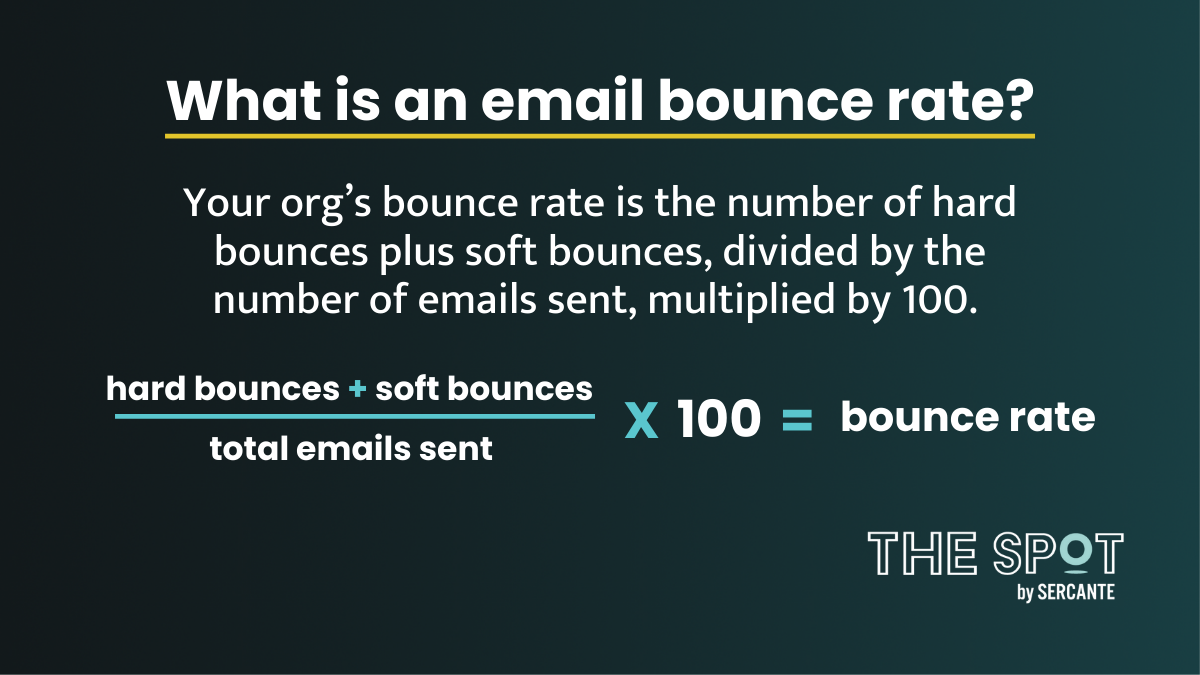
Your org’s bounce rate is the number of hard bounces plus soft bounces, divided by the number of emails sent, multiplied by 100. 

In B2B marketing, anything below 10% is considered a good bounce rate. 

It’s good practice to monitor your bounce rate. And this report helps you do just that!  

Who can get the Pardot Email Bounce Report?

This report is available on all Pardot editions, and it includes bounced email addresses from both Pardot Classic and Lightning. 

Not upgraded to Pardot Lightning App? Here’s your nudge to do so.

What do you get in the report?

The report is pretty comprehensive and shows bounce data for ALL Pardot prospects. We’ll go into some of the use cases in another blog post. 

From total number of email bounces (filtered by date) to bounce reasons, this report has it all. And yes, all of the bounce rate report data is exportable. 

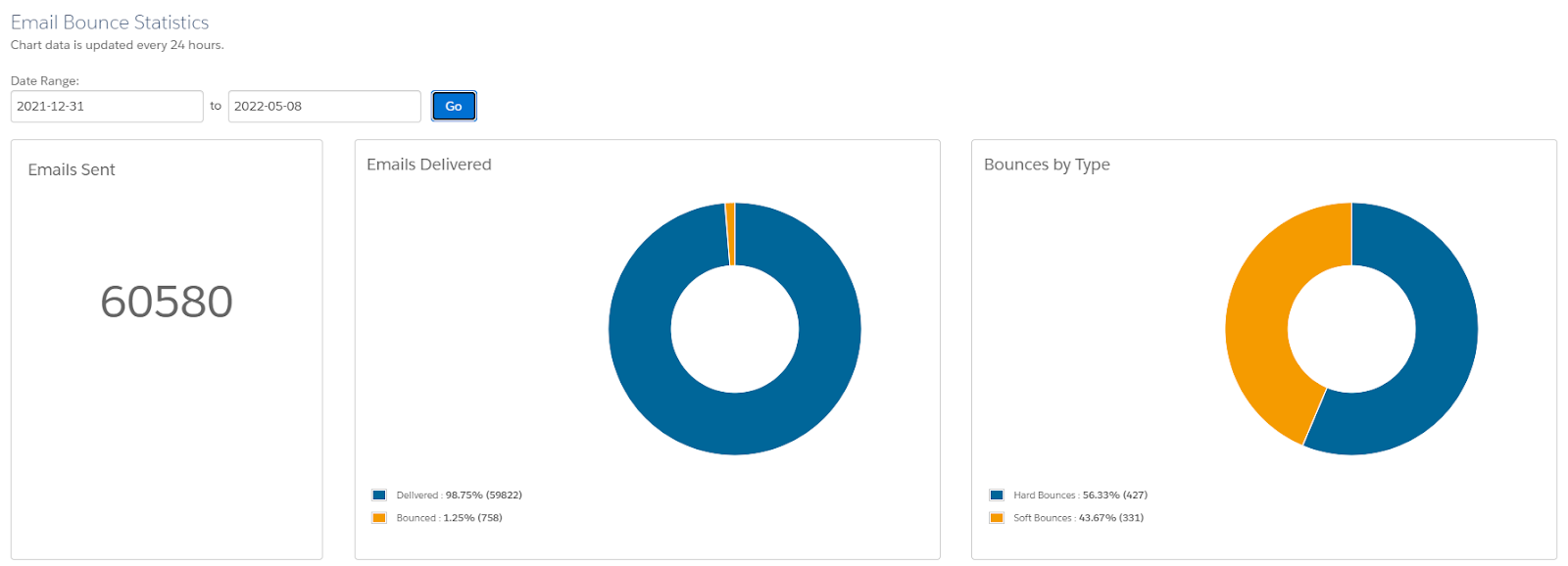
Found under marketing reports, you are greeted with a chart illustrating, 

  • All emails sent over the last year – one year from todays date – so if its the 12 May 2022, you can go back to 12 May 2021. Personally, I’d hope this is amended in future updates as it would be useful to see further than the last year in some cases.  
  • Total emails sent
  • Total bounced & delivered
  • Bounce by type – Soft vs. Hard

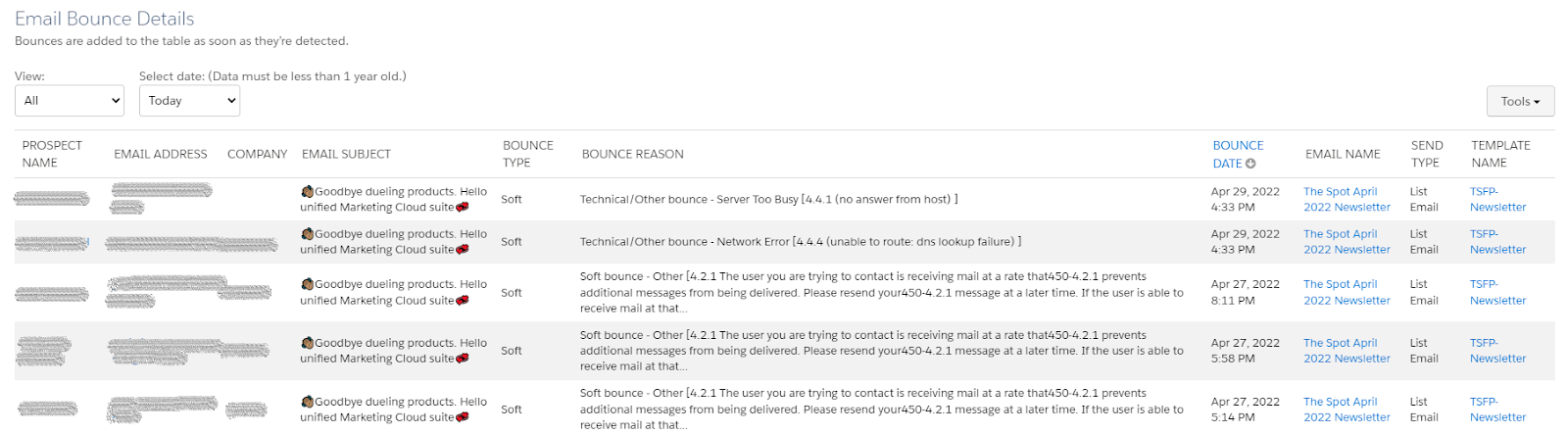
Scroll down, and you get to the good stuff… the bounce details, including bounce reason. 

It’s no good seeing the number of bounces you’ve received if you can’t do anything about it. Filtered by bounce type and date, the Email Bounce details table tells you

  • Prospects who have bounced 
  • Email addresses and company names
  • Email subject 
  • Bounce type
  • Bounce reason
  • Bounce date
  • Email name – linked 
  • Email send type and template name

Why is the Pardot email bounce report so useful?

  1. Understand why your emails are bouncing

From full inboxes, invaild email address and none responsive servers, there are a number of reasons why your emails may bounce. This report helps you understand those reasons and potentially act on them.

Types of bounces

  • Soft bounce – Occurs when an email is recognized by the recipient’s mail server but is returned to the sender because the recipient’s mailbox is full or the mail server is temporarily unavailable.

    These prospects may be able to receive emails at a later time. However, after an email soft-bounces five times, Pardot will mark the prospect as undeliverable and suppresses them from receiving emails from you. 
  • Hard bounce – Occurs when the prospect’s email address is invalid, the domain name does not exist, or the sender is suspected as spam and/or has been blocked. Prospects with a hard bounce are no longer mailable. 
  • Bounce reasons – If you’re able to resolve the email bounce issue, you can reset the bounce count on the prospect record and start mailing them again. 

2. Spot trends and take action

Use the report and export feature to filter and identify trends that may be contributing to you bounce rate, such as:

  • Particular templates that continuously bounce
  • Subject lines that cause bounces – Spammy subject lines?
  • Dates of email sends – Think back to the Google outage way back December 2020. Are there any significant dates when bounces were high?
  • Certain companies/ email domains – Contact the recipient and ask them if they’ve configured an email rule that forwards incoming email messages from you to another destination. Their rule could have tried to send a copy of your message to a bad email address. Or, have you simply misspelled the address/email domain?

3. See the bigger picture

Ever sent an email and thought “wow, that bounce rate was high!” You may have wondered if this was an isolated incident or if bounces were in fact an issue in your org? 

Often marketers see a few emails with high bounce rate and assume they are destined for failure when it comes to getting their message into the inbox of prospects. Using this report, you can see the bigger picture. Then, you can understand how many bounces you have IN TOTAL out of all the emails sent in the last year. 

4. Keep your Pardot data clean

Bounces often relate to the quality of your data and a low bounce rate overall indicates a healthy and clean org. Knowing how big of a problem bounces may (or may not) be can help with keeping your org clean and relevant. 

Using the “Reset” feature found on individual prospect records you can reset bounces (hard and soft) and give yourself a second chance. 

Still no luck? Consider removing these prospects, particularly if the bounce reason is permanent. 

5. Avoid Salesforce account suspension

Salesforce is super serious about permission-based marketing. And its reputation as an email service provider, as well as your reputation as an email sender, is why they monitor accounts with bounce rates over 10% (as well as high spam complaint rates). 

If Salesforce notices an issue with either of these numbers, they can suspend email sending from your account. 

What can you do to lower your email bounce rate?

No email service provider can ever guarantee your deliverability rates — that’s down to your email practices and behavior. 

Here are some things you can do to help with your email sending reputation and lower those bounce rates.

  1. As above, understand why your emails are bouncing and take action.
  2. Set up email authentication.
  3. Build email sending lists using a confirmed opt-in process
  4. Don’t purchase data without getting permission to send emails to the list.
  5. Clean your database regularly & check that email addresses are spelled correctly.
  6. Make sure your emails aren’t spammy.

Understanding email bounces is a big win for marketers

Armed with the data behind the bounces, this report is a win for marketers serious about their email sending reputation. 
However, if you’re left feeling confused, worried or overwhelmed by the numbers, reach out to the Sercante team to see how we can help.

The Salesforce Winter ‘22 release introduced the ability to create a custom Lightning Web Component (LWC) for Lightning Email Content, and with Spring ‘22 we have the same ability for Pardot Lightning Email Templates.

With this new feature, you can create components for standard areas of emails, such as footers or headers. Or, use it for more complex items, such as displaying upcoming events or gathering prospect feedback.

In this post, we will present the code for 5 different LWCs, walking you through the most simple example and incrementing from there.

It is important to note that these custom components behave differently than Pardot Snippets or Dynamic Content. Unlike those features, when you change the LWC, existing Pardot Email Content and Templates do not get automatically updated. You need to go into each one to refresh them.

Because we all like analogies, think of the LWC as a rubber stamp and the Pardot Email Content & Template as paper. We can craft the stamp however we like (from simple to very complex), and once it is ready it will stamp the ink (HTML) onto the Email Content or Template. Changing the stamp does not change the ink already on the paper — you need to use the new/adjusted stamp and do it again.

Feel free to check out the code project in our github repository. If you aren’t already familiar with Salesforce Lightning Web Components, check out this Trailhead Quick Start.

Simple hard-coded HTML

This example is a pretty good one for anyone to get started. It demonstrates what is needed to at least have something work at the most basic level. Consider it the Hello World of Custom Email Components. In our github repository, this is the fixedAddress component.

This type of custom component is great to use for standard sections of your emails that do not change with each send. For example, the copyright notice, legal disclaimer, unsubscribe language etc.

At a minimum, our LWC will need 3 files:

  1. .html -> The HTML which will become rendered and stamped into the Email Content/Template
  2. .js -> Any coding required to support the component
  3. .js-meta.xml -> Salesforce Metadata, enabling this component to be used in Email Content/Templates

First, we will explore the Salesforce Metadata.

<?xml version="1.0" encoding="UTF-8"?>
<LightningComponentBundle xmlns="http://soap.sforce.com/2006/04/metadata">
    <apiVersion>52.0</apiVersion>
    <isExposed>true</isExposed>
    <masterLabel>Fixed Company Address</masterLabel>
    <targets>
        <target>lightningStatic__Email</target>
    </targets>
</LightningComponentBundle>

Some key notes:

  • isExposed (line 4) is needed to tell Salesforce that this component can be displayed in the Component Toolbox
  • masterLabel (line 5) is the name to display in the Component Toolbox
  • target = lightningStatic__Email is needed to tell Salesforce that this component can be used in the Lightning Email Builder. Other examples have a bunch of other targets, these are not needed and may result in your component showing up in unexpected places.

Next we will look at the JavaScript.

import { LightningElement } from 'lwc';

export default class FixedAddress extends LightningElement {}

Because our example is mostly hard-coded, there is nothing of value here. As we evolve, we’ll start seeing this get built out.

Finally, the HTML.

<template>
  <p>Our Address is: 123 Main St, Atlanta GA, USA</p>
</template>

Again, very simple. When the email HTML is rendered, everything in between the <template> tags will be written.

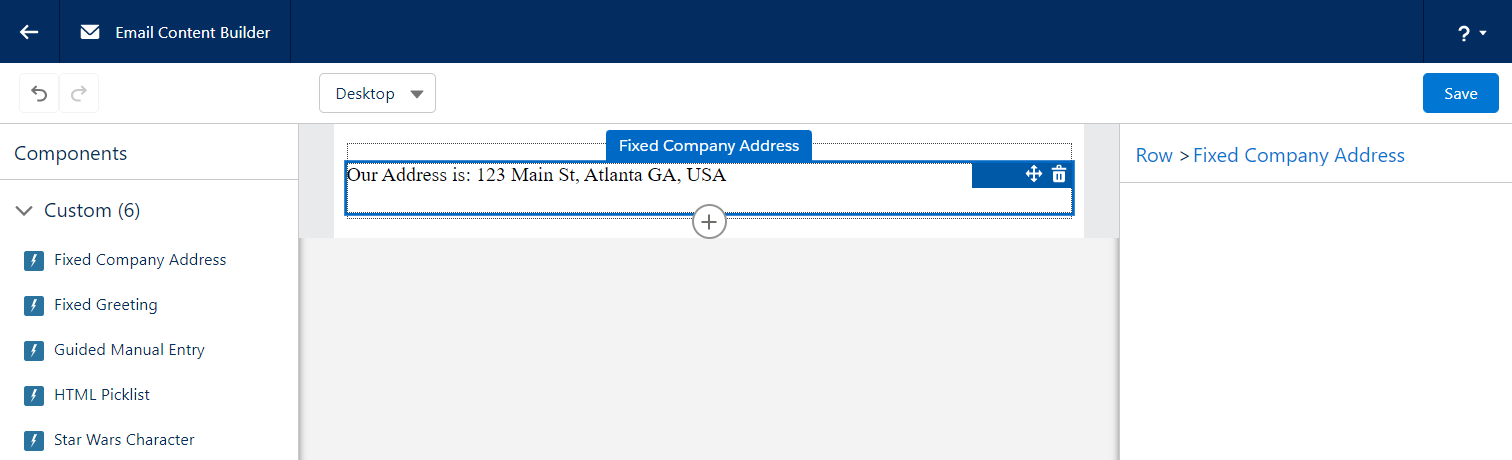
Here’s what it looks like in the builder. Once the component is added to the email, it is just simple text that is rendered.

Hard-coded HTML, which includes a merge field

This example is nearly identical to the previous one, so we will skip showing the JavaScript and the Metadata.  In our github repository, this is the fixedWithMergeFields component.

Straight to the HTML:

<template>
 <p>Hello {{{Recipient.FirstName&#125;&#125;&#125;, 
     I hope you are having a great time learning 
     about our products and services.</p>
</template>

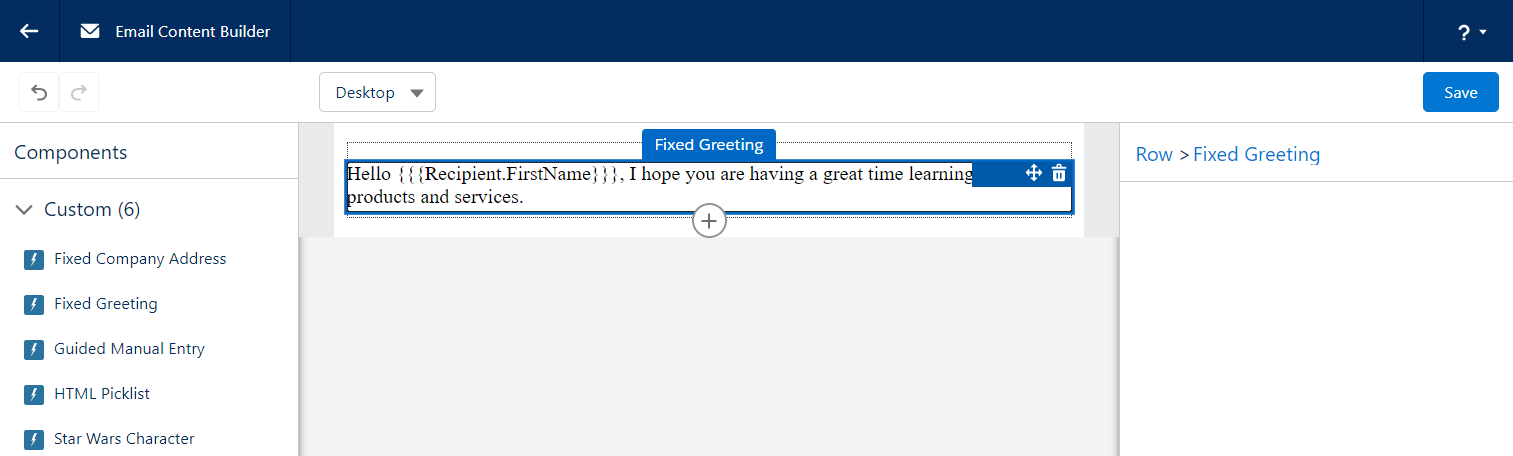
What you might notice is how the merge tag has been written. Due to some very technical reasons, we can’t just use the usual {{{FIELD}}} syntax, we have to instead “escape” the closing curly brackets to make the LWC gods happy. This appears to only be the case when the merge tags are placed into the HTML file, as normal syntax can be used when the merge tags appear in the JavaScript.

Here’s what it looks like in the builder. Similar to the previous example, you get text that cannot be adjusted.

Allow someone creating an email to provide text

Now we are going to start allowing the user of a custom component to provide their own values. In our example we are going to start off a bit slow, simply allowing them to provide some text. In our github repository, this is the guidedManualEntry component.

We need to decide which “attributes” (or values) we want a user to provide. For this example, we will ask for a Title, an Image URL, and a Description. 

First, let’s take a look at our JavaScript. It needs to define these attributes.

import { LightningElement, api } from 'lwc';

export default class GuidedManualEntry extends LightningElement {
  @api
  title=""
  @api
  imageUrl=""
  @api
  description=""
}

You will note that each “attribute” has a variable name and the @api annotation. This annotation tells the LWC system that these can be referenced by the HTML file as well as our metadata file.

Next, we will tell our Metadata file to prompt the user to fill in these values.

<?xml version="1.0" encoding="UTF-8"?>
<LightningComponentBundle xmlns="http://soap.sforce.com/2006/04/metadata">
  ...
  <targetConfigs>
    <targetConfig targets="lightningStatic__Email">
      <property 
        label="Title"
        name="title"
        type="String"
        default="Title of Entry"
        required="false" />
      <property 
        label="Image URL" 
        name="imageUrl"
        type="String"
        placeholder="https://"
        description="Enter Image URL for this image. Be sure that it is a secure URL starting with https://"
        default="https://via.placeholder.com/575x150"
        required="false" />
      <property 
        label="Description"
        name="description"
        type="String"
        default="Description of Entry"
        required="false" />
    </targetConfig>
  </targetConfigs>
</LightningComponentBundle>

Ok, that’s a lot! What we are doing is giving our lightningStatic__Email target a list of properties to present on the right hand side of the Lightning Builder when someone wants to use our component.

Each property (to be presented) has a bunch of levers we can adjust to enable our user to give us what we need. Let’s break down the ones we use here:

  • label > basically a form field’s label
  • name > the name of the attribute in the LWC’s JS file
  • type > the type of input to present. For an email builder our current choices are:
    1. Boolean > displays a checkbox
    2. Integer > displays a text input allowing digits
    3. String > displays a text input allowing any character
    4. Color > displays a color selector
    5. HorizontalAlignment > displays a horizontal alignment selector
    6. VerticalAlignment > displays a vertical alignment selector
  • default > the default value to use when a new component is created
  • required > whether or not a value is required to save the component

The Salesforce LWC Developer documentation is a great resource for getting more details on all the abilities of the LWC metadata file.

Now that we are getting values from a user, we need to display them in the HTML!

<template>
  <h3>{title}</h3>
  <img src={imageUrl} />
  <p>{description}</p>
</template>

Here we are using LWC variables to place the values provided by the user. The syntax for this is the variable name (that has the @api annotation in your JavaScript file) wrapped by a single set of curly brackets. 

Now we can kind of understand why our HML syntax which includes 3 sets of curly brackets doesn’t really work, we can’t mix the two.

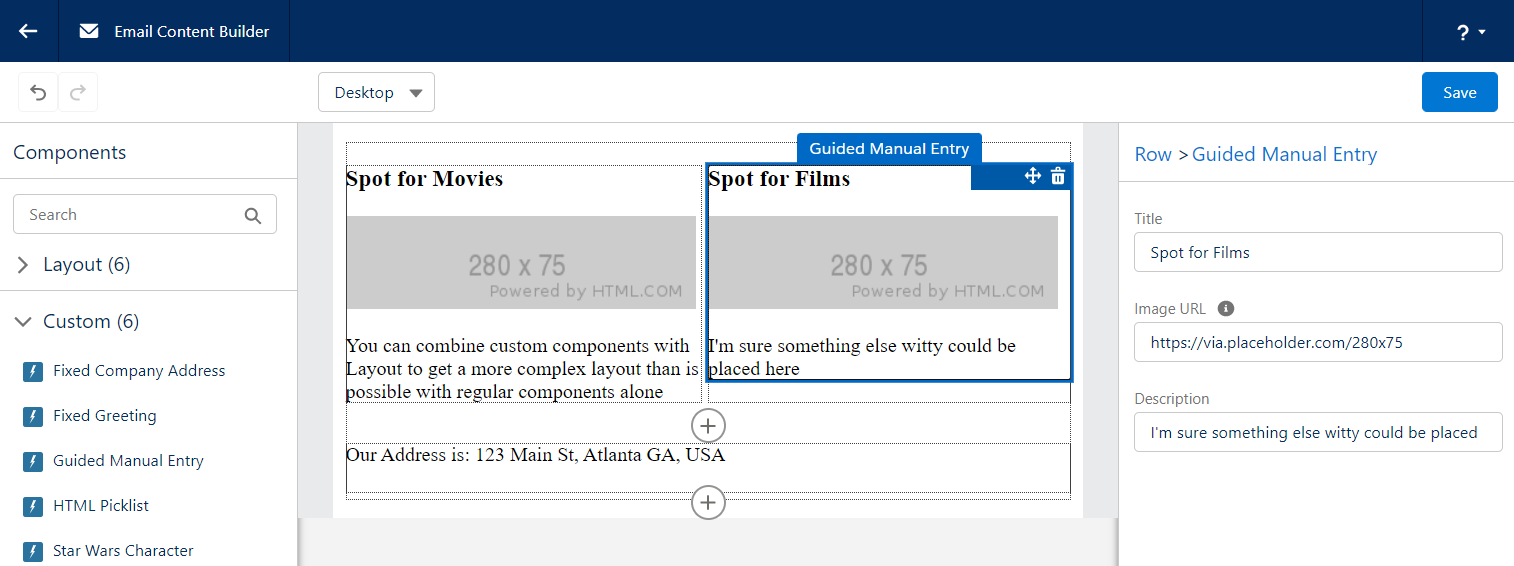
Here’s what this looks like in the builder. We are asking for the user to provide values within the section on the right hand side. 

You can combine your Custom Components with Layout components to build a nice consistent email.

Present a picklist of values, coming from APEX

Now things start to get interesting. We will tie our LWC to some APEX code, opening our world of options. Before we get started, it is important to know that you don’t have to use APEX to present a picklist of options, it can entirely be done in the Metadata. Sadly we can’t show every variation of example. In our github repository, this is the htmlPicklist component.

Before we get started, we want to give credit to the original author of this example to jrattanpal on github. We simply made some minor changes to enable it to be used as a learning example.

First, we need an APEX class which will provide the options that are available.

global class HTMLSources extends VisualEditor.DynamicPickList{
    
  global override VisualEditor.DataRow getDefaultValue(){
      VisualEditor.DataRow defaultValue = 
          new VisualEditor.DataRow('--Select--', '');
      return defaultValue;
  }

  global override VisualEditor.DynamicPickListRows getValues() {
      VisualEditor.DynamicPickListRows options = new VisualEditor.DynamicPickListRows();
      options.addRow(new VisualEditor.DataRow('HTML Option 1', '<h1>Sample 1, simple header</h1>'));
      options.addRow(new VisualEditor.DataRow('HTML Option 2', '<h3>Sample 2, smaller heading</h3>'));
      options.addRow(new VisualEditor.DataRow('HTML Option 3', '<h4>Sample 3, multiple blocks of HTML</h4><div>hello<p>testing html picklist</p></div>'));
      options.addRow(new VisualEditor.DataRow('HTML Option 4', '<h2>Hello Trailblazer</h2>'));
      options.addRow(new VisualEditor.DataRow('HTML Option 5', '<h2>This was swell</h2>'));
      return options;
  }
}

Note that the class extends VisualEditor.DynamicPickList, which requires us to provide 2 method overrides.

  • getDefaultValue -> provides the value selected when the component is first added to an Email. In our example above we simply prompt for a choice.
  • getValues -> provides all of the options that a user can pick from. To our knowledge you can’t retrieve a list of values dynamically based on another input from the user, though if this changes in the future be sure to let us know!

Now that we have APEX which can provide our values, let’s set up our LWC. We will start with our JS.

import { LightningElement, api } from 'lwc';

export default class HtmlPicklist extends LightningElement {
  @api
  set htmlValue(value) {
    if (this.attachmentPoint) {
      this.attachmentPoint.innerHTML = value;
    }
    this._htmlValue = value;
  }
  get htmlValue() {
    return this._htmlValue;
  }
  renderedCallback() {
    this.attachmentPoint = this.template.querySelector('div[ishtmlcontainer=true]');
    this.attachmentPoint.innerHTML = this.htmlValue;;
  }
}

The approach here is a little bit different than all the other examples. The goal is to take the “htmlValue” (which comes from APEX) and have that HTML be the entire HTML that gets stamped onto the Content/Template. This keeps our LWC HTML very lightweight and gives full control over the HTML to APEX (or wherever the APEX is getting the value).

Next, we will tell our Metadata file to prompt the user to choose one of the options.

<?xml version="1.0" encoding="UTF-8"?>
<LightningComponentBundle xmlns="http://soap.sforce.com/2006/04/metadata" fqn="banner">
  ...
  <targetConfigs>
    <targetConfig targets="lightningStatic__Email">
      <property 
        name="htmlValue"
        label="Pick an HTML Sample"
        type="String" 
        required="true" 
        datasource="apex://HTMLSources"/>
    </targetConfig>
  </targetConfigs>
</LightningComponentBundle>

Some of our properties are similar to the previous example, however we introduce a new one.

  • datasource > 

As for the HTML file, it simply has a DIV that the JS can grab onto and fill.

<template>
  <div ishtmlcontainer="true" lwc:dom="manual"></div>
</template>

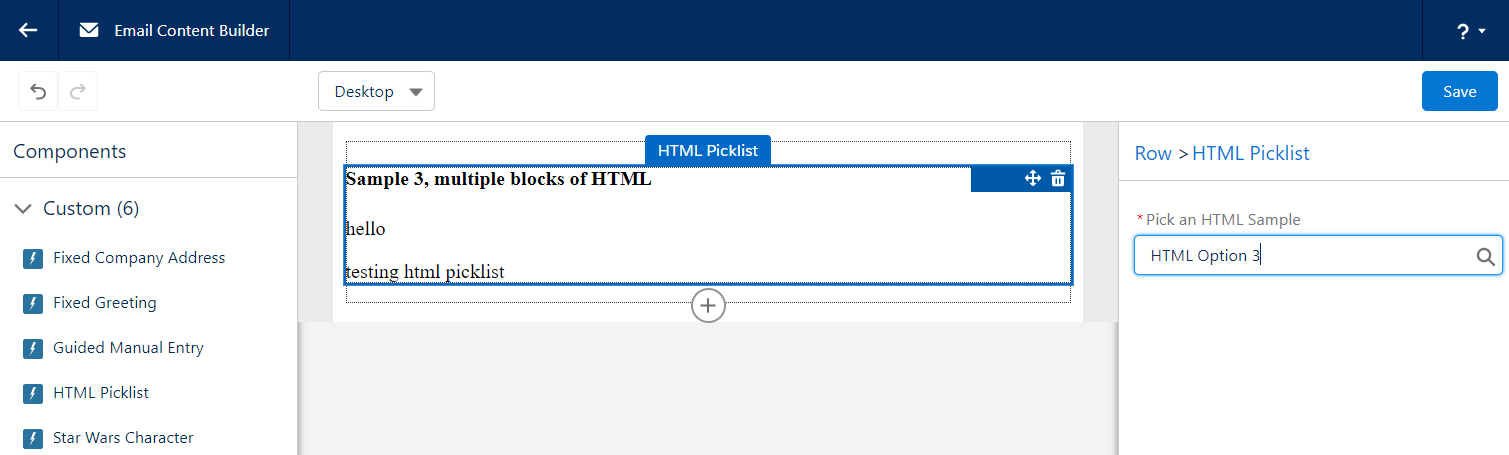
Here’s what it looks like in the builder. Similar to the previous example, the right hand side allows us to make a choice, and once made the content of our component is rendered.

Pull information from an Open API

This is the last of our examples, and it goes all out. By using an Open API, we don’t need to worry about authentication and all the additional steps to set it up in Salesforce. In our github repository, this is the starWarsCharacter component.

Similar to the previous example, we will start with some APEX. While there can be a lot going on here, the end result of the APEX is to provide a JSON String representing the attributes of each Object, or dropdown choice.

global with sharing class StarWarsCharacterPicklist extends VisualEditor.DynamicPickList {

  global override Boolean isValid(Object attributeValue){
      return true;
  }

  global override VisualEditor.DataRow getDefaultValue(){
      return new VisualEditor.DataRow('--Select a Character--', 'no-character-selected');
  }

  global override VisualEditor.DynamicPickListRows getValues() {
      System.debug('Providing Star Wars Character values now!');
      return getApiOptions();
  }

  private VisualEditor.DynamicPickListRows getApiOptions() {
    VisualEditor.DynamicPickListRows pickListRows = new VisualEditor.DynamicPickListRows();

    //Make API call to StarWarsAPI and get a list of characters
    List<StarWarsCharacterServices.StarWarsCharacter> characters = StarWarsCharacterServices.getCharacterList();


    // When a choice is made from the VisualEditor, the DataRow value will be provided to the LWC
    // We are choosing to have that "value" be a JSON string, so that the LWC can parse it and
    // render the properties as it sees fit
    for(StarWarsCharacterServices.StarWarsCharacter character: characters){
      String characterInfoAsJson = System.JSON.serialize(character);
      pickListRows.addRow(new VisualEditor.DataRow(character.name, characterInfoAsJson));
    }
    return pickListRows;
  }
}

Note that the class extends VisualEditor.DynamicPickList, which requires us to provide 2 method overrides.

  • getDefaultValue -> here we explicitly set a value that the JavaScript can look for, allowing it to determine if a character has been chosen or not
  • getValues -> the for loop iterates over a list of options that we’ve retrieved from some other source (just so happens to be a Star Wars API with a list of characters). For each option/star wars character, we build a JSON string of all the attributes we might care about in the LWC, and then return them.

Now, let’s take a look at the JavaScript.

import { LightningElement, api } from 'lwc';

export default class StarWarsCharacter extends LightningElement {
  @api
  character = {}
  @api
  characterChosen = false
  @api
  hasFilms = false
  @api
  hasStarships = false

  @api
  set characterJson(value) {
    // the "value" is the DataRow value that came from APEX
    // in our example, this is the JSON encoded string which contains details about our character
    console.log('setting characterJson::', value);
    this._characterJson = value;
    if(value==='no-character-selected') {
      console.log('There has been no character selected yet');
      this.characterChosen = false;
    }
    else {
      try {
        console.log('A StarWars character has been selected, parsing the JSON returned from APEX');
        this.character = JSON.parse(value);
        this.characterChosen = true;
        if(this.character.hasOwnProperty('films') && this.character.films.length > 0) this.hasFilms=true;
        if(this.character.hasOwnProperty('starships') && this.character.starships.length > 0) this.hasStarships=true;
        console.log('ok done');
      }
      catch(ex) {
        console.log('got an exception trying to parse json', ex.message);
        console.log(ex);
      }
    }
  }
  get characterJson() {
    return this._characterJson;
  }
}

Some things to note with this code:

  • @api character -> the JS Object which will contain all the attributes of a chosen Star Wars character.
  • characterChosen -> a flag that lets the HTML know which block to render
  • hasFilms -> a flag that lets the HTML know if the chosen character was in any films
  • hasStarships -> another flag
  • @api set characterJson -> a setter method, this is how the Email Builder will provide the JSON encoded string to the LWC once a choice has been made. The LWC then parses it and sets some of the flags.

Next, we will tell our Metadata file to prompt the user to choose one of the Characters.

<?xml version="1.0" encoding="UTF-8"?>
<LightningComponentBundle xmlns="http://soap.sforce.com/2006/04/metadata">
  ...
  <targetConfigs>
    <targetConfig targets="lightningStatic__Email">
      <property 
        label="Star Wars Character"
        name="characterJson"
        type="String"
        datasource="apex://StarWarsCharacterPicklist" 
        required="true" />
    </targetConfig>
  </targetConfigs>
</LightningComponentBundle>

It looks fairly similar to the previous example. A minor difference is that the “name” attribute specifies the setter method in the JavaScript as opposed to a property. Not a big difference, but worth calling out that you have a couple of options as you build your own.

Now, let’s look at our HTML.

<template>
  <template if:false={characterChosen}>
    <h3>Please select a Star Wars character from the picklist to the left</h3>
    <p>It may take a moment for Salesforce to retrieve the list of Characters and make them ready to display</p>
    <p>To my knowledge, it isn't possible to bind a search criteria to the API request, so all options need to be fetched first, however I'd love to know if someone figures this out!</p>
  </template>
  <template if:true={characterChosen}>
    <div class="card">
      <h2>{character.name}</h2>
      <p>
        Height: {character.height}<br />
        BirthYear: {character.birth_year}<br />
        HairColor: {character.hair_color}<br />
        HomeWorld: {character.homeworld}
        <template if:true={hasFilms}><br />Featured in {character.films.length} films</template>
        <template if:true={hasStarships}><br />Found in {character.starships.length} starships</template>
      </p>
    </div>
  </template>
</template>

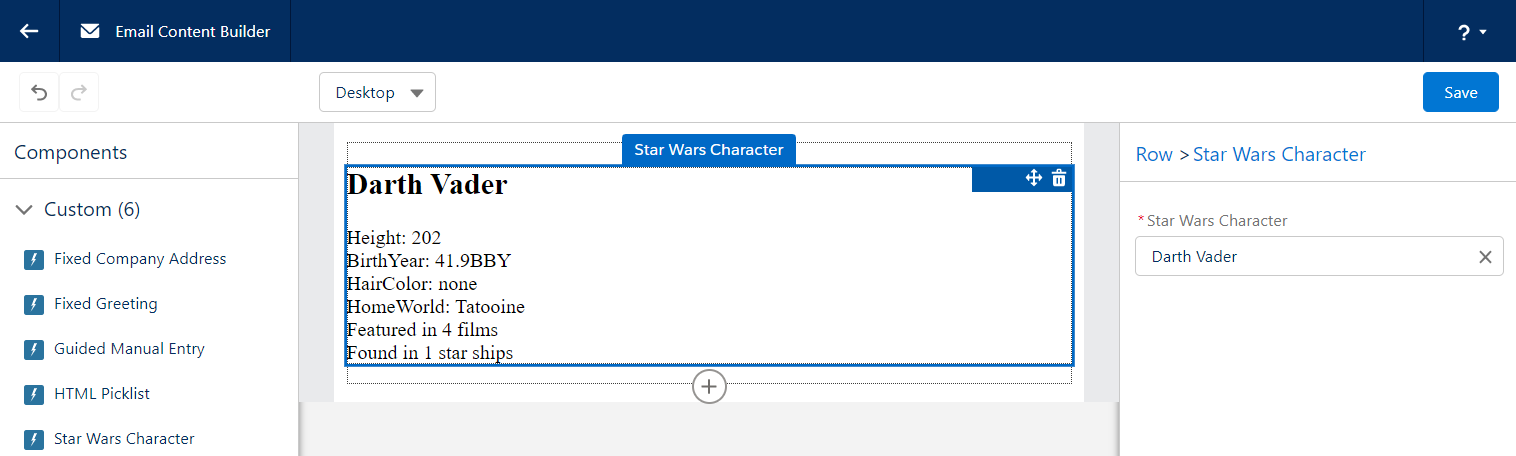
We have 2 templates, the first displays some instructions when a choice has not yet been made, and the other displays information about the choice nicely. You can see we are using simple dot-notation to merge the character attributes into the HTML of the Email Content / Template.

The web developer inside of me really does prefer this approach for rendering HTML into an email, though it does prefer a consistent structured payload for each option.

Here’s what it looks like in the builder. Similar to the previous examples, the right hand side container is where the user makes their selection and, once made, the details are rendered in the email.

Custom components are platform assets, meaning they do not belong to a specific Pardot Business unit and can easily be shared across all of your Business Units. These components will enable your users to easily drag in standard areas of emails (copyright notice, unsubscribe language, etc.) as well as more technical components, making email building faster and easier. With no backend HTML access to Lightning Builder Email Content and Email Templates, custom components are vital to building advanced emails. 

What custom components do you plan on building? Let us know in the comments!

No more posts to show