Category

Adam Erstelle

Handling multiple languages with Account Engagement (Pardot) forms has always been complex — especially when it comes to reporting. But there is a way to multi-language Account Engagement forms.

The traditional solution — one form per language — has its drawbacks. But it’s something that’s super important for companies that use Account Engagement on a global scale to do in a logical and user-friendly way. 

Today, we’ll explore a new, more efficient method that improves reporting and streamlines the translation process.

Challenges with traditional solutions for creating multi-language Account Engagement forms

There are a few ripple effects that we have to handle when we use multiple forms to realistically capture one set of data. 

First, we need a way of figuring out which form we want to display. Commonly this is done as a piece of dynamic content driven off a known Prospect field.

Next, we need to handle submissions for a single goal across multiple forms. The approach we take can vary depending on how complex our Automations and Reporting strategies are, and it all can add up.

A new solution for handling multiple languages

We can still work within the constraints of Account Engagement (Pardot) and leverage a common web development pattern of internationalization (or i18n for short). With the power of JavaScript, we can have one Account Engagement form and feel confident that our visitors will be able to have it in their language.

JavaScript and Handlebars.js

Before we dive into the actual code (honestly my favorite), it might be helpful to talk about what we are going to use.  We have a mix of a little bit of custom JavaScript with a common JavaScript library called HandlebarsJS, not to be confused with Account Engagement Handlebars Merge Language (HML).

The custom JavaScript takes the HTML that Account Engagement will render, look for the i18n placeholders and do a real-time replacement with the translations you have set up. This gives you full control over the wording and design in each language for every page.

Both HML and HandlebarsJS (by default) use double curly braces for wrapping placeholders. We’ve chosen to help differentiate between the two easily by specifying square brackets.  

Getting into the details

So as a super simple example, you can use the label [[i18n.firstname]] to have English, French, Spanish (or any other language you want) for the value {{Recipient.first_name}}.

Example of single Account Engagement form supporting 3 languages

Ok, let’s show what this can look like. Here we have a demo form that supports three languages.
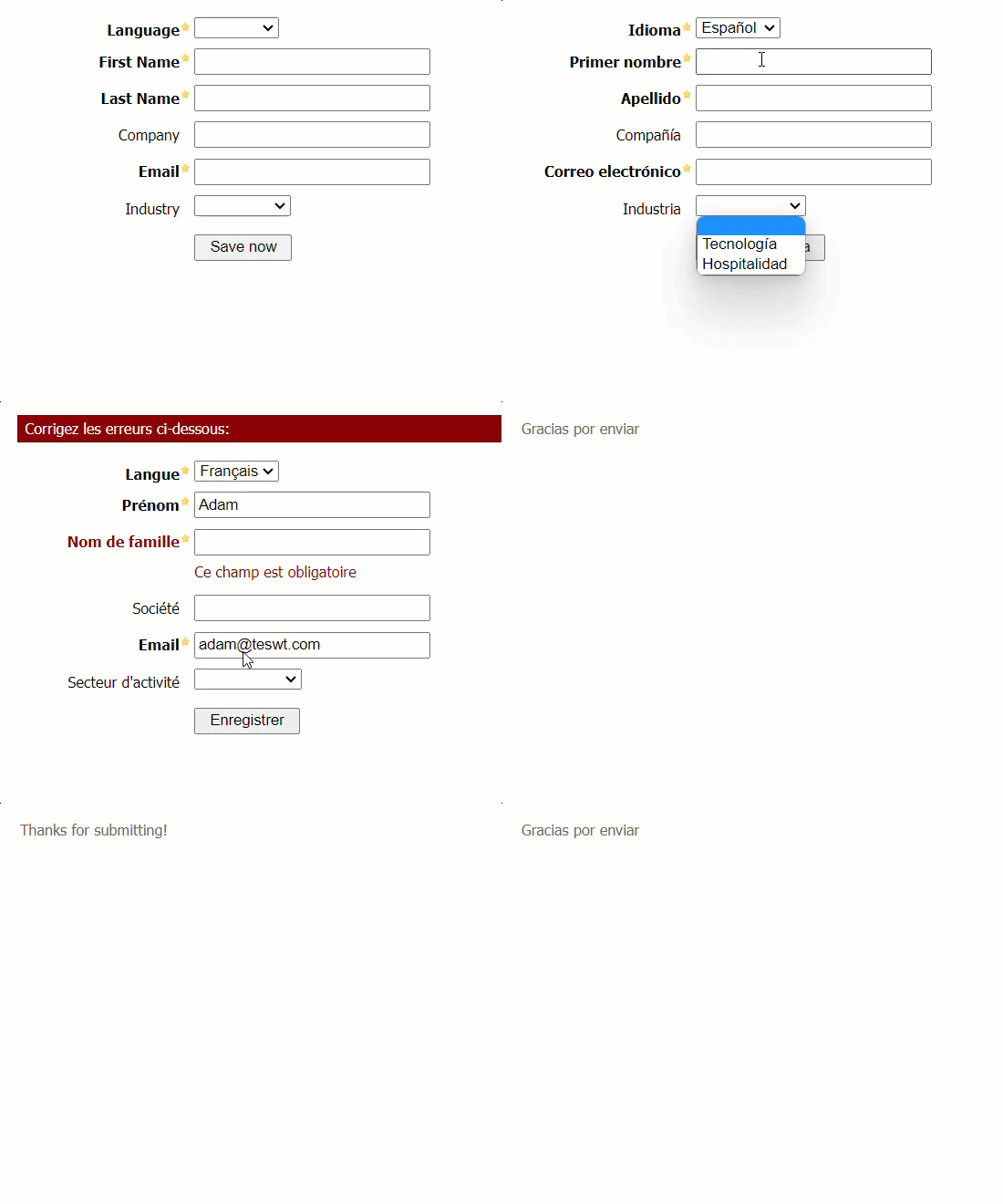
Pre-work to do for your multi-language Account Engagement forms

If you’ve previously filled out the form, we will render the form in the language you specified. If you haven’t, we’ll try to use your browser’s language. Form error messages and thank you content are all translated.

Back in Account Engagement, there are a few things that need to be done.

Here’s what to do:

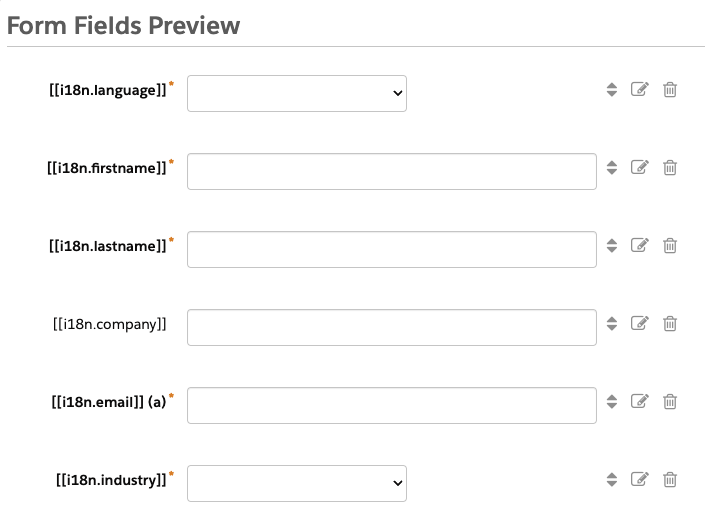
Step 1: Edit form fields – Each Form Field needs to be edited to use a label in the format [[i18n.TOKEN]] (where the TOKEN can be a field name or anything you like
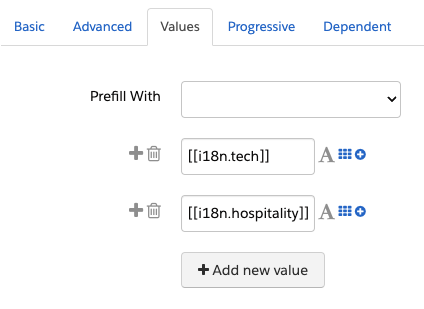
Step 2: Edit dropdown field values – Each Dropdown field value needs to be edited to use a label in a similar format
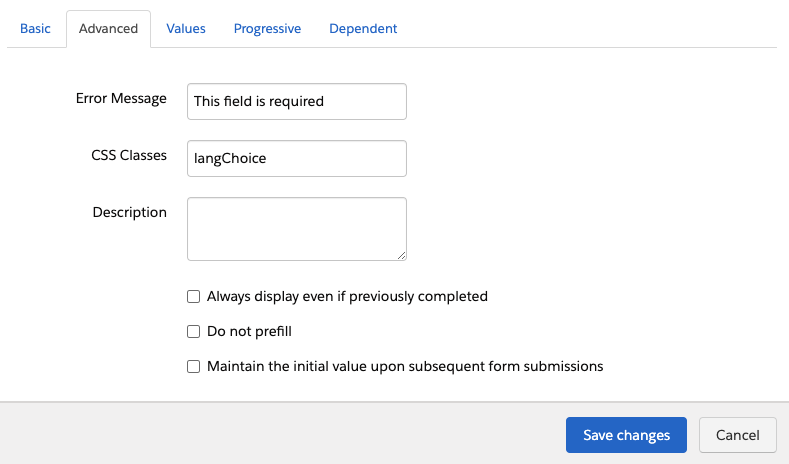
Step 3: Ensure dropdown fields store language code – The Form should have a Language dropdown field that stores the language code. Language choice labels should use a label in a slightly different format. It should use [[lang.CODE]].
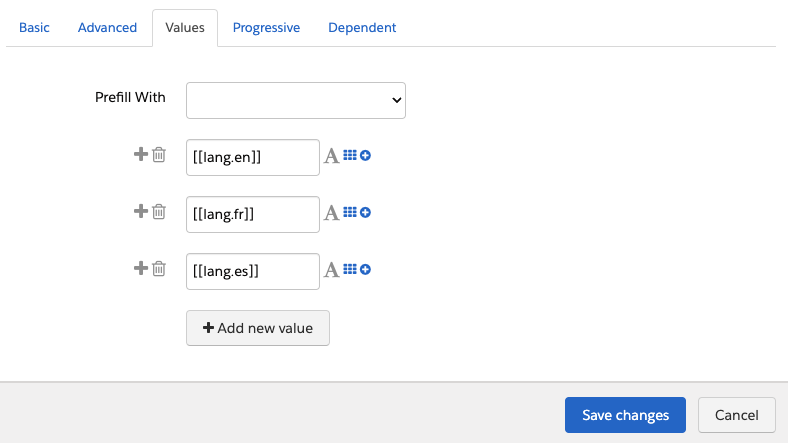
You’ll also need to add the CSS Class langChoice to this field:
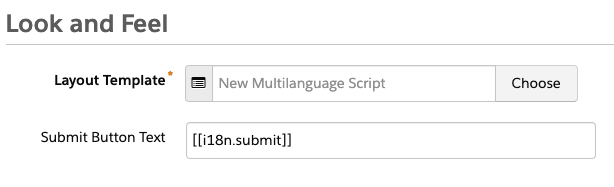
Step 4: Update the submit button text – Submit button text should be edited to use [[i18n.submit]].
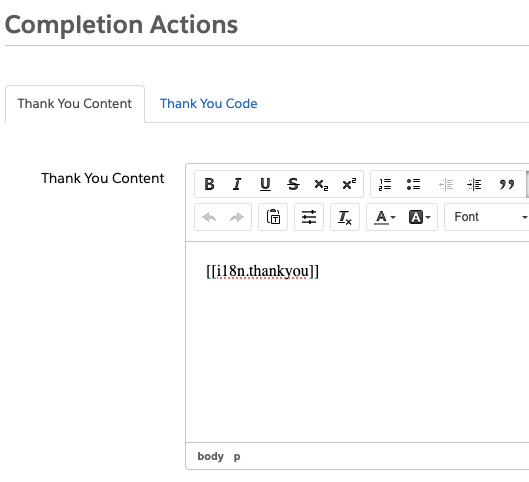
Step 5: Check thank you content – Thank you content should be edited to use [[i18n.thankyou]].
    Add JavaScript to the form

    Once you have all your labels set up, we need to actually add the JavaScript to the form.  There are a few ways you can do this and the approach will depend on just how reusable (and large) you want your JavaScript to be.

    In our example, we’ve placed the JavaScript in the Layout Template, which provides a balance of re-usability (can be used by multiple forms) and maintenance (common, but not all translations for the entire site).

    Ok, time for the code. I’ve split this JavaScript into three sections, but it can all be copy and pasted into a single <script> block in your Layout Template.

    Define languages the form will support

    First, we have a JavaScript object that defines the languages that we will be supporting, as well as the label of that language. Feel free to adjust this as necessary, just keep the structure intact.

    <script src="https://cdn.jsdelivr.net/npm/handlebars@latest/dist/handlebars.js"></script>
    <script>
    // the supported languages by this script
    const languages = {
        lang: {
            en: 'English',
            fr: 'Français',
            es: 'Español'
        }
    };

    Add the translations

    Next, we have all of the translations

    // the translations for each language
    const translations = {
      'en': {
        i18n: {
          firstname: "First Name",
          lastname: "Last Name",
          company: "Company",
          email: "Email",
          industry: "Industry",
          hospitality: "Hospitality",
          tech: "Tech",
          submit: "Save now",
          language: "Language",
          formErrors: "Please correct the errors below:",
          fieldError: "This field is required",
          thankyou: "Thanks for submitting!"
        }
      },
      'fr': {
        i18n: {
          firstname: "Prénom",
          lastname: "Nom de famille",
          company: "Société",
          email: "Email",
          industry: "Secteur d'activité",
          hospitality: "Hospitality",
          tech: "Technologie",
          submit: "Enregistrer",
          language: "Langue",
          formErrors: "Corrigez les erreurs ci-dessous:",
          fieldError: "Ce champ est obligatoire",
          thankyou: "Merci d'avoir soumis"
        }
      },
      'es': {
        i18n: {
          firstname: "Primer nombre",
          lastname: "Apellido",
          company: "Compañía",
          email: "Correo electrónico",
          industry: "Industria",
          hospitality: "Hospitalidad",
          tech: "Tecnología",
          submit: "Guardar ahora",
          language: "Idioma",
          formErrors: "Por favor corrija los siguientes errores:",
          fieldError: "Este campo es obligatorio",
          thankyou: "Gracias por enviar"
        }
      }

    For each token you want to be translated, you will need to add a translation for each language. Like how languages are set up, you can make any adjustments/additions you want… just keep the structure intact.

    Add the main functionality to apply the translations you defined

    Next, we have the main functionality. This handles the actual work of applying the translations we have defined already.

    function i18nForm(prospectLang) {
        document.addEventListener("DOMContentLoaded", function(event) {
            const brO = '{', brC = '}';
            let formErrors = document.querySelector('#pardot-form p.errors');
            if (formErrors != null) {
                document.querySelector('#pardot-form p.errors').innerHTML = `[[i18n.formErrors]]`;
                [...document.querySelectorAll('#pardot-form p.error.no-label')].forEach(node => {
                    node.innerHTML = `[[i18n.fieldError]]`;
                });
            }
            let notYou = document.querySelector('.email span.description');
            if (notYou != null) {
                let origHtml = notYou.innerHTML;
                notYou.innerHTML = origHtml.replace('Not', '[[i18n.notYou]]').replace('Click Here', '[[i18n.notYouClickHere]]');
            }
    
            // Get the original HTML of the form, replacing [[ with {{ and ]] with }}
            const originalHtml = document.querySelector('#pardot-form').innerHTML
                .replace(/\[\[/g, `${brO + brO}`).replace(/\]\]/g, `${brC + brC}`);
            // Compile the template with Handlebars
            const processTemplate = Handlebars.compile(originalHtml);
    
            // Get the browser language
            const browserLang = window.navigator.language.substr(0, 2);
            let formLangCode = '';
            let currentLangVal = '';
    
            // Dynamically map Pardot option values to language codes using innerHTML
            const pardotLanguages = {};
            const langNodes = document.querySelectorAll('.langChoice select option');
            langNodes.forEach(option => {
                let langKey = option.innerHTML.replace(/\[\[lang\.(.*?)\]\]/, '$1');
                pardotLanguages[option.value] = langKey;
            });
    
            // Determine the selected language in the dropdown
            langNodes.forEach(option => {
                if (option.selected && option.value !== '') {
                    currentLangVal = option.value;
                    formLangCode = pardotLanguages[option.value];
                }
            });
    
            // Determine the language to use
            let currentLangCode = formLangCode || prospectLang || browserLang;
    
            // Function to apply translations
            function applyTranslations() {
                let translatedHtml = processTemplate({ ...translations[currentLangCode], ...languages });
                document.querySelector("#pardot-form").innerHTML = translatedHtml;
                document.querySelector('.langChoice select').value = currentLangVal;
    
                // Handle language dropdown change event
                document.querySelector('.langChoice select').onchange = function () {
                    let selectedLang = pardotLanguages[this.value];
                    if (selectedLang in languages.lang) {
                        currentLangCode = selectedLang;
                        currentLangVal = this.value;
                        applyTranslations();
                    }
                };
            }
            applyTranslations();
        });
    }
    i18nForm();
    </script>

    Test and revise

    All that’s left to do is test it out, and then mold this example into what you need.

    Considerations

    Like any JavaScript examples you might find online, they are opinionated in approach. Making minor changes can sometimes break the code due to assumptions that might not be well documented/understood. I’ve left a bunch of console.log statements commented throughout the code to hopefully help you troubleshoot when things go wrong.

    One of those opinions is using the “i18n” and “lang” prefixes. We think this makes the placeholders easier to read, even if it slightly complicates the JavaScript object itself. Feel free to remove this if you want, just know to make the various adjustments.

    One Account Engagement form can handle all the languages you need

    If your company works with audiences who speak a variety of languages, then this is the perfect solution for you to simplify the way you build forms in Account Engagement. Our new approach simplifies translating Pardot Forms, improves reporting, and offers a better user experience for a multilingual audience.

    Still not sure how to approach your global marketing strategy? Then reach out to the team at Sercante for guidance along the way.

    Post updated: June 2024

    Before the advent of Data Cloud and Customer Data Platforms (CDPs), businesses strived to integrate their data into their CRM to obtain a holistic view. If you’re considering another expansive platform, there’s an excellent interim solution to consider: the Campaign Audience Builder (CAB).

    Where to get Campaign Audience Builder

    The Campaign Audience Builder is a package on the Salesforce AppExchange developed by Lightblaze. Known for its user-friendly interface, CAB allows you to create audience segments using your Salesforce data, making it an efficient substitute or preliminary step towards a full-scale CDP solution.

    Campaign Audience Builder Ease of Use

    Campaign Audience Builder has a simple point-and-click interface that allows you to navigate and filter data related to the people you are trying to add to an audience.  It simply gets installed alongside your data and has a very short implementation time (I was up and running in 10 minutes).

    Once installed, it really is a 3-step process of getting your first audience created and usable:

    1. Define the Criteria: as a techie myself, this was really the fun part. Connecting data and filtering the right records feels natural and familiar.
    2. Generate the Audience: This is basically running the process based on all the work you did in the previous step to see who matches. As always, it’s a great idea to spot-check that some people you expected to appear were successfully matched!
    3. Populate the Campaign: you have your list of people, it is time to put them somewhere that you can act on. This is when you choose which Campaign to use, how often the audience should be evaluated, and if people should be removed should they no longer meet your criteria.

    Unlike CDPs and other types of data platforms, which require accommodating complex data relationships and aren’t always user-friendly, CAB offers a seamless alternative.

    Advanced Segmentation Features in Campaign Audience Builder

    Looking for Contacts that have Closed Won Opportunities with Products in a certain Product Family? Yep, Campaign Audience Builder can do that. 

    Do you also want to ensure those same people don’t have a Case?  Yep, you can do that too. 

    While not unlimited in its power, there’s no data scenario that you cannot segment with CAB (compared to report builder or segmentation in Account Engagement).

    CAB allows you to select either a Lead or Contact as your audience driver and connect it with any related object. After defining your audience, you can populate a Campaign by creating CampaignMember records. CAB also provides controls on how frequently your audience should be evaluated and whether it should clean records that no longer meet your criteria.

    With your audience defined, you can now use that information to populate a Campaign by creating CampaignMember records. You have some controls on how often CAB should be building your audience and if it should clean CampaignMember records that no longer meet the criteria.

    Integration and Data Security

    CAB stands out with its ability to directly publish the audience into Account Engagement (Pardot) into a static list. This feature eliminates the need to clumsily attach data to the Lead/Contact records for list population.

    A key feature of CDPs is the ability to “act” on the new audience that you’ve created in downstream systems. While CAB doesn’t really integrate with a bunch of other third-party tools, it can call APEX/Flows (where you can do almost anything integration-wise).

    Data security is paramount for Salesforce organizations. Moving data into other systems like data platforms or CDPs can potentially jeopardize these security controls. Since CAB operates within your Salesforce organization, it only accesses the data you can, thereby ensuring data security.

    CAB may be the stepping stone you seek

    In summary, the Campaign Audience Builder (CAB) offers a user-friendly, efficient, and secure way to handle your Salesforce data. It’s a practical stepping stone if you’re considering a more complex Customer Data Platform (CDP) solution. 

    With its easy setup, advanced features, and commitment to data security, CAB is a smart choice for businesses looking to maximize their data management and audience segmentation without taking on a full CDP solution just yet.

    Thinking about implementing CAB in your org? Contact the team at Sercante to learn more about the tool and how it will work with your overall technology strategy.

    We’ve previously talked about External Actions and External Activities, with some general ideas of how each can be applied separately. Where the real power comes in, is tying them together. In this blog post, let’s explore using a Marketing Cloud Account Engagement (Pardot) Engagement Studio Program to send an SMS message and act on the Prospect replying to it.

    Installation and Configuration for Twilio SMS Messages and Pardot

    Say your company is going to attend a big conference, and you want to see if there is interest for nearby Prospects (far enough in their journey with you) to meet with your team. A quick text asking if they are interested, followed up with sales outreach and/or a “book a meeting” page is a great example of sending the right message at the right time.

    There’s a lot of installing and configuration needed to pull this off: 

    1. Set up Twilio for Salesforce
    2. Set up Twilio for Pardot
    3. Create a Flow to be called by External Action
    4. Configure the Marketing App Extensions
    5. Create the Engagement Studio Program
    6. Handle SMS Responses with a Flow

    Set Up Twilio for Salesforce

    The first thing we are going to do is to integrate Twilio with our Salesforce org. Twilio has a really good instruction video for setting things up, we highly recommend watching it and following along.

    Install instructions written out can be found here:

    https://www.twilio.com/docs/salesforce/install

    Setup Twilio for Pardot

    Once Twilio is set up for Salesforce, there are a couple of steps to enable it to work with Pardot.

    1. Add the B2BMA Integration User as a “Twilio for Salesforce” Licensed User (enables Pardot to send the SMS)
      • In Salesforce Setup, use the Quick Find window to search “Installed Packages.”
      • Click Manage Licenses beside the Twilio package, add the B2BMA Integration User
    2. Add the “Twilio User” Permission Set to B2BMA Integration User
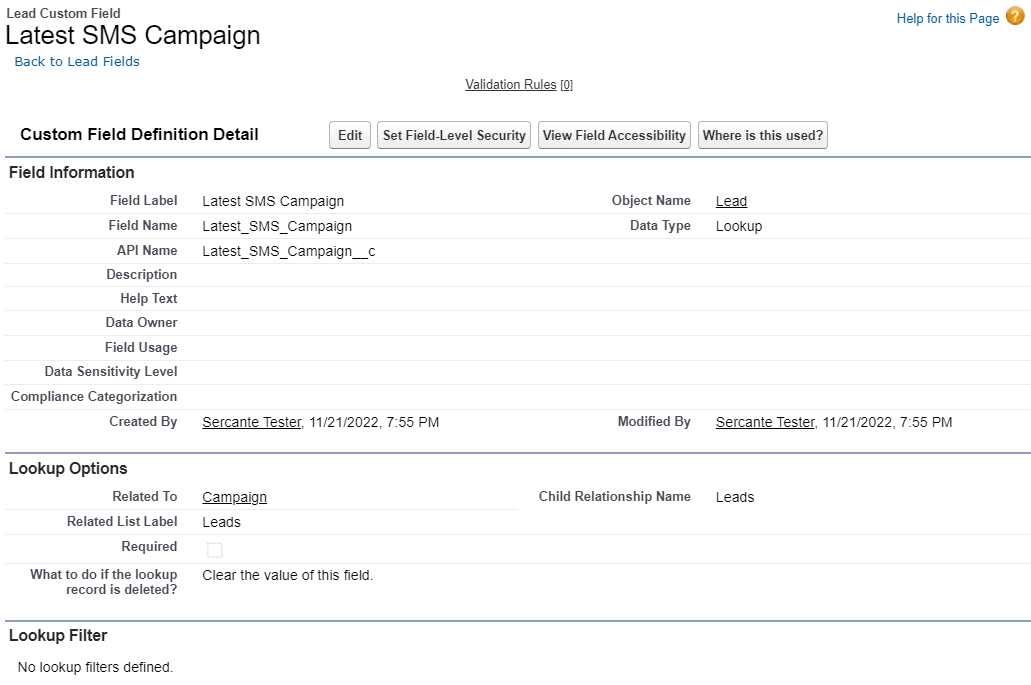
    3. Create a “Latest SMS Campaign” field on both the Lead & Contact (Lookup to Campaign). You do not need to sync this field with Pardot, though the B2BMA Integration User should have access to edit the field values.

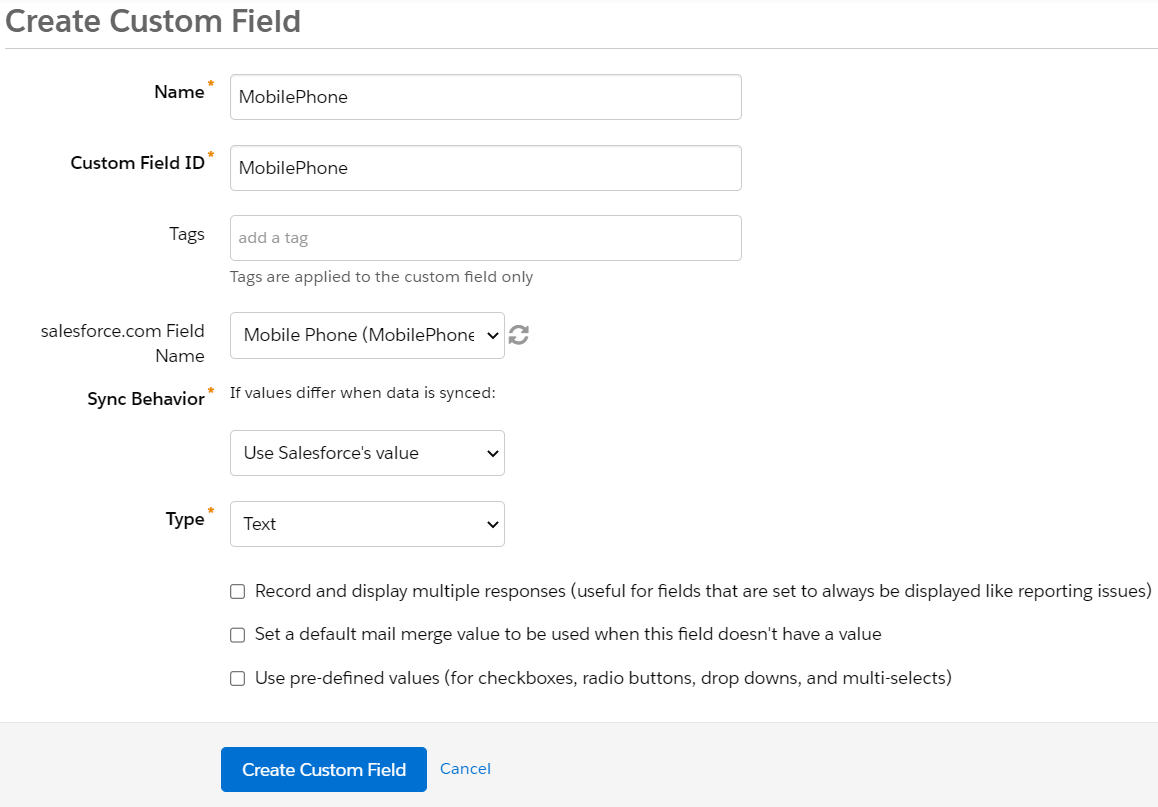
    4. Create a Pardot custom field named “MobilePhone.” Sync this field to the Salesforce field of the same name. The Twilio Lightning Components you added when setting up Twilio for Salesforce relies on the MobilePhone field.

    For the purpose of this blog post, we are not taking into consideration whether the prospect has opted in or out of SMS messages. Though, you should consider this when putting together a solution in your environment.

    Create a Flow to be called by External Action

    External Actions can be powered by APEX, External Services (which make APEX behind the scenes), and Flows. Whenever possible, we recommend using a Flow, as it makes it a bit easier to test and troubleshoot later on.

    1. From Salesforce Setup, use the Quick Find window to search for “Flows.”
    2. Select Create New Flow, then choose Autolaunched Flow.
    3. We need to create a few resources (variables) that will be exposed to Pardot and provide the information we need. These should all be set to:
      • Resource Type: Variable
      • API Name: varPhoneNumber (The phone number we are sending the SMS to)
      • Data Type: Text
      • Available for input: checked
    4. Repeat step 3 for the following variables:
      • varCampaignId – The Salesforce Campaign ID we want to use for tracking
      • varCrmLeadContactId – The Salesforce ID of the Lead or Contact record
      • varMessage – The text we want to include in the SMS message
      • varCampaignStatus – the CampaignMember status you want to use when sending the SMS. This is optional, you could just hard-code the flow to use “Sent”
    5. Create a couple more variables to help simplify the flow. These will be Text, and we will not be selecting the “Available for input” checkbox (they are only used within the flow)
      • varLeadId – set only if the varCrmLeadContactId is a Lead (Decision-based on prefix starting with 00Q)
      • varContactId – set only if the varCrmLeadContactId is a Contact (Decision, prefix starting with 003)
    6. The Flow itself will be composed of a few sections
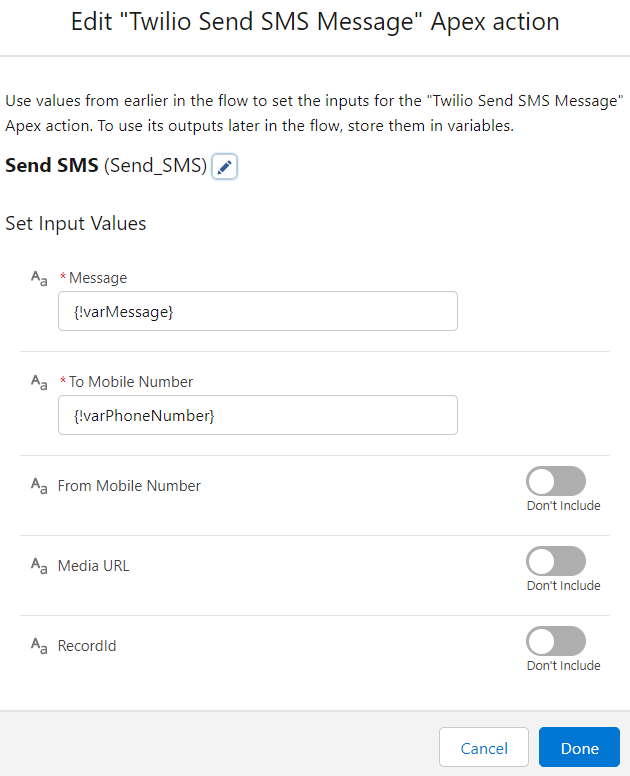
      • Send SMS via Twilio
      • Update the “Latest SMS Campaign” field on Contact/Lead records with the Campaign ID if the Prospect is synced to CRM
      • Create/Update CampaignMember record for the Contact/Lead and Campaign
      • When done, your Flow might look something like this:
    7. Save and Activate your Flow

    Configure the Marketing App Extensions

    Next, we need to actually expose the Flow to Pardot. This is done with Marketing App Extensions in Salesforce Setup.

    1. In Salesforce Setup, use the Quick Find window to search for “Marketing App Extensions”
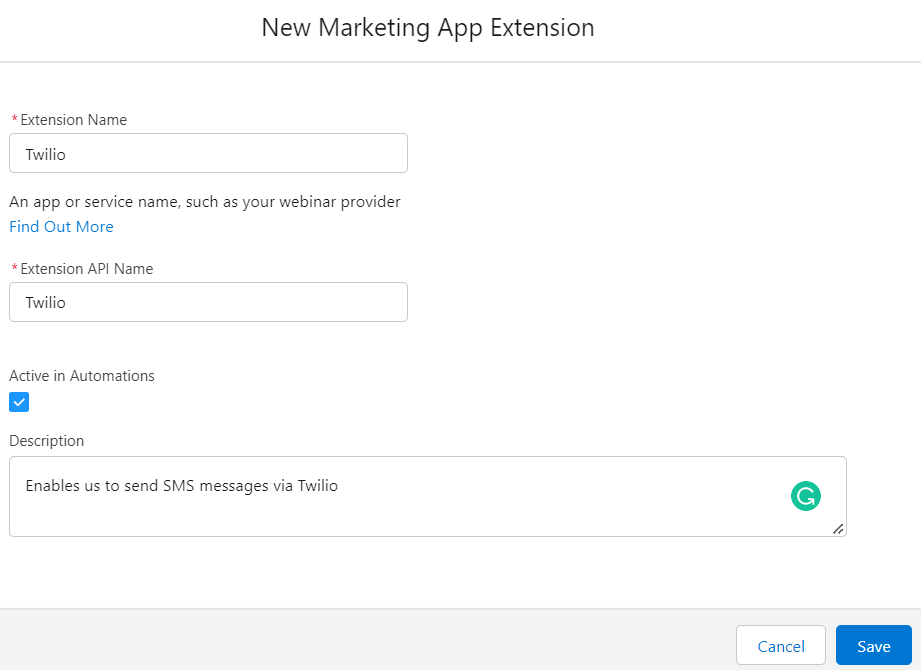
    2. Create a new extension named “Twilio” (don’t create a bunch of tests, currently these cannot be removed and you have a limit of 10)
    3. In the Related Tab, for Action Types click New.
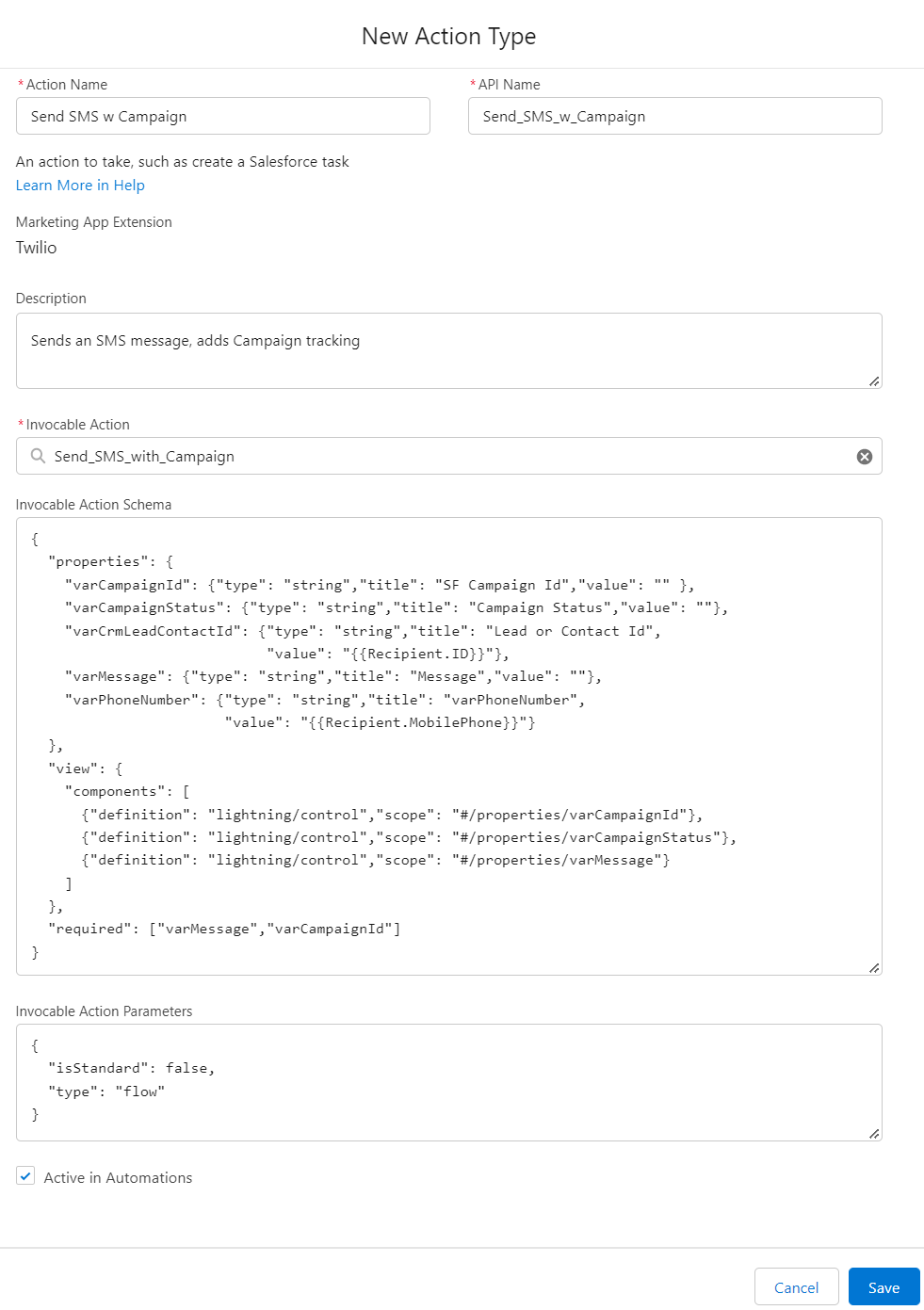
      • Type Action Name: Send SMS w Campaign, type in a good API name
      • For Invocable Action, search for your newly created Flow
      • Once selected, the Action Schema will automatically fill in. We will want to edit it
        • adjust titles, set merge for varCrmLeadContactId, varPhoneNumber. This enables the system to automatically grab the values from the Prospect record.
        • remove view components for varCrmLeadContactId and phoneNumber. Since they are being auto-populated, no need to ask for the values.
        • Set varMessage, varCampaignId as required
      • Make sure “Active in Automations” is checked.
      • Once done, it will look like this (we adjusted the line spacing to make a decent screenshot:
      • Note: because you are directly editing JSON, if mistakes are made there isn’t great feedback in terms of errors upon saving. We’ve found it best to just click Cancel and try again, being a bit more careful.
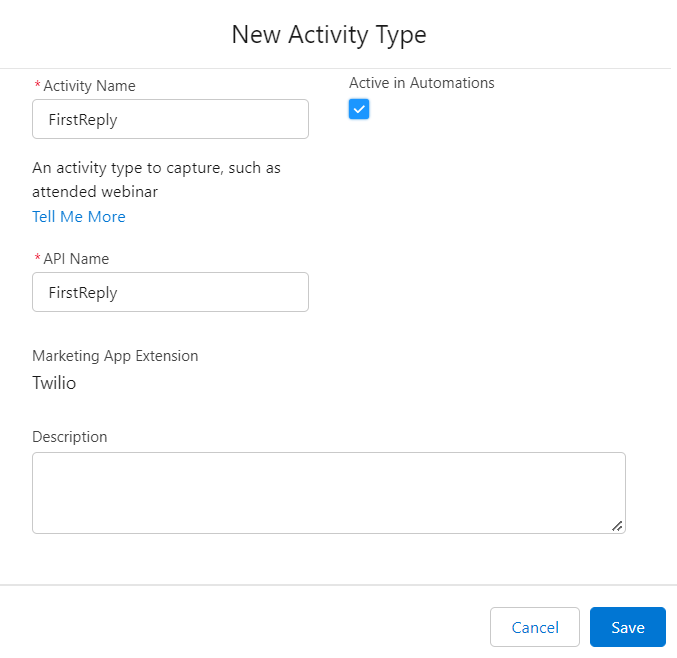
    4. Next, we will create an Activity Type. This will enable us to send information back to Pardot when a Contact/Lead replies to one of our messages (we will walk you through handling this later in the post).
      • For Activity Name & API Name, simply use “FirstReply”
      • Make sure “Active in Automations” is checked.
    5. Lastly, we will enable these Actions and Activities for our Business Unit(s). Assign this Extension to your Business Unit(s) by clicking New, and choosing the Business Unit.

    Create the Engagement Studio Program

    Next, we will build an Engagement Studio Program that will begin to tie this all together.

    1. In Pardot, navigate to Automations > Engagement Studio
    2. Select + Add Engagement Program
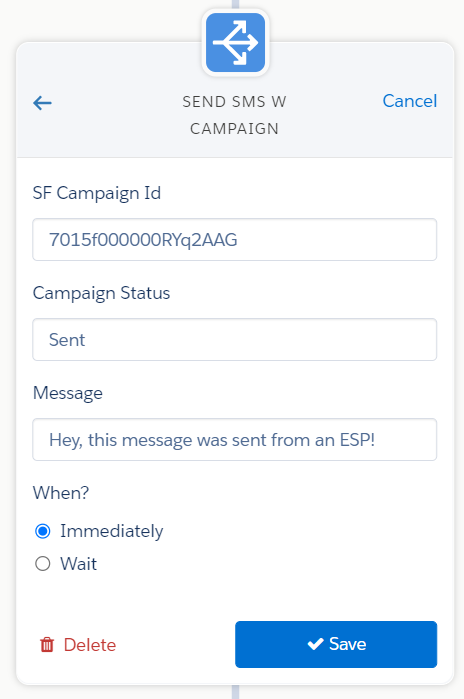
    3. Add a new Action, choose “Send SMS w Campaign” (bottom of the list)
      • SF Campaign ID: provide an 18-character Campaign Id
      • Campaign Status: provide a valid CampaignMemberStatus for the Campaign
      • Message: let your creativity shine!
      • When done, it should look something like this:
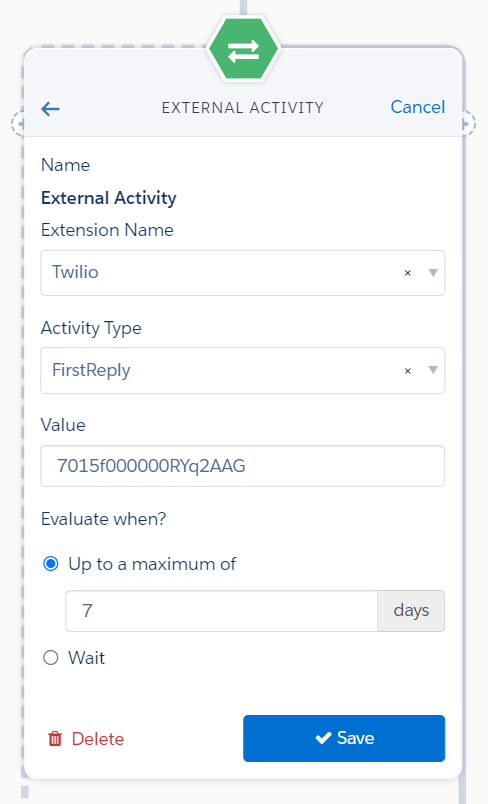
    4. Next, we want to Listen for their First Reply to our Campaign. Add a new Trigger
      • Choose External Activity 
      • Extension Name: Twilio
      • Activity Type: FirstReply
      • Value: The Campaign Id you provided in the earlier step. We want these to match
      • Specify when the Trigger should be evaluated.
      • When done, it should look something like this:
    5. Next, you can decide what happens if the Prospect does reply. In our example, we add the Prospect to a Suppression List (as ideally, they are now engaging with Sales, we don’t want to keep bugging them right?

    Ok, our Engagement Studio Program is done. How will it know when someone has replied to our message?

    Handling SMS Responses

    With the Twilio integration, we can create a Record Triggered Flow based on the “Twilio Message” object, looking for inbound SMS messages. When a message is received, we can check to see if we should take action (based on the “Latest SMS Campaign” field still having a value).

    In our example, we will use the Pardot API to send an External Activity record (with some help from a free AppExchange package) to allow our Engagement Studio Program’s trigger to work, update the Campaign Member Status for the Lead/Contact and create a Task for Sales to follow up.

    To begin, we will install & configure the Flow Actions for Pardot package, which makes it easy to make Pardot API calls (since you can’t natively do this within Salesforce).

    Create the Flow

    Next, we will create our Flow:

    1. From Salesforce Setup, use the Quick Find window to search for “Flows”, and create a new Flow
    2. Choose a Record Triggered Flow
      • Select “Twilio Message” as the Object
      • Trigger when a Record is created
      • Entry Conditions: TwilioSF__Direction__c Equals “inbound”
      • Optimize for Actions and Related Records, and Include a Run Asynchronously path.
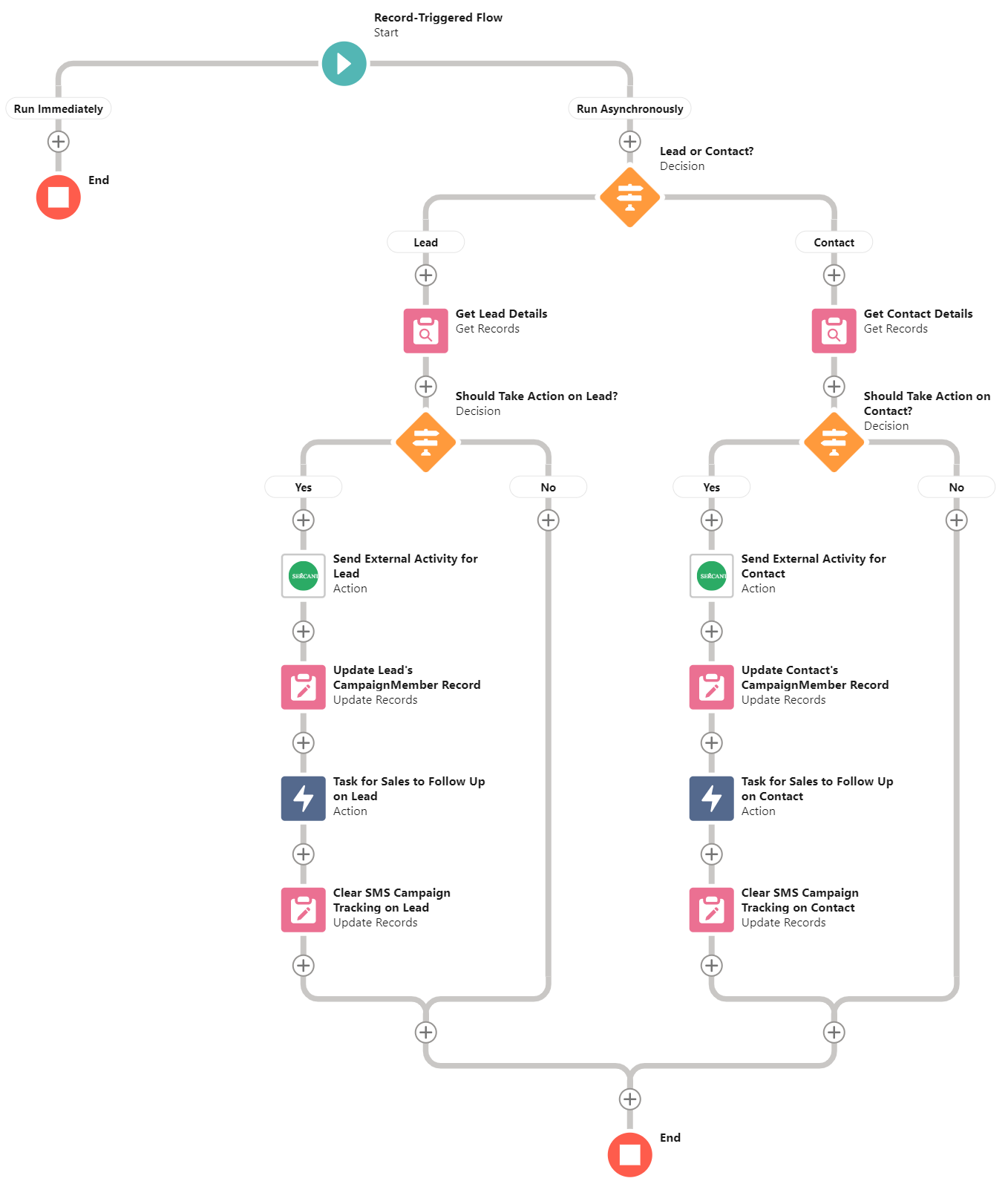
    3. We will need a decision based on the Twilio Message being linked to a Lead or Contact. The logic we use for both Leads and Contacts will be similar, let’s start with Leads
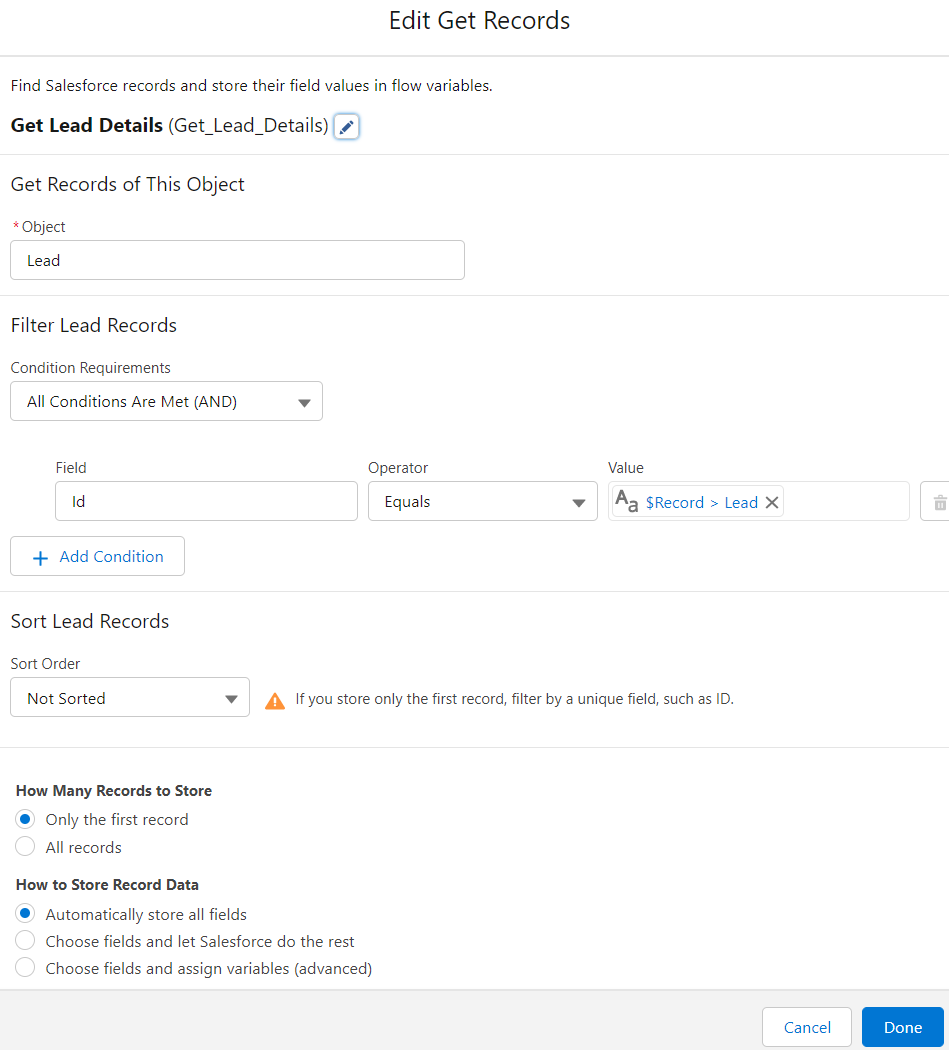
    4. Use a Get Records element to retrieve the Lead based on the ID matching the Twilio Message’s Lead value
    5. Check to see if we need to take action on the Lead by checking if the “Last SMS Campaign” field has a value. If it does not, we can end the flow.
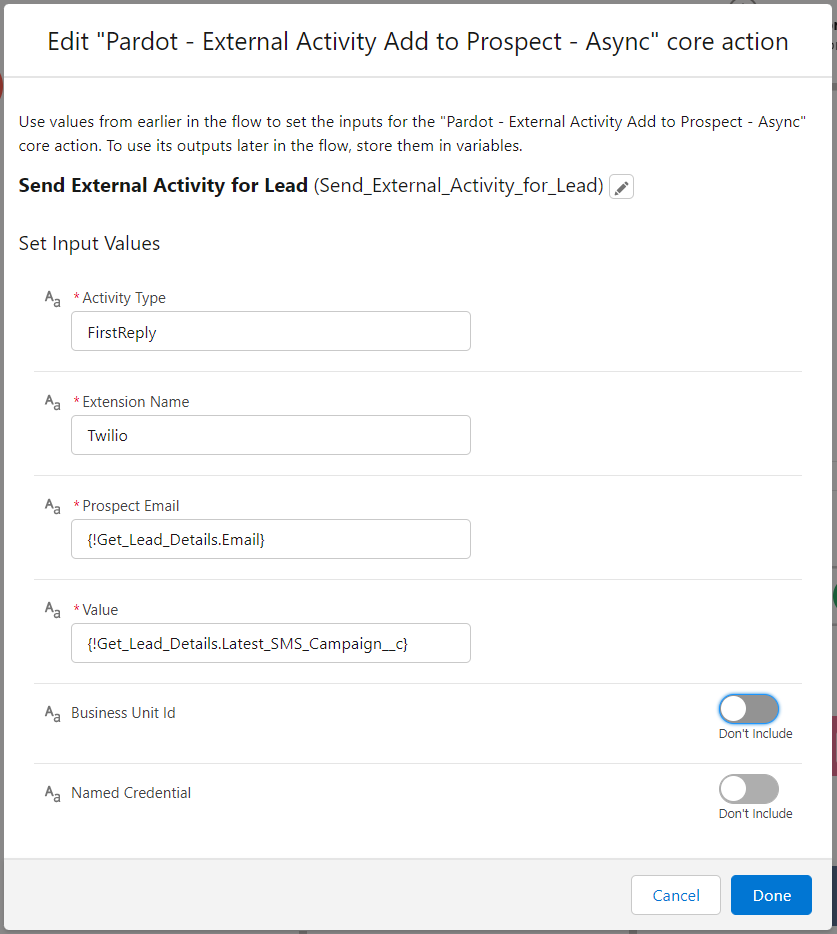
    6. If “Last SMS Campaign” does have a value, create a new Element: “Pardot – External Activity Add to Prospect”
      • Activity Type: FirstReply (this is what you provided when setting up the Extension earlier in the post)
      • Extension Name: Twilio (again, this was setup earlier)
      • Prospect Email: Grab the Email value from the Get Records element in Step 4 above
      • Value: Grab the “Latest SMS Campaign” value from the Get Records element
      • When done, it should look something like this:
    7. Update Lead’s CampaignMember record, create a new Update Records element
      • Specify conditions to identify records, and set fields individually
      • Update records of object: Campaign Member
      • Update records matching the CampaignId and Lead Id from the Get Records element in Step 4 above.
      • Set the Status to what you need it to be (we chose Responded). You will really want consistency across your Campaigns to reduce complexity.
      • When done, it should look something like this:
    8. Create a Task for Sales. You can do this with either a Quick Action, or with a Create Record element, it really depends on your setup and what level of detail you want to provide.
    9. After taking all of our actions, we will want to clear the “Latest SMS Campaign” field on the Lead, so that we don’t take the same actions the next time the person replies.
    10. Repeat steps 4-9 for a Contact, being sure to select the Contact’s Get Record variable in steps 5-9
    11. When done, your Flow should look something like this:

    Phew, it’s all done. Give it all a try by sending your own Prospect record through the Engagement Studio Program. It will take a while once started, but you should get your Text message. Once received, check your Lead/Contact record to make sure it was stamped correctly and that you were added to the right Campaign.  

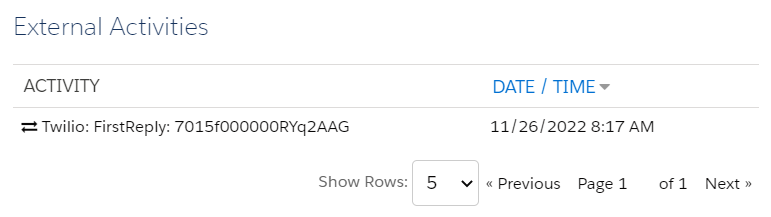
    Send a reply from your phone and check your Lead/Contact record again to make sure that your Campaign Status changed, and check Pardot to see that your External Activity record was created.

    Considerations

    As with any “internet example,” there are a few things that we skirted around to avoid extra complexities, and there are a few things that might not be obvious.

    • This solution is best run when all Prospects (entering the ESP) are synced in Salesforce.
    • Prospects that are not synced to Salesforce, if they reply Twilio will create a Lead record and it might not be synced to Pardot fast enough to receive the External Activity resulting in a break in the process.
    • Our example handled ANY SMS response in the same way. While it is possible to add keywords and build branching logic into Flows and Engagement Studio Program, the solution will get exponentially more difficult to maintain.
    • In our example, we created the Task in the Flow instead of the Engagement Studio Program. We made this choice as it can give us more flexibility in what is provided in the Task and how it can be assigned. If you really want to keep that in the Engagement Studio Program, you certainly can!
    • Twilio does charge PER SMS, so be careful when selecting your audiences, especially during testing!
    • Working with External Activities in Pardot is still somewhat limiting, in that you can only look for “a record with a specific value.” You can’t look for External Activities created in the last X days or anything like that, so it really is a “First Response” mentality.
    • If you have multiple Twilio sending numbers, you could expose this as an input variable in your Flow and External Action, so that it can be specified when sending a message.

    Happy Building! And Let Us Know If You Need Help

    External Actions and External Activities are a great way to leverage other solutions with Pardot. But as you saw, there is still a lot that needs to be built to glue it all together. 

    We hope this guide is helpful so you can take it on and build this solution yourself. And you can always reach out to Sercante to build this solution for you if you’re ready to hand it over to the experts. Visit our contact page here to raise your hand, and we’ll get back to you ASAP.

    Sometimes the standard Campaign Influence models that come with Marketing Cloud Account Engagement (Pardot) just don’t quite fit what you are looking to measure. We recently went through the exercise of creating a Custom Model, and it wasn’t quite as straightforward as we would have liked it to be. 

    To save you some ramp-up time we’ve decided to share some of the things we learned. Here they are!

    Lessons Learned the Hard Way while Creating a Custom Pardot Campaign Influence Model

    We went ahead and created a custom Pardot Campaign Influence model and took excellent notes so you can reap all the benefits. 

    Here’s what you should know before you start your own custom Pardot Campaign Influence Model project.

    Simplify your Custom Model, then nail it down

    There’s a lot of calculations needed in Campaign Influence, and the last thing you want to do is build this a few times as you discover exactly what you are looking for. 

    Spend some time with the business and really think about which touches you really want to measure and if having them measured will drive meaningful business value. Can you explain it in 20 seconds or less? No? Your model might be too complex.

    You have 2 options for integrating your Model

    The simple example Salesforce provides as part of its documentation is to have a Trigger on the CampaignInfluence object, which allows you to create your records when Salesforce creates theirs.  This example is okay for demonstrative purposes, and it avoids a lot of the complexities. 

    The example also works okay if the Model that you are “watching out for” creates and deletes CampaignInfluence records at the same time you need to. Though for us, often we discovered that we wanted our Model to recalculate, but it never did. This is because the default model didn’t need recalculating so no new records were created/edited. As a result, ours never had the chance to run. 

    One way around this is to watch out for the b2bmaEvenDistributionModel as it has the most chance of adding/removing records, and firing off your trigger.

    Another thing to consider (if you are relying on another model’s calculation to trigger your custom one) is that Salesforce doesn’t properly batch influence calculation. We learned this when turning off the Even Distribution Model and turning it back on hoping it would trigger calculation on all Opportunities. We ended up having our own Batch APEX class run to initially populate data for our new model.

    If you need a little more control, you would need to introduce triggers on various objects (such as CampaignMember, OpportunityContactRole, Opportunity) looking for the events that would have an impact on your Model and cause it to recalculate. You might find luck here using Platform Events to separate the triggering event from all the processing that the Model might need, especially important as Opportunities often already have a lot of custom automations hanging around them.

    Campaign Influence code runs as a special User

    Salesforce’s CampaignInfluence records are created by a Special Salesforce User “Salesforce Administrator” which you can’t pick when setting up debug logs. You can find this User’s ID by looking at the CreatedById field of any of the CampaignInfluence records in your org.

    Setting up a Debug log for this user is a bit more involved than normal, and needs you to manually create a TraceFlag entry referencing the special User as well as the Id of DebugLevel. We used https://workbench.developerforce.com ‘s REST explorer to create the record, and we used the SFDC_DevConsole DebugLevel allowing us to use the DeveloperConsole to check out the logs as we were testing.  A bit of setup for each debugging session, but worth it.

    Break your code into debuggable chunks

    We ran into a few different challenges as we were putting this together, and we found having our code broken up really sped up our debugging process. Each chunk of code had debug statements giving us an idea of the overall state / progress, which made it easy to quickly diagnose where things might be going awry.

    While we aren’t yet ready to share a precise recipe, we can at least give you the ingredients we used!

    1. Build a list of Opportunity IDs of the Opportunities that need to be calculated
    2. Get all Opportunity details (including Opportunity Contact Roles)
    3. Get all needed CampaignMember records
    4. Calculate the “winning” CampaignMember records for each Opportunity
    5. Calculate the CampaignInfluence records needed from the “winning” CampaignMember records
    6. Insert final results

    Plan for custom Campaign Influence Model success

    Creating a Custom Campaign Influence Model is not for the faint of heart. It takes quite a bit of planning and work to put together even the simplest of Models (which might be why there’s so little out there when we tried googling for examples). 

    If you are looking to take this on, hopefully these tips save you a bit of frustration and colorful language. If it still looks daunting and you need some help, we would love to have a chat!

    Further Reading

    Alas, Salesforce External Actions for Pardot is finally here.

    Until now, our options to have Marketing Cloud Account Engagement (Pardot) trigger a third-party system have been limited to either: pre-existing connectors or syncing to Salesforce and relying on a Salesforce-side integration. 

    With the Salesforce Winter ‘23 release, External Actions gives us the capability to integrate into any third-party system and do cool things.

    Note: This feature is available to Plus, Advanced, and Premium editions of Pardot.

    The Lowdown on External Actions for Pardot

    External Action allows Pardot to do things like: 

    • Send an SMS message via Twilio or MogliSMS
    • Create a new Salesforce record (such as Lead, Opportunity, any Object!)
    • Send information to your favorite Star Wars API
    • Register a Prospect in another system
    • and whatever else you dream up! 

    While there are some considerations (detailed later in this post), External Actions are a great way to plow through the barriers that have prevented you from automating your entire workflow. 

    It’s important to note that there’s a similarly named feature called External Activities.  With Pardot External Activities, you can receive data from third-party systems to use in Pardot. With External Actions, you can send data to third-party systems so they can do cool things.

    How does a Pardot External Action work?

    Once an External Action is built, it will appear as an Action option in an Engagement Studio Program. Depending on the action, you may need to provide additional information through text inputs. You can use HML Merge Tags here, too!

    When the Engagement Studio Program is running and hits your action, Pardot will call into Salesforce (via API behind the scenes), and call the functionality.  It does this in a “fire and forget” manner, so there’s no error handling inside your Engagement Studio Program. It is also not “bulkified,” meaning it will make an API call for EACH Prospect. So, you may need to take the API limits of Salesforce AND your external system into consideration.

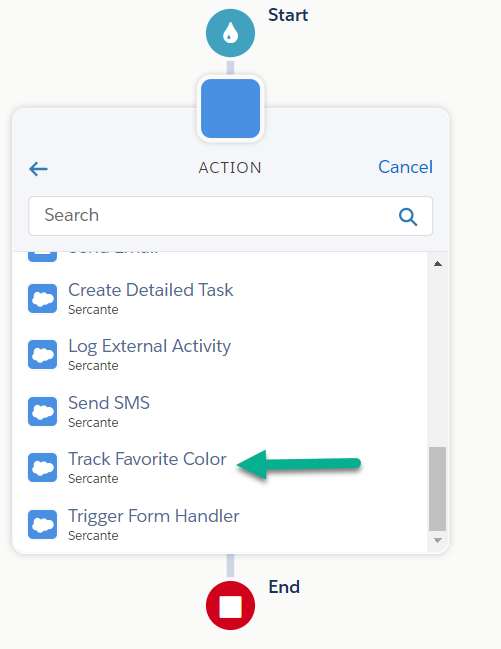
    For this blog post, we built an External Action that tracks Favorite Color. 

    Once you pick “Track Favorite Color” you have the ability to provide a value. In the screenshot below, we are using HML to pull this value from a Prospect’s record, though you can also provide static text if you want to say everyone’s favorite color is Sercante Green.

    How can I set up a Pardot External Action?

    To set up an External Action, there are 2 key pieces:

    1. You need something in Salesforce that can “do the thing” you want. It can be any of the following:
      • Autolaunched Flow
      • External Service
      • APEX InvocableMethod
    2. Marketing App Extensions have been configured inside Salesforce Setup

    No-code options to configure Pardot External Actions

    If you are looking to integrate with a third-party system, you might luck out on #1 and be able to leverage something built by that third-party in their Salesforce package. This could be your quickest way to being able to use an External Action.

    If this isn’t available for you, first look at seeing if you can make an Autolaunched Flow that can meet your needs. This option is also great for creating Salesforce Records of any object type (keeping in mind you are limited to text input types in Pardot).

    When working with another API, and if that API supports the OpenAPI protocol, you can use Salesforce External Services to hook things up. That will give you everything you need.

     The Trailhead Module on External Services is a great way to learn how to get started.

    Code option to get started with Pardot External Actions

    If the above aren’t an option, it’s time to break out your development skills (or work with someone who has them). We’ve got a sample APEX class here that gives you all the structural ingredients you need to make this work, you just have to fill in what you want it to actually do.

    public class MyNewExternalAction {
    
        // Classes to be used by the Flow Designer
        public class FlowRequest {
            @InvocableVariable(label='Prospect Email')
            public String email;
            @InvocableVariable(label='Favorite Color')
            public String favColor;
            // add any other String or number-based attributes you need
        }
    
        // If you are calling an External API, this would be a great
        // place to put Classes to represent the response
        public class ApiResponse {
    
        }
        
        @InvocableMethod(callout=true label='My New External Action')
        public static void performActions(List<FlowRequest> flowRequests) {
            System.debug('Start performActions');
            // at time of writing, Pardot DOES NOT BATCH these, it's always 1
            // per batch
            FlowRequest flowRequest = flowRequests.get(0);
            System.Http http = new System.Http();
    
            try {
                // This is where you put what you want to do!
                // you can call another API, call other APEX
                // read & write Salesforce Objects.. Whatever you want
    
            } catch (Exception e) {
                System.debug('There was an issue executing the request');
                System.debug(e.getMessage());
                throw e;
            }
            System.debug('Done performActions');
        }
    }

    Once you have the functionality ready, you need to tell Pardot about it. This is done by configuring Marketing App Extensions inside Salesforce Setup.

    Configuring the Marketing App Extensions

    This is the “glue” that ties everything together and makes External Actions usable by Pardot. There are a few easy things to configure to make this “glue” work.

    First, we need the Top-Level Marketing App Extension. Be careful with these, as you cannot delete them once created (so don’t go making a bunch of test records!).

    1. In Salesforce Setup, search for Marketing App Extensions
    2. If you don’t have one, create New
      • Provide an Extension Name and an API Name, as well as check “Active in Automations”
      • Click Save

    Next, we need to enable this for Business Unit(s).

    1. With the Extension still open, go to the Related tab
    2. Click New beside Business Unit Assignments
    3. Add an assignment for each Business Unit you want this extension to be available for

    Now we can create the External Action.

    1. With the Extension still open, go to the Related tab
    2. Click New beside Actions
    3. Provide an Action Name (this will be the name visible when selecting it from Engagement Studio)
    4. Provide an API Name (this does not auto-fill like you may be used to)
    5. (Recommended) Provide a description of what this Action does, since you might not remember in three months
    6. Search for your functionality. Once selected, the Action Schema will auto fill with JSON that you need to review and likely modify
    7. Review & Modify the Action Schema
      • Properties – this contains details about the parameters/values that you want to provide to the Automation.
        • type:  currently can only be “string” and “number”
        • title: the Label of the input when viewing in Engagement Studio
        • value: Allows you to provide a default value. You can use HML merge tags here!
        • Note: Sometimes when working with Flows, you might have properties that are not relevant (like flow interview id). You should remove them from Properties (assuming they aren’t an input variable that your flow requires to function)
      • View Components – this allows you to specify which properties you want to provide inputs for in Engagement Studio. Currently, definition should always be “lightning/control” and “scope” should always point to one of the properties
      • Required – a list of properties that would be required from within Engagement Studio
    8. Action Params auto fills, no changes needed
    9. When you are ready to have this available in Pardot, check the Active in Automations box.

    Here’s what it would look like for our sample APEX class above. Note that we’ve chosen to only display the favorite color field in the Engagement Studio, though we are passing the Prospect’s email behind the scenes.

    Save the Action and, after a few moments, it will be available for testing!

    Can I use an External Action to do things in Pardot?

    Imagine being able to take action on another Prospect record from an Engagement Studio Program! While not natively available within the platform, you could build this when combining External Actions with our Free package Flow Actions for Pardot. After setting up the package, you would only need to configure the Marketing App Extension to have any of our Flow Actions available as an External Action.

    Create Unified Experiences with Pardot External Activities

    External Actions are available with the Winter ‘23 release. These Actions, as well as External Activities, allow Marketers to automate across platforms for a more unified experience. 

    How do you plan on using these features to better automate your processes? Tell us in the comments!

    In early March, Salesforce announced changes to how it serves content via go.pardot.com. In short, this impacts your Pardot content that might be placed on your website through iFrames. 

    We’ll walk you through how to find where the go.pardot.com domain is in use. Then we’ll show you how to fix it across your website.

    A bit of detail on the Pardot domain challenge

    Pardot is making security enhancements that can affect users of the go.pardot.com domain who use this domain for iFrames. That means you’ll have to take action by April 22, 2022, to update your website forms that meet the criteria outlined in this blog post.

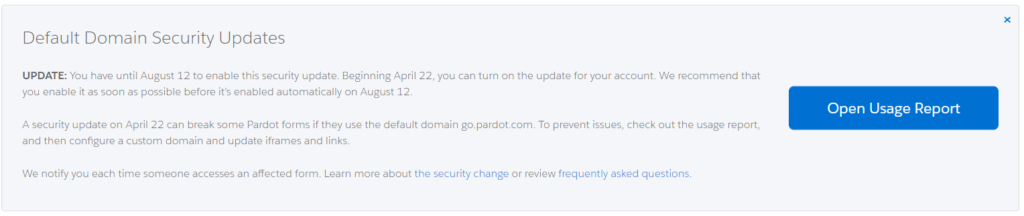
    UPDATE: Salesforce announced they’re extending the deadline. After April 22, 2022, you can choose to turn on the security update. And Salesforce will automatically enable the security update for everyone after August 12, 2022. (See message from Salesforce)

    Website forms with iFrames + default Pardot domain + JavaScript = pay attention

    Specifically, you should pay attention to the enhancements if your website forms:

    1. Embed Pardot forms or other content inside iFrames
    2. Include JavaScript in that content
    3. Serve this content over the default Pardot domain (go.pardot.com)

    The main impact will be to any Pardot form served standalone or in an iFrame using the go.pardot.com domain.

    Also included are forms that make use of included JavaScript to make external calls. This includes JavaScript that:

    • Communicates from within the iFrame to the pages that contain the iFrame
    • Makes an AJAX call to a server

    Examples of these kinds of calls are:

    • JavaScript that resizes the iFrame on the page to better fit the form
    • Submission of forms using reCAPTCHA
    • Changing form behavior based on changes to the email address field, such as showing a message to a prospect if they previously unsubscribed

    Other impacts with assets using iFrames are possible. For example, with these new changes you will no longer be able to embed a landing page within another webpage. This change also affects JavaScript callouts on form handlers and dynamic content when served directly via an iFrame.

    Preparing for the fix

    There are a few preparatory steps you can do before going and making (or requesting) changes to your website.

    Step 1. Set up Pardot tracker domain

    If you don’t already have a Pardot tracker domain, we will need to create one. If you aren’t sure, here are steps to follow:

    1. Log in to Salesforce & Pardot
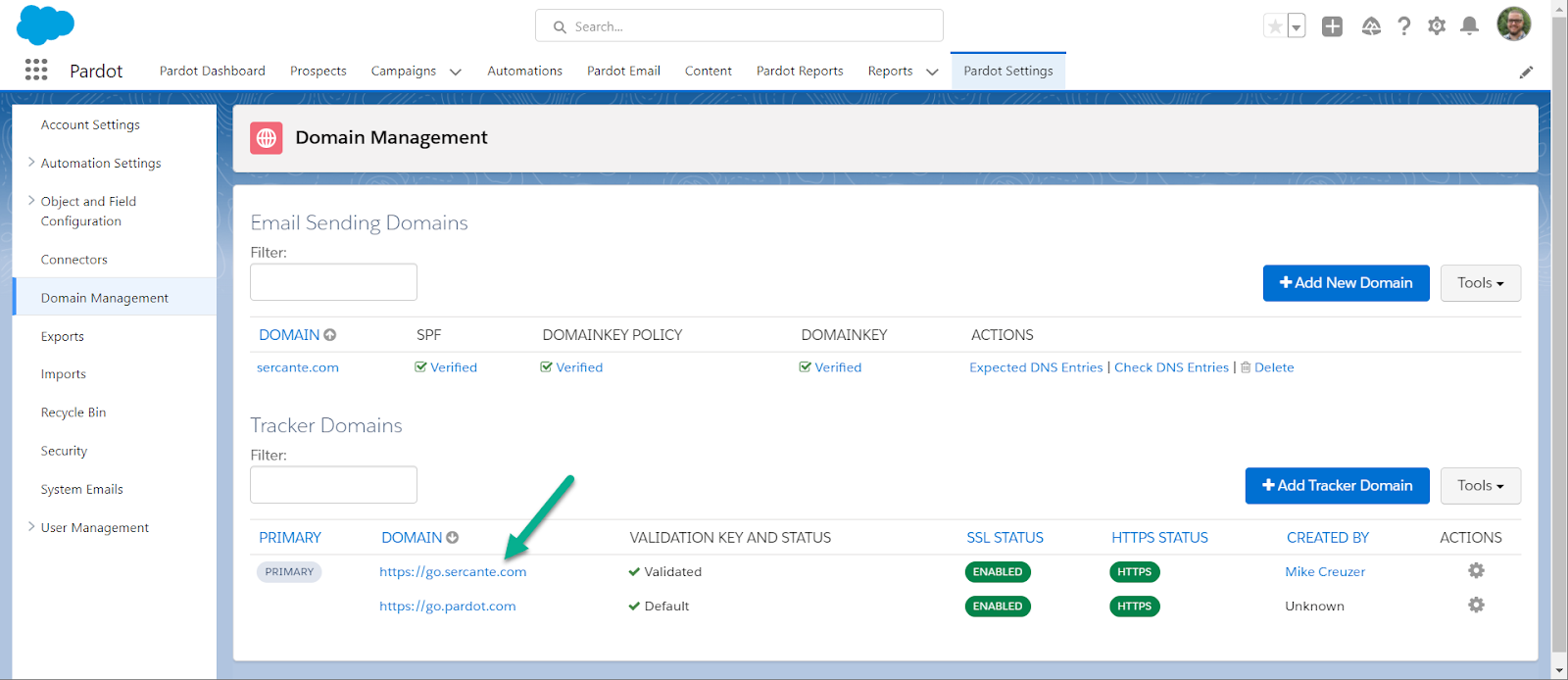
    2. Go to your Pardot Settings > Domain Management page
    3. Look for a tracker domain that is custom. It should be one that’s similar to your website address (similar to the screenshot below)

    If you don’t have a custom tracker domain set up yet, our friends at Nebula Consulting have a great set of instructions here.

    If you have multiple tracker domains, you will need to know which one to use.

    Step 2. Enable first-party cookie tracking

    While not necessarily needed for this fix, it is best to set yourself up for success for the future of cookie tracking within Pardot.

    To enable first-party web tracking cookies:

    1. Log in to Salesforce & Pardot
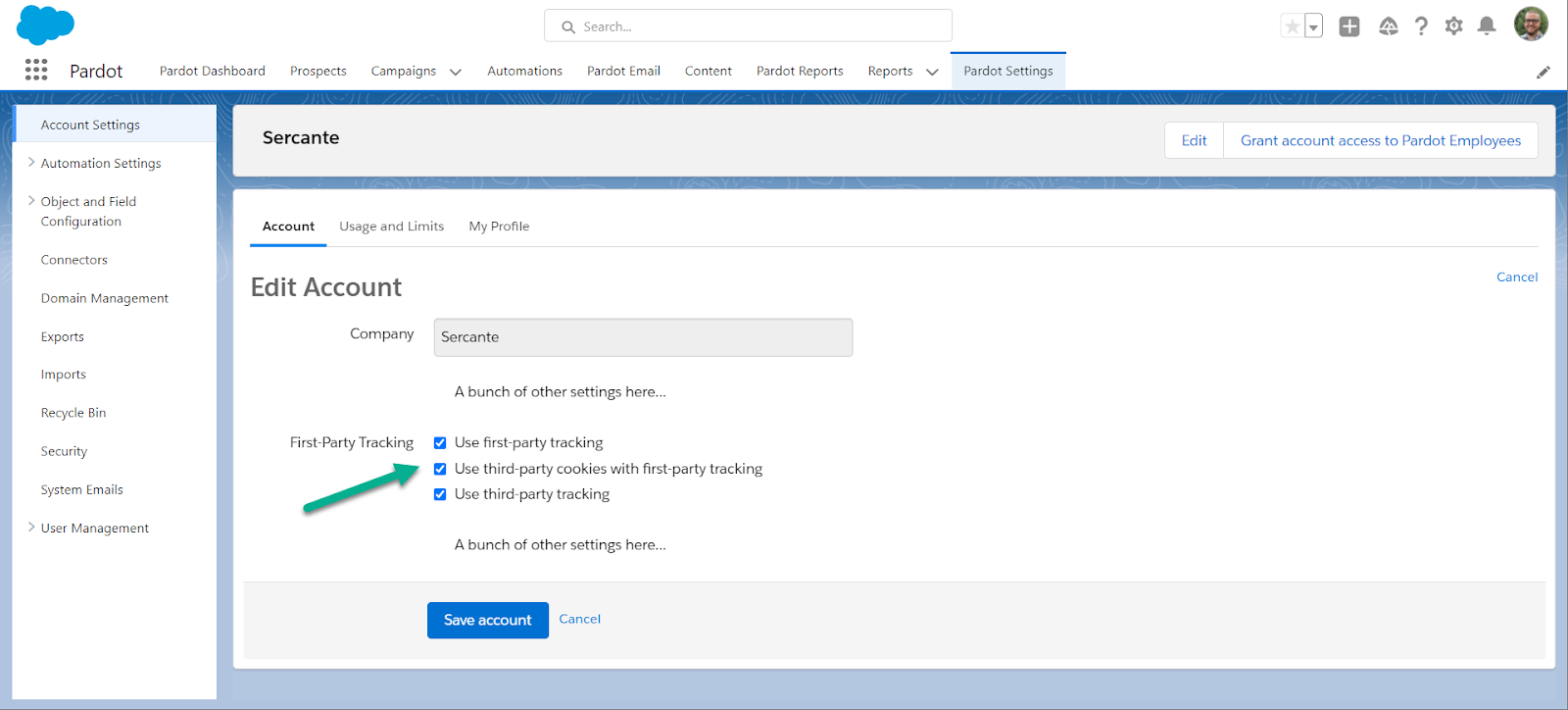
    2. Go to your Pardot Settings, Account Settings page and click Edit
    3. Scroll down to “First-Party Tracking” and make sure all 3 checkboxes are checked
    4. Save account

    Step 3. Find website pages using the go.pardot.com domain in iFrames

    I mean this is the whole reason you are here right? You have a challenge and want actionable steps on how to actually solve it instead of some blogger babbling.

    We’ve created a tool that can leverage your website sitemap .xml file (the same sitemap Google crawls) to look for web pages that have embedded iFrames that also use go.pardot.com as the iFrame source.

    Use the form below to find the forms on your website you’ll need to update. After submitting, we’ll gather some results and email them to you after a few minutes.

    This field is for validation purposes and should be left unchanged.
    Name
    This field is hidden when viewing the form
    This field is hidden when viewing the form
    This field is hidden when viewing the form
    This field is hidden when viewing the form

    Make changes to the website

    With your list of pages in hand, you can begin the work of editing each page, swapping the go.pardot.com part of the iFrame “src” attribute with your new tracker domain. Try this out on one or two pages, testing out the forms to make sure nothing has broken. Then, roll it out across your site.

    But… what if I can’t add a custom tracker domain?

    You might ask yourself, “What if I can’t add a custom domain?” If this is you, you’re gonna be okay. 

    Because of the change being made, you won’t be able to use iFrames with the default go.pardot.com domain to host standalone or embedded forms. If you plan on using a form, you’ll need to use the form on a landing page. If you have JavaScript needed for the form, it can be included in the landing page to keep the form functioning as it did before. 

    If you have other assets you need in an iFrame, unfortunately you won’t be able to continue using the default domain to display them. You’ll need to get creative with these assets. Maybe convert the information into a downloadable PDF or display it as an image on a landing page.

    It’s going to be okay

    With new Pardot security enhancements comes a more stable marketing automation platform. But it also brings new complications — and we have your back. 


    If you need further assistance with setting up a custom tracker domain, finding and fixing the use of go.pardot.com, or just a refresher on best practices, get in touch or tell us in the comments. We’re always happy to help.

    No more posts to show