Category

Emails & Forms

Prospect inactivity tells us just as much about a prospect as their activity does. An inactive prospect has a lower interest level and less openness to learn more about your organization than prospects who are active.  

In this blog, we will address what makes a Prospect inactive vs. active, how inactive Prospects can impact your organization, and ways to clean up your database. 

Inactive Prospects in Account Engagement vs. Active Prospects

Inactive Prospects exist in every instance of Account Engagement, but what makes a Prospect inactive? I can tell you what doesn’t change their status to active. 

The following Prospect activities will NOT change a Prospect status from Inactive to Active:

  • Email Sends
  • Email Opens
  • Email Bounces
  • Opportunity Creation

So what does change a Prospect’s status from inactive to active? 

These are the activity indicators we’re looking for:

  • Form Submission
  • Page Visits
  • Link Clicks

Inactive Prospects can also be Prospects who are classified as “Active” but have not taken any action (i.e. form submission, page visit, or link click) in a predetermined amount of time (i.e., 6 months or 1 year). The timeline should be well thought out and considered by the marketing team. You should also adjust accordingly if needed based on the typical time it takes for the sales process to reach completion.

The Impact of Inactive Prospects

Housing inactive prospects in your org can have detrimental results to your instance if not consistently maintained. A couple of big reasons include deliverability and spam complaints, but there are more. See the full list of potential risks below.

Email Deliverability

When speaking to email deliverability, we are assessing the likelihood your email will reach its intended inbox without bouncing or being marked as spam. Prospects who have not opened any emails for a period of time or perhaps have abandoned their mailbox will be sent to spam or bounce This directly impacts your organization’s deliverability.

Furthermore, in alignment with the Account Engagement permission-based marketing policy, emails that are below 90% deliverability may trigger the Account Engagement deliverability team to check with you on your account performance and potentially freeze it.

Diluted Marketing Metrics

By sending emails to inactive Prospects, you are potentially receiving inaccurate metrics on your email performance. If you include inactive Prospects among active Prospects in your campaigns, you are skewing your open, click-through, and conversion rates by bringing them down. This leads to inaccurate portrayal of your campaign’s success.

Paid Prospects

Did you know that you pay for your Prospects? Account Engagement is set up in a way that you pay for your Mailable Prospects. Keep in mind that an inactive Prospect is not necessarily and unmailable Prospect. You can have a multitude of inactive and disengaged Prospects sitting in your account that you are paying for. Cleaning them out allows for more room for highly engaged Prospects to filter in.

Spam Reports

When we reference spam, we are referring to sender reputation, specifically how healthy your IP address is seen by target inboxes. Email services such as Google or Outlook use algorithms to filter out emails as they come in. Senders who have received consistent positive engagements, such as opens and clicks, are accepted without issues. However, senders who have been marked by negative interactions, such as deletion without opens or marking as spam, are automatically filtered into the spam folder, impacting the health of your sending IP address. This ultimately could lead to your IP address being blacklisted.

How to Maintain a Healthy Database

Now that you are aware of the impact inactive Prospects can have on your organization, let’s review ways to manage a healthy Account Engagement database

To begin, this clean up process should be done quarterly or on a routine basis as you see fit. And as a friendly reminder, any Prospect you delete goes to the Recycle Bin and can be pulled out at any time.

Use Dynamic Lists

Build a series of Dynamic Lists using a specific set of criteria to collect Inactive Prospects and then mass delete them via a Table Action, sending them to the recycle bin. 

Such lists may include:

  • Prospect has been emailed at least 1x in the last 90 days AND Prospect time last activity days ago is greater than 90 days. Again, you can set how many days feels best for your organization. You can also build multiple Dynamic Lists based on a variety of time limits.
  • Prospect has been emailed at least 1x in the last 90 days AND Prospect time last activity days ago is greater than 90 days AND Prospect score is below 100. Same thing here, customize the numbers to fit what is best for your organization.

Remove Junk Data

Any test emails you’ve created or spam Prospects who have filled out Forms are also taking up prime real estate in your mailable database. We recommend cleaning out any junk data that is not actively used for testing purposes. 

Read this blog for a complete list of Dynamic List criteria.

Create a Re-engagement Program

After cleaning up your database you may still have Inactive Prospects that you believe are still marketable.

Now, it’s time to enter Engagement Studio. Build a re-engagement program that targets Inactive Prospects in an attempt to nurture them. Anyone who still does not engage by the end of the program, can also be removed from your database. SalesforceBen offers a “Sunset Program” for this exact situation.

Shift your focus to from inactive prospects to active ones

Remember, Prospect inactivity tells us a lot about someone’s interest level in your organization. By being aware of what characteristics represent an Inactive Prospect, being aware of how that can affect your database, and taking actions to clean it up, you will see continued growth.

Need help making hard decisions about inactive prospects? That’s what we’re here for. Reach out to the team at Sercante for help navigating your prospect cleanup and re-engagement efforts.

It’s here! It’s finally here! It’s the Account Engagement Business Unit Bulk Asset Copy Flow.

Marketing Cloud Account Engagement (f.k.a. Pardot) Business Units have become my niche over the past few years. I love setting them up and standardizing them, but I don’t love copying over assets when configuring a new Business Unit(BU). 

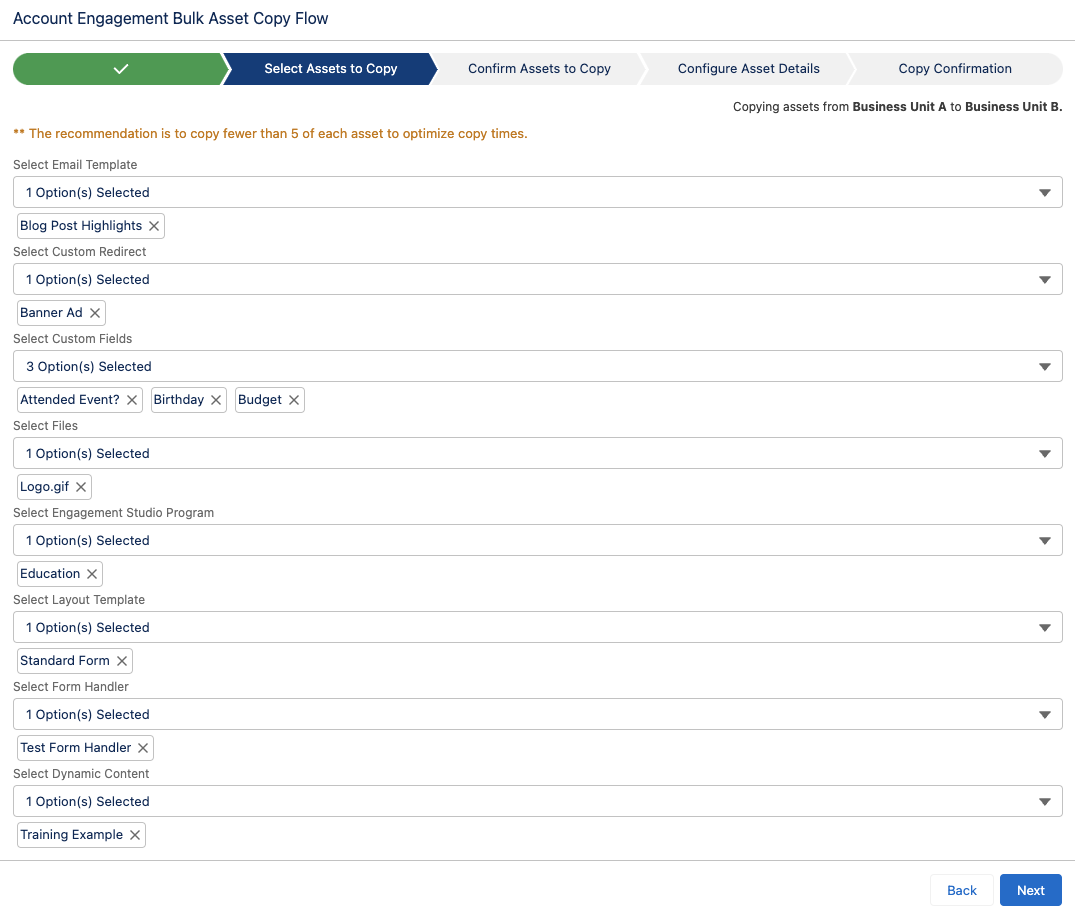
With the Summer ‘23 release, we can now use Salesforce Flow to copy:

  • Custom fields
  • Engagement studio programs
  • Files
  • Custom redirects
  • Email templates
  • Form handlers
  • Layout template
  • Dynamic Content

Note: This blog post was updated on November 2, 2023, to include the three new Assets types that were recently added to the flow!

Access the Account Engagement Business Unit Bulk Asset Copy Flow

During the Summer ‘23 release, your org should have received a new flow called “Account Engagement Bulk Asset Copy Flow.” 

To find this Flow: 

  1. In Salesforce, navigate to Setup > Flow
  2. Select the Account Engagement Bulk Asset Copy Flow
  3. From the Flow Builder, select Run

Set up the Flow

The flow itself is pretty straightforward. It will walk you through selecting your assets and setting the new asset details.

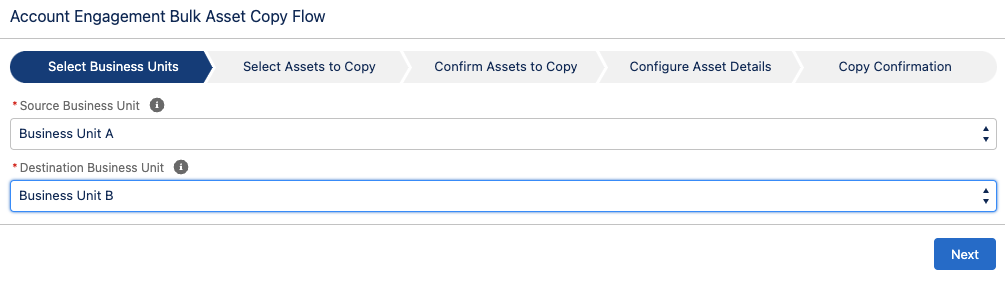
  1. Select your Source and Destination Business Units, select Next
  1. Select the assets to copy, select Next

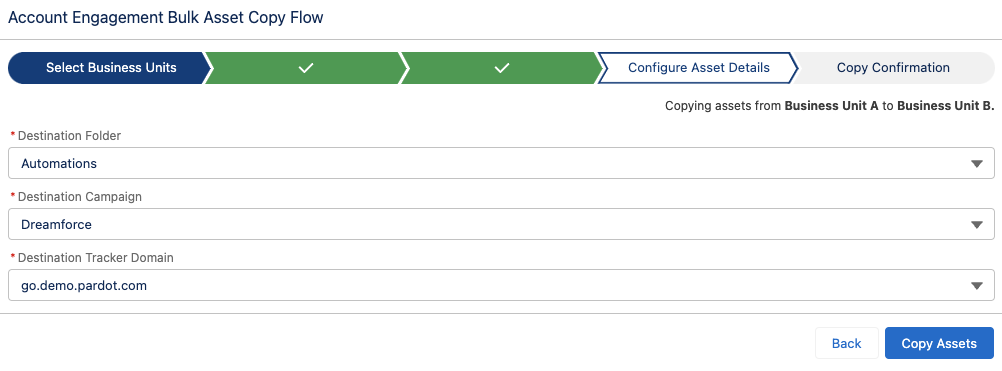
Note: Keep in mind, all assets selected here will be copied to the same Folder, will be assigned the same Campaign, and use the same tracker domain. You may want to run the Flow multiple times if your new assets need to have different settings. 

  1. Confirm the Assets, select Next
  2. Select your Folder, Campaign, and Tracker Domain for your new assets
  1. Select Copy Assets

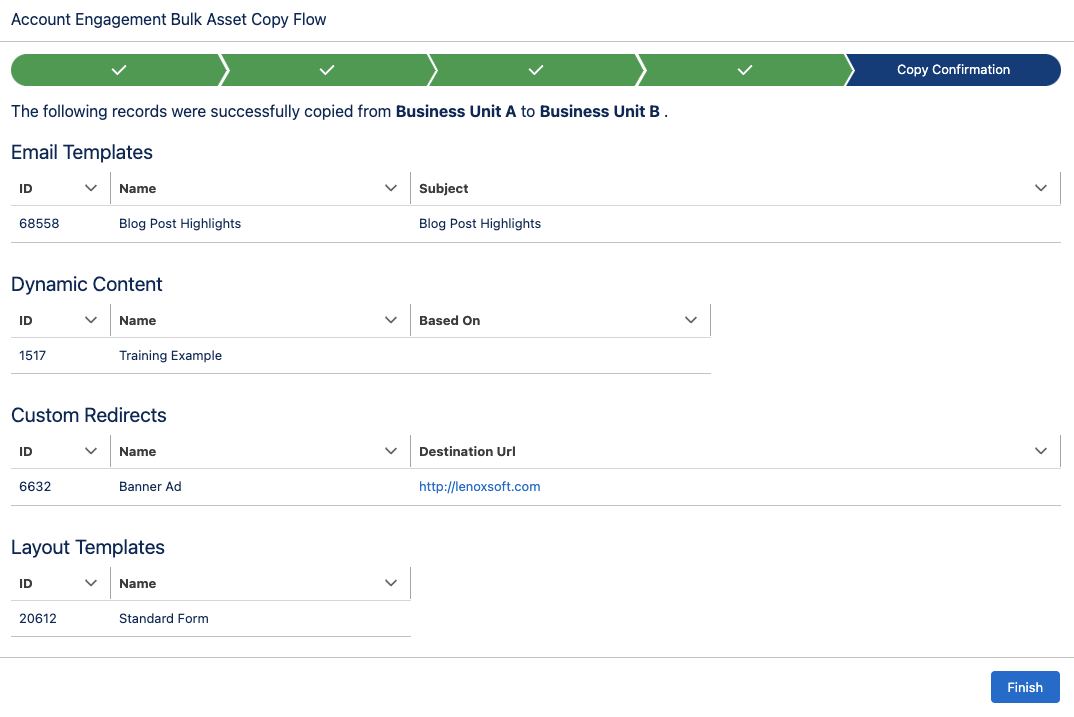
Bulk Asset Copy Confirmation Screen

If your action was successful, you will see the list of assets created on the Confirmation screen.

You don’t get an error message if your action was unsuccessful, but your confirmation screen won’t have any/all assets listed.

Considerations for Using Business Unit the Bulk Asset Copy Flow

Since this is a brand new capability for Account Engagement, there are some details and settings that do not come over when copied. I thoroughly tested each asset type and below are the considerations that I found. 

Custom Fields

When you copy custom fields from one Business Unit to another, only the following information comes over

  • Field Name
  • Field API Name
  • Field Type

The field’s mapping to Salesforce, Salesforce sync behavior, predetermined values (for dropdowns, radio buttons, etc.), and optional settings will not be configured.

Email Templates

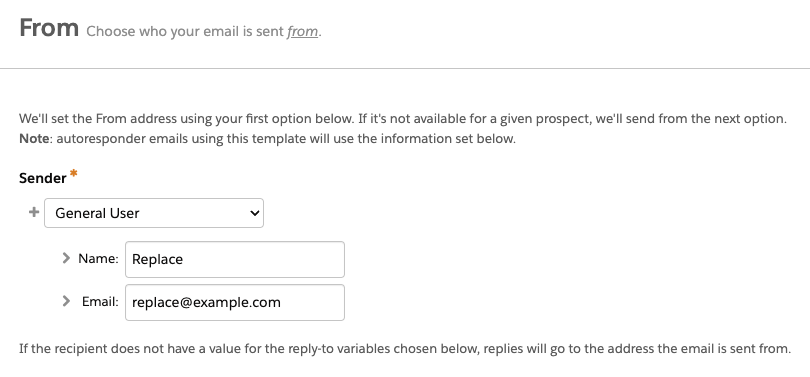
  • When copied, the email sender will be replaced by a General User with the email [email protected]. This applies even if you have a sender hierarchy specified using “Assigned User” and ‘Account Owner.”
  • Email Templates containing Dynamic Content will not copy over.  This is because dynamic content is unique to the Business Unit. Even if you have the same Dynamic Content in each Business Unit, they will have a different asset ID and merge tag. 
  • Watch for email template nuances between BUs. If you copy an email template from Business Unit A to Business Unit B, make changes to Business Unit A’s template, then copy the template from Business Unit A to Business Unit B again, the flow will not update the existing template in Business Unit B. Instead it will create a brand new email template with the updated changes. 

Files

During my testing, I was only able to get image files to copy over view the flow. I tested .pdf, .ics, and .css files with and without Completion actions and was unable to get anything but images to successfully copy. 

Engagement Studio Programs

  • When you copy an Engagement Studio Program (ESP) to a new Business Unit, only the ESP structure is copied. The Recipient List, Suppression lists, Send days/times, and “Allow prospects to enter more than once” settings do not come over and will need to be reconfigured in the new Business Unit.
  • The assets specified in a Trigger or Action node, such as email templates, landing pages, and forms, will need to be reselected in the new ESP. However, the number of wait days specified in the node will copy over. 
  • If an Action node looks at a Prospect field (i.e. Prospect default field “Job Title” is not blank) and that field is in both business units, then the node will be copied to the new ESP with the field and value/settings specified. If the field does not exist in both business units, then the Action node will still be in the ESP but the field and value/settings will need to be reconfigured. 

Custom Redirects

When a Custom Redirect is copied from one Business Unit to another, the redirect’s Completion Actions will not copy over, however, the Google Analytics Parameter values do.

Layout Templates

If you use Dynamic Content within your Layout Templates, keep in mind that the Dynamic Content will not come over when the Layout Template is copied. You can copy the Dynamic Content over as a separate asset, but you will still need to edit the Layout Template in your destination Business Unit to make sure it has the correct Dynamic Content ID. 

Form Handlers

If your Form Handler only uses Default Prospect Fields, then all of the fields will come over when the Form Handler is copied. However, if your Form Handler uses any Custom Prospect Fields, only the “Email” field will be present in the Form Handler Copy. In my testing, this was true even if the Custom Prospect Field was in both Business Units. When copied, the Success Location and Error Location details will copy over to the new asset. Completion Actions do not copy over.

Dynamic Content

If the Dynamic Content depends on a Custom Prospect Field that is not already in the destination Business Unit, the copy will fail. To copy over Dynamic Content that depends on a new custom field:

  1. Run the Bulk Asset Copy Flow to first bring over the Custom Field
  2. Once finished, run the flow again to bring over the Dynamic Content
    • If you try to create both the Custom Field and the Dynamic Content in the same run, it will fail. 

Now it’s even easier to work with Account Engagement Business Units

This new Flow is a huge step toward making Business Units easier to set up and manage. My hope is that the capabilities of this Flow will continue to grow until we can make a near-identical copy of an entire Business Unit. 

What other capabilities would you like to see in this Flow? Let us know in the comments!

Handling multiple languages with Account Engagement (Pardot) forms has always been complex — especially when it comes to reporting. But there is a way to multi-language Account Engagement forms.

The traditional solution — one form per language — has its drawbacks. But it’s something that’s super important for companies that use Account Engagement on a global scale to do in a logical and user-friendly way. 

Today, we’ll explore a new, more efficient method that improves reporting and streamlines the translation process.

Challenges with traditional solutions for creating multi-language Account Engagement forms

There are a few ripple effects that we have to handle when we use multiple forms to realistically capture one set of data. 

First, we need a way of figuring out which form we want to display. Commonly this is done as a piece of dynamic content driven off a known Prospect field.

Next, we need to handle submissions for a single goal across multiple forms. The approach we take can vary depending on how complex our Automations and Reporting strategies are, and it all can add up.

A new solution for handling multiple languages

We can still work within the constraints of Account Engagement (Pardot) and leverage a common web development pattern of internationalization (or i18n for short). With the power of JavaScript, we can have one Account Engagement form and feel confident that our visitors will be able to have it in their language.

JavaScript and Handlebars.js

Before we dive into the actual code (honestly my favorite), it might be helpful to talk about what we are going to use.  We have a mix of a little bit of custom JavaScript with a common JavaScript library called HandlebarsJS, not to be confused with Account Engagement Handlebars Merge Language (HML).

The custom JavaScript takes the HTML that Account Engagement will render, look for the i18n placeholders and do a real-time replacement with the translations you have set up. This gives you full control over the wording and design in each language for every page.

Both HML and HandlebarsJS (by default) use double curly braces for wrapping placeholders. We’ve chosen to help differentiate between the two easily by specifying square brackets.  

Getting into the details

So as a super simple example, you can use the label [[i18n.firstname]] to have English, French, Spanish (or any other language you want) for the value {{Recipient.first_name}}.

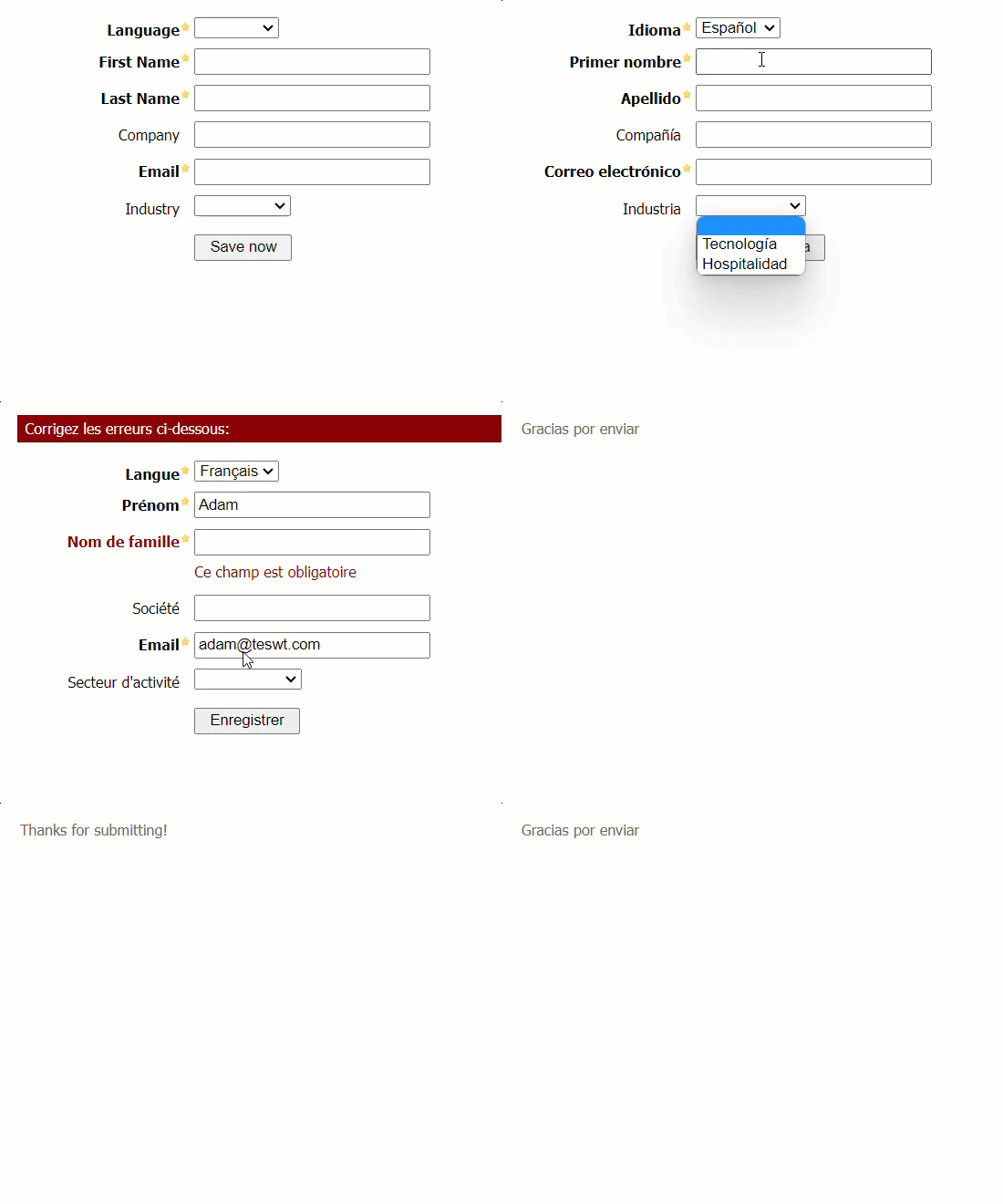
Example of single Account Engagement form supporting 3 languages

Ok, let’s show what this can look like. Here we have a demo form that supports three languages.

Pre-work to do for your multi-language Account Engagement forms

If you’ve previously filled out the form, we will render the form in the language you specified. If you haven’t, we’ll try to use your browser’s language. Form error messages and thank you content are all translated.

Back in Account Engagement, there are a few things that need to be done.

Here’s what to do:

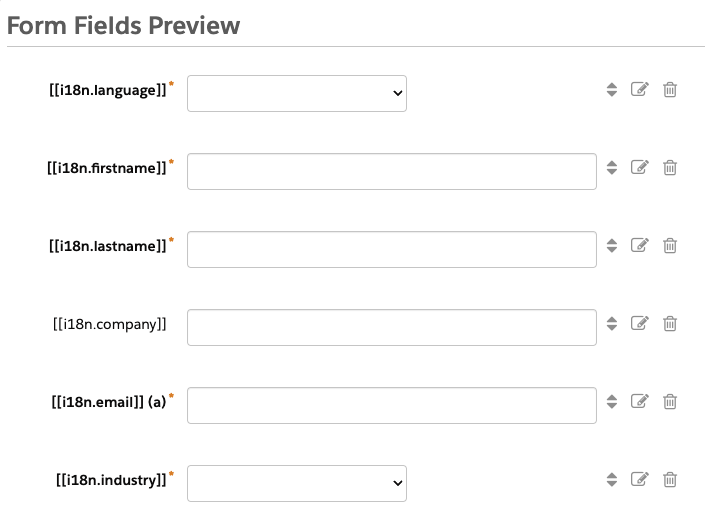
Step 1: Edit form fields – Each Form Field needs to be edited to use a label in the format [[i18n.TOKEN]] (where the TOKEN can be a field name or anything you like

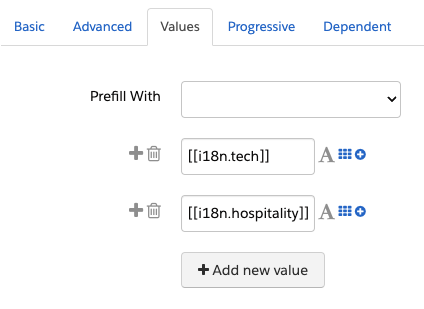
Step 2: Edit dropdown field values – Each Dropdown field value needs to be edited to use a label in a similar format

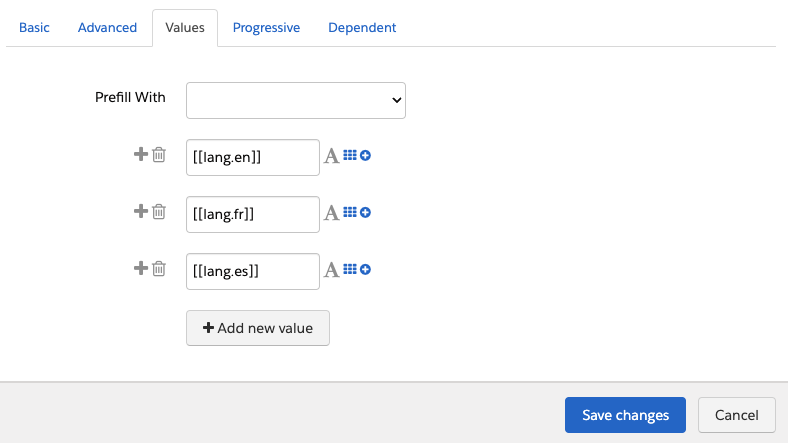
Step 3: Ensure dropdown fields store language code – The Form should have a Language dropdown field that stores the language code. Language choice labels should use a label in a slightly different format. It should use [[lang.CODE]].

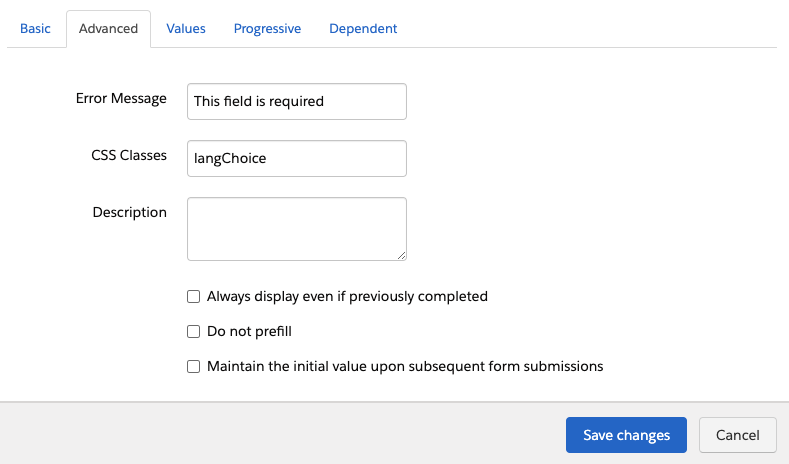
You’ll also need to add the CSS Class langChoice to this field:

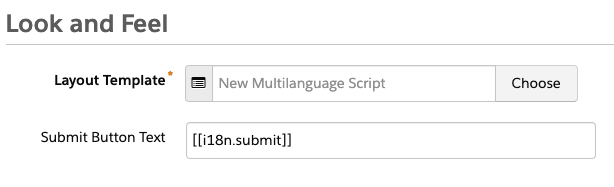
Step 4: Update the submit button text – Submit button text should be edited to use [[i18n.submit]].

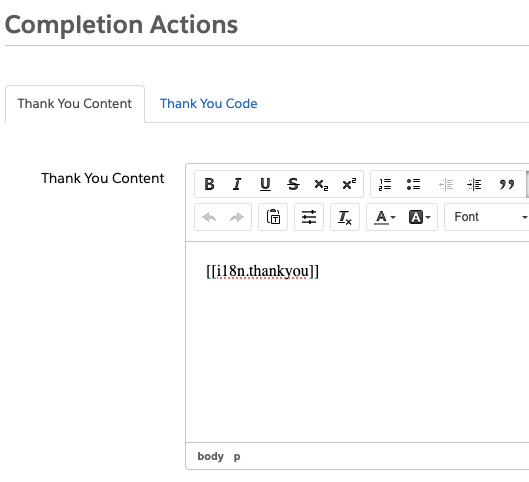
Step 5: Check thank you content – Thank you content should be edited to use [[i18n.thankyou]].

    Add JavaScript to the form

    Once you have all your labels set up, we need to actually add the JavaScript to the form.  There are a few ways you can do this and the approach will depend on just how reusable (and large) you want your JavaScript to be.

    In our example, we’ve placed the JavaScript in the Layout Template, which provides a balance of re-usability (can be used by multiple forms) and maintenance (common, but not all translations for the entire site).

    Ok, time for the code. I’ve split this JavaScript into three sections, but it can all be copy and pasted into a single <script> block in your Layout Template.

    Define languages the form will support

    First, we have a JavaScript object that defines the languages that we will be supporting, as well as the label of that language. Feel free to adjust this as necessary, just keep the structure intact.

    <script src="https://cdn.jsdelivr.net/npm/handlebars@latest/dist/handlebars.js"></script>
    <script>
    // the supported languages by this script
    const languages = {
        lang: {
            en: 'English',
            fr: 'Français',
            es: 'Español'
        }
    };

    Add the translations

    Next, we have all of the translations

    // the translations for each language
    const translations = {
      'en': {
        i18n: {
          firstname: "First Name",
          lastname: "Last Name",
          company: "Company",
          email: "Email",
          industry: "Industry",
          hospitality: "Hospitality",
          tech: "Tech",
          submit: "Save now",
          language: "Language",
          formErrors: "Please correct the errors below:",
          fieldError: "This field is required",
          thankyou: "Thanks for submitting!"
        }
      },
      'fr': {
        i18n: {
          firstname: "Prénom",
          lastname: "Nom de famille",
          company: "Société",
          email: "Email",
          industry: "Secteur d'activité",
          hospitality: "Hospitality",
          tech: "Technologie",
          submit: "Enregistrer",
          language: "Langue",
          formErrors: "Corrigez les erreurs ci-dessous:",
          fieldError: "Ce champ est obligatoire",
          thankyou: "Merci d'avoir soumis"
        }
      },
      'es': {
        i18n: {
          firstname: "Primer nombre",
          lastname: "Apellido",
          company: "Compañía",
          email: "Correo electrónico",
          industry: "Industria",
          hospitality: "Hospitalidad",
          tech: "Tecnología",
          submit: "Guardar ahora",
          language: "Idioma",
          formErrors: "Por favor corrija los siguientes errores:",
          fieldError: "Este campo es obligatorio",
          thankyou: "Gracias por enviar"
        }
      }

    For each token you want to be translated, you will need to add a translation for each language. Like how languages are set up, you can make any adjustments/additions you want… just keep the structure intact.

    Add the main functionality to apply the translations you defined

    Next, we have the main functionality. This handles the actual work of applying the translations we have defined already.

    function i18nForm(prospectLang) {
        document.addEventListener("DOMContentLoaded", function(event) {
            const brO = '{', brC = '}';
            let formErrors = document.querySelector('#pardot-form p.errors');
            if (formErrors != null) {
                document.querySelector('#pardot-form p.errors').innerHTML = `[[i18n.formErrors]]`;
                [...document.querySelectorAll('#pardot-form p.error.no-label')].forEach(node => {
                    node.innerHTML = `[[i18n.fieldError]]`;
                });
            }
            let notYou = document.querySelector('.email span.description');
            if (notYou != null) {
                let origHtml = notYou.innerHTML;
                notYou.innerHTML = origHtml.replace('Not', '[[i18n.notYou]]').replace('Click Here', '[[i18n.notYouClickHere]]');
            }
    
            // Get the original HTML of the form, replacing [[ with {{ and ]] with }}
            const originalHtml = document.querySelector('#pardot-form').innerHTML
                .replace(/\[\[/g, `${brO + brO}`).replace(/\]\]/g, `${brC + brC}`);
            // Compile the template with Handlebars
            const processTemplate = Handlebars.compile(originalHtml);
    
            // Get the browser language
            const browserLang = window.navigator.language.substr(0, 2);
            let formLangCode = '';
            let currentLangVal = '';
    
            // Dynamically map Pardot option values to language codes using innerHTML
            const pardotLanguages = {};
            const langNodes = document.querySelectorAll('.langChoice select option');
            langNodes.forEach(option => {
                let langKey = option.innerHTML.replace(/\[\[lang\.(.*?)\]\]/, '$1');
                pardotLanguages[option.value] = langKey;
            });
    
            // Determine the selected language in the dropdown
            langNodes.forEach(option => {
                if (option.selected && option.value !== '') {
                    currentLangVal = option.value;
                    formLangCode = pardotLanguages[option.value];
                }
            });
    
            // Determine the language to use
            let currentLangCode = formLangCode || prospectLang || browserLang;
    
            // Function to apply translations
            function applyTranslations() {
                let translatedHtml = processTemplate({ ...translations[currentLangCode], ...languages });
                document.querySelector("#pardot-form").innerHTML = translatedHtml;
                document.querySelector('.langChoice select').value = currentLangVal;
    
                // Handle language dropdown change event
                document.querySelector('.langChoice select').onchange = function () {
                    let selectedLang = pardotLanguages[this.value];
                    if (selectedLang in languages.lang) {
                        currentLangCode = selectedLang;
                        currentLangVal = this.value;
                        applyTranslations();
                    }
                };
            }
            applyTranslations();
        });
    }
    i18nForm();
    </script>

    Test and revise

    All that’s left to do is test it out, and then mold this example into what you need.

    Considerations

    Like any JavaScript examples you might find online, they are opinionated in approach. Making minor changes can sometimes break the code due to assumptions that might not be well documented/understood. I’ve left a bunch of console.log statements commented throughout the code to hopefully help you troubleshoot when things go wrong.

    One of those opinions is using the “i18n” and “lang” prefixes. We think this makes the placeholders easier to read, even if it slightly complicates the JavaScript object itself. Feel free to remove this if you want, just know to make the various adjustments.

    One Account Engagement form can handle all the languages you need

    If your company works with audiences who speak a variety of languages, then this is the perfect solution for you to simplify the way you build forms in Account Engagement. Our new approach simplifies translating Pardot Forms, improves reporting, and offers a better user experience for a multilingual audience.

    Still not sure how to approach your global marketing strategy? Then reach out to the team at Sercante for guidance along the way.

    Post updated: June 2024

    As a marketing administrator within Salesforce, it is essential to understand your audiences and create a winning audience segmentation strategy. Without segmenting your audience, you will target the same group of people each time. That can lead to increasing opt-outs, spam, and a direct impact on your sending reputation. 

    The goal of sending mass emails is to target the right audience so you provide value to the people who are likely to interact with your brand. And that’s exactly what audience segmentation accomplishes. 

    Use these strategies to segment your audience so you can deliver the right marketing messages to the right groups of people every time — no matter if you’re a Salesforce Marketing Cloud Engagement or Account Engagement user.

    Audience Segmentation Strategies for Marketers Who Use Salesforce

    Whether you are a Marketing Cloud Engagement (A.K.A. SFMC) Administrator or an Account Engagement (Pardot) Administrator, fundamental principles apply across the board when it comes to audience segmentation. 

    Below are tactics you can use within Salesforce Marketing Cloud Engagement and Account Engagement. 

    Who is actively engaging with your brand?

    Use web tracking, social, and ads to learn how visitors interact with your brand. You can compile a group of individuals to target based on clicks, form completions, and pages visited. 

    For example, if you have a visitor who clicks an ad on social media and is taken to your website, where they download the content that you promised them with your ad, you can make the assumption that the visitor is interested in that product.

    What preferences do your customers share?

    Let’s say you are sending an invitation for an upcoming webinar. Segment your target audience based on previous ad clicks, webinar attendees, or downloaded resources. By building an audience list based on shared preferences, you will see an increase in webinar registrations and attendance.  

    For example, look at the specific campaigns you’ve launched in the past. Think about how you can categorize the products or services that were the main focus. Maybe you had a marketing campaign to drive awareness about a product that would result in a one-time and low-cost purchase. And you had another campaign advertising a product that requires a high-cost ongoing purchase. The people who engaged with the high-cost product but didn’t necessarily purchase the item may be good candidates for a segmentation list that includes people with bigger budgets to potentially spend.

    Who are you actively targeting to attain as a new customer?

    If you could create a map of ideal customers, what attributes would they share? Is it a specific set of companies? Perhaps, it’s a specific product or service you can provide them? 

    Decide on those attributes and build your segmentation strategy and buyer personas. Target this audience and help sales close the deals on your ideal customer.

    Which individuals have expressly subscribed to what topics?

    Take advantage of your Email Preference Center. You can create targeted campaigns that run on an ongoing basis and continue to nurture your target audience based on their expressed interests. 

    Ensure that your Email Preference Center offers a variety of targets, including product interests and types of communication. For example, the Sercante Email Preference Center allows email subscribers to sign up for only emails related to the services that interest them, like Salesforce consulting, integrations, or training.

    Suppress individuals based on a subset of criteria

    Counterintuitive to who you want to target with your email marketing, who do you want to ignore? Considering who you don’t want to receive a message from is as important as who should receive it. There will likely be a default suppression list, including competitors, employees, spam, etc., but you may also want to create specific one-off suppression lists too, such as email frequency or inactive customers.

    Account Engagement (Pardot) Audience Segmentation Best Practices

    Now that you have a few ideas on strategy, let’s talk about building segmentation within Marketing Cloud Account Engagement (Pardot) . Let’s review the list creation options and the different ways to add Prospects. Keep in mind, there may be times when you use multiple list types for a single send.

    Static Prospect Lists

    Static lists are controlled by you, the administrator. You set the rules and criteria for who joins and comes off the list. There are several ways to add to a static list, both manual and automated. 

    Imports

    The most common way for building a static list is via prospect imports. When importing, you have the option to import via CRM ID or Email. If the list has existing prospects, you want to import via CRM ID. If they are brand new prospects, use the import via email option. 
    Within the import wizard, you will be given the option to add to a list via an existing list or by creating a new list. Once complete, review the import report for the total number of prospects created or updated.

    Table Actions

    Adding a subset of prospects that already exist within Pardot can be done via Table Actions

    To add a subset using Table Actions, follow these steps:

    1. Navigate to your prospect table.
    2. Set your filters, such as view and creation time frame.
    3. Check the boxes of those you want to add to the static list
    4. Use the table action at the bottom of the table and “Add to List.”

    Public Lists

    Public Lists can be created as dynamic or static, but most default to static and are controlled by the Email Preference Center. These lists are subscribed to directly by the Prospect. Individual Prospects are able to subscribe and unsubscribe as they see fit based on their preferences.

    Completion Actions

    The “Add to List” completion action exists on most Pardot assets, including forms, form handlers, files, custom redirects, emails, and page actions. Completion Actions include both standard and conditional and allow you to set specific parameters when adding to a list. 

    Automation Rules

    An automation rule is criteria-based. You can set multiple criteria pertaining to a Prospect by using “Match All” and/or “Match Any” statements. Based on this criteria, you then set an action, such as “Add to list,” which will populate a static list. 

    The good thing about using an automation rule to populate your static lists is that they are retroactive, so they will collect past and present matches and take action on them.

    Dynamic Prospect Lists

    Similar to automation rules, dynamic lists are criteria-based. Unlike static lists, these are outside of your control. 

    Once you set the criteria, the list will automatically add or remove prospects based on that criteria. These lists cannot be manually manipulated.

    Campaign Membership

    While there are several settings and criteria you can use to create dynamic lists, one of the most popular strategies is to build lists based upon campaign membership. This is especially beneficial when collaborating with sales teams. 

    If your sales team is adding Leads and Contacts to Salesforce Campaigns, perhaps based on a recent trade show, you can build a dynamic list in Pardot based on that campaign membership.

    Marketing Cloud Engagement Segmentation Best Practices

    Lastly, let’s look at how to best create segments in Marketing Cloud Engagement. Subscriber data can come from many different sources into Marketing Cloud and can be stored in two ways: 

    1. Lists
    2. Data Extensions

    Lists

    A List is a collection of your subscribers. Lists are best used when you have a small dataset (500,000 or fewer subscribers) that you need to manage quickly and efficiently. 

    Lists share a format with your All Subscribers table and typically include Email Address, Subscriber Key, Status and any profile attributes you have created in your account. 

    Creating a List

    To create a List:

    1. Navigate to the Subscribers tab within Email Studio.
    2. Within the My Lists folder structure, you can click ‘Create’ at the top right of the page to create a new List, assigning a name, external key, description, and placing the list in any folder you have created. 

    Once the list is created, it can be populated by manual or automated import.

    Groups

    A Group is a filtered list. Creating a Group allows you to build a subset of subscribers from a list based on rules or by splitting list subscribers by count or percentage of the total list being filtered.  

    The rules used to build a Group can be saved as a Data Filter, which can be used to automate the process to refresh membership in your group.

    Creating a Group

    To create a Group:

    1. Navigate to the Subscribers tab within Email Studio
    2. Within the My Groups folder structure, you can click ‘Create’ at the top right of the page to create a new group. 
    3. Select whether the group you are creating is a Filtered Group or Random Group, then select the source List. 
    • When creating a Filtered Group, drag any attributes or measures from the left side panel to the canvas and define the filter criteria. 
    • To create a Random Group, after selecting Random Group and your source list, click ‘Add Group’ to add as many random splits as needed to get the desired number of random segments.
    1. Once your filters or splits have been properly configured, click ‘Save & Build’ to create and populate your groups. 

    Once created, unless automated using a data filter, Groups need to be refreshed manually to be up-to-date.

    Data Extensions

    Data Extensions are more complex than lists and offer greater flexibility in managing contact data. While lists can only contain Subscriber information, Data Extensions are more flexible and can contain relational data. 

    Data Extensions data can be filtered in a similar fashion to Groups, and can also be combined with or filtered by data in other Data Extensions using SQL activities in Automation Studio.

    Creating a Data Extension

    Follow these steps to create a data extension:

    1. On the Subscribers tab in Email Studio, select a folder within the Data Extensions folder and then click ‘Create’ at the top right. 
    2. Here, you select which type of Data Extension you want to create. Standard Data Extensions require you to define the fields of your Data Extension. 
    3. After defining the name and data retention policy for your data extension, you must define the fields in the table, choosing from several data types, including Text, Date, Number, and Boolean. You can also set the length and default value for each field. 
    4. Once you have defined all fields needed in your Data Extension, click ‘Create’ to finalize your Data Extension. 

    This Data Extension can now be populated by manual or automated file imports, API calls, SQL Query activities, or AMPScript.

    Filtered and Random data extensions function in much the same way as Groups. Filtered Data Extensions require selection of a source Data Extension, then definition of any filter criteria. Random Data Extensions will produce a number of data extensions of randomly split rows based on the number of splits defined in the setup.

    Go forth and segment your audience like a Salesforce marketing pro

    Marketing Cloud offers multiple routes to implementing segmentation and audience targeting, regardless of platform. By taking into consideration your audience personas, incorporating key email marketing segmentation strategies, and applying the correct segmentation tools, you will be able to spread brand awareness swiftly.
    Have any cool stories of marketing segmentation success? Tell us in the comments. Or reach out to the team at Sercante to get help with your audience segmentation strategy.

    Thank you to Zachary Norman for contributing to this post!

    Email marketers swim in constant data. While analytics often inform decision making, the flip side of that coin means your competitors also use data to do the same. To truly ensure campaigns remain fully optimized for engagement, conversions, and ROI, you need to look beyond the simple email metrics everyone tracks.

    Simple statistics such as open and unsubscribe rates definitely have their place, but a deeper dive into what’s impactful and what needs improvement gives you and your teams the understanding necessary to drive effective marketing campaigns.

    In this post, we look at two other advanced analytics you can use to further refine content. Then, we’ll dive into two ultra-advanced analytics that may be harder to source but offer practical, personalized insights on an individual subscriber level.

    Email Metric 1: Complaint Rate

    Unsubscribes tend to indicate when recipients find messages irrelevant, but when contacts mark content as spam it indicates major antagonism against your content. Measuring the complaint rate, or the percentage of times recipients mark your outbound emails as spam, ensures your team has a grasp on when content has become dangerously misaligned from consumer expectations.

    Nearly half of all emails sent get classified as spam, so to hit the inbox marketers need to know how to differentiate between content subscribers will find valuable or irrelevant.

    What Makes Spam Indications Unique?

    Spam designations happen for many reasons, but some of the most common stem from a disconnect between the marketer and contact.

    • The recipient cannot easily find a way to unsubscribe (e.g., the link is in small font or a similar color to the background)
    • There is no option to unsubscribe (e.g., emails from sales reps marked as spam will affect the entire company domain)
    • Marketers do not respect unsubscribe requests and continue to send unwanted communications
    • Oversaturated contacts opt to skip an unsubscribe attempt and directly mark a message as spam

    While some of these may not necessarily result from marketing decisions, the unique danger of spam designations rather than regular unsubscribes affect every team’s future campaigns. High spam rates discredit a brand and more importantly cause future emails to go straight to spam folders.

    Overcoming Poor Email Deliverability

    Marketers must keep the complaint rate low to maintain a good sender reputation and to avoid email providers marking content as spam. Email marketers generally accept a complaint rate of less than 0.1 percent, while a rate above 0.5 percent often indicates issues with email content or list quality.

    To avoid this, marketers can take several steps to reduce complaint rates and boost deliverability. Here are some best practices to consider.

    • Permission-based email lists: Only source subscribers who have given explicit permission to receive emails through a confirmed opt-in process. Avoid buying email lists, as these often contain contacts who haven’t opted in to receive emails from your organization.
    • Segmented email lists: Personalizing email lists based on subscriber behavior, demographics, or interests provides recipients with relevant content they are more likely to engage with, reducing the likelihood of spam designations while boosting conversion rates.
    • Engaging subject lines and content: A/B test and experiment with email subject lines that accurately describe the content of the email while ensuring the content doesn’t mislead or come off as overly promotional. Engaging content typically includes useful tips, exclusive discounts/promotions, or relevant industry insights.
    • Professional designs and mobile-optimized emails: Seeing as how the majority of emails are now opened on mobile devices and younger consumers prefer mobile shopping and user experiences, brands need to give the right first impression with clean-looking emails optimized for mobile as well as desktop engagements.
    • Include an easy-to-find unsubscribe link: Sometimes it’s better to cut your losses rather than risk long-term damage. Make it easy for contacts to opt out with a noticeable unsubscribe link in the footer of emails, otherwise you incentivize spam designations. The good news – if you follow the above steps, the risk of unsubscribes is low.

    Be sure to consistently monitor campaigns after the fact for further insights. When you do encounter feedback such as spam complaints, unsubscribes, and email replies, respond in a timely and professional manner to not only build trust with subscribers but also spot any developing issues.

    Email Metric 2: Event Lag

    In a utopia, subscribers receive communications and immediately convert. Unfortunately, that rarely does happen, so marketers need to investigate whenever a delay between send time, open, and click happens. Event lag, which measures the time between these milestones, provides marketers with insights into content effectiveness.

    You can easily measure event lag: just subtract the time at which a contact took the desired action (e.g., link click, website purchase) from when the email was sent. For campaigns across time zones, adjust expectations to account for the difference. You can also swap conversion time for open time(s). With this data, you can understand whether content prompts immediate action or leaves an email wasting away in subscriber inboxes.

    According to a Campaign Monitor study, the median click-to-open rate, which tracks how many subscribers who opened an email went on to click a link, across all industries clocks in at around 10.5 percent. Campaigns that perform below this benchmark should make good candidates for further speculation into event lag and supplemental analysis.

    Creating More Actionable Emails

    Improving subscriber response times is crucial to optimal engagement, conversions, and customer satisfaction. Here are some tips to improve response times in your marketing emails.

    • Scrutinize your offers: Event lag times vary depending on the type of desired action. For example, consumers often take longer purchasing high-ticket products compared to low-cost items or requests. Therefore, if lengthy event lag times hold back your campaigns, switch up your calls-to-action to encourage easier conversions. For example, a B2B SaaS company can lower the stakes of their email CTA by switching from a demo request to a product page that lets recipients make decisions at their own pace.
    • Adjust timing: Sometimes event lag stems from an easily determined source — timing. If you find most emails to certain geographies have extended lag times, then since the content clearly gets clicks, adjusting to more palatable local send times could be the necessary fix.
    • Automated emails: Implementing automated follow-up email campaigns to welcome new subscribers, encourage action on abandoned carts, or send personalized behavior-based recommendations take advantage of recent positive engagements to foster immediate action.
    • Segmented email lists and content: Again, sending personalized emails based on subscriber behavior (for example, see above) or preferences creates more relevant experiences, improving response time.

    Ultimately, the most important factor is to track and analyze your event lag data regularly, using that information to optimize your email campaigns over time to improve engagement and conversions.

    Now that we’ve established advanced metrics to determine who is most/least engaged, let’s take a look at how to apply insights to your most radical subscribers.

    Email Metric 3: Most-Engaged Subscribers

    Every brand loves their MVPs, but are you doing enough to truly maximize the value they bring to your organization?

    The Pareto Principle notes roughly 80 percent of sales come from just 20 percent of customers. Knowing this, maximizing loyalty and upsell opportunities among your most-engaged subscribers becomes crucial for marketers.

    How to Recognize

    To determine which subscribers have the highest brand loyalty, aggregate the following metrics.

    • Open Rates: The subscribers who consistently open your emails clearly find value in the content you send. Look at how often contacts open emails (and when they don’t) at an individual level to gain future segmentation insights.
    • Click-Through Rates: Use a similar approach for click-through statistics. Subscribers who consistently follow calls-to-action trust your brand.
    • Conversion Rates: Identify the subscribers who consistently take the desired actions of your emails. You can further segment contacts based on what actions they take post-click (e.g., those who purchase a certain product).

    Create a scoring system out of these metrics that ranks subscribers based on their level of engagement. To do so, assign a score to each metric, add up the scores for each subscriber, then rank subscribers based on their total score. Going forward, target the most-engaged subscribers with personalized content or special offers to encourage continued engagement.

    Priming for Further Action

    Once you’ve determined your most-engaged subscribers, foster further conversions and long-term brand loyalty with the following strategies.

    • Personalized content: Segment your most engaged subscribers and personalize your content to cater to their specific desires. Effective segmentations pull data from past purchase history, browsing behavior, and engagement to create more relevant content that drives repeat conversions.
    • Exclusive offers and promotions: Reward your most-engaged subscribers with exclusive offers and promotions, including early access to sales, discounts, or freebies. These can even become personalized, such as promos for birthdays or anniversaries.
    • Ask for feedback: Use your most-engaged subscribers as a focus group to gather feedback on new products or services, website updates, or other business initiatives. This feedback from your best revenue stream identifies pain points and areas to improve, and fixing these shortcomings minimize the risk of churning your other subscribers.
    • Encourage social sharing: Take advantage of strong brand loyalty to encourage word-of-mouth sharing through social media or conversations with friends and family. These campaigns expand your reach and help attract new subscribers who are likely to engage in a similar manner.

    Engagement is a two-way street, so ensure you continue to engage your brand’s most loyal followers with creative and personalized communications. In the long run, these customers become your organization’s foundation.

    Email Metric 4: Least-Engaged Subscribers

    Finding ways to elicit just an open from your least-engaged subscribers, on the other hand, fills marketers with migraines. These contacts have high event lag (or no engagement at all) and are at high risk to increase your complaint rate.

    Knowing this, marketers must discern when to retarget low-engaged subscribers and when to remove them from lists altogether. With email deliverability and brand reputation at stake, list quality trumps quantity.

    Improving relationships with your least engaged subscribers is a tall task, but several strategies can reset the relationship.

    • Segmented email lists: Notice a theme? Build audience segmentations based on engagement levels, and use this info to create campaigns that target your least-engaged subscribers. Use data such as their past purchase history or browsing behavior to create personalized messages tailored to these groups’ interests that resonate and drive conversions.
    • Re-opt-in campaigns: A re-opt-in campaign involves sending an email asking if identified subscribers still want to receive your emails and allowing them to confirm their subscription. This measure helps clean up email database and ensures you only target subscribers interested in hearing from you.
    • Evaluate email frequency: If you’re sending too many emails to your least engaged subscribers, they may tune out or unsubscribe. If you see high unsubscribe or complaint rates, evaluate how to reduce email frequency, reprioritize campaigns, or change the timing of email sends to see if engagement levels improve.
    • Prioritize: Multiple teams sending multiple email campaigns to the same contacts in theory increase the likelihood of conversion, but in practice it leads to marketing fatigue and high unsubscribe rates. Develop a system for campaign prioritization to ensure subscribers do not disengage due to an overwhelming amount of messages.
    • Incentives and promos: For true holdouts, consider offering incentives such as personalized discounts or freebies to rekindle interest in your brand and increase the chances of future engagement.
    • Different types of content: Try experimenting with different types of content, such as videos, interactive quizzes, or infographics, to see what resonates with your least-engaged subscribers. This keeps your content fresh and encourages continual engagement.

    Overall, re-engaging with your least engaged subscribers in email marketing can take time and effort, but by focusing on personalized content, segmentation, and incentives, you can increase the chances of them engaging more with your brand over time.

    Final Thoughts

    As with all things email marketing, knowing how each subscriber interacts with your messages informs how to best continue each relationship. To really understand who is at risk for dis-engagement, monitor in-depth trends like complaint rate and event lag, so you have an accurate and fresh view of which campaigns resonate and which ones alienate.


    It all starts with audience segmentation. If you feel your emails lack the personalization that drives action and conversions, learn how DESelect Segment empowers marketers of all technical abilities to create complex, personalized audiences in half the time.

    The surest way to get a reaction from any Salesforce Admin is to mention multi-select picklists. They are notoriously hard to report on and can be challenging at times. However, there are times when more than one value is needed. 

    Multi-select picklists can also cause quite a few issues for Marketing Cloud Account Engagement (Pardot) Admins. In this guide, we’ll discuss the proper way to create, sync, and update multi-select picklists in Account Engagement.

    Field Types and Compatibility

    Field types between Salesforce and Account Engagement don’t always behave the same way. Before we address how to work with multi-select picklists, we first need to understand field types and compatibility.

    Account Engagement

    • Checkbox – Allows a prospect to select multiple options from a list of values.
    • Dropdown – Prospects can select a single value from a picklist.
    • Multi-Select – Prospects can select multiple values from a picklist.
    • Radio Button – Allows a prospect to select a single option from a list of values.

    For more information, see the complete list of Account Engagement Prospect Field Types.

    Salesforce

    • Checkbox – A single select field that is used to indicate true or false.
    • Picklist – Allows users to select a single value from a defined list.
    • Picklist (Multi-select) – Allows users to select multiple values from a defined list.

    For more information, see the complete list of Salesforce Custom Field Types.

    The first thing to note is that checkboxes are multi-select in Account Engagement, but not Salesforce. This can lead to issues when syncing to a checkbox field in Salesforce. To avoid issues, set your field type to radio button in Account Engagement when syncing to a Salesforce checkbox (for more information see – Mapping Pardot checkbox fields to Salesforce checkbox fields).


    The next thing that you’ll notice is that Account Engagement has two fields that allow users to select multiple values – checkbox and multi-select. So what’s the difference and how should each be used? I’m glad you asked.

    • Checkbox – Select this option if you are creating a form in Account Engagement and you would like all values to be shown as individual boxes where prospects can check one or many.
    • Multi-Select – Select this option if you are creating a form in Account Engagement and would like the values displayed in a picklist where the user can select one or many options. 

    Salesforce and Account Engagement Field Compatibility 

    Salesforce Field TypeAccount Engagement Field TypeCompatible
    CheckboxCheckbox
    CheckboxDropdown
    CheckboxMulti-Select
    CheckboxRadio Button
    PicklistCheckbox
    PicklistDropdown
    PicklistMulti-Select
    PicklistRadio Button
    Picklist (Multi-Select)Checkbox
    Picklist (Multi-Select)Dropdown
    Picklist (Multi-Select)Multi-Select
    Picklist (Multi-Select)Radio Button

    Account Engagement Custom Fields

    Now that we are all on the same page related to fields and compatibility, it’s now time to create our custom fields in Account Engagement to hold the data. You have options when creating custom fields, so it’s important to consider the data in Salesforce and how you would like the information displayed on your Account Engagement forms before creating your field.

    Option #1 – Checkbox

    If the multi-select picklist in Salesforce has a small number of values (less than 5) and you would like all options visible to prospects when they view your form, checkbox is the field type for you.

    Example Form with Checkbox Field Type 

    Example Form with Checkbox Field Type

    Option #2 – Multi-Select

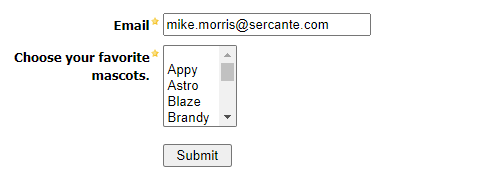
    If the multi-select picklist in Salesforce has a large number of values and displaying all on a form would not be practical, multi-select is the way to go.

    Example Form with Multi-Select Field Type

    Example Form with Multi-Select Field Type

    Additional Field Options & Considerations

    Regardless of the field type selected, there are a few options that I would highly encourage you to consider.

    Options that Should Always be Selected 

    • Keep this field’s type and possible values (for dropdowns, radio buttons, checkboxes) in sync with the CRM.
    • Use pre-defined values (for checkboxes, radio buttons, drop downs, and multi-selects).

    Record and Display Multiple Responses 

    The “Record and display multiple responses (useful for fields that are set to always be displayed like reporting issues)” box is not as clear cut as the other options mentioned above. Its use is really tied to how you are using the field and what data should be retained. 

    • Selected
      • Initial selections will be recorded in Account Engagement upon initial form completion and synced to Salesforce.
      • If form is completed again and new values are selected, they will be added to the prospect record in Account Engagement (and will sync to Salesforce). 
      • Values that were deselected during the second submission will still be included in the prospect record in Account Engagement and would also be visible in Salesforce. Essentially, the original selections from the initial form submission will be retained – even if they are not selected during the second form submission.
    • Not Selected
      • Initial selections will be recorded in Pardot.
      • If form is completed again and new values are selected, they will be added to the prospect record in Account Engagement (and will sync to Salesforce). 
      • Values that were deselected during the second submission will be REMOVED from the prospect record in Account Engagement and would NOT be visible in Salesforce after the records sync. 

    Account Engagement Forms

    We’re getting there! Now that we have decided how we want the multi-select picklist options to display on our form and we’ve created the custom field in Account Engagement, it’s time to build our form.  For this exercise, I’m going to assume that you are familiar with creating a form. If you need a quick refresher, check out the Create a Form article from Salesforce.

    Forms with Checkboxes

    The process of adding a checkbox field to a form is pretty straightforward. Simply click the +Add New Field button once you reach the “Fields” tab and configure the field. Be sure to set the type to Checkbox and make sure to click the Load Default Data button.

    Check the “required” box if you would like the field to be required. You can also select the “Always display even if previously completed” option on the “Advanced” tab, if you would like the field to always display.

    multi-select picklist info


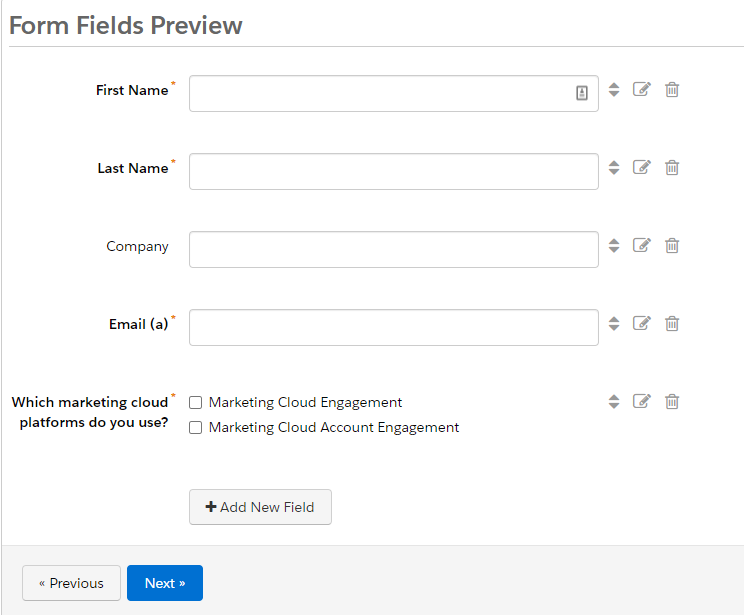
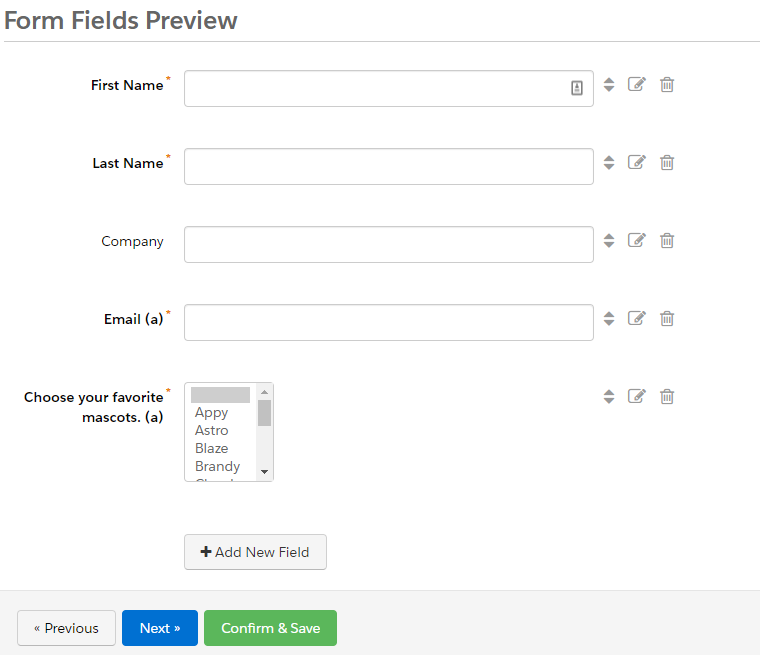
    After configuring, your form preview will look like the example below. Finish the form wizard for completing the additional tabs (Look and Feel, Completion Actions, Confirm & Save) and your form will be ready for use.

    form fields preview multi-select picklist

    Form with Multi-Select Picklists

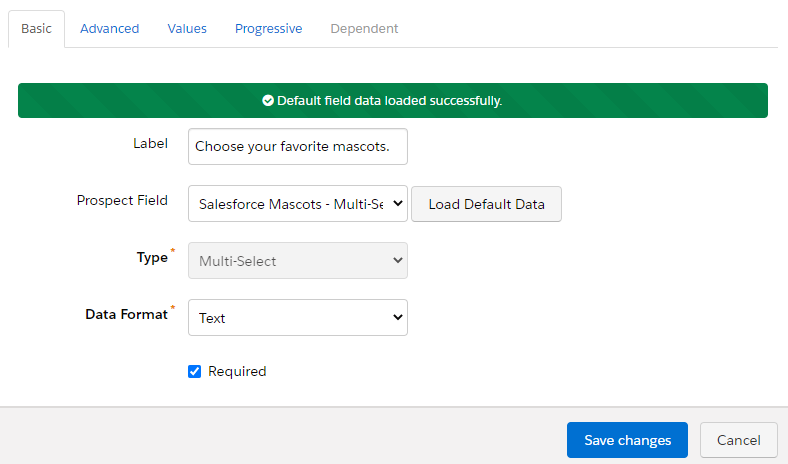
    The process for creating a form using a multi-select field is very similar to the process for creating one for a checkbox. The only real difference is the “Type” of field that you’ll select.

    Very quickly, you’ll notice that there is not a multi-select option in the “Type” list. This can be confusing, but is not an issue. When configuring the form, set the checkbox type.

    The magic will happen when you click the Load Default Data button. This will pull in the data from the multi-select field that you previously created and update the type selection to Multi-Select.

    Form with Multi-Select Picklists
    Form with Multi-Select Picklists


    After configuring, your form preview will look like the example below. Finish the form wizard for completing the additional tabs (Look and Feel, Completion Actions, Confirm & Save) and your multi-select form will be ready for use.

    Form fields preview

    Importing Multi-Select Picklist Values 

    When importing data into a multi-select field in Account Engagement, you must first decide on the desired action. Do you want to overwrite the current selections or do you want to add new selections to the existing data? This is a big one as it will determine if you should select the Record and display multiple responses (useful for fields that are set to always be displayed like reporting issues) option when creating your field. 

    Import – Record and Display Multiple Responses NOT Selected

    In this scenario, the Record and display multiple responses (useful for fields that are set to always be displayed like reporting issues) is not selected for either of my custom fields in Account Engagement.

    After completing both forms, my initial selections were recorded in Account Engagement and synced to Salesforce.


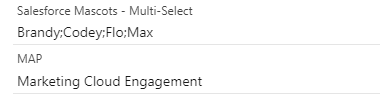
    The data below was then imported into Pardot. The “overwrite existing data” option was selected for the MAP field, but not not the Mascot field upon import.


    The result is that the MAP field was updated to Marketing Cloud Engagement, but no changes were made to the Mascot field. This makes sense as we opted to overwrite the data in the MAP field when we imported. Since we did not overwrite the Mascot data, the initial values were retained.

    Import – Record and Display Multiple Responses Selected

    In this scenario, the Record and display multiple responses (useful for fields that are set to always be displayed like reporting issues) IS selected for both of my custom fields in Account Engagement.

    After completing both forms, my initial selections were recorded in Account Engagement and synced to Salesforce.

    The data below was then imported into Pardot. The “overwrite existing data” option was selected for the MAP field, but not not the Mascot field upon import.


    The result is that the MAP field was updated to Marketing Cloud Engagement and that the additional values of Flo and Brandy were added into the Mascot field. This is exactly what we would expect. We told Account Engagement to overwrite the data in the MAP field so it did. Since we did not select “overwrite” for the Mascot field and the field was configured to record and display multiple responses, the new values were appended to the existing.

    salesforce mascots - multi-select picklist values

    Updating Multi-Select Picklist Values 

    When using automation rules to change data in multi-select picklist fields, you must first decide on the desired action – just like you did for list imports. Checking (or not checking) the Record and display multiple responses (useful for fields that are set to always be displayed like reporting issues) option when creating the field will impact the results in Account Engagement and Salesforce.

    Automation Rule – Record and Display Multiple Responses NOT Selected

    In this scenario, the Record and display multiple responses (useful for fields that are set to always be displayed like reporting issues) is not selected for either of my custom fields in Account Engagement. The values have also been reset to the values below as the starting point. We will now create automation rules to update the values. 

    Salesforce mascots multi-select picklist

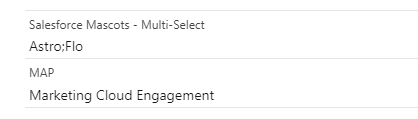
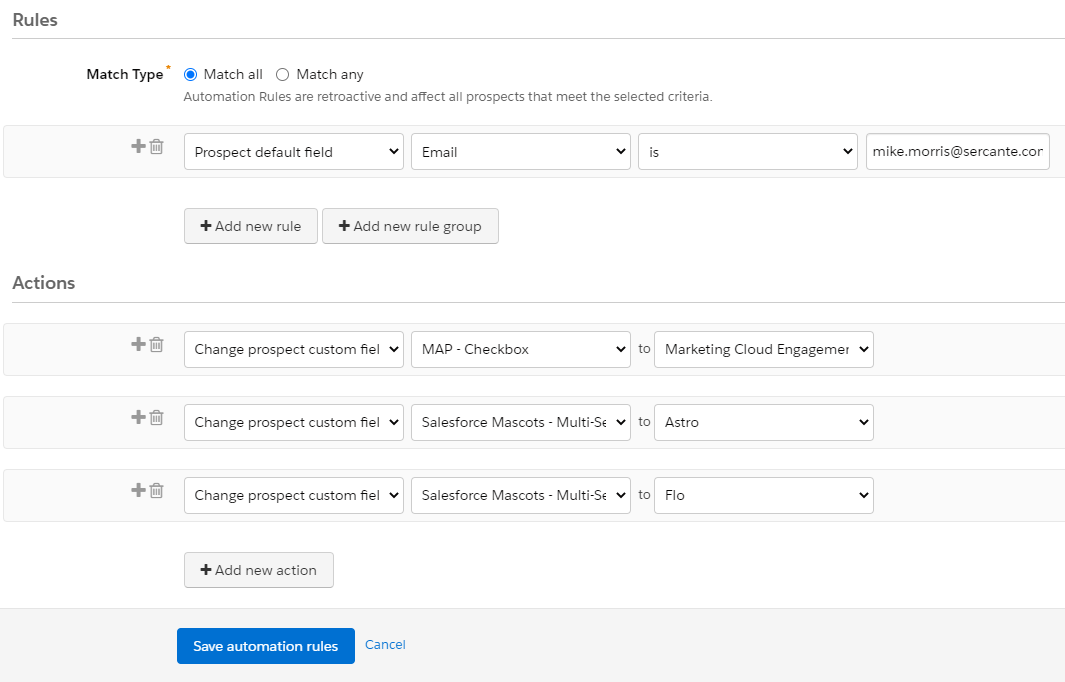
    For this exercise, I’m going to assume that you are familiar with creating automation rules. If you need a quick refresher, check out the Create an Automation Rule article from Salesforce. The automation rule below contains actions to update the MAP field to “Marketing Cloud Engagement” and the Mascot field to “Astro” and “Flo”. Let’s run and record our results.

    Multi-Select Picklists

    The result is that both fields were updated based on the actions included in the automation rule. This is the expected behavior based on the field configuration. The automation rule told Account Engagement to change the field values and that’s exactly what it did. 

    Form with Multi-Select Picklists 3


    Automation Rule – Record and Display Multiple Responses Selected

    In this scenario, the Record and display multiple responses (useful for fields that are set to always be displayed like reporting issues) IS selected for both of my custom fields in Account Engagement.

    The values have also been reset to the default values below.

    Form with Multi-Select Picklists 2

    We’re now going to recreate the exact same automation rule as we did earlier. As a reminder, the rule contains actions to update the MAP field to “Marketing Cloud Engagement” and the Mascot field to “Astro” and “Flo”. What do you think will happen this time?

    Form with Multi-Select Picklists

    If you said that both MAP fields would be selected and that the Mascot field would contain all four of our fiends (Astro, Codey, Flo, and Max), you would be correct. Since our fields are now configured to record multiple responses, the new values were added and the original values were retained.   

    Parting Words 

    In this guide, we tested a lot of situations that can result when working with multi-select picklists in Account Engagement to help add clarity to how these fields work. The decisions that you make related to how data should display on forms and the data that you would like to retain are two critical questions that must be addressed at the beginning of your project. These decisions will determine how your fields are created in Account Engagement and the data that will ultimately end up in Salesforce. 

    Further Reading

    Questions?

    Contact the Sercante team for help.

    No more posts to show